





All in One Dynamic Approval - Enterprise Edition

This module allows you to set up dynamic and multi-level approvals for invoices/bills, employee expenses, payslips, RFQs/purchase orders, and quotations/sales orders. Each document can go through multiple approval levels. Approvals for invoices/bills, purchase orders, and sale orders can be configured based on either the untaxed amount or the total amount. Designated users or groups receive email notifications for any bills or orders pending approval. Users are also notified when an invoice/bill, expense, payslip, purchase order, or sale order is approved or rejected. The 'Base Dynamic Approval' module serves as the foundation for the modules listed below.
Included Modules
Hot Features

Features
- You can set dynamic approvals on invoices/bills.
- You can set different approvals on different invoices/bills.
- Invoice/bill can be approved based on untaxed/ total amount.
- Invoice/bill can be approved by a particular user or group.
- Users get a notification when the invoice/bill approves or rejects.
- You can create a flexible approval process.
You have to define the minimum amount based on tax amount or without tax amount.

Approval Configuration: Setup approval levels based on minimum amount and user level. Also, select companies.

Approved Process, there are two types 1. User, 2. Group. Userwise means to define the person who approved the invoice/bill, in this wizard select the user.

Approve type 2. A group that means only specific groups of users will approve.

Go to the invoice/bill.

The user submits an invoice/bill for approval by pressing the 'Confirm' button. so that will automatically set the 'waiting for approval' stage. Auto fetch Approval Level based on configured approvals setup and minimum limit.

After being confirmed by the users, Auto set next level approvers in the Approval Info tab. If next approval is required.

The error message is given if no matching product is found.

There are two menus for
1. My Approval: Only access those invoices/bills which are
assigned to
him.
2. Waiting Approval: Users can access their invoice/bill which
is in the
Waiting for
Approval and Approved stage.

Approval Flow
There are 2 approvers the first approver approves the invoice/bill.

After approval by the approved person, Auto set the next level approvers in the Approval Info tab. If next approval is required.

Email notification sent to approvers for approval of invoice/bill.

Now the second approver approves the invoice/bill.

So invoice/bill is posted.

Email notification of approval looks like this.

Rejection Flow
There are 2 approvers If the first approver rejects the invoice/bill that means the invoice/bill will be canceled no more second approver is needed.

After clicking on the 'Reject' button, this wizard will pop up, here the approver has to add a reason for rejecting the invoice/bill.

After rejection, it auto-sets the rejection information in the 'Reject Order Info'.

Email notification of rejection looks like this.

Features
- You can set dynamic approvals on the employee
- You can set different approvals on different expenses.
- Expenses can be approved by a particular user or group.
- An employee gets a notification when the expense is approved or rejected.
- You can create a flexible approval process.
Approval Configuration: Setup approval levels based on minimum amount and users level. Also select companies.

Approved Process By, there are two types 1. User , 2. Group. Userwise means to define that person who approved the expenses, in this wizard select the user.

Approve type 2. Group that means only specific groups users will give approval.

Employee submits expense for approval by pressing the ‘Confirm’ button. so that the expense will automatically set the ‘Waiting for Approval’ stage. Auto fetch Approval Level based on configured approvals setup and minimum limit.

After confirmed by the user, Auto set next level approvers in the Approval Info tab. If next approval is required.

Email notification sent to approvers for approval expense.

The "My Approval" menu shows expense only those expenses are assigned
to him.
The approval person get the approval notification.

Approval Flow
There are 2 approvers the first approver approves the expense.

After approved by the approved person, Auto set the next level approvers in the Approval Info tab. If next approval is required.

Email notification sent to approvers for approval expense.

Now the second approver approves the expense.

So Expense is approved.


Email notification sent to approvers for approval expense.

Rejection Flow
There are 2 approvers If the first approver rejects the expense that means that expense will be canceled no more second approver is needed.

After click on the ‘Reject’ button, this wizard will pop up, here the approver has to add a reason for rejecting the expense.

After rejection, it auto set the rejection information in the "Reject Order Info".

Email notification of rejection looks like this.

Features
- You can set dynamic approvals on payslips.
- You can set different approvals on the different payslips.
- Payslips can be approved by a particular user or group.
- User gets a notification when the payslip approves or rejects.
- You can create a flexible approval process.
Approval configuration menu.

Approval Configuration: Setup approval levels based on minimum amount and users level. Also select companies.

Approved Process By, there are two types 1. User , 2. Group. Userwise means to define that person who approved the payslips, in this wizard select the user.

Approve type 2. Group that means only specific groups users will give approval.

User submits payslip for approval by pressing the 'Compute Sheet' button.

After pressing the 'Compute Sheet' button, the payslip will automatically set the 'Waiting' stage. Auto fetch Approval Level based on configured approvals setup and minimum limit.

After confirmed by the user, Auto set next level approvers in the Approval Info tab. If next approval is required.

Email notification sent to approvers for approval payslip.

Approval Flow
User gets a approval notification popup when a payslip is confirm.

The "My Approval" menu shows payslip only those payslips are assigned
to him.
There are 2 approvers the first approver approves the payslip.

After approved by the approved person, Auto set the next level approvers in the Approval Info tab. If next approval is required.

Email notification sent to approvers for approval payslip.

Now the second approver approves the payslip.

So payslip is done.

User gets a notification popup when a payslip approves.

Email notification sent to approvers for approval payslip.

Rejection Flow
There are 2 approvers If the first approver rejects the payslip that means that payslip will be canceled no more second approver is needed.

After click on the 'Reject' button, this wizard will pop up, here the approver has to add a reason for rejecting the payslip.

After rejection, it auto set the rejection information in the "Reject Order Info".

User gets a notification popup when a payslip approves or rejects.

Email notification of rejection looks like this.

Features
- You can set dynamic approvals on request for quotation/purchase order.
- You can set different approvals on different orders.
- PO/RFQ can approve based on untaxed/ total amount.
- PO/RFQ can be approved by a particular user or group.
- Users get a notification when the purchase order/RFQ approves or rejects.
- You can create a flexible approval process.
You have to define the minimum amount based on tax amount or without tax amount.

Approval configuration menu.

Approval Configuration: Setup approval levels based on minimum amount and users level. Also select companies.

Approved Process By, there are two types 1. User , 2. Group. Userwise means to define that person who approved the purchase order, in this wizard select the user.

Approve type 2. Group that means only specific groups users will give approval.

User submits RFQ for approval by pressing the ‘Confirm Order’ button. so that RFQ will automatically set the ‘Waiting for Approval’ stage. Auto fetch Approval Level based on configured approvals setup and minimum limit.

After confirmed by the user, Auto set next level approvers in the Approval Info tab. If next approval is required.

Email notification sent to approvers for approval RFQ.

There are two menus for
1. My Approval: Only access those RFQs
which are assigned to him.
2. Waiting Approval: user can
access own RFQ which is in Waiting for Approval and Approved stage.

Approval Flow
There are 2 approvers the first approver approves the RFQ.

After approved by the approved person, Auto set the next level approvers in the Approval Info tab. If next approval is required.

Email notification sent to approvers for approval RFQ.

Now the second approver approves the RFQ.

So purchase order created.

Email notification sent to approvers for approval RFQ.

Rejection Flow
There are 2 approvers If the first approver rejects the RFQ that means that RFQ will be canceled no more second approver is needed.

After click on the ‘Reject’ button, this wizard will pop up, here the approver has to add a reason for rejecting the RFQ.

After rejection, it auto set the rejection information in the "Reject Order Info".

Email notification of rejection looks like this.

Features
- You can set dynamic approvals on sale orders.
- You can set different approvals on different orders.
- Sale orders can approve based on untaxed/ total amount.
- Sale orders can be approved by a particular user or group.
- Salesperson gets a notification when a sale order approves or rejects.
- You can create a flexible approval process.
Approval configuration menu.

Approval Configuration: Setup approval levels based on minimum amount and users level. Also select companies.

Approved Process By, there are two types 1. User , 2. Group. Userwise means to define that person who approved the sales, in this wizard select the user.

Approve type 2. Group that means only specific groups users will give approval like sales admin, invoice advisor etc…

Salesperson submits quotation for approval by pressing the 'Confirm'
button.
After confirmed by the salesperson, Auto set next level approvers in
the Approval Info tab. If next approval is required.

Email notification sent to approvers for approval quotation.

Approval notification popup looks like below.

There are two menus for 1. My Approval: Only access those quotations which are assigned to him. 2. Waiting Approval: Salesperson can access own quotation which is in Waiting for Approval and Approved stage.

Tree view of 'My Approval'.

Approval Flow
There are 2 approvers the first approver approves the quotation.

Approval notification popup looks like below.

Waiting Approval menu and tree view.


Email notification sent to approvers for approval quotation.

Now the second approver approves the quotation.

So sale order created.

Email notification sent to approvers for approval quotation.

Rejection Flow
There are 2 approvers If the first approver rejects the quotation that means that quotation will be canceled no more second approver is needed.

After click on the 'Reject' button, this wizard will pop up, here the approver has to add a reason for rejecting the quotation.

After rejection, it auto set the rejection information in the "Reject Order Info".

Salesperson gets a notification when a sale order approves or rejects.

Email notification of rejection looks like this.

The SO status is change to 'Reject'.

Features
- You can set dynamic approvals on payment.
- Payments can be approved by a particular user or group.
- User gets a notification when a Payment approves or rejects.
- You can create a flexible approval process.
Go to invoice configurations => Click on payment approval configuration.
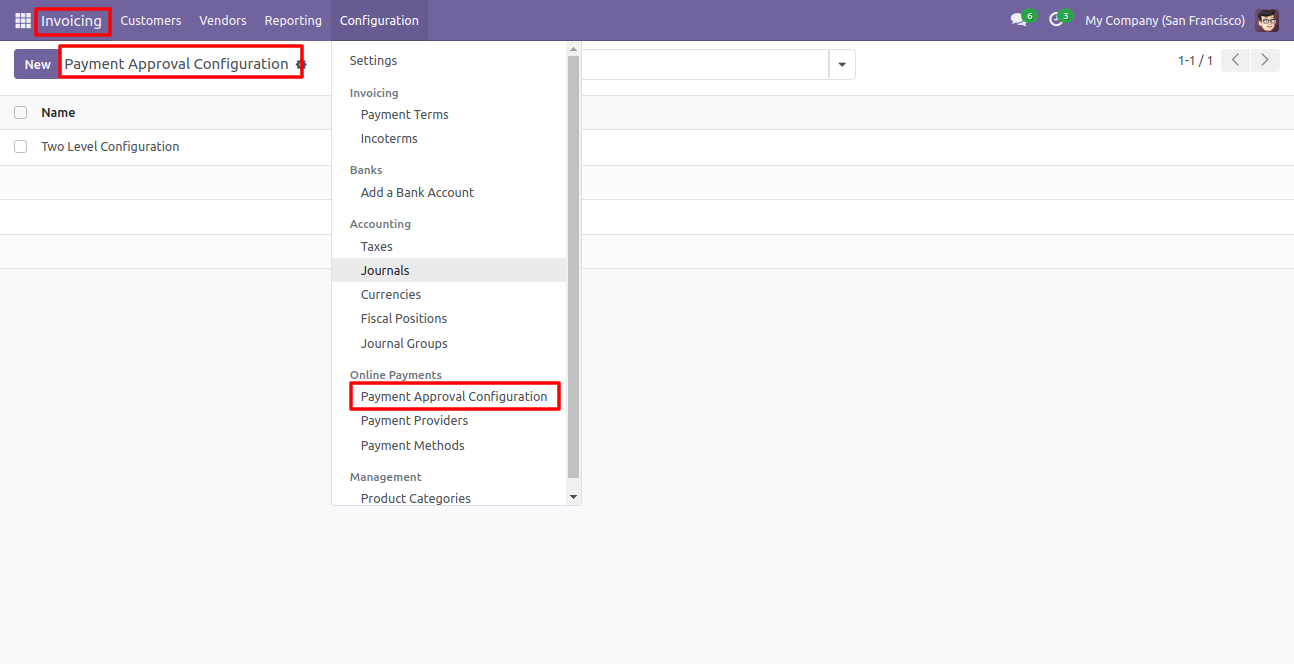
Approval configuration: Setup approval levels based on minimum amount and users level. Also select companies.
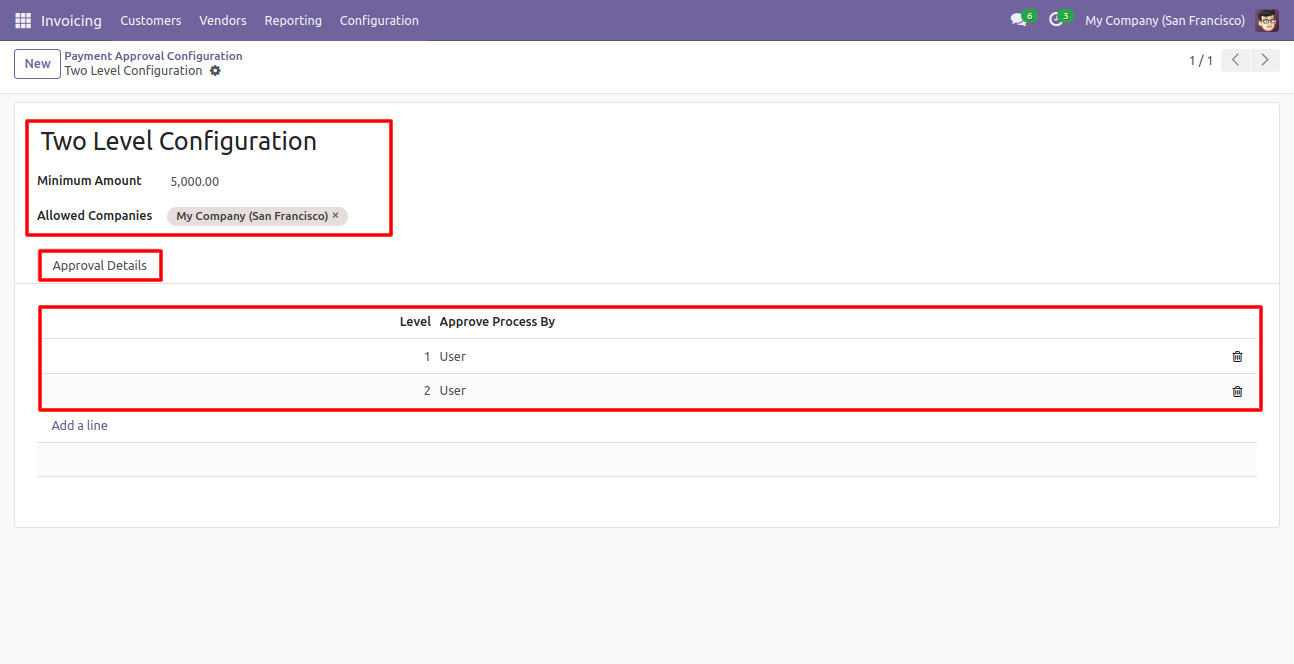
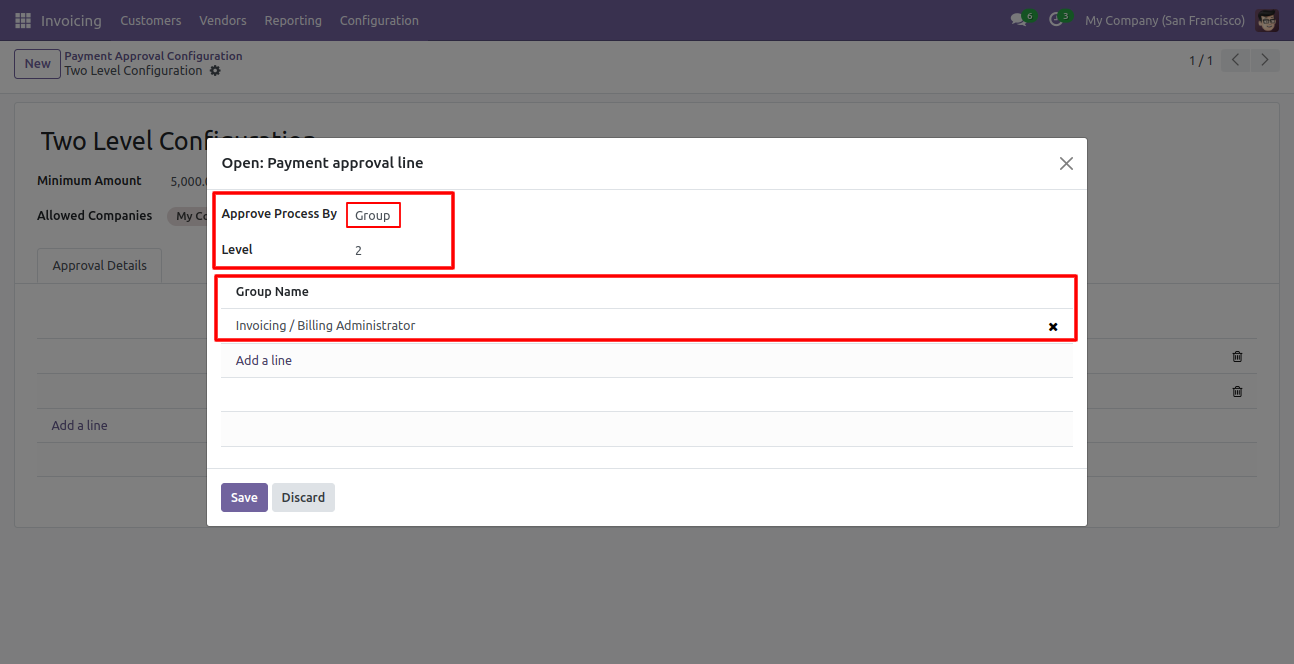
Approved process by, there are two types 1. User , 2. Group. Userwise means to define that person who will approve the scrap, in this wizard select the user.
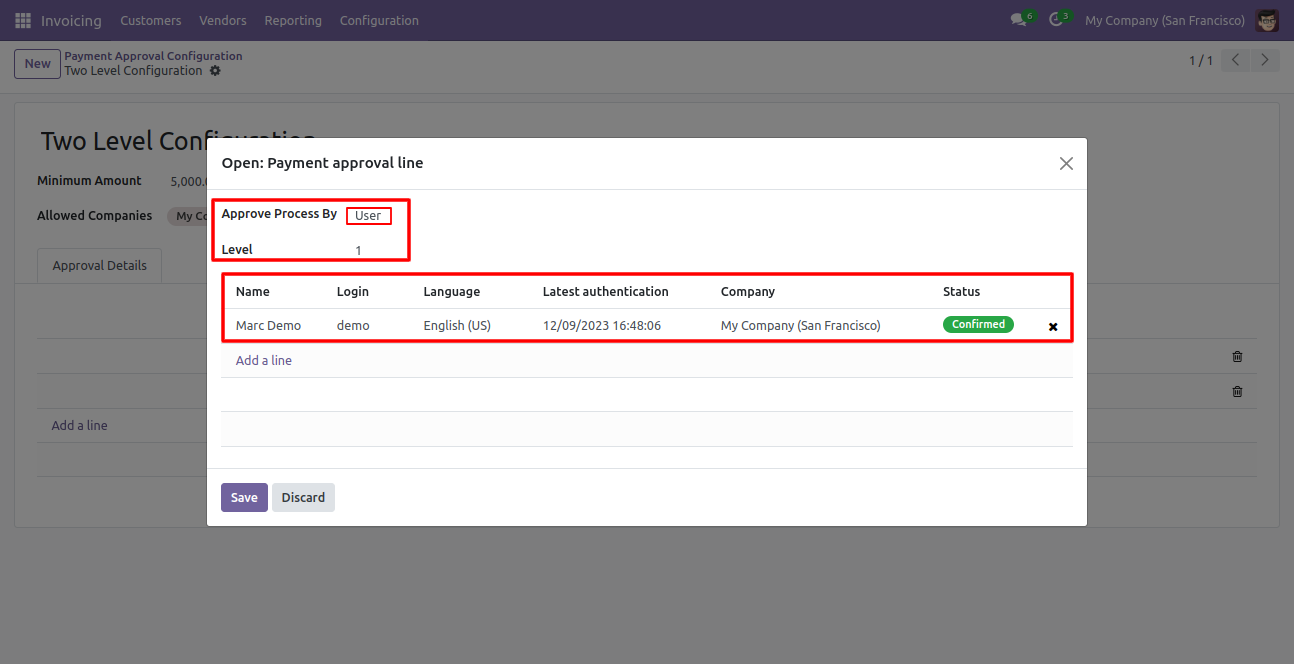
Approve type 2. Group that means only specific groups users will give approval like Inventory admin, Manufacturing admin.
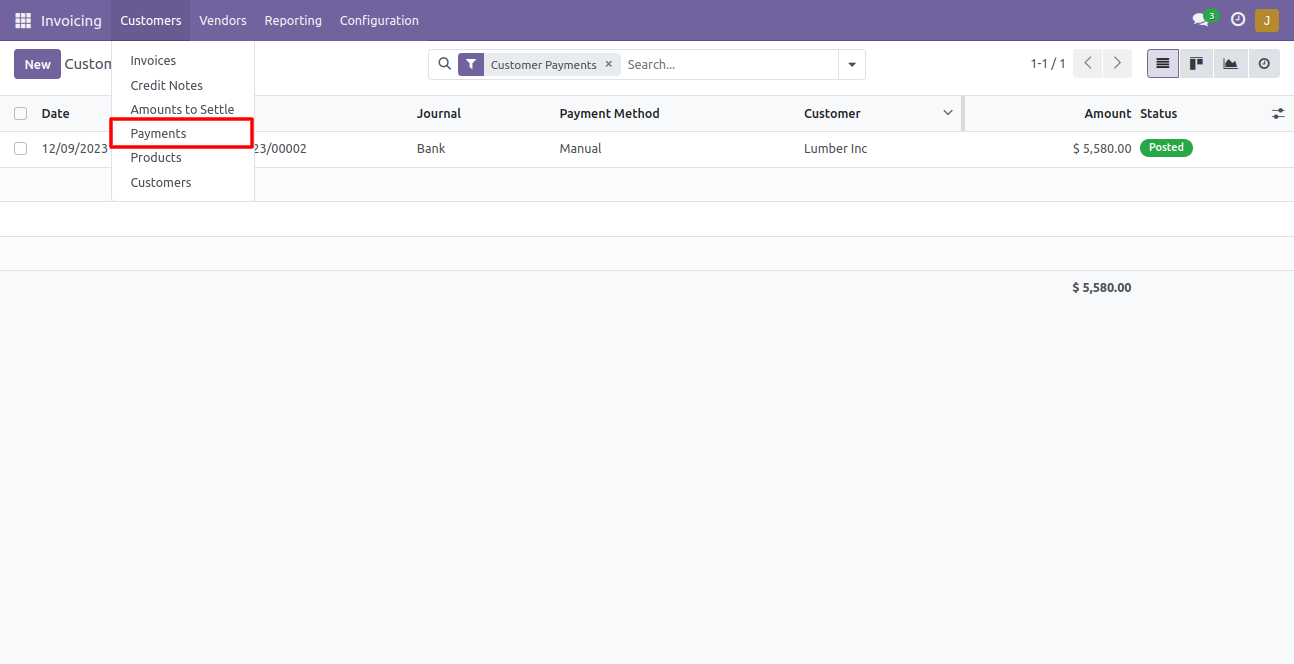
Now go to invoice payment
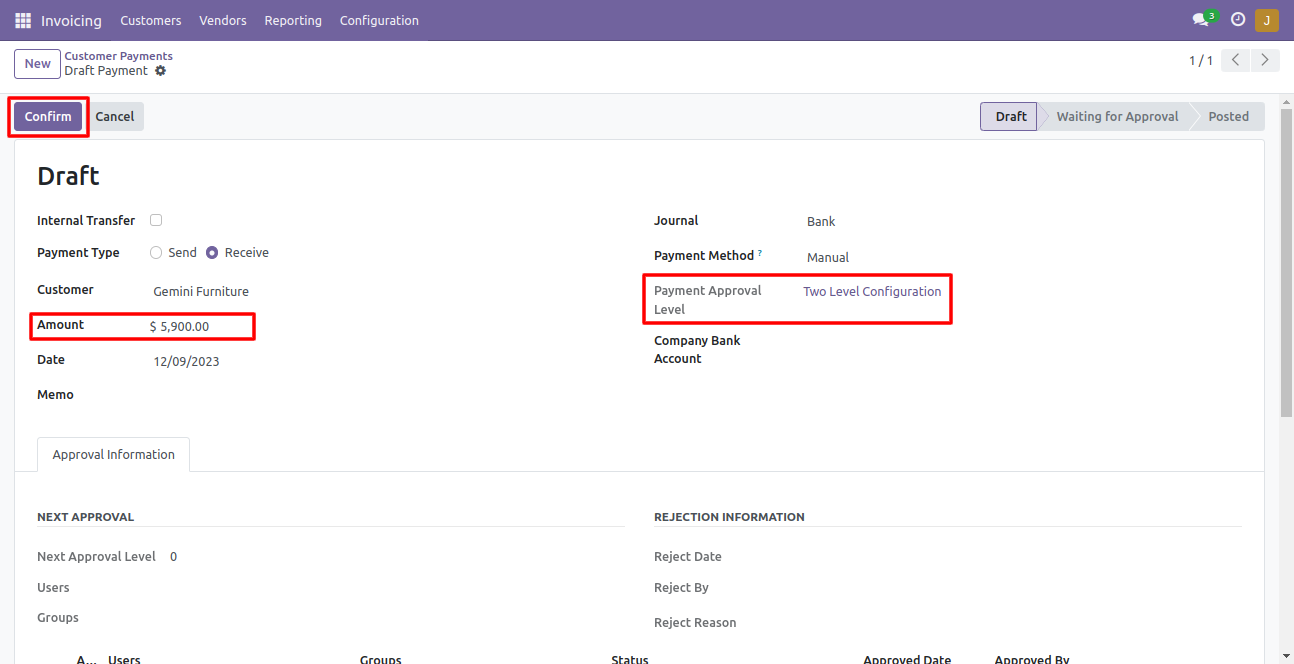
The payment is moved to draft stage. The details about approval is shown in payment form view.
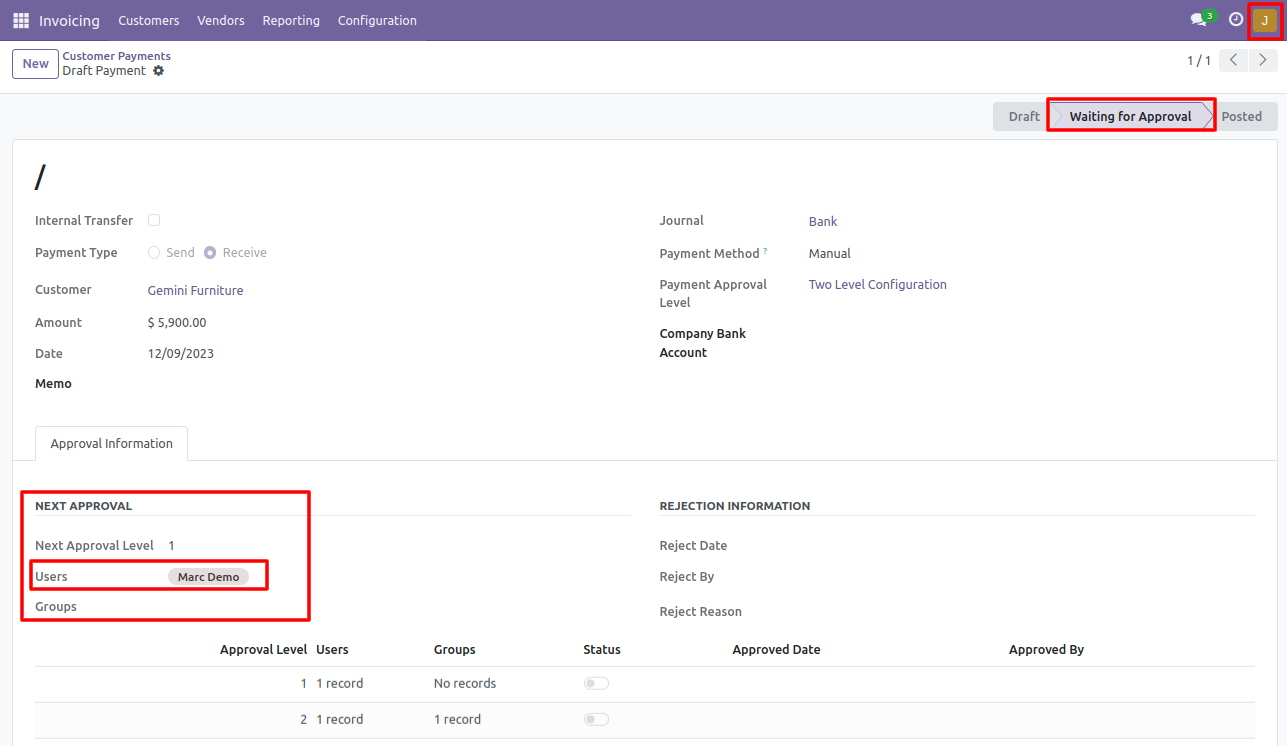
The payment is moved to waiting for approval stage. also show next approval user name.
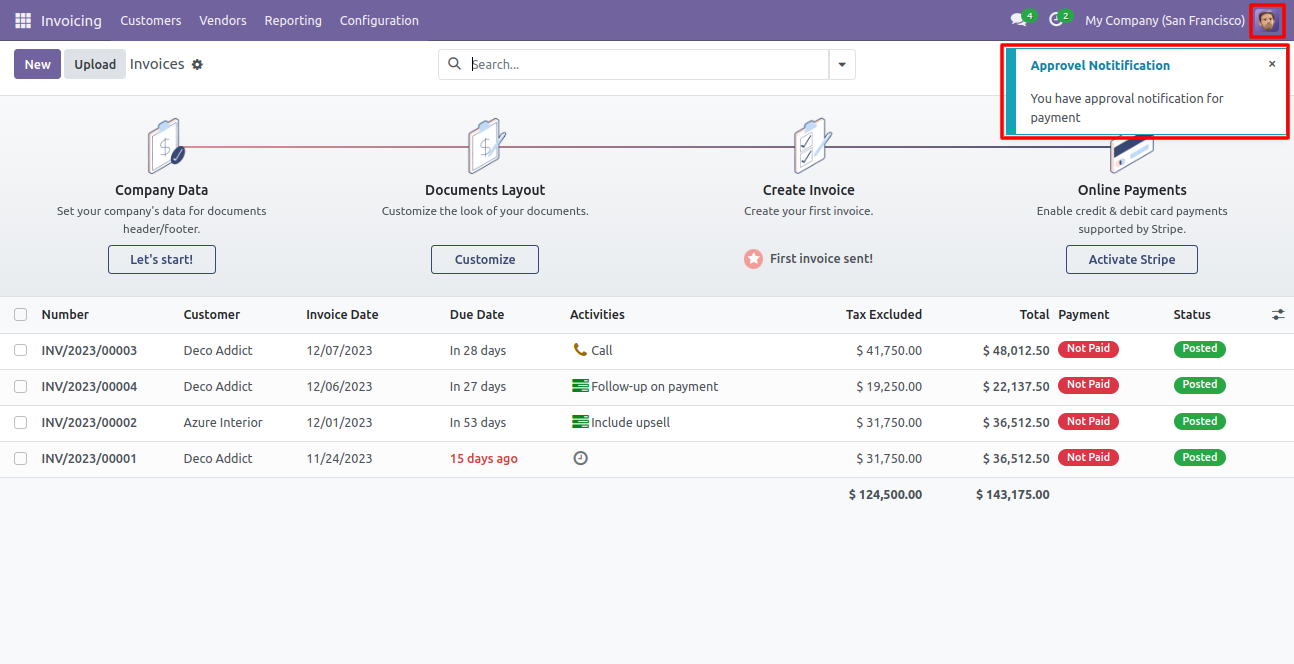
Pop up notification sent to approvers on approval.
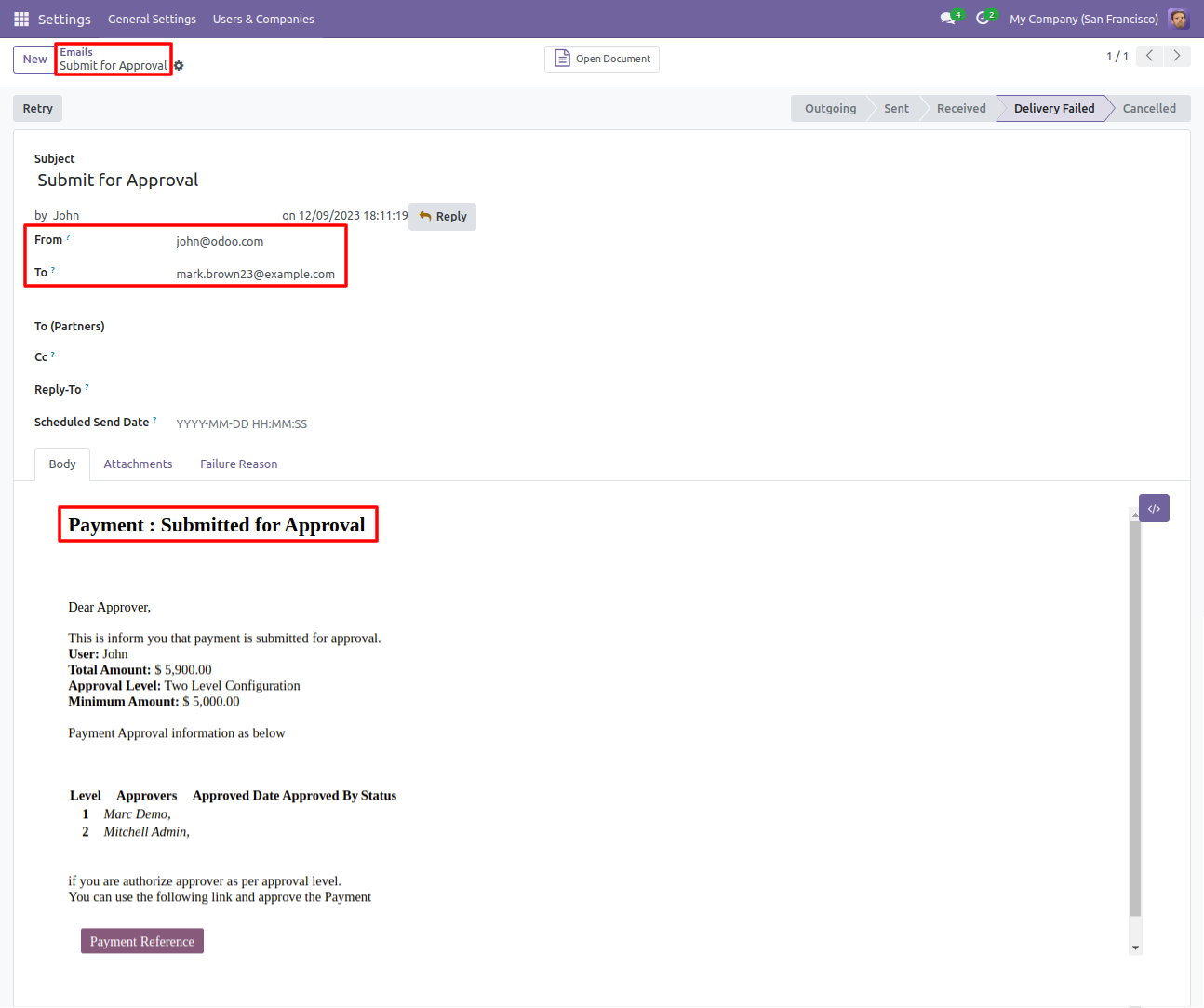
Email notification sent to approvers on approval.
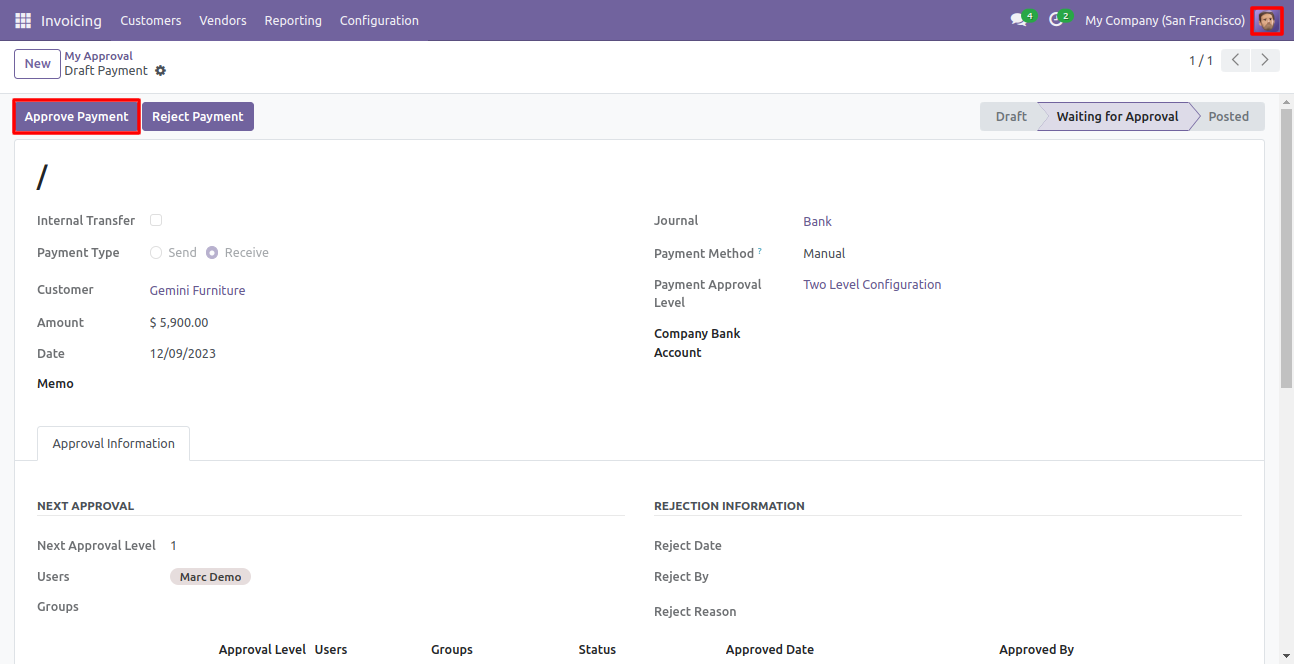
Now the second approver approves the Payment.
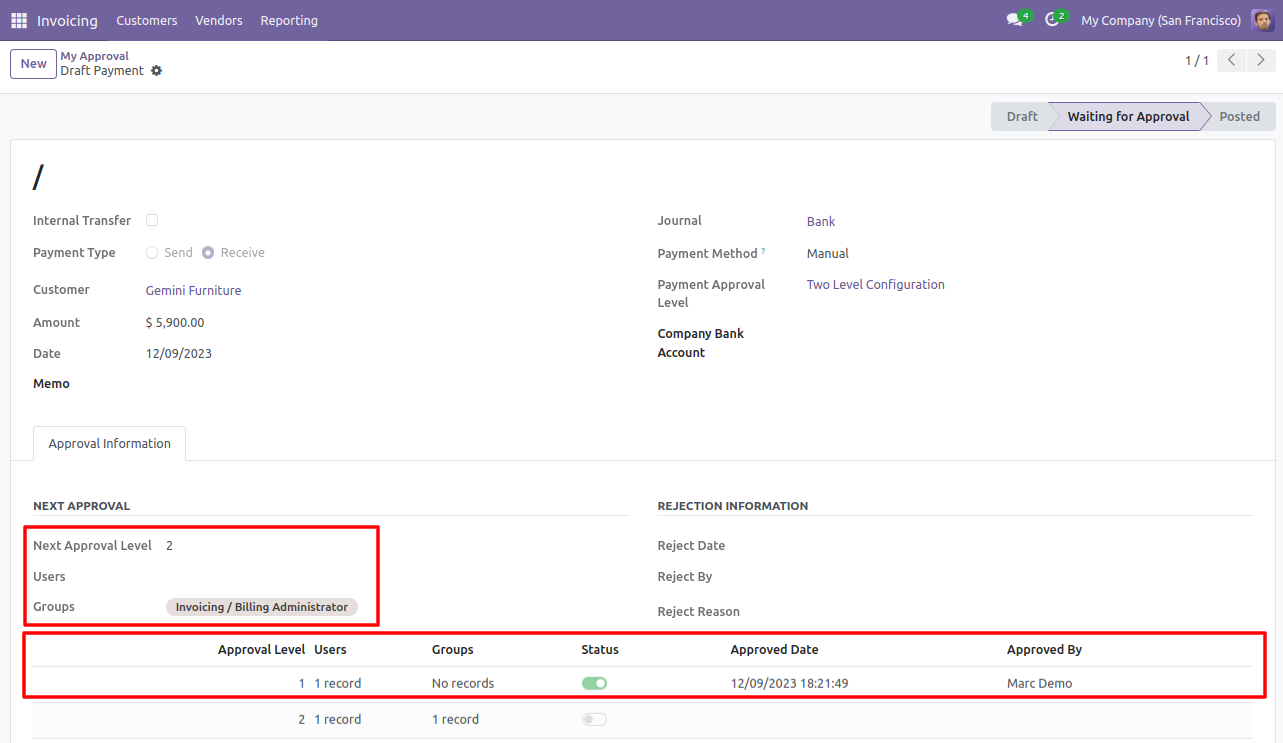
Now the approval is moved to waiting stage.and all detail see in Approval information.
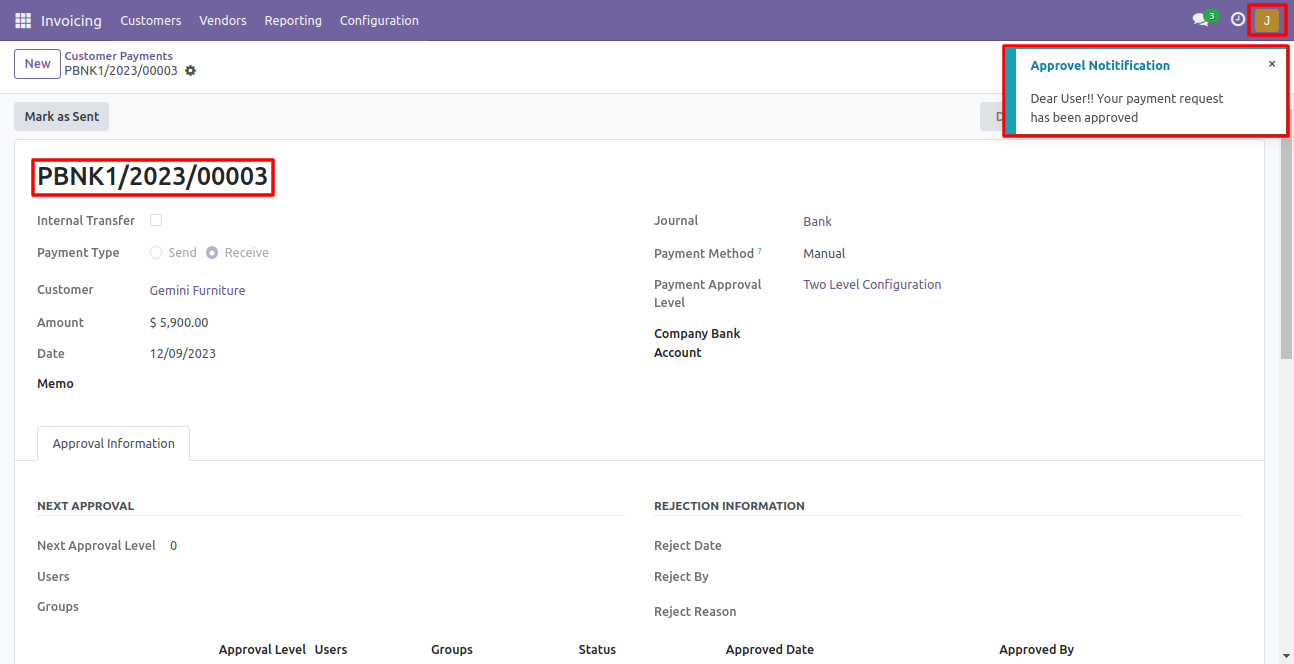
Now the second approver approves the payment.
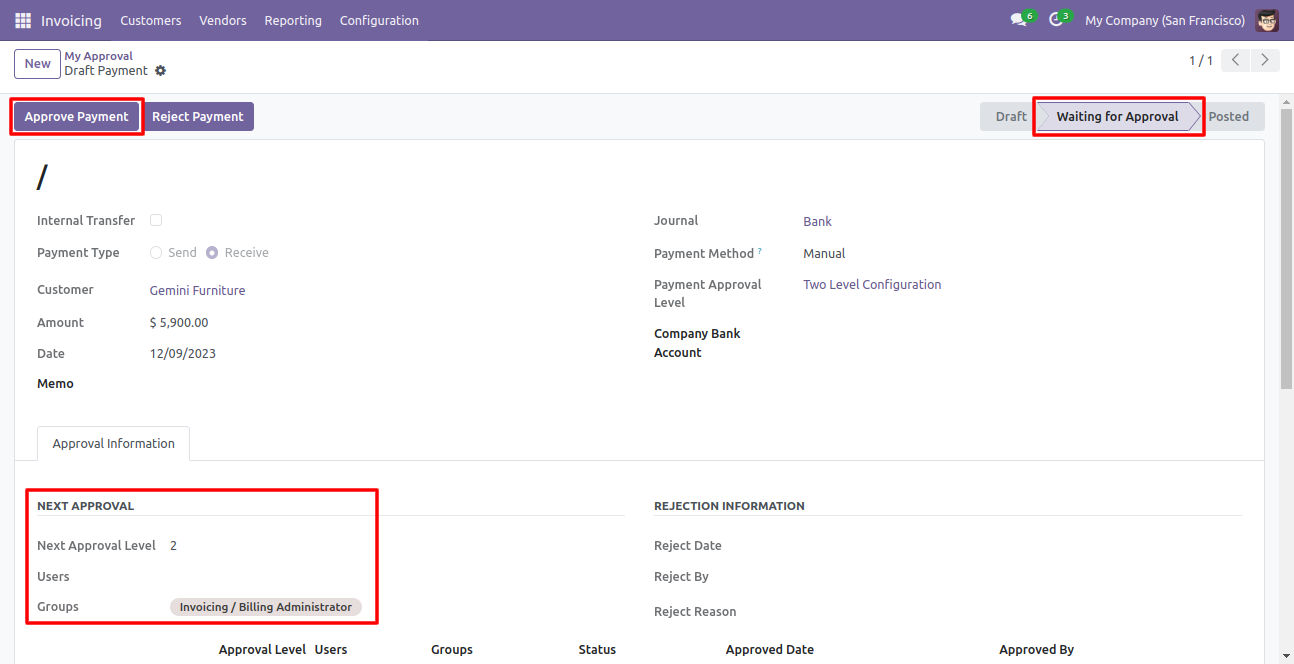
Pop up notification sent to approvers on approval.
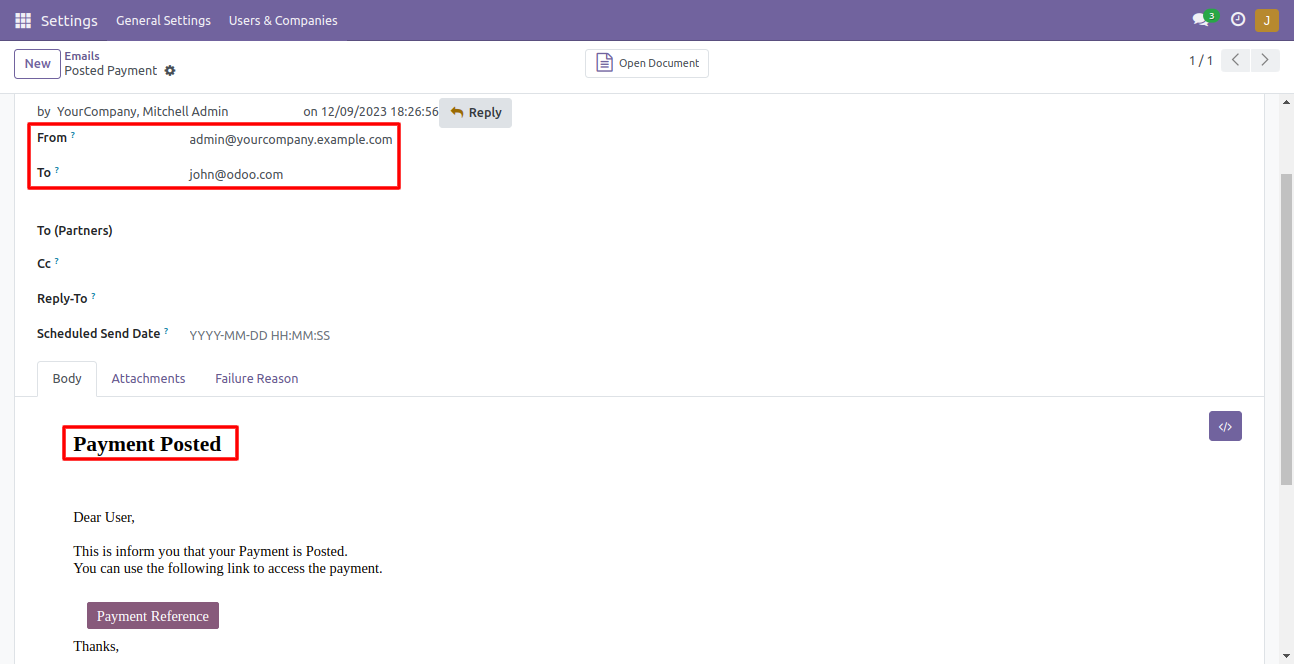
Email notification sent to approvers for approval of payment.
There are 2 approvers if the first approver rejects the payment that means that payment will be canceled no more second approval is needed.
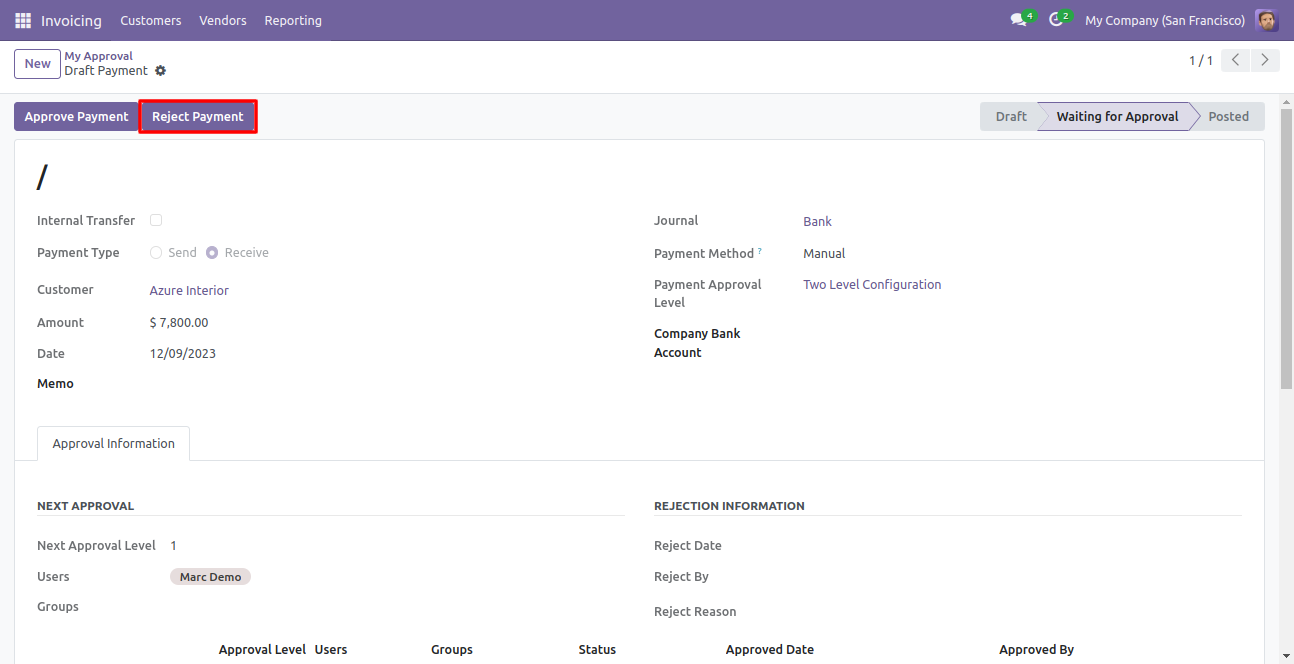
After click on the reject button, this wizard will pop up, here the approver has to add a reason for rejecting the payment.
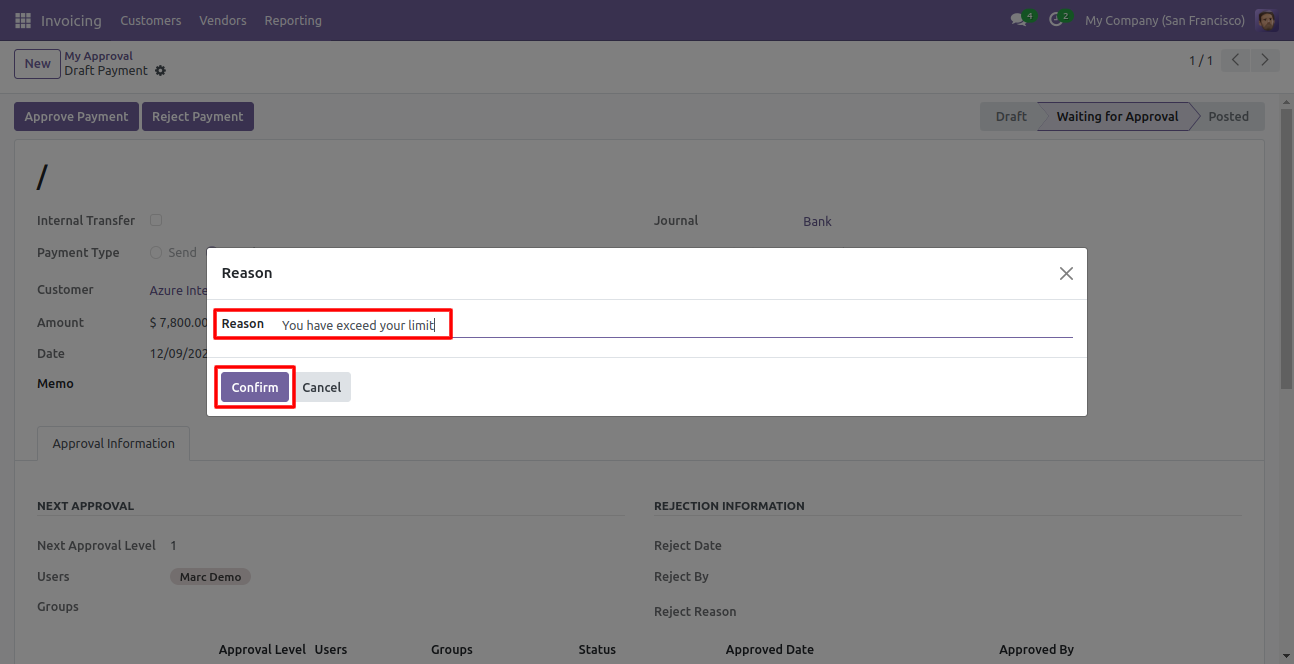
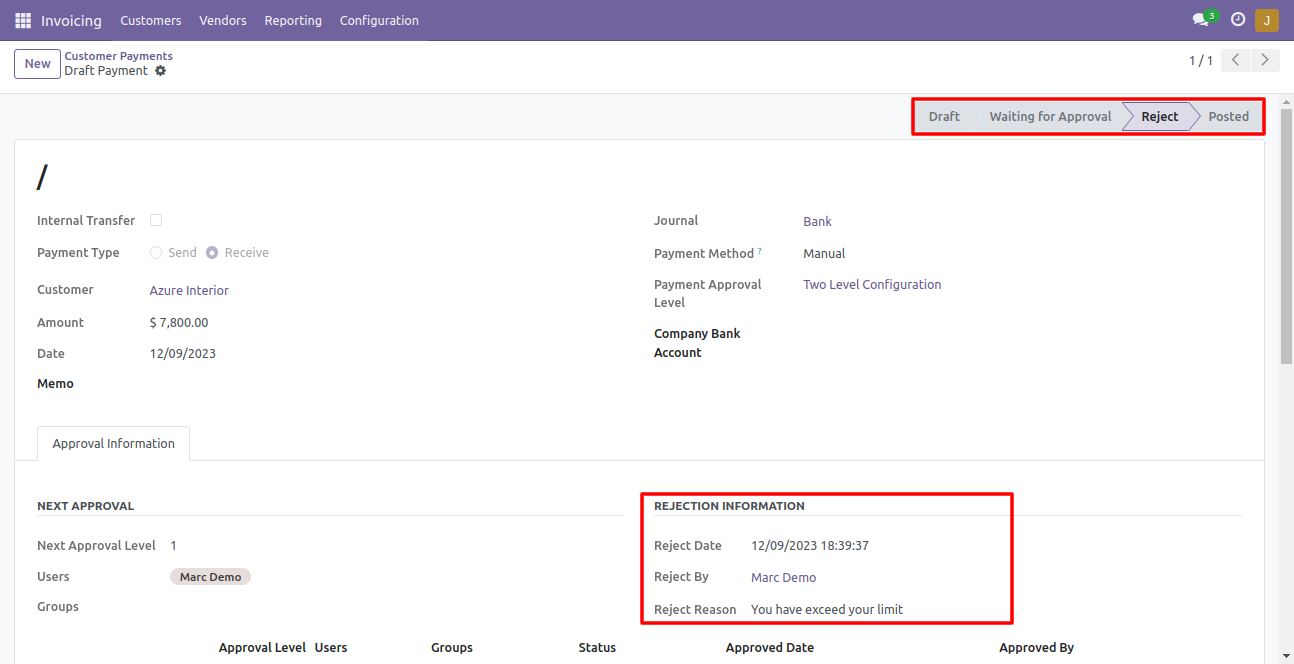
After rejection, it auto set the rejection information in the "Rejection Information".
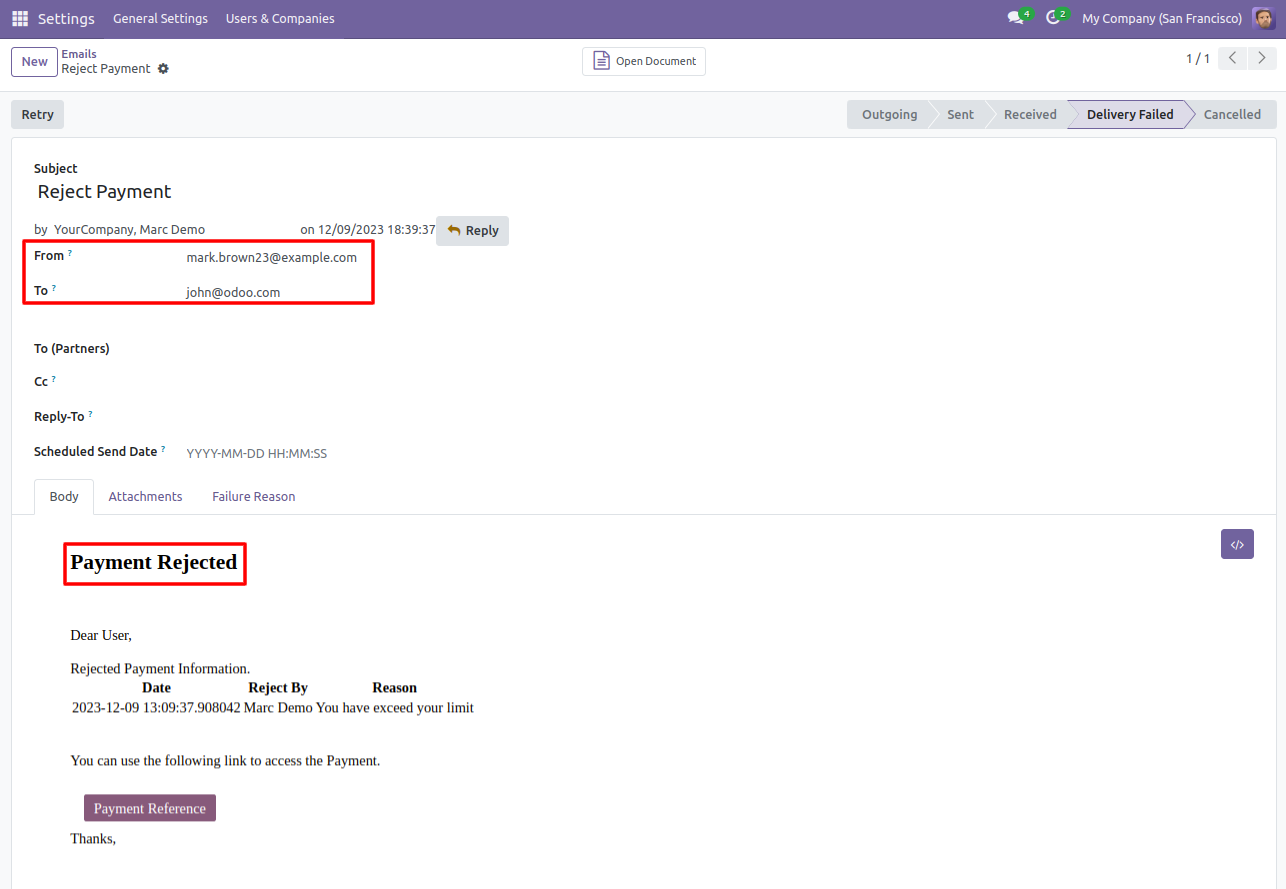
Email notification of rejection looks like this.
Features
- You can set dynamic approvals on scrap orders.
- Scrap orders can be approved by a particular user or group.
- The user gets a notification when a scrap order approves or rejects.
- You can create a flexible approval process.
Go to inventory configurations => Click on approval configuration.
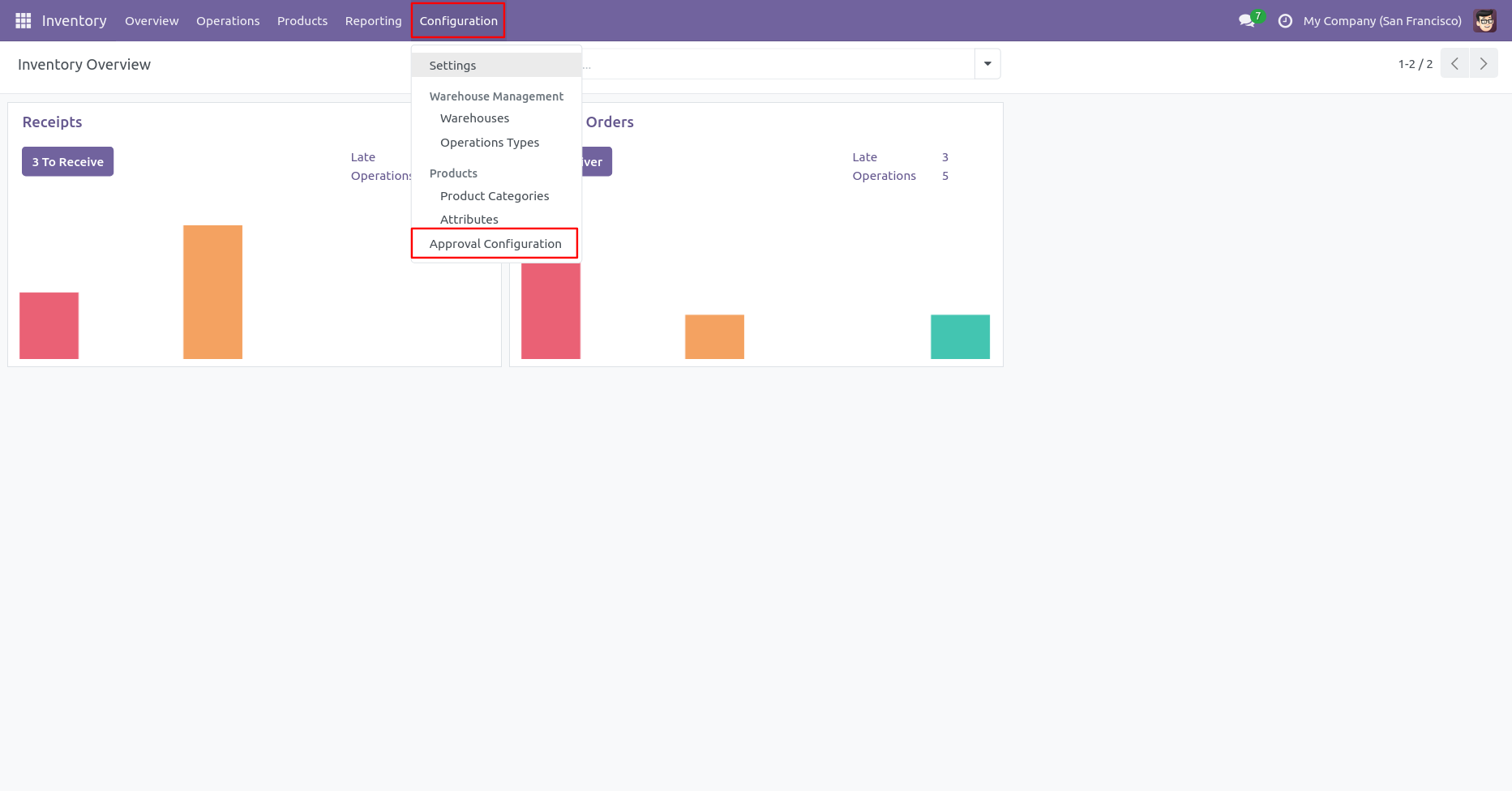
Approval configuration: Setup approval levels based on minimum amount and user level. Also, select companies.
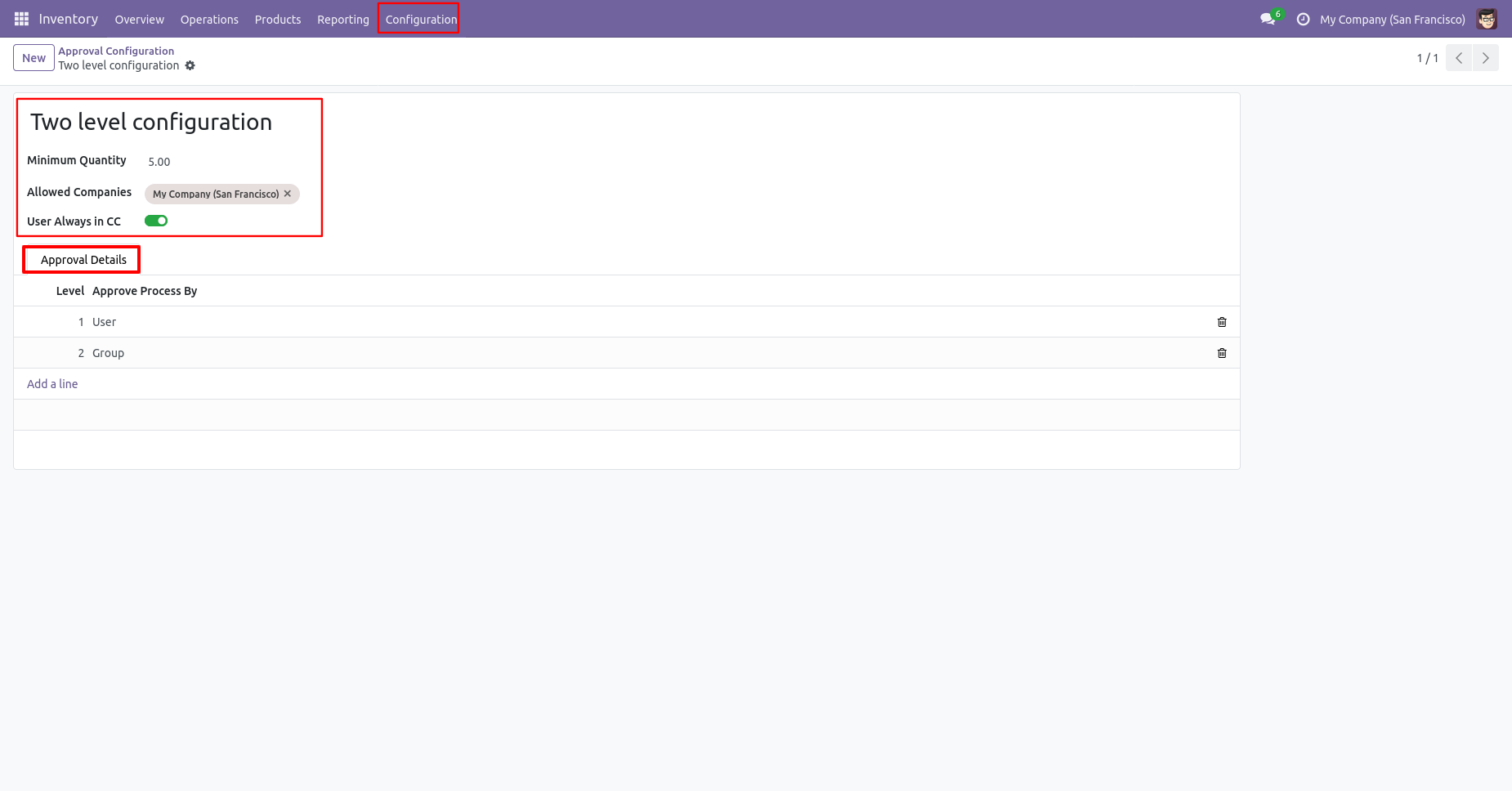
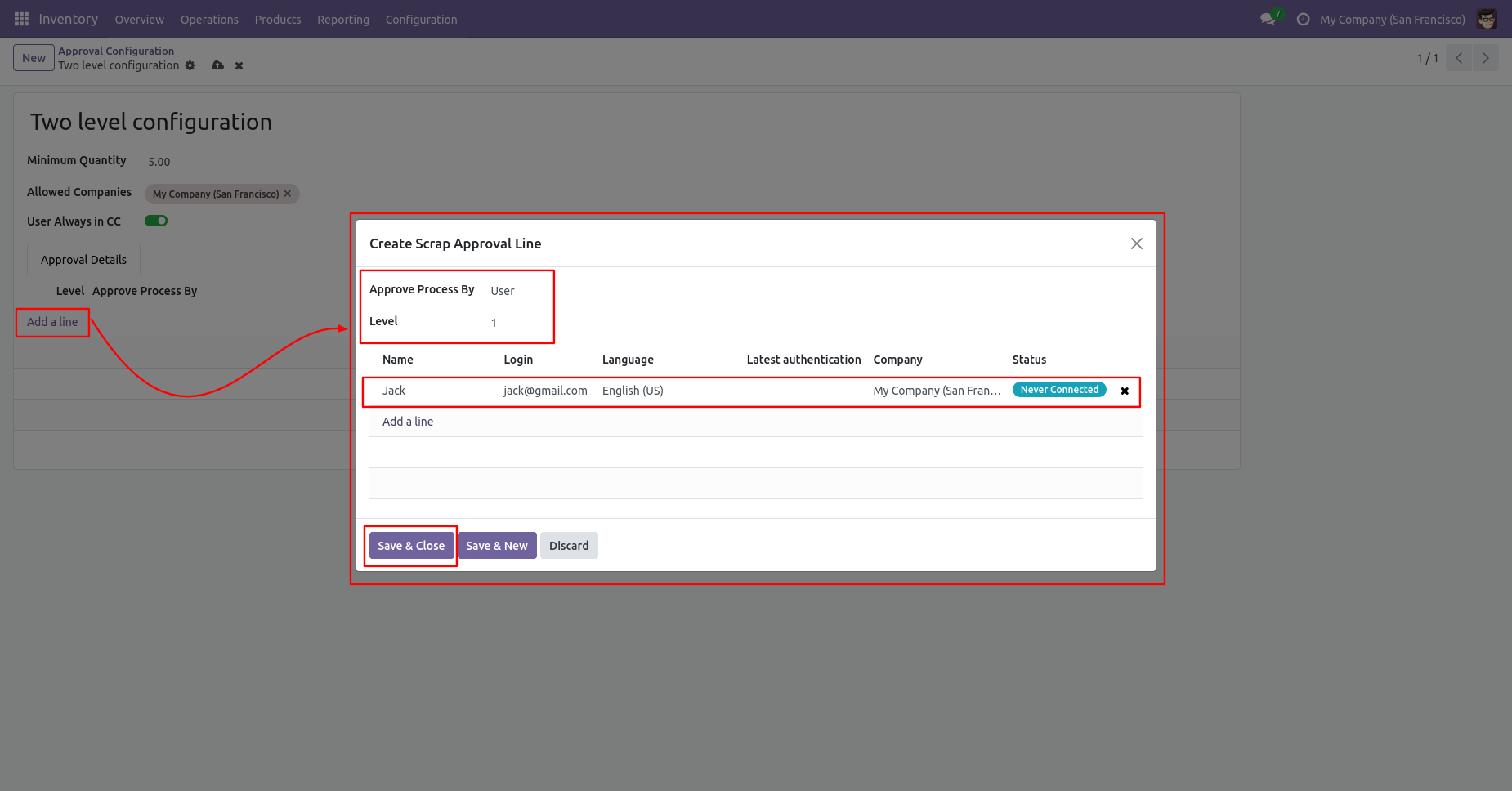
Approved process by, there are two types 1. User , 2. Group. Userwise means to define the person who will approve the scrap, in this wizard select the user.
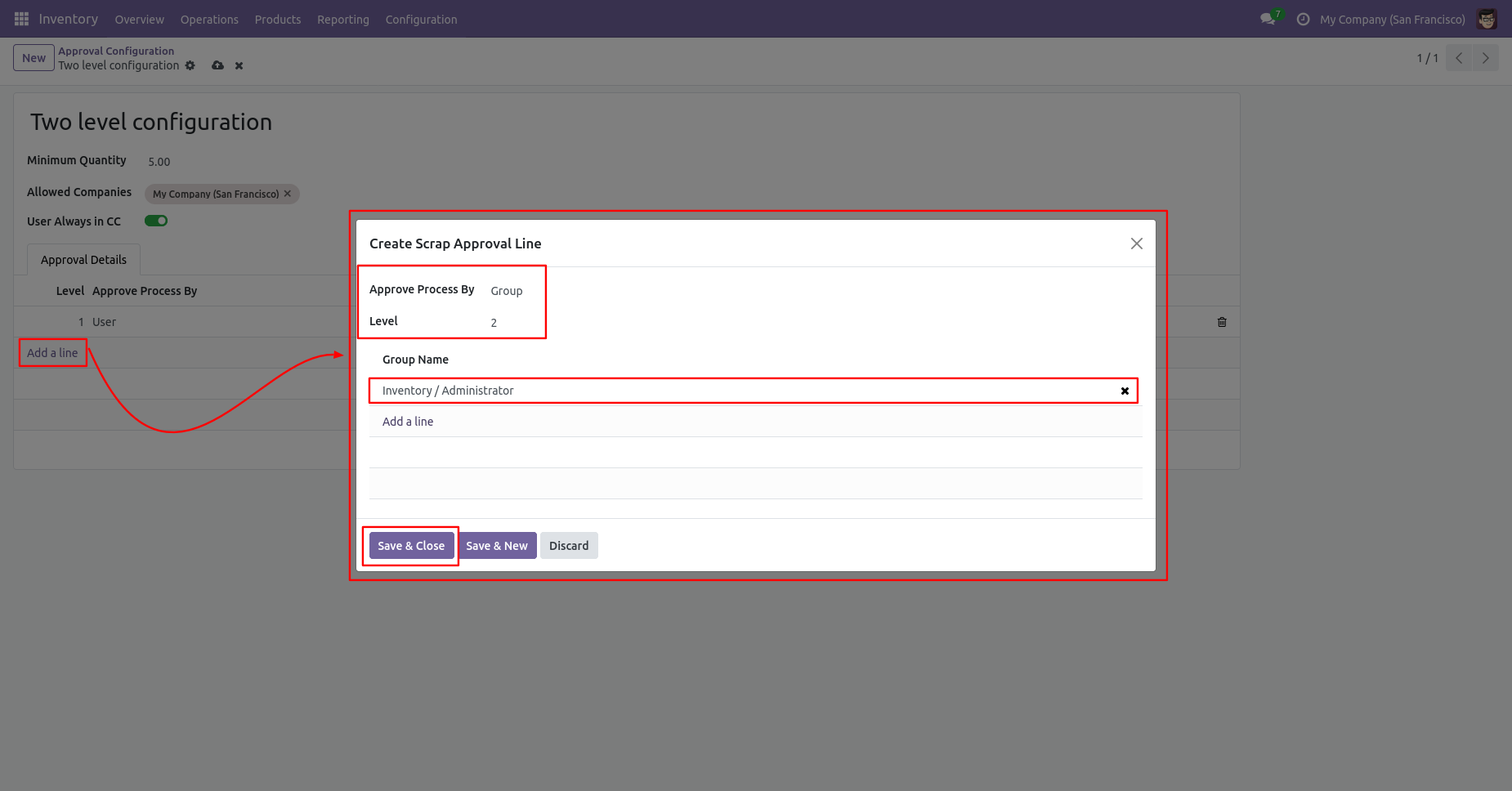
Approve type 2. Group that means only specific groups users will give approval like Inventory admin, Manufacturing admin.
Now the user creates a scrap order and clicks on validate.
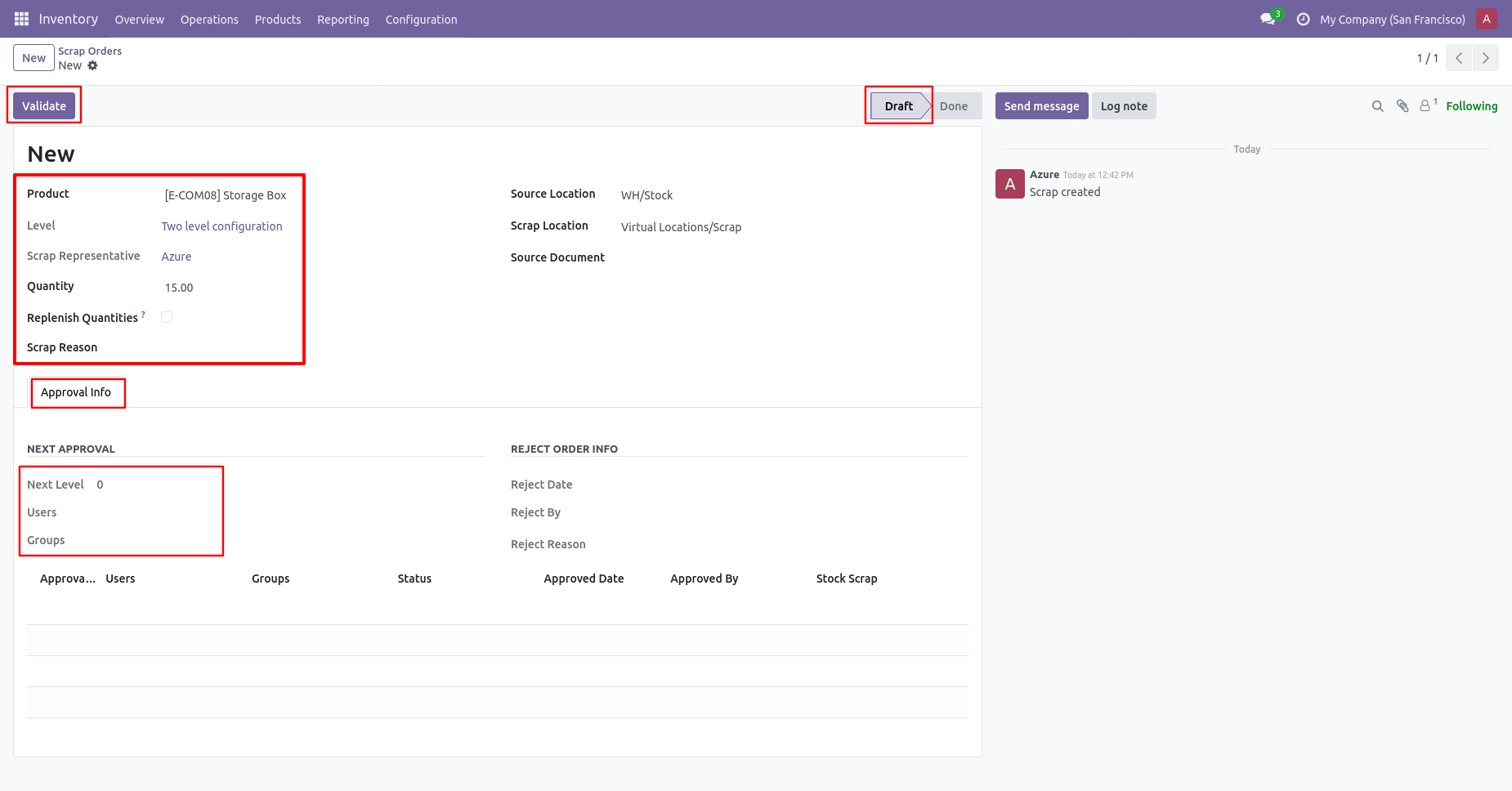
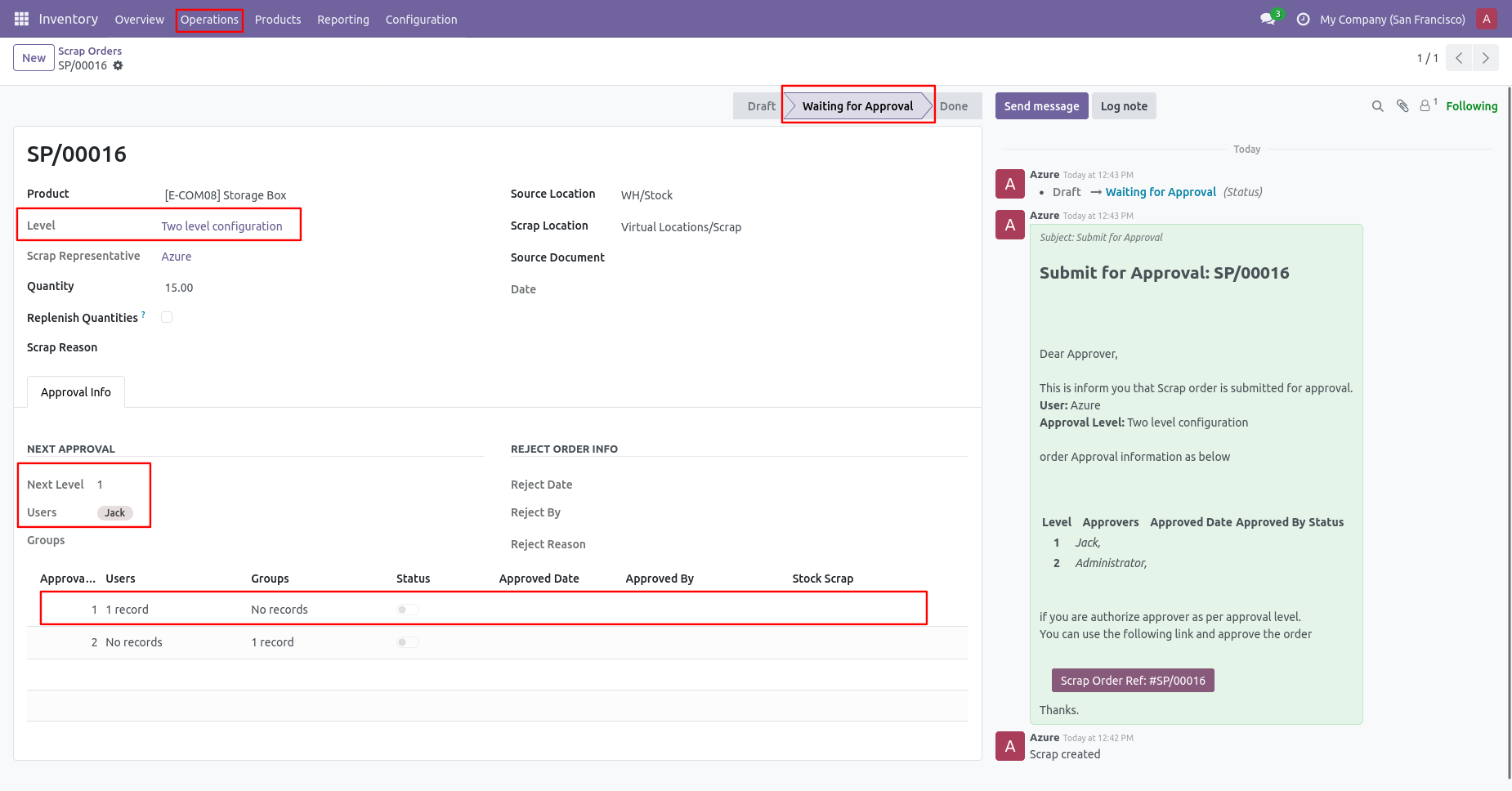
The scrap order is moved to the waiting for approval stage. The details about approval is shown in the scrap order form view.
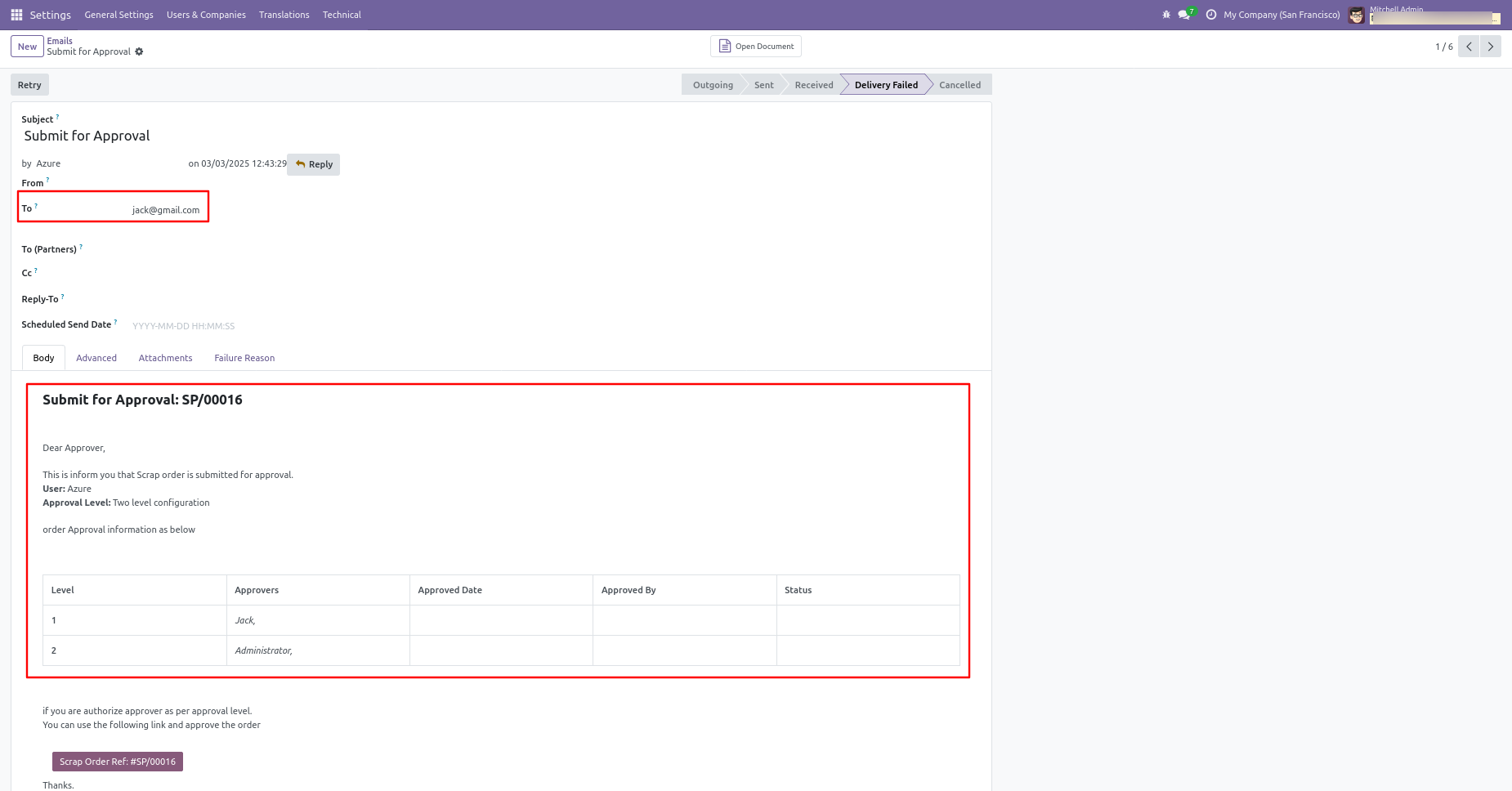
Email notification sent to approvers for the approval process.
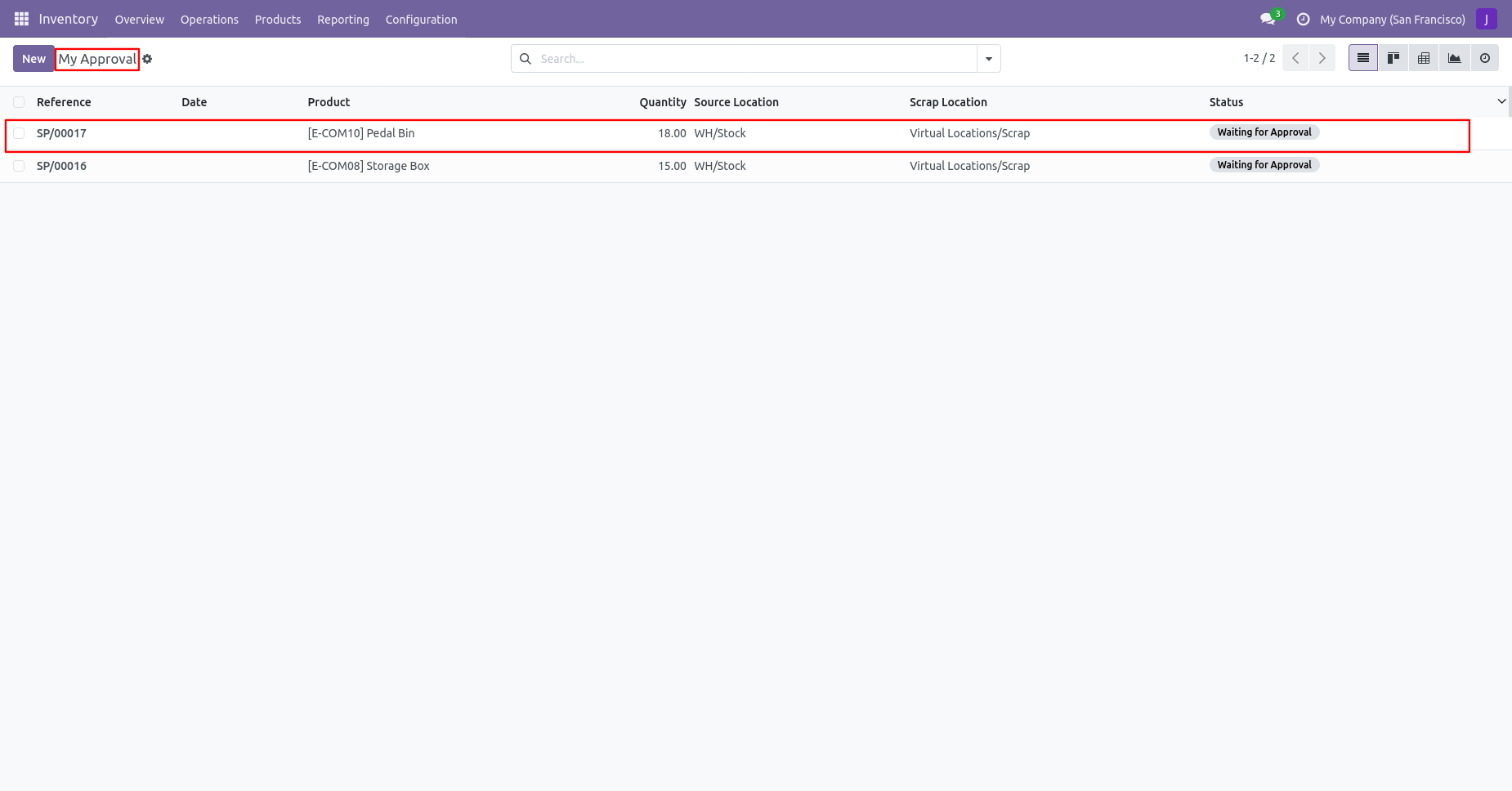
There are two menus for
1. My Approval: The scrap orders needed to be approved or rejected by
that user.
2. Waiting Approval: The Scrap order was created by that user but in
the waiting stage and needed to be approved by other users.
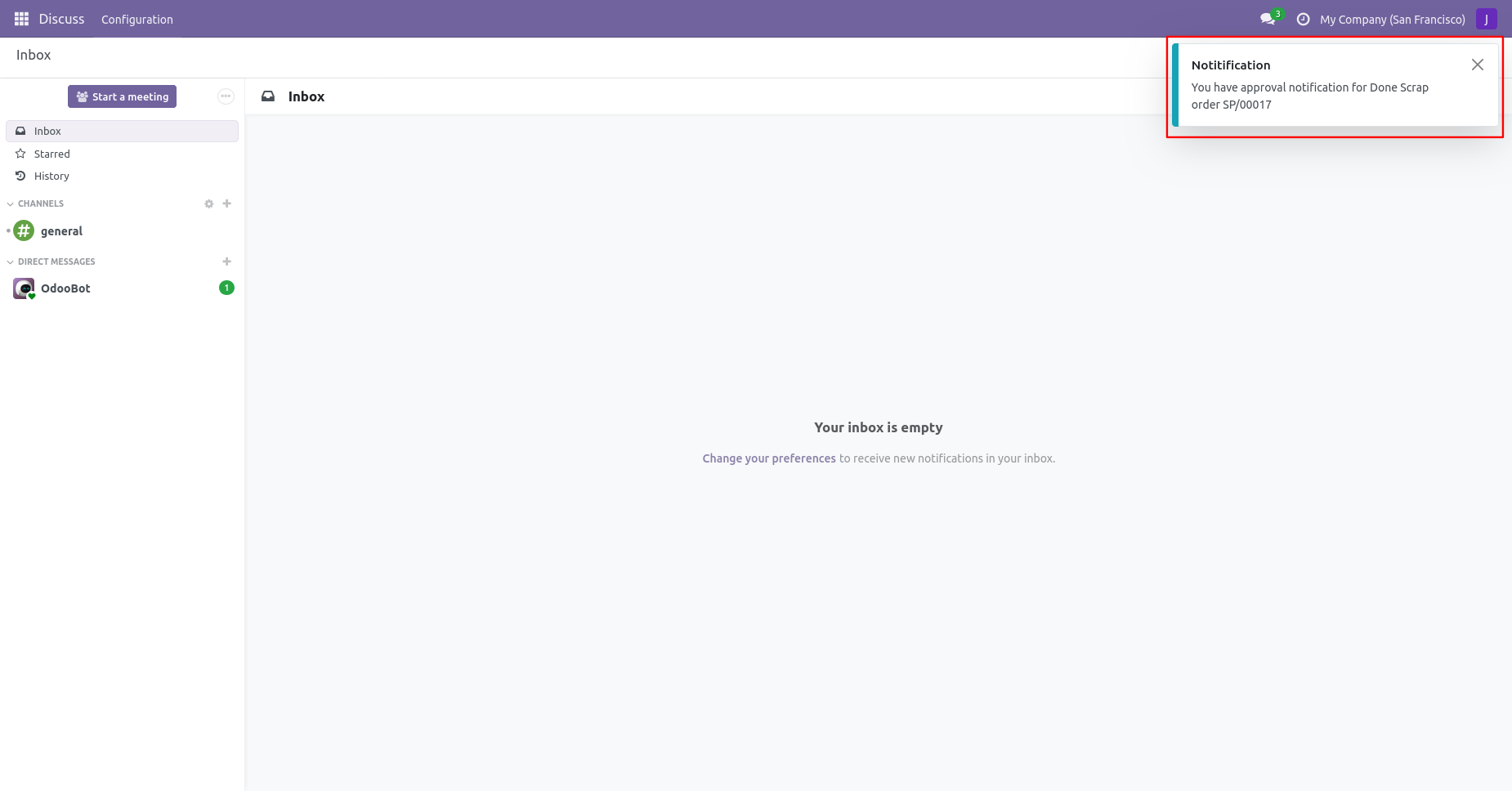
The approval person get the 'Approval Notification' pop-up.

Approval Flow
Tree view of 'My Approval'.
There are 2 approvers the first approver approves the scrap order.
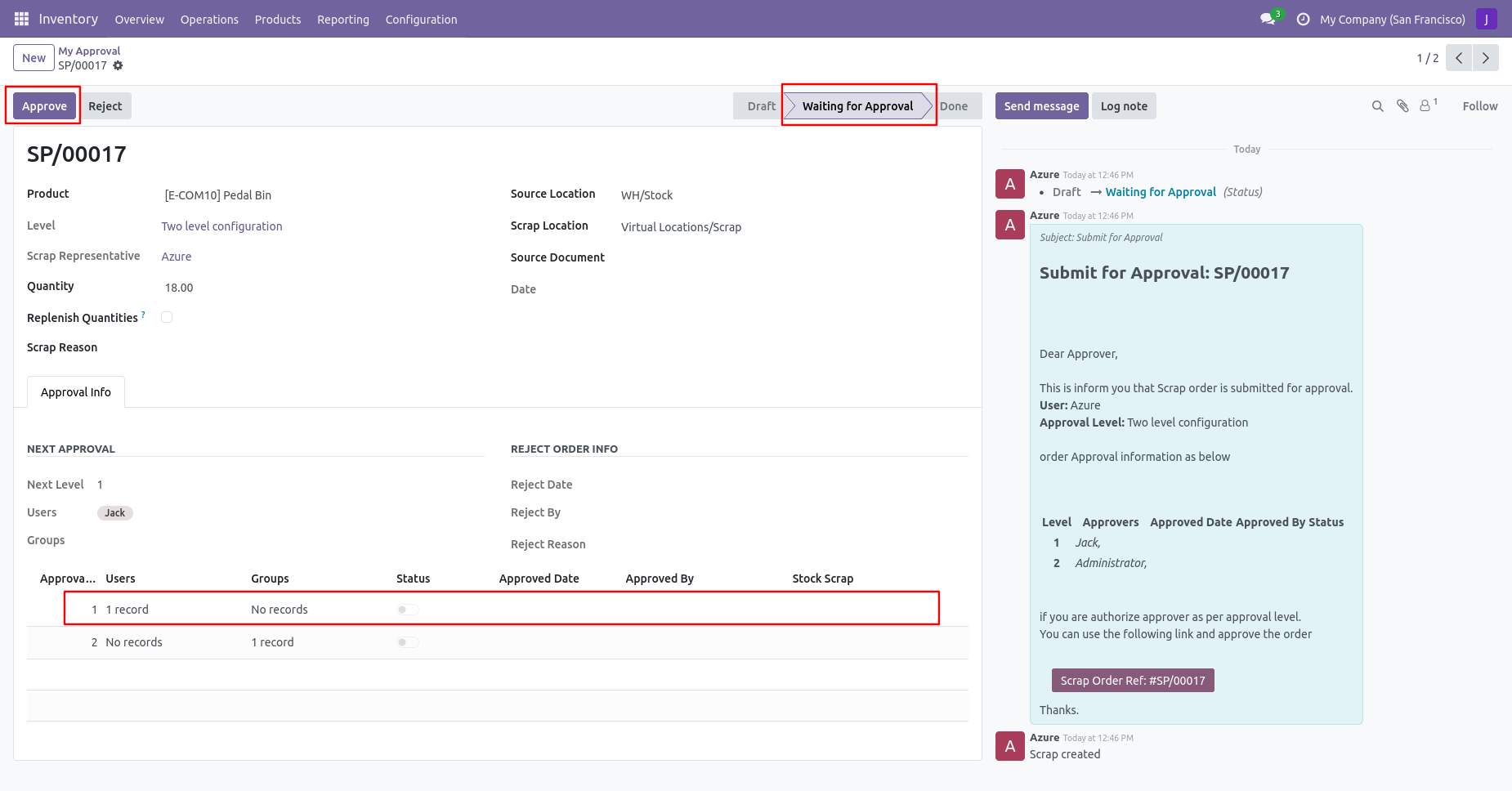
After approved by the approved person, Auto set the next level approvers in the approval info tab. If next approval is required.
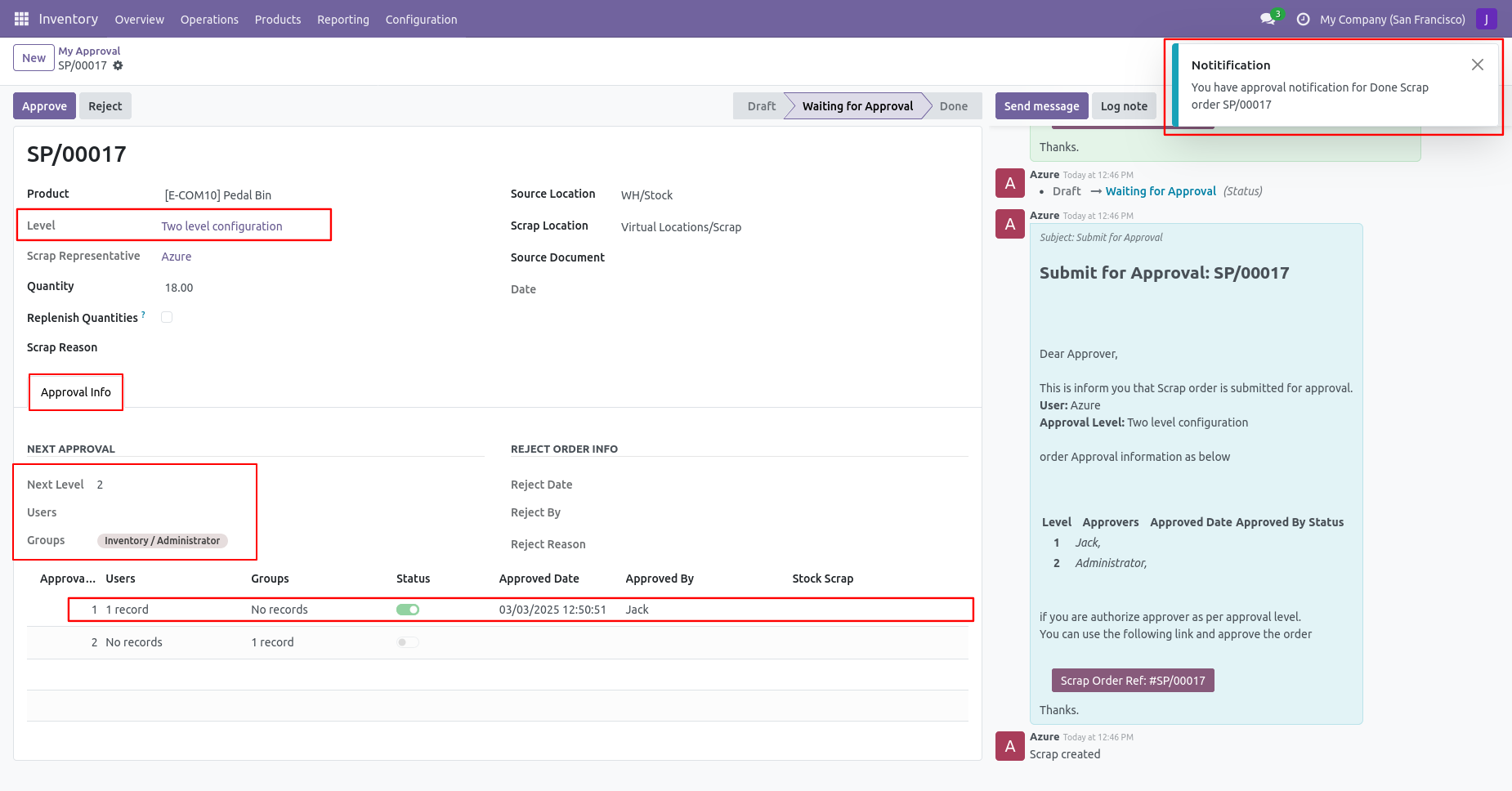
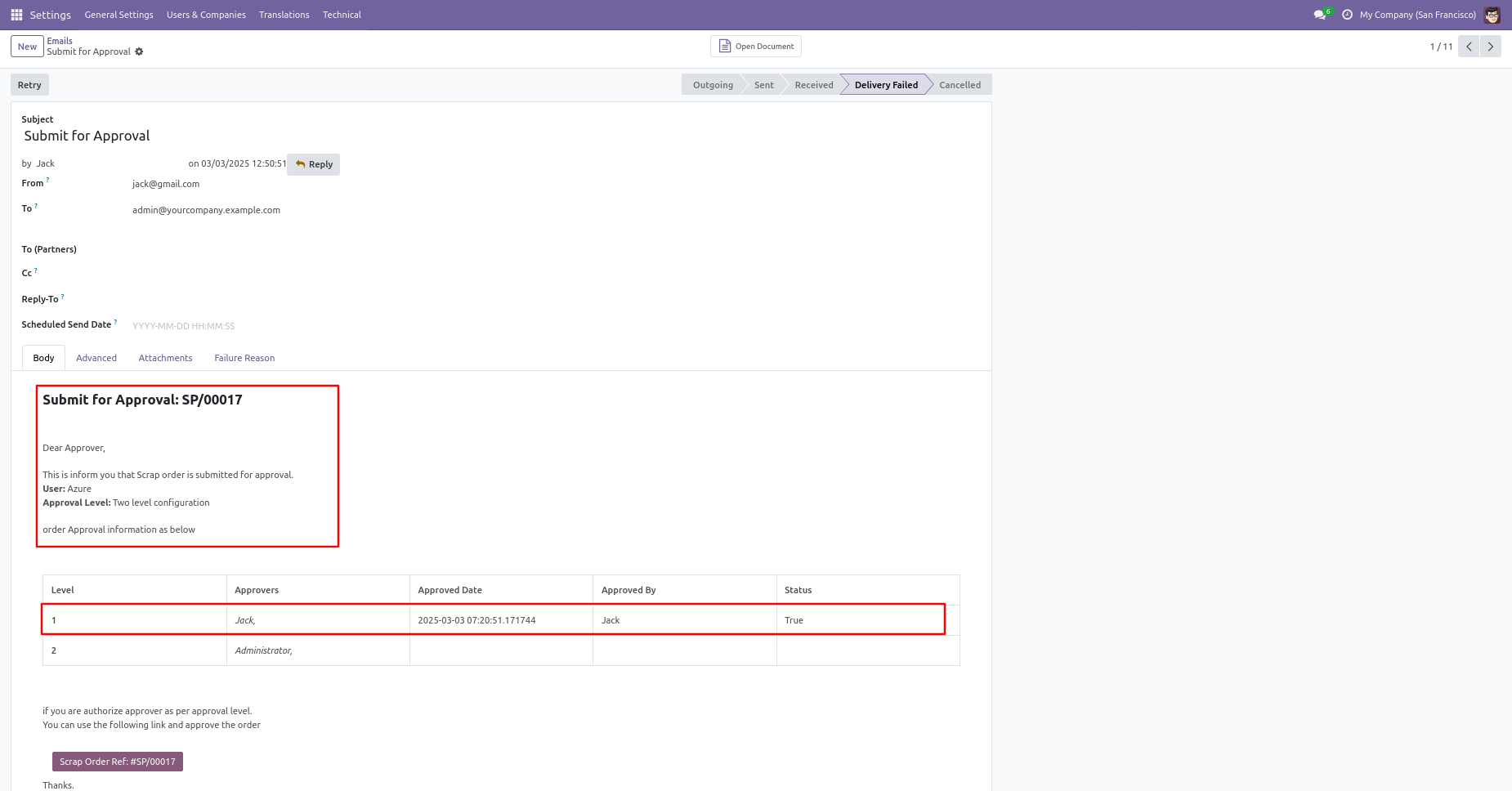
Email notification sent to approvers on approval.
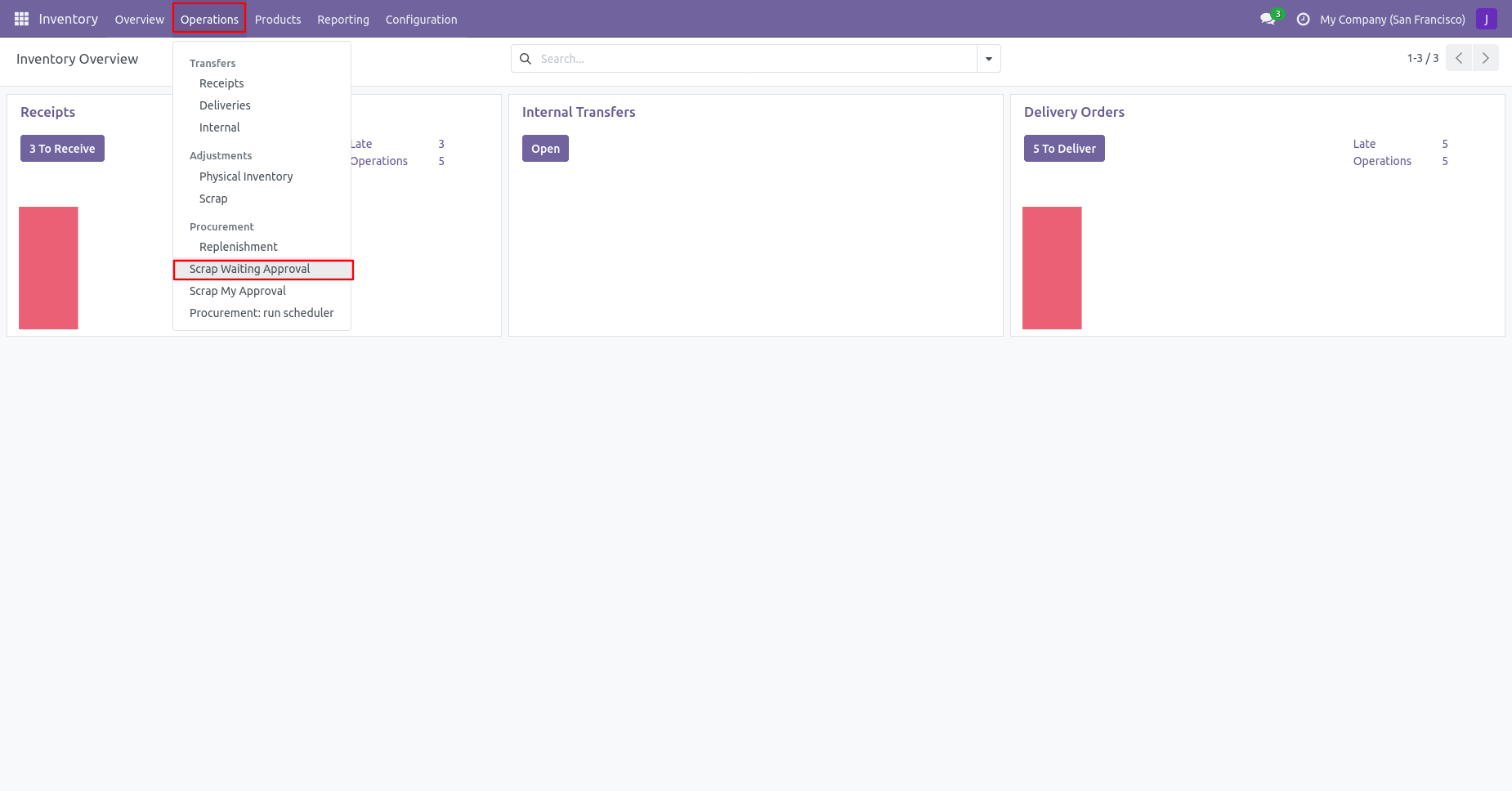
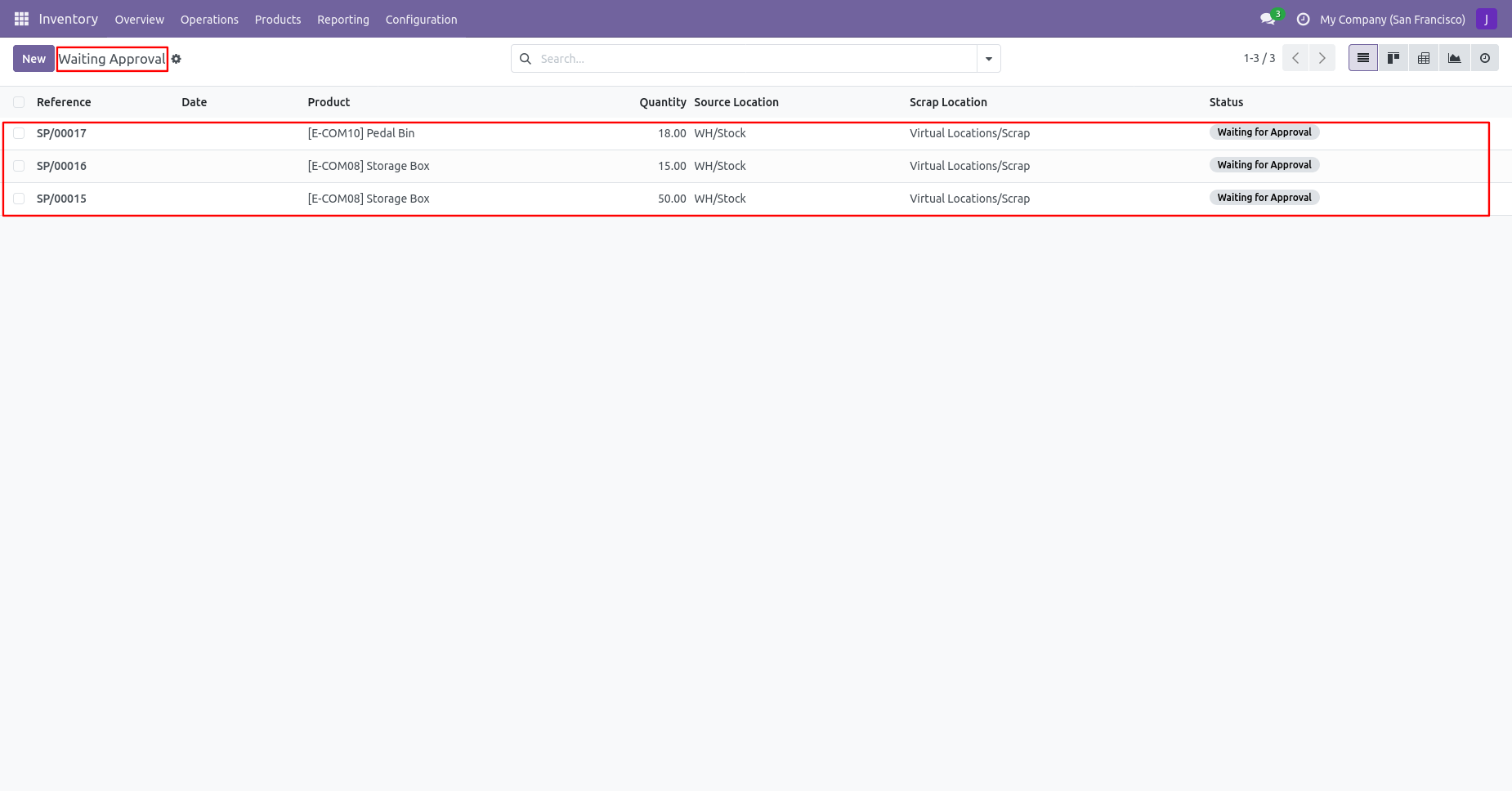
Click on the 'Scrap Waiting Approval' from the 'Operations' menu.
Tree view of the waiting approval.
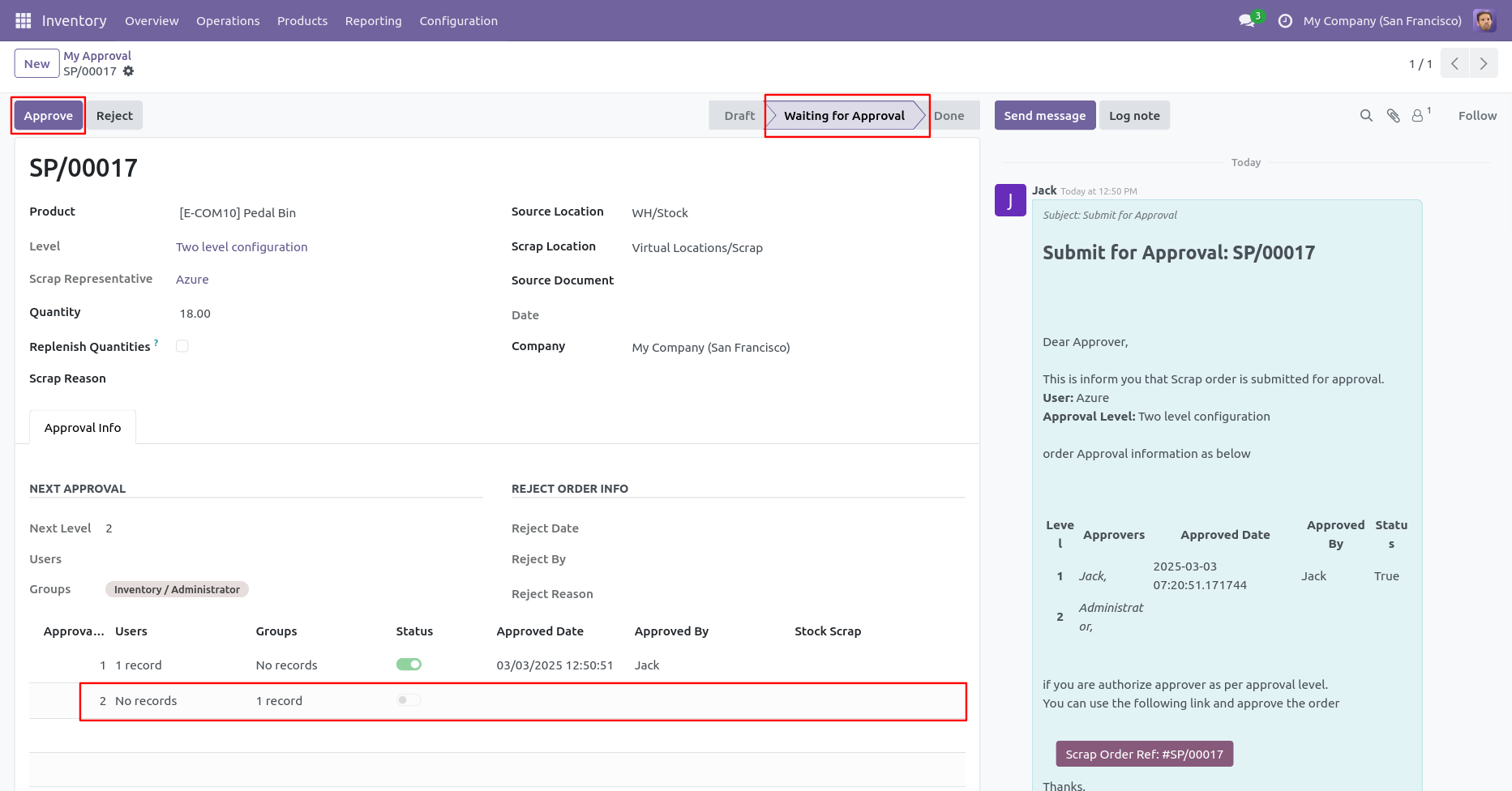
Now the second approver approves the scrap order.
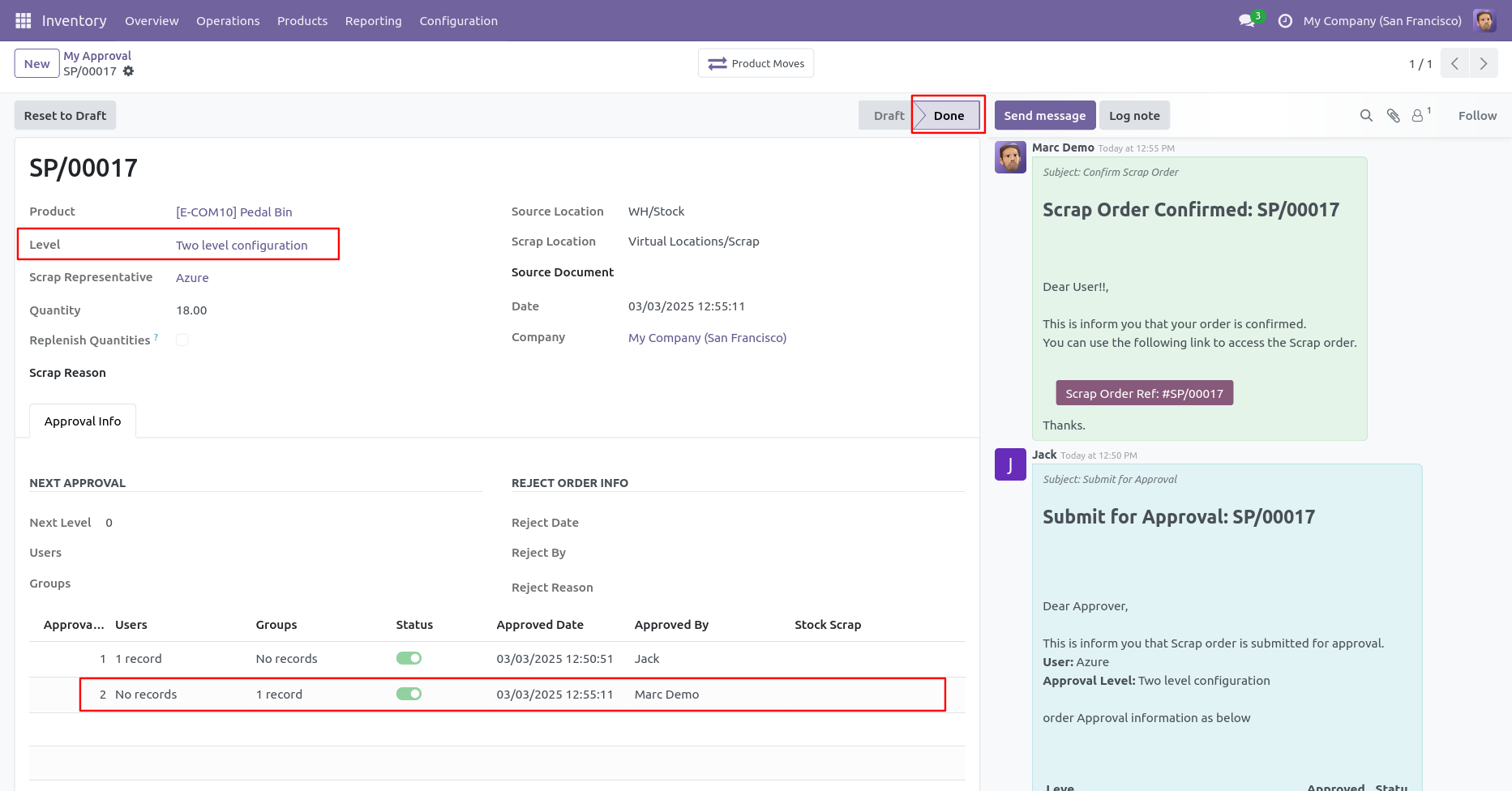
Now the approval is moved to the done stage.
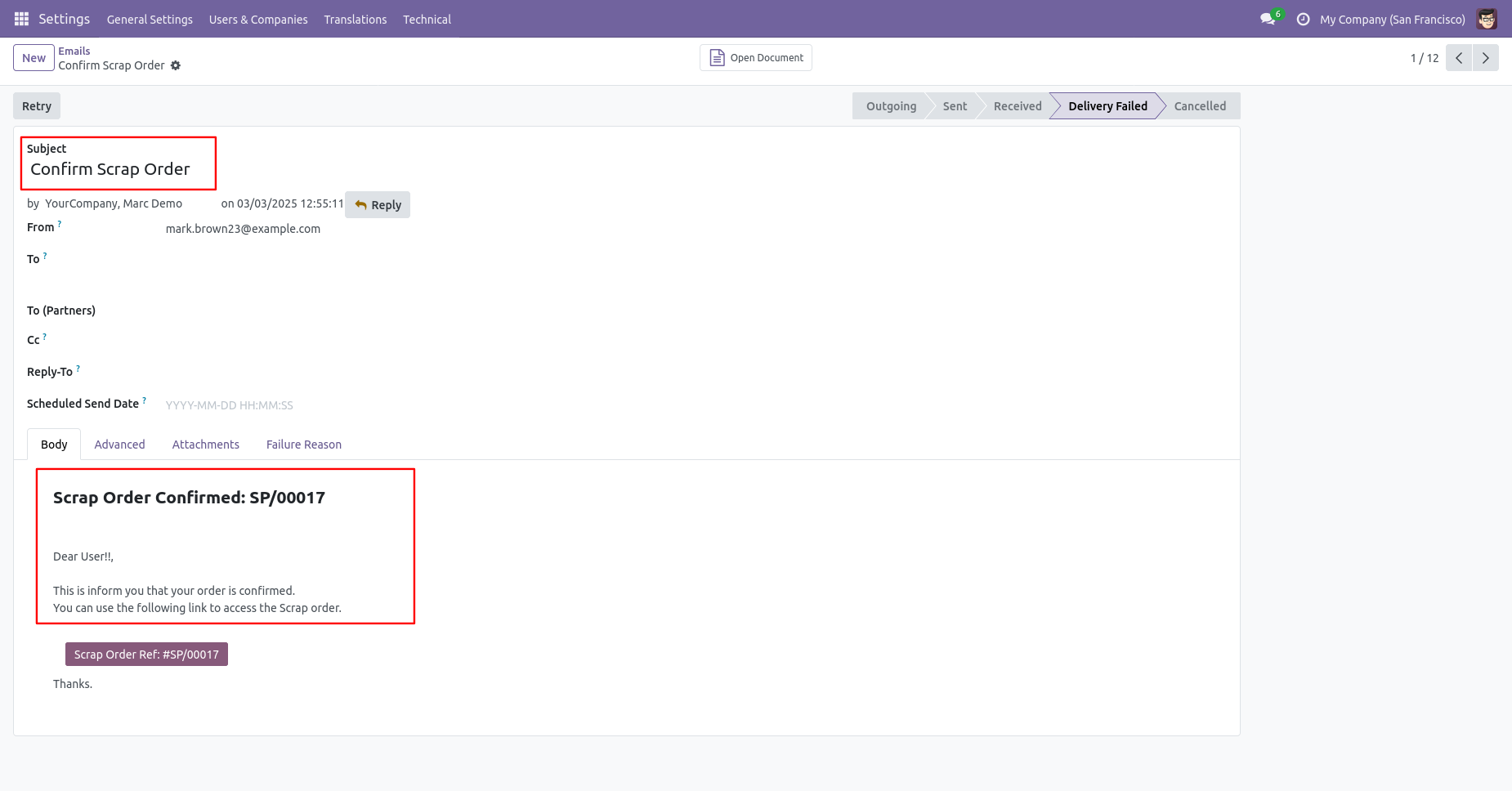
Email notification sent to approvers for approval of scrap order.
Rejection Flow
There are 2 approvers if the first approver rejects the scrap order that means that the scrap will be canceled no more second approval is needed.
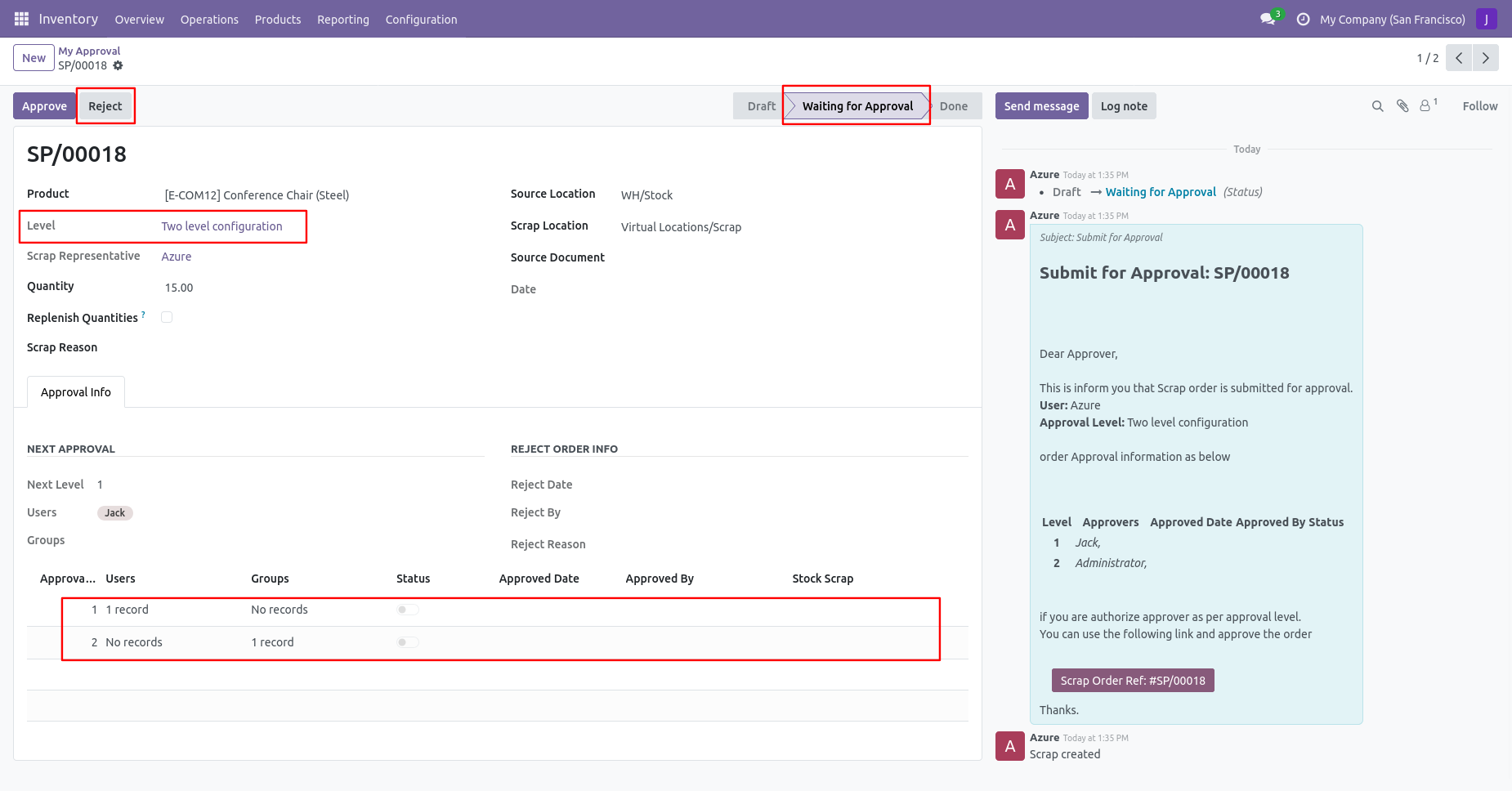
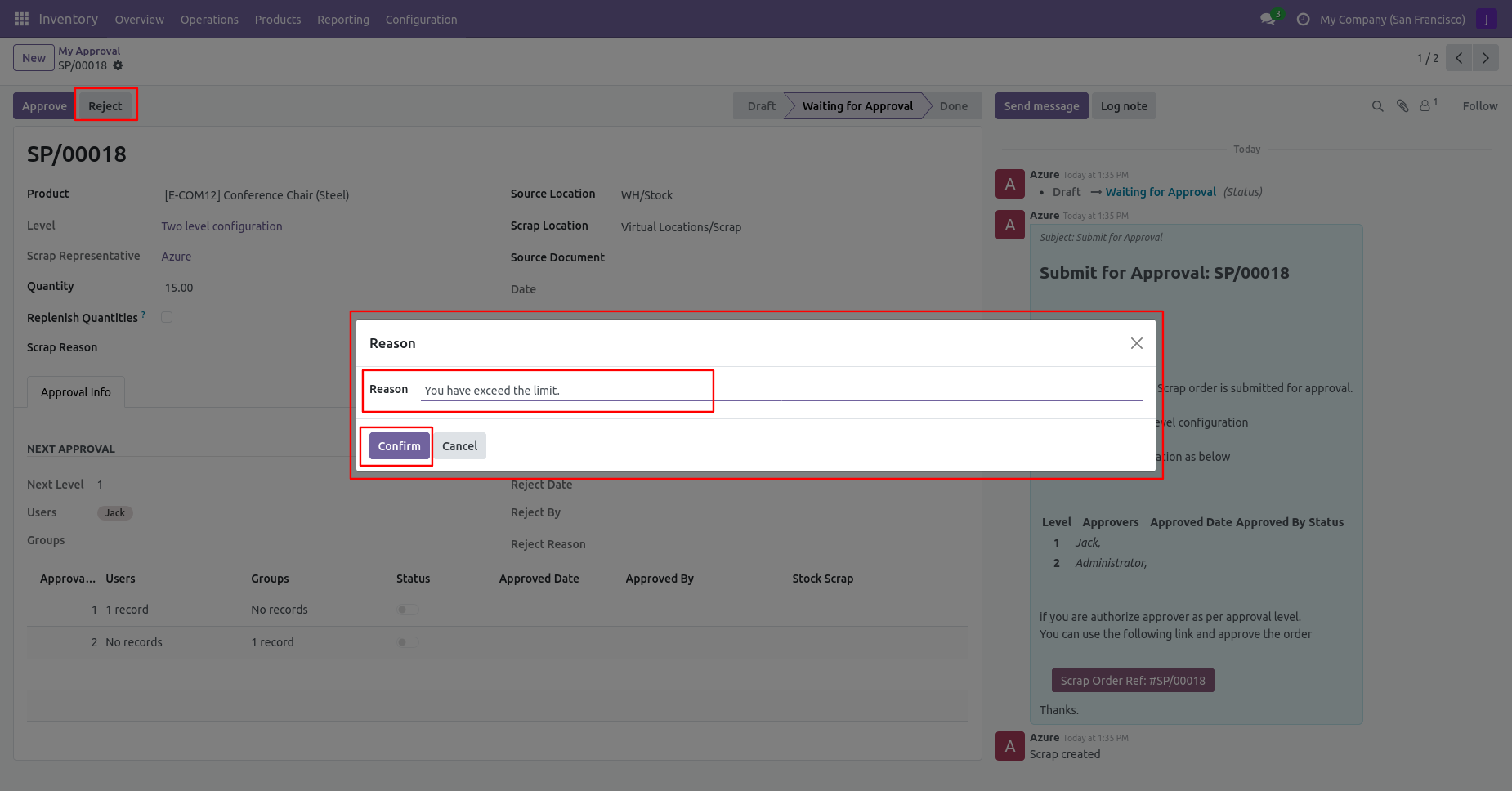
After click on the reject button, this wizard will pop up, here the approver has to add a reason for rejecting the scrap order.
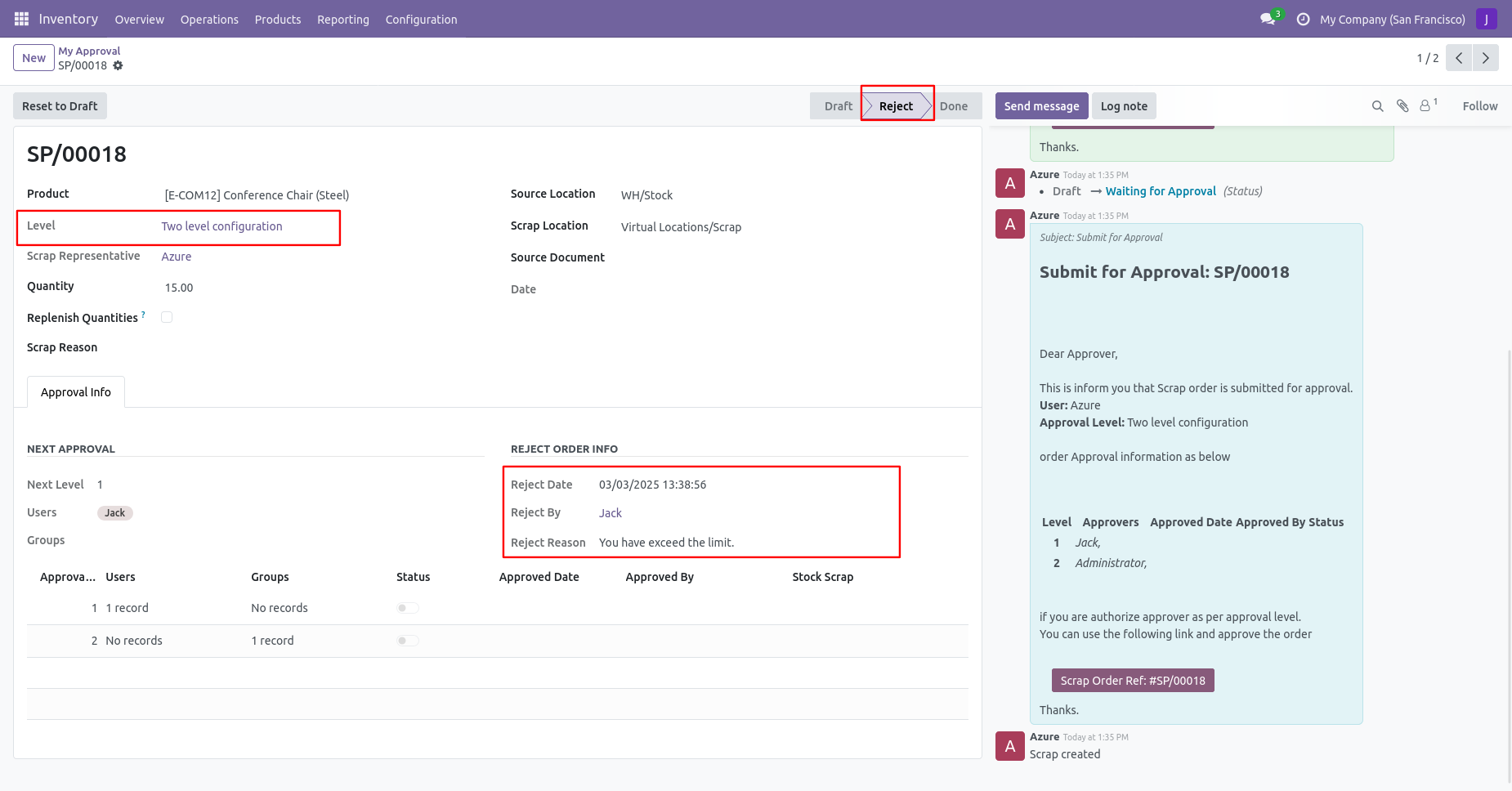
After rejection, it auto-set the rejection information in the "Reject Order Info".
Email notification of rejection looks like this.

Version 19.0.1.0.0 | Released on : 5th December 2025
- No, this app works perfectly with Odoo Enterprise (Odoo.sh & Premise) Only.
- No, this application is not compatible with odoo.com(odoo saas/Odoo Online)
- Yes, to test this module, please contact us at sales@softhealer.com.
- Please contact us at sales@softhealer.com to request customization.
- Yes, we provide free support for 365 days from the date of purchase.
- Yes, you will receive lifetime free updates for the version of the module you purchased.
- No, there is no need to install any additional libraries.
- Yes, for version 12 and above, you need to purchase the module separately for each version you intend to use.
- No, exchanges or refunds are not allowed. Please make sure to select the correct version before purchasing.
- You can contact us at support@softhealer.com for language translation support. We use Google Translator tools to provide translations in multiple languages, so the accuracy may vary. We welcome your suggestions to help improve translations.
Discover Our Latest Apps