

 Easy to Manage
 Dedicated Support















 Scan to email sales



All In One Customer Loyalty Management

Build customer engagement with loyalty points, membership tiers, referral rewards, and gamification challenges in Odoo. Configure rewards, track customer progress, manage referrals and achievements, and bring loyalty features to the Odoo Website and Point of Sale.
Features

Loyalty Programs
Create loyalty programs where customers earn points through purchases and use them for available rewards.

Conditional Point Rules
Define point rules using purchase amounts, quantities, products, categories, or other configured conditions.

Loyalty Rewards
Configure rewards that customers can exchange their earned loyalty points for during their purchases.

Loyalty Cards
Manage customer loyalty cards with their codes, balances, partners, order references, and point history.
Loyalty Tiers
Create loyalty tiers with minimum spending requirements and tier points to define customer levels.

Tier Progress
Show customers their current loyalty tier and progress toward reaching the next available tier.
Referral Program
Create referral programs that let customers invite friends and earn loyalty points from eligible referrals.

Referral Links
Provide customers with unique referral codes and links that they can share with friends to invite new customers.

Gamification Missions
Create missions based on activities such as order counts, order items, or spending amounts with defined goals.

Referral Portal Dashboard
Give customers a dedicated referral dashboard to view referral activity, referred customers, orders, earnings, and referral rewards.

Mission Progress
Let customers view active challenges, target goals, completion progress, and completed mission details.

Mission Rewards
Grant configured loyalty rewards when customers complete their assigned gamification missions.

Website Loyalty
Let customers access loyalty status, referrals, and gamification activities through the website.

POS Loyalty Tiers
Use configured loyalty tiers and customer loyalty information directly during Point of Sale orders.
POS Referrals
Use referral information and connect eligible customer referrals with Point of Sale purchases.

POS Gamification
Bring configured gamification missions and customer progress into the Point of Sale experience.

Workflow
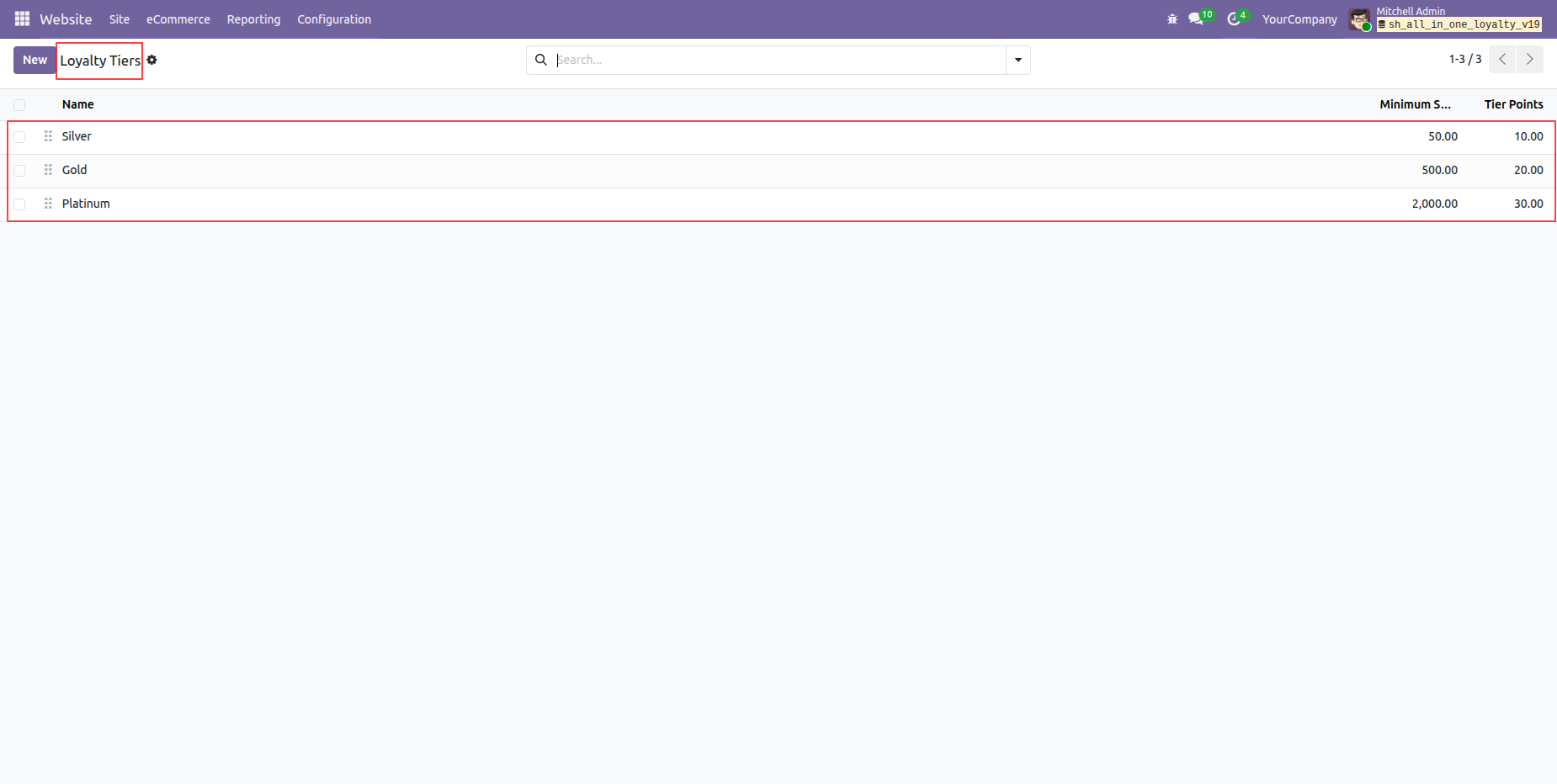
Open eCommerce menu and select Loyalty Tiers to manage tier rules.
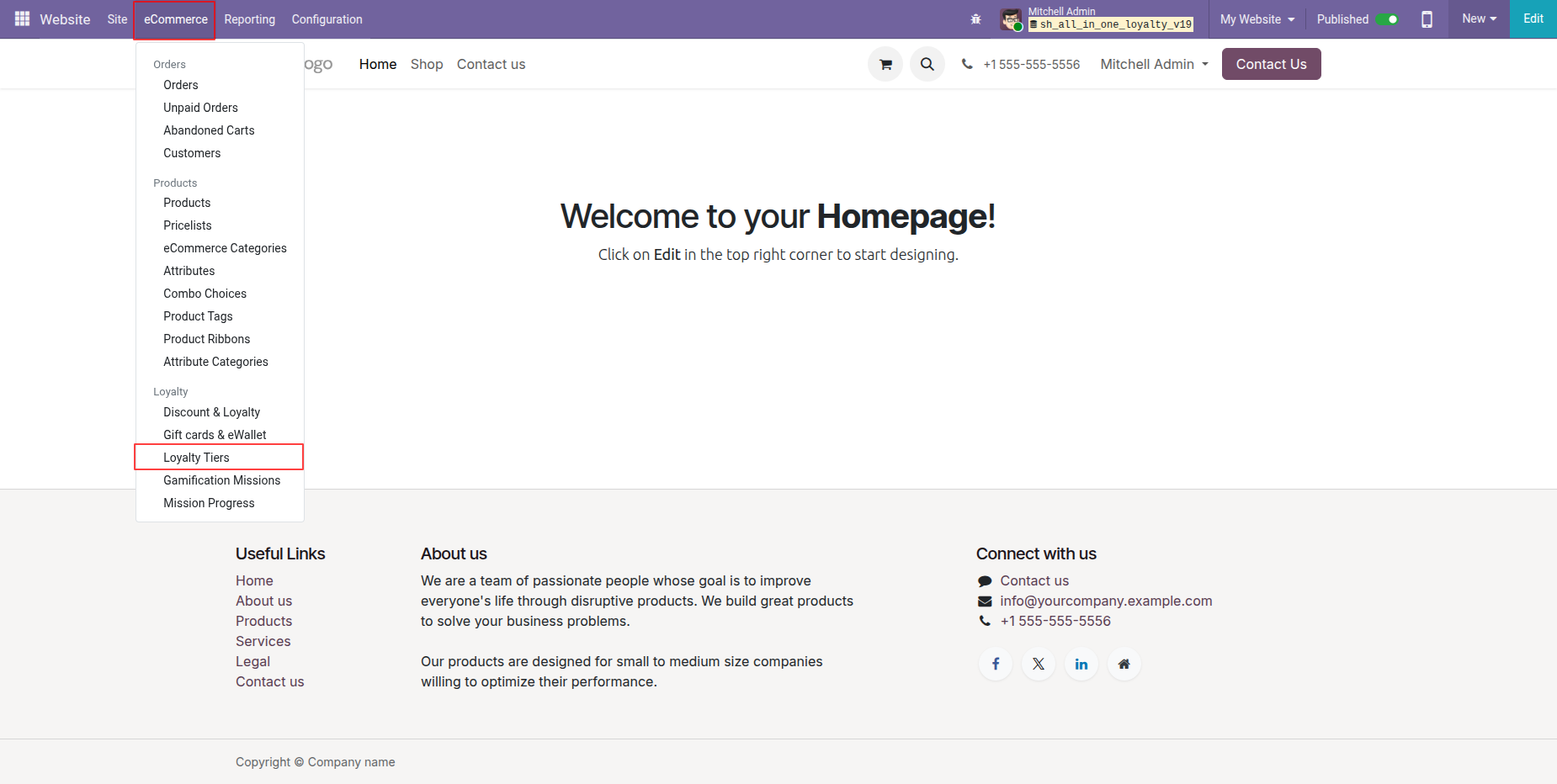
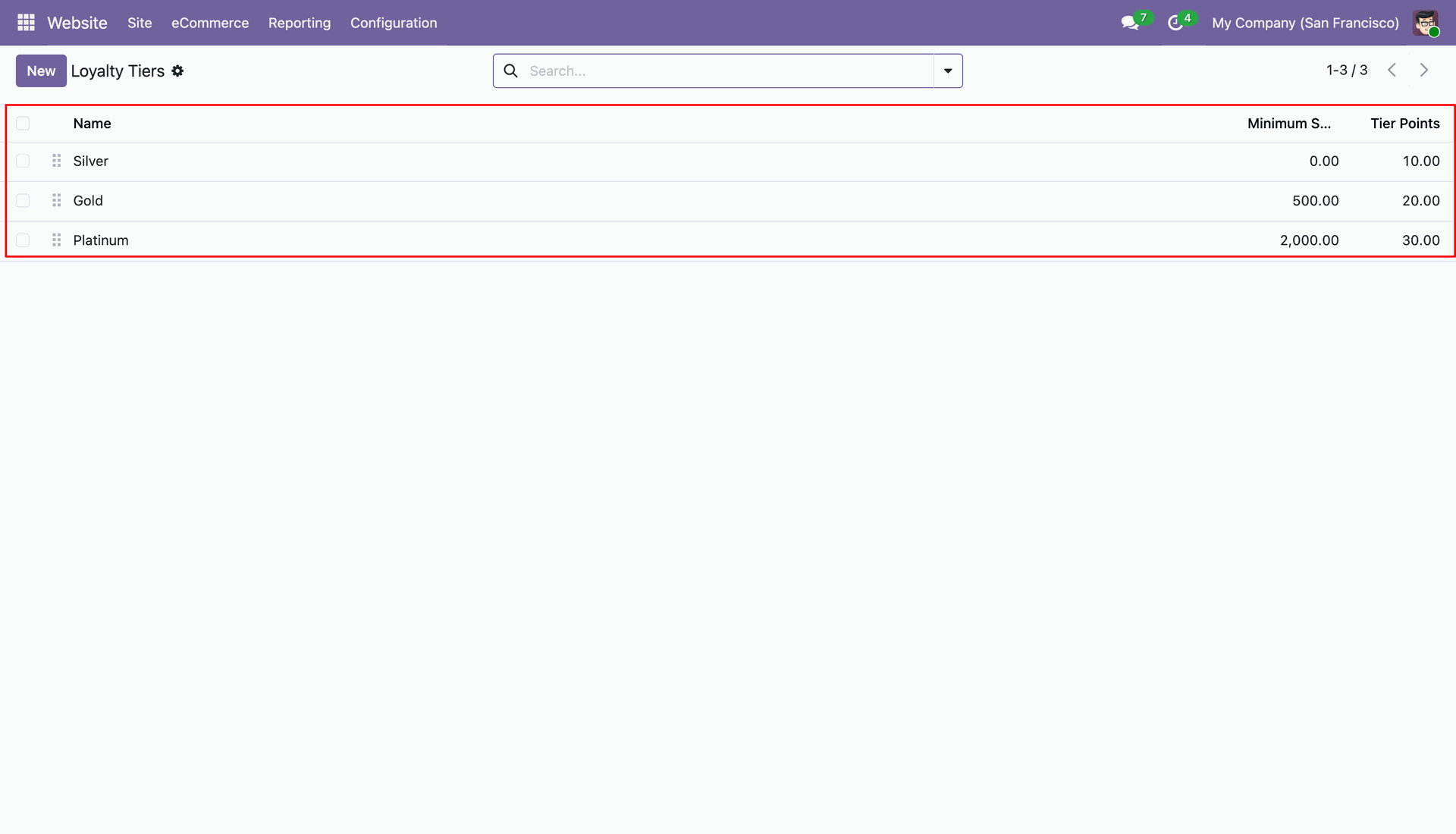
View the configured loyalty tiers list showing minimum spend and points.
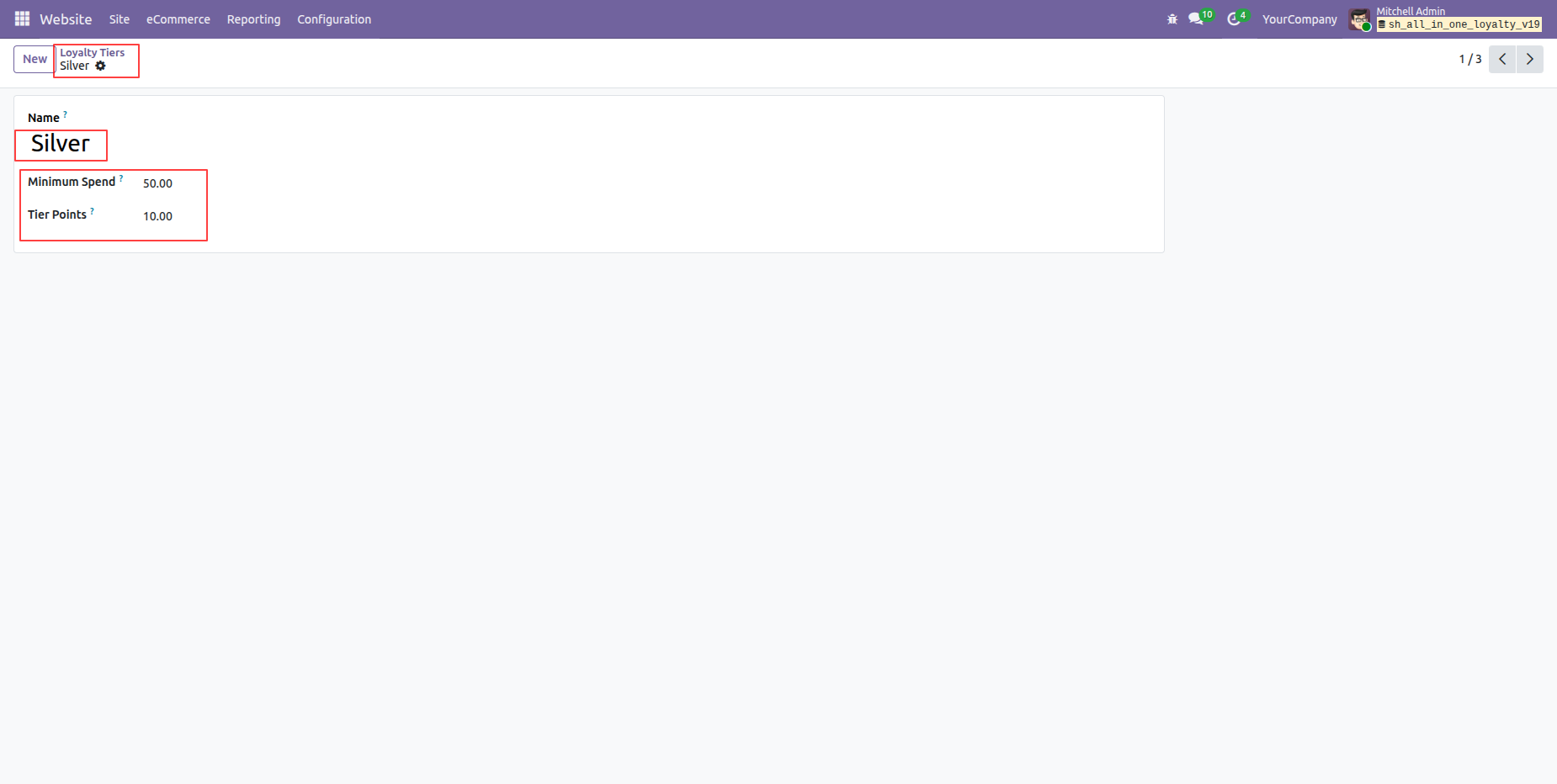
Configure minimum spend threshold and tier points for the Silver tier.
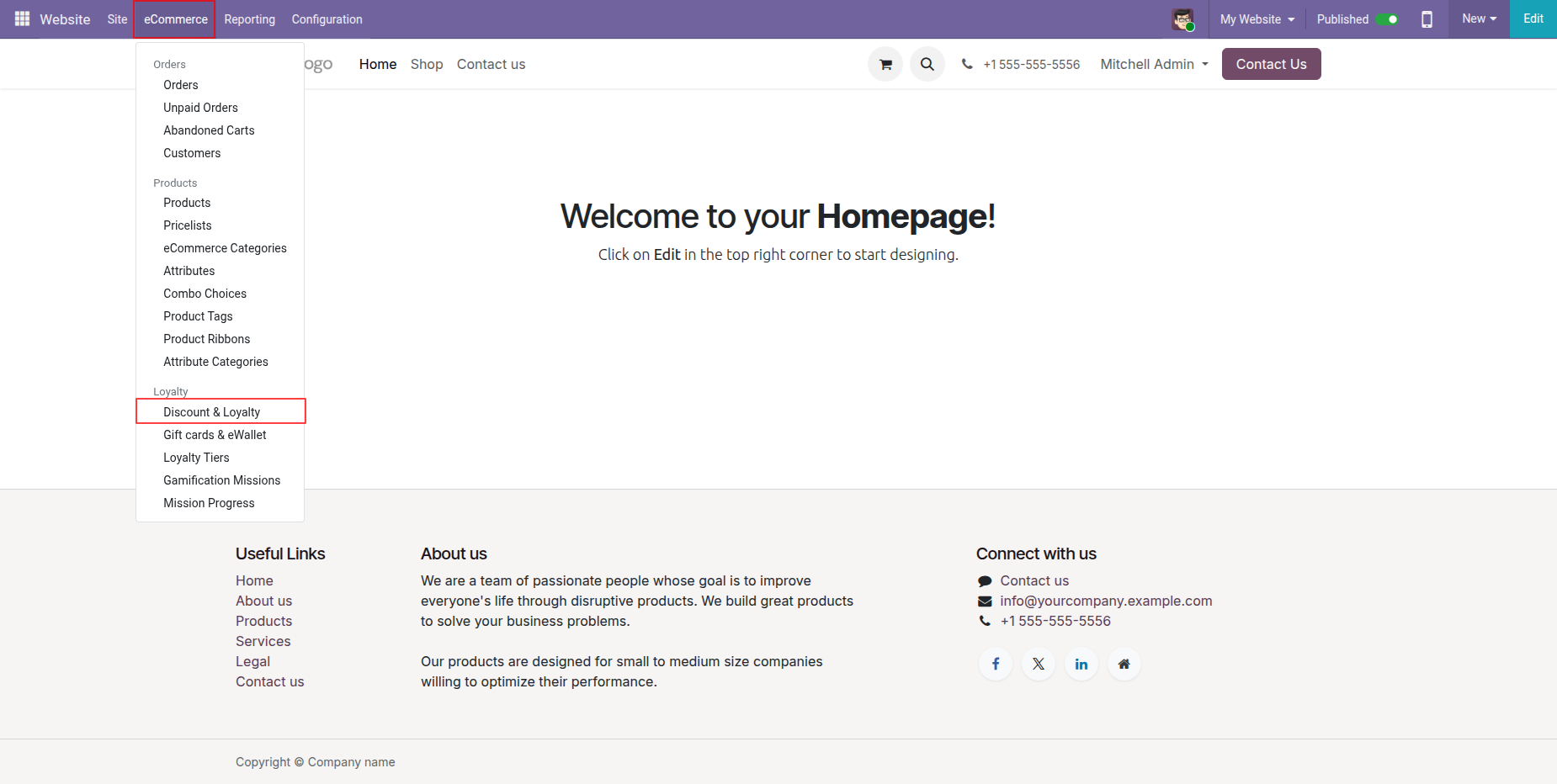
Access Discount & Loyalty menu under the eCommerce main configuration section.
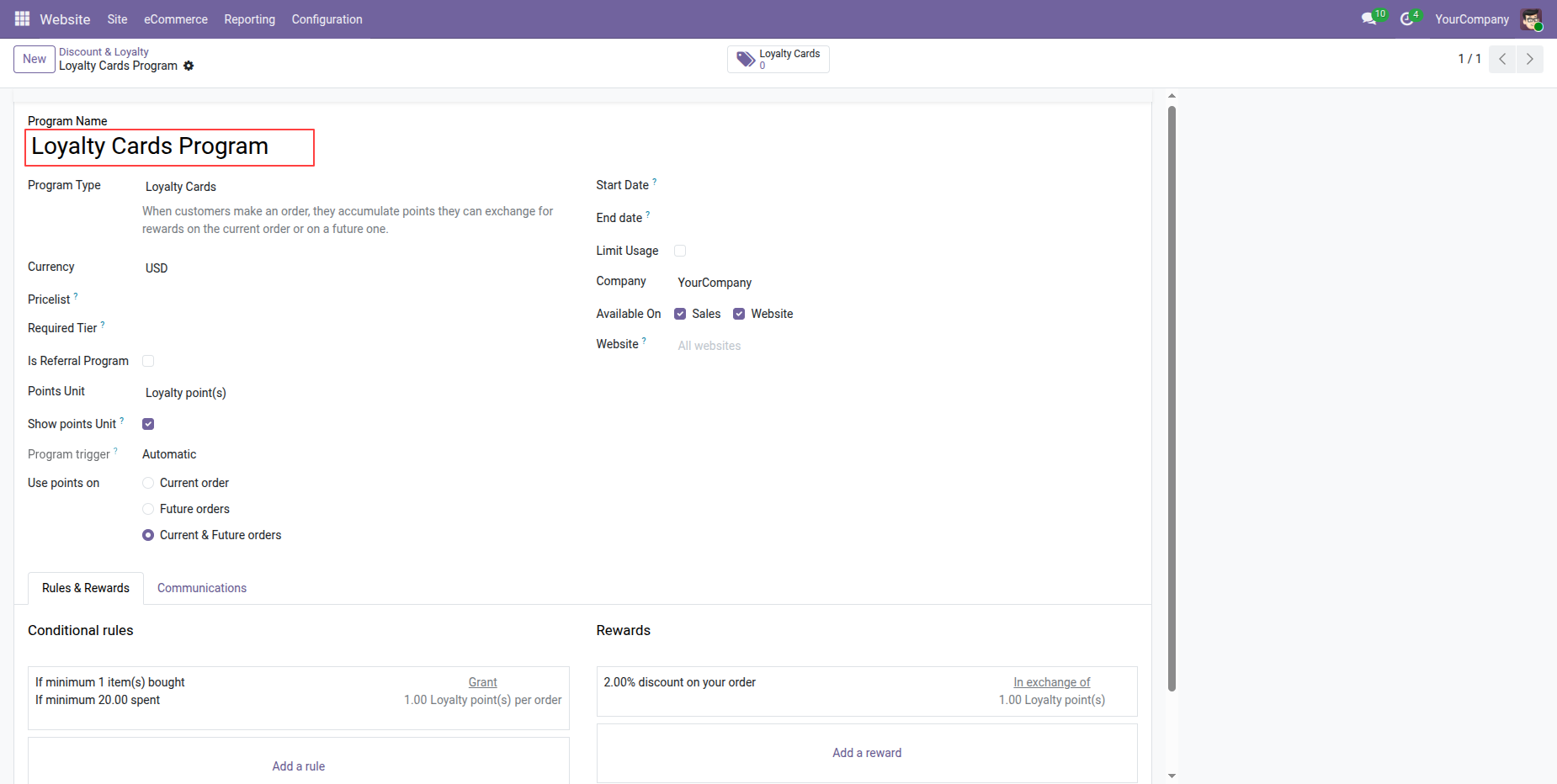
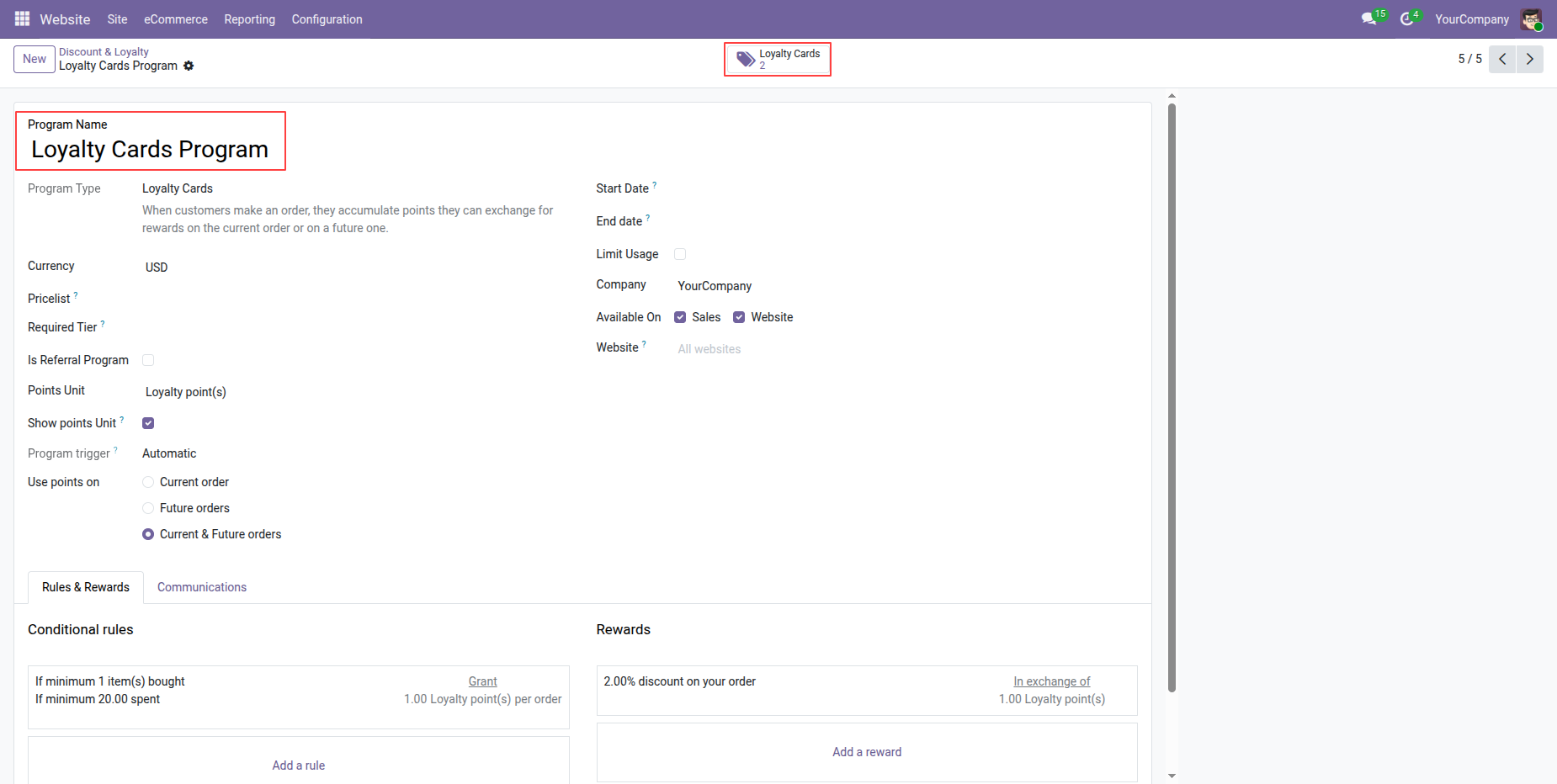
Review Loyalty Cards Program details including rules and website application scope.
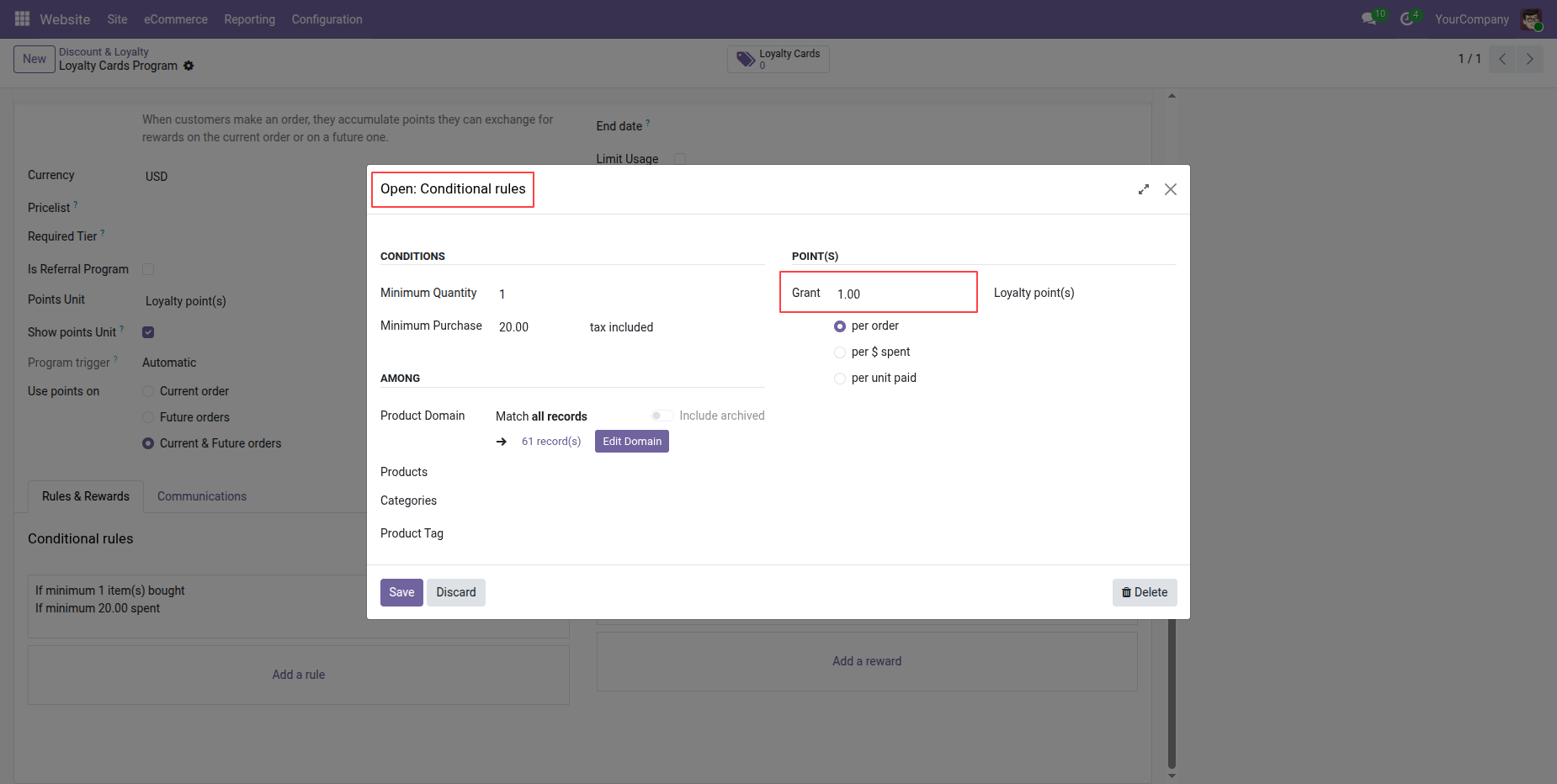
Configure conditional rules and grant points in the loyalty program popup.
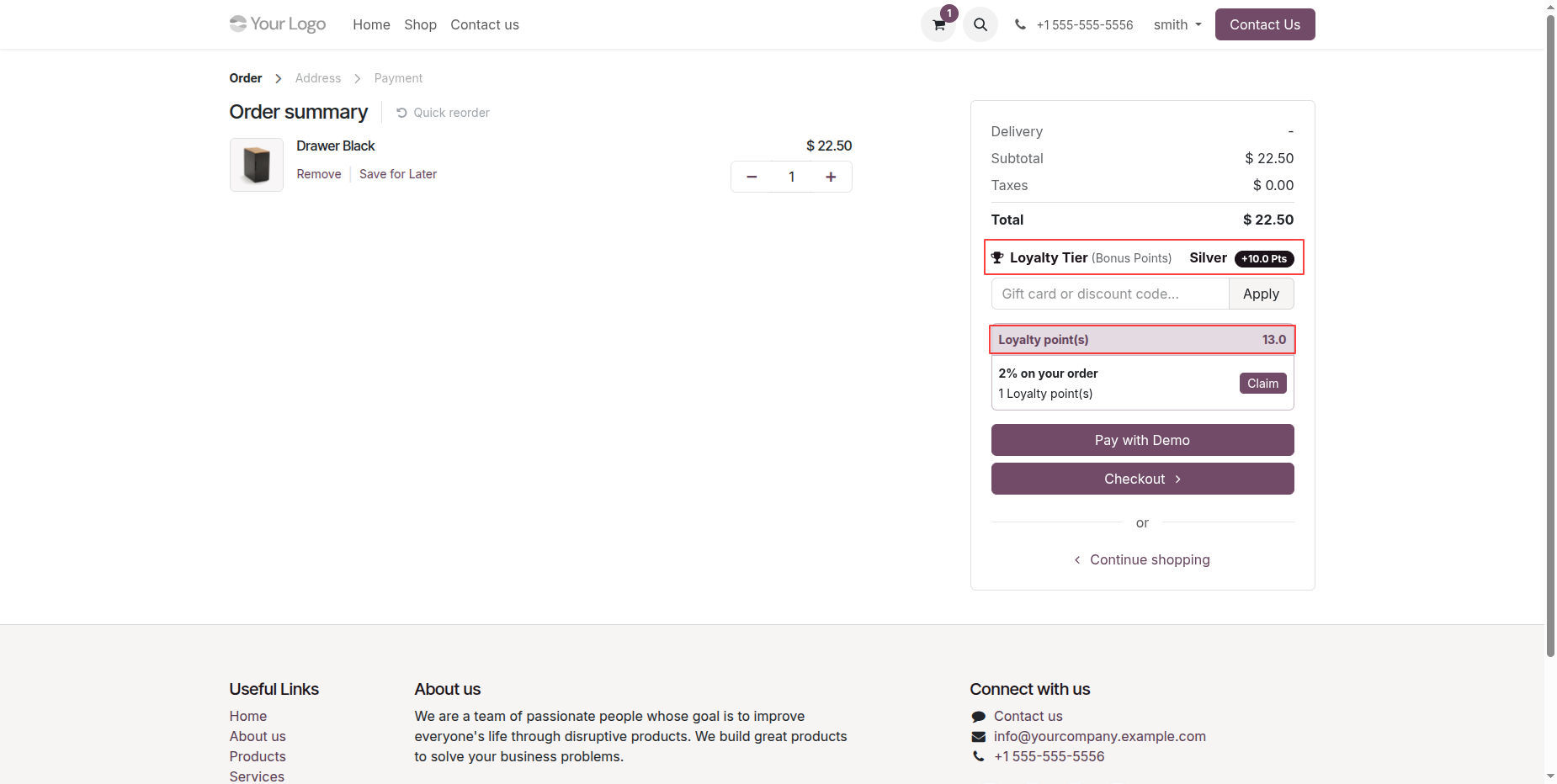
View order summary displaying earned Silver tier bonus points during checkout.
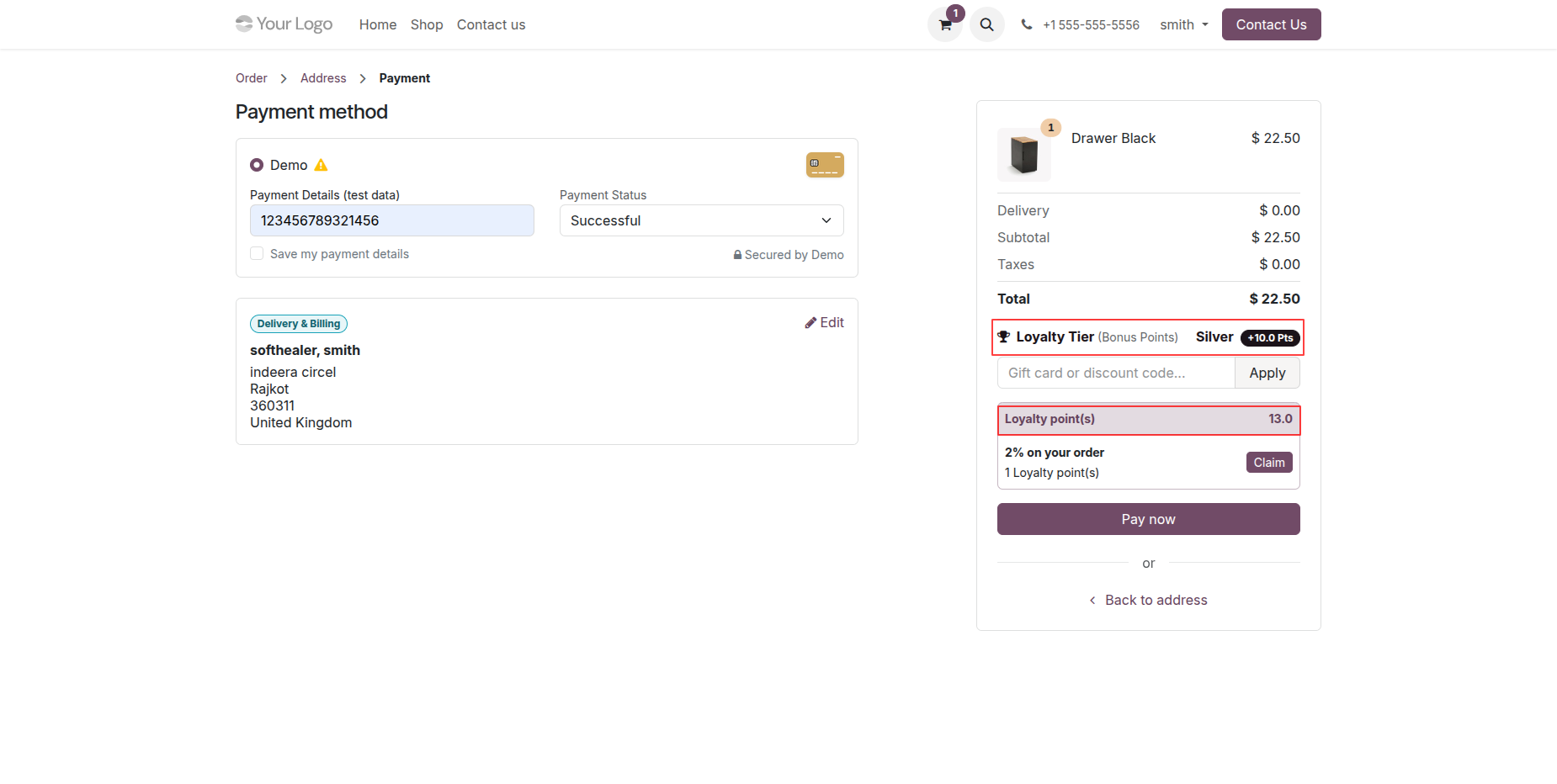
Review checkout payment details showing calculated Silver tier bonus points balance.
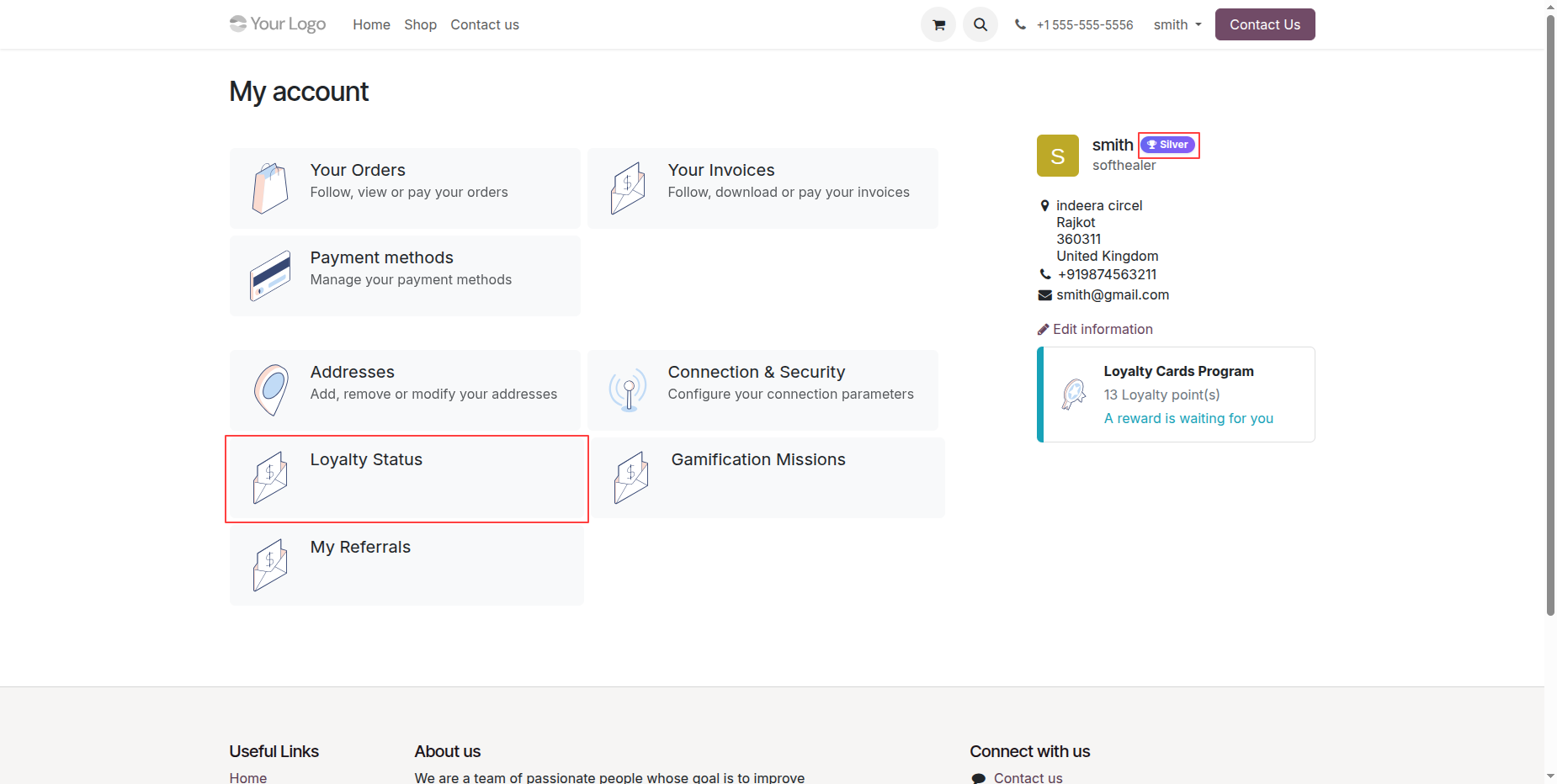
Select Loyalty Status option in the portal account customer dashboard menu.
Track tier upgrade progress bar and review membership benefits on portal.
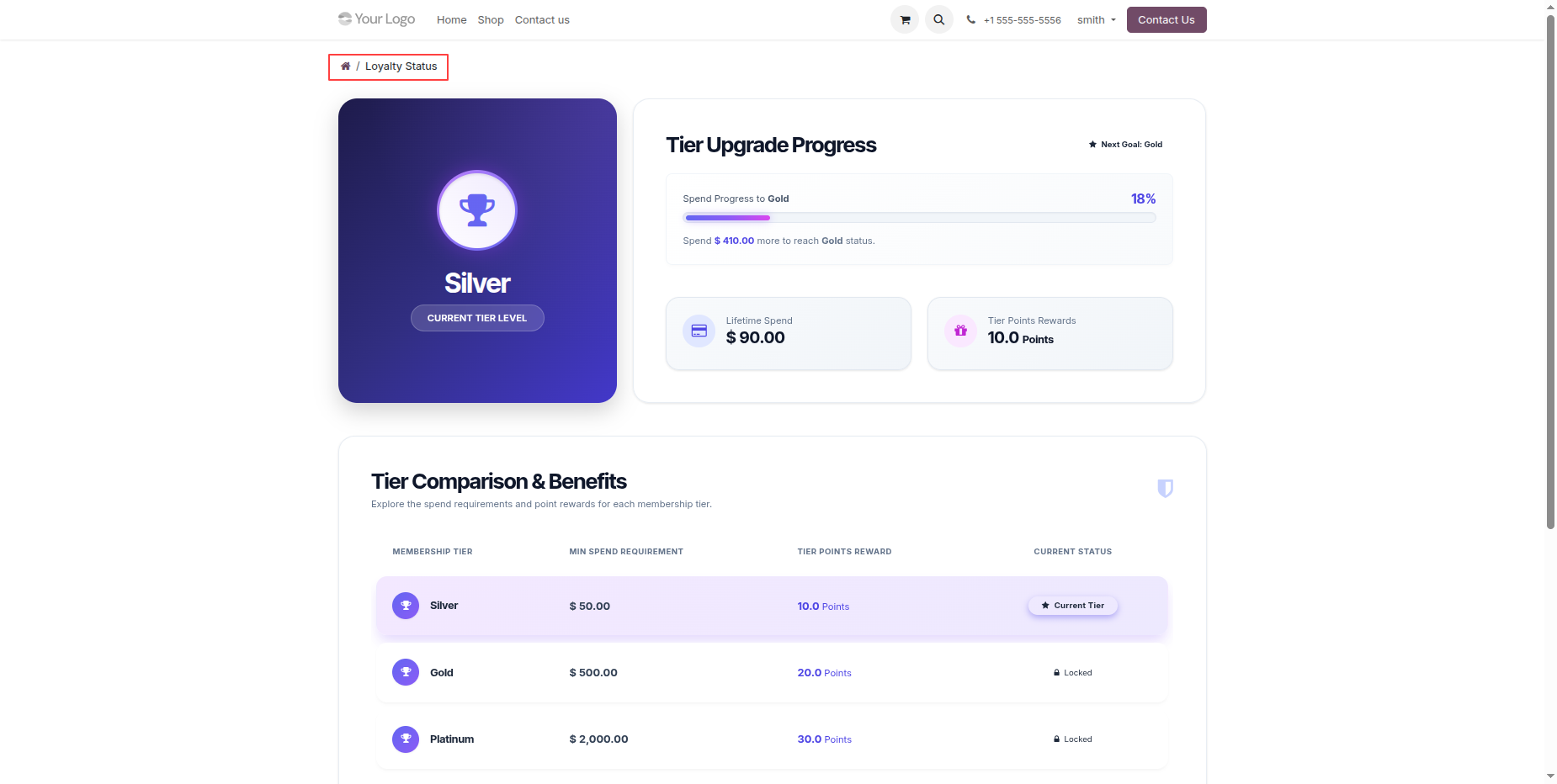
Click Loyalty Cards stat button to view assigned customer loyalty cards.
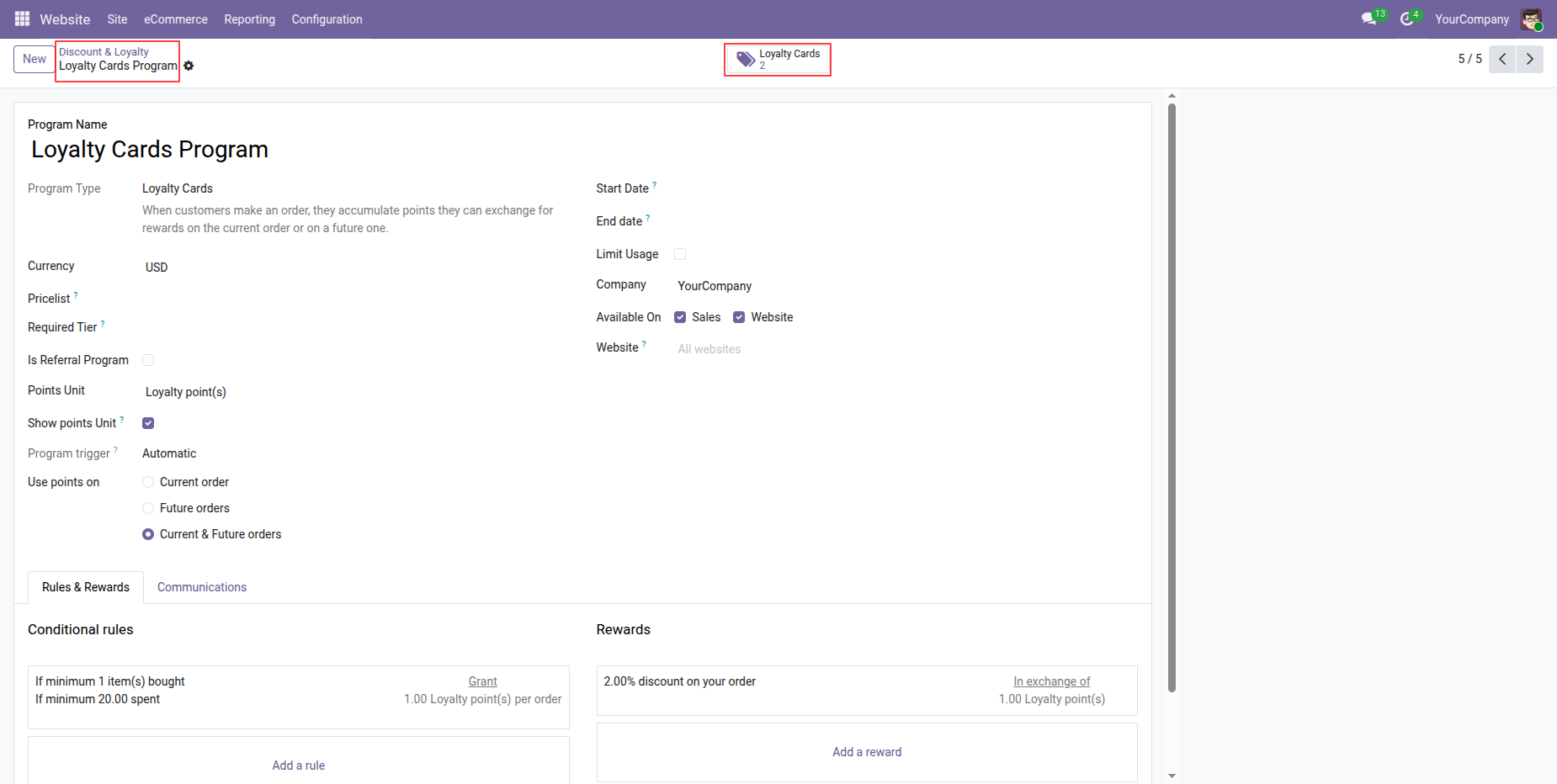
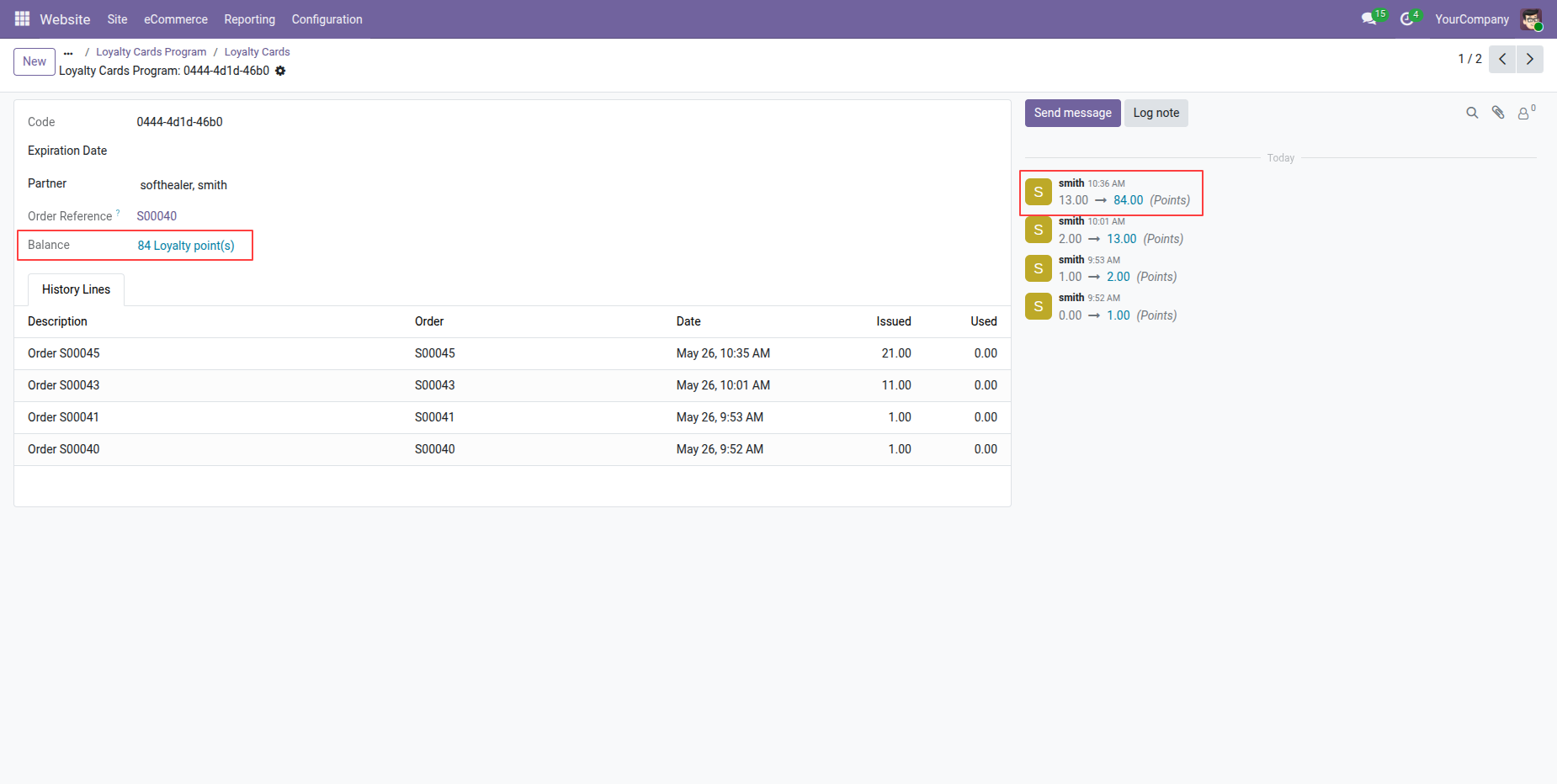
View customer loyalty card history detailing points earned from online purchase.
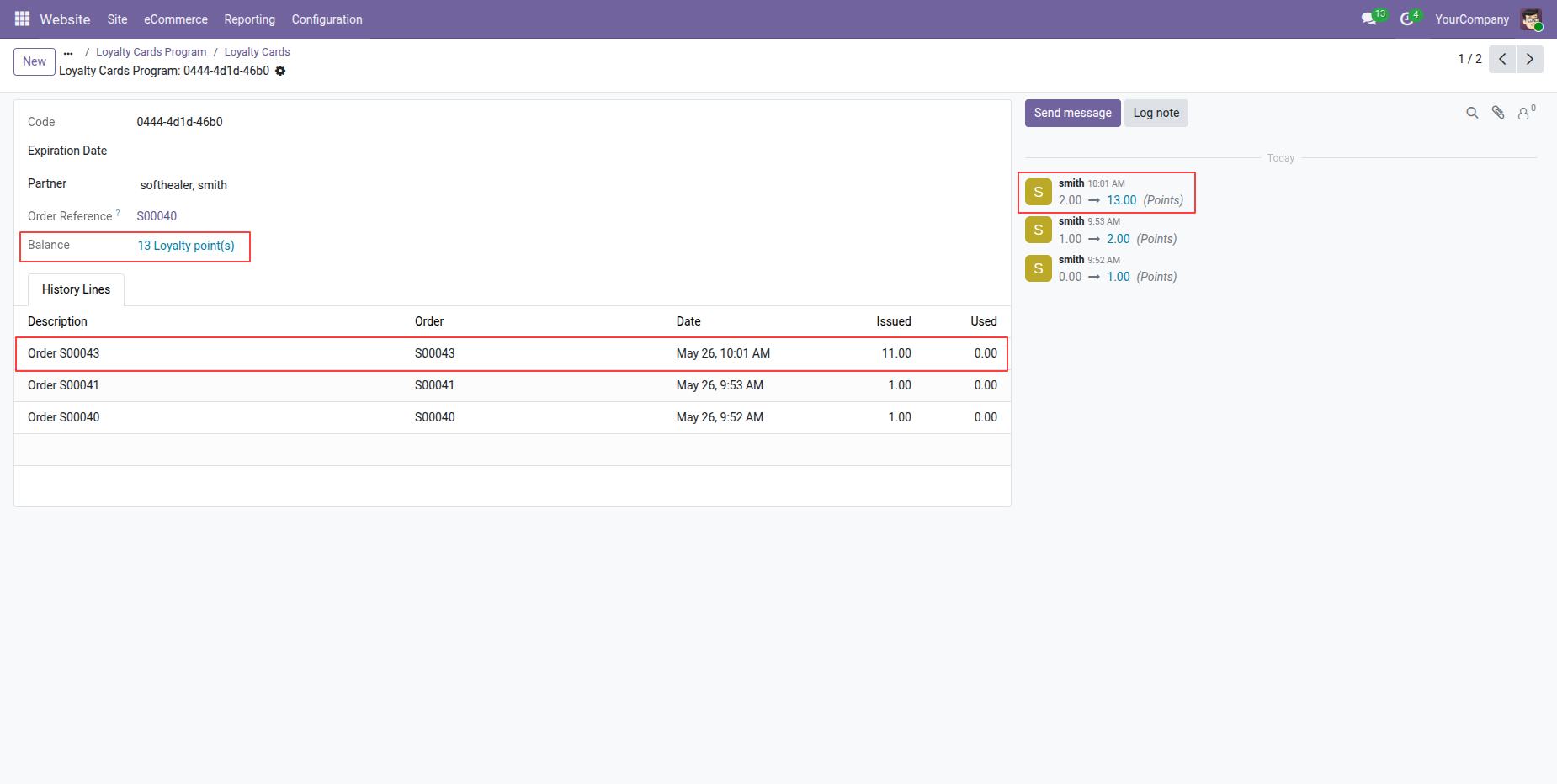
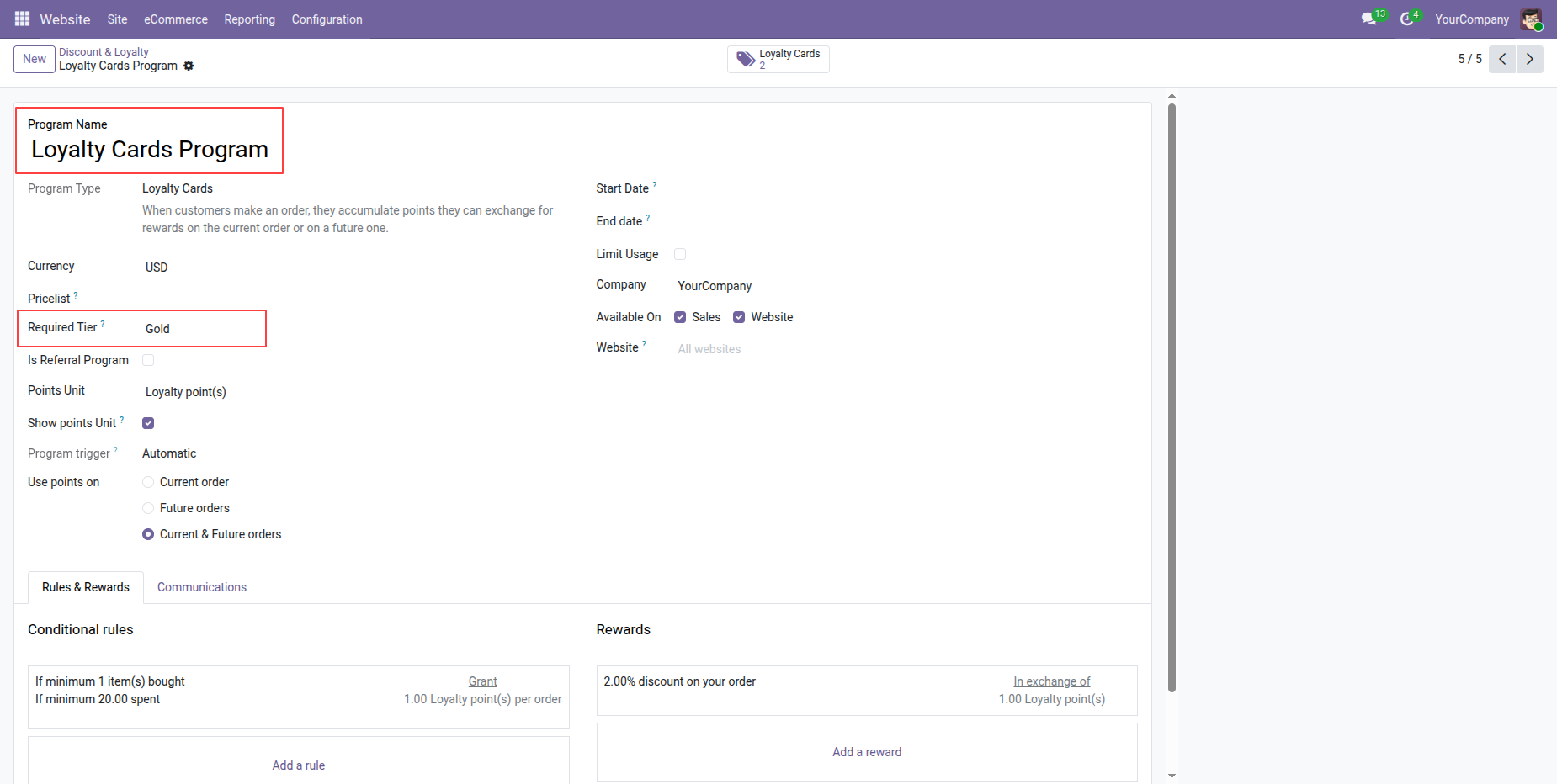
Select Required Tier field in the loyalty program configuration form screen.
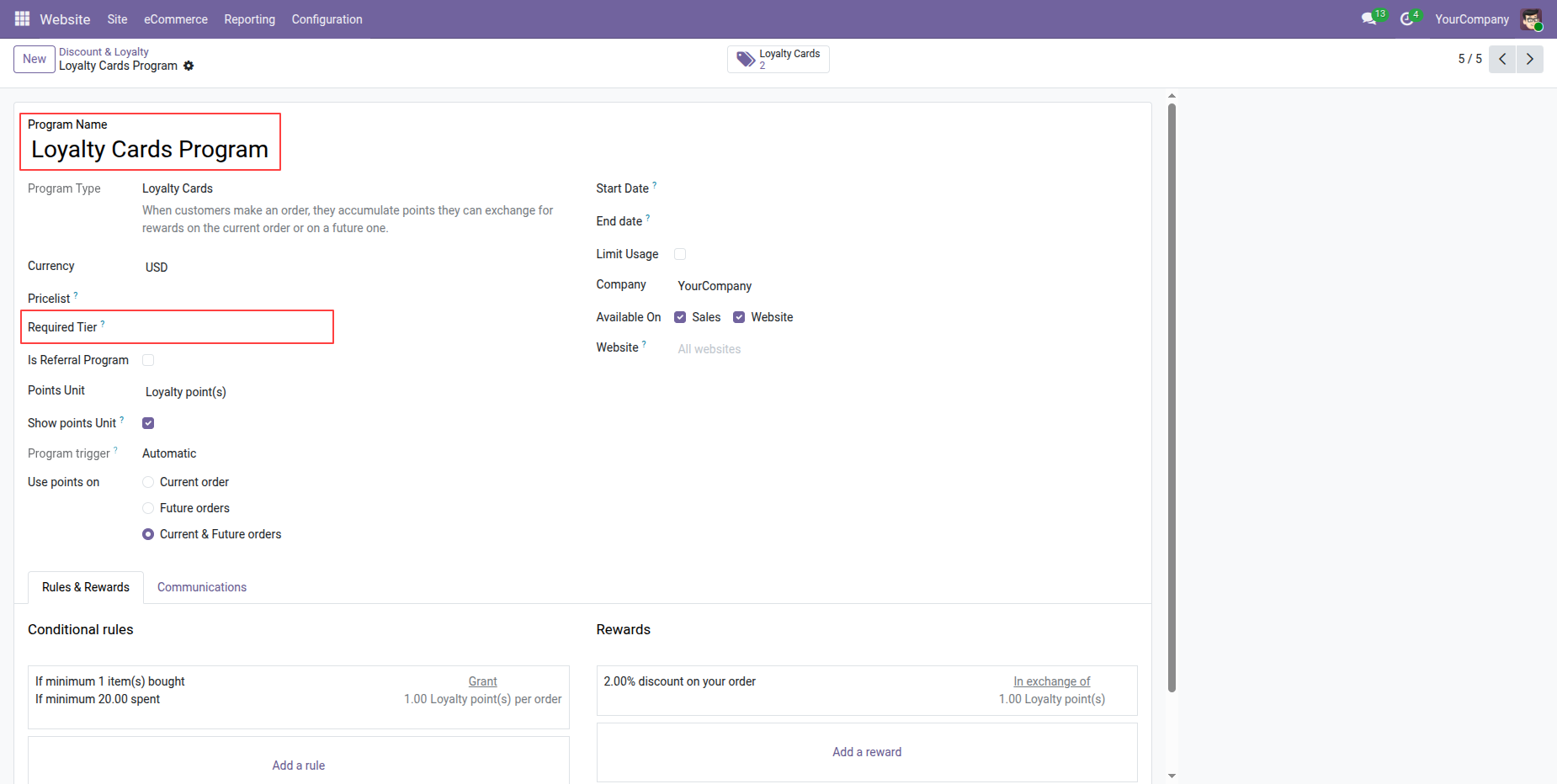
Set Gold tier in Required Tier field to restrict reward eligibility.
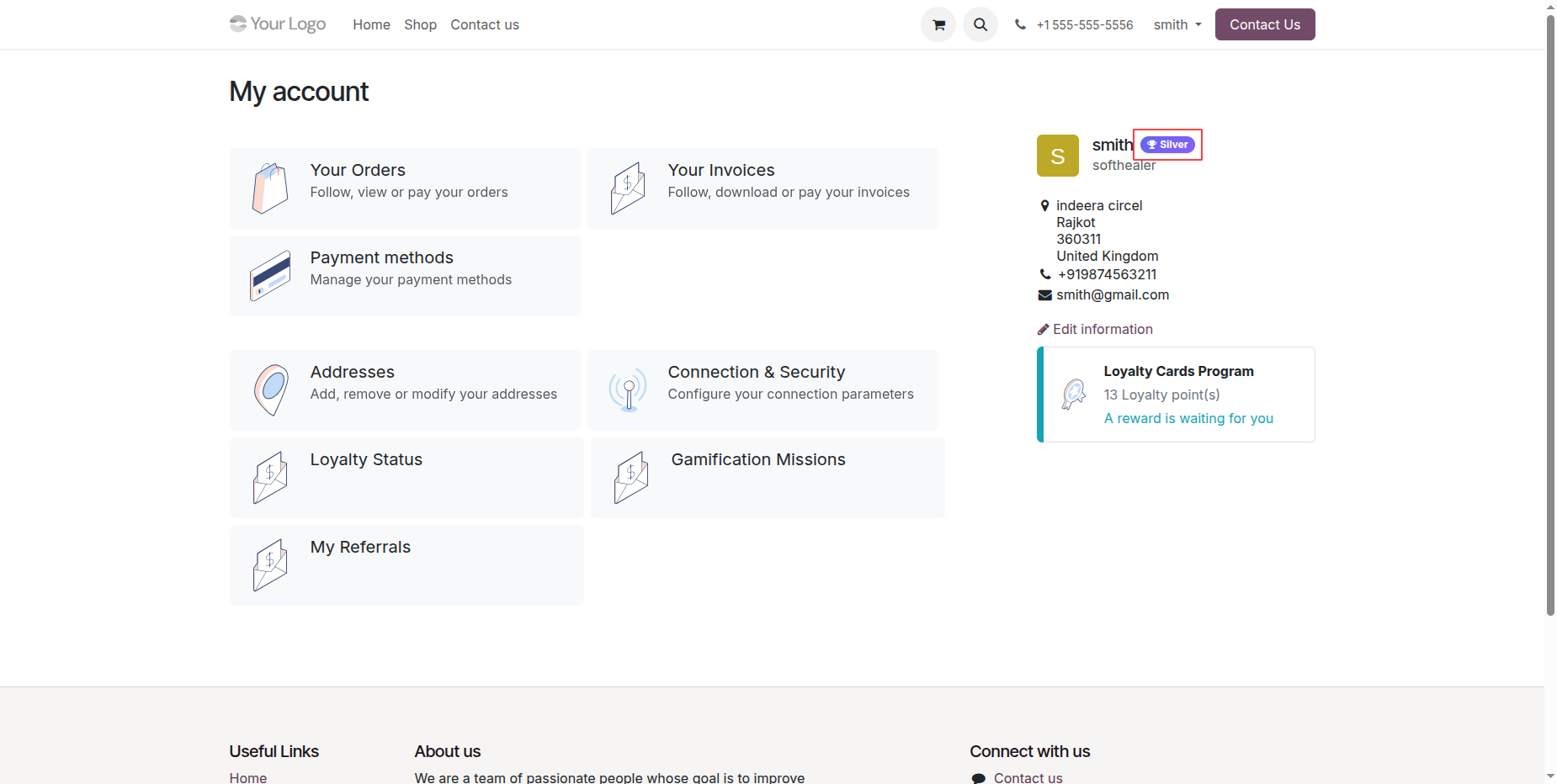
Check customer portal profile displaying current Silver loyalty tier status.
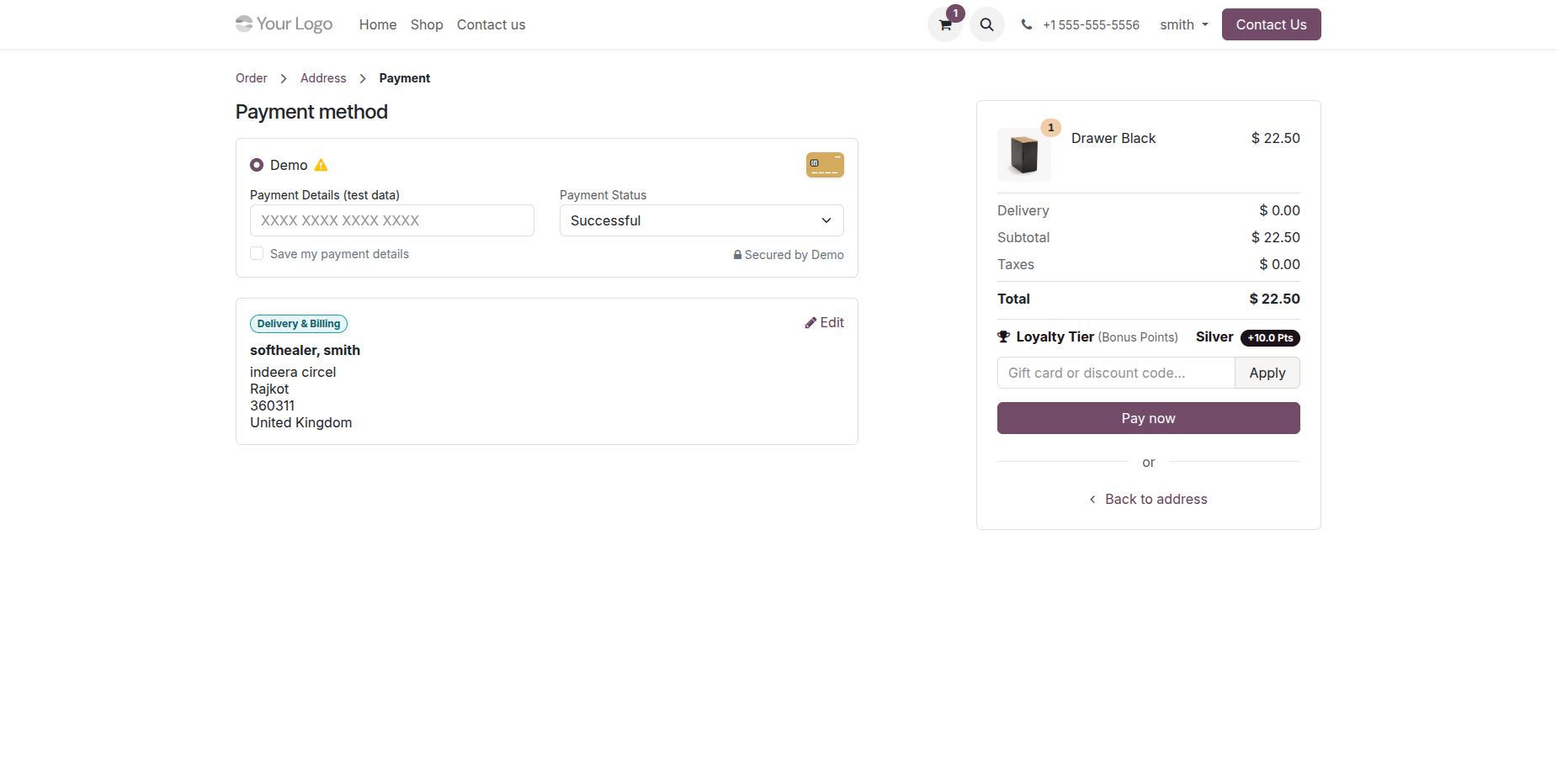
Proceed to checkout payment page to review order total and tier points.
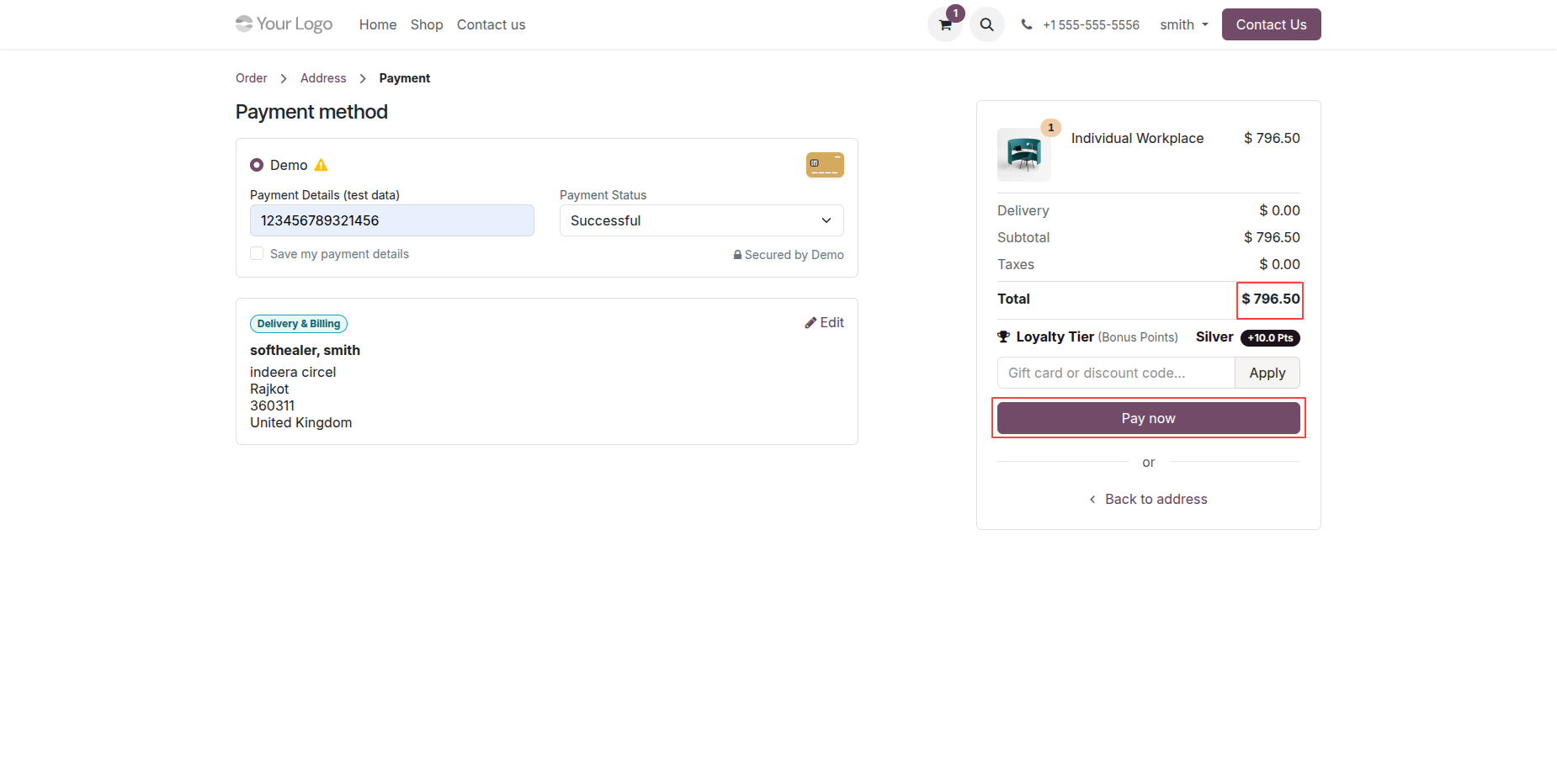
Press Pay now button to complete order and qualify for tier promotion.
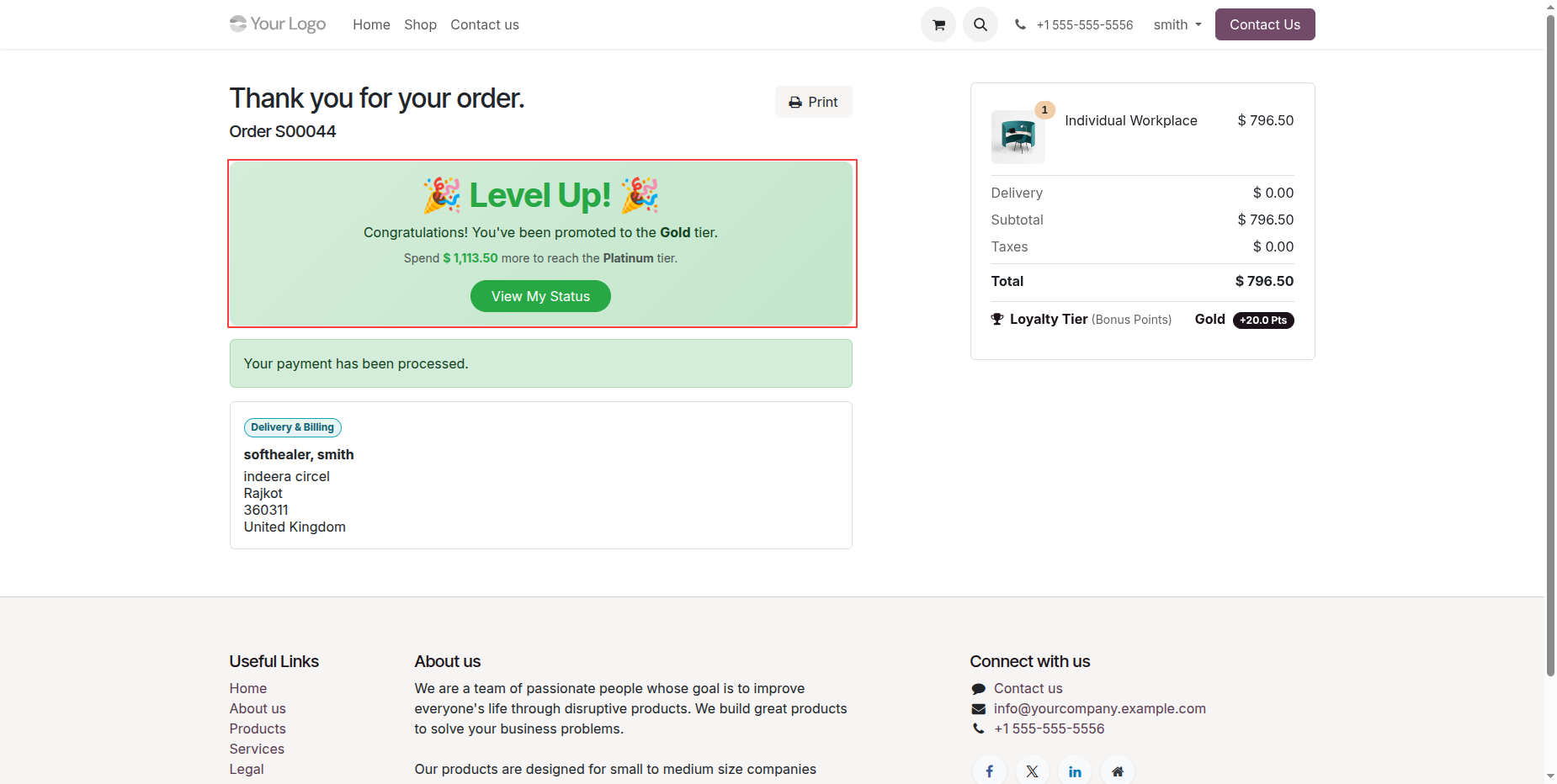
Review level up banner confirming instant promotion to the Gold tier.
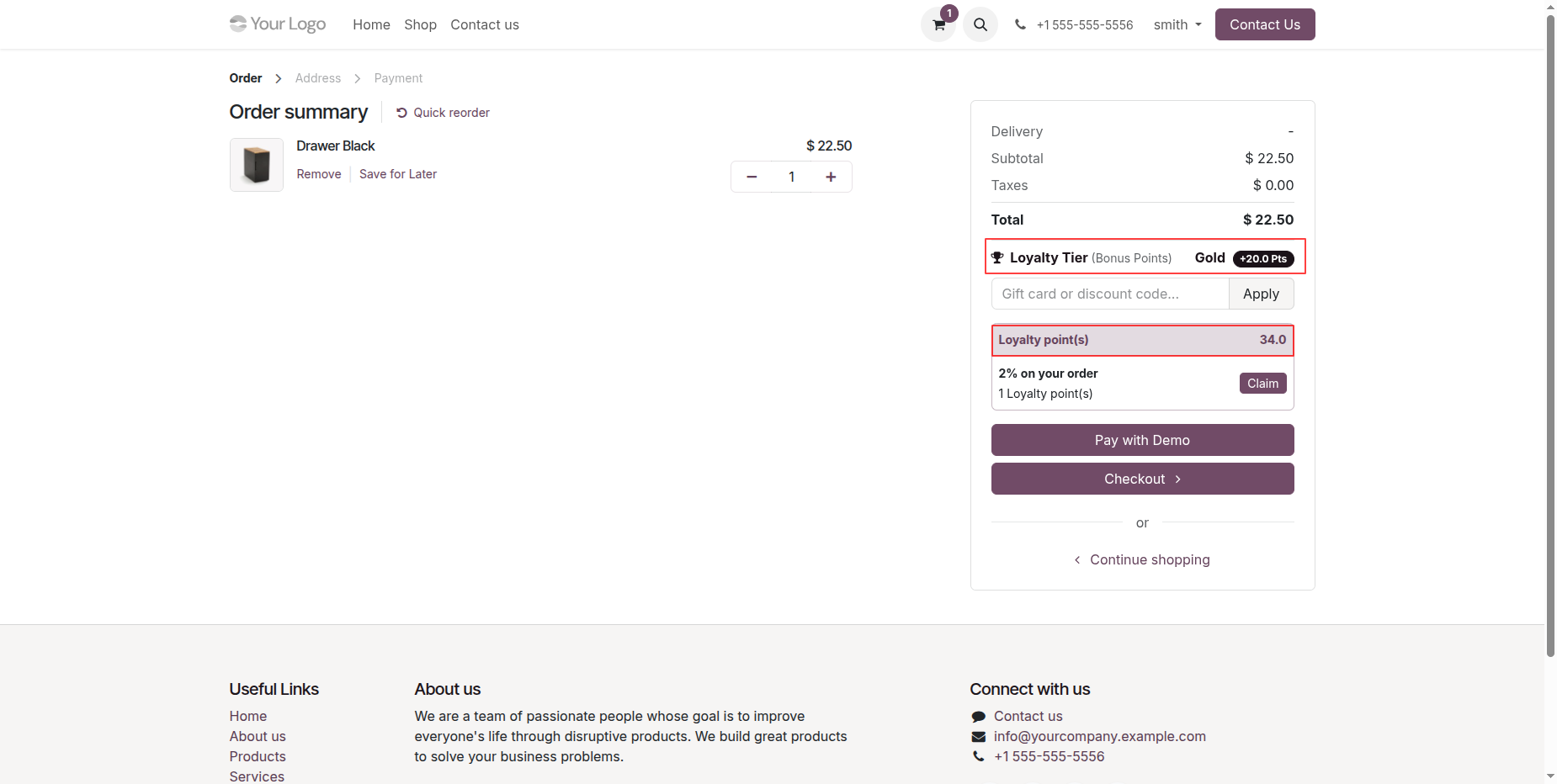
View updated cart order summary displaying increased Gold tier bonus points.
Workflow
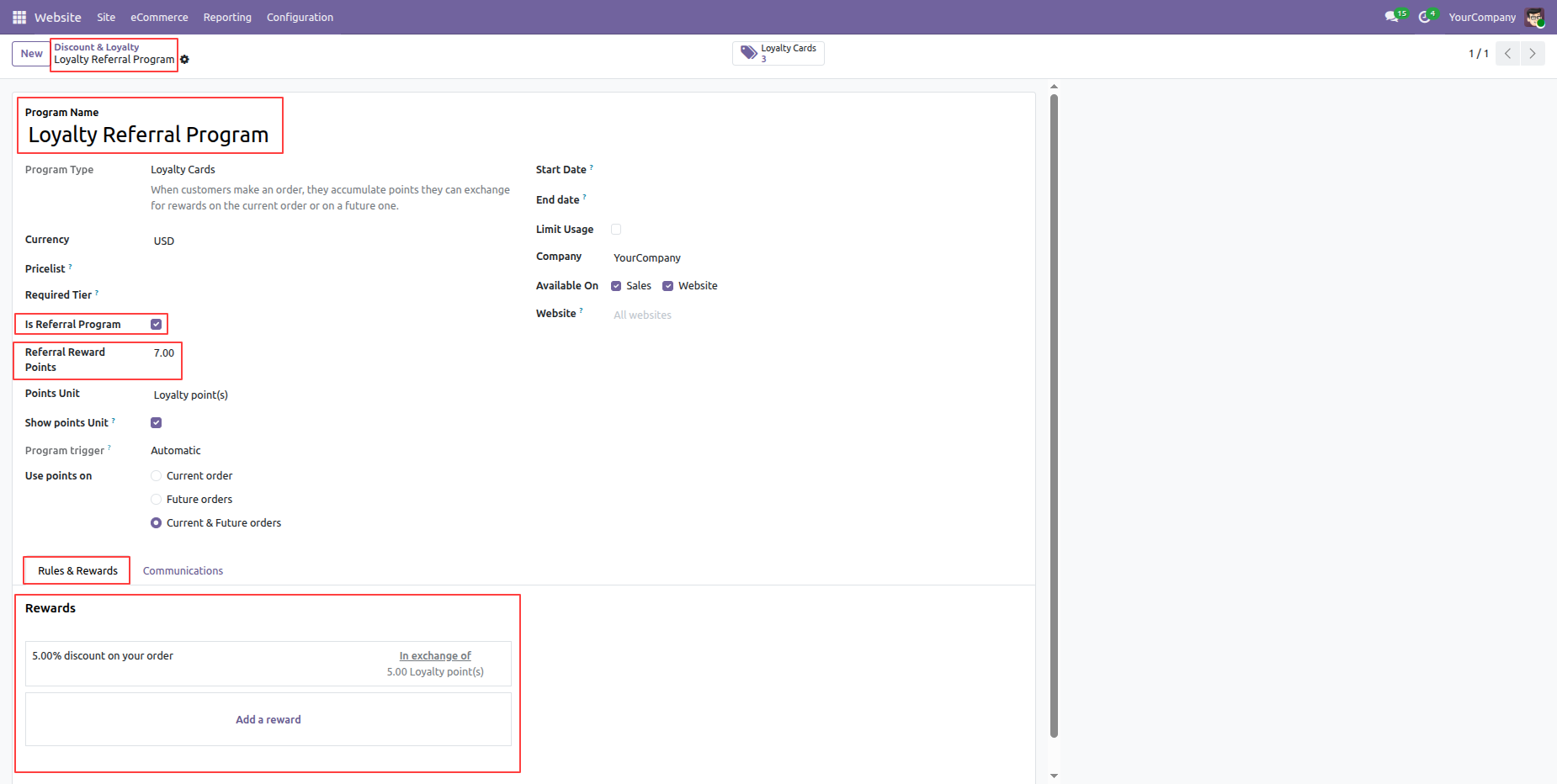
Enable Is Referral Program checkbox and define referral reward points.
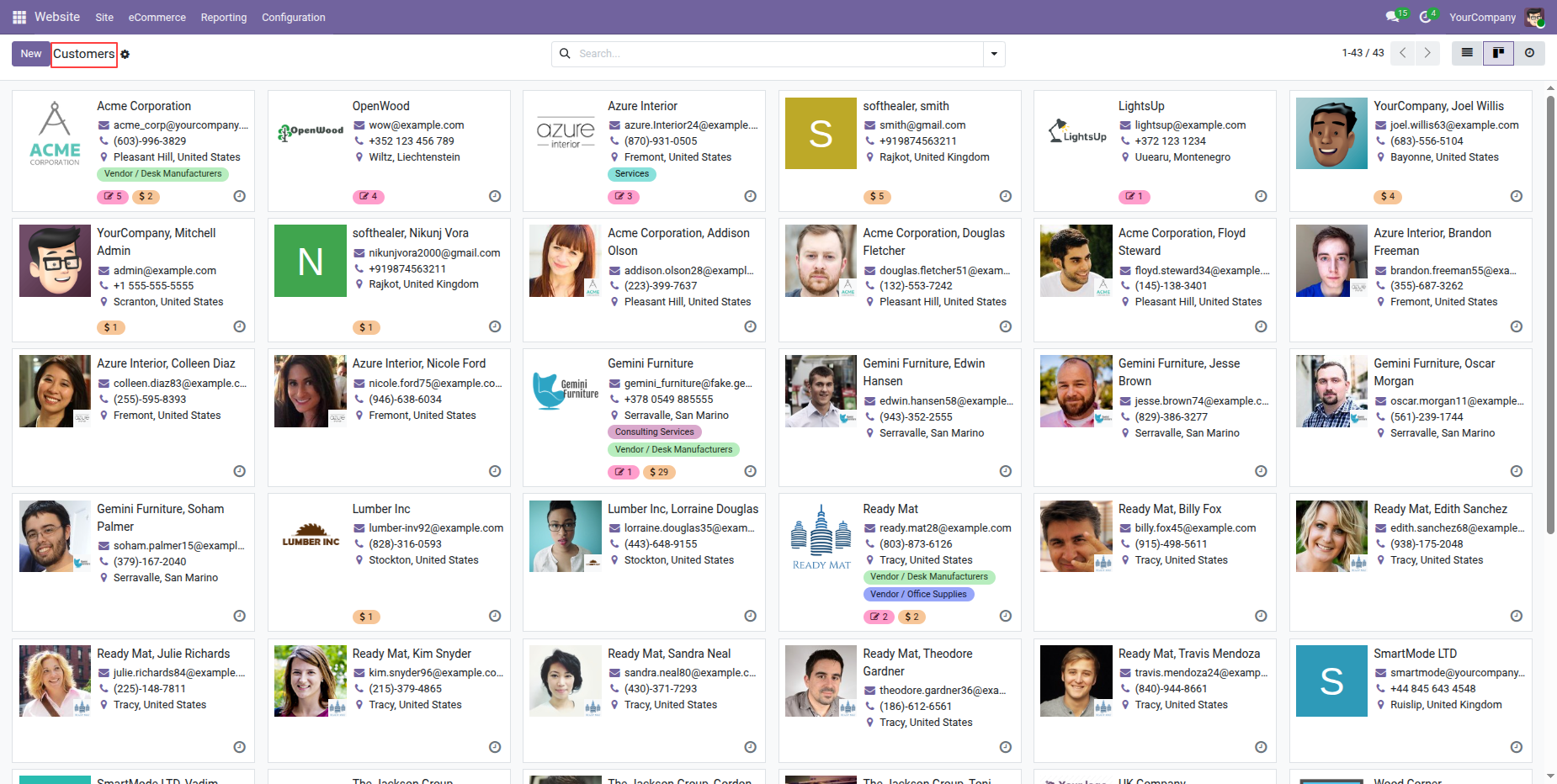
Open Customers menu to view registered customer contacts and partner profile cards.
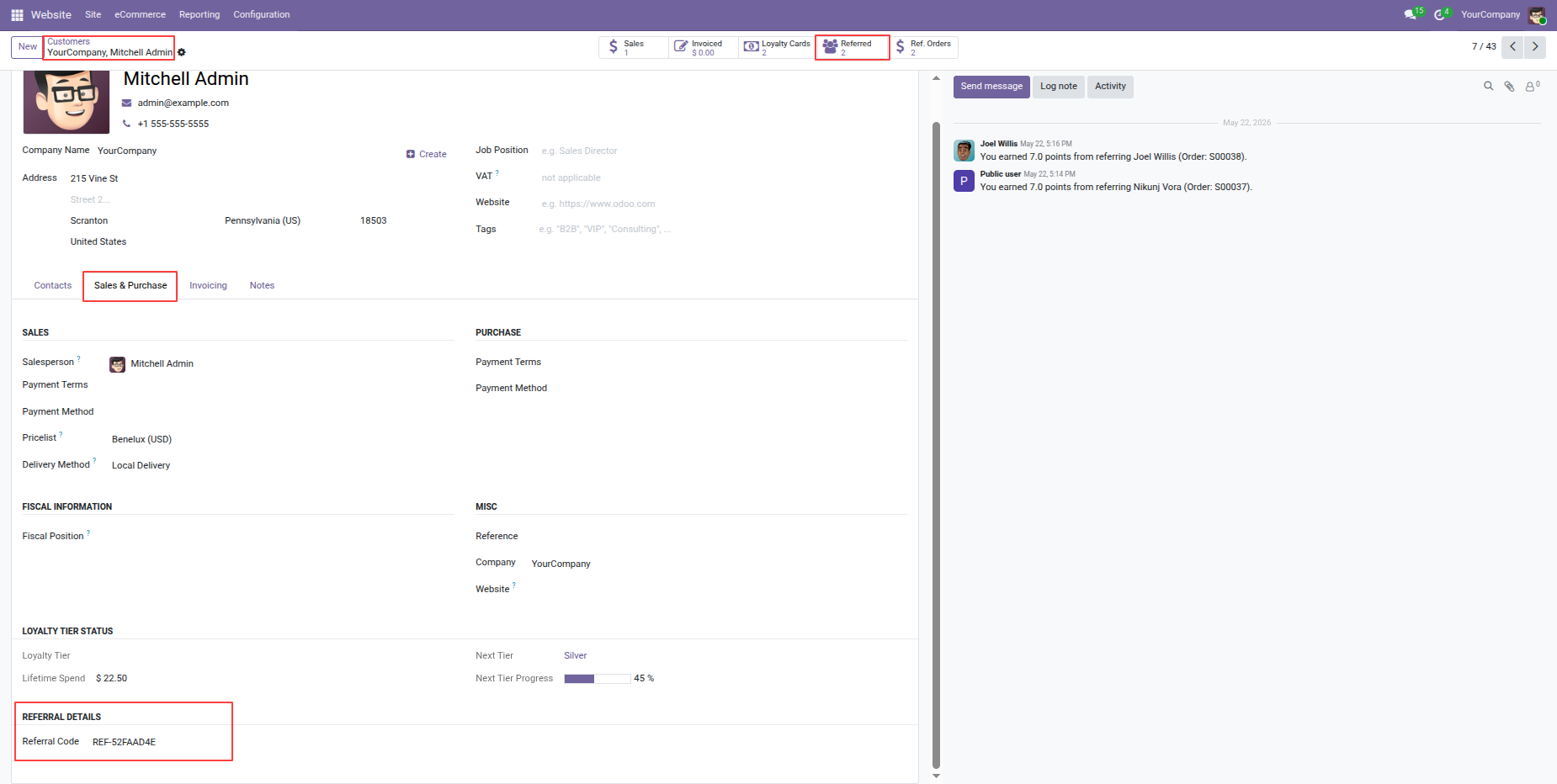
Check customer profile displaying generated referral code and Referred contacts smart button.
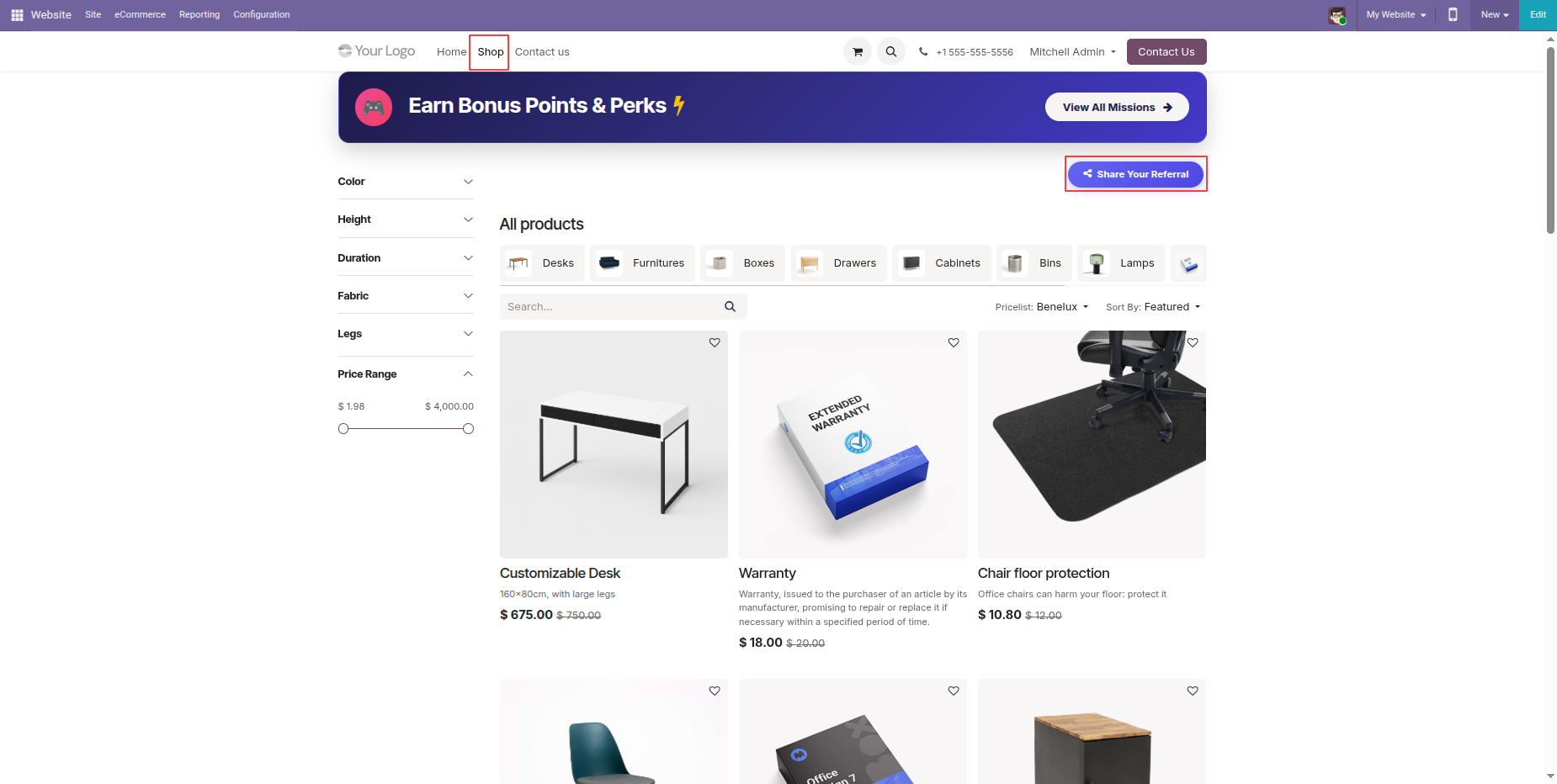
Click Share Your Referral button located on the online shop page header.
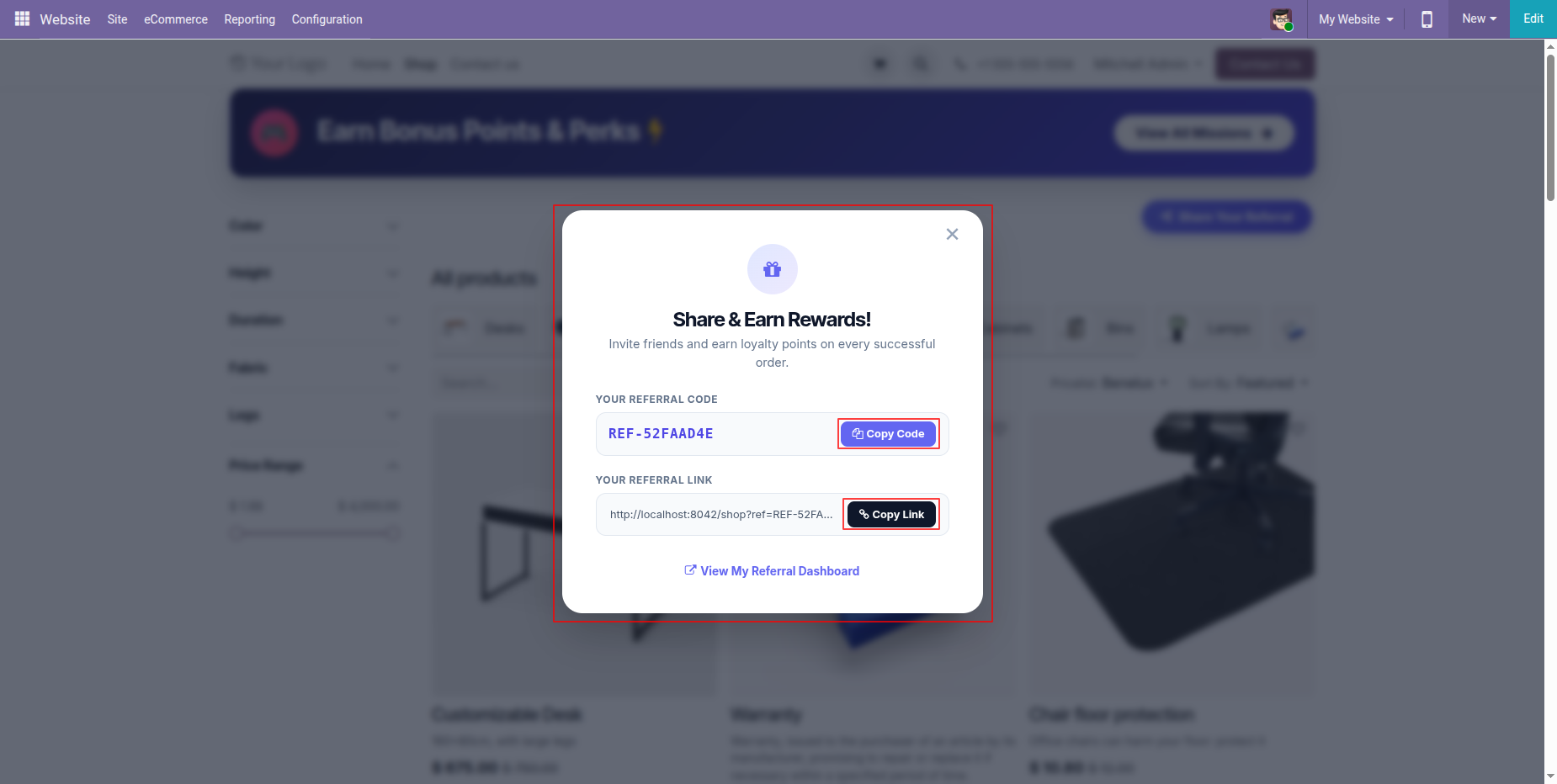
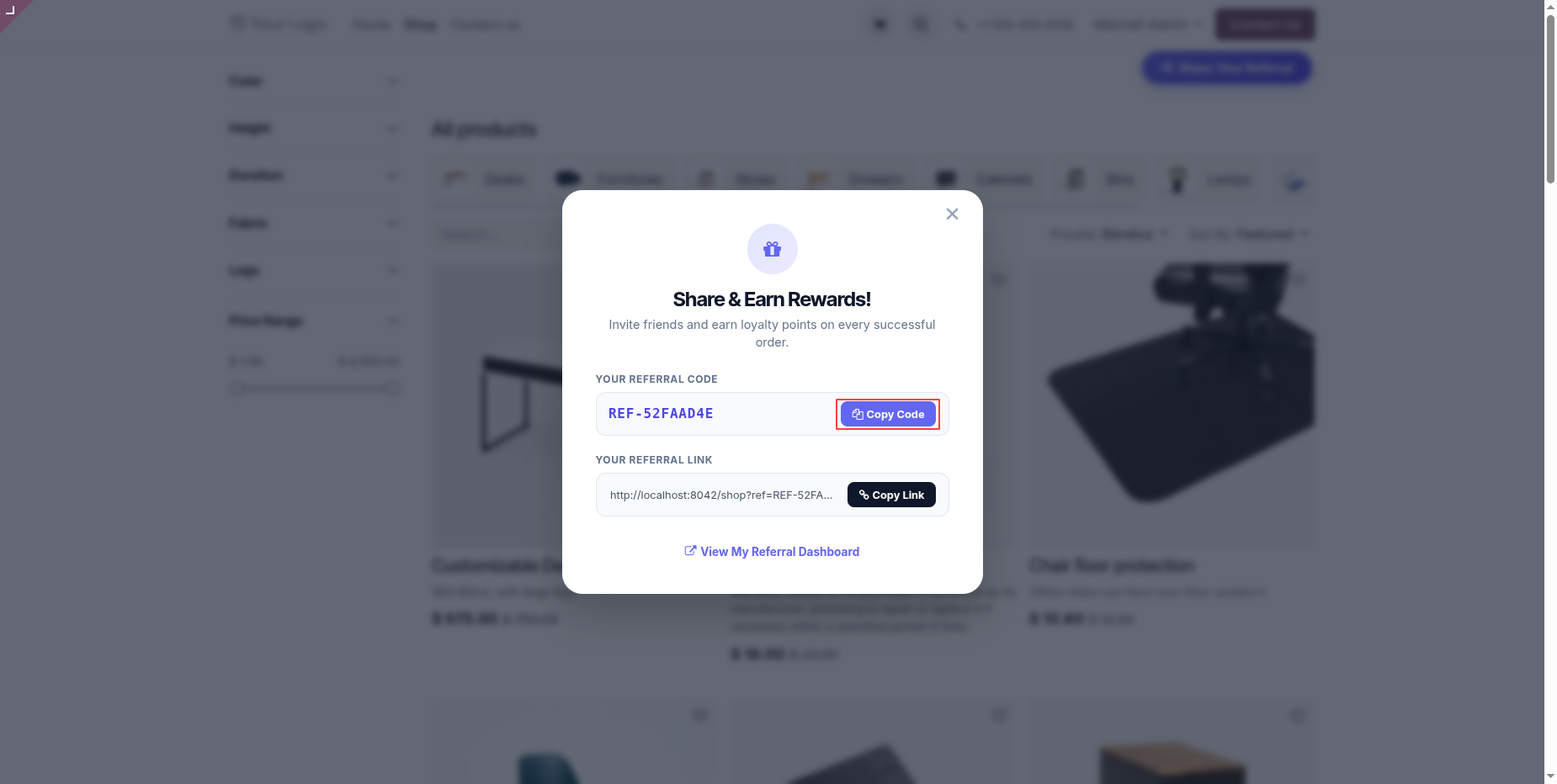
Click Copy Code or Copy Link button inside Share & Earn Rewards popup.
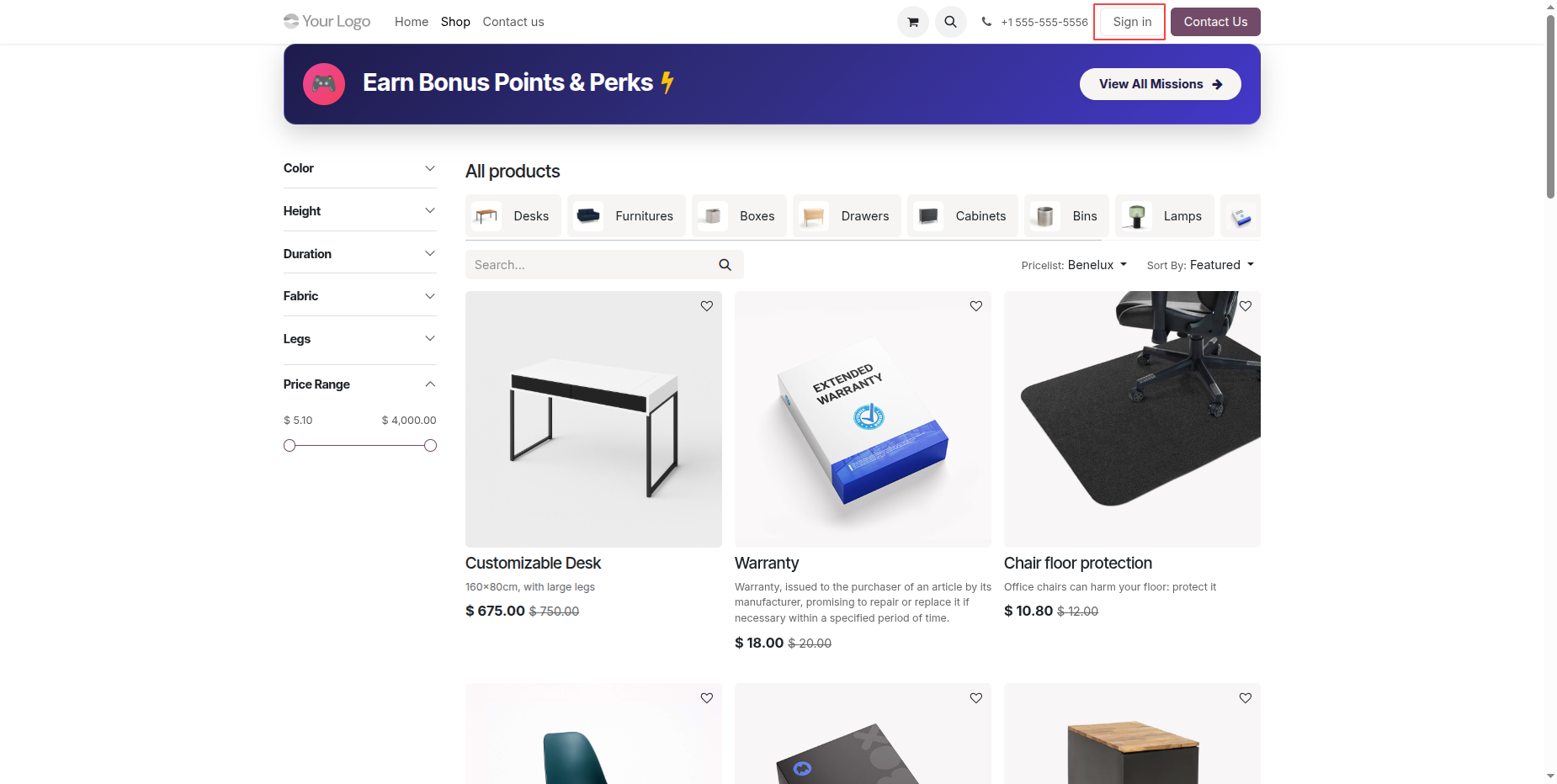
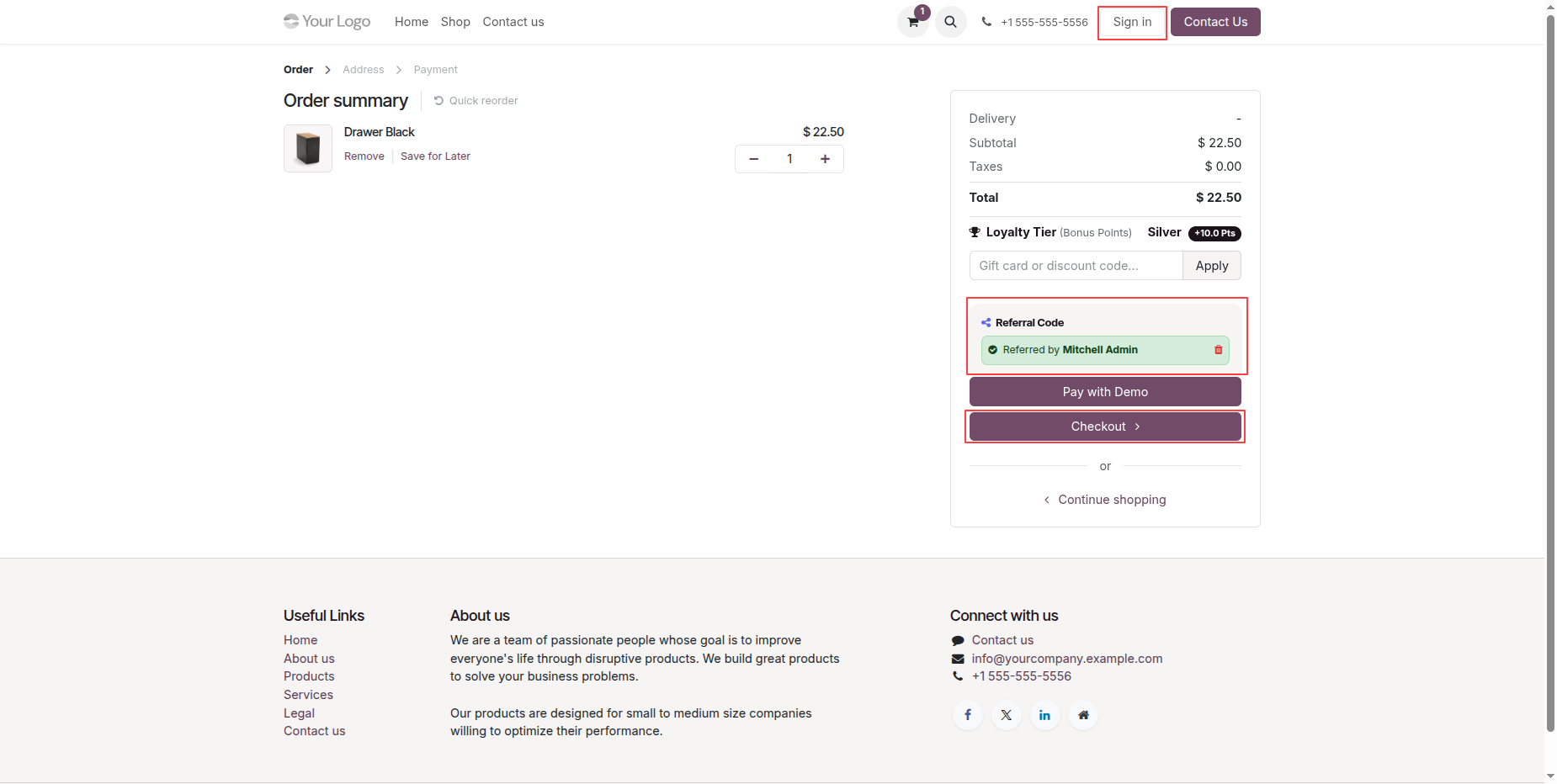
Click Sign in button on eCommerce navbar to log in or register user.
Apply valid referral code during cart checkout and click Checkout to proceed.
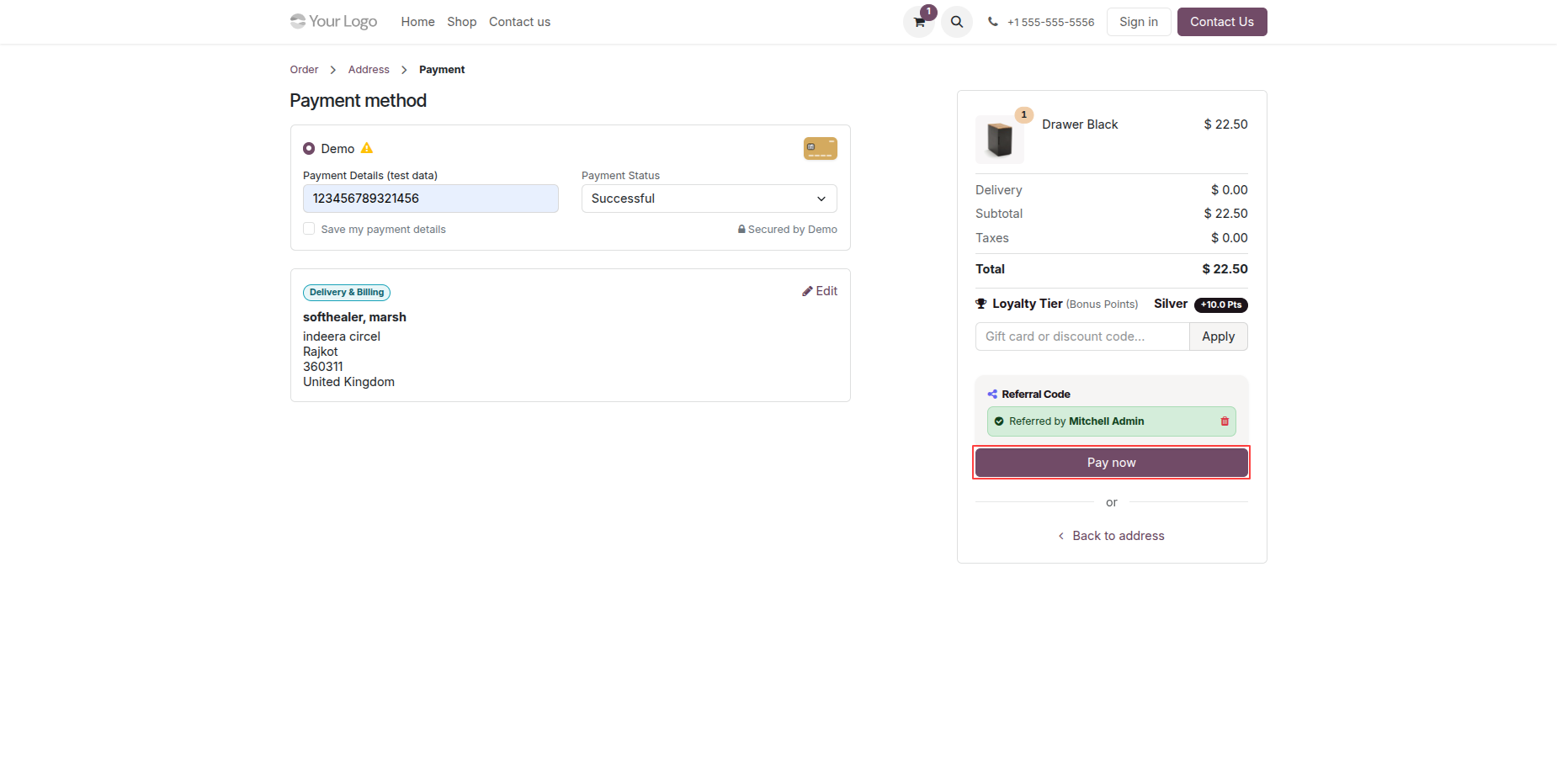
Press Pay now button to complete order with linked customer referral code.
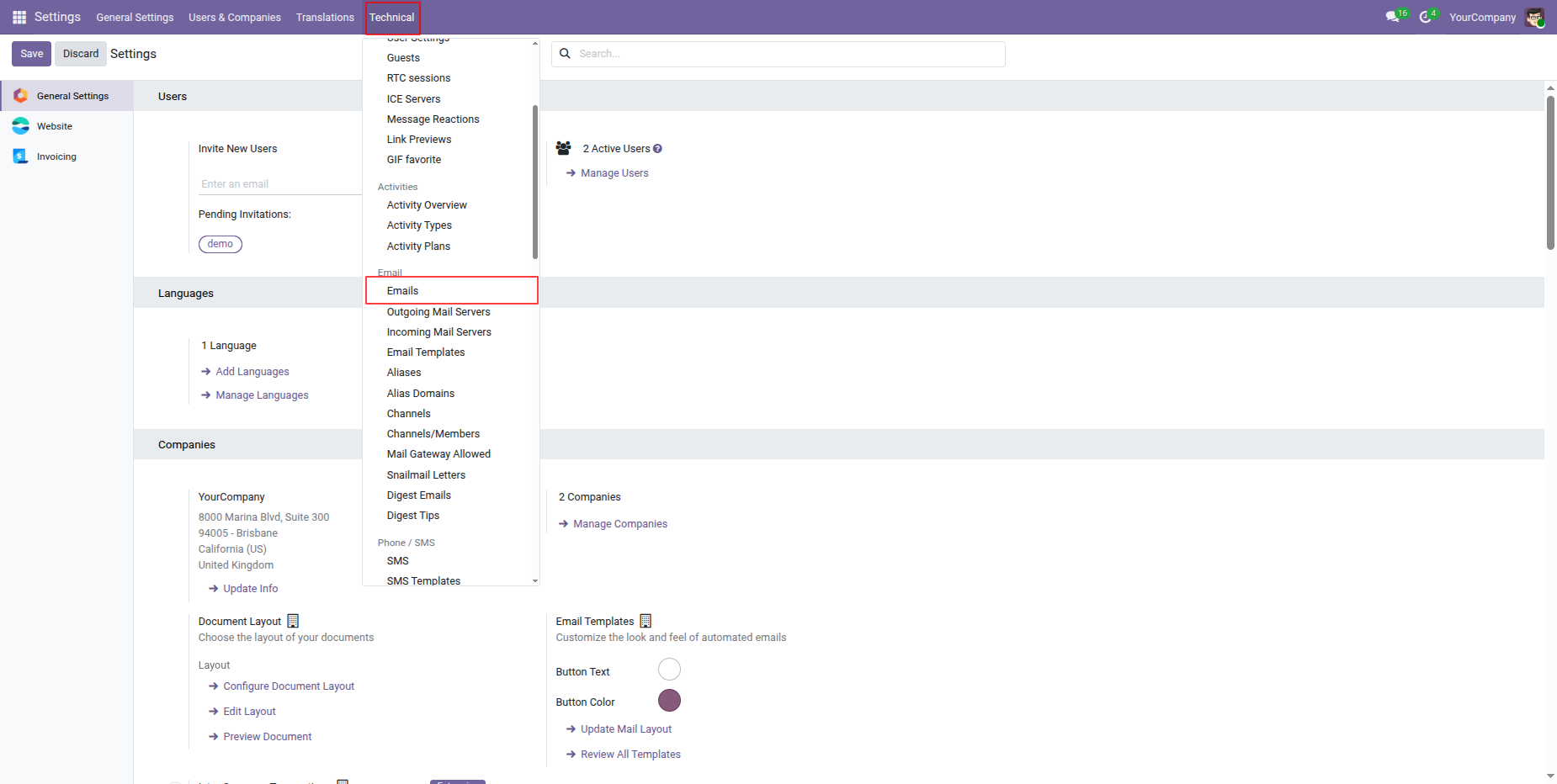
Access Technical settings menu and select Emails menu item to view logs.
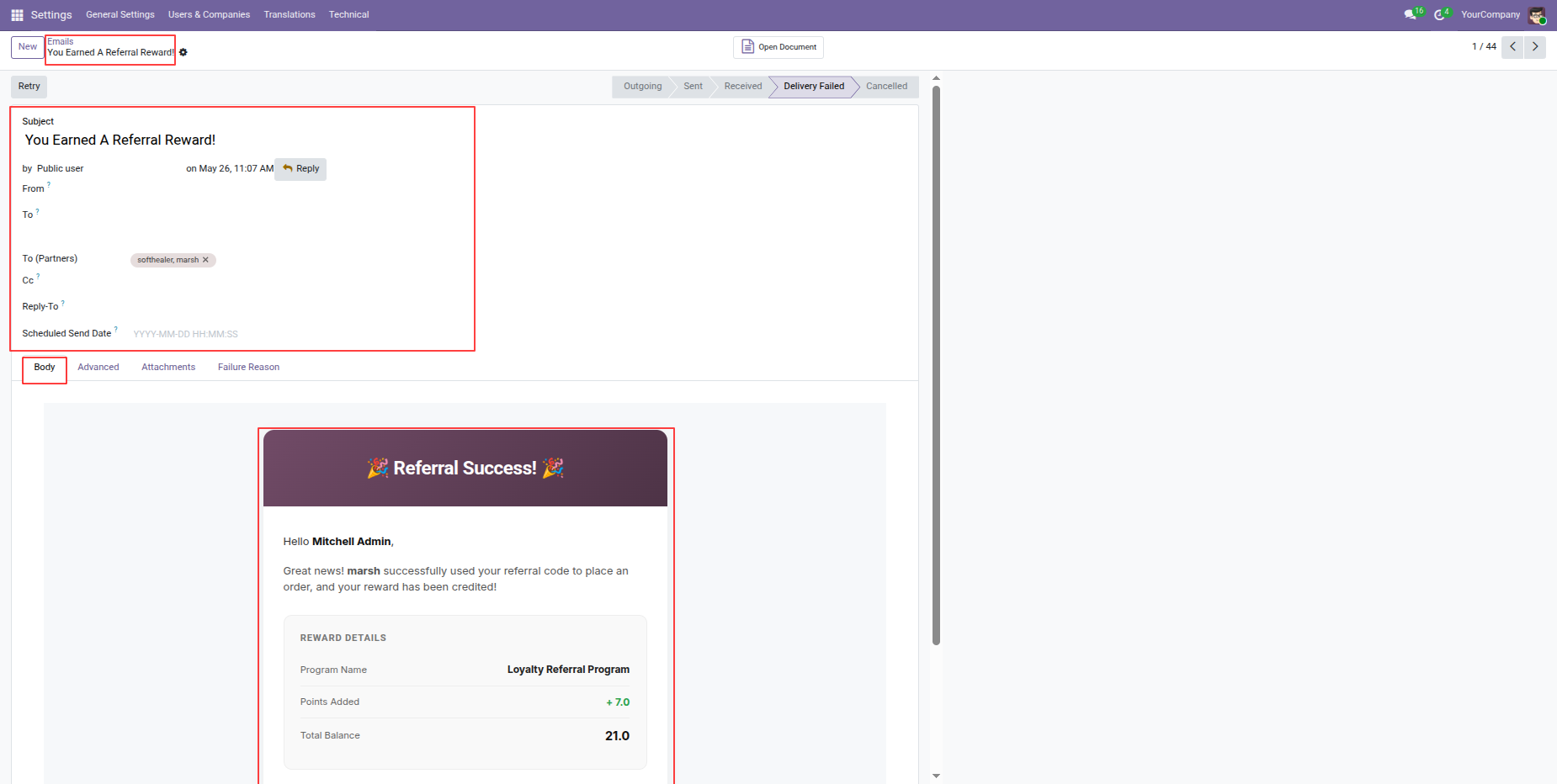
Review automated referral reward email notification detailing credited bonus points to referrer.
Click Loyalty Cards stat button on Loyalty Referral Program form to view cards.
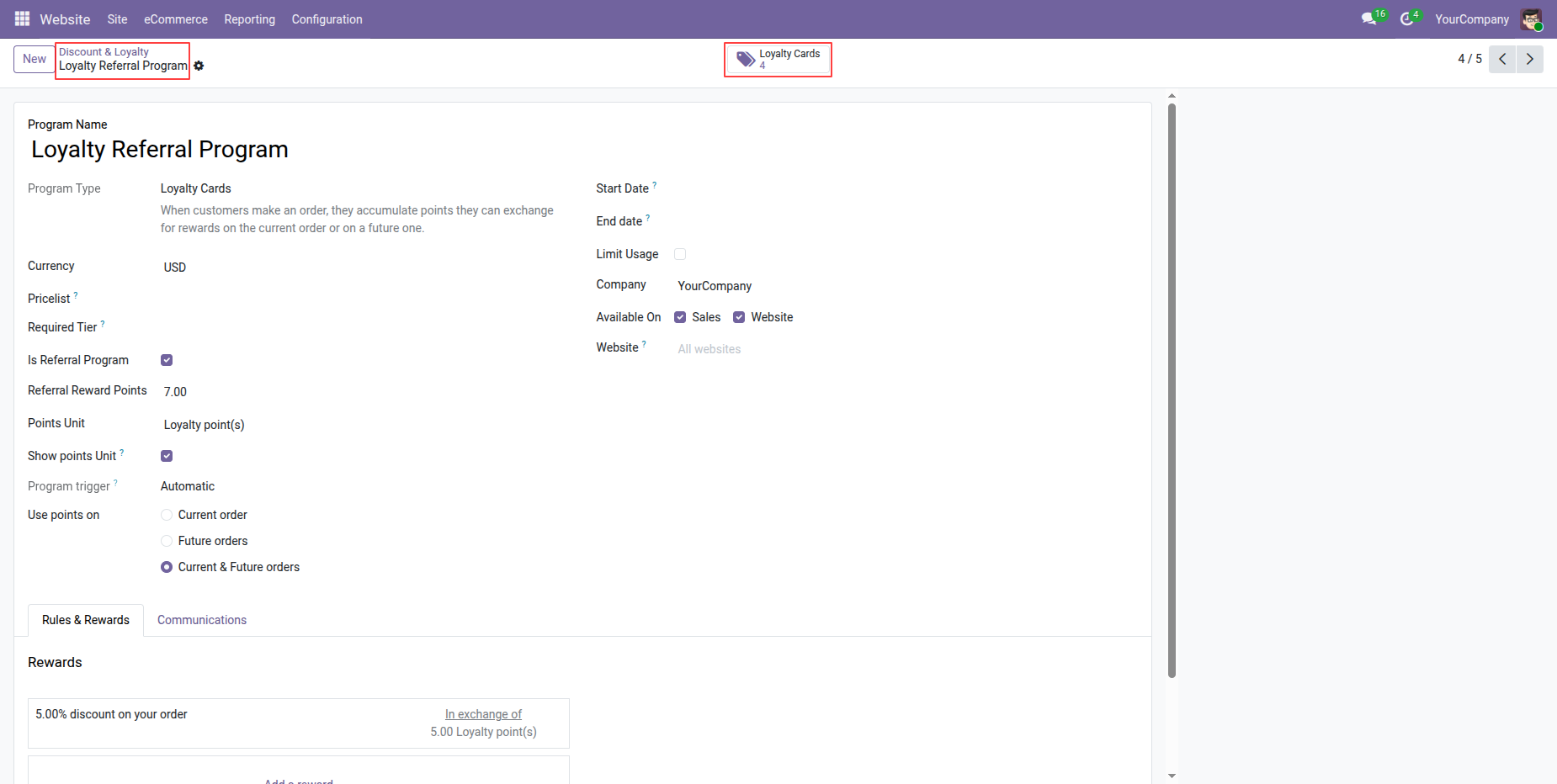
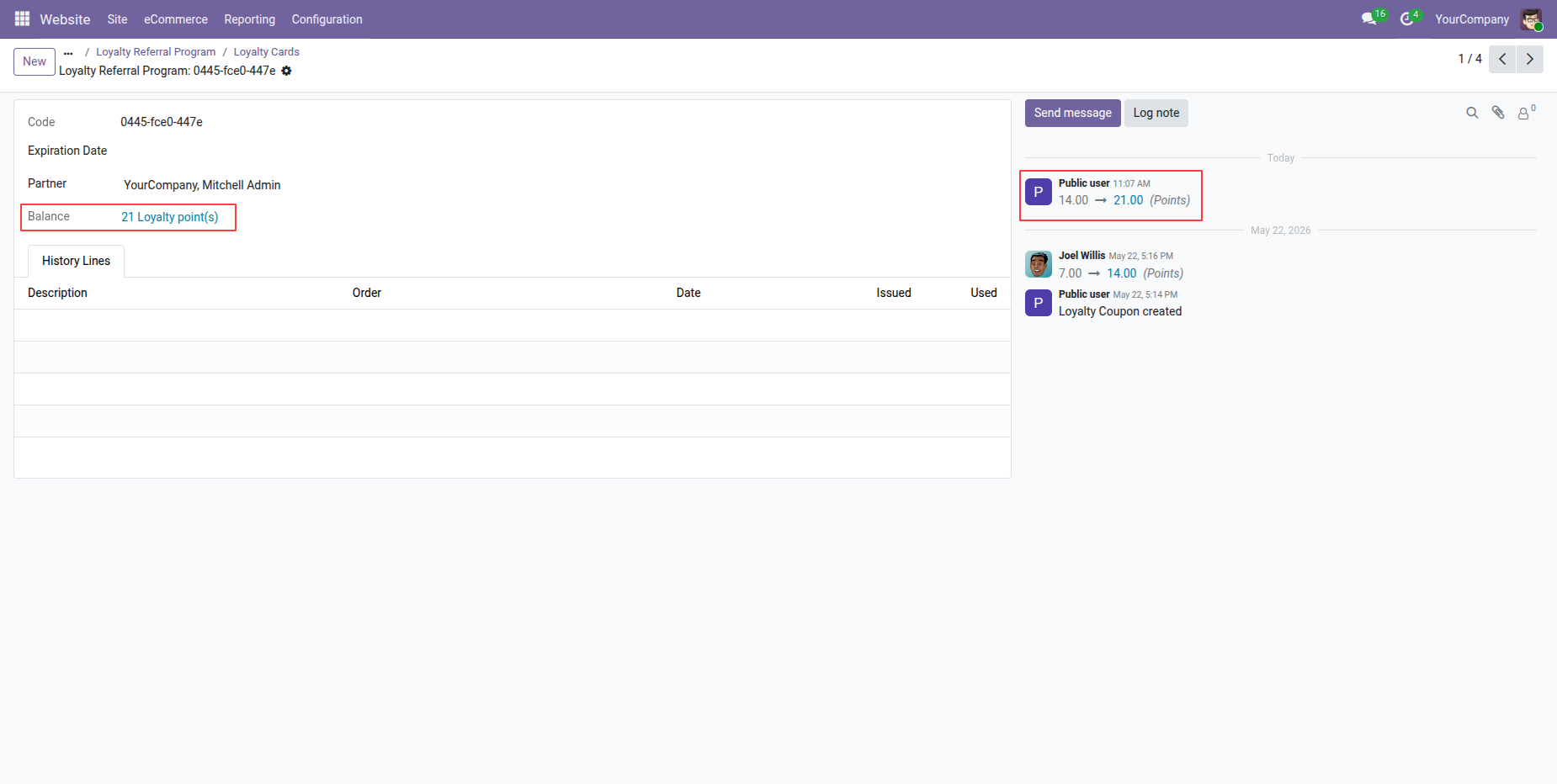
Check customer referral card point balance and chatter logs of awarded points.
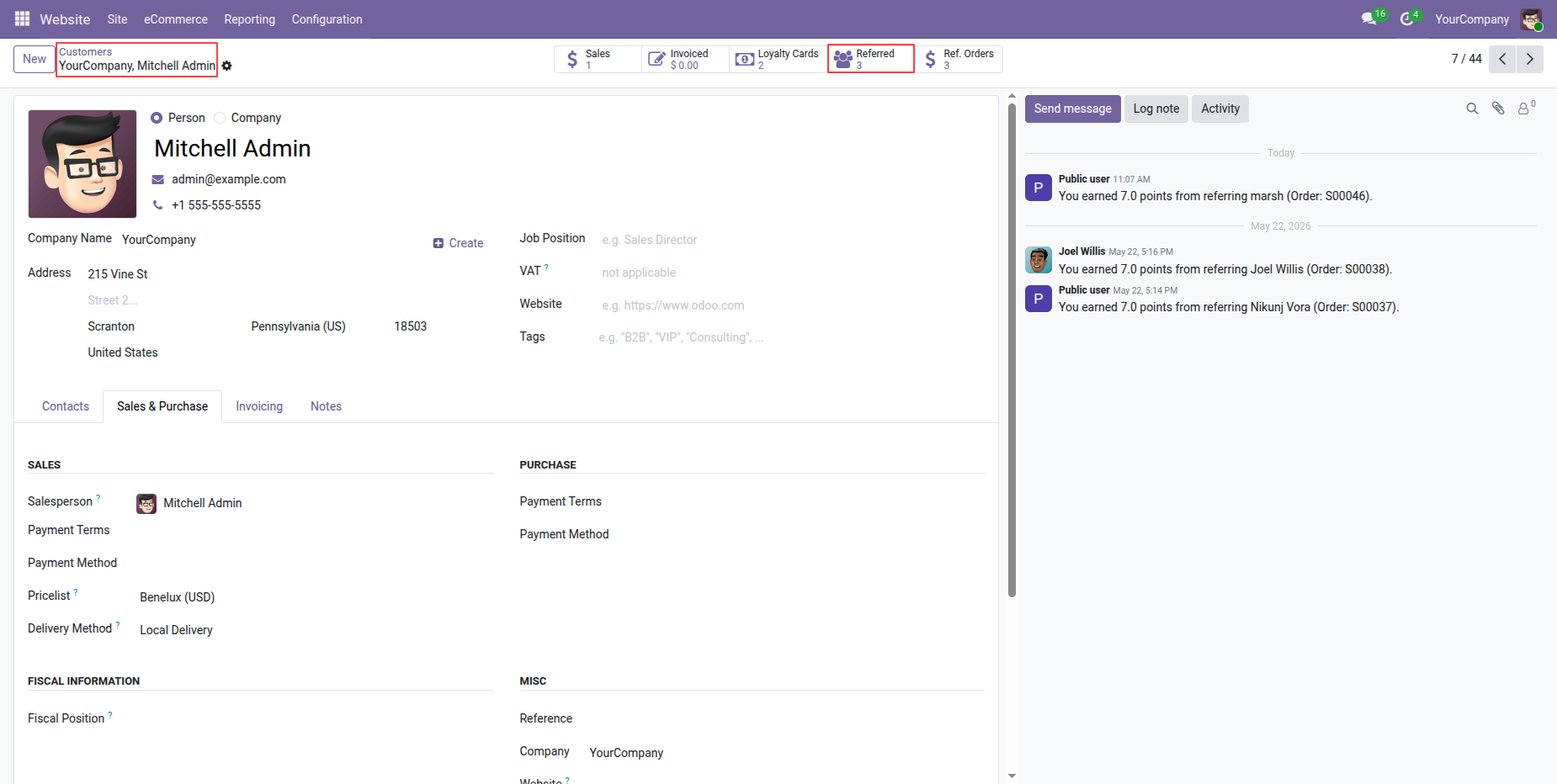
Click Referred smart button on partner profile record to view referred contacts.
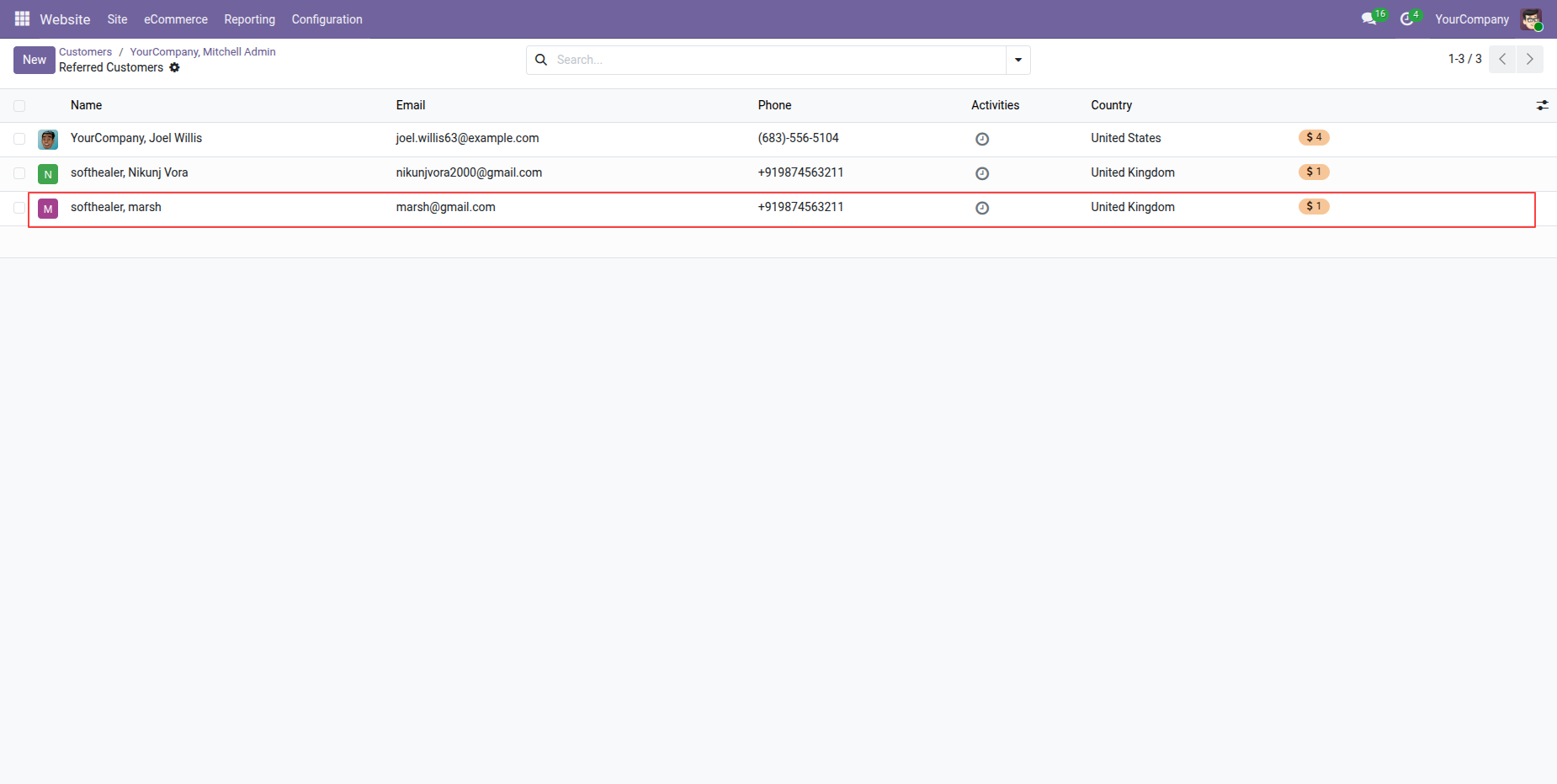
View referred customers list detailing signed up contacts and total order counts.
Select My Referrals option in customer portal account menu to open dashboard.
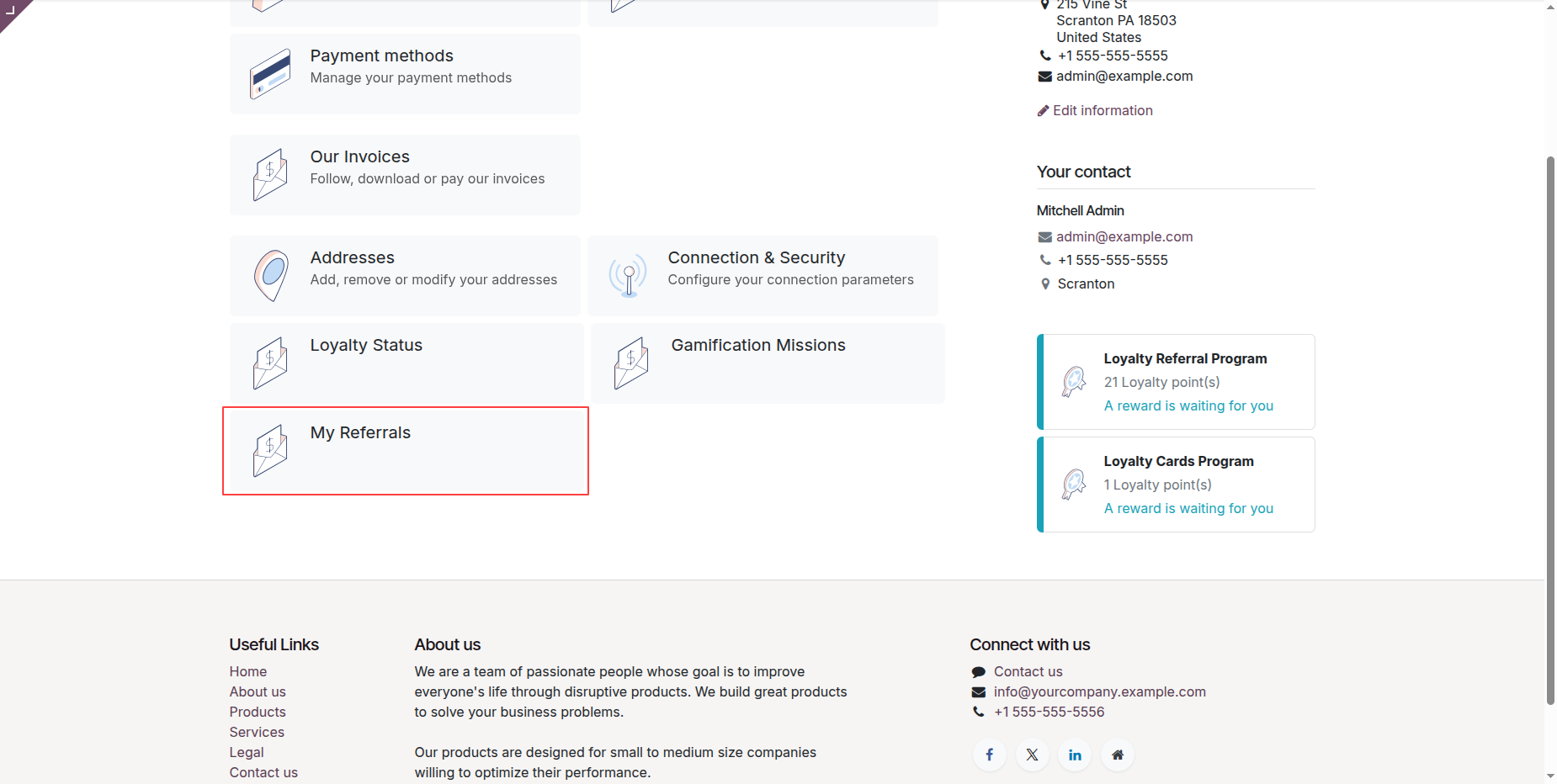
Review My Referrals portal dashboard displaying referral link and overall reward statistics.
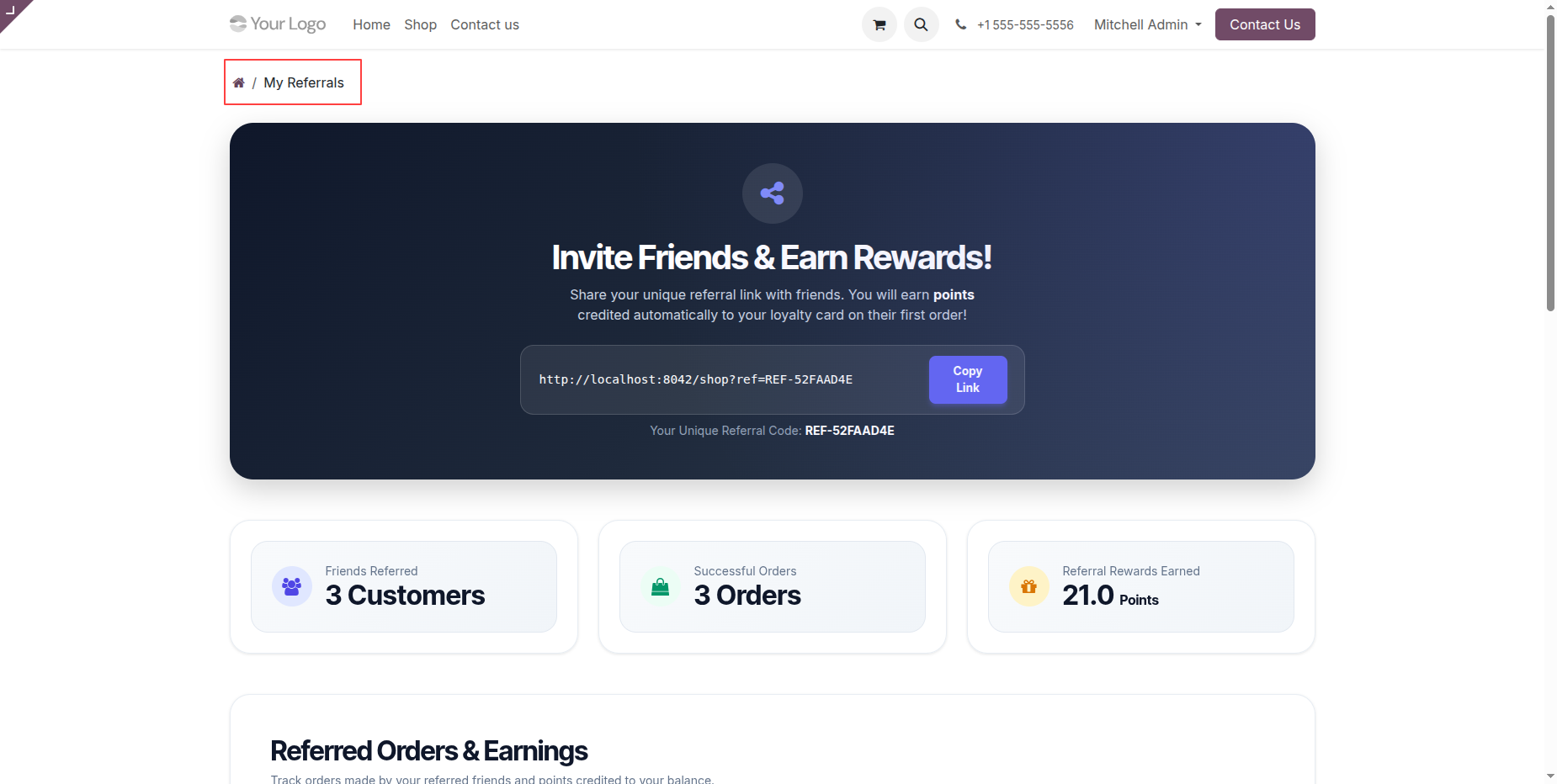
Track referred customer orders and earned bonus points in portal earnings table.
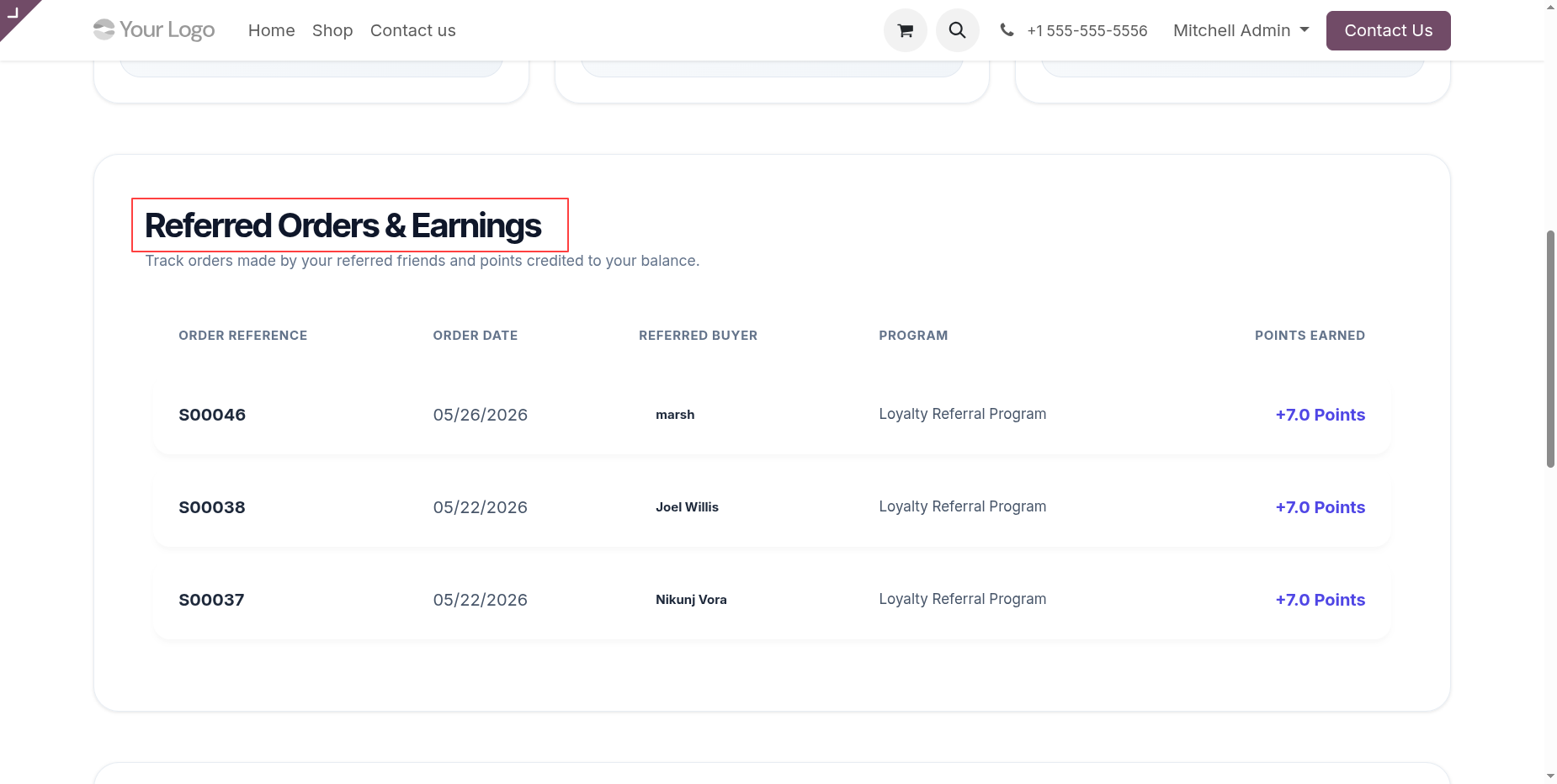
Inspect referred customers list detailing registered friends and active account status.
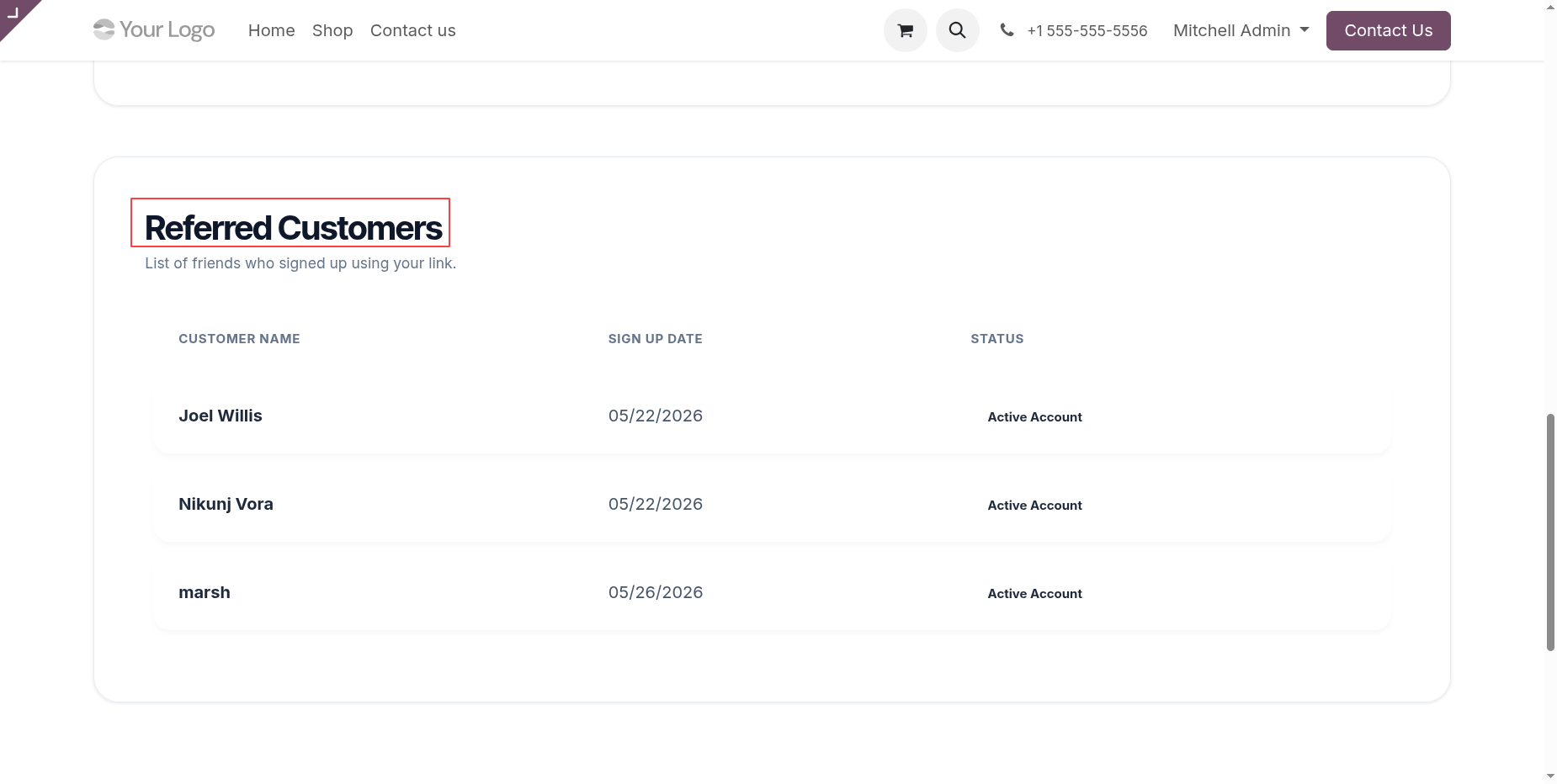
Click Copy Code button inside referral popup window to copy your referral code.
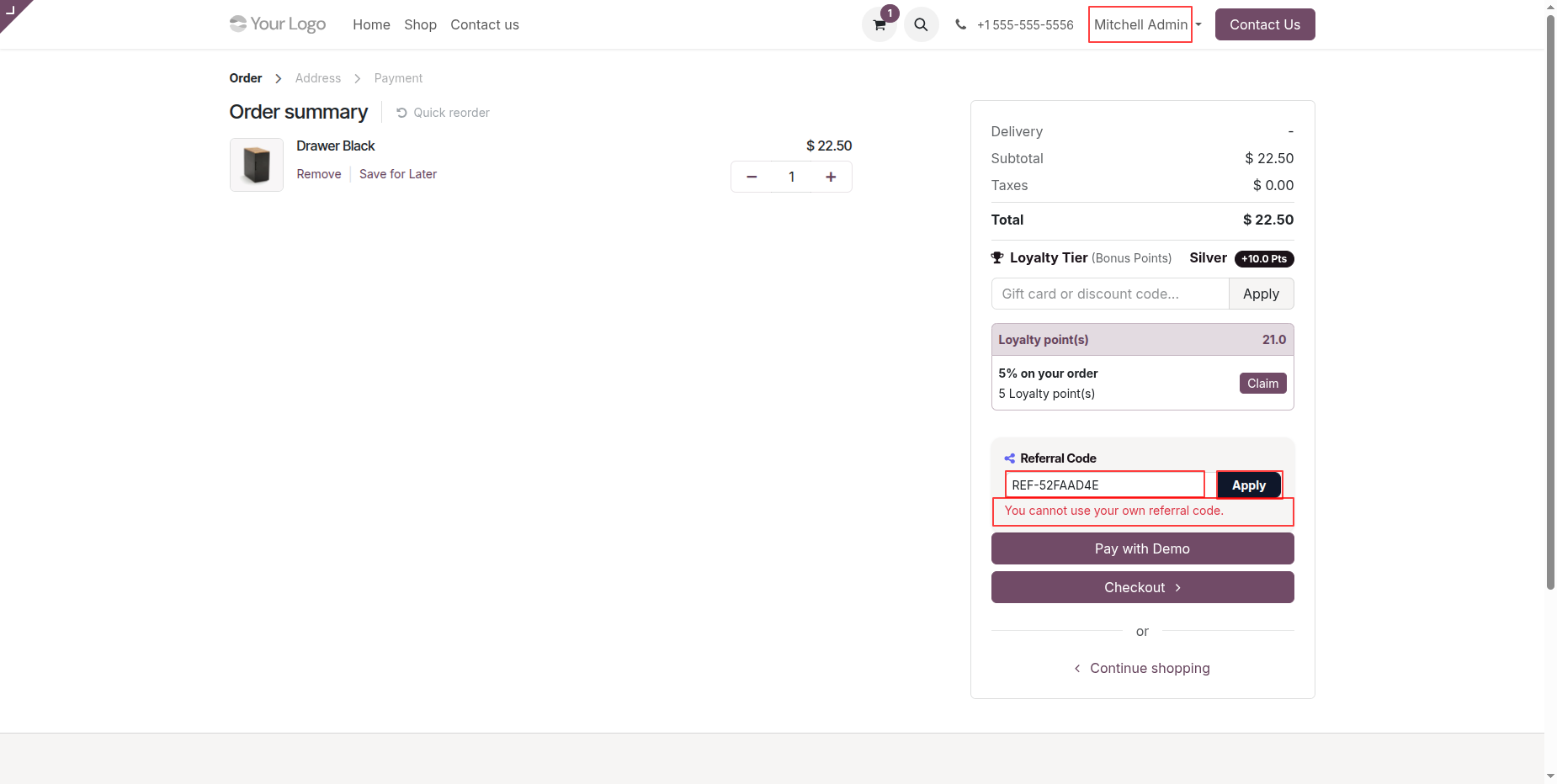
View validation message when customer attempts to apply their own referral code.
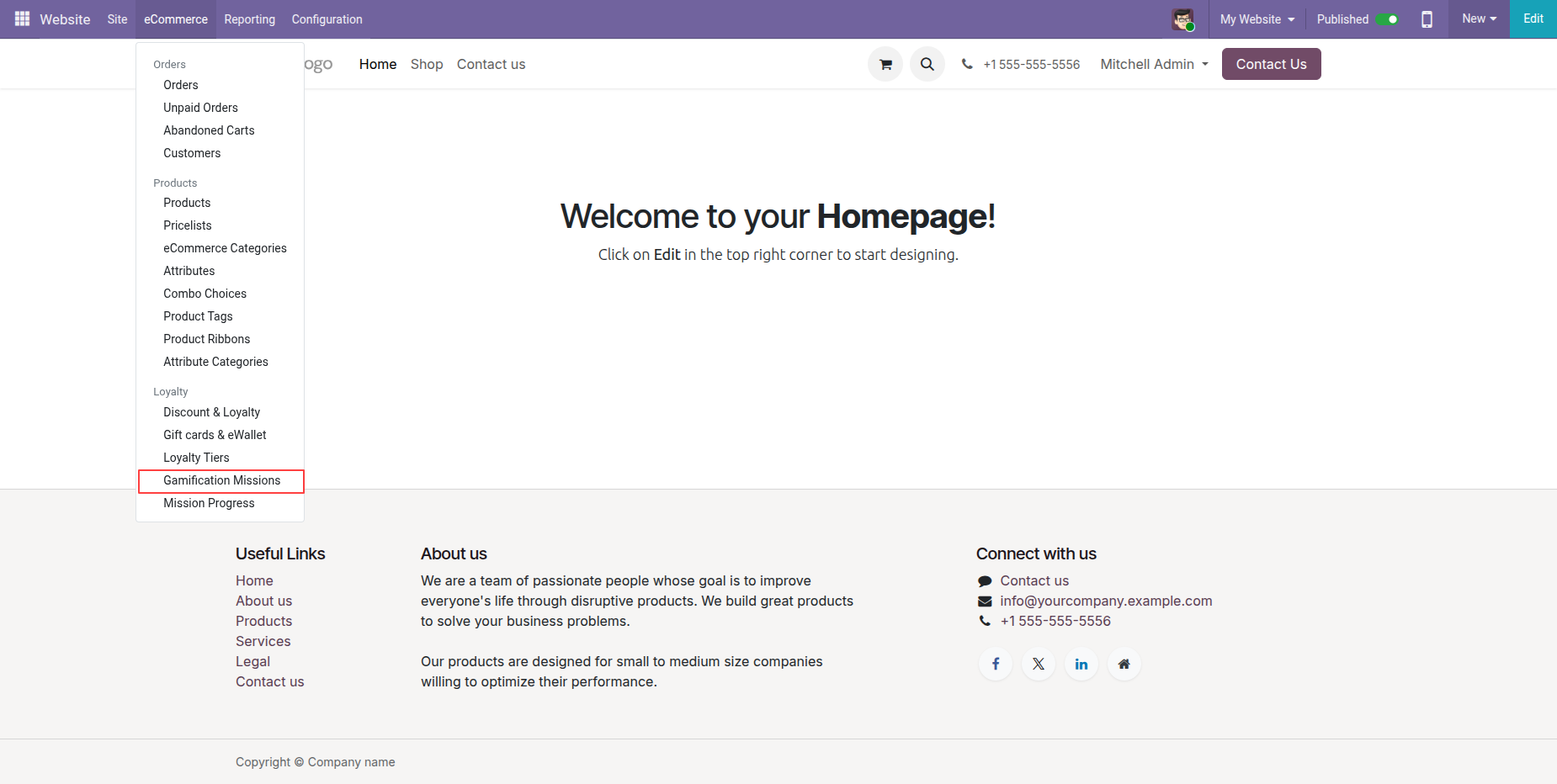
Workflow
Click Gamification Missions under eCommerce menu to manage customer reward challenges.
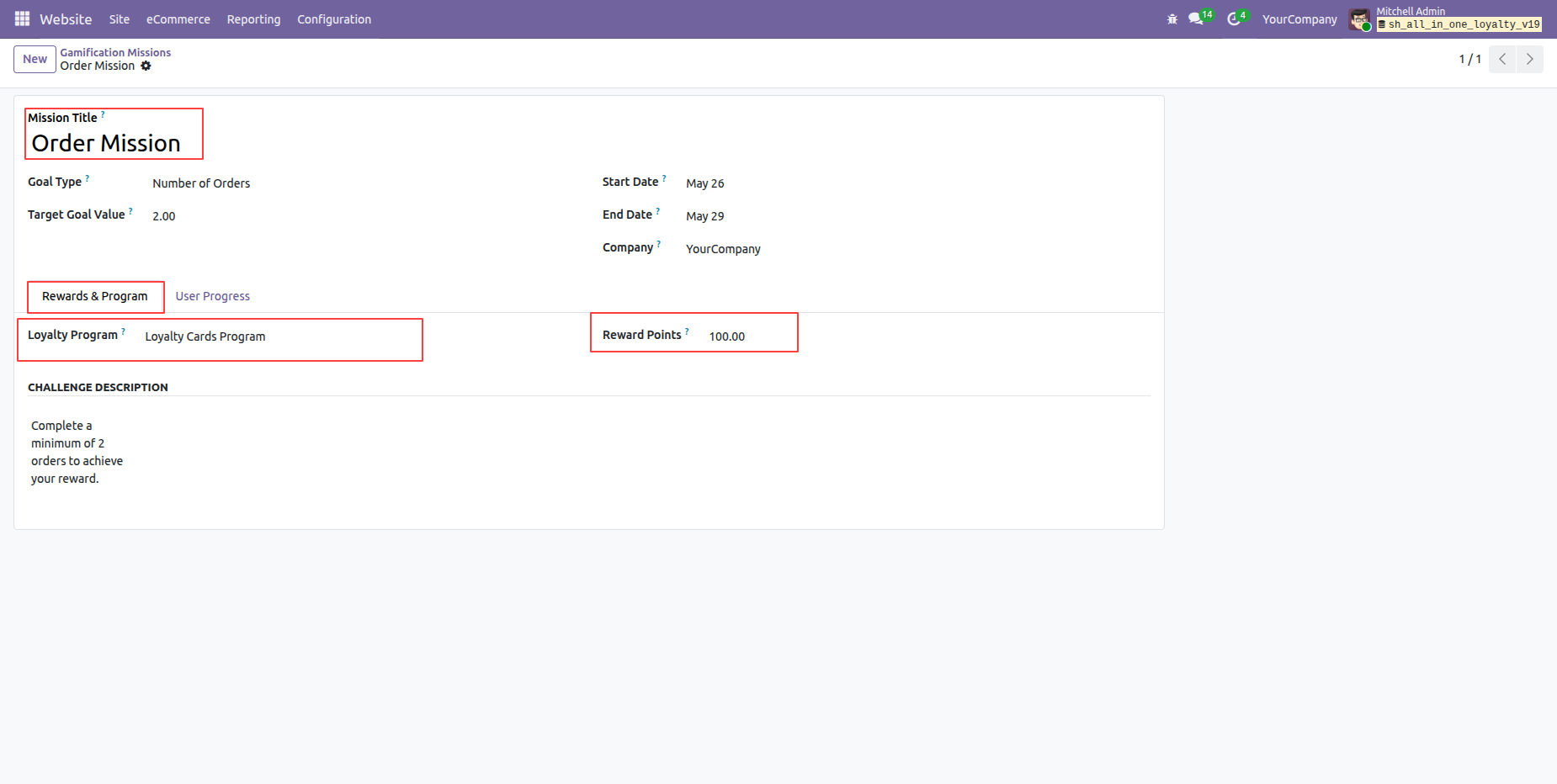
Configure Order Mission details including assigned loyalty program and bonus reward points.
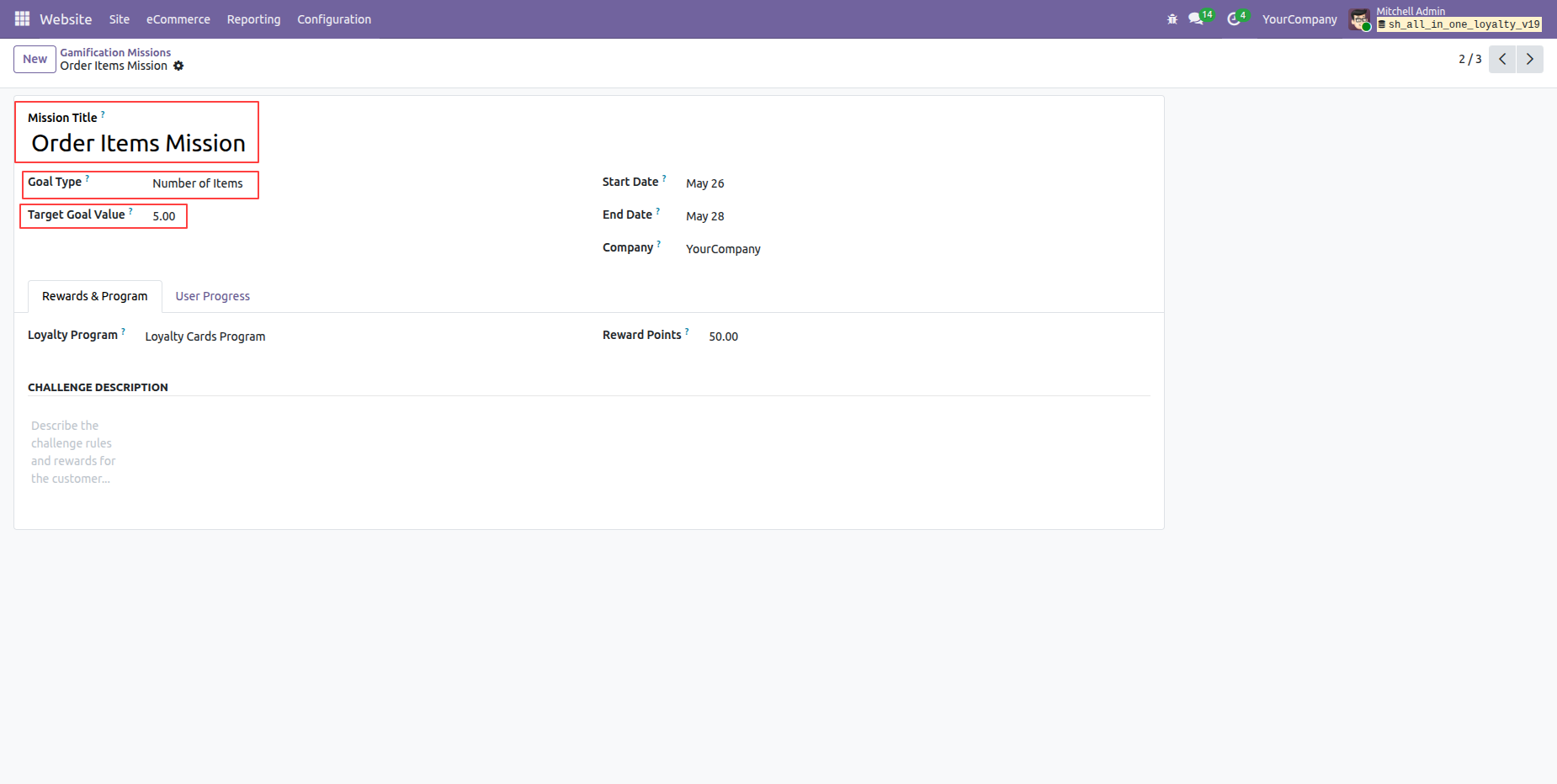
Set Goal Type to Number of Items and configure target goal value in mission form.
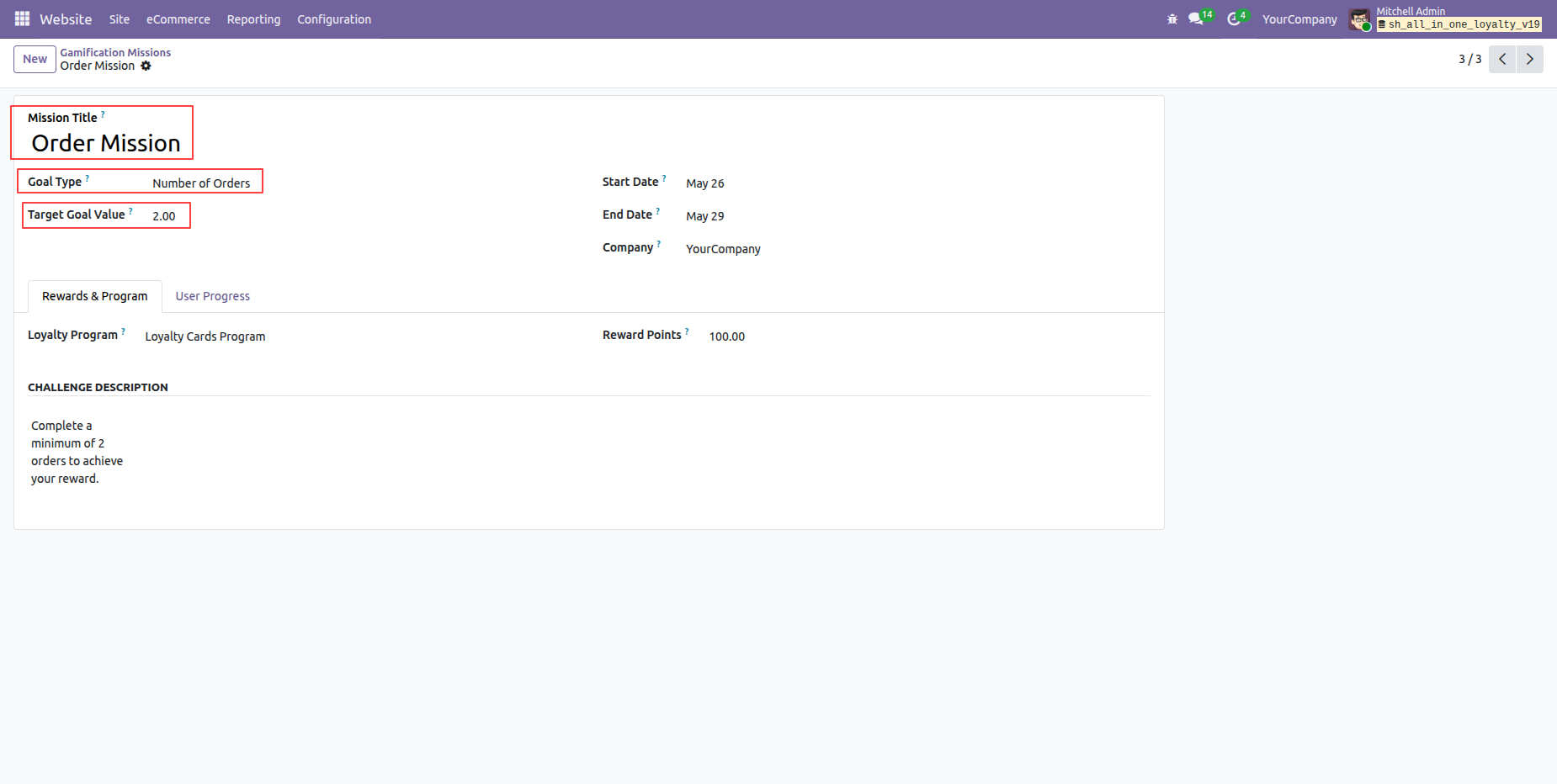
Configure mission criteria by setting Goal Type to Number of Orders and target value.
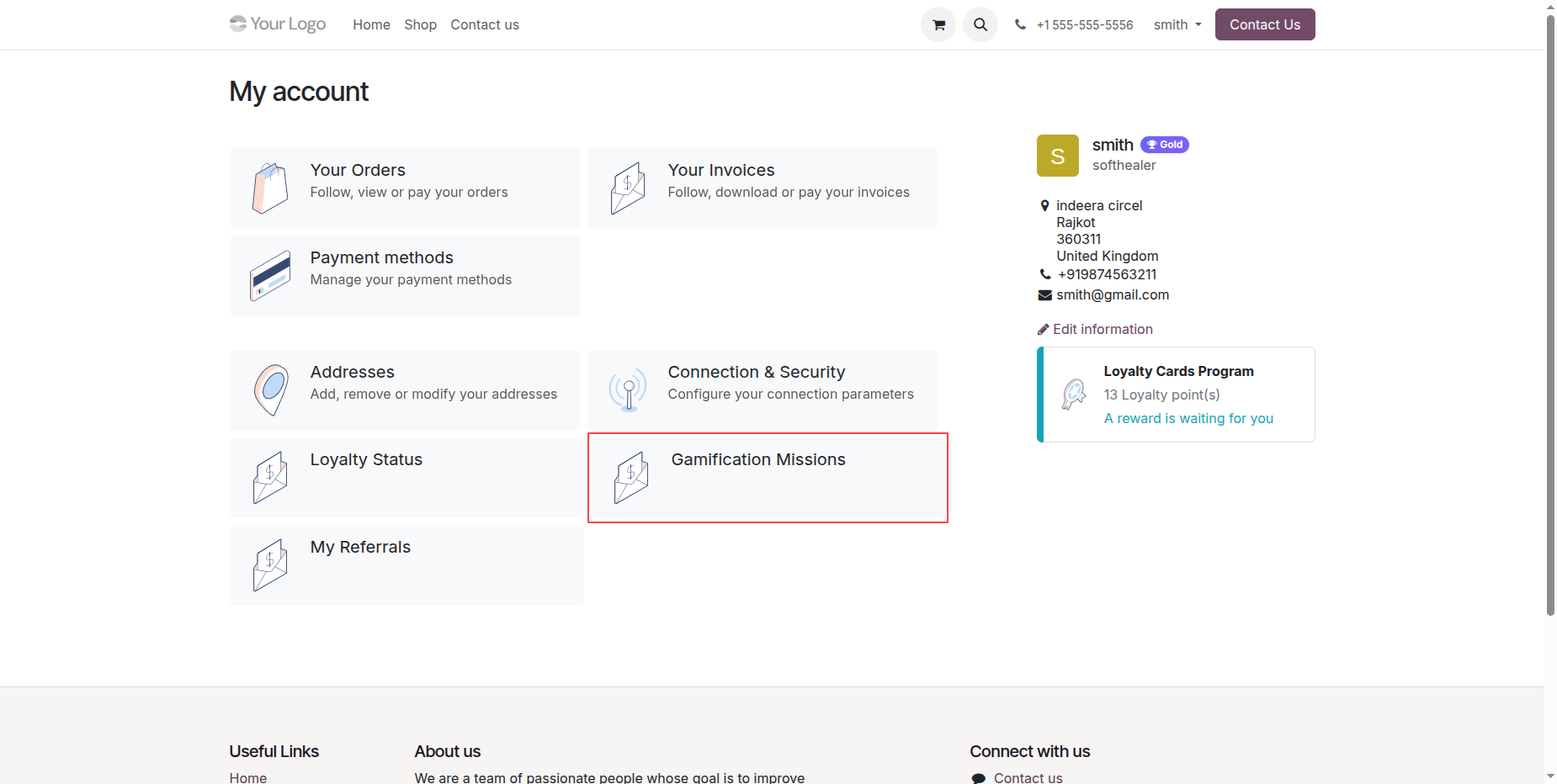
Select Gamification Missions card on customer portal dashboard to view active shopping challenges.
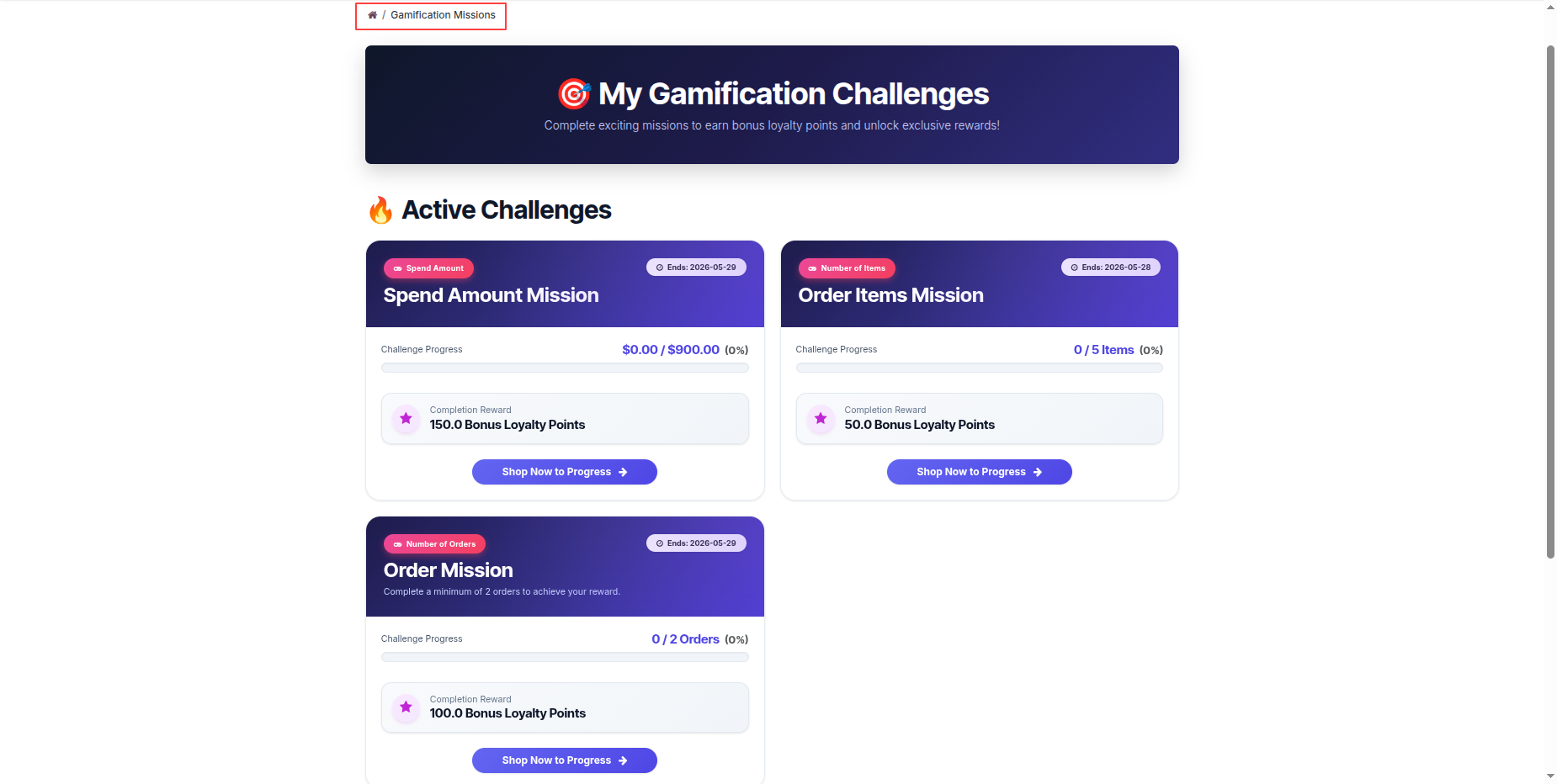
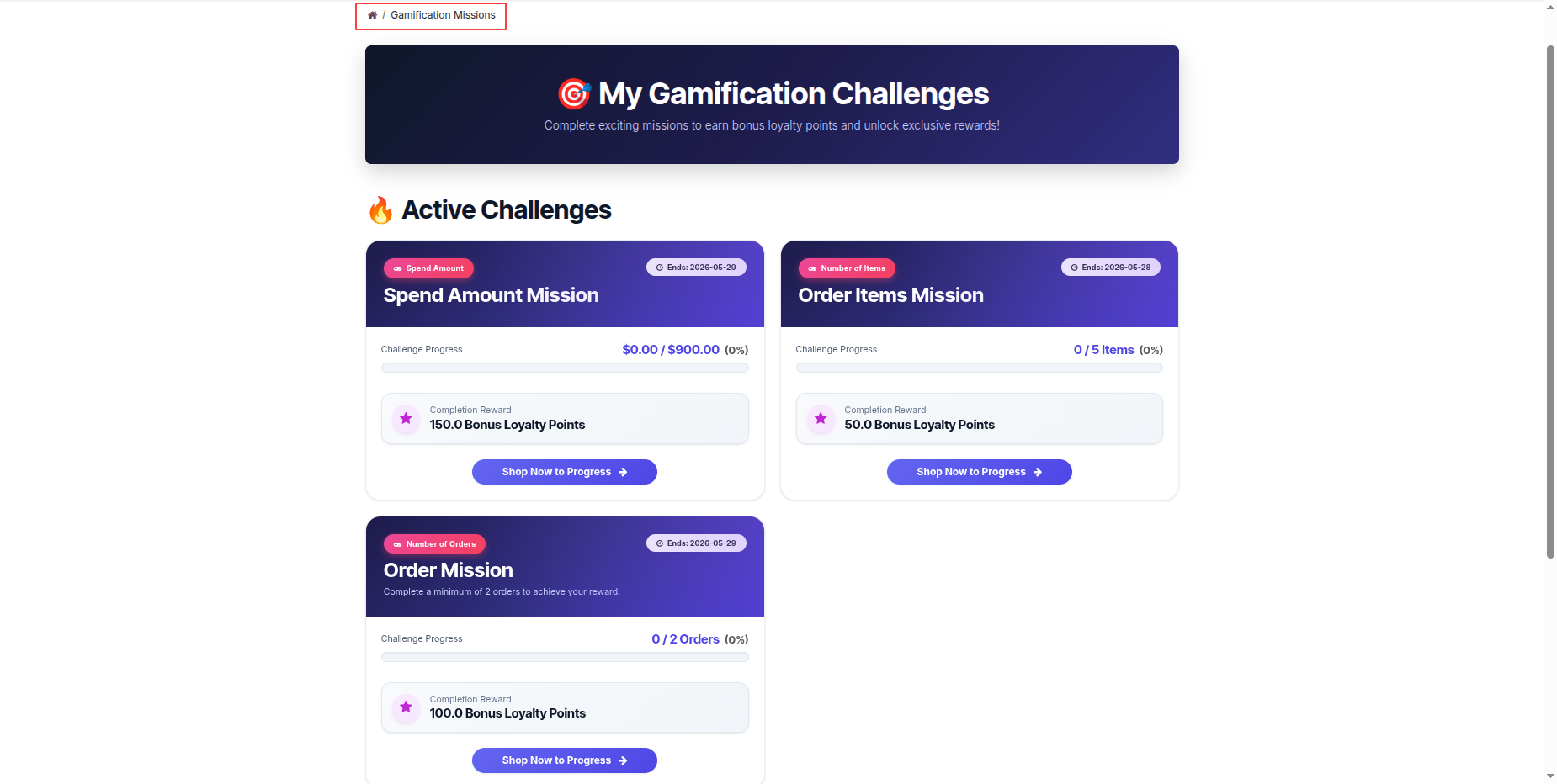
View active gamification challenges and completion progress on customer portal page.
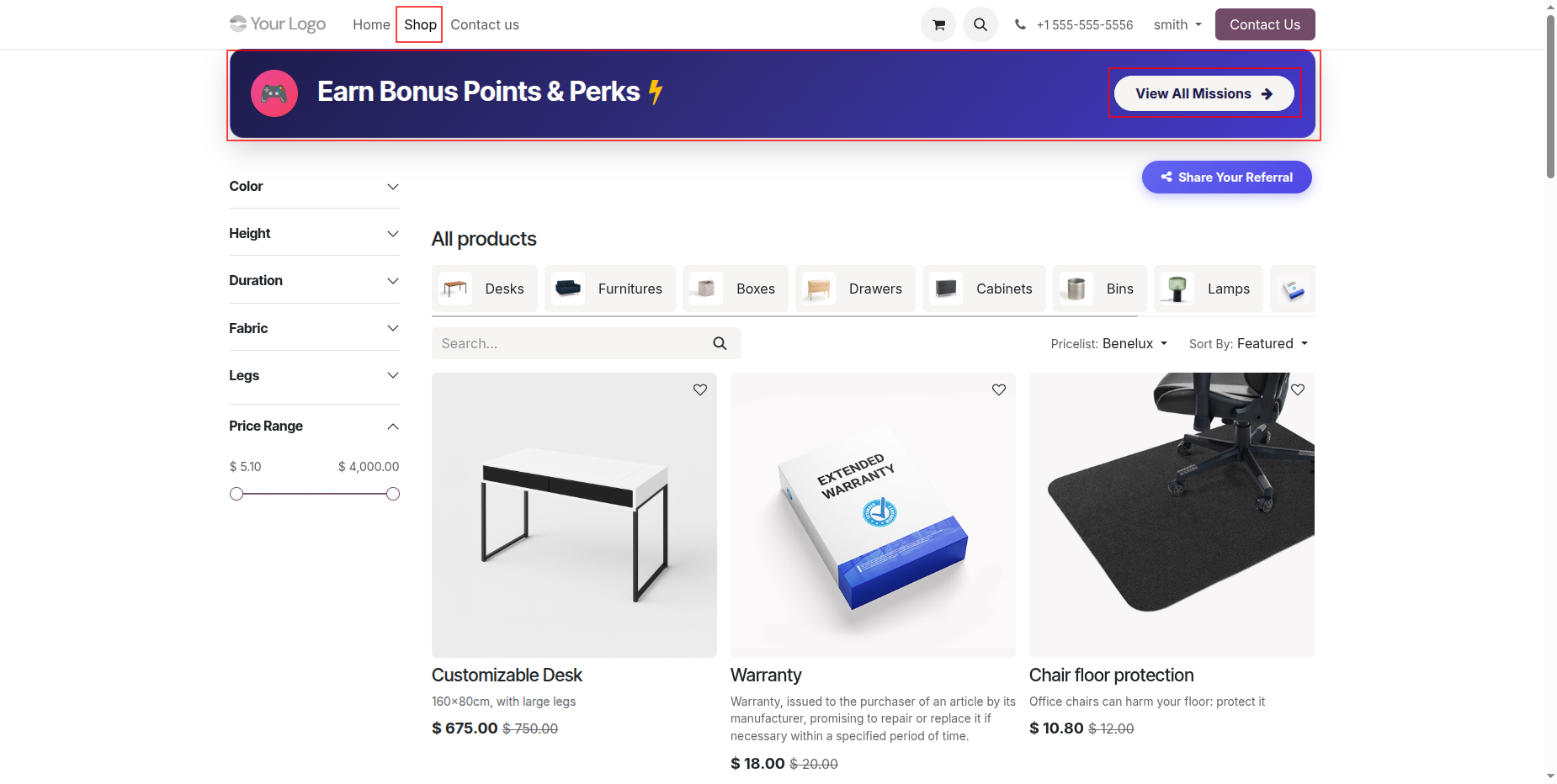
Click View All Missions button on the eCommerce shop banner to explore challenges.
Browse active shopping challenges and progress bars on customer portal dashboard.
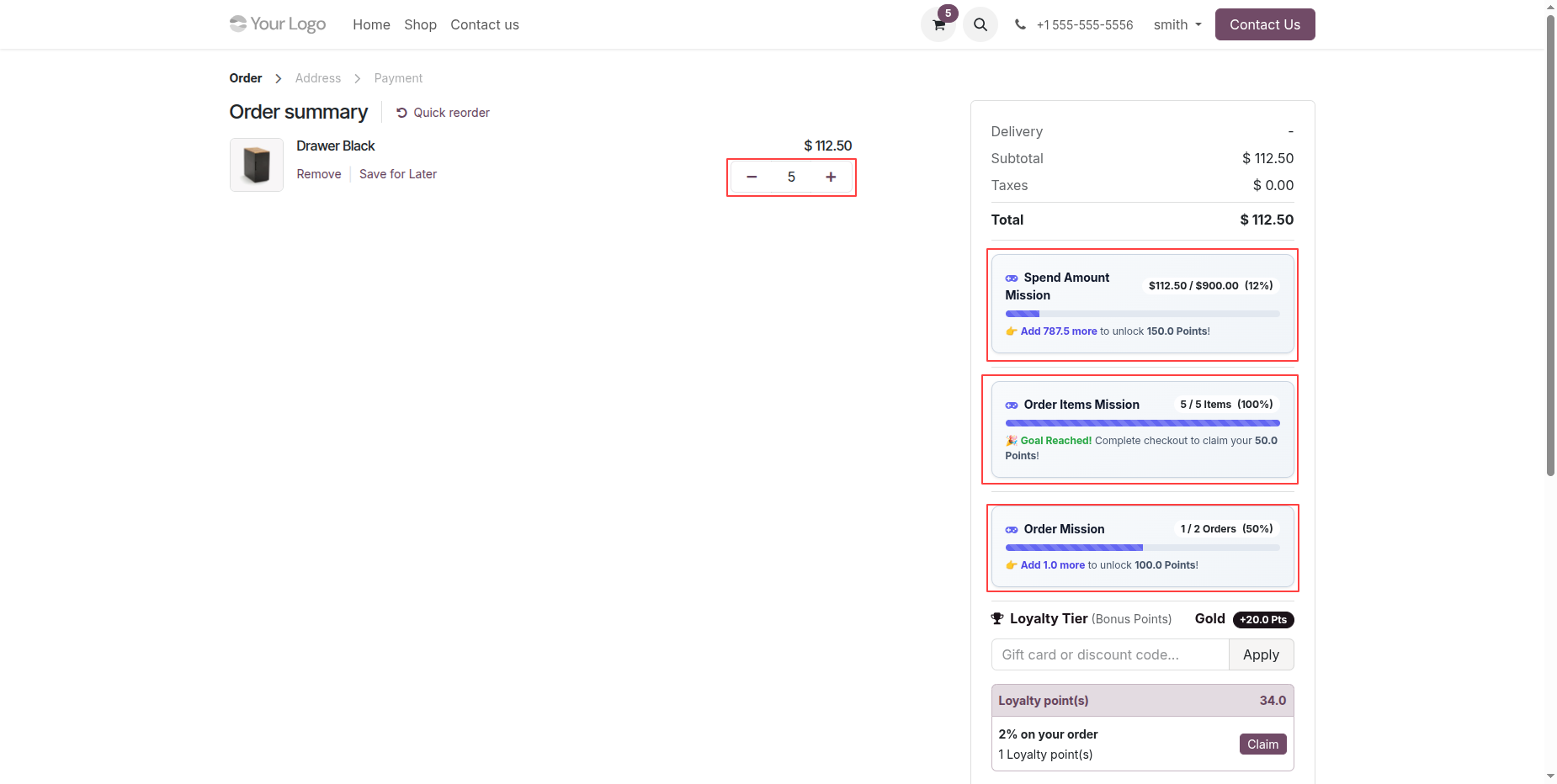
Increase cart item quantity to reach the required target for mission completion.
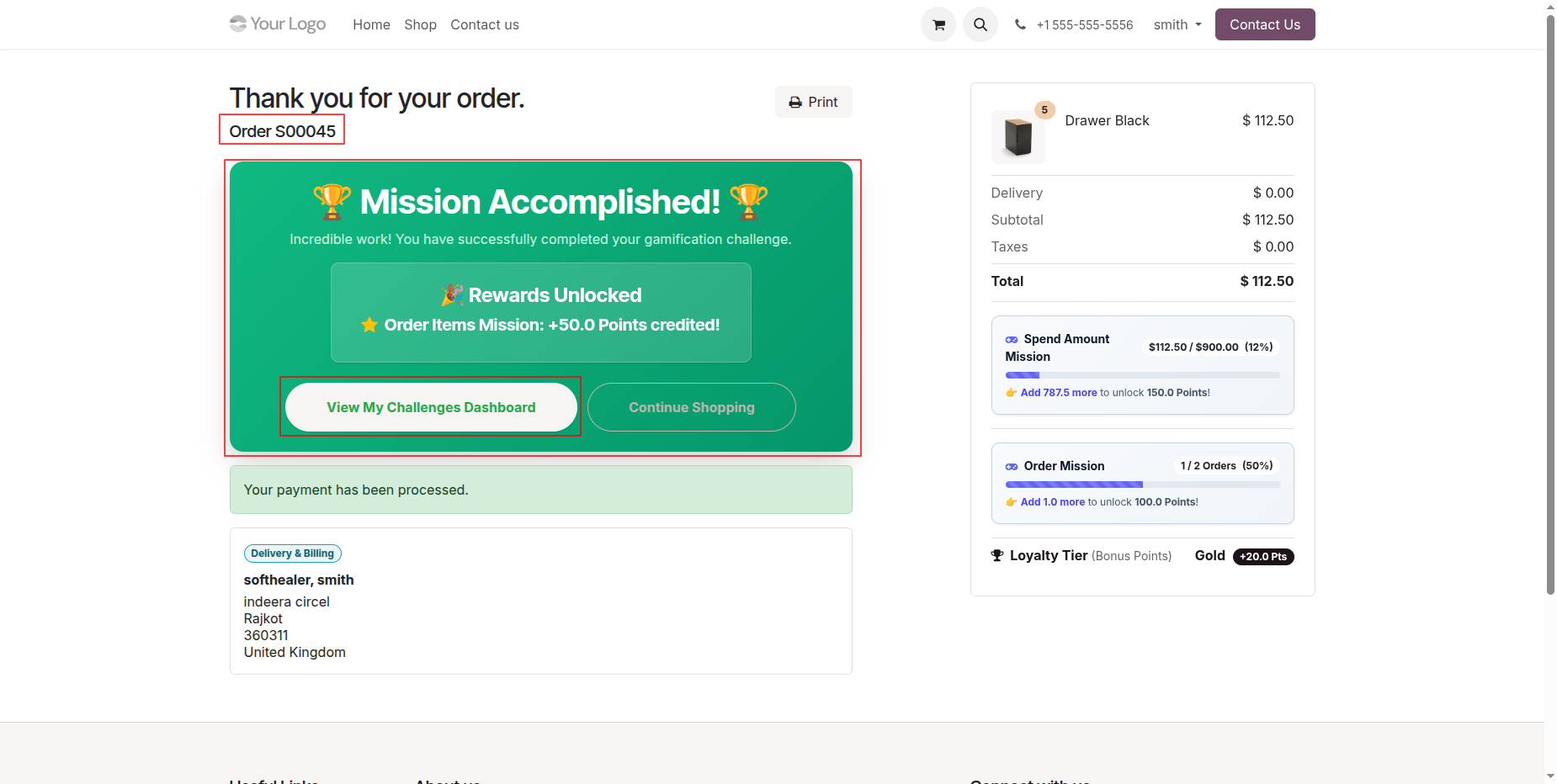
Review Mission Accomplished banner on order confirmation page after unlocking challenge rewards.
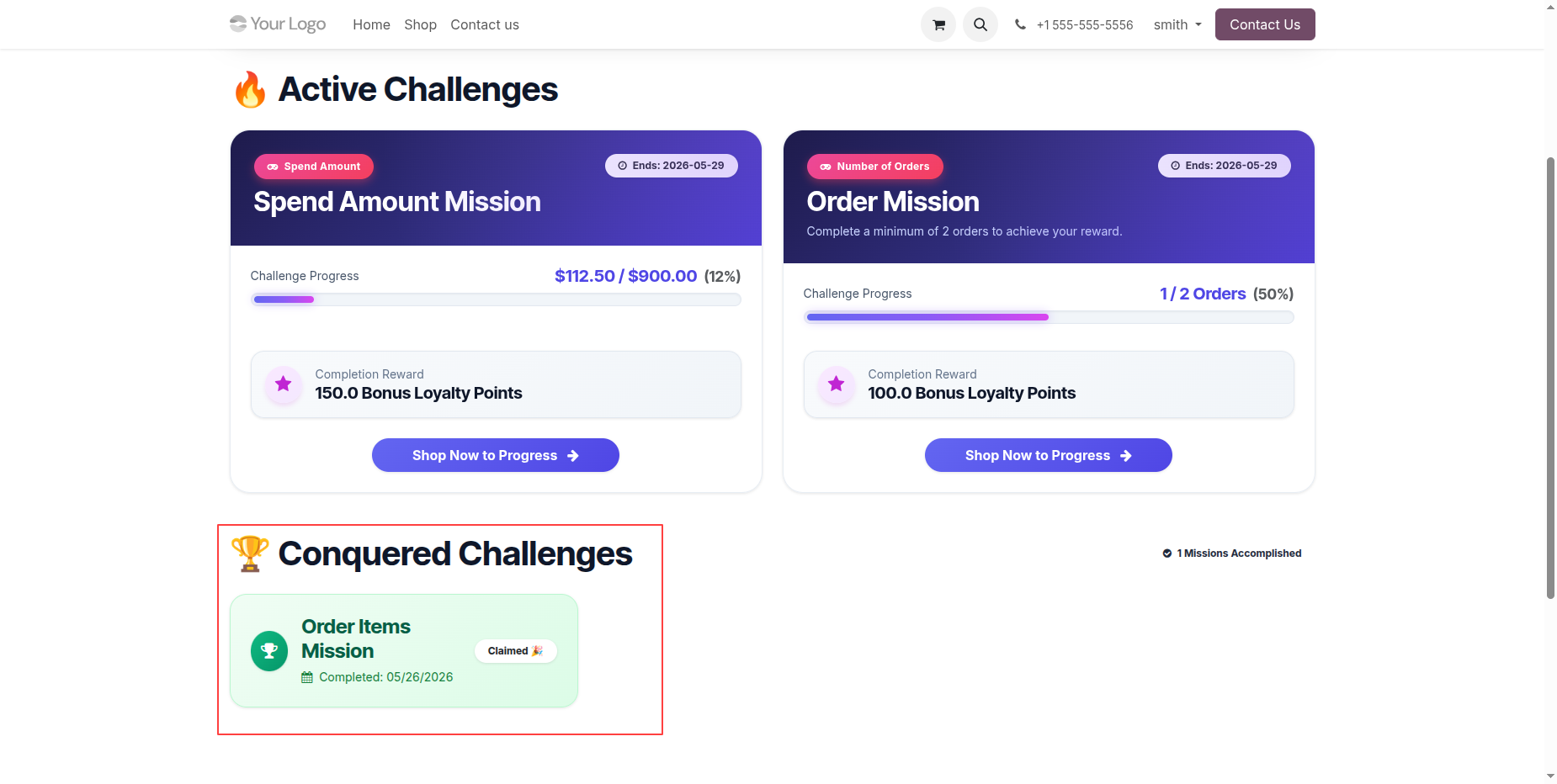
View conquered challenges section on customer portal detailing completed and claimed mission rewards.
Access backend loyalty cards list to verify updated customer points from completed mission.
Review backend customer loyalty card balance showing credited gamification bonus points.
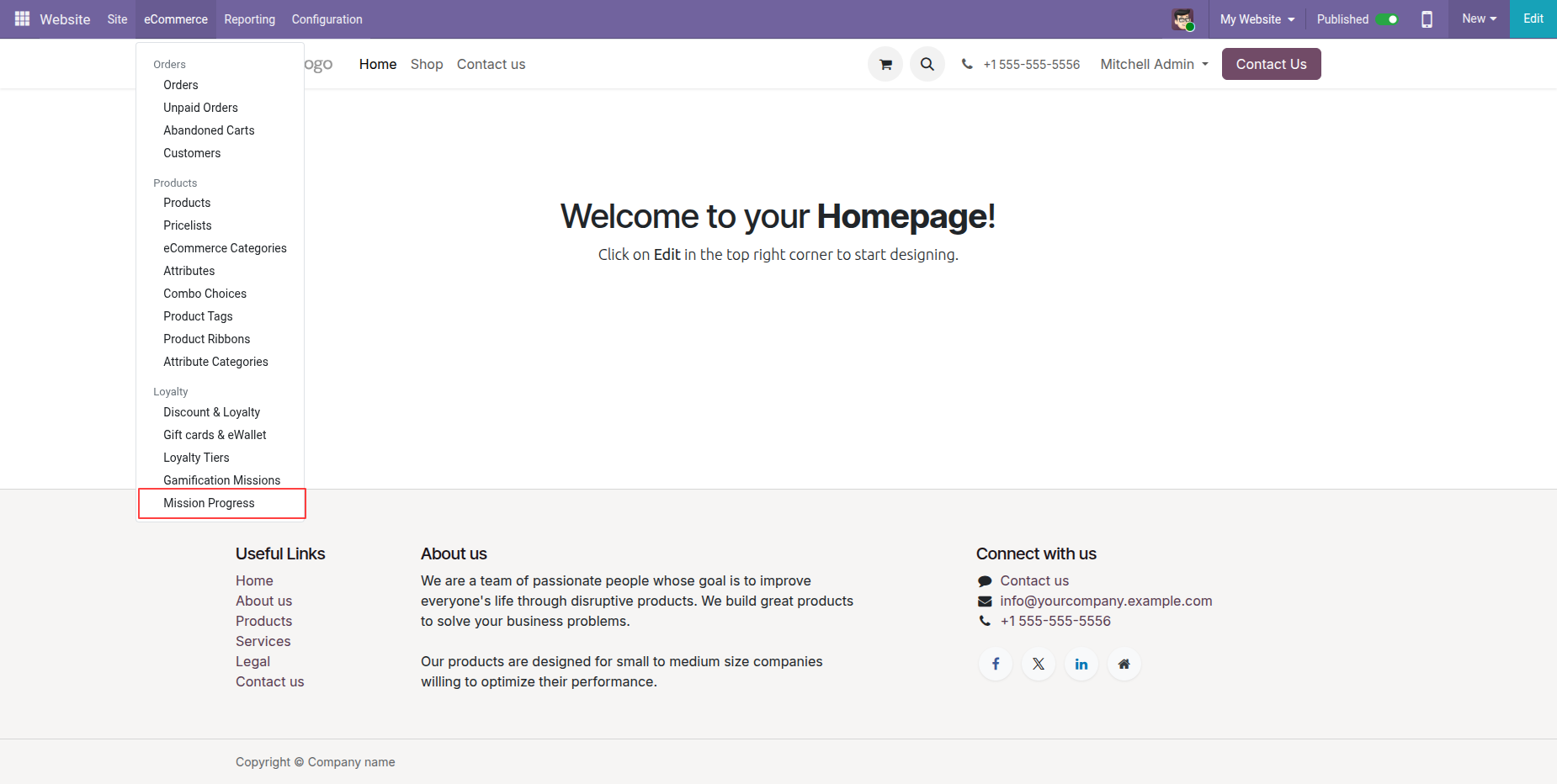
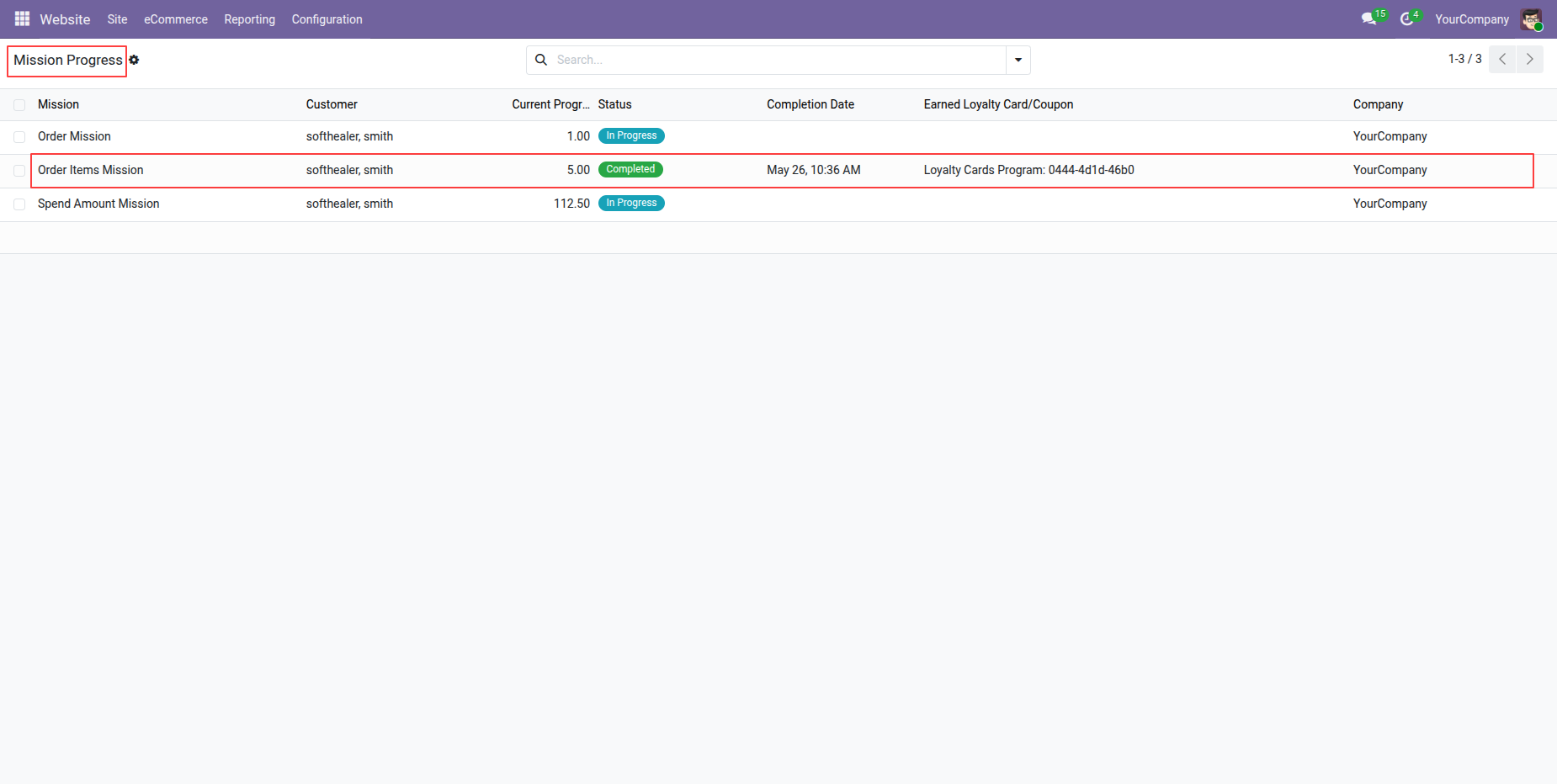
Open Mission Progress menu under eCommerce settings to view customer challenge tracking records.
Check backend mission progress list displaying completed customer missions and target progress values.
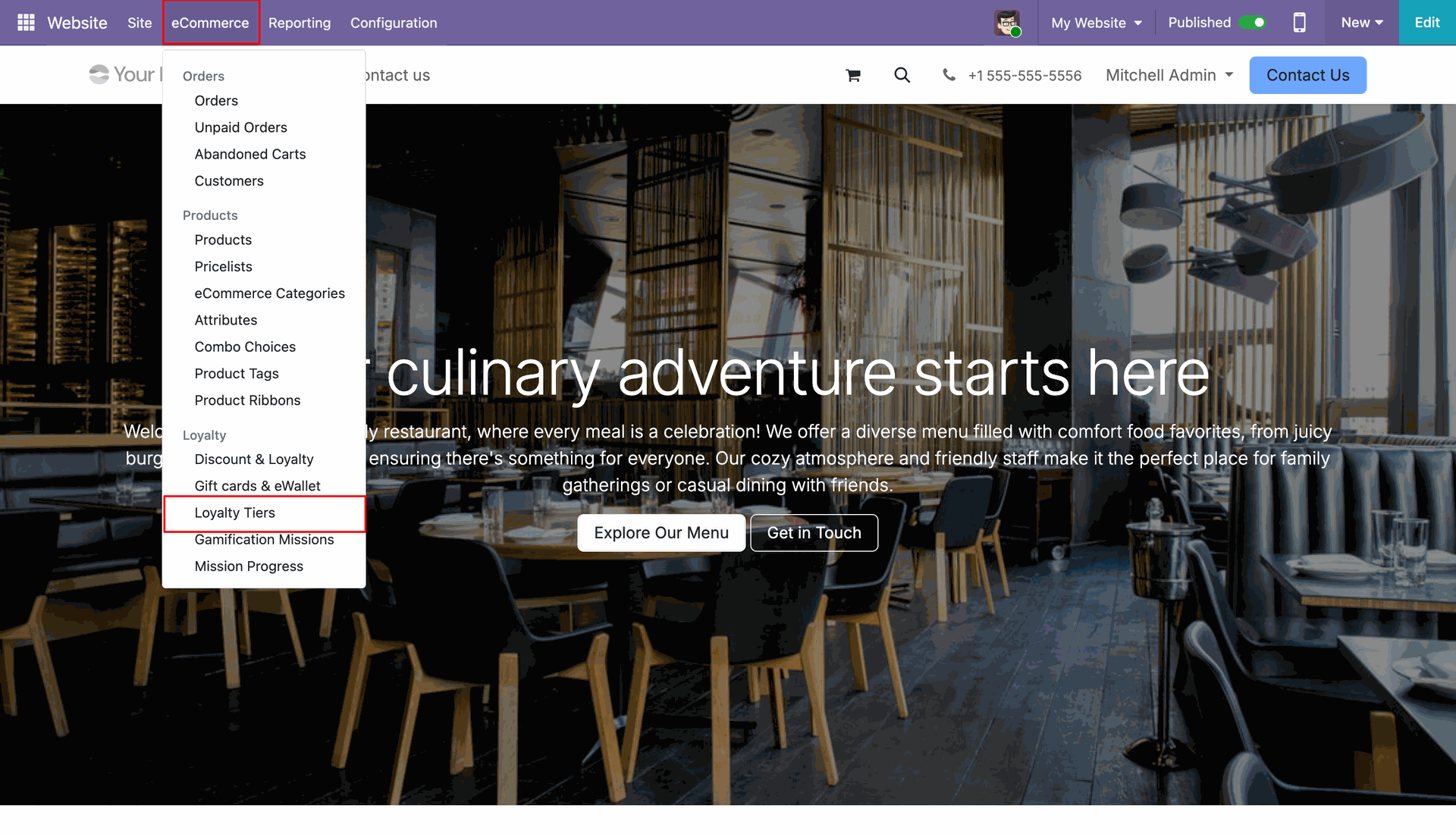
Workflow
Open eCommerce menu and select Loyalty Tiers to configure Point of Sale tiers.
Review configured loyalty tiers list showing minimum spend amounts and reward points.
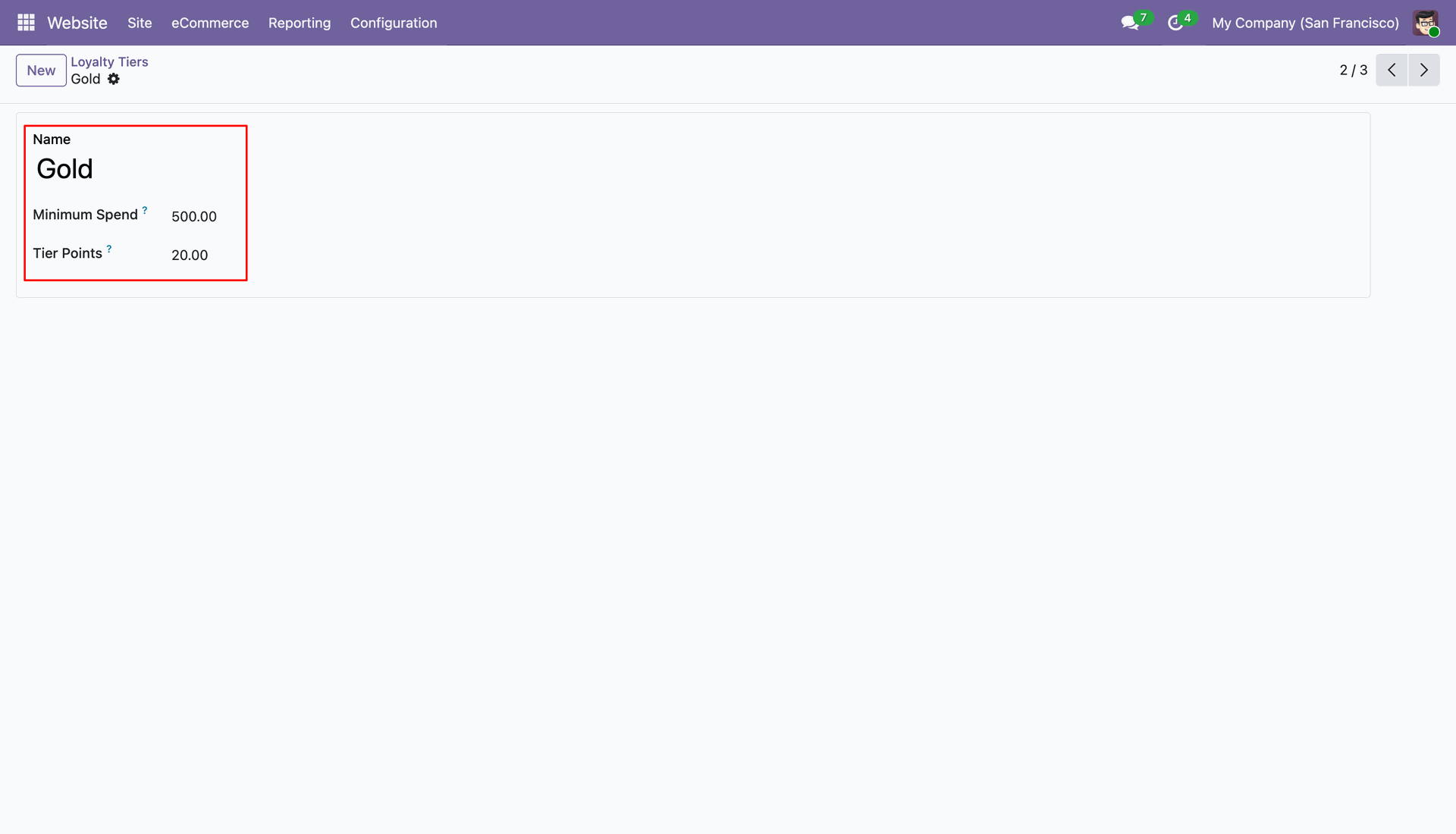
Set minimum spend threshold and tier points for the Gold loyalty tier level.
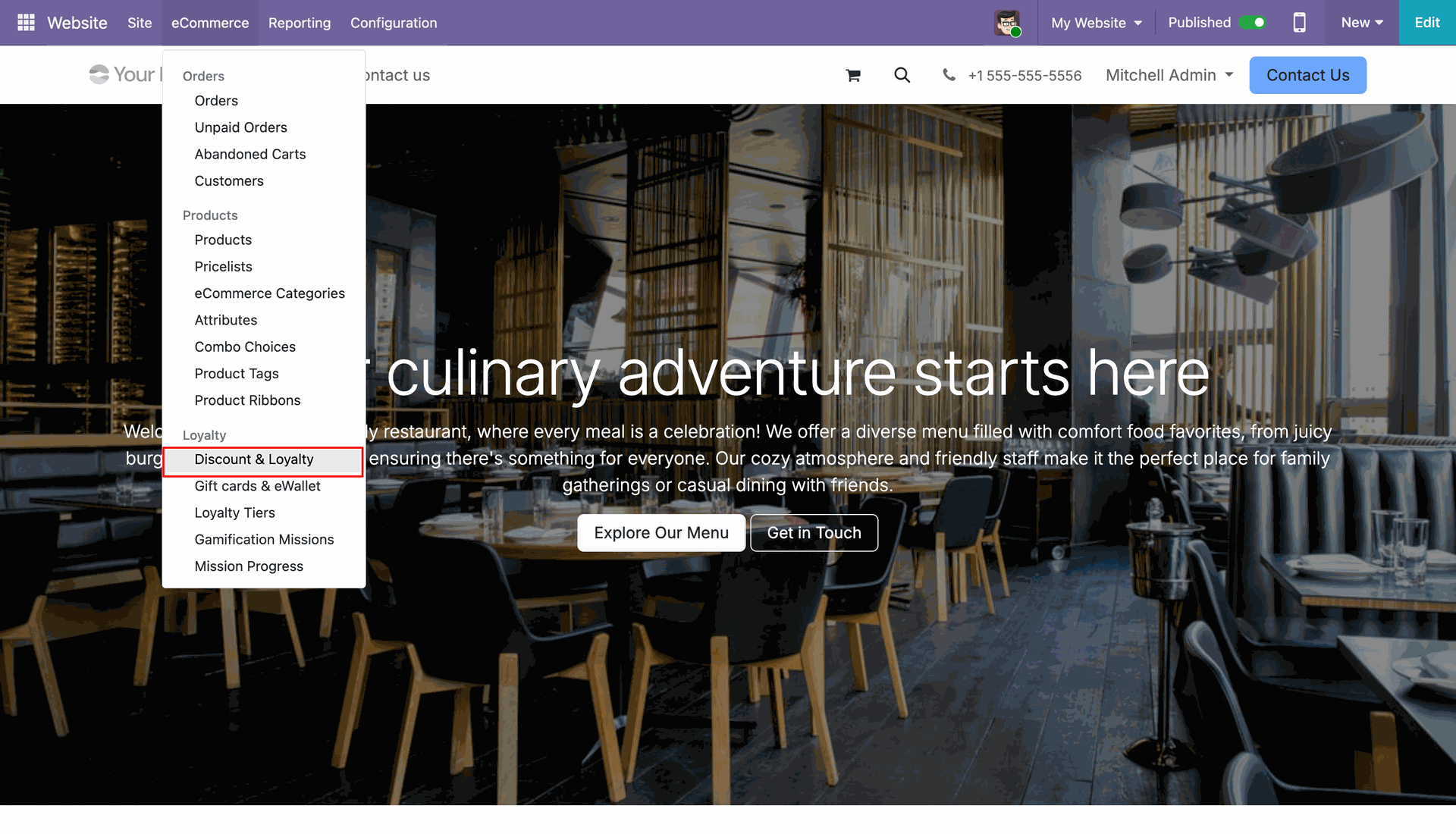
Access Discount & Loyalty menu under eCommerce configuration to manage POS programs.
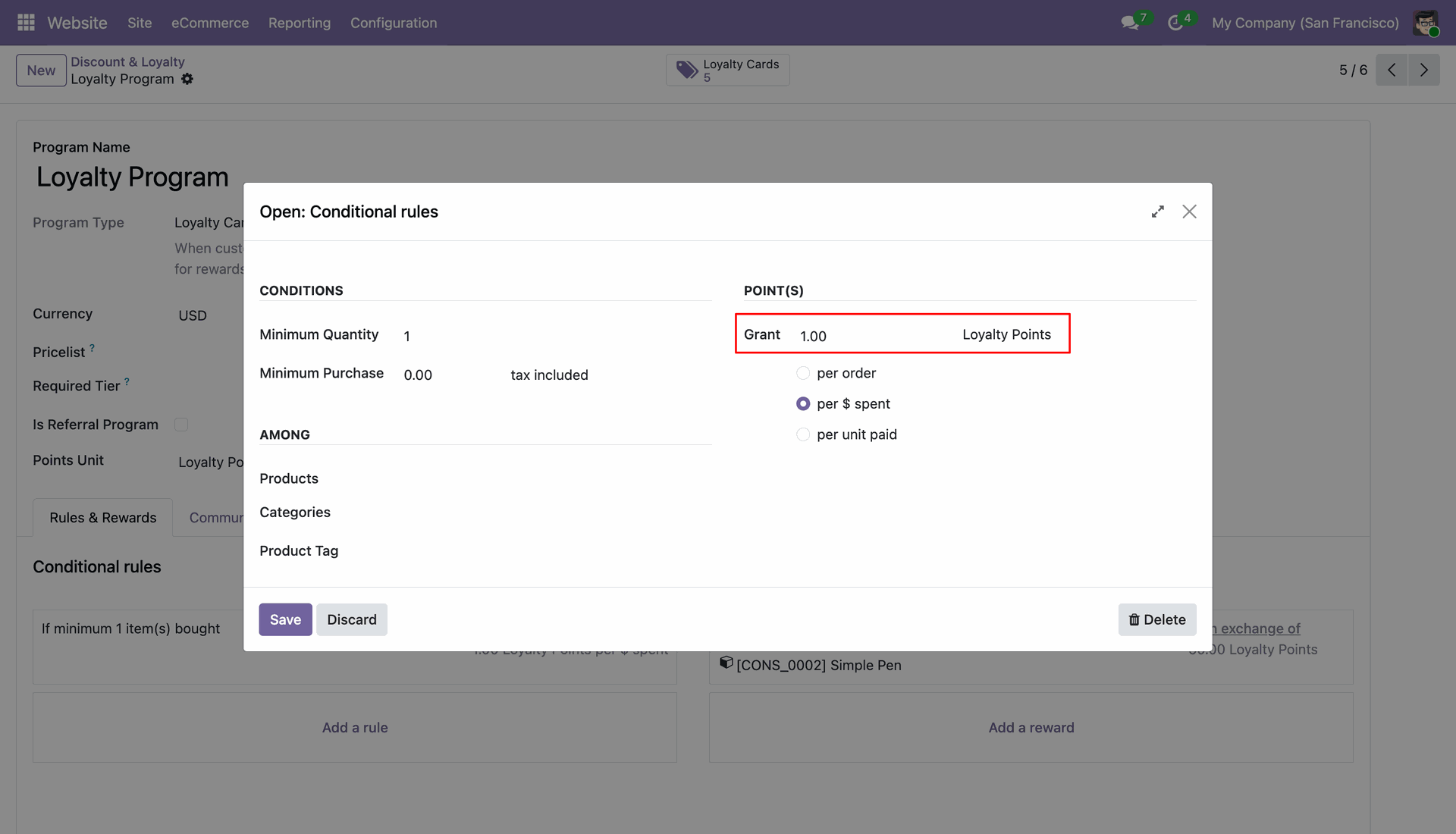
Configure points granting rule in the conditional rules popup for POS orders.
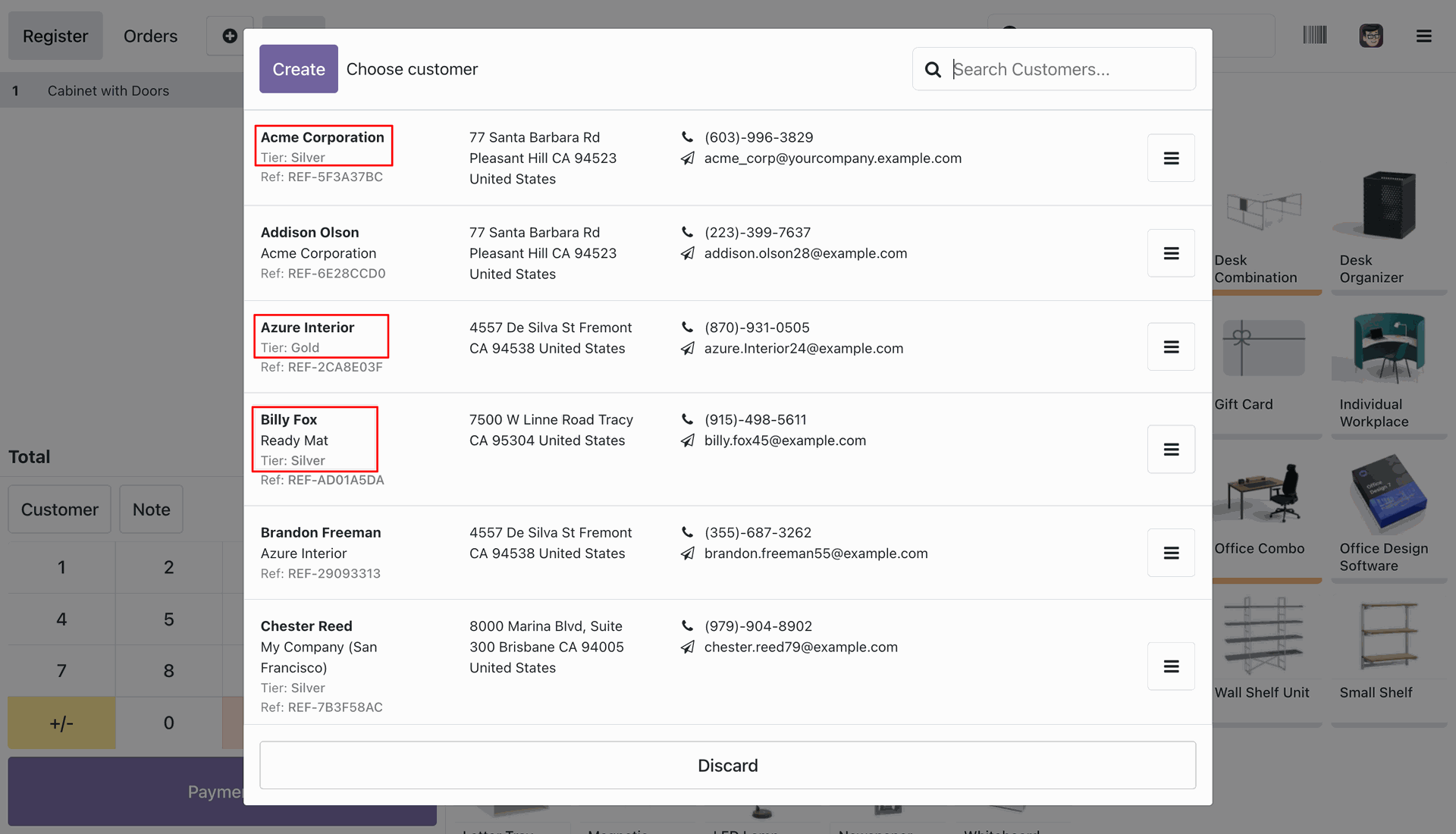
Select customer on POS screen to view assigned loyalty tier badge.
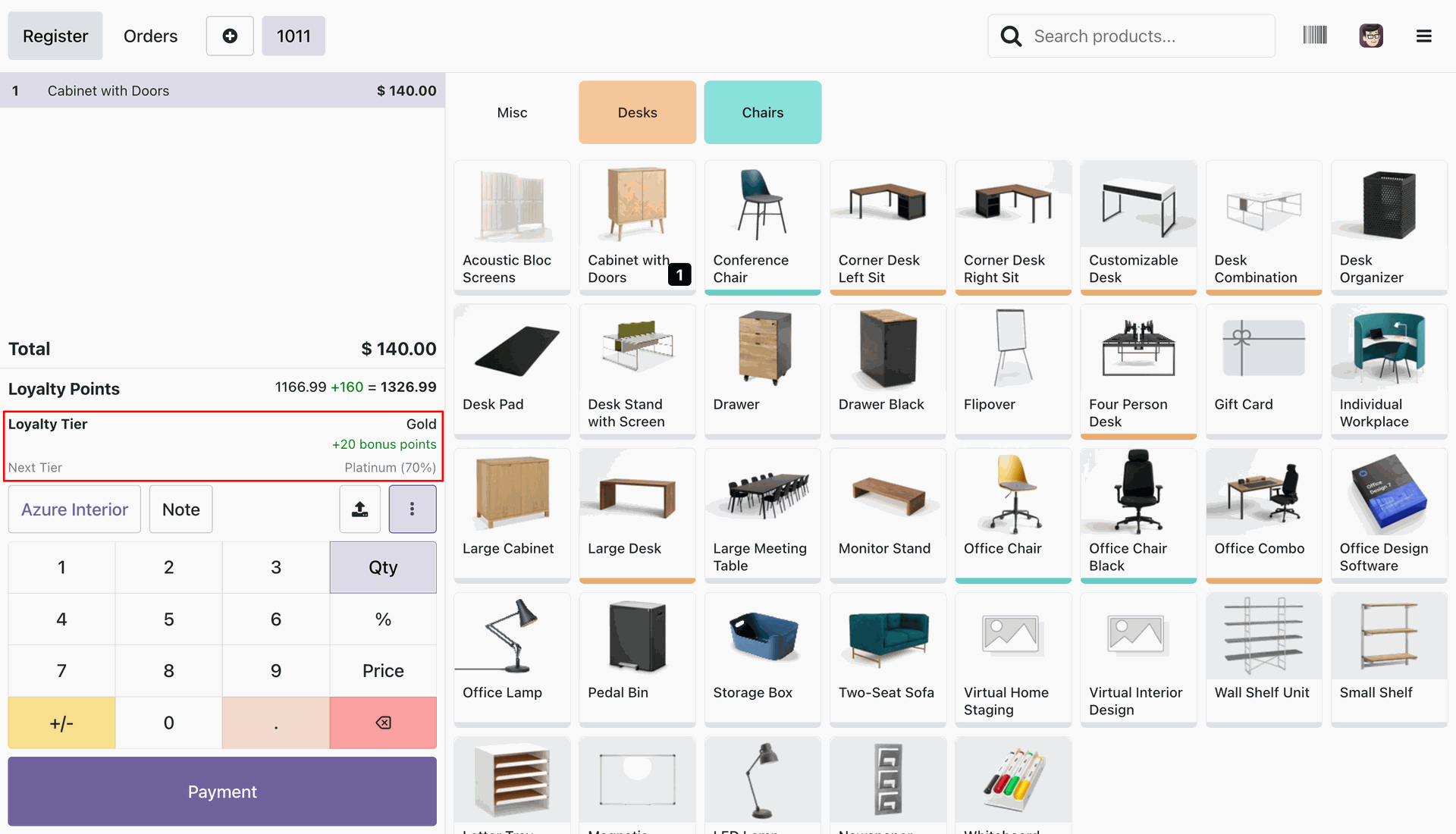
View POS screen displaying customer Gold tier status and progress to next level.
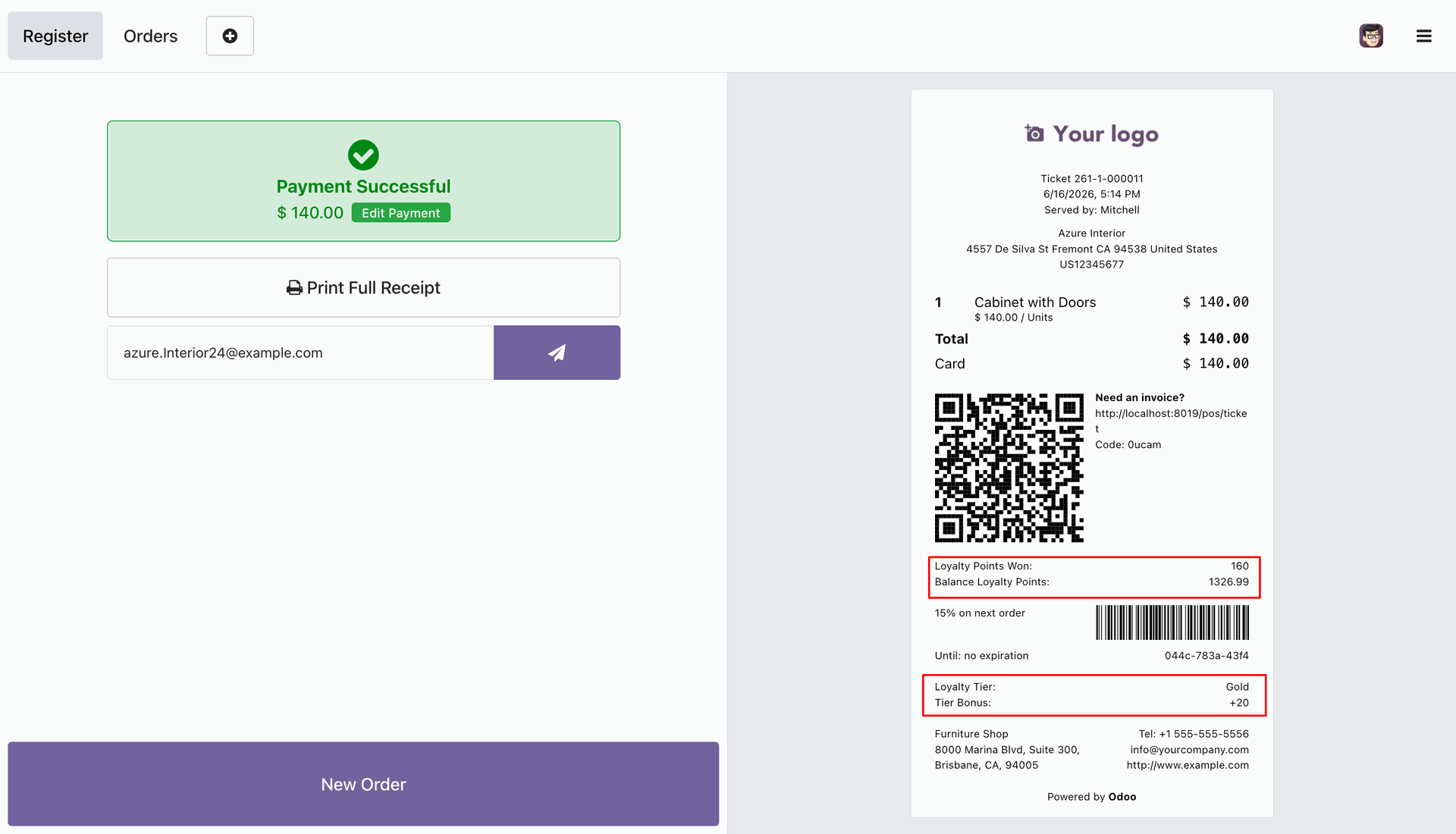
Print POS receipt displaying customer loyalty points won and tier bonus details.
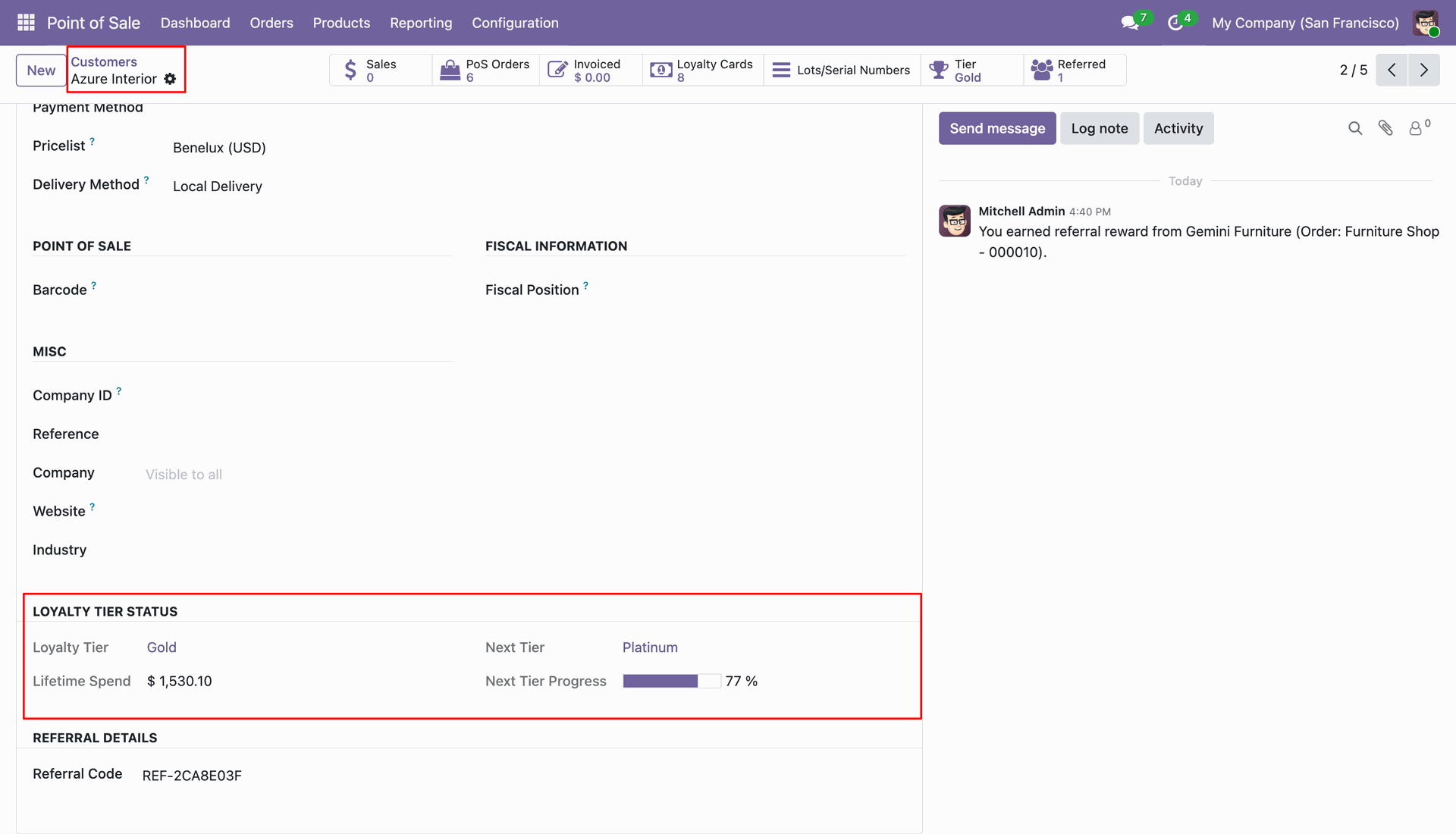
Check backend customer record displaying updated POS spend amount and tier progress.
Workflow
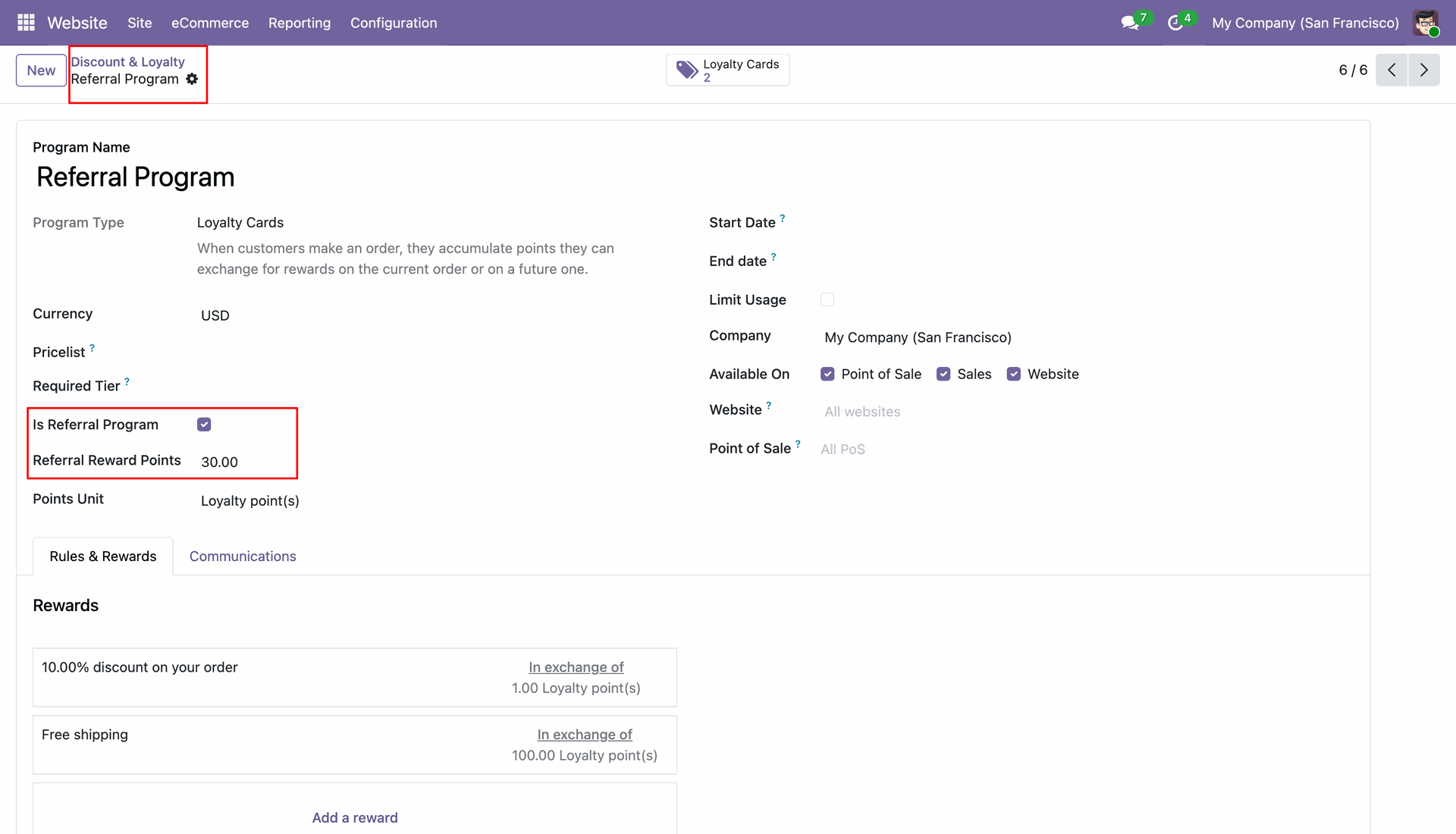
Enable Is Referral Program checkbox and set Referral Reward Points in POS program settings.
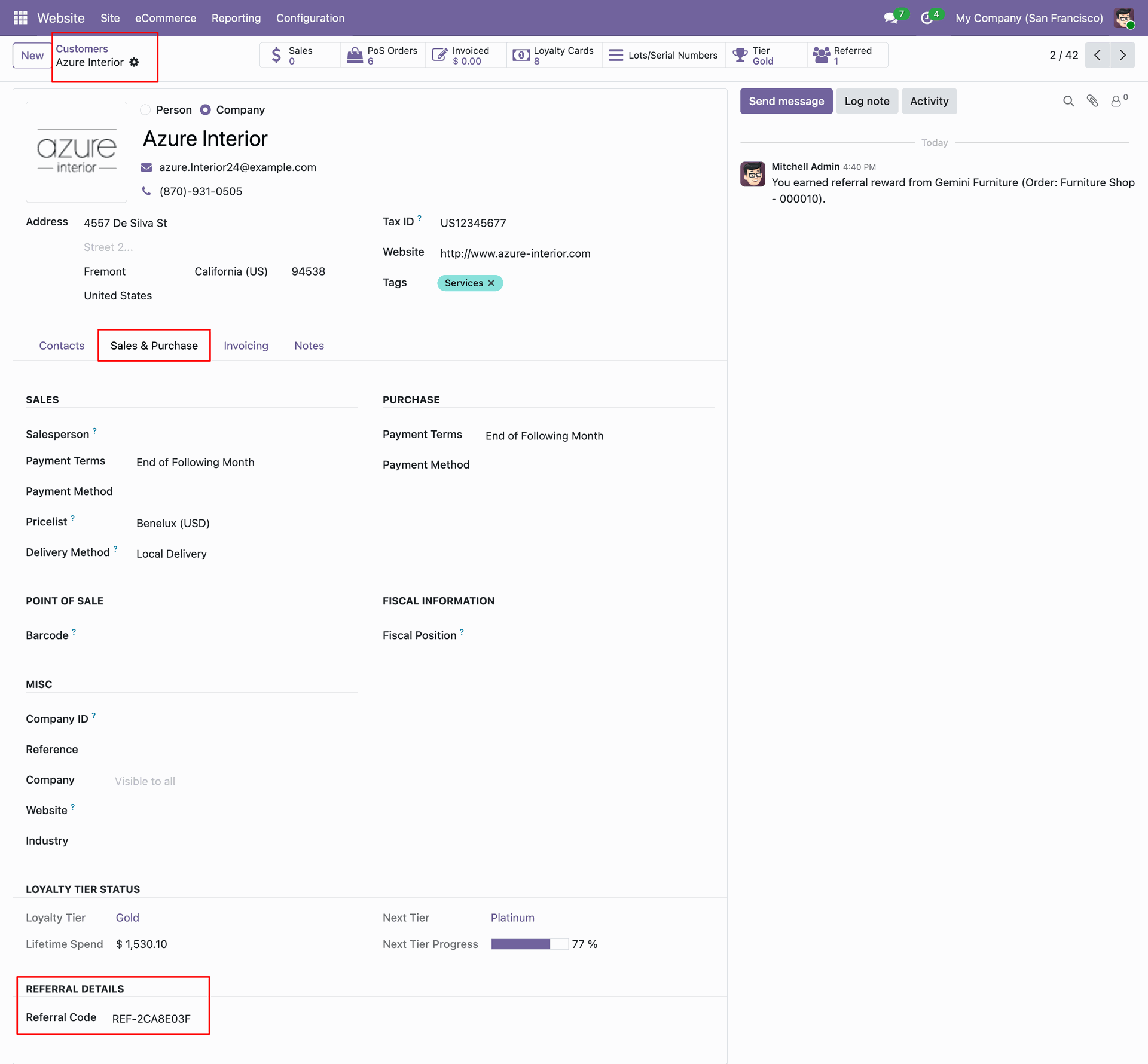
View customer record displaying generated referral code under referral details section in backend.
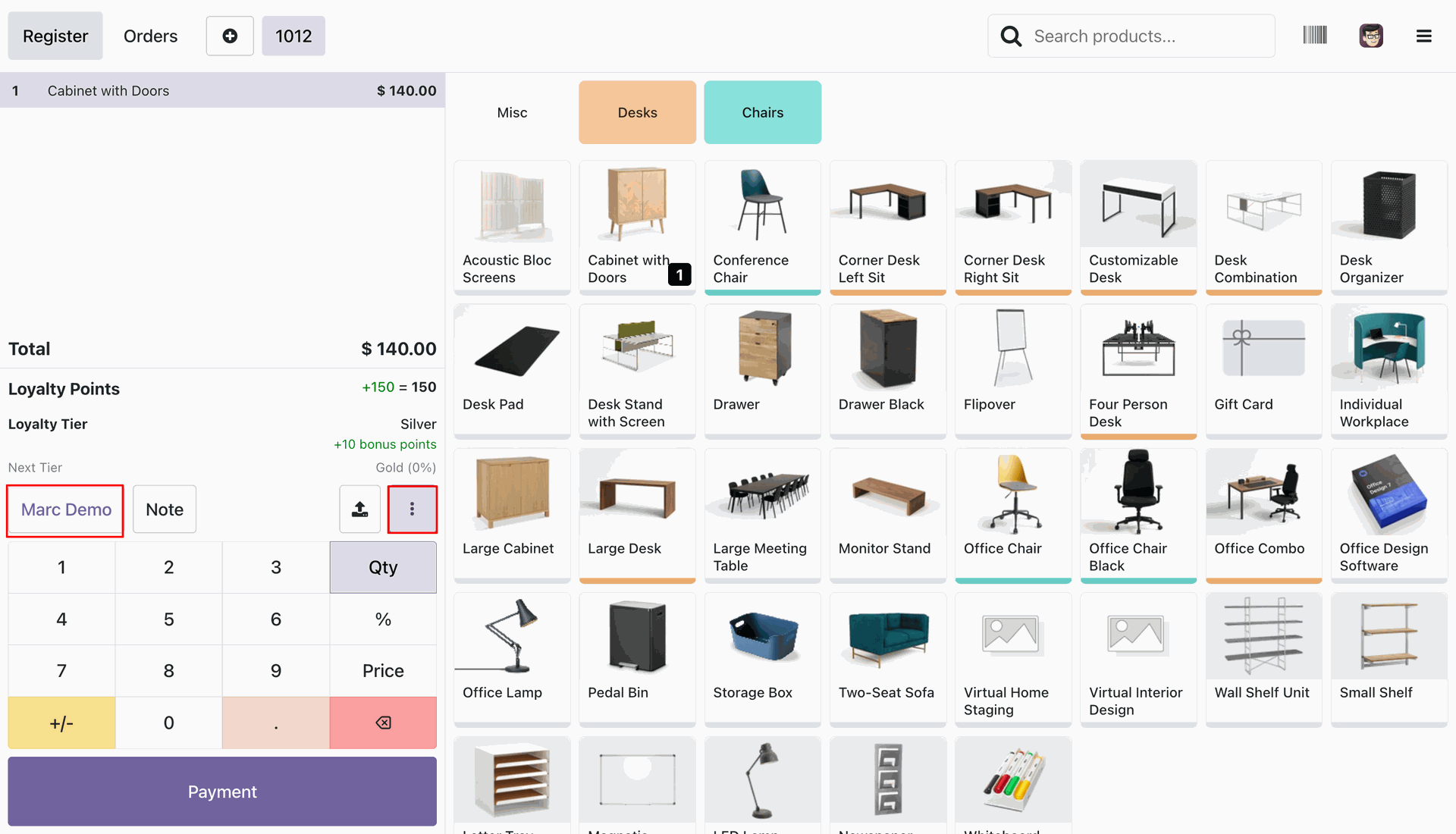
Click action button on POS register screen to access order actions menu.
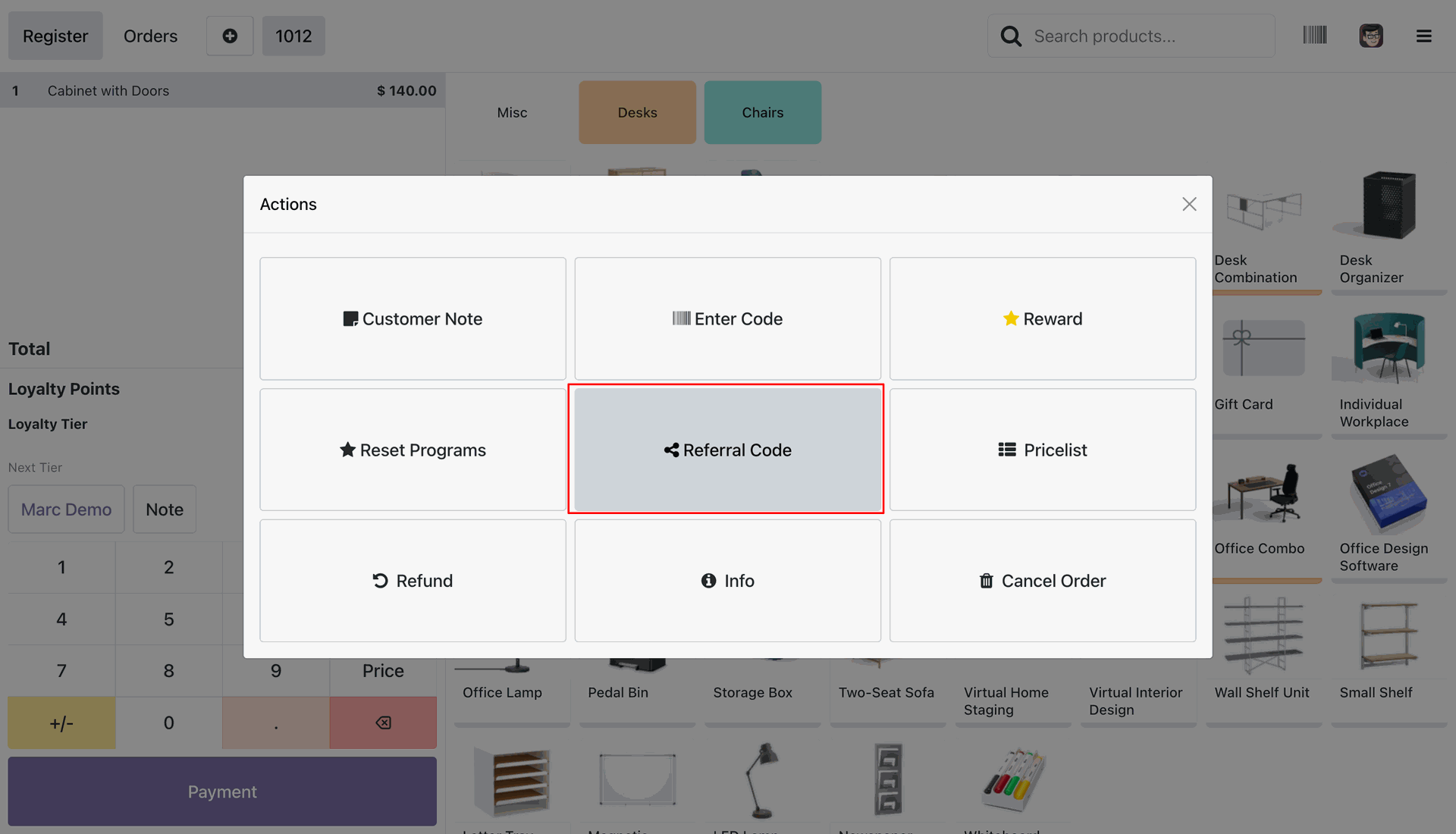
Select Referral Code button inside Actions popup modal on POS screen.
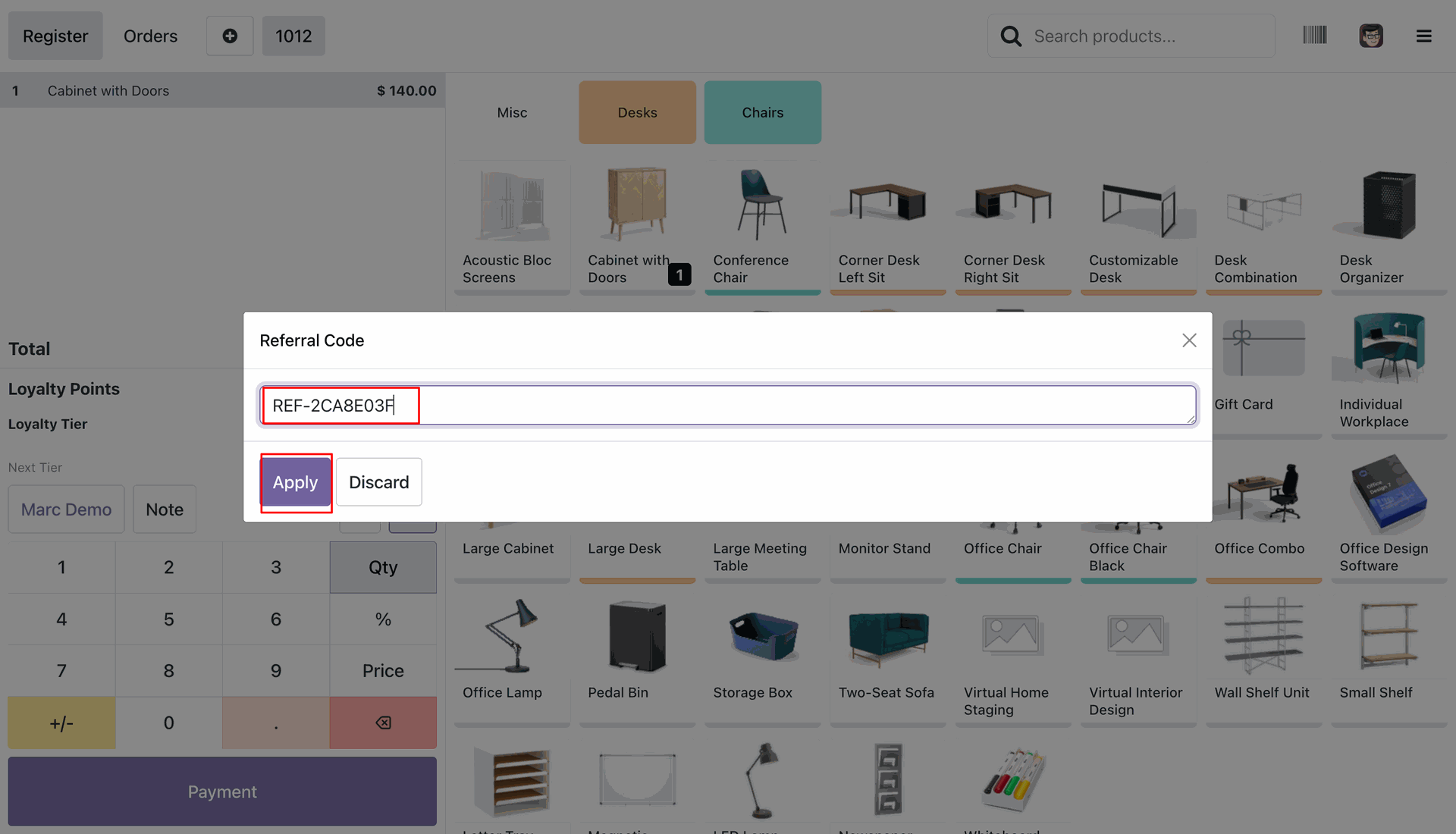
Enter valid customer referral code in popup input field and click Apply.
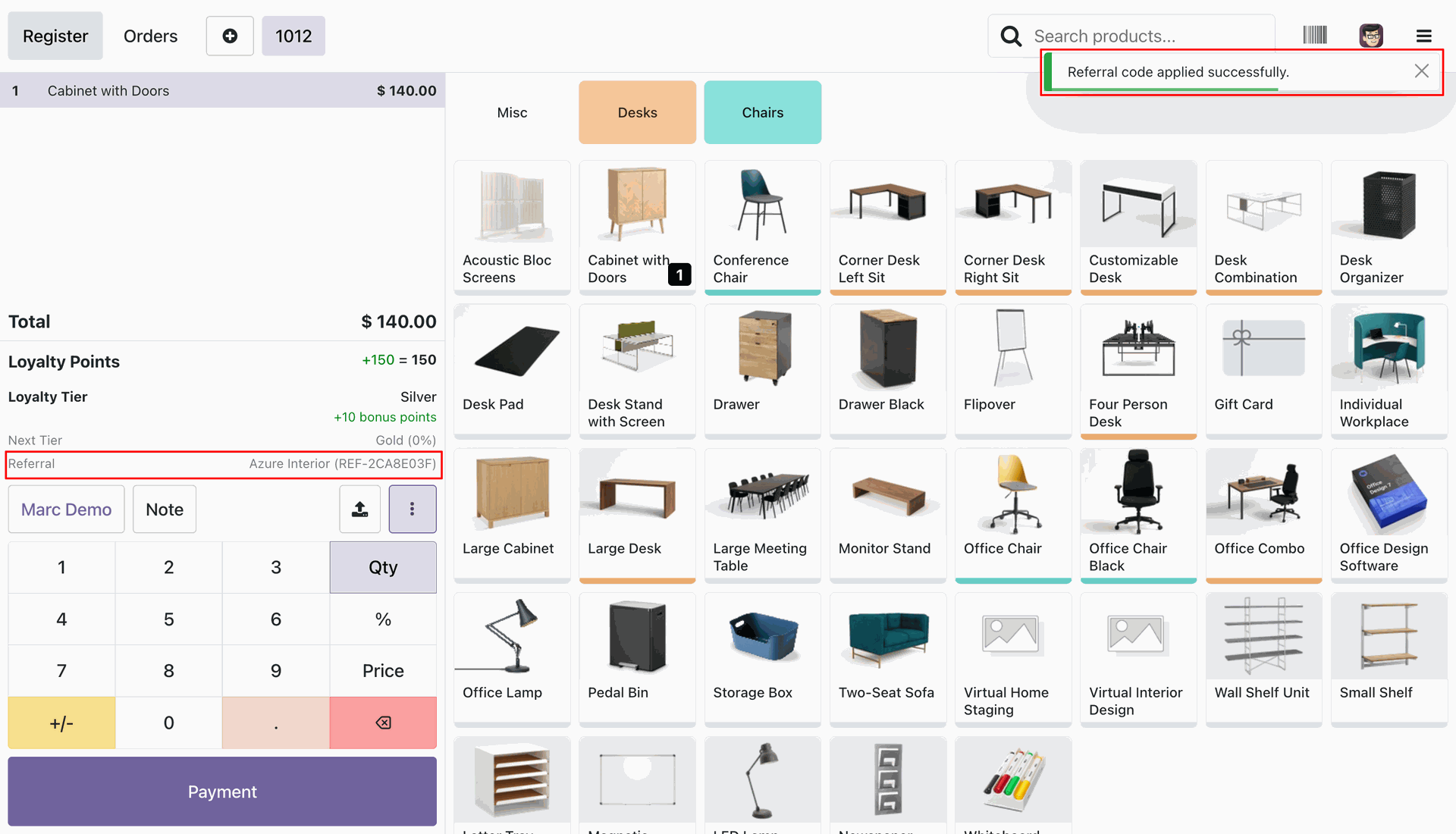
View successful referral code notification banner and linked referrer name on POS order summary screen.
Review Referral Reward popup displaying awarded points on POS order completion.
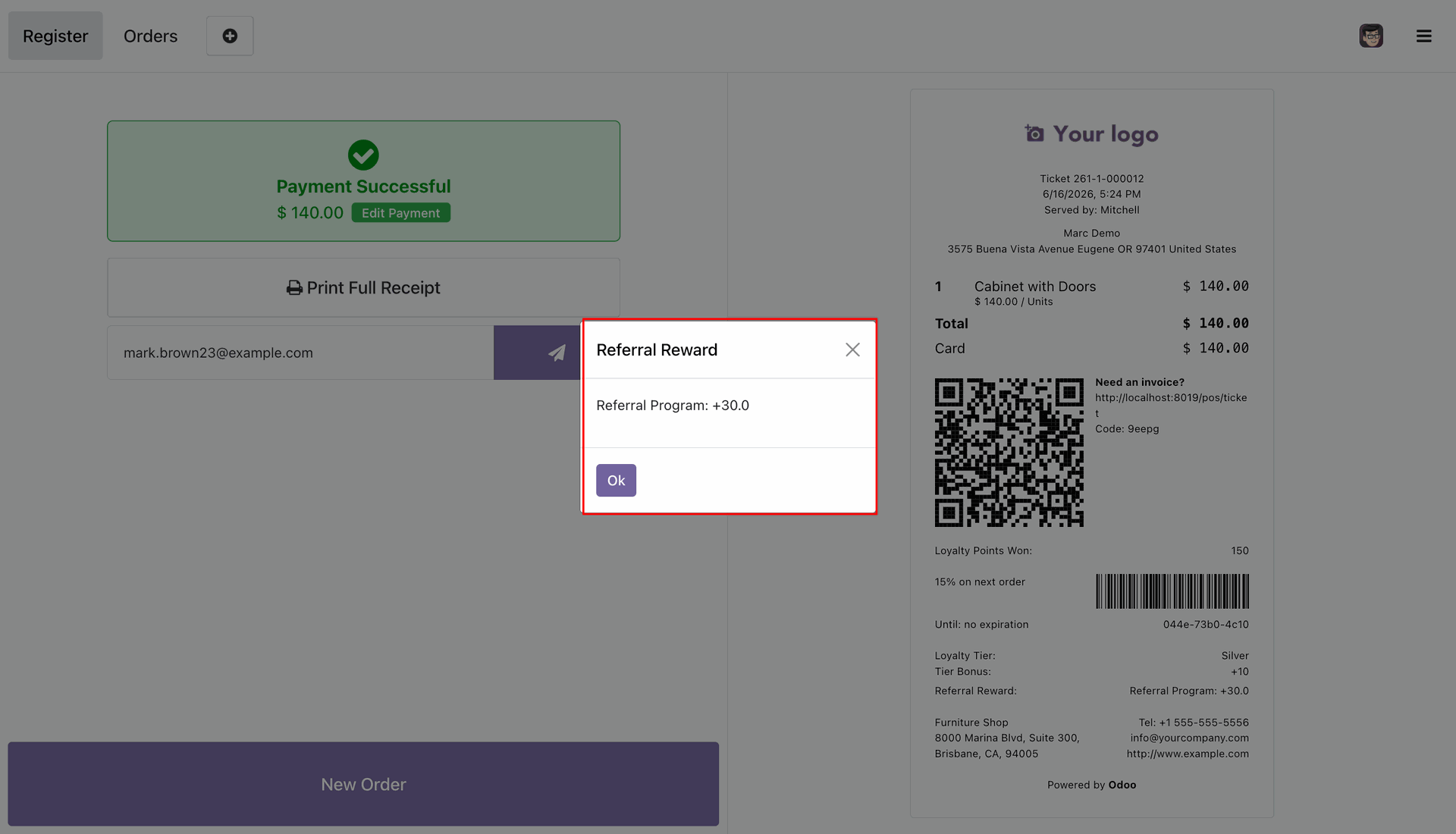
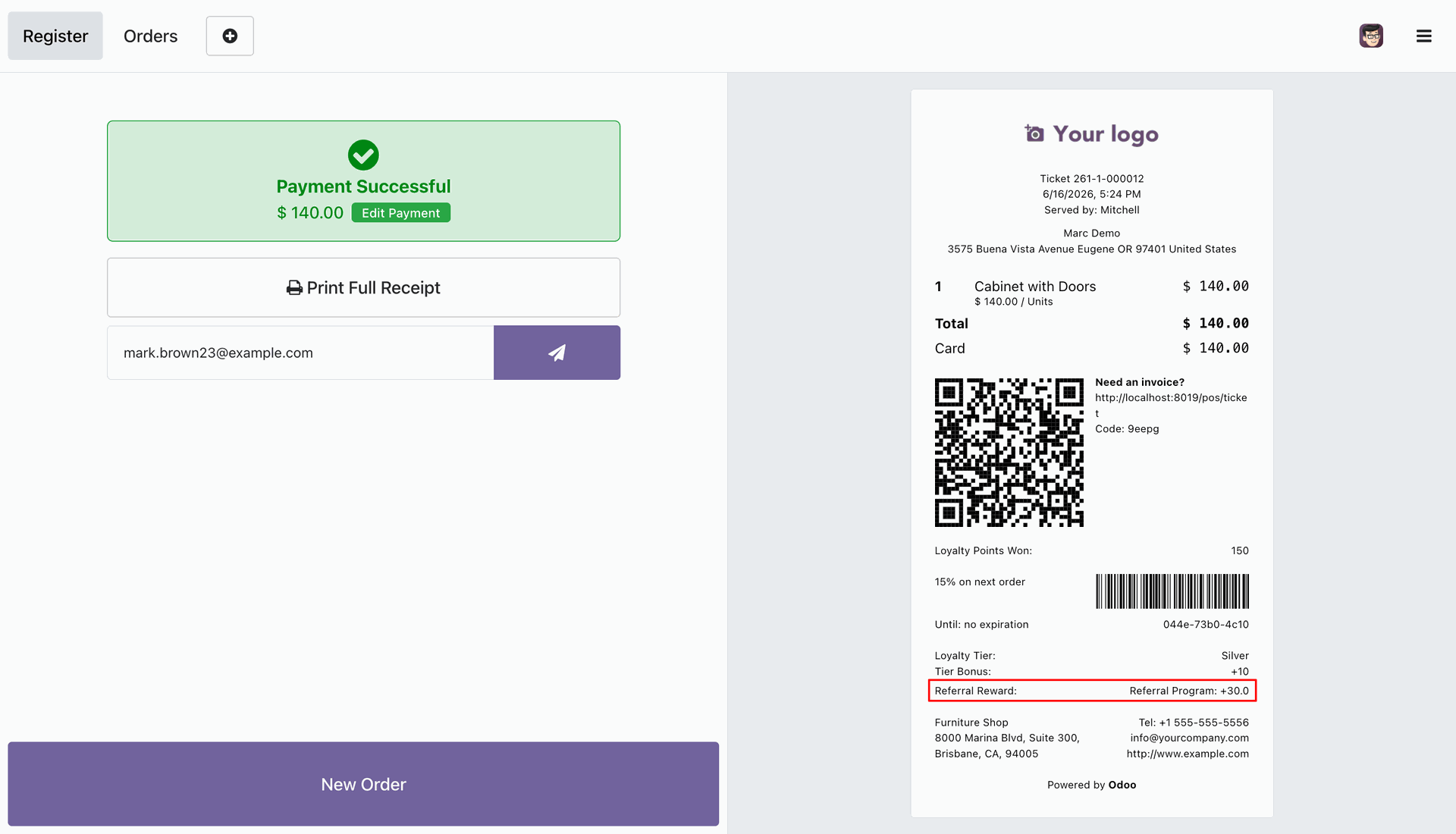
Print POS order receipt displaying referral reward details and earned point additions.
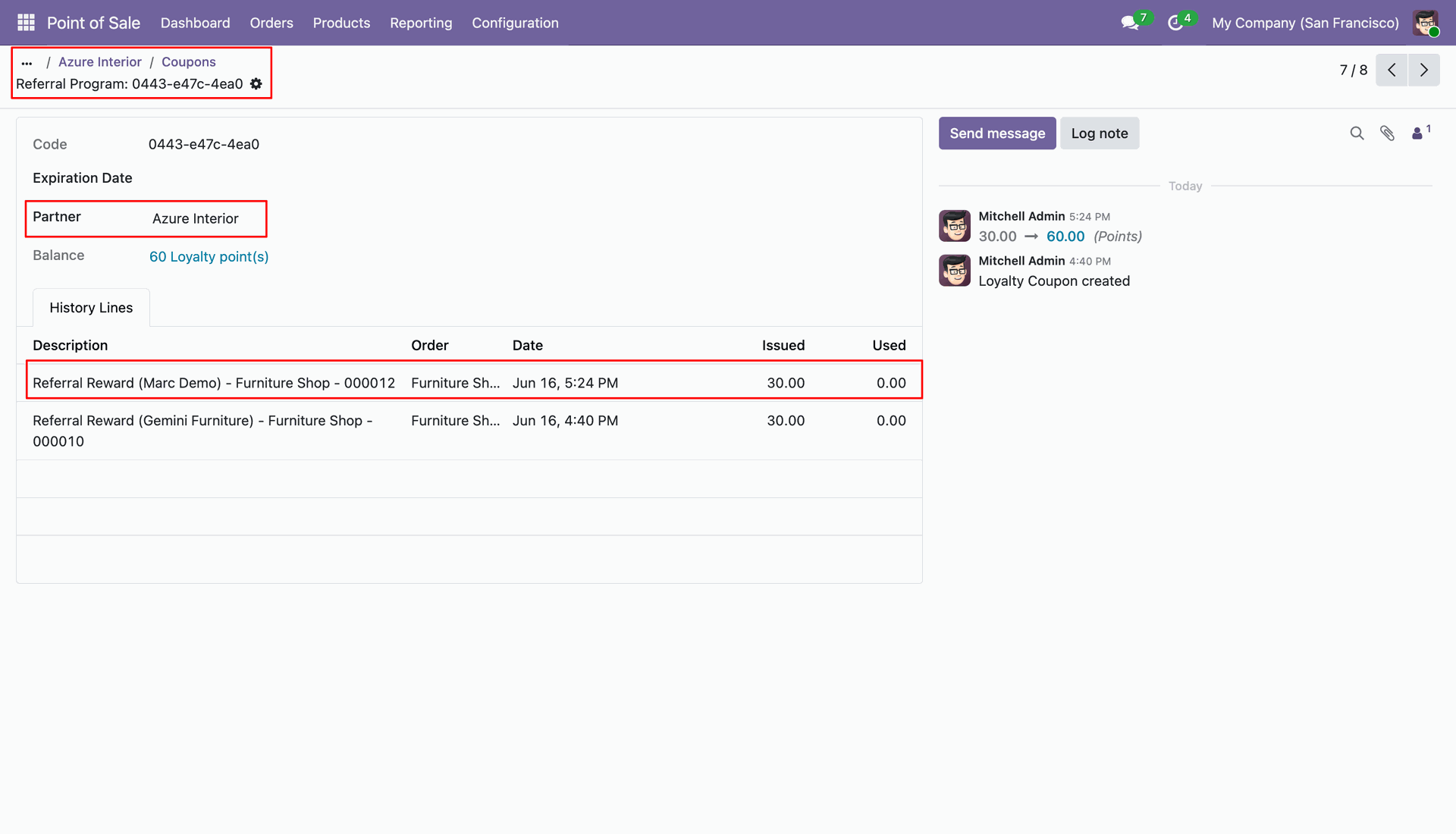
Inspect backend customer loyalty card history line confirming credited POS referral reward points.
Workflow
Select Gamification Missions option under eCommerce menu to set up POS reward challenges.
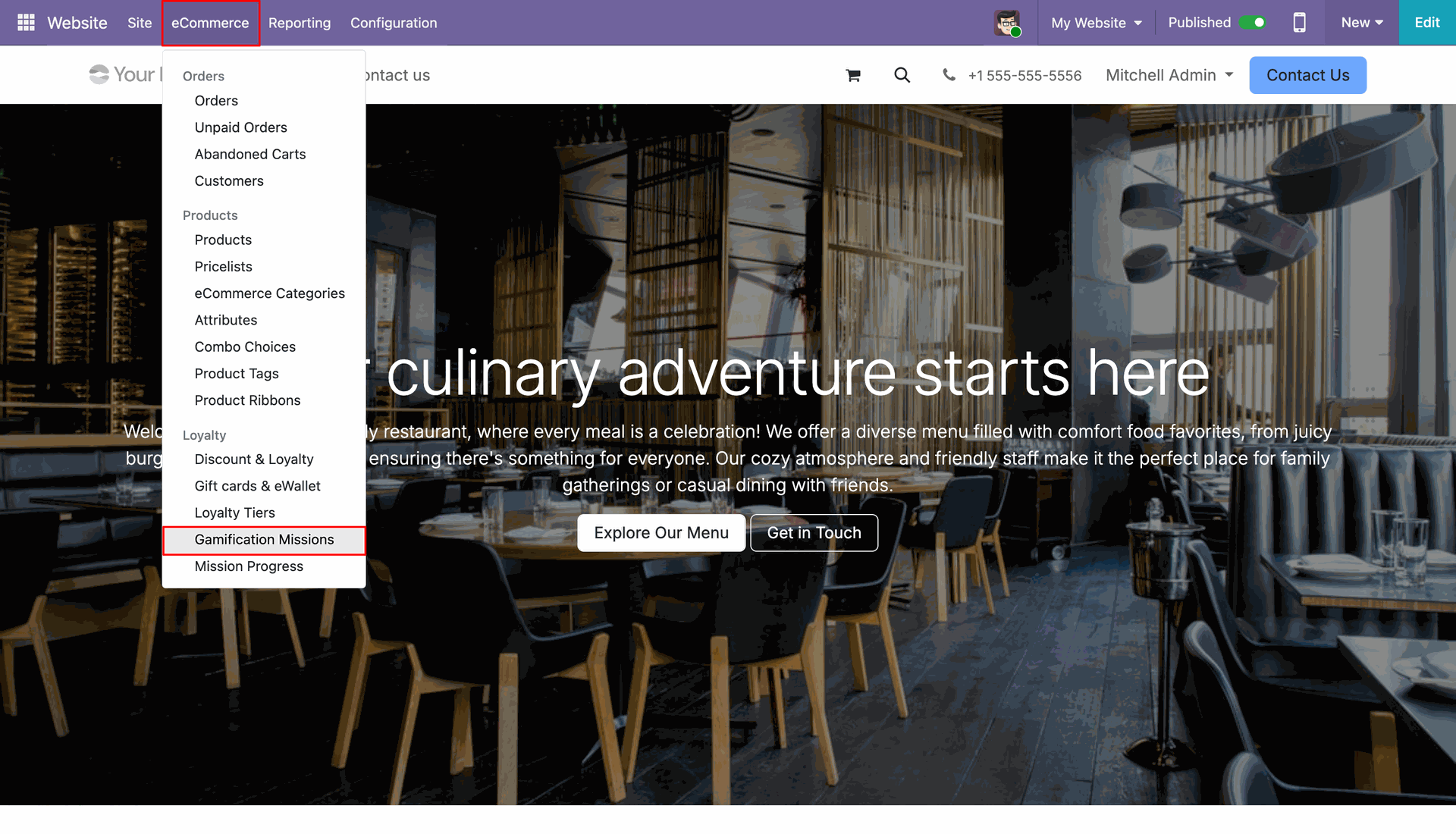
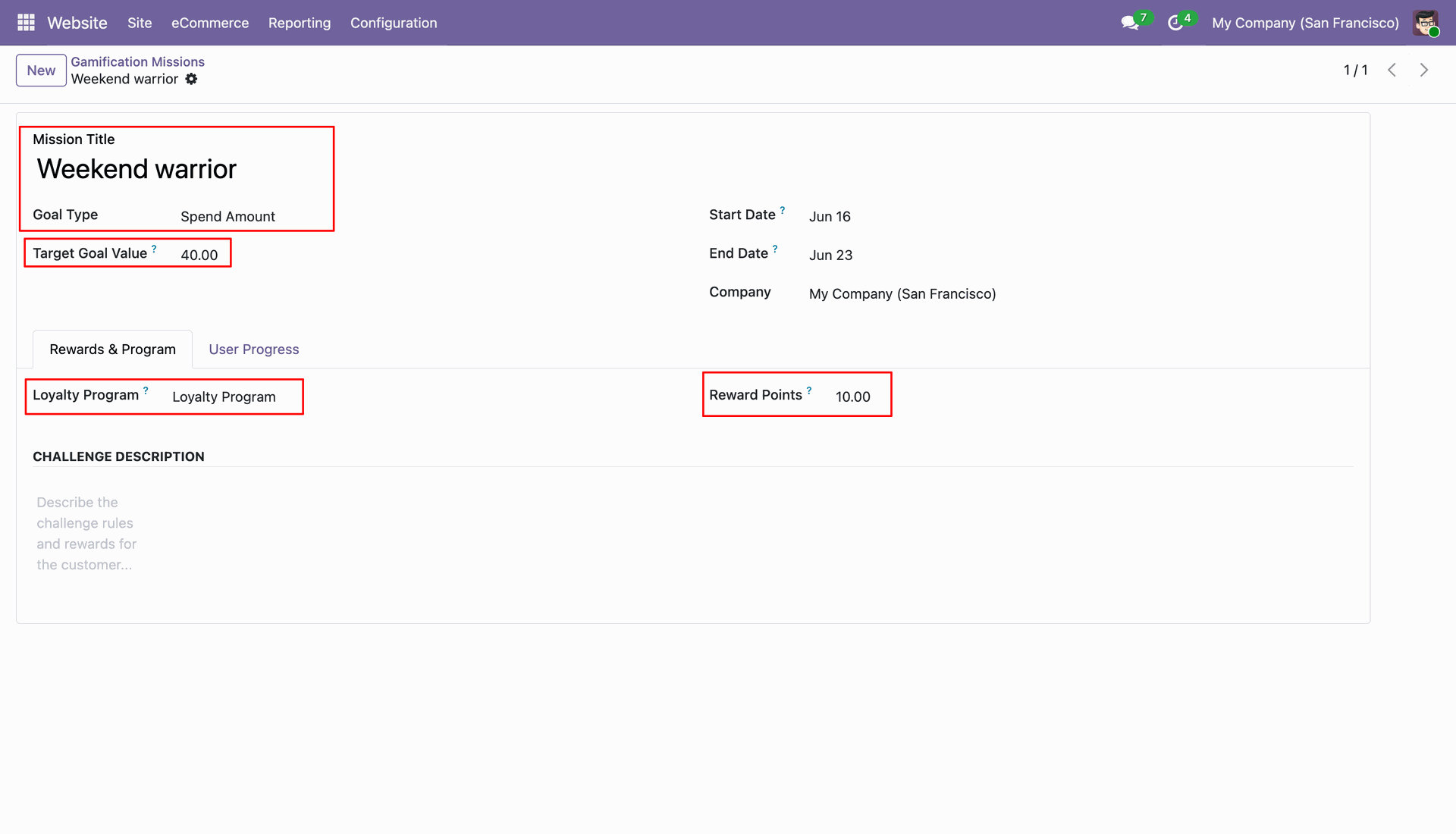
Create Spend Amount challenge mission and configure target spend goal and reward points balance.
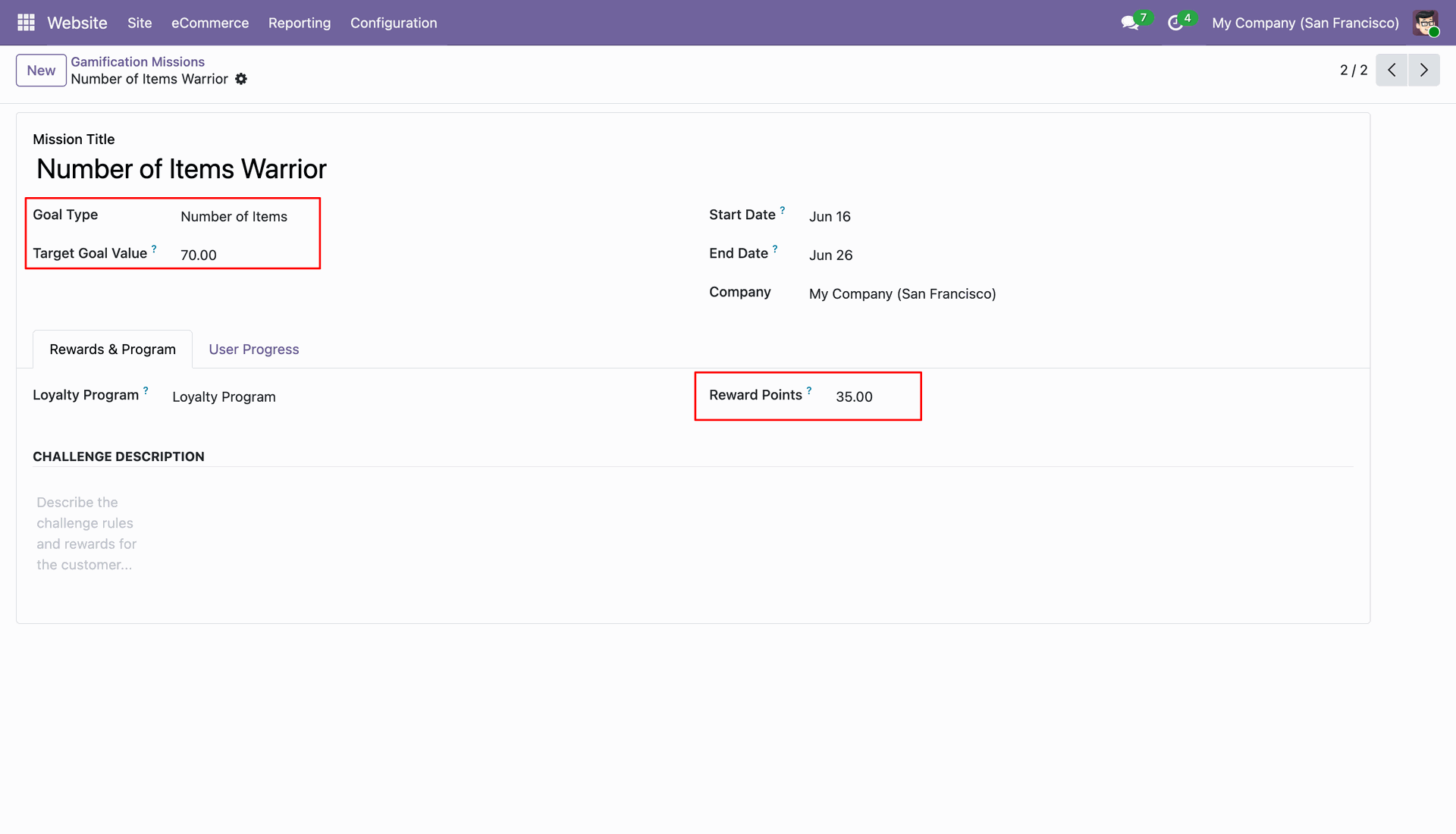
Configure Number of Items challenge criteria specifying item quantity threshold and bonus reward points.
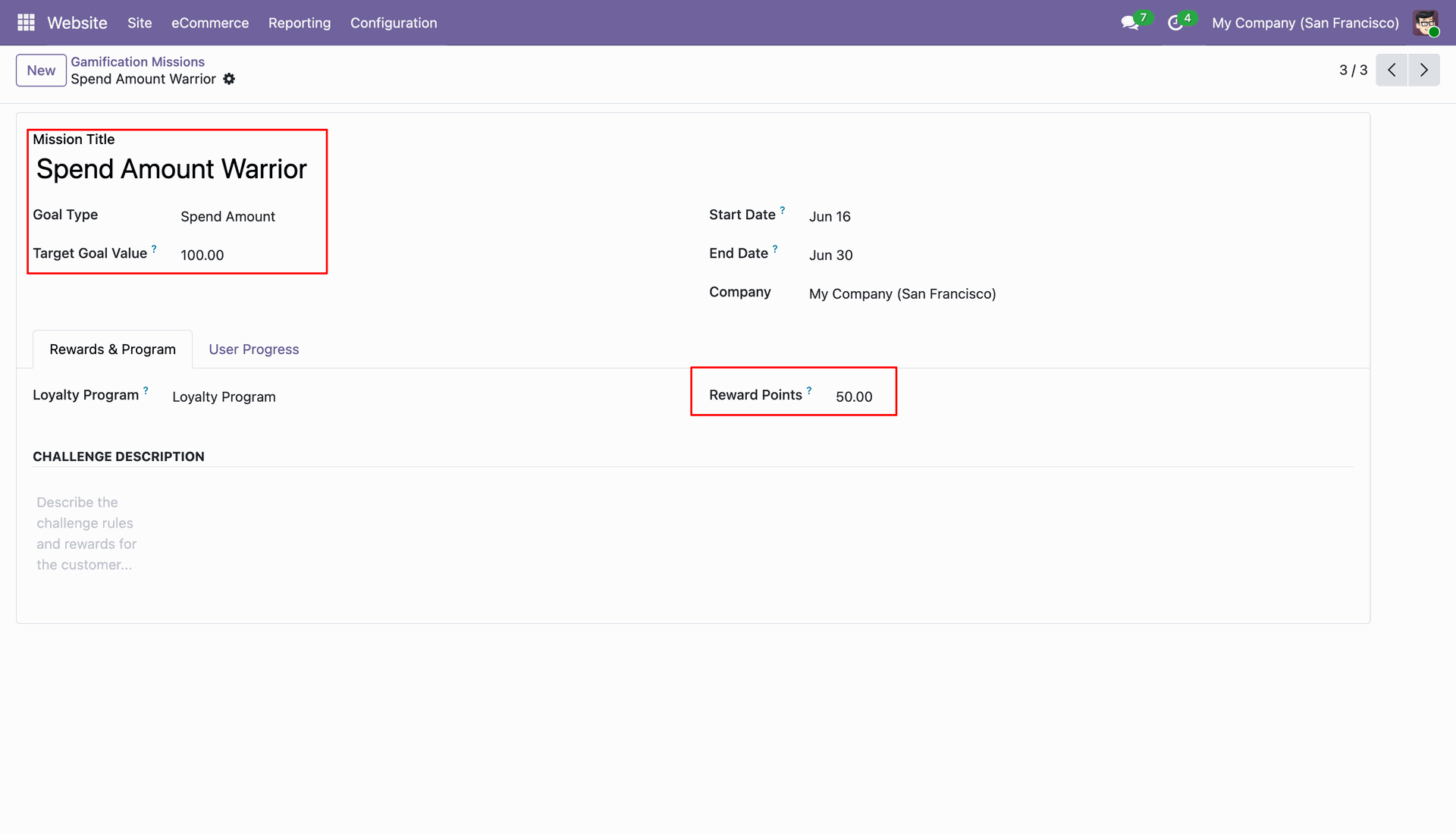
Define Spend Amount Warrior mission parameters setting minimum order spend amount and bonus points.
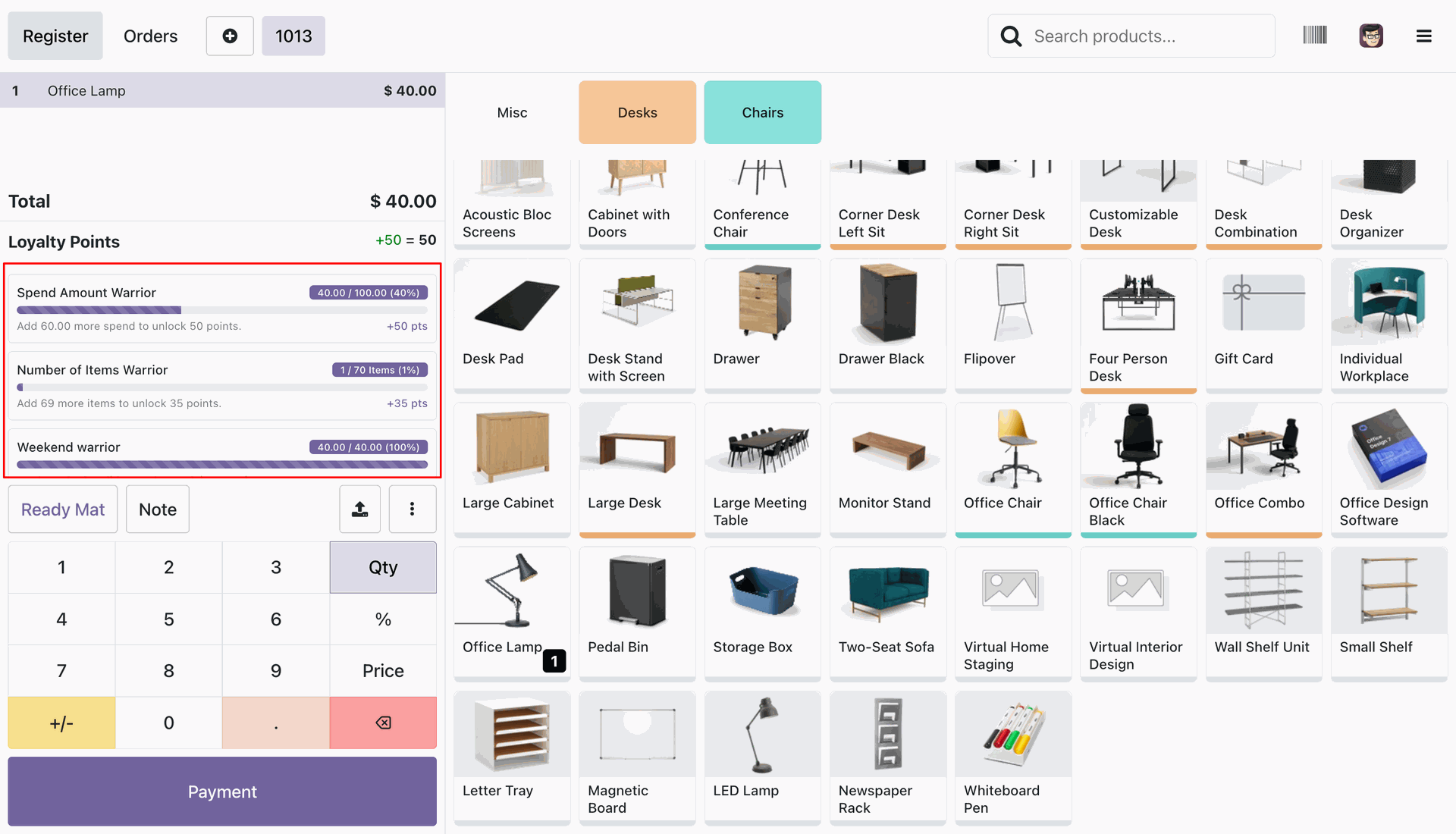
Track active gamification challenge progress bars and target completion rules on POS order screen.
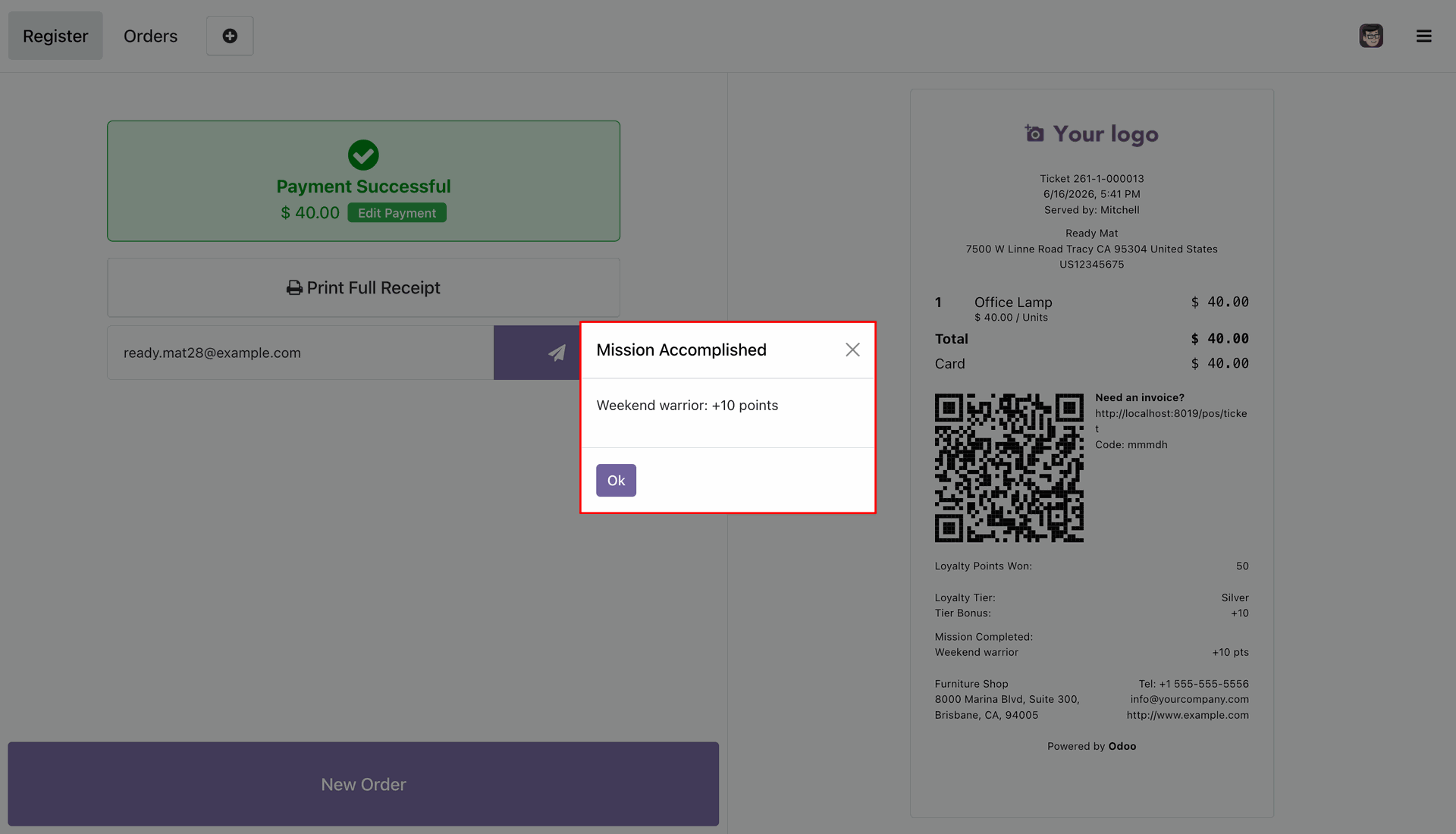
View Mission Accomplished popup notifying customer of completed POS challenge and bonus points.
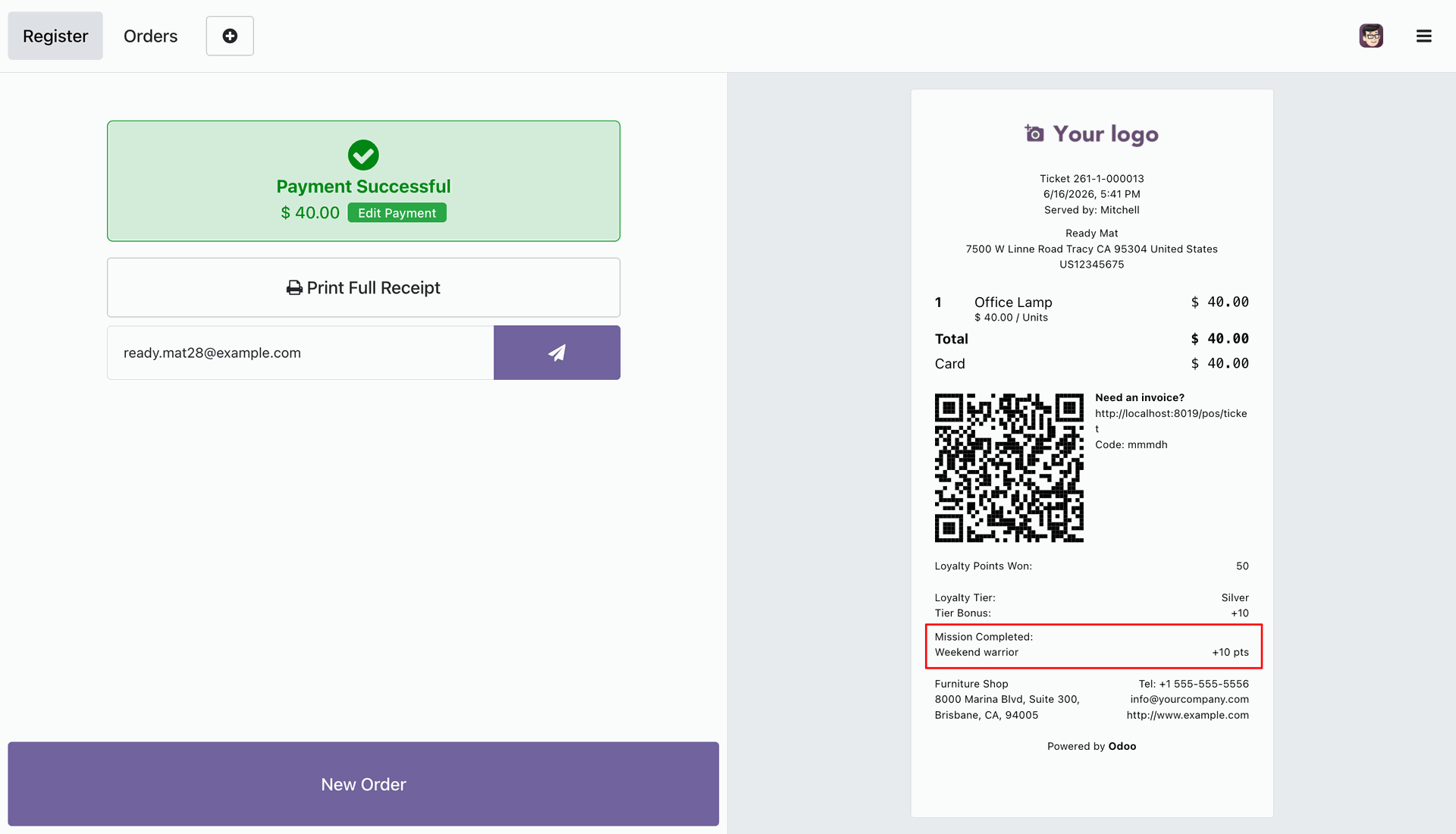
Print POS sales receipt featuring completed mission name and awarded bonus points.
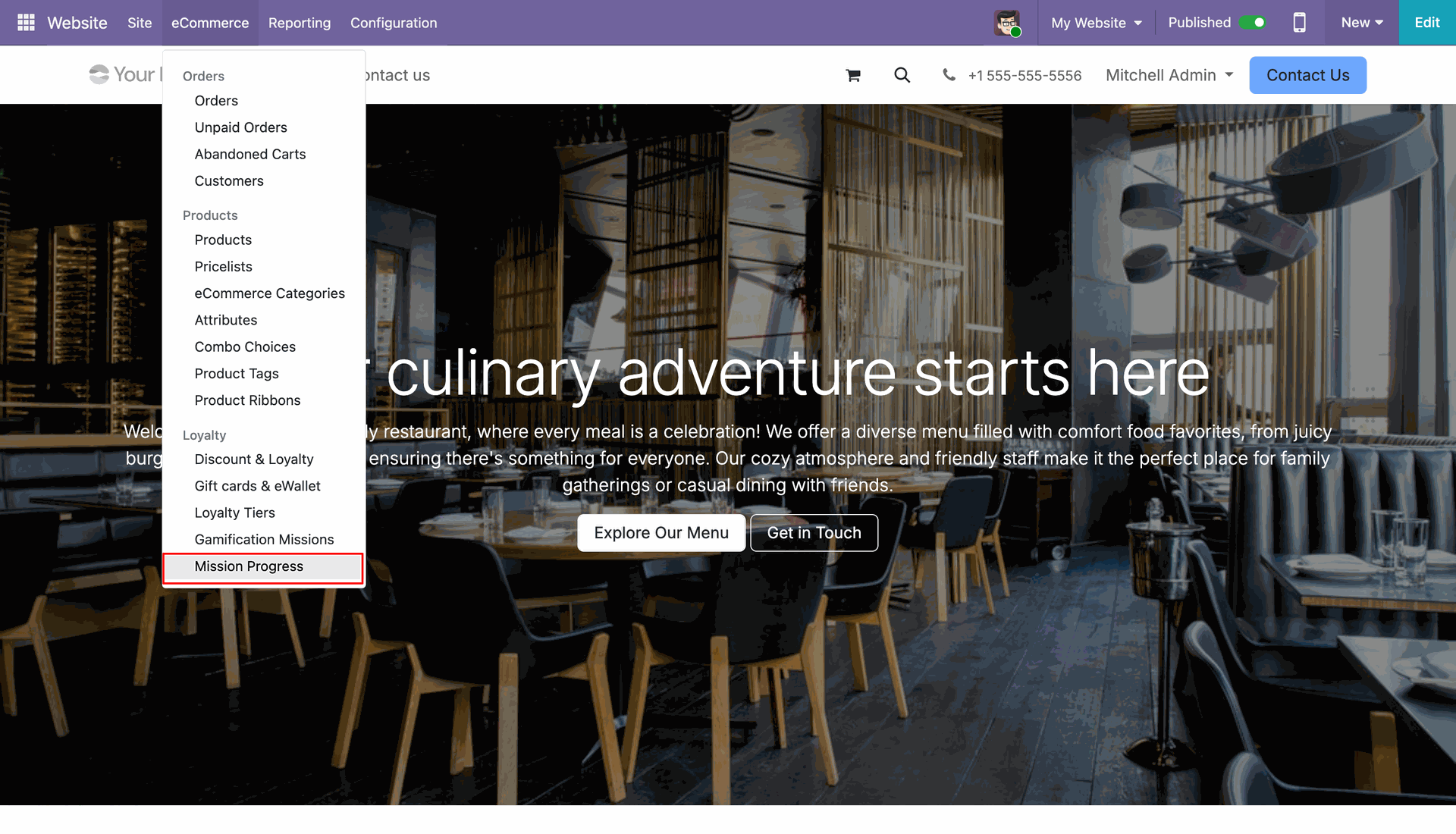
Click Mission Progress menu under eCommerce configuration section to track POS challenges.
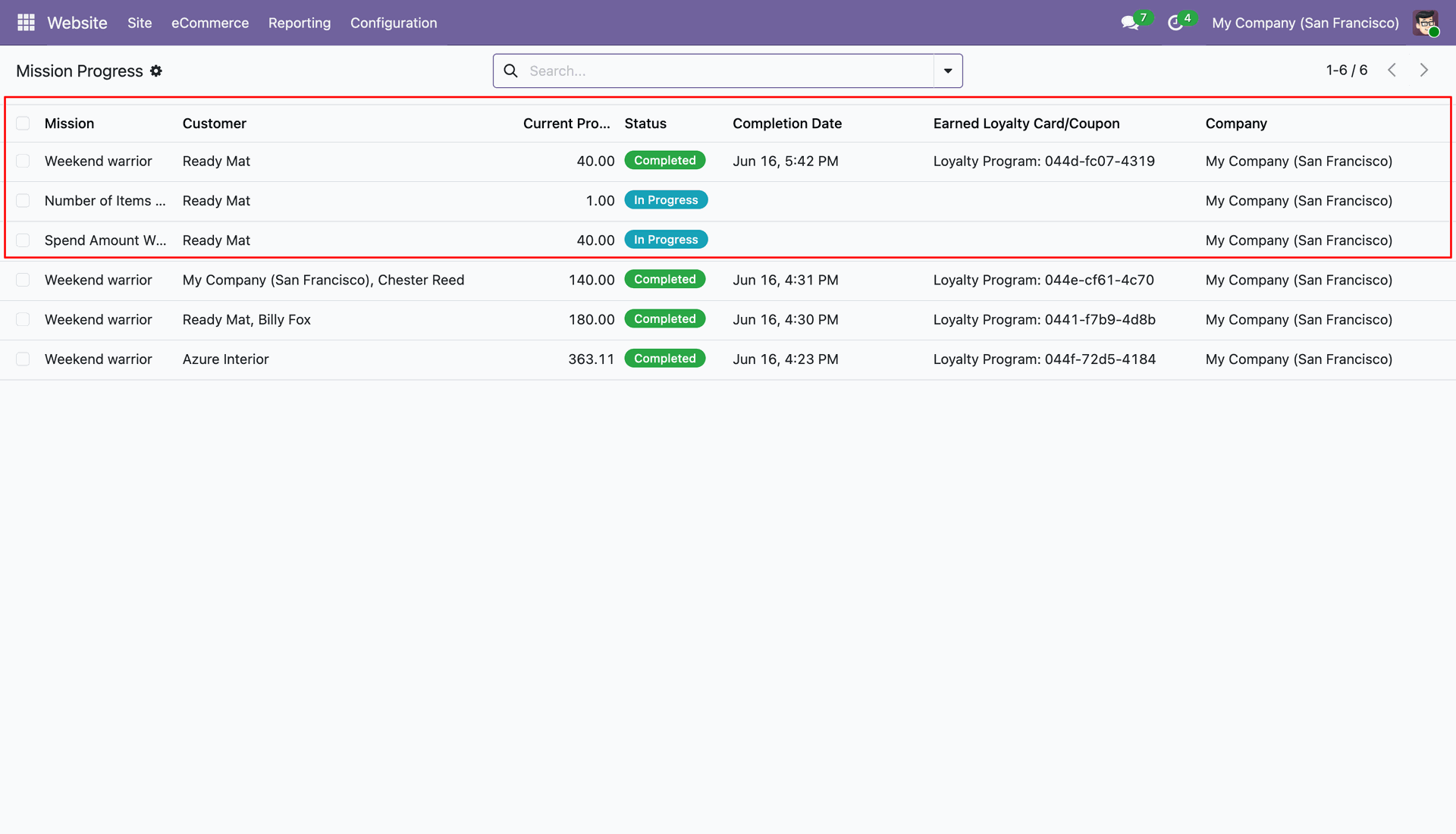
Monitor customer mission status and current progress values in backend mission progress table.
Version 19.0.1.0.0 | Released on : 15th October 2026
- Yes, this app works perfectly with Odoo Enterprise (Odoo.sh & Premise) as well as Community.
- No, this application is not compatible with odoo.com(odoo saas/Odoo Online)
- Yes, to test this module, please contact us at sales@softhealer.com.
- Please contact us at sales@softhealer.com to request customization.
- Yes, we provide free support for 365 days from the date of purchase.
- Yes, you will receive lifetime free updates for the version of the module you purchased.
- No, there is no need to install any additional libraries.
- Yes, for version 12 and above, you need to purchase the module separately for each version you intend to use.
- No, exchanges or refunds are not allowed. Please make sure to select the correct version before purchasing.
- You can contact us at support@softhealer.com for language translation support. We use Google Translator tools to provide translations in multiple languages, so the accuracy may vary. We welcome your suggestions to help improve translations.
Discover Our Latest Apps