











All In One Chatter Toolkit

This module transforms your Odoo chatter experience with this comprehensive toolkit. Effortlessly resize the chatter panel, pin and unpin important messages for quick access, keep the chatter fixed at the bottom for seamless navigation, and reply instantly to messages. Designed to improve communication, keep your conversations organized, and boost overall productivity within your workflow.

Features

Hide/Show Chatter
Easily hide the chatter panel to maximize form space or show it when needed.

Pin/Unpin Important Messages
Easily pin key messages in the chatter for quick and easy reference & remove pinned messages whenever they’re no longer needed.
Adjustable Chatter Width
Quickly and easily resize the chatter panel to fit your screen layout.

Quick Reply in Chatter
Respond to messages instantly using the convenient Reply option.

Chatter Filters
Filter chatter messages by All, Messages, Notes or Logs criteria for easier navigation.
Chatter Access Control
Control user access to the chatter by hiding or restricting chatter visibility based on permissions.
Chatter Attachment ZIP Download
Download all attachments from a chatter thread as a single ZIP file.

Track the Updated Messages
Track and view edited chatter messages with their updated date and time.
Universal Compatibility
Works seamlessly with all Odoo modules using standard form views.

Fixed Bottom Chatter
Option to keep the chatter permanently anchored at the bottom for easy access
Last Updated Labels
Shows a clear label under edited messages so everyone see the updated messages.

Track All Fields in Chatter
Automatically track changes to all fields and display them in the chatter history.
Email CC & BCC
Add and manage CC and BCC recipients when sending emails from Odoo.

Notify Internal Users Only

Restrict @mention suggestions to internal users for members of an optional group, while other users retain the standard mention list.

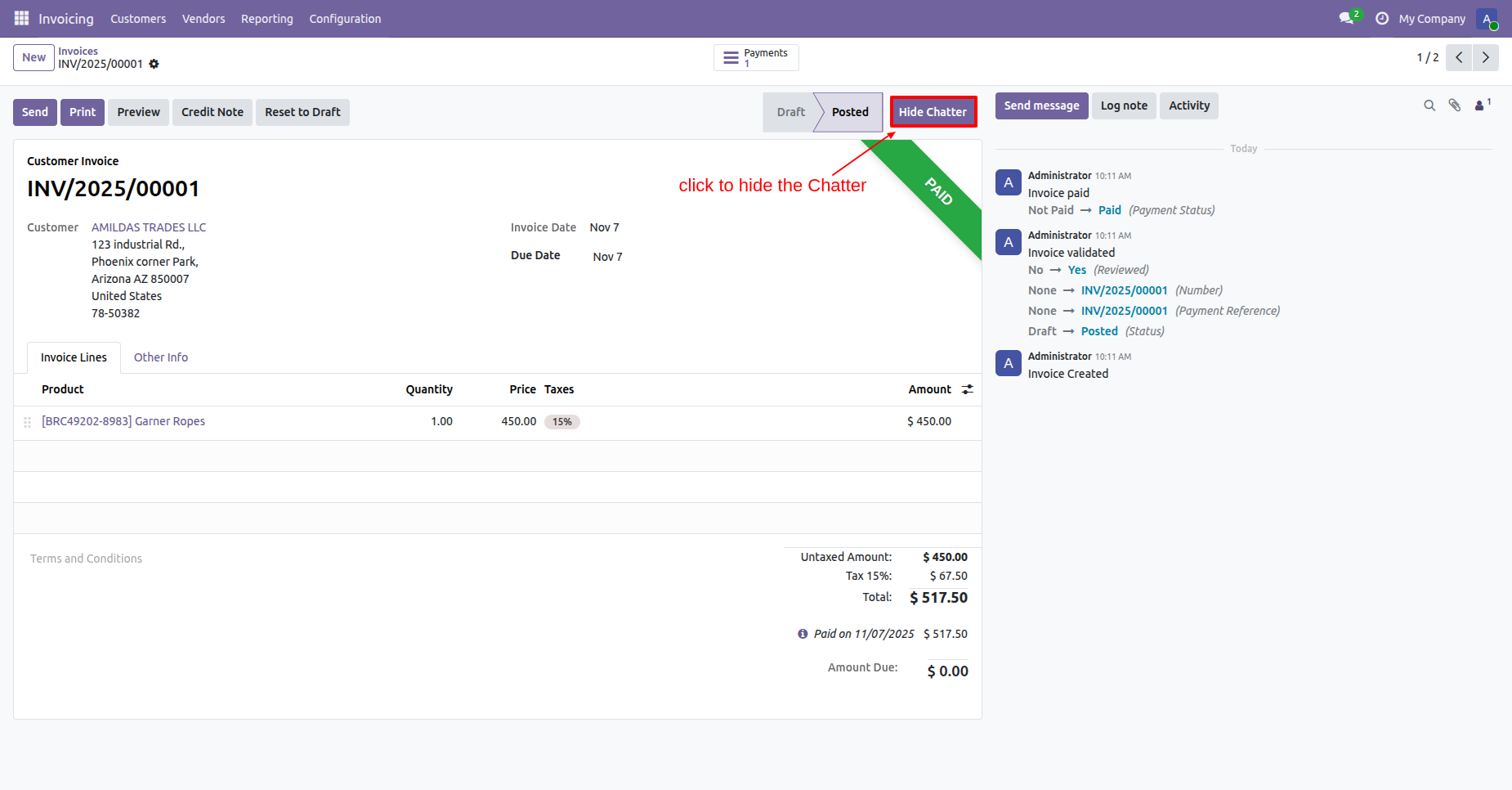
The 'Hide Chatter' button appears in the status bar of the form view. When clicked, the communication history is hidden, and the form expands to occupy the full width of the screen.
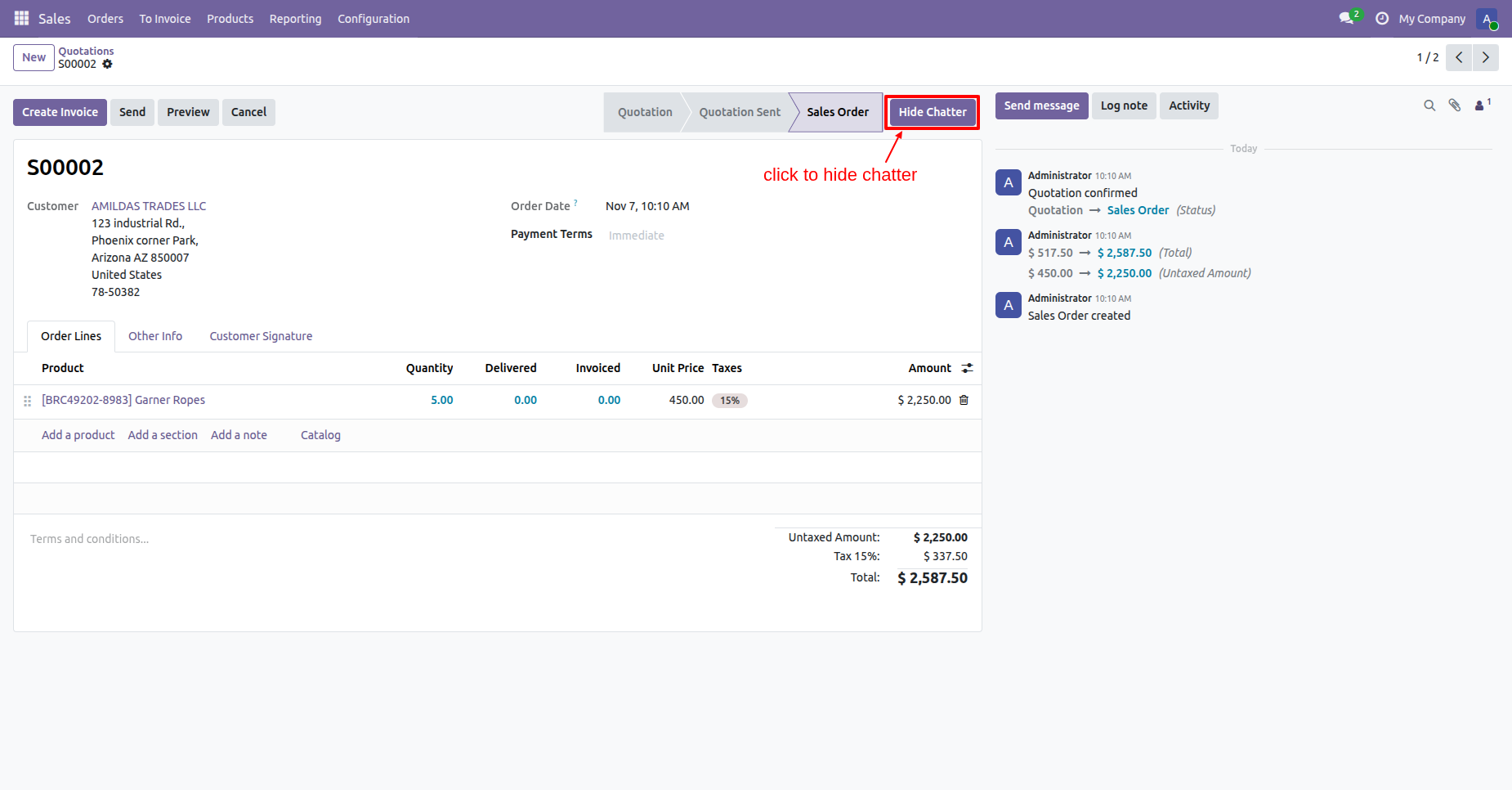
The button text updates to 'Show Chatter' and the form view expands.
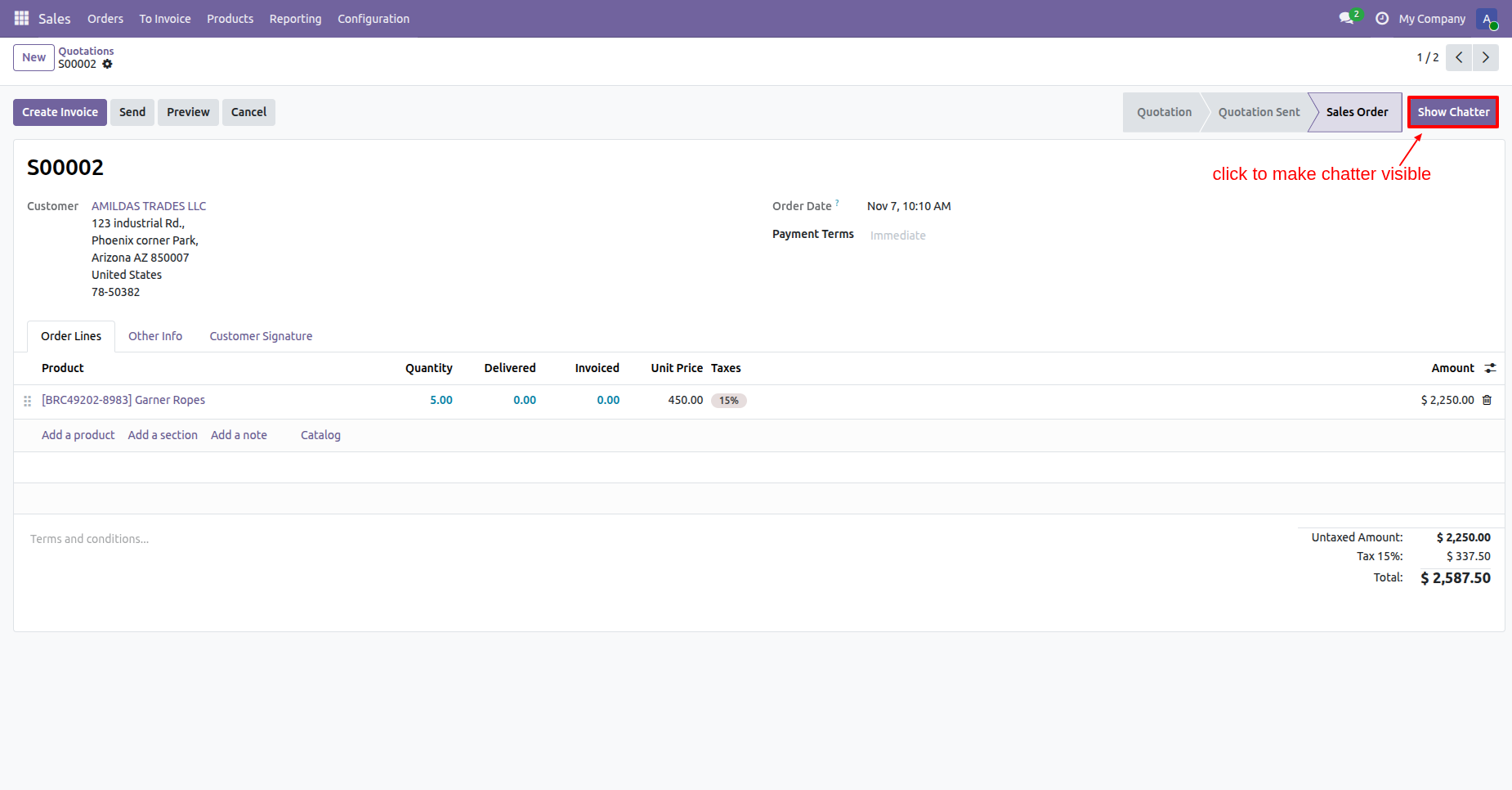
On clicking 'Show Chatter', the chatter section is restored, and the form returns to its original width, allowing access to the activity log. The button text updates to 'Hide Chatter' and the form view contracts.
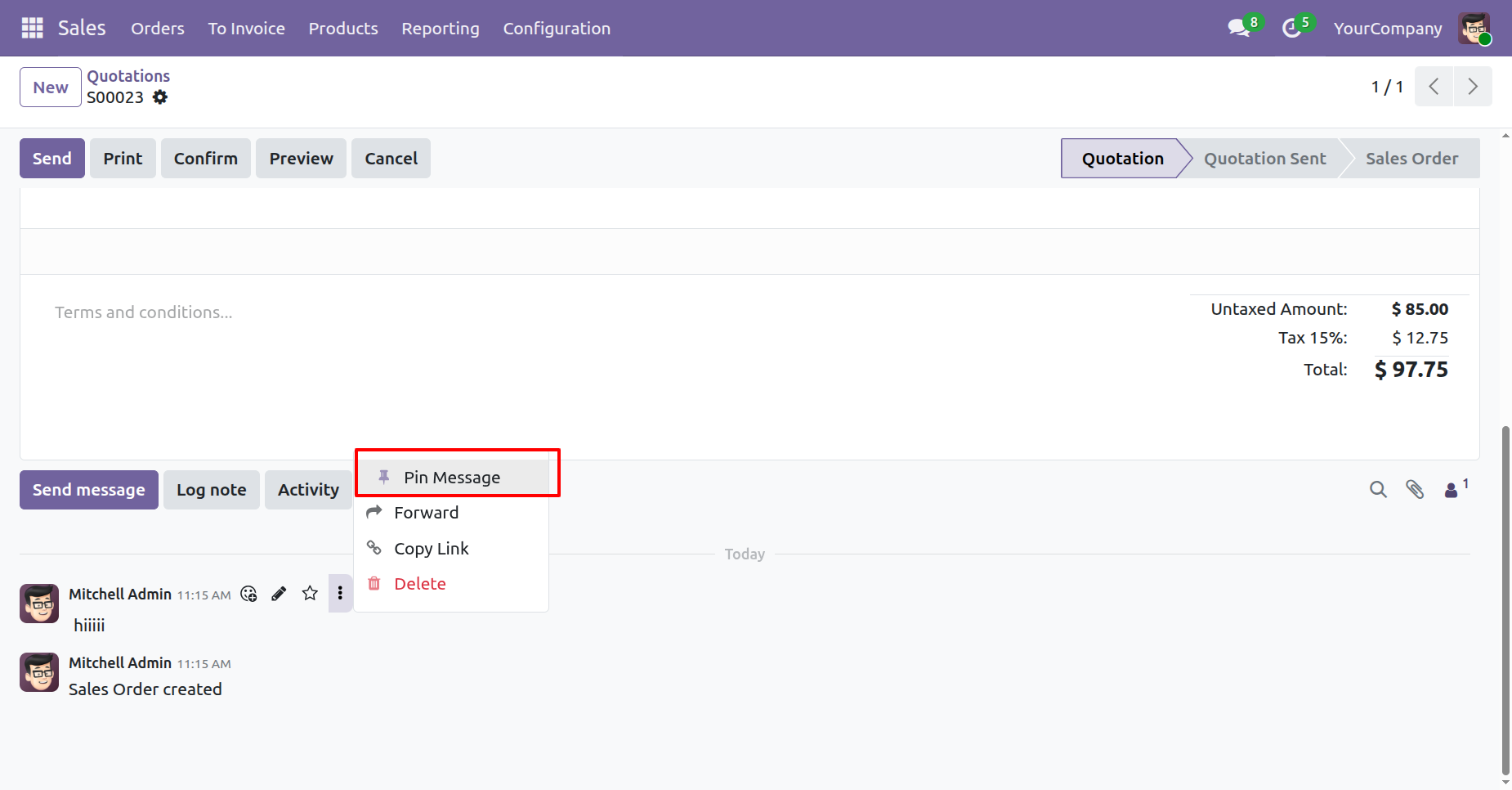
Click on the three dots of the message that you want to pin, then click on the "Pin Message".
Here, you can see that the message has been pinned.
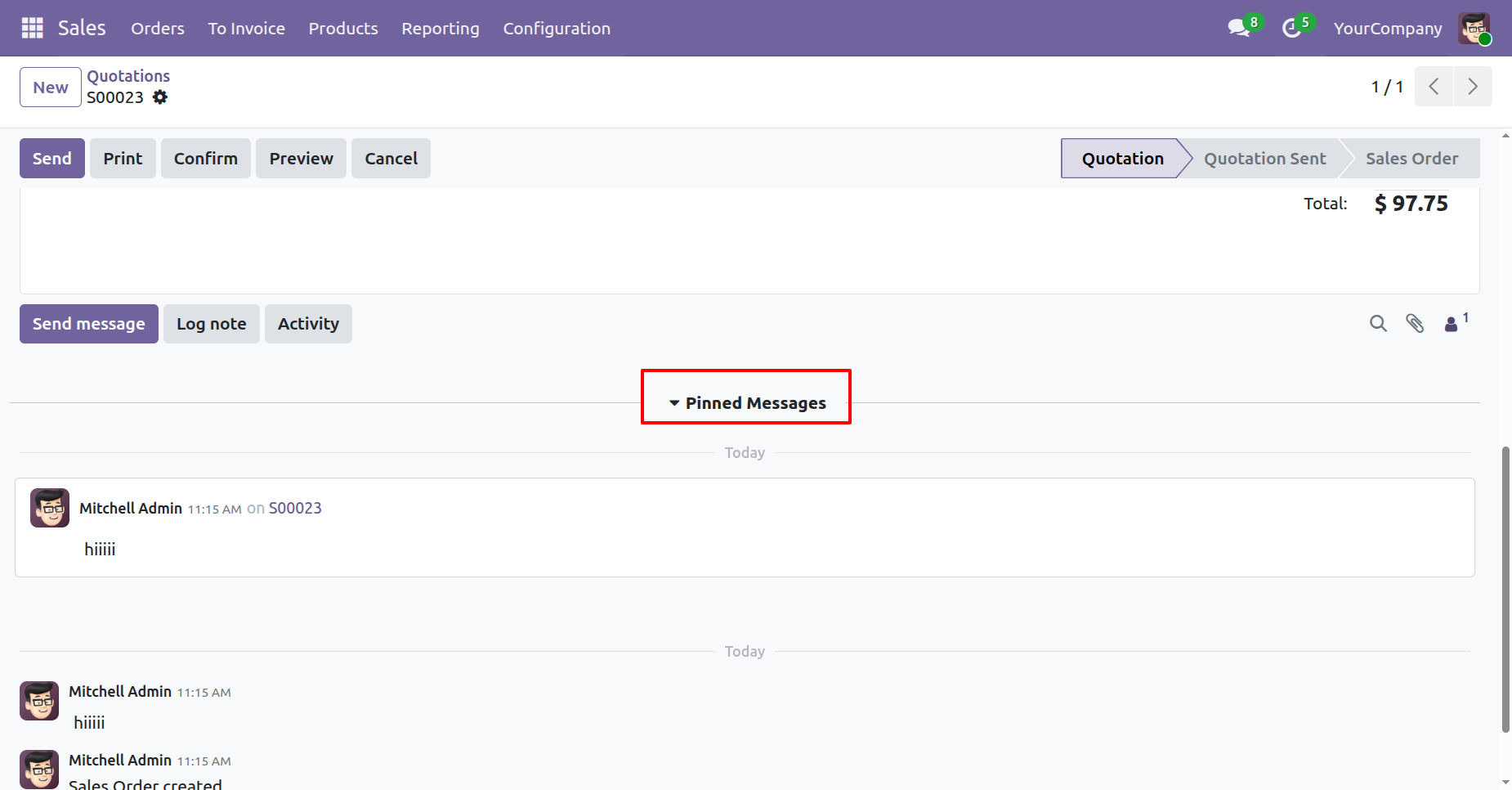
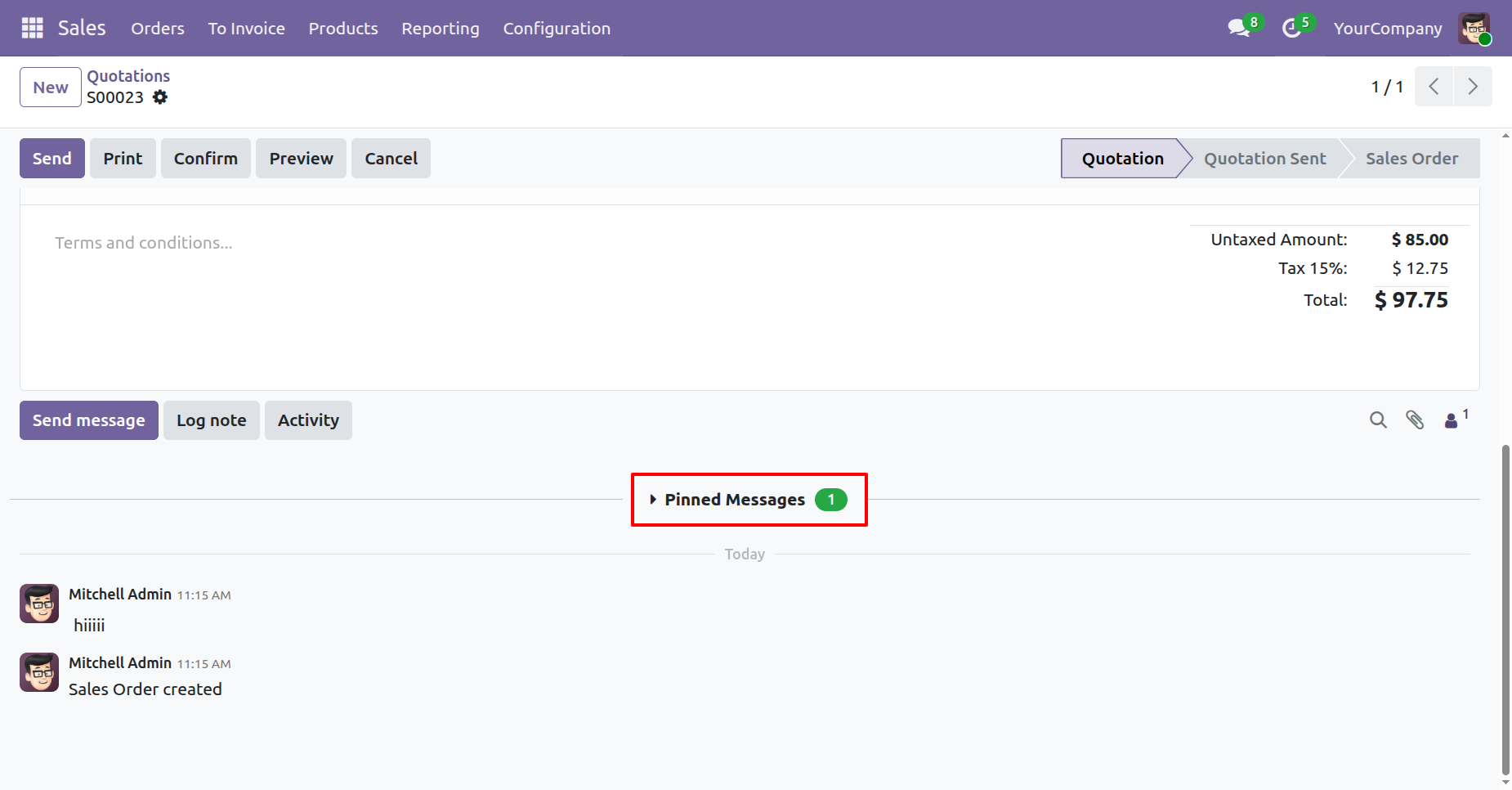
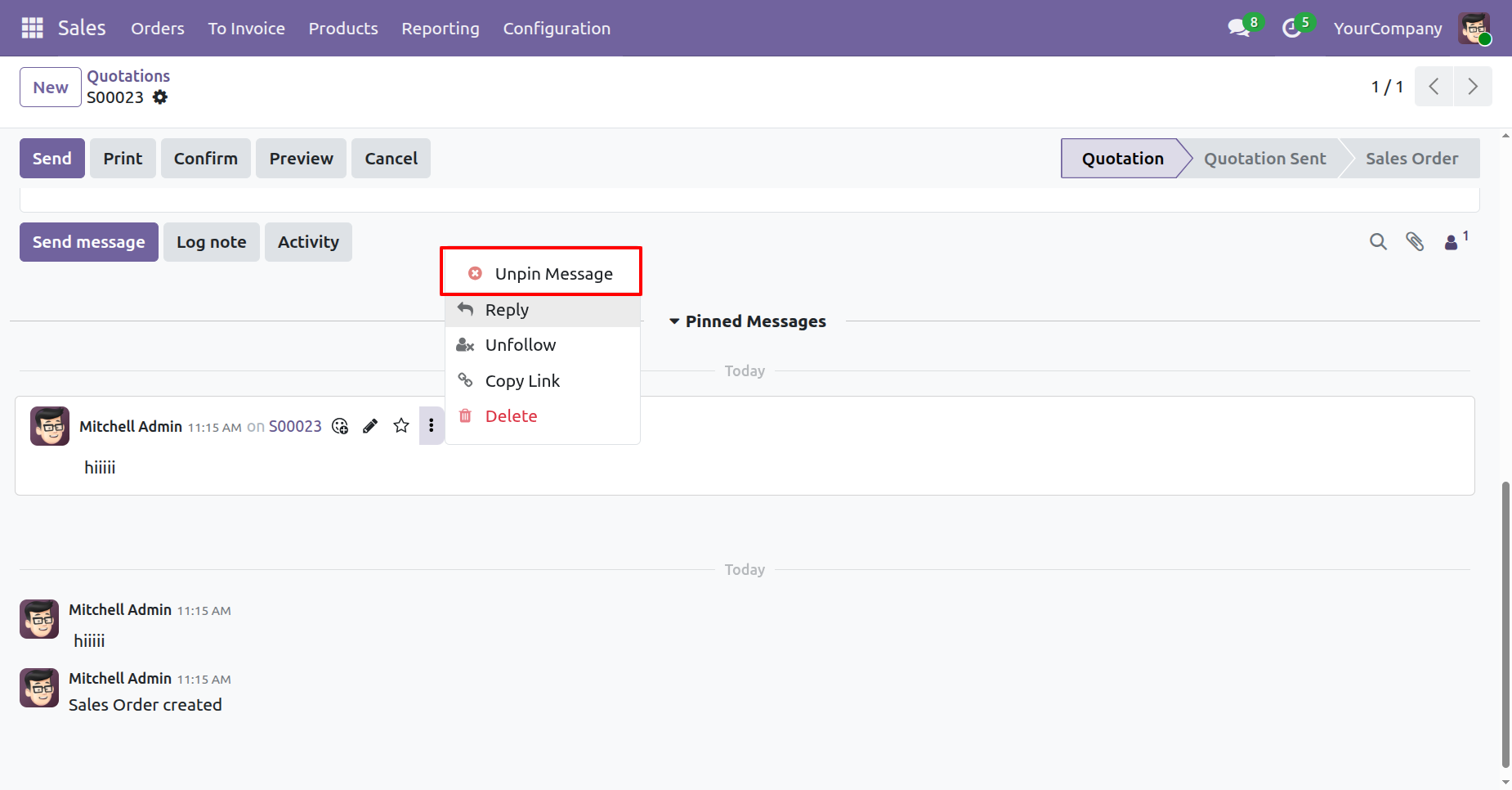
Click on the three dots of the message that you want to unpin, then click on the "Unpin Message".
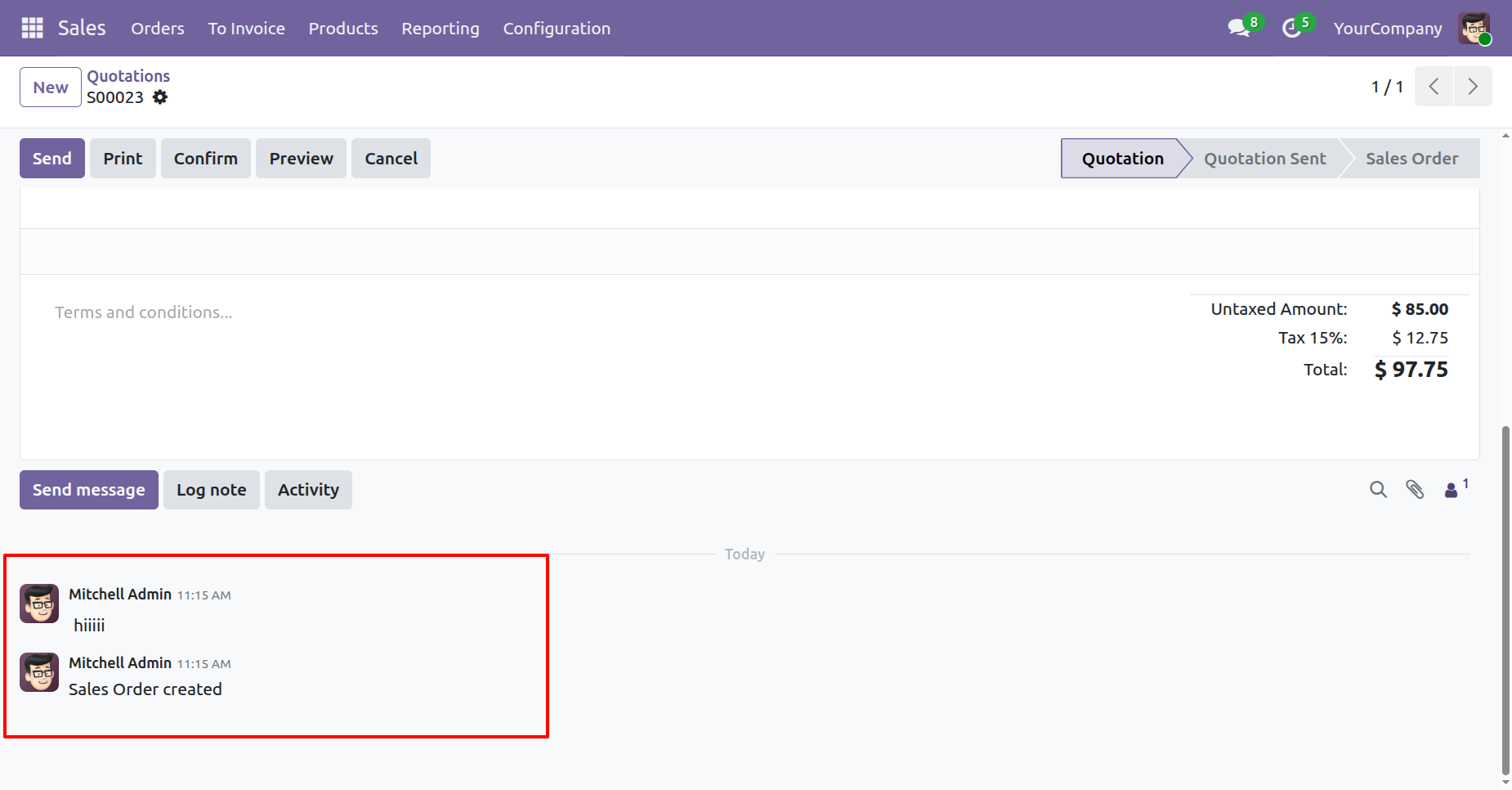
Here, you can see that the message has been unpinned.
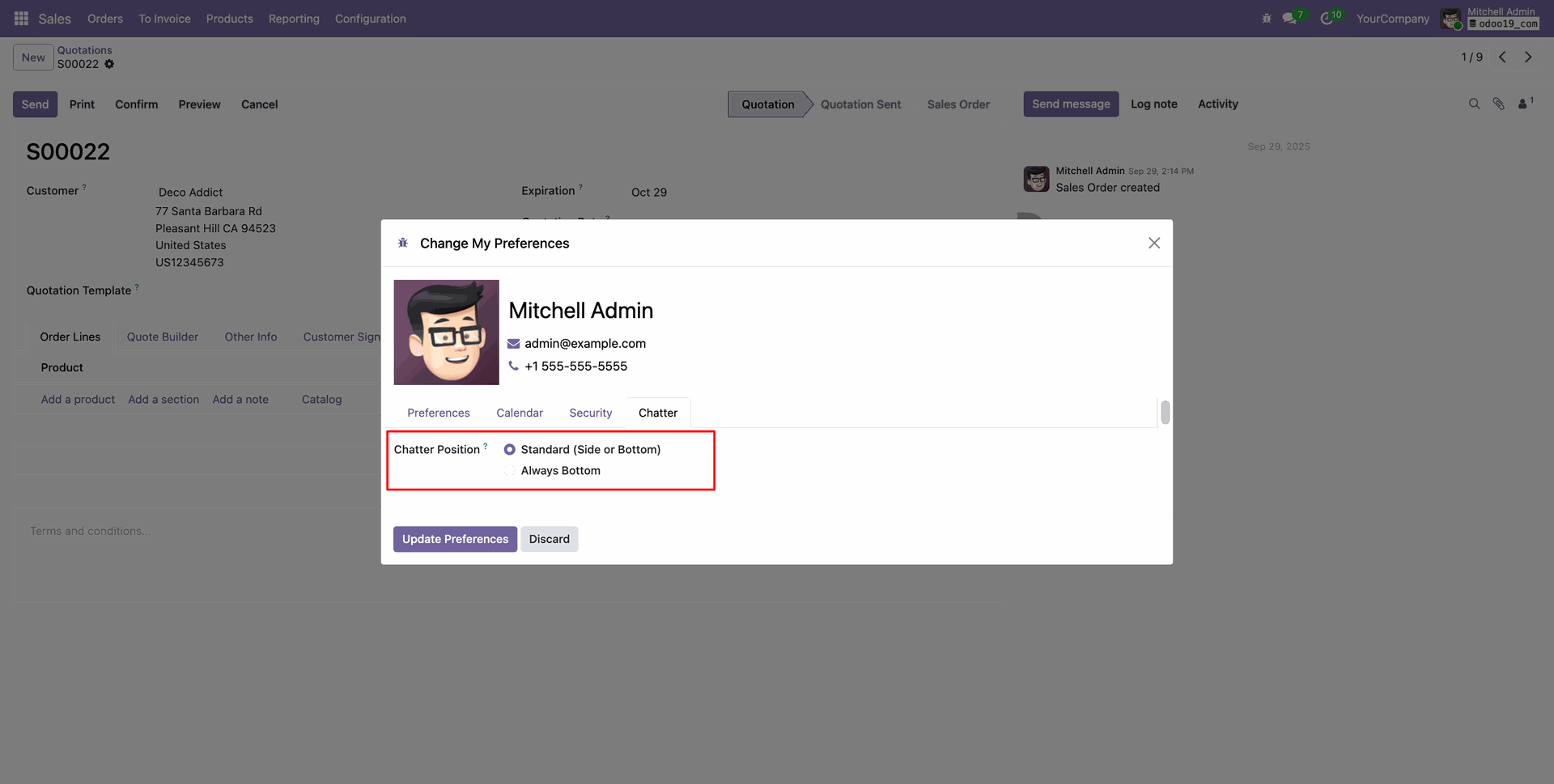
Go to the 'My Preferenses'.
After that, the wizard will appear. Under the Chatter tab,
select the 'Chatter Position: Standard (Side or Bottom)' option and click on the
'Update Preferences' button.
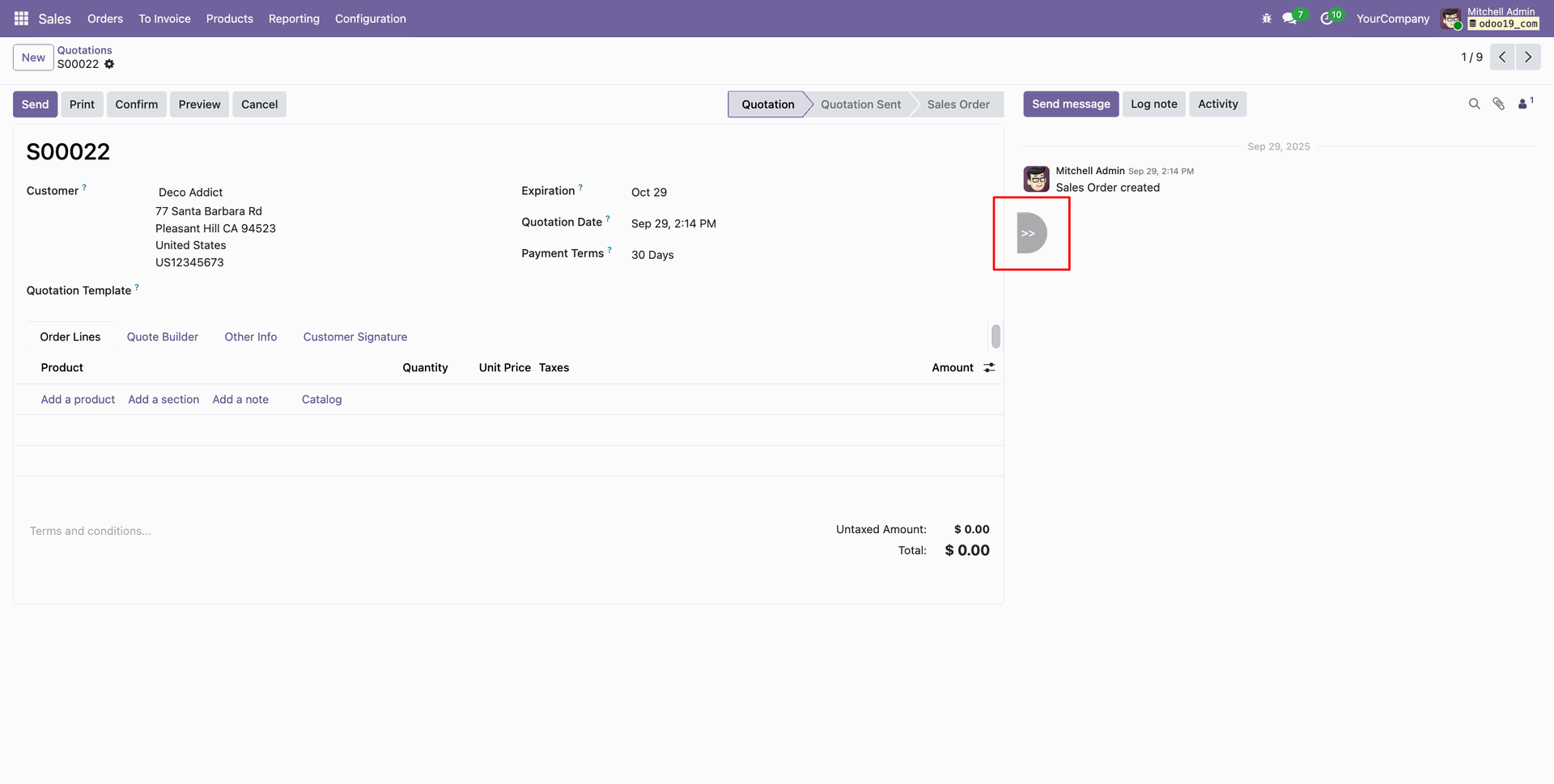
You can adjust the chatters width using the chatter panel.
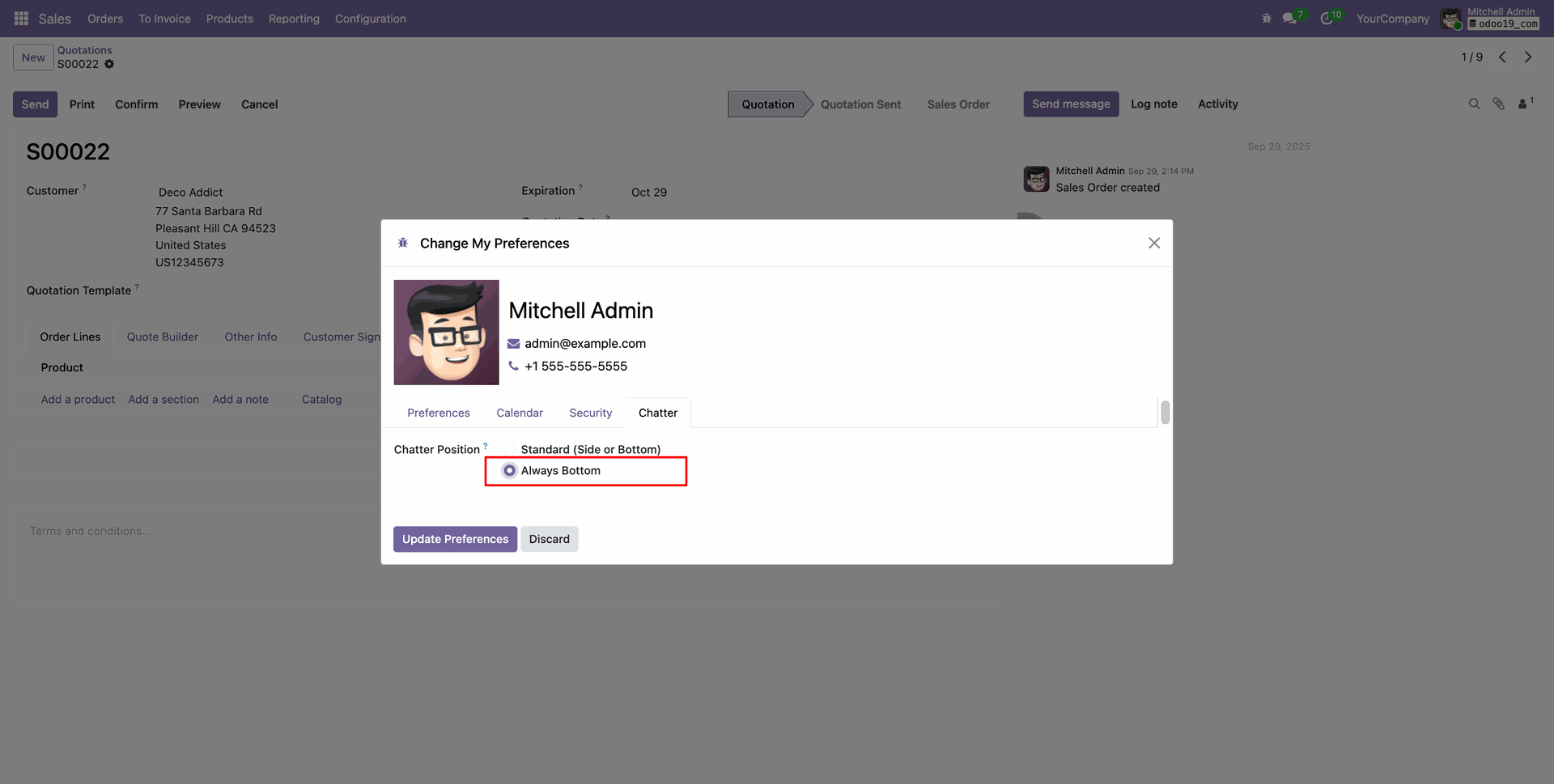
Select the 'Chatter Position: Always' option and click on the 'Update Preferences' button.
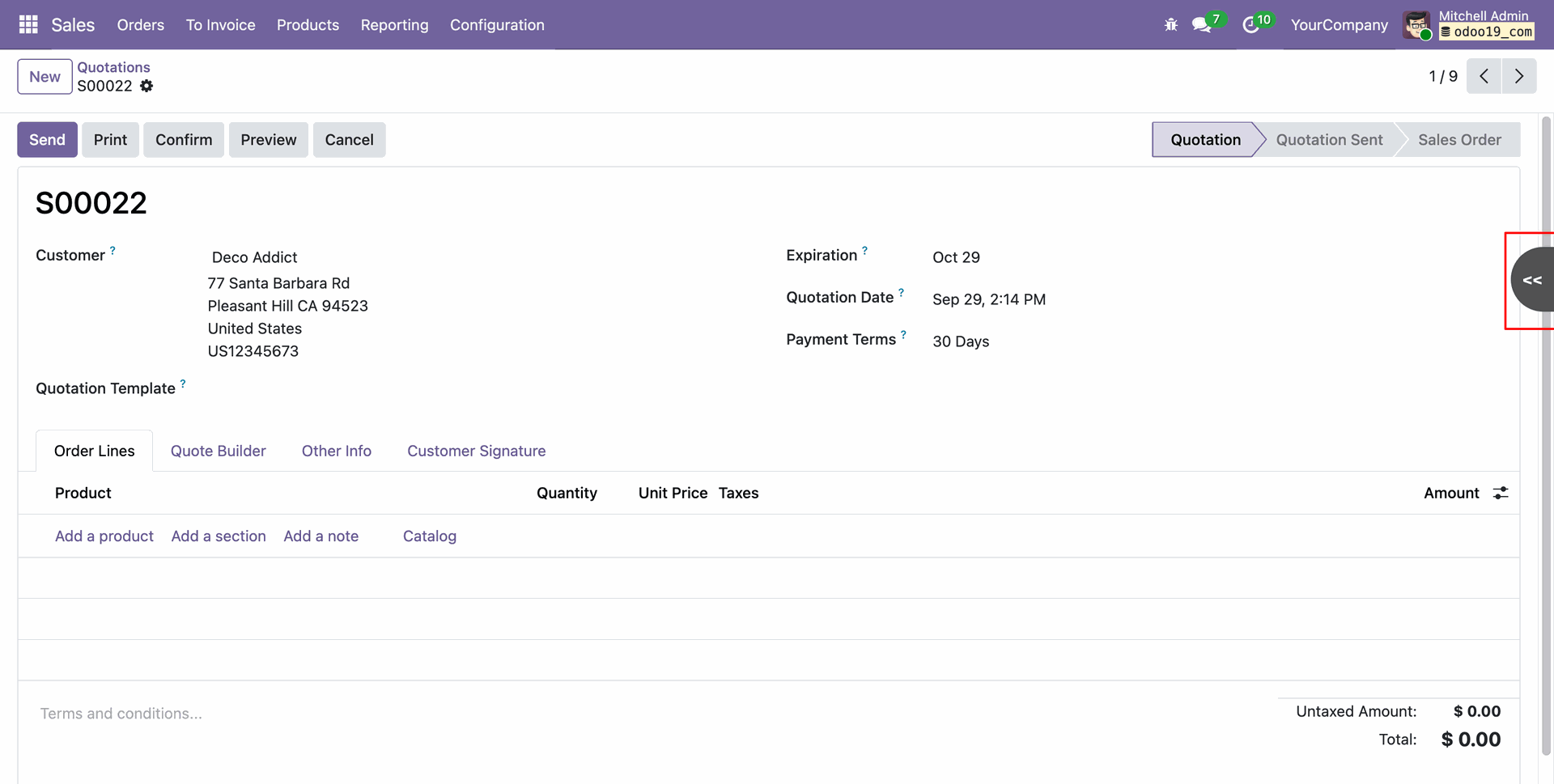
Here, you can see that the chatter is shown at the bottom.
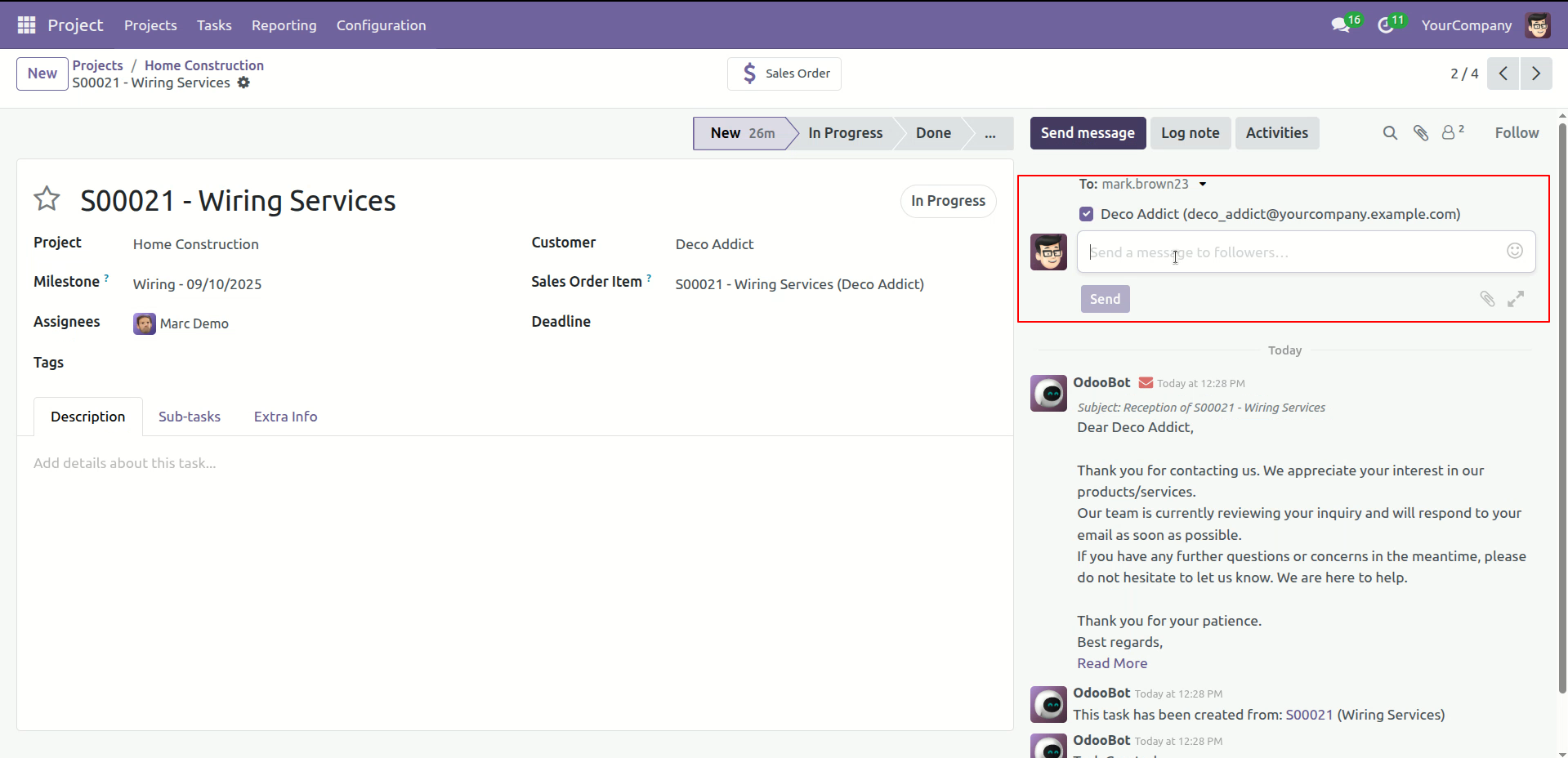
Tick the user's boolean and send the message..
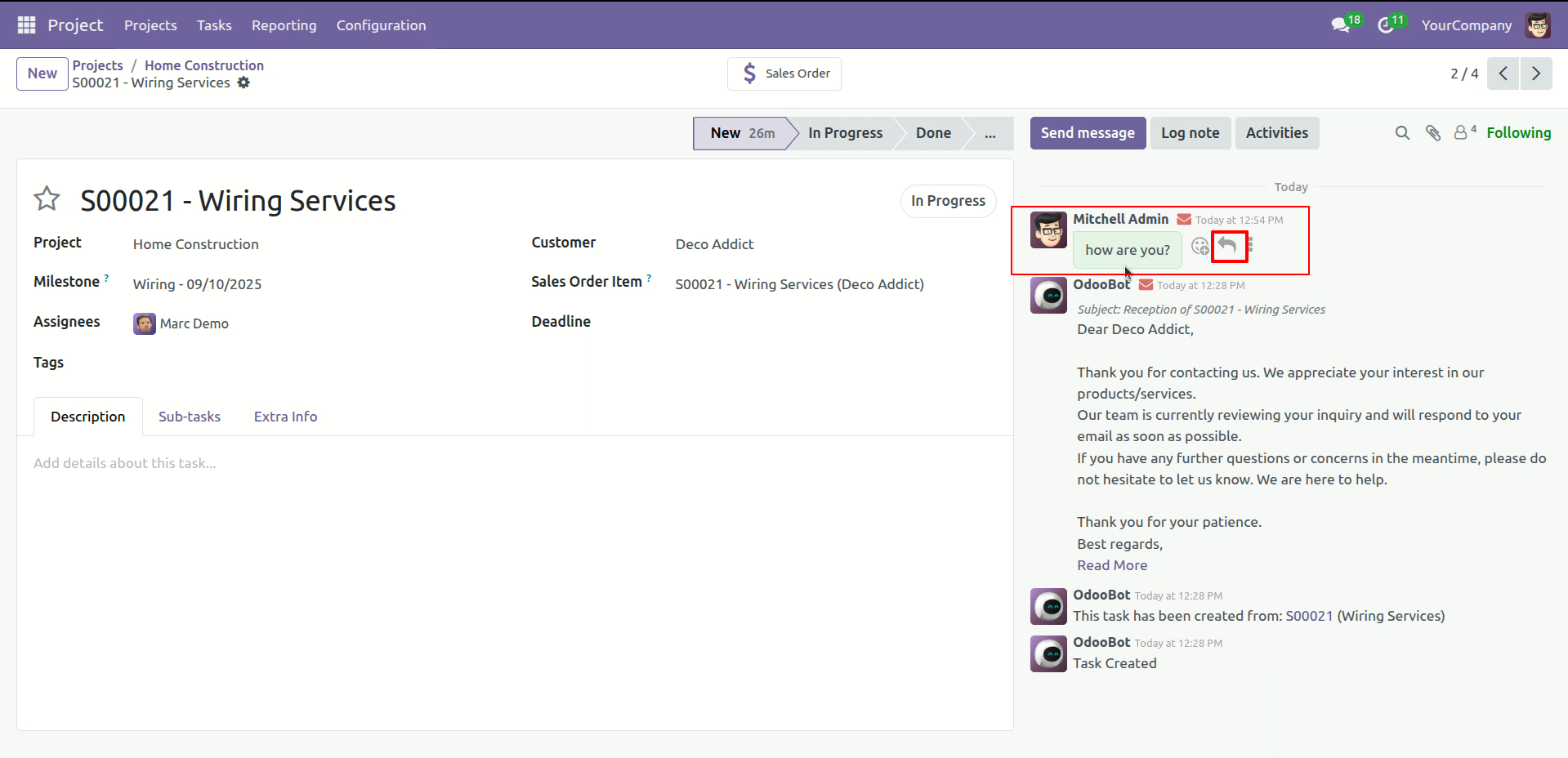
Here, the user can see the reply option when they hover the cursor over the message, click on the reply option.
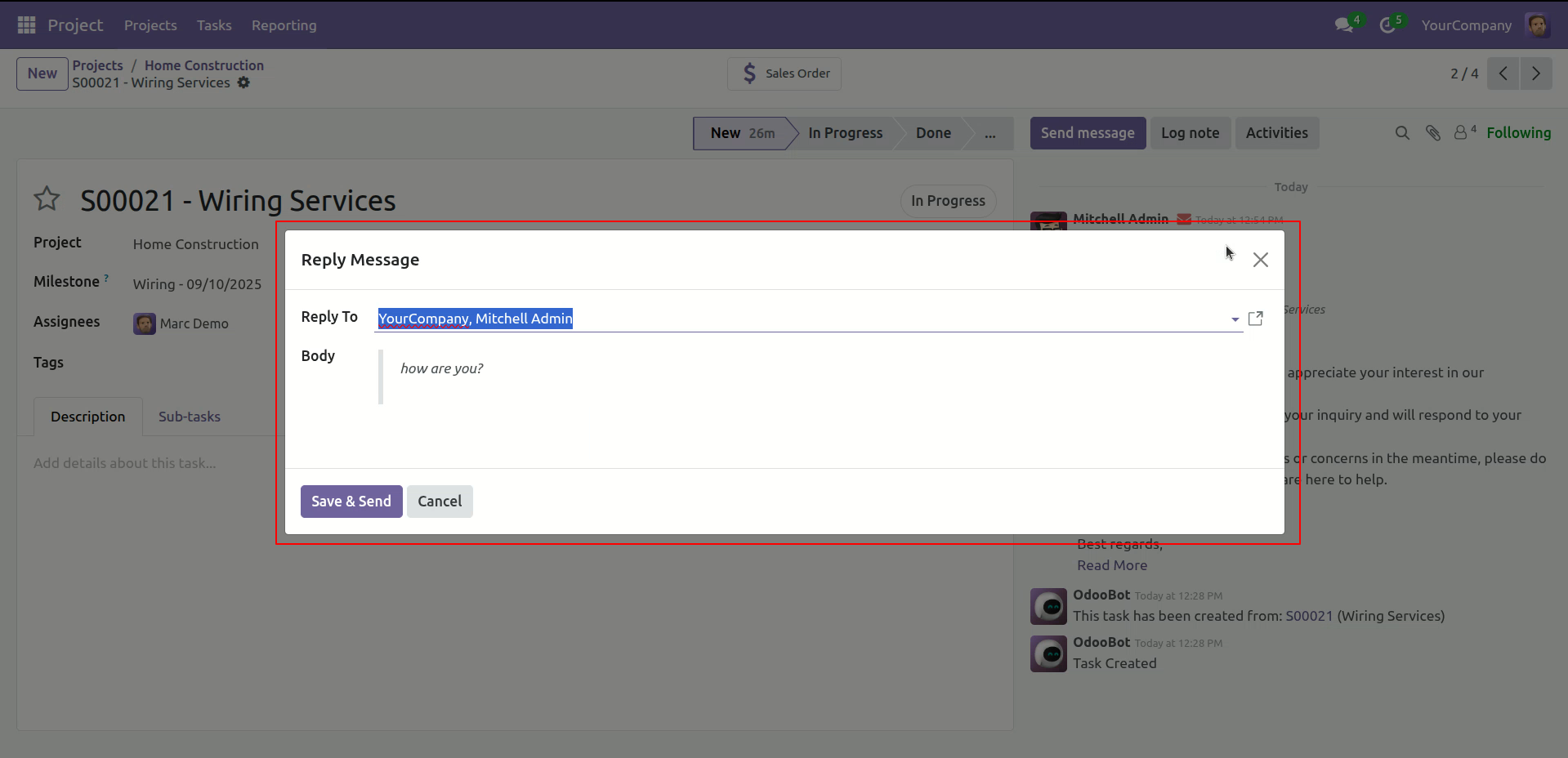
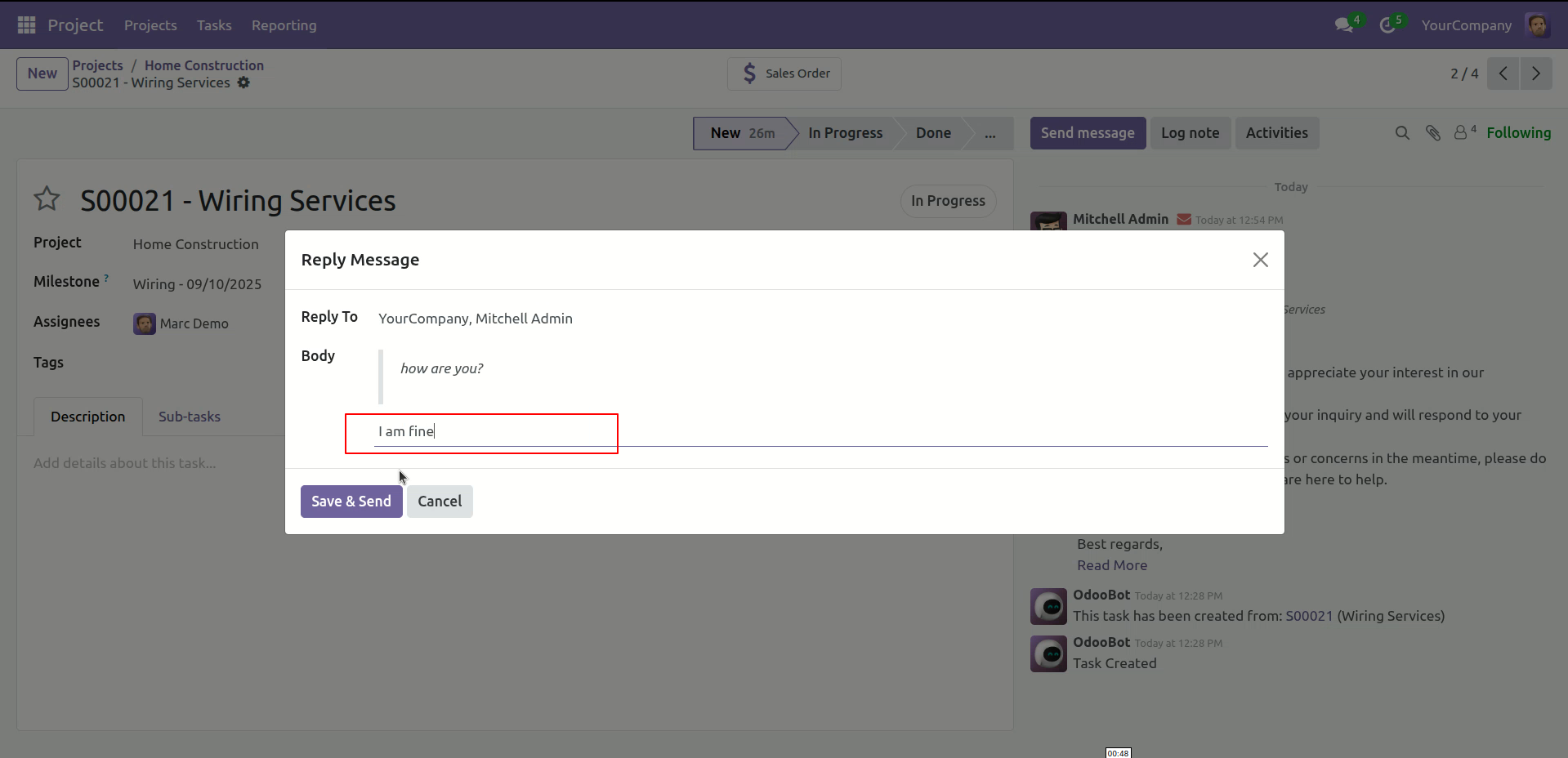
After that, the "Reply Message" wizard will appear. Enter your message and click on the "Save & Send" button.
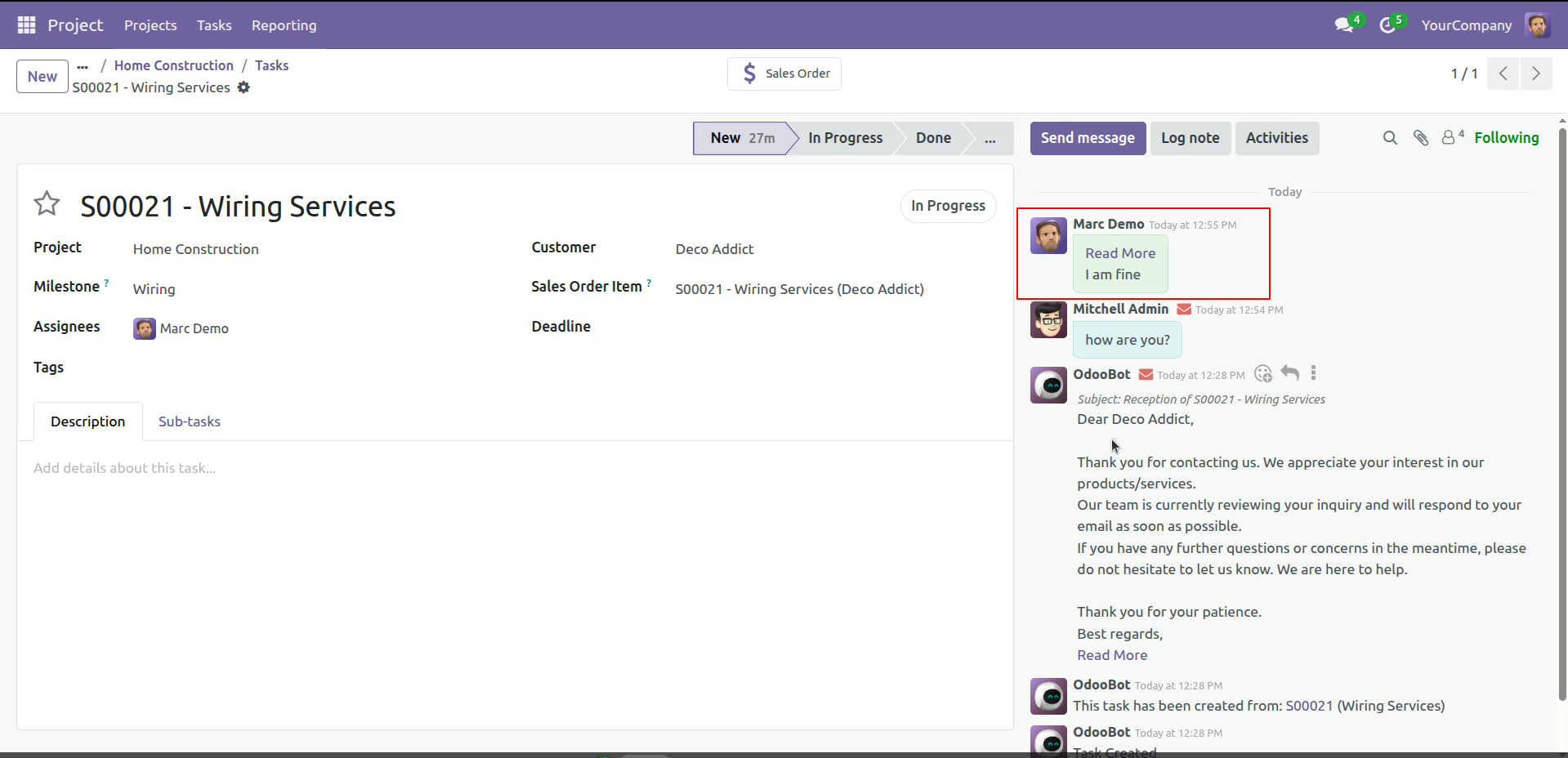
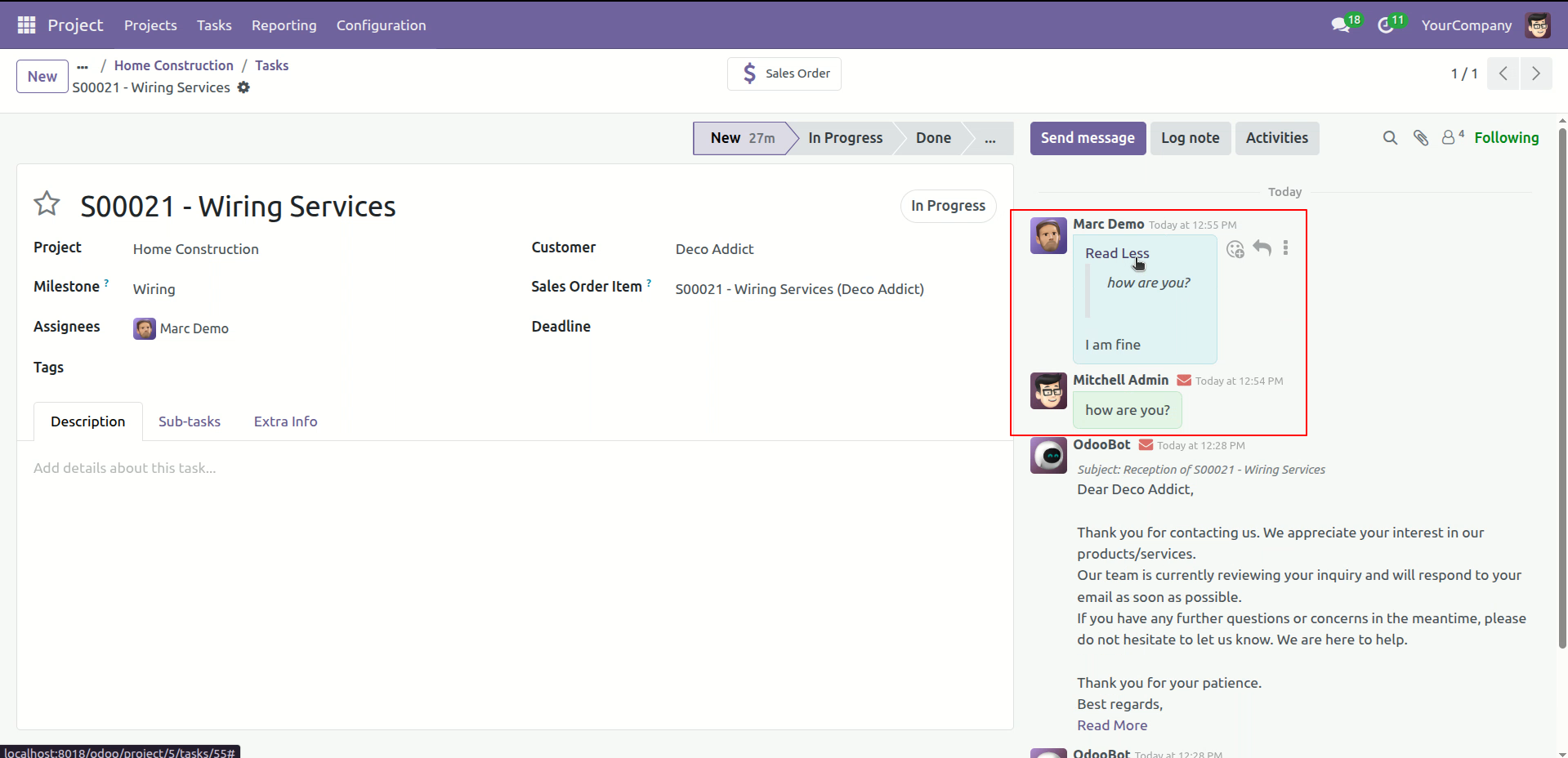
You can see the message that was sent in the chatter.
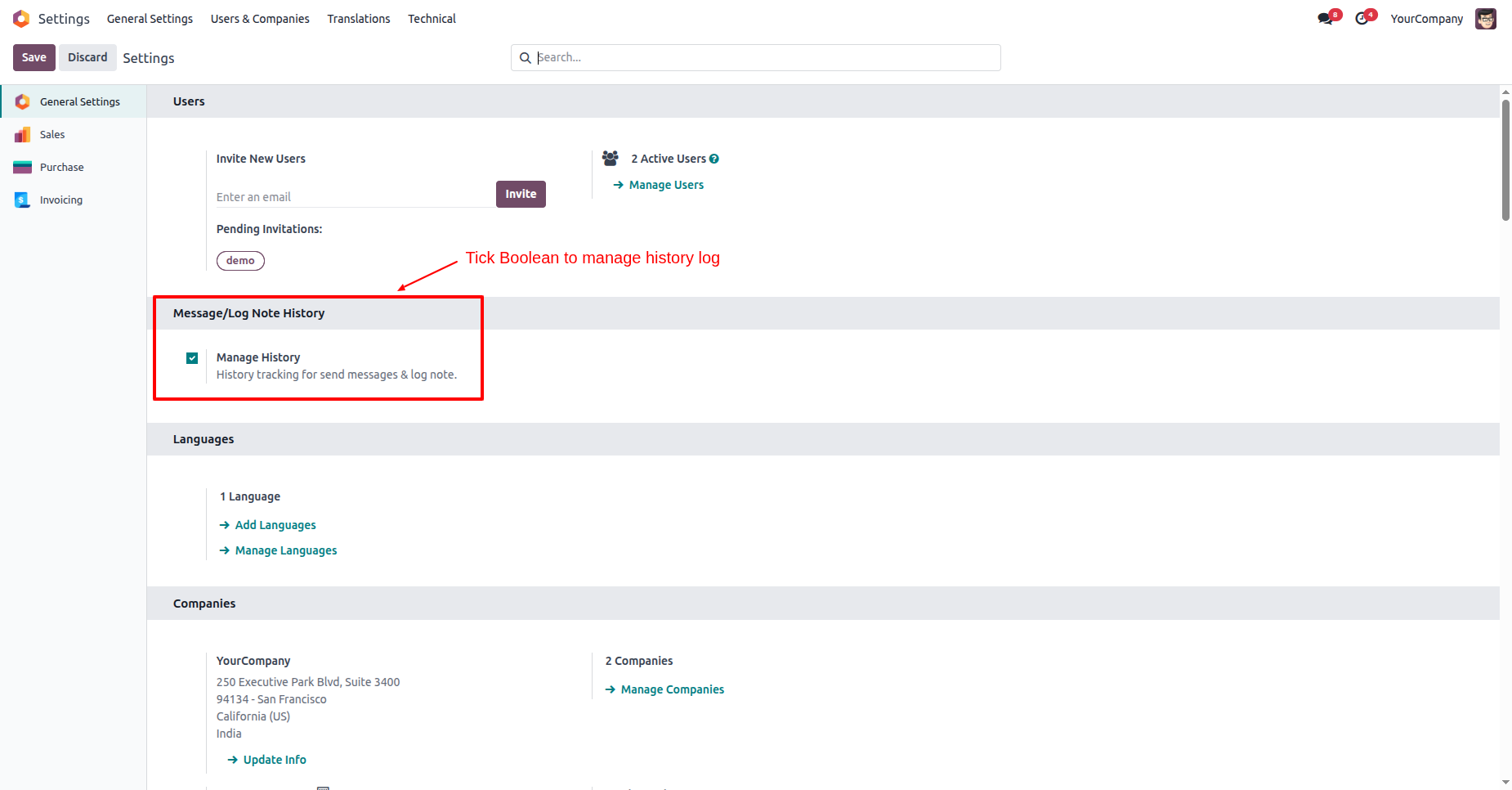
Tick the 'Manage History' option in General Settings to start tracking chatter changes.
Your normal chatter messages and log notes, ready to be edited.
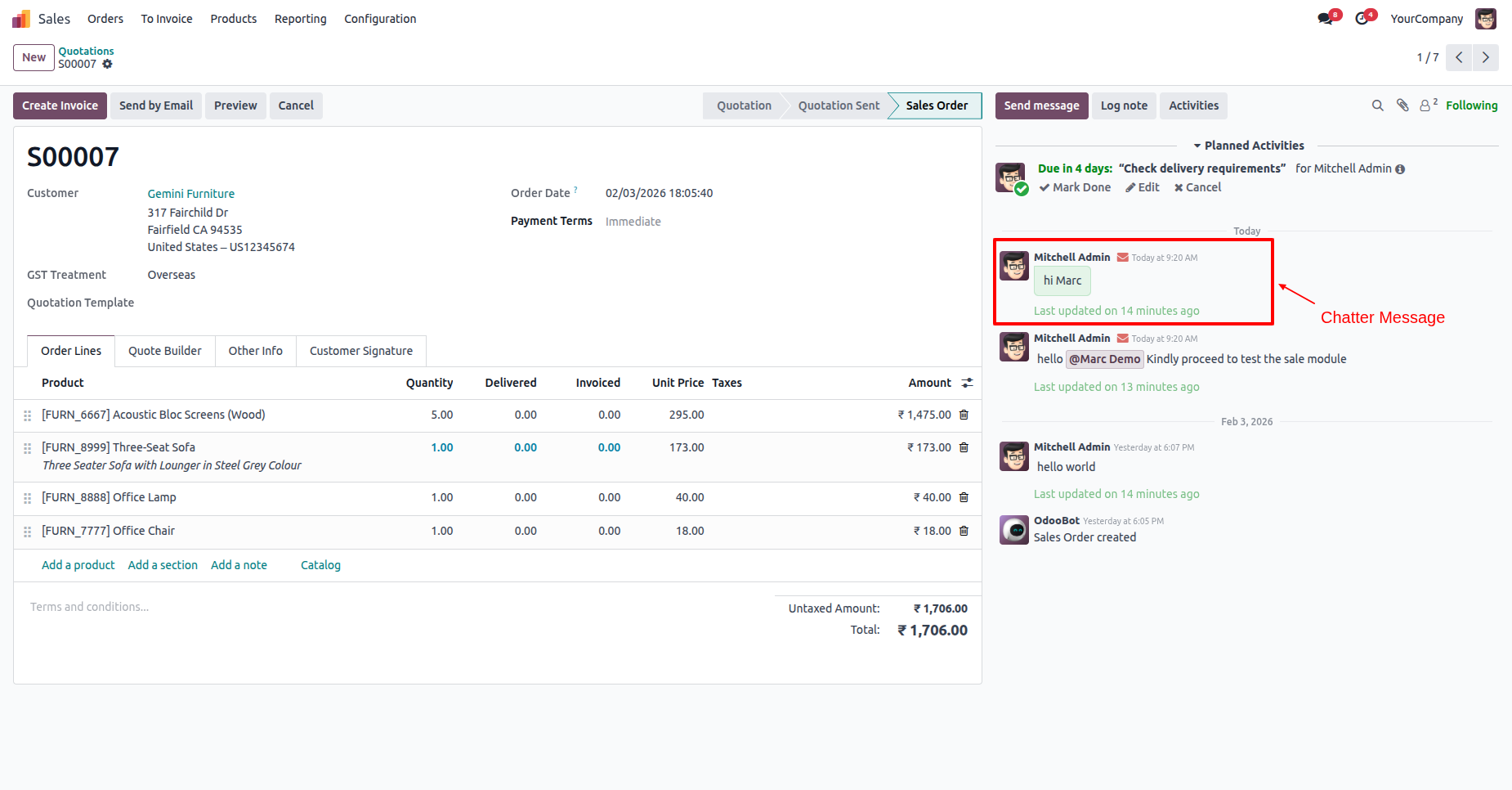
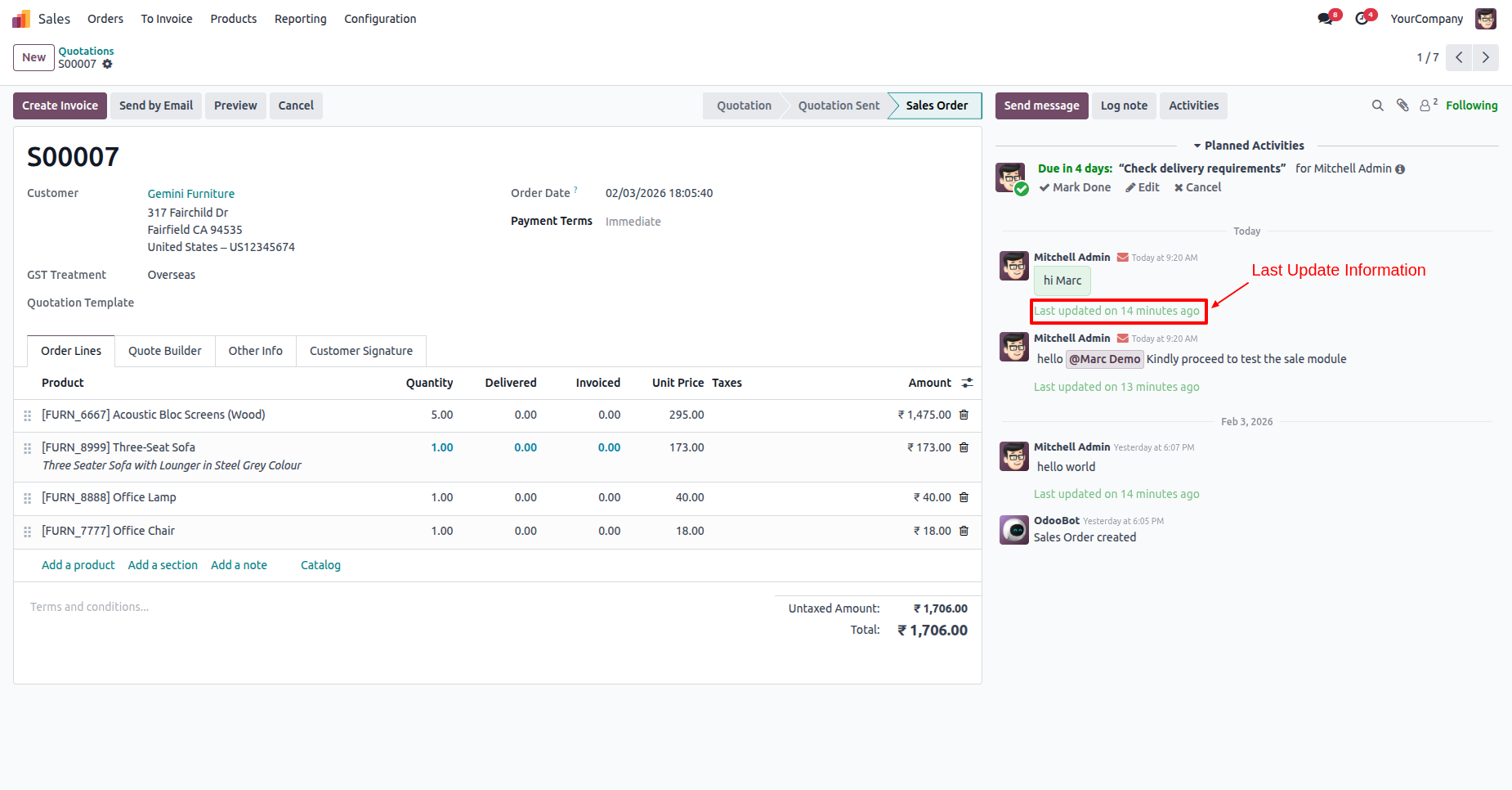
Quickly see exactly when a message was last updated with a clear time.
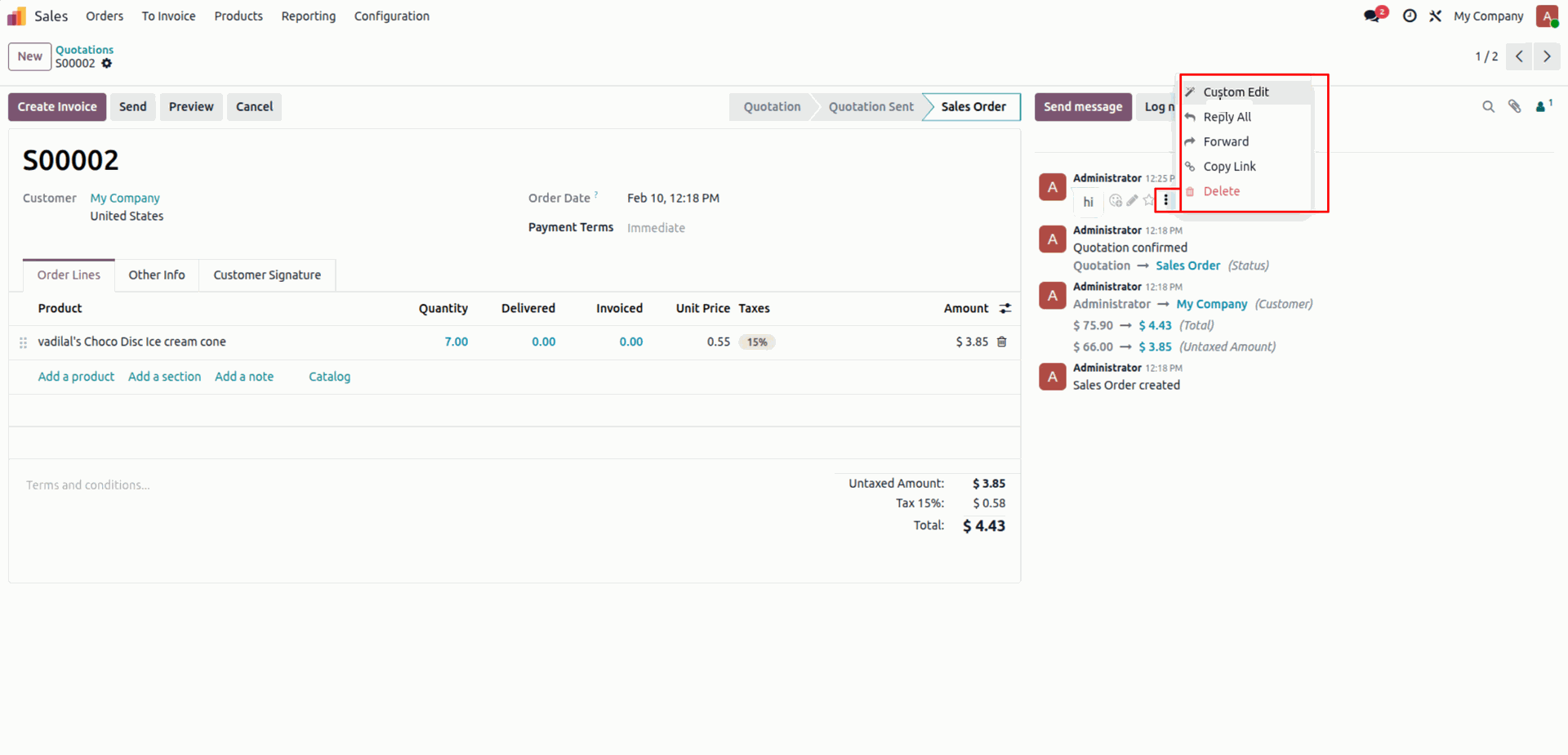
Click on the 'Custom edit' to change the text of any message.
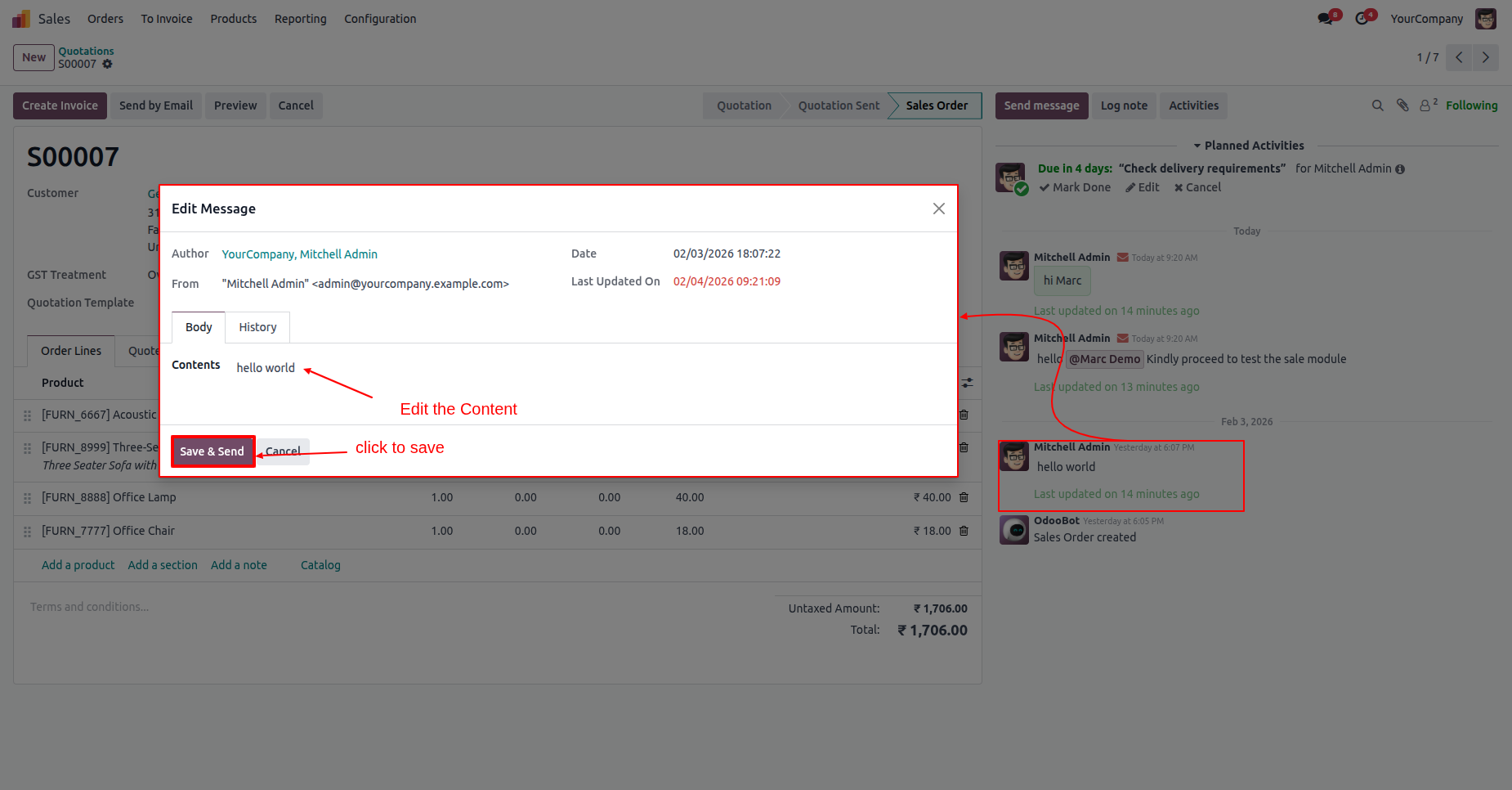
Update content and click on the 'Save & Send' button.
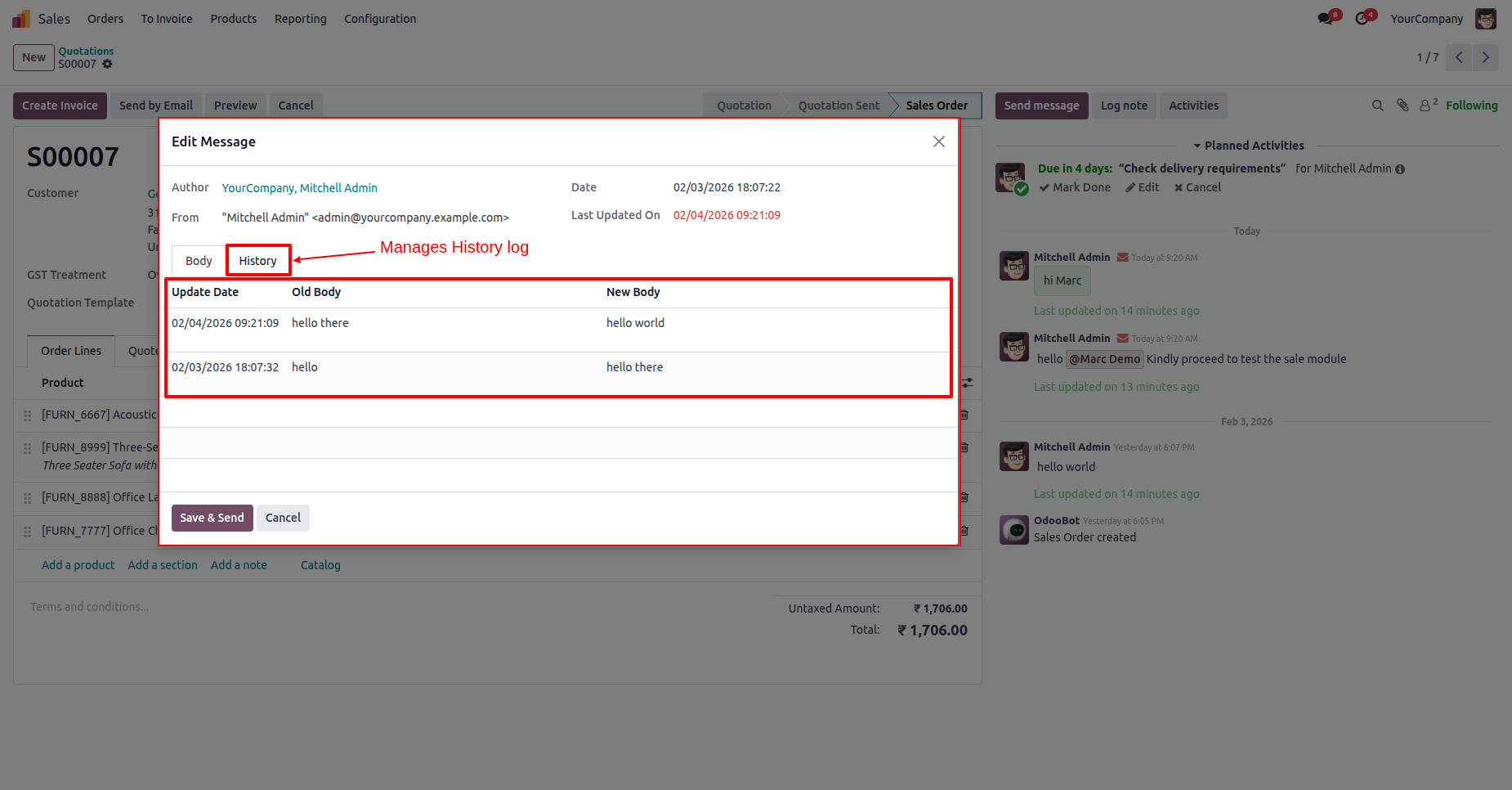
Check the 'History' tab to see all past changes made to a message.
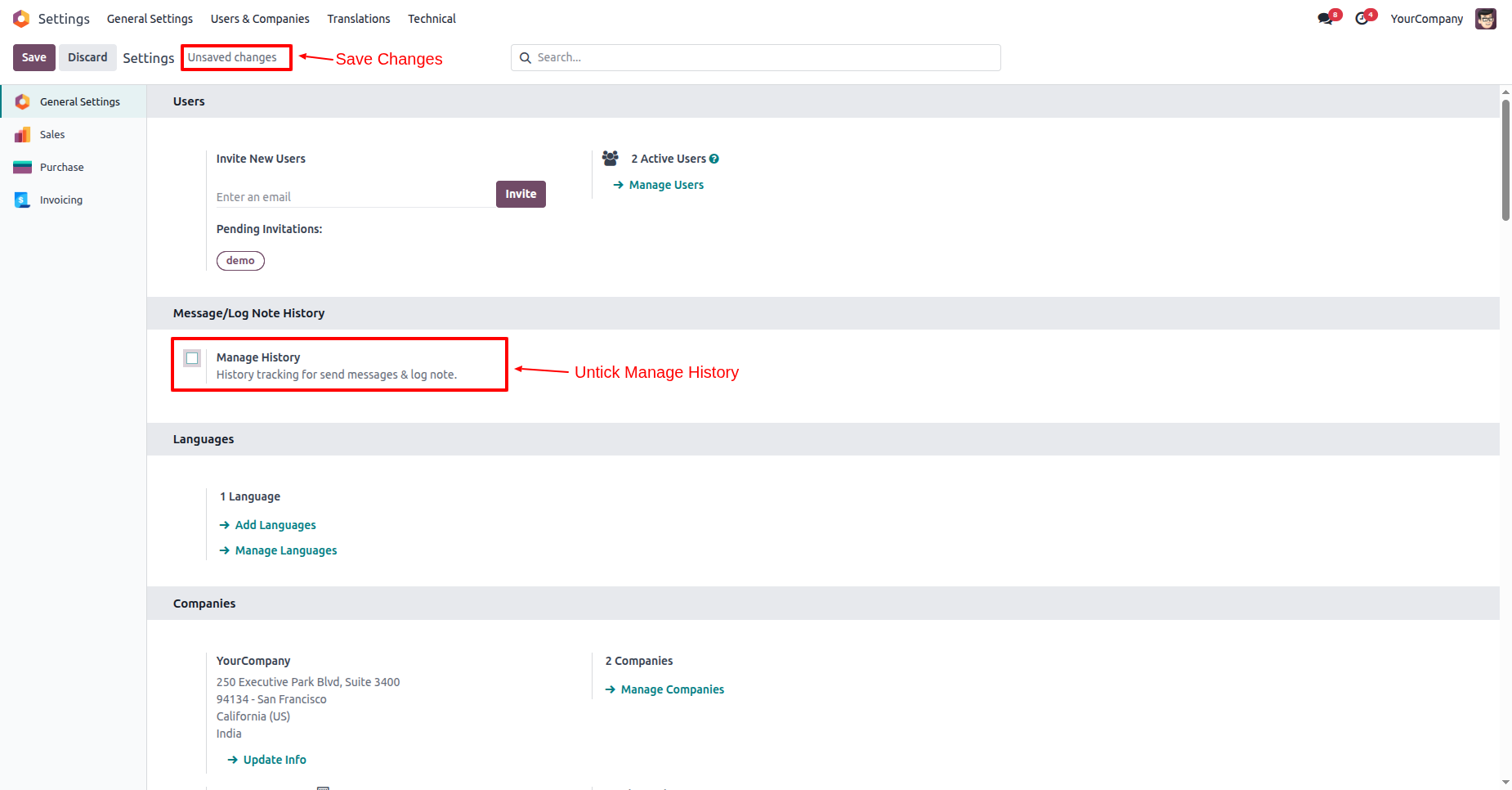
Untick the 'Manage History' option in General Settings.
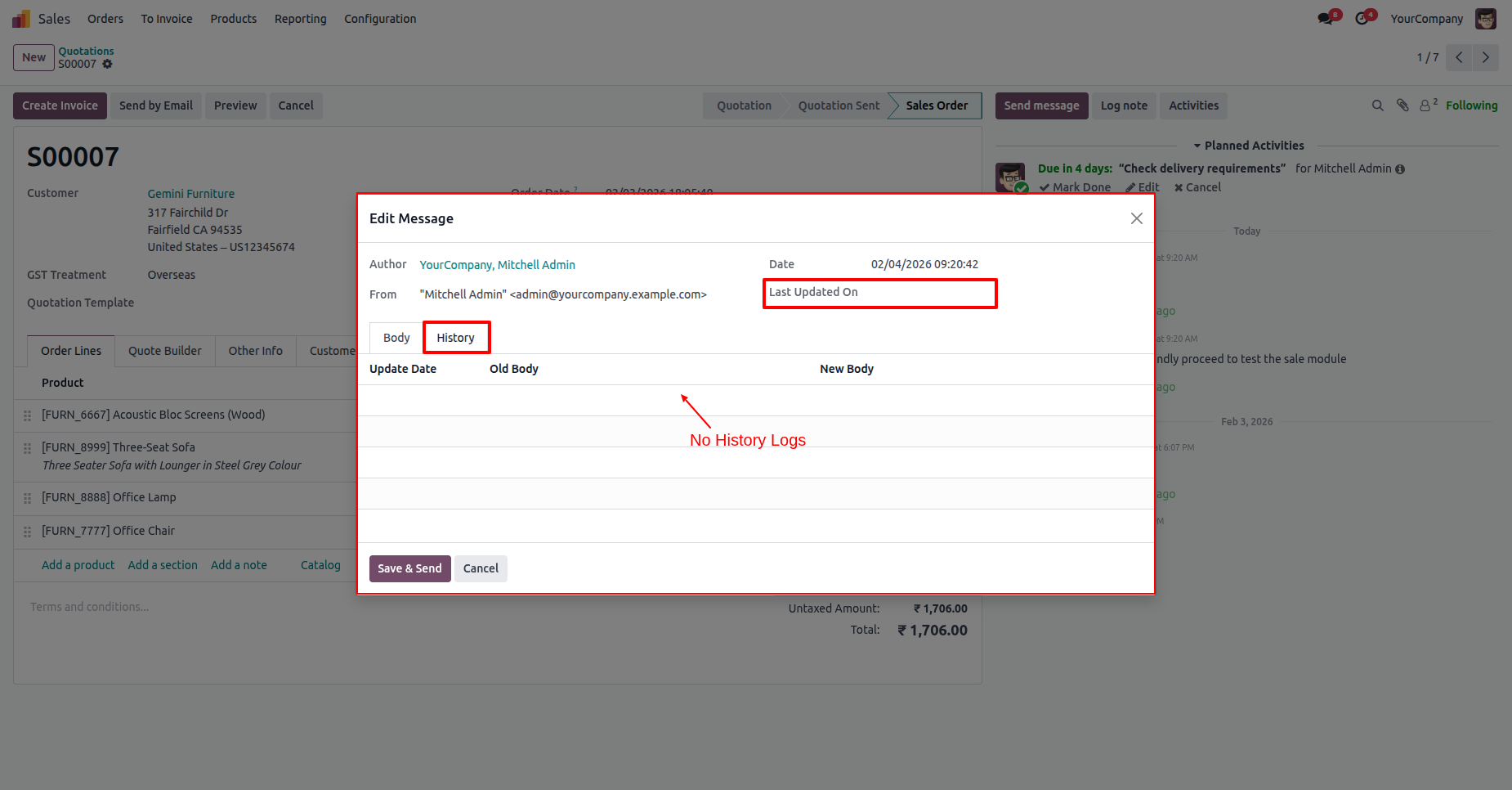
When tracking is off, the 'History' tab stays hidden and no more changes are logged.
Here you can see all available filters and search tools in the chatter bar to quickly sort and find messages.
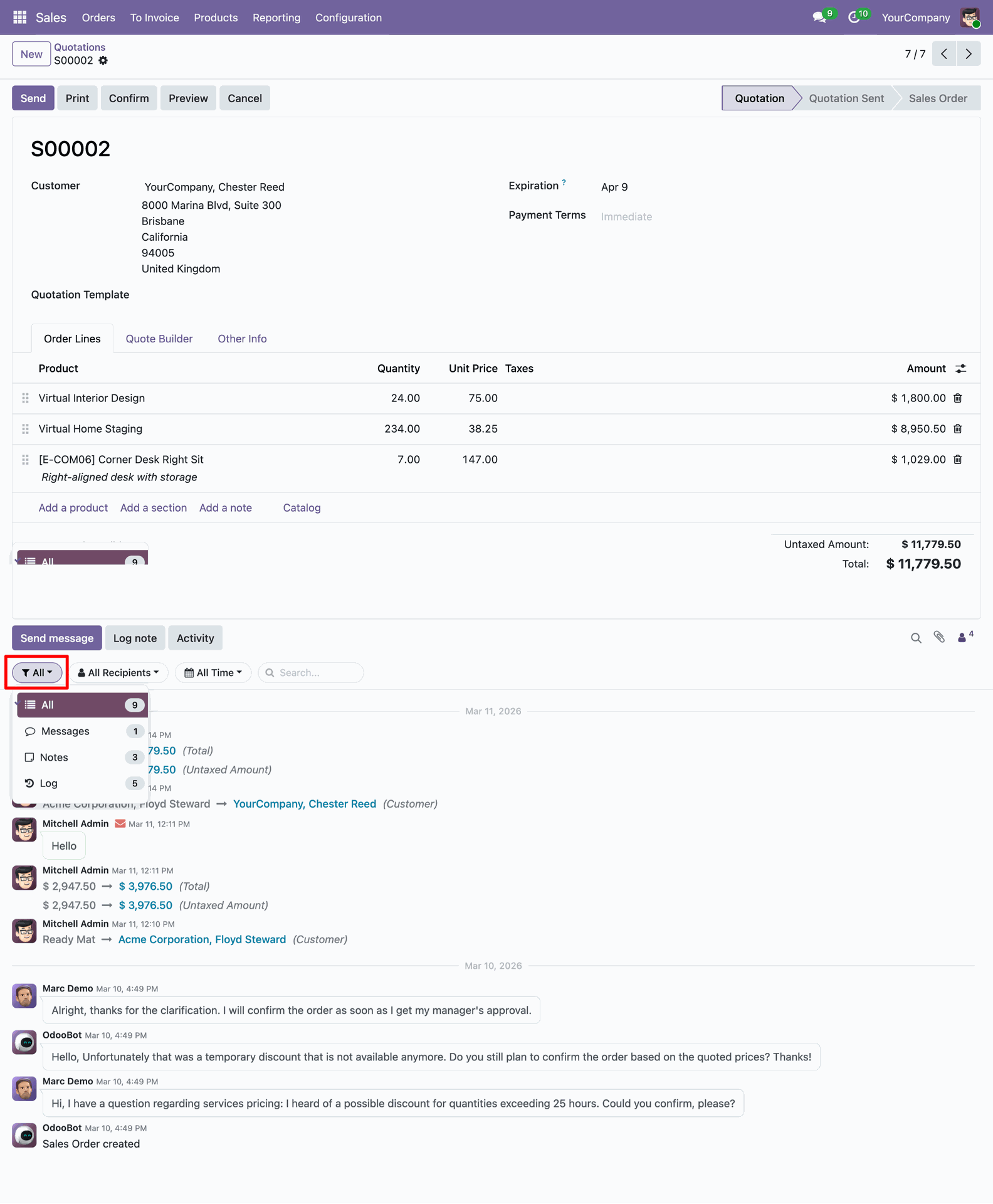
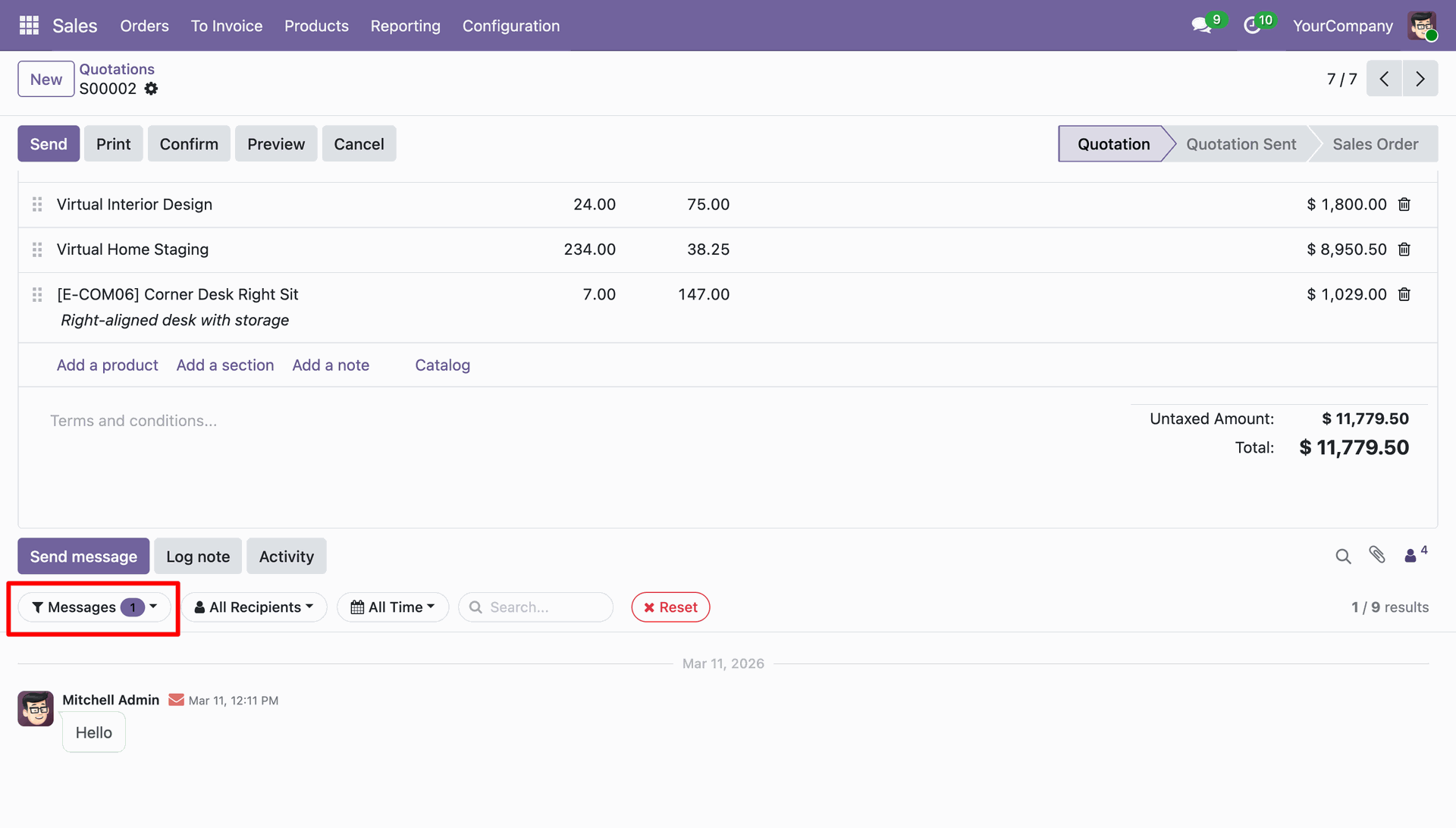
Select 'Messages' to display only user-to-user interactions and direct replies.
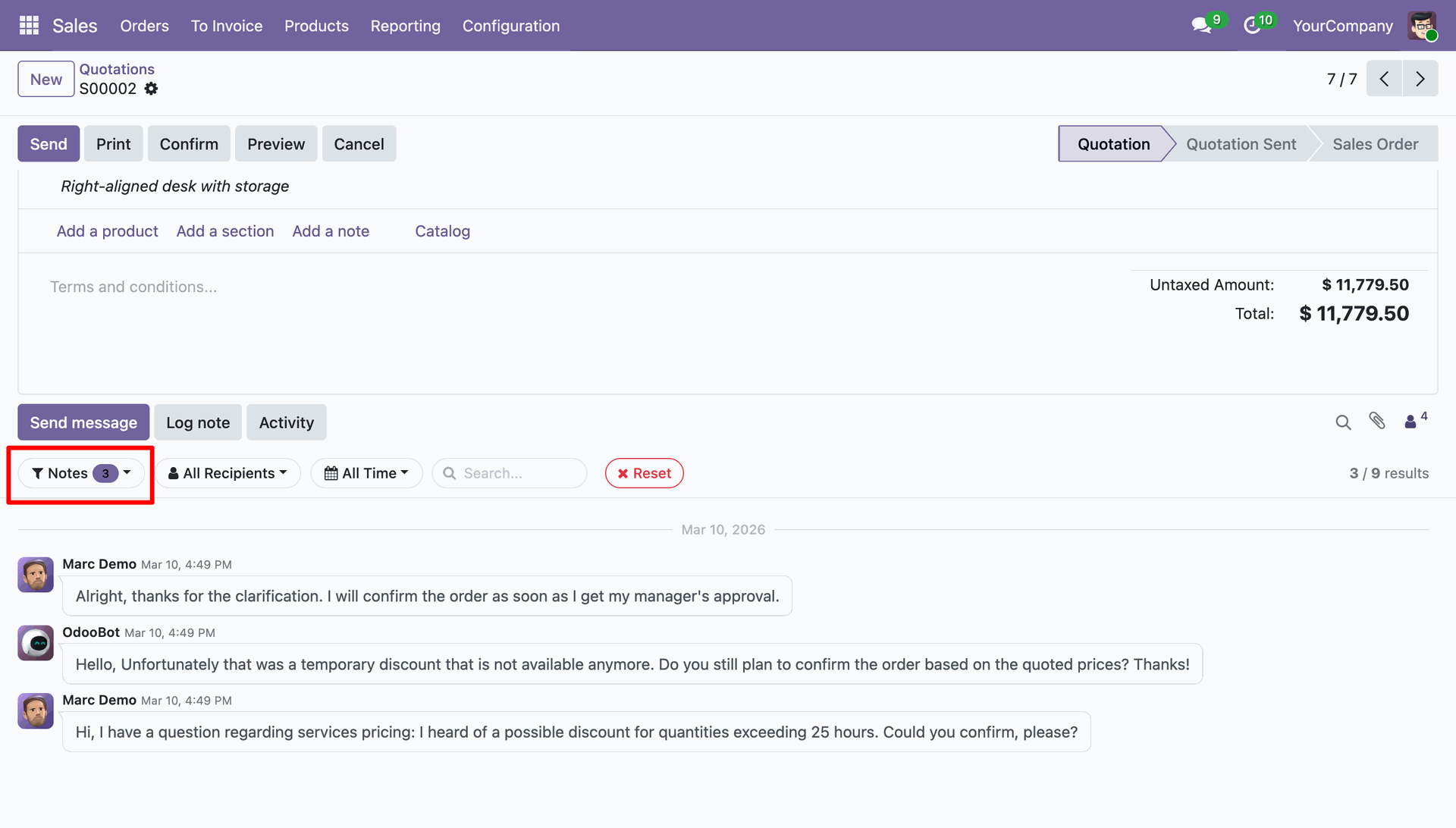
Select 'Notes' to see only the internal team notes for this record.
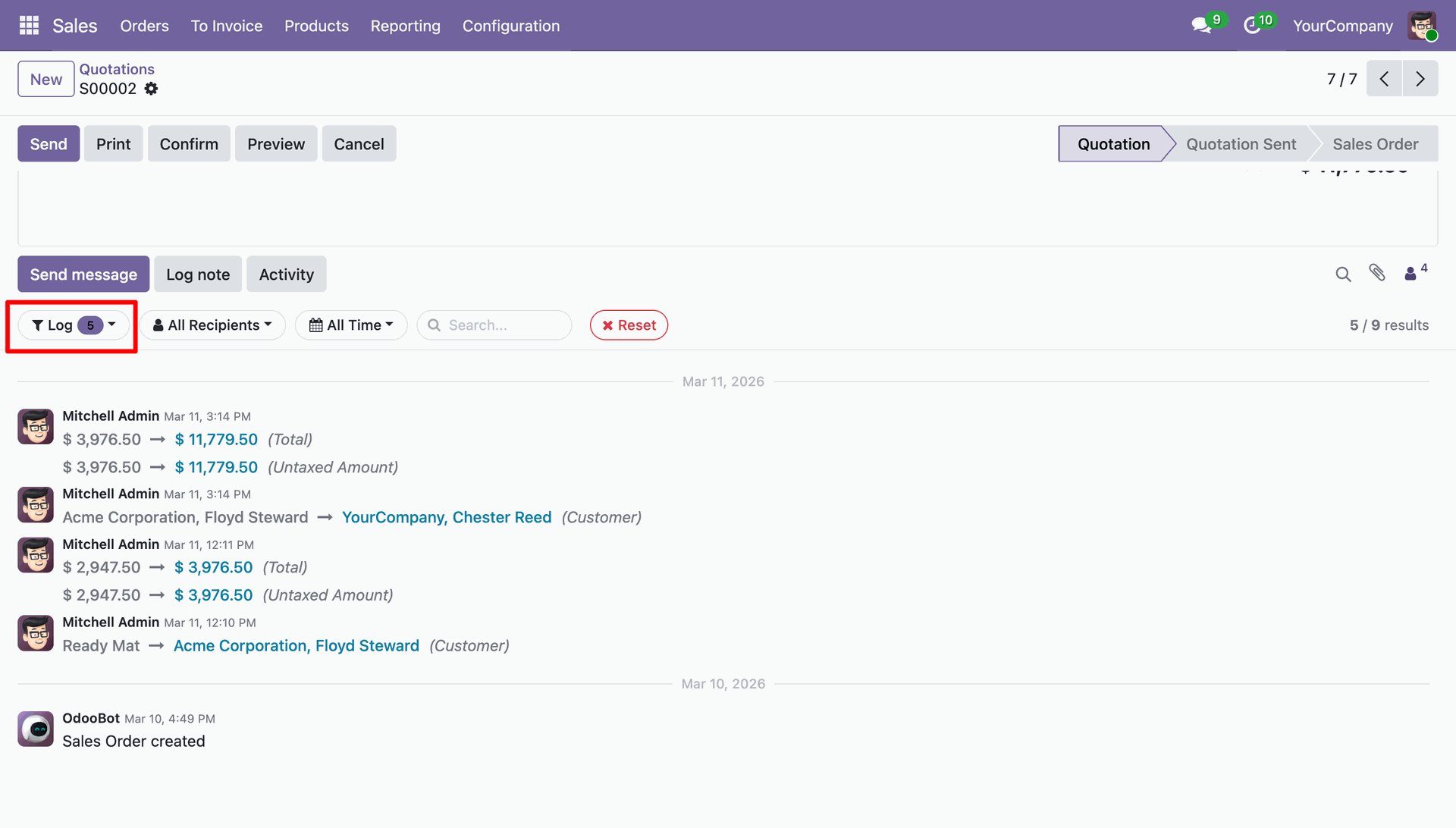
Select 'Logs' to view system-generated changes and track audit trails.
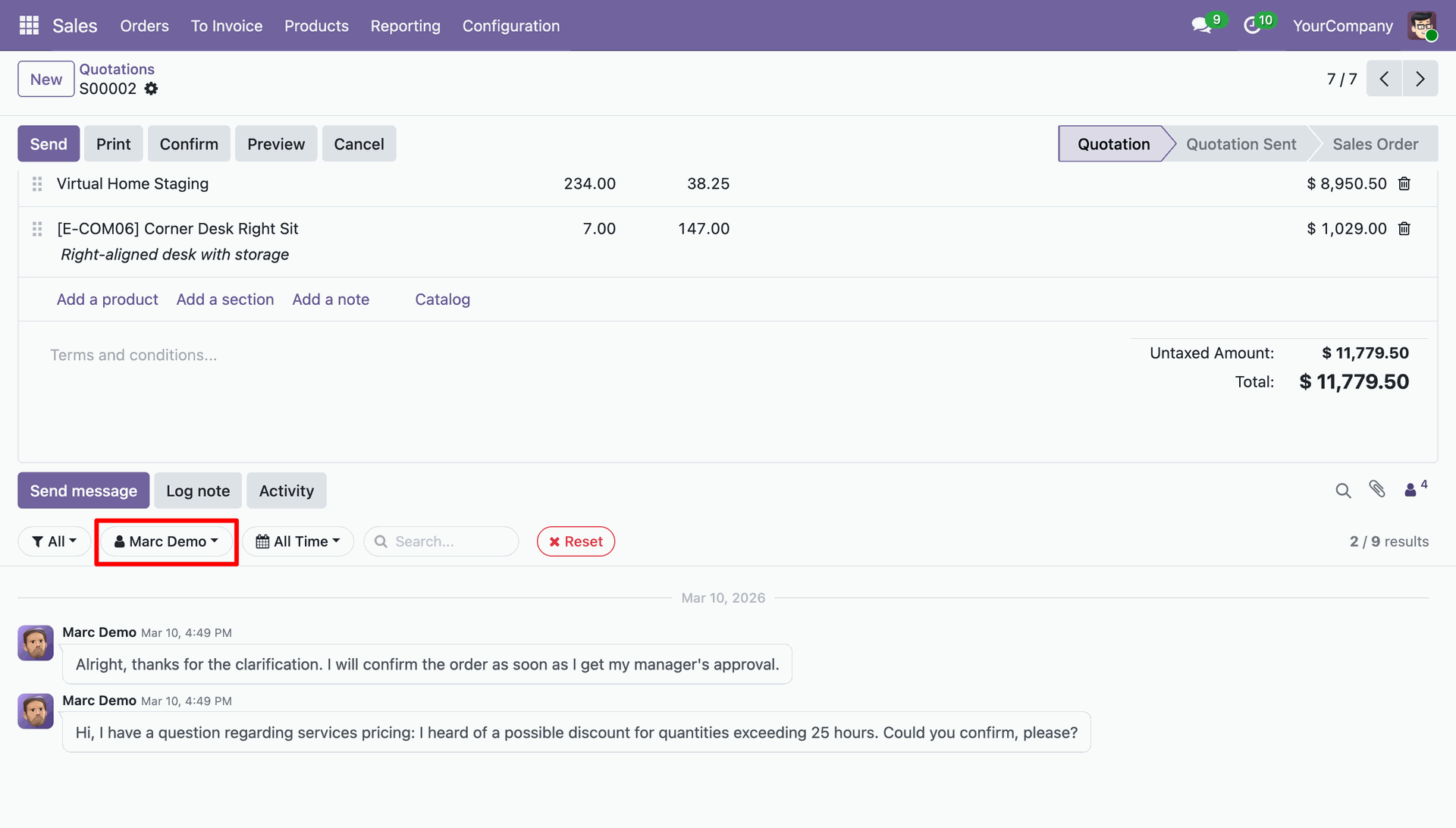
Manage followers and filter chatter entries related to specific Recipients.
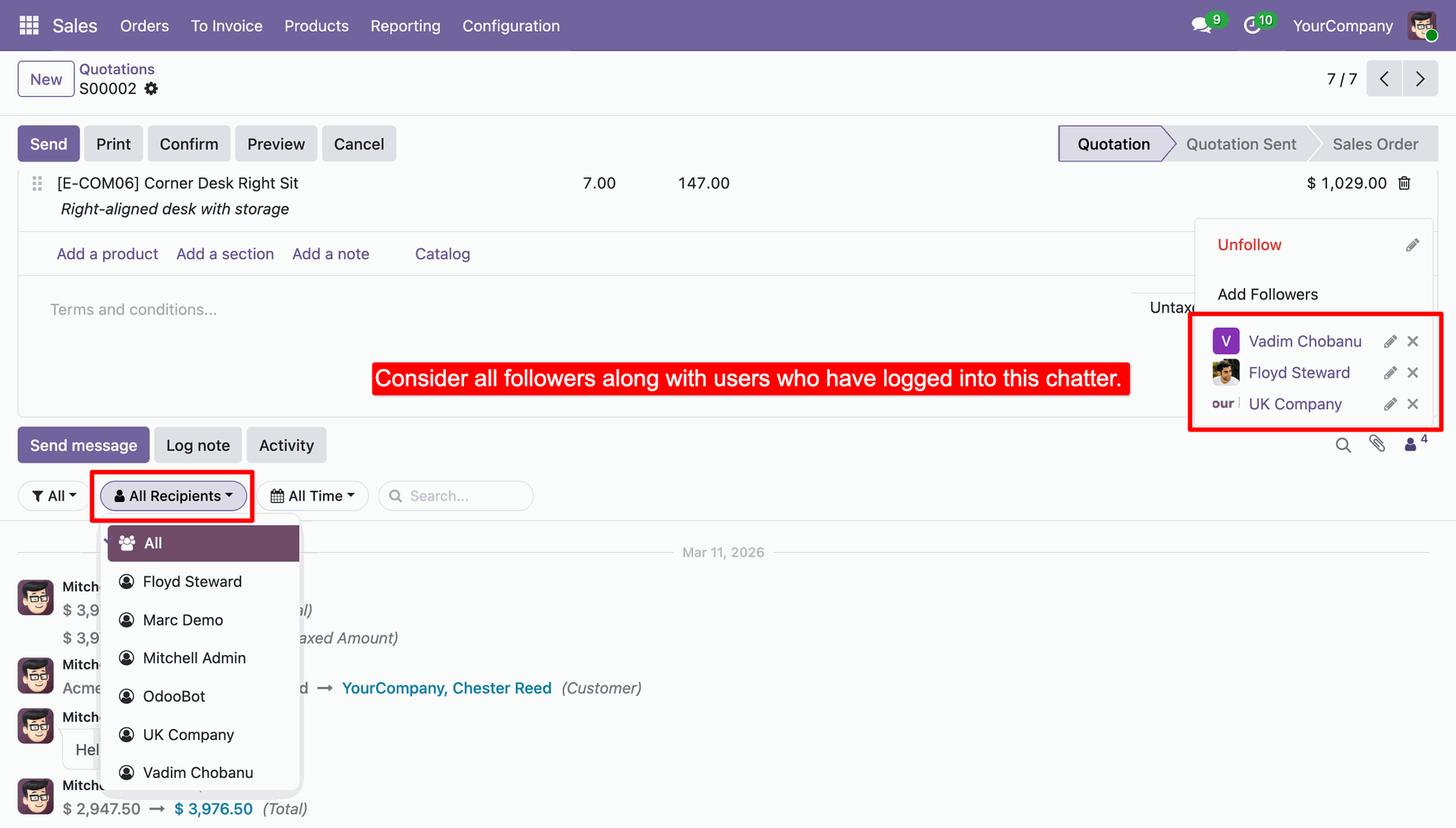
Here, we select the 'Marc Demo' user to quickly view their chatter entries.
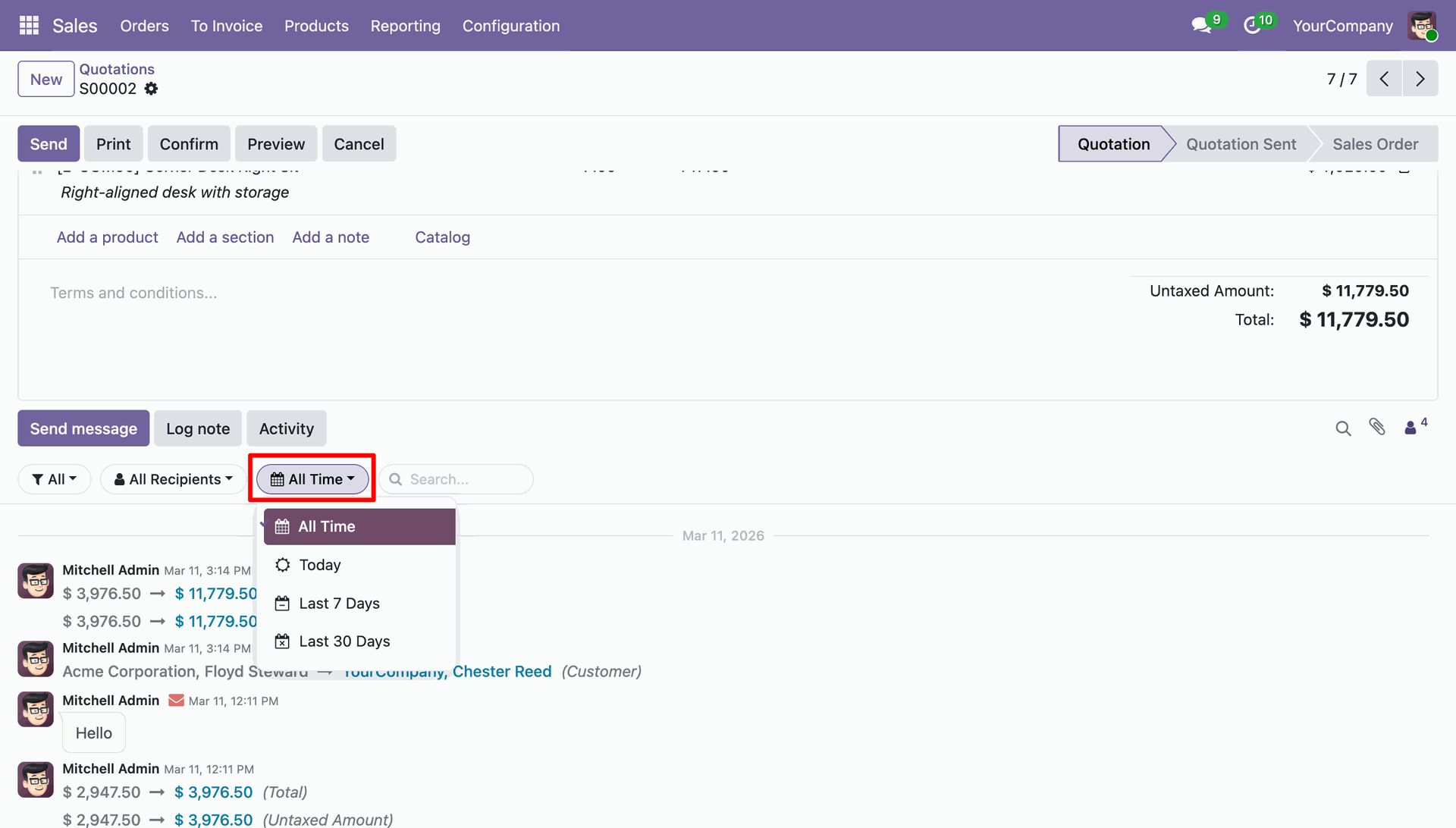
Users can filter chatter history by All time, Today, Last 7 Days, or Last 30 Days to quickly access past records.
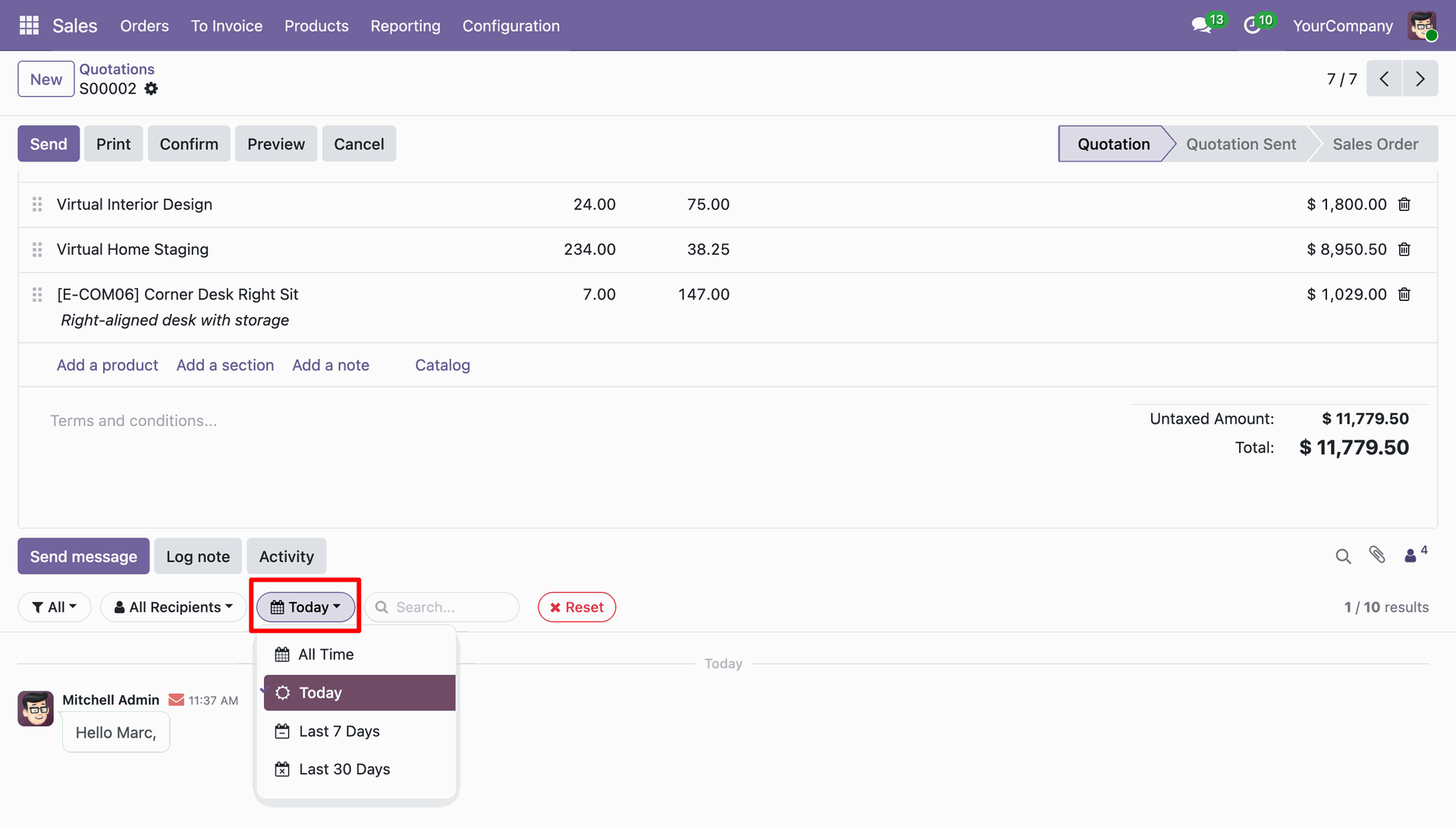
Here, we filter the Chatter messages for today.
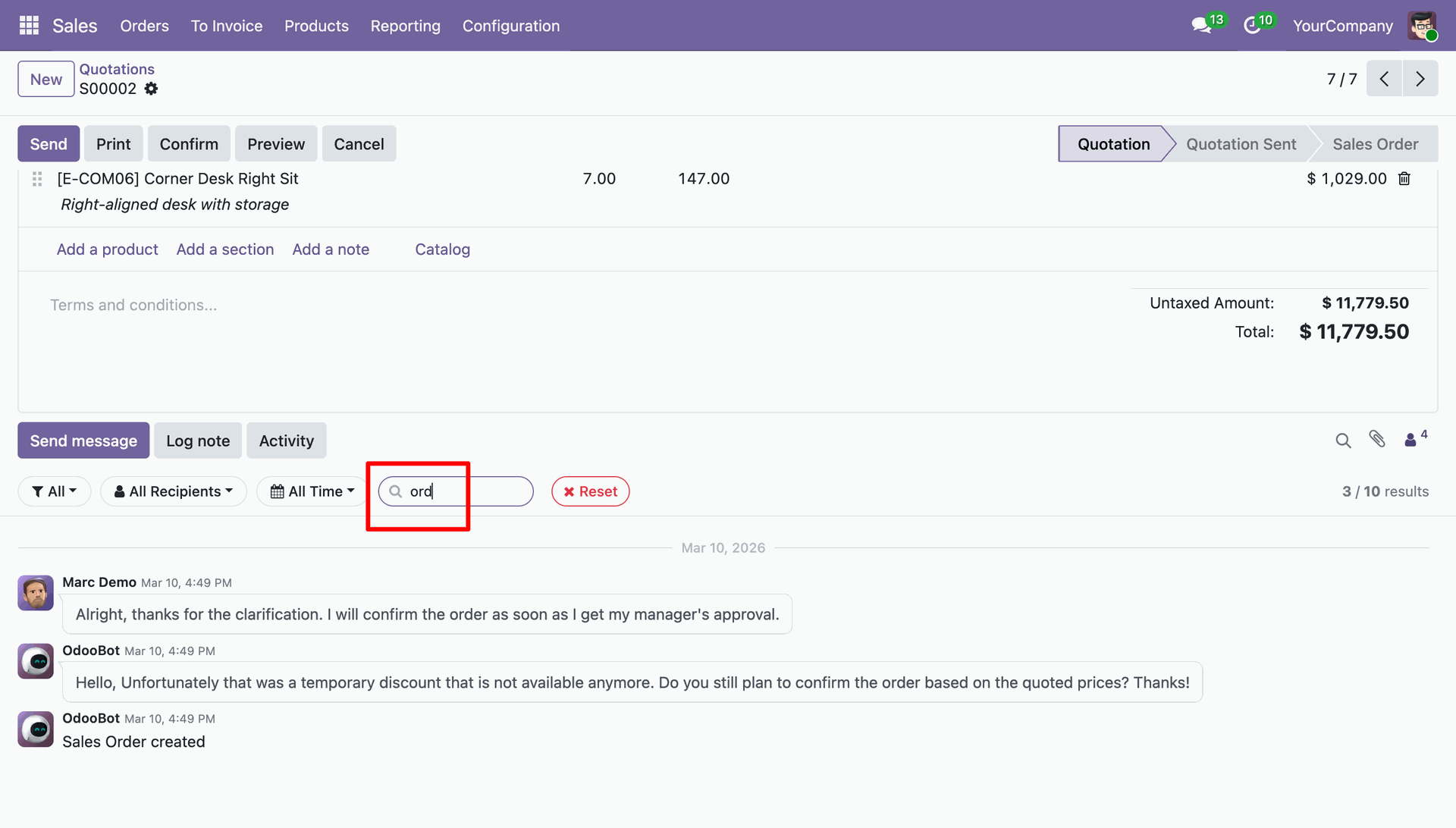
You can also find messages by searching for any word.
Click on the 'Reset' to clear all selected filters.
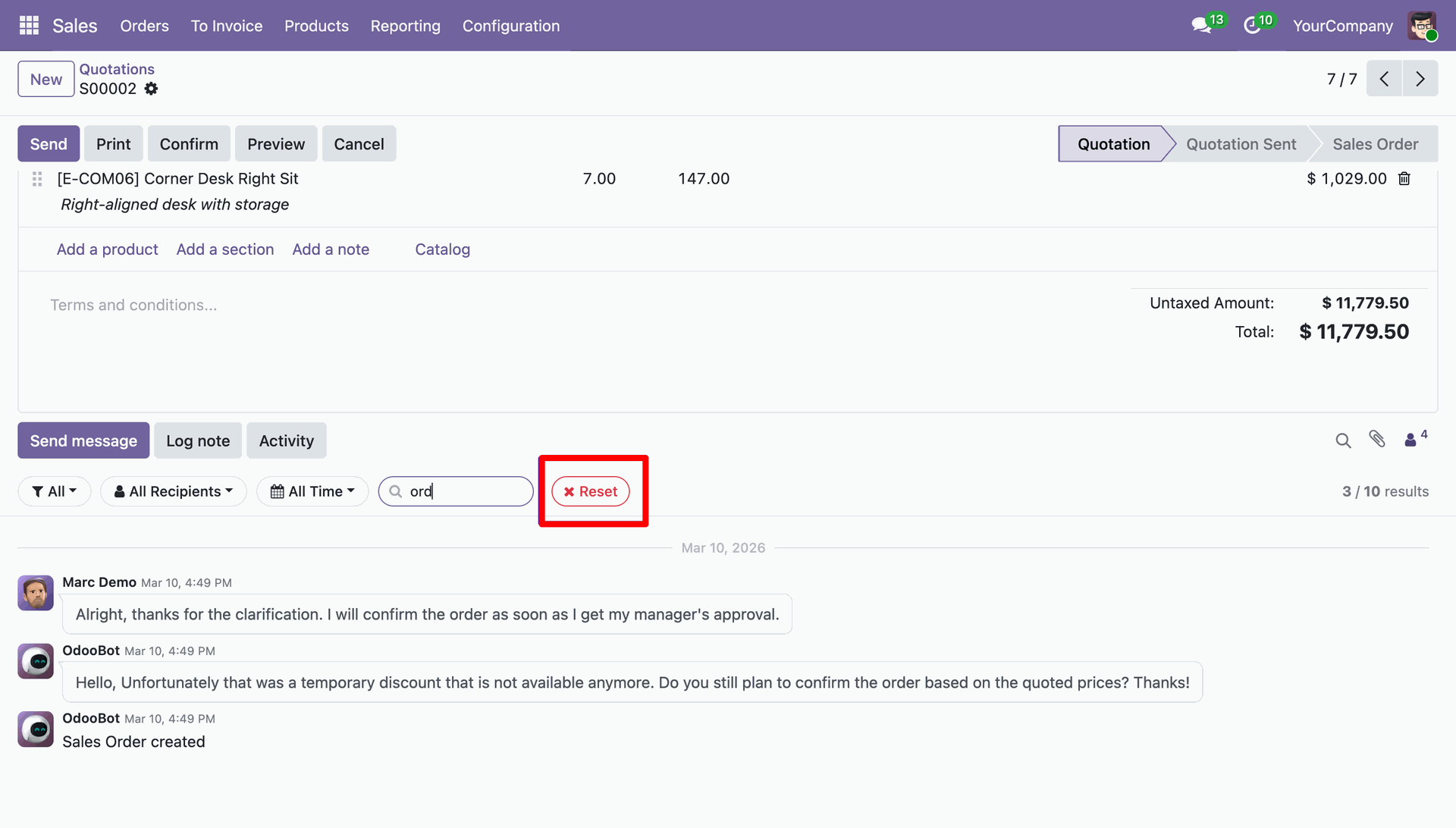
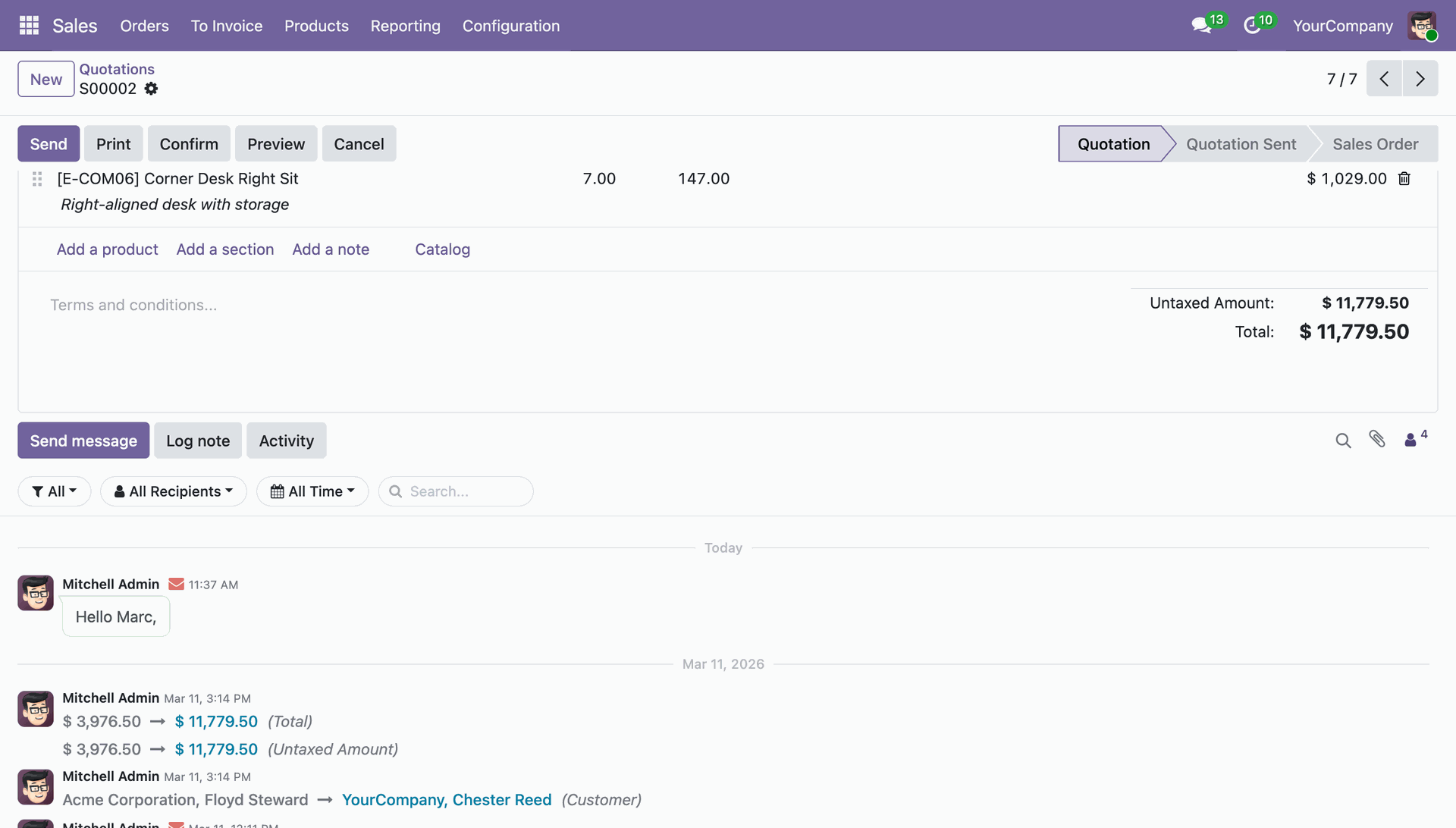
Here, you can see that all filters have been cleared.
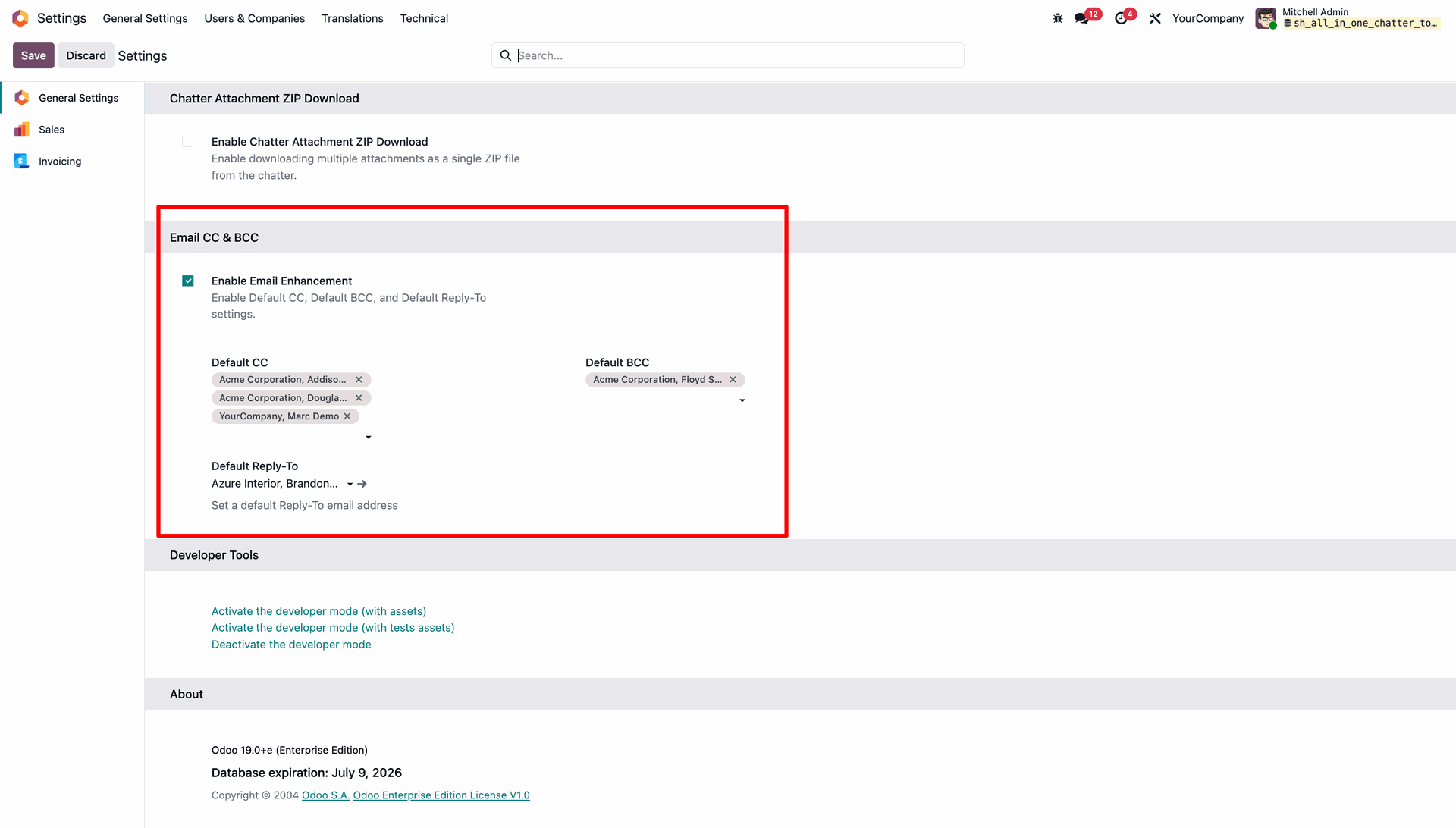
Set default email CC & BCC and reply to from general settings.
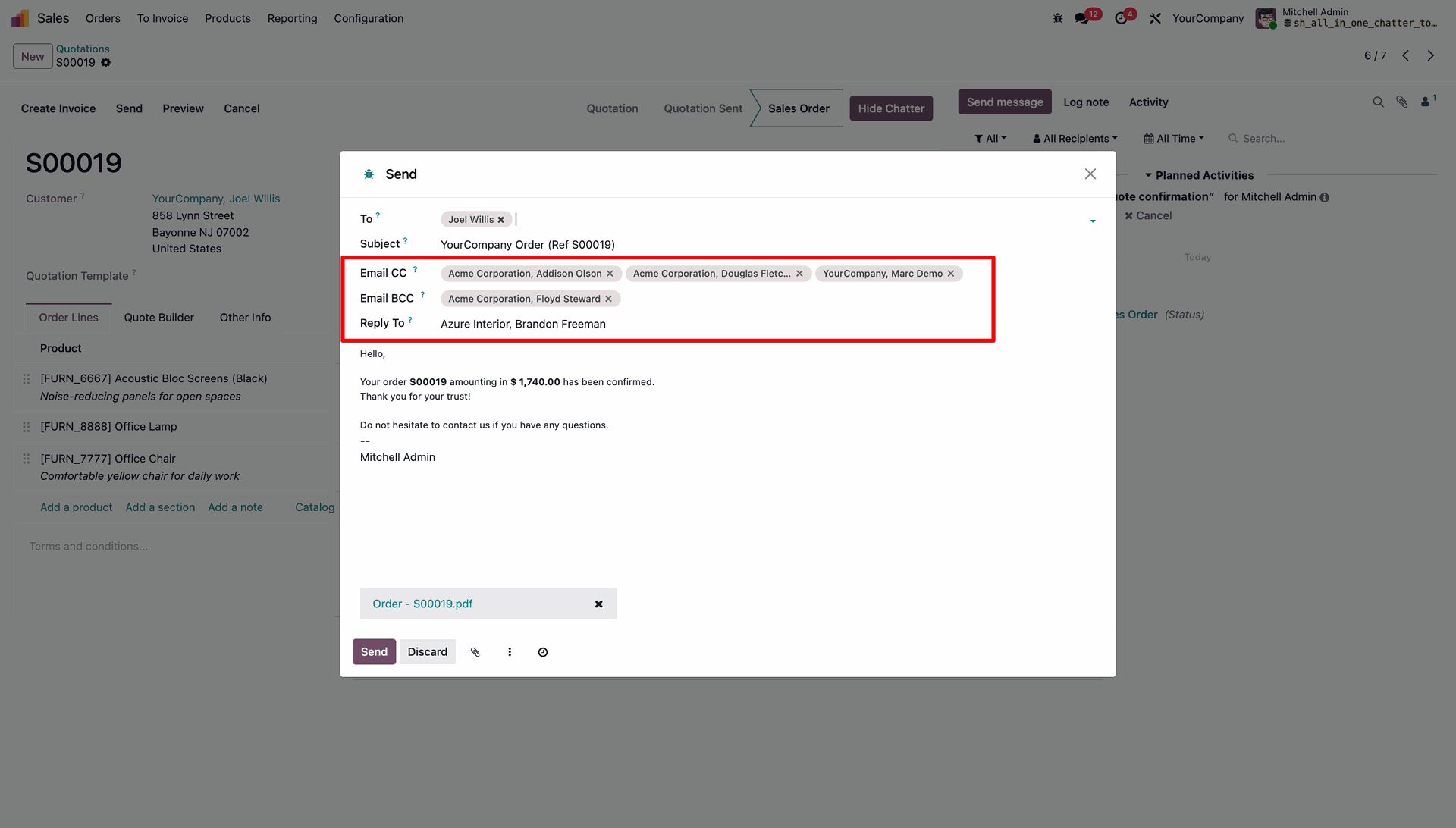
Default CC, BCC & Reply to automatically comes when you compose the email, you also can change that from the wizard.
You can see sent email in chatter with default CC, BCC & Reply to.
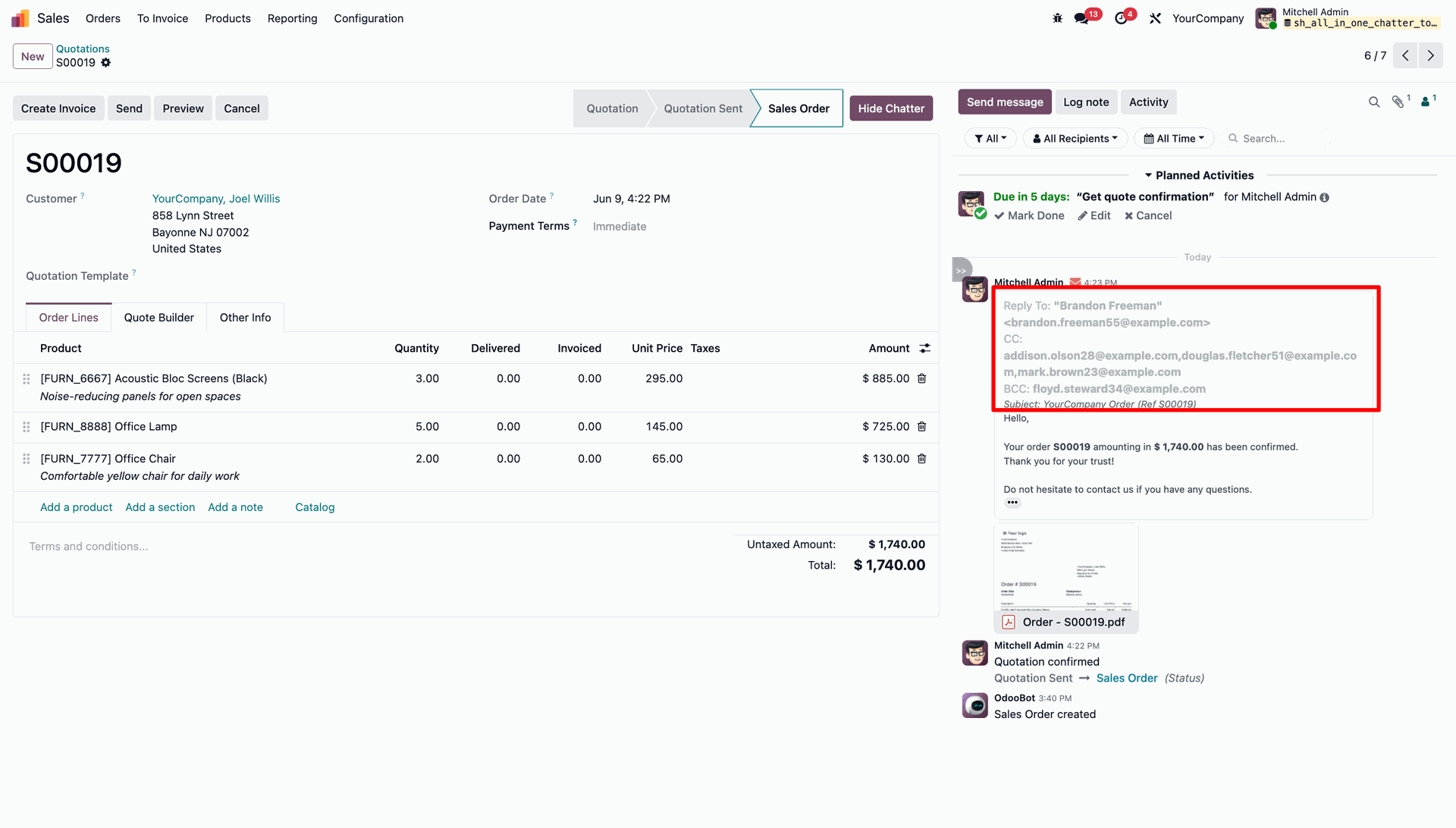
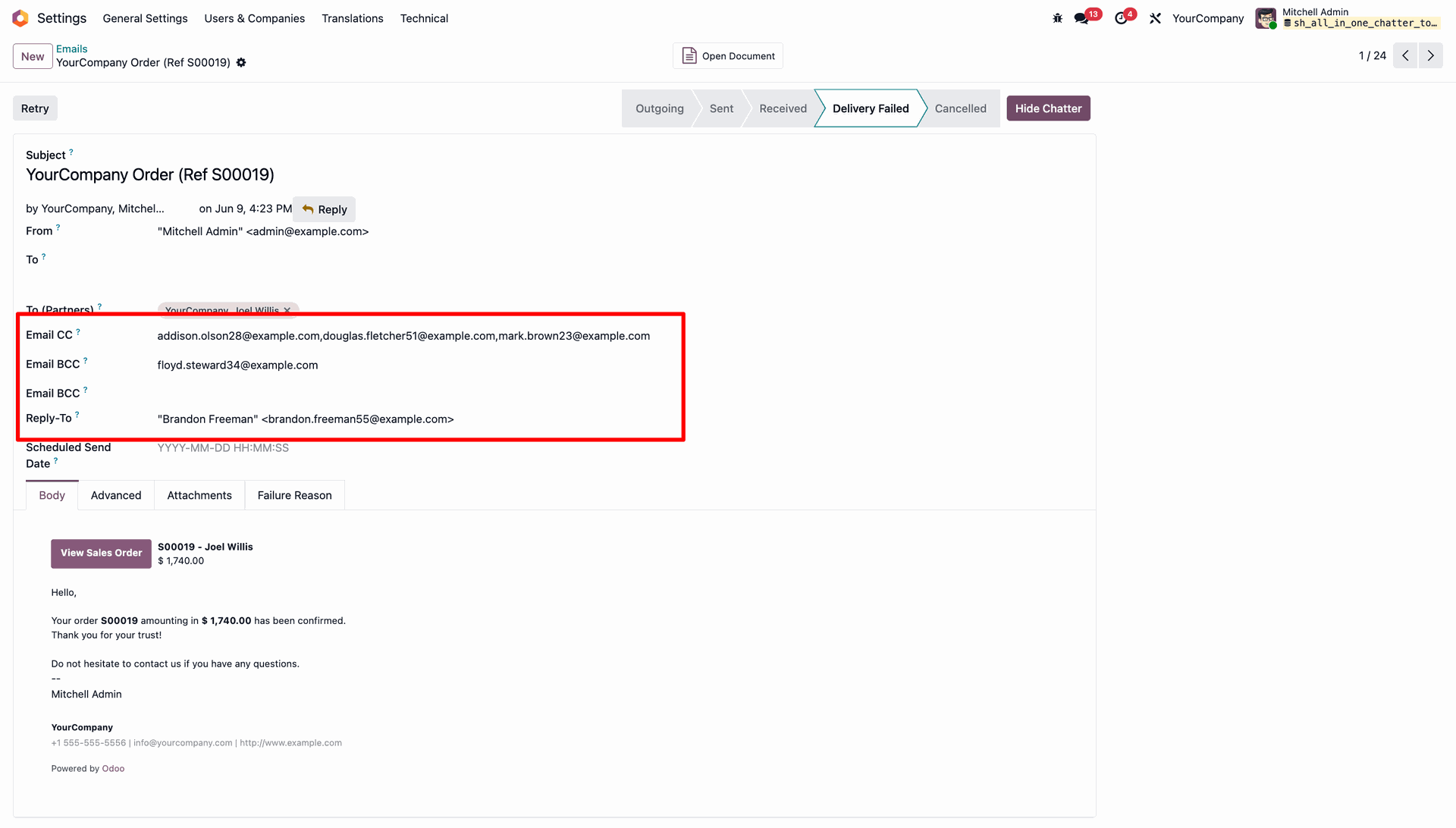
You can see CC, BCC & Reply to Email in the sent Email template.
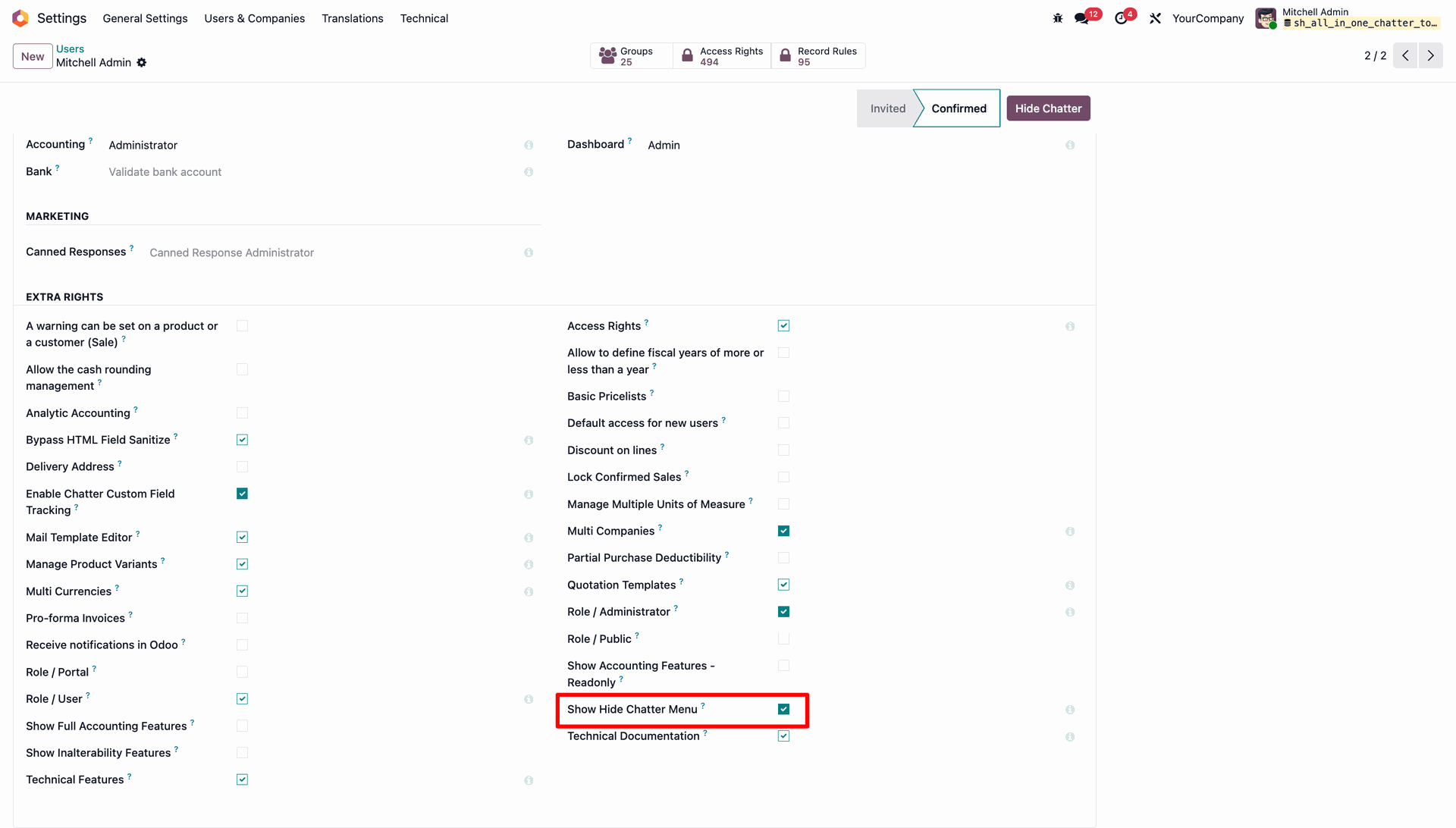
Enable "Show Hide Chatter Menu" in User Setting.
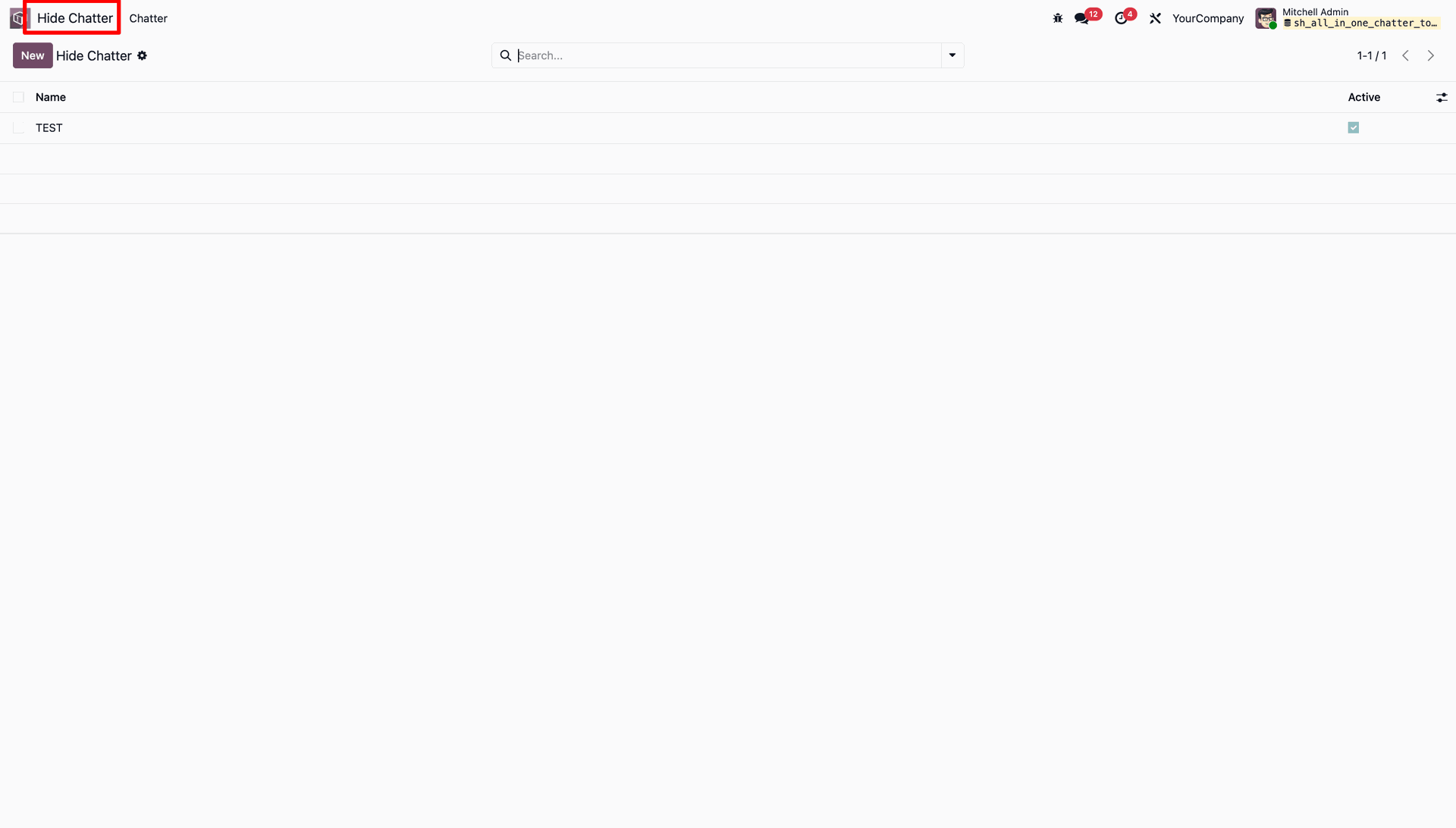
Create Groups in "Hide Chatter Menu".
Add Hide Chatter Configurations in the Hide Chatter form view.
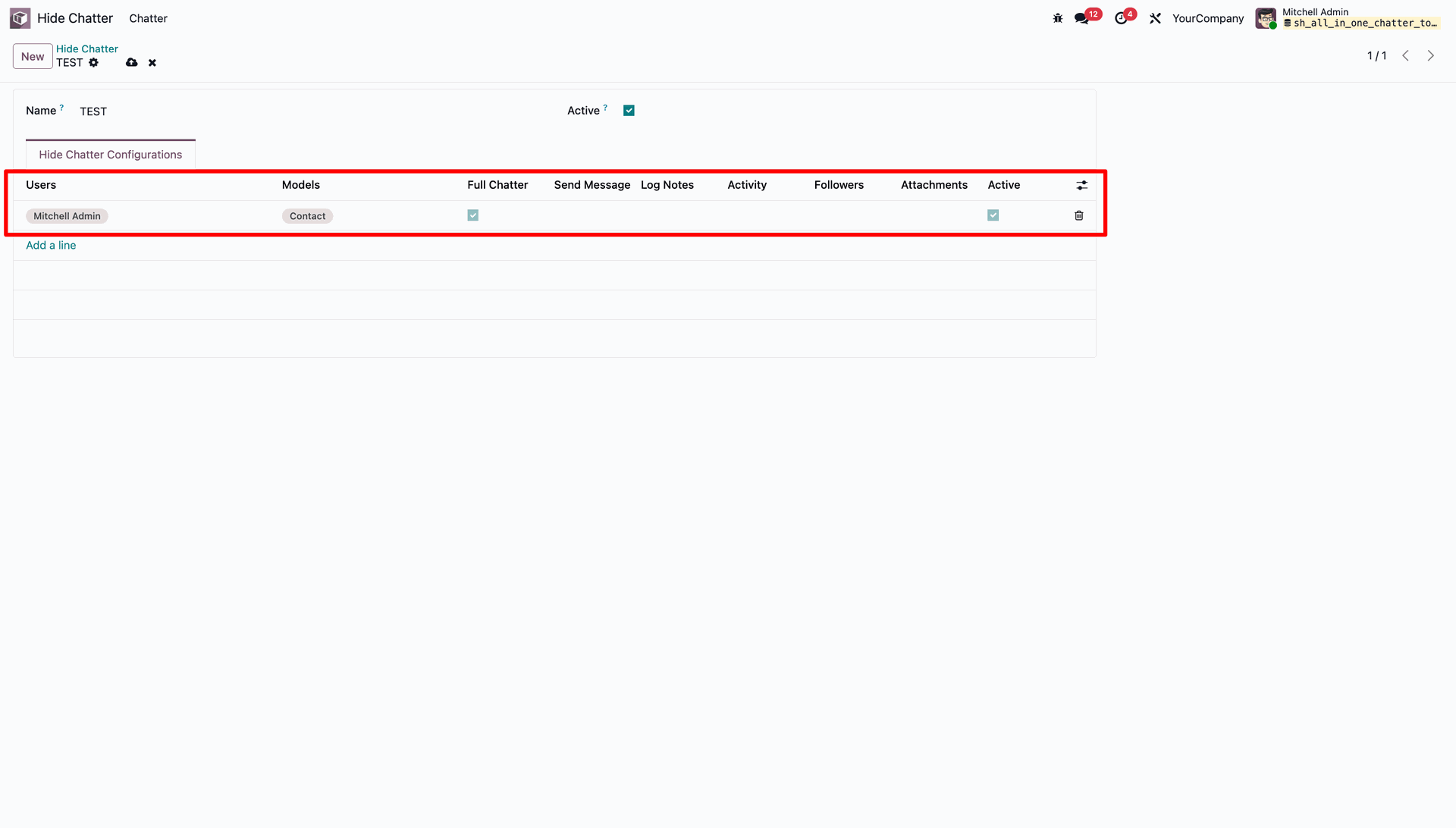
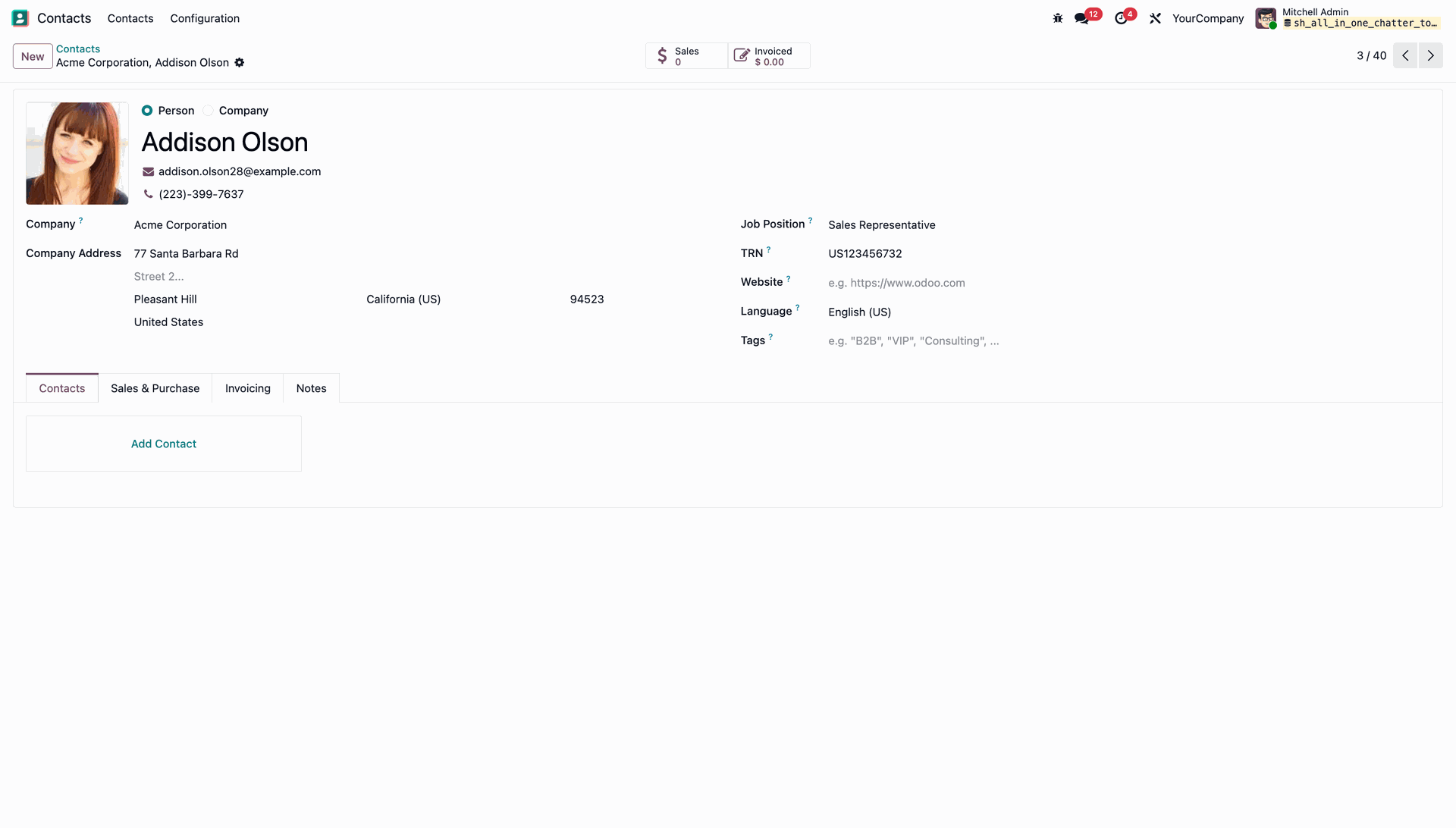
Go to the Contact Form View. The chatter is hidden according to the configured settings.
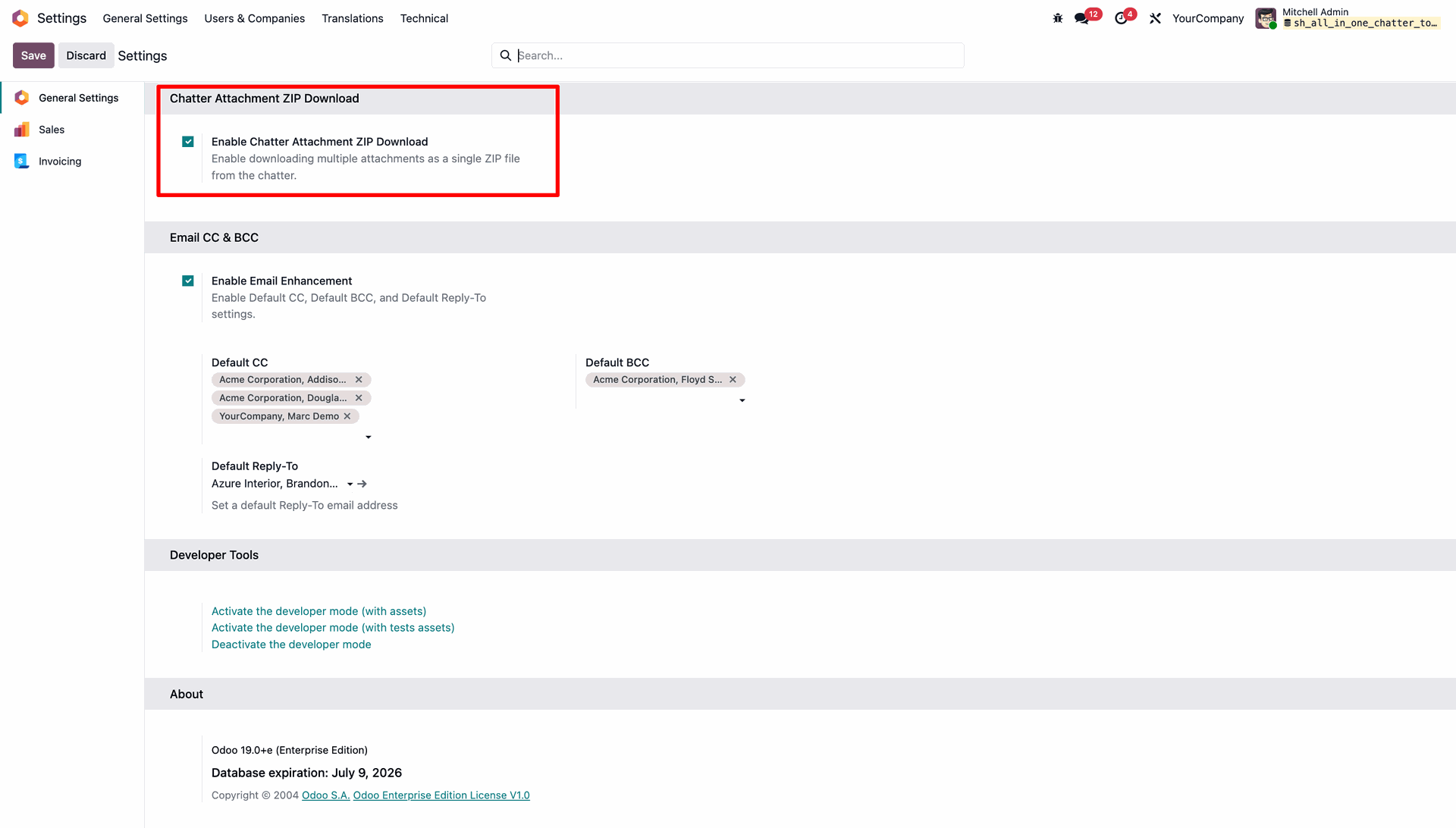
Enable Chatter Attachment Download as ZIP in General Settings.
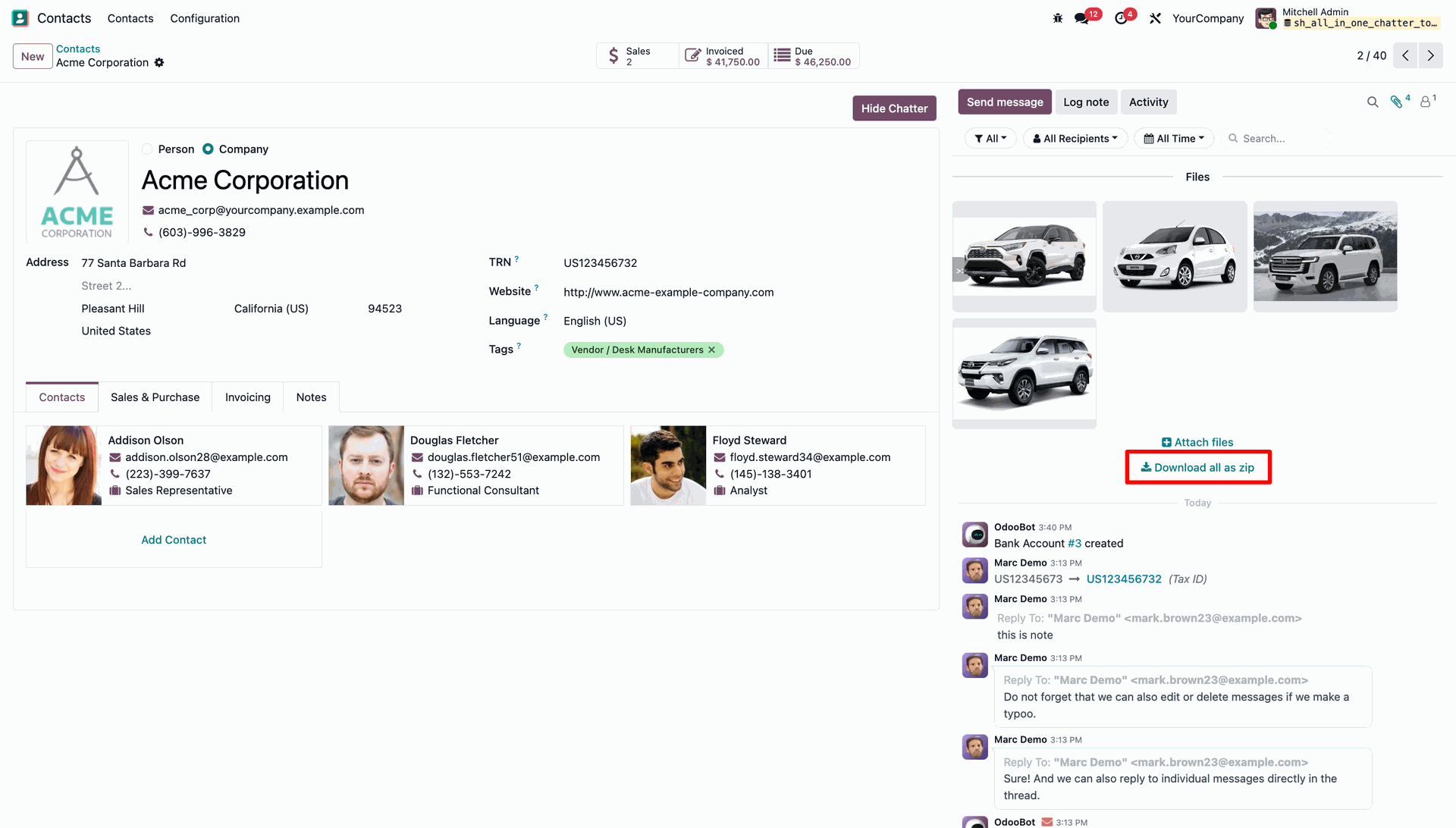
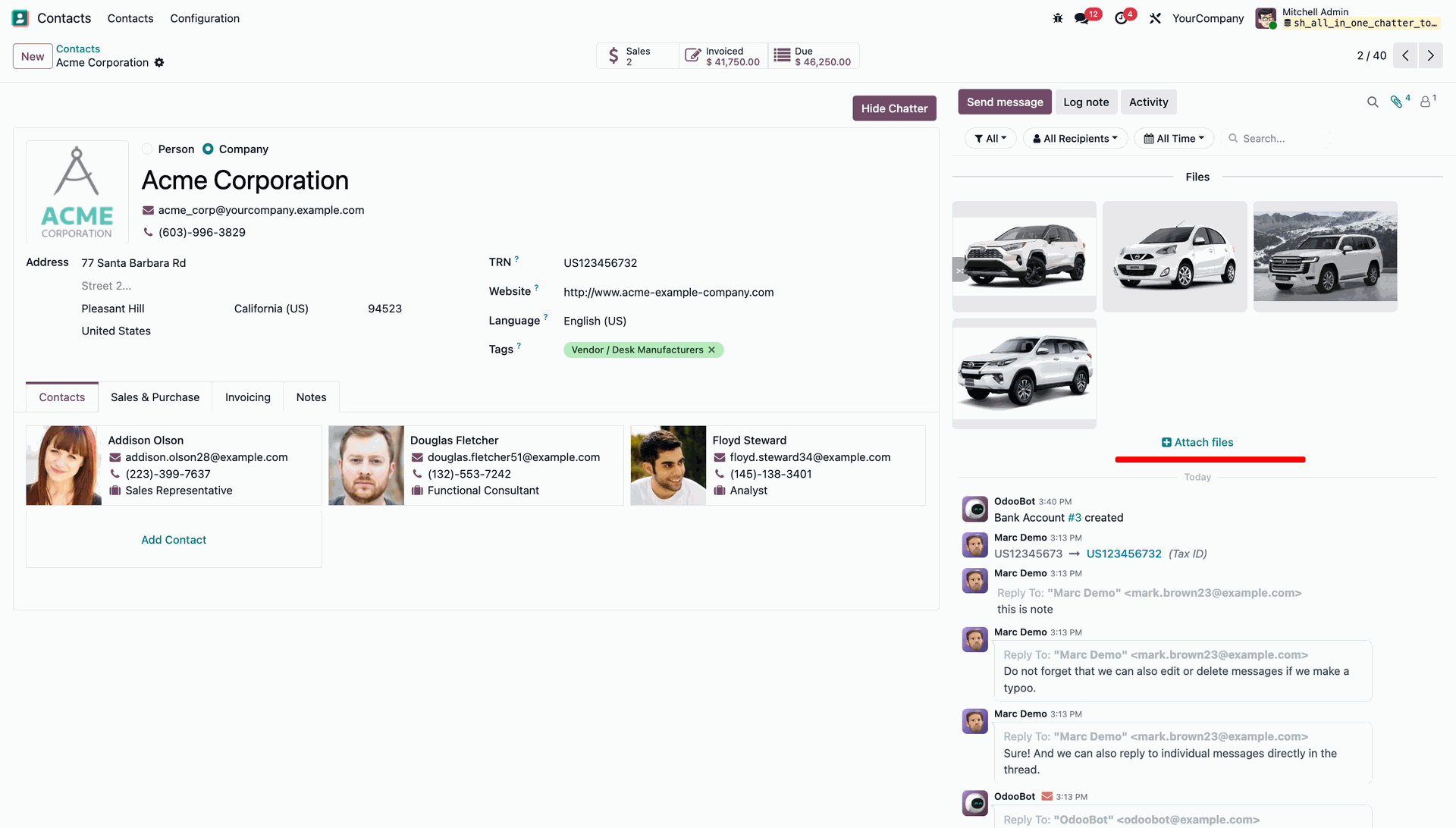
Easily upload new attachments or download all documents as a ZIP directly from the chatter.
Click the Download all as zip button to instantly save all documents listed in the chatter section as a single compressed file.
Disable Chatter Attachment Download as ZIP in General Settings.
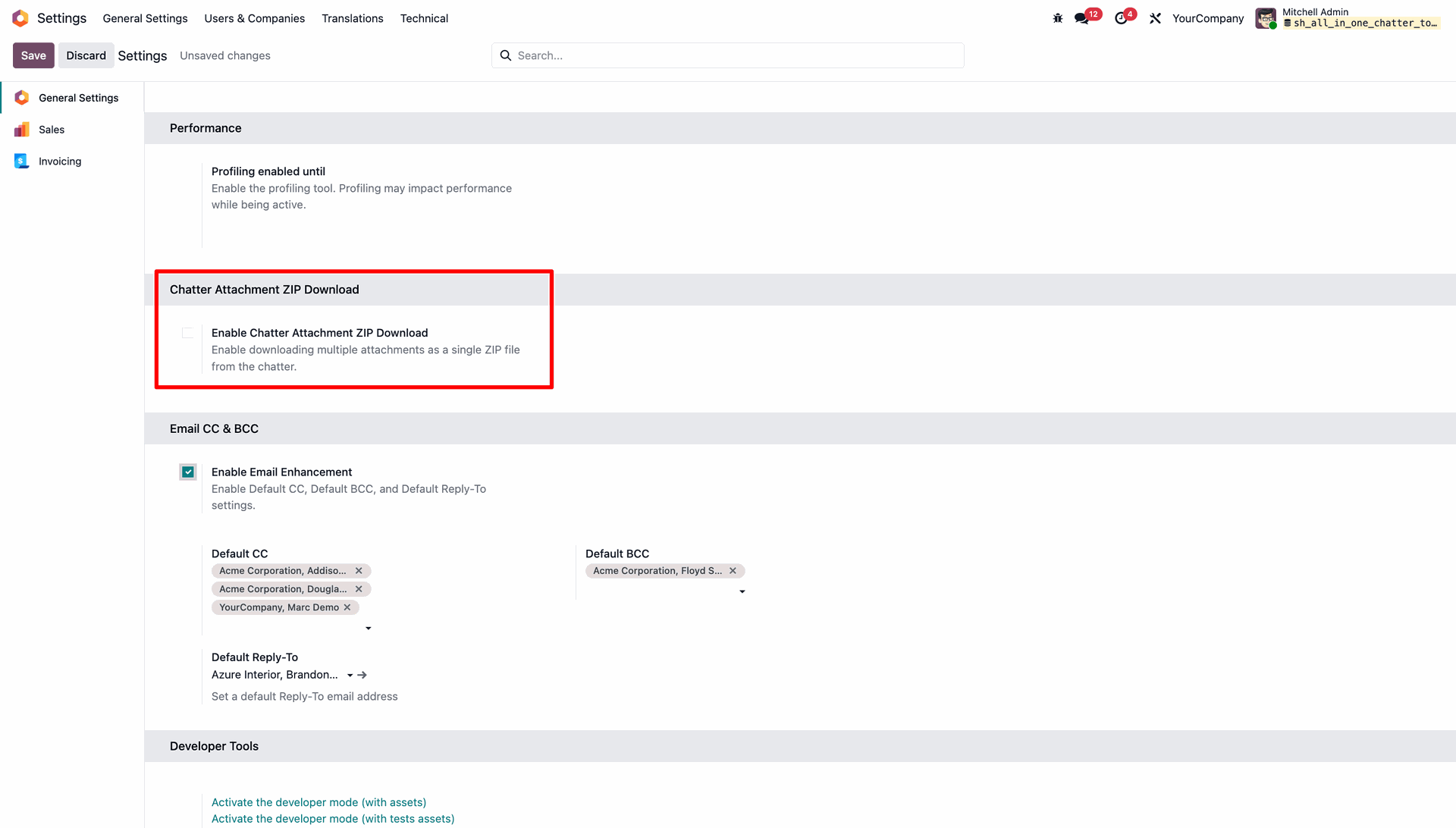
The Download All as ZIP button will be hidden from the chatter, preventing users from downloading all attachments as a ZIP file.
Enable Custom Field Tracking in General Settings to track all fields in the chatter.
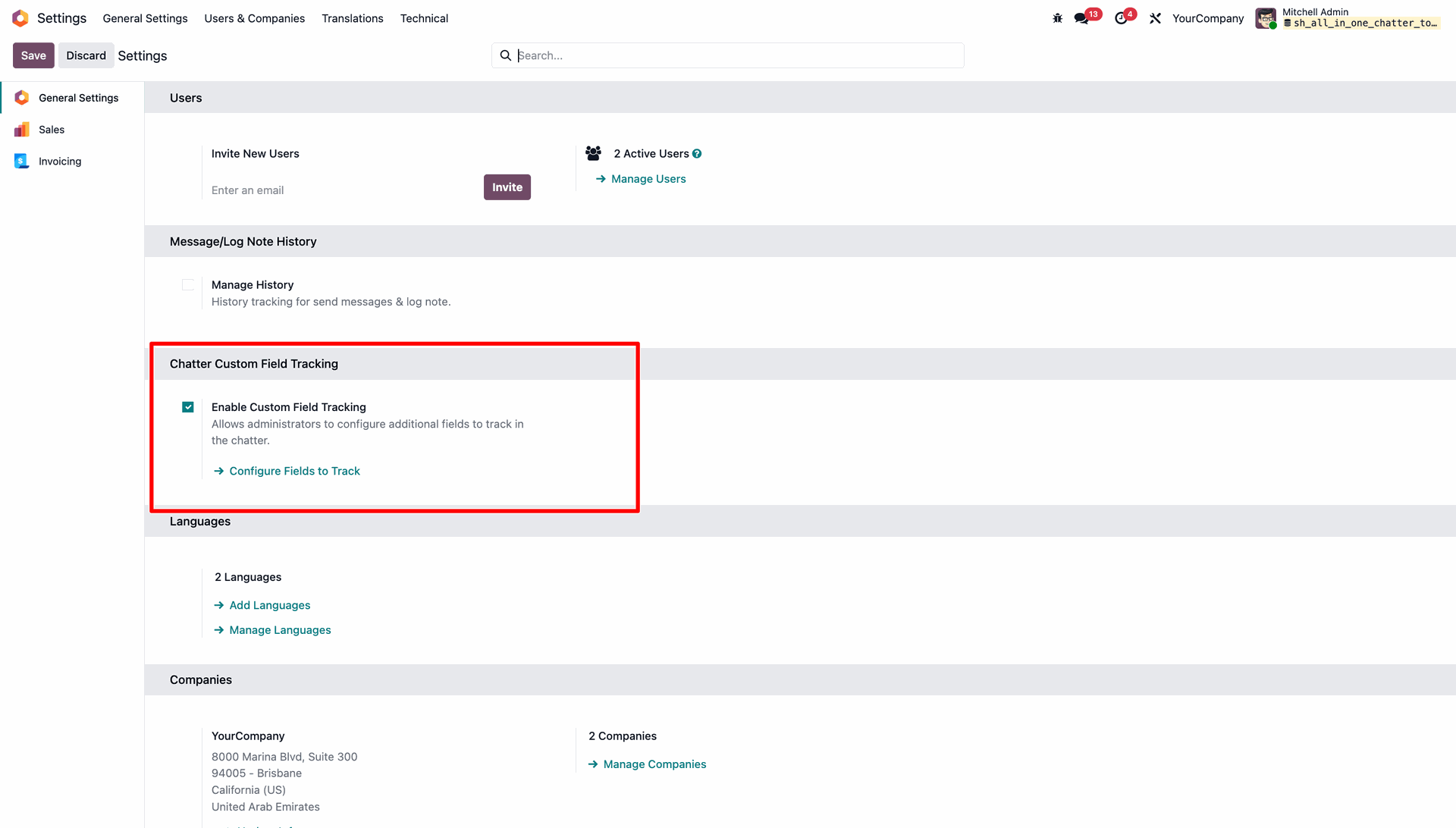
Open the custom field tracking menu.
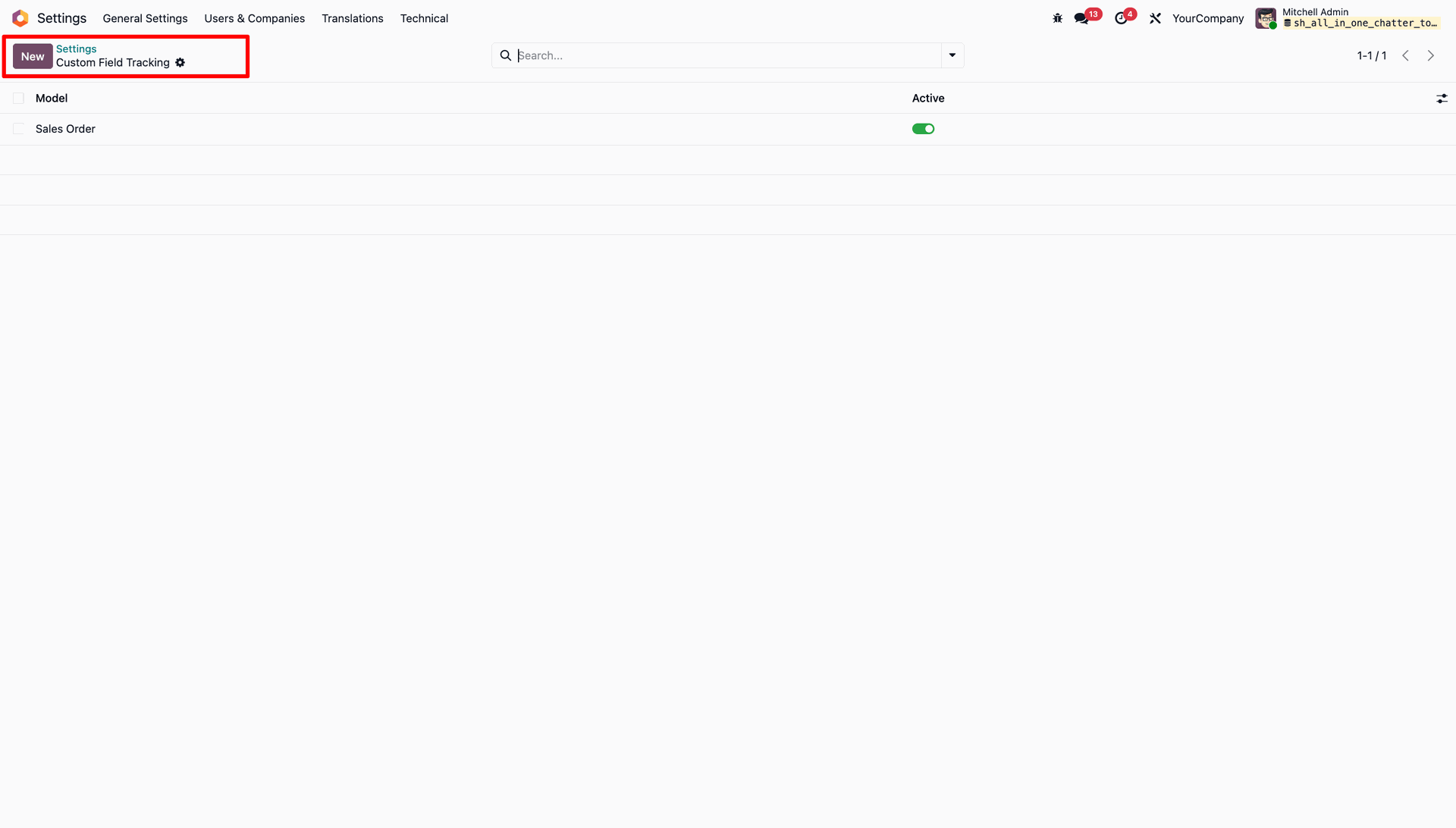
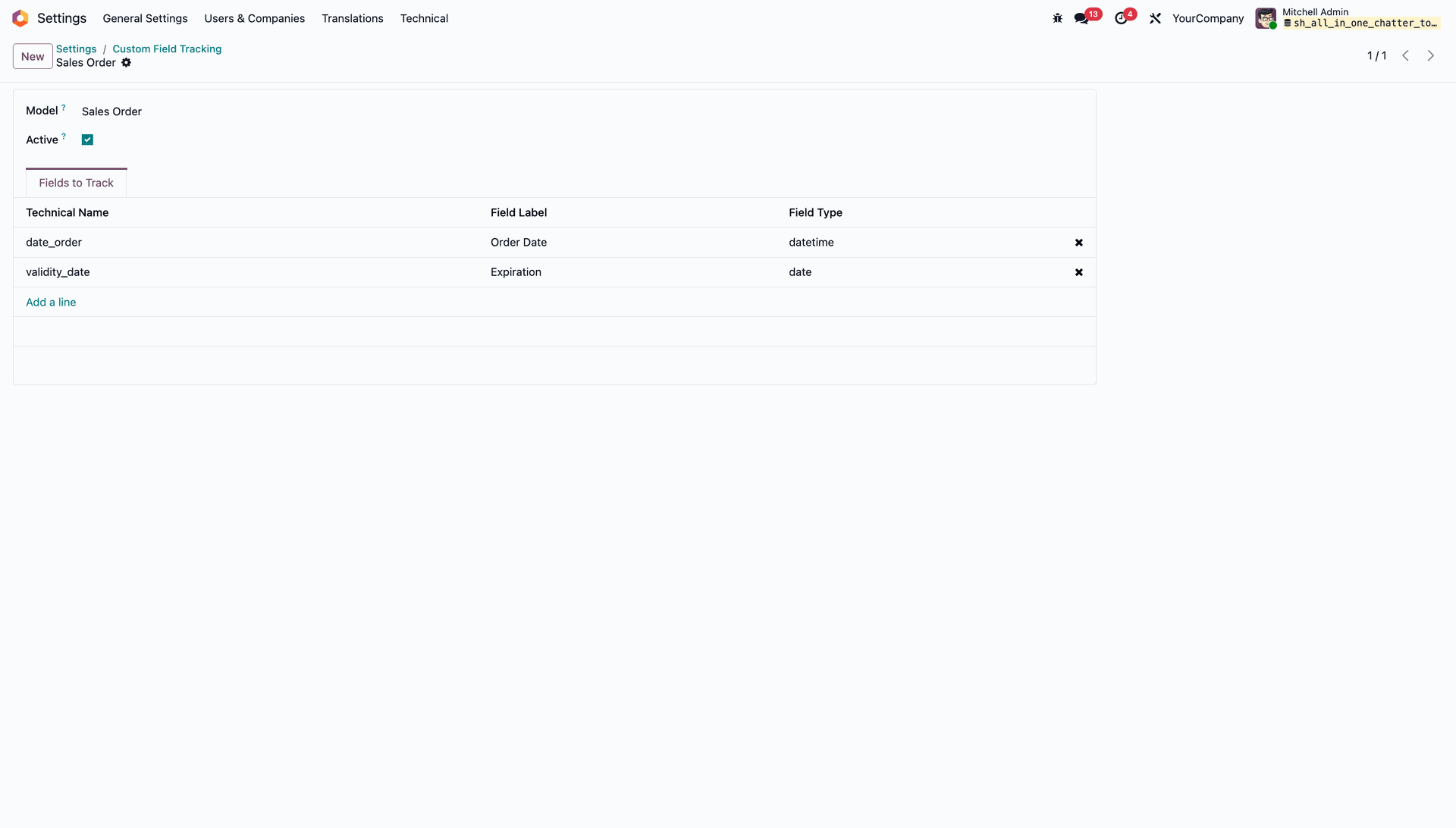
Configure fields to track in the selected Model.
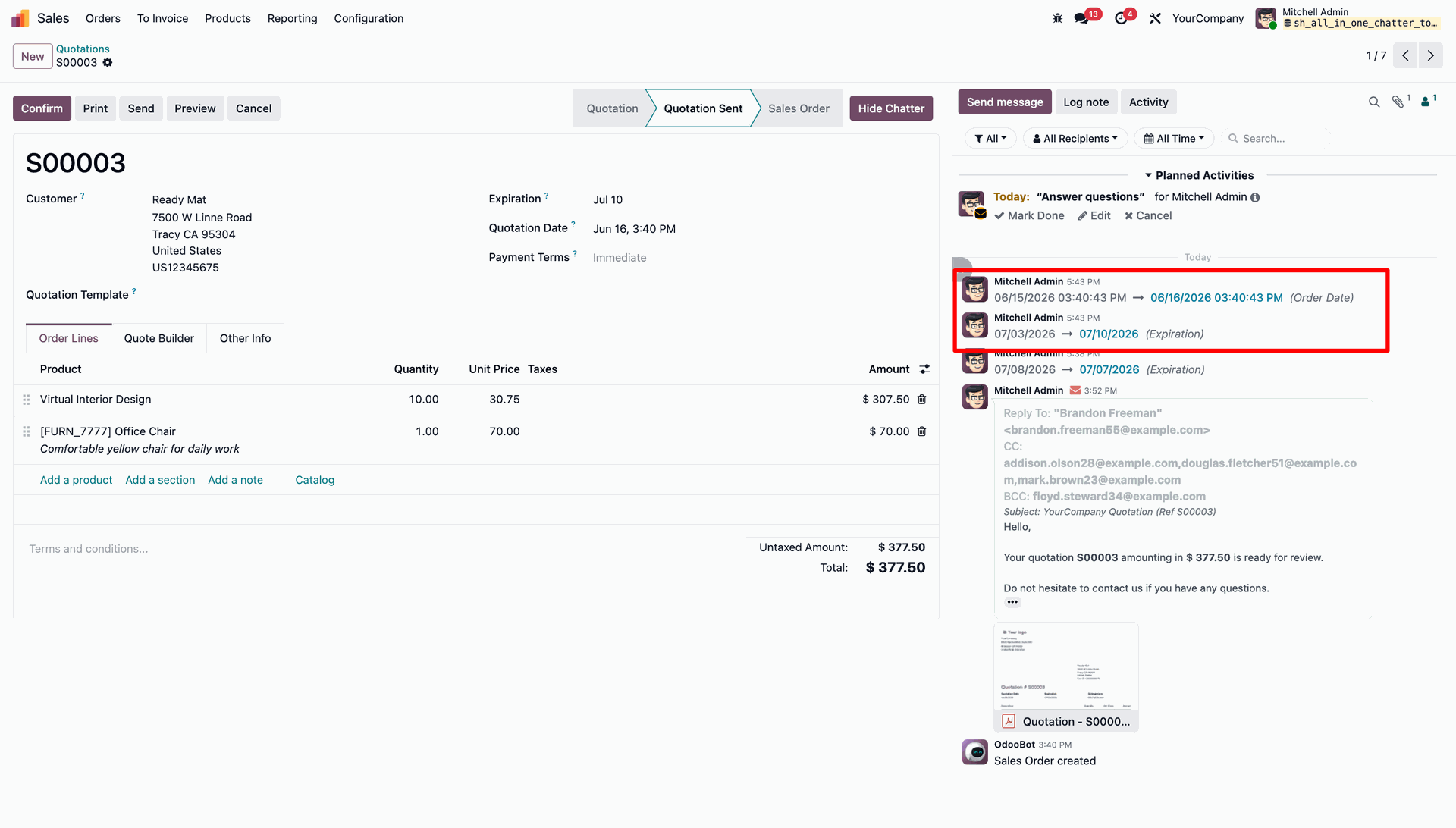
You can see the change logs for the selected fields displayed in the chatter.
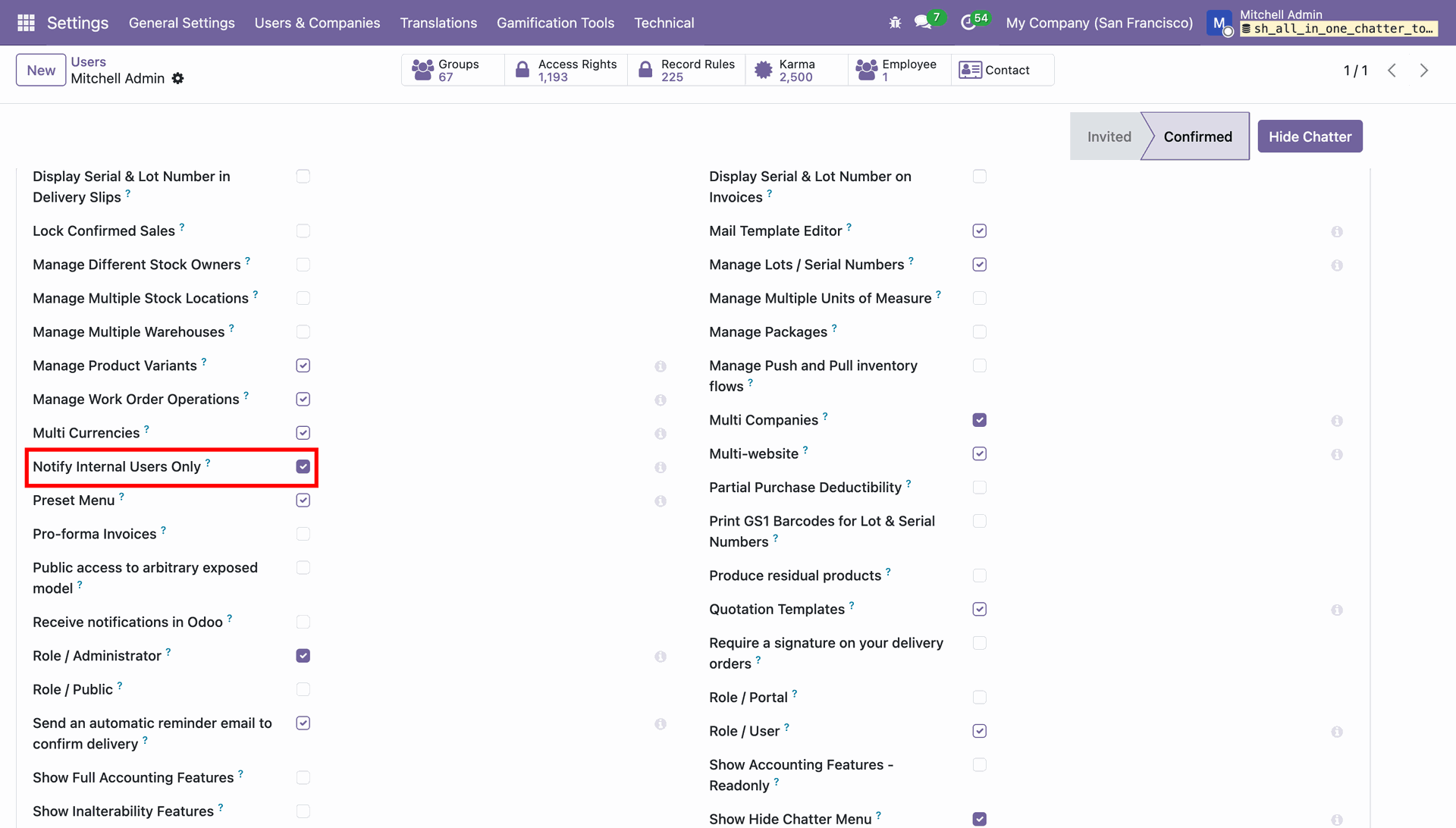
Enable "Notify Internal Users Only" in the user settings to restrict @mention suggestions to internal users.
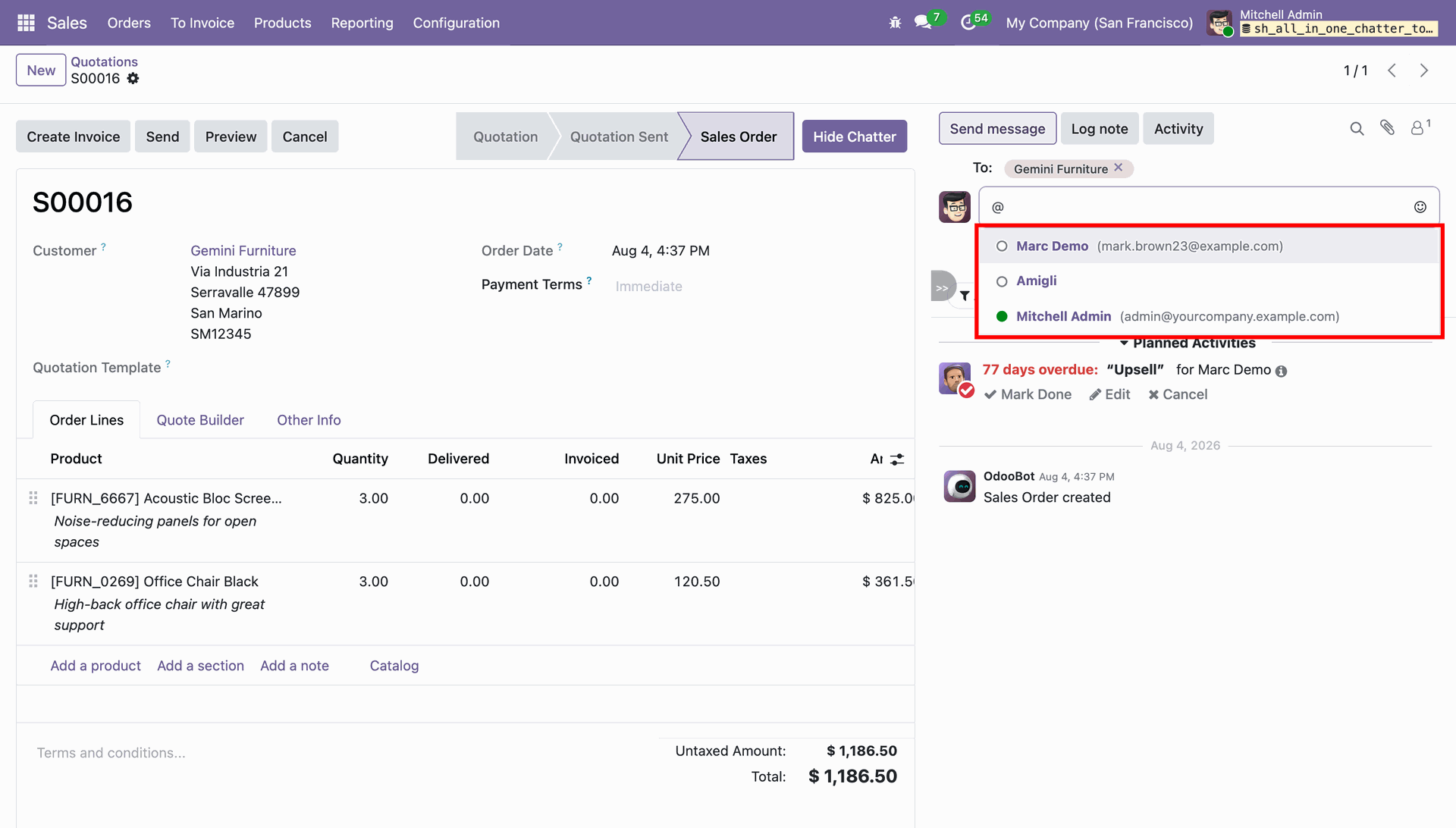
When typing "@" in the chatter composer, only internal users are displayed in the suggestion list.
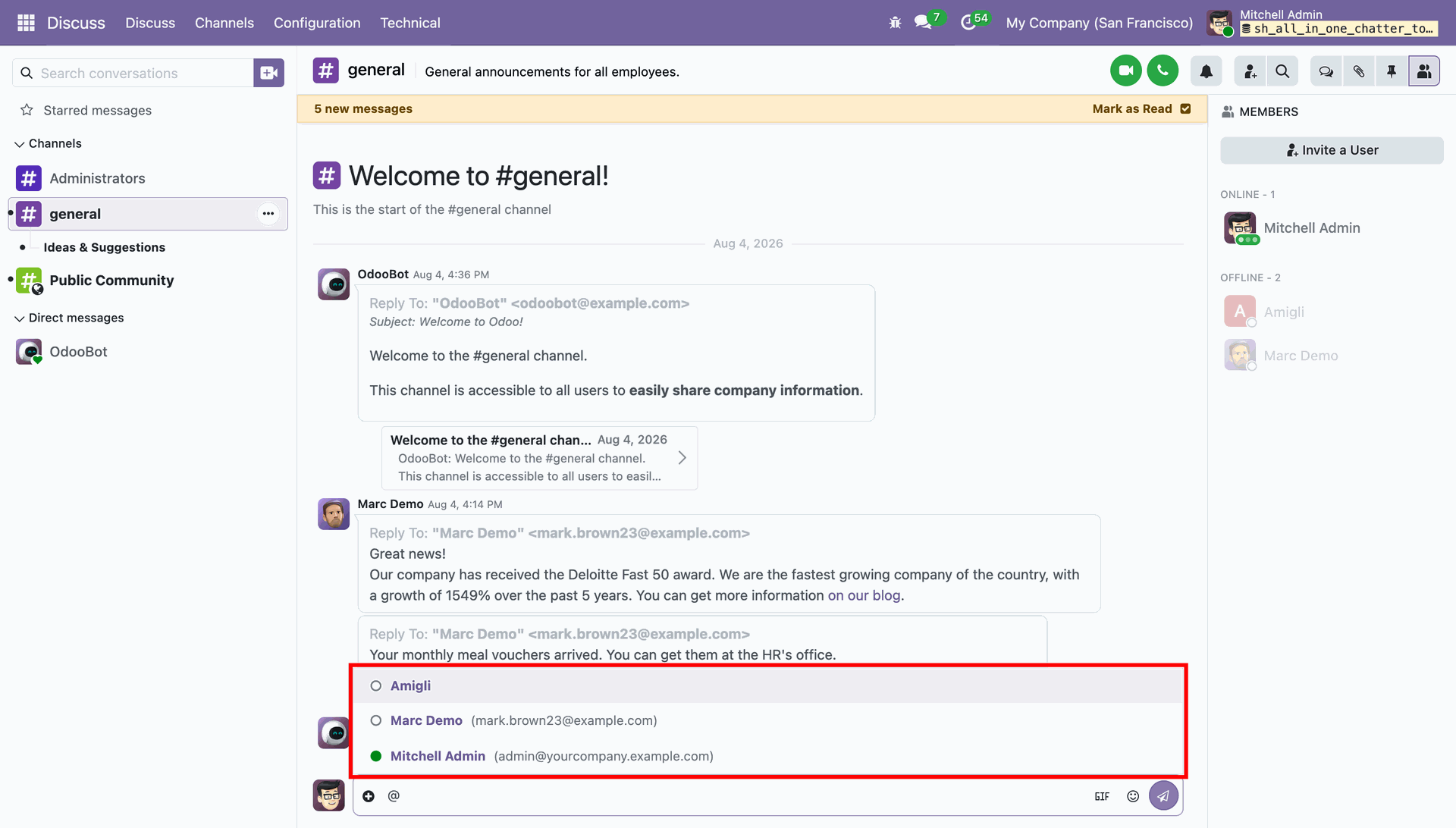
Similarly, typing "@" in Discuss channels and direct messages restricts suggestions to internal users only.
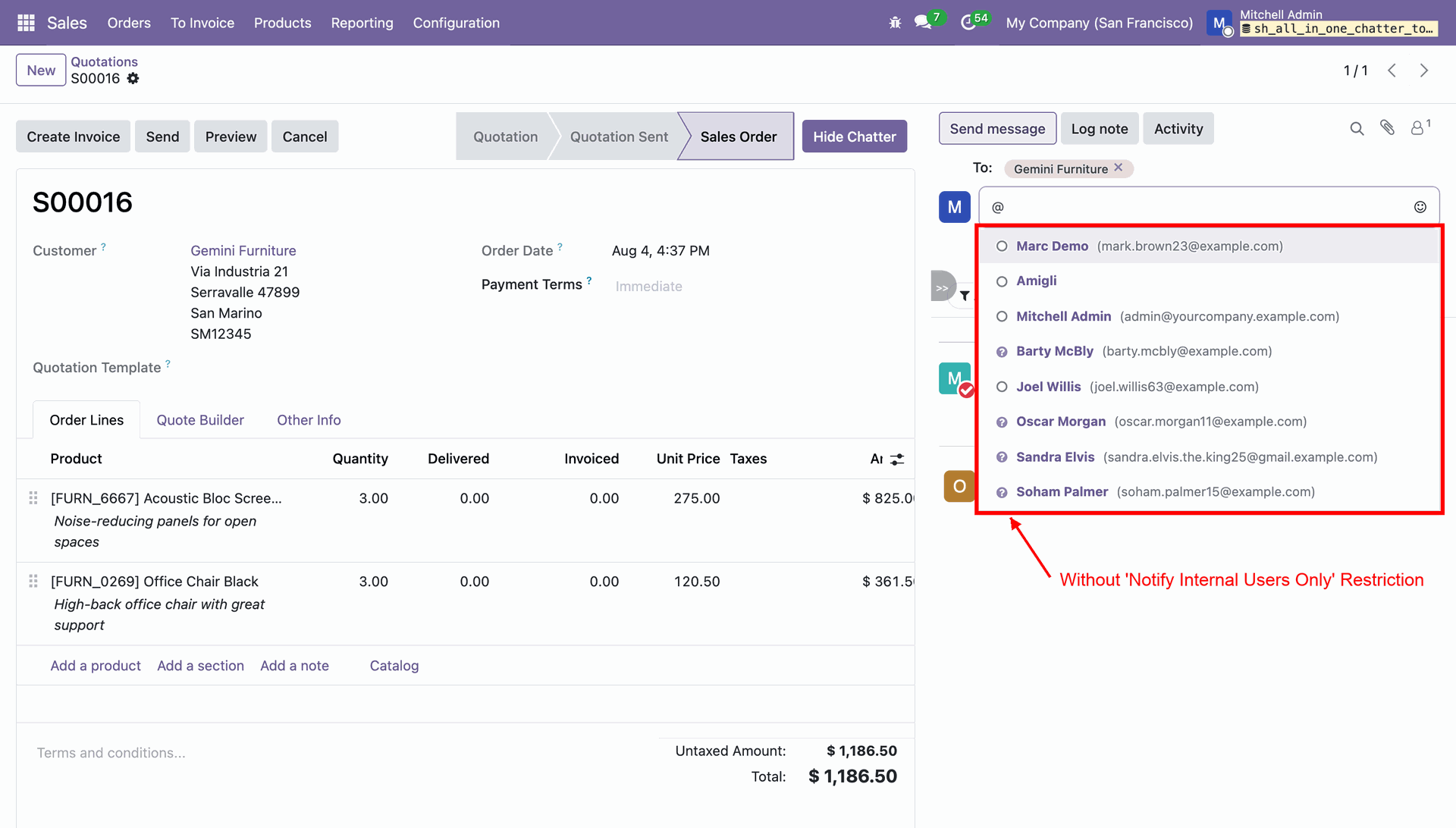
Without the "Notify Internal Users Only" option enabled, typing "@" suggests all contacts and external partners.
Version 19.0.3.0.0 | Released on : 21st October 2026
Version 19.0.2.0.0 | Released on : 09th July 2026
Version 19.0.1.0.0 | Released on : 04th June 2026
- Yes, this app works perfectly with Odoo Enterprise (Odoo.sh & Premise) as well as Community.
- No, this application is not compatible with odoo.com(odoo saas/Odoo Online)
- Yes, to test this module, please contact us at sales@softhealer.com.
- Please contact us at sales@softhealer.comto request customization.
- Yes, we provide free lifetime support for the version you purchased.
- Yes, you will receive lifetime free updates for the version of the module you purchased.
- No, there is no need to install any additional libraries.
- Yes, for version 12 and above, you need to purchase the module separately for each version you intend to use.
- No, exchanges or refunds are not allowed. Please make sure to select the correct version before purchasing.
- You can contact us at support@softhealer.com for language translation support. We use Google Translator tools to provide translations in multiple languages, so the accuracy may vary. We welcome your suggestions to help improve translations.
Discover Our Latest Apps