

 Easy to Manage
 Dedicated Support
















 Scan to email sales





All In One Cancel - Advance

This module helps to cancel sale orders, purchase orders, invoices, payments, inventory (inventory transfer, stock move & scrap Orders), landed costs, HR Expenses, point of sale orders. You can also cancel multiple records from the tree view.
Related Modules
Key Features
Cancel Sale Orders
Users can cancel individual orders as well multiple orders(from tree view) with the
following options:
- Cancel Only
- Cancel And Reset To Draft
- Cancel And Delete
Option to Cancel Delivery Order or Cancel Invoice and Payment or both for
respective sale order.
Cancel Invoice and Payment
Users can cancel individual orders as well multiple orders(from
tree view) with the following options:
- Cancel Only
- Cancel And Reset to Draft
- Cancel And Delete
Cancel HR Expense
Users can cancel individual expense as well multiple
expenses(from tree view) with the following options:
- Cancel Only
- Cancel And Reset To Draft
- Cancel And Delete
Option to Cancel Payment for respective expense.
Cancel Point of Sale Orders
Users can cancel individual orders as well multiple orders(from
tree view) with the following options:
- Cancel Only
- Cancel And Reset To Draft
- Cancel And Delete
Option to Cancel Delivery Order or Cancel Invoice and Payment or both for
respective POS order.
Cancel Purchase Orders
Users can cancel individual orders as well multiple orders(from
tree view) with the following options:
- Cancel Only
- Cancel And Reset To Draft
- Cancel And Delete
Option to Cancel Receipt or Cancel Bill and Payment or both for respective
purchase order.
Cancel Inventory
Users can cancel individual stock pickings, scrap orders and
stock moves, as well as multiple orders(from the tree view) with the following options:
- Cancel Only
- Cancel And Reset To Draft
- Cancel And Delete
Cancel Landed Cost
Users can cancel individual orders as well multiple orders(from
tree view) with the following options:
- Cancel Only
- Cancel And Reset To Draft
- Cancel And Delete
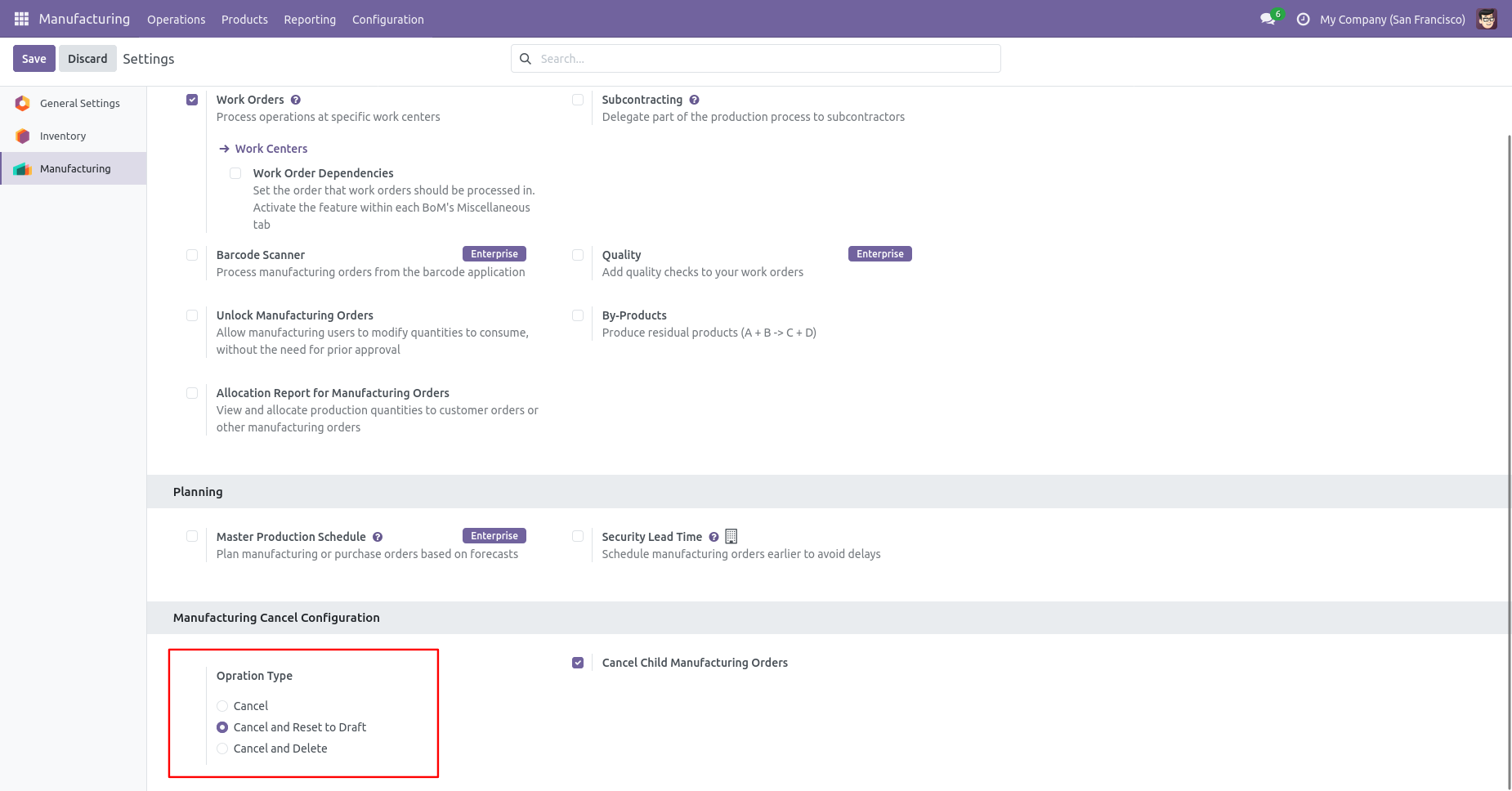
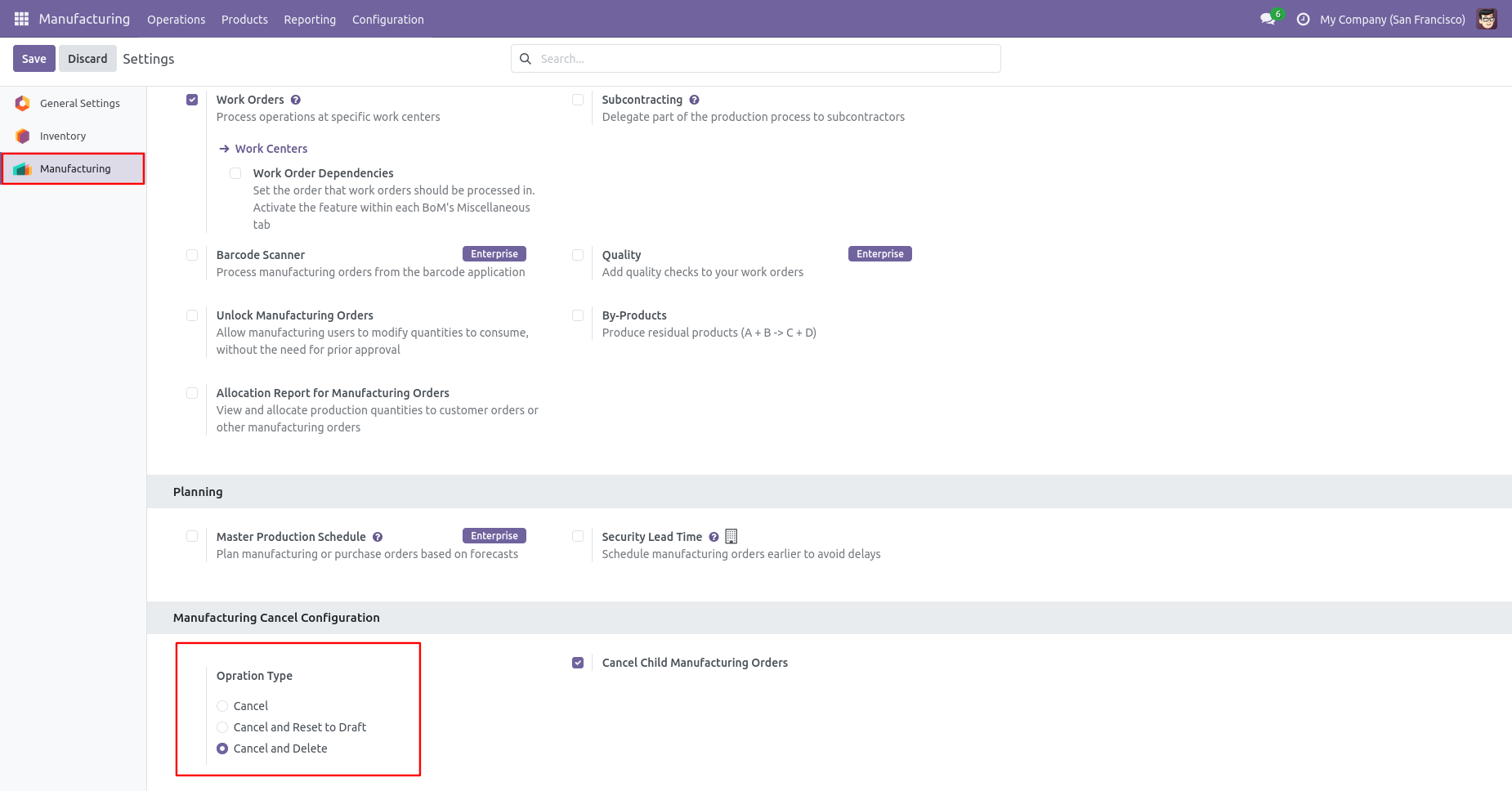
Cancel Manufacturing Order
Users can cancel individual orders as well multiple orders(from
tree view) with the following options:
- Cancel Only
- Cancel And Reset To Draft
- Cancel And Delete
Mandatory Cancellation Reason
Require users to provide a reason before cancelling a record or transaction.
Cancellation Preview
Preview cancellation details before confirming the cancellation process.
Approval-Based Cancellation 
Require approval from designated approvers before processing cancellation requests.


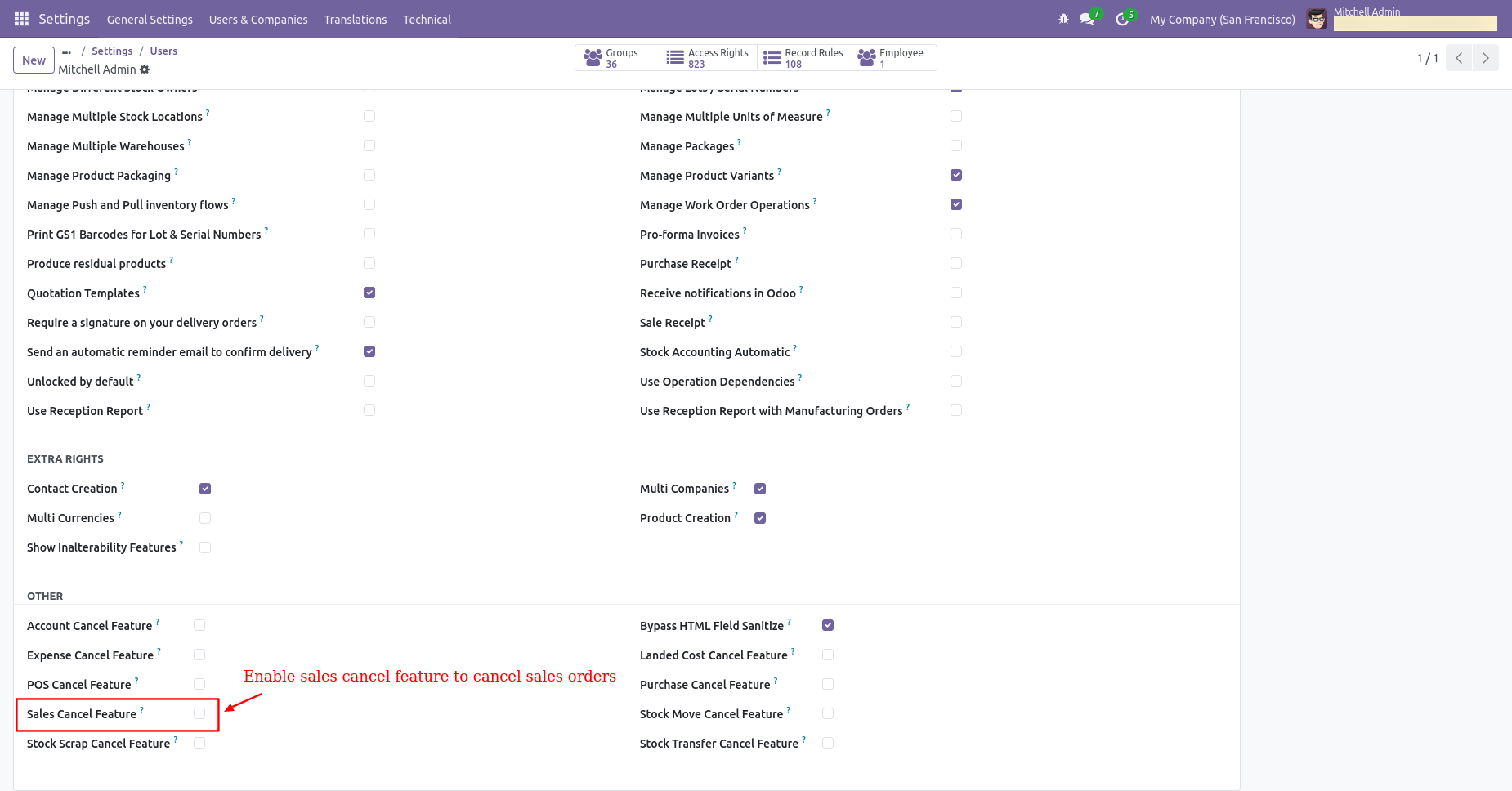
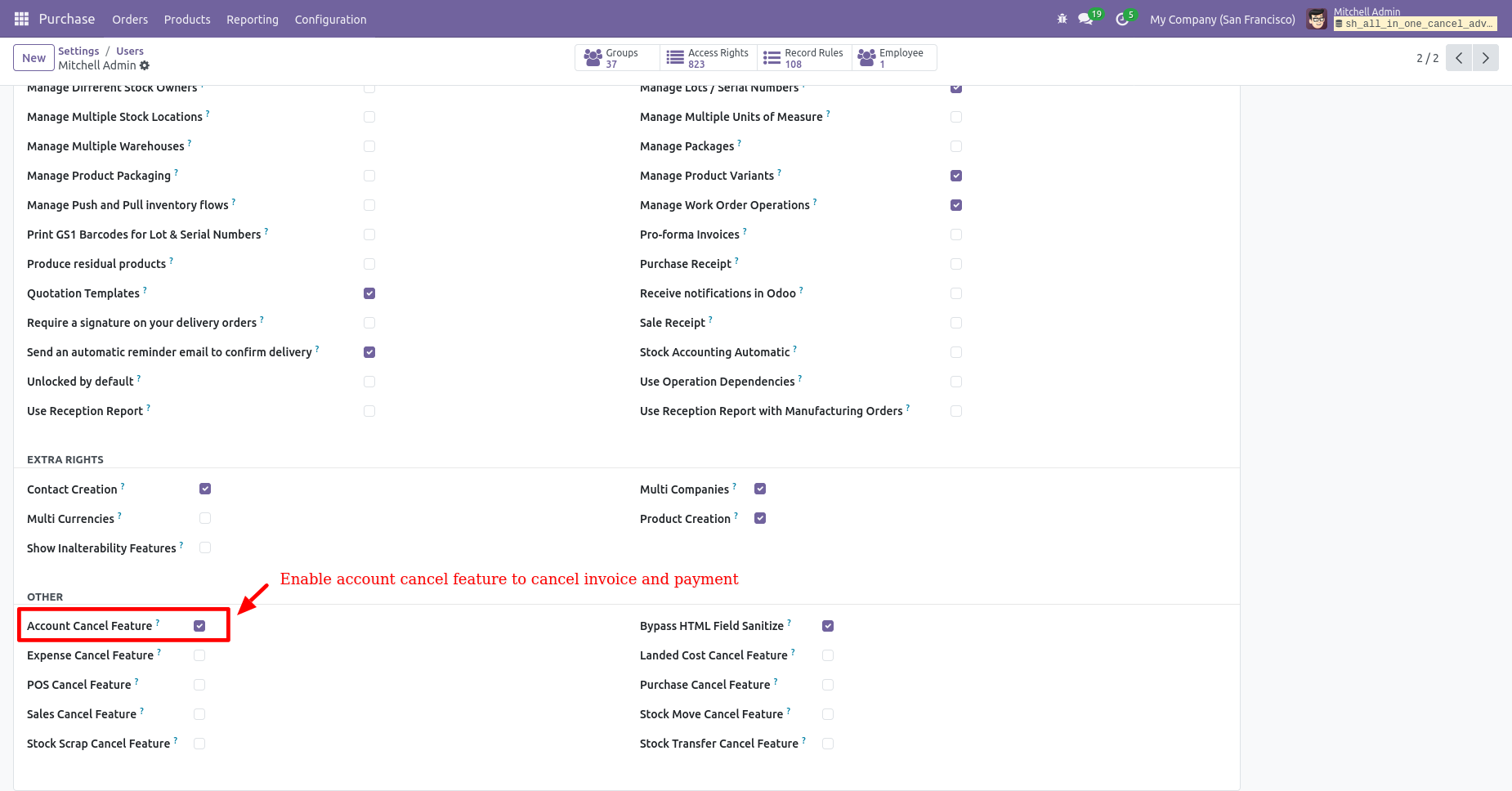
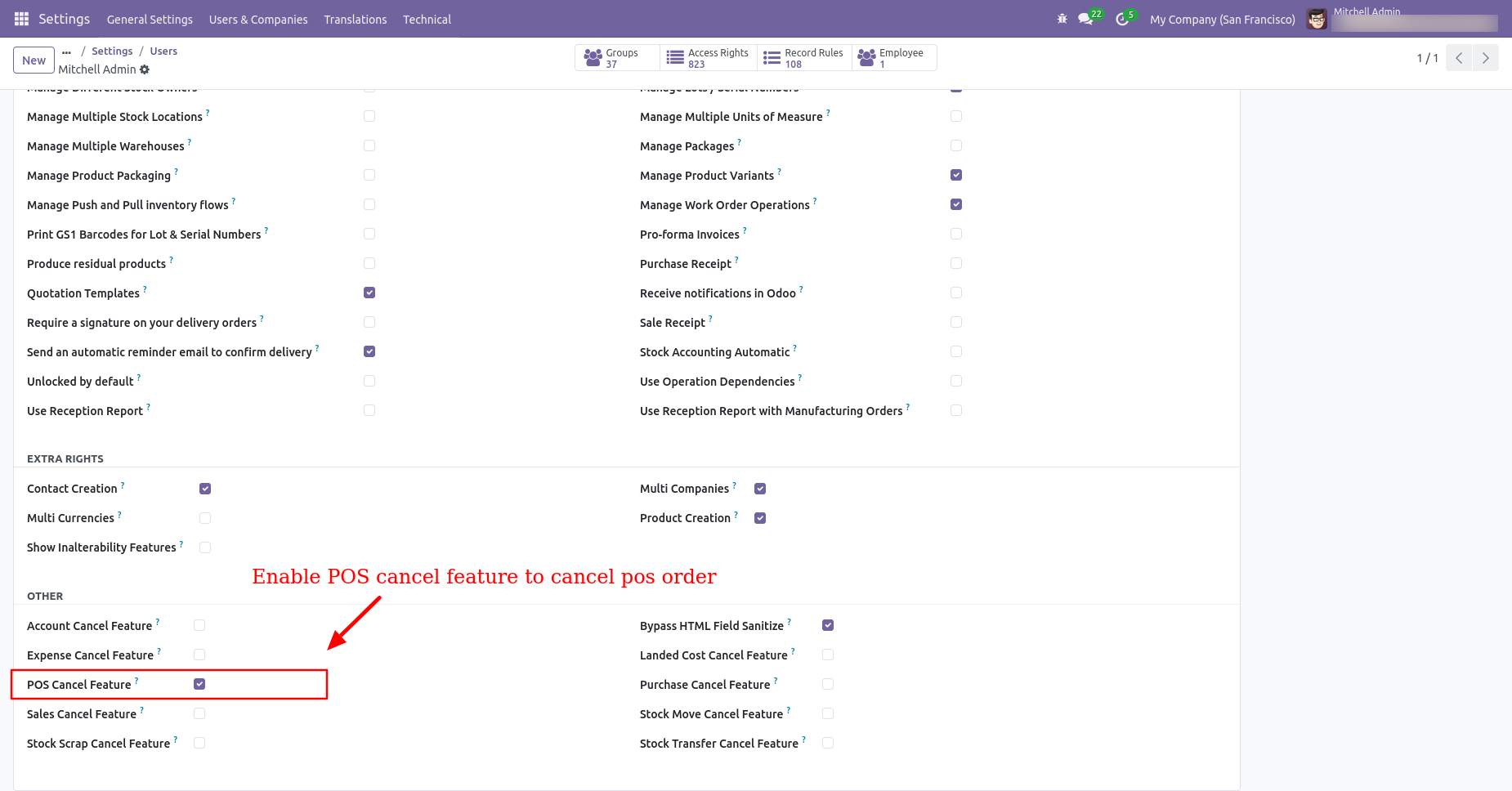
Tick the "Sales Cancel Feature" to cancel created sale orders.
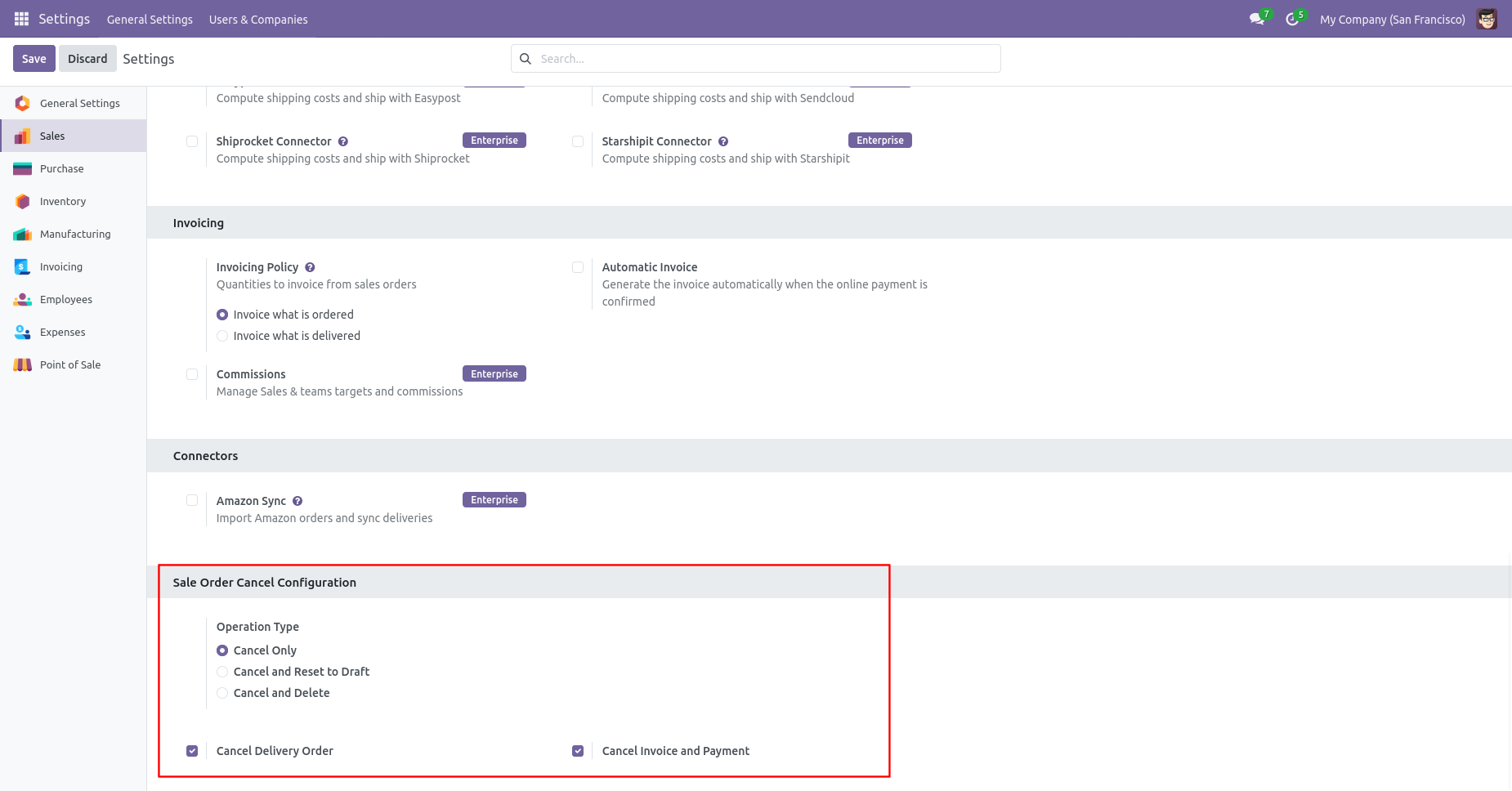
When you want to cancel a sale order only then choose the
"Cancel Only" option.
Enable "Cancel Delivery Order" and "Cancel Invoice & Payment"
to auto-cancel them with the SO.
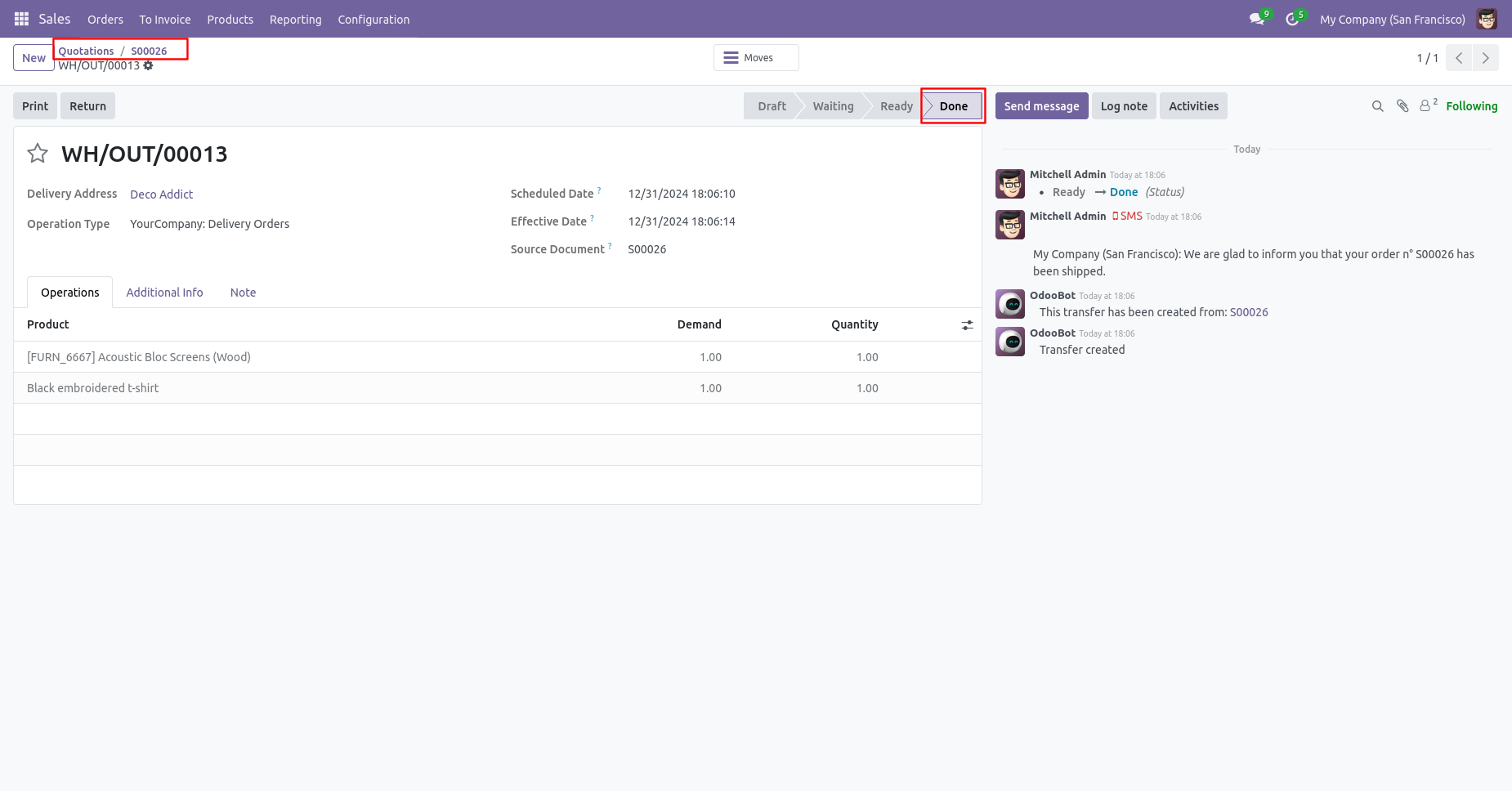
We confirm the quotation and create a sale order.
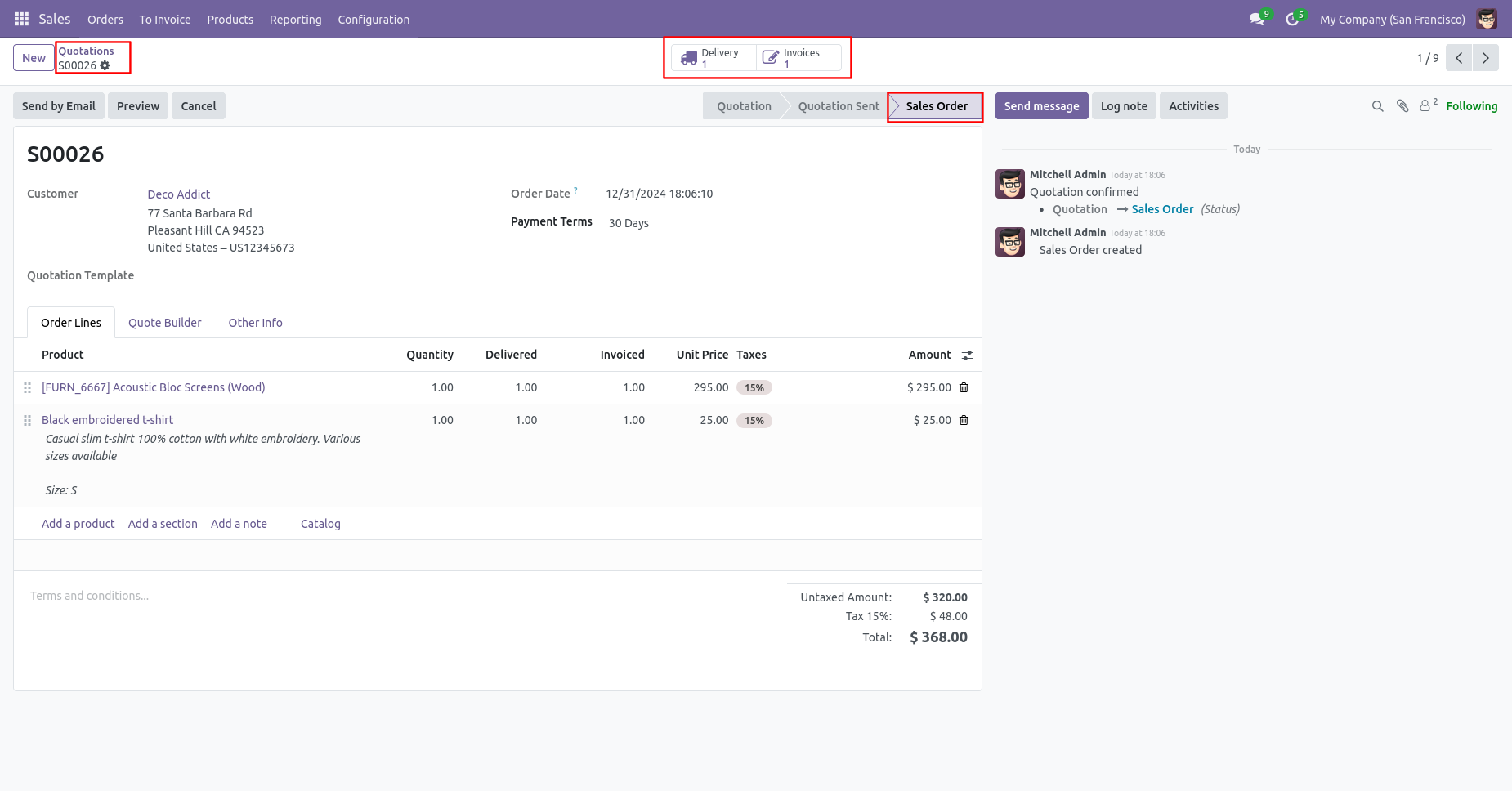
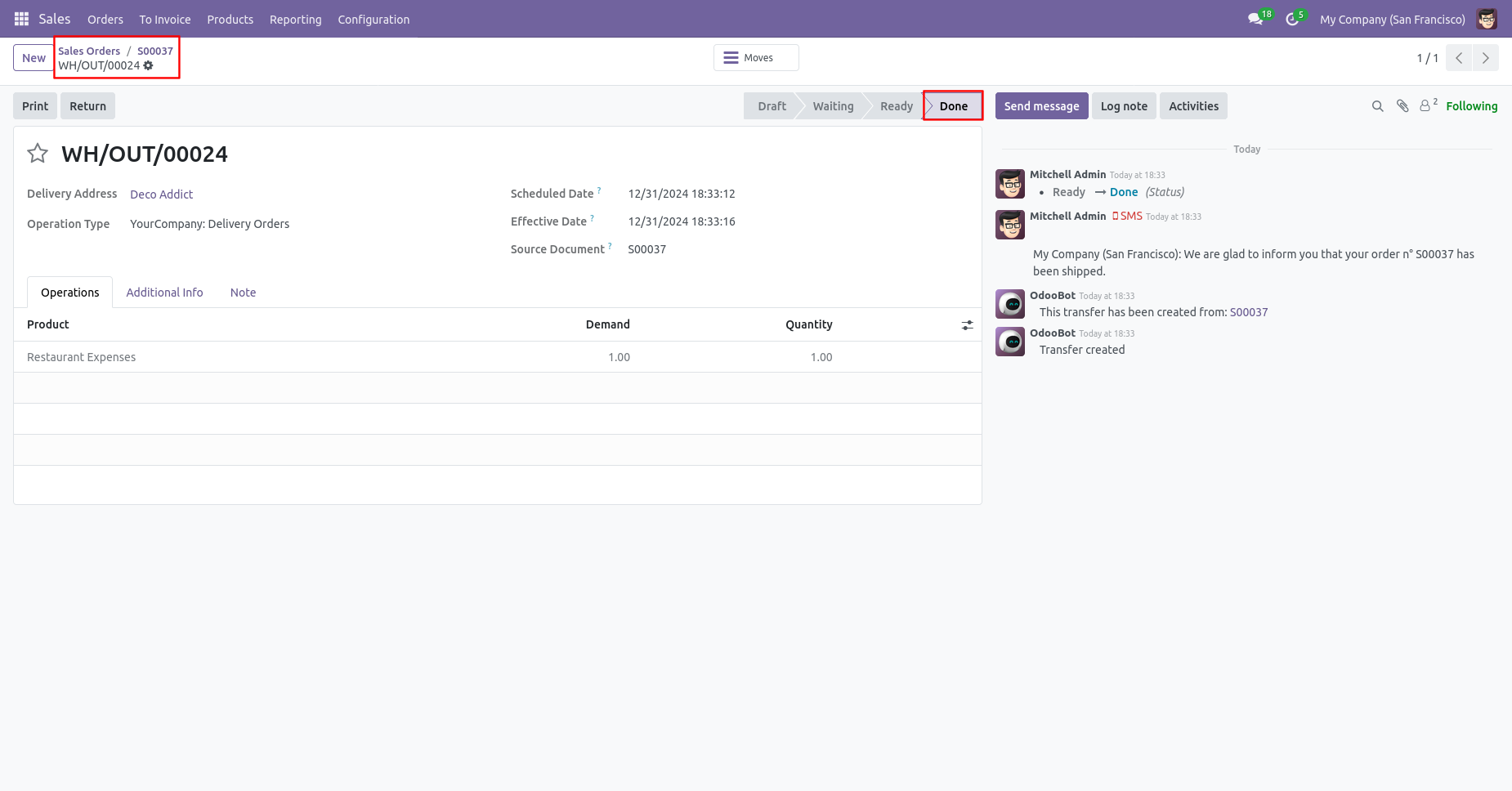
The delivery order is in the "Done" stage.
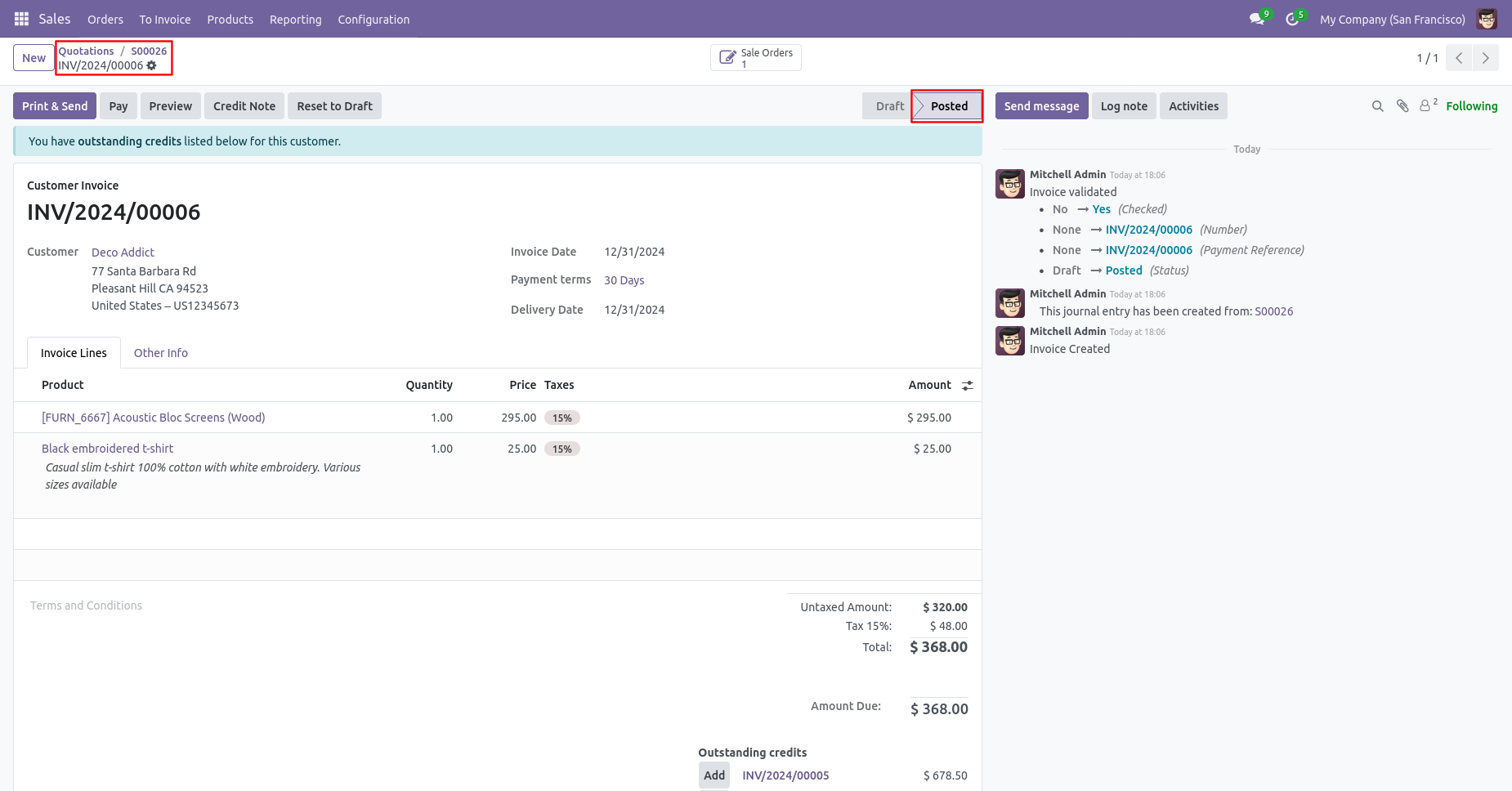
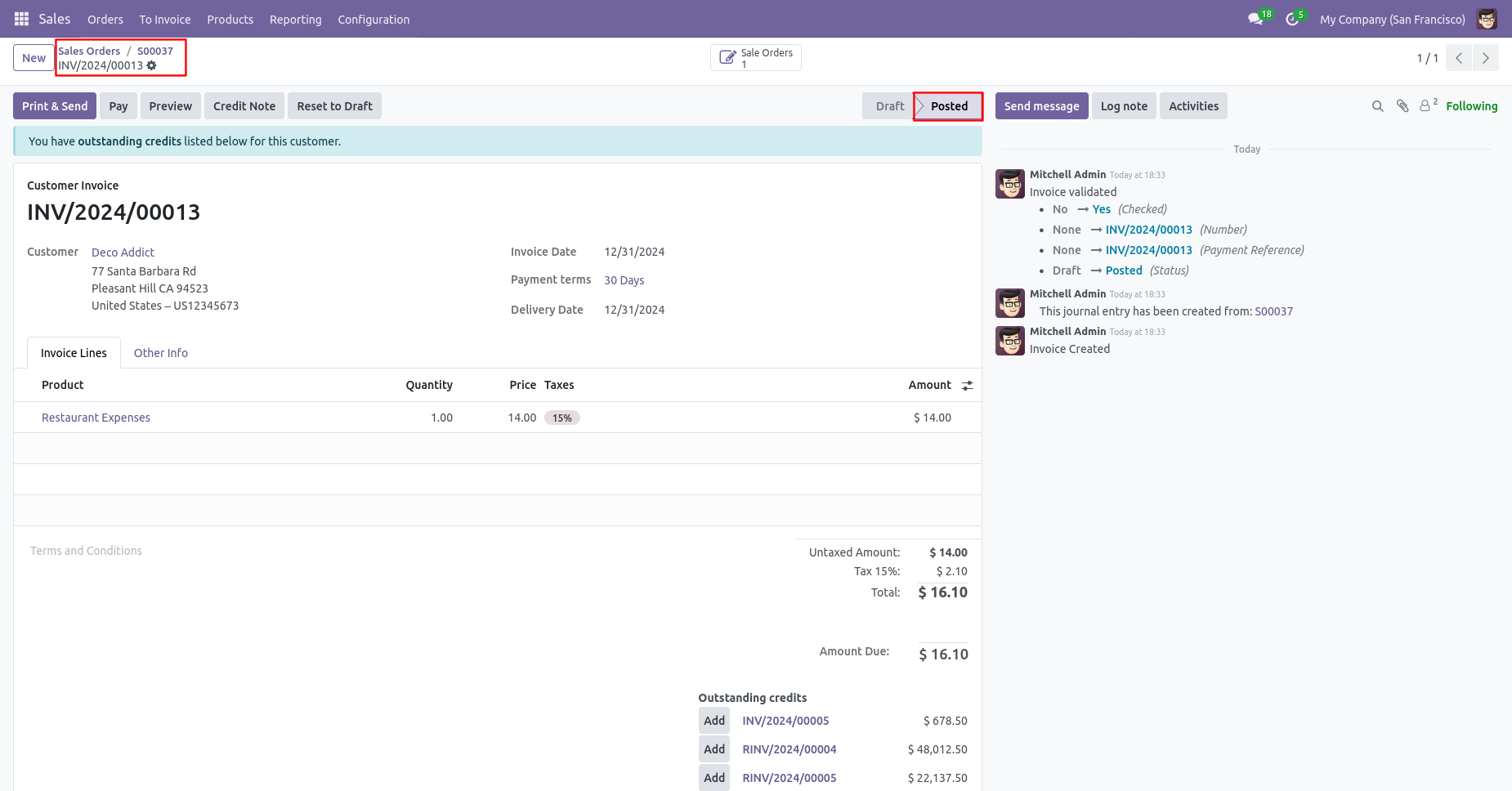
The invoice is in the "Posted" stage.
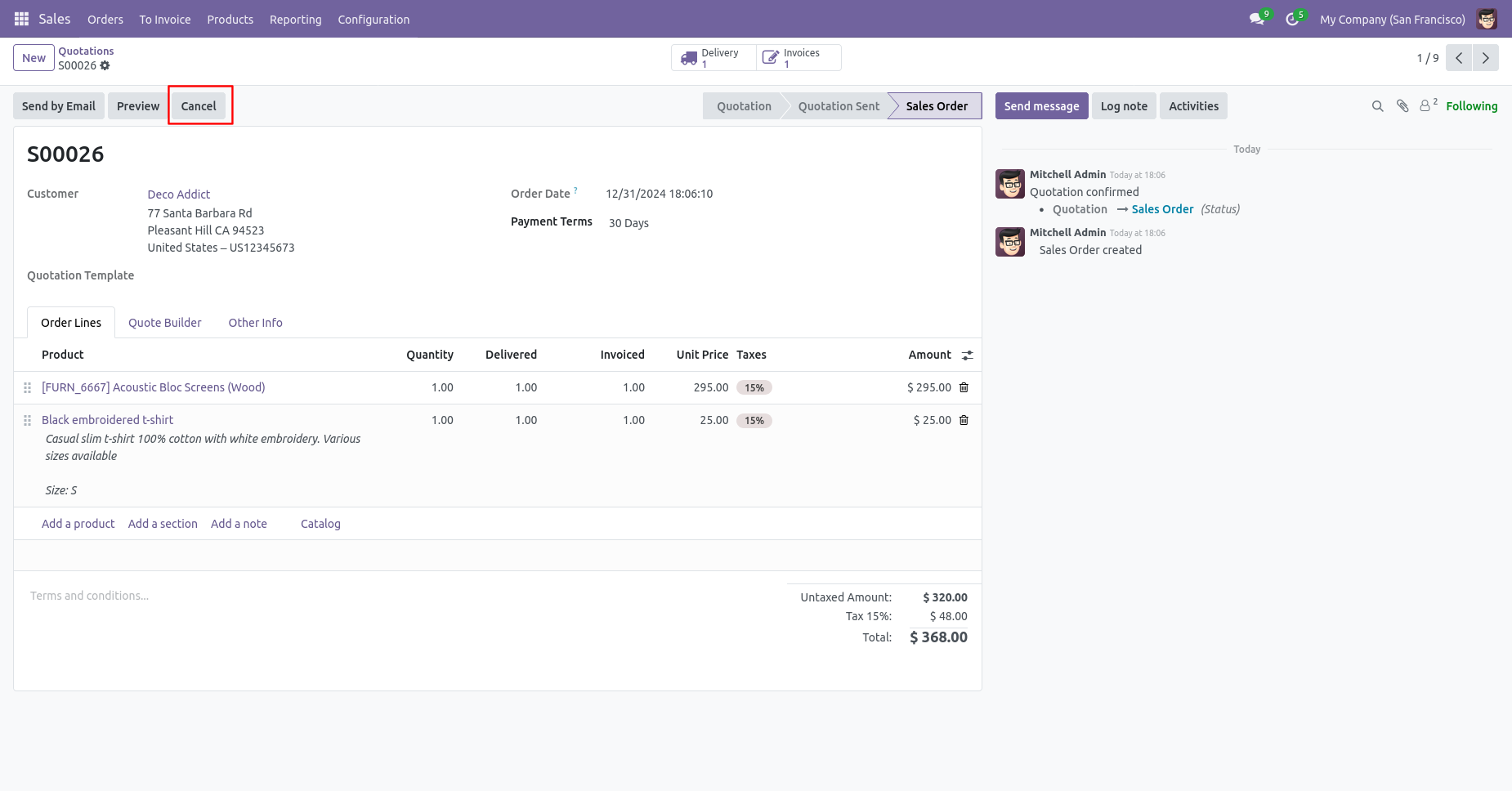
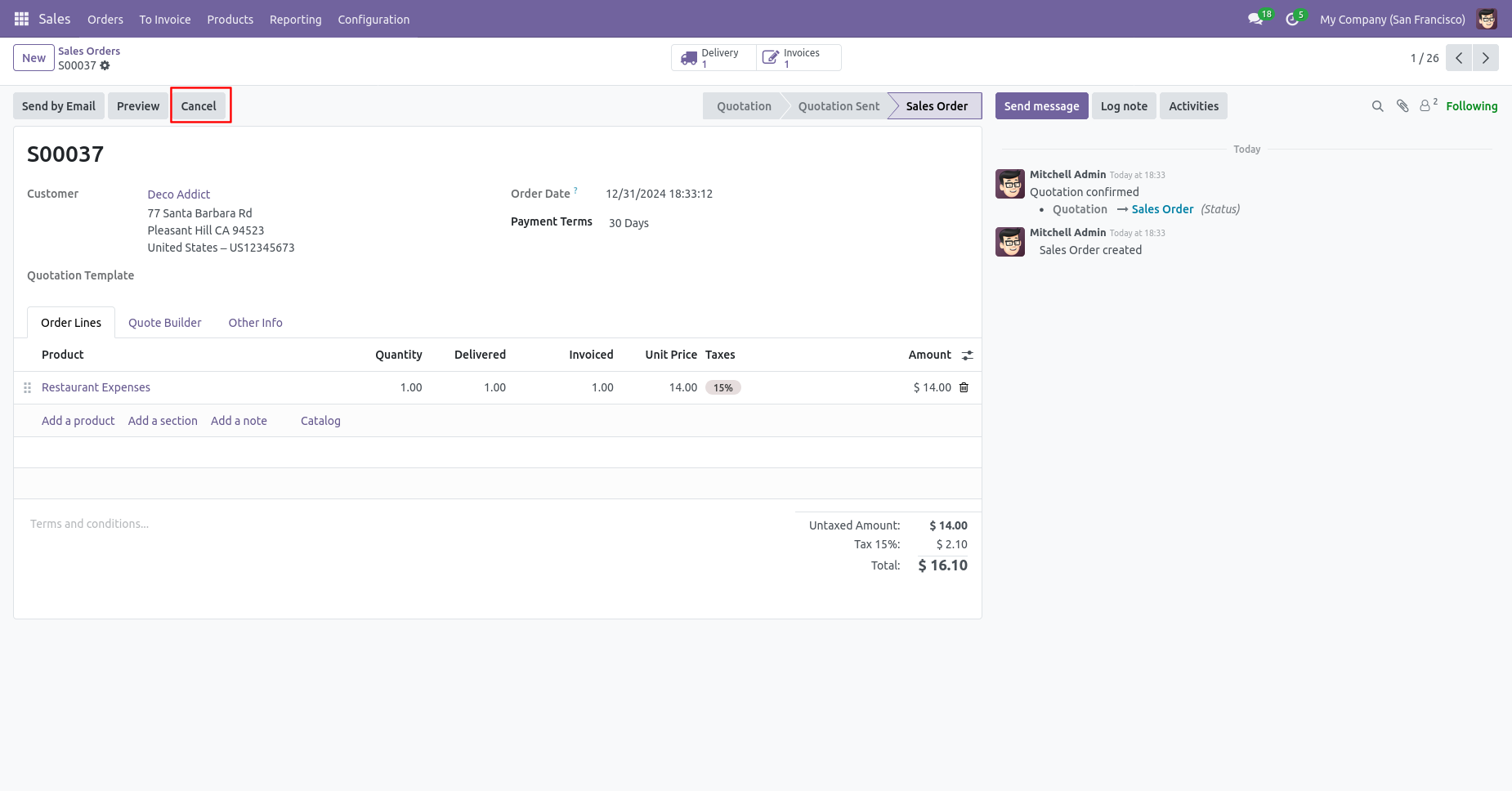
Press the "Cancel" button to cancel created sale order.
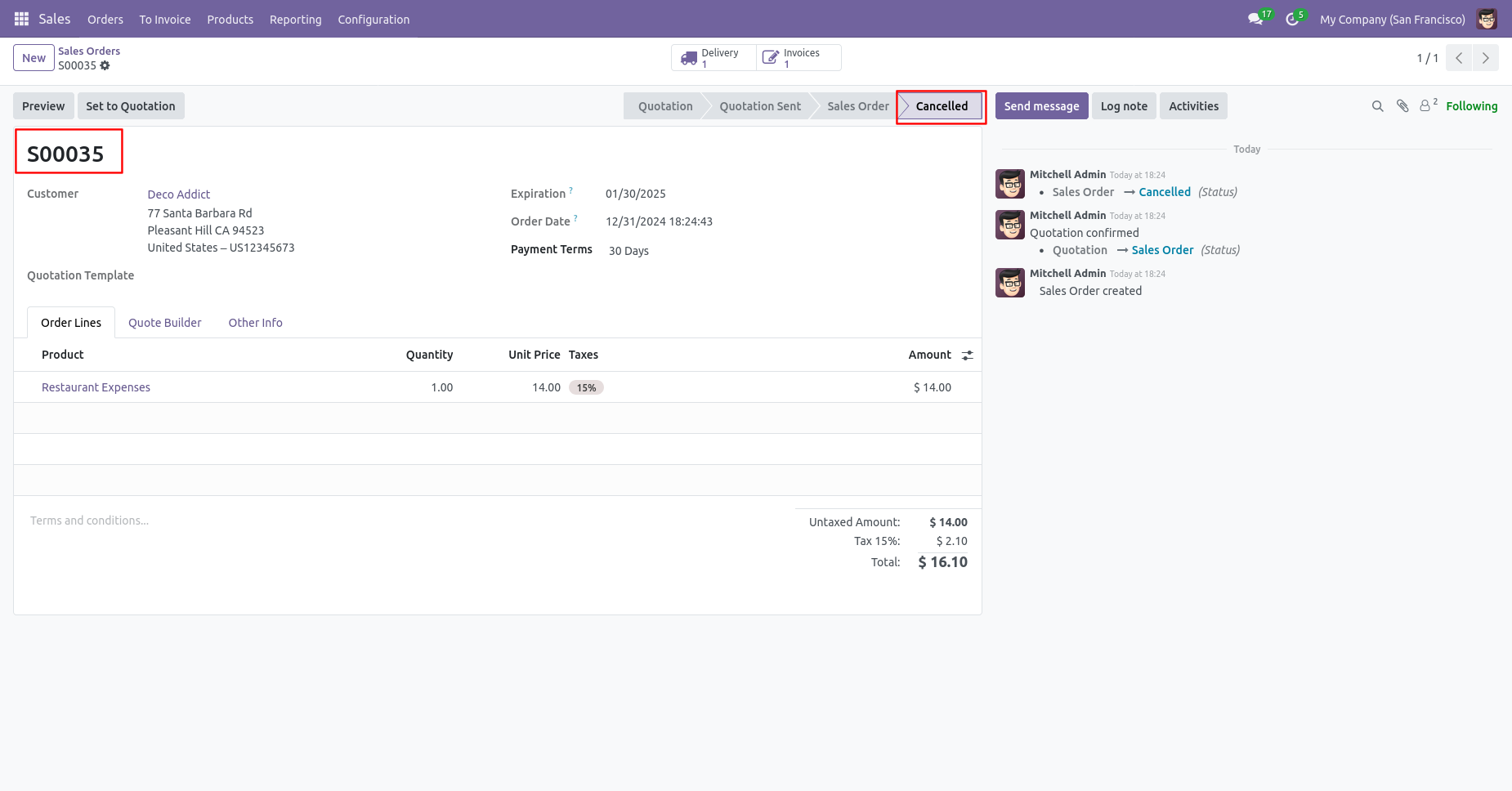
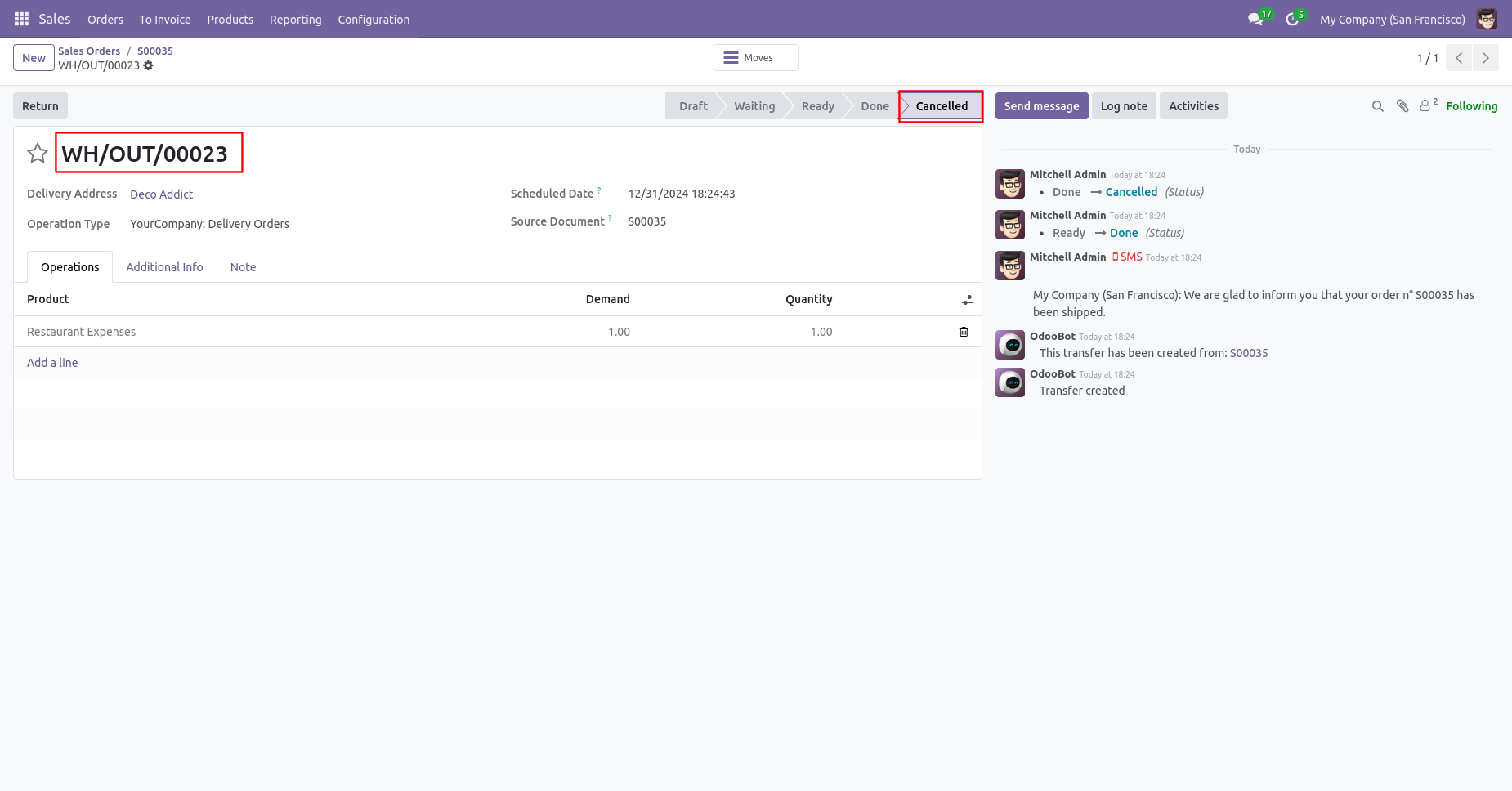
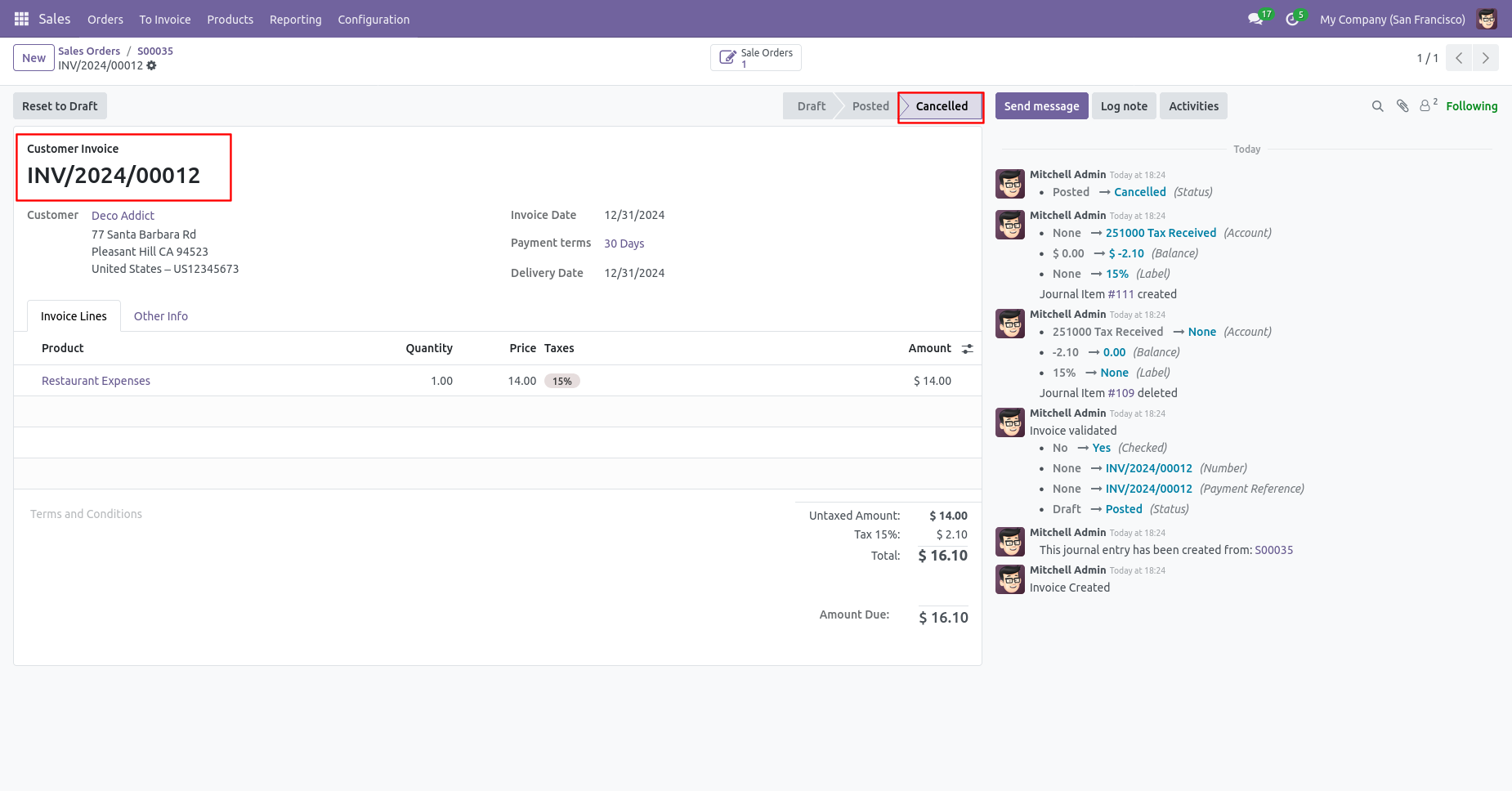
When you cancel a sale order then the sale order is cancelled and the state is changed to "cancelled".
The delivery order is automatically canceled as well.
The invoice is automatically canceled as well.
When you want to cancel a sale order and reset to the draft
state tick "Cancel And Reset To Draft".
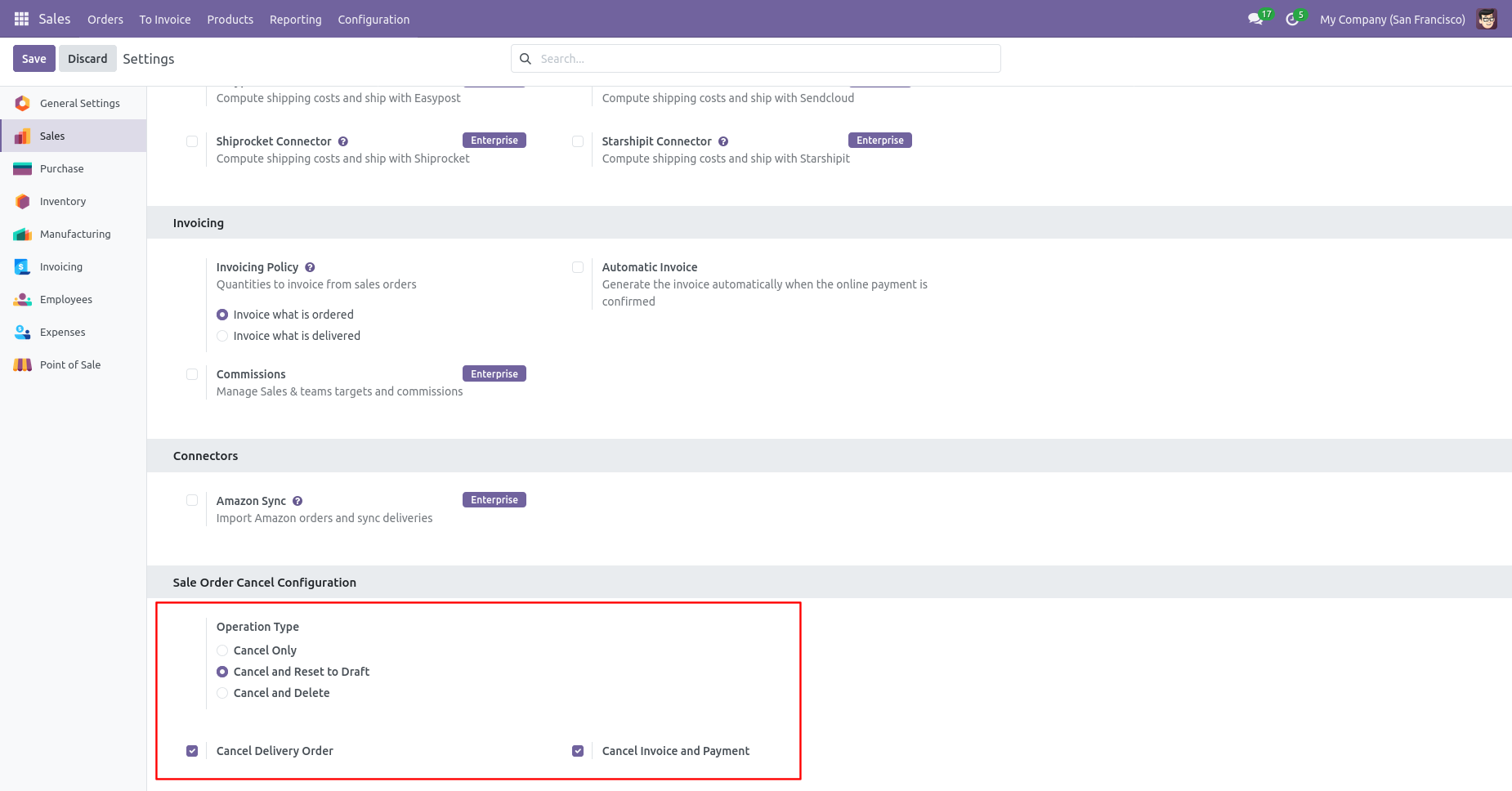
If you want to cancel sale orders, delivery orders & invoice
then you can choose both options "Cancel Delivery Order" &
"Cancel Invoice and Payment".
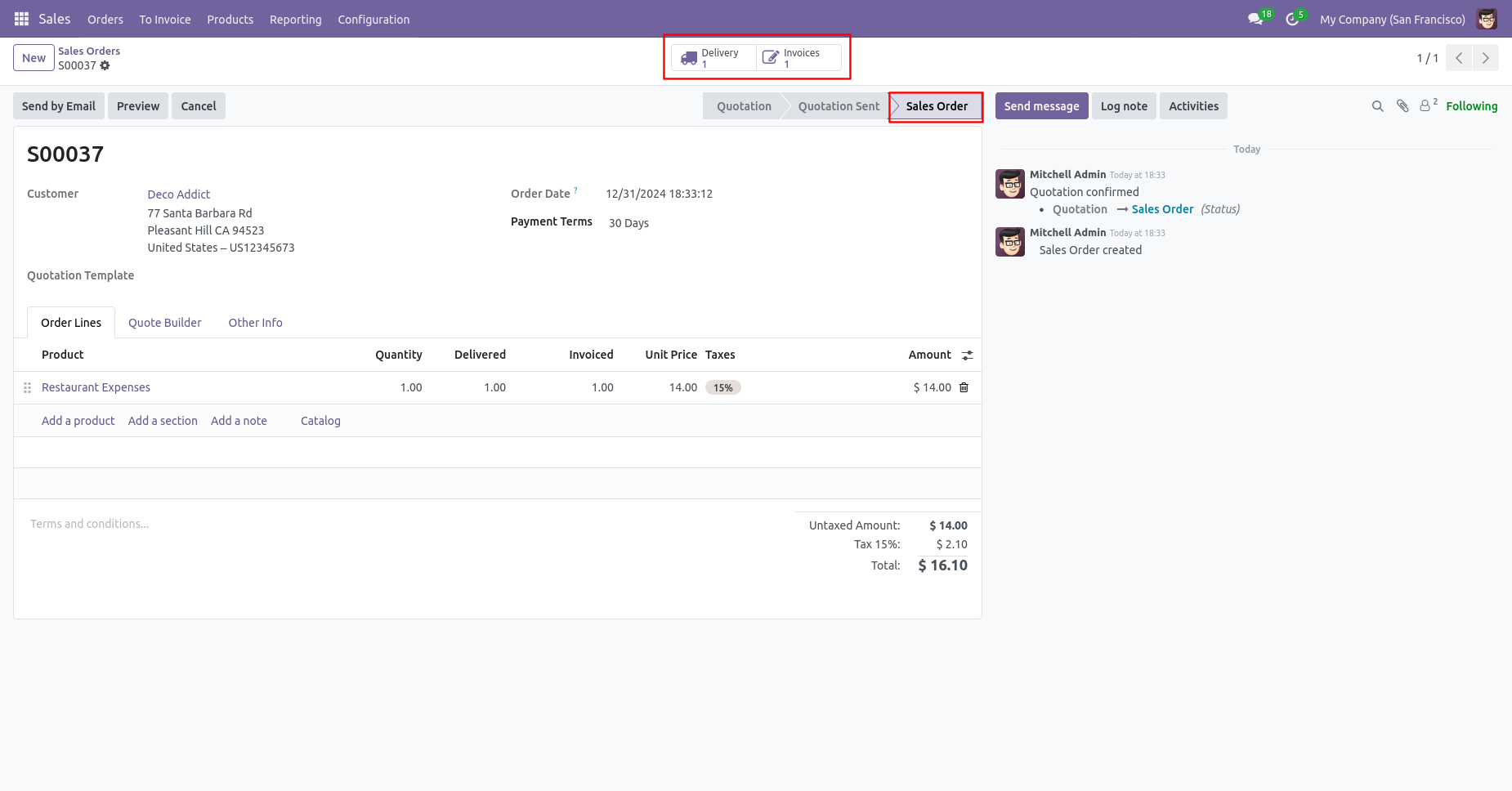
Now we create sale order, delivery orders & invoice.
Our delivery order is in the done state.
Our invoice is paid.
Press the "Cancel" button to cancel created sale order.
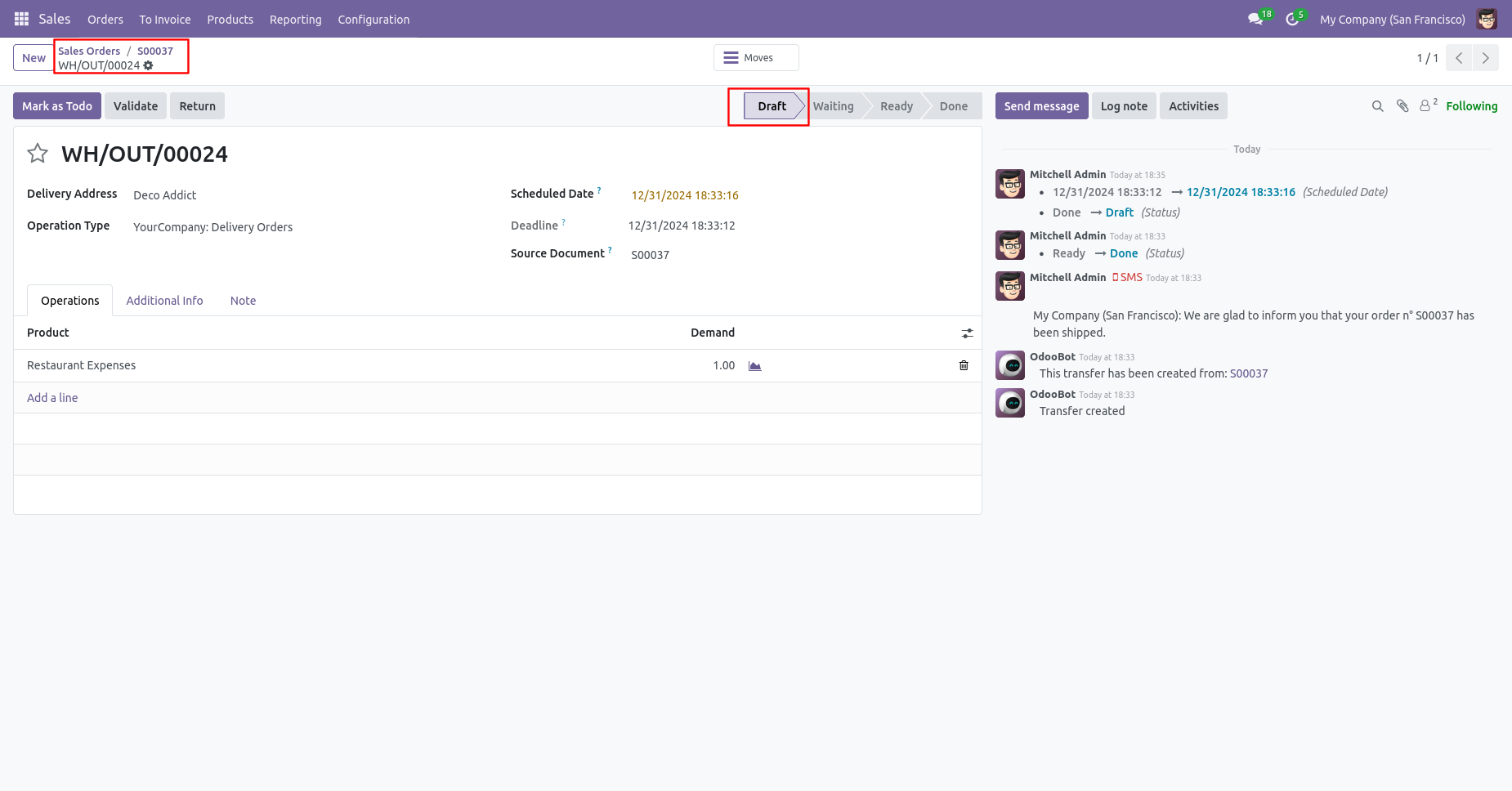
After canceling the sale order it reset to the draft.
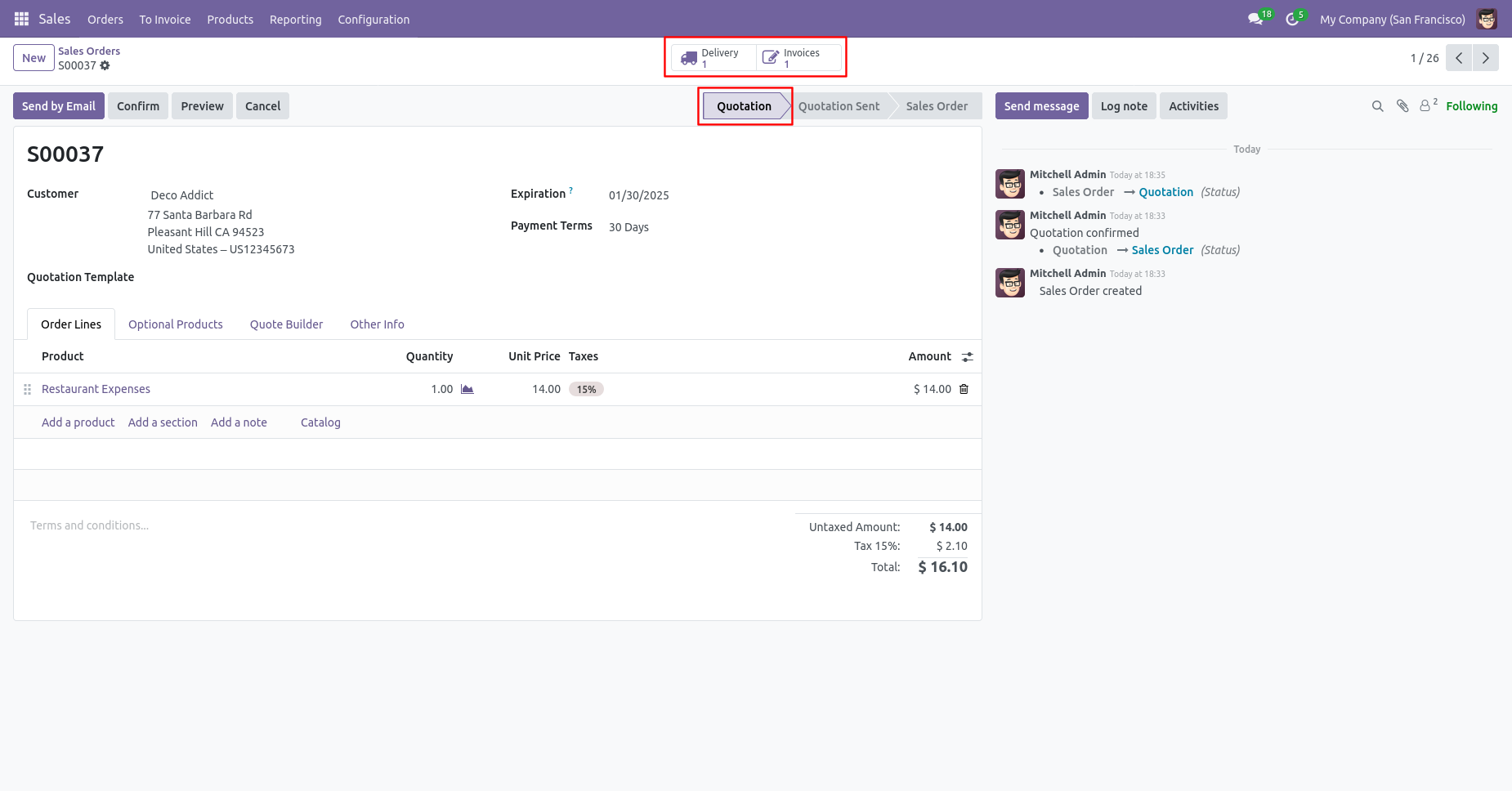
Our delivery order is also reset to the draft.
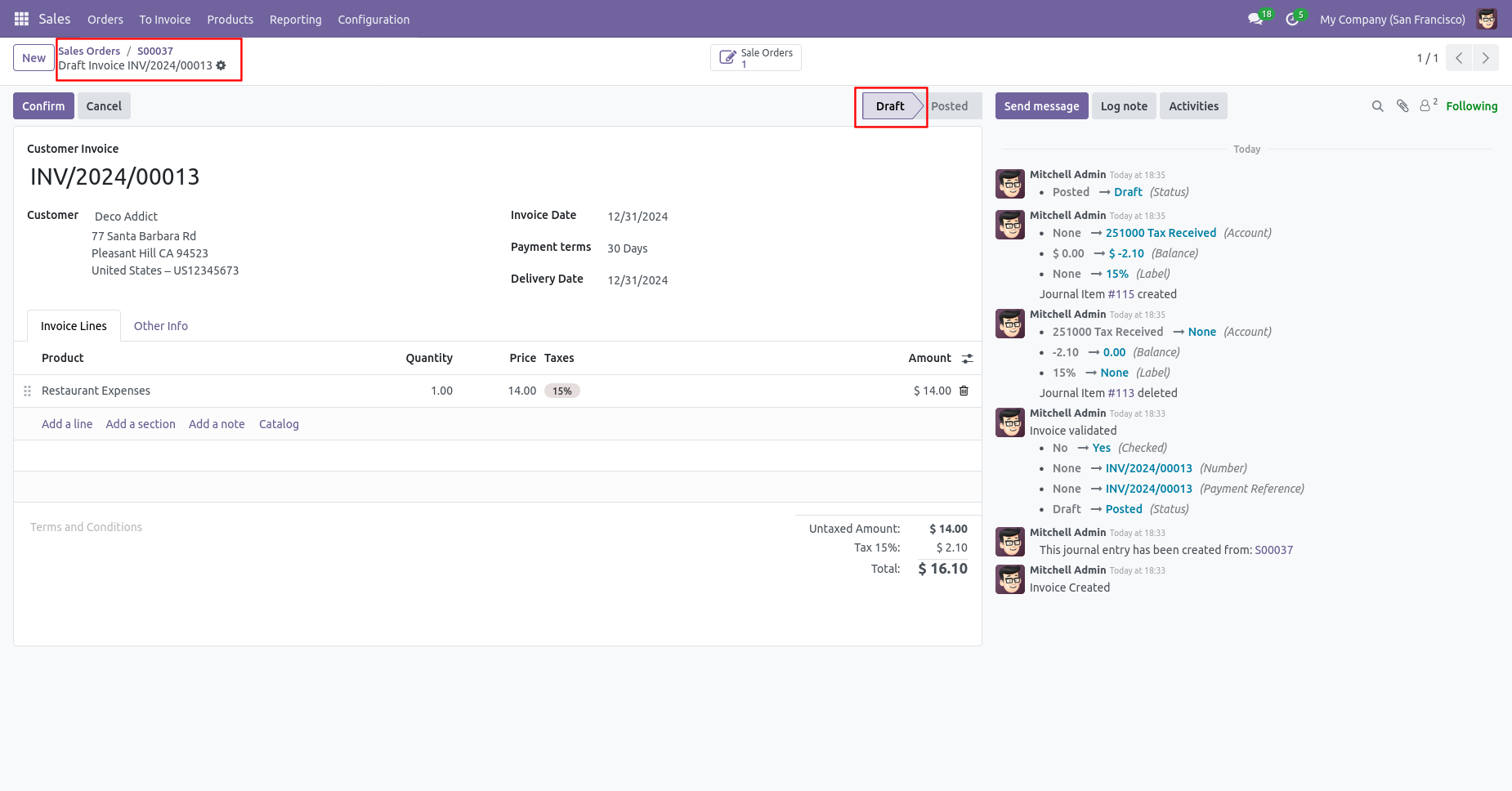
Our invoice is also reset to the draft.
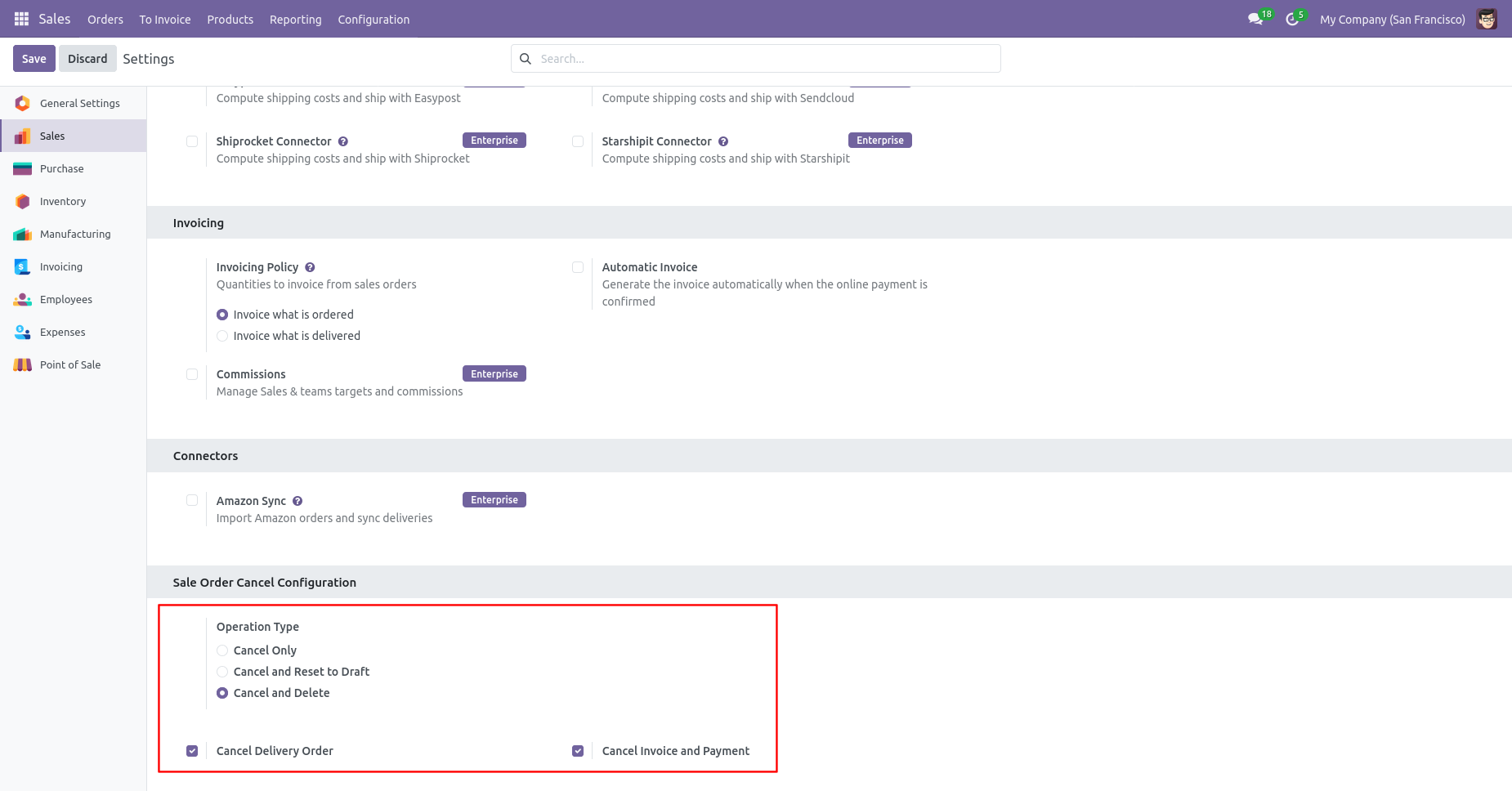
When you want to Cancel & Delete a sale order then choose the
"Cancel And Delete" option.
If you want to cancel sale orders, delivery orders & invoice
then you can choose both options "Cancel Delivery Order" &
"Cancel Invoice and Payment".
Now we create sale order, delivery orders & invoice.
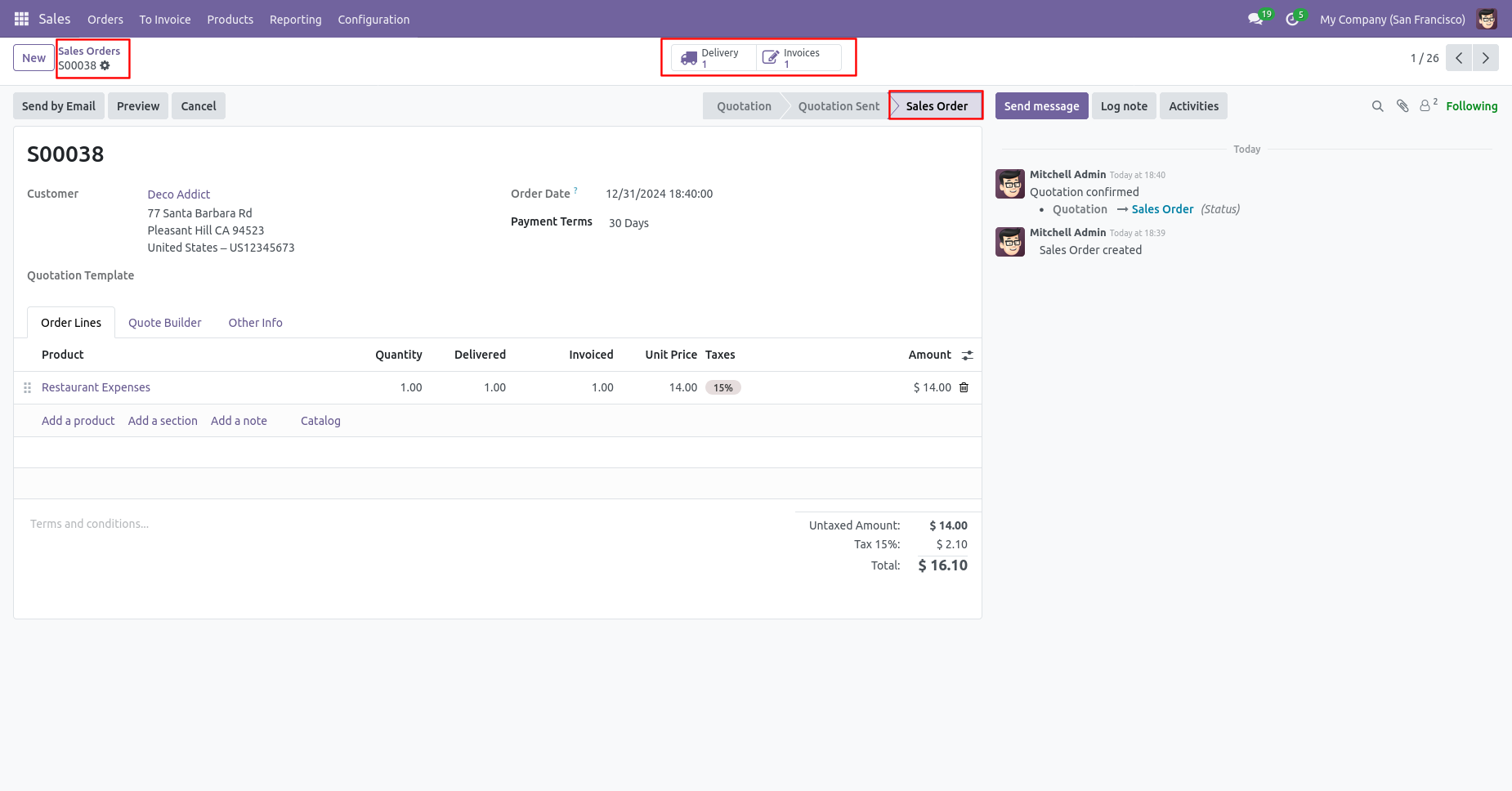
Our delivery order is in the done state.
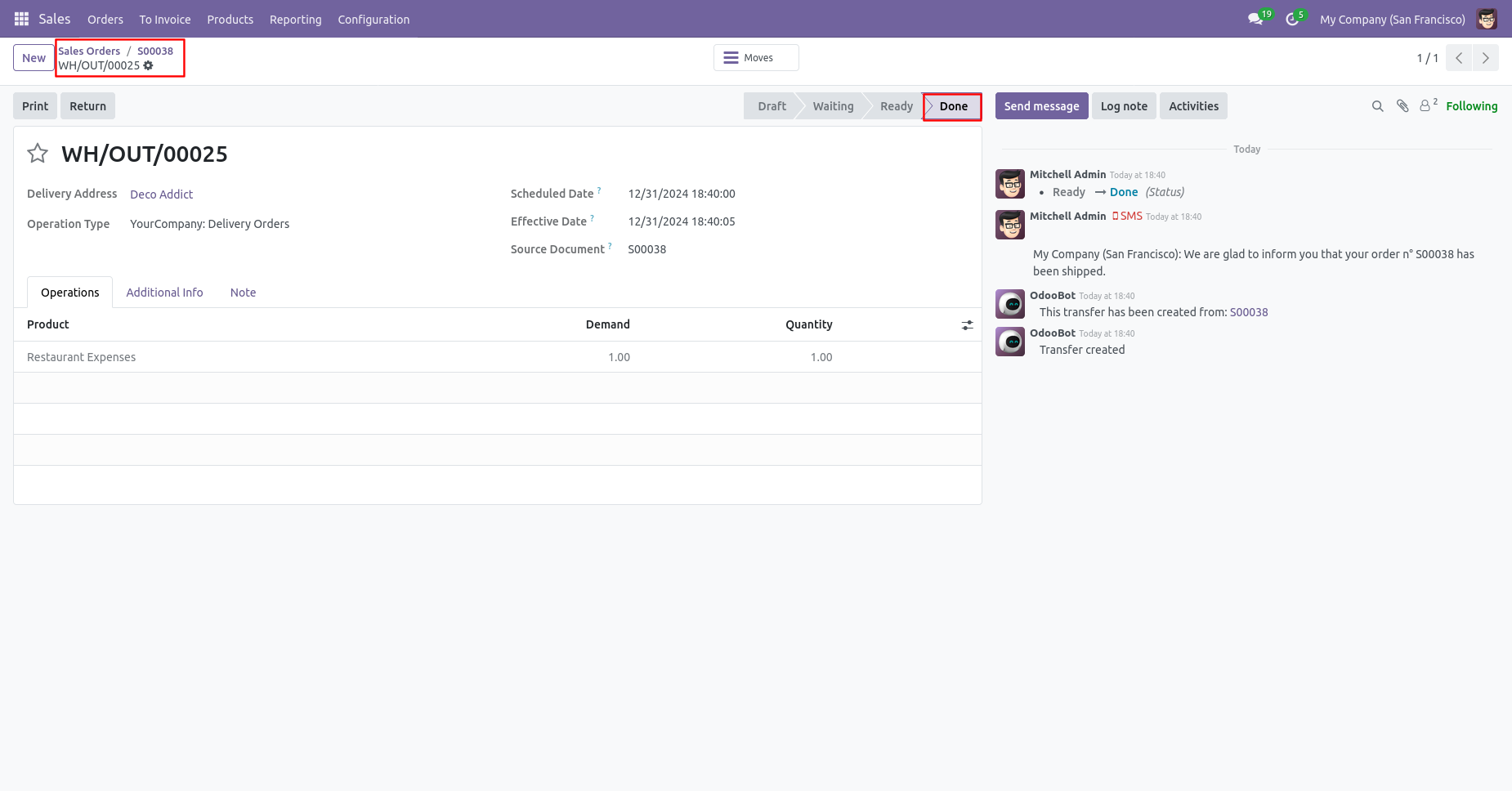
Our invoice is in the draft state.
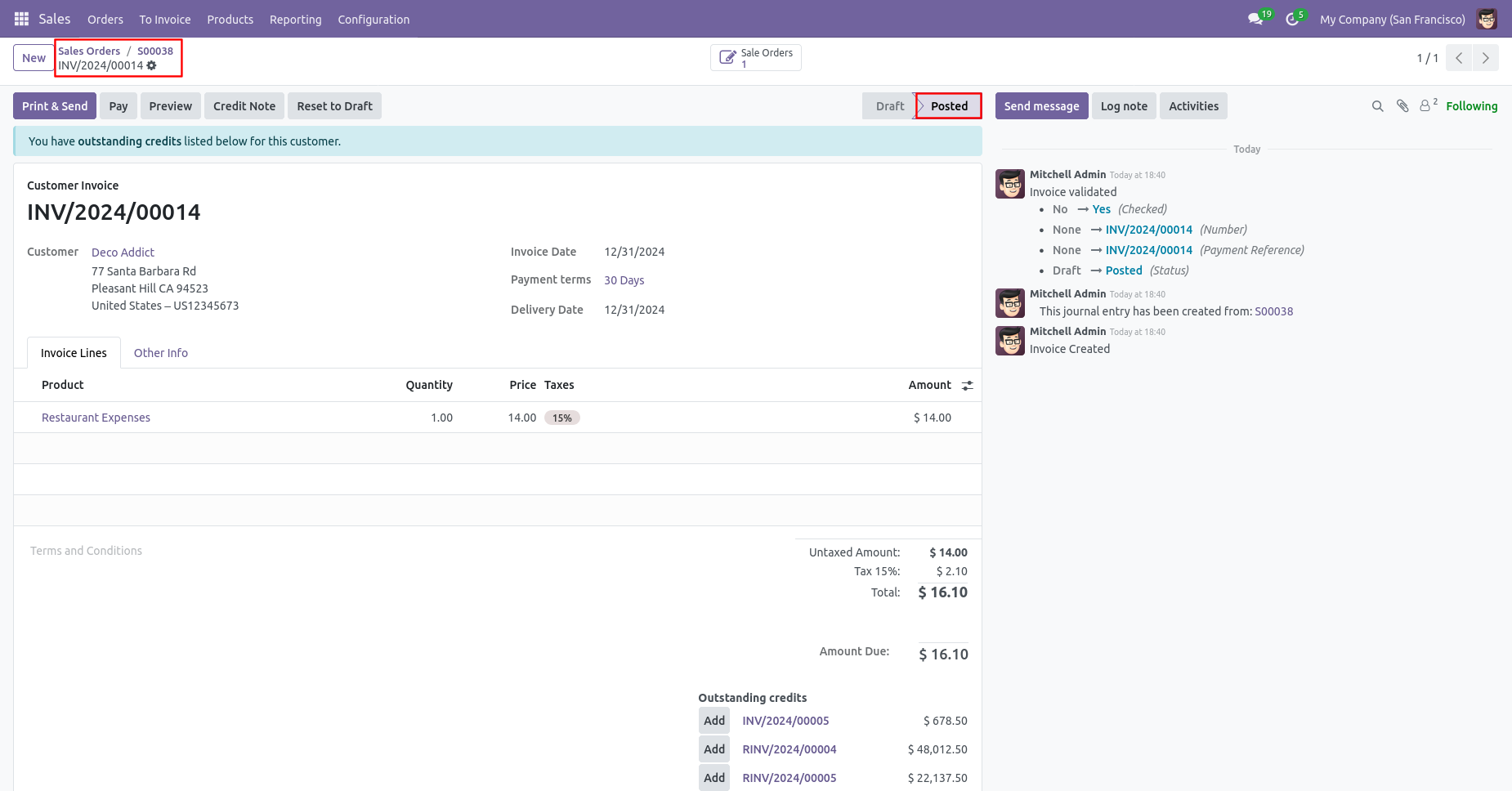
Press the "Cancel" button to cancel created sale order.
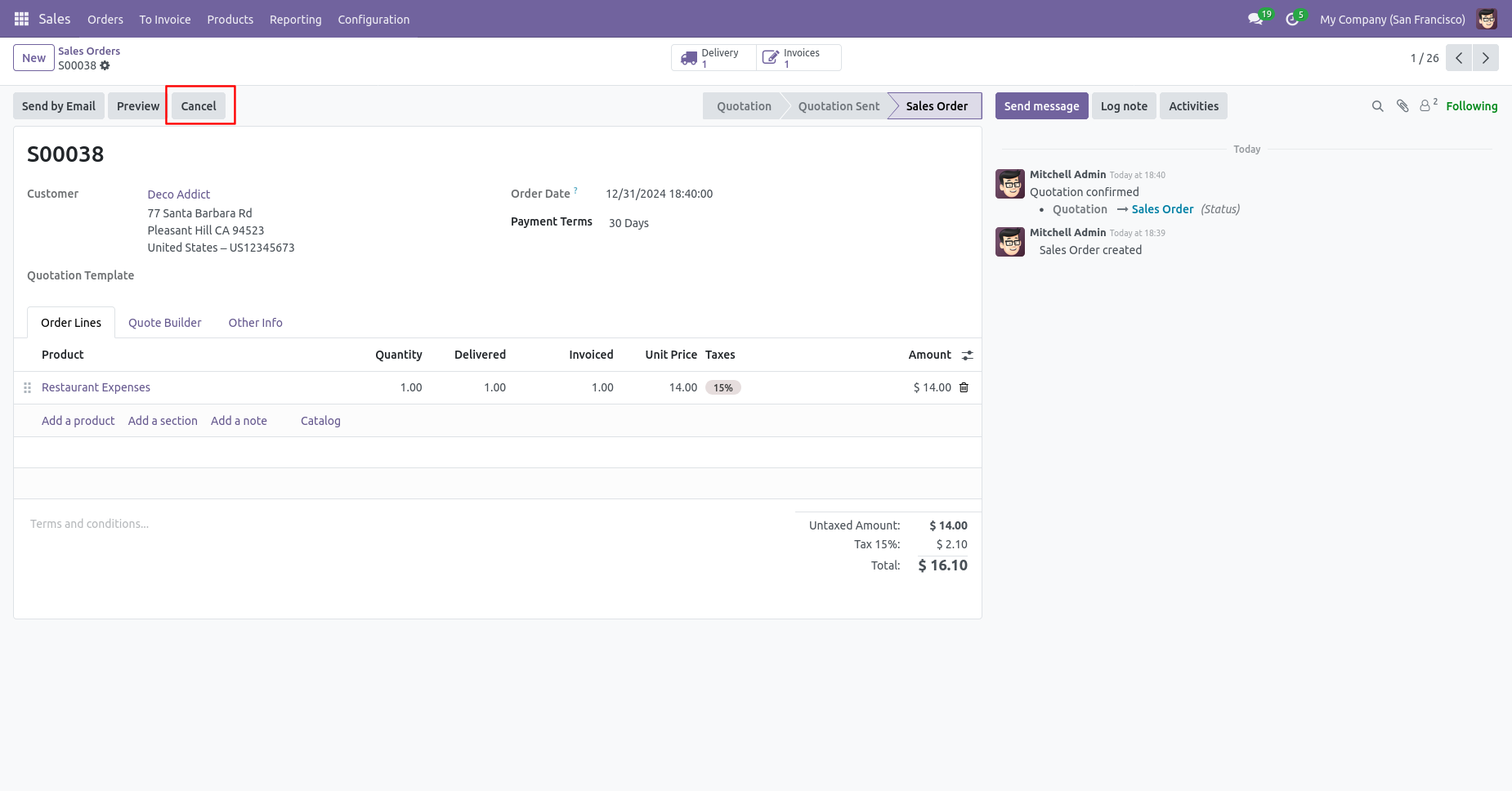
After the "Cancel" the sale order our sale order will be deleted.
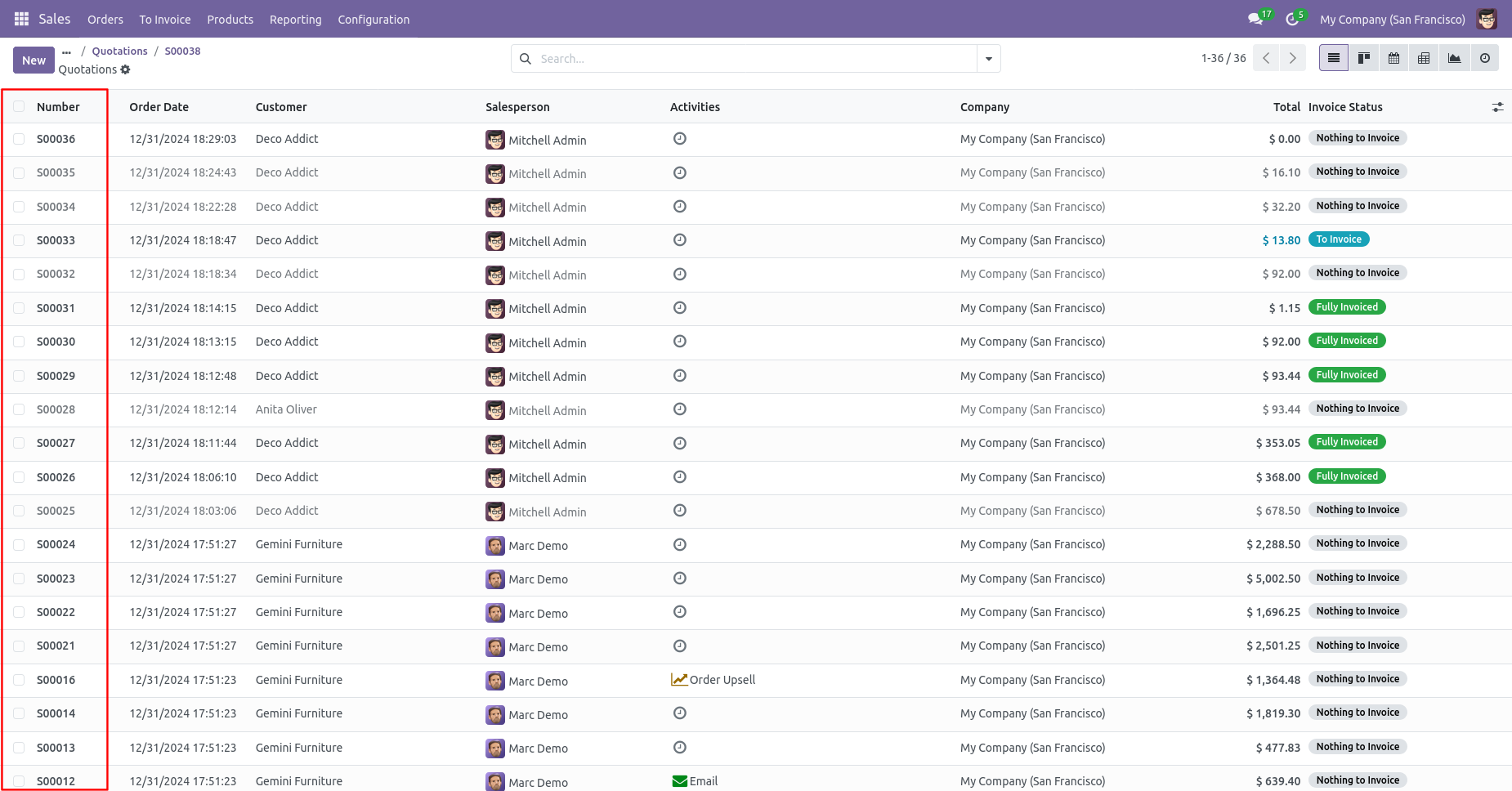
Now we cancel multiple sale orders from the tree view.
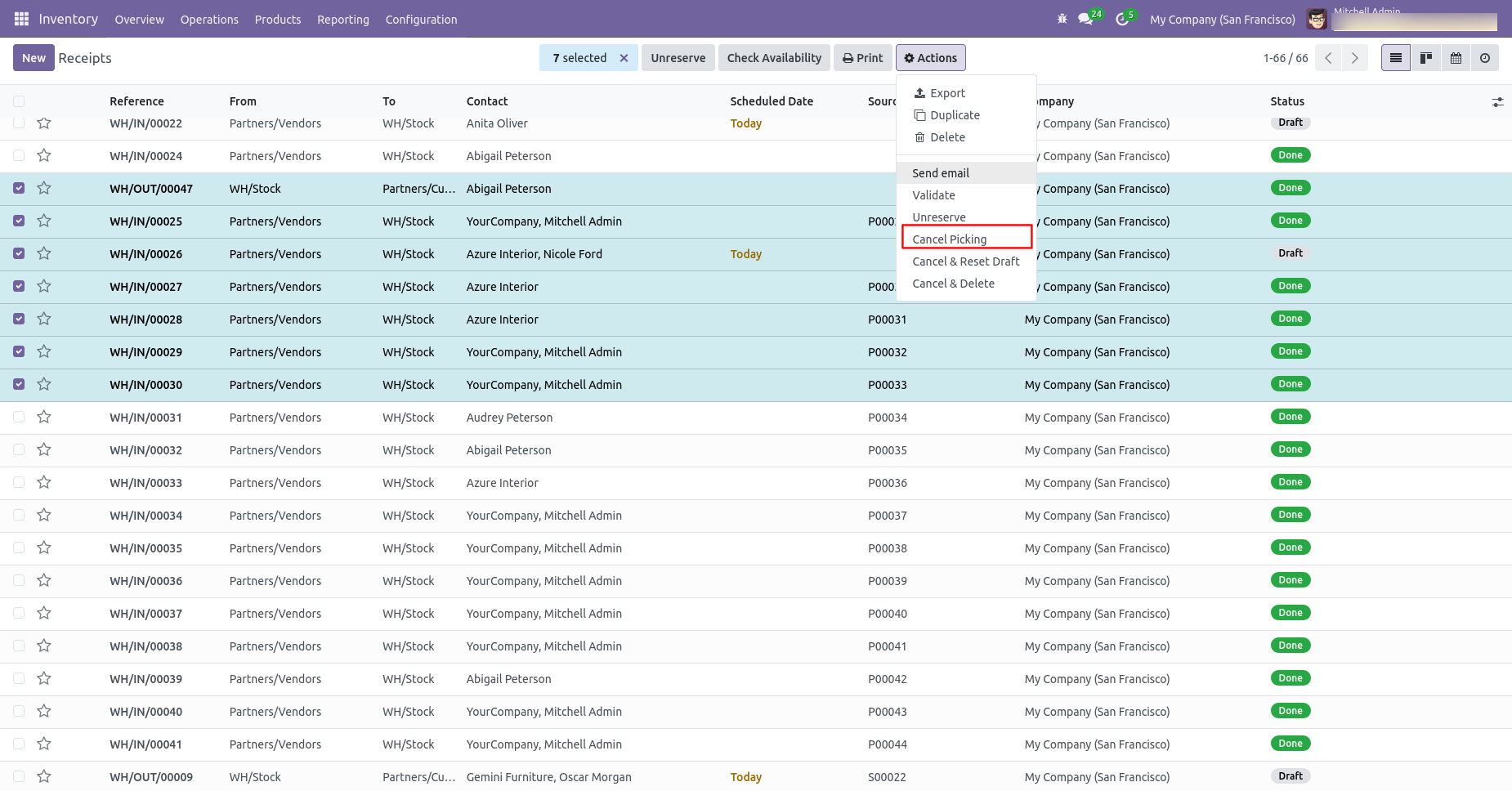
Select the SO which you want to cancel.
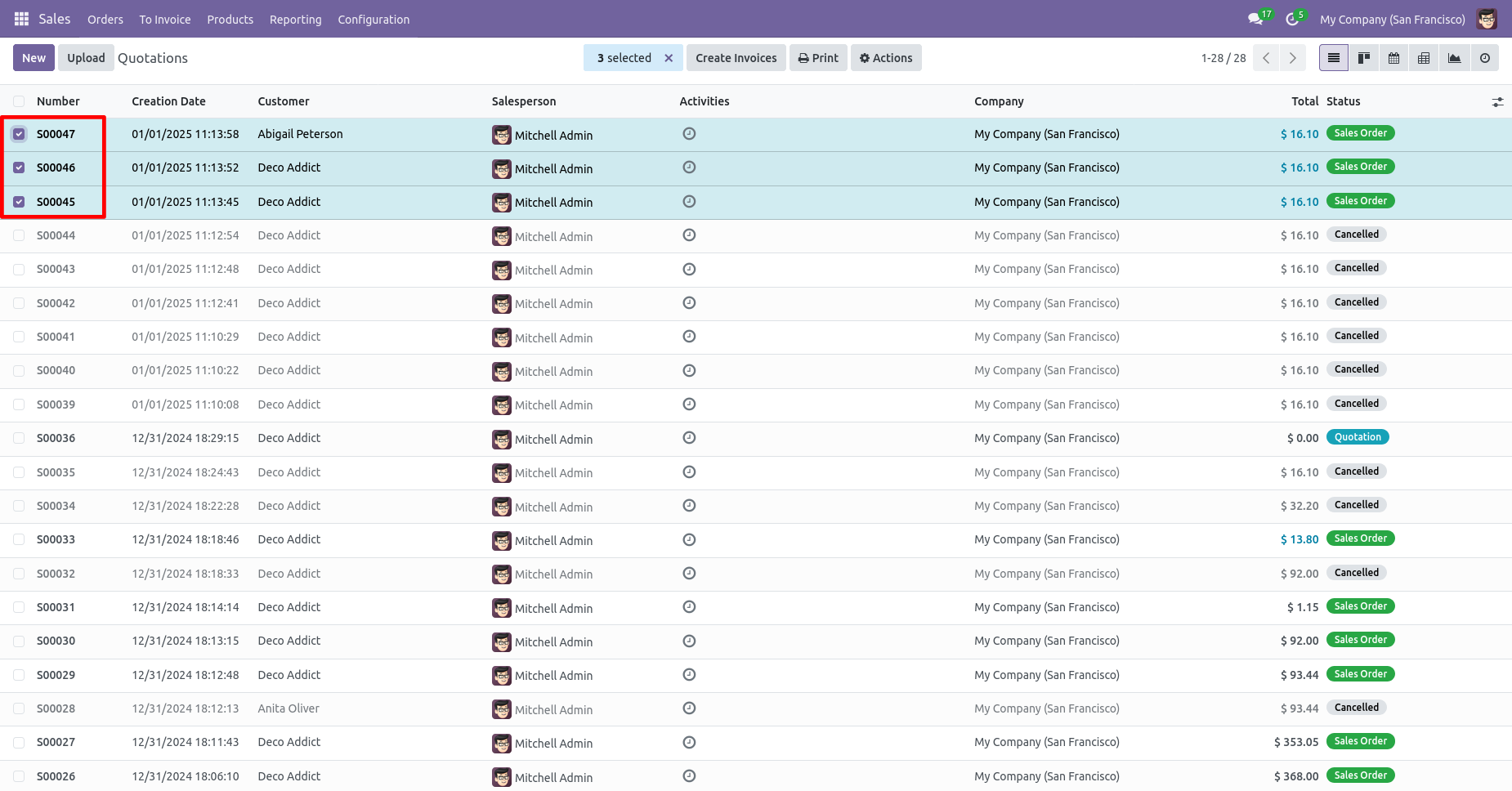
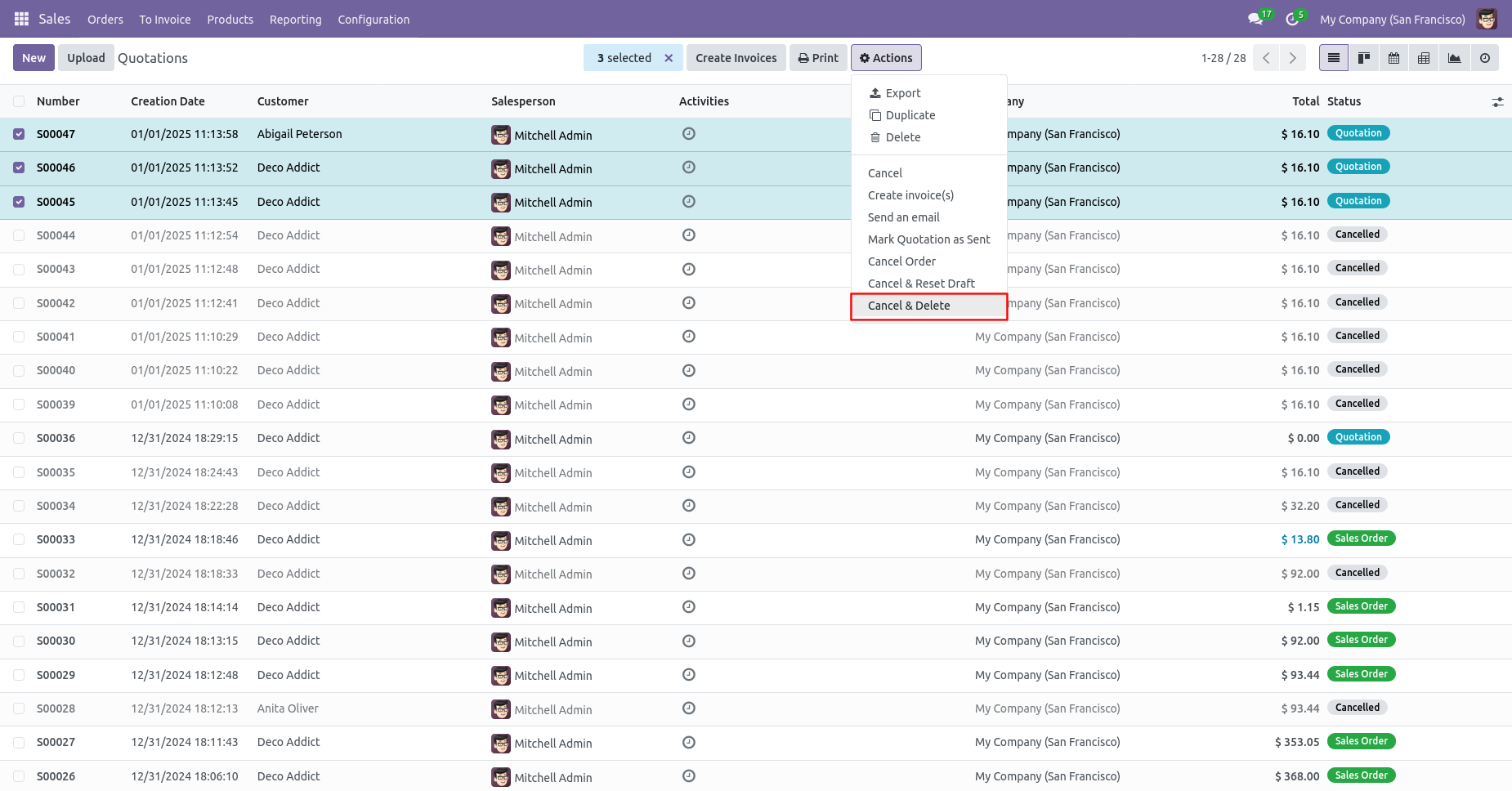
Click on the "Cancel And Delete" from the Action.
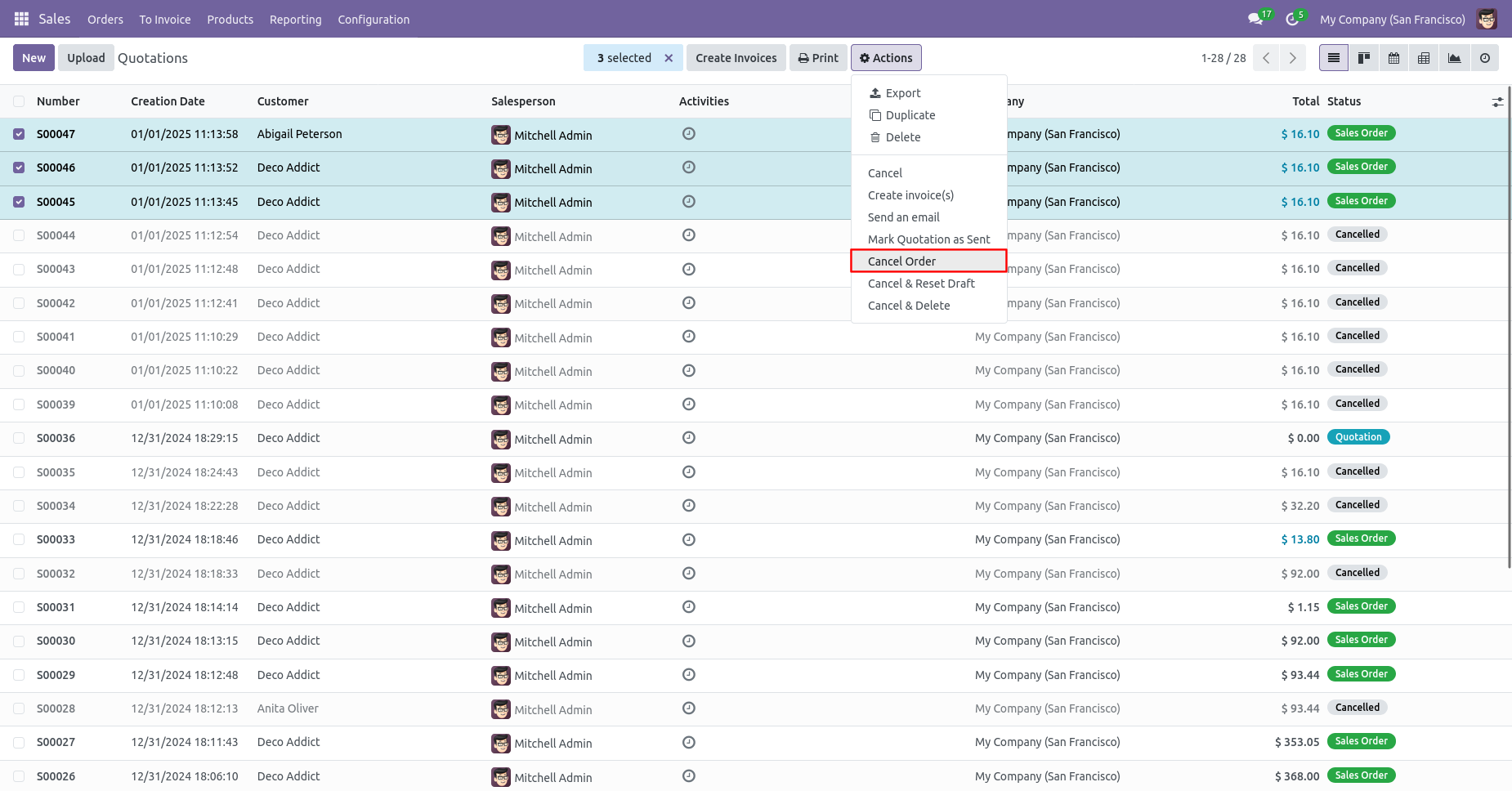
All selected sale orders are cancelled.
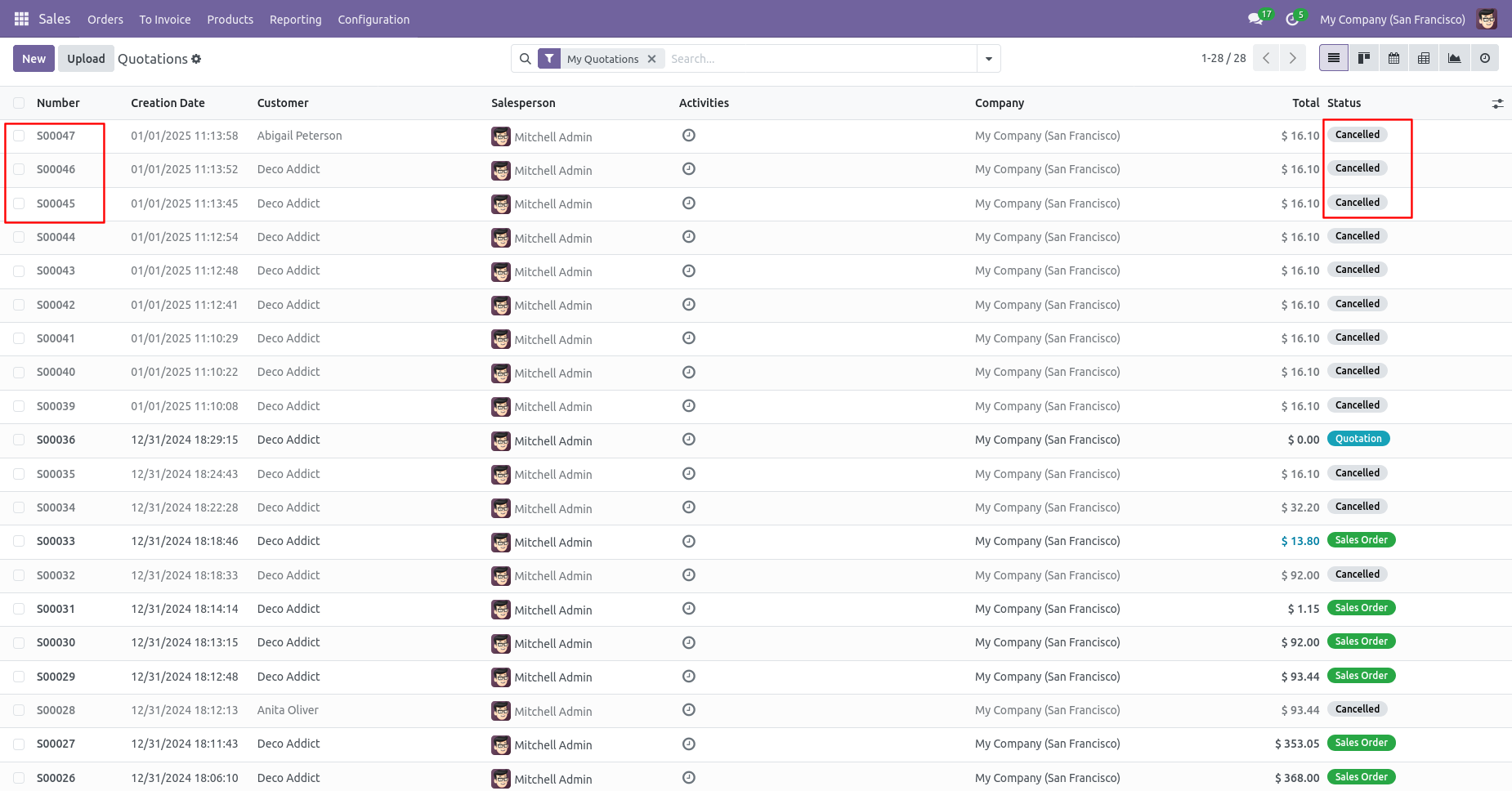
Now we "Cancel & Reset Draft" multiple sale orders from the tree view.
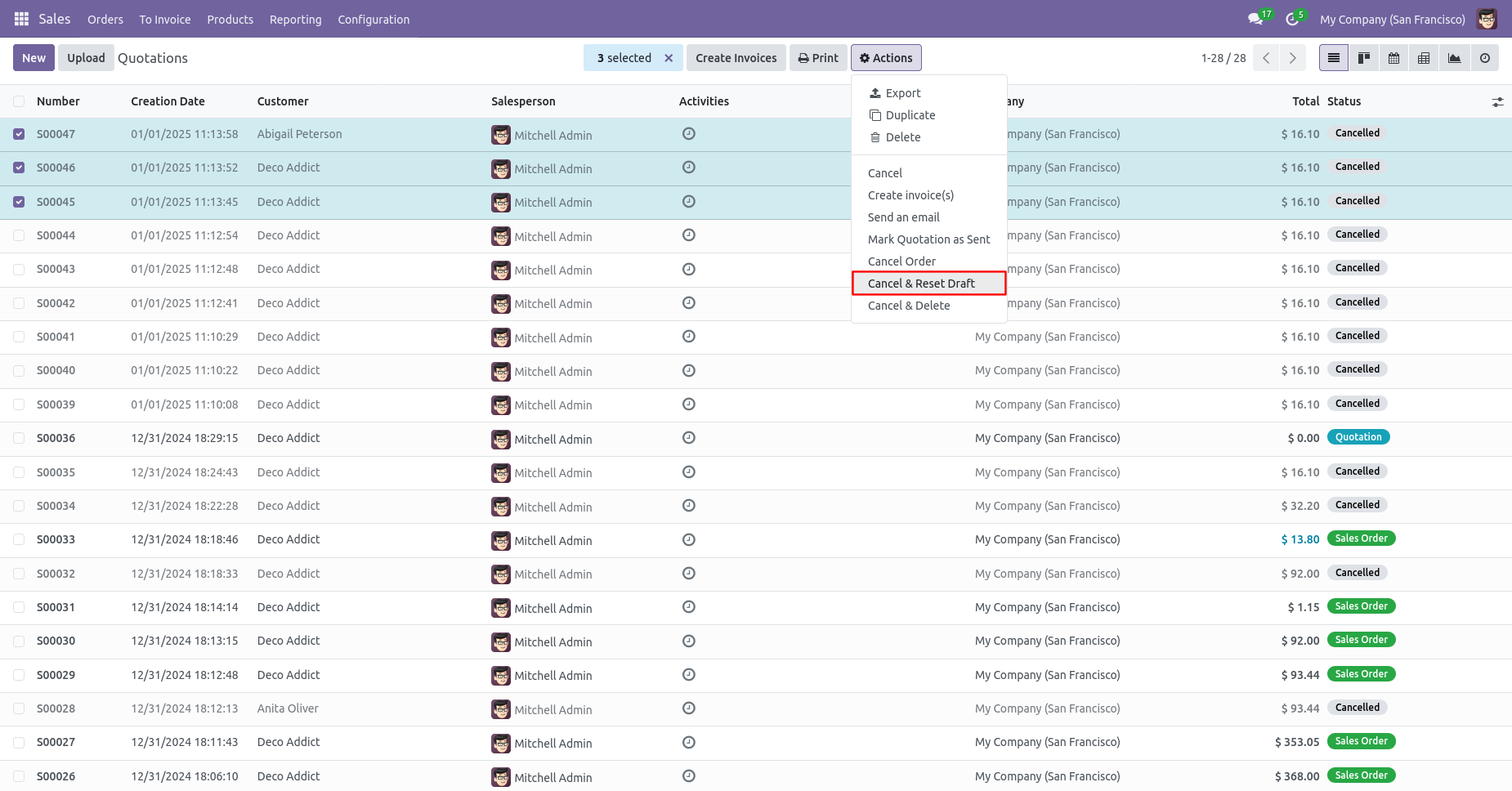
All selected sale orders are cancelled and reset to the draft.
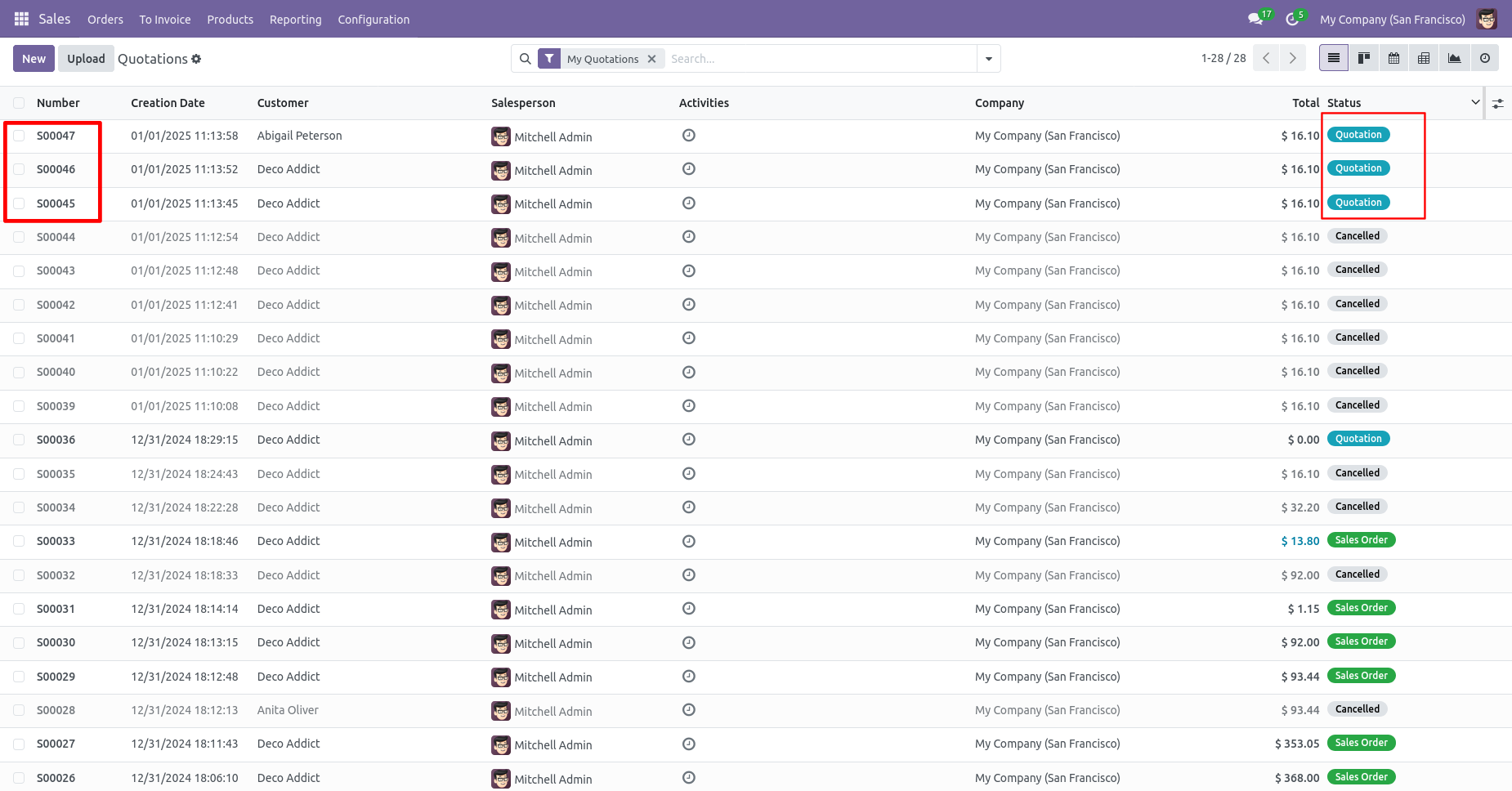
Now we "Cancel & Delete" multiple sale orders from the tree view, so all sale orders will be deleted after cancelled.
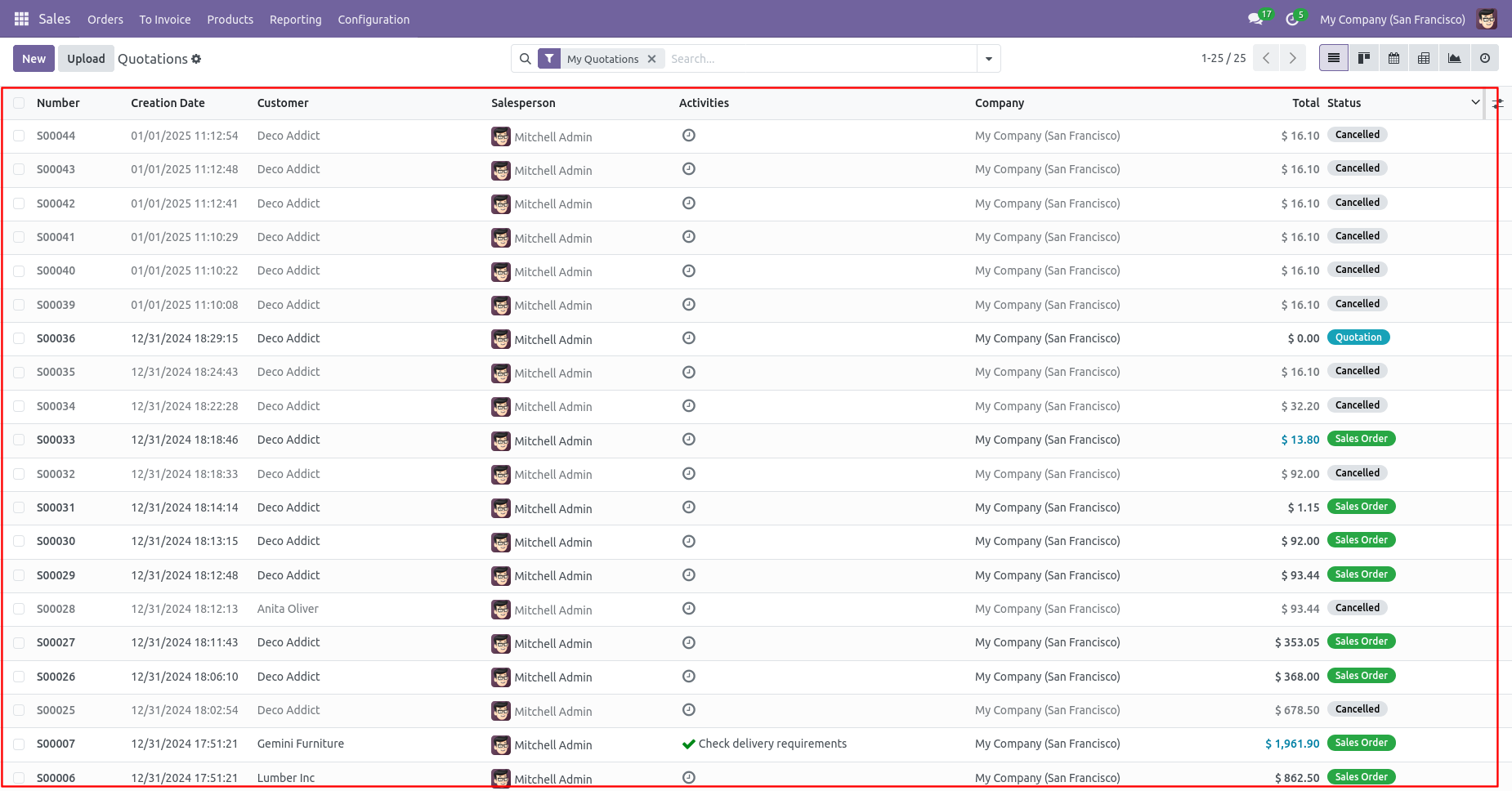
All selected sale orders are deleted.
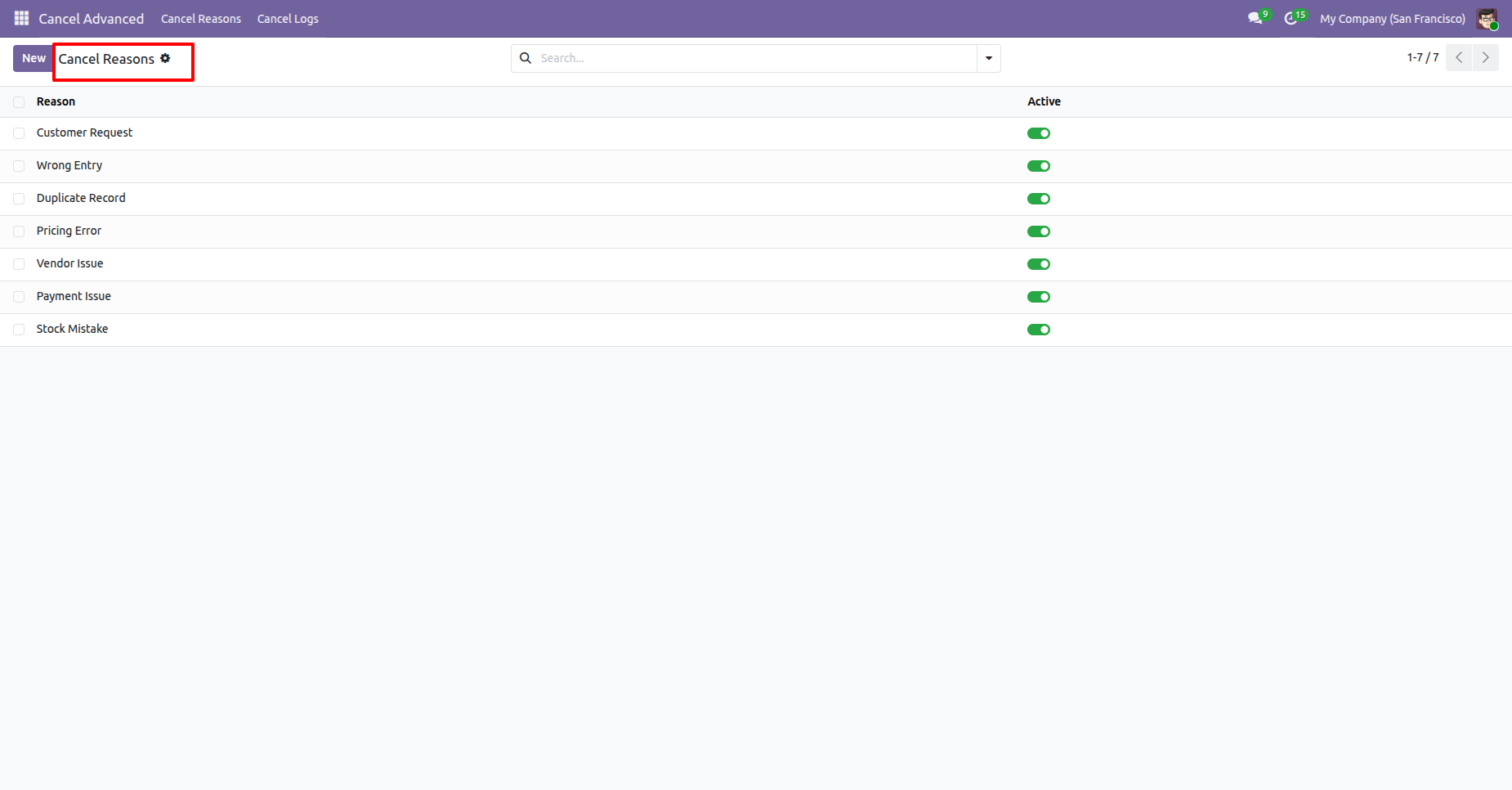
Create Reasons for Cancellation.
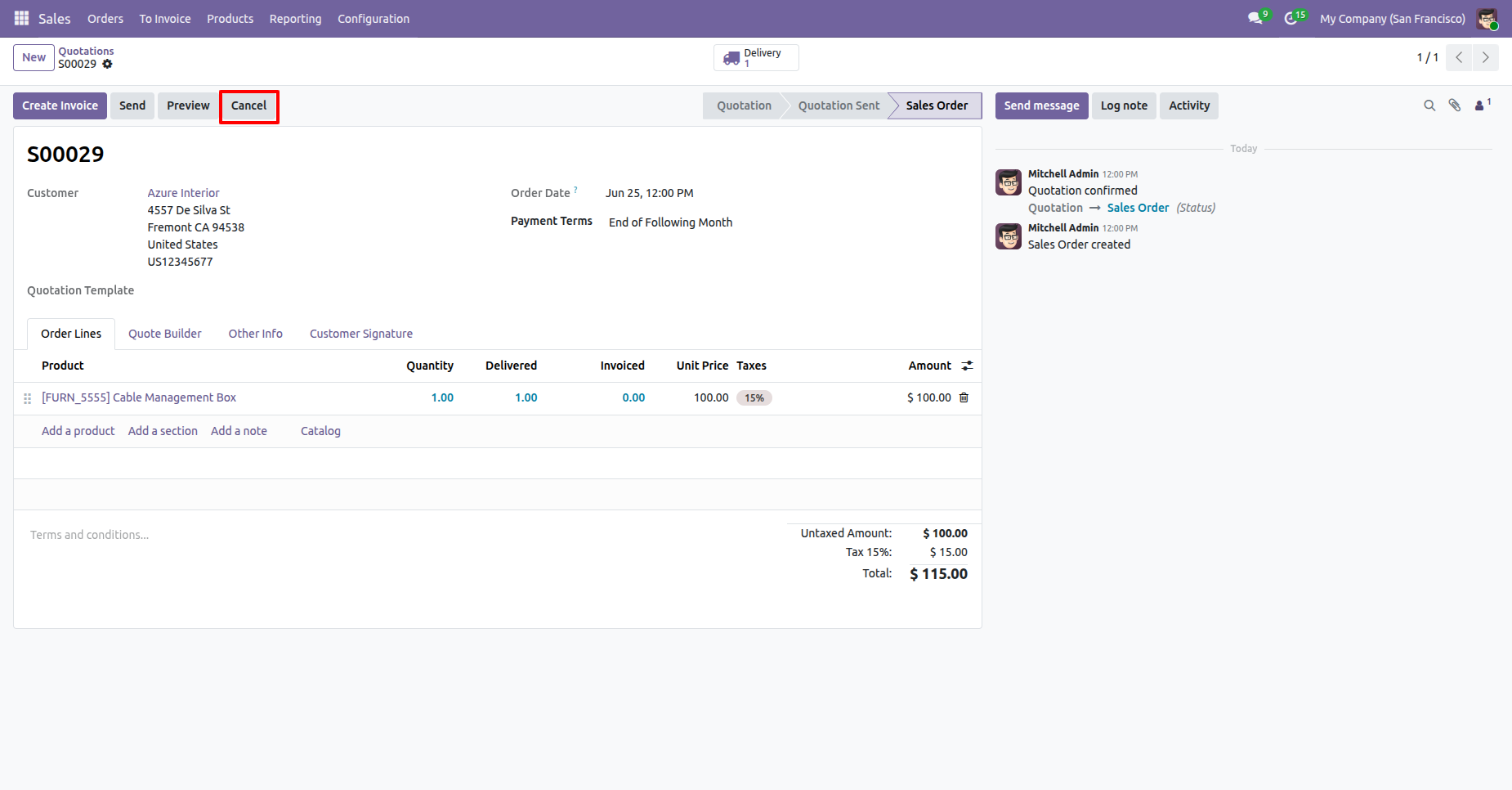
Click the Cancel button on the Sales Order to initiate the order cancellation process.
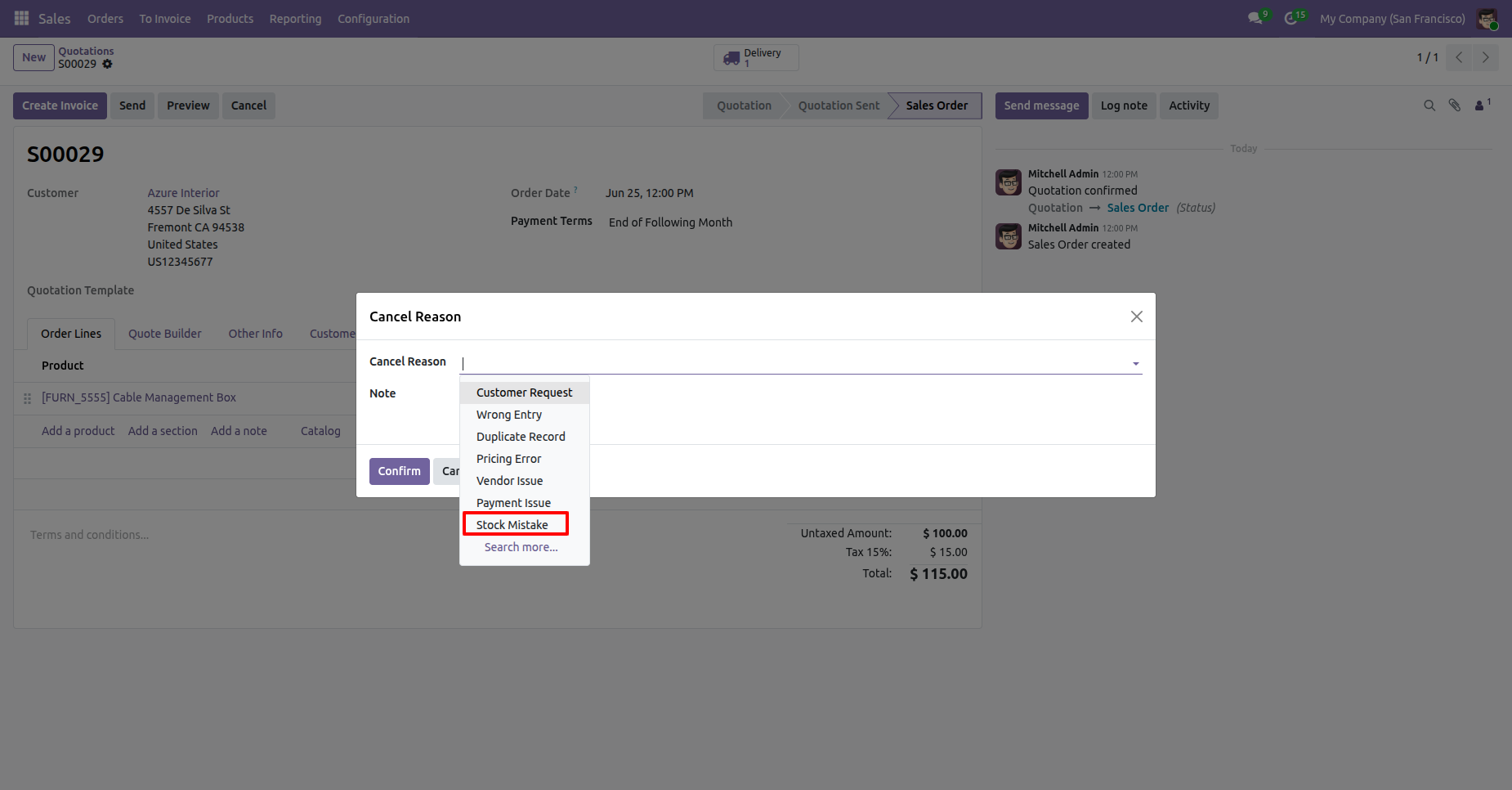
The Cancel Reason wizard opens, allowing you to select or enter the reason for cancellation before confirming.
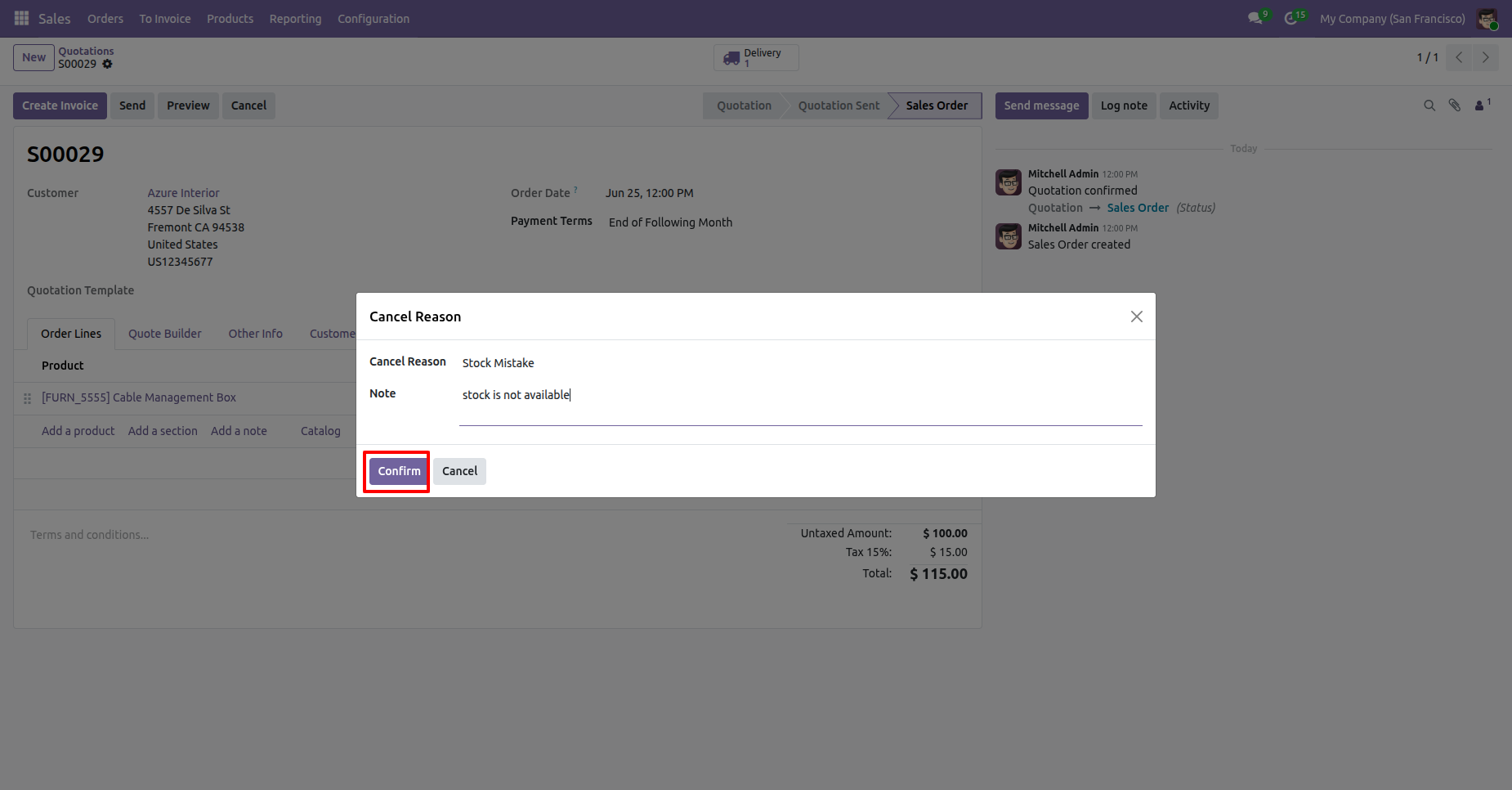
After selecting the cancellation reason, click the Confirm button to cancel the Sales Order.
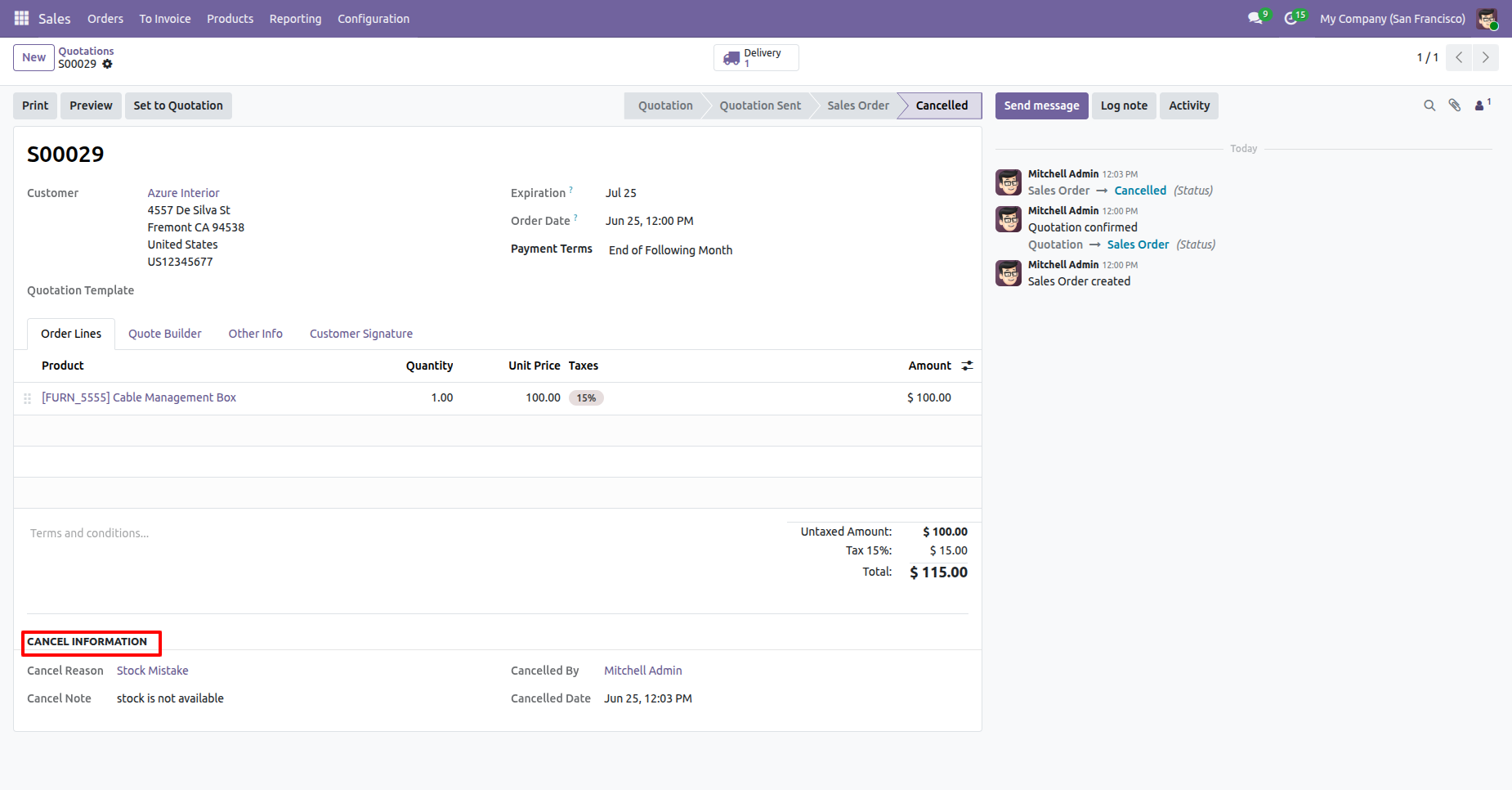
After the Sales Order is canceled, the cancellation information, including the cancellation reason, canceled by, and cancellation date, is displayed in the Sales Order Form View for future reference.
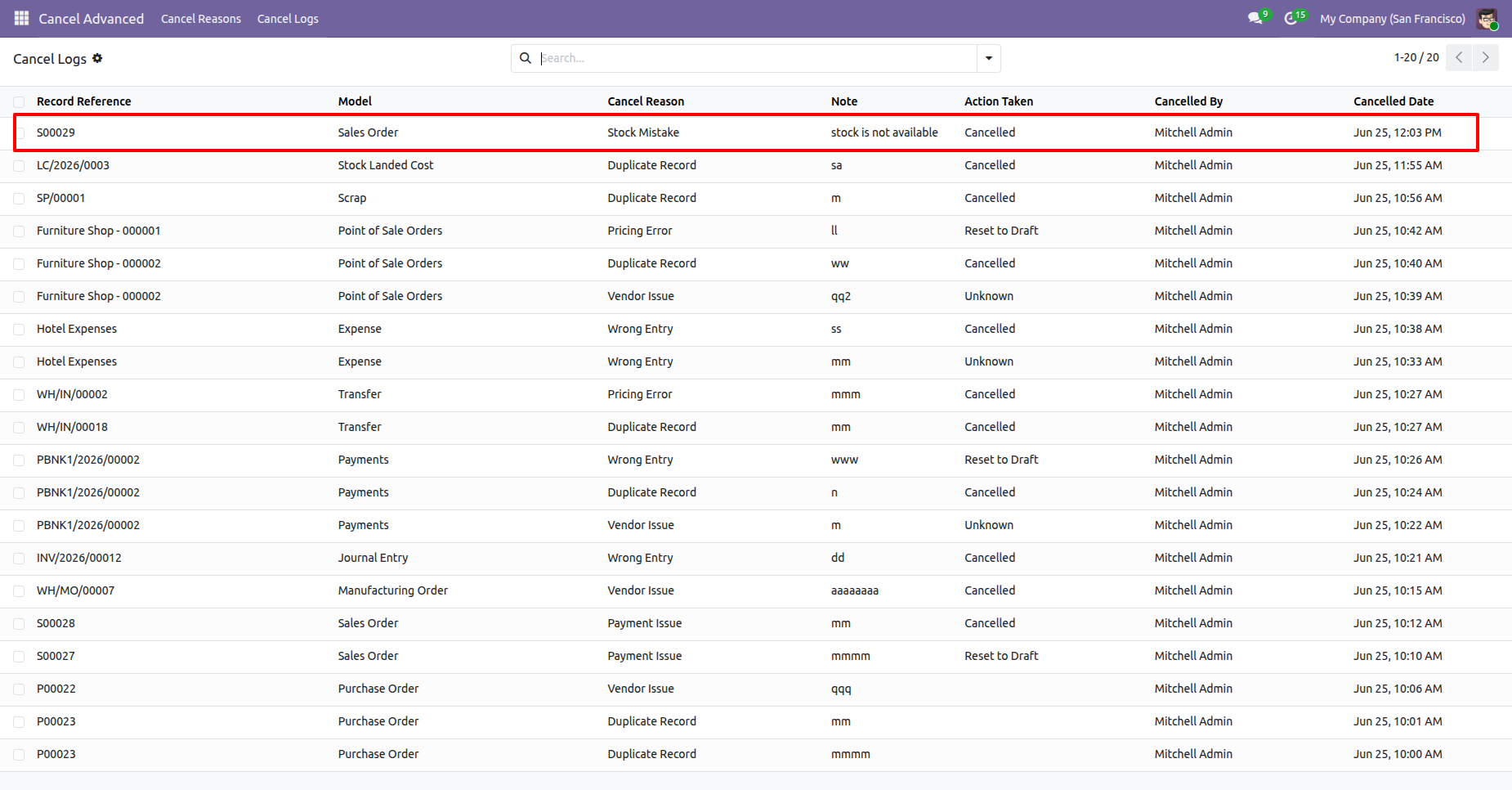
The cancellation logs are also available under the Cancel Logs menu in the Cancel Advanced app, where you can view and track all canceled records along with their cancellation reasons, canceled by, and cancellation dates.
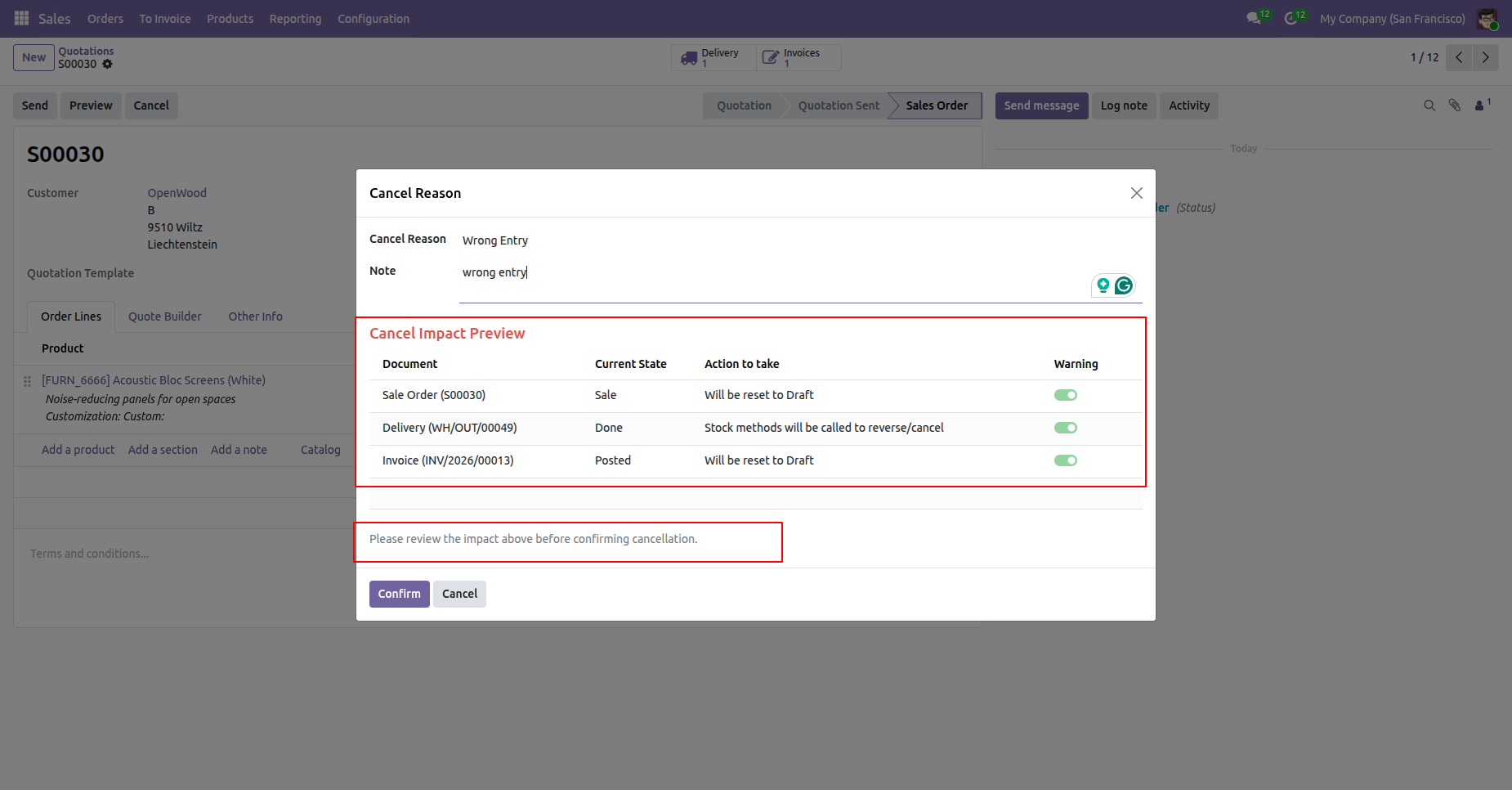
User can preview the cancellation details before confirming the cancellation process.
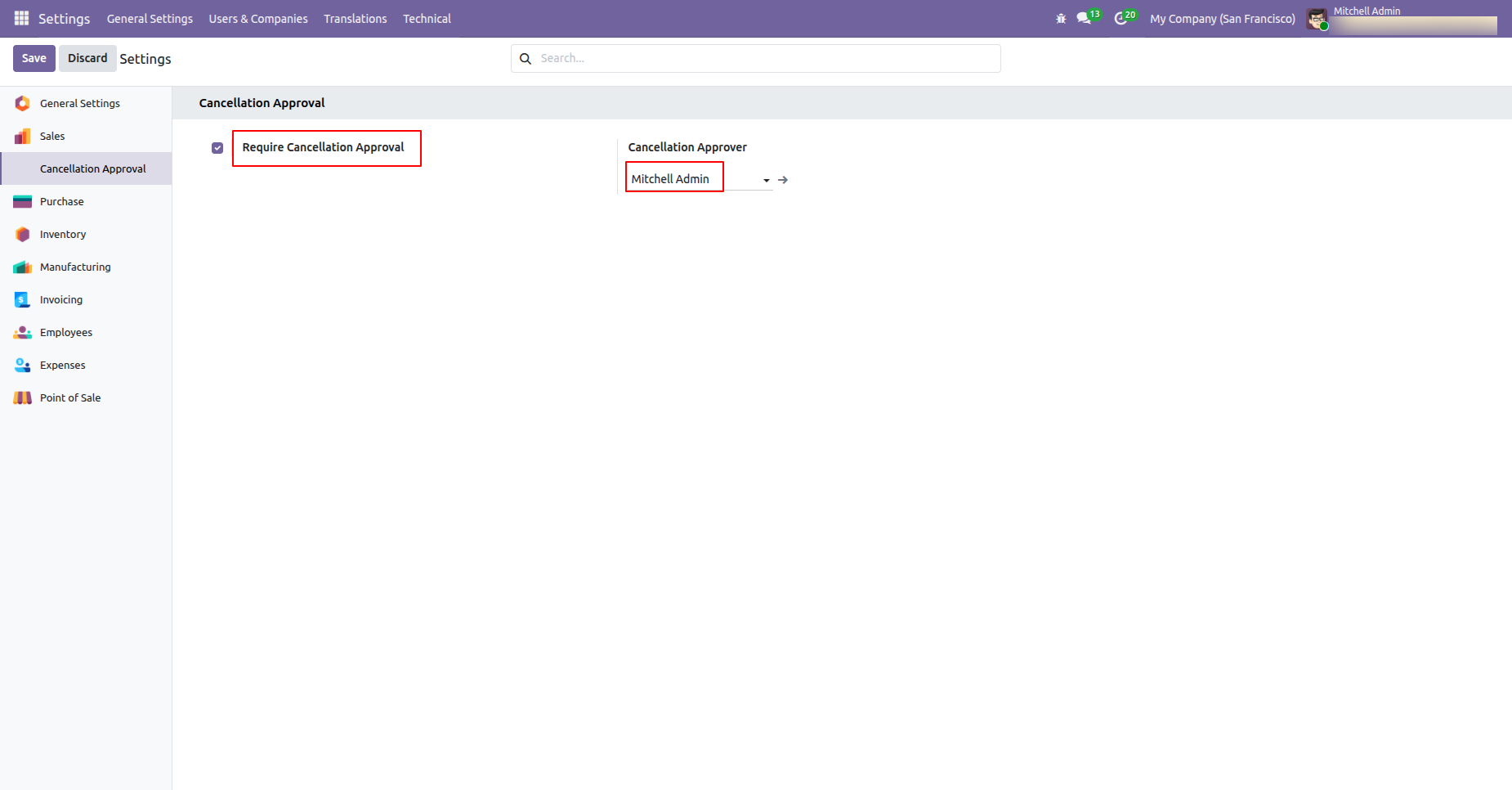
Go to the cancellation Approval settings, Enable Require Cancellation Approval option and Select Cancellation Approver User.
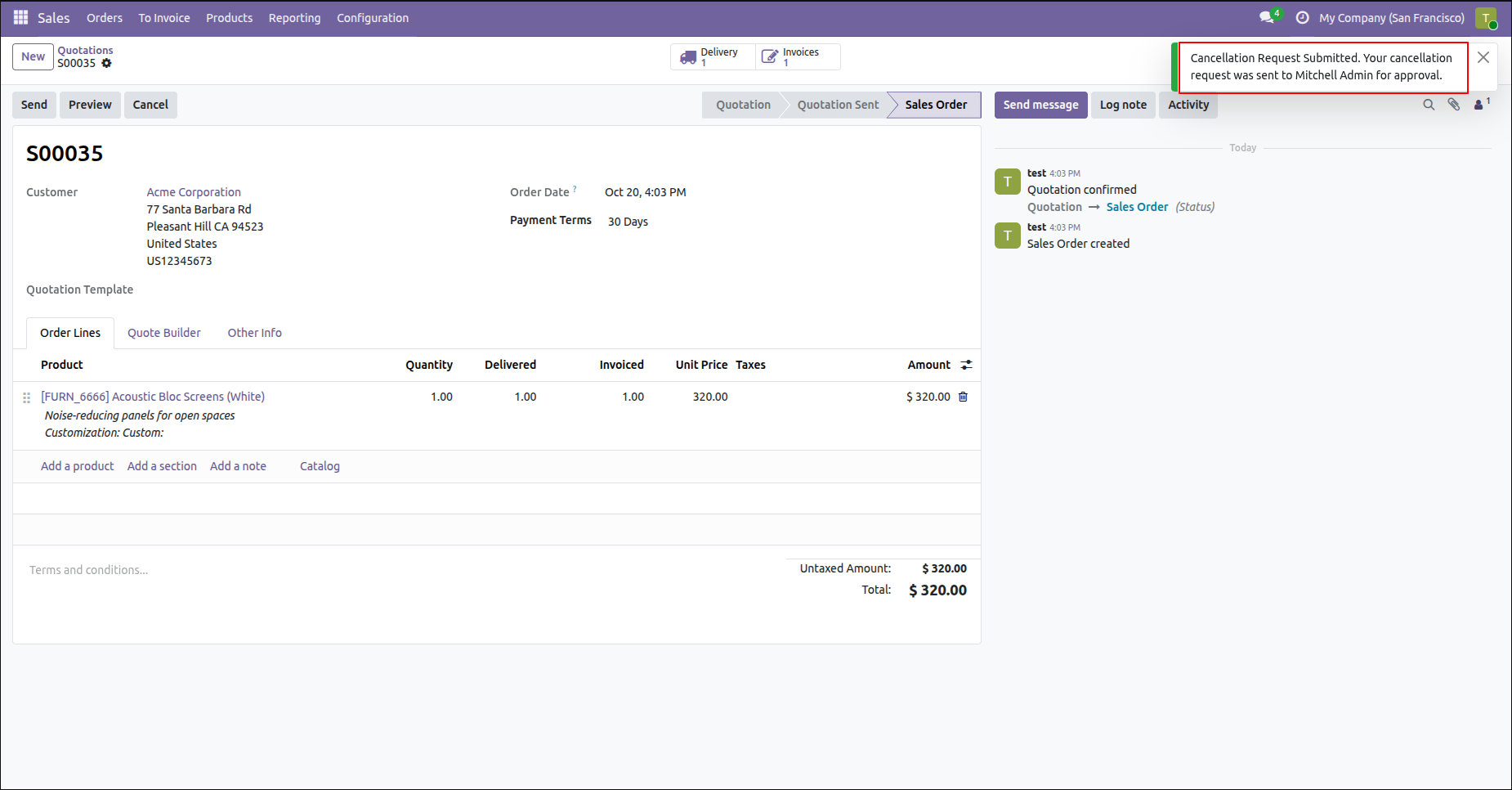
Open the sales order and click on cancel button to cancel the sale order, Cancellation request will be submitted to the Approver and also displays the notification.
Cancellation request has been generated and visible to the Approver in pending status.
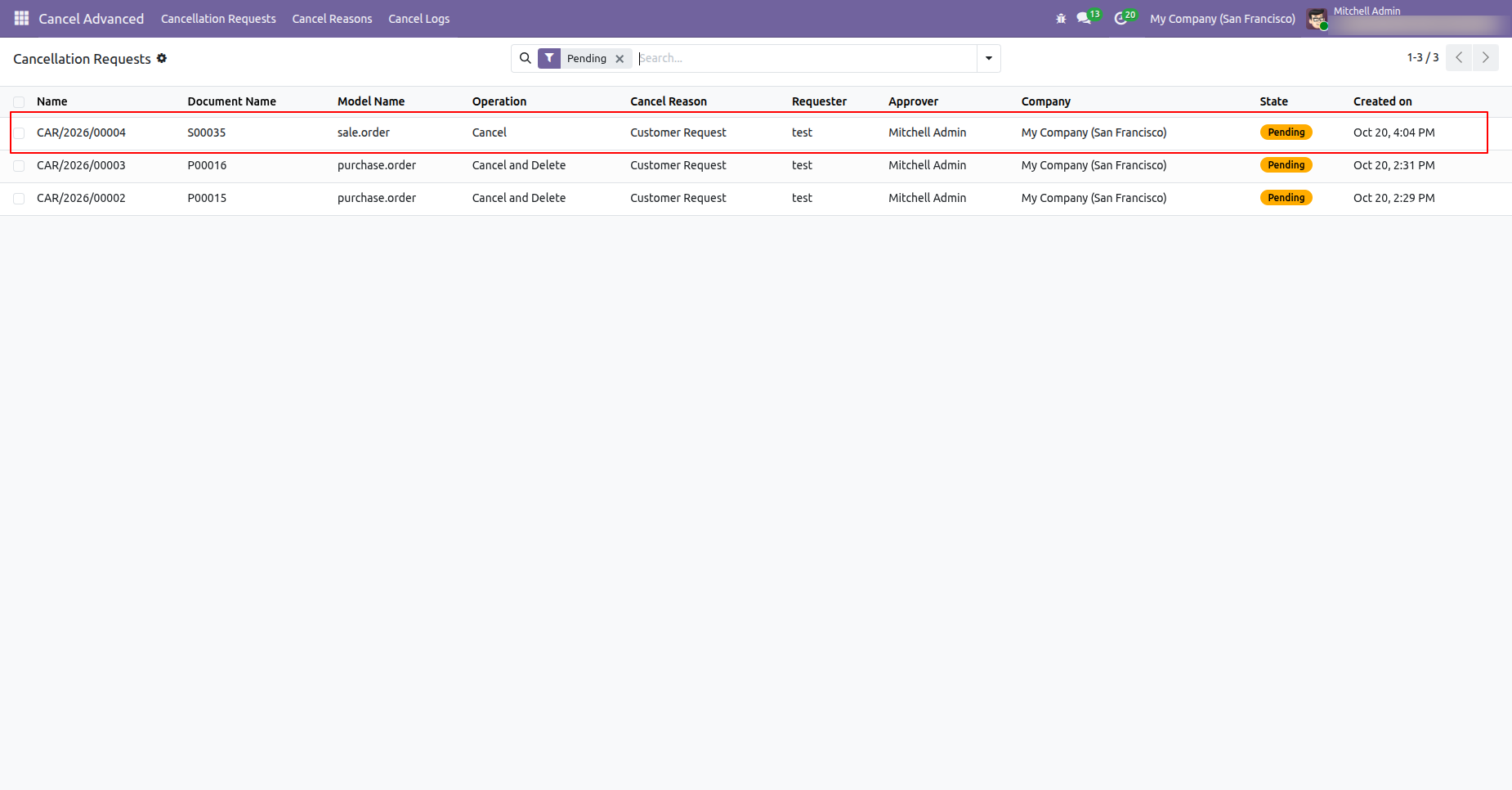
The approver reviews the cancellation request and confirms or rejects the action.
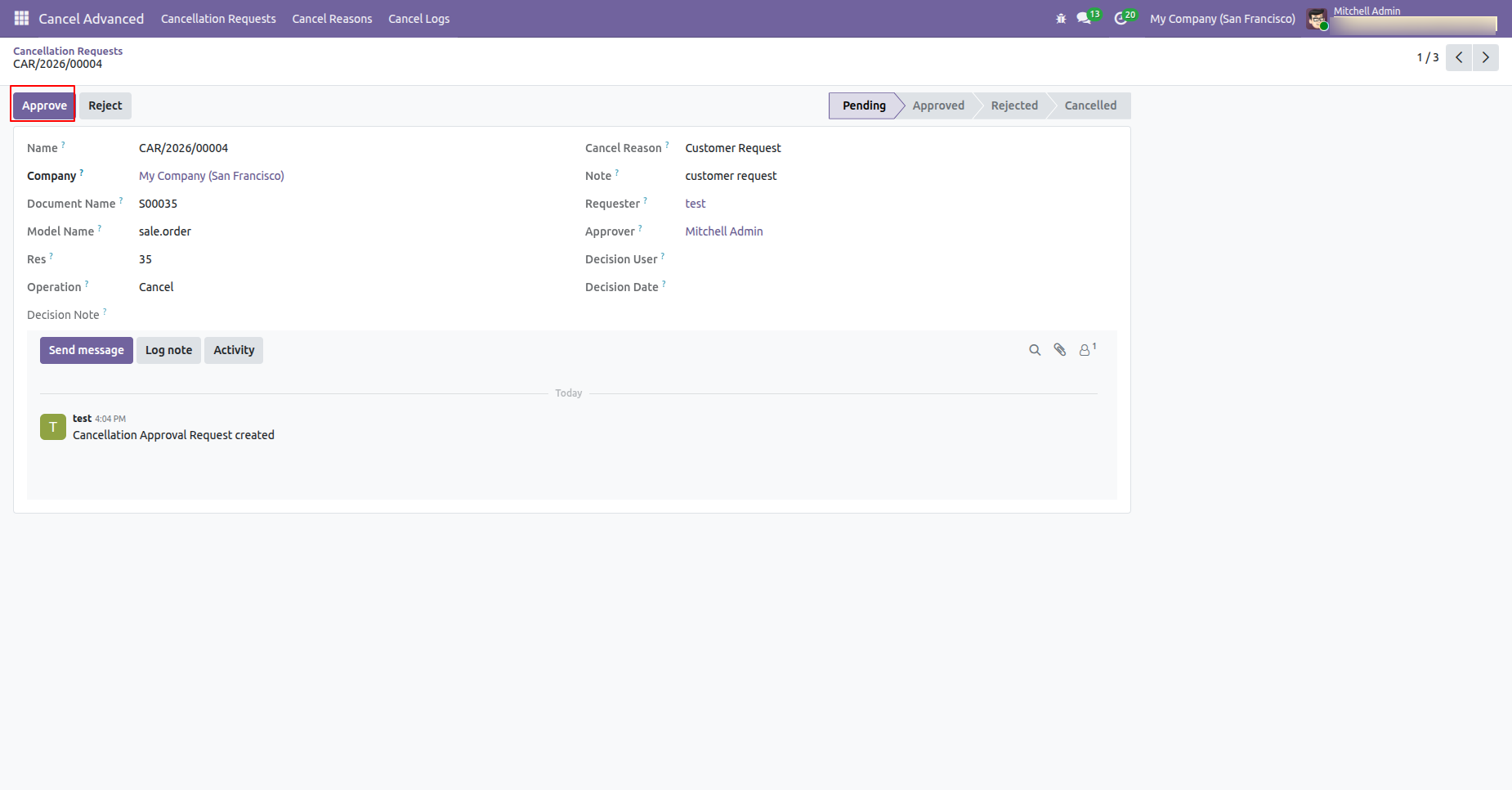
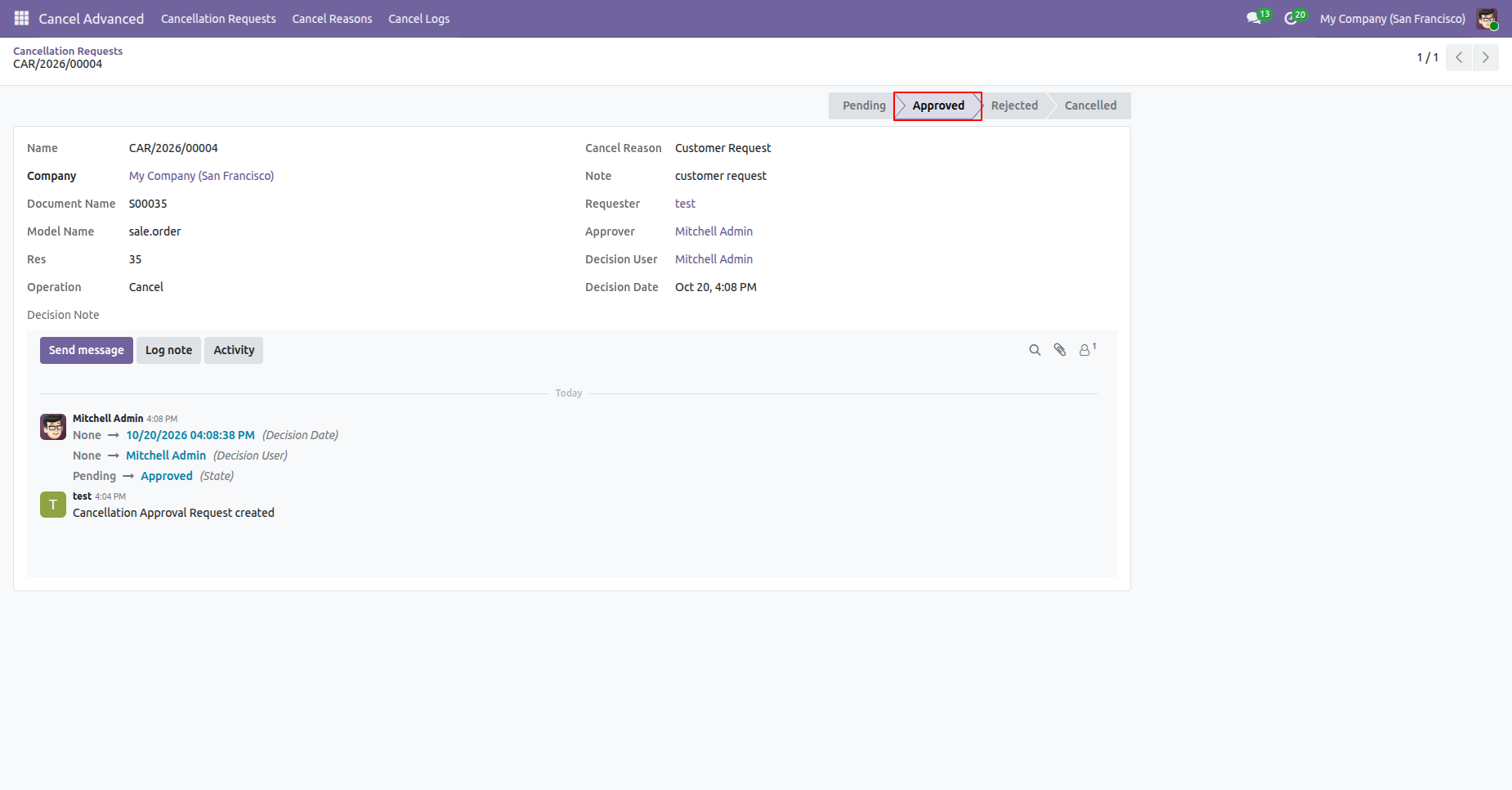
Click on the Approve button to approve the request and request stage will be moved to approved stage.
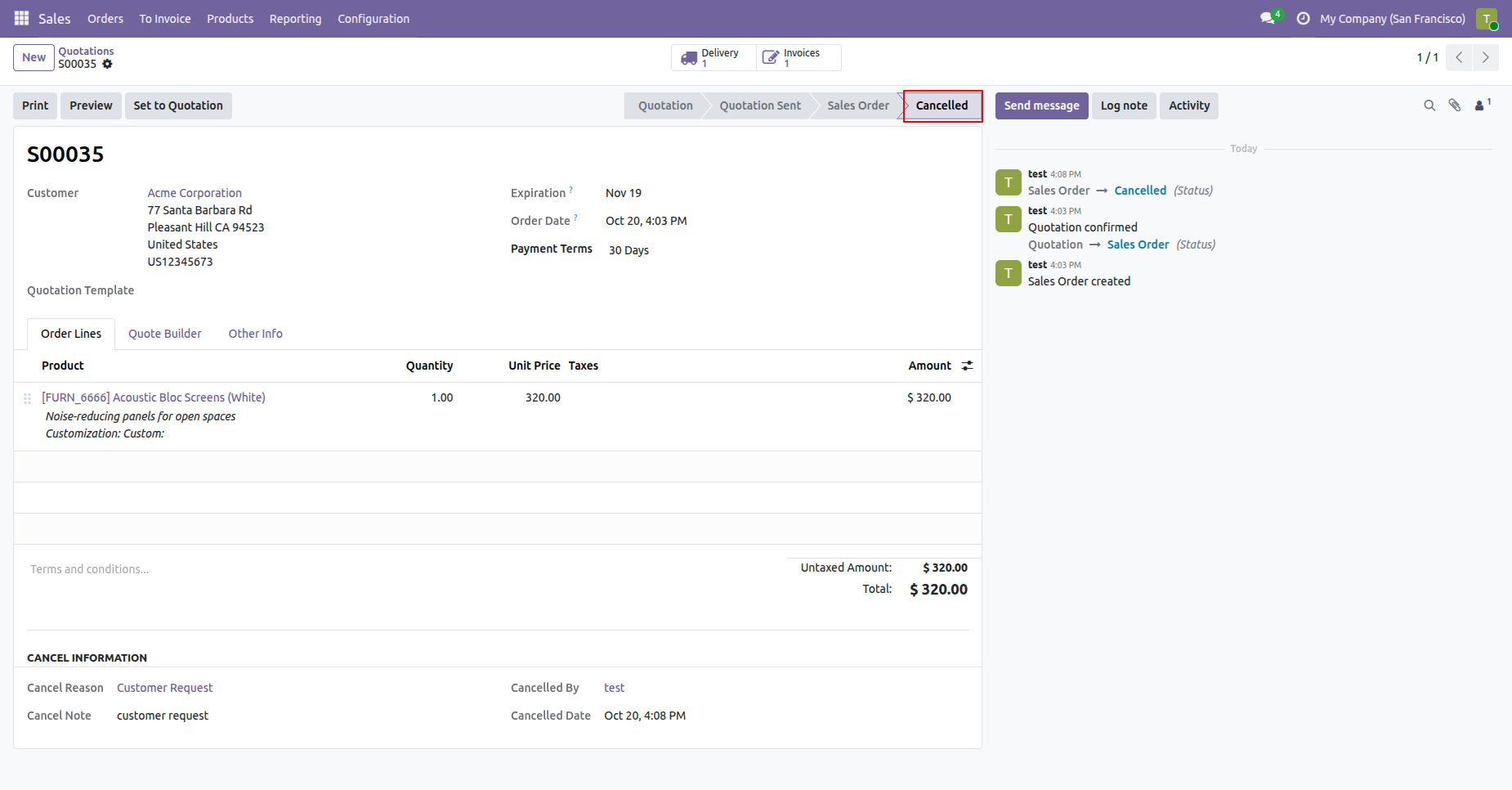
By approving the request Sale order has been cancelled.
The request is submitted for approval; the record remains available for the approver to review.
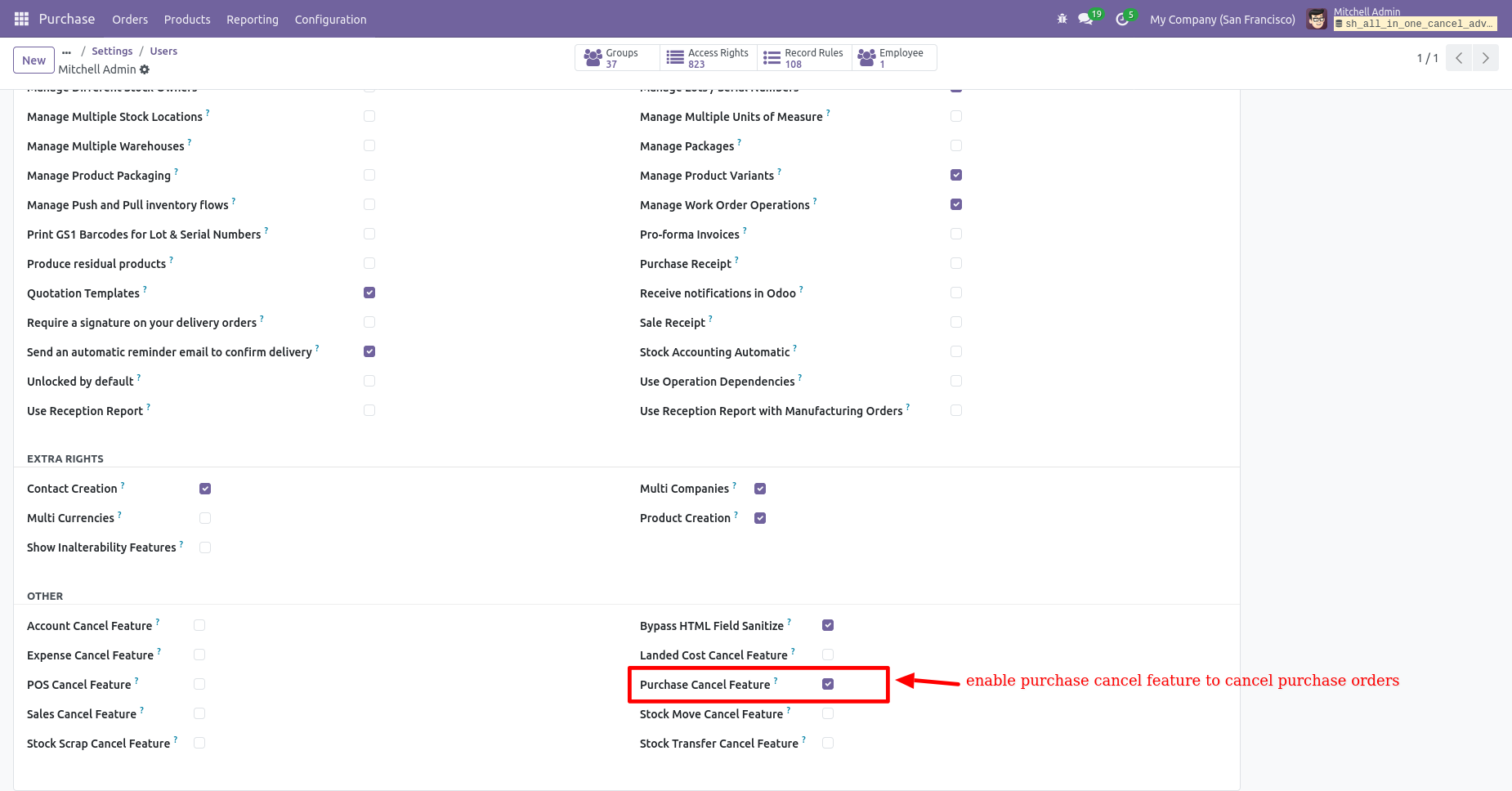
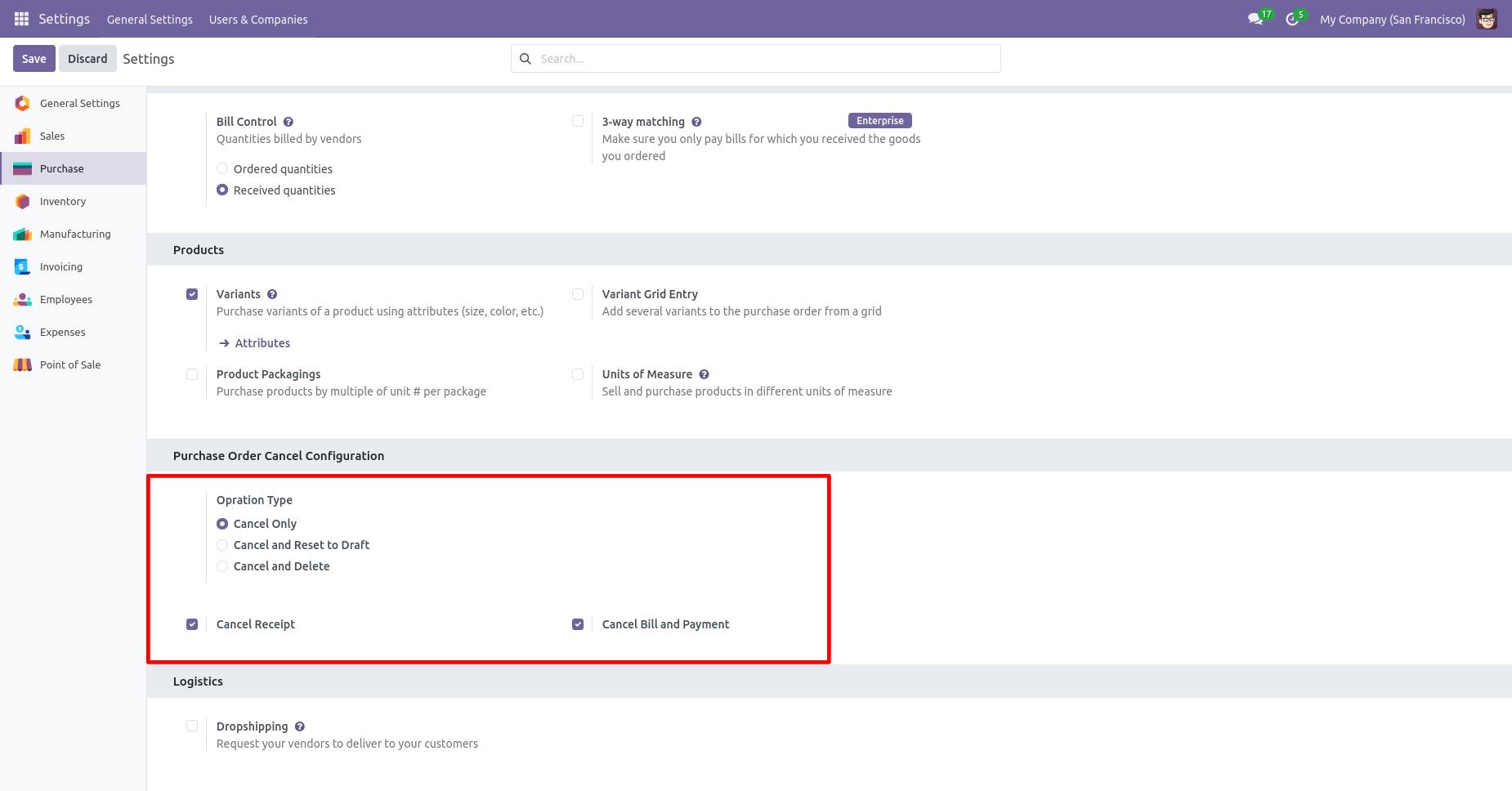
When you want to cancel a purchase order only then choose the
"Cancel Only" option.
If you want to cancel purchase orders, receipt & bill then you
can choose both options "Cancel Receipt" & "Cancel Bill and
Payment".
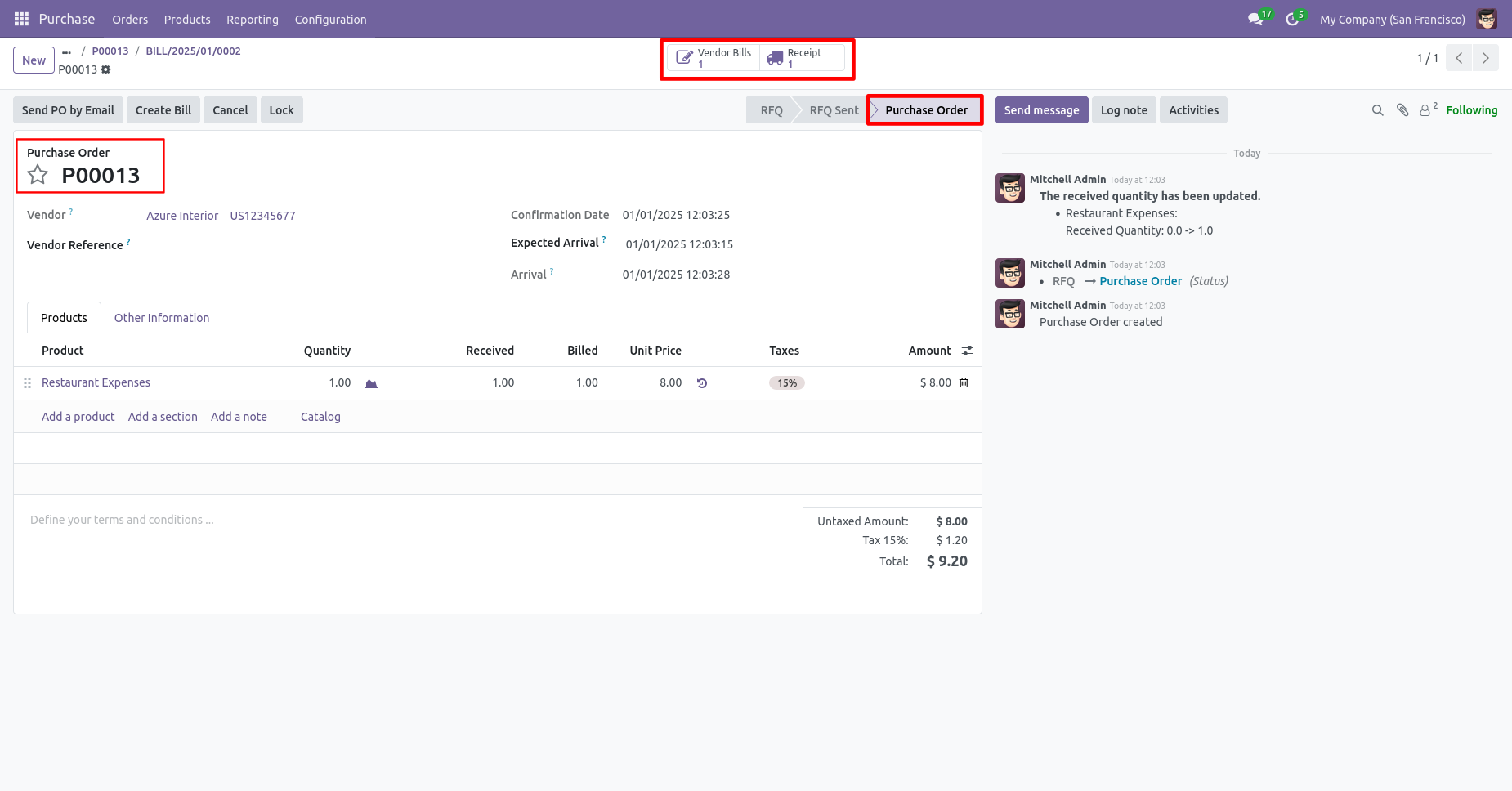
We confirm the purchase order and create a purchase order.
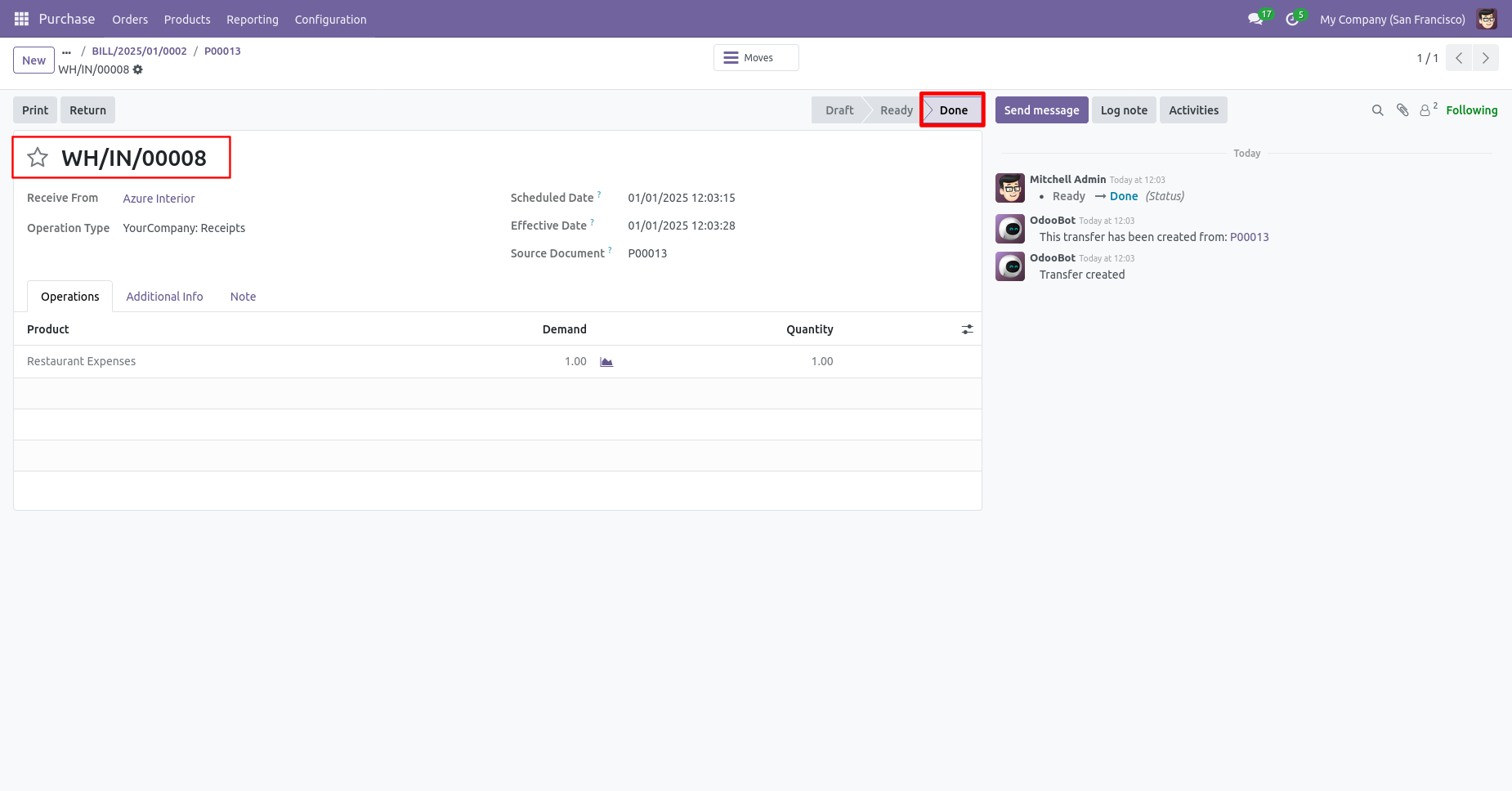
The receipt in the "Done" stage.
The bill is in the "Posted" stage.
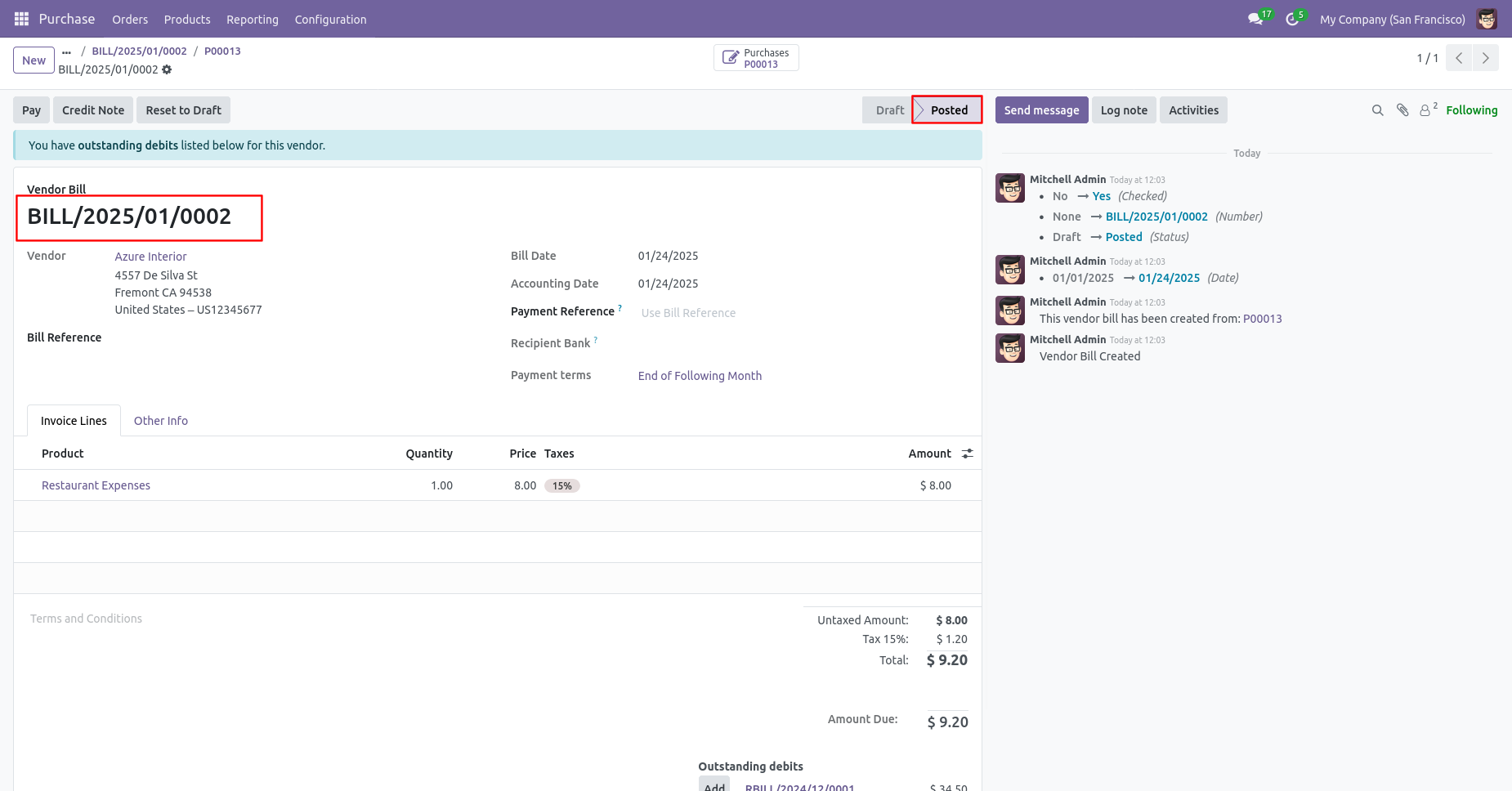
Press the "Cancel" button to cancel created purchase order.
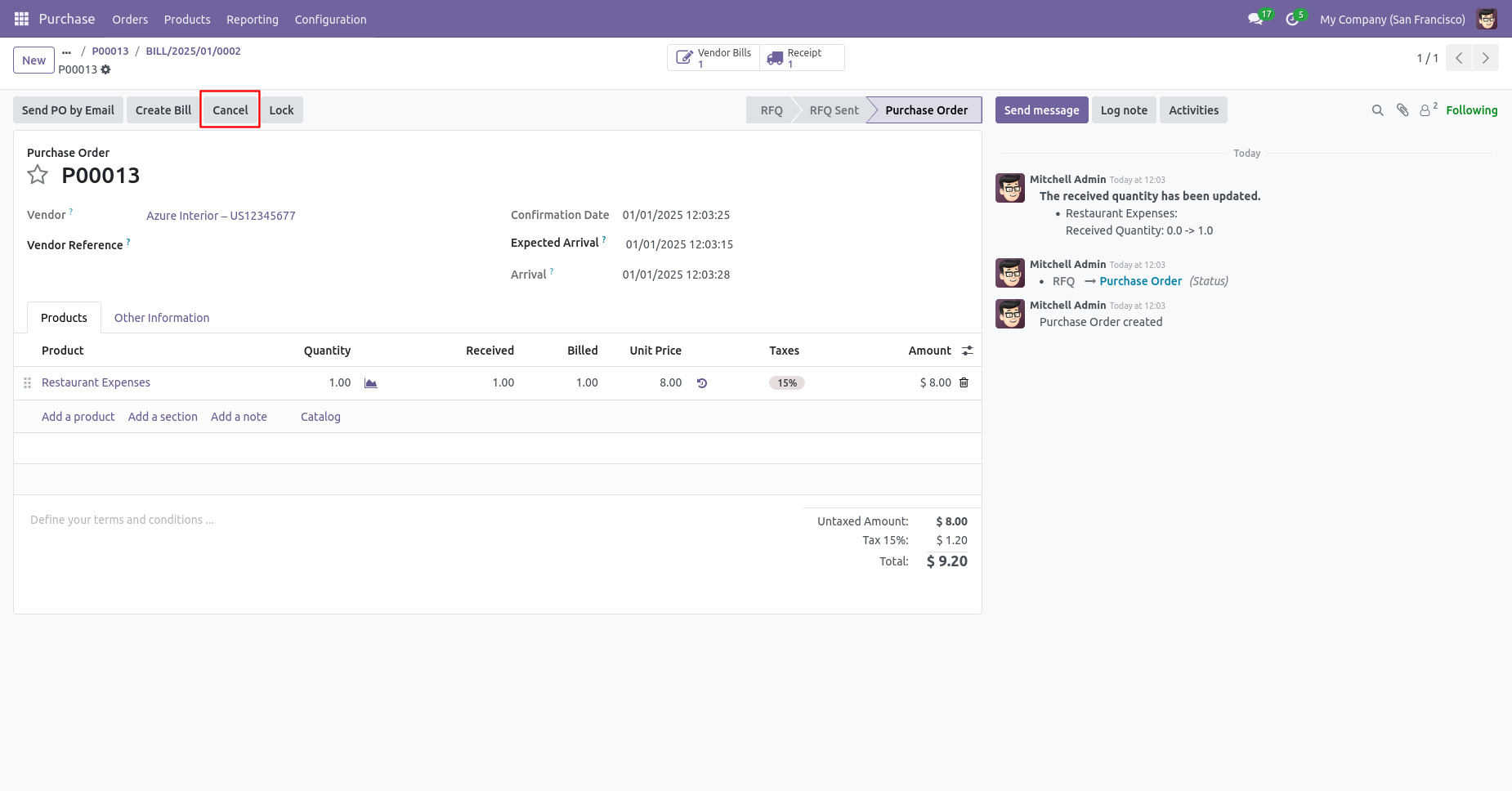
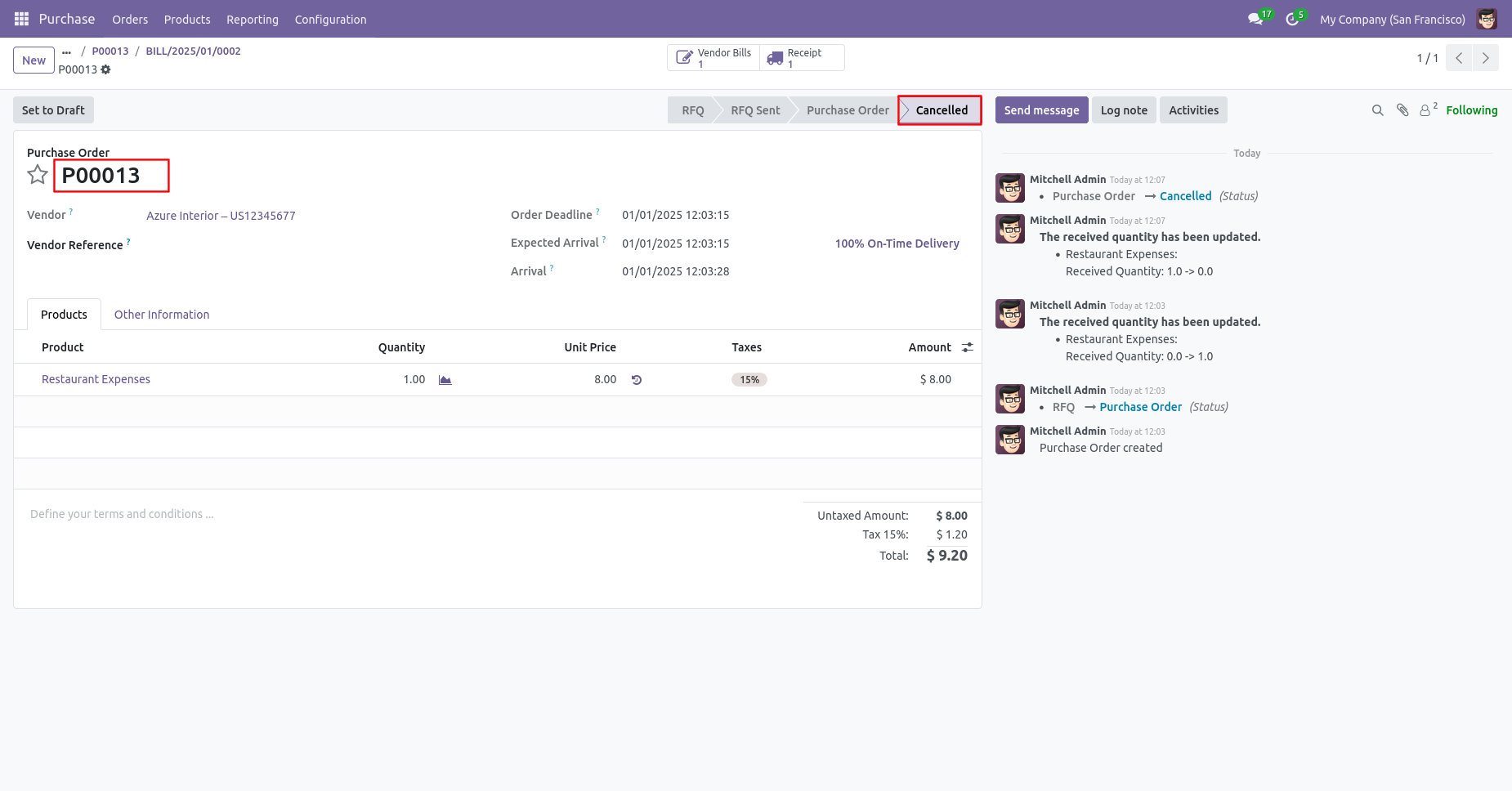
When you cancel a purchase order then the purchase order is cancelled and the state is changed to "cancelled".
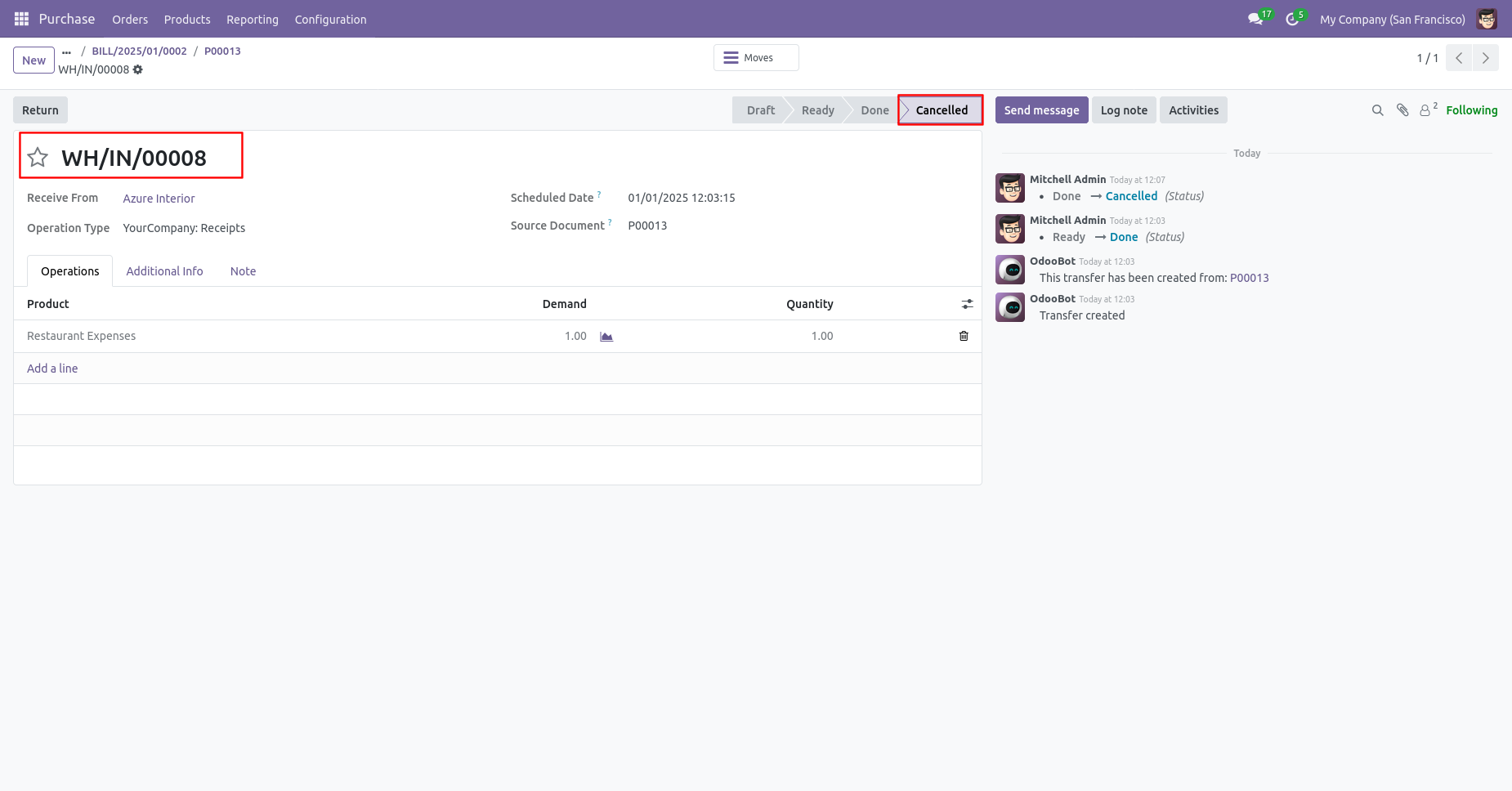
The receipt is automatically canceled as well.
The bill is automatically canceled as well.
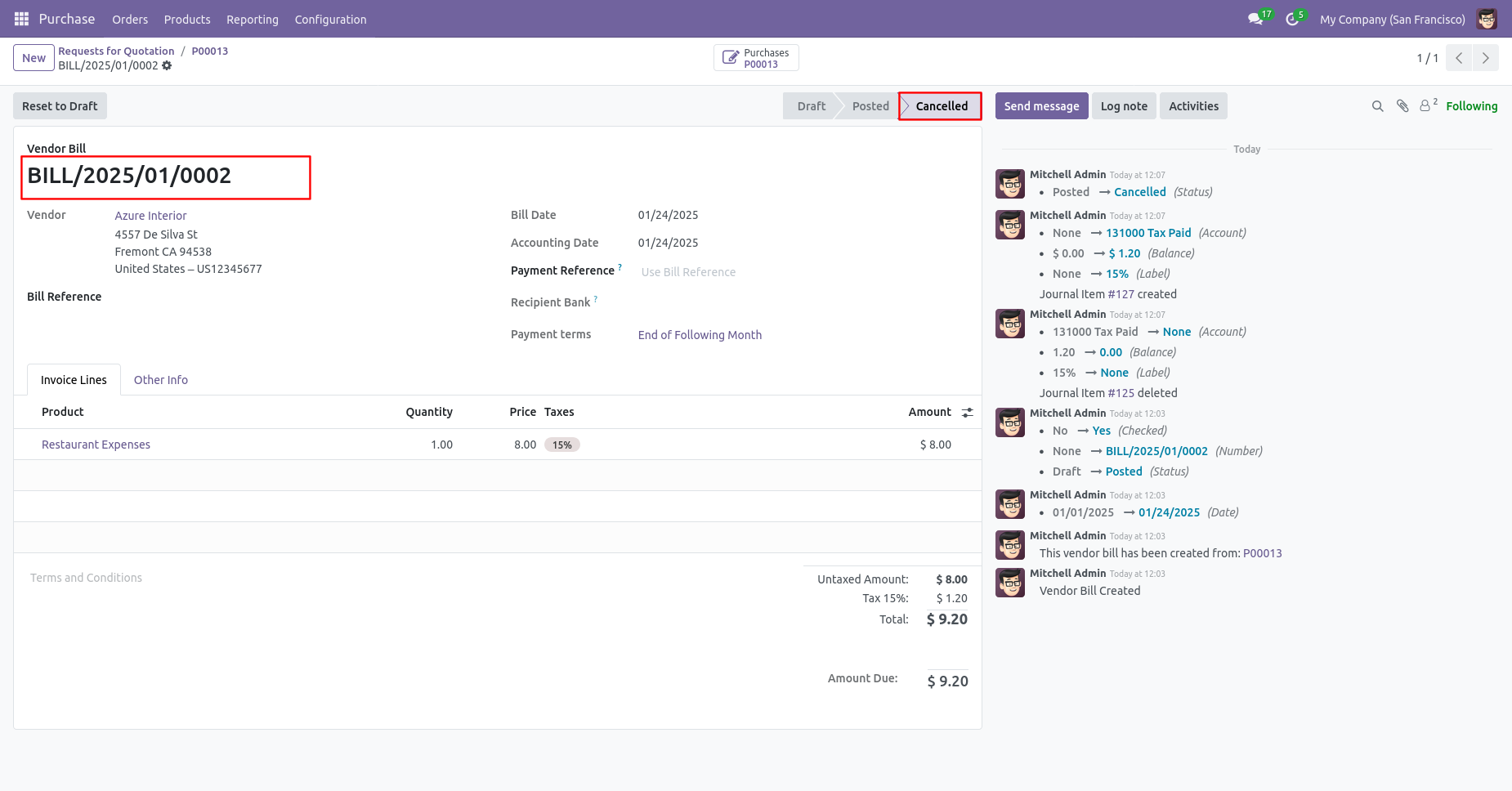
When you want to cancel a purchase order and reset to the draft
state tick "Cancel And Reset To Draft".
If you want to cancel purchase orders, receipt & bill then you
can choose both options "Cancel Receipt" & "Cancel Bill and
Payment".
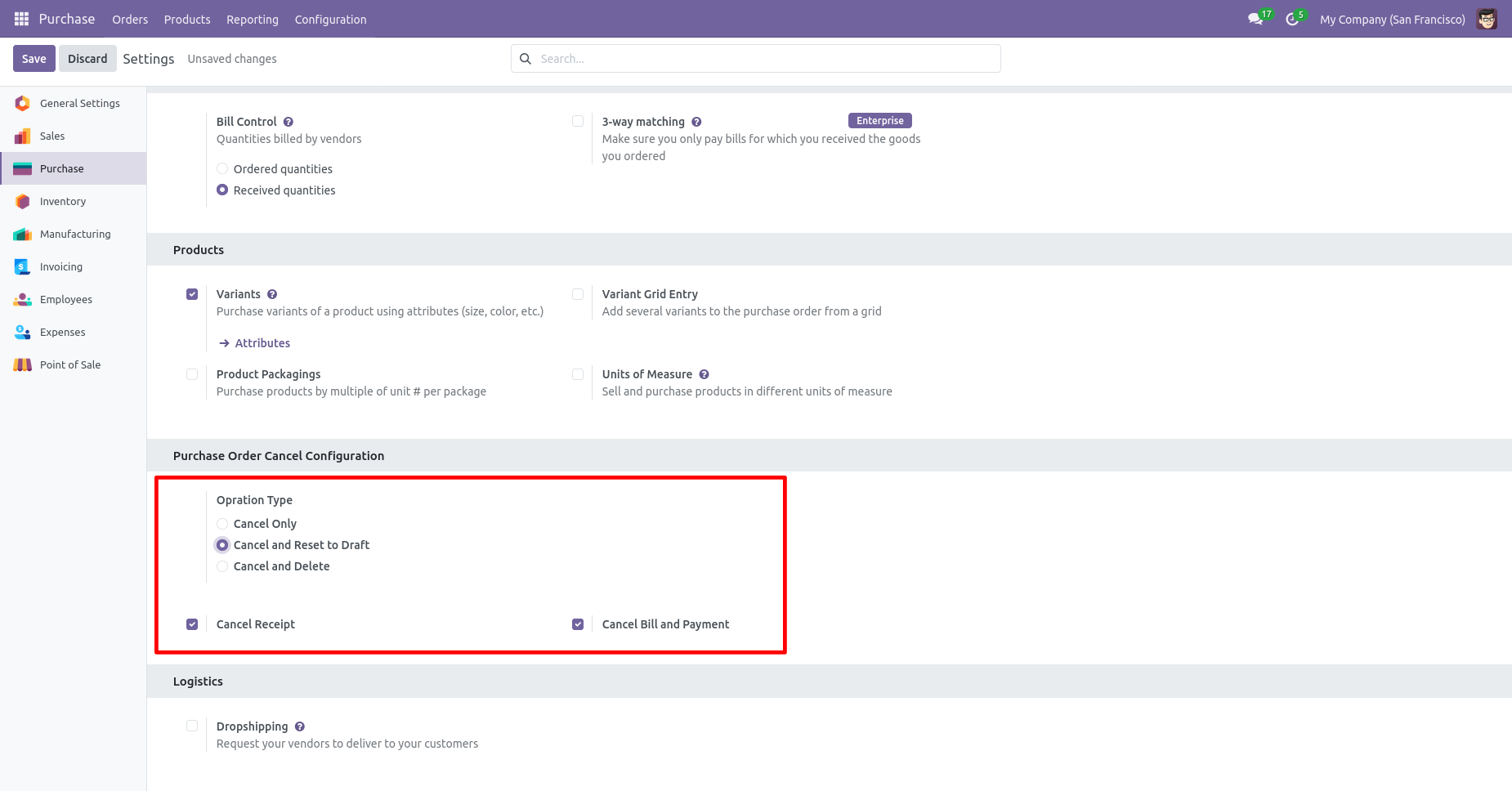
Now we create purchase order, receipt & bill.
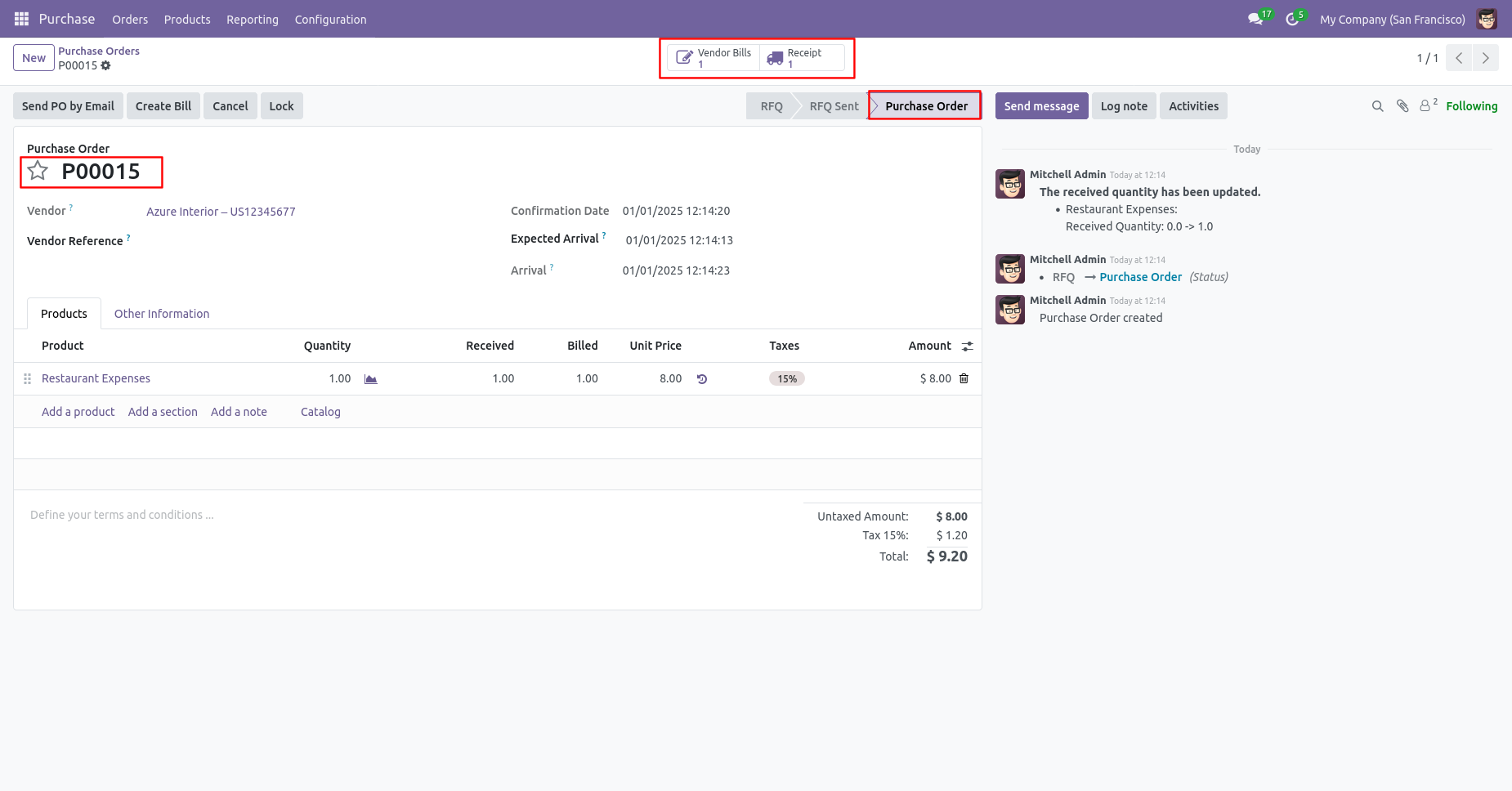
Our receipt is in the done state.
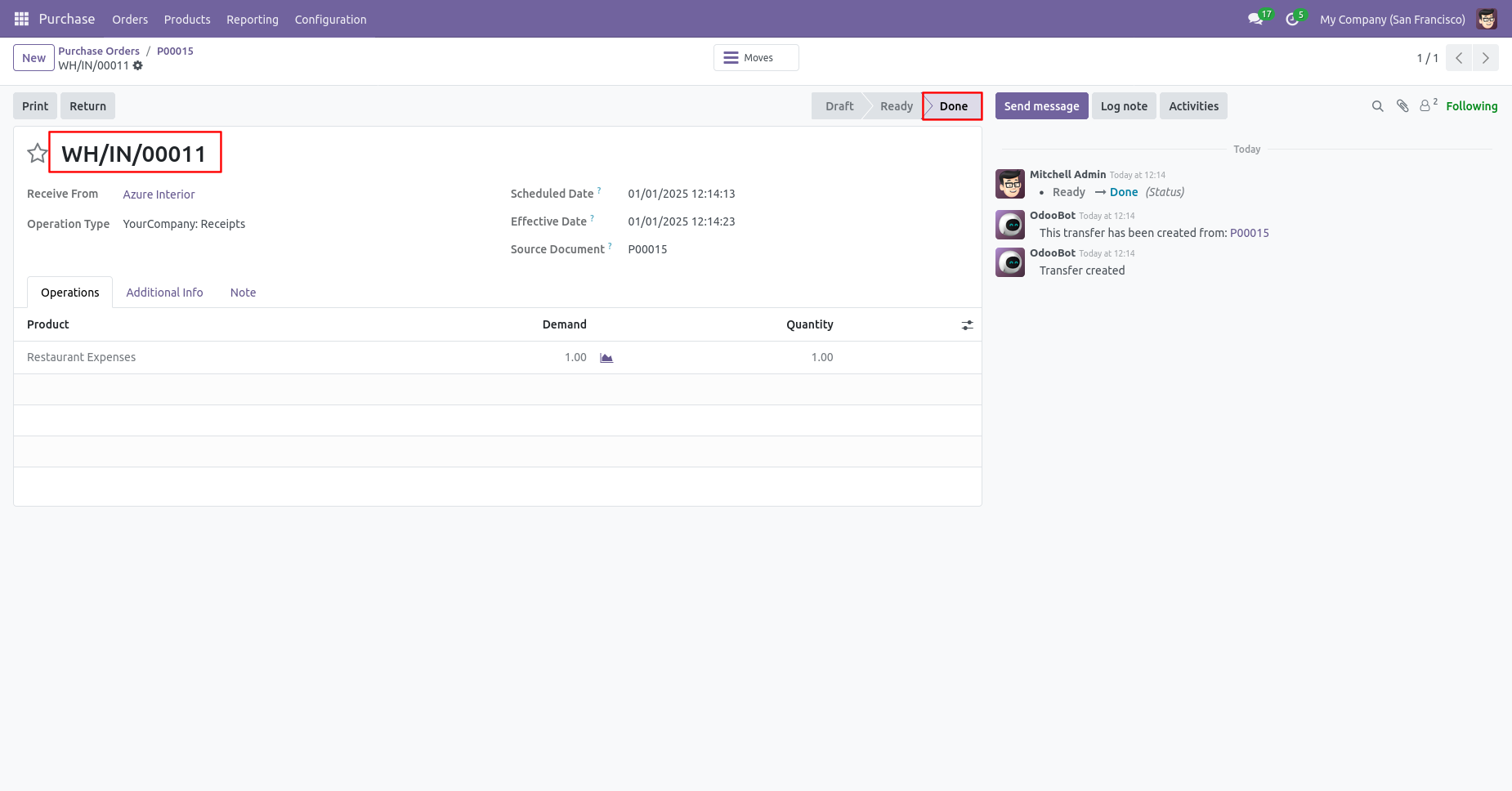
Our bill is posted.
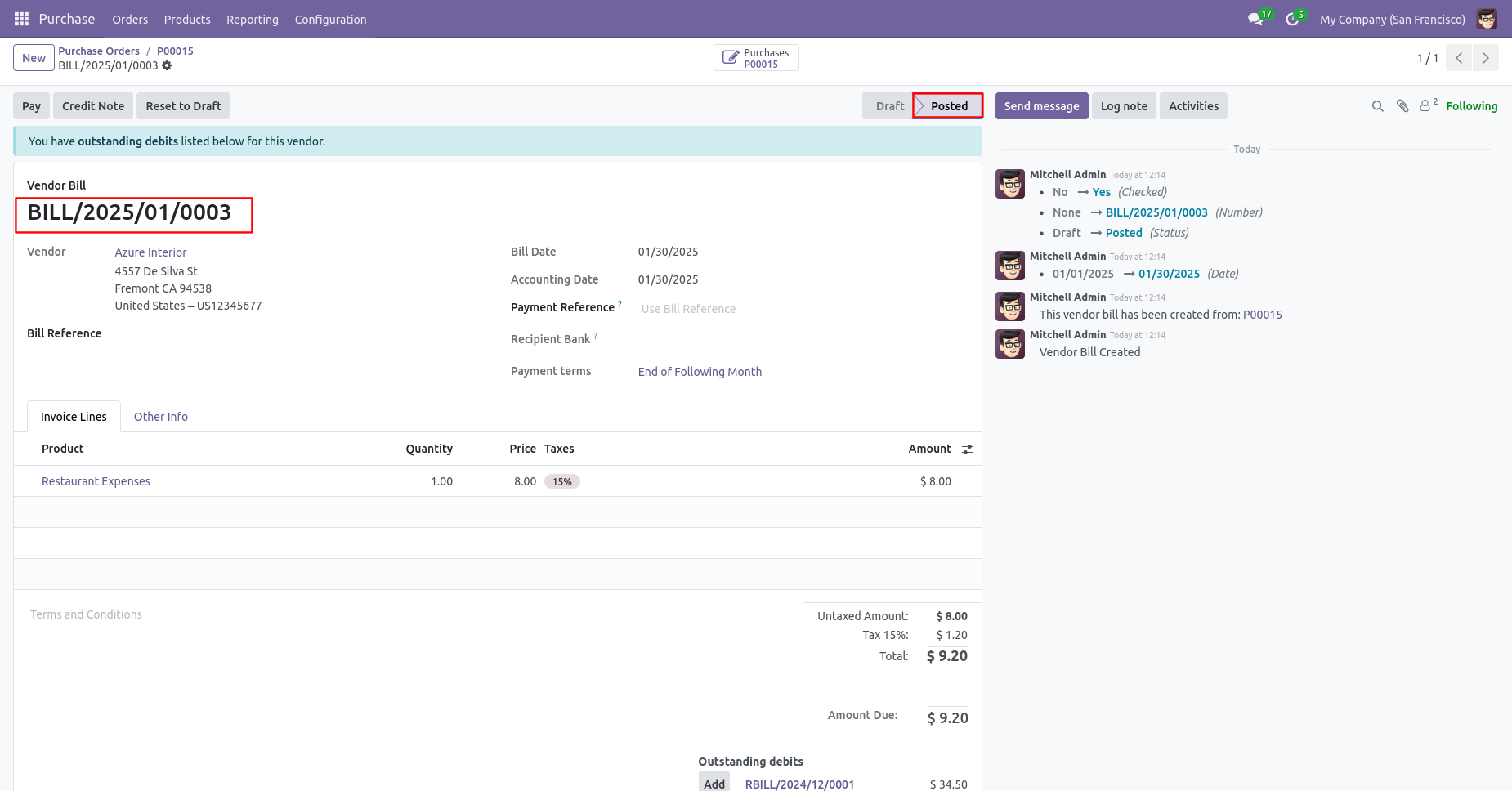
Press the "Cancel" button to cancel created purchase order.
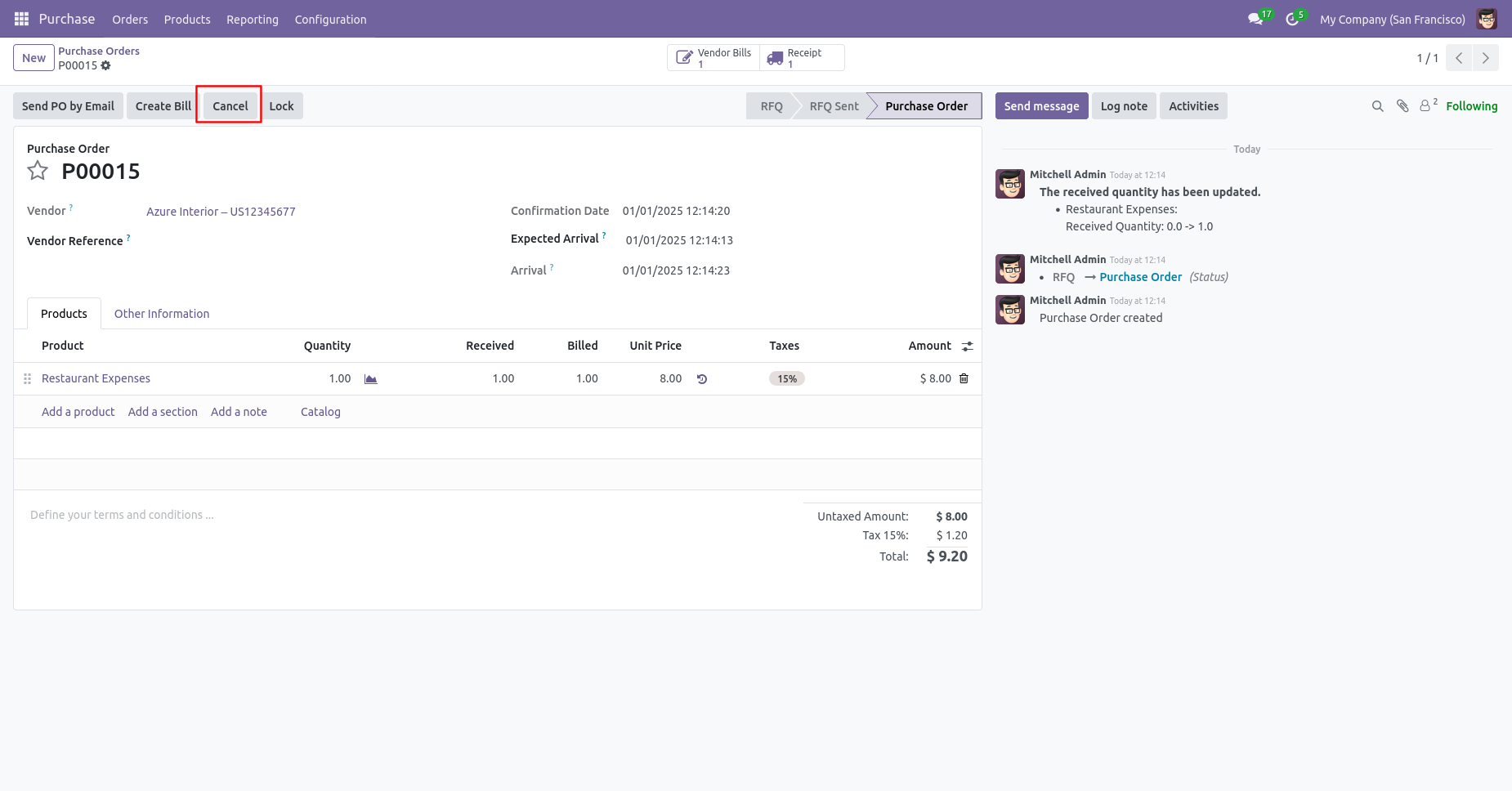
After canceling the purchase order it reset to the draft.
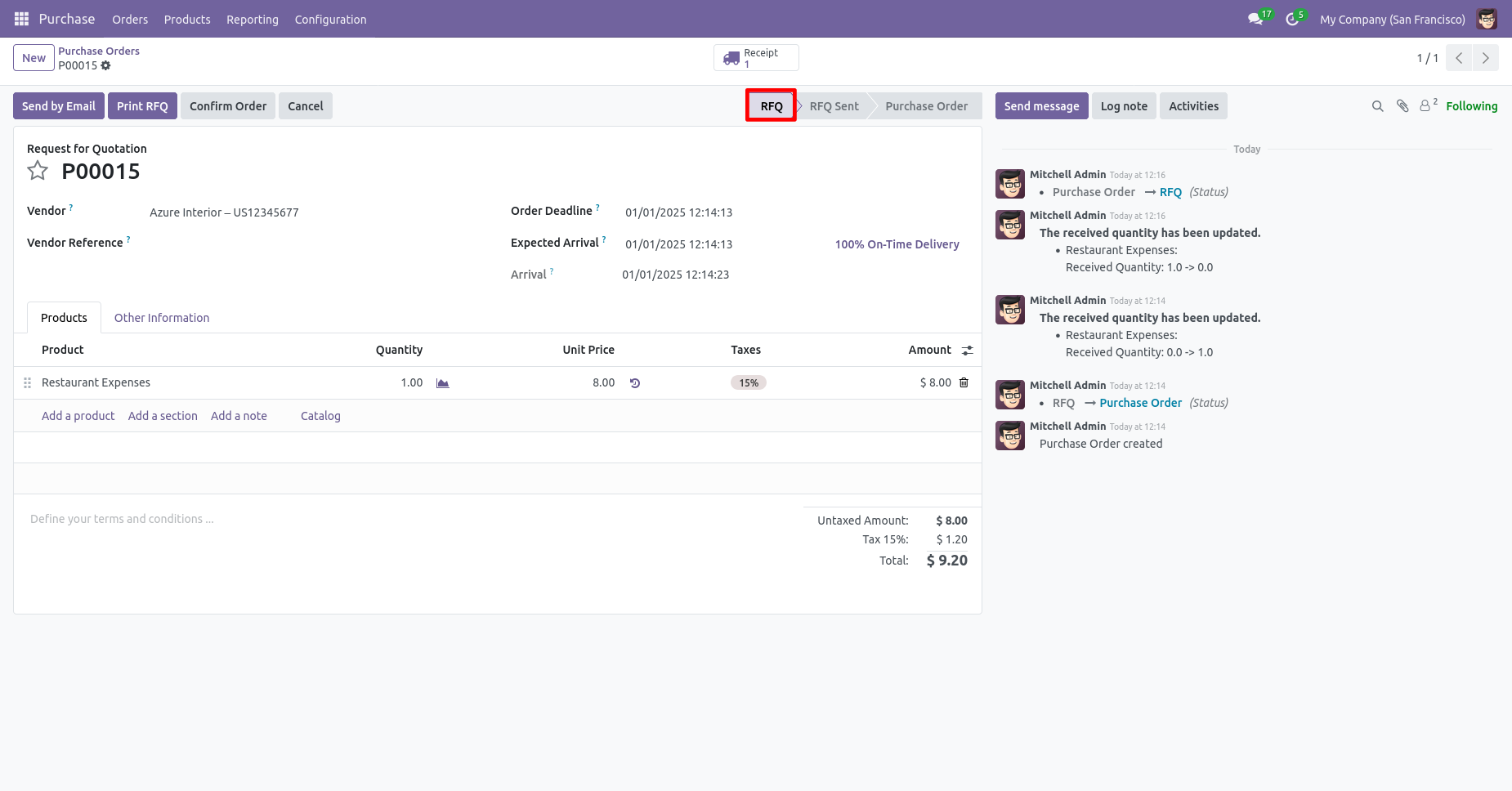
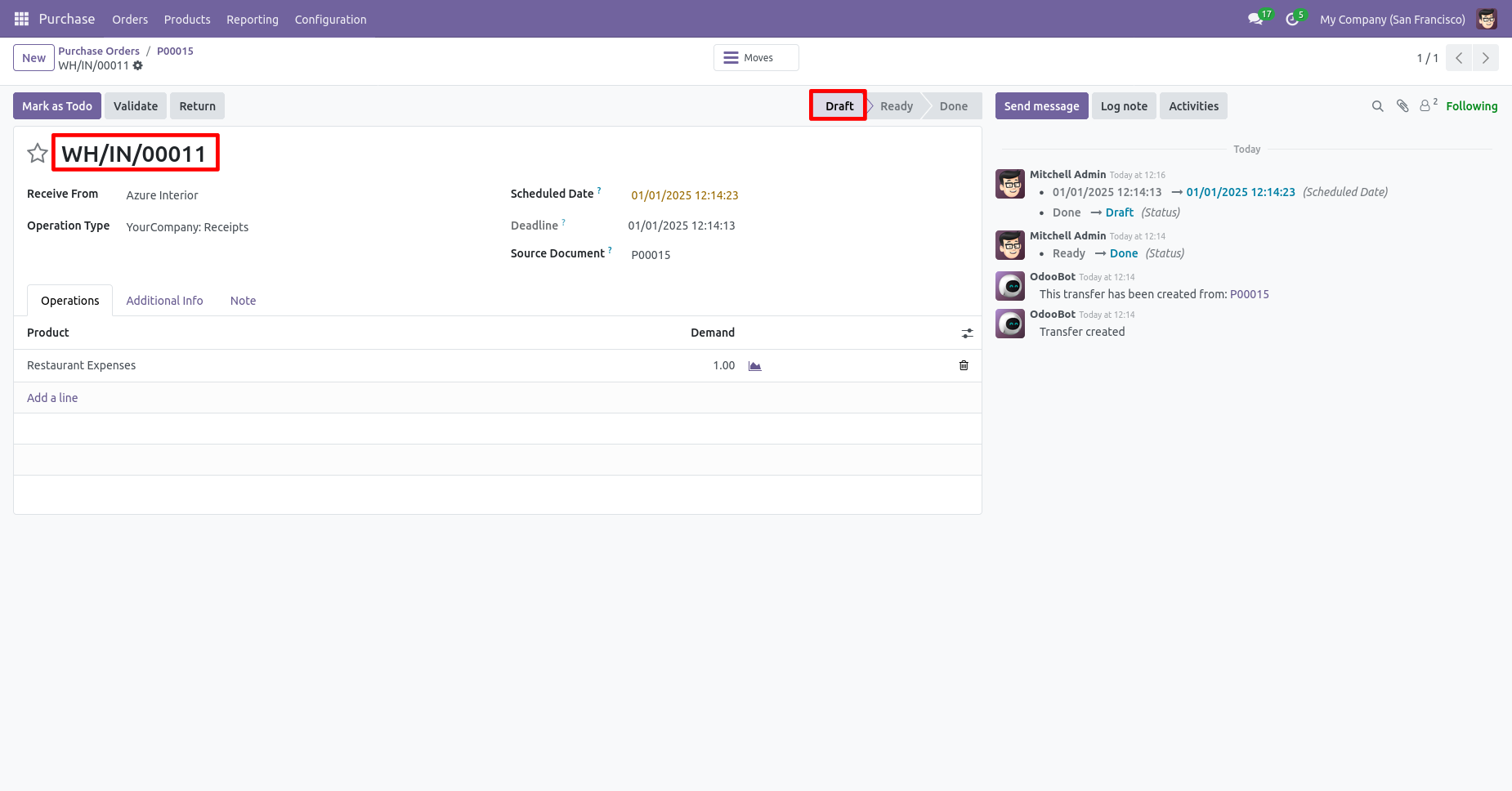
Our receipt is also reset to the draft.
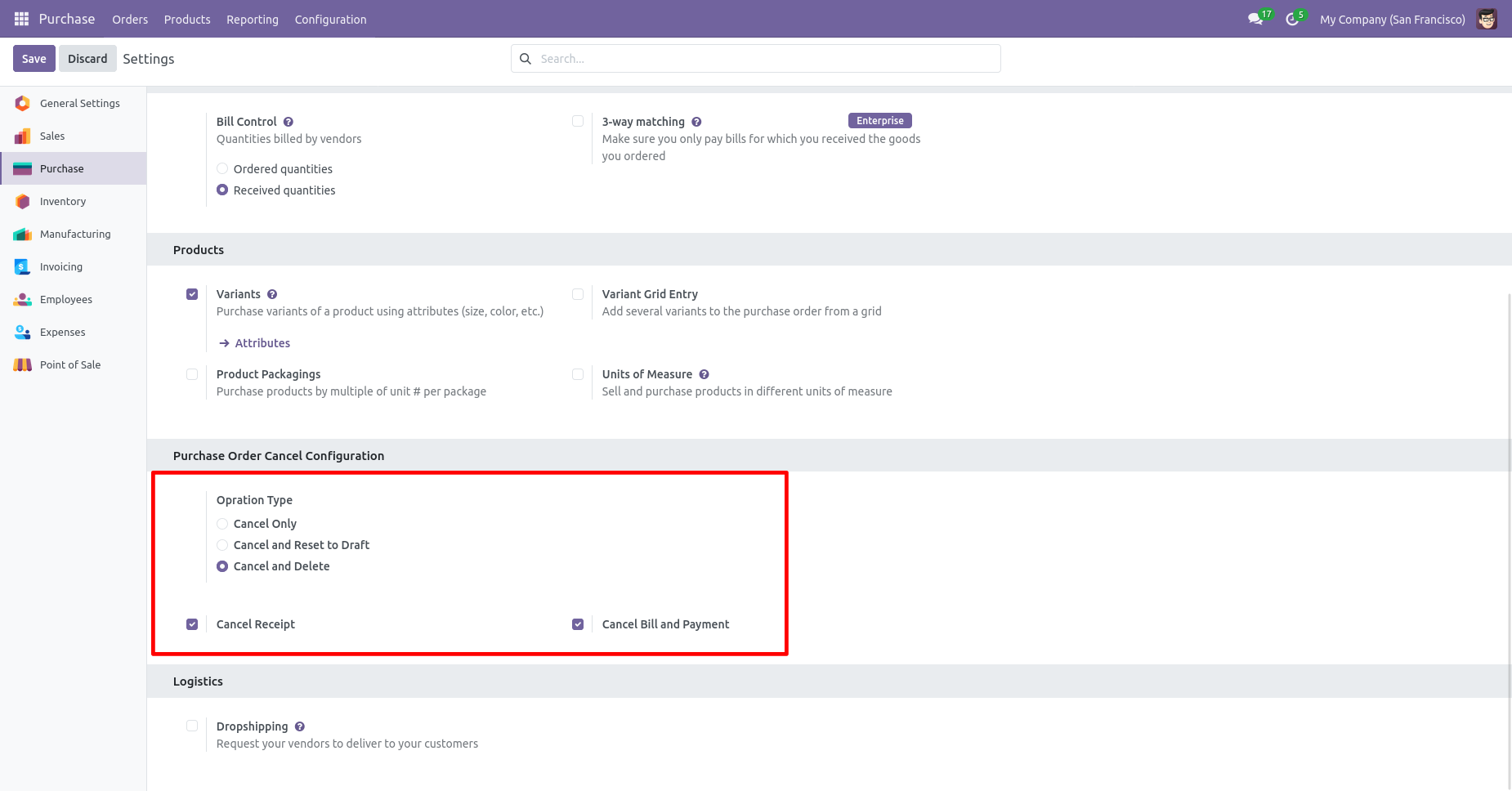
When you want to Cancel & Delete a purchase order then choose
the "Cancel And Delete" option.
If you want to cancel purchase orders, receipts & bill then you
can choose both options "Cancel Receipt" & "Cancel Bill and
Payment".
Now we create purchase order, receipt & bill.
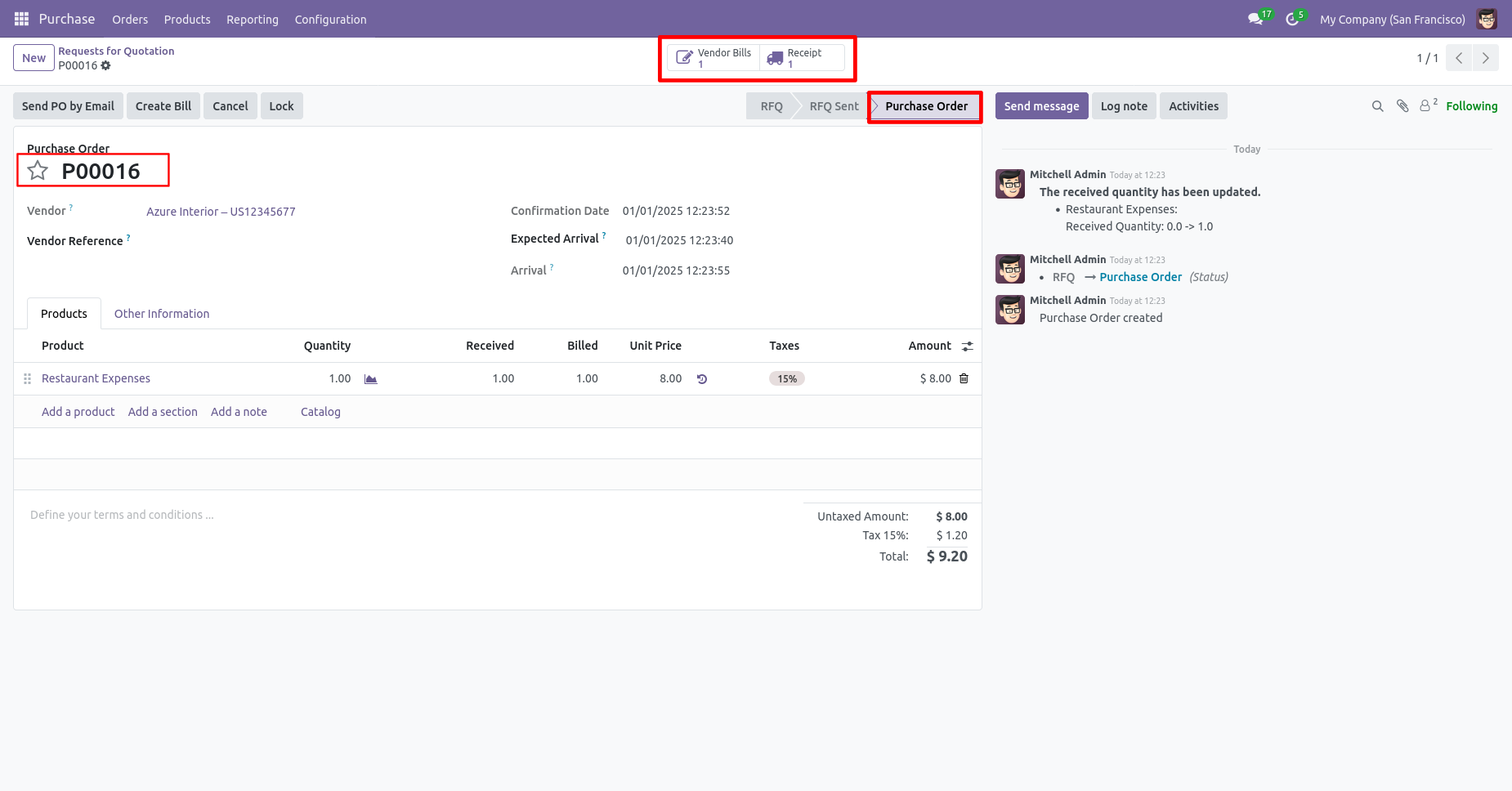
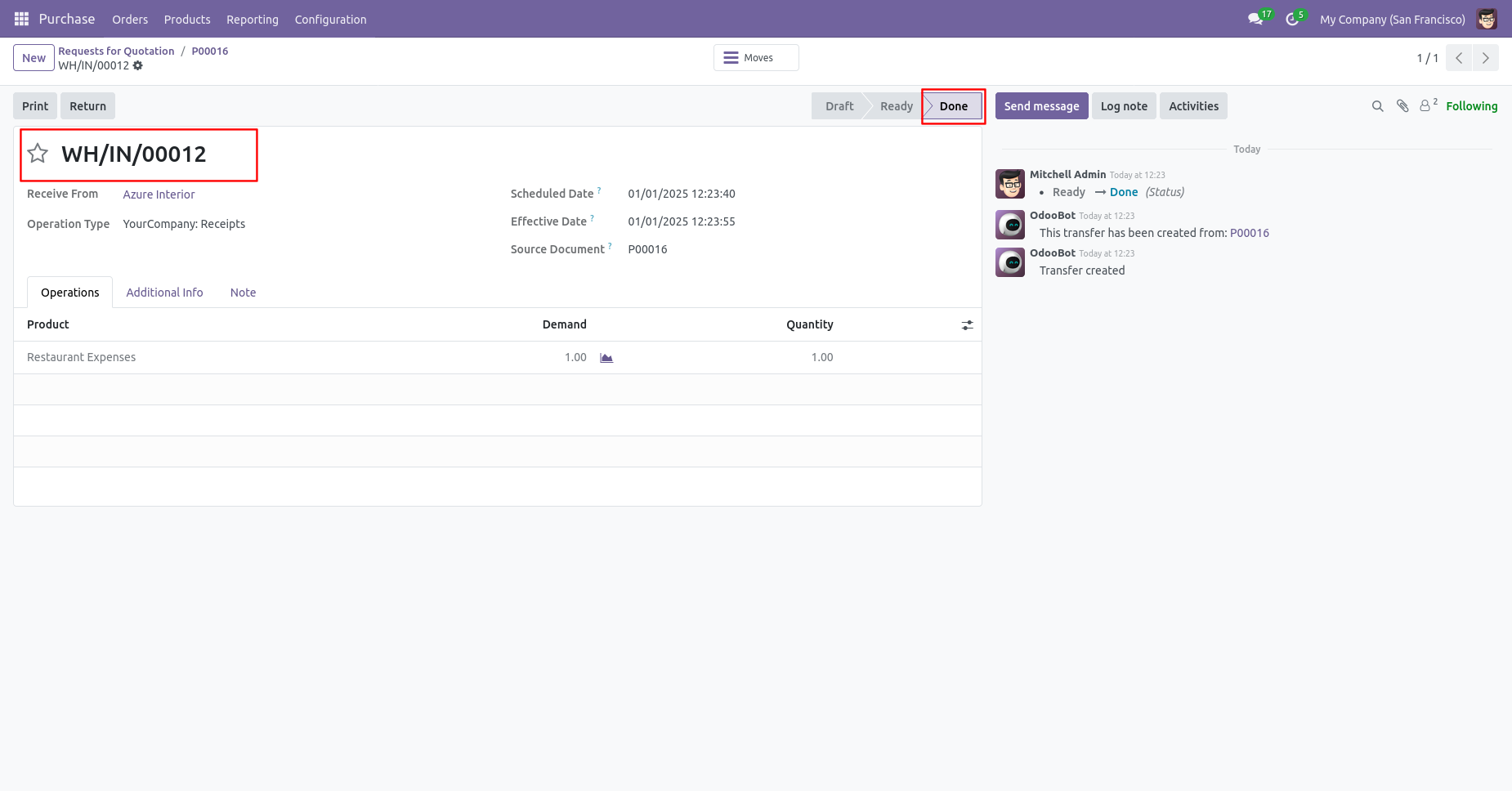
Our receipt is in the "Done" state.
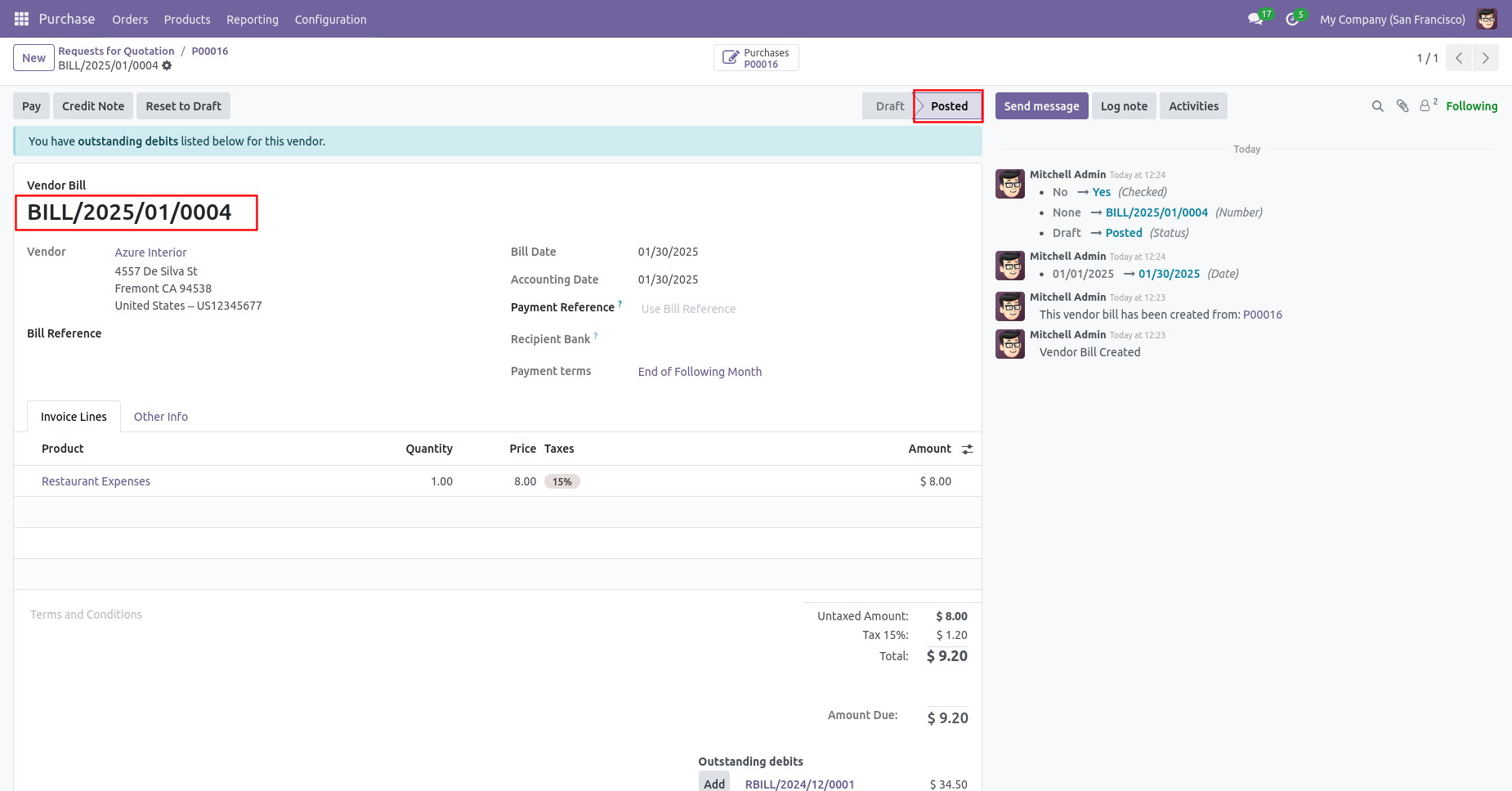
Our bill is in the "Posted" state.
Press the "Cancel" button to cancel created purchase order.
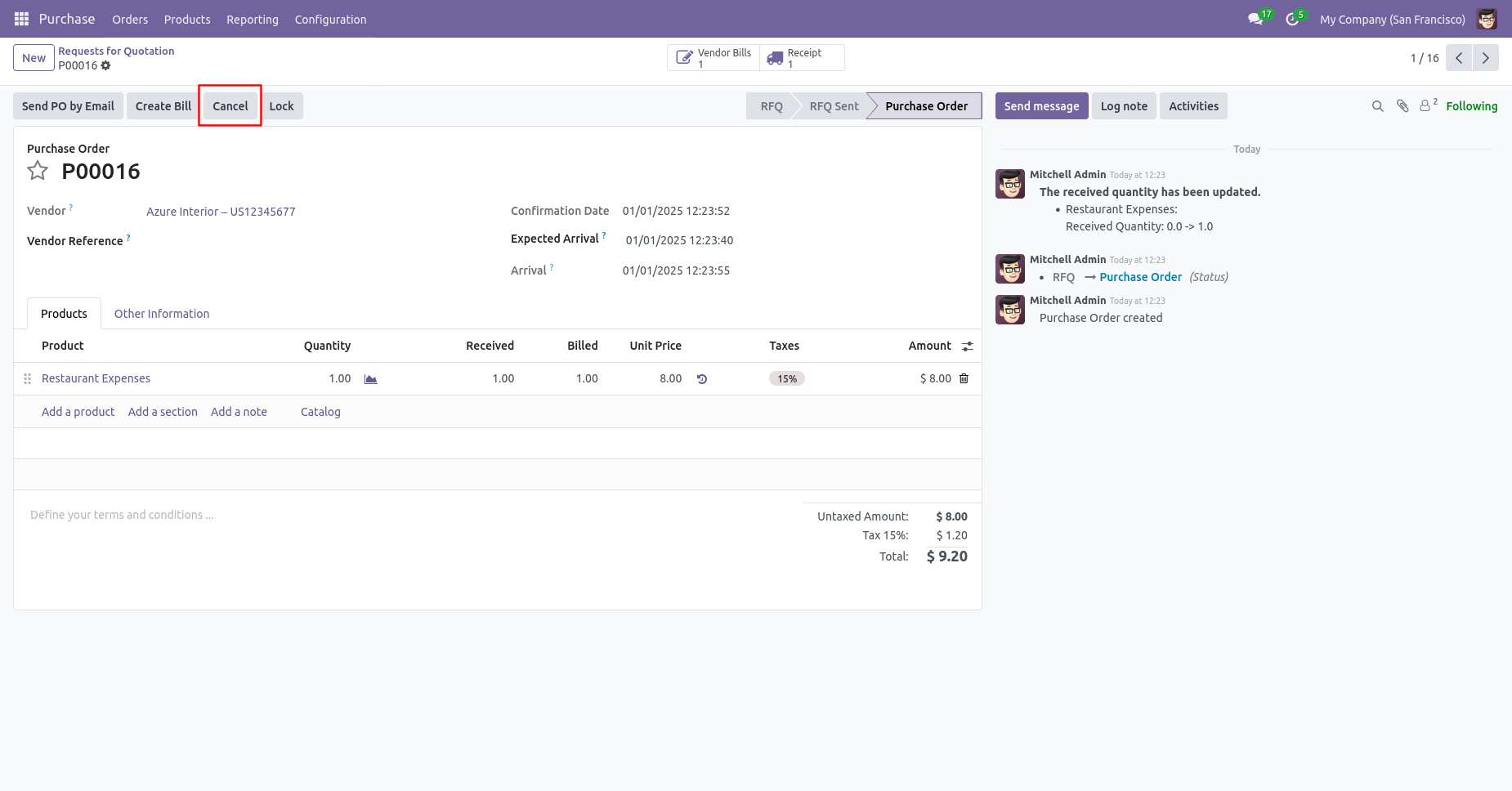
After the "Cancel" the purchase order, our purchase order will be deleted.
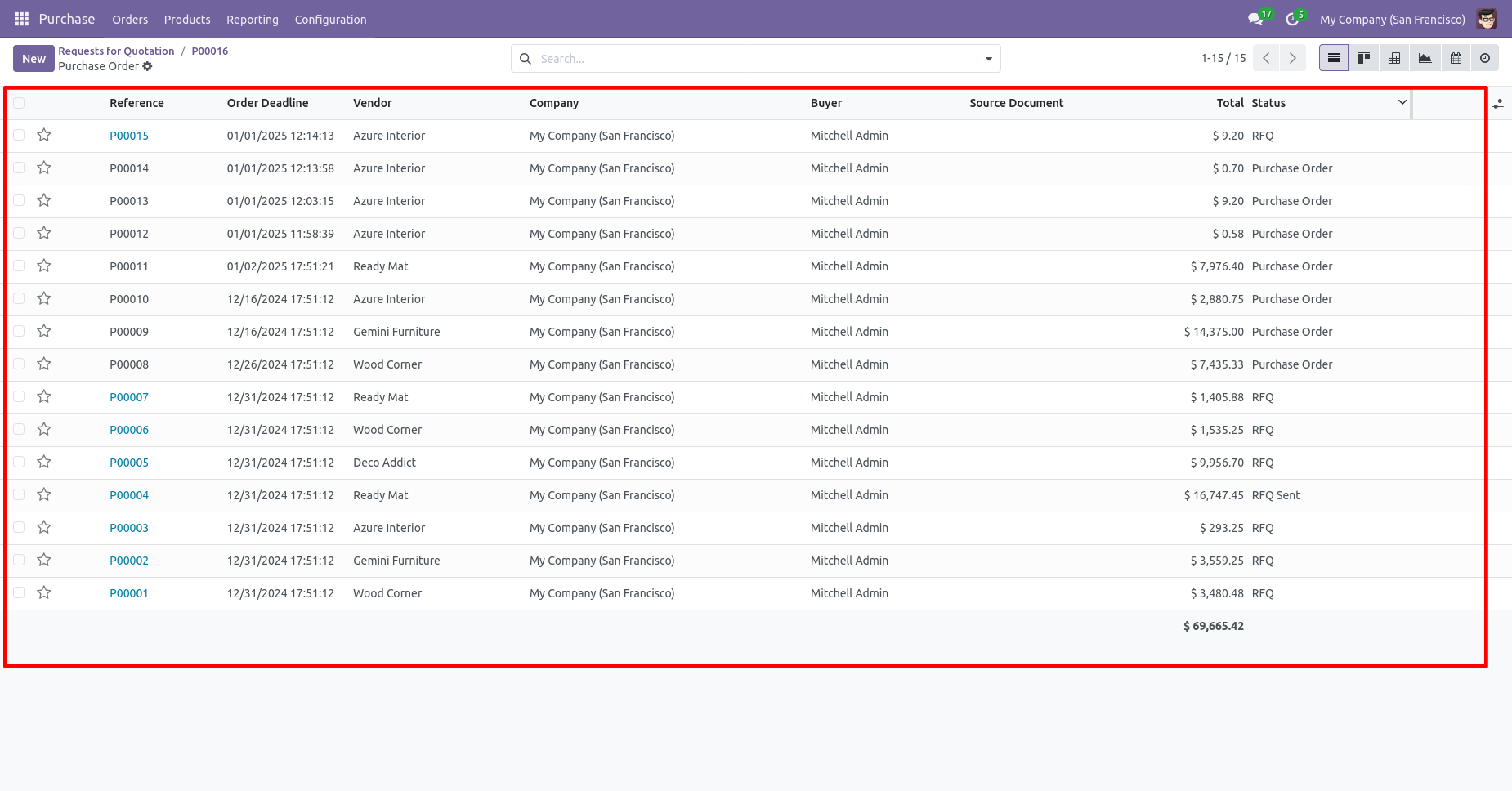
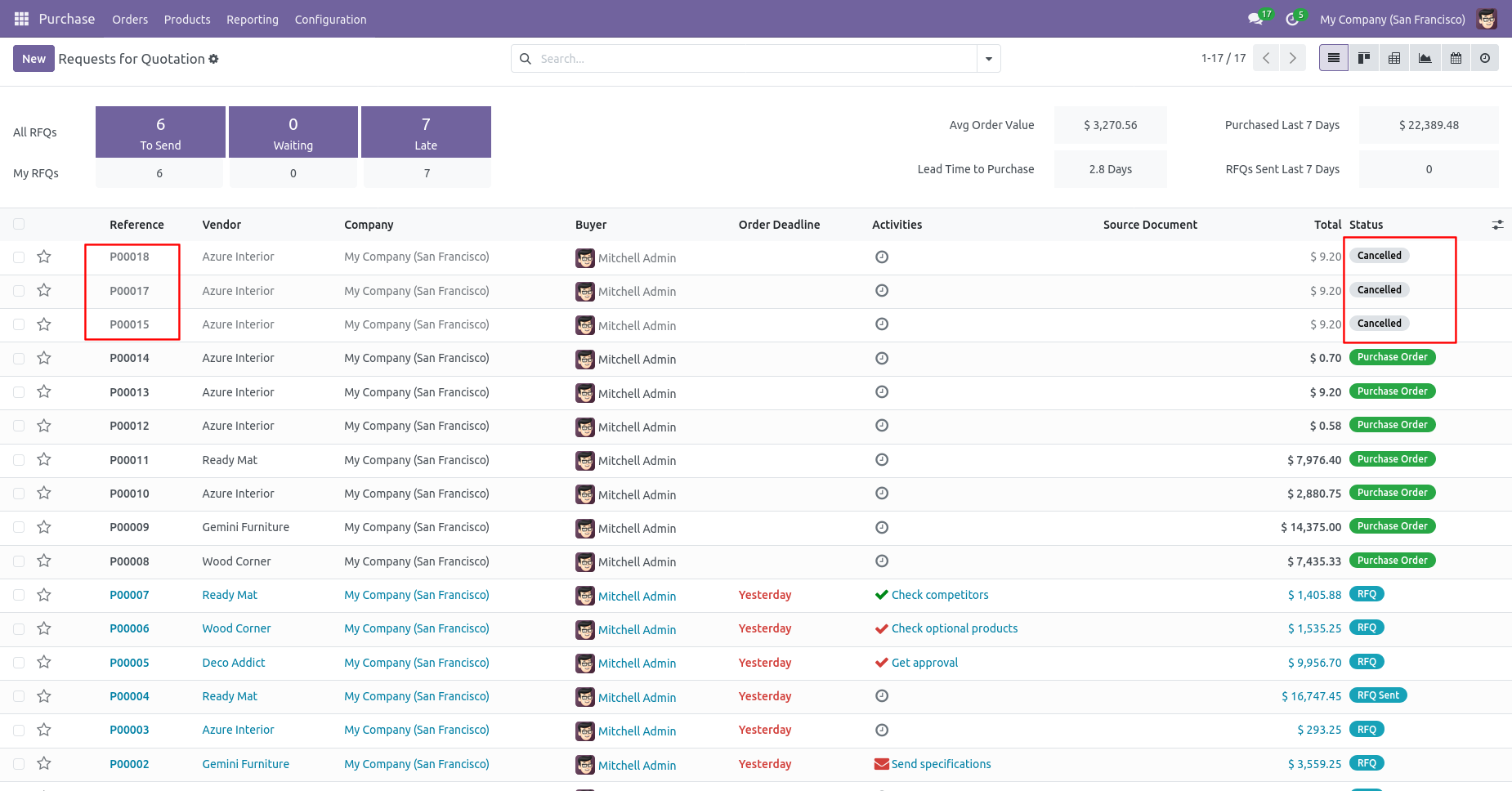
Now we cancel multiple purchase orders from the tree
view.
Select the PO which you want to cancel.
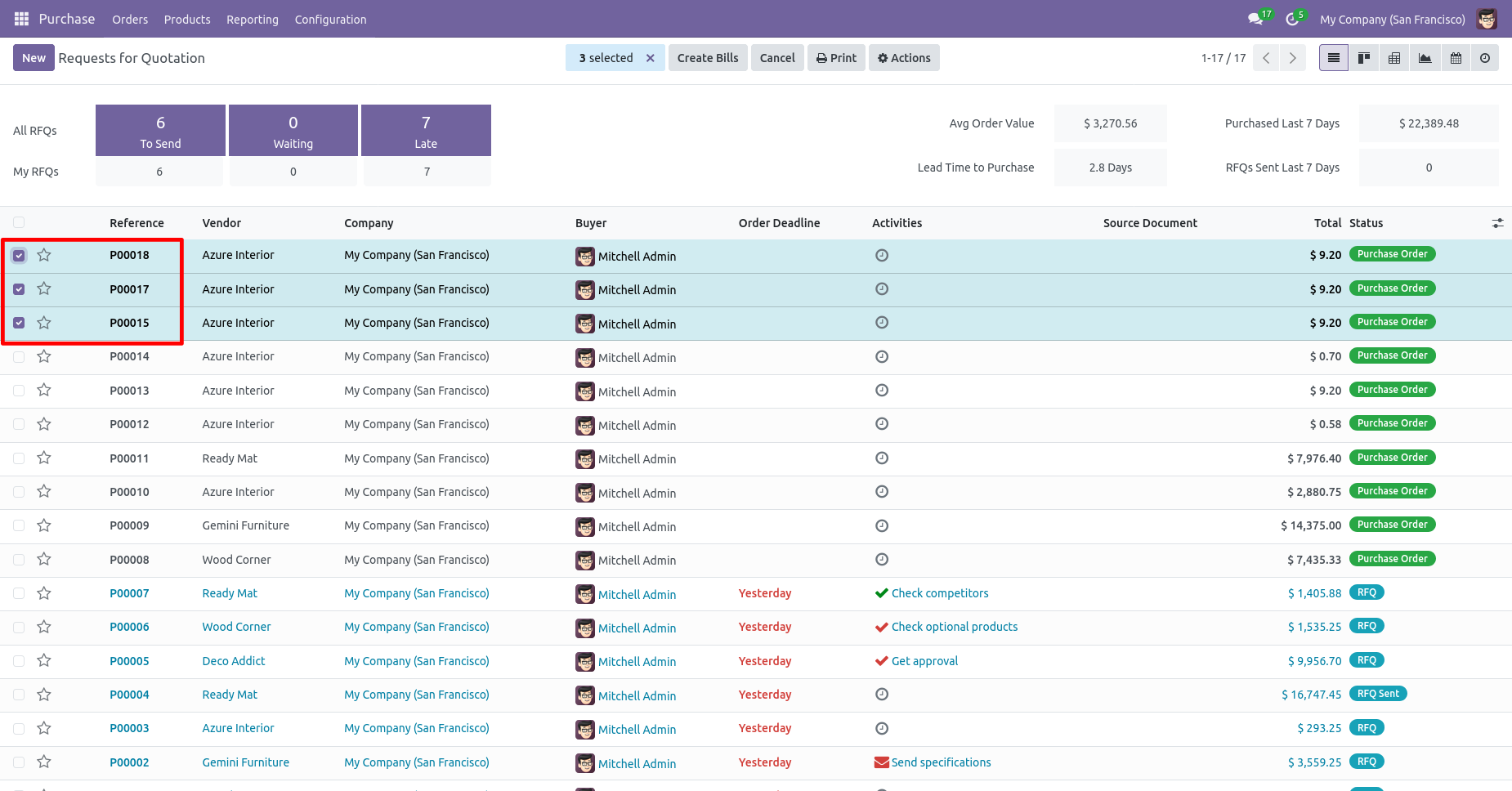
Click on the "Cancel Order" from the Action.
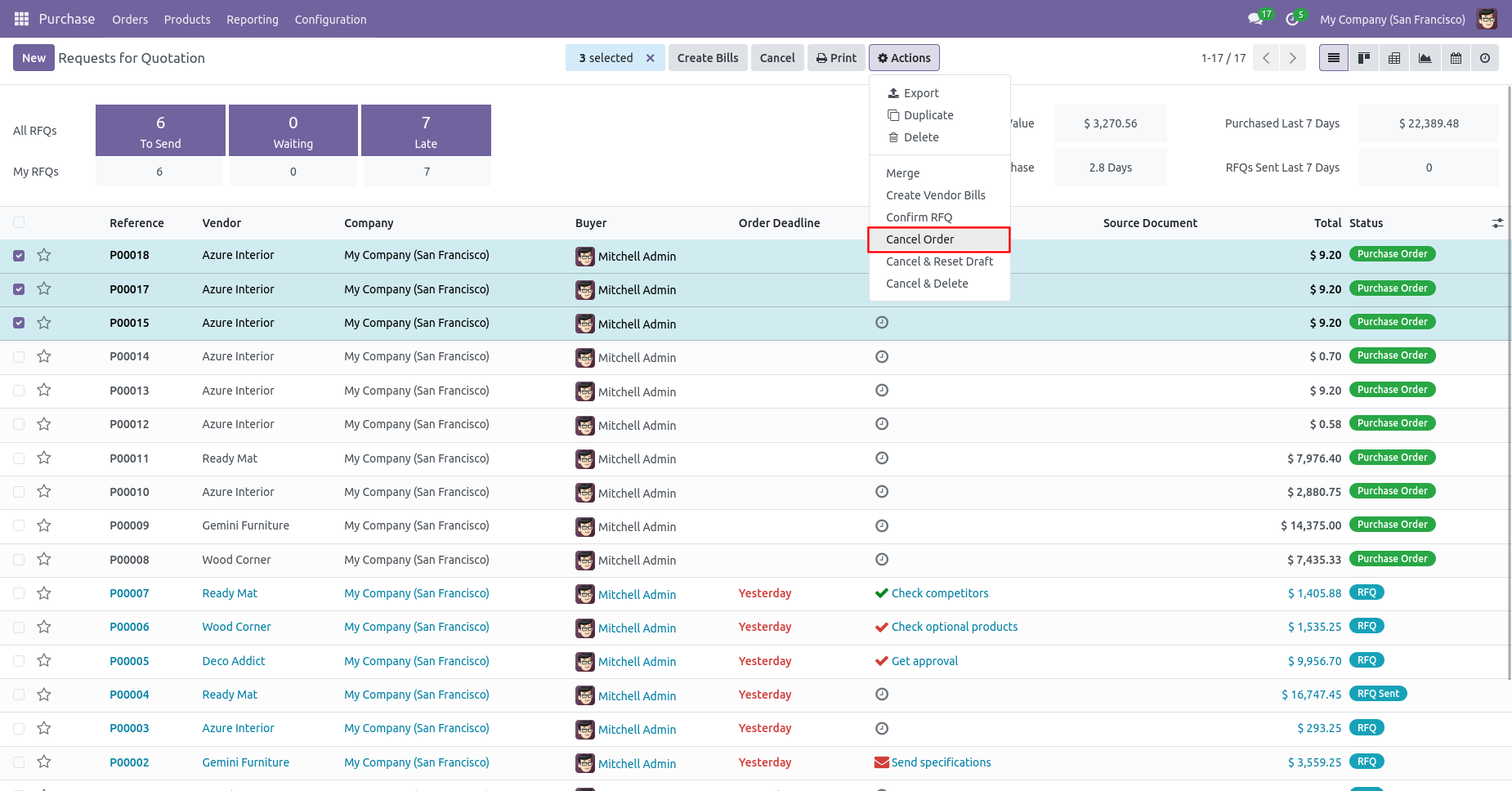
All selected purchase orders are cancelled.
Now we "Cancel & Reset Draft" multiple purchase orders from the tree view.
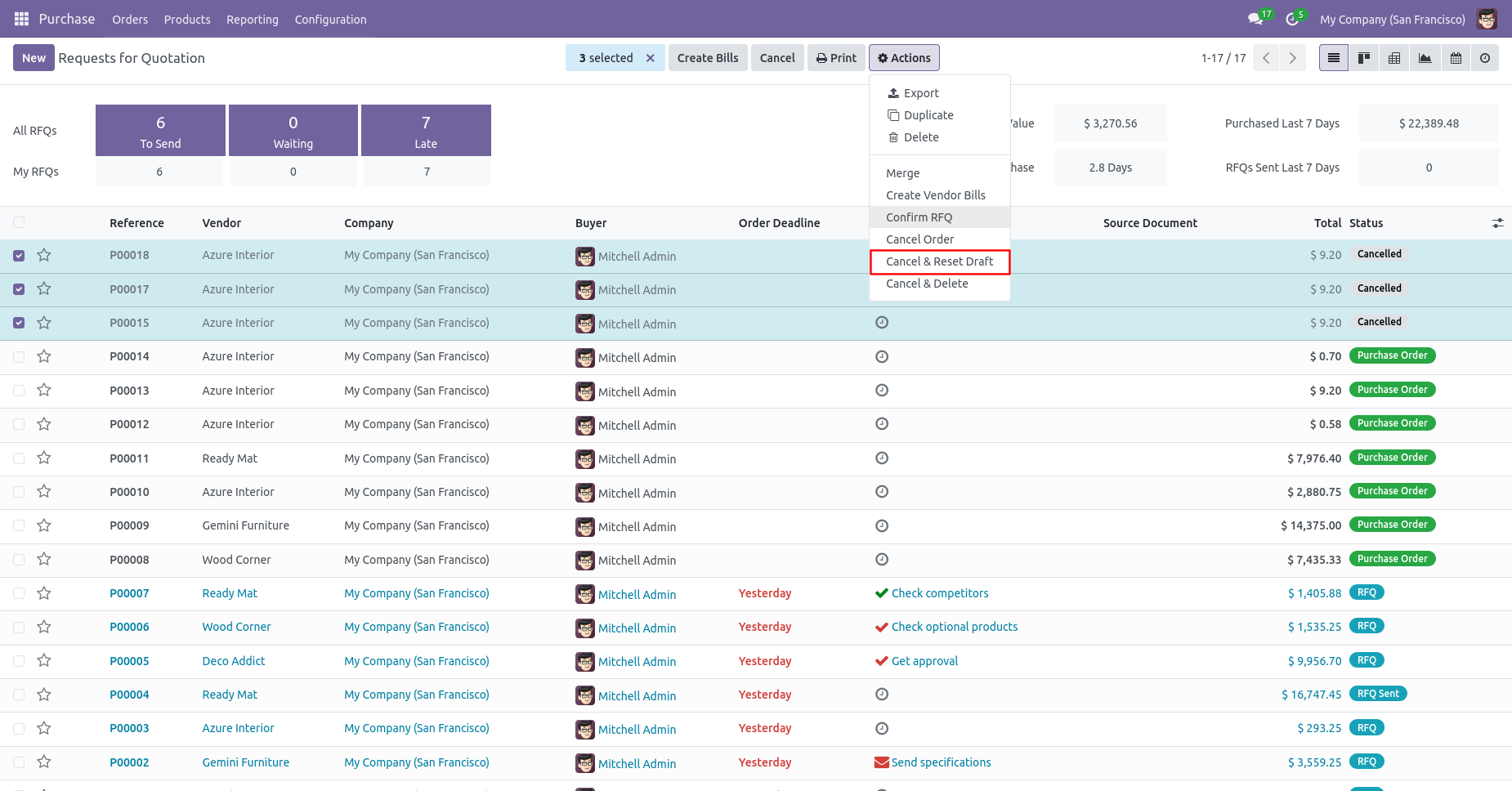
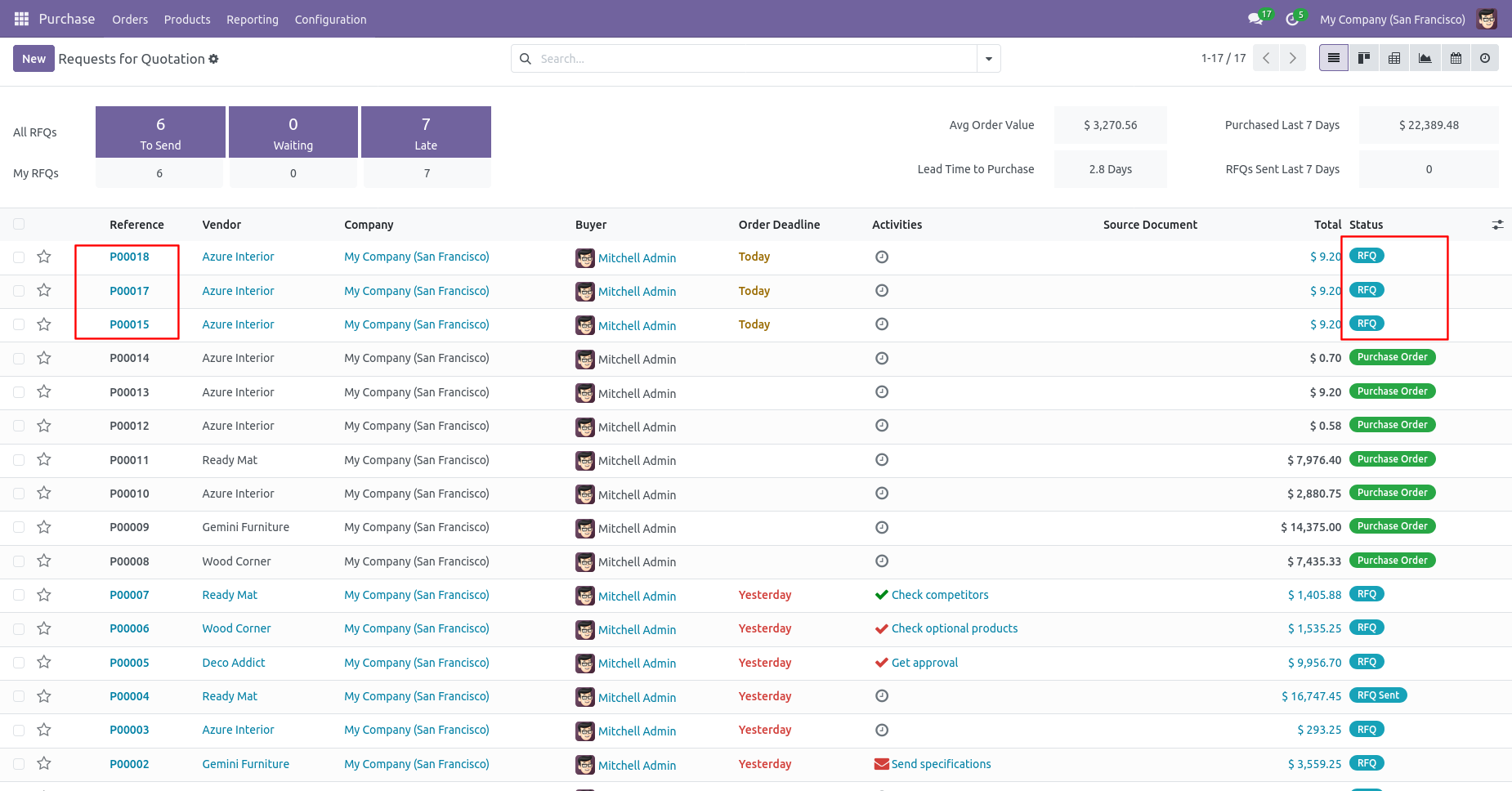
All selected purchase orders are cancelled and reset to the draft.
Now we "Cancel & Delete" multiple purchase orders from the tree view, so all purchase orders will be deleted after cancelled.
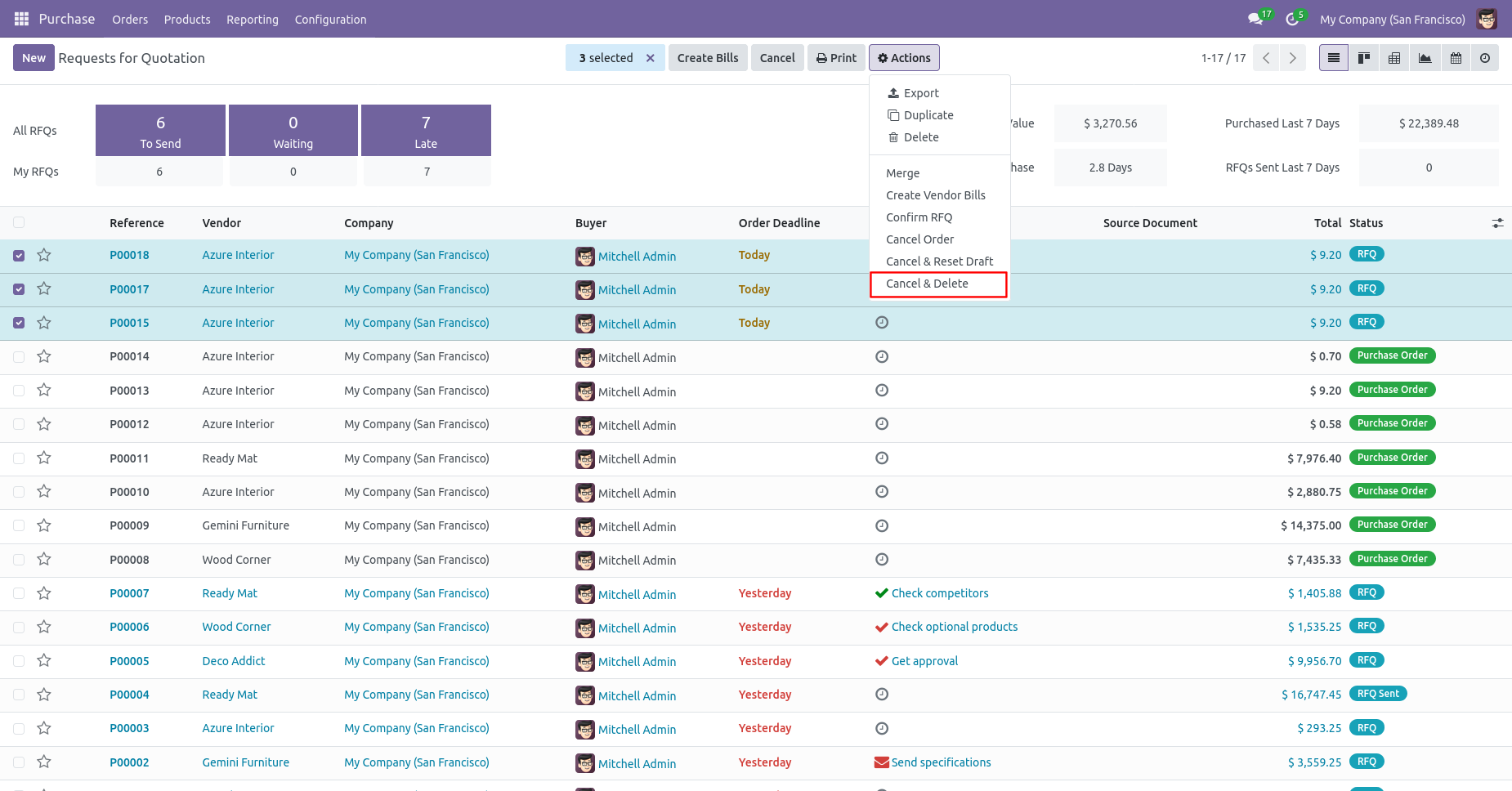
All selected purchase orders are deleted.
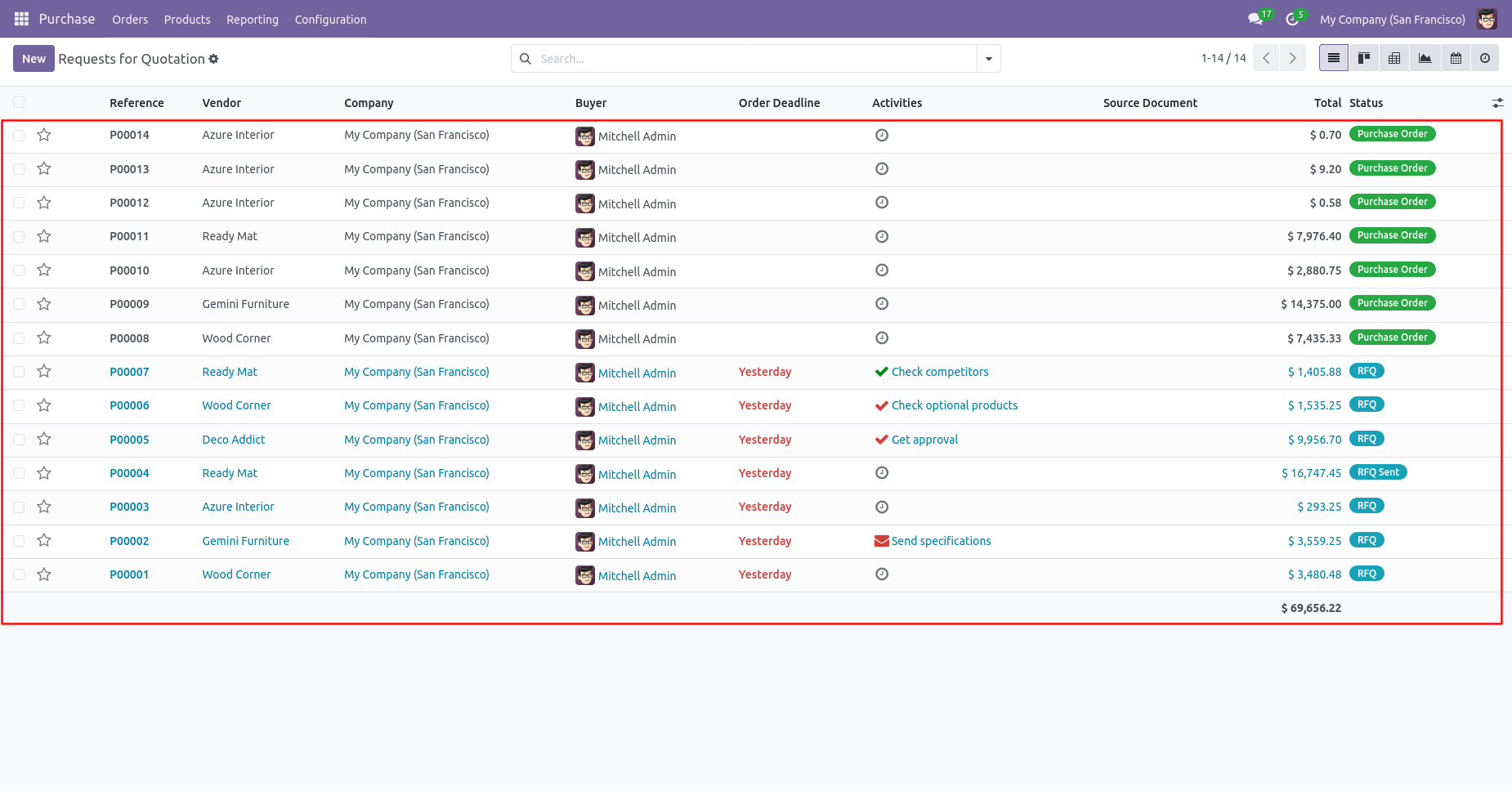
Click the Cancel button on the Purchase Order to initiate the
order cancellation process.
The Cancel Reason wizard opens, allowing you to select or
enter the reason for cancellation before confirming the
cancellation.
After selecting the cancellation reason, click the
Confirm button to cancel the Order.
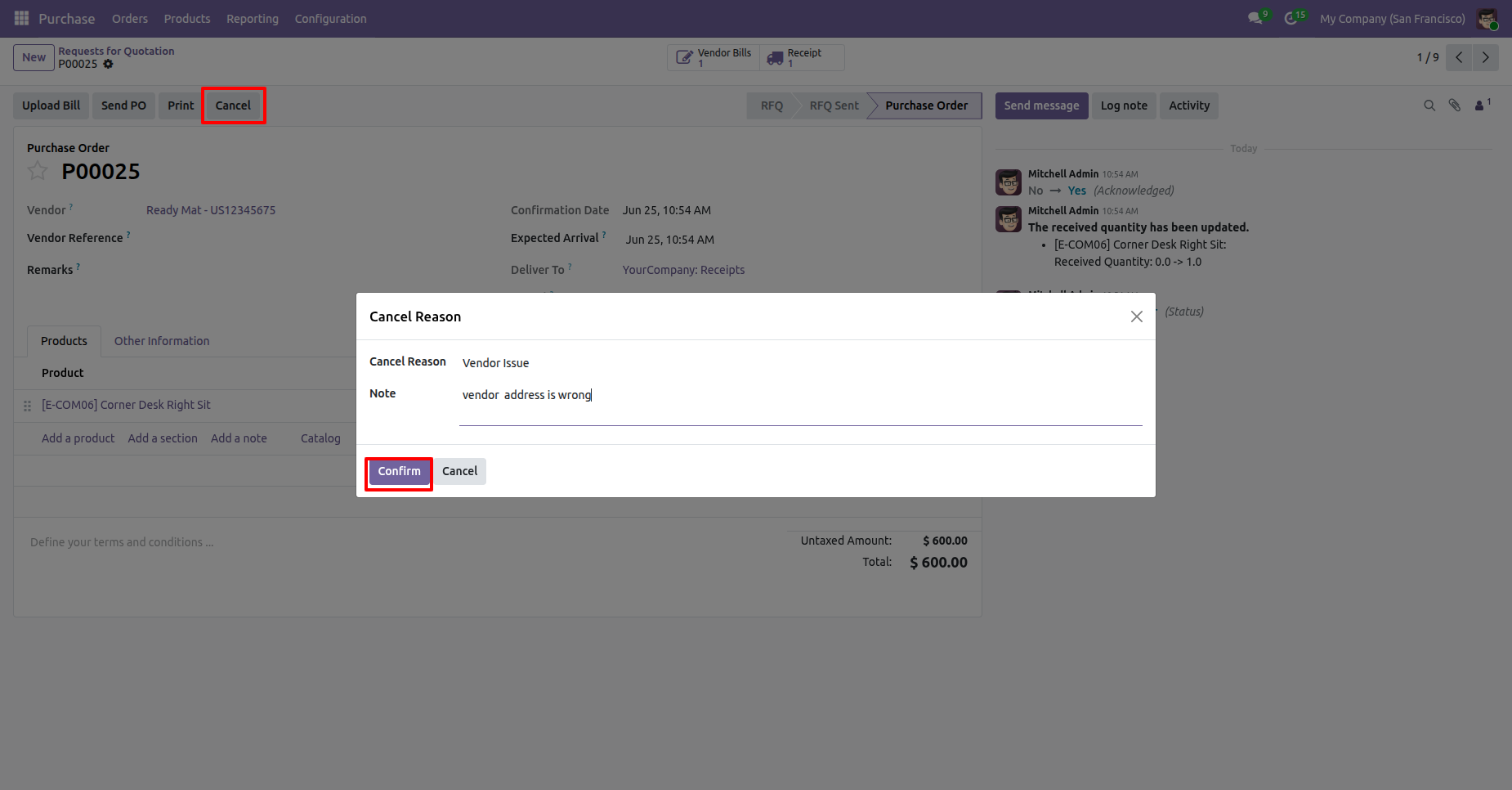
After the Order is canceled, the cancellation information, including the cancellation reason, canceled by, and cancellation date, is displayed in the Order Form View for future reference.
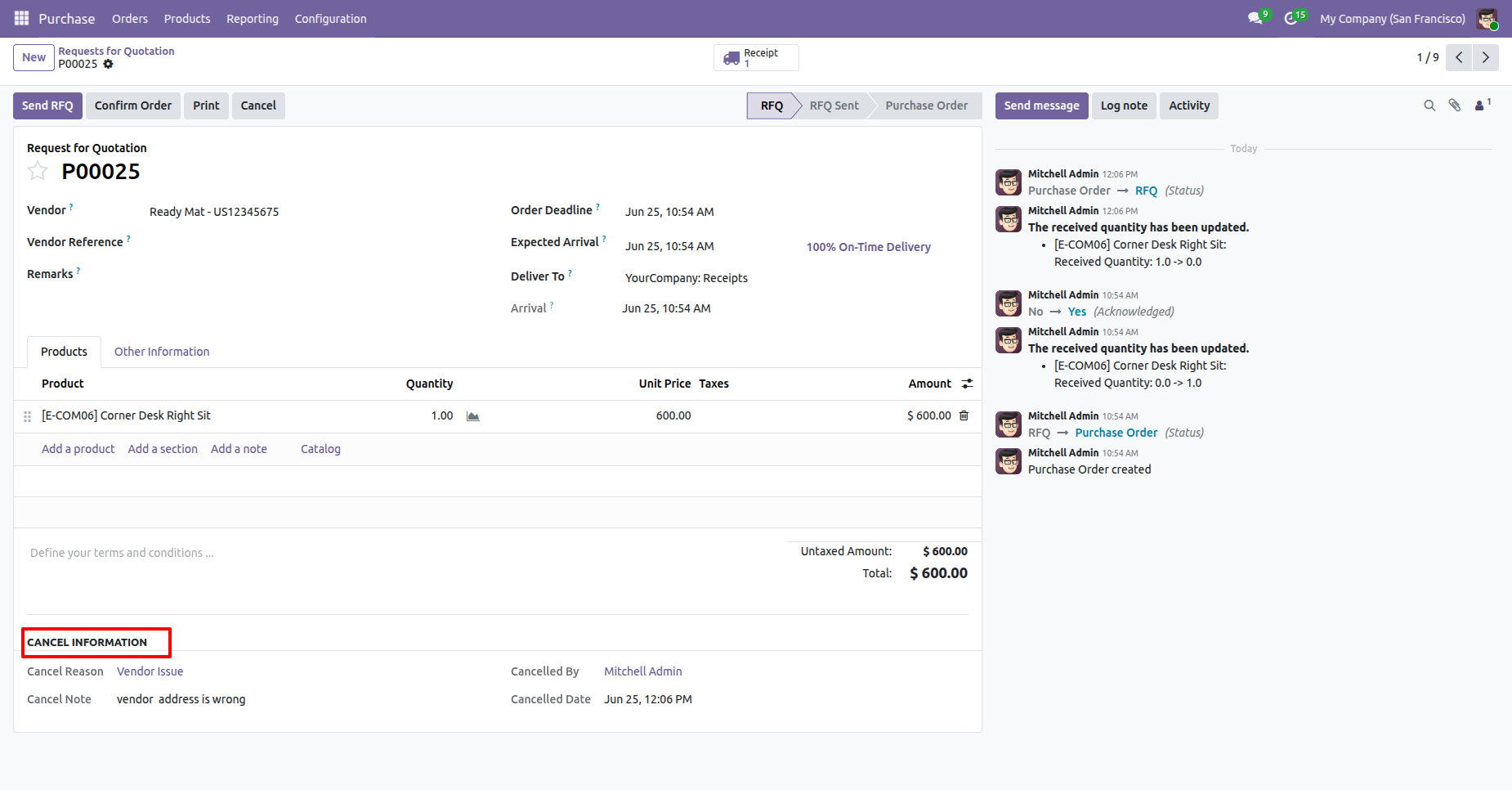
The cancellation logs are also available under the Cancel Logs menu in the Cancel Advanced app, where you can view and track all canceled records along with their cancellation reasons, canceled by, and cancellation dates.
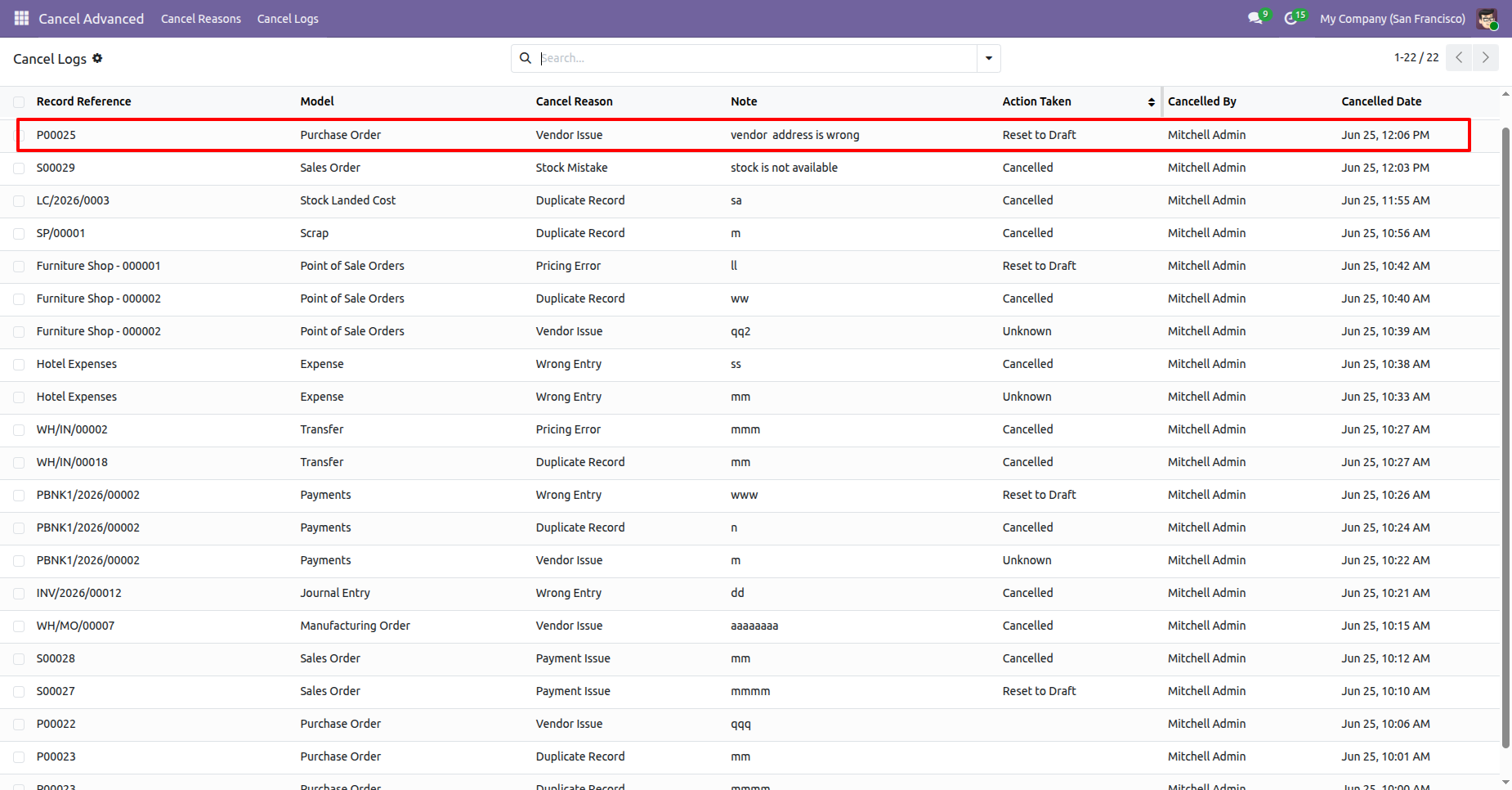
User can preview the cancellation details before confirming the cancellation process.
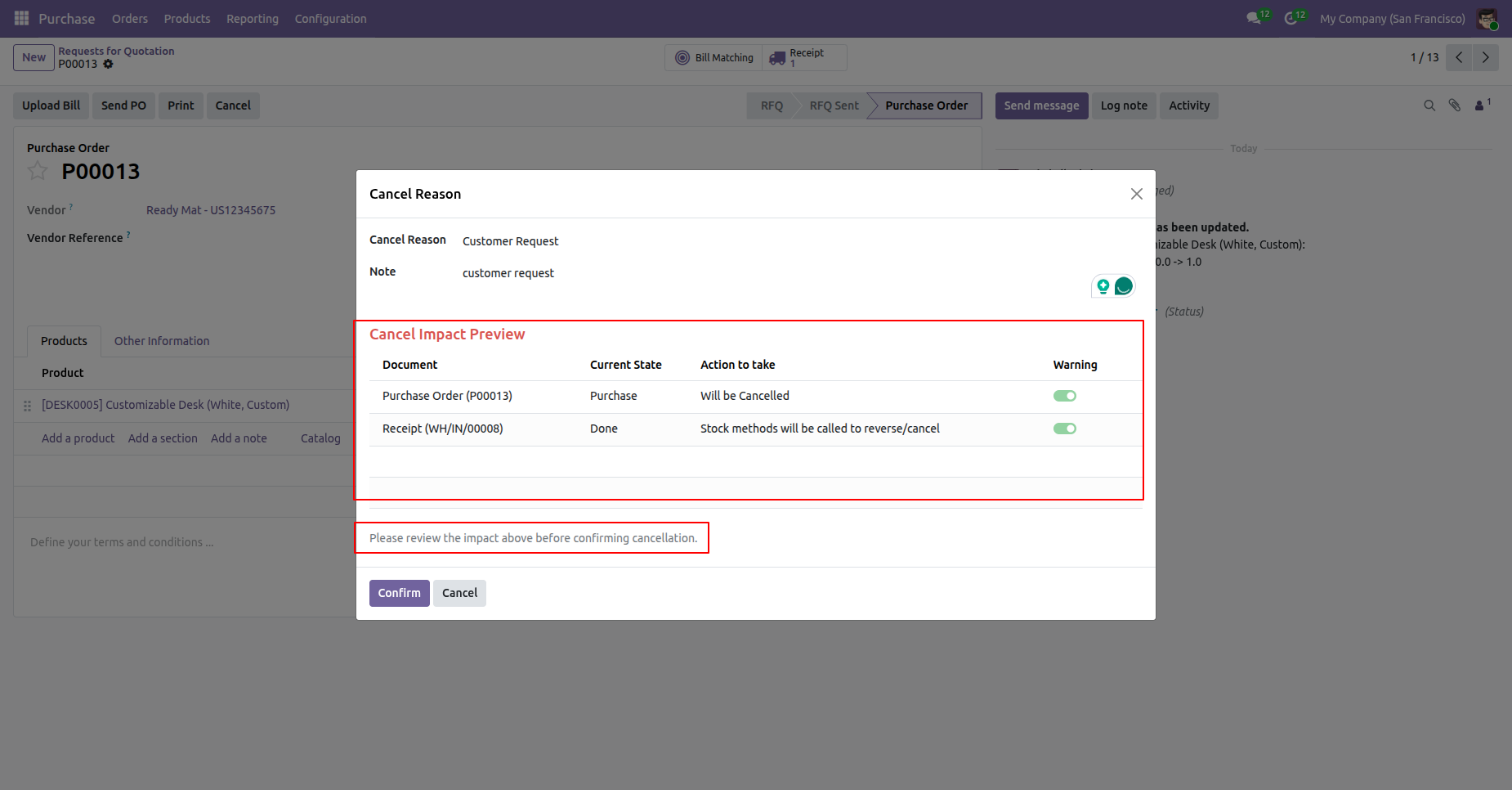
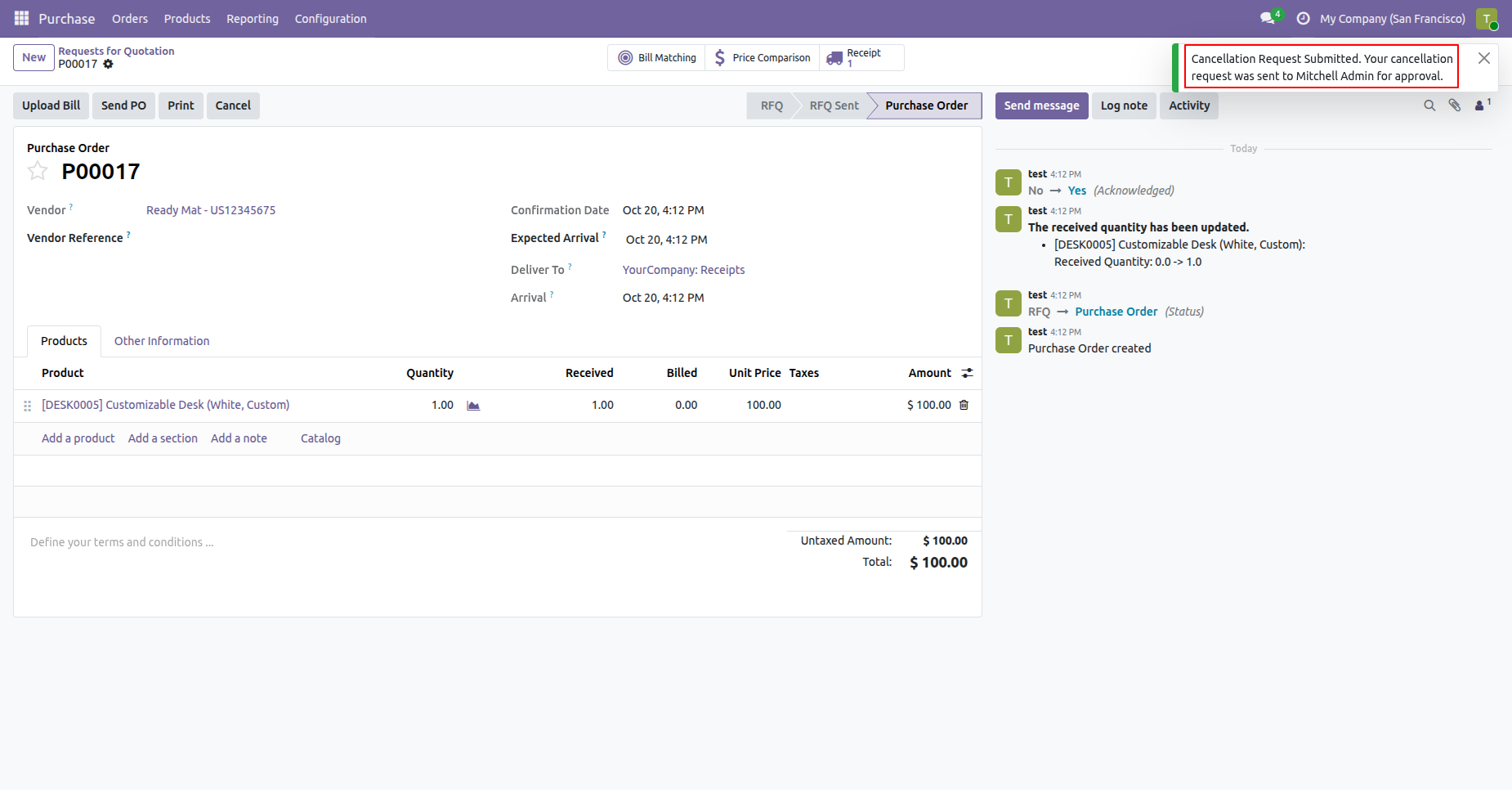
Open the purchase order and click on cancel button to cancel the purchase order, Cancellation request will be submitted to the Approver and also displays the notification.
The approver reviews the cancellation request and approve or rejects the action.
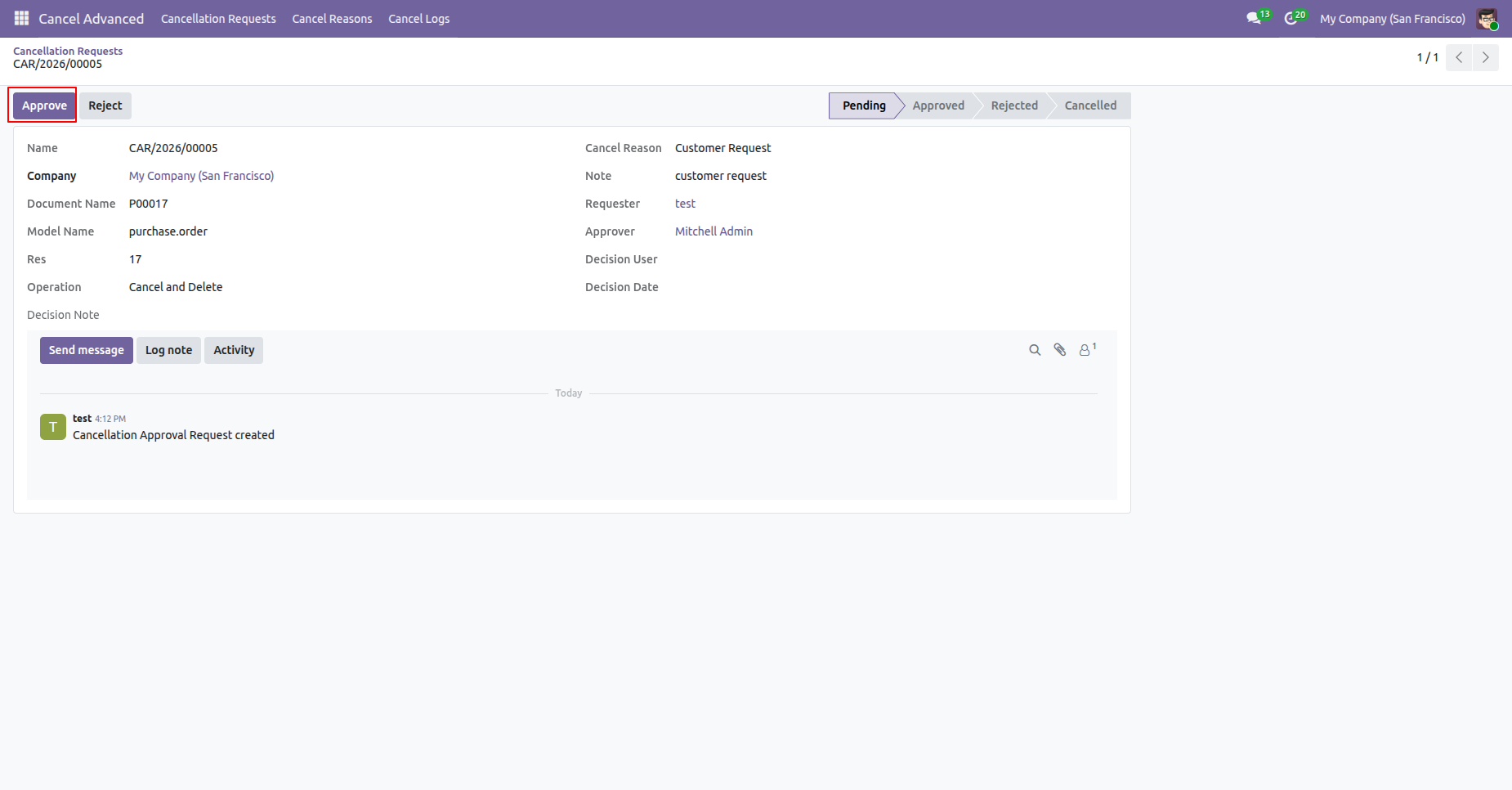
Click on the Approve button to approve the request and request stage will be moved to approved stage.
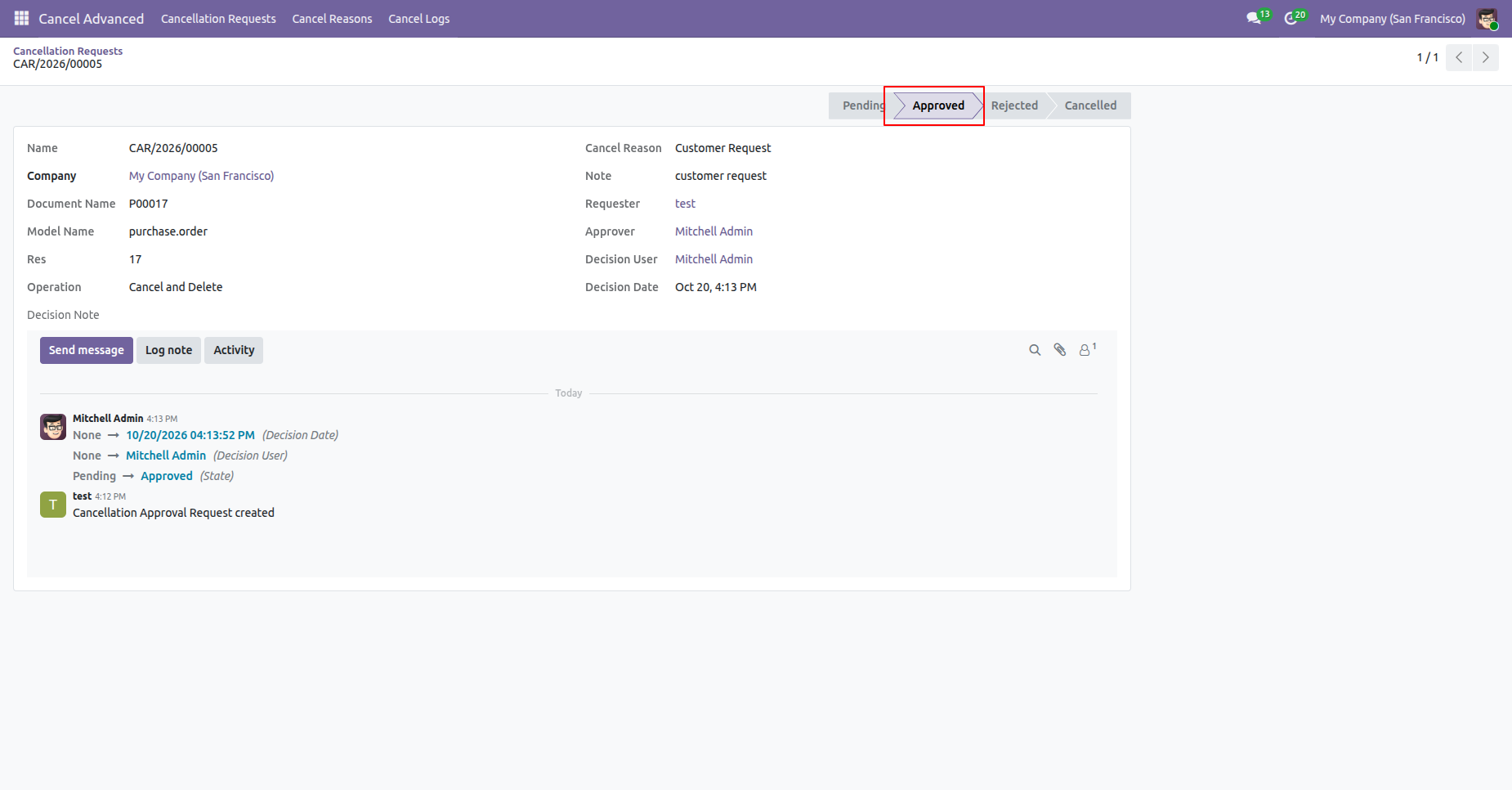
The approver reviews the cancellation request and confirms or rejects the action.
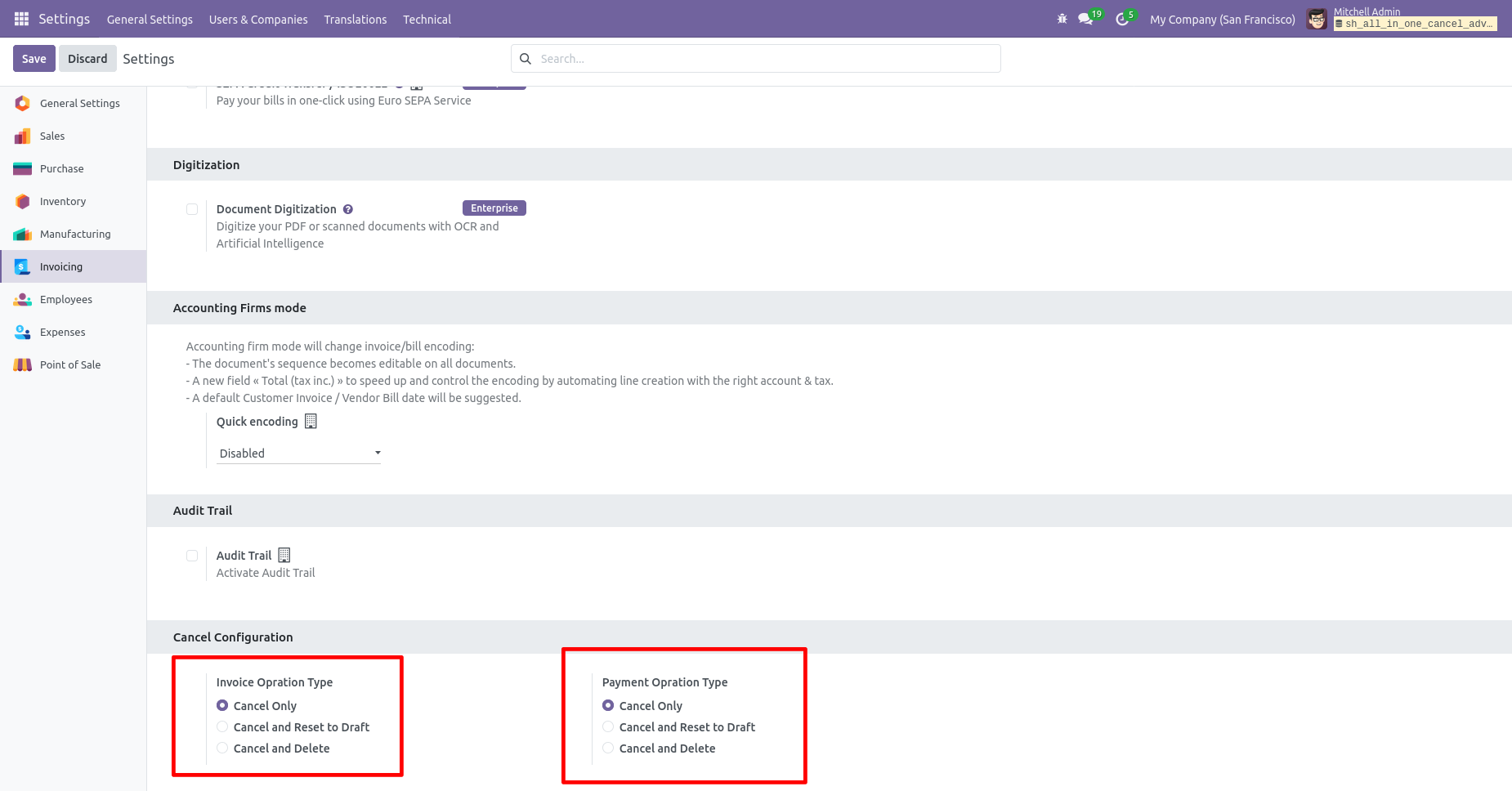
When you want to cancel the invoice & payment only then choose the "Cancel Only" option.
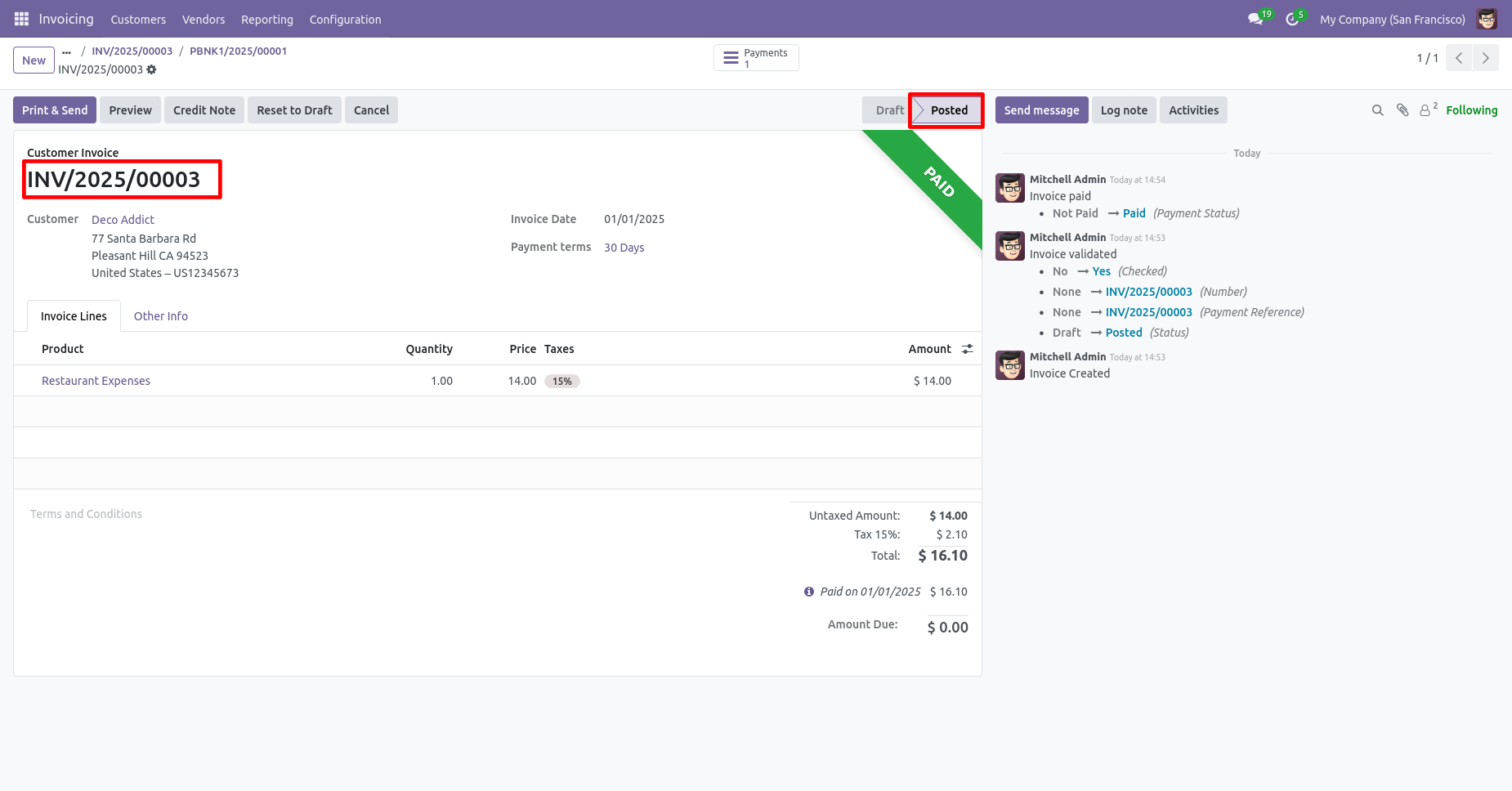
Our invoice is "Posted".
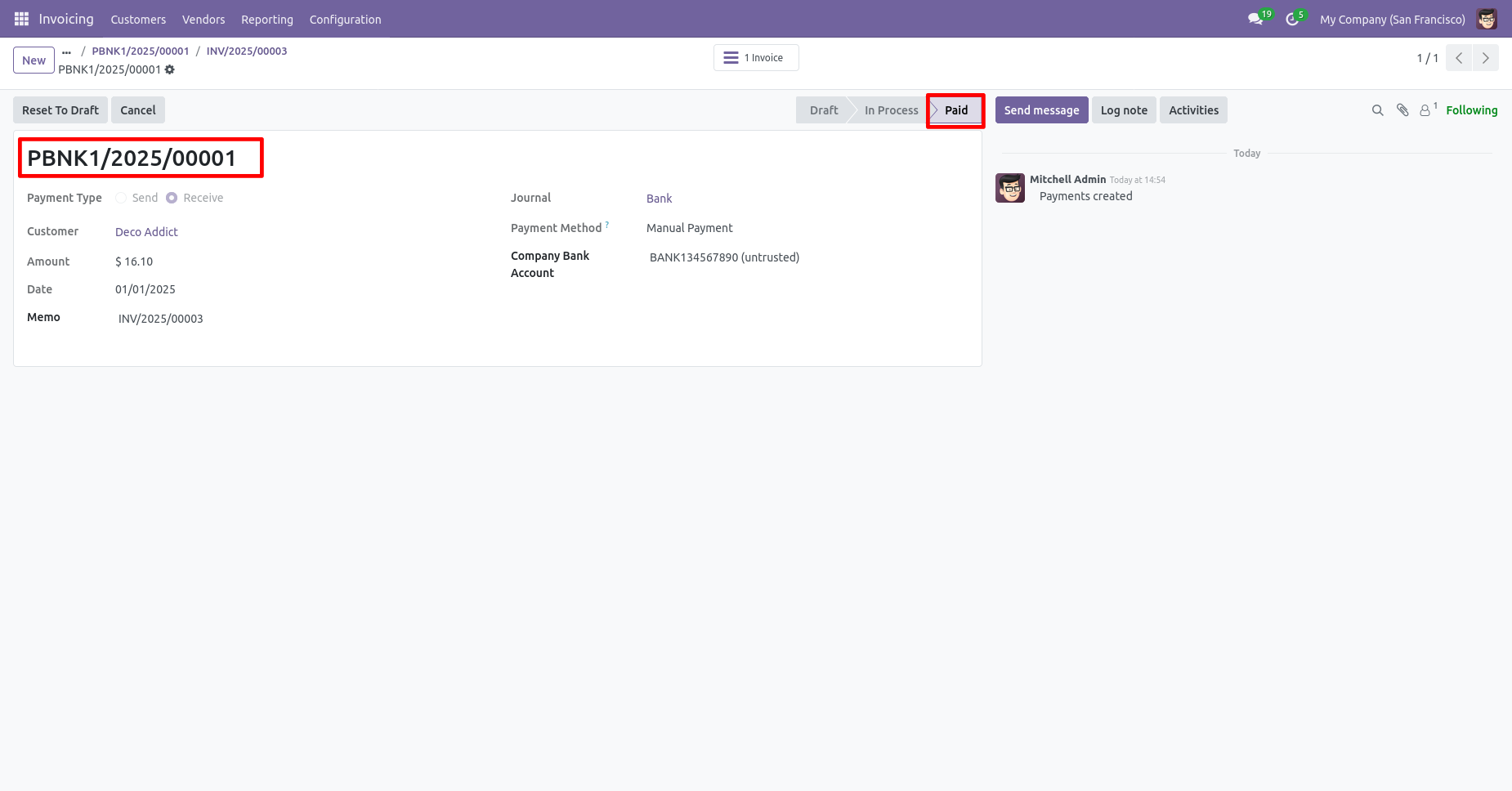
The payment is paid.
We cancel posted invoice.
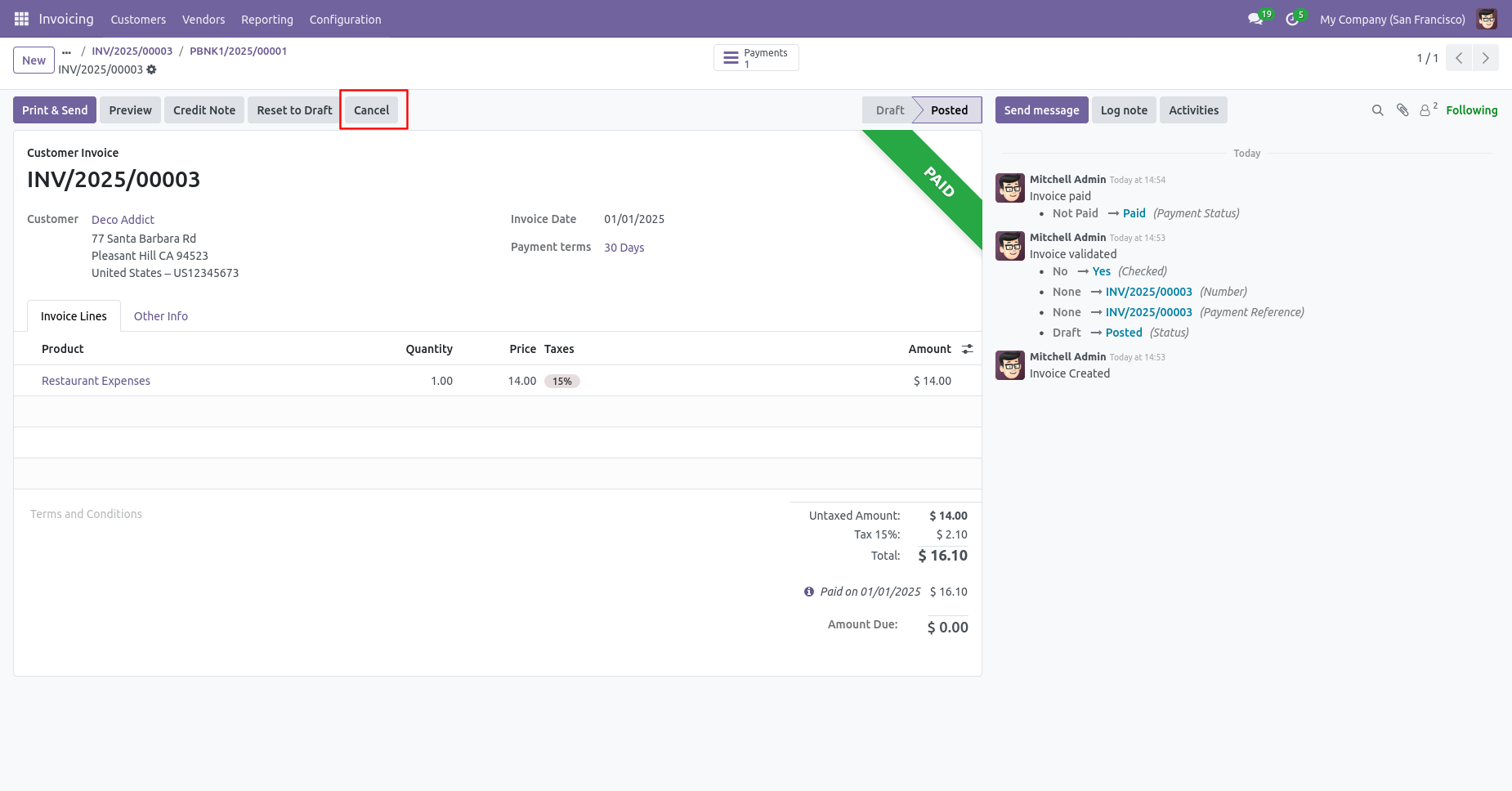
When you cancel the invoice then the invoice is cancelled and the state is changed to "cancelled".
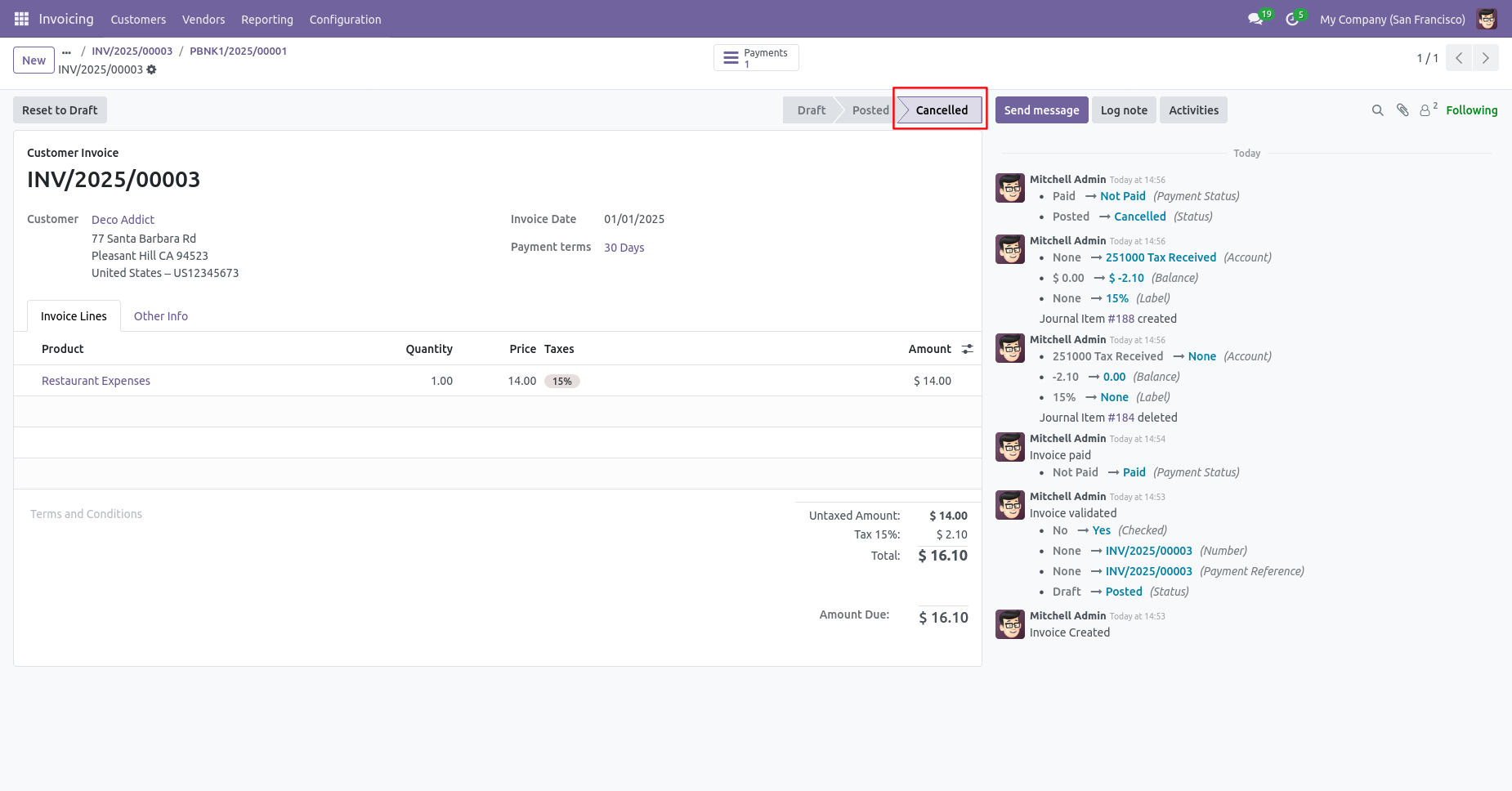
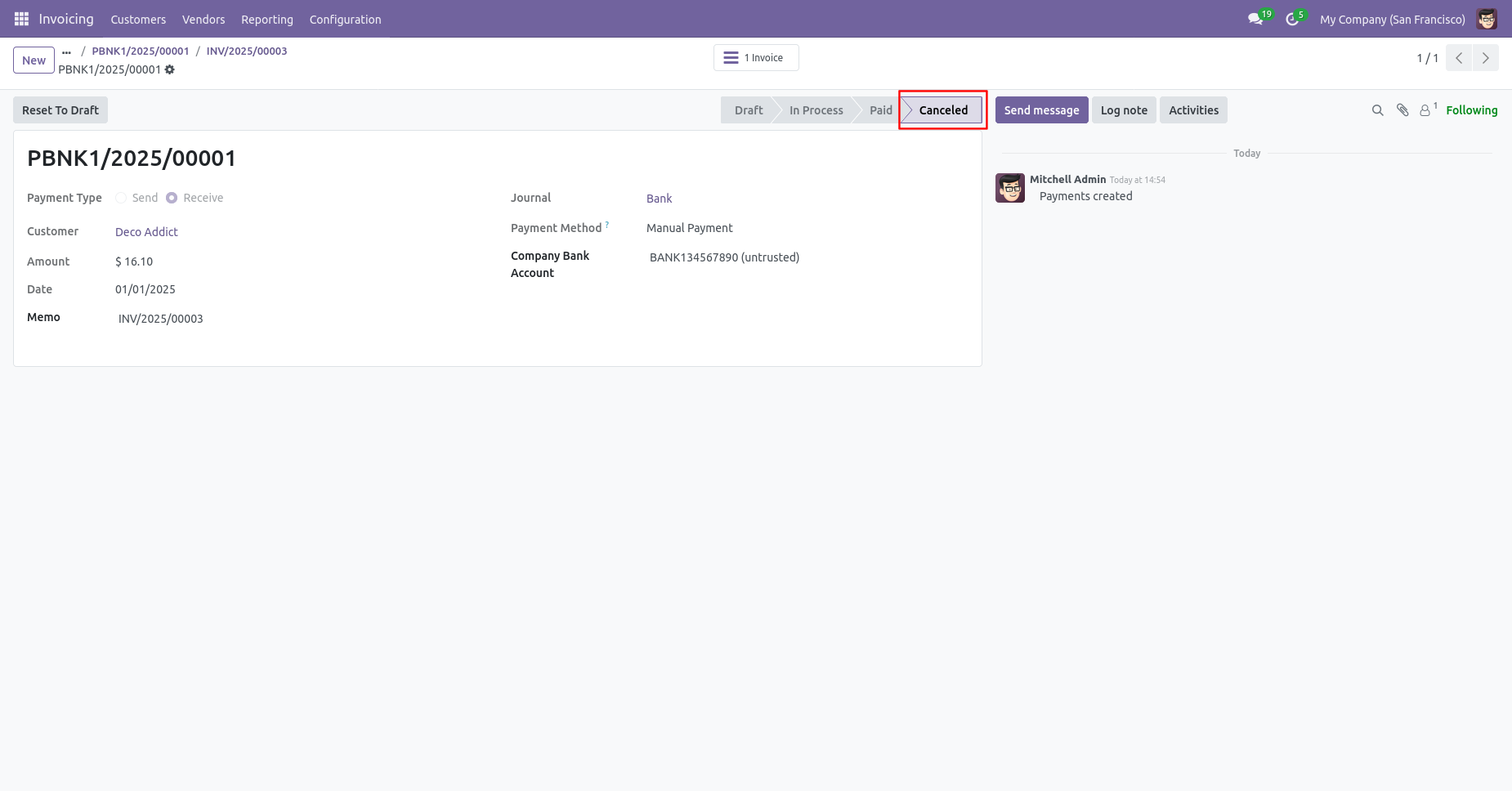
The payment is automatically canceled as well.
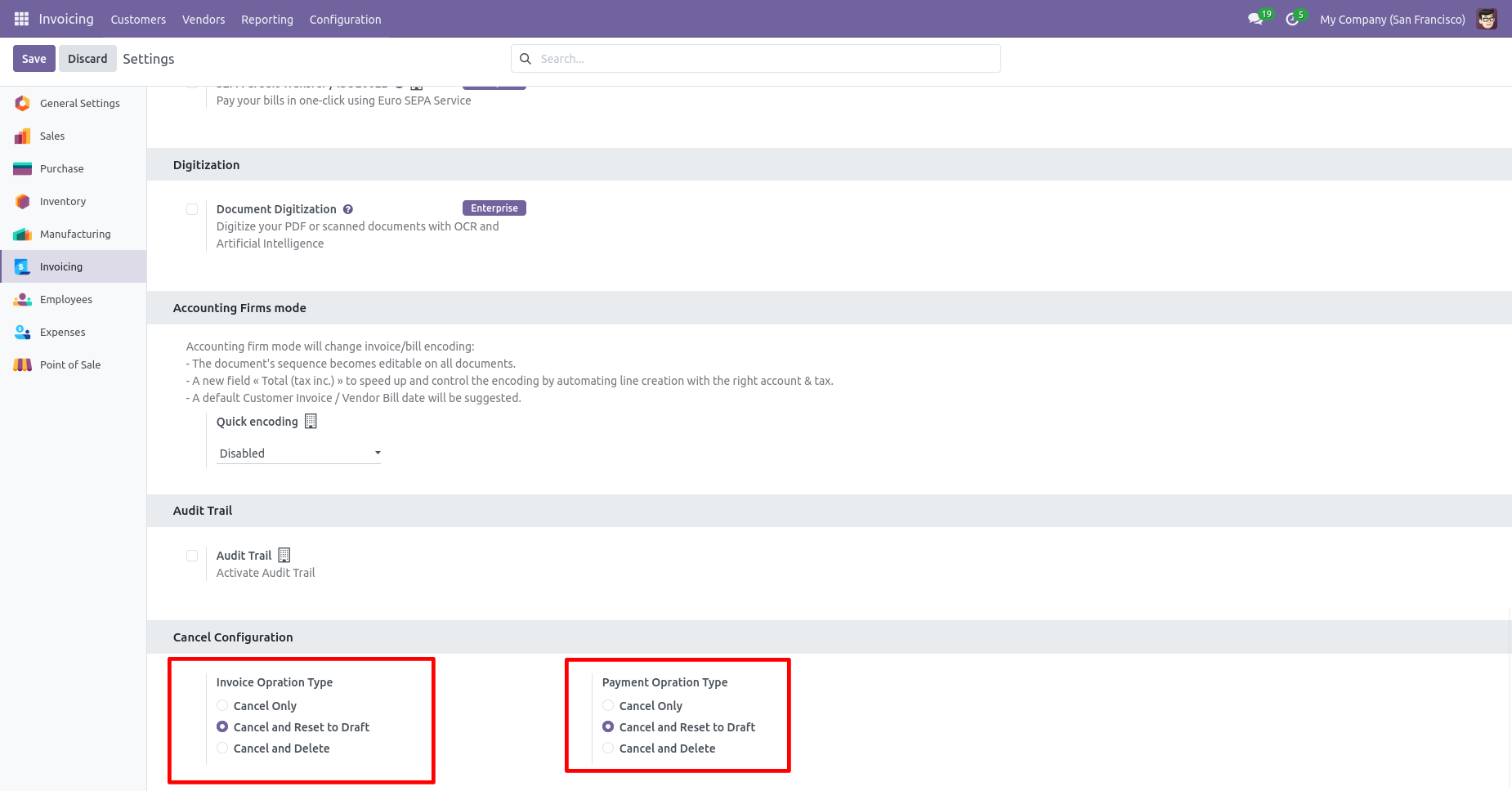
When you want to cancel the invoice & payment and reset to the draft state tick "Cancel And Reset To Draft".
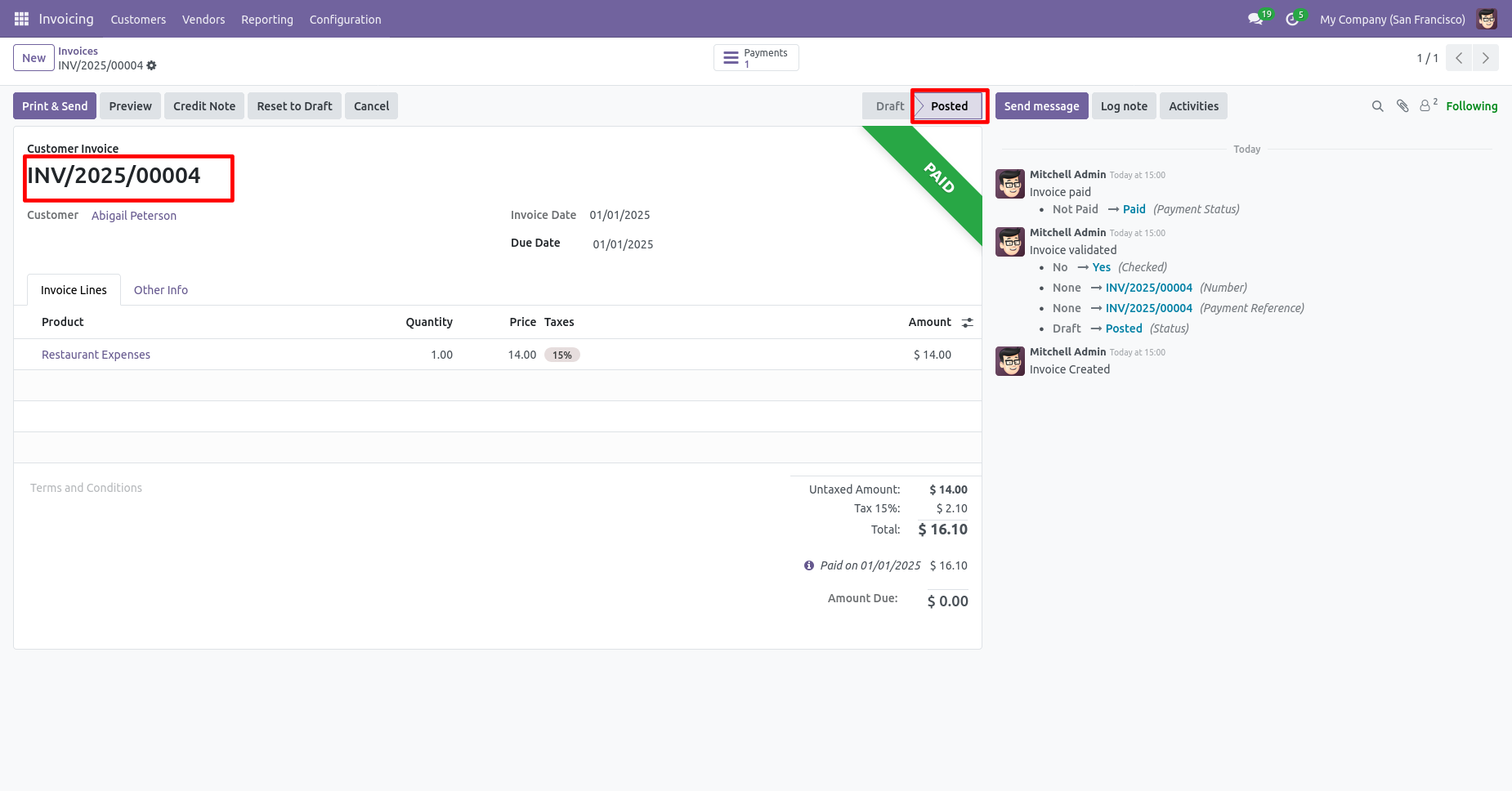
The invoice is posted.
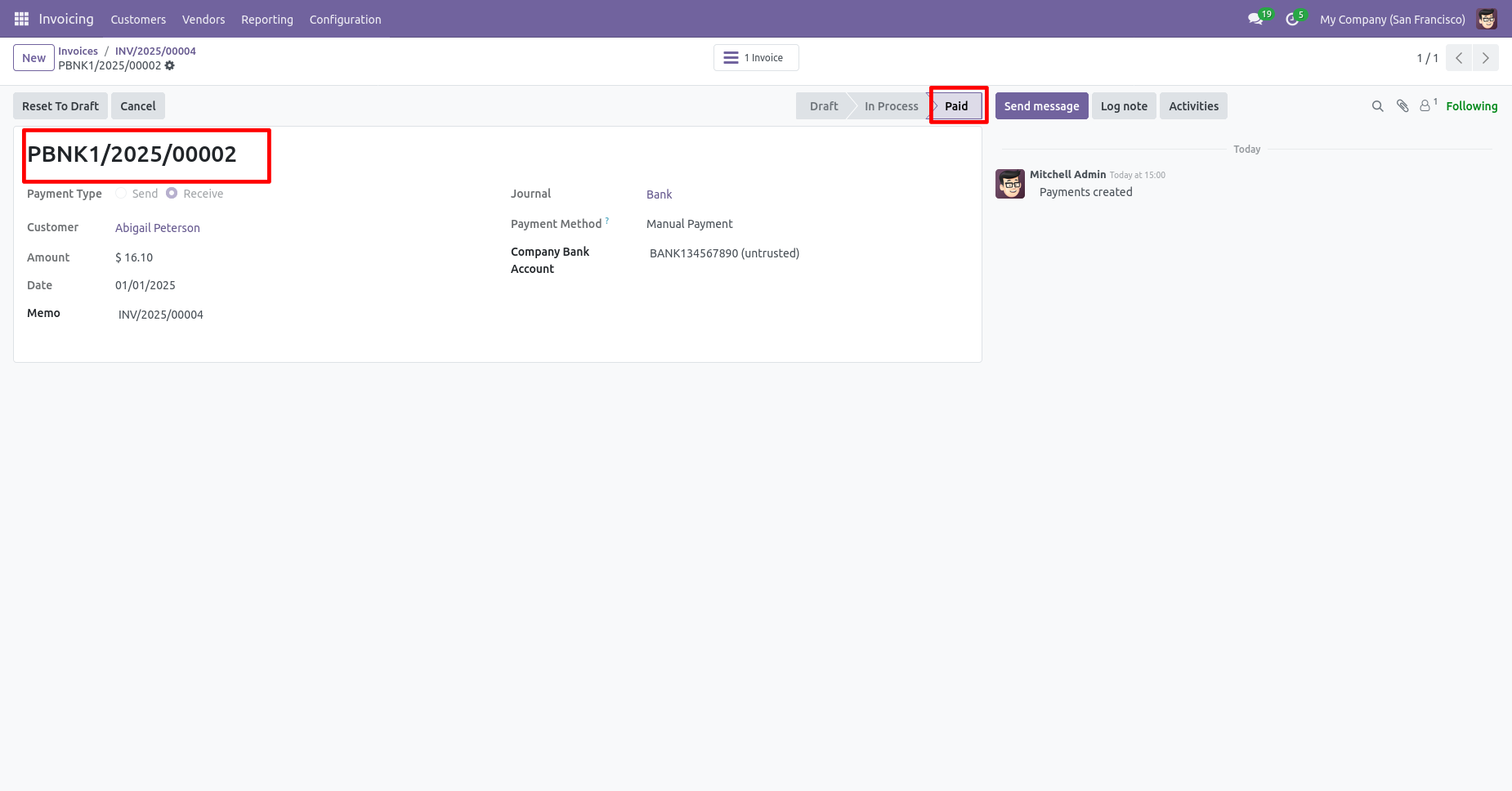
The payment is paid.
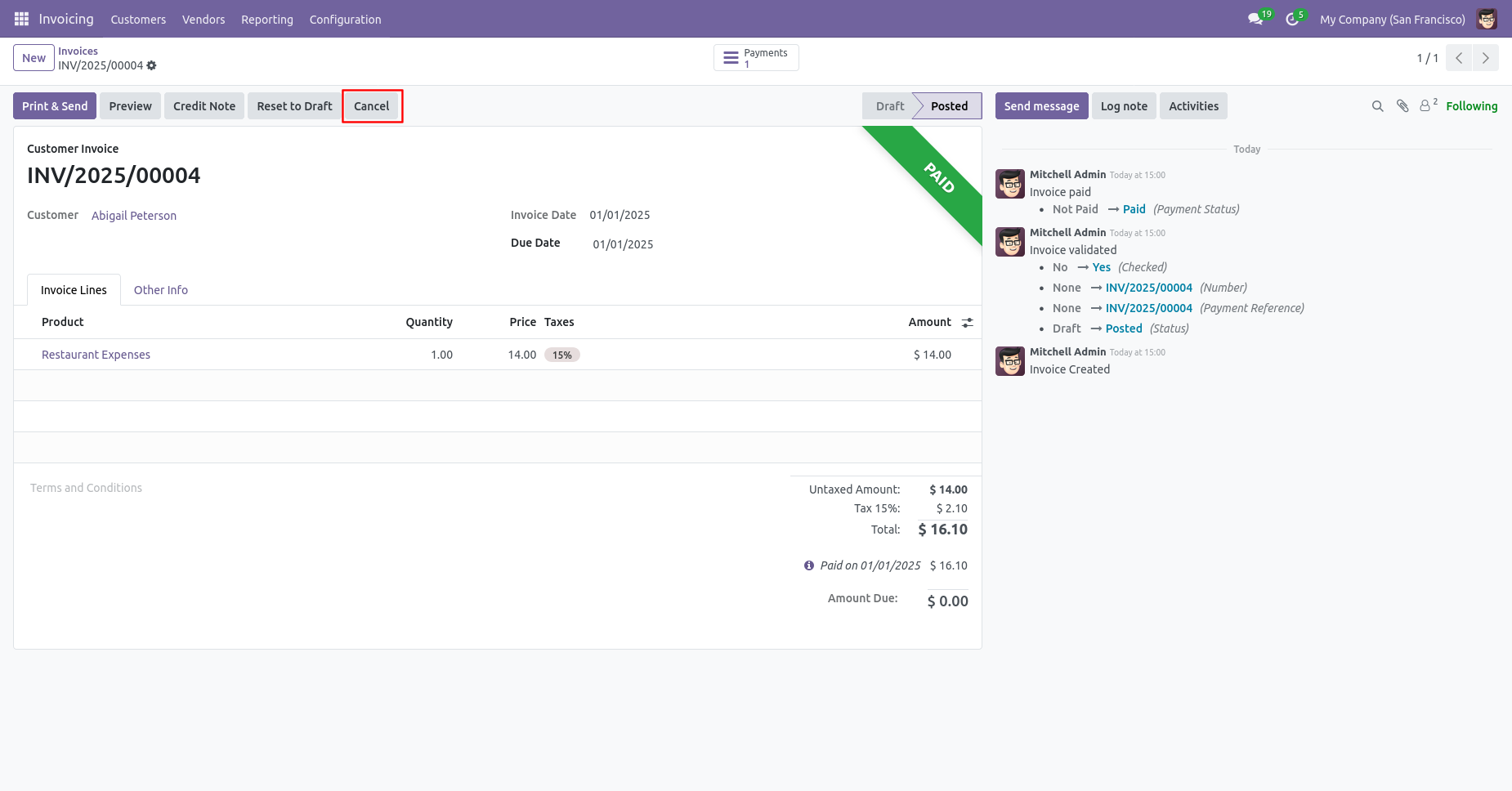
We cancel posted invoice.
Now we cancel invoice so After canceling the invoice is reset to the draft.
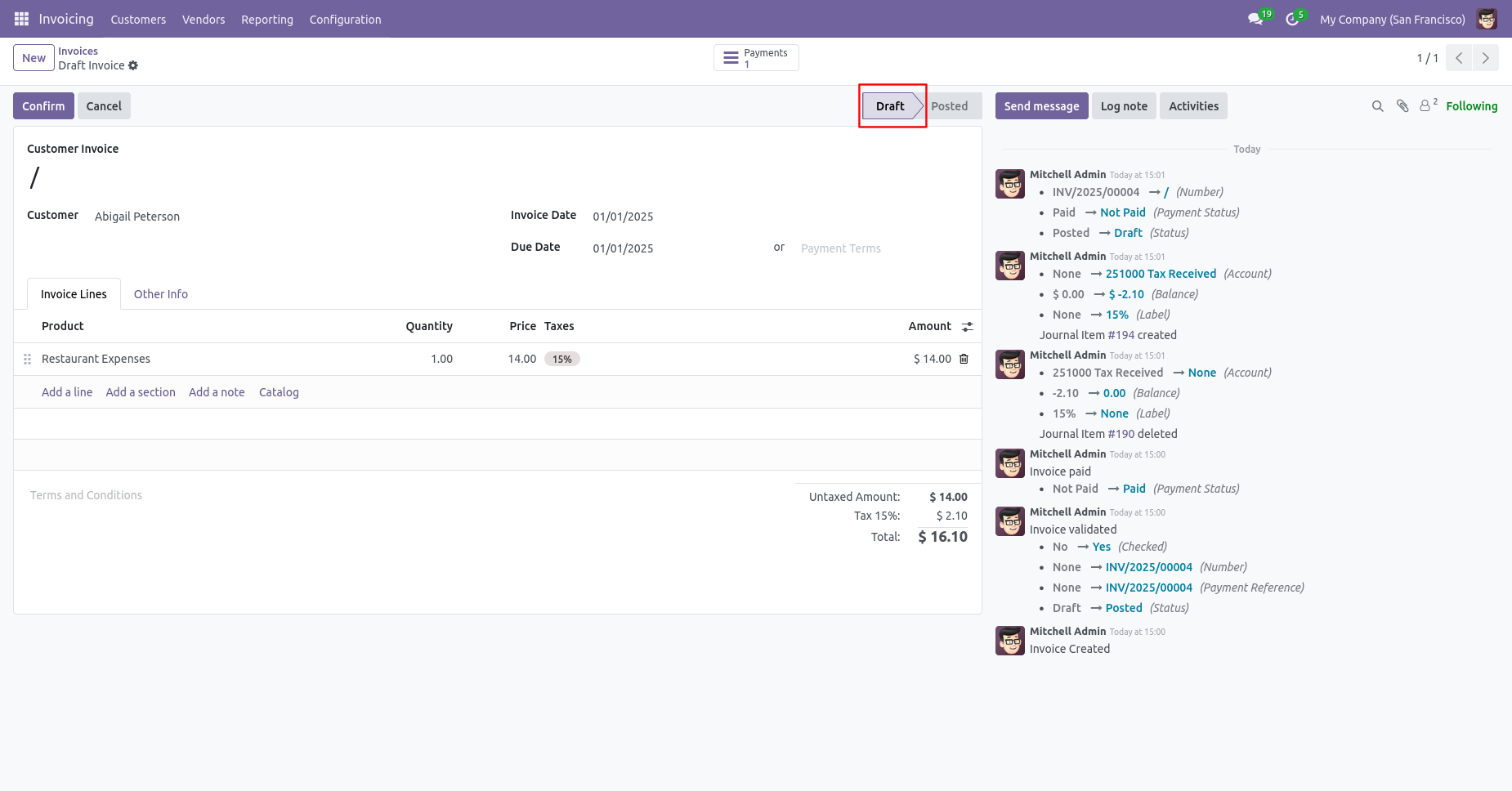
The payment is automatically reset to the draft as well.
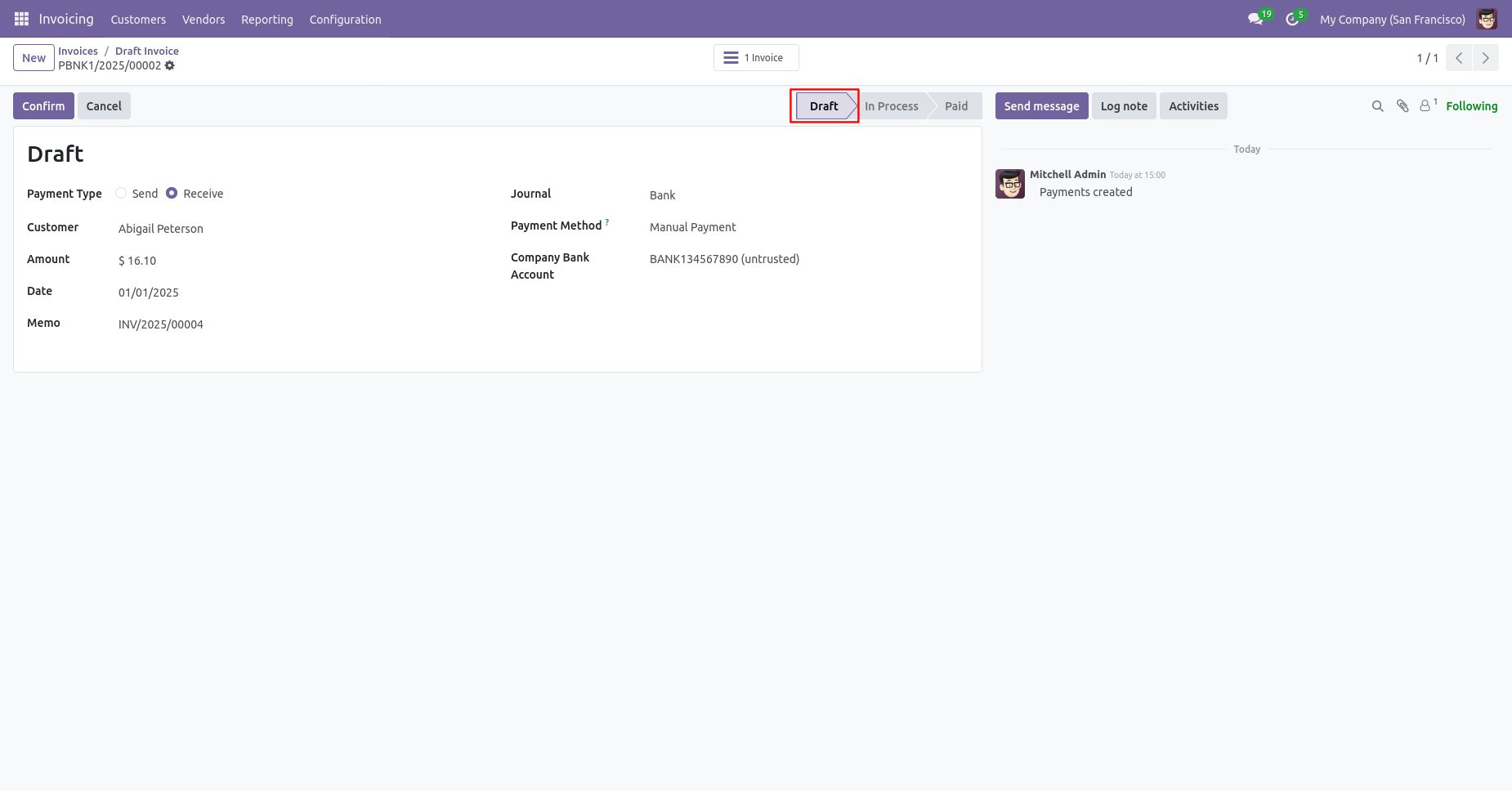
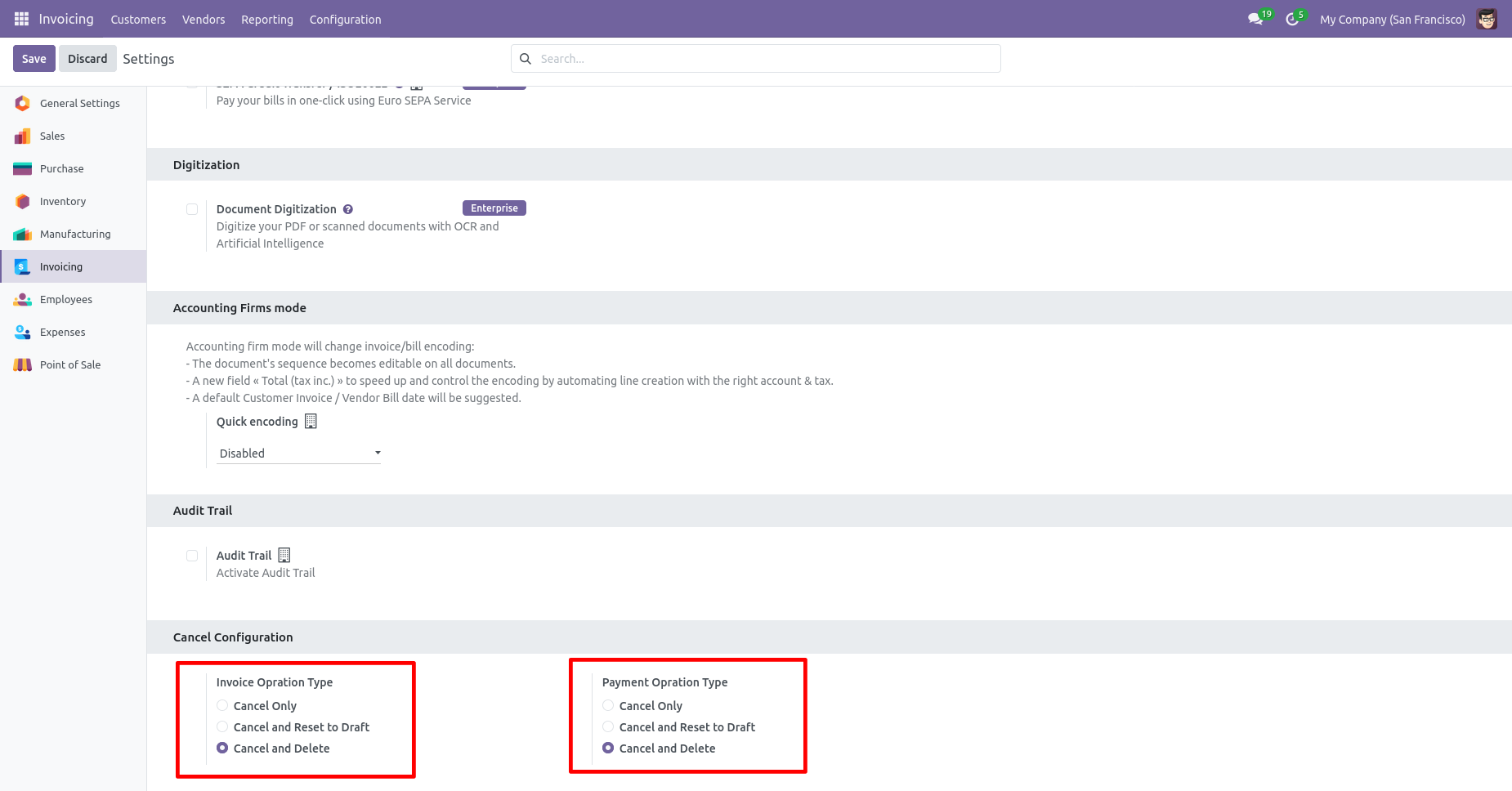
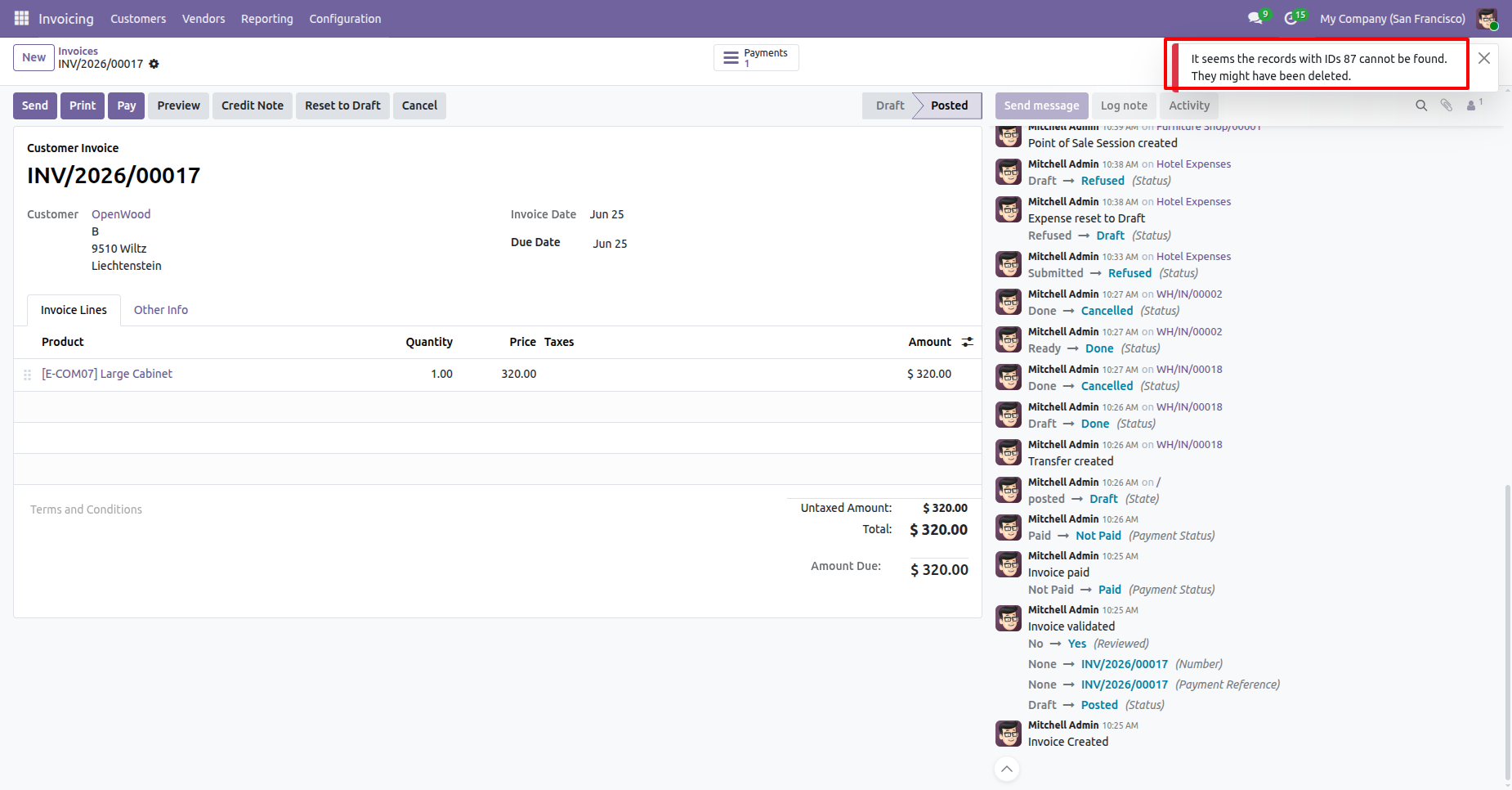
When you want to Cancel & Delete the invoice & payment then choose the "Cancel And Delete" option.
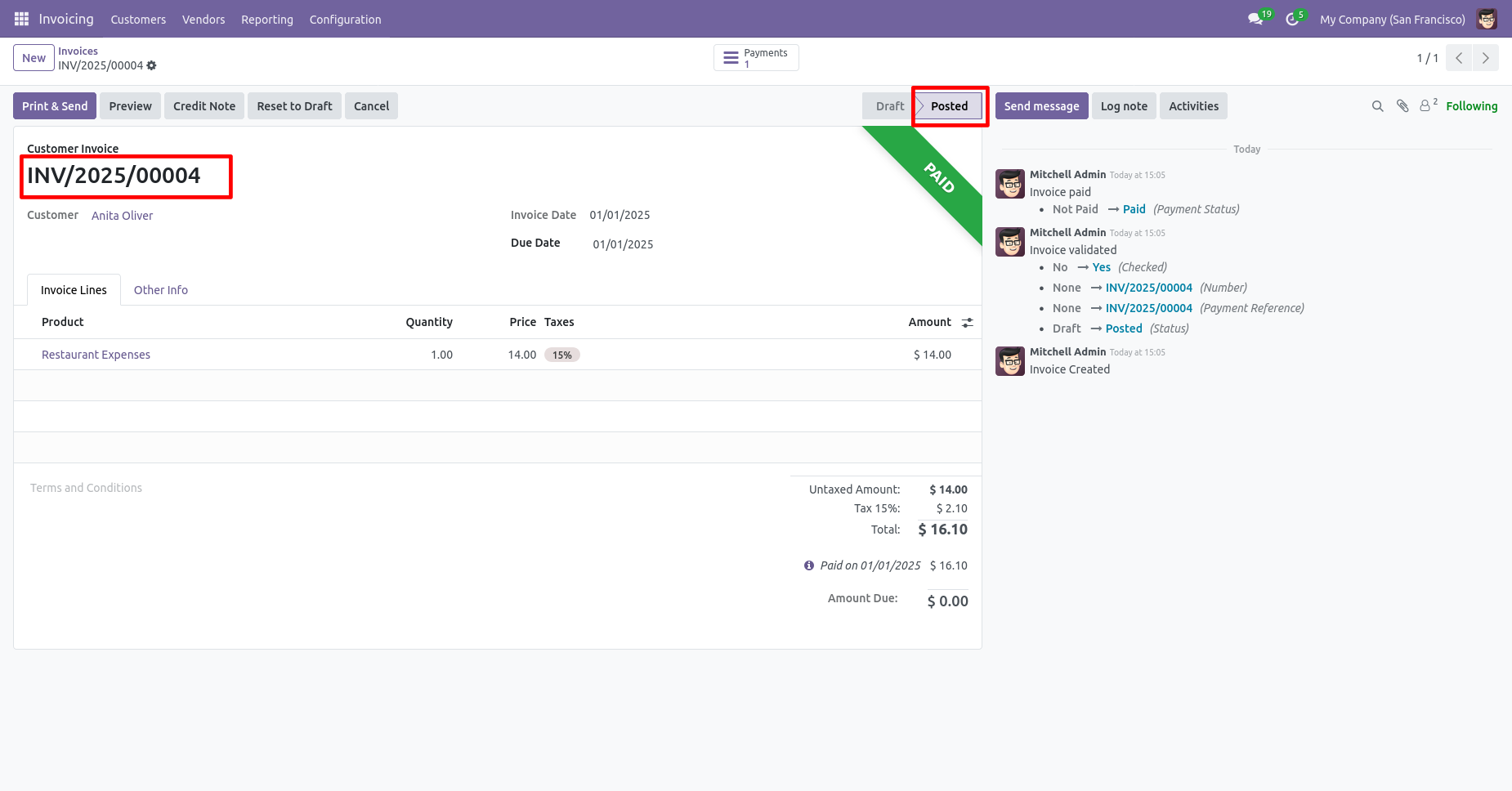
The invoice is posted
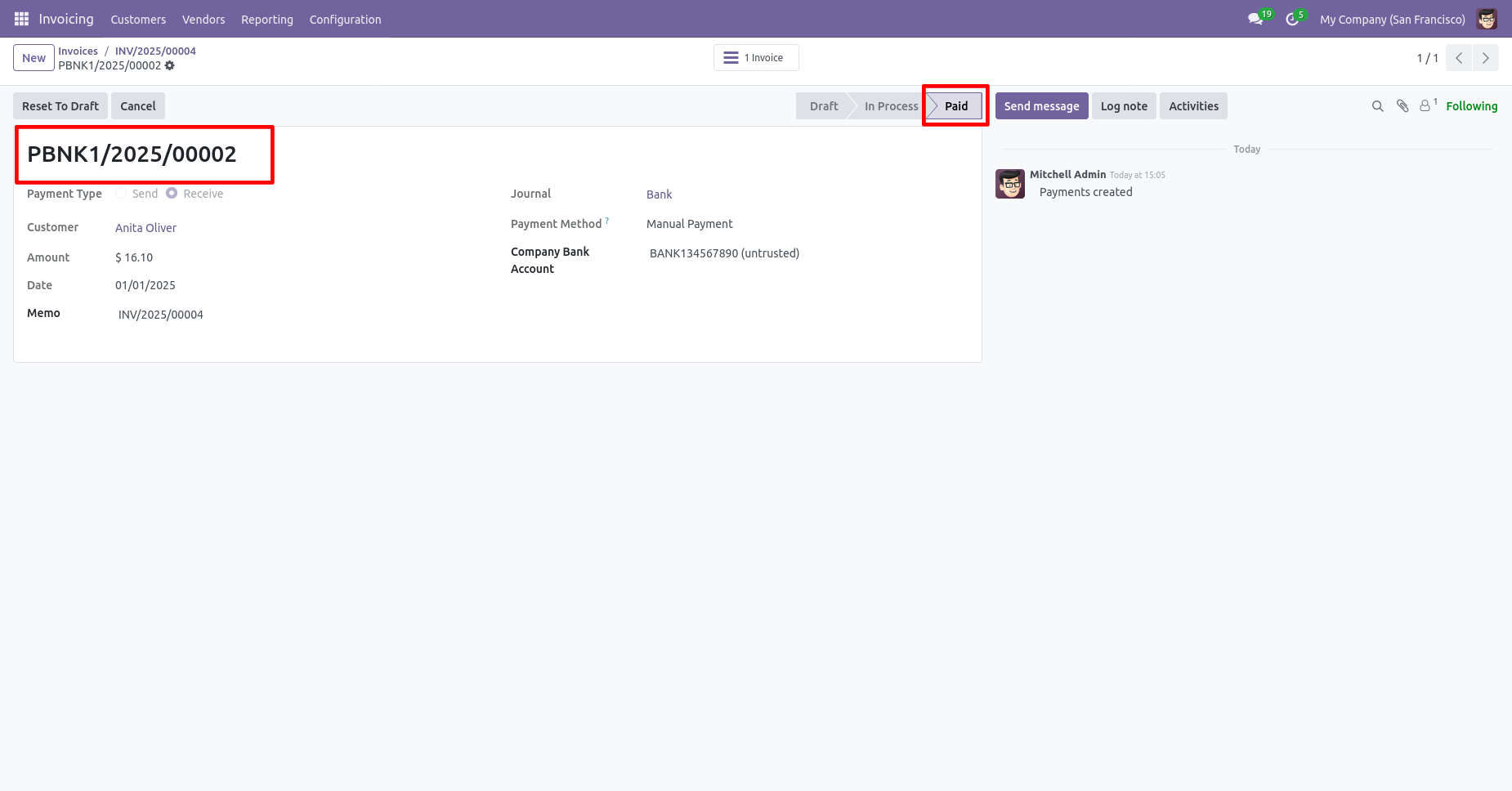
the payment is paid.
We cancel posted invoice.
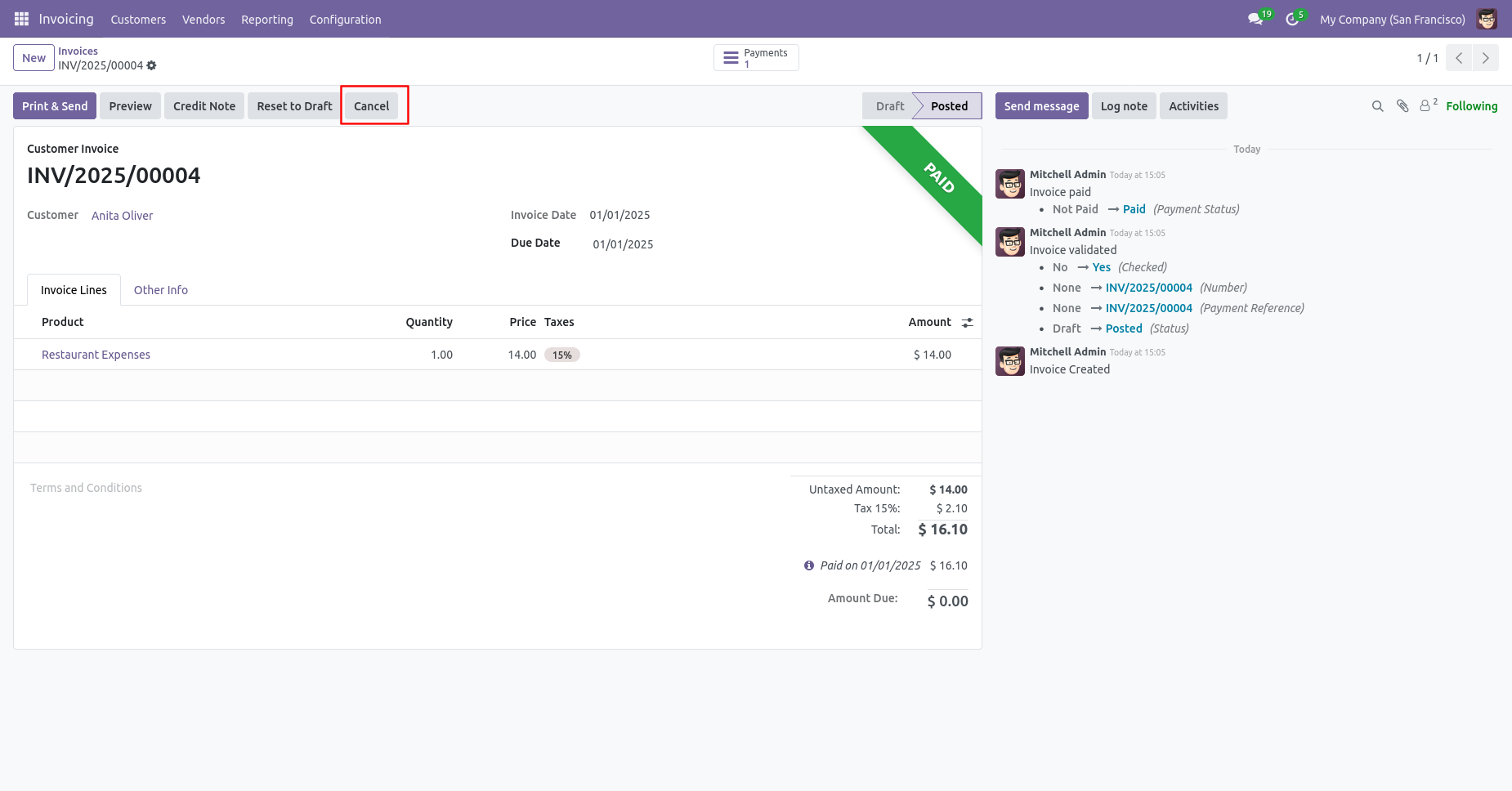
After the "Cancel" the invoice will be deleted.
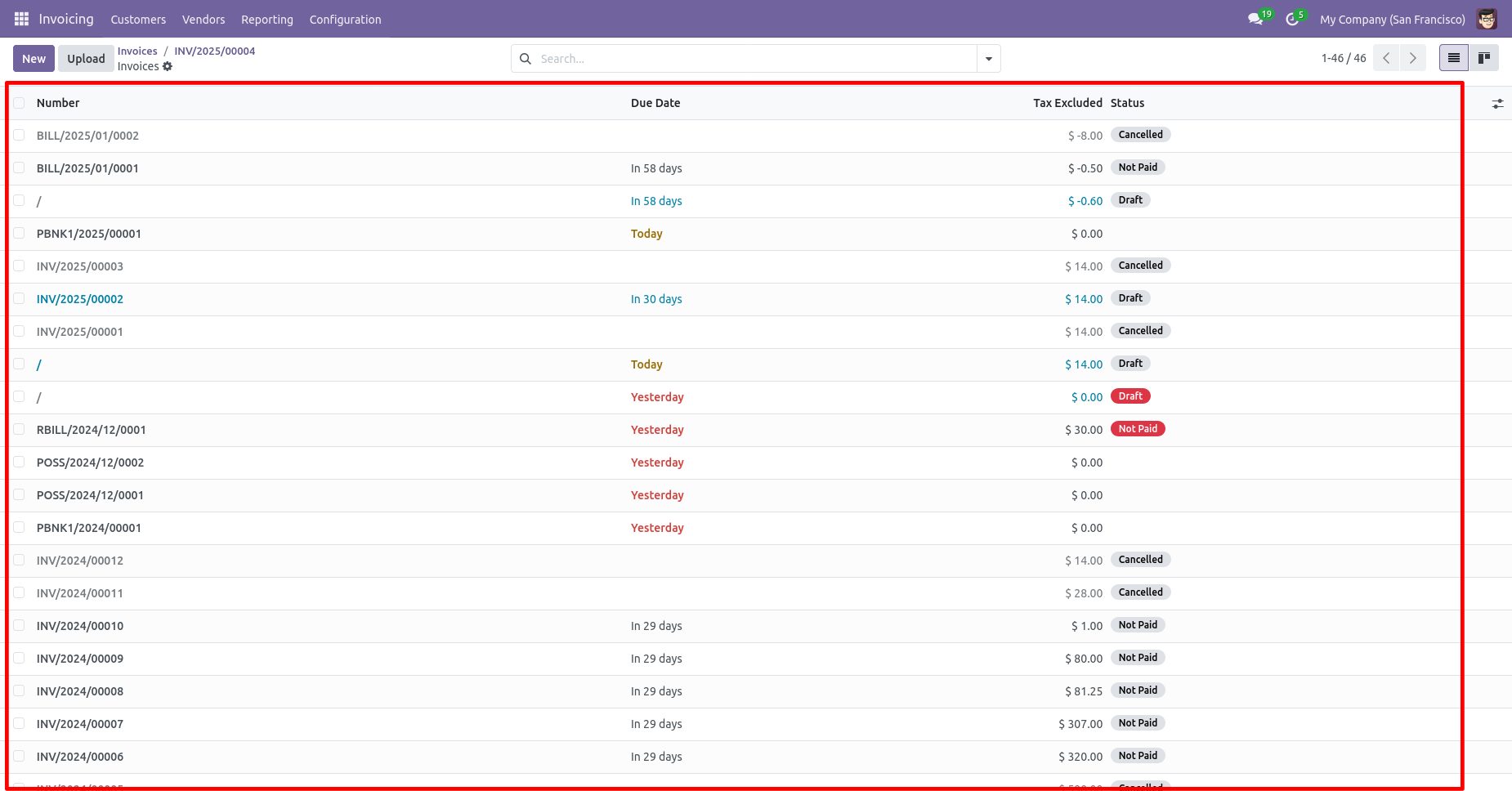
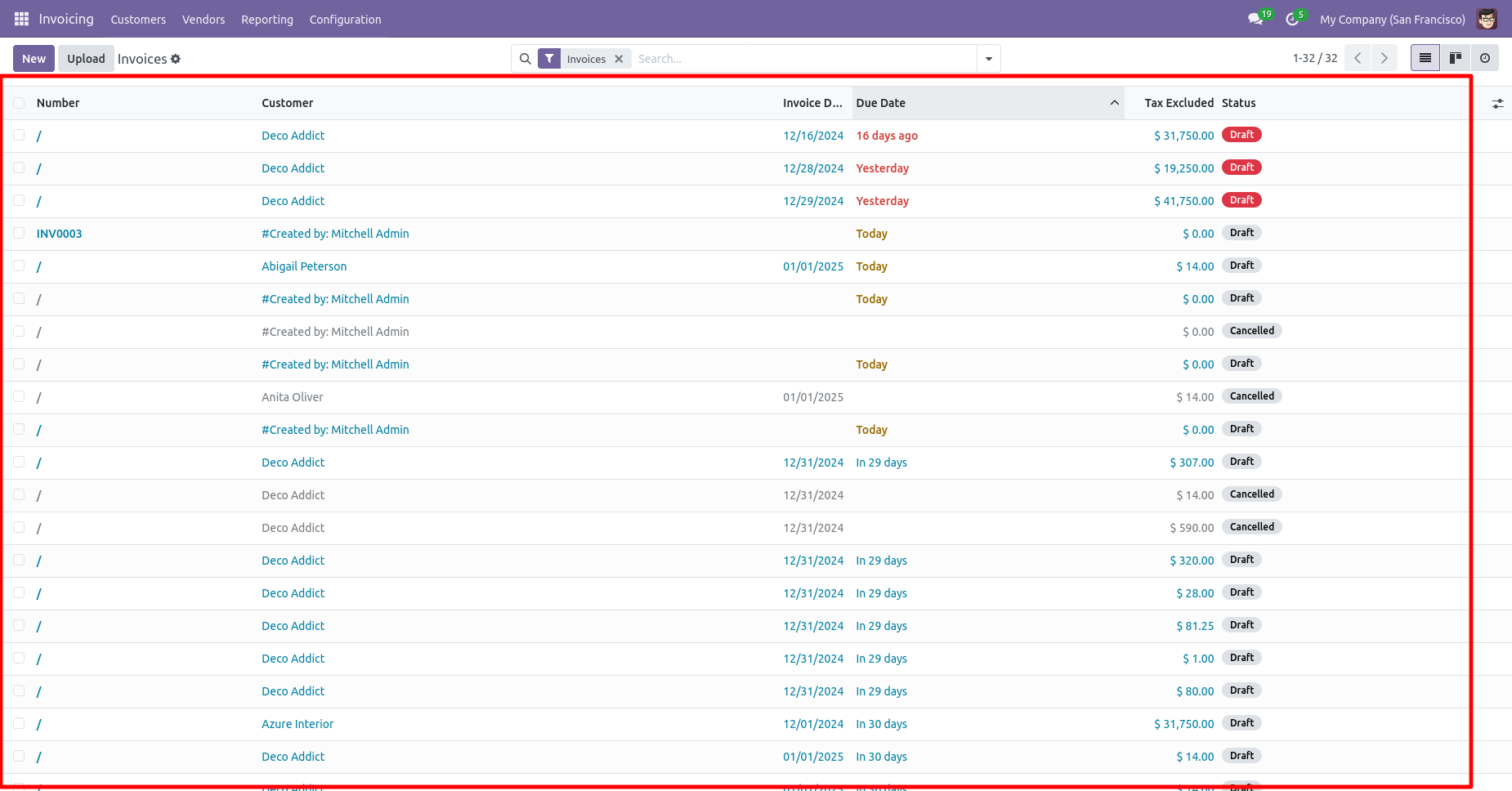
Now we cancel multiple invoices from the tree view.
Select the invoices which you want to cancel.
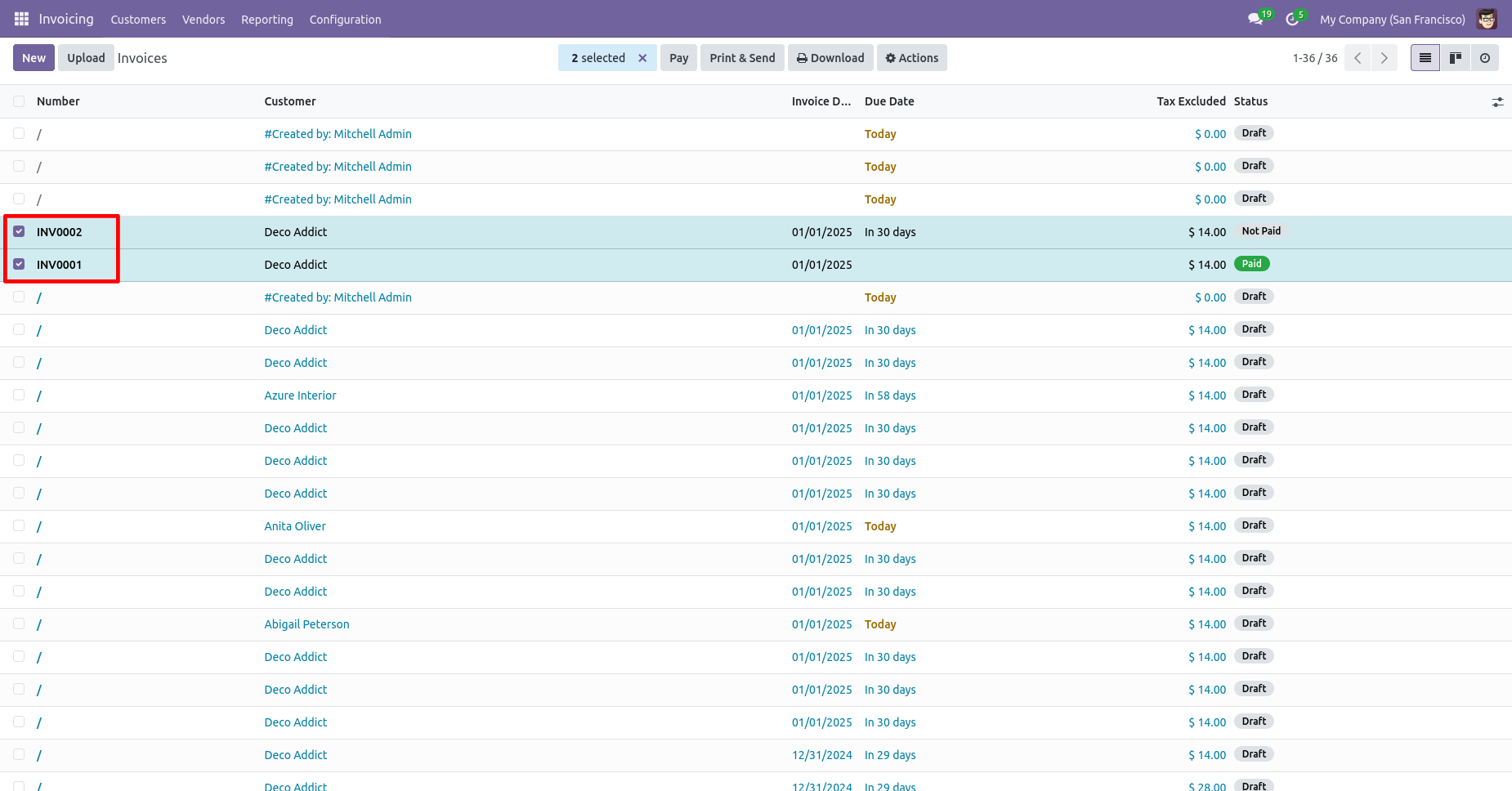
Click on the "Cancel" from the Action.
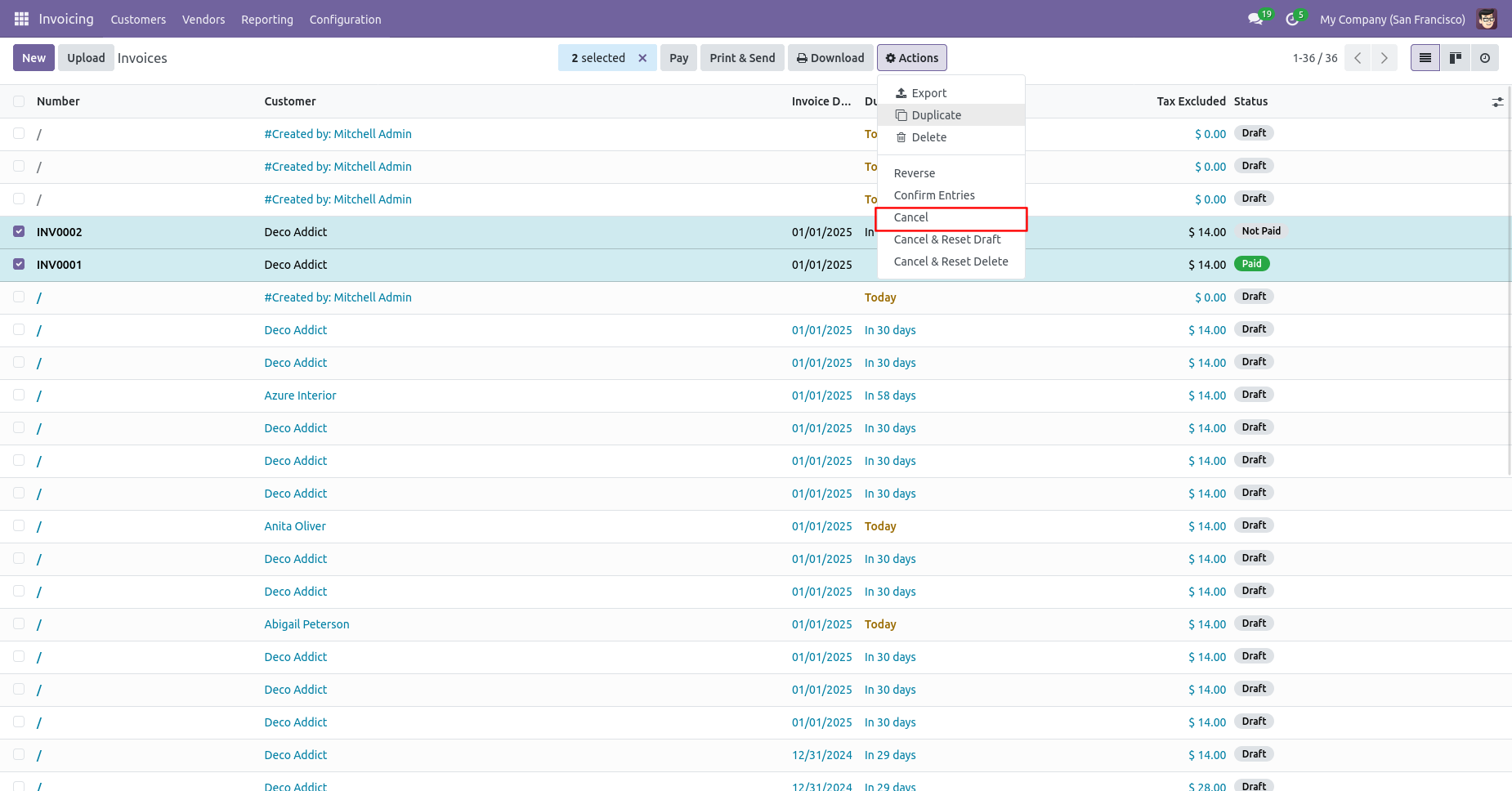
All selected invoices are cancelled.
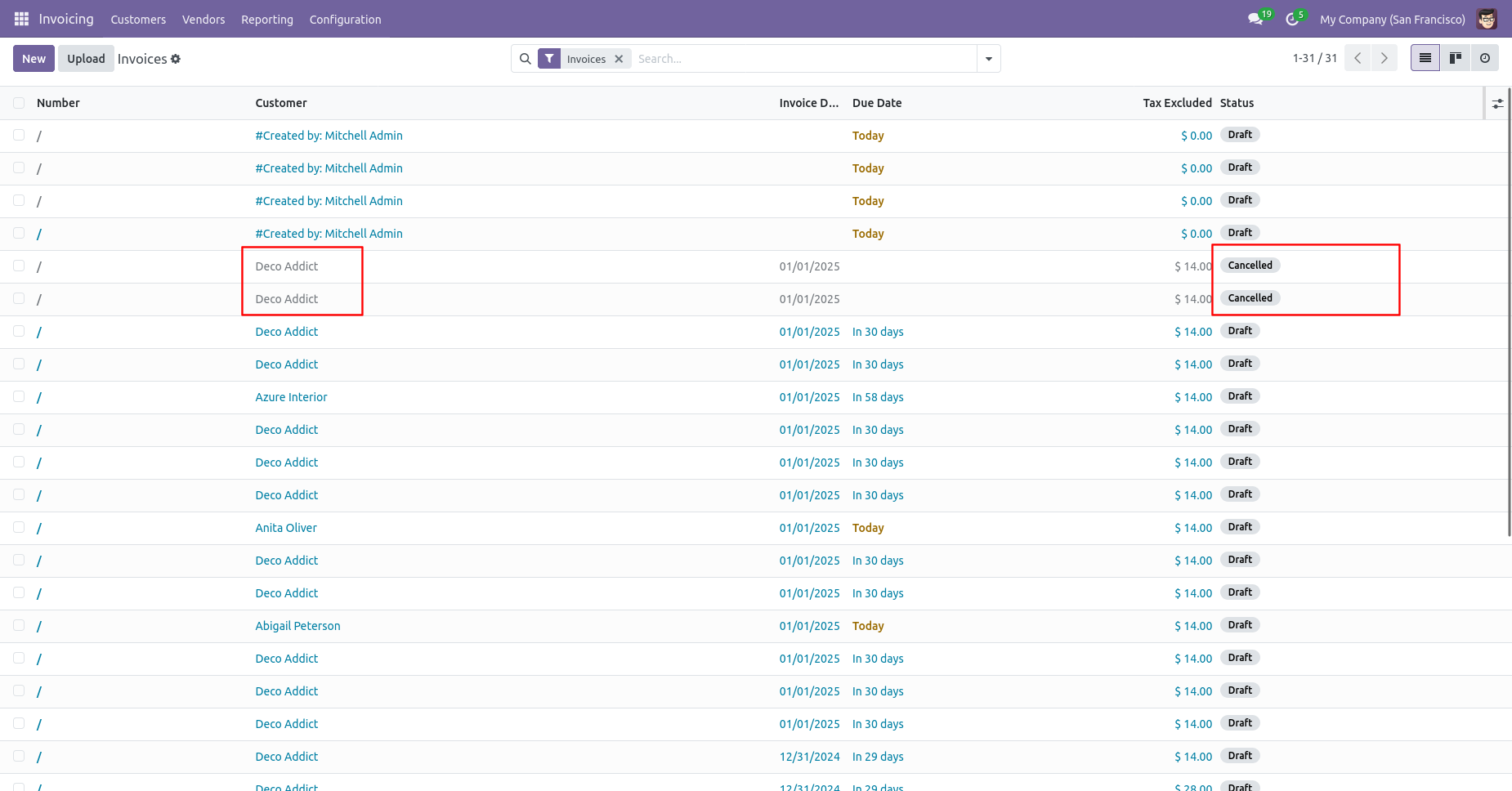
Now we "Cancel & Reset Draft" multiple invoices from the tree view.
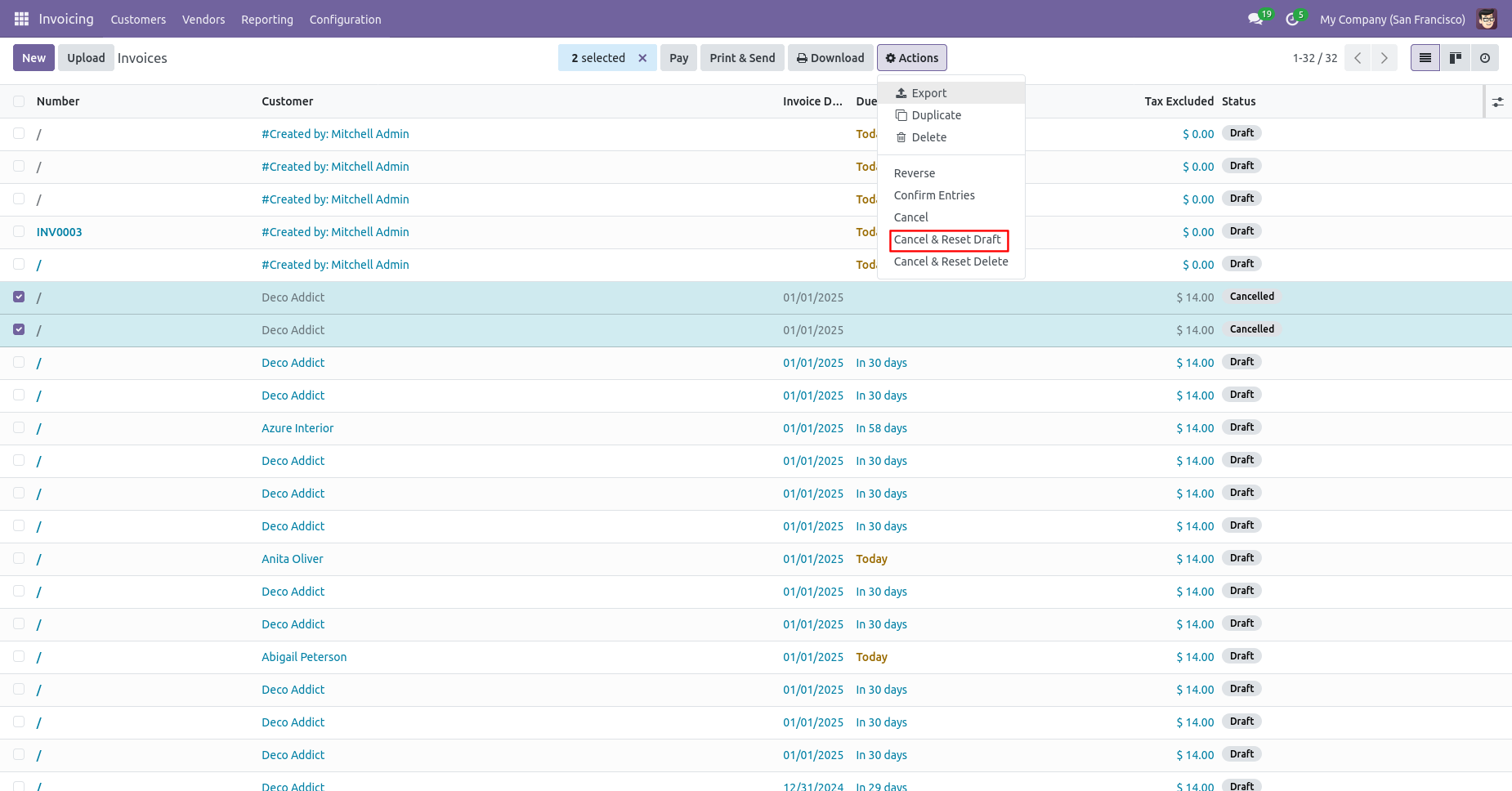
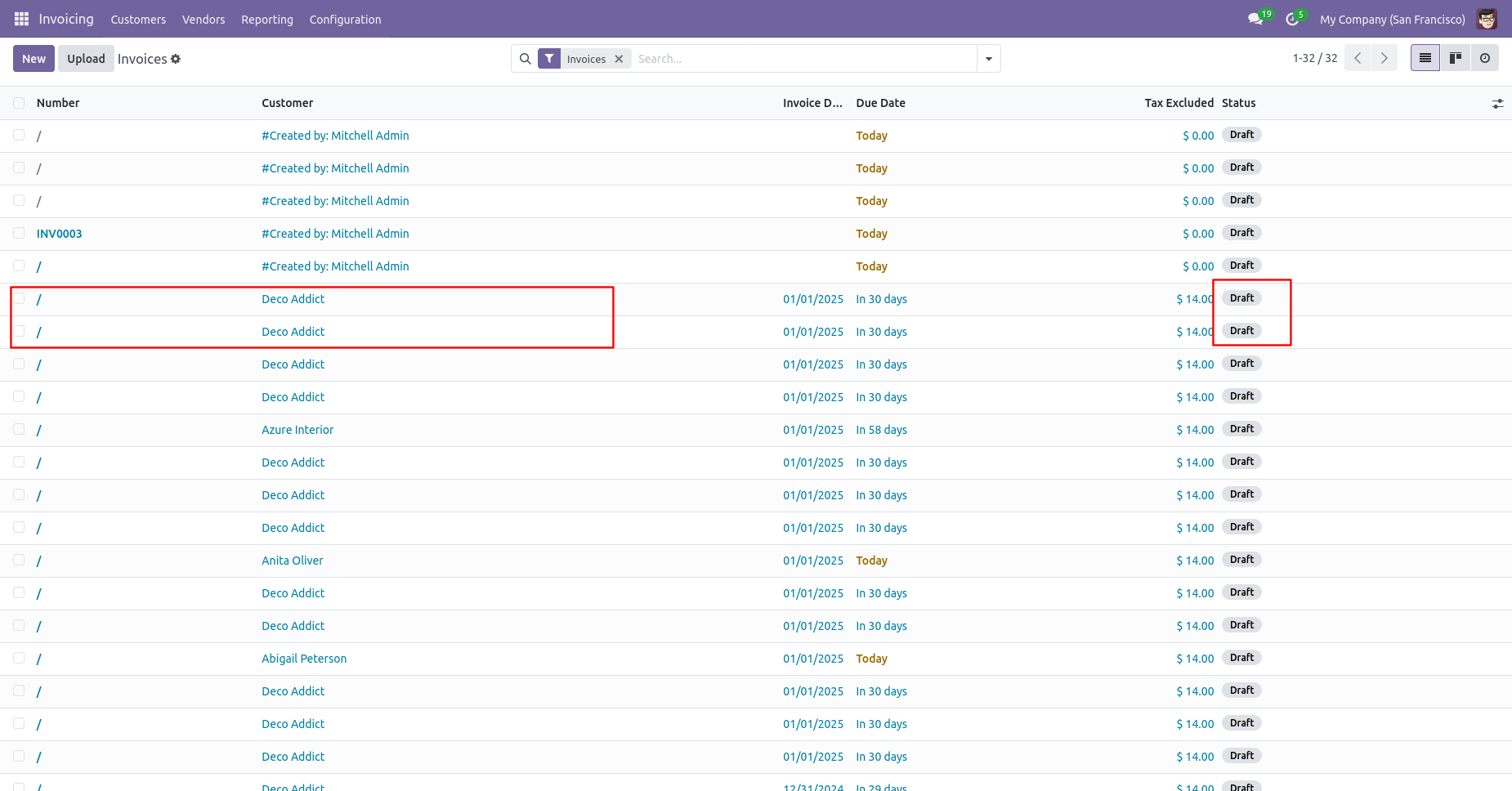
All selected invoices are cancelled and reset to the draft.
Now we "Cancel & Reset Delete" multiple invoices from the tree view, so all invoices will be deleted after cancelled.
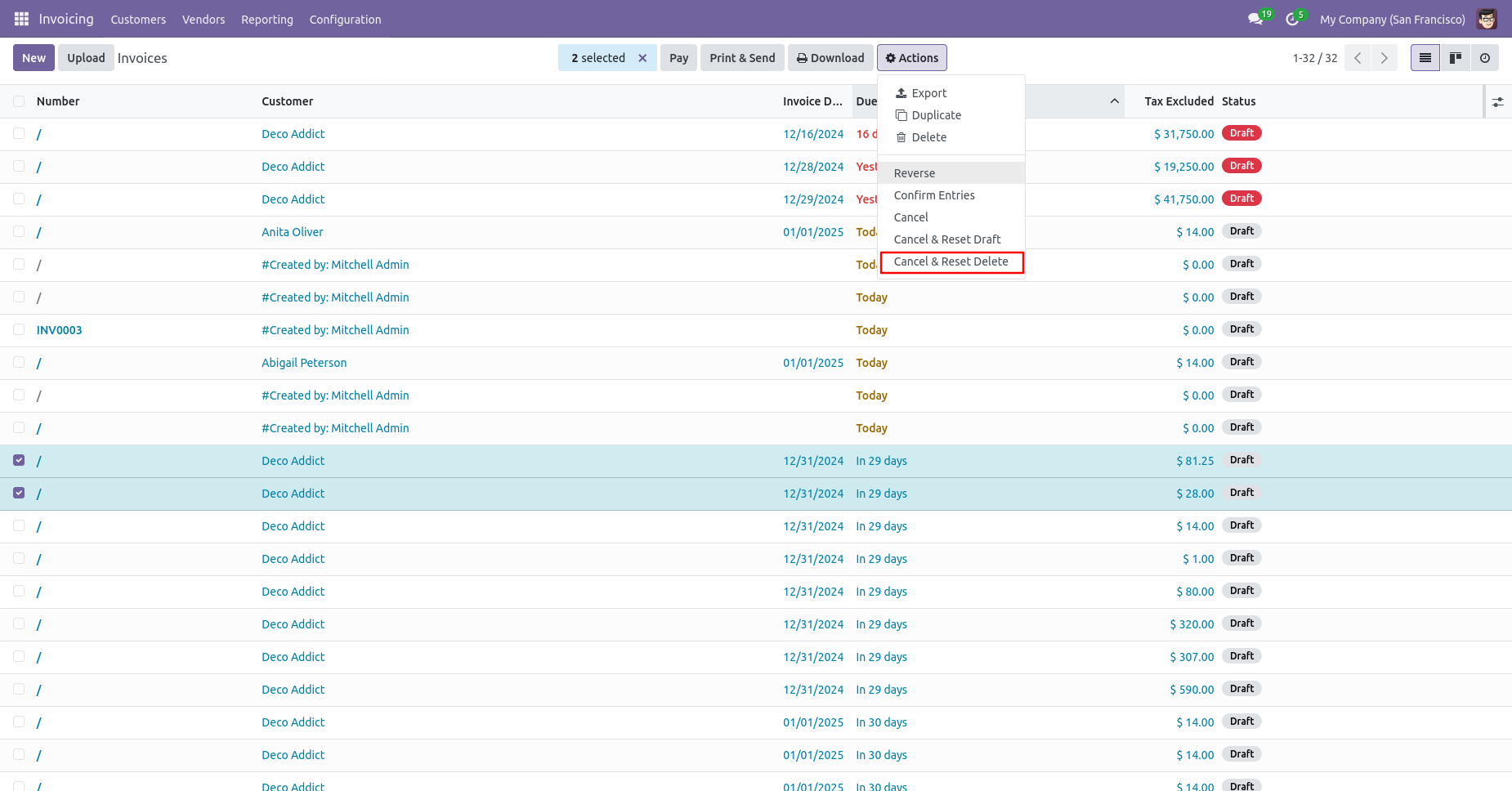
All selected invoices are deleted.
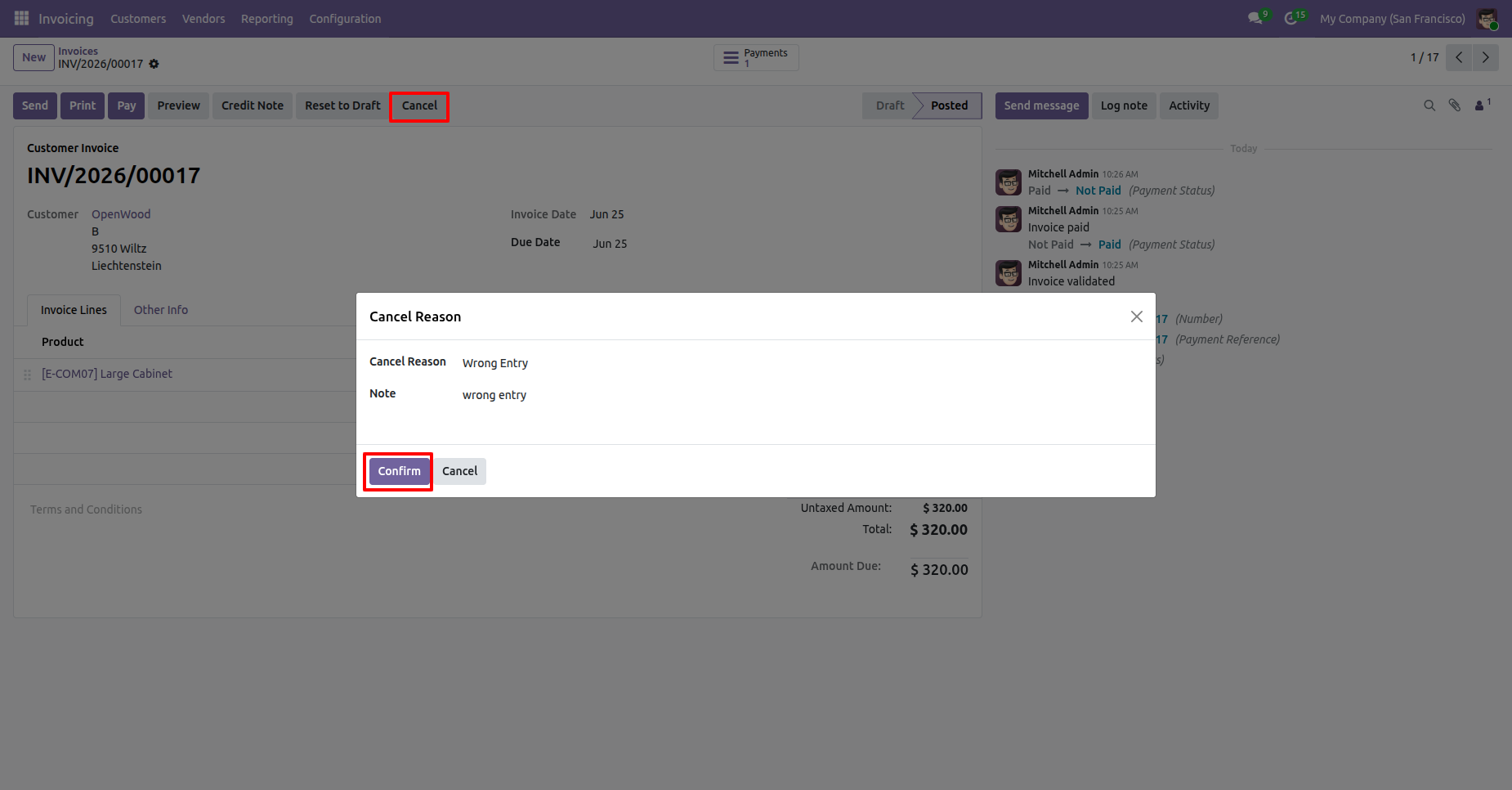
Click the Cancel button on the Invoice to initiate the order
cancellation process.
The Cancel Reason wizard opens, allowing you to select or
enter the reason for cancellation before confirming the
cancellation.
After selecting the cancellation reason, click the
Confirm button to cancel the Invoice.
After the Invoice is canceled, the cancellation information, including the cancellation reason, canceled by, and cancellation date, is displayed in the Invoice Form View for future reference.
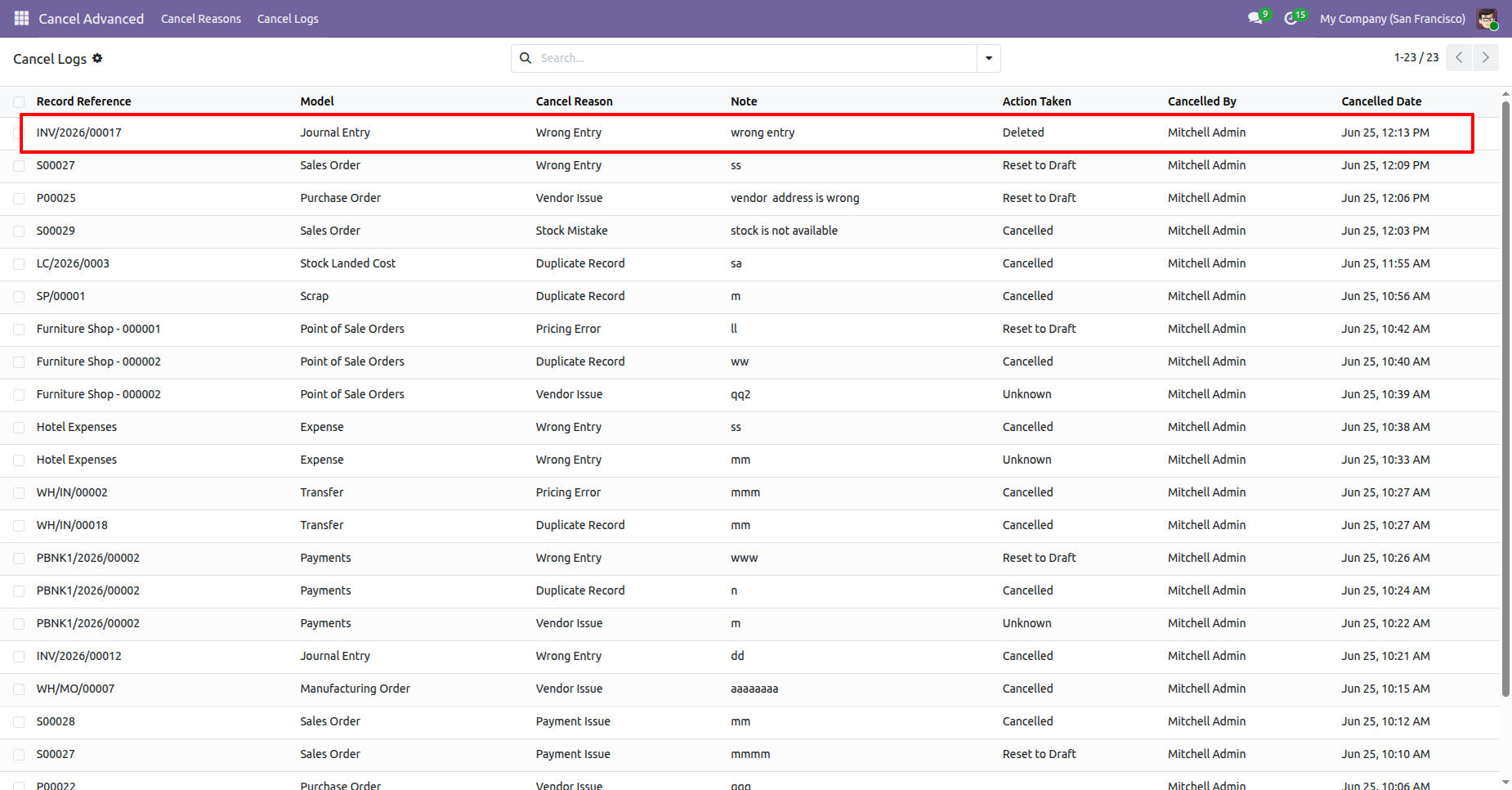
The cancellation logs are also available under the Cancel Logs menu in the Cancel Advanced app, where you can view and track all canceled records along with their cancellation reasons, canceled by, and cancellation dates.
User can preview the cancellation details before confirming the cancellation process.
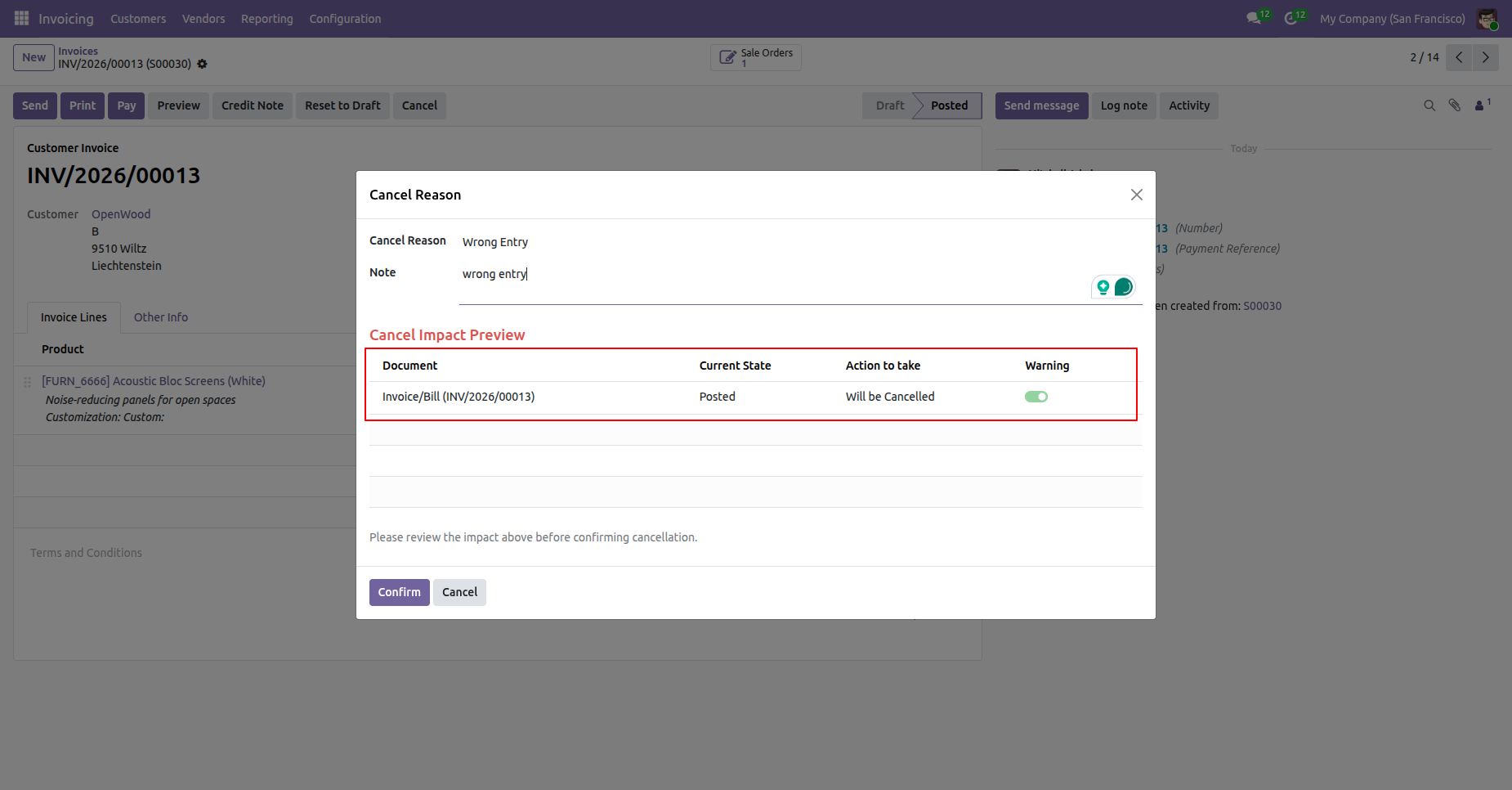
Open the posted invoice and click on cancel button to cancel the invoice, Cancellation request will be submitted to the Approver and also displays the notification.
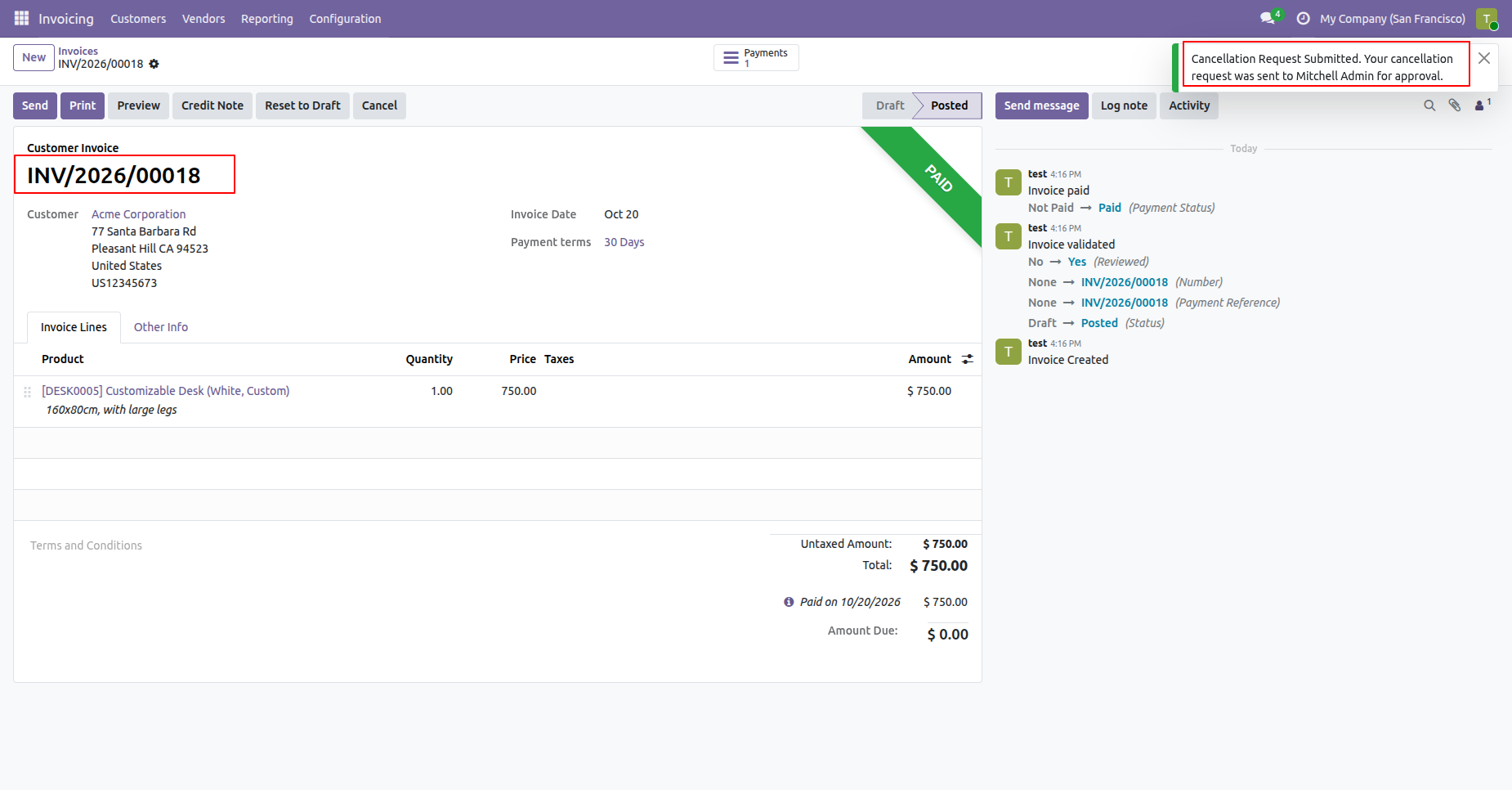
Review the invoice cancellation request and its reason before Approve. Operation is selected as Cancel and Reset to Draft.
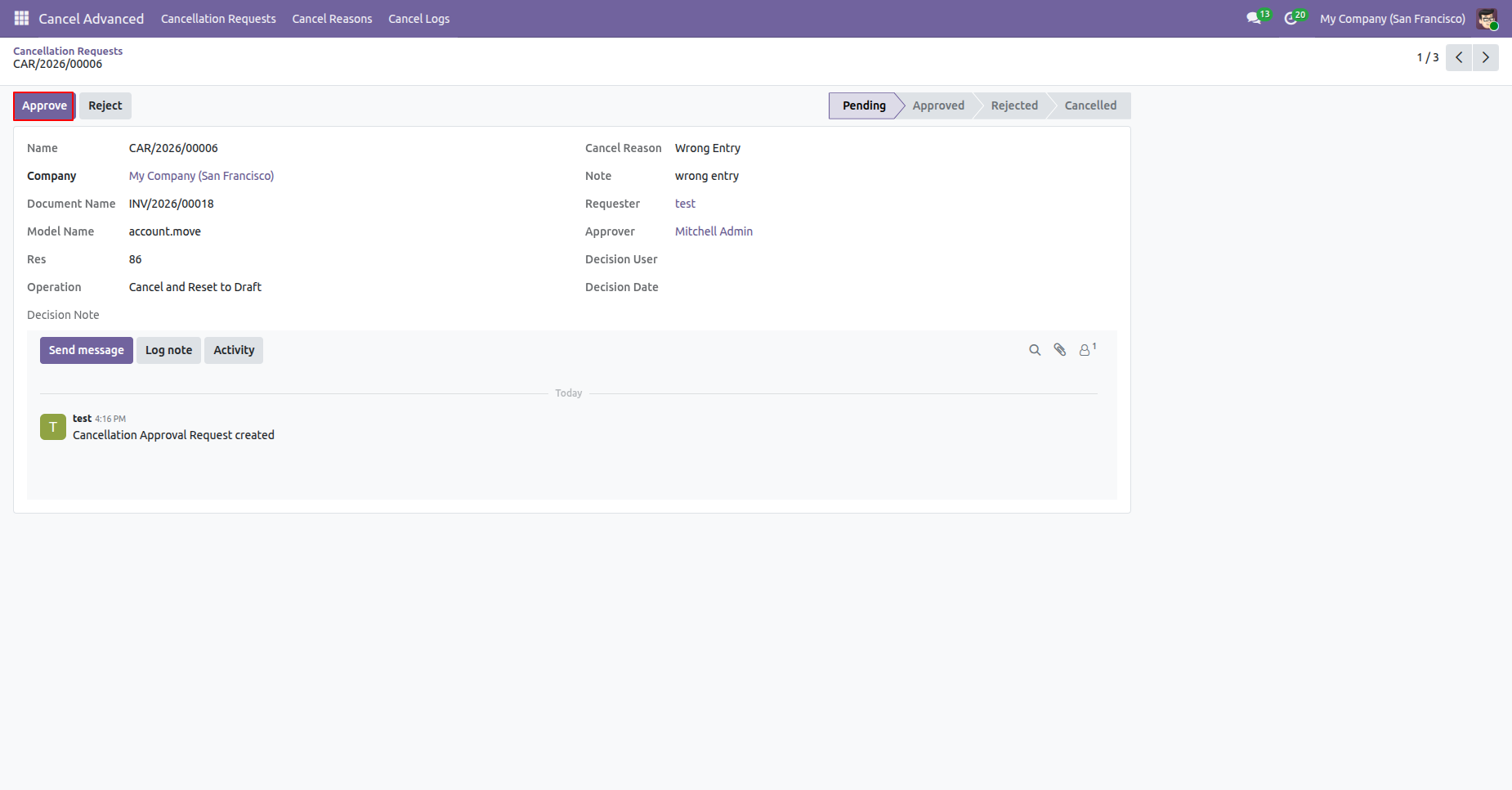
Click on the Approve button to approve the request and request stage will be moved to approved stage.
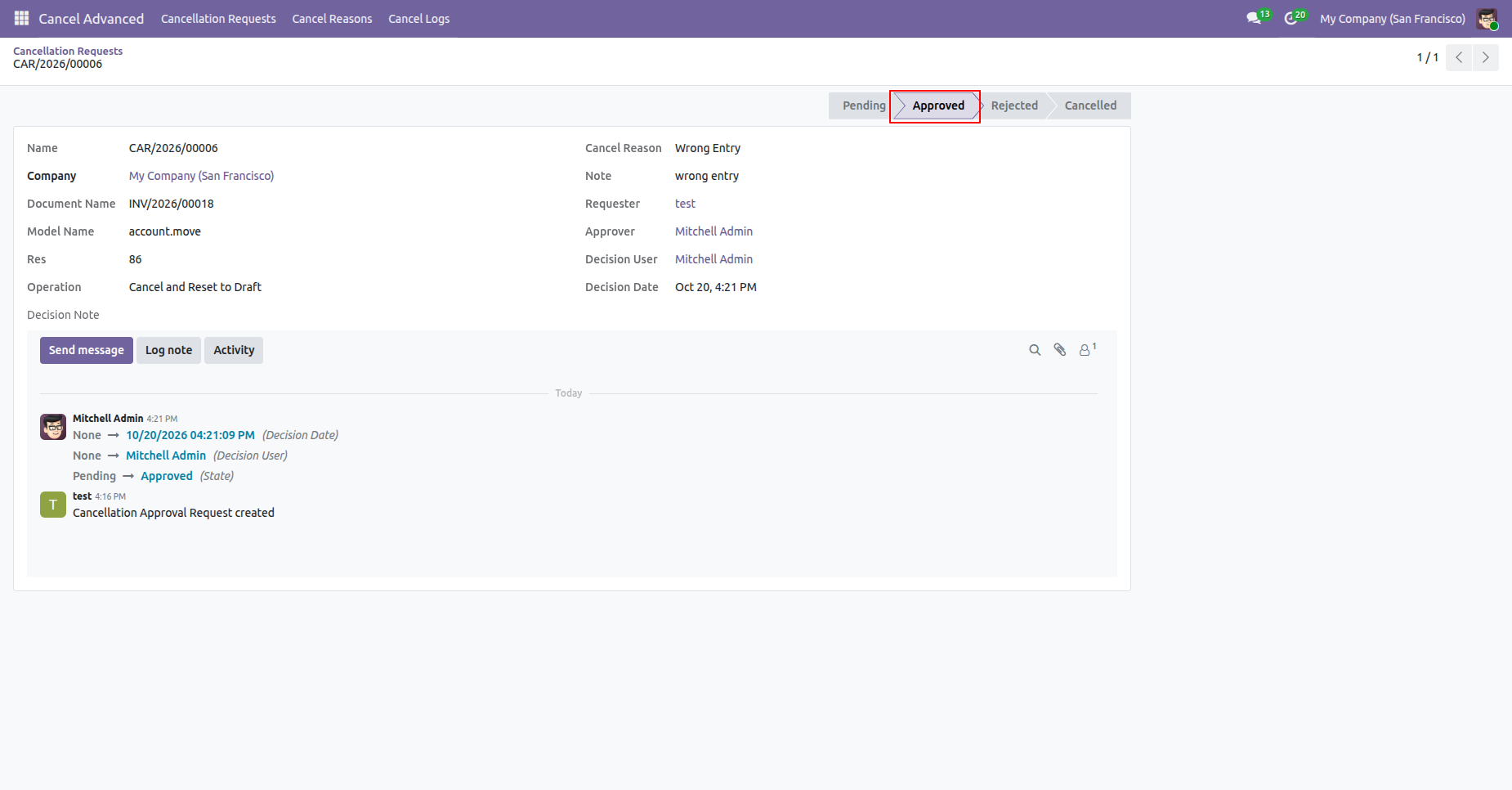
Posted invoice will be set to the draft stage.
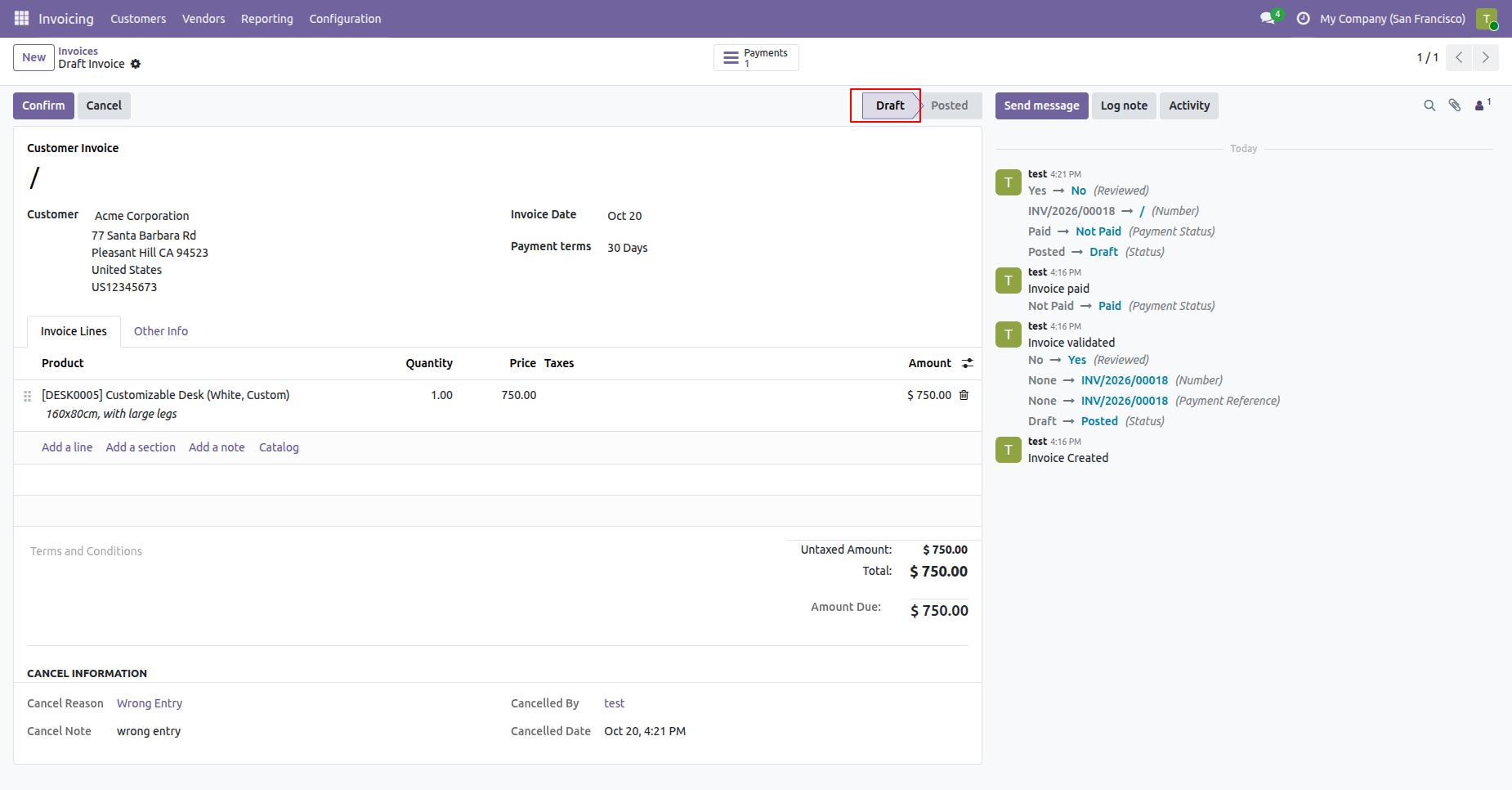
Review the invoices and payments cancellation request and its reason before submitting it for approval.
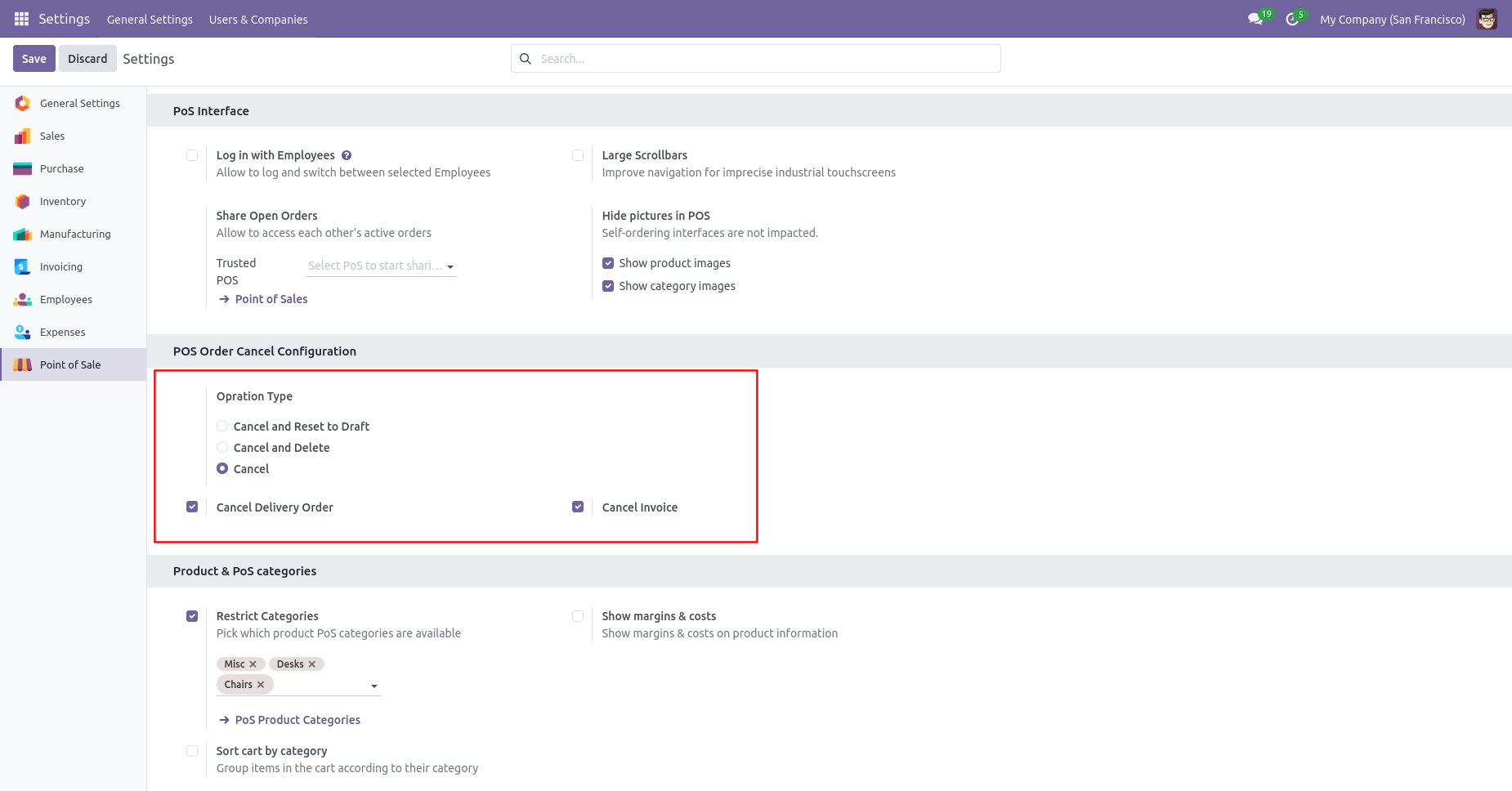
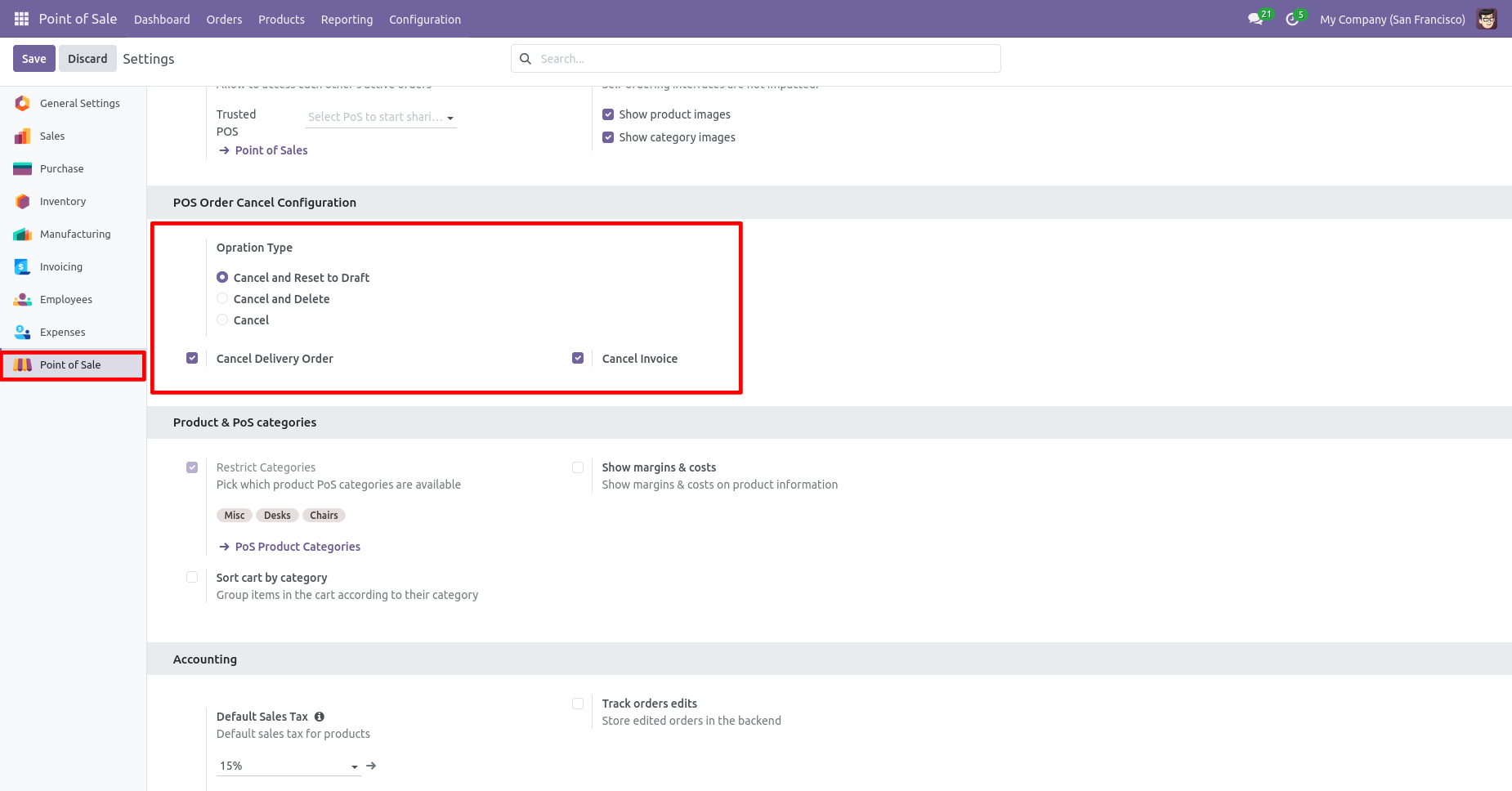
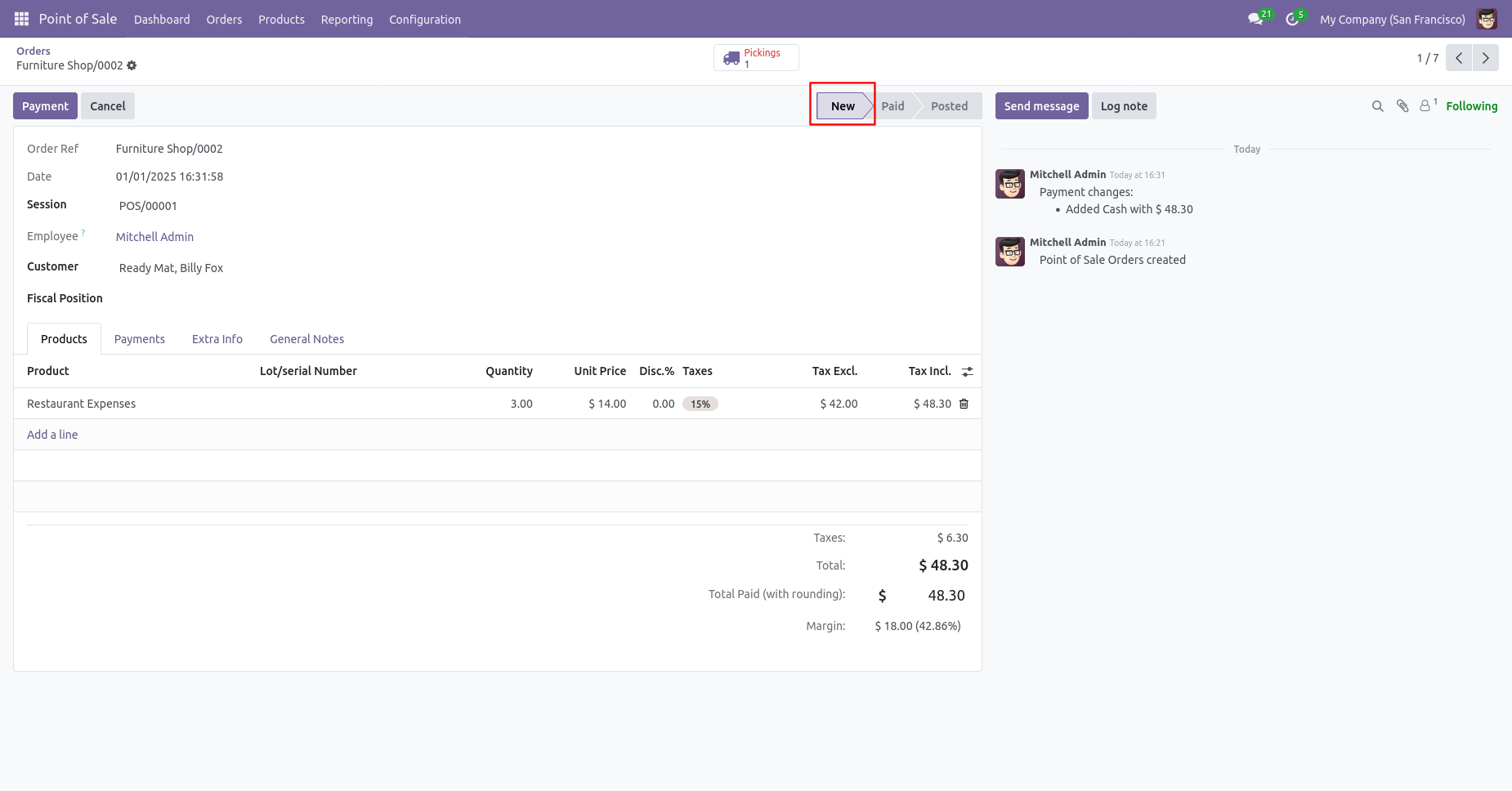
When you want to cancel the POS orders and reset to the draft
state tick "Cancel And Reset To Draft".
If you want to cancel POS orders, delivery orders & invoice
then you can choose both options "Cancel Delivery Order" &
"Cancel Invoice".
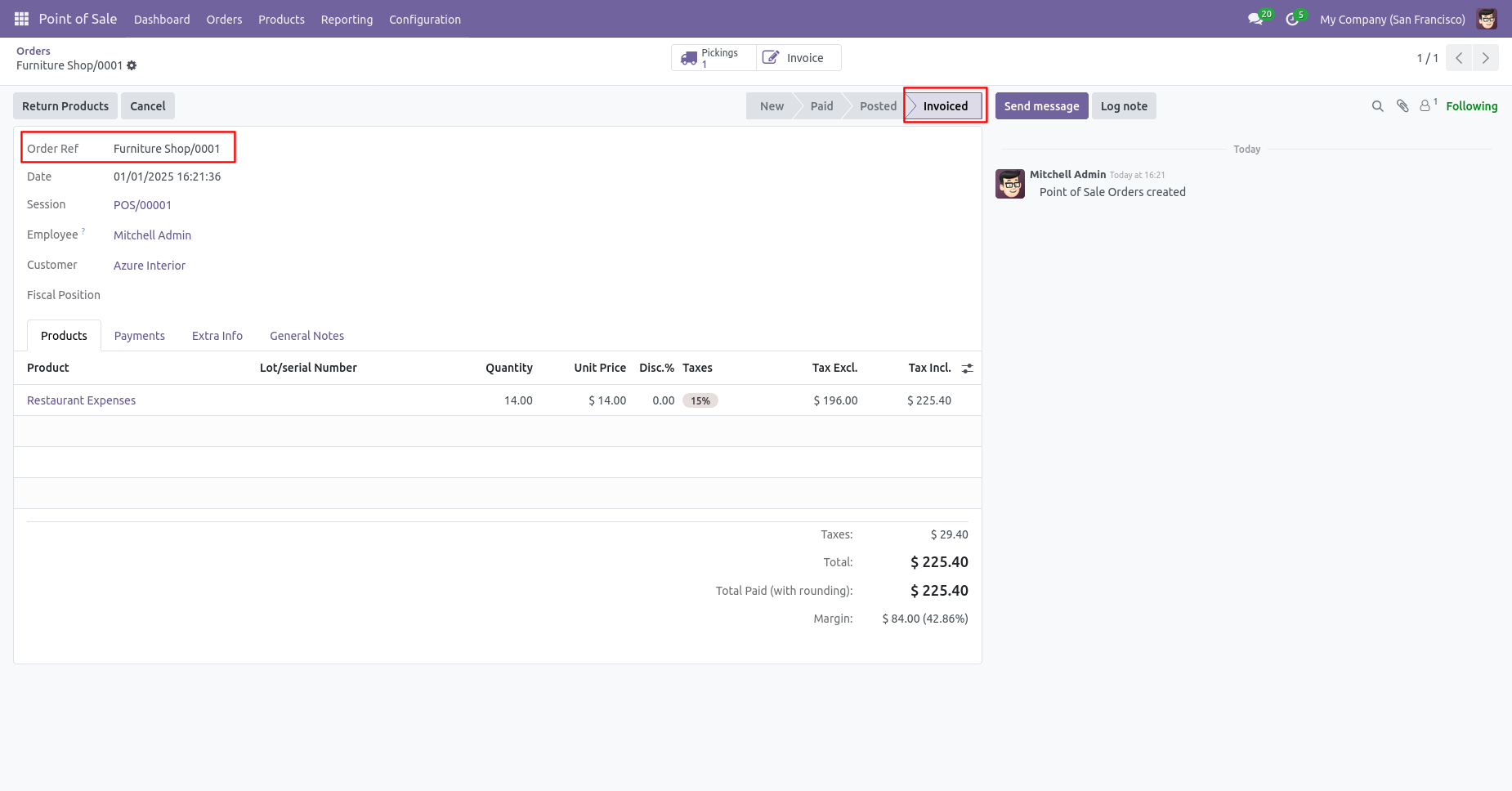
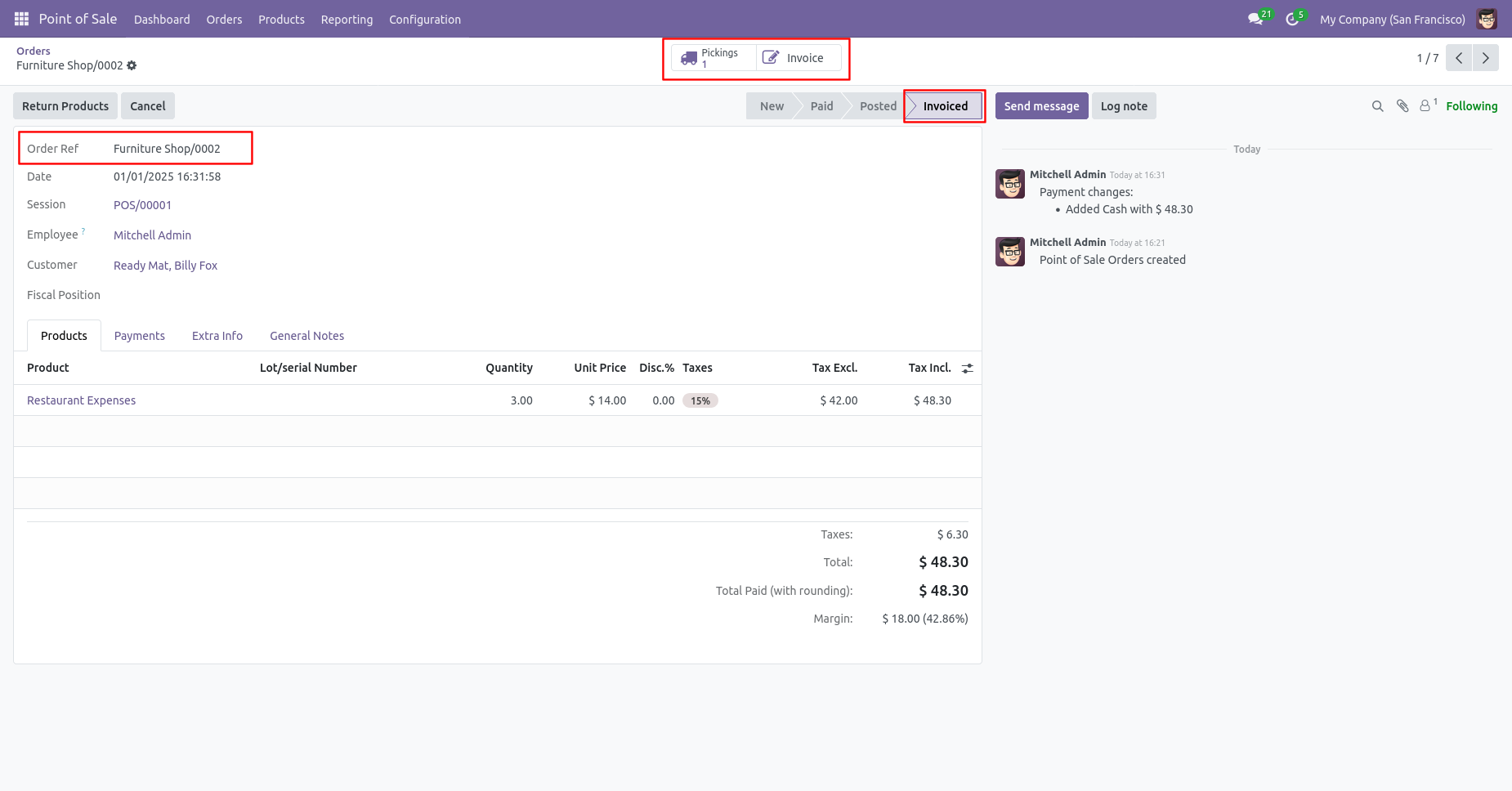
The order is invoiced.
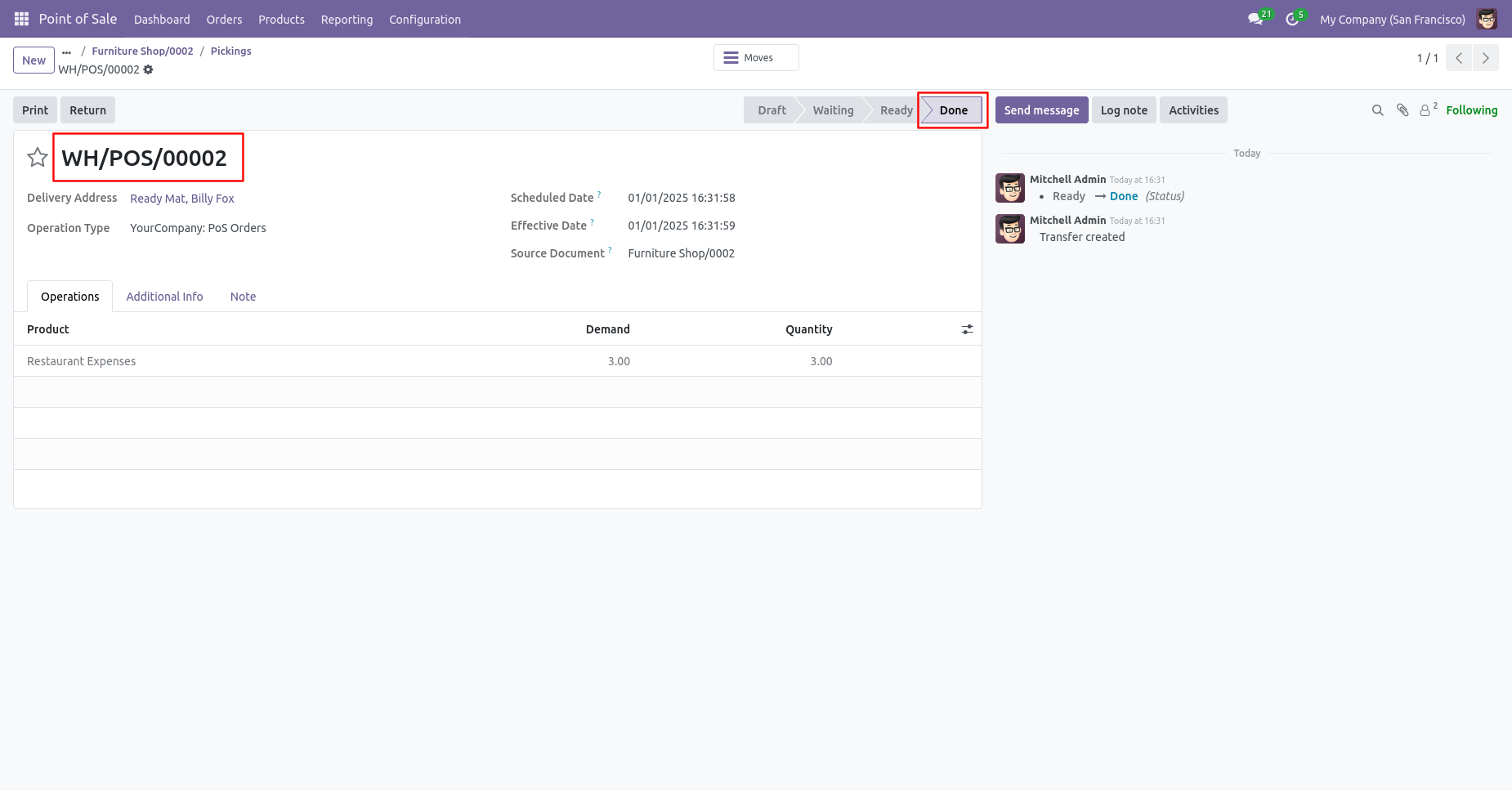
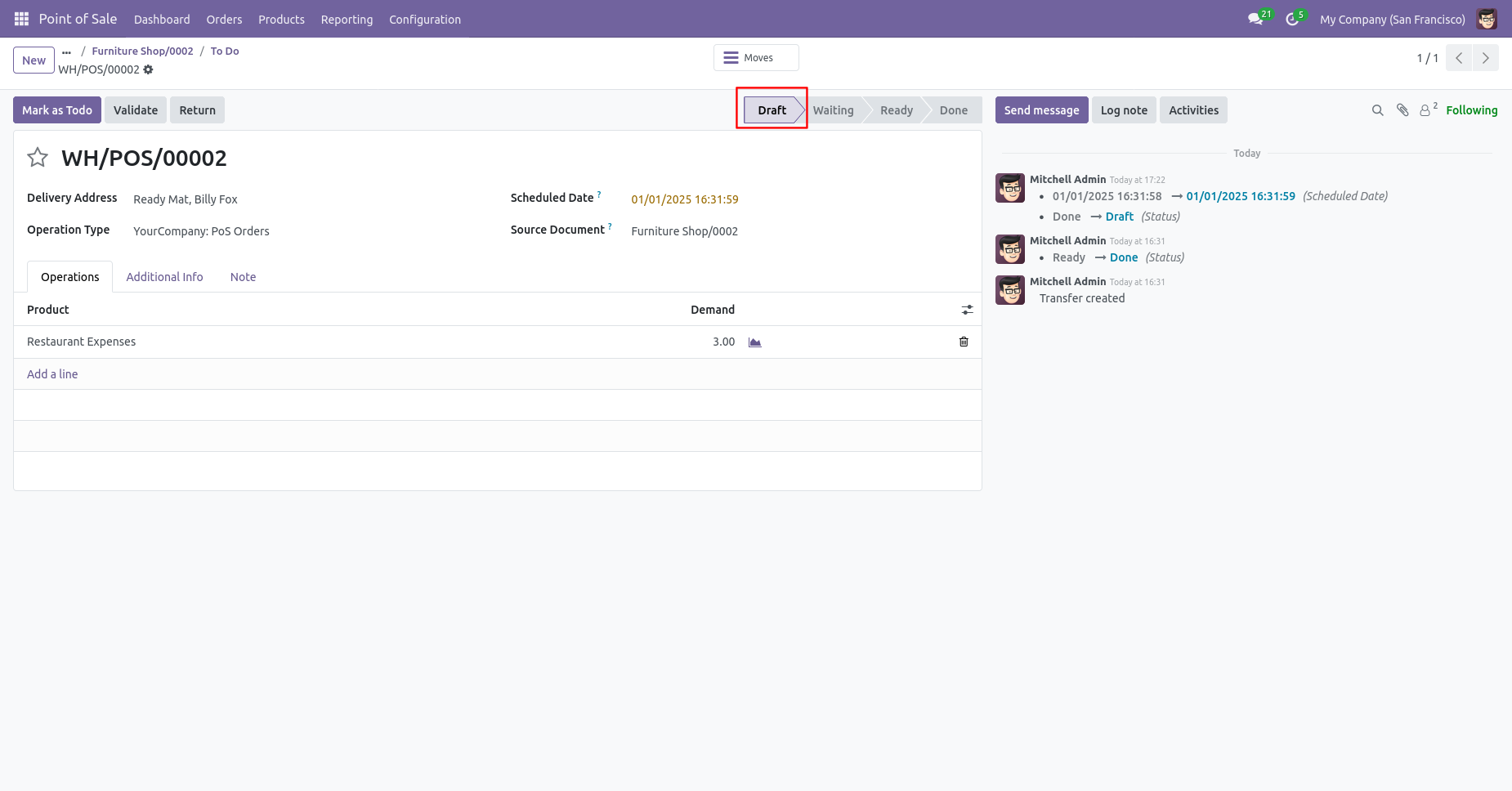
The picking is done.
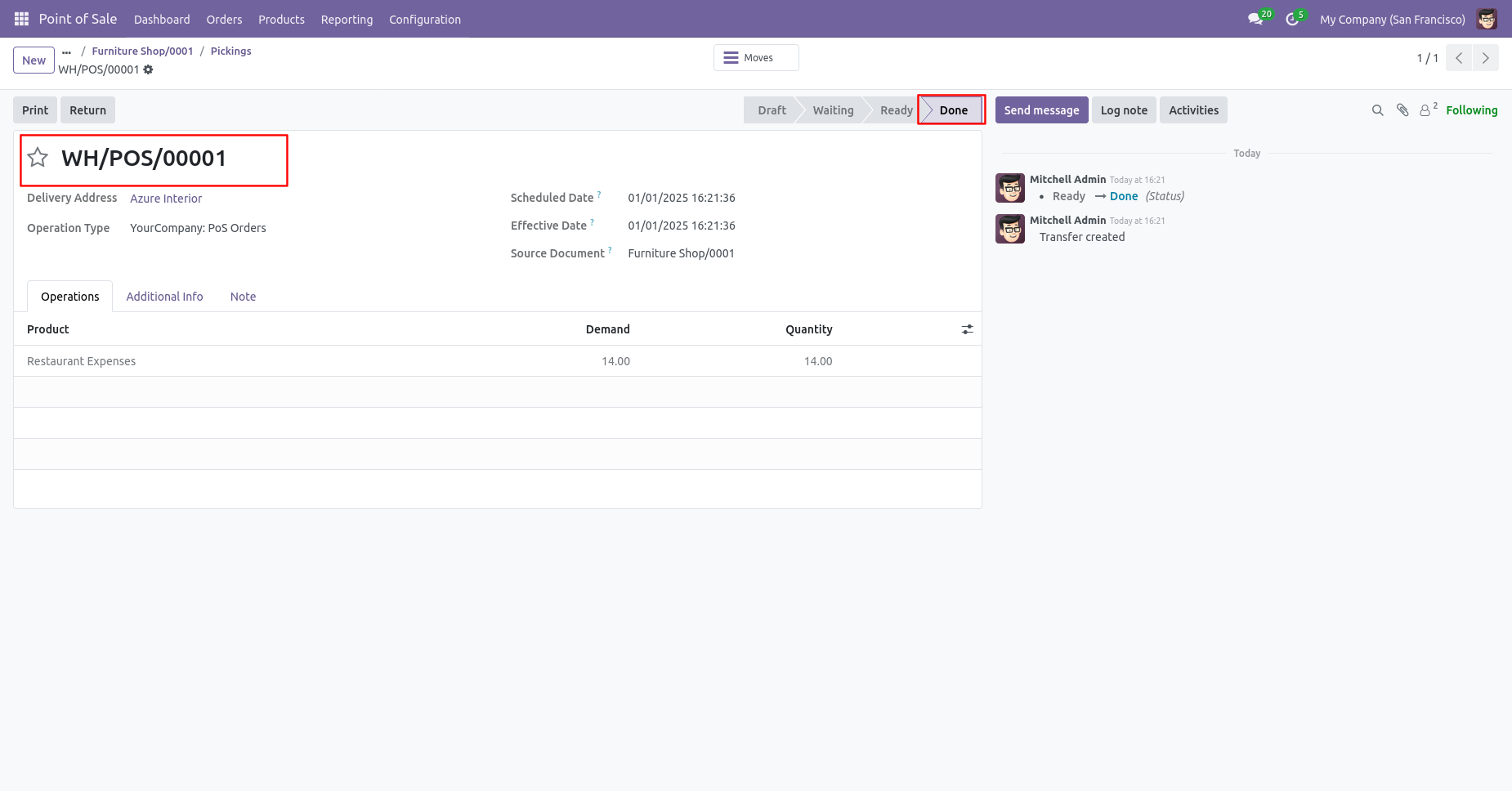
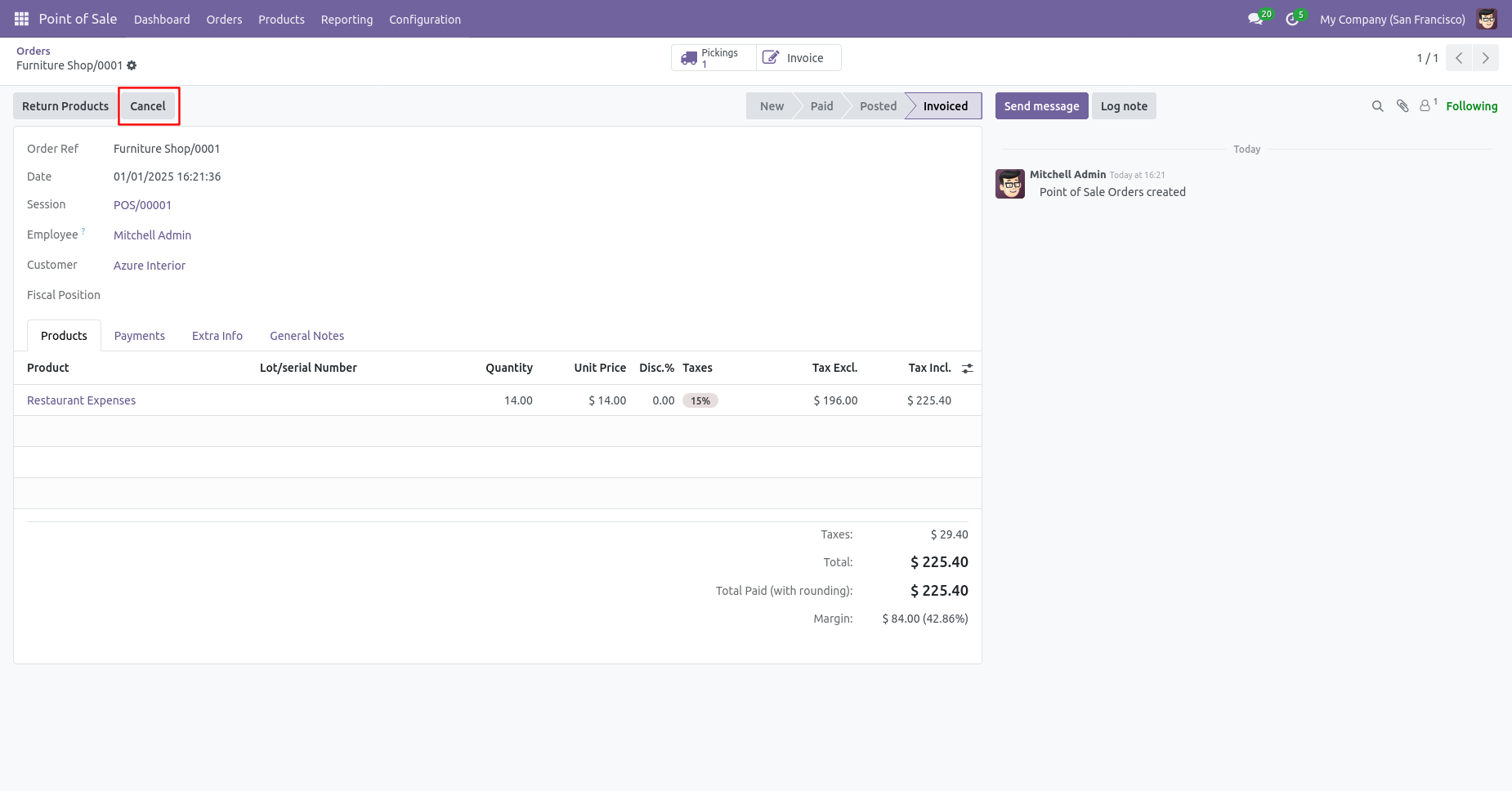
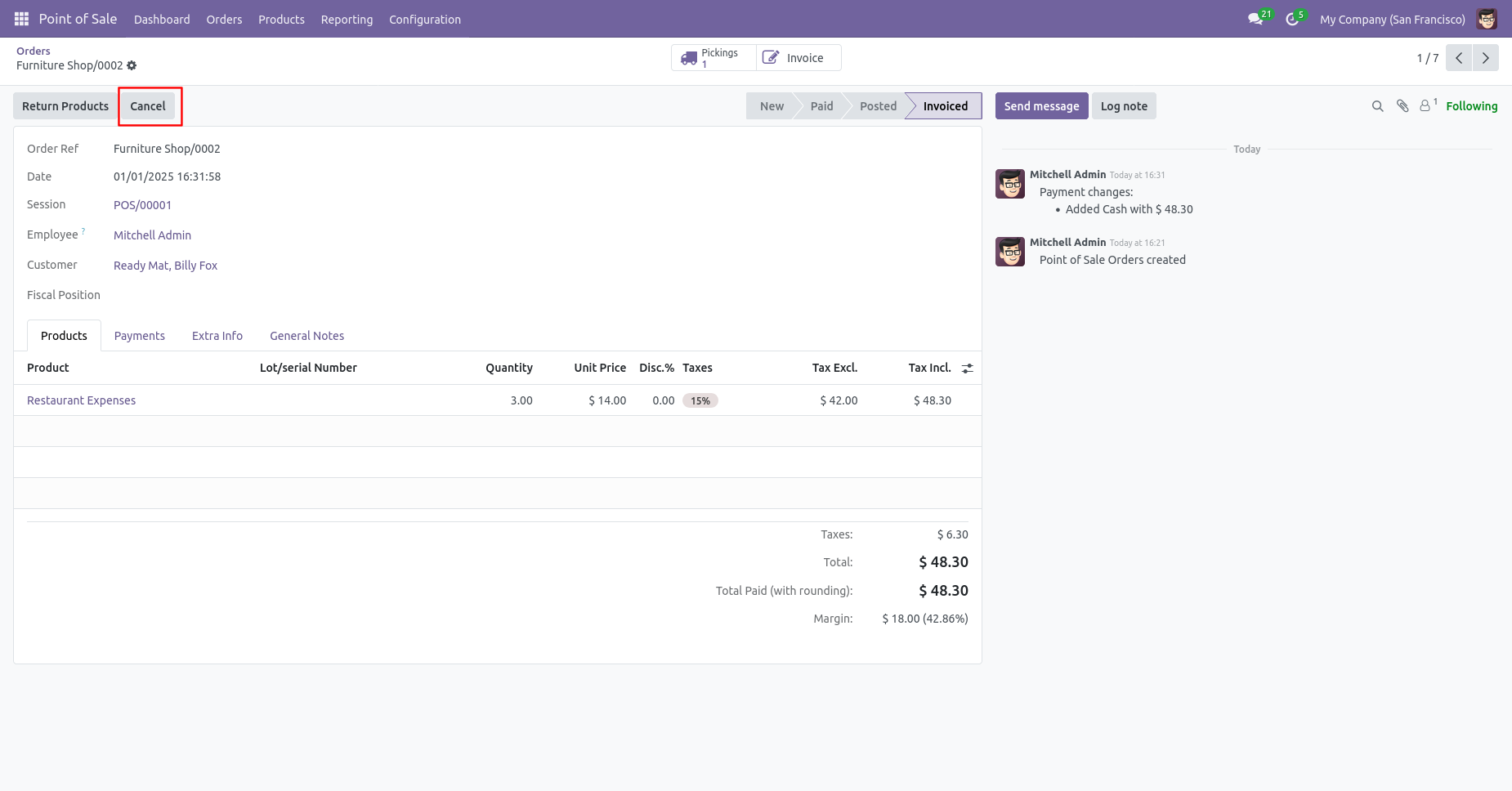
Press the "Cancel" button to cancel POS order.
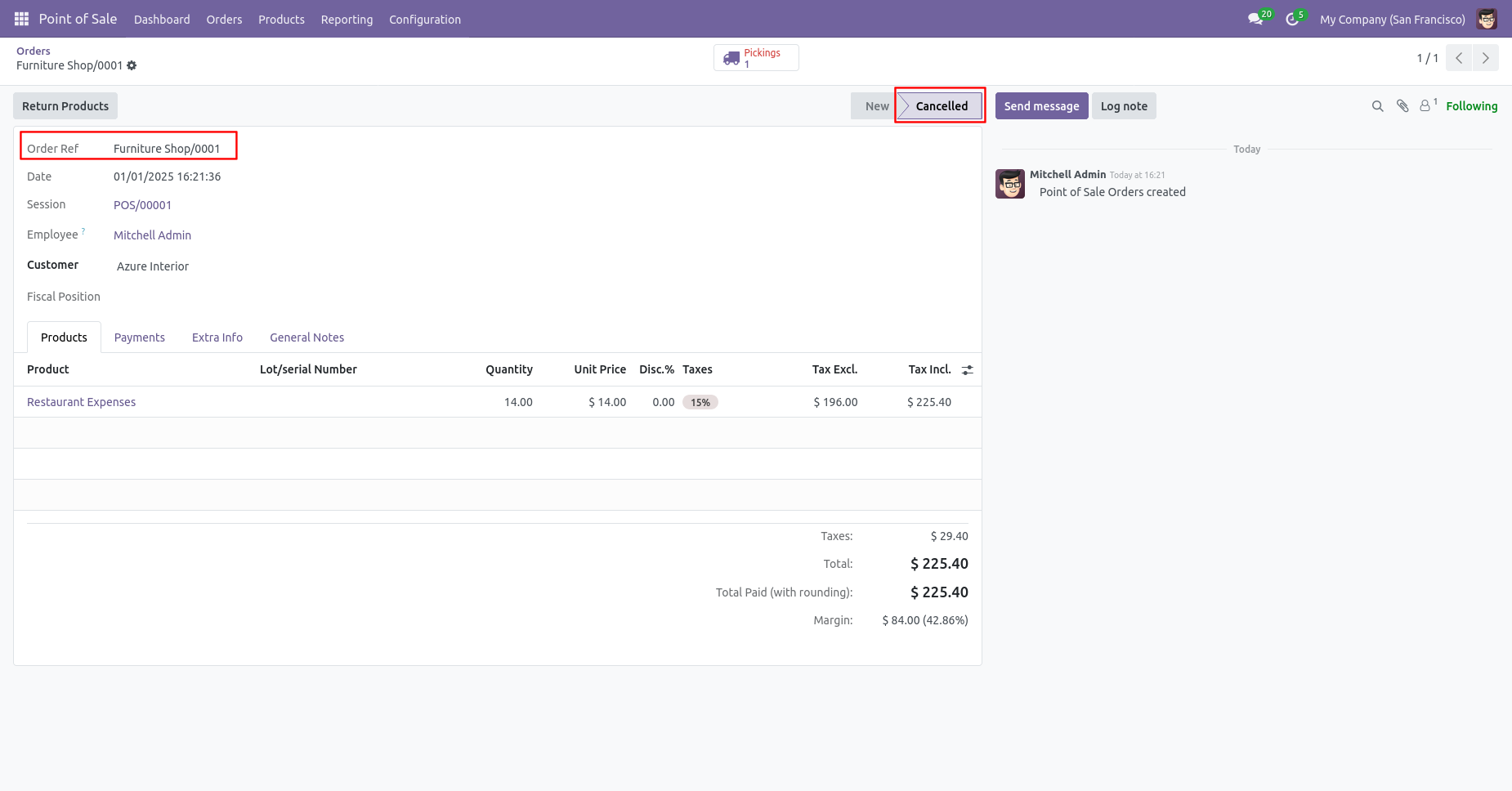
After canceling the order is cancelled and the state is changed to "cancelled".
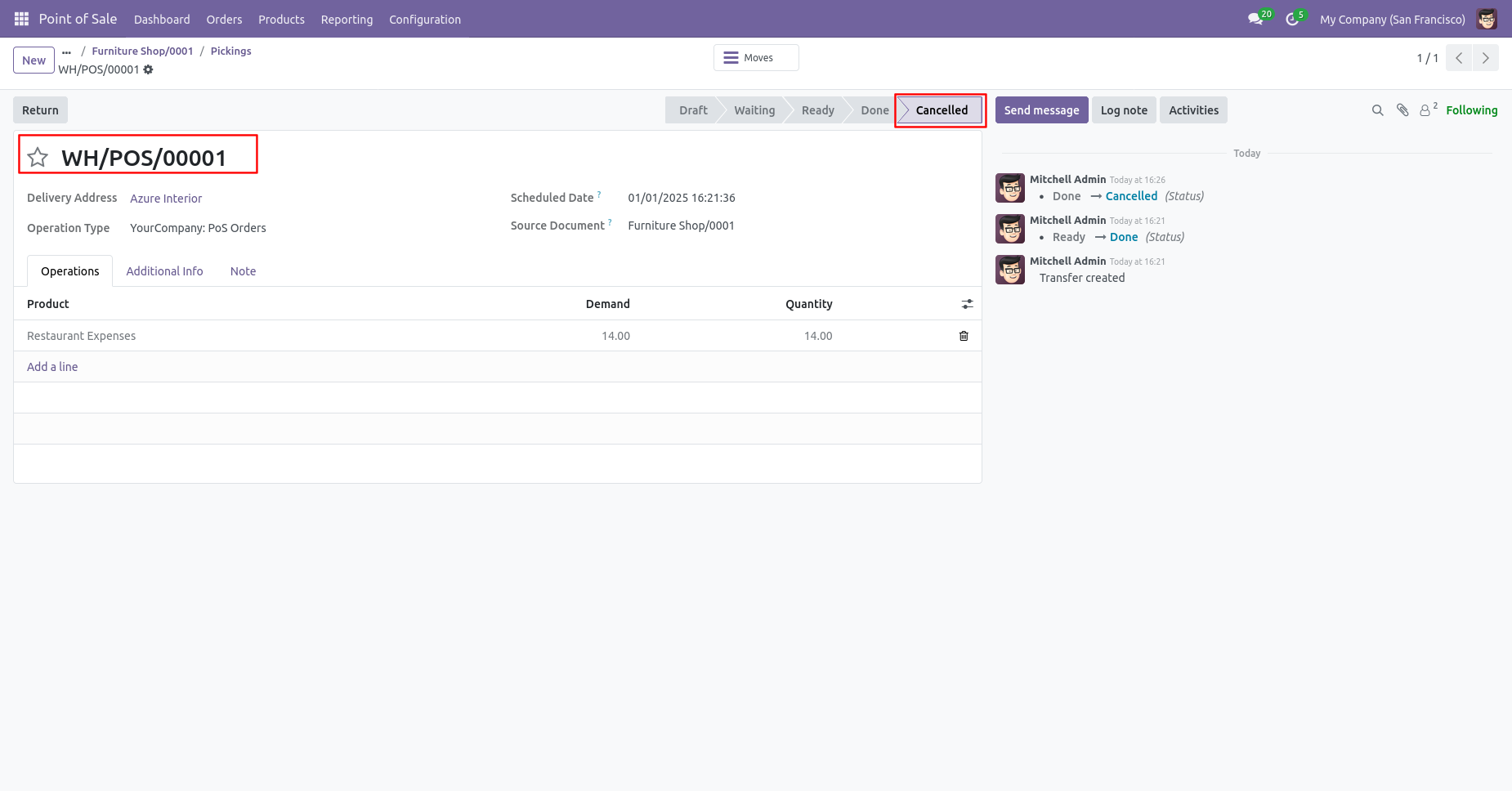
The picking is automatically canceled as well.
When you want to cancel the invoice & payment and reset to the draft state tick "Cancel And Reset To Draft".
The invoice is posted.
The payment is paid.
We cancel posted invoice.
Now we cancel invoice so After canceling the invoice is reset to the draft.
The payment is automatically reset to the draft as well.
When you want to Cancel & Delete the POS orders then choose the
"Cancel And Delete" option.
If you want to cancel POS orders, delivery orders & invoice
then you can choose both options "Cancel Delivery Order" &
"Cancel Invoice".
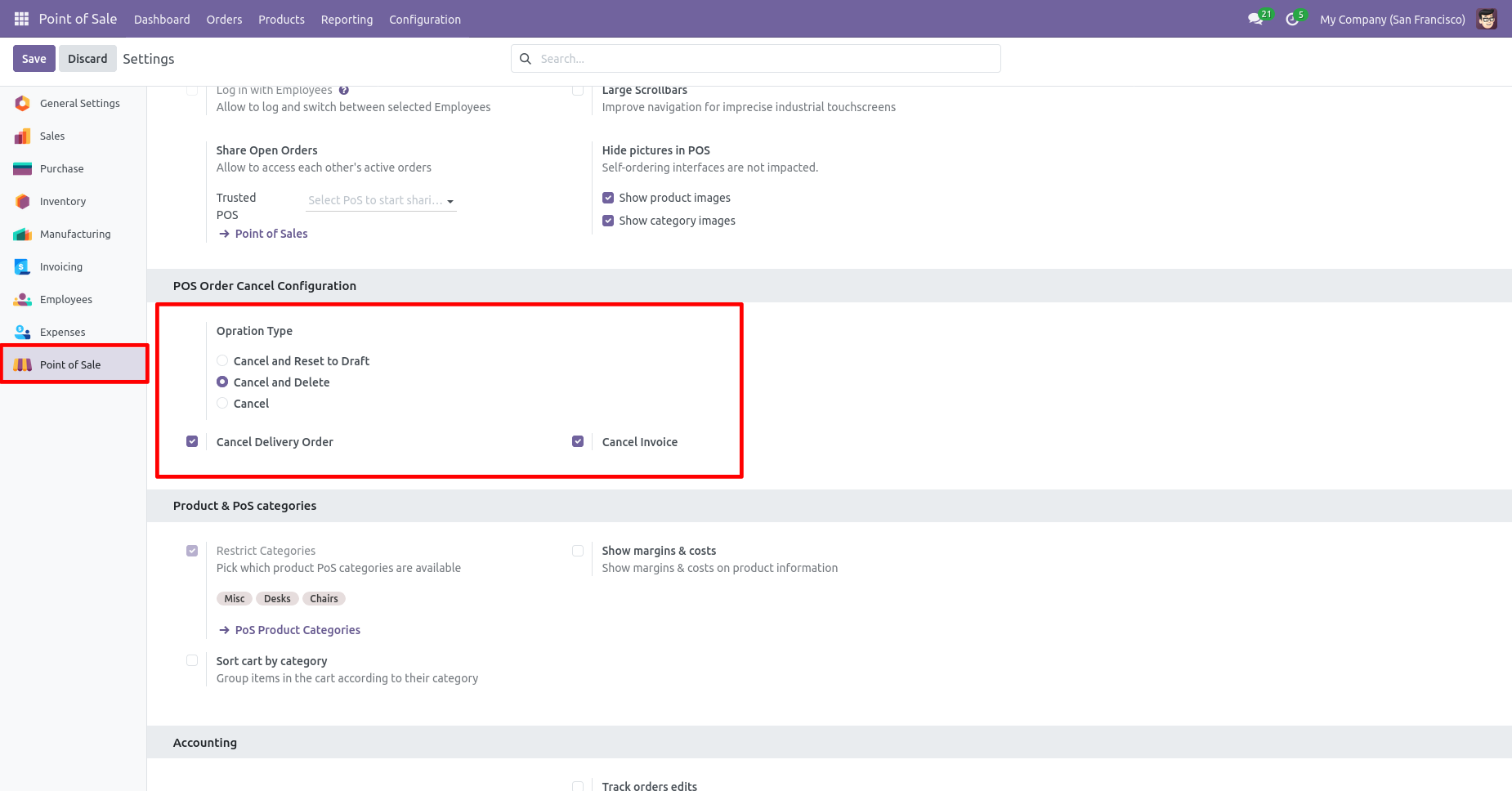
Now we create POS order, delivery order & invoice.
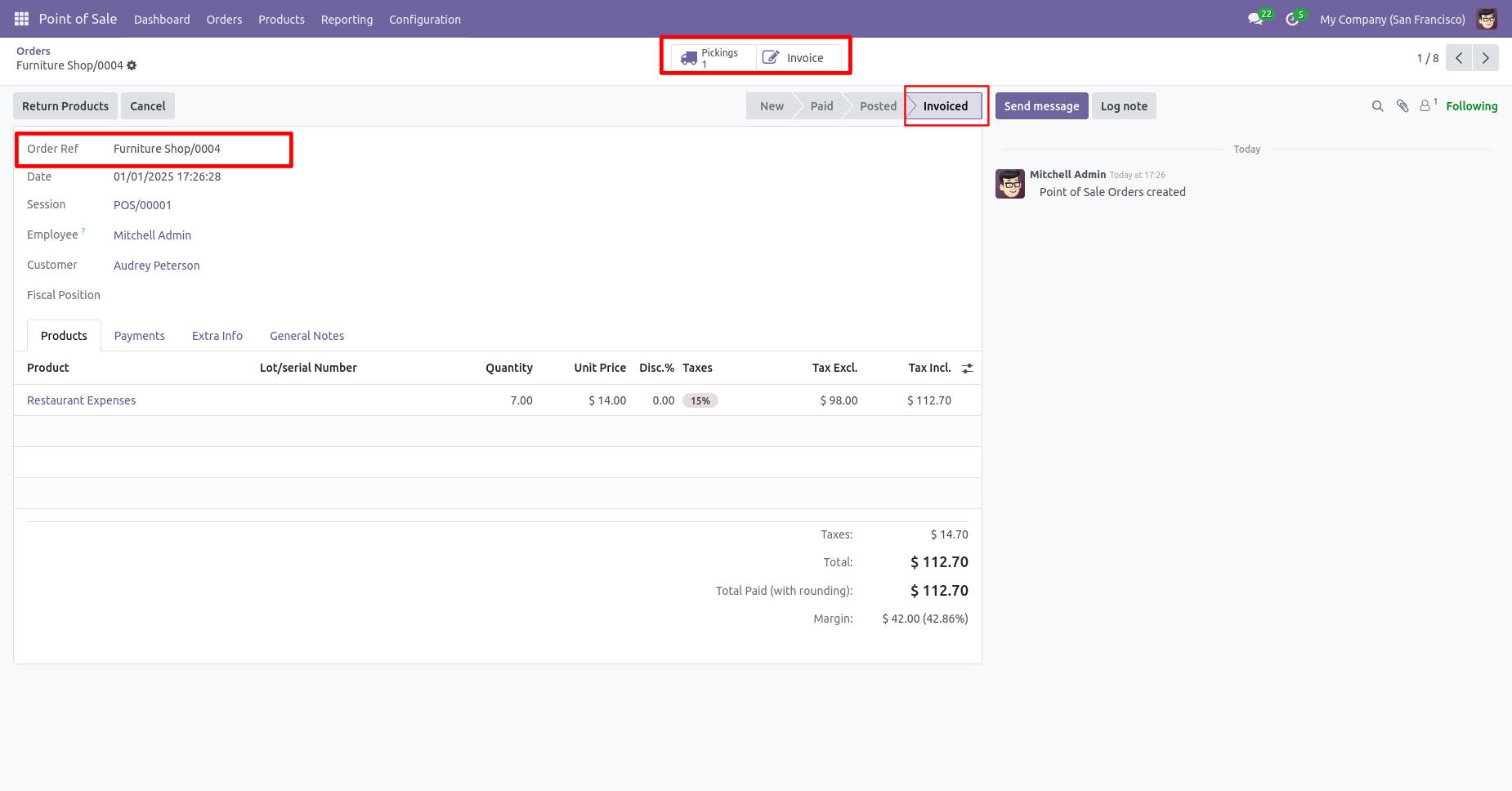
Our delivery order is in the done state.
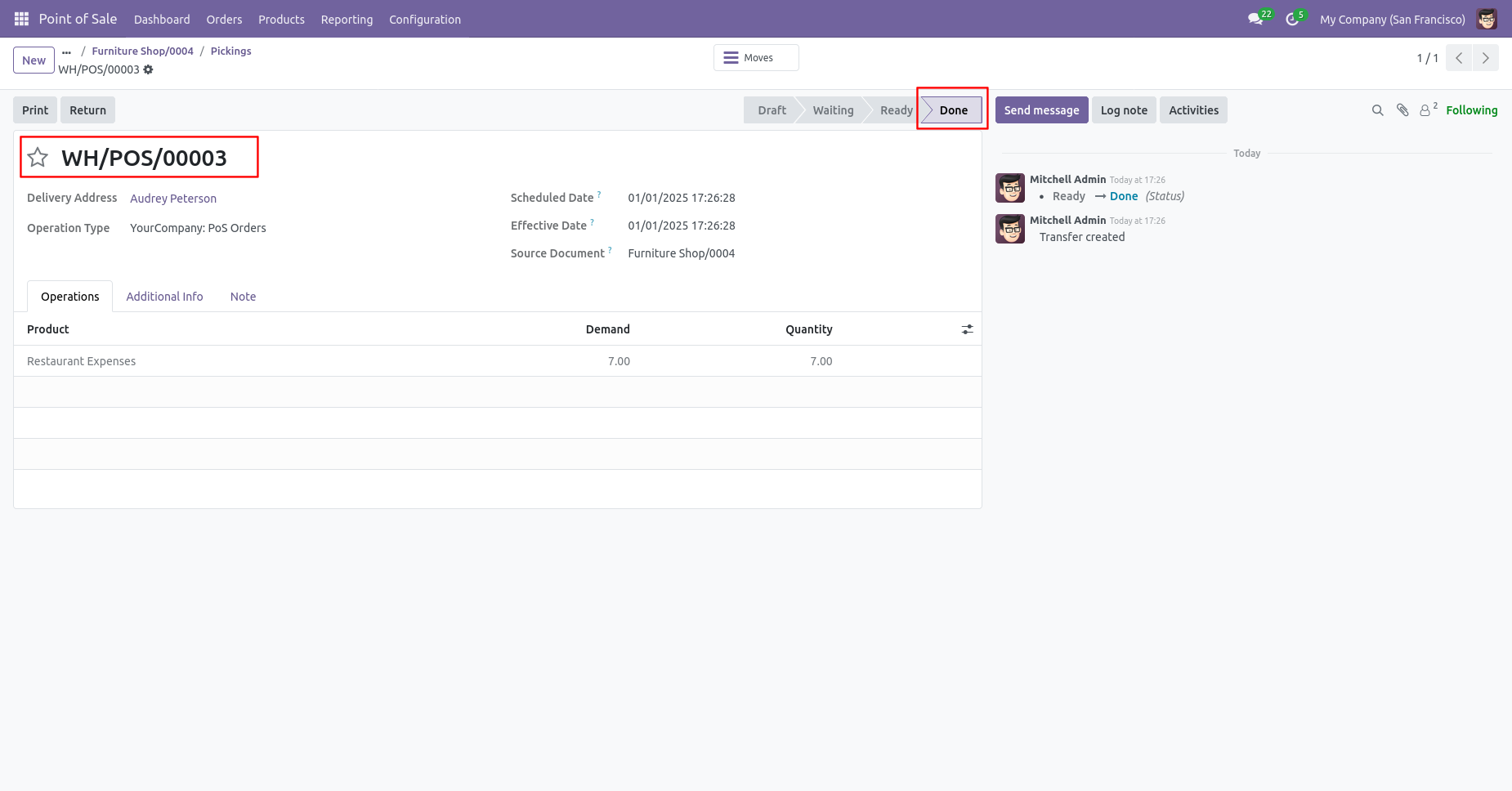
Press the "Cancel" button to cancel POS order.
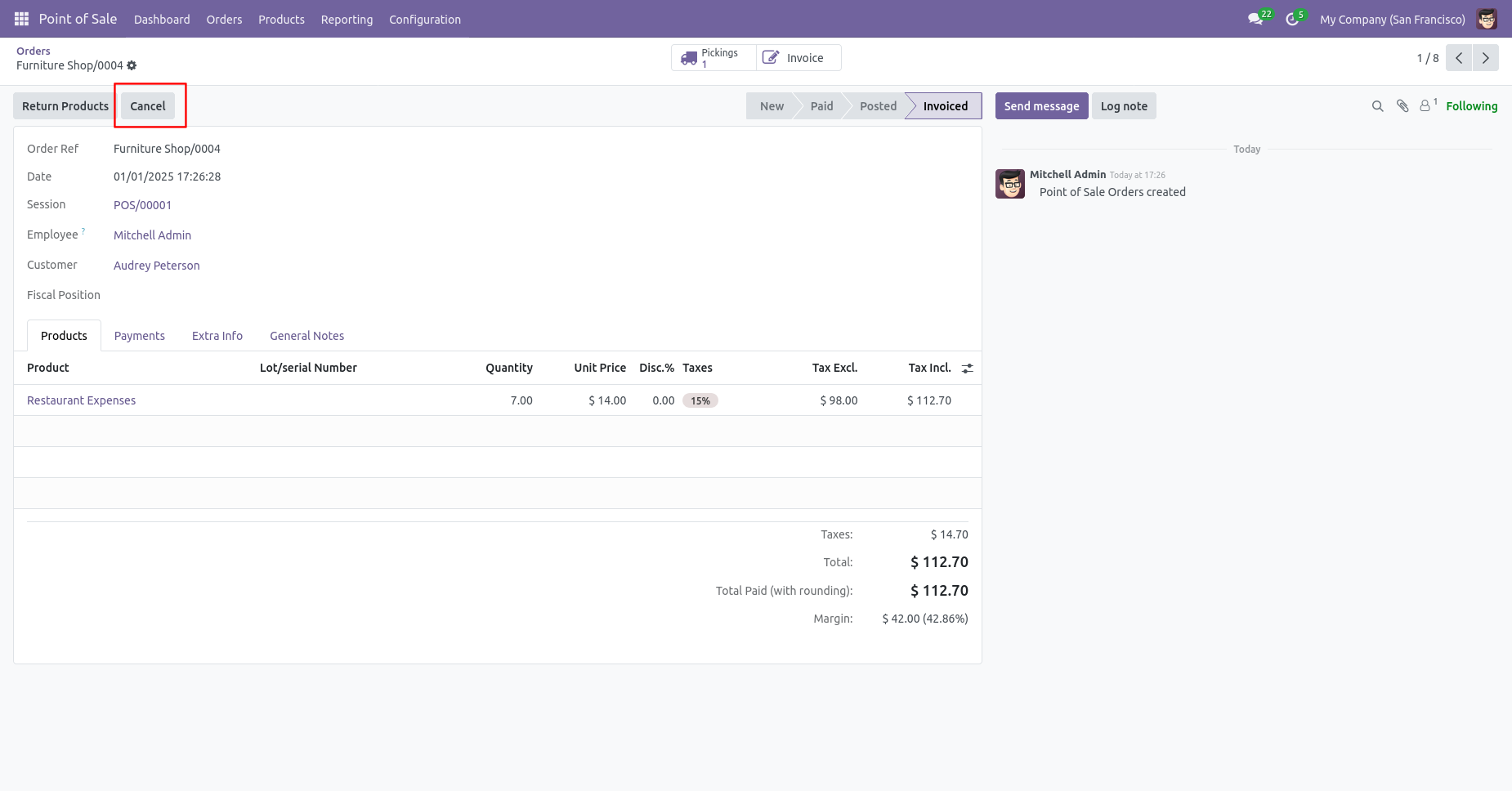
After the "Cancel" the POS order our POS order will be deleted
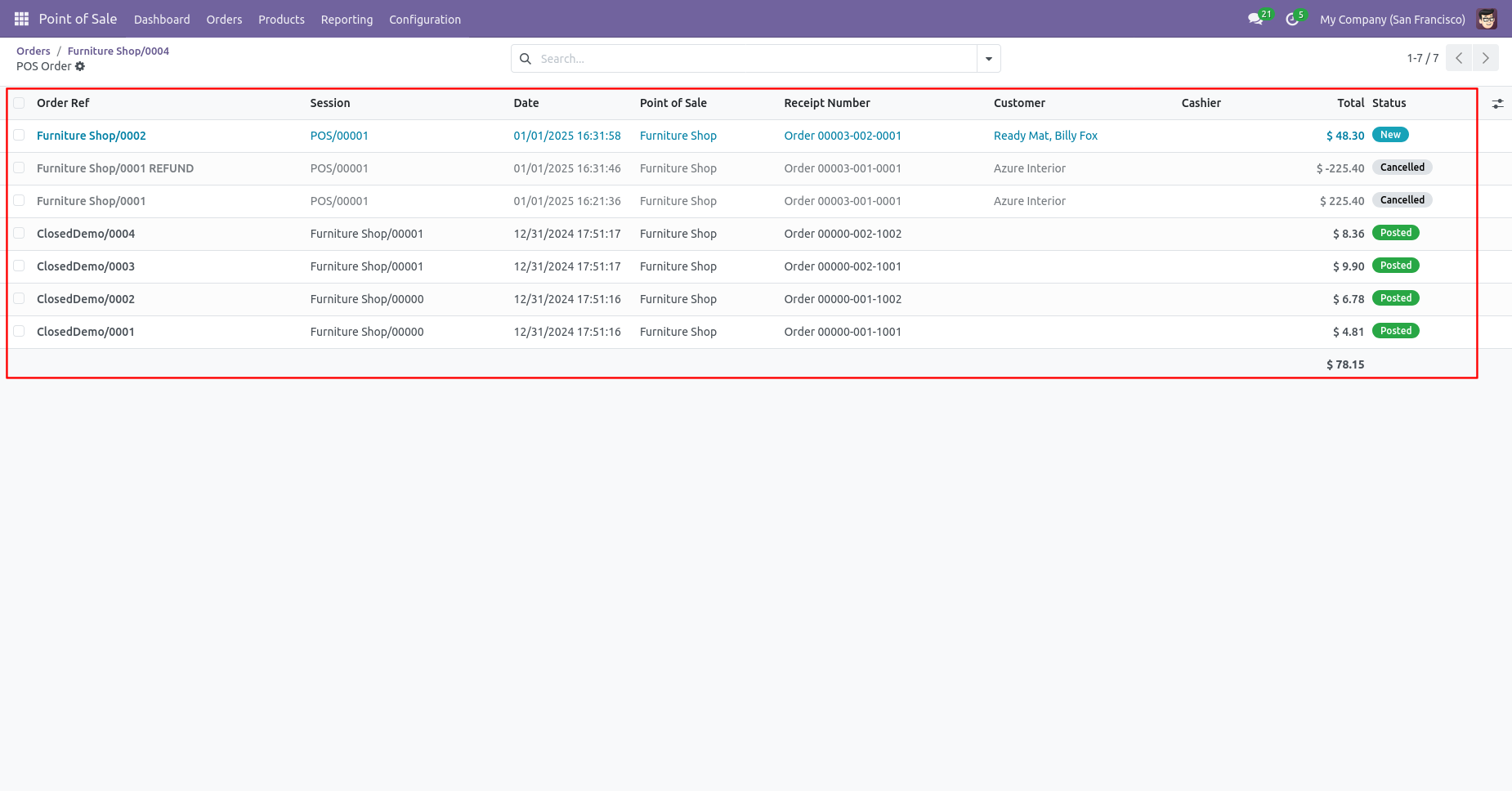
Now we cancel multiple POS orders from the tree view.
Select the POS orders which you want to cancel and click on the
"Cancel Order" from the Action.
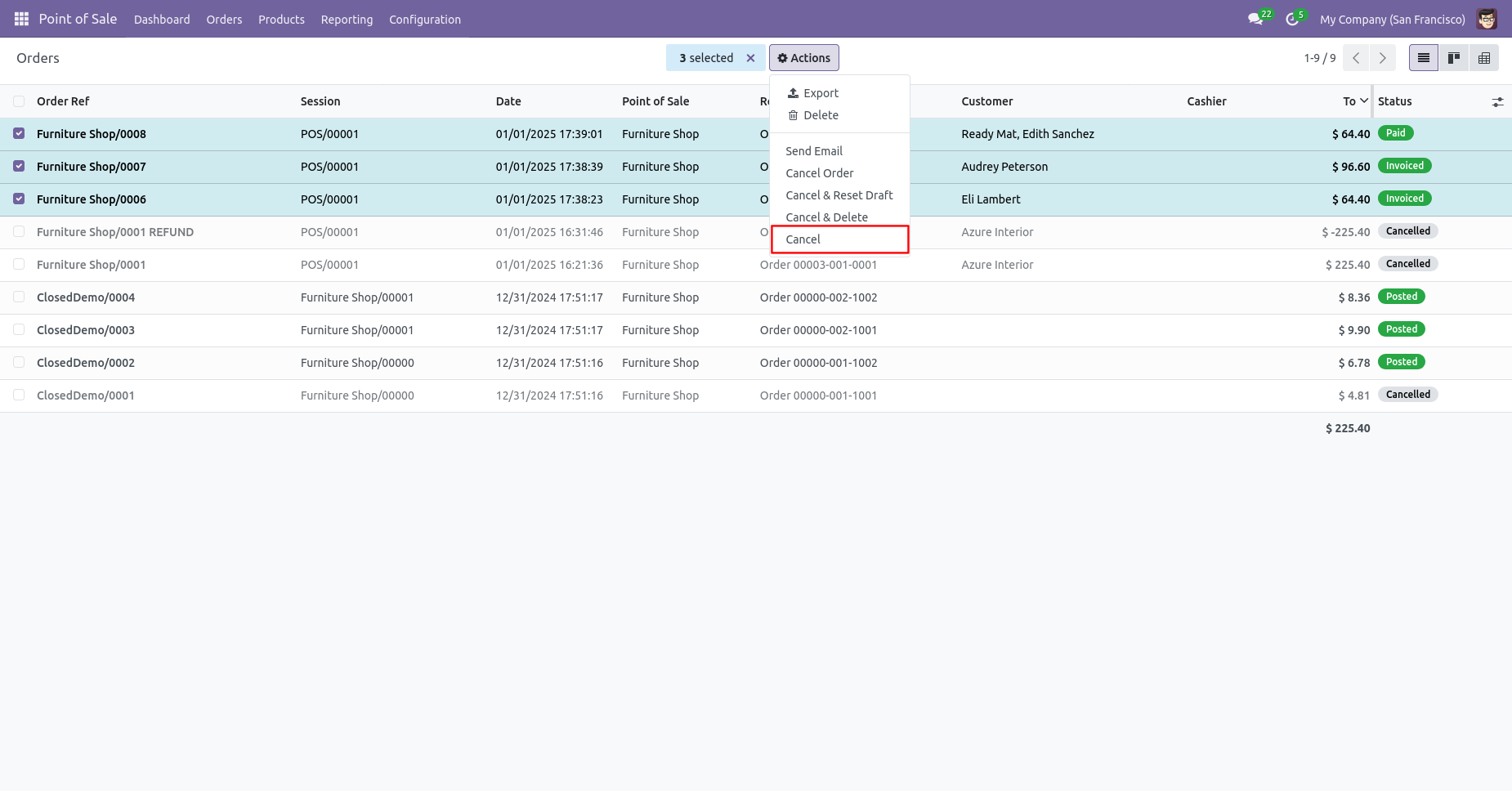
Click on the "Cancel" from the Action.
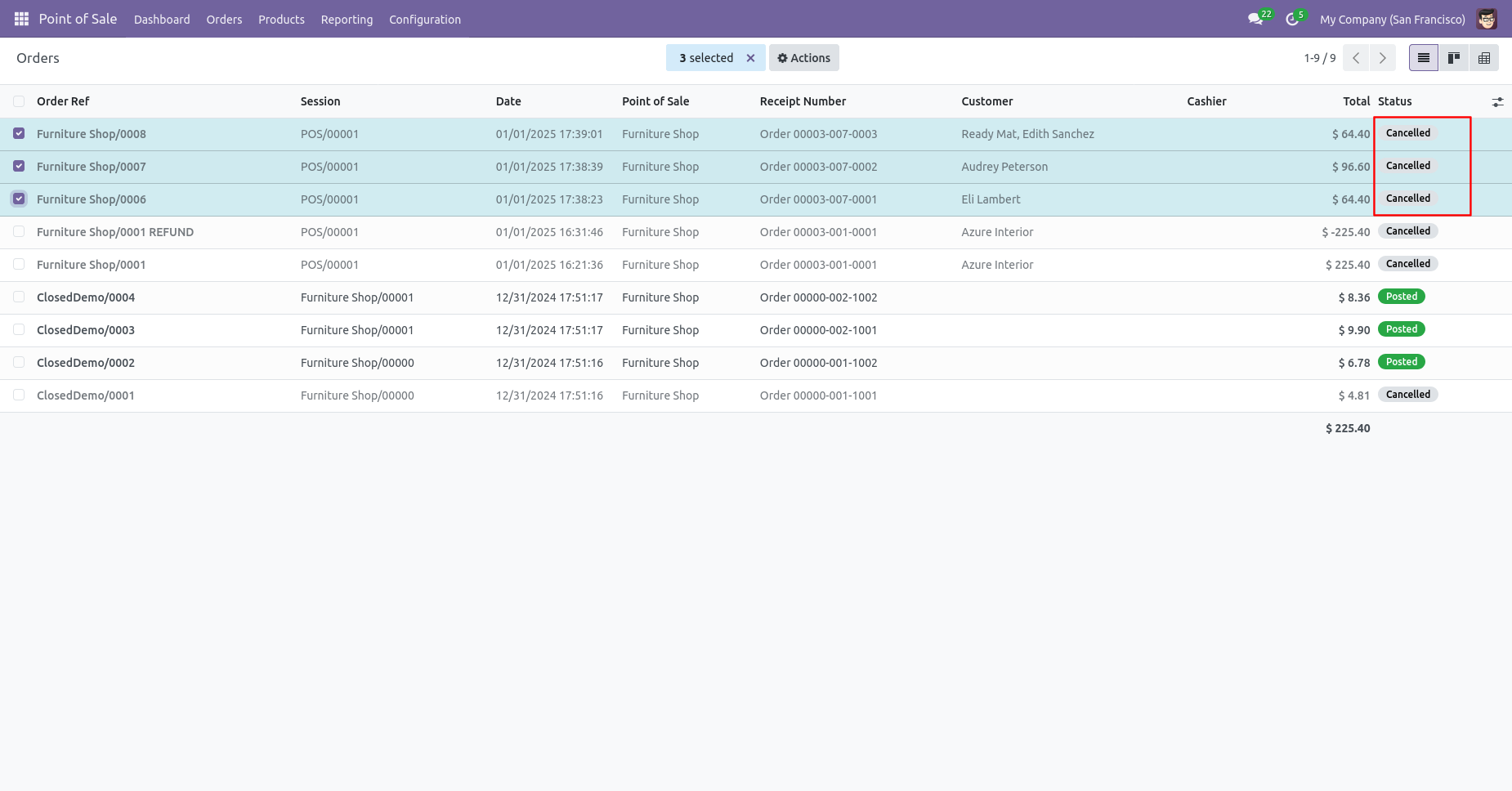
Now we "Cancel & Reset Draft" multiple POS orders from the tree view.
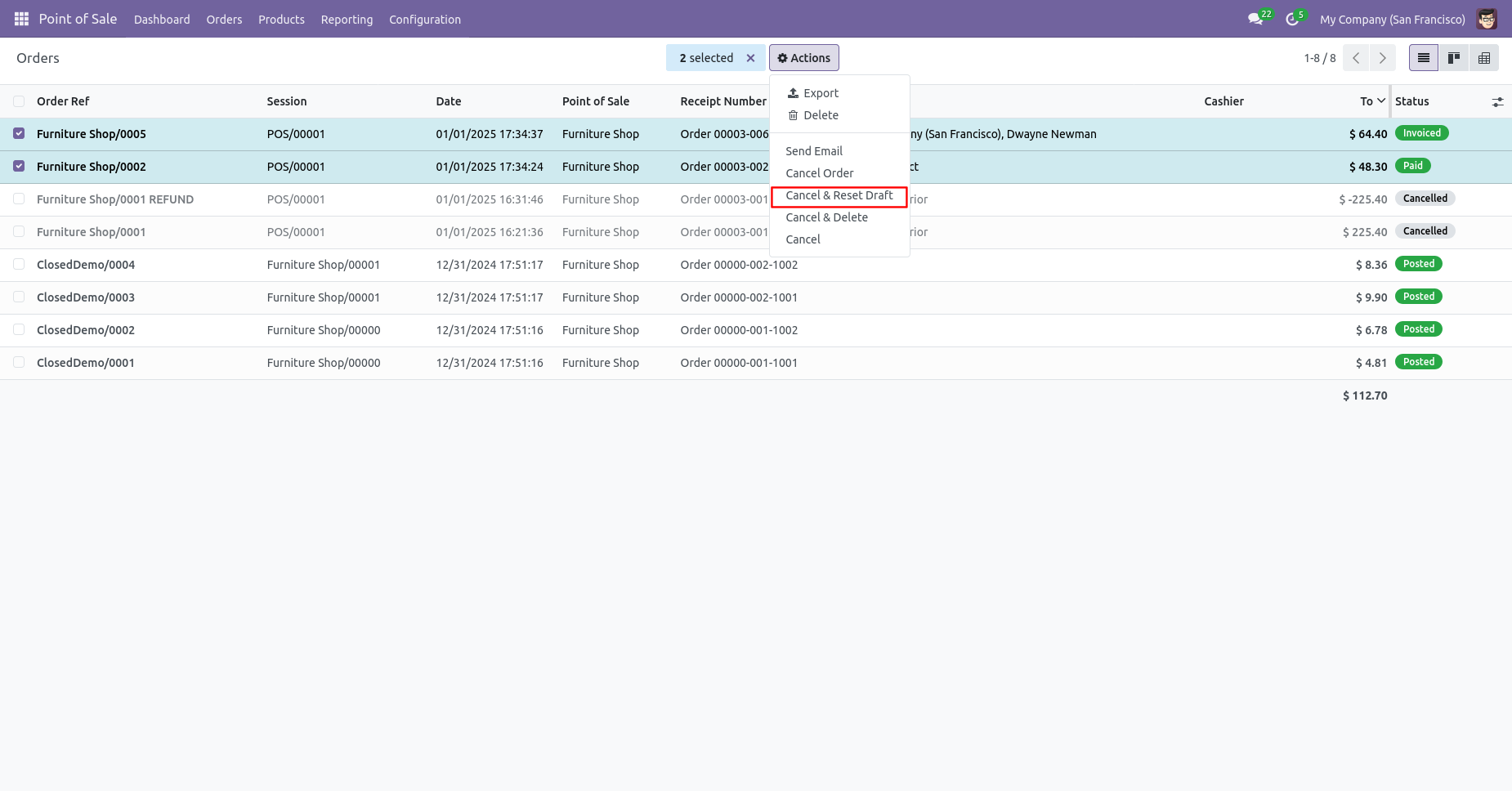
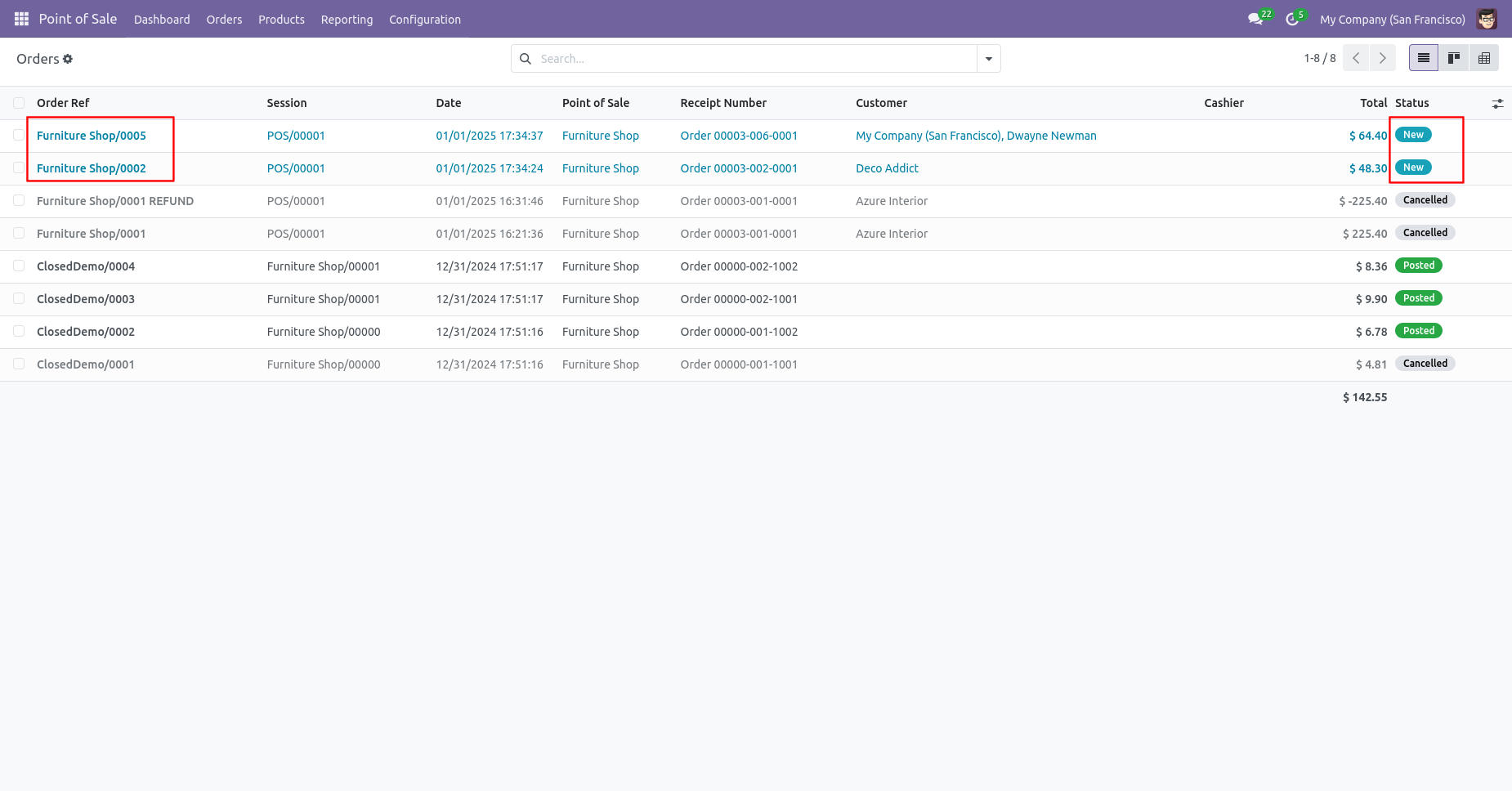
All selected POS orders are cancelled and reset to the draft.
Now we "Cancel & Delete" multiple POS orders from the tree view, so all POS orders will be deleted after cancelled.
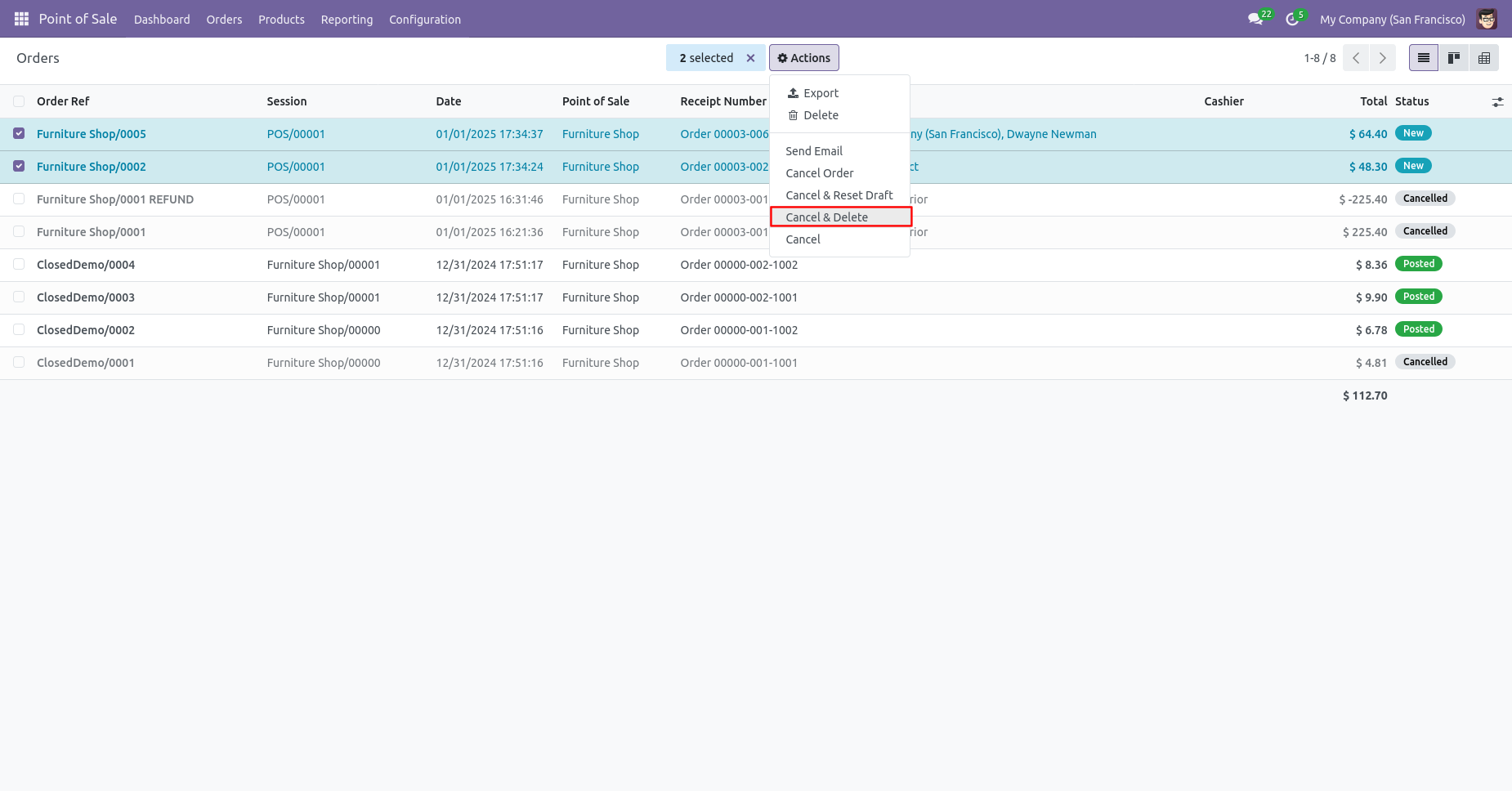
All selected POS orders are deleted.
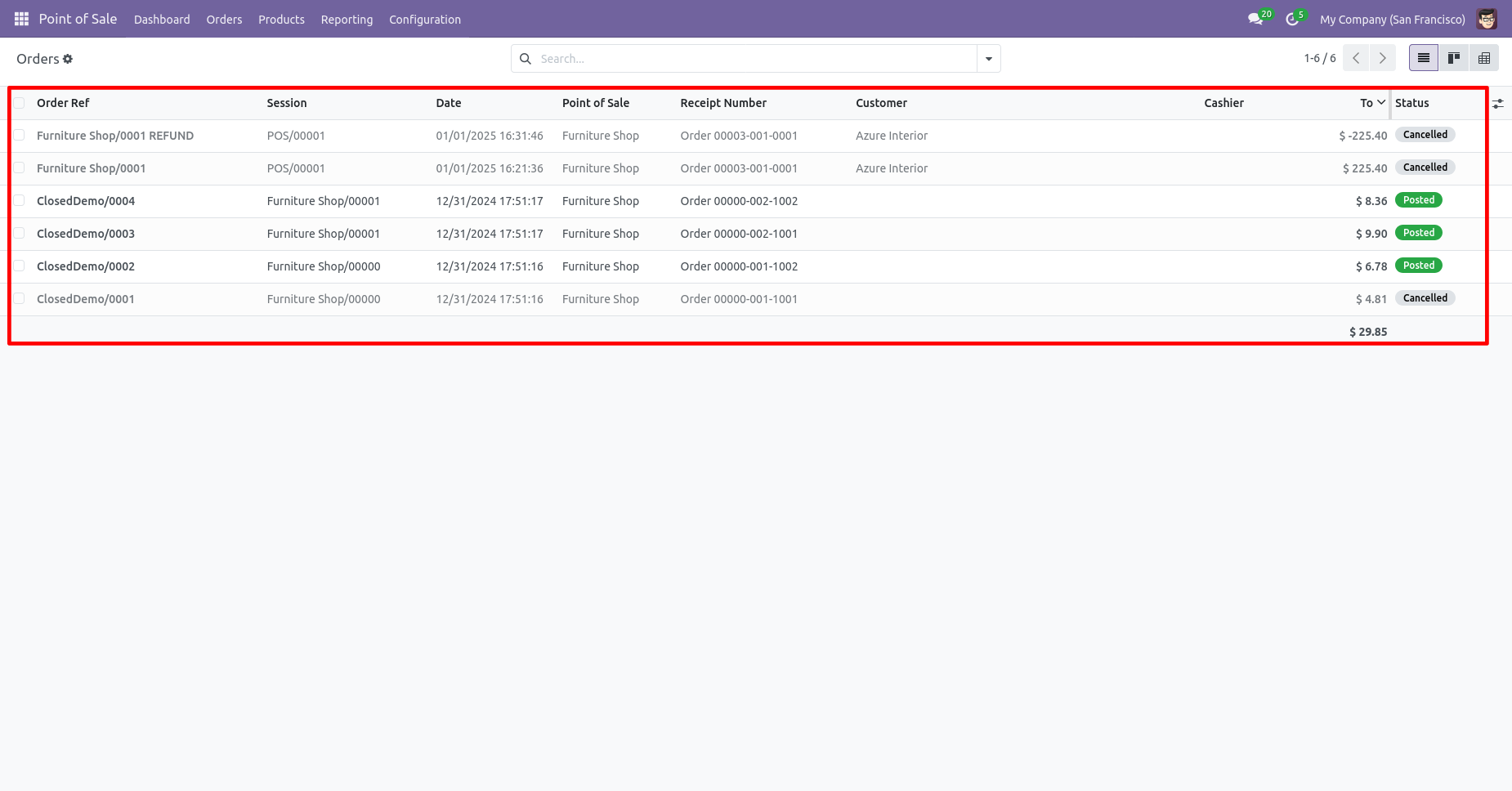
Click the Cancel button on the POS Order to initiate the order
cancellation process.
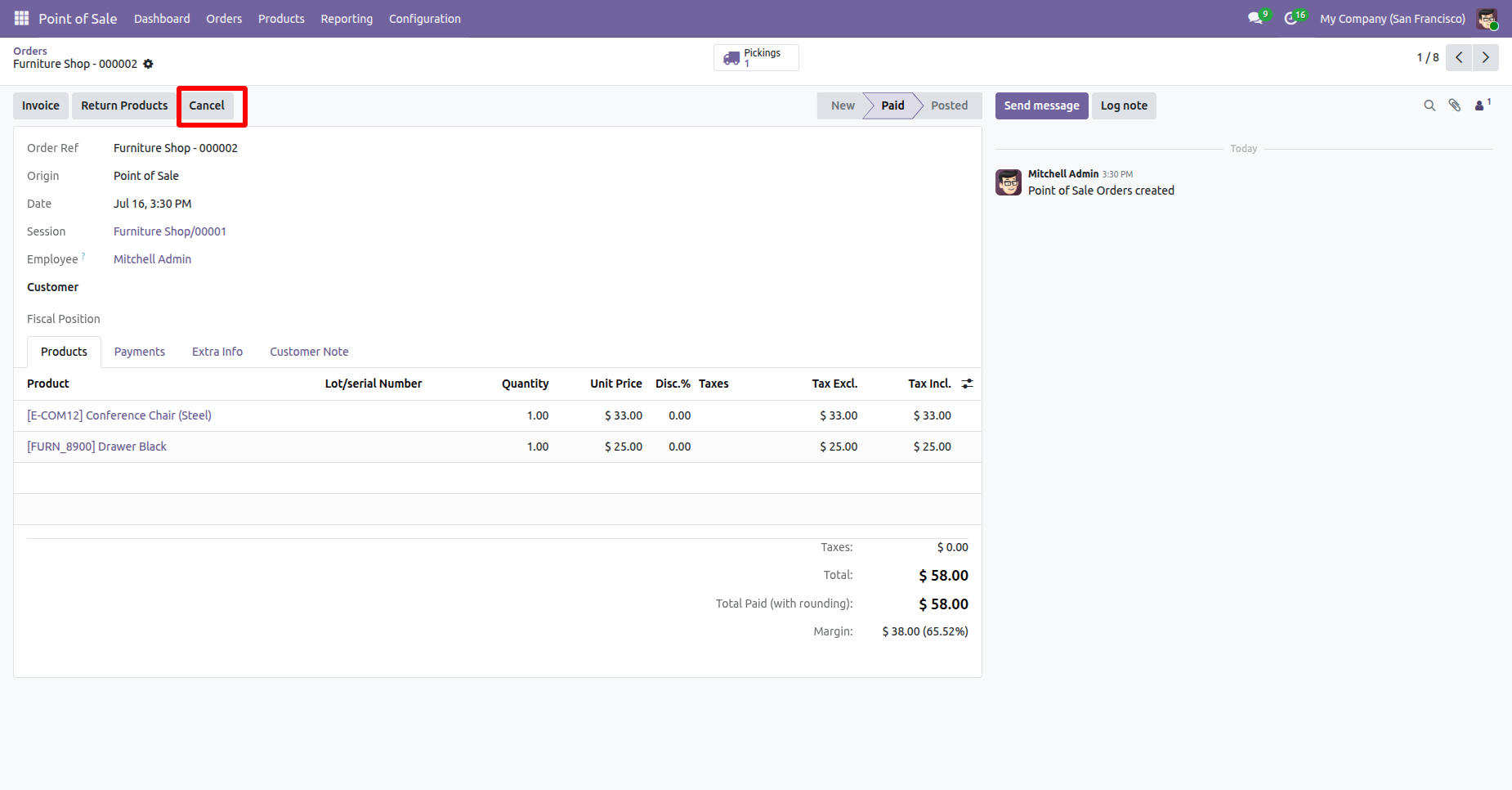
The Cancel Reason wizard opens, allowing you to select or enter
the reason for cancellation before confirming the cancellation.
After selecting the cancellation reason, click the
Confirm button to cancel the POS Order.
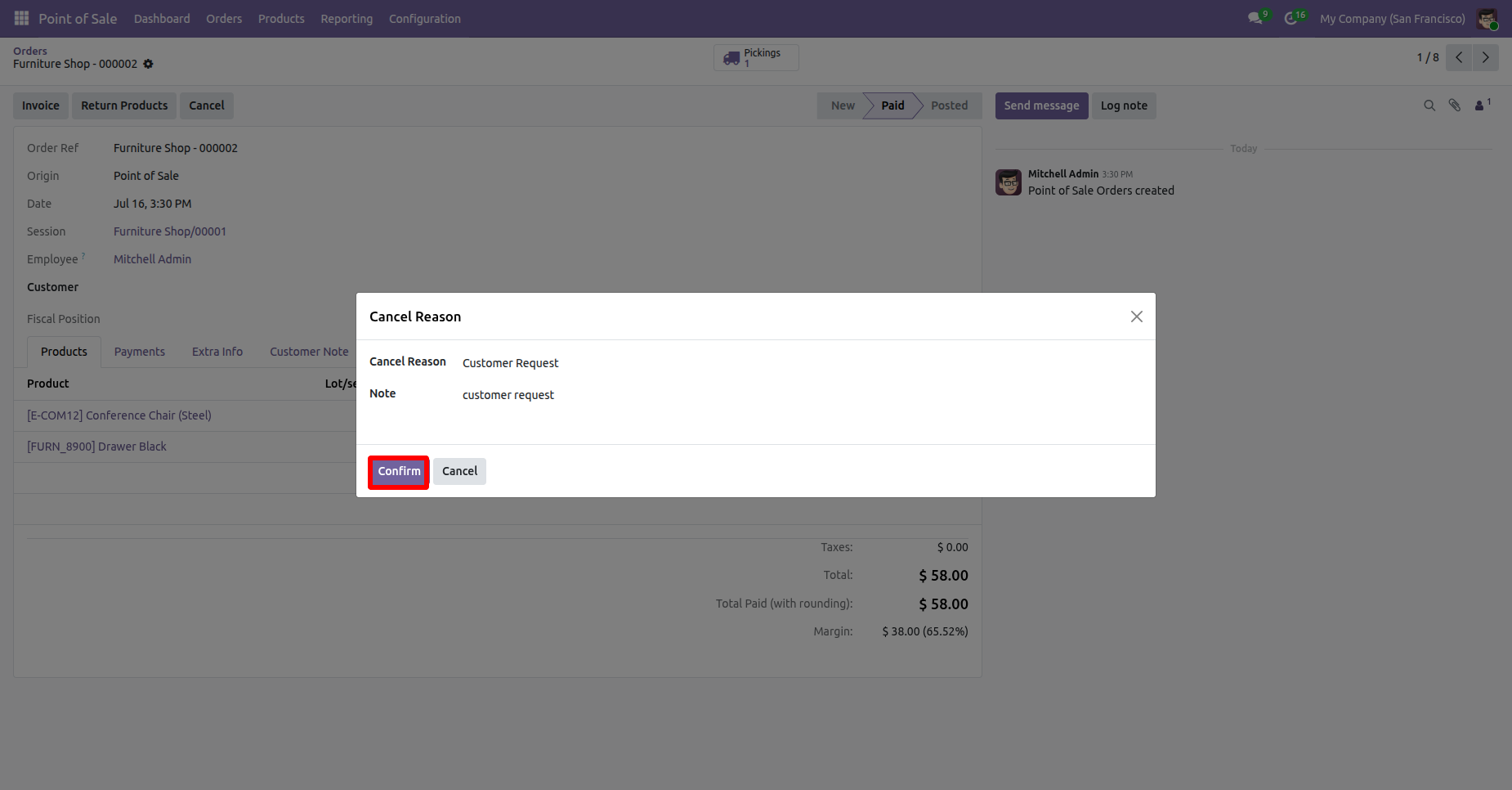
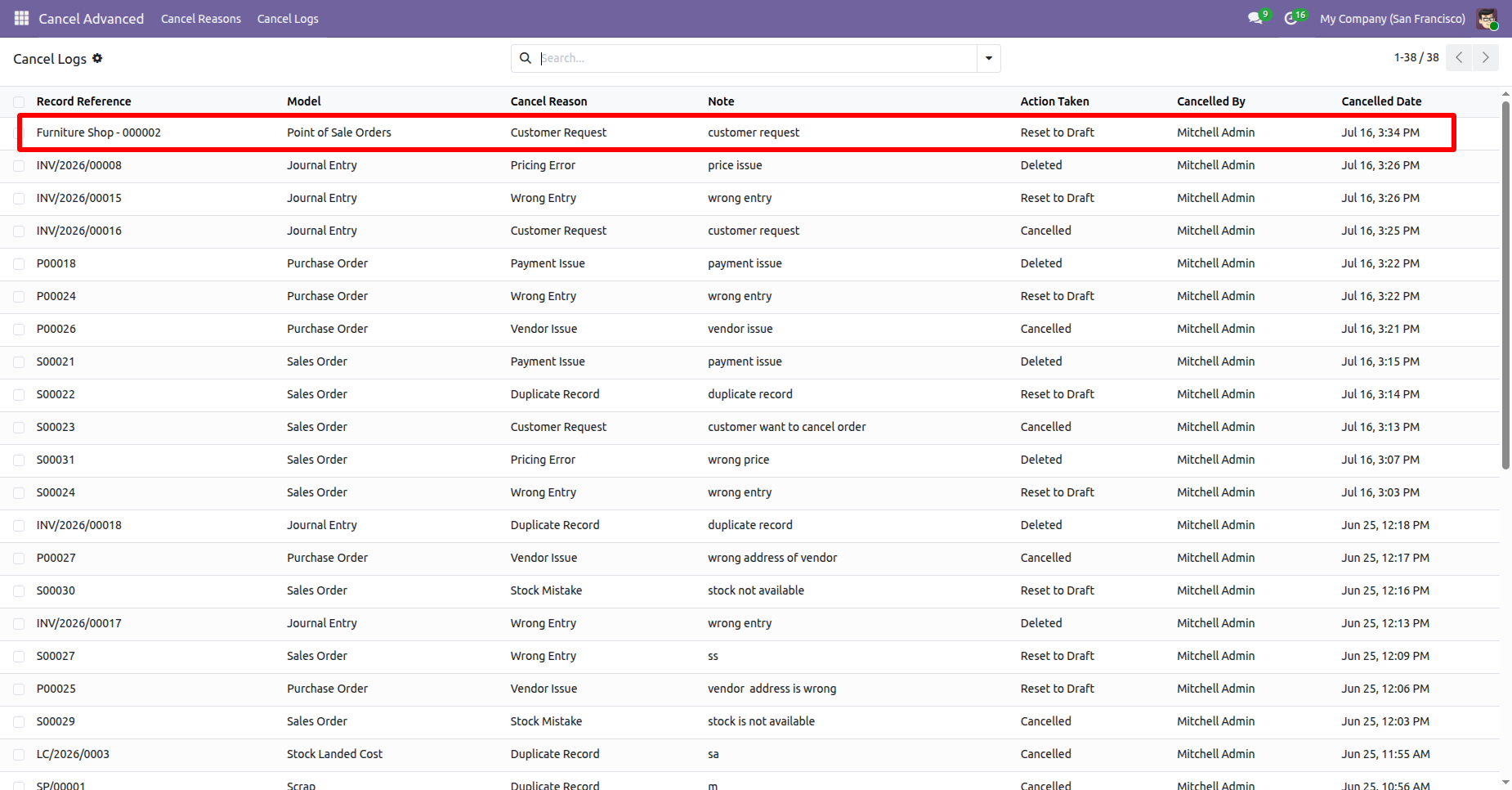
After the Order is canceled, the cancellation information, including the cancellation reason, canceled by, and cancellation date, is displayed in the POS Order Form View for future reference.
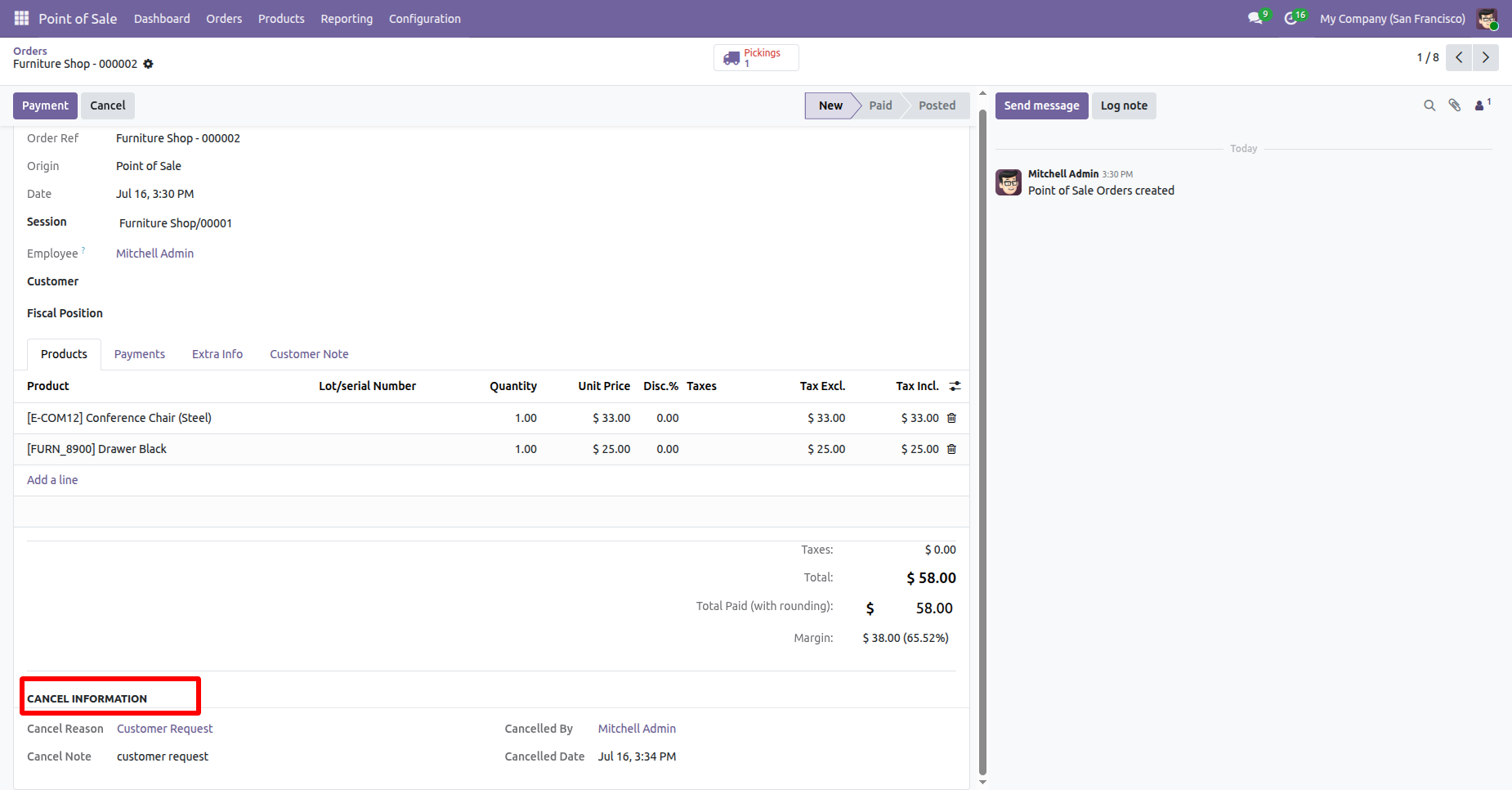
The cancellation logs are also available under the Cancel Logs menu in the Cancel Advanced app, where you can view and track all canceled records along with their cancellation reasons, canceled by, and cancellation dates.
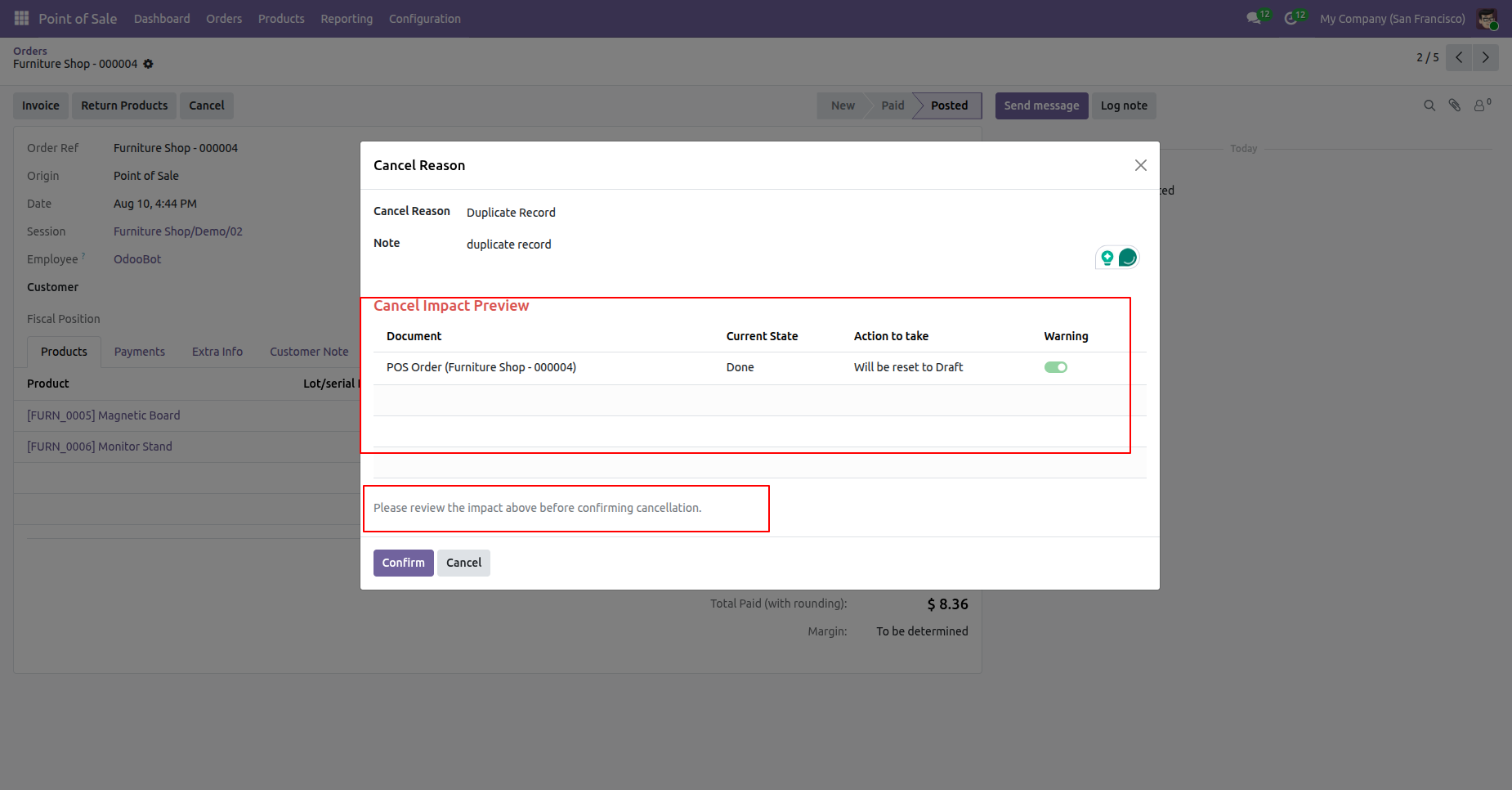
User can preview the cancellation details before confirming the cancellation process.
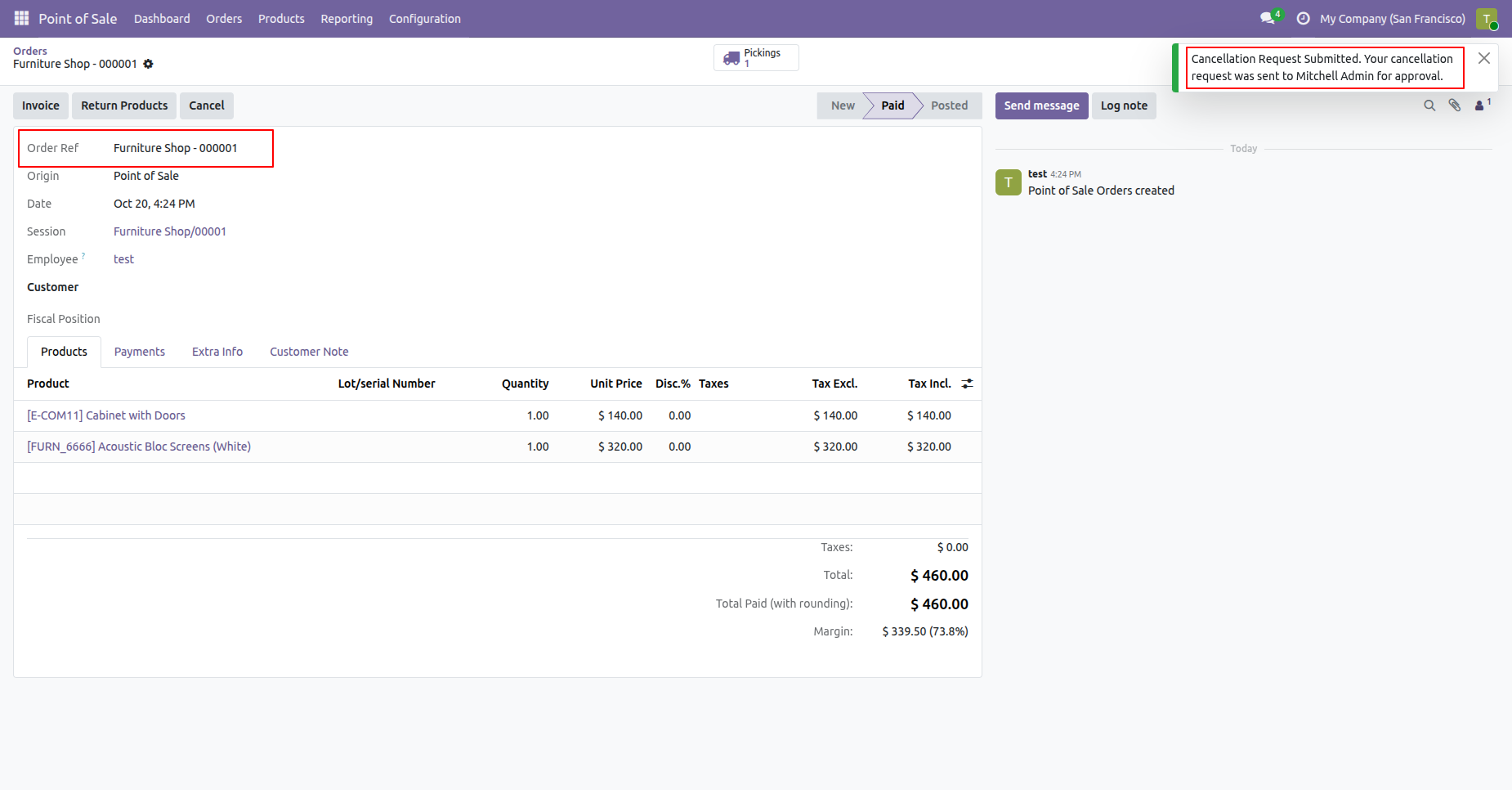
Select the POS orders that require cancellation and click on cancel button to cancel the POS order, Cancellation request will be submitted to the Approver and also displays the notification.
The approver reviews the cancellation request and confirms or rejects the action.
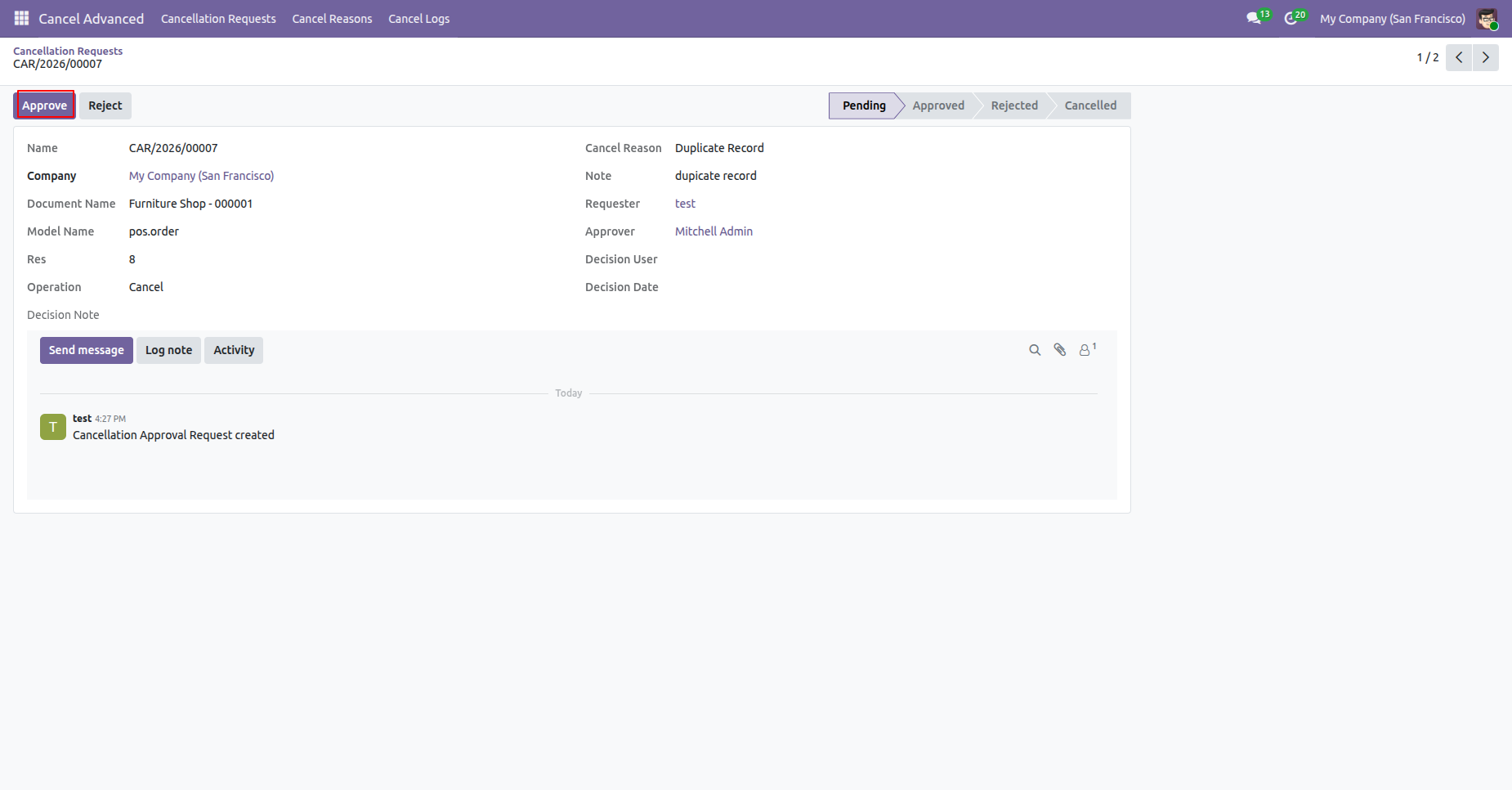
Click on the Approve button to approve the request and request stage will be moved to approved stage.
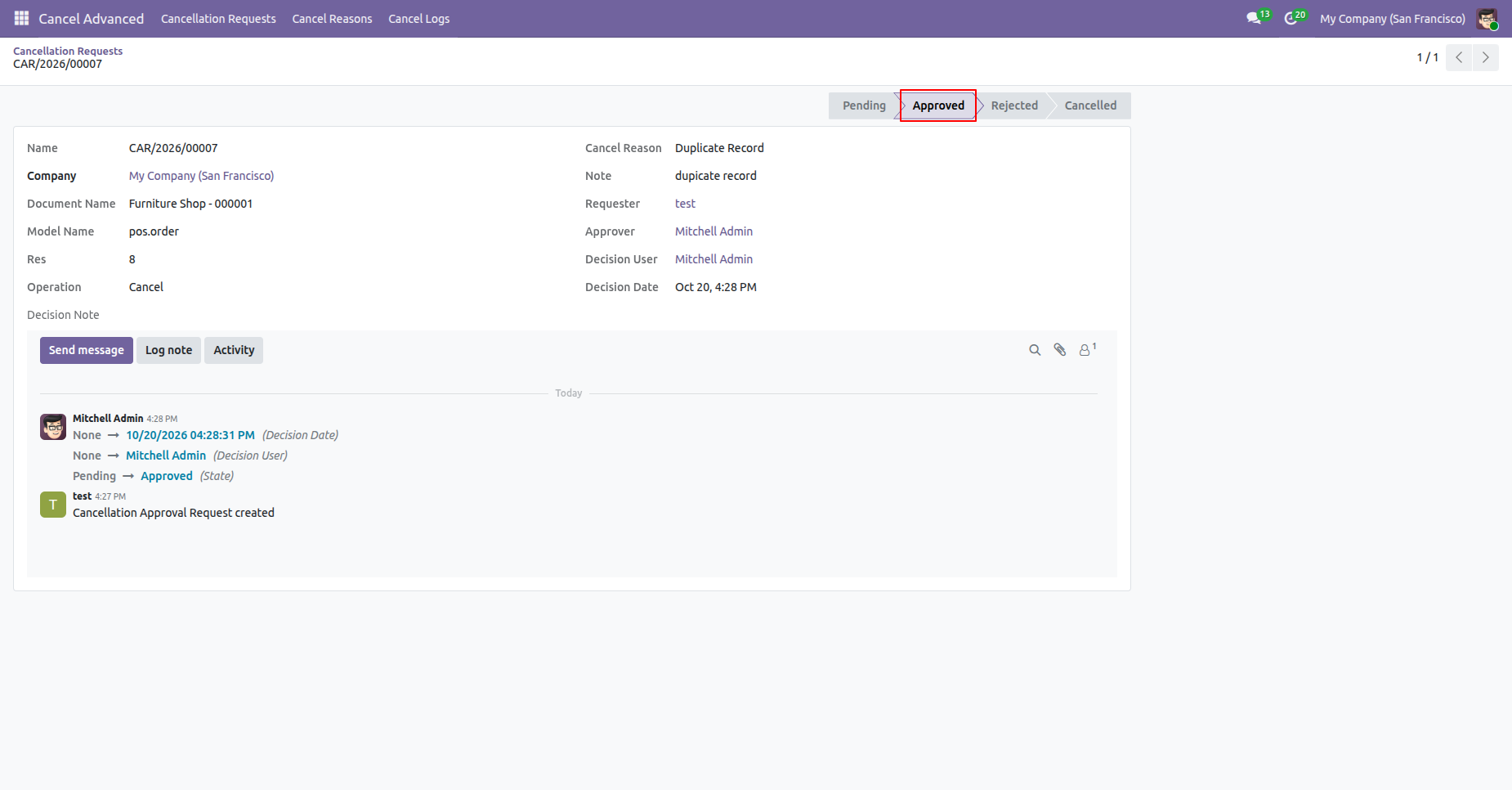
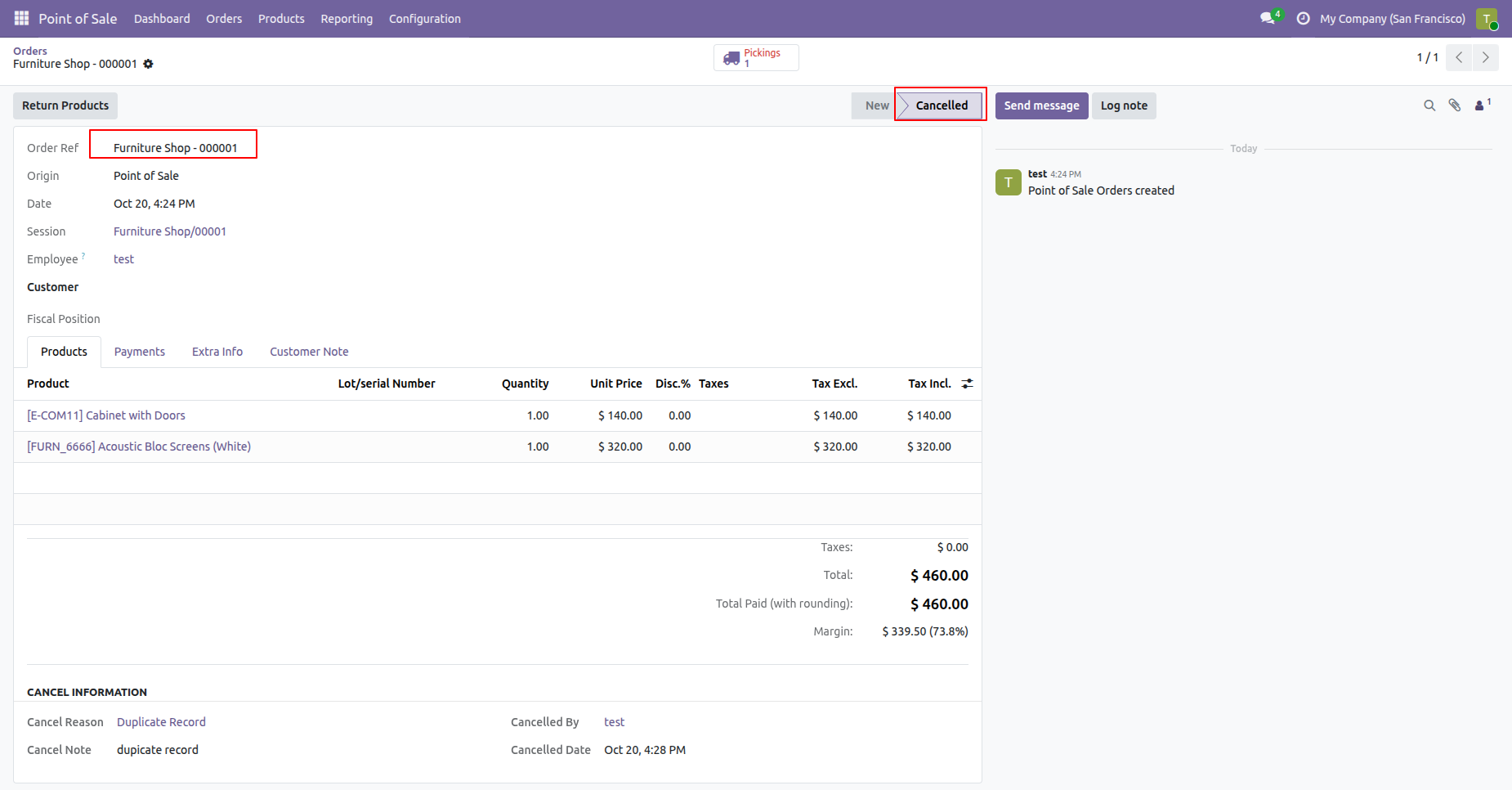
By approving the request POS order has been cancelled.
Select the POS orders that require cancellation and start the approval request.
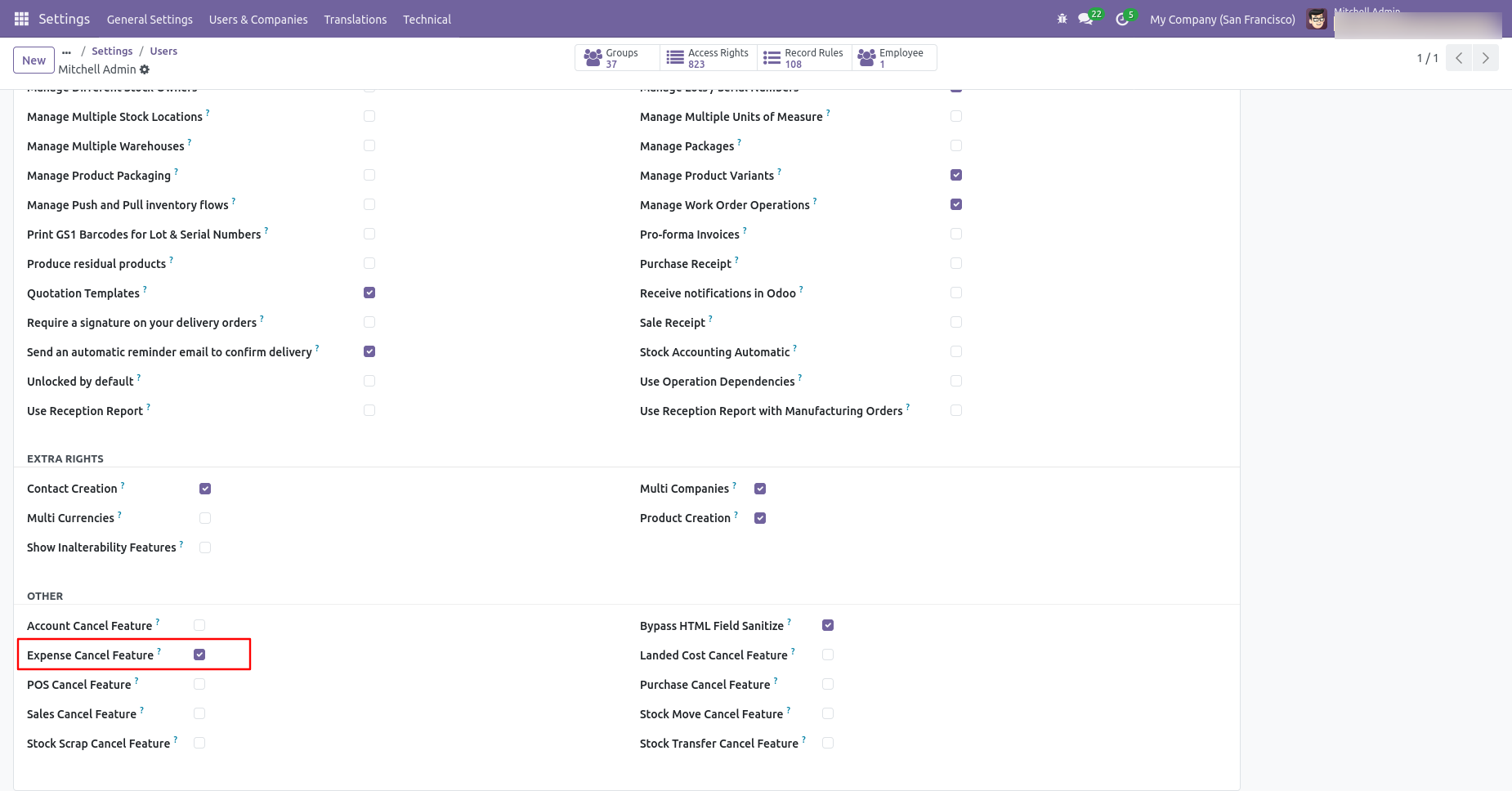
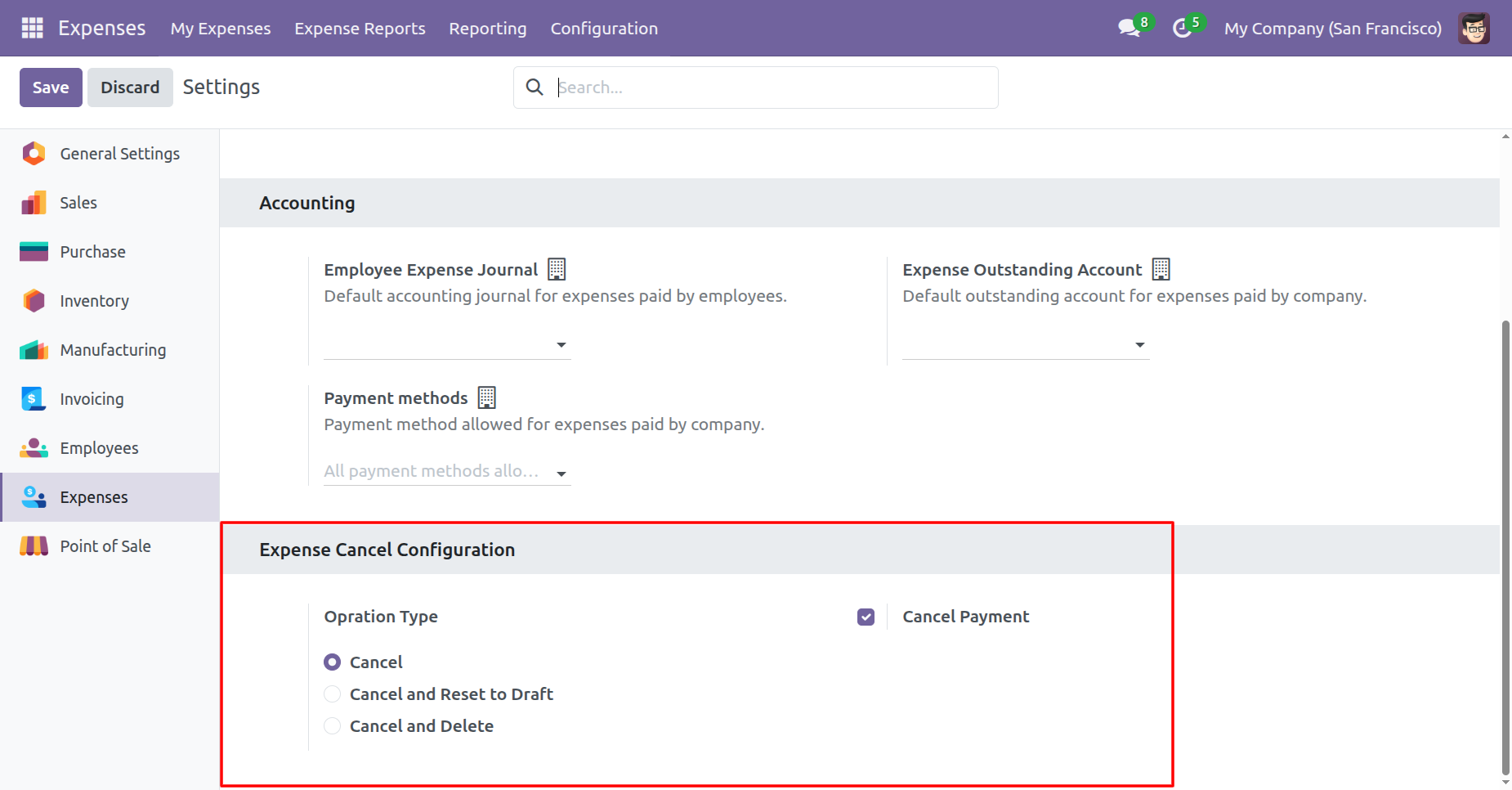
When you want to cancel a expense only then choose the 'Cancel'
option.
Enable 'Cancel Payment' to auto-cancel them with the expense.
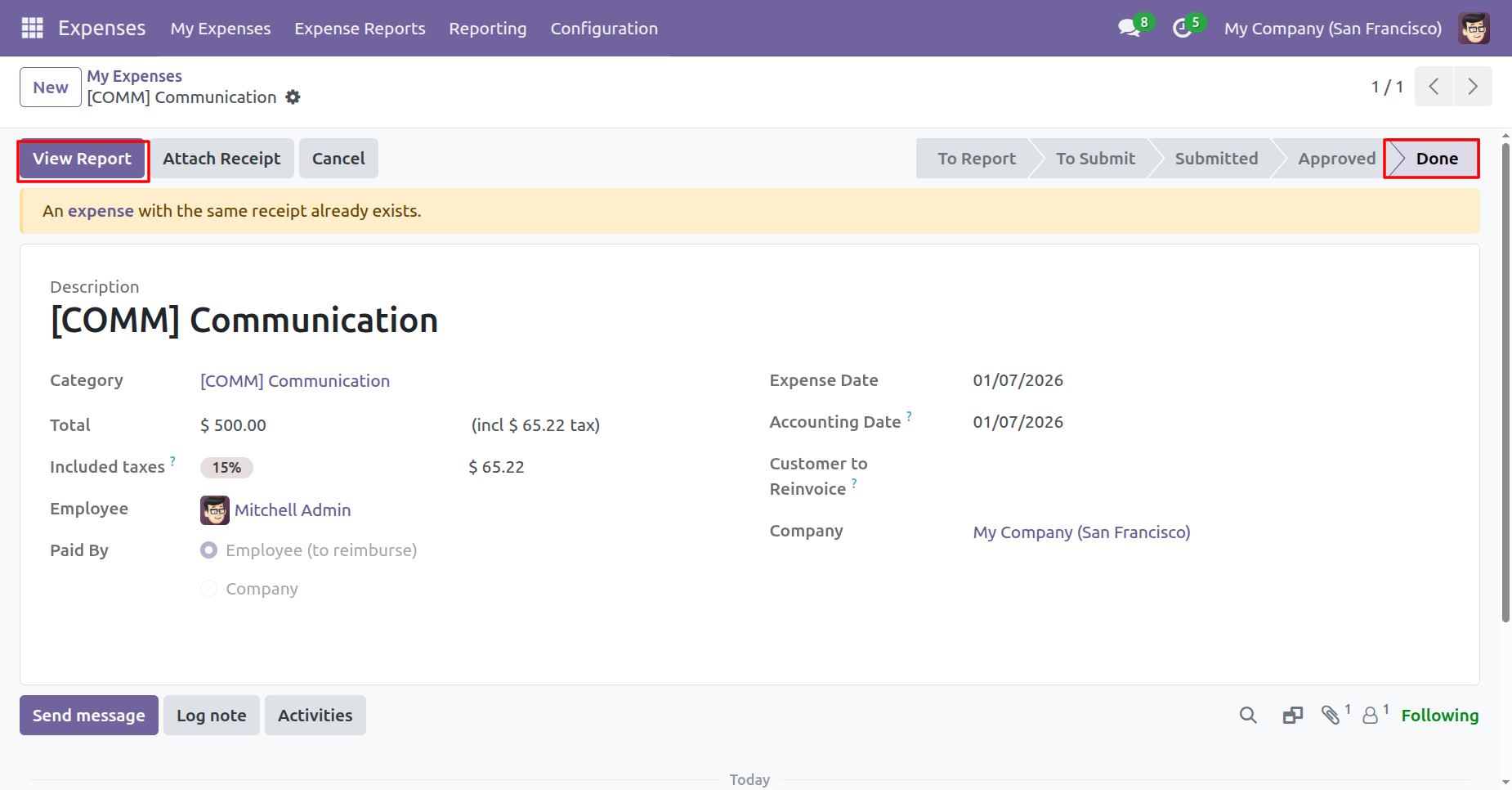
The expense is in the 'Done' stage.
Click on the 'View Report' button.
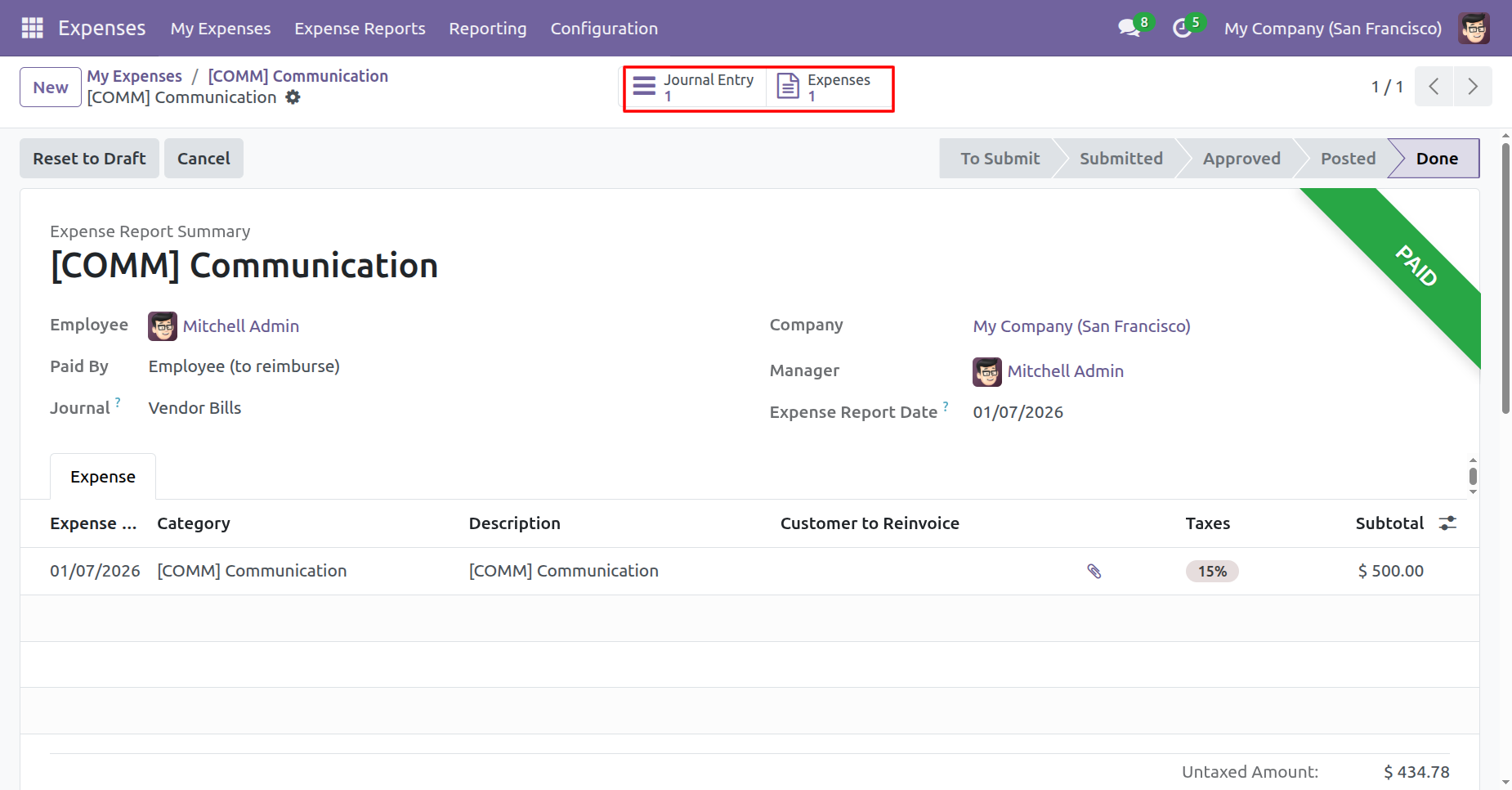
You can view the 'Journal Entry' and 'Expenses' directly from the smart button.
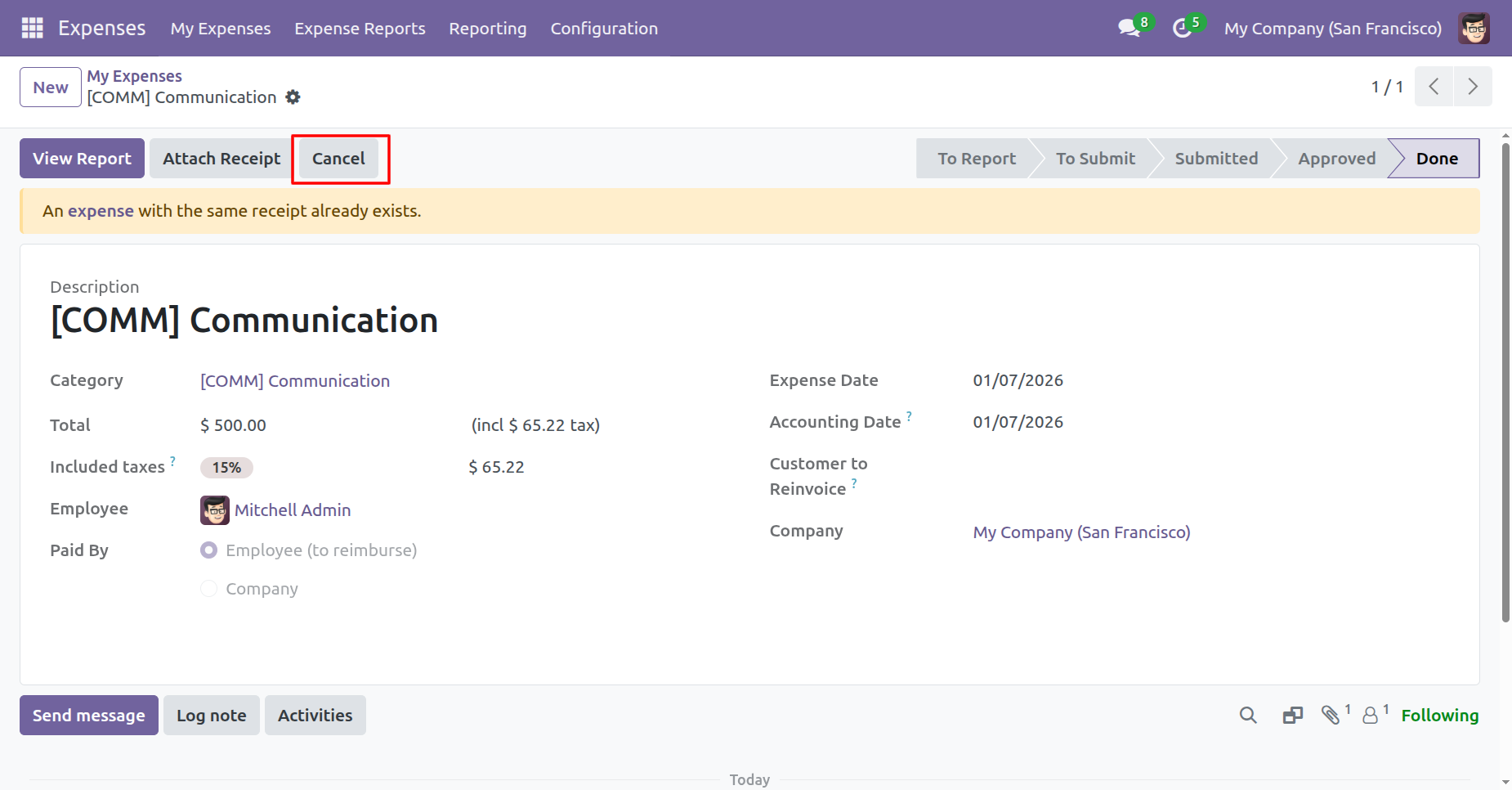
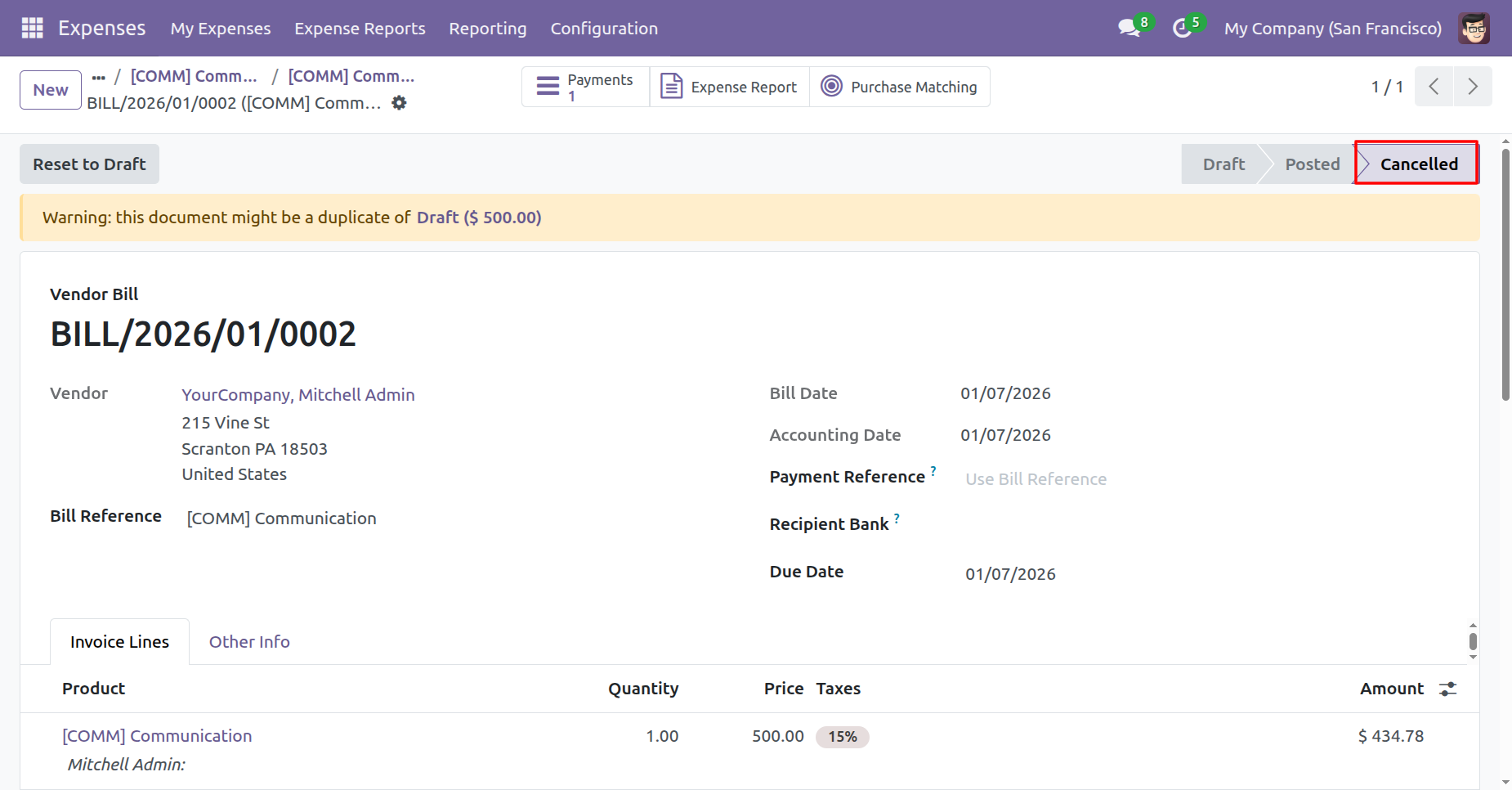
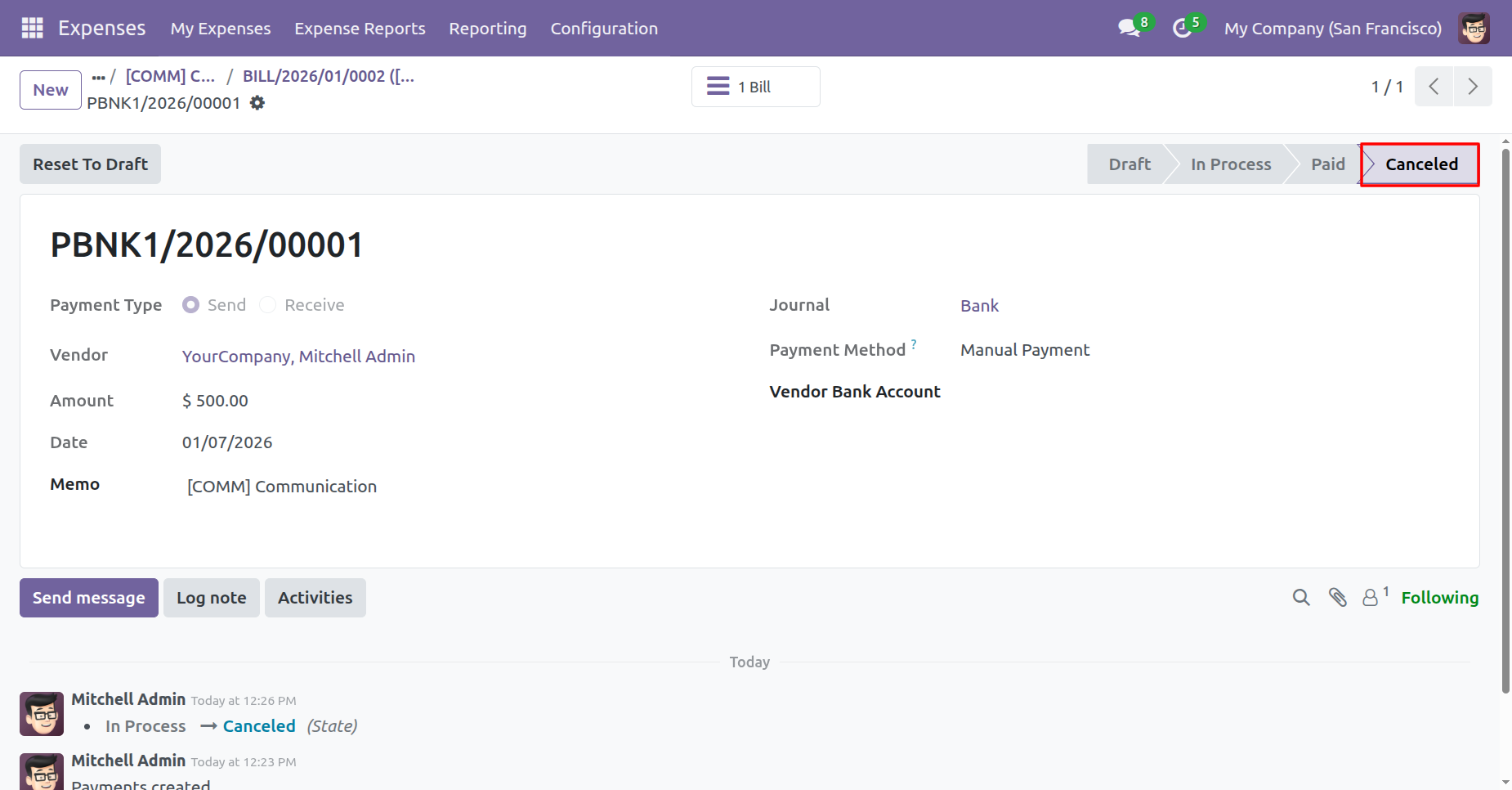
Press the 'Cancel' button to cancel expense.
When you cancel a expense then the expense is cancelled and the state is changed to 'Refused'.
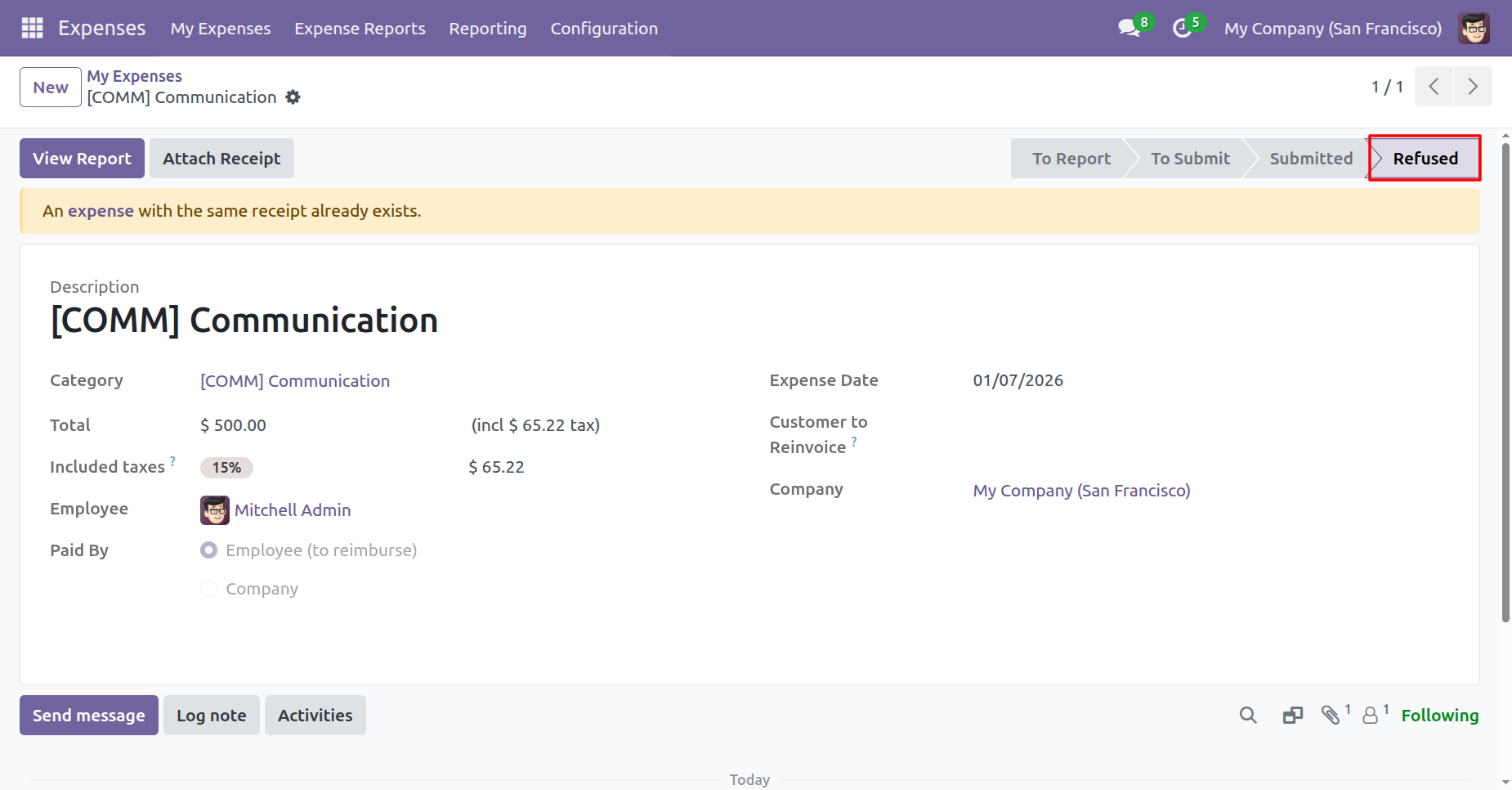
The vendor bill and payment is automatically cancelled as well.
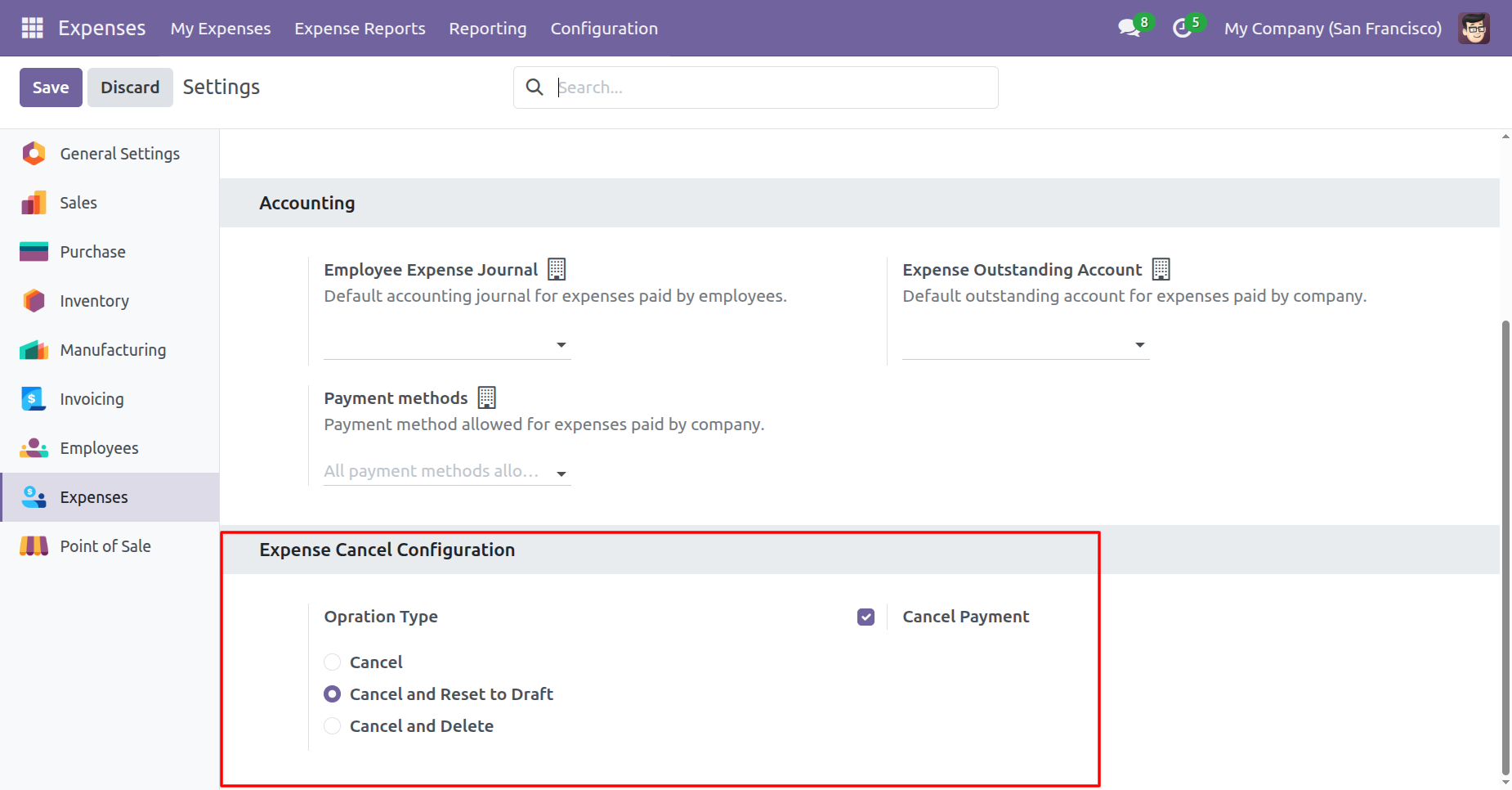
When you want to cancel a expense and reset to the draft state
tick 'Cancel And
Reset To Draft'.
Enable 'Cancel Payment' to auto-cancel them with the expense.
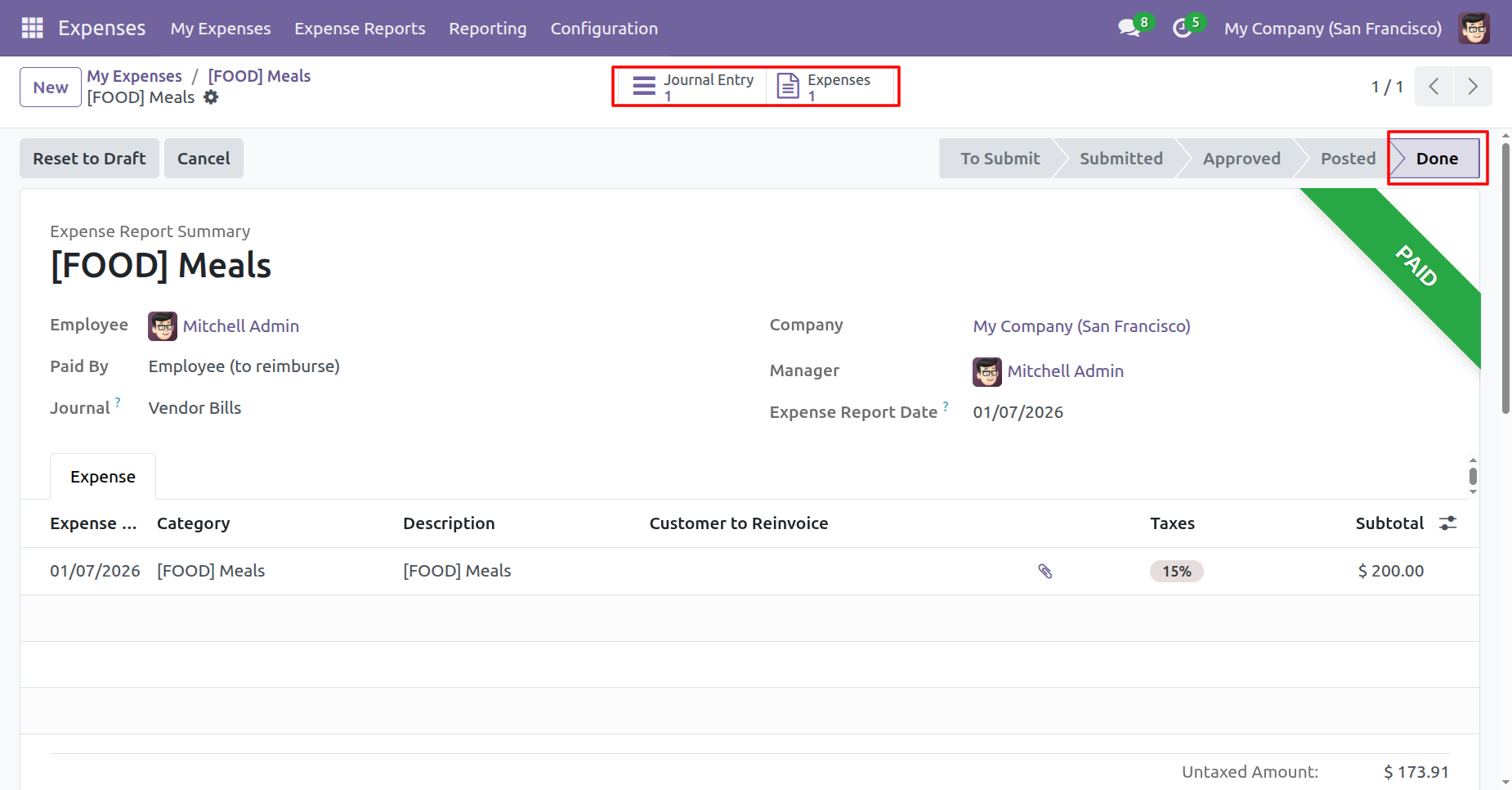
The expense is in the 'Done' stage.
Click on the 'View Report' button.
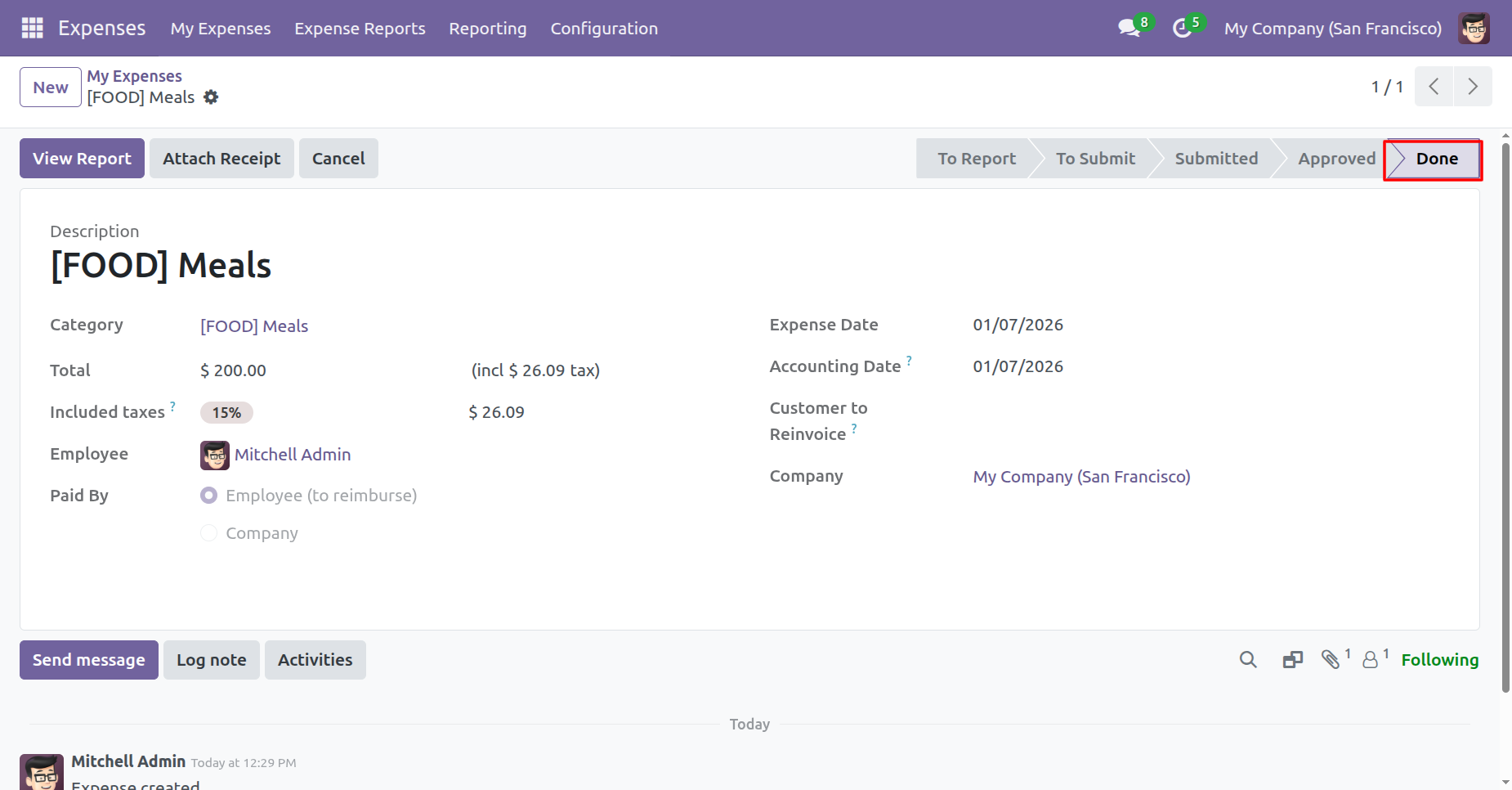
You can view the 'Journal Entry' and 'Expenses' directly from the smart button.
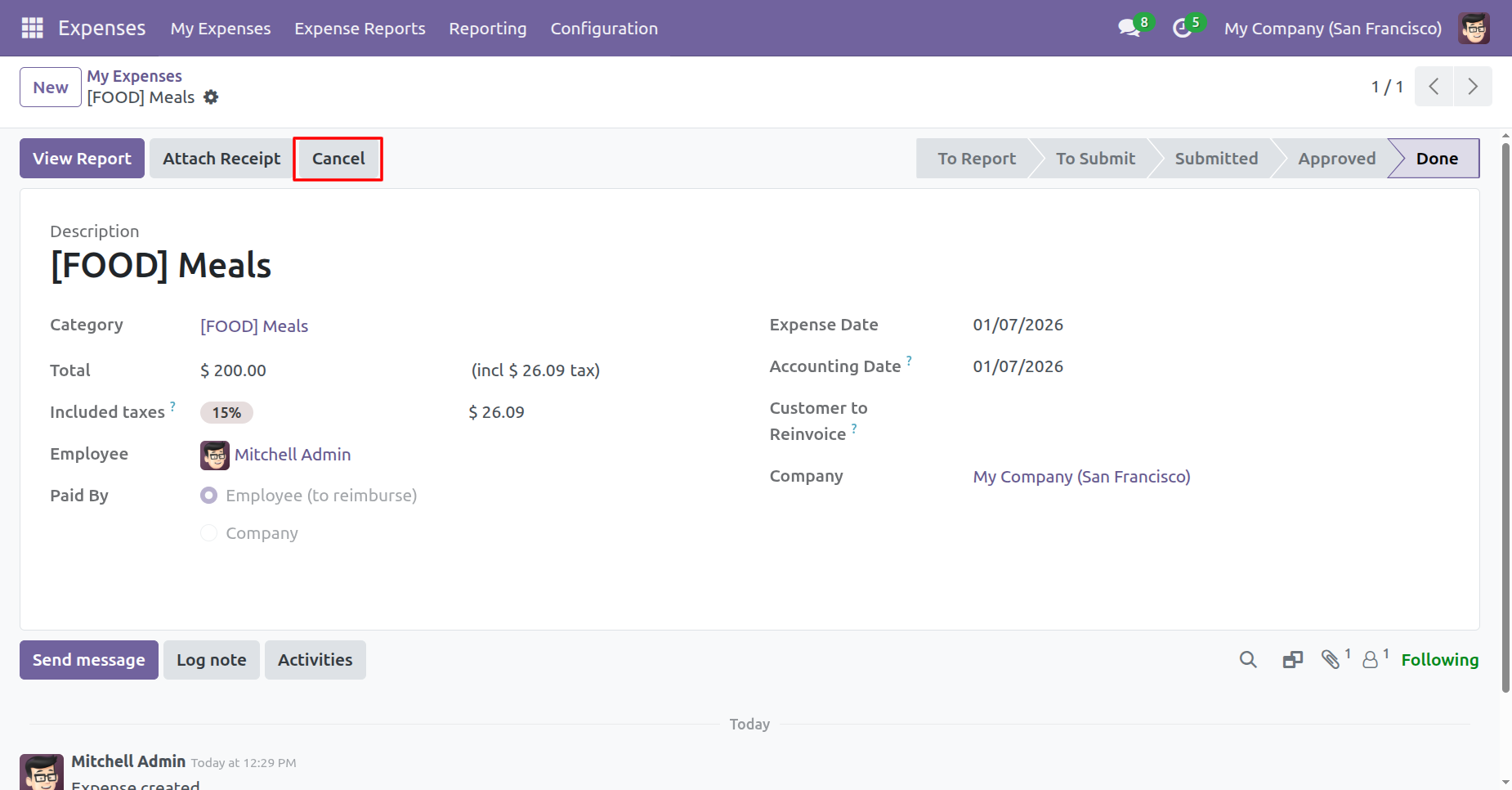
Press the 'Cancel' button to cancel expense.
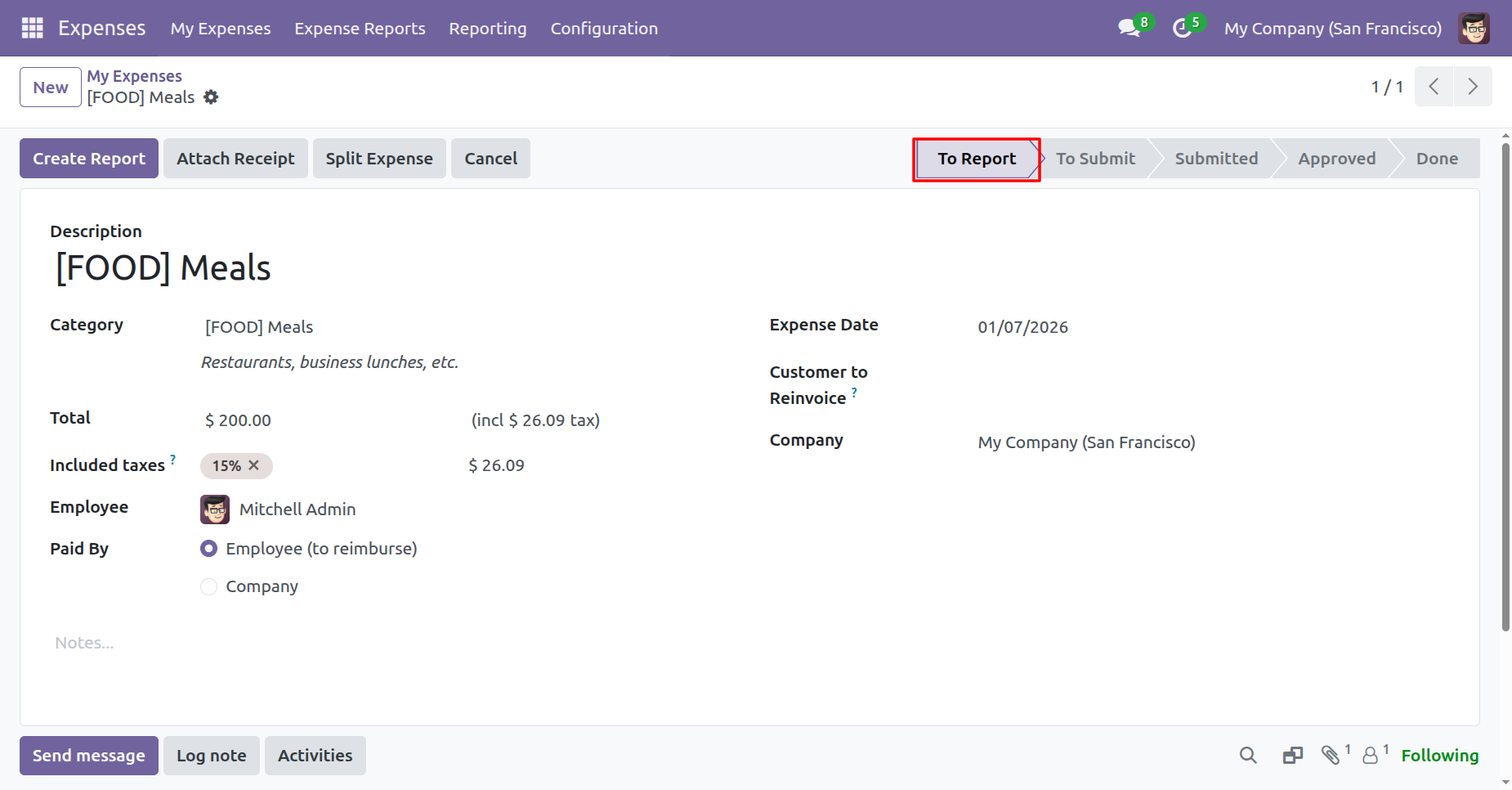
After canceling the expense it reset to the draft and the state is changed to 'To Report'..
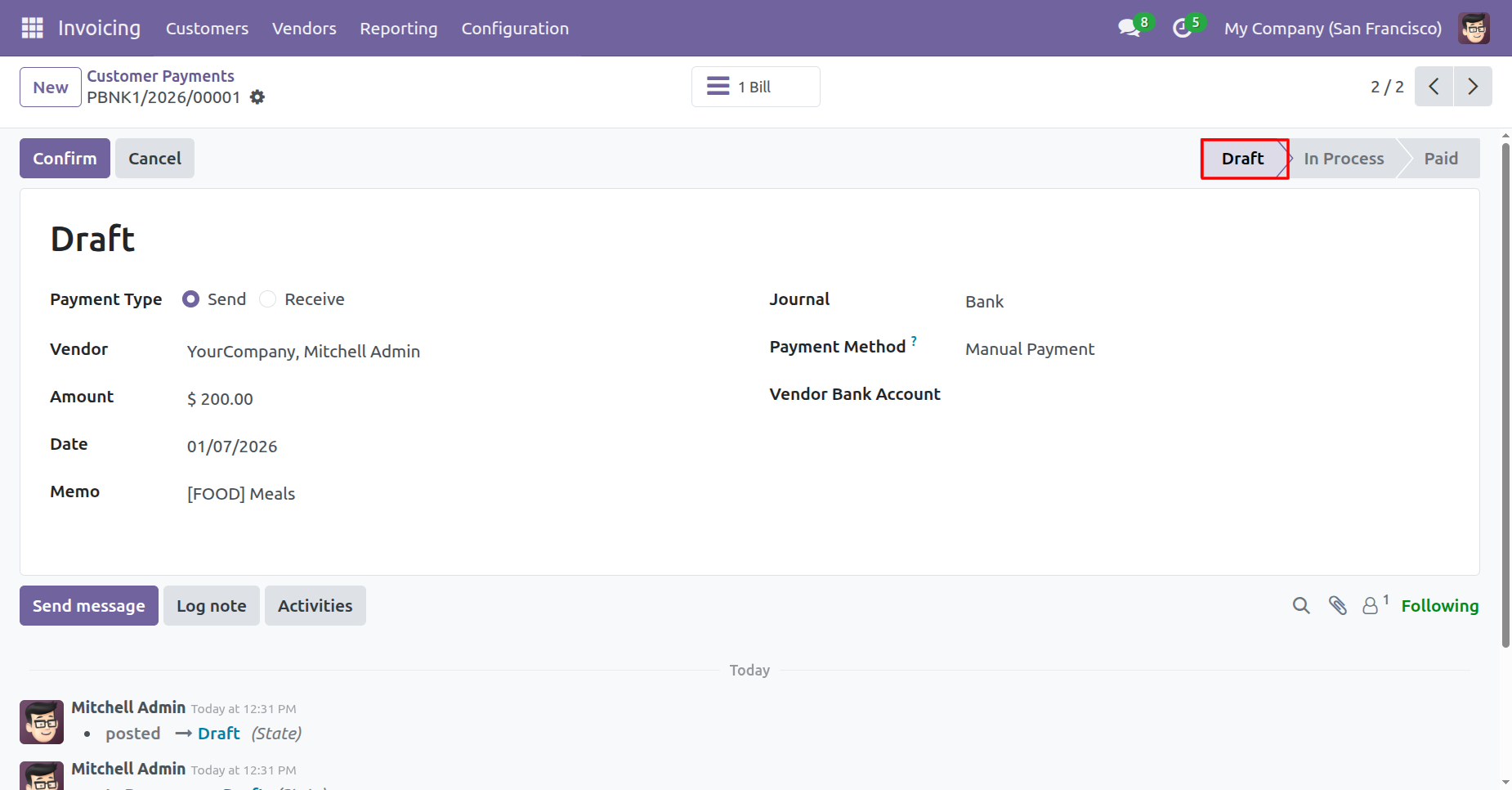
Our payment is also reset to the draft.
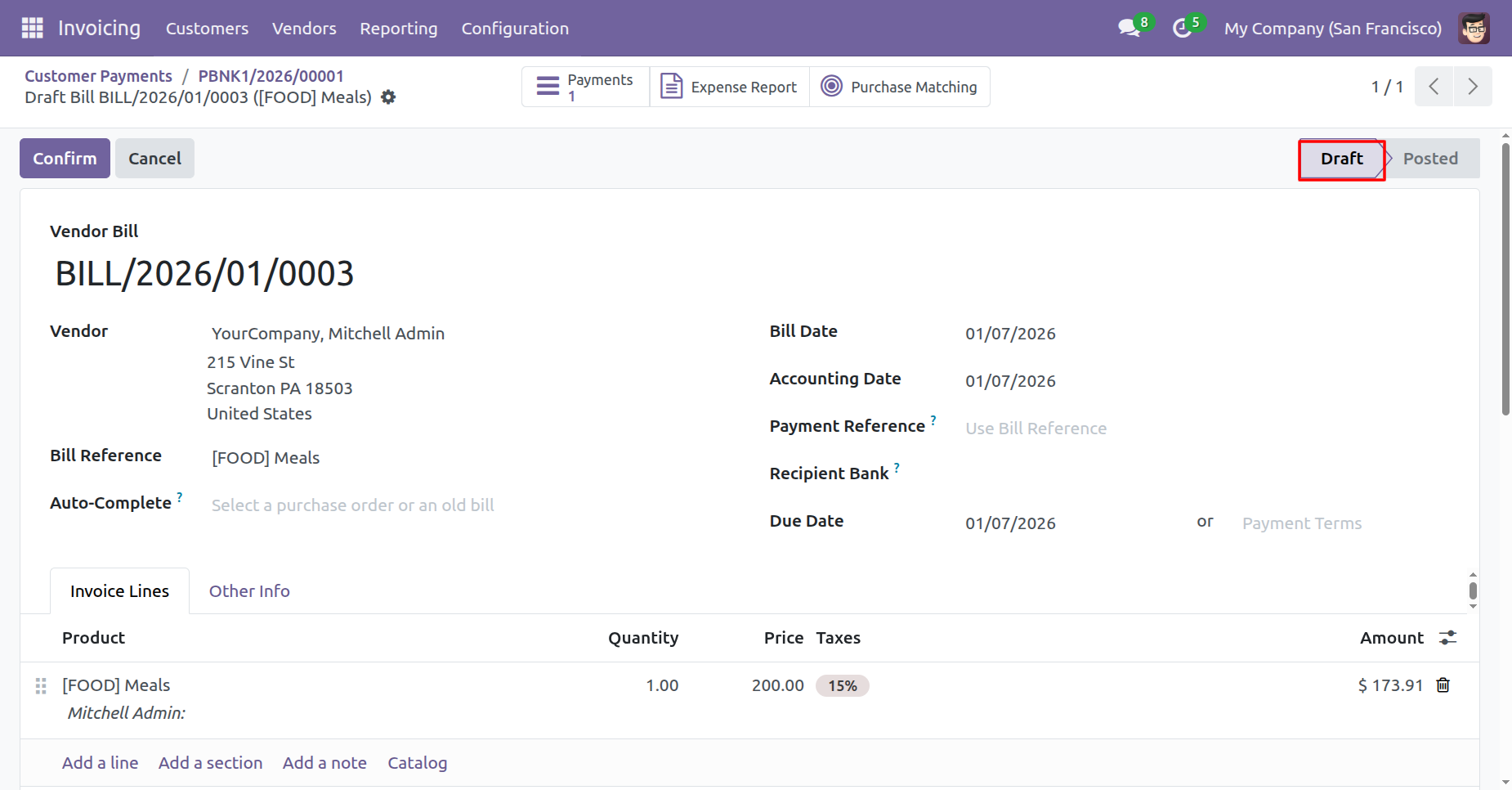
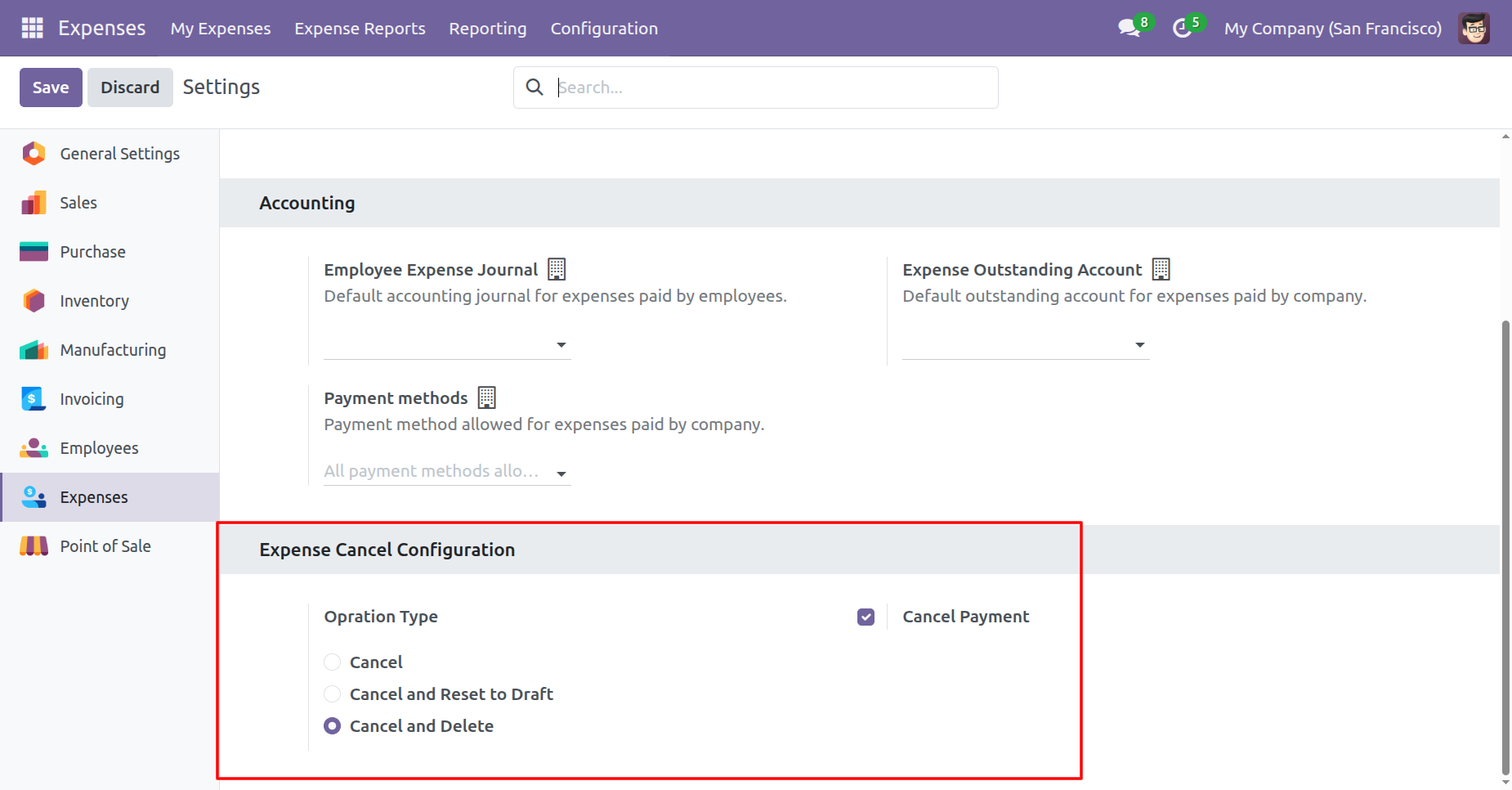
When you want to Cancel & Delete a expense then choose the
'Cancel And Delete'
option.
Enable 'Cancel Payment' to auto-cancel them with the expense.
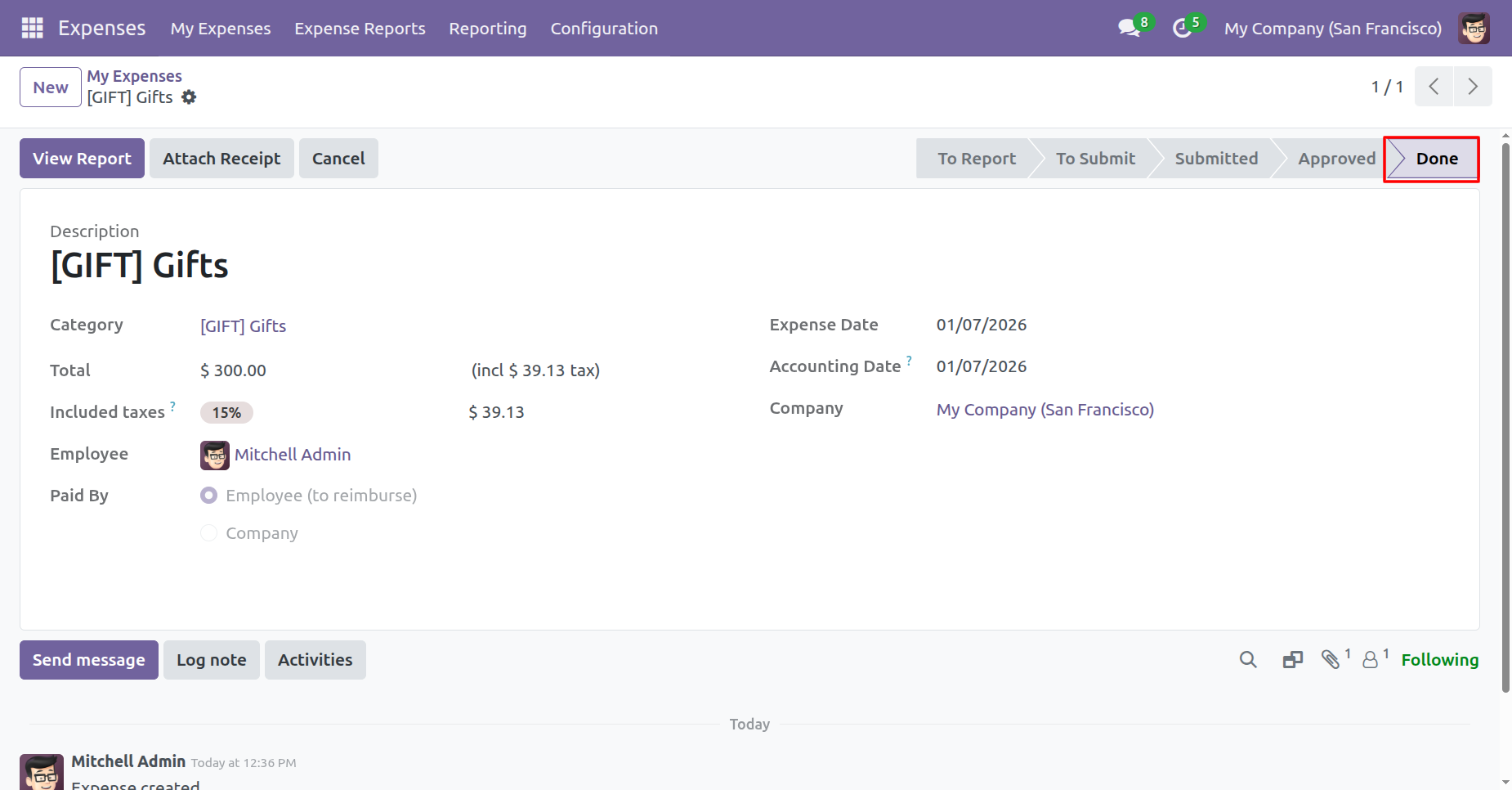
The expense is in the 'Done' stage.
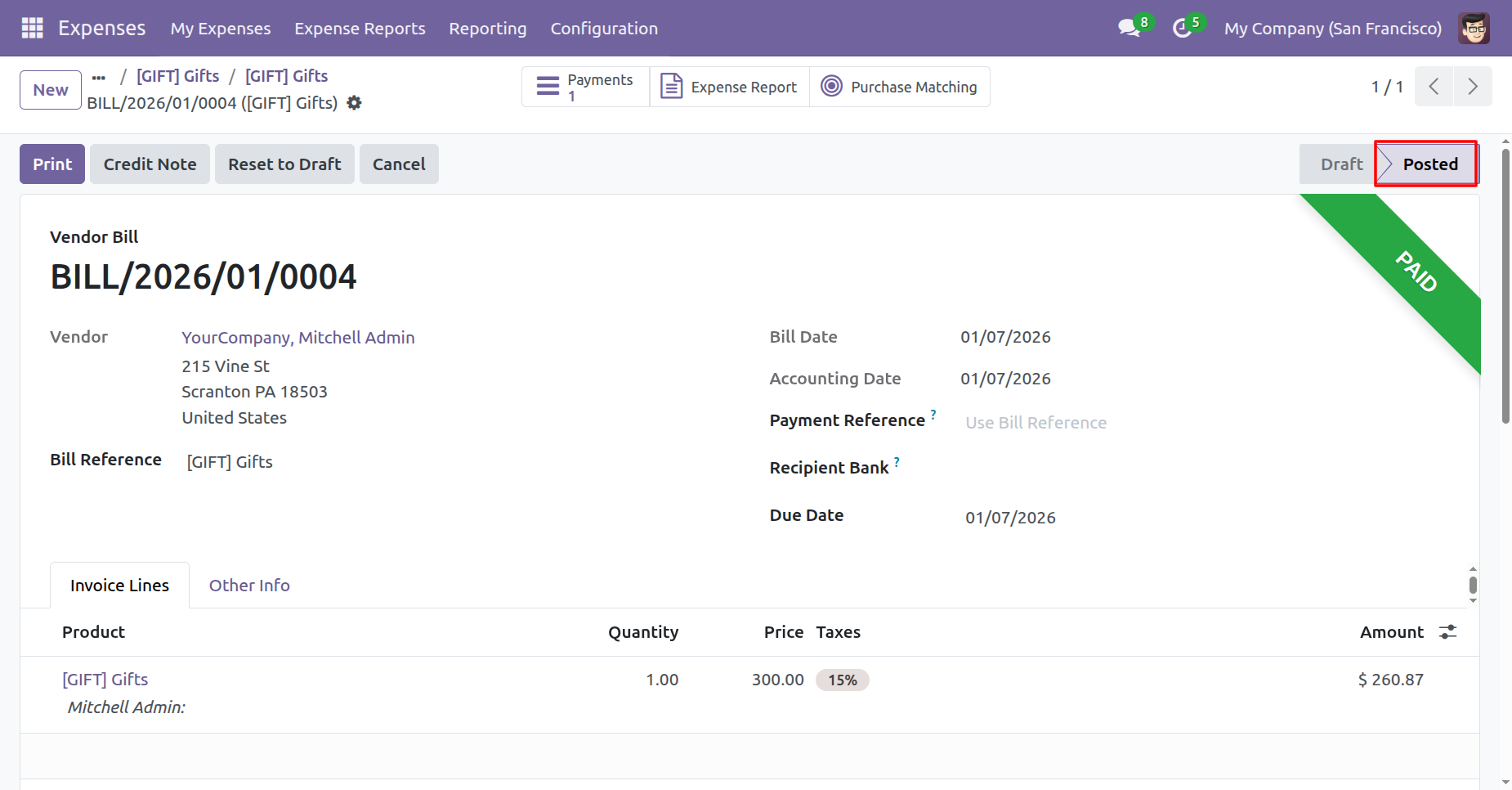
The vendor bill is in 'Posted' stage.
Press the 'Cancel' button to cancel expense.
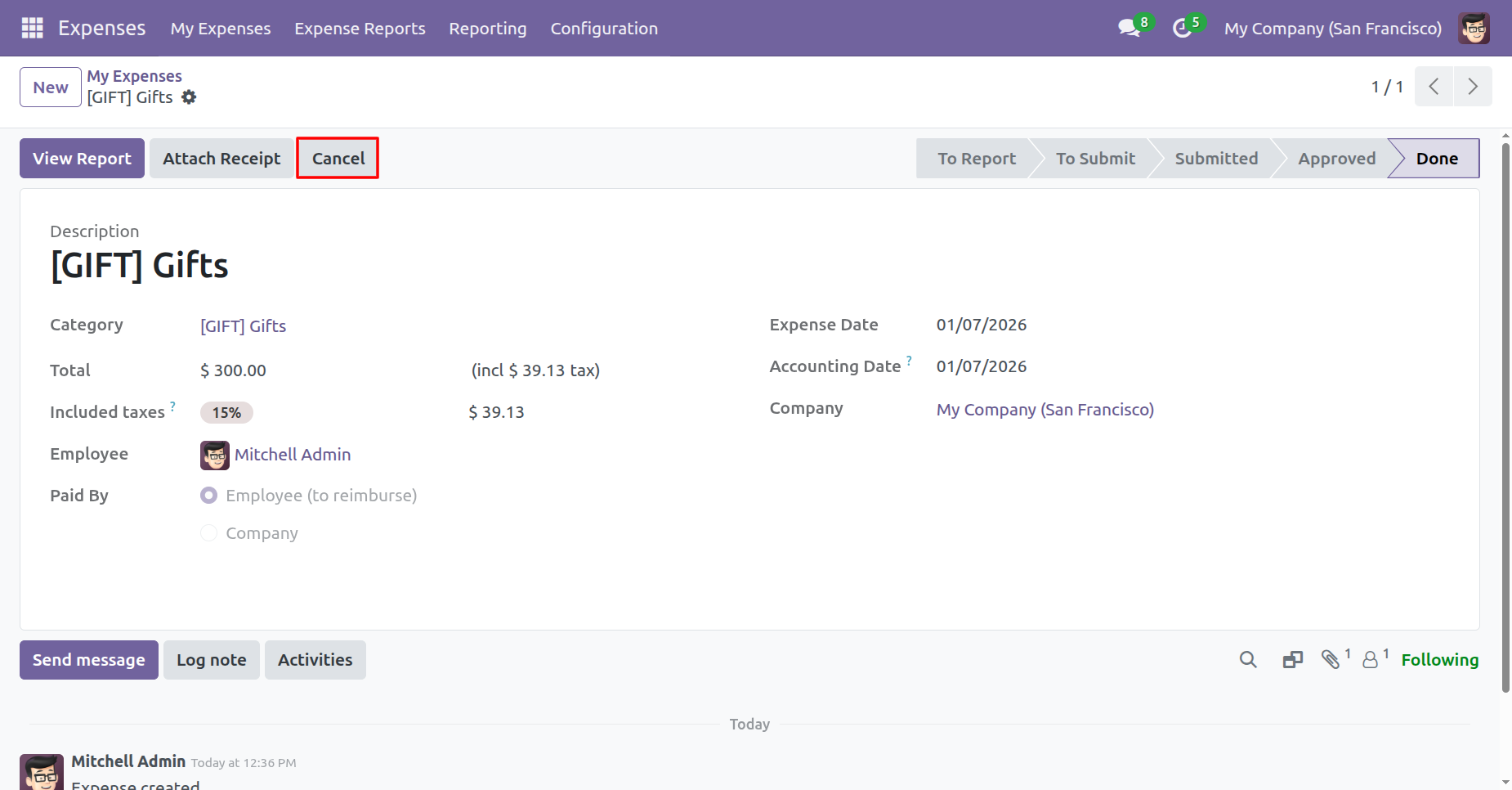
After the 'Cancel' the expense our expense will be deleted.
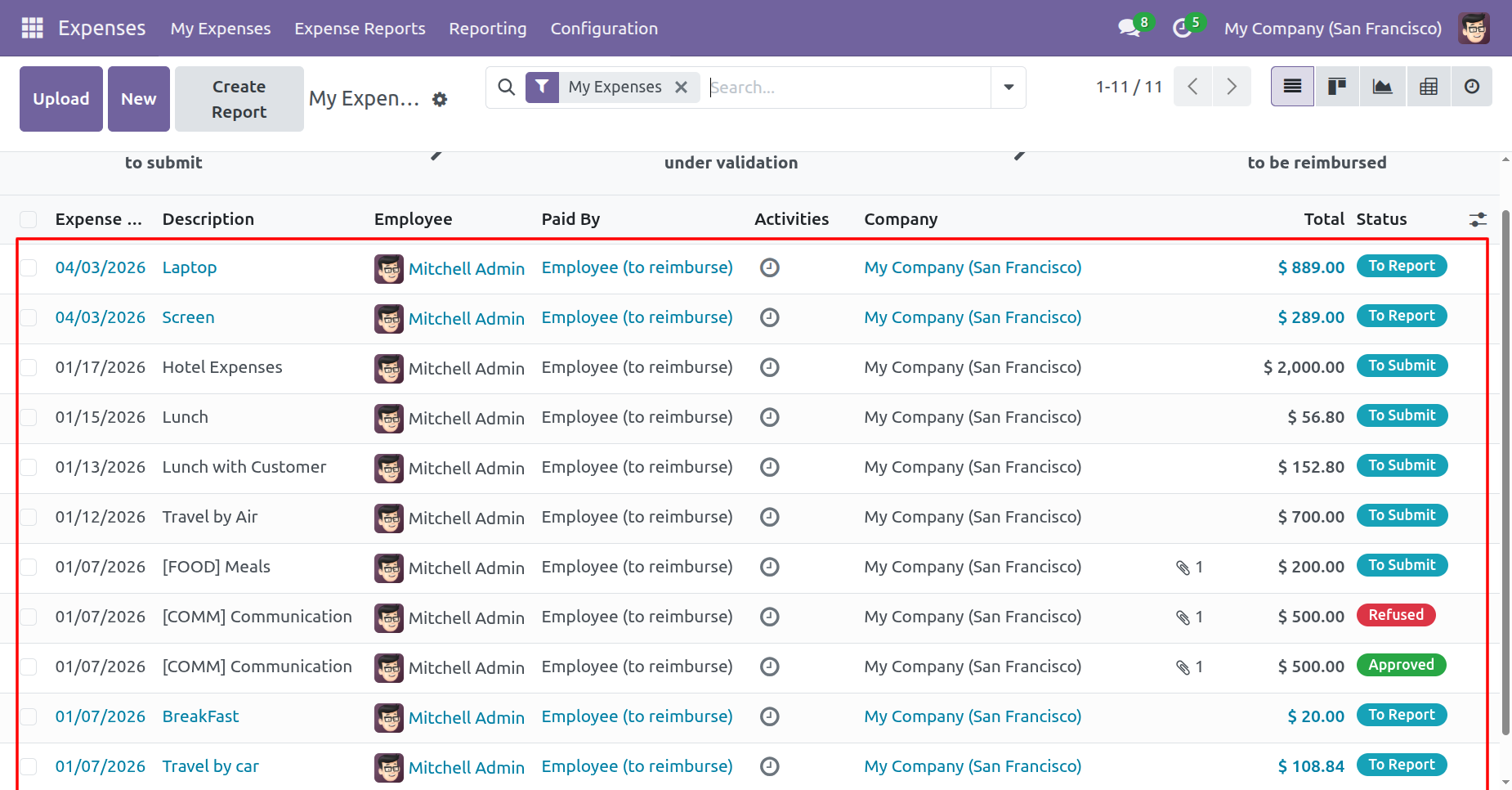
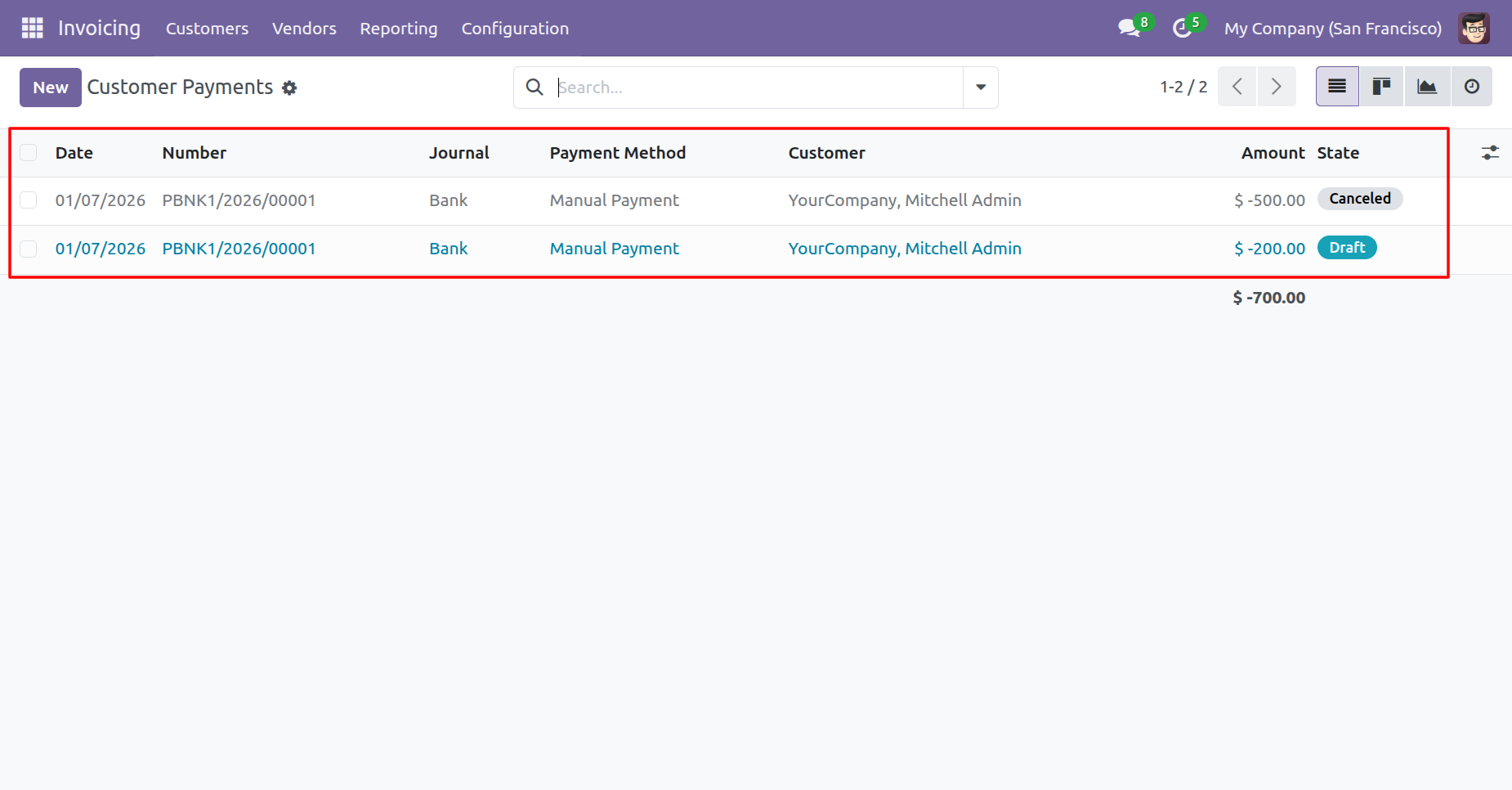
The payment is automatically canceled and deleted as well.
Now we cancel multiple expenses from the tree view.
Select the Expenses which you want to cancel.
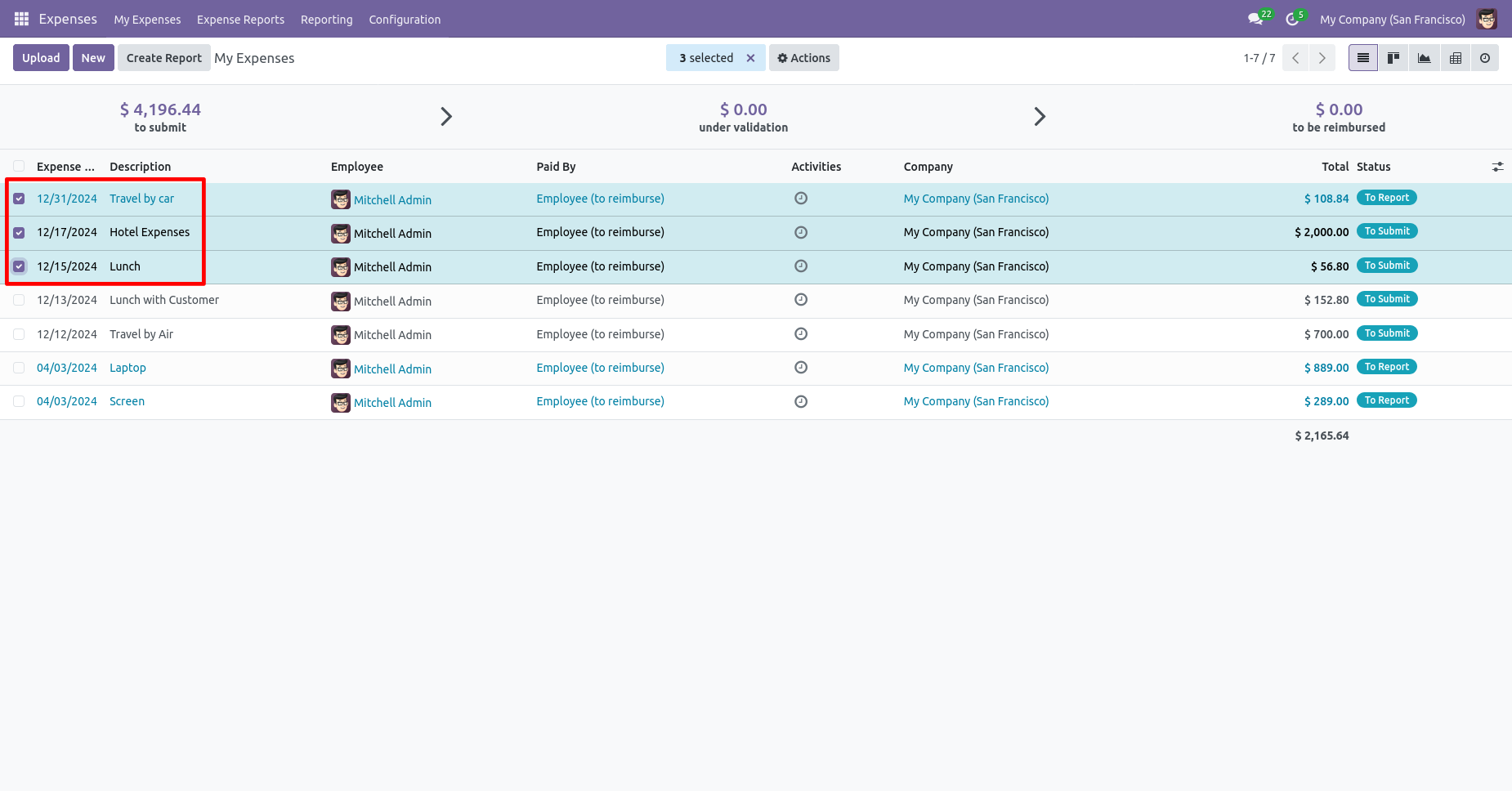
Click on the "Cancel Expenses" from the Action.
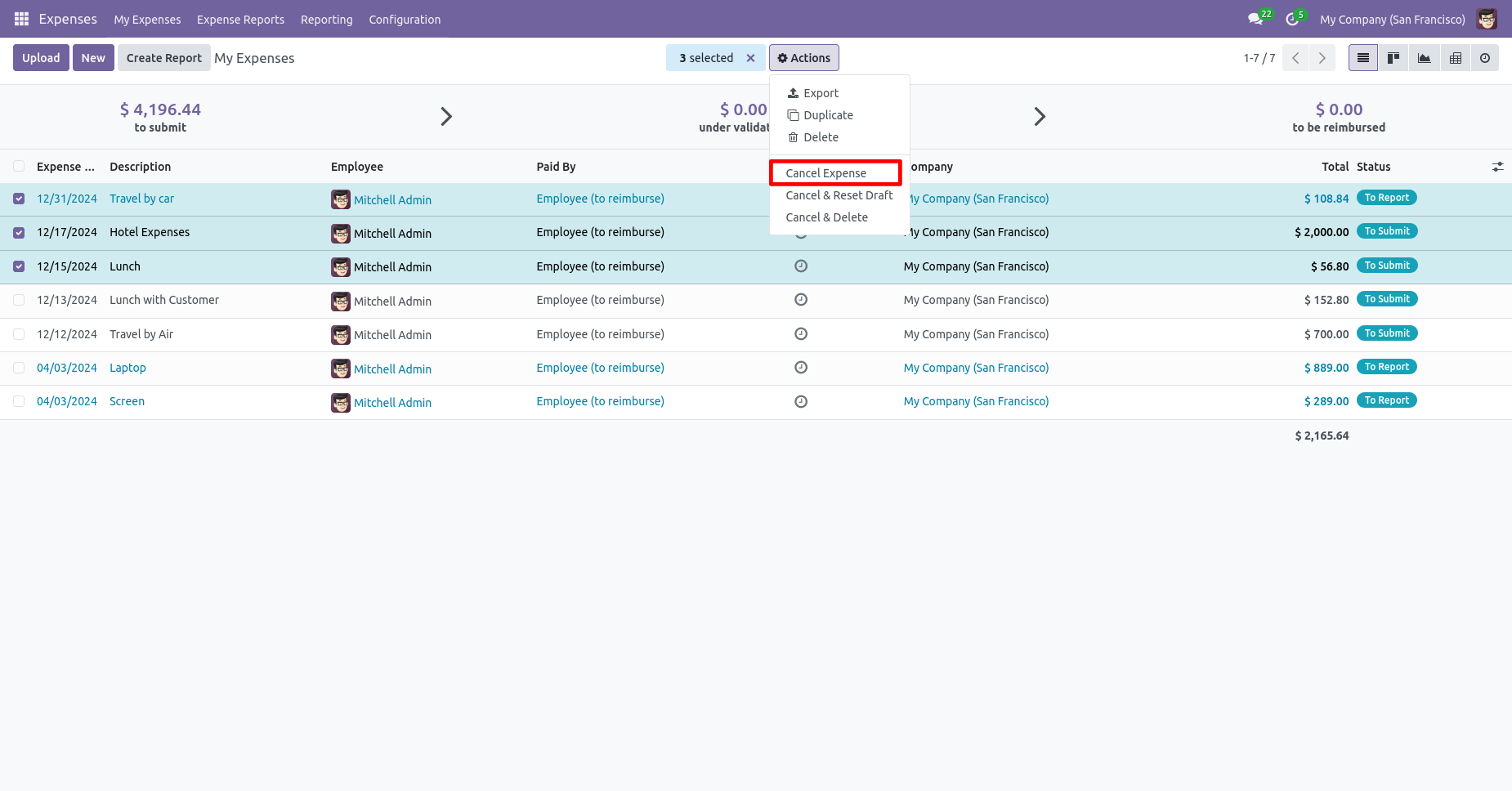
All selected expenses are cancelled/Refused.
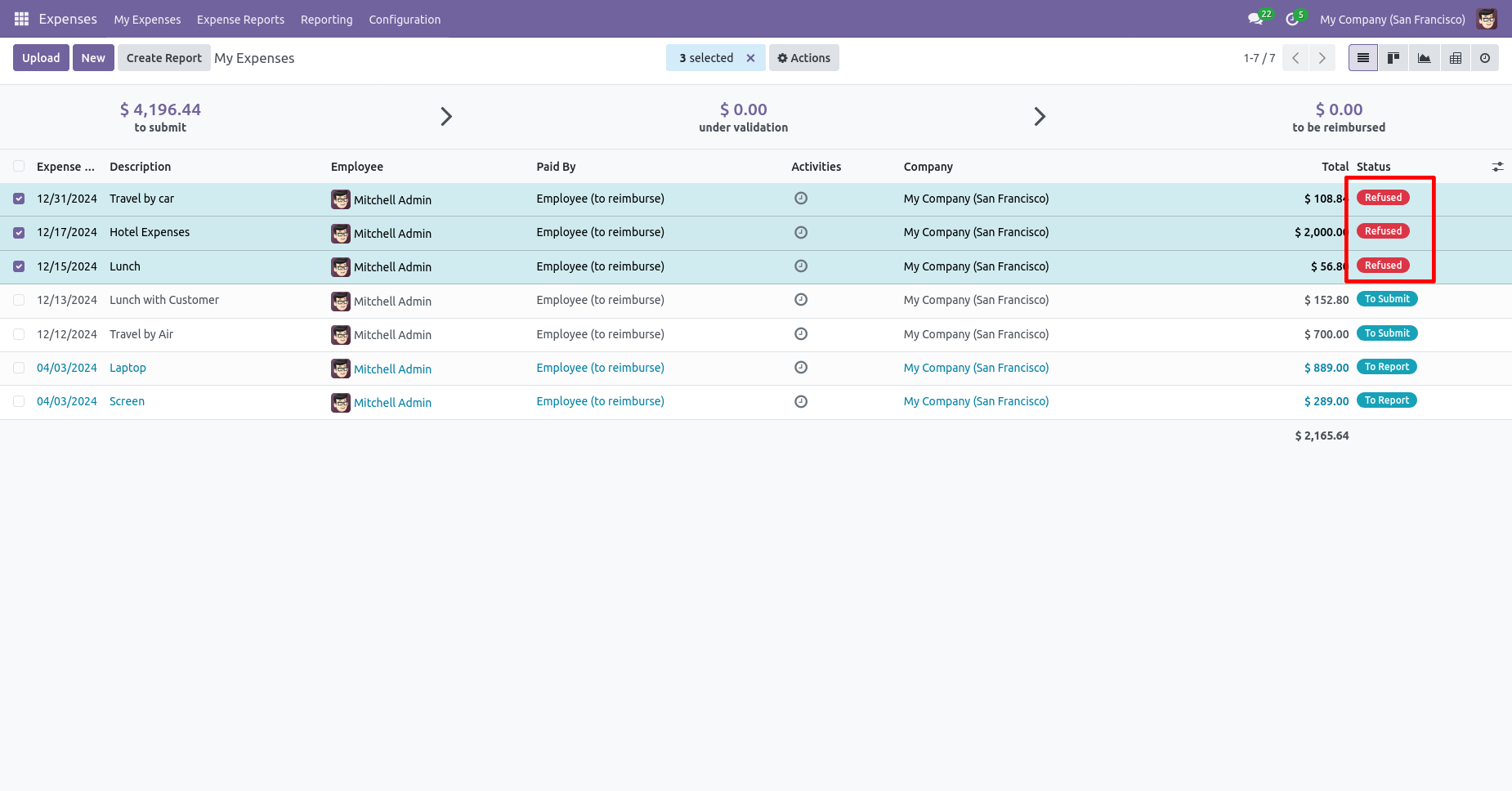
Now we "Cancel & Reset Draft" multiple expenses from the tree view.
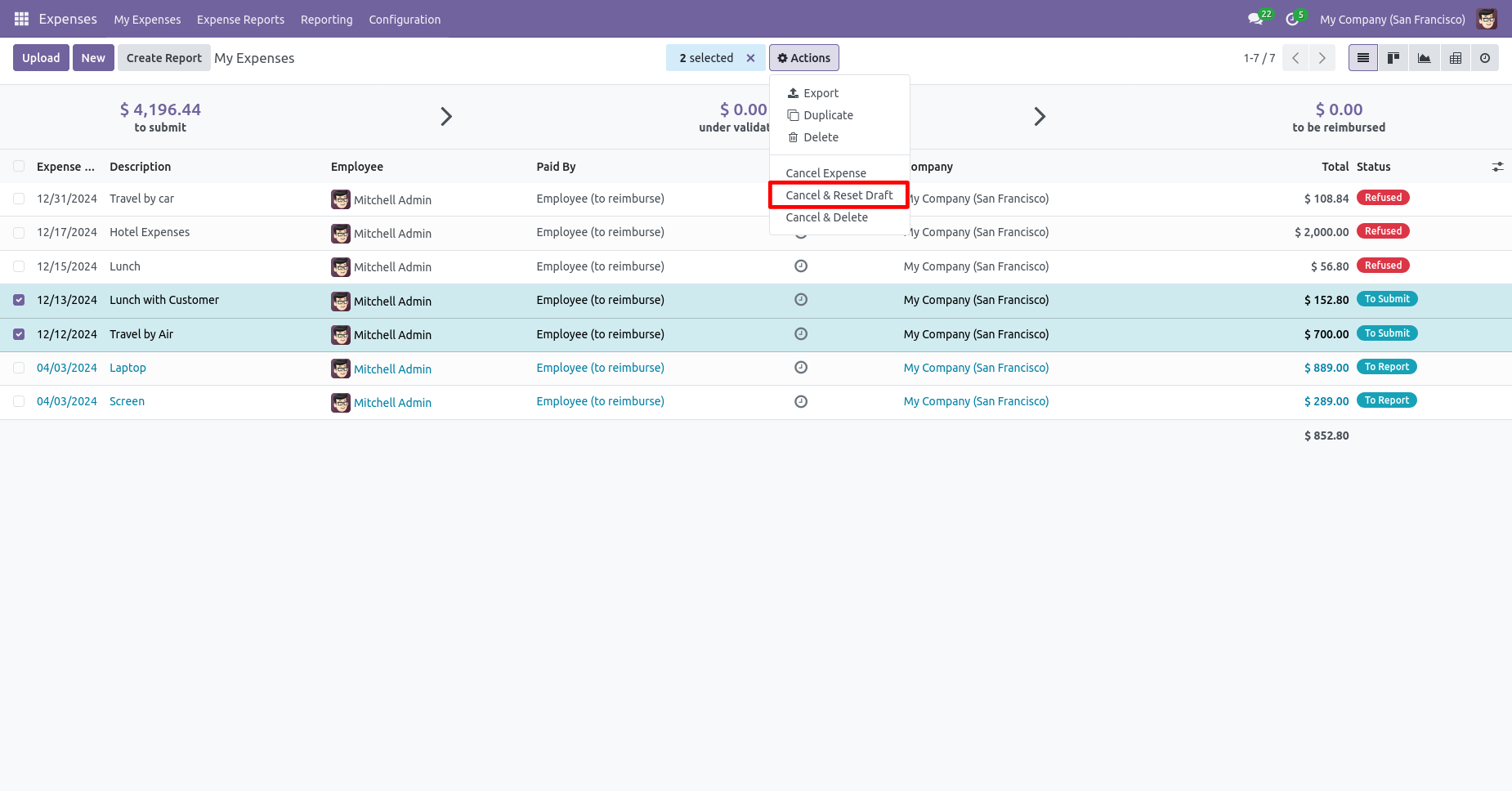
All selected expenses are cancelled and reset to the draft.
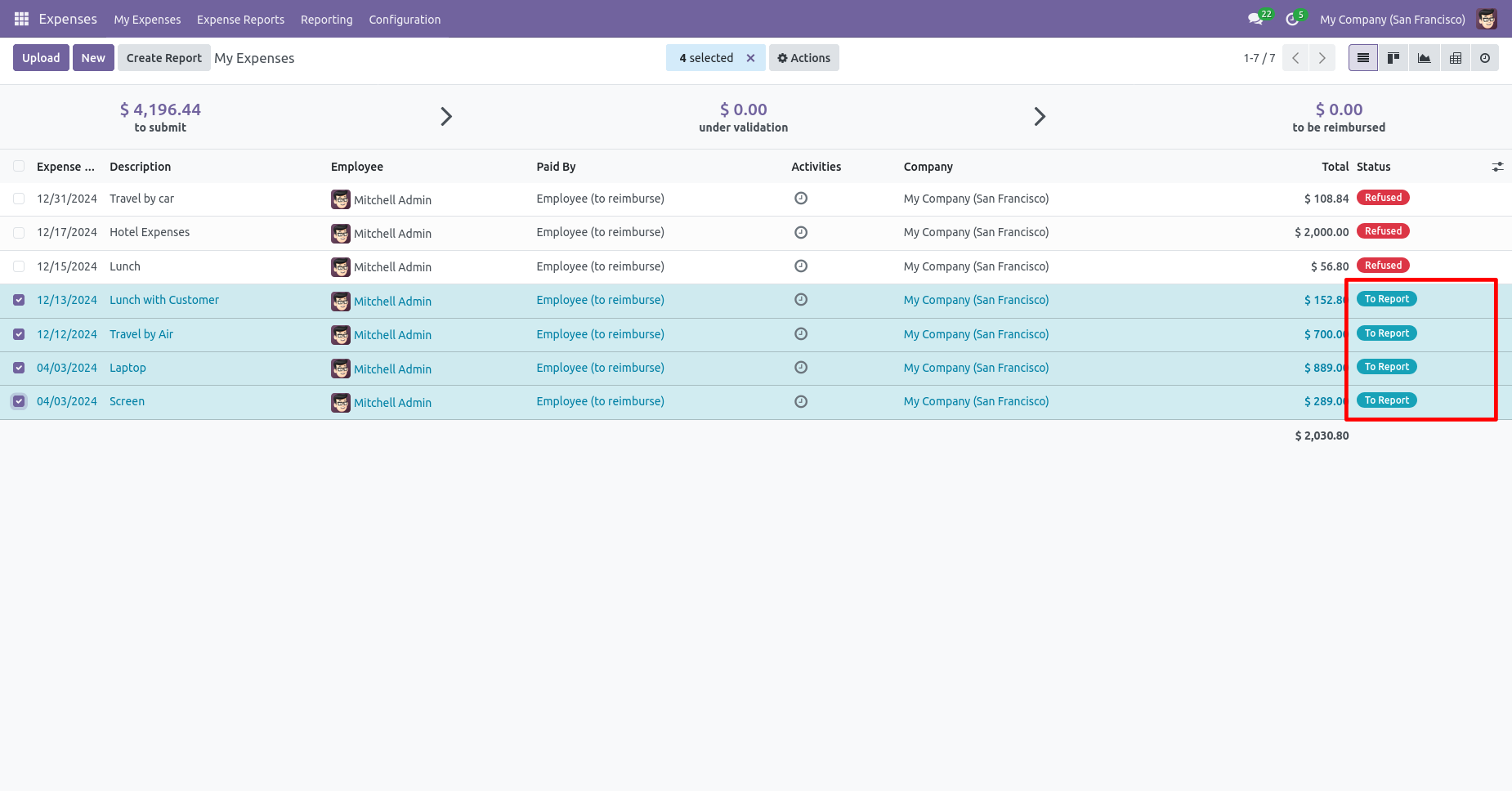
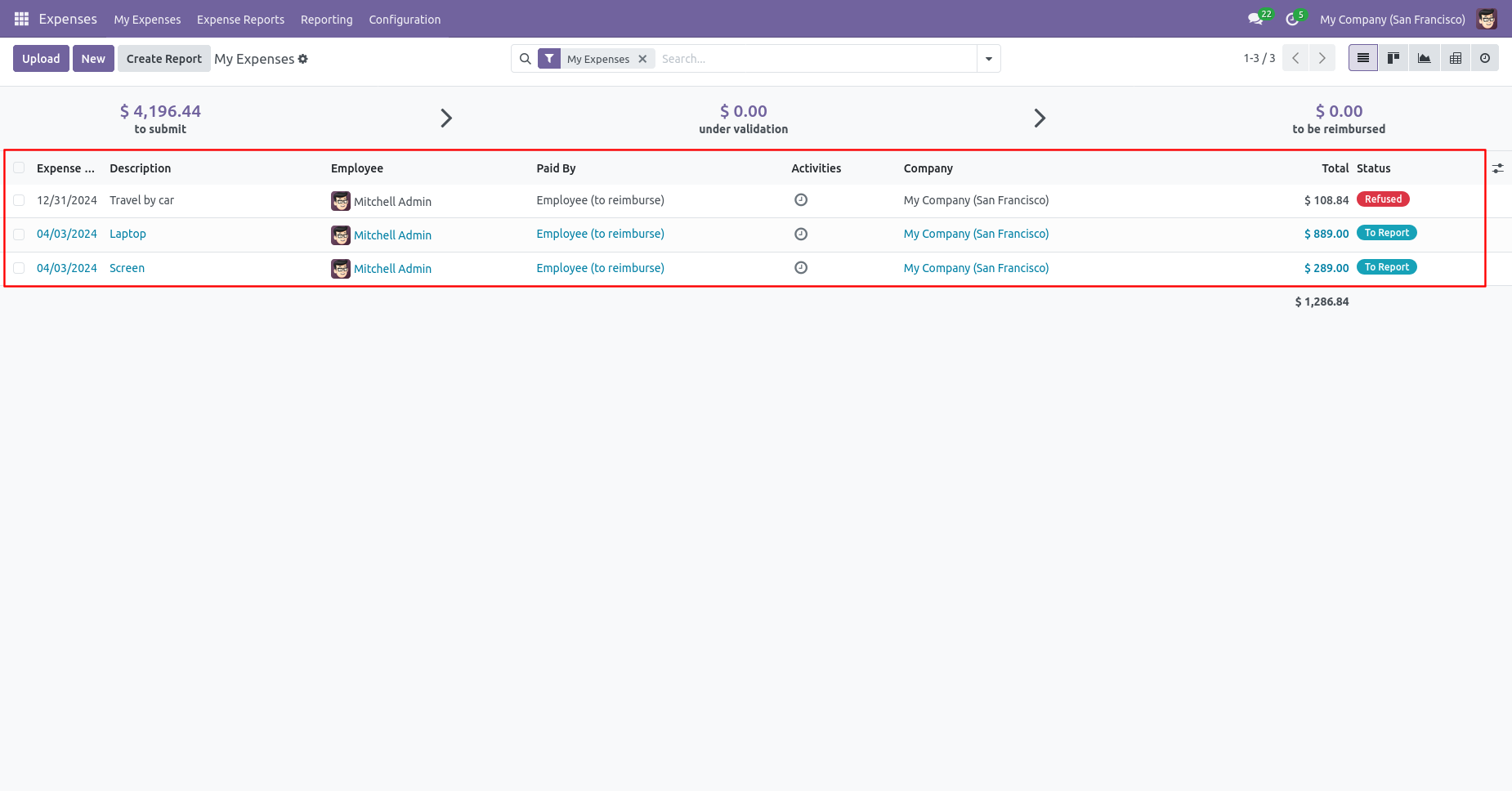
Now we "Cancel & Delete" multiple expenses from the tree view, so all expenses will be deleted after cancelled.
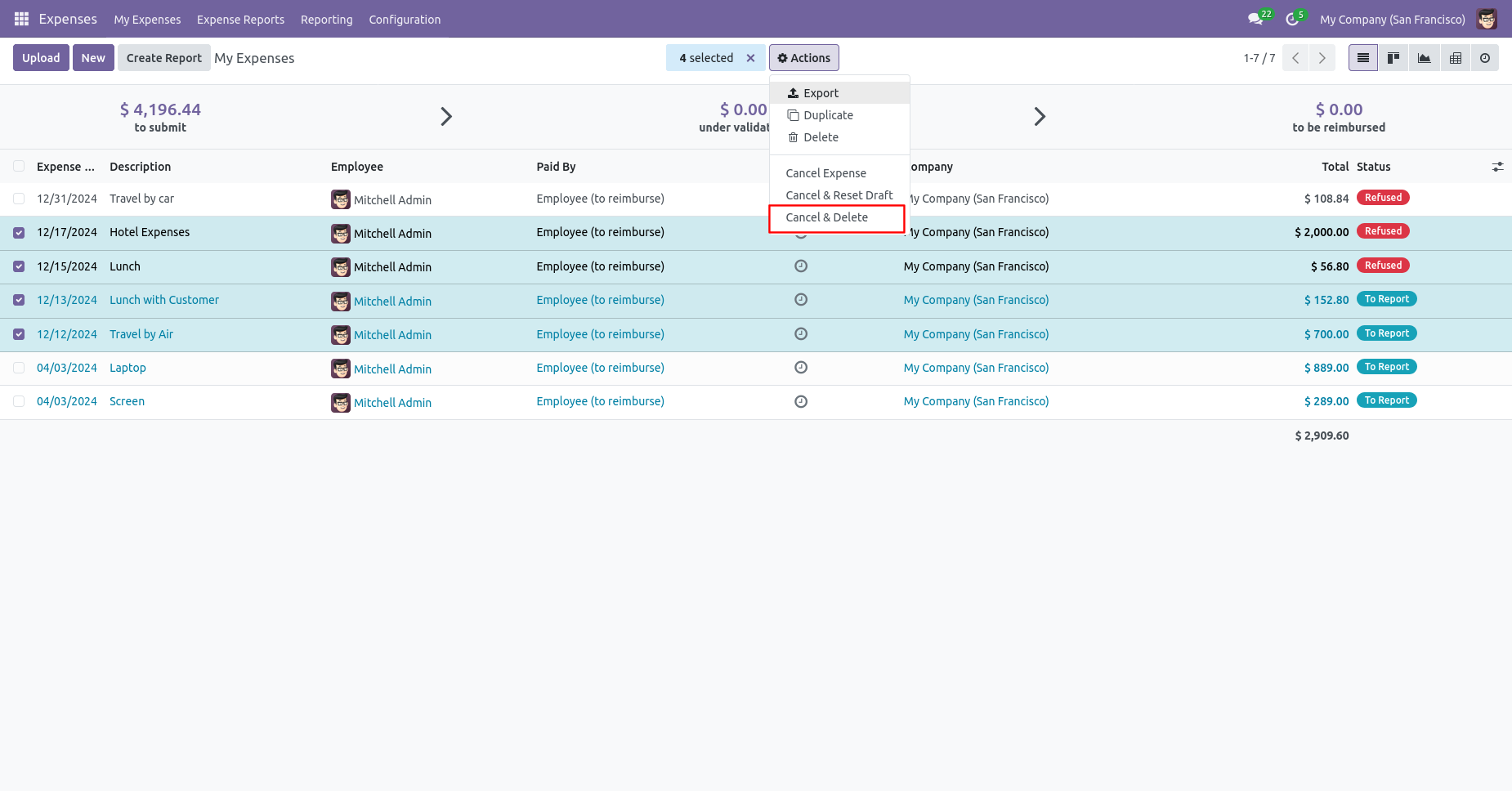
All selected expenses are deleted.
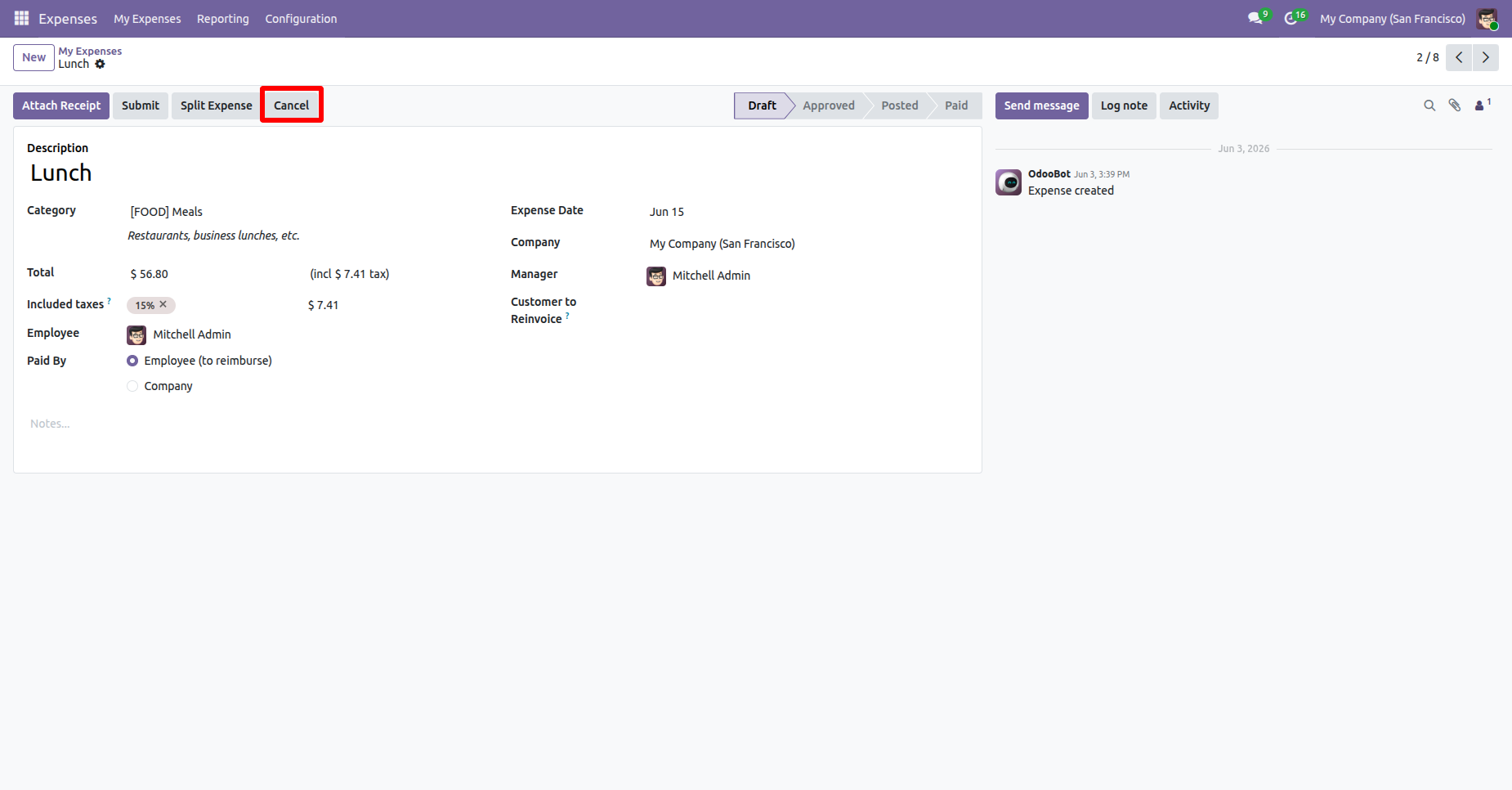
Click the Cancel button on the Expense Order to initiate the
order cancellation process.
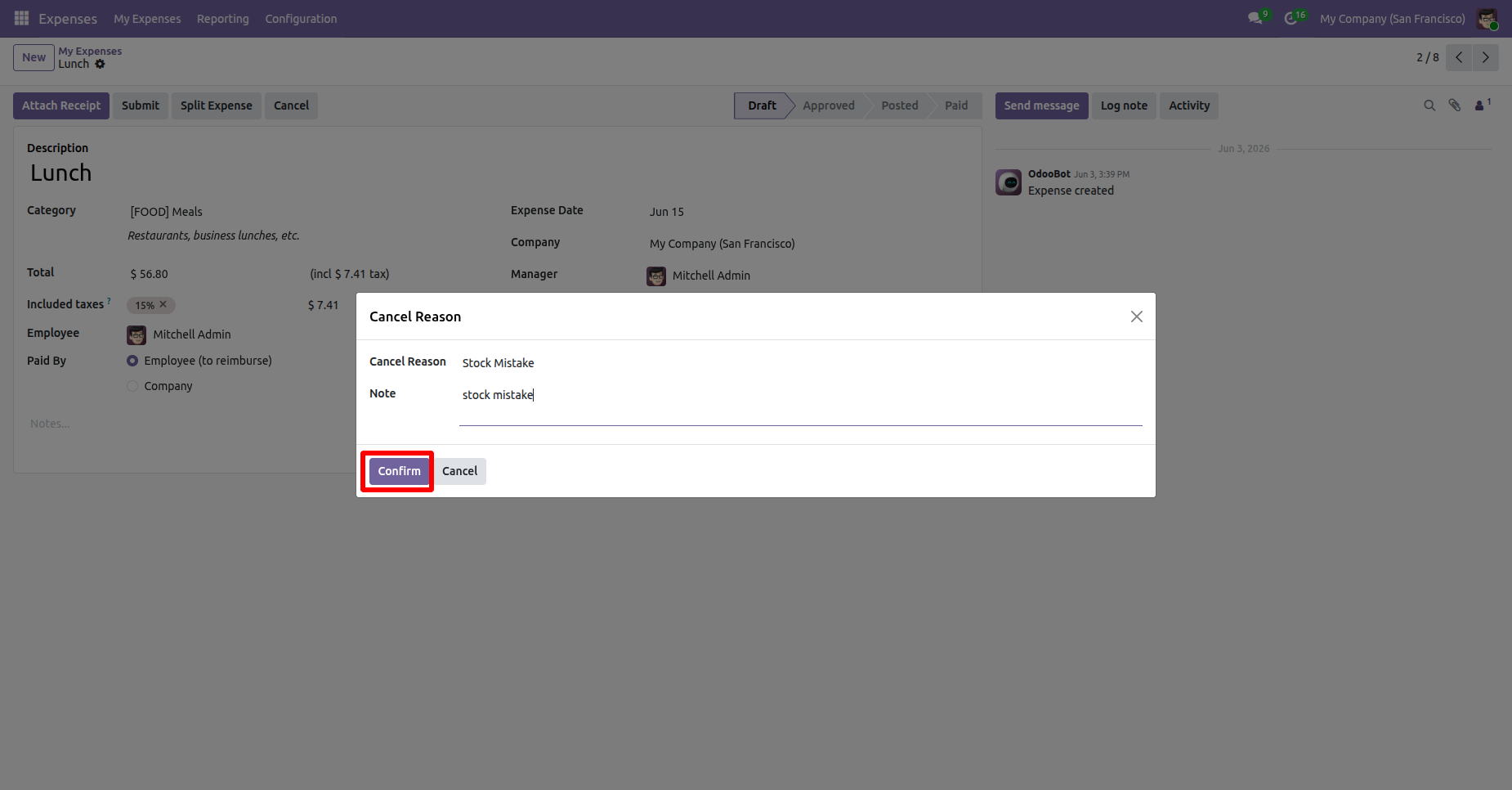
The Cancel Reason wizard opens, allowing you to select or enter
the reason for cancellation before confirming the cancellation.
After selecting the cancellation reason, click the
Confirm button to cancel the Expense Order.
After the Order is canceled, the cancellation information, including the cancellation reason, canceled by, and cancellation date, is displayed in the Expense Order Form View for future reference.
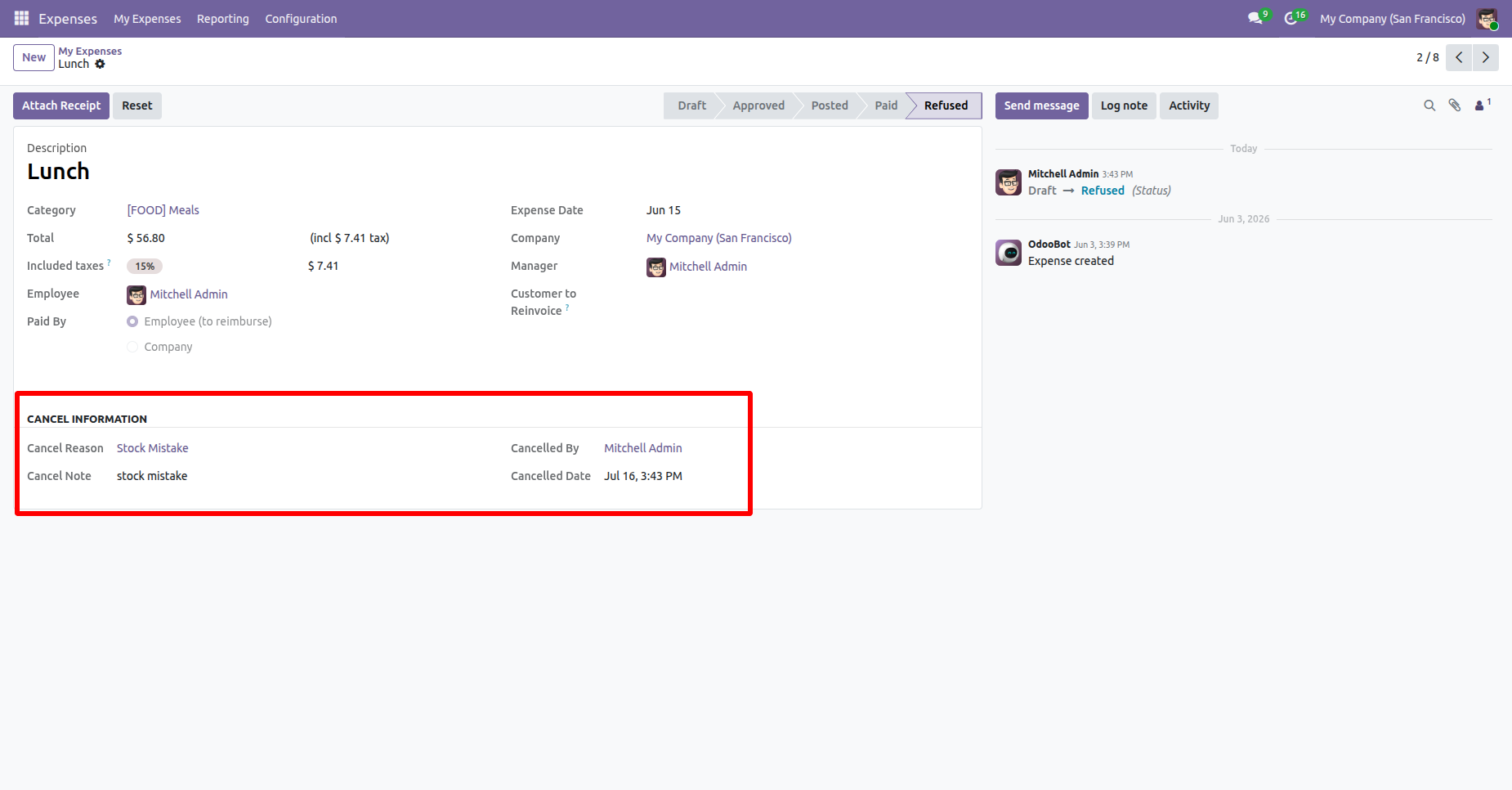
The cancellation logs are also available under the Cancel Logs menu in the Cancel Advanced app, where you can view and track all canceled records along with their cancellation reasons, canceled by, and cancellation dates.
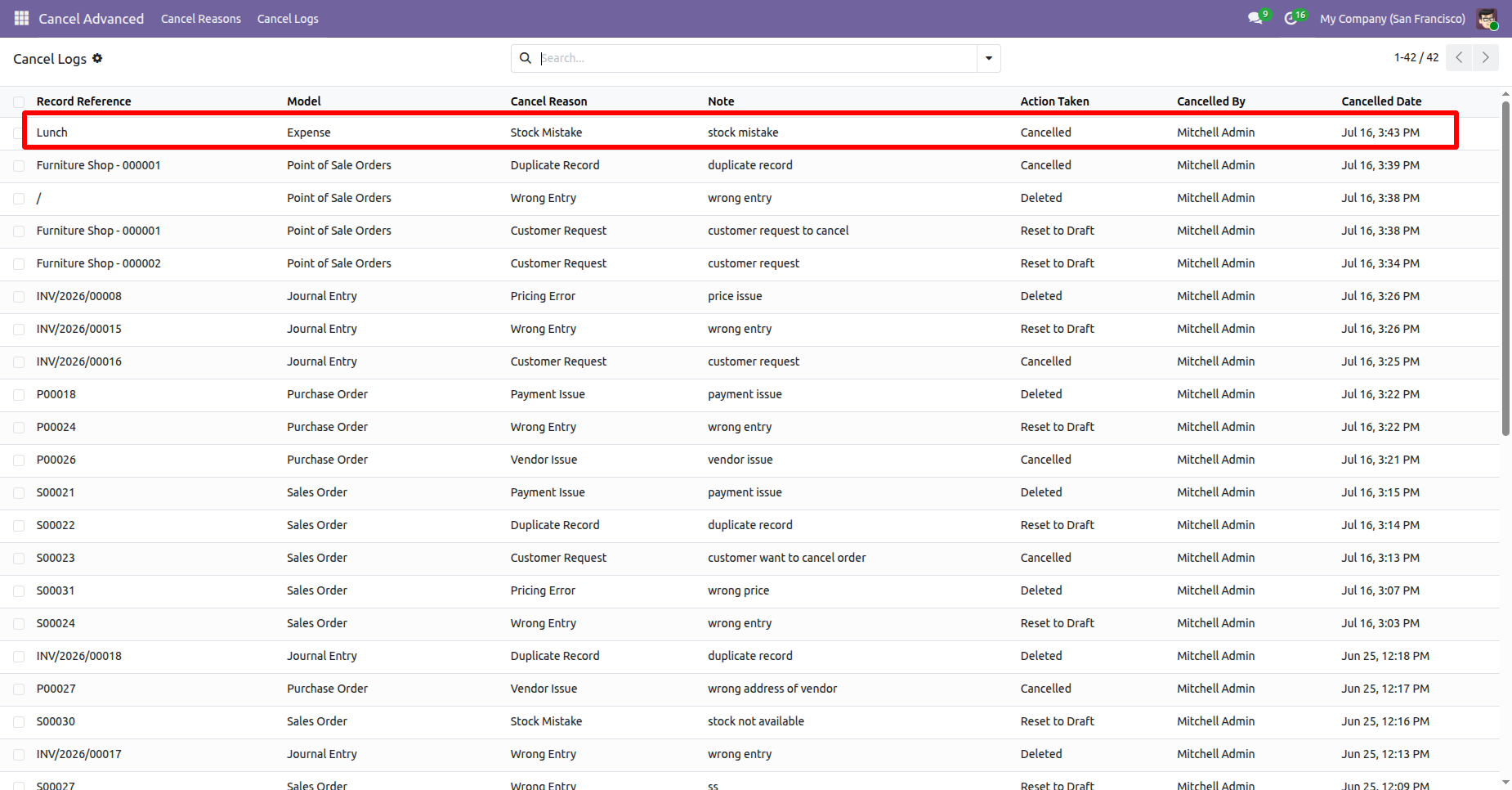
User can preview the cancellation details before confirming the cancellation process.
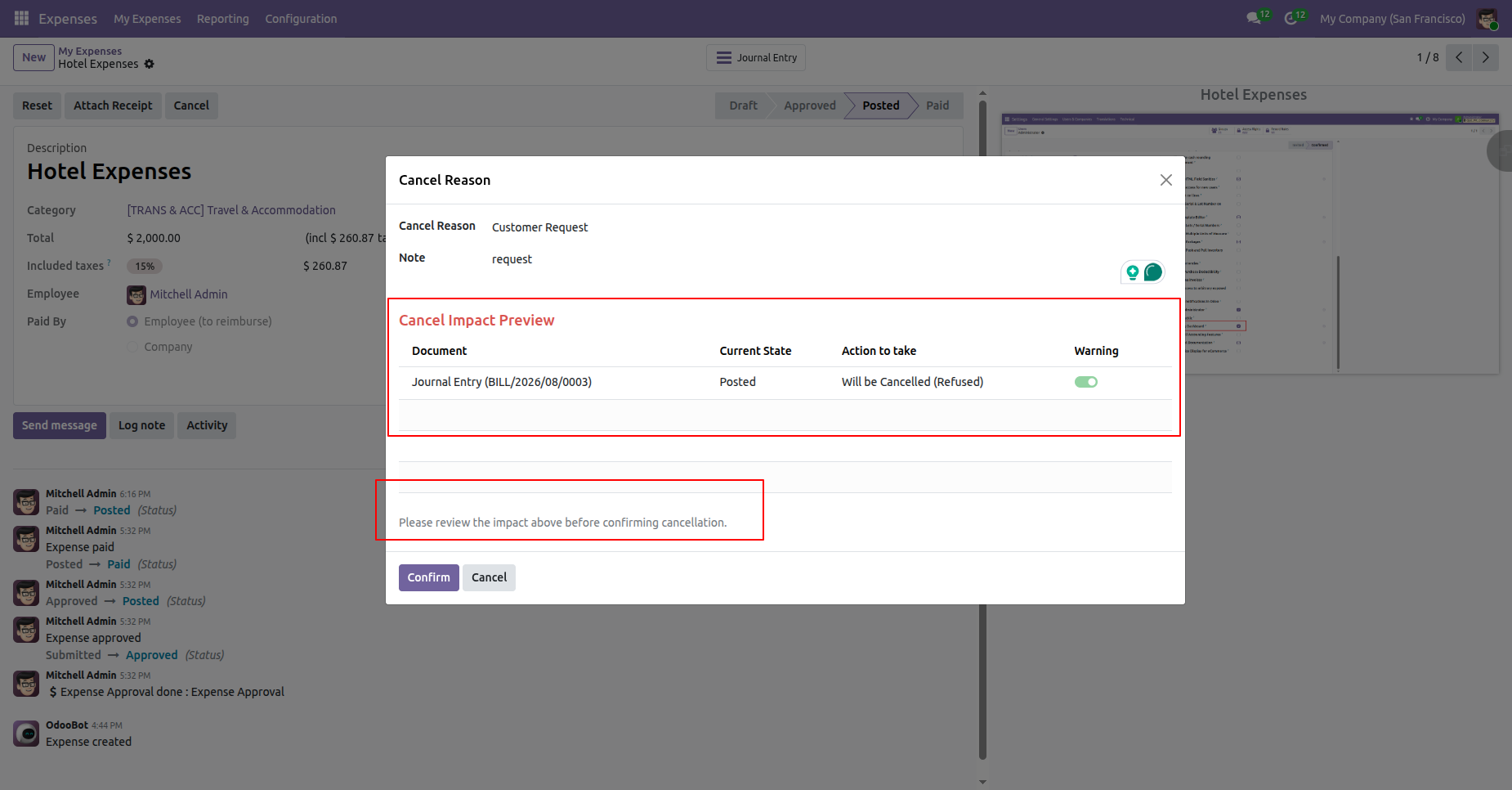
Select the employee expenses that require cancellation and click on cancel button to cancel the Expense Order, Cancellation request will be submitted to the Approver and also displays the notification.
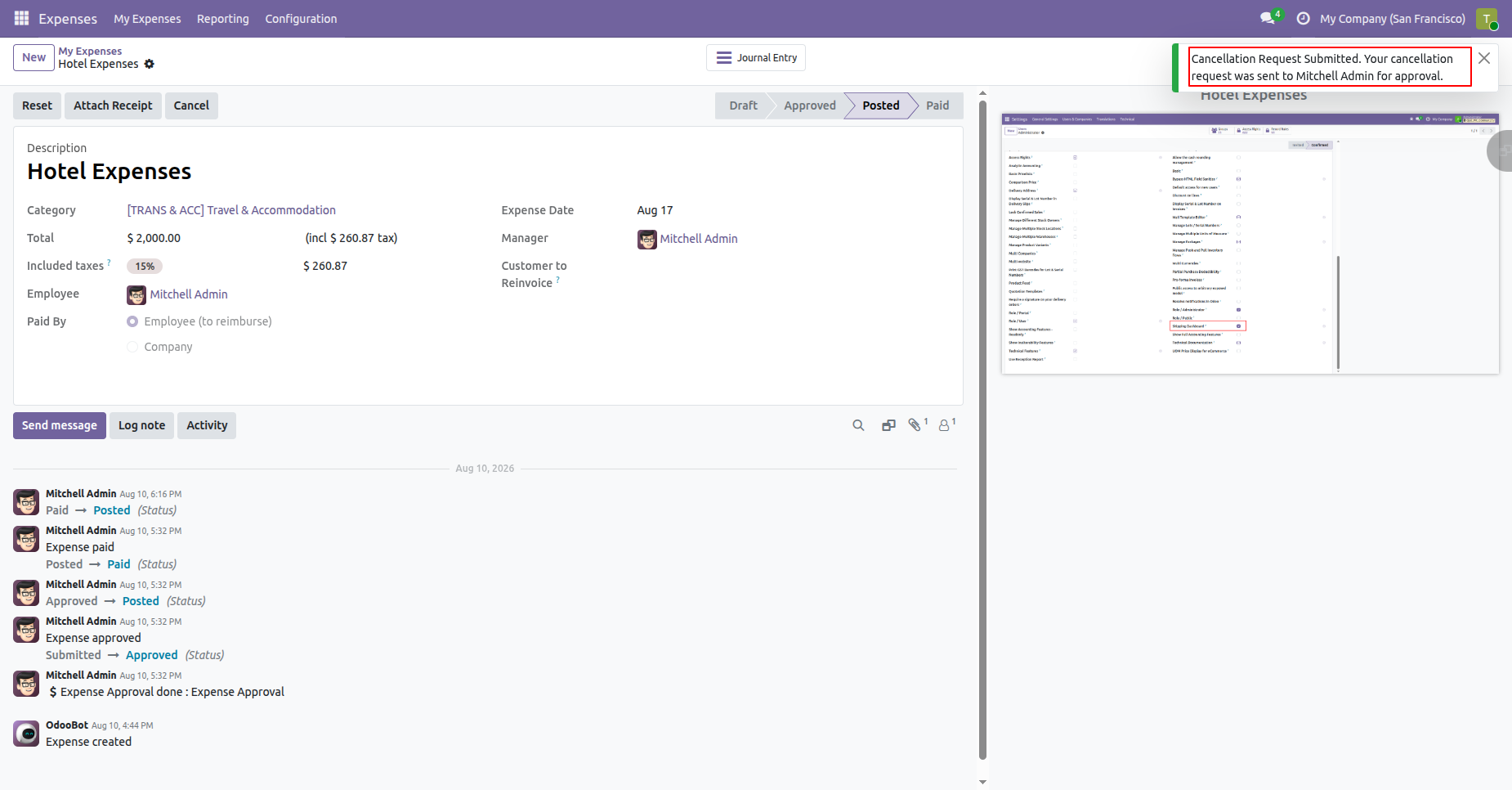
The approver reviews the cancellation request and confirms or rejects the action. Cancel and Delete operation is selected to the request.
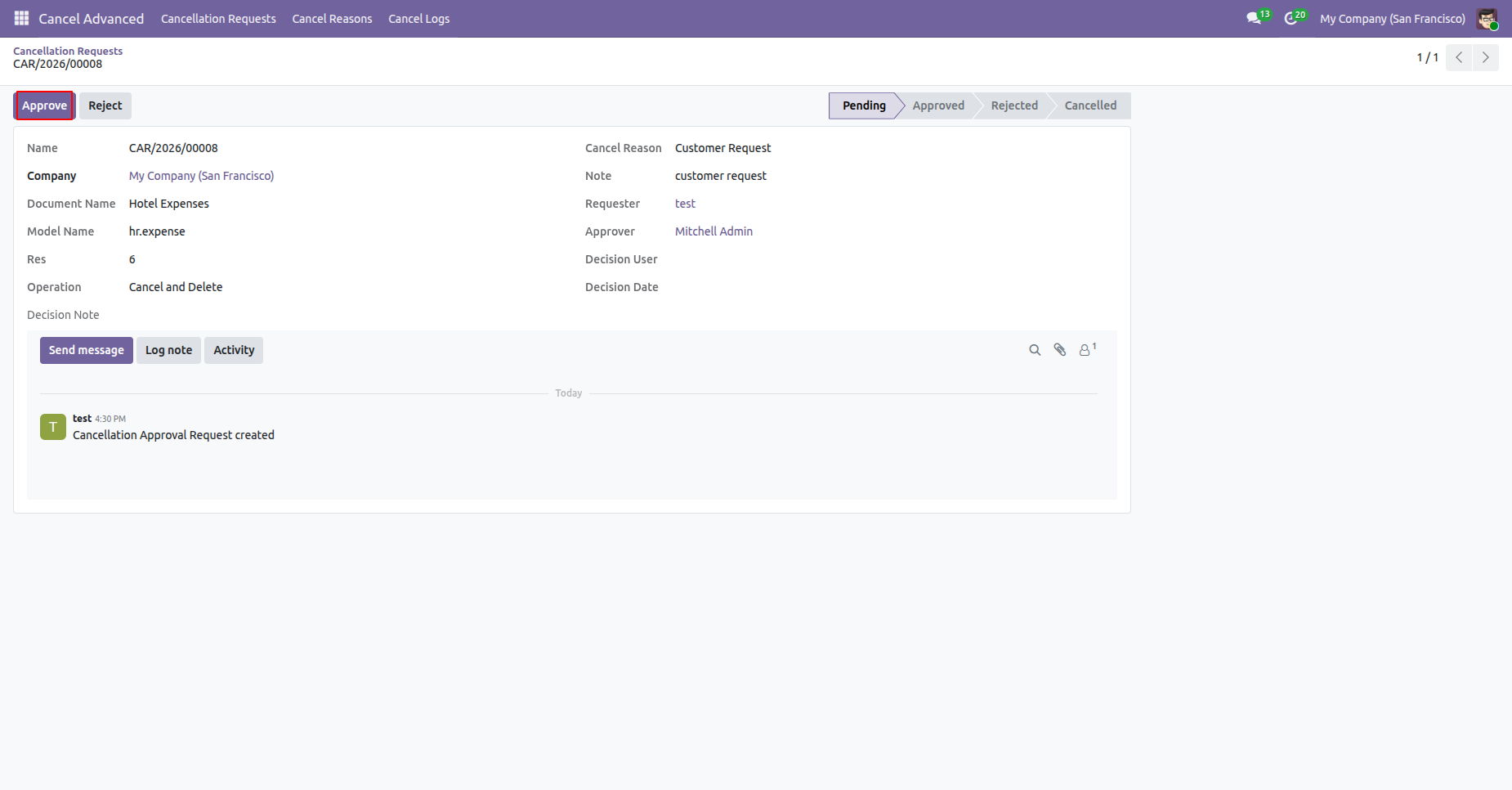
Click on the Approve button to approve the request and request stage will be moved to approved stage.
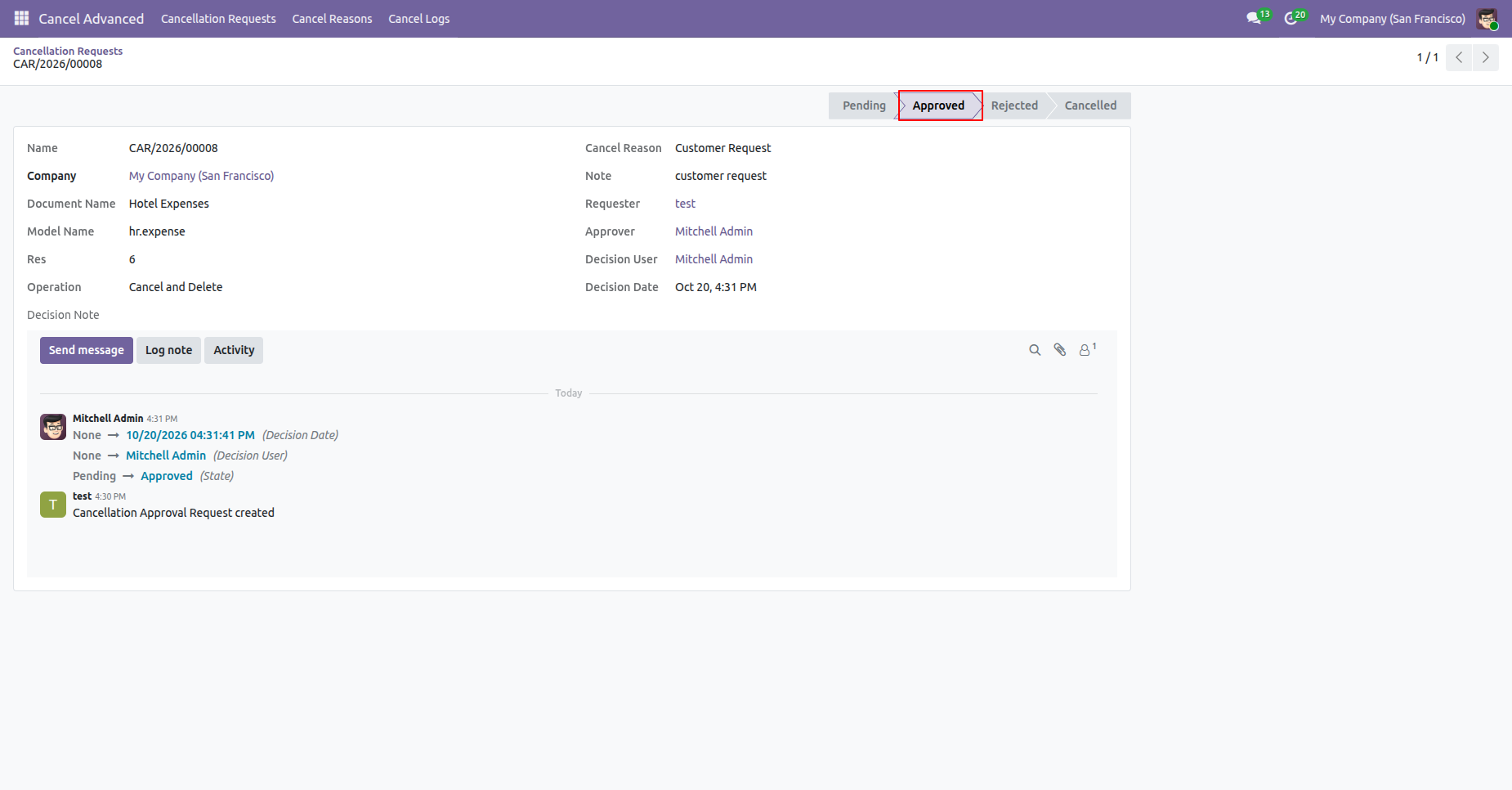
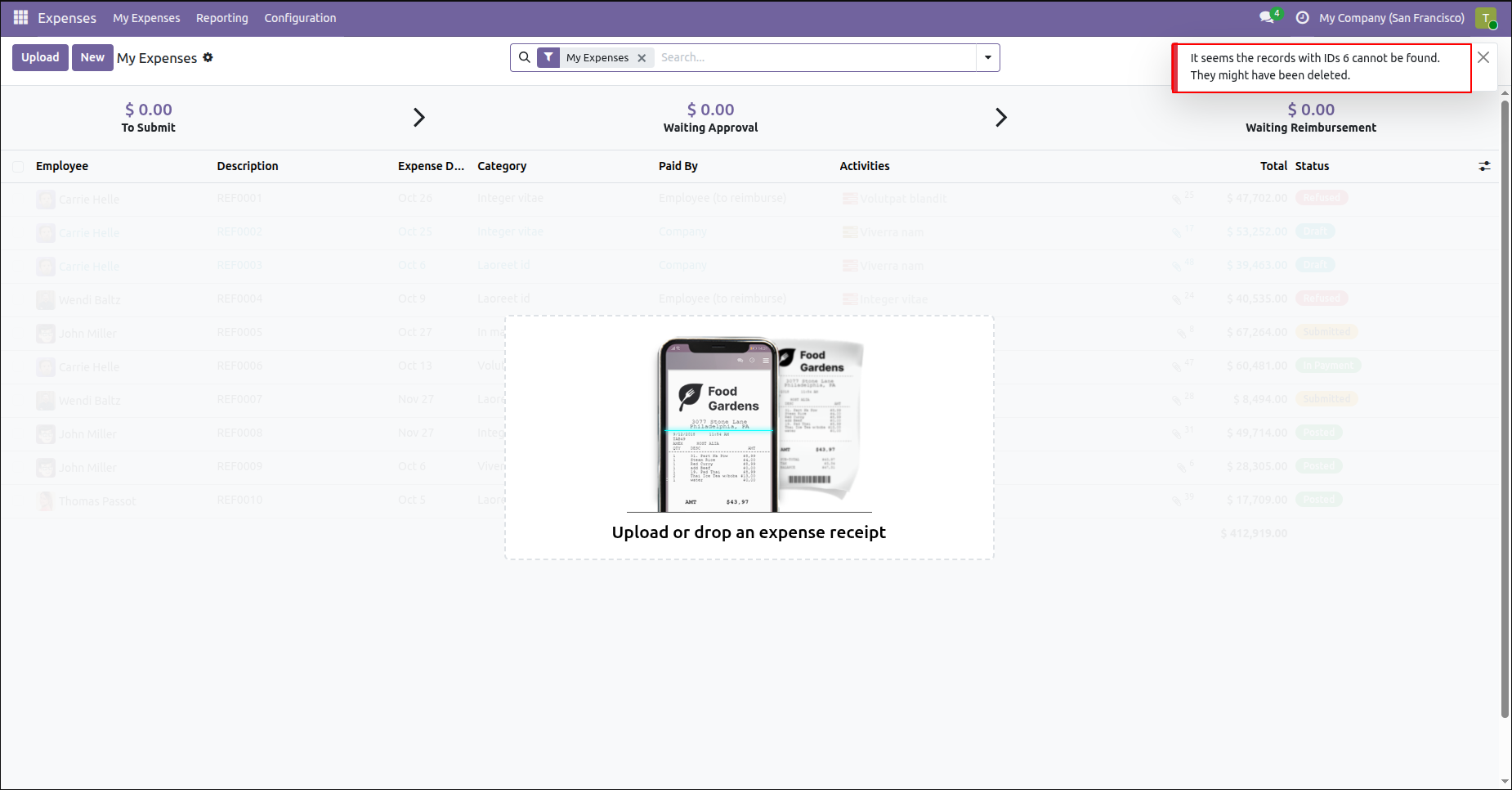
By approving the request Expense record has been cancelled and deleted.
Select the employee expenses that require cancellation and start the approval request.
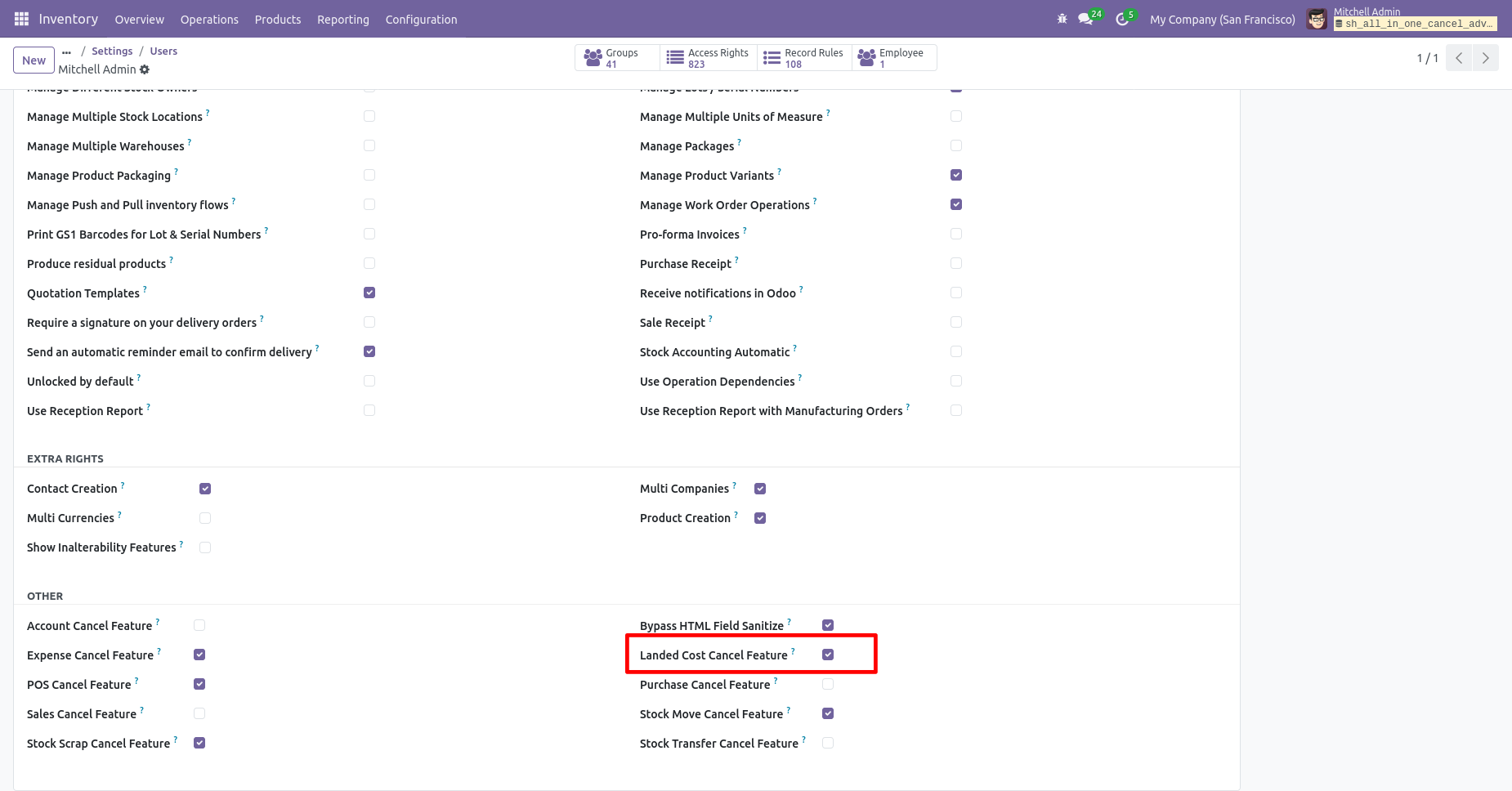
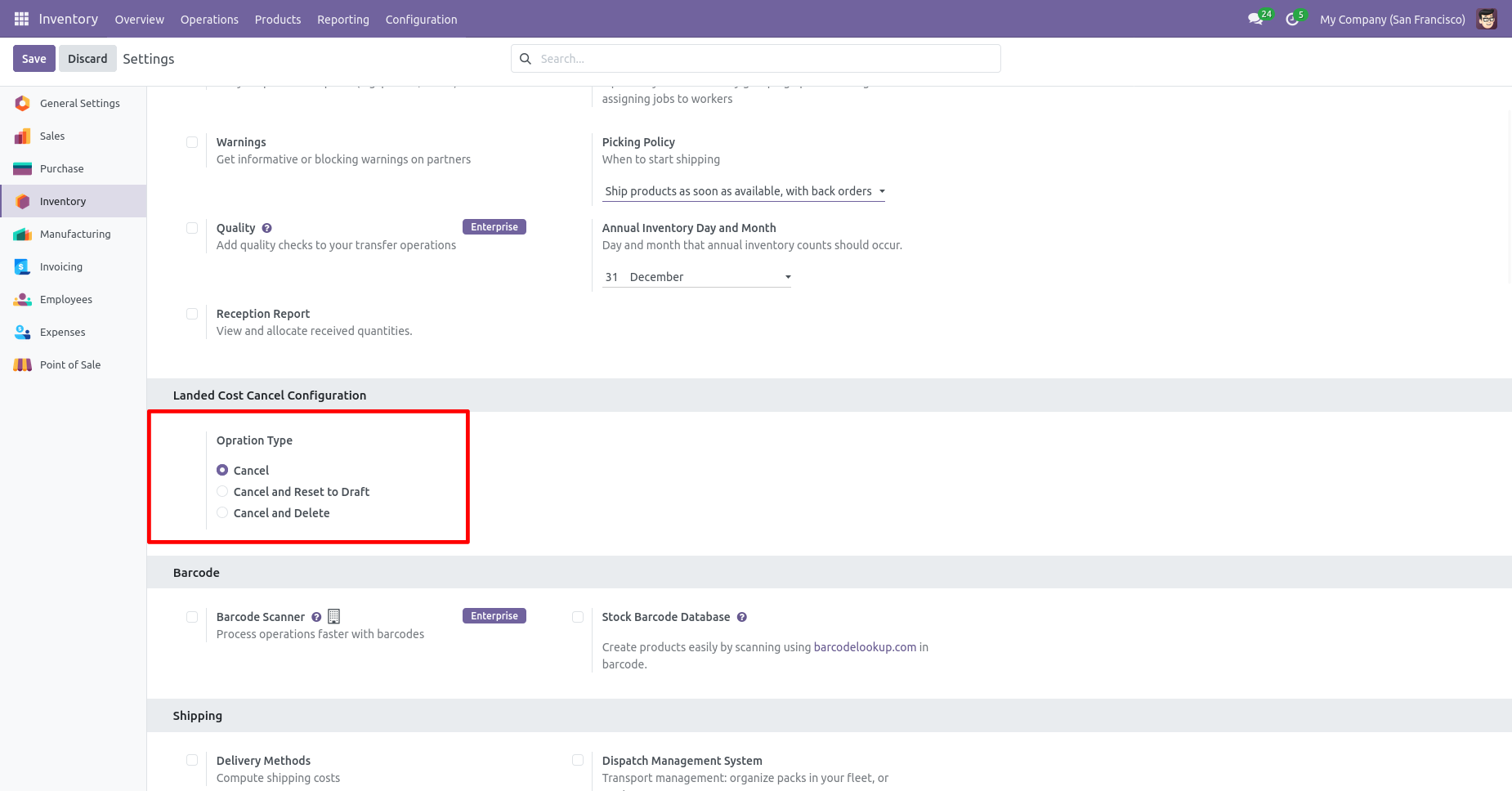
When you want to cancel the landed costs only then choose the "Cancel Only" option.
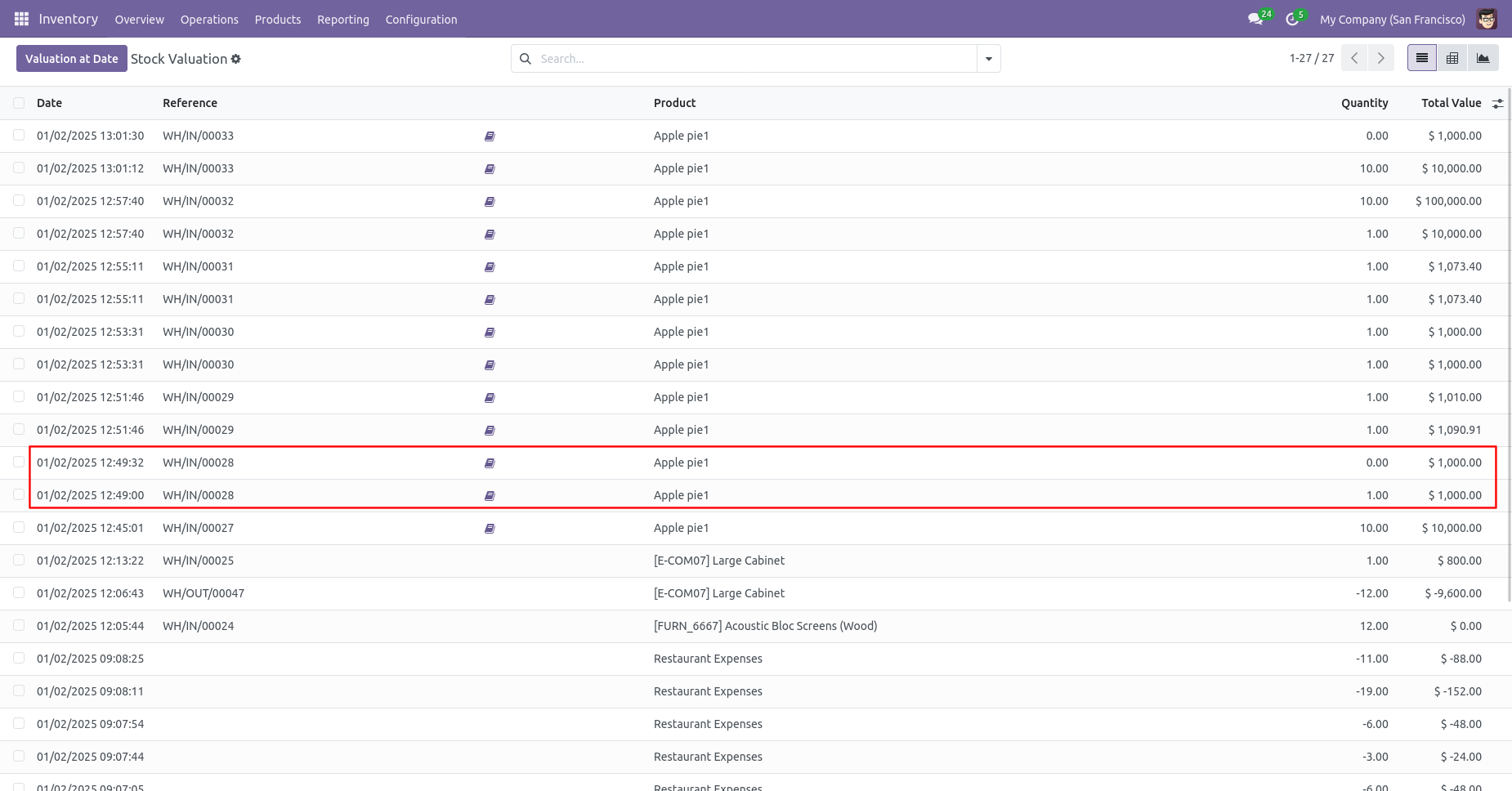
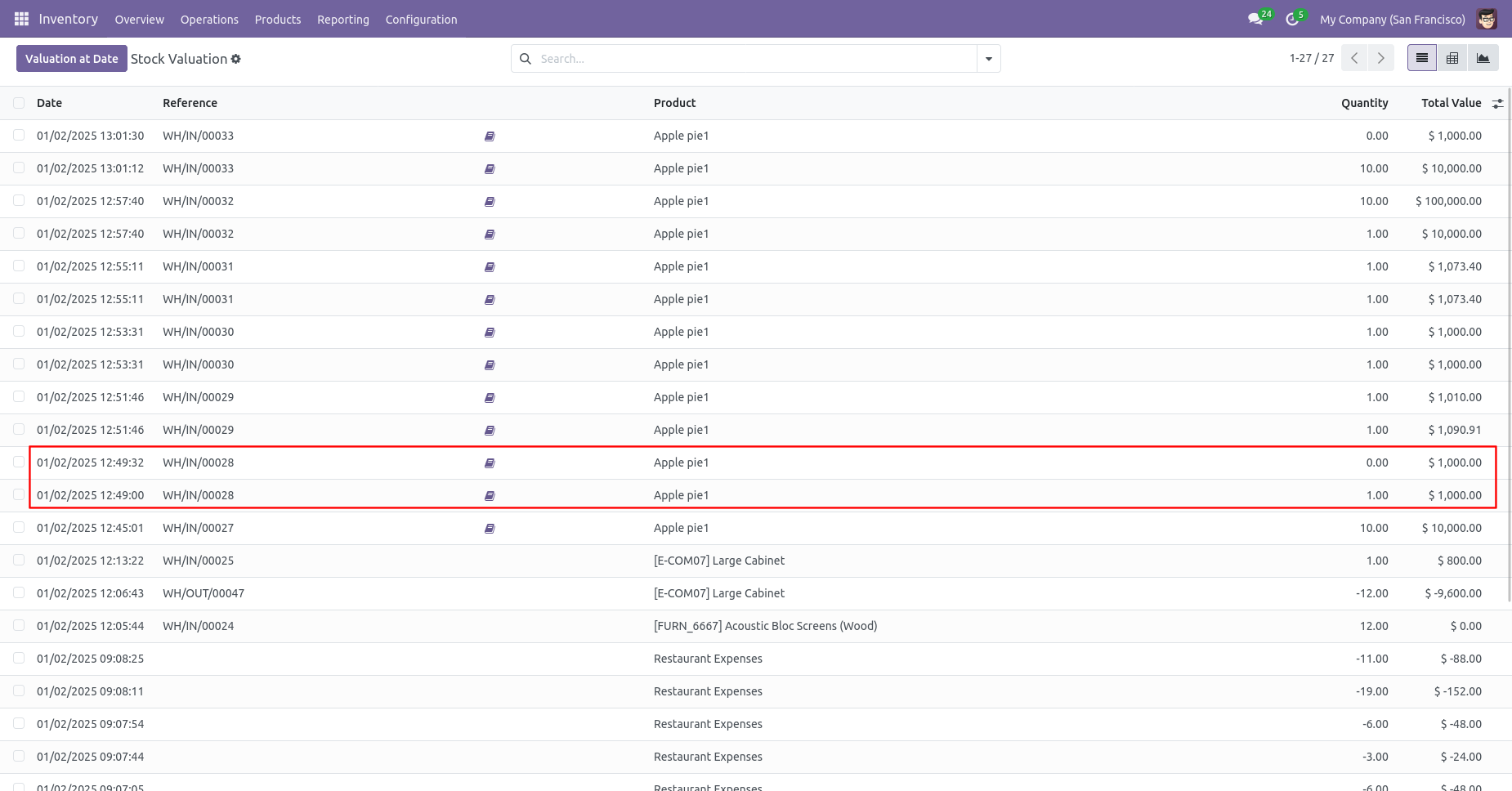
Stock valuation of products.
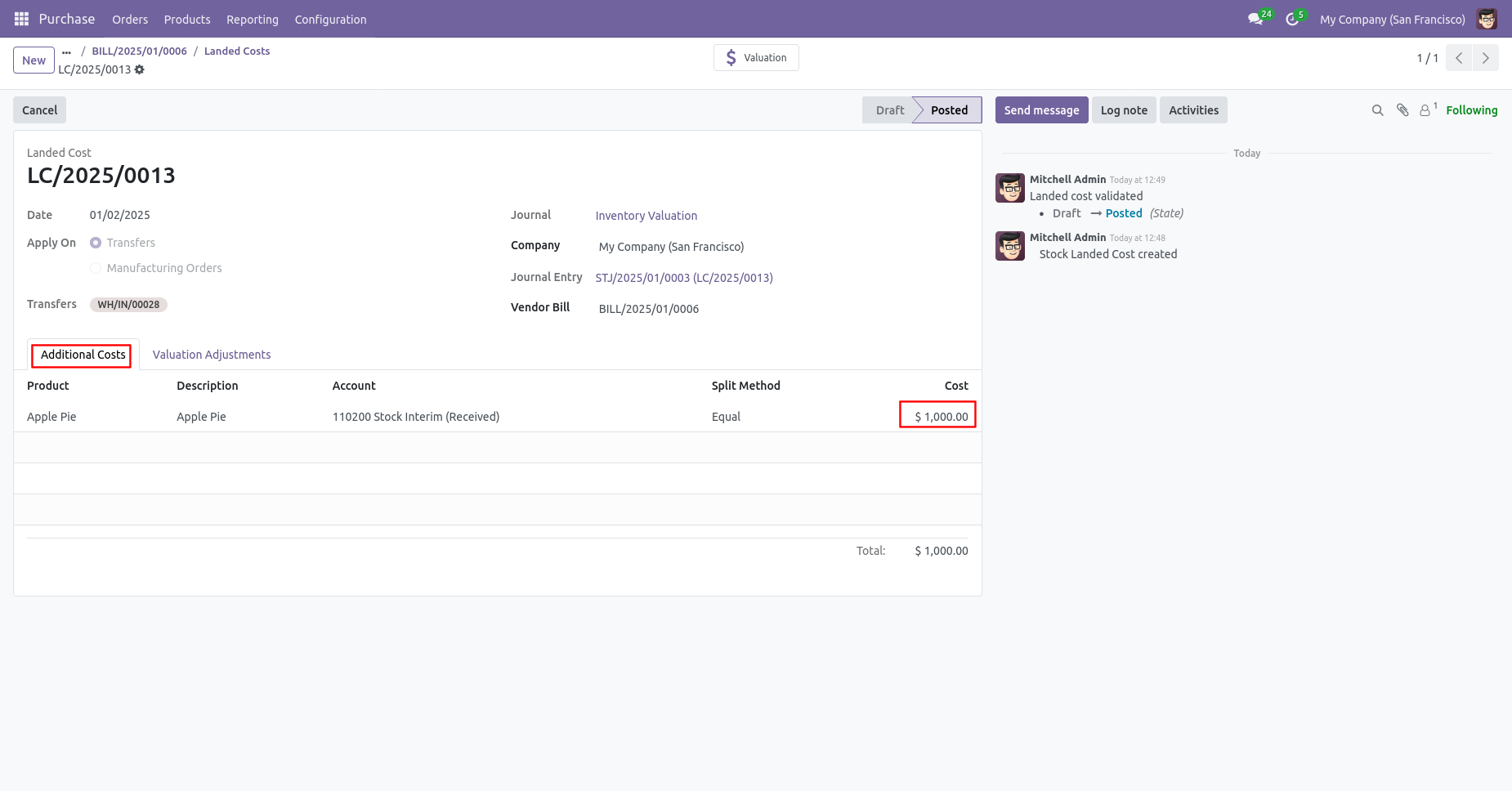
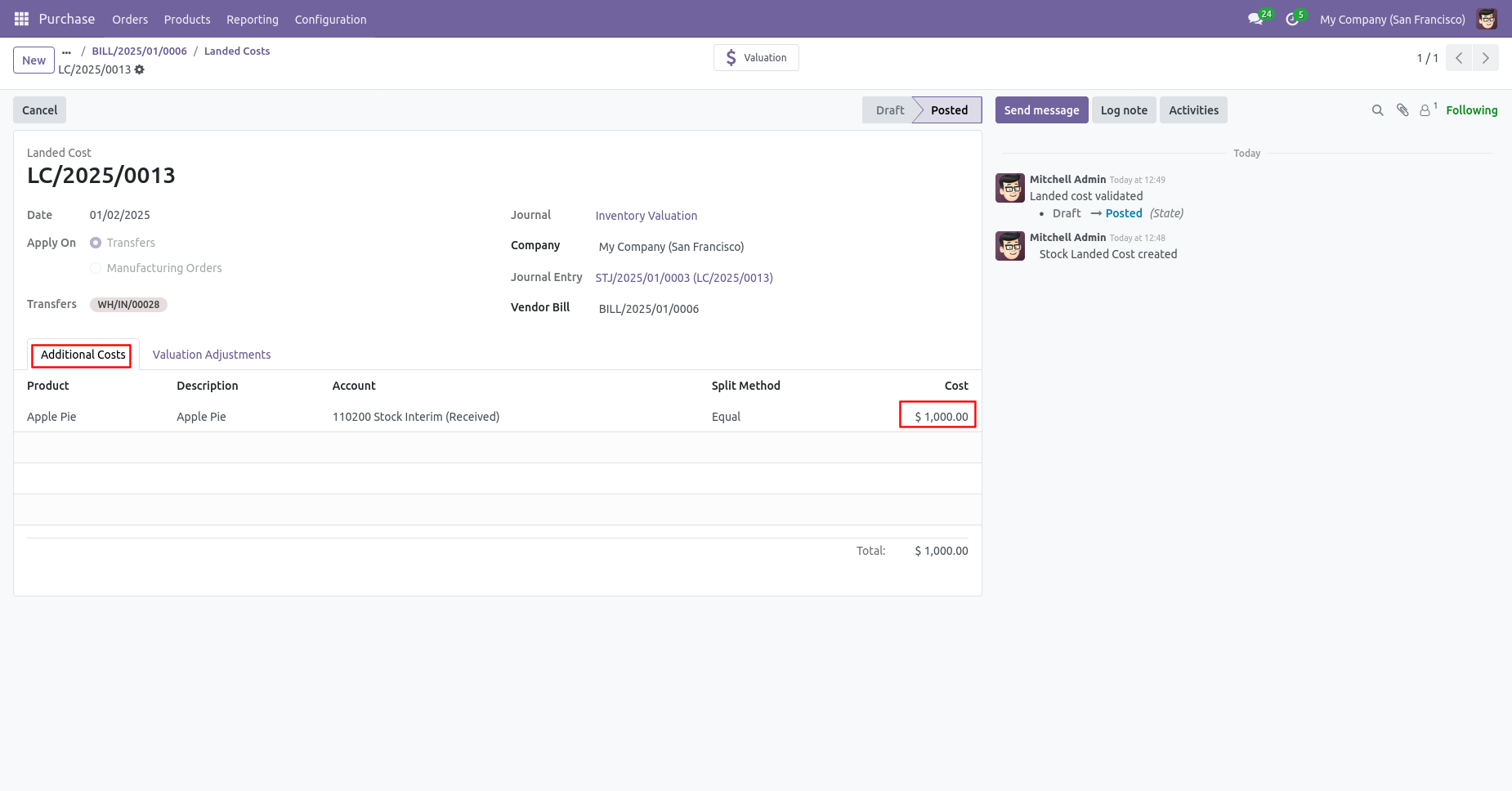
The additional cost in the landed cost.
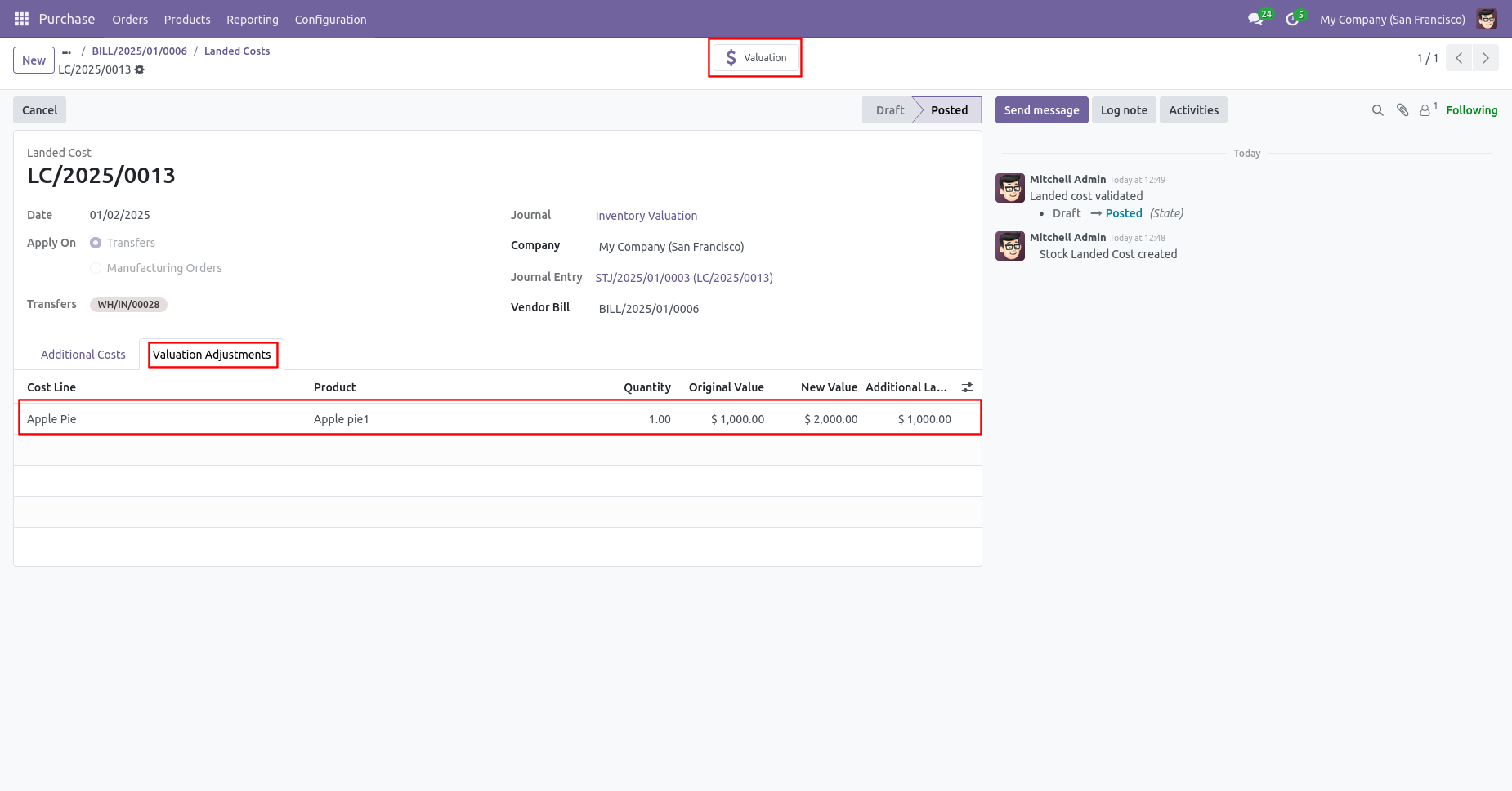
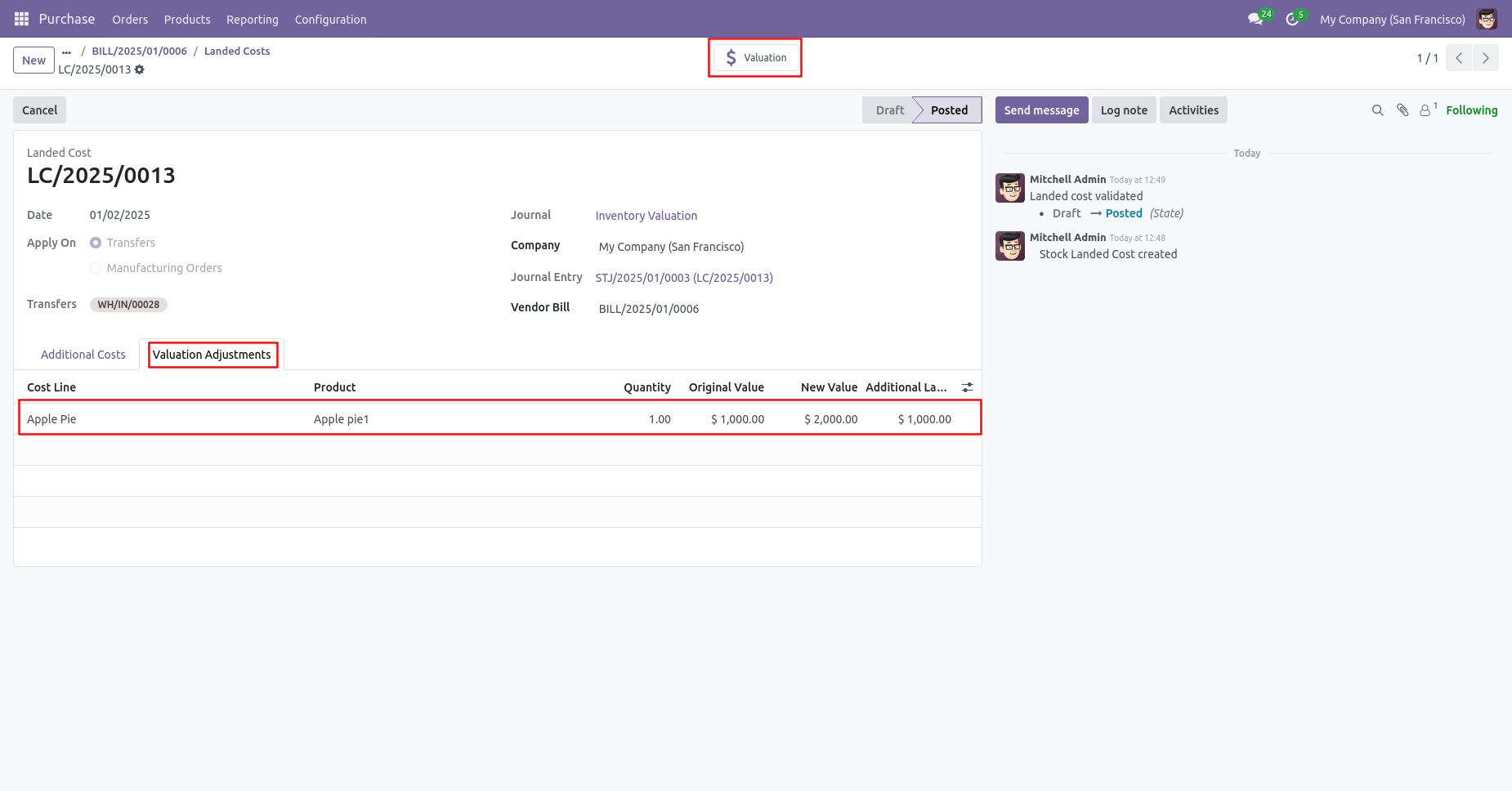
The valuational adjustments in the landed cost.
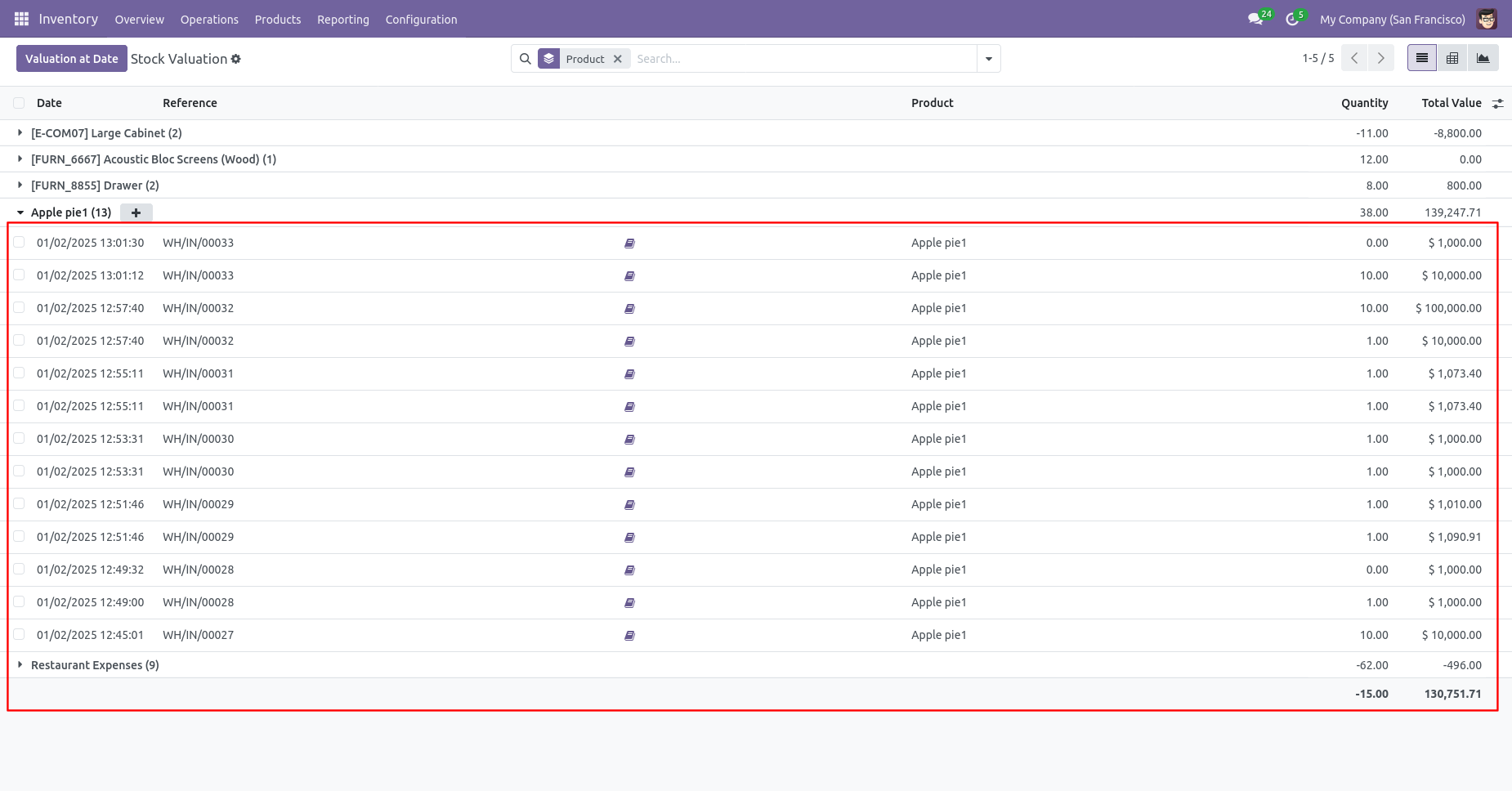
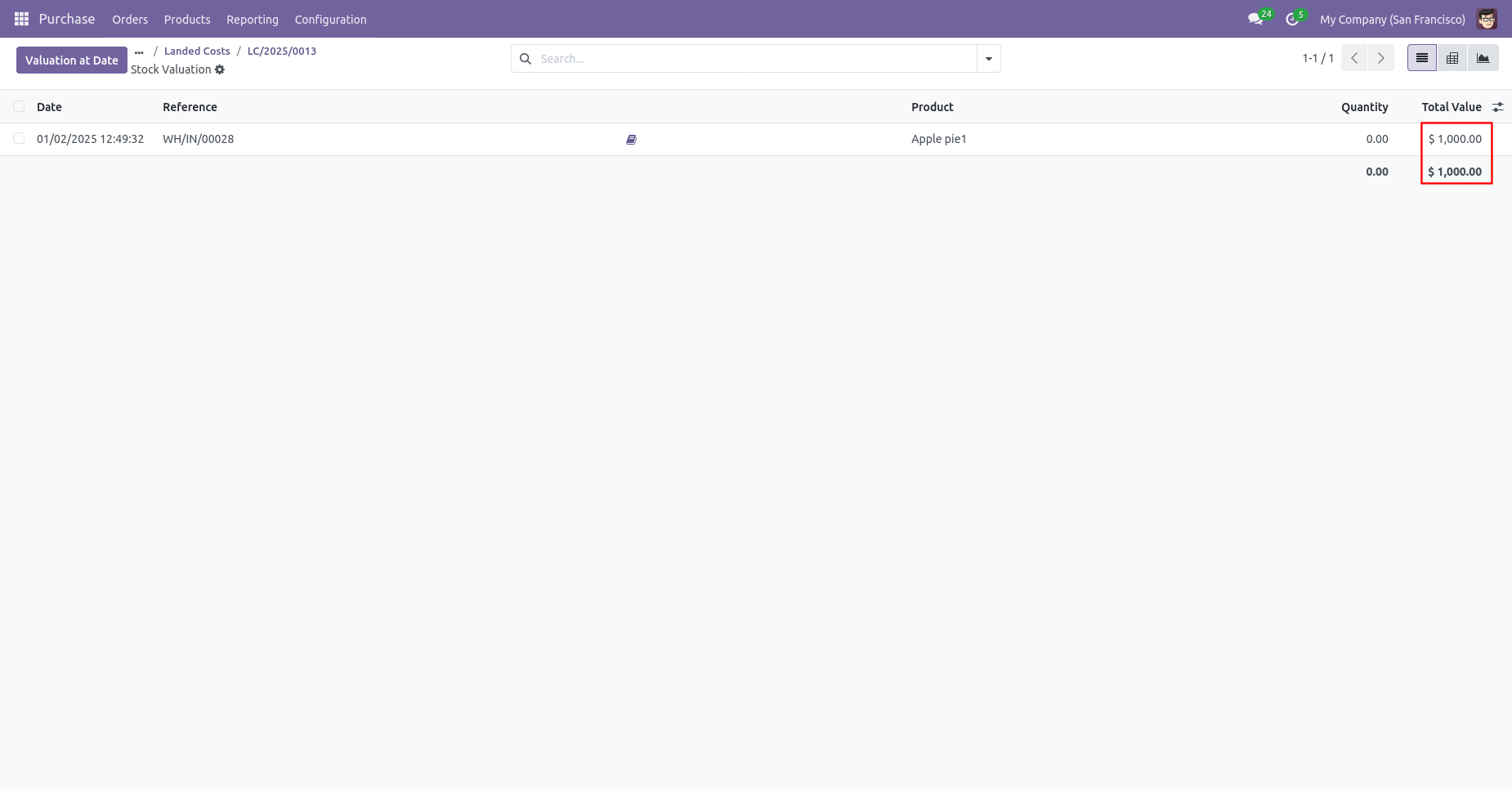
The landed cost stock valuation of products.
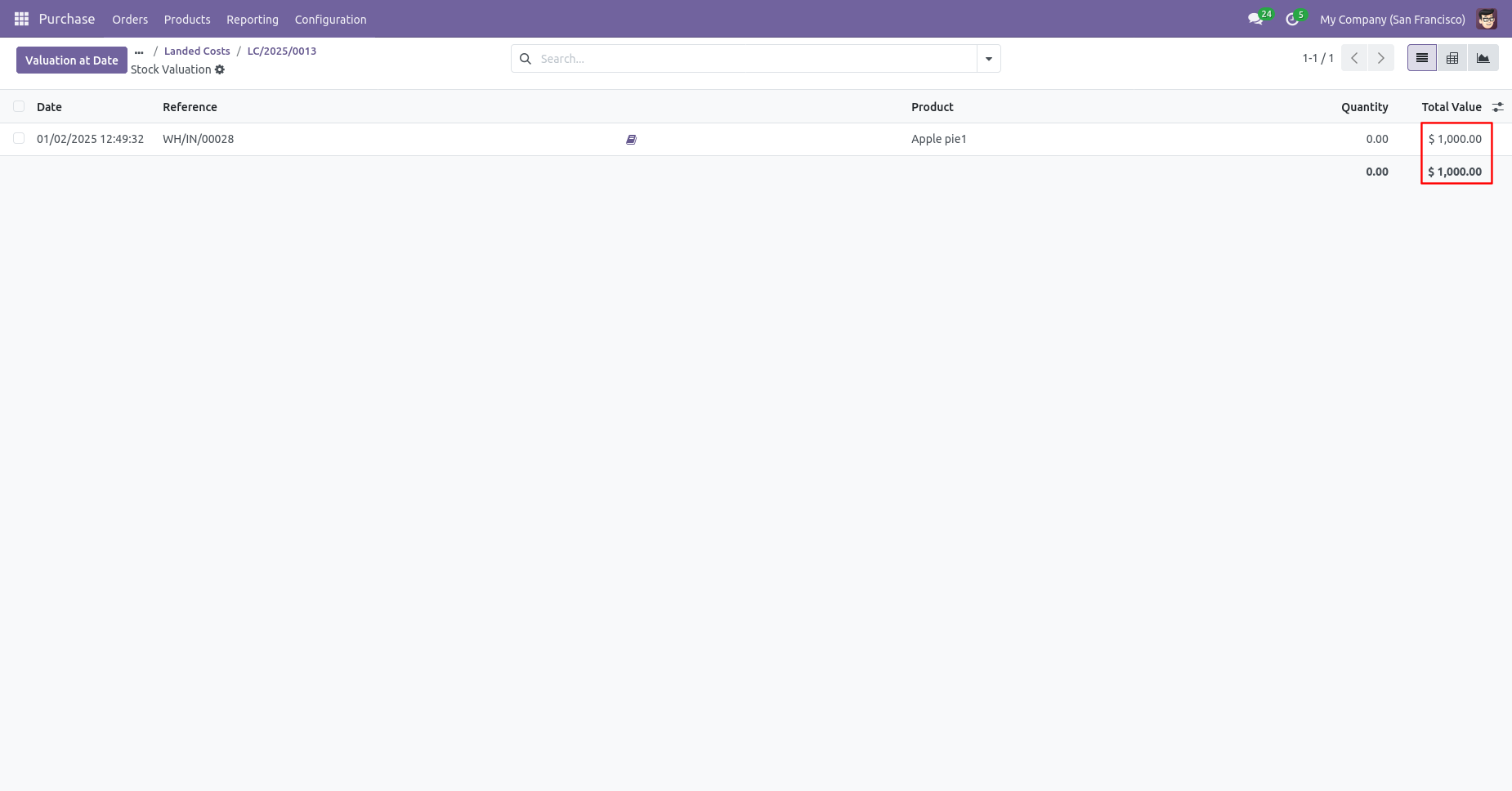
The landed cost stock valuation of Both products.
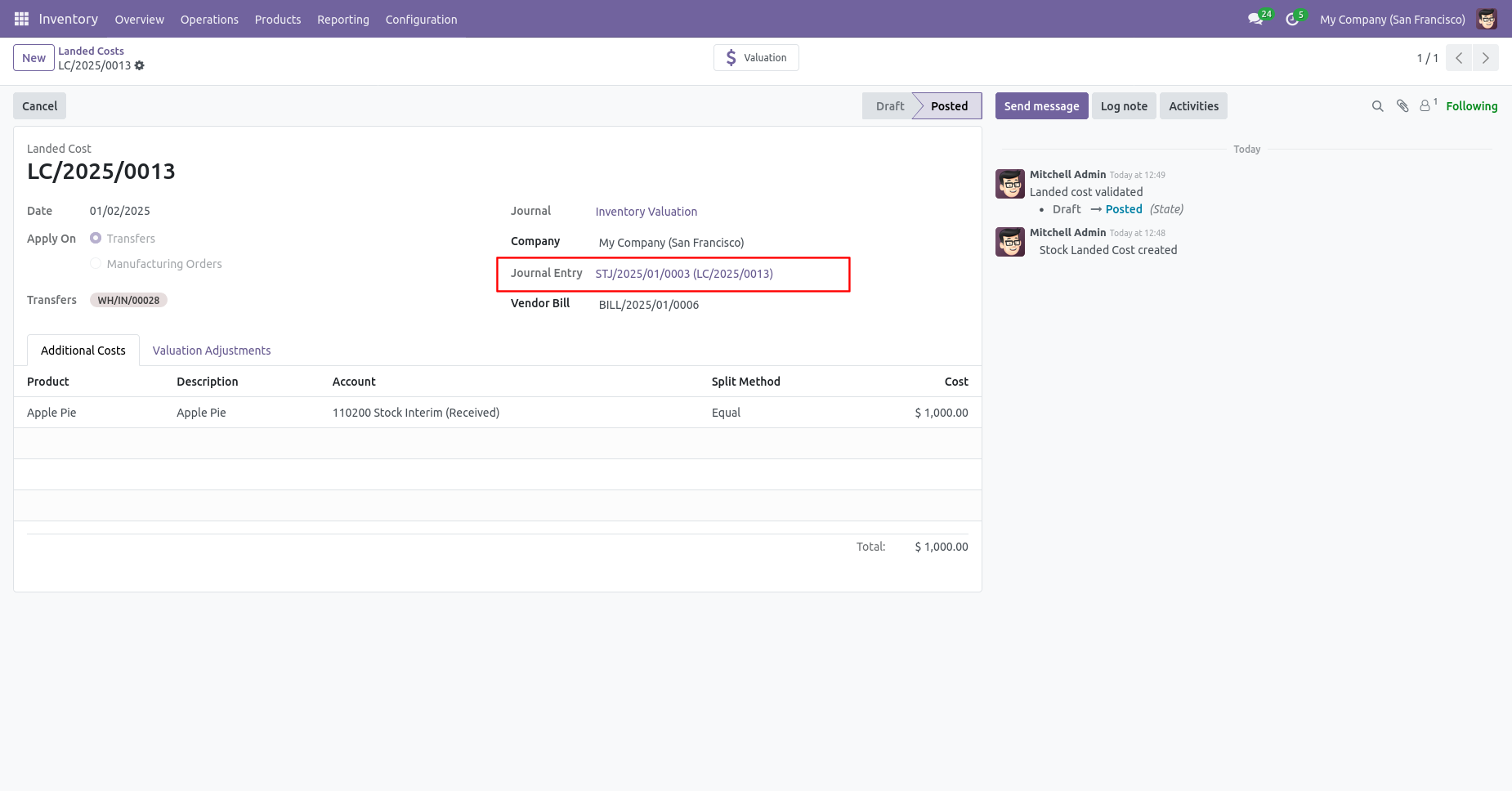
The journal entry of the landed cost.
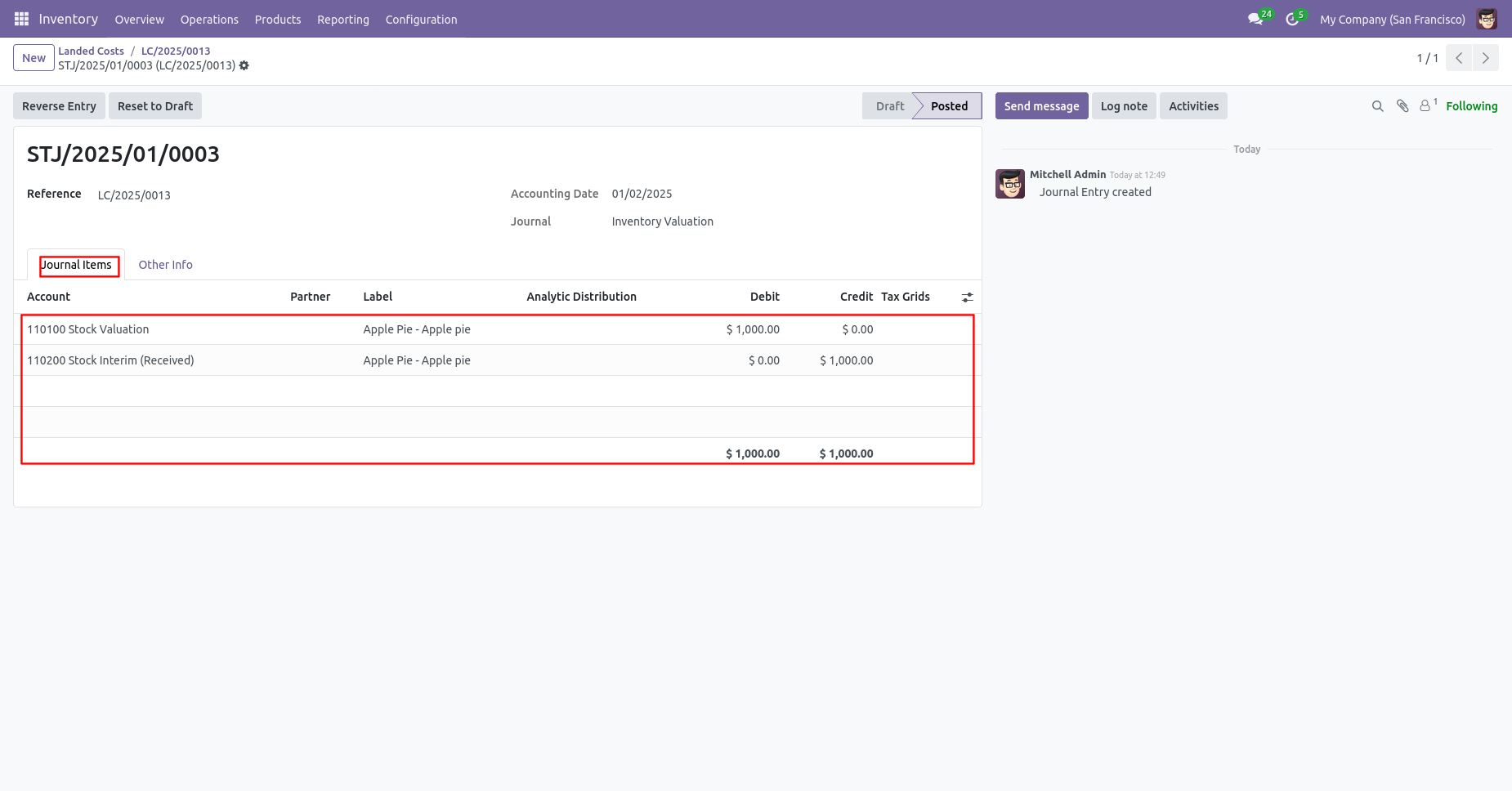
The journal items of the landed cost.
Press the "Cancel" button to cancel landed costs.
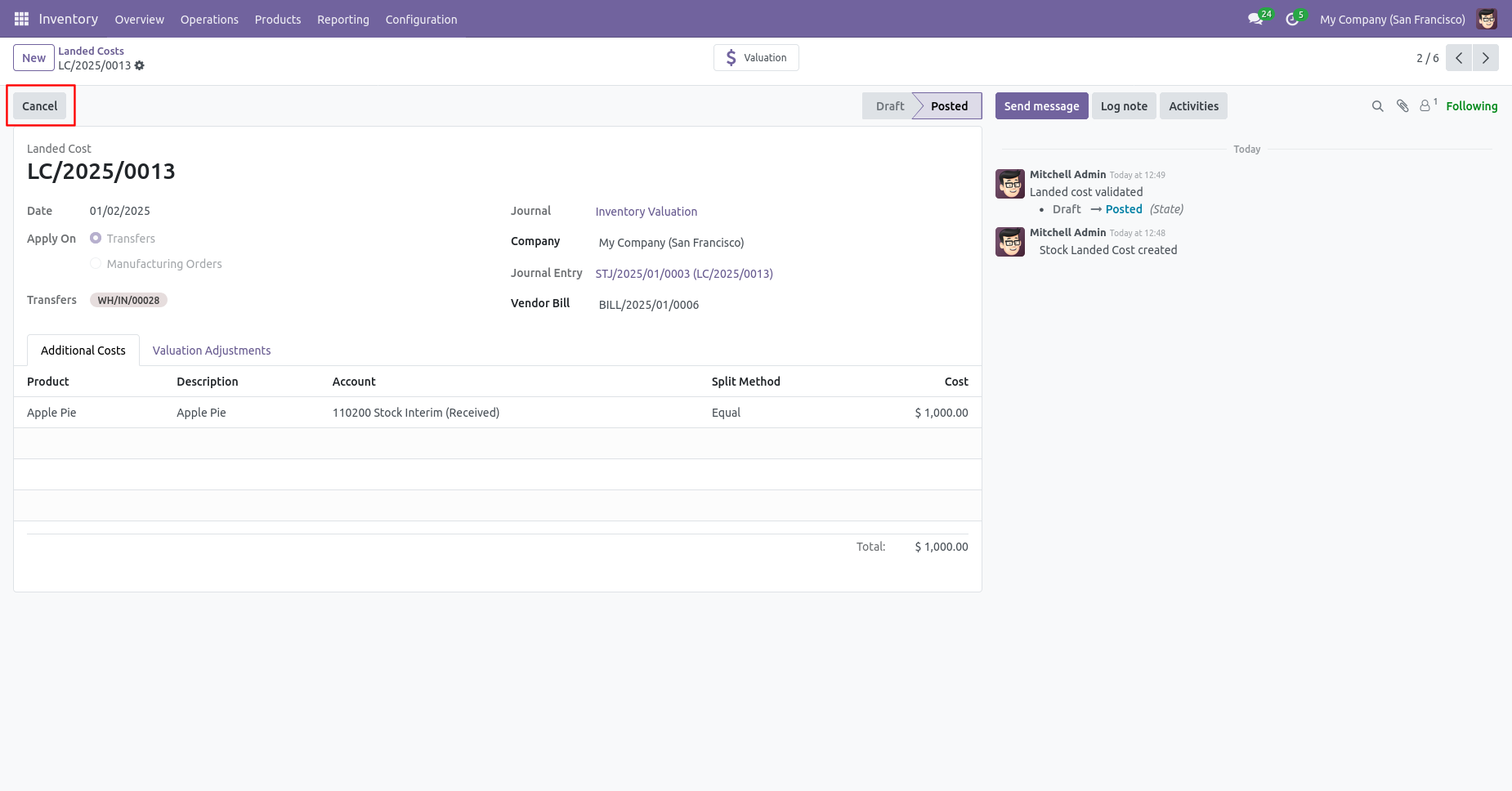
When you cancel the landed costs then the landed cost is canceled and the state is changed to "cancelled".
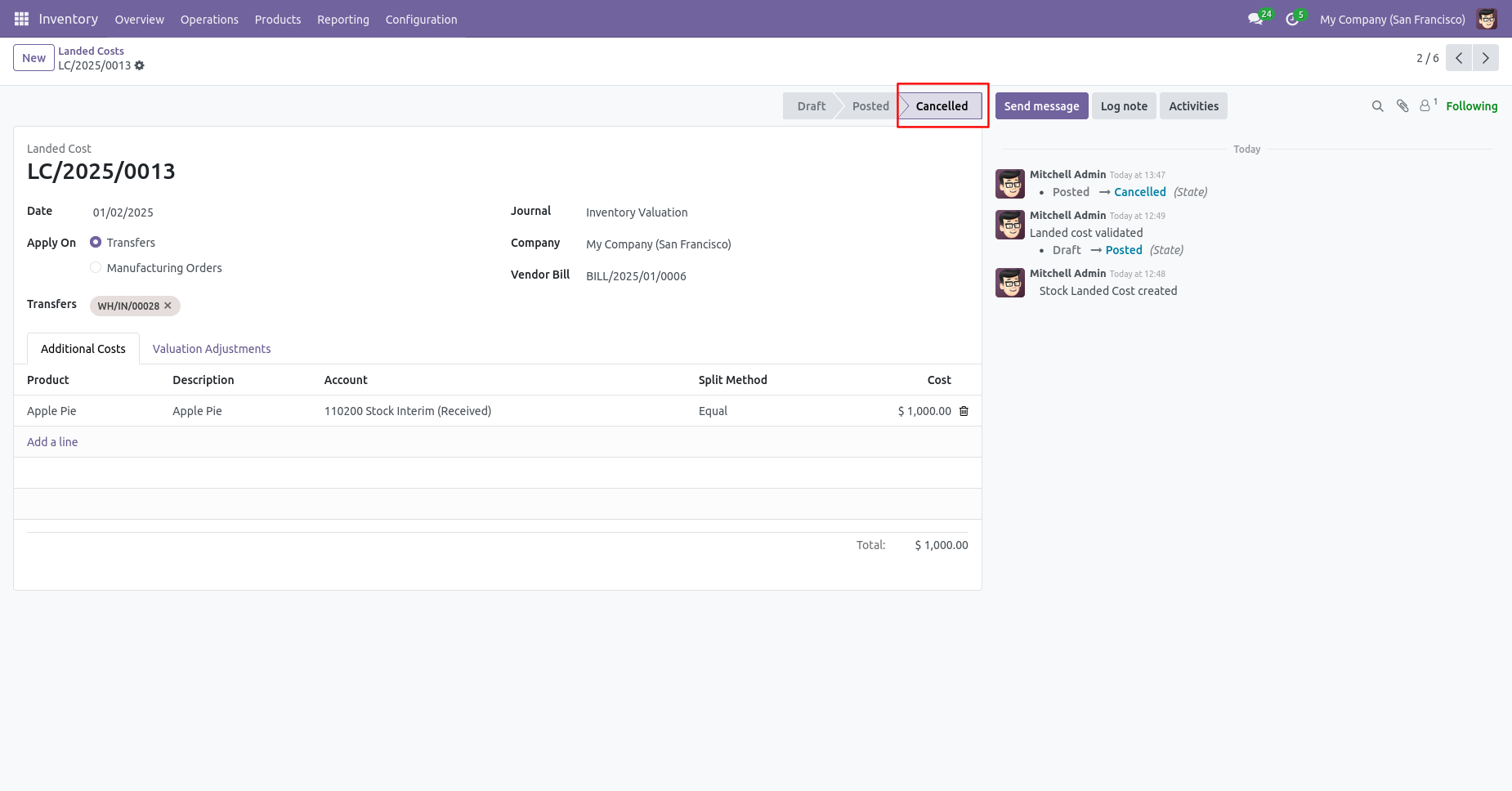
The valuational adjustments is removed.
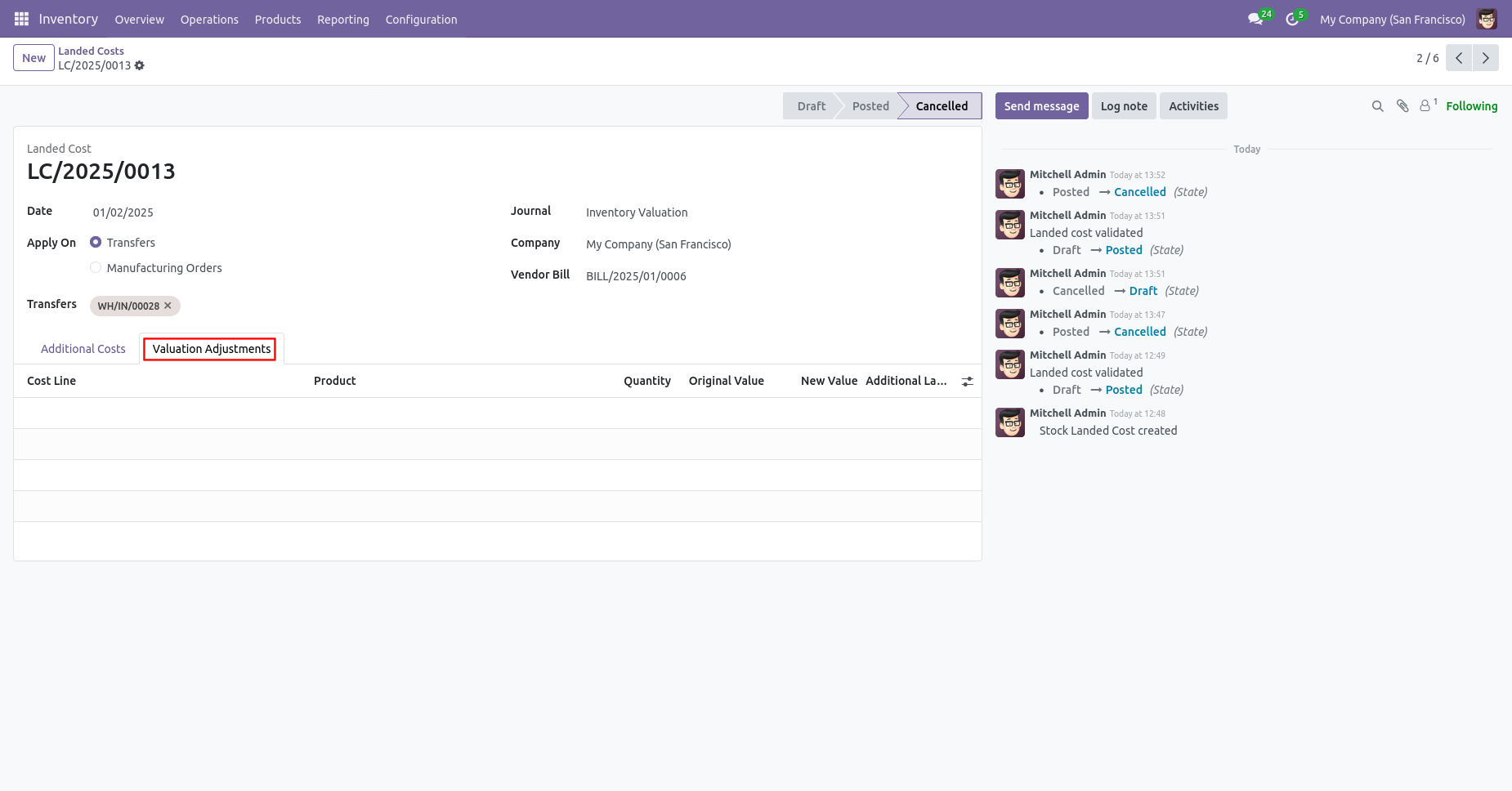
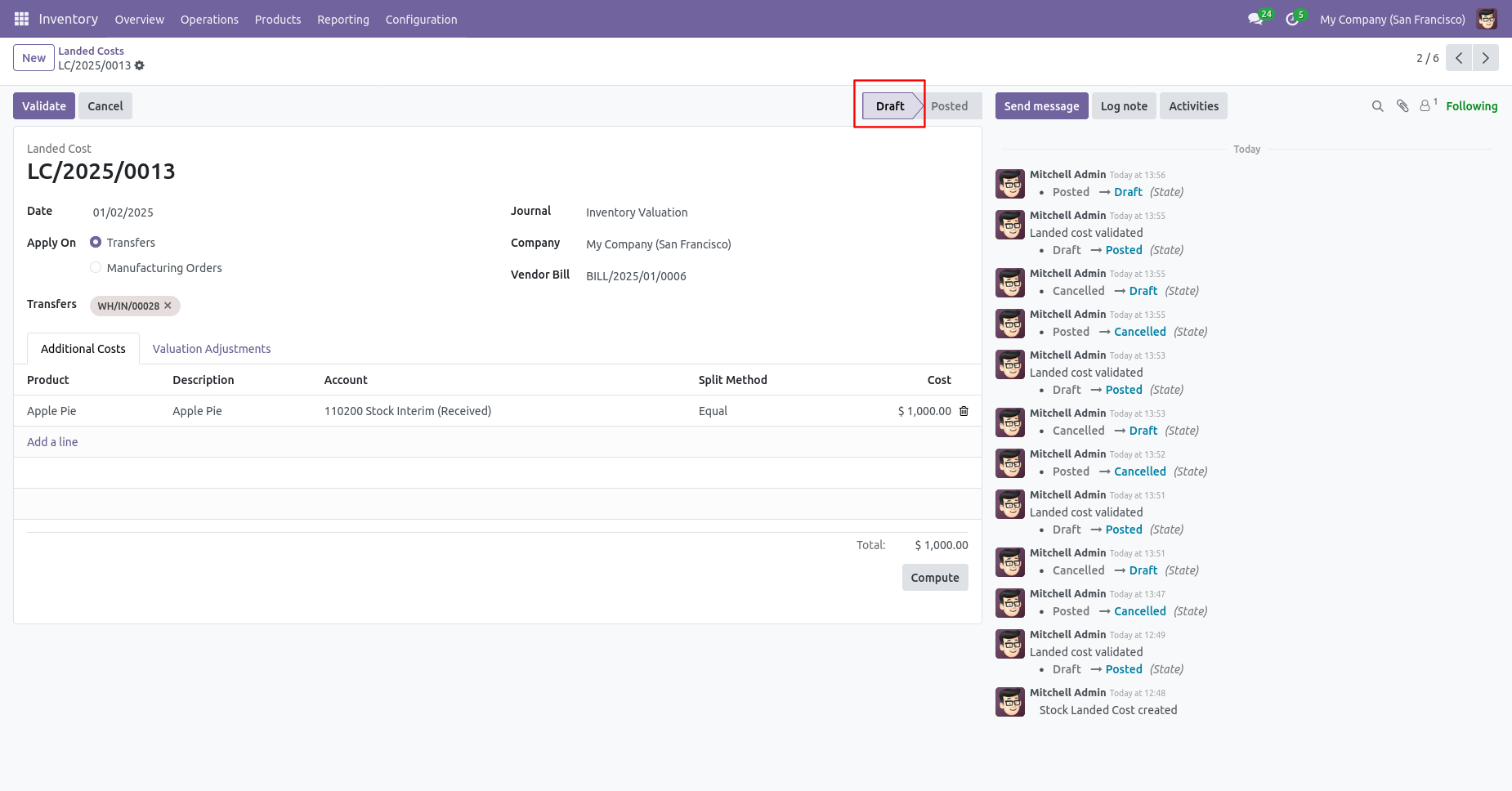
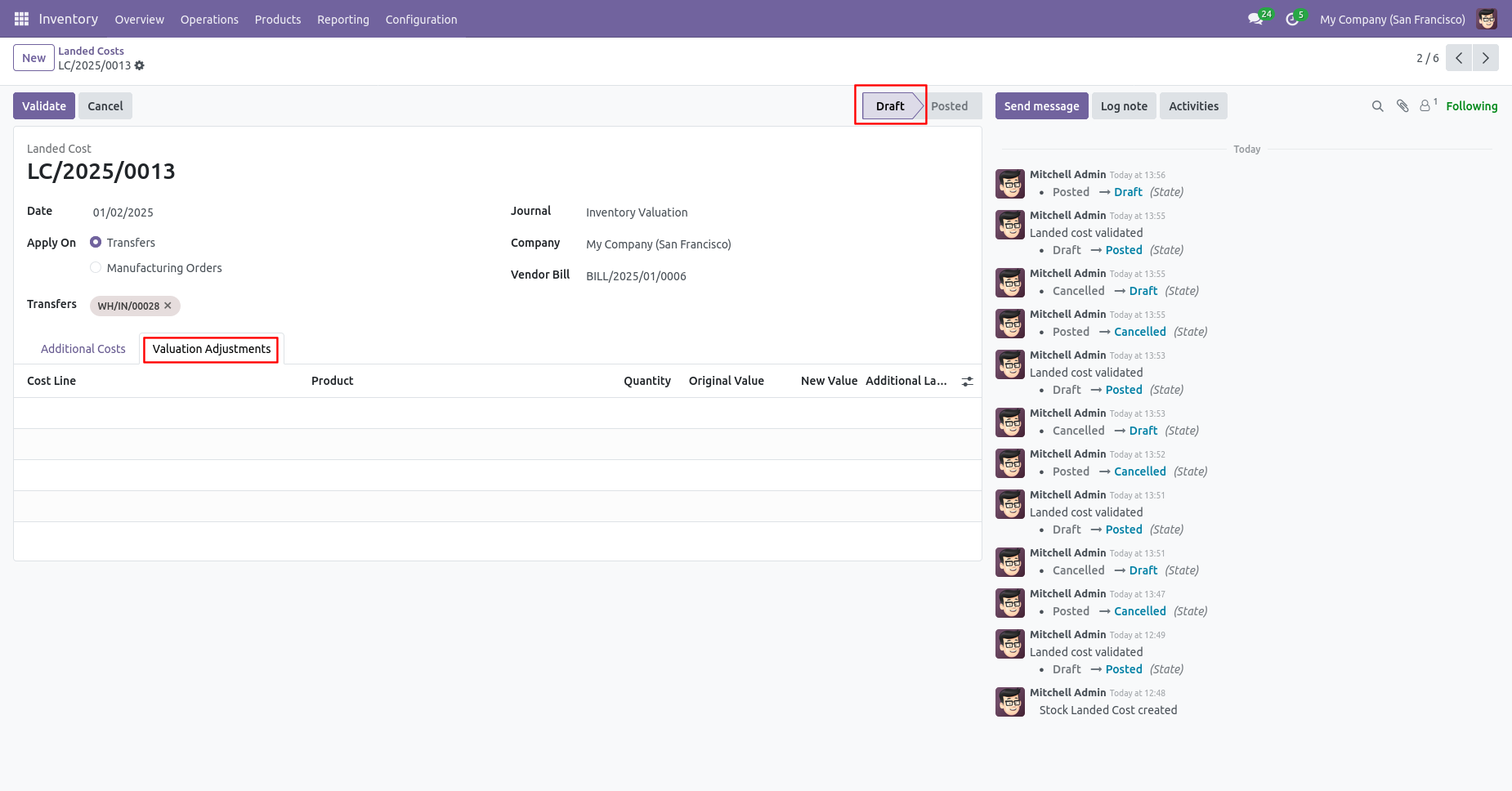
When you want to cancel the landed costs and reset to the draft state tick "Cancel And Reset To Draft".
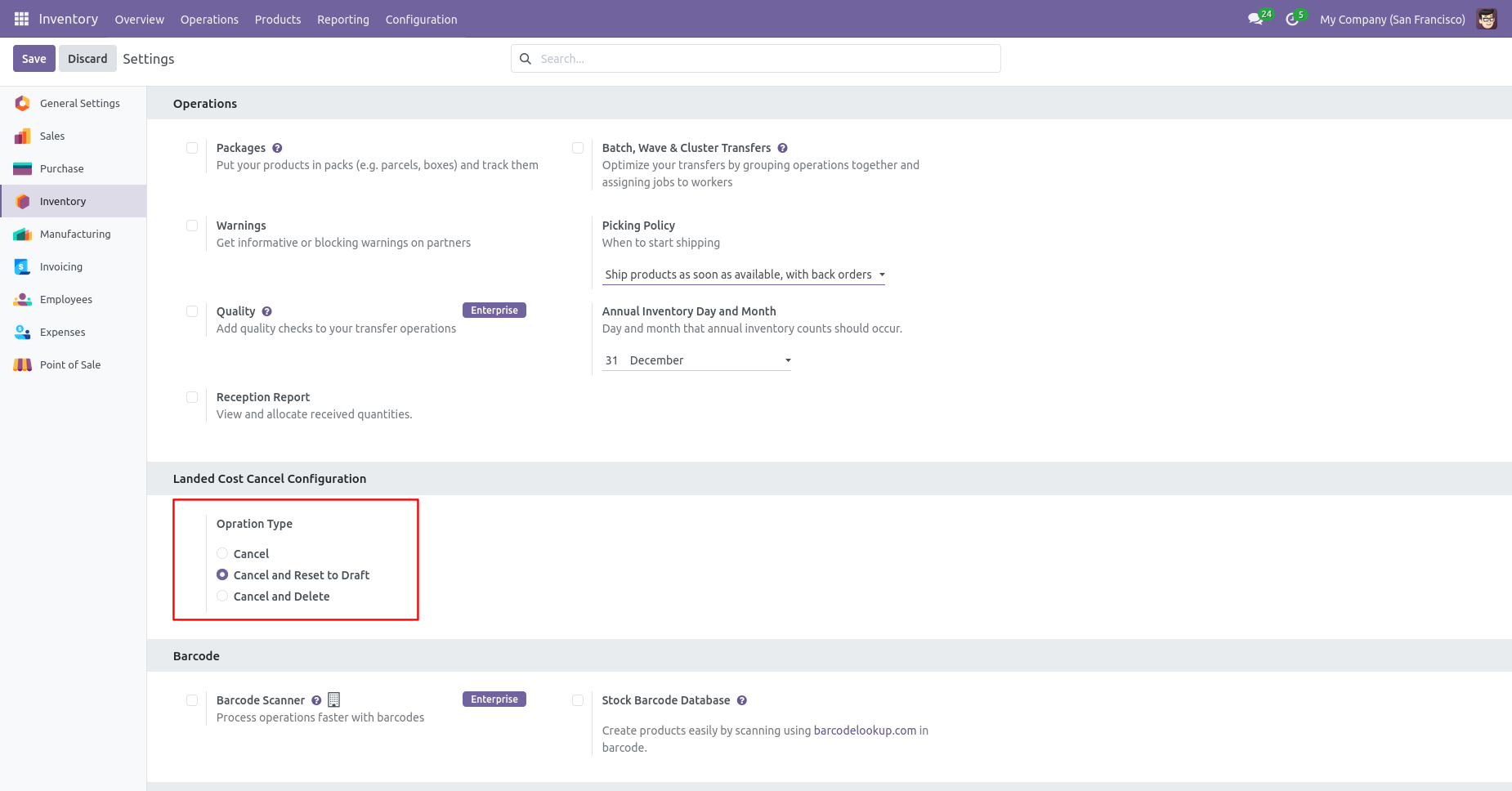
Stock valuation of products.
The additional cost in the landed cost.
The valuational adjustments in the landed cost.
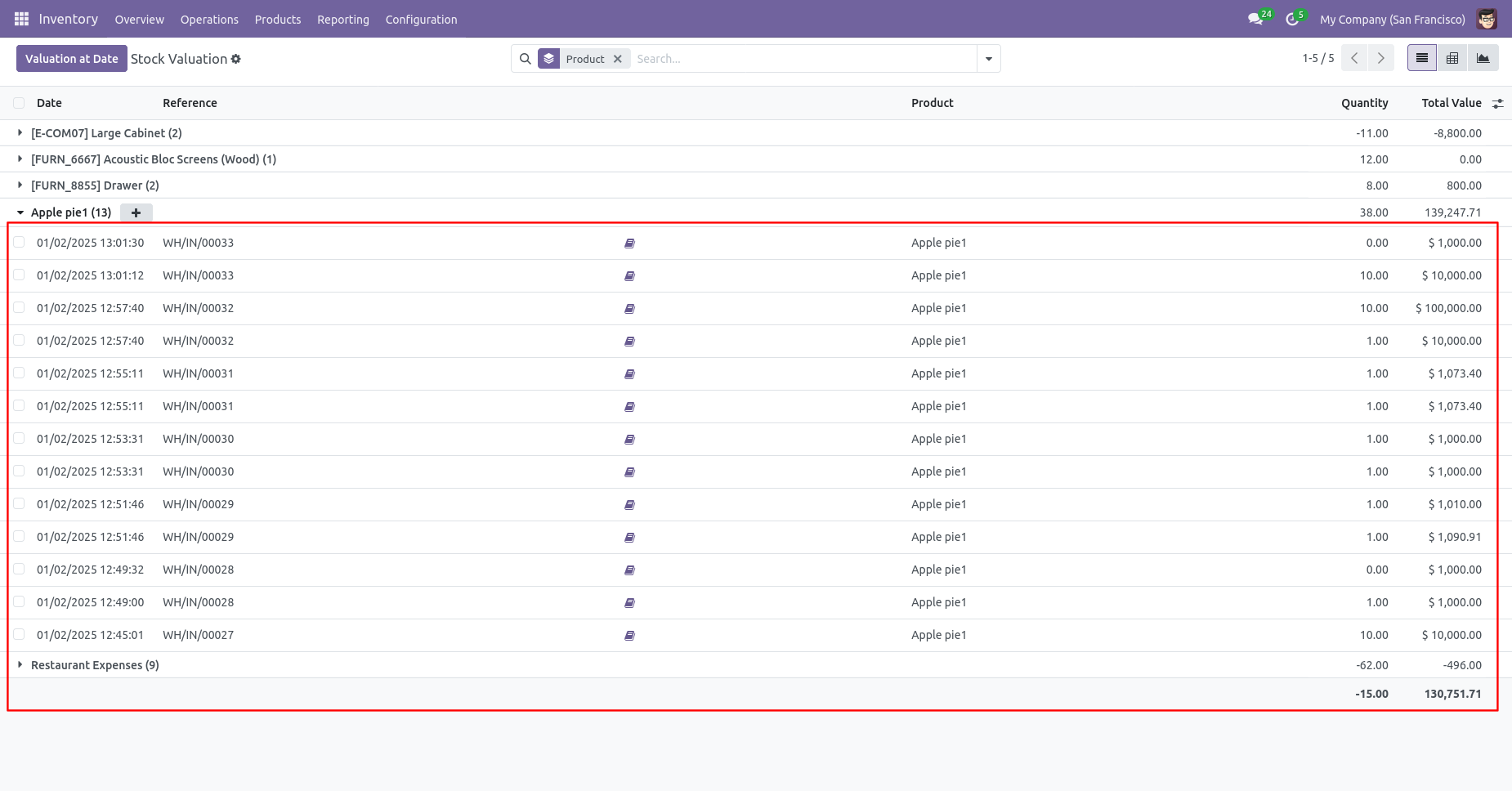
The landed cost stock valuation.
The landed cost stock valuation of product.
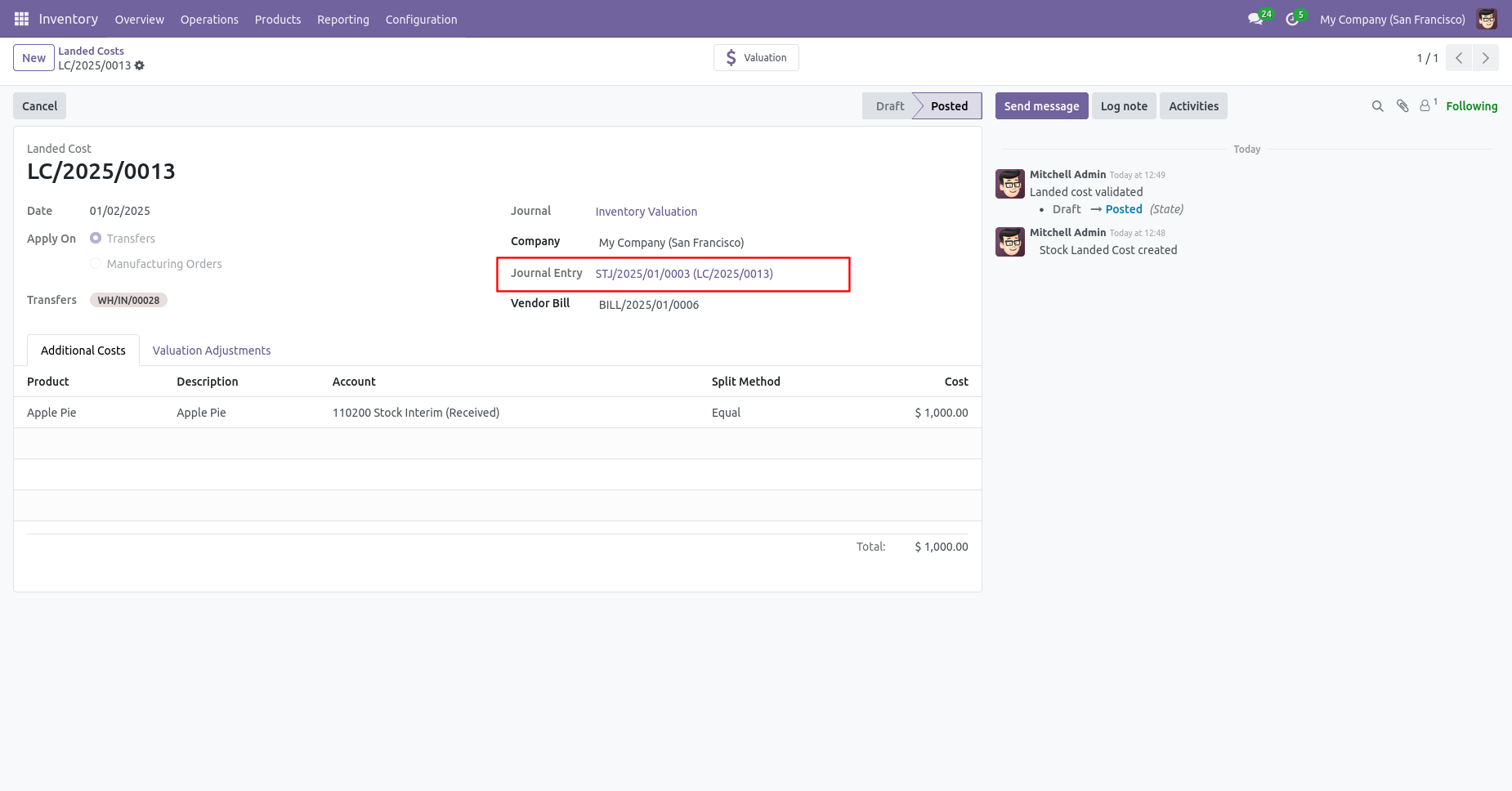
The journal entry of the landed cost.
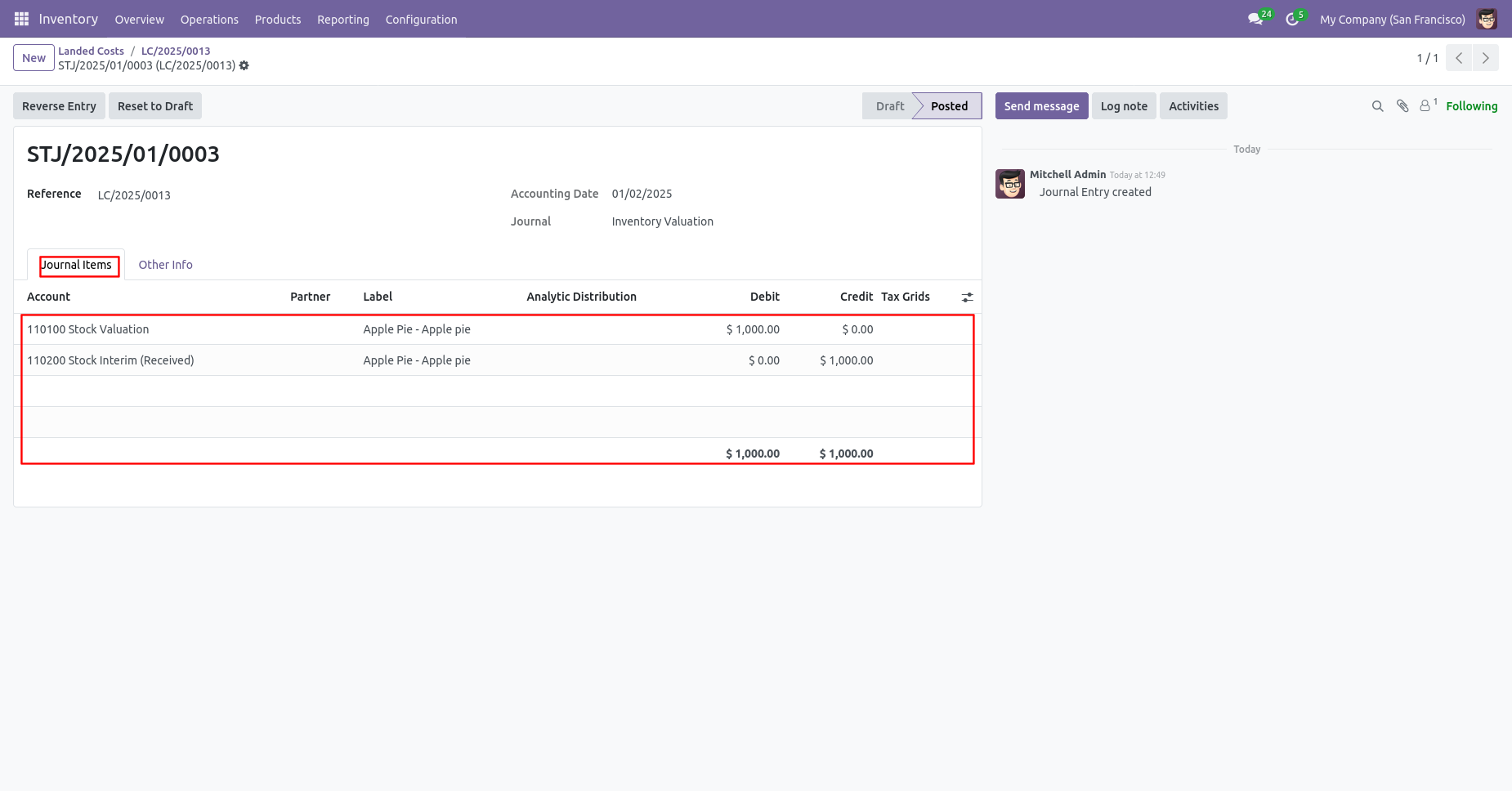
The journal items of the landed cost.
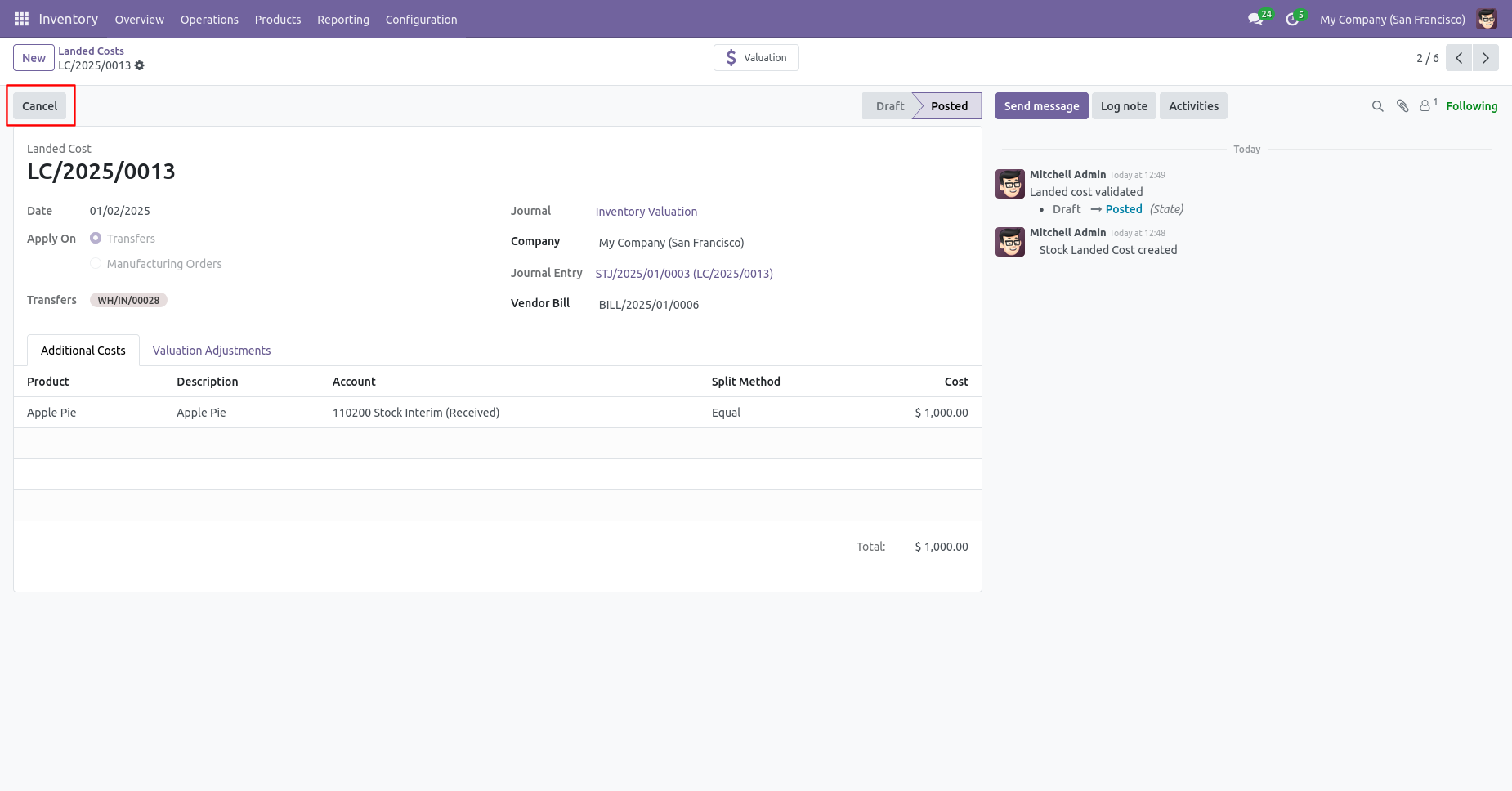
Press the "Cancel" button to cancel landed costs.
After canceling the landed cost additional cost reset to the draft.
After canceling the landed cost valuational adjustments reset to the draft.
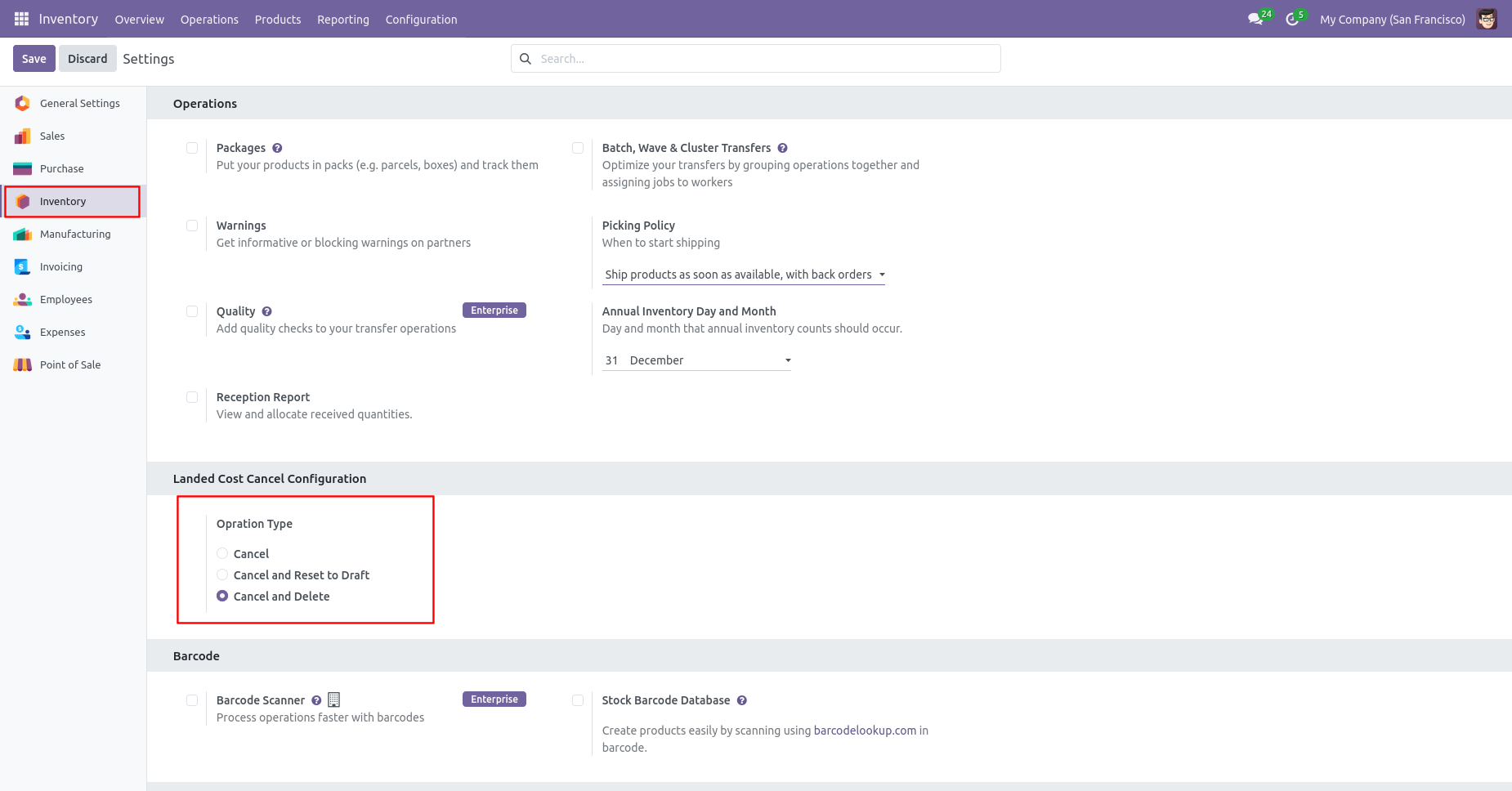
When you want to cancel & delete the landed costs then choose the "Cancel and Delete" option.
Press the "Cancel" button to cancel landed costs.
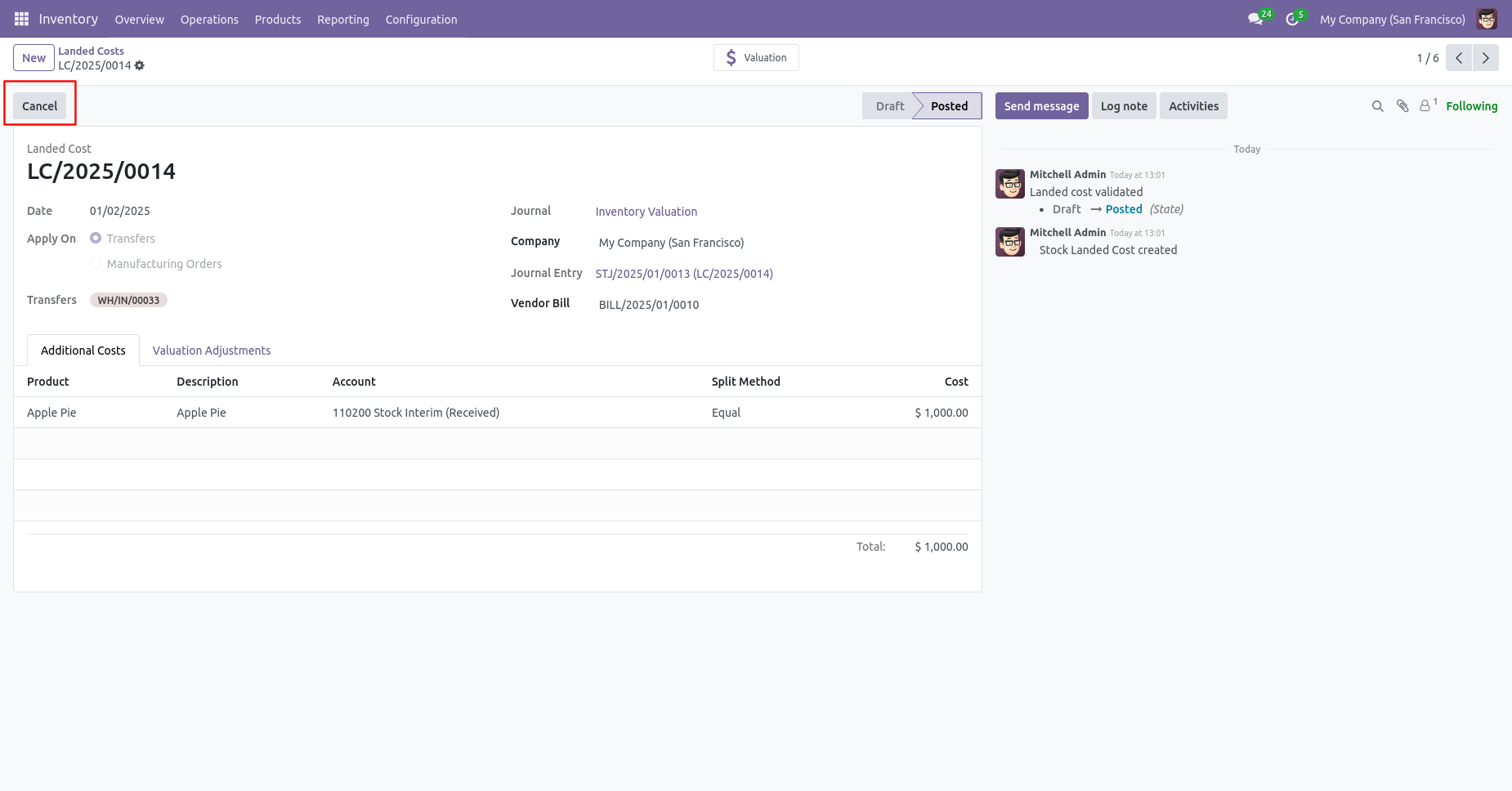
After the "Cancel" the landed cost our landed cost will be deleted.
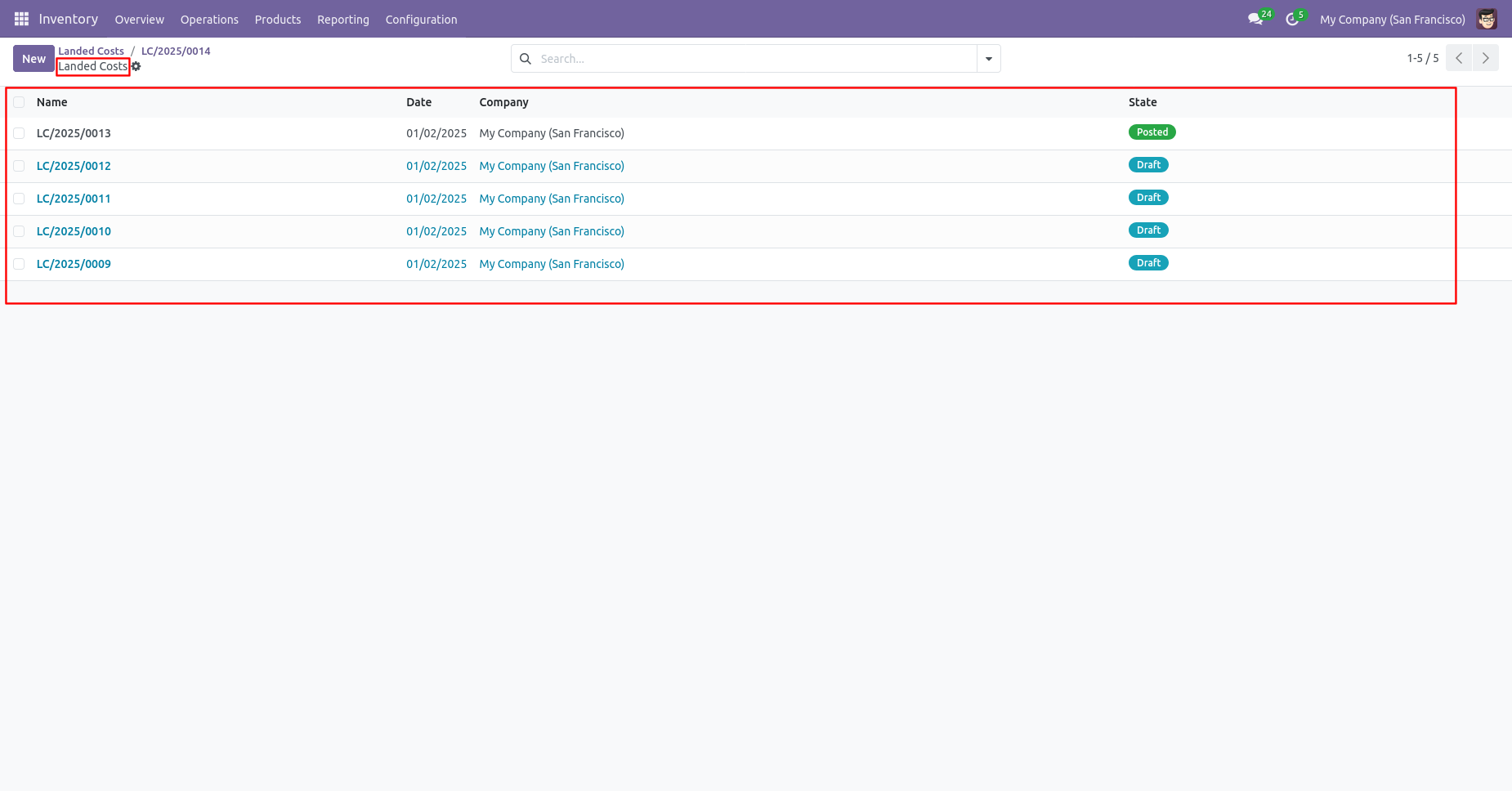
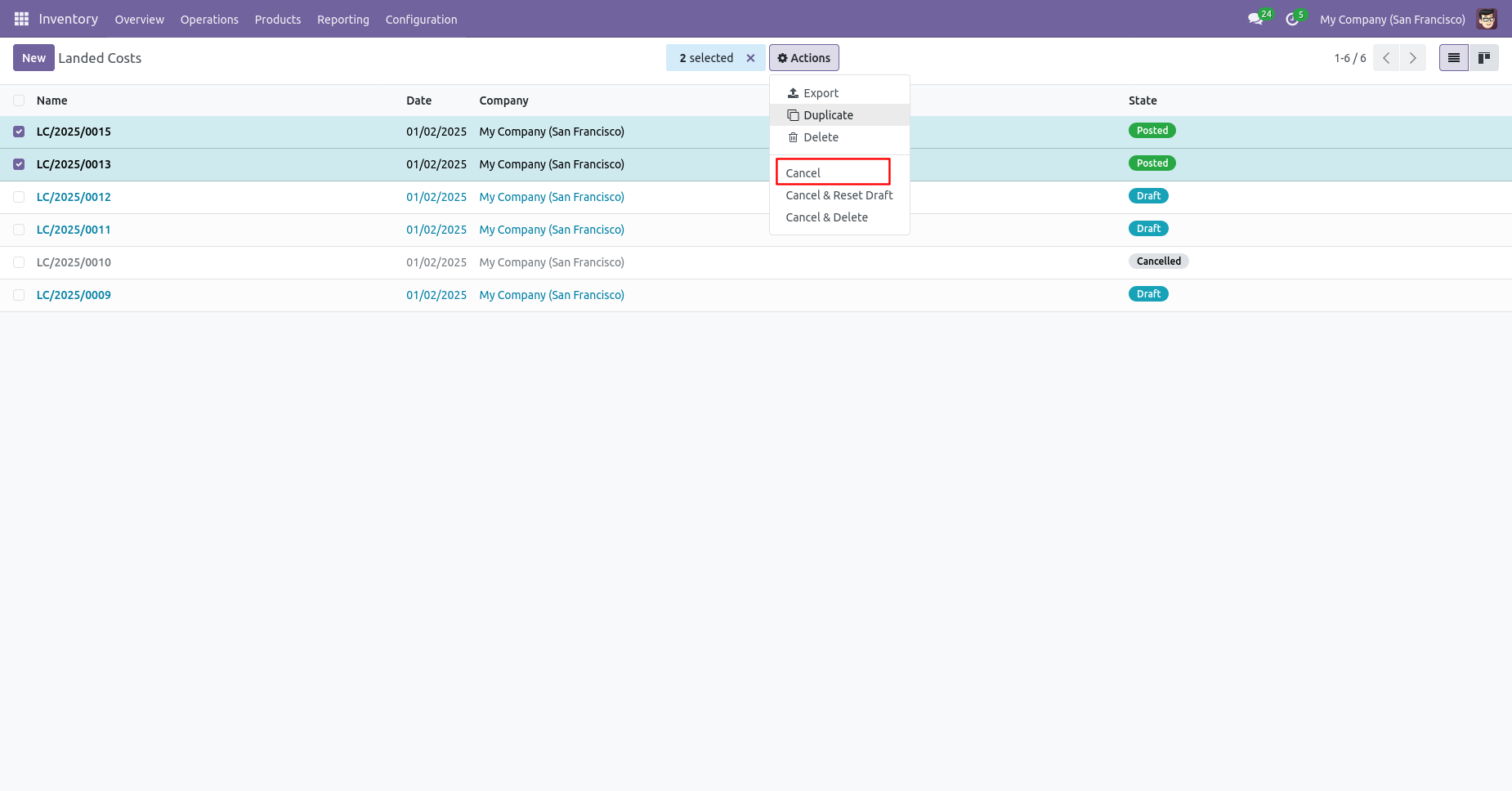
Now we cancel multiple landed costs from the tree view.
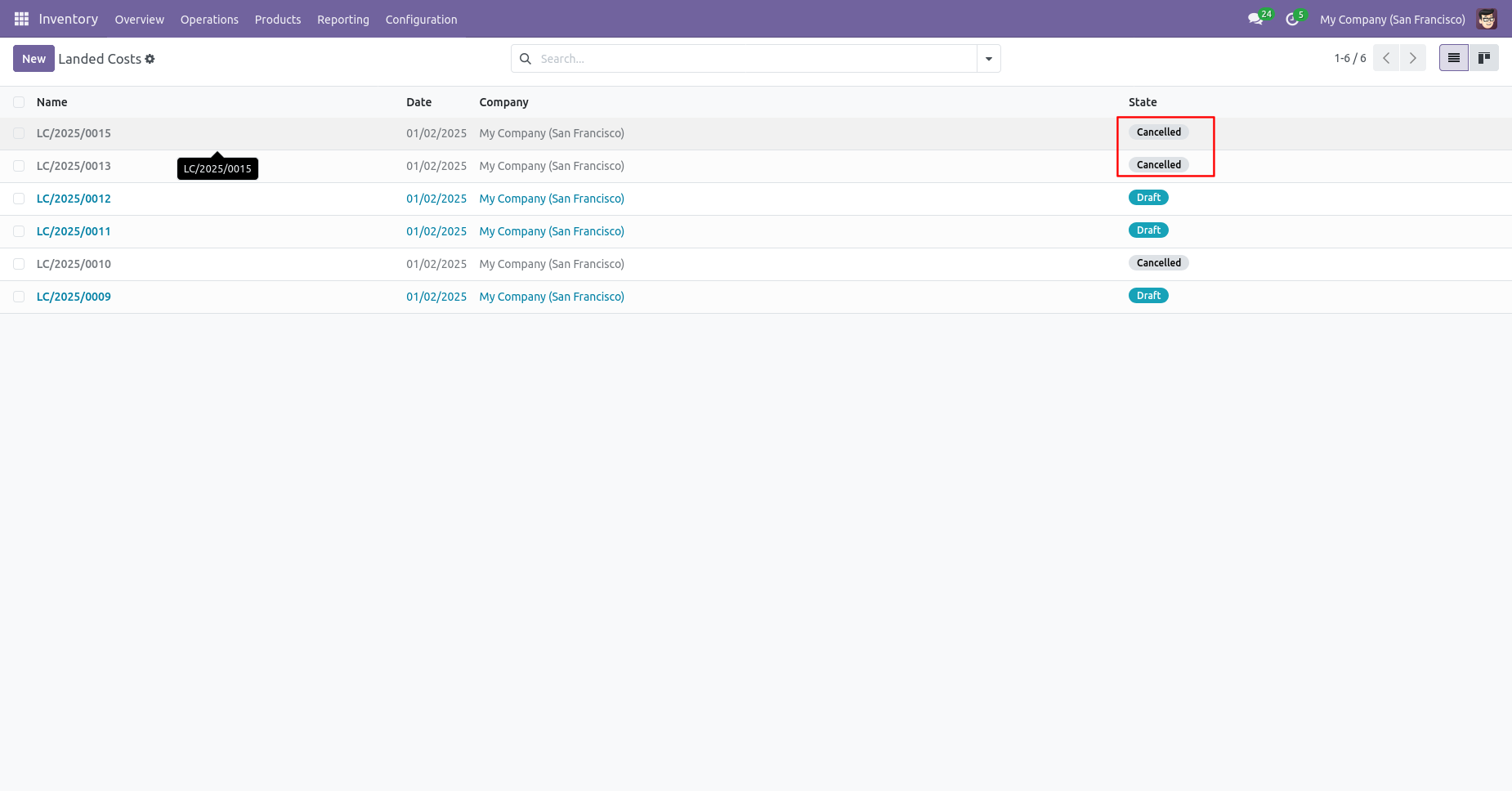
All selected landed costs are cancelled.
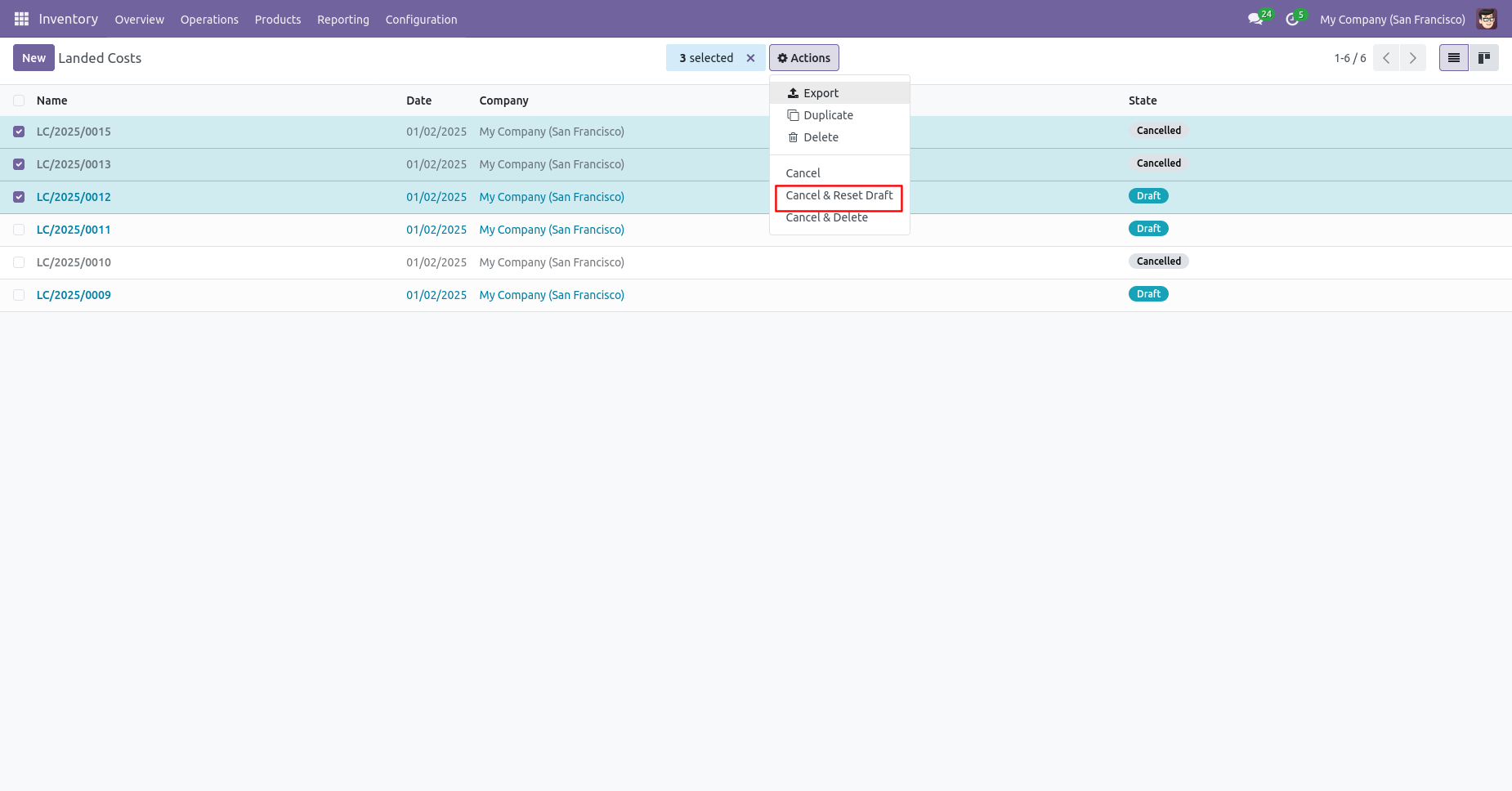
Now we "cancel & reset draft" multiple landed costs from the tree view.
All selected landed costs are cancelled and reset to the draft.
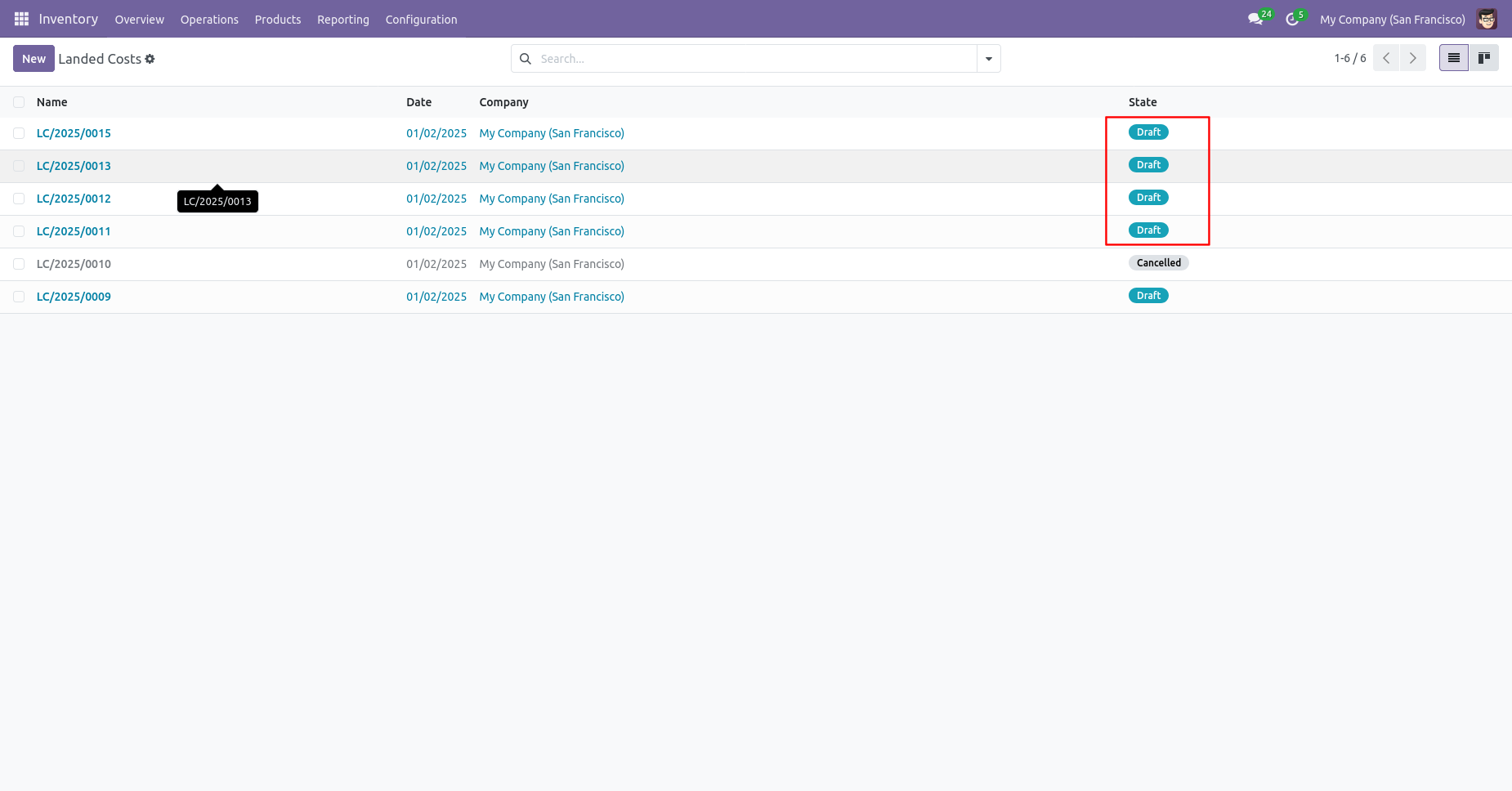
Now we "cancel & delete" multiple landed costs from the tree view.
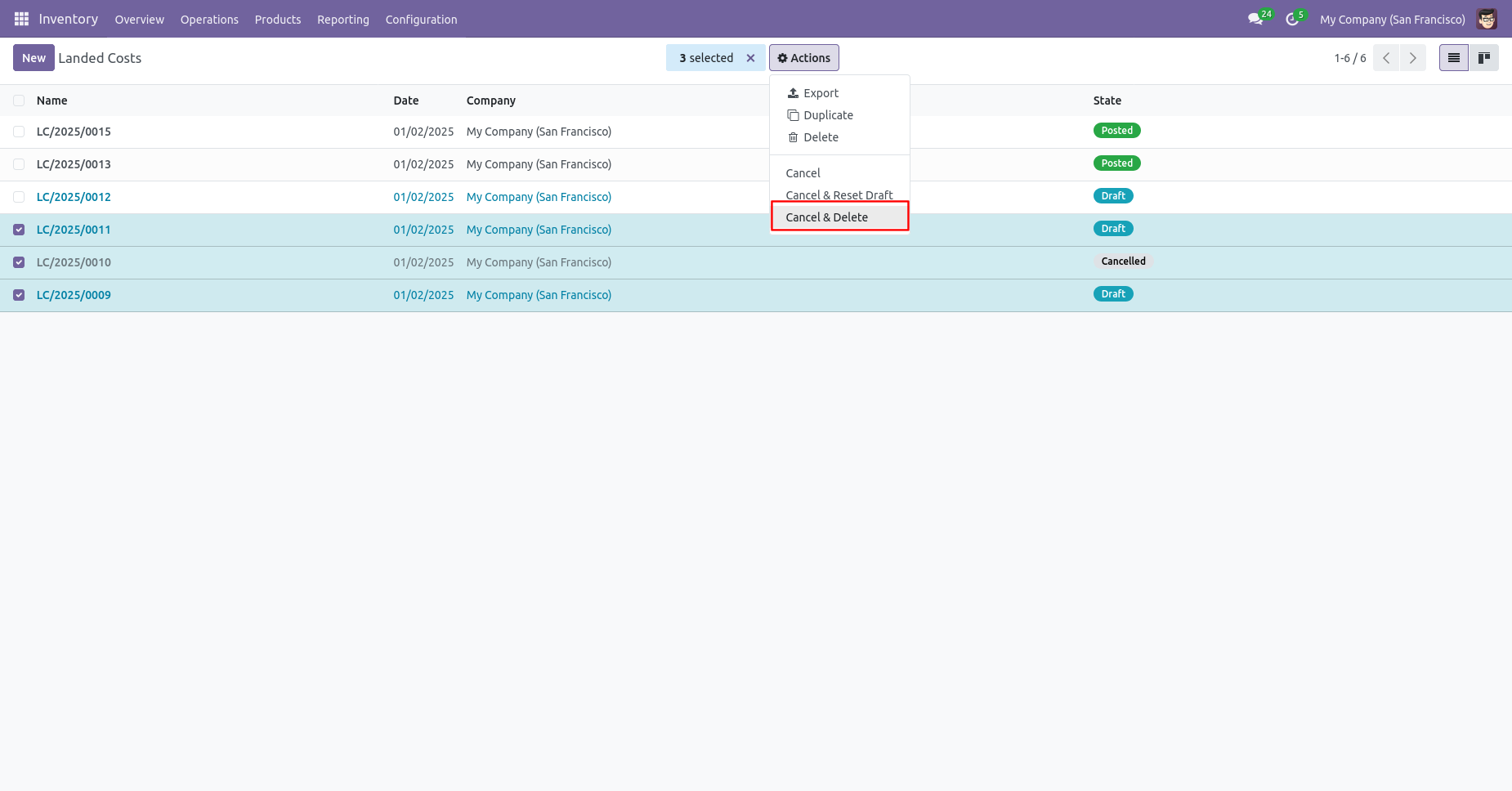
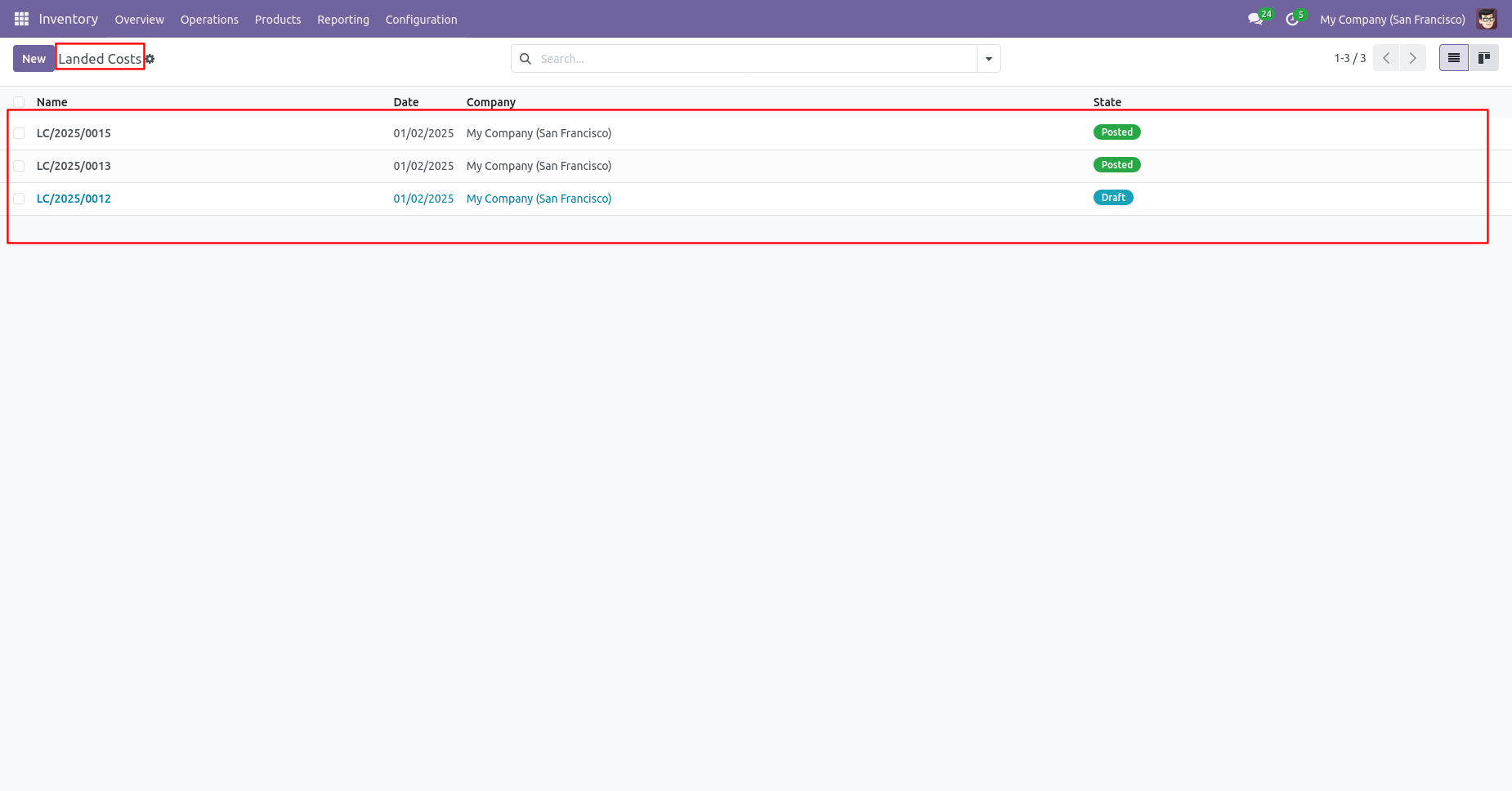
All landed costs will be deleted after cancelled.
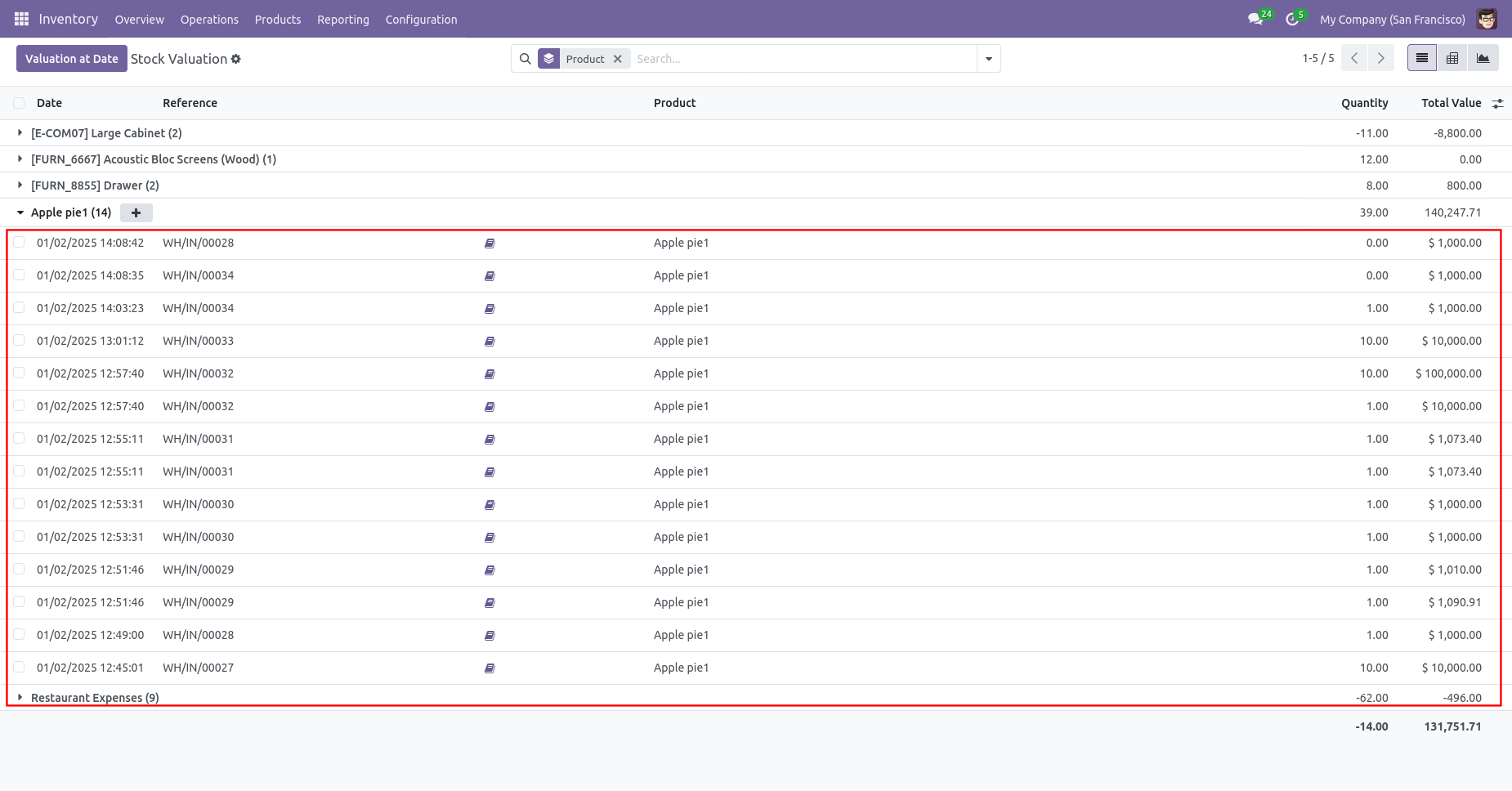
All stock valuation will be deleted after cancelled landed costs.
Click the Cancel button on the Landed Cost to initiate the
order cancellation process.
The Cancel Reason wizard opens, allowing you to select
or enter the reason for cancellation before confirming the
cancellation.
After selecting the cancellation reason, click the
Confirm button to cancel the Landed Cost.
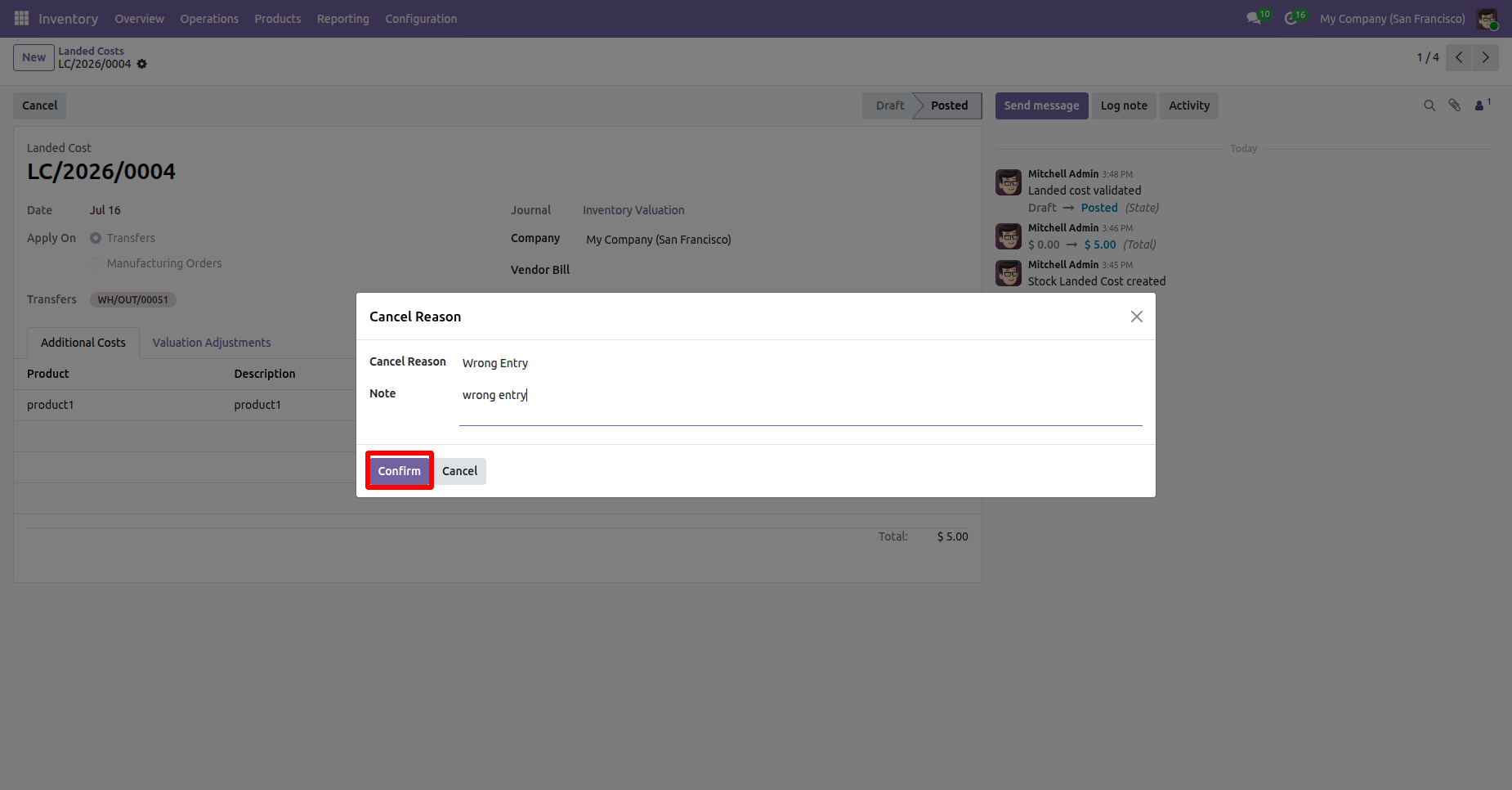
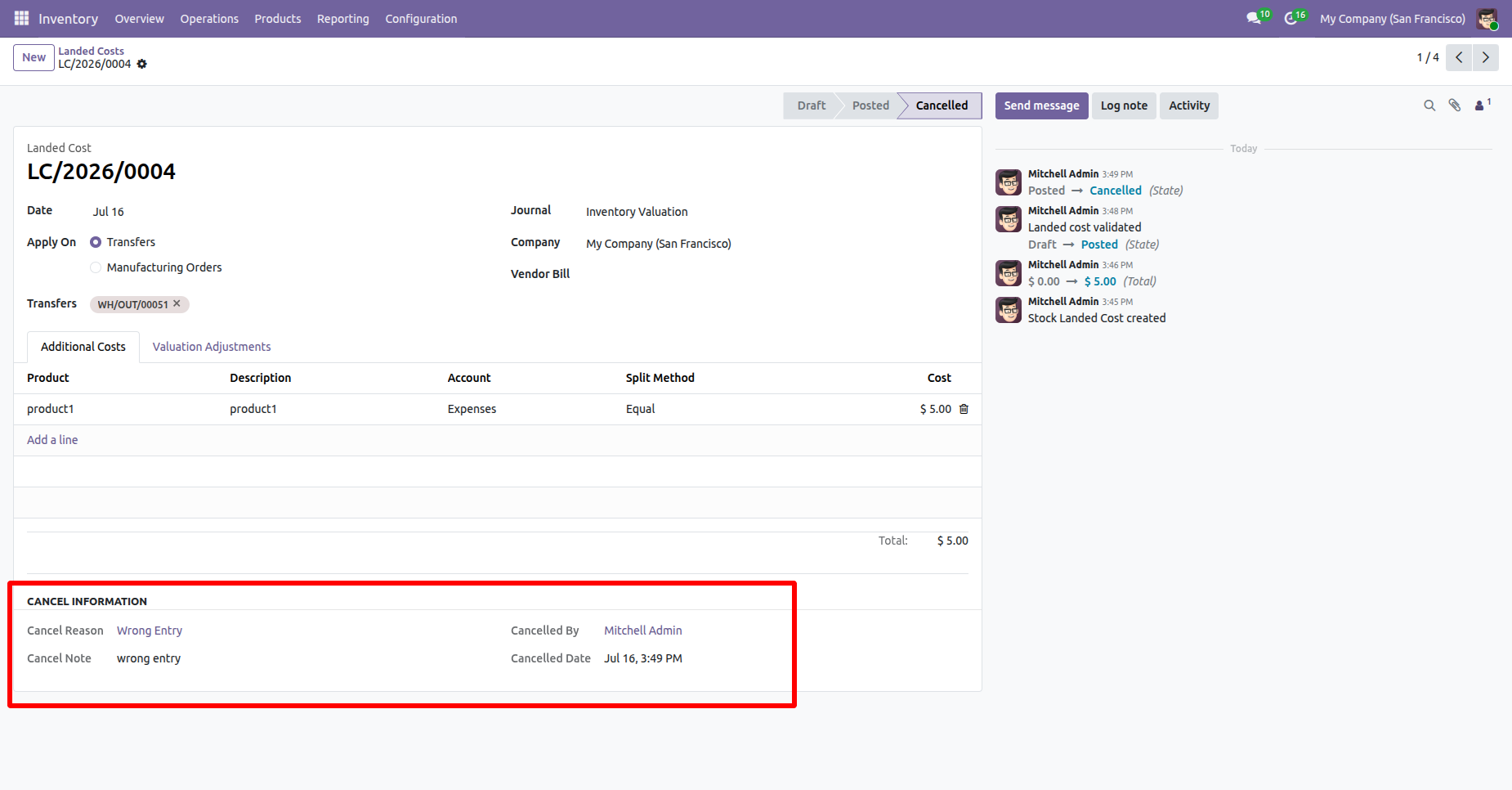
After the Order is canceled, the cancellation information, including the cancellation reason, canceled by, and cancellation date, is displayed in the Landed Cost Form View for future reference.
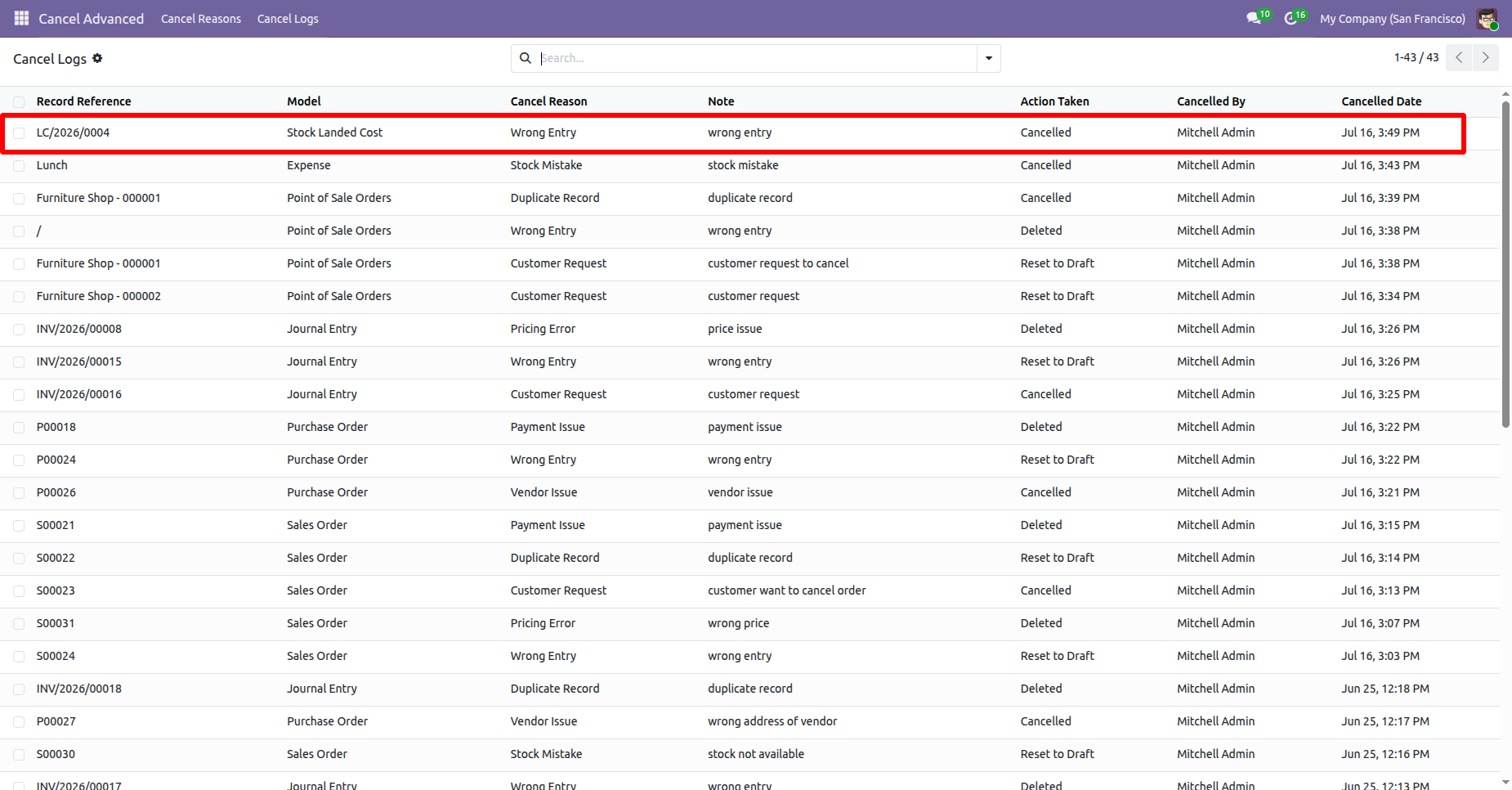
The cancellation logs are also available under the Cancel Logs menu in the Cancel Advanced app, where you can view and track all canceled records along with their cancellation reasons, canceled by, and cancellation dates.
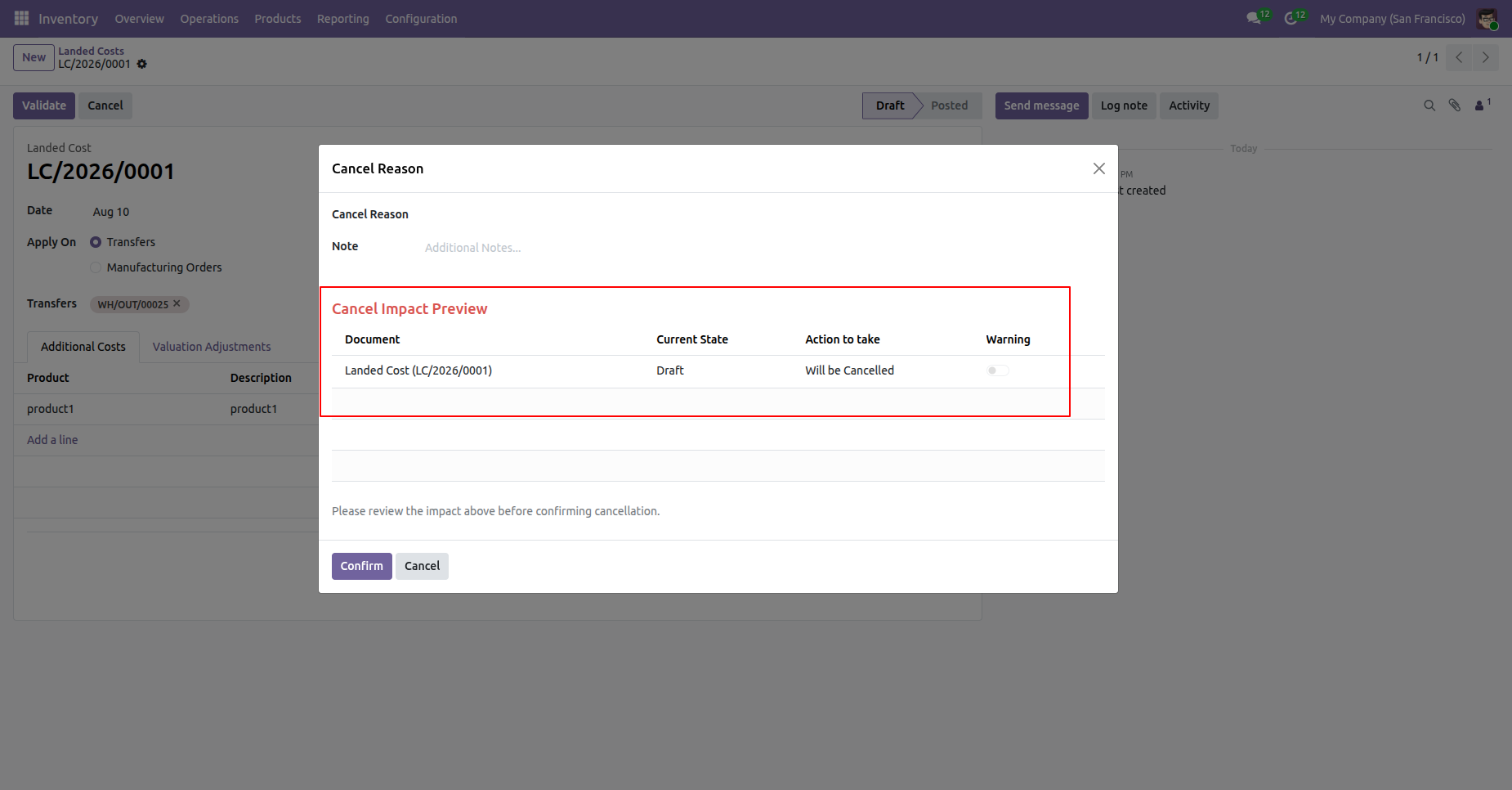
User can preview the cancellation details before confirming the cancellation process.
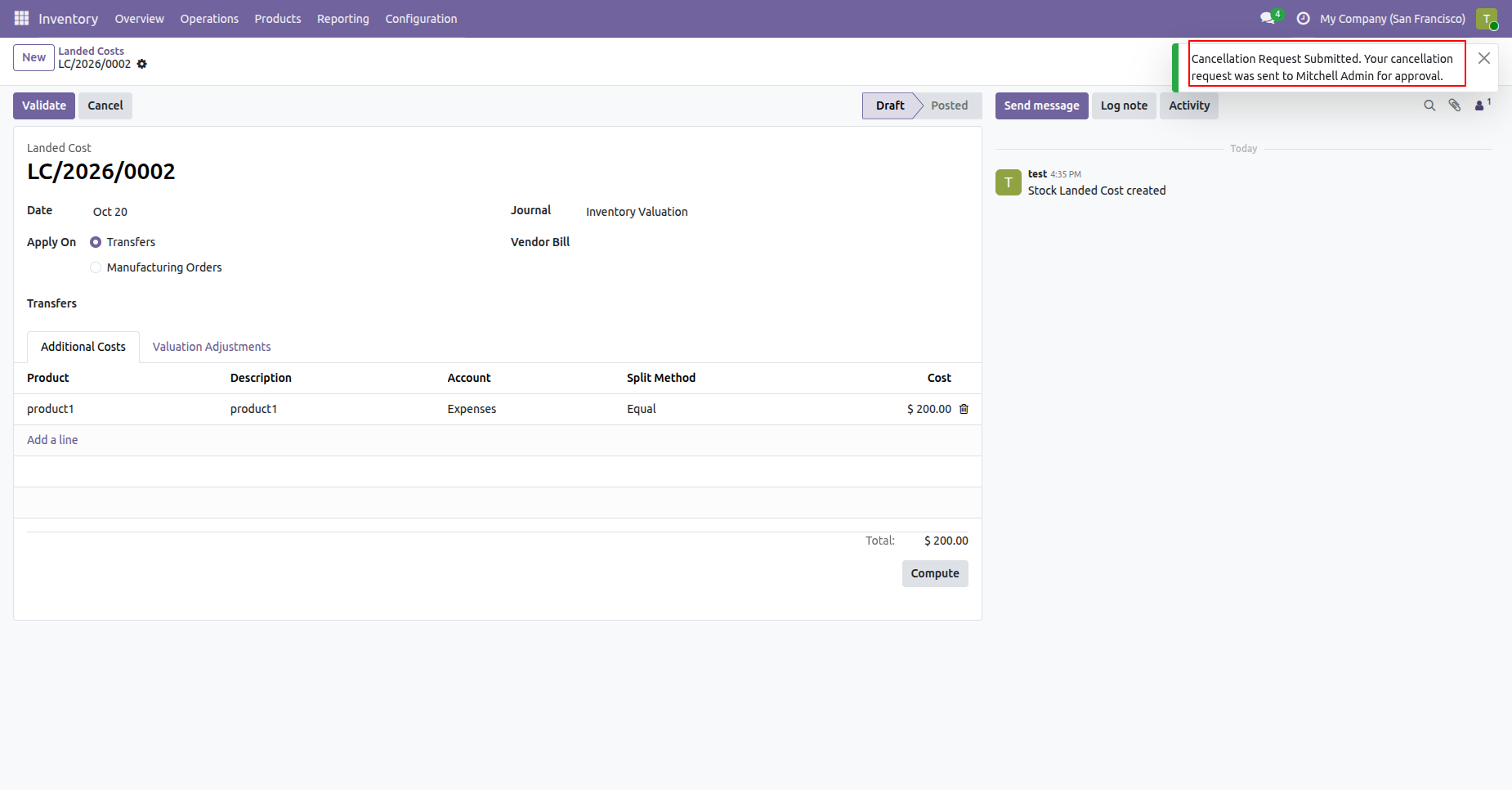
Select the landed costs that require cancellation and click on cancel button to cancel the Landed Cost, Cancellation request will be submitted to the Approver and also displays the notification.
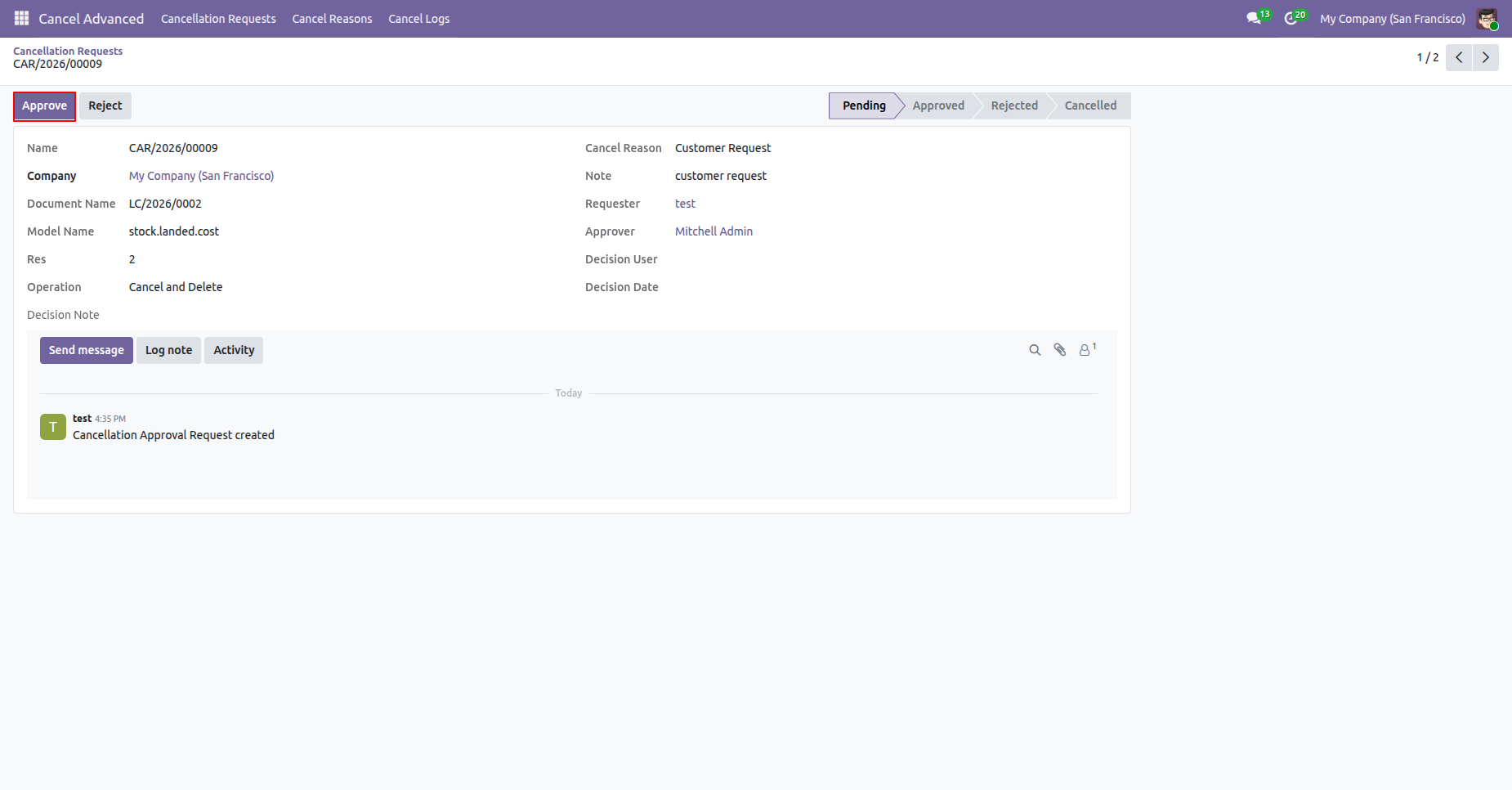
The approver reviews the cancellation request and confirms or rejects the action.
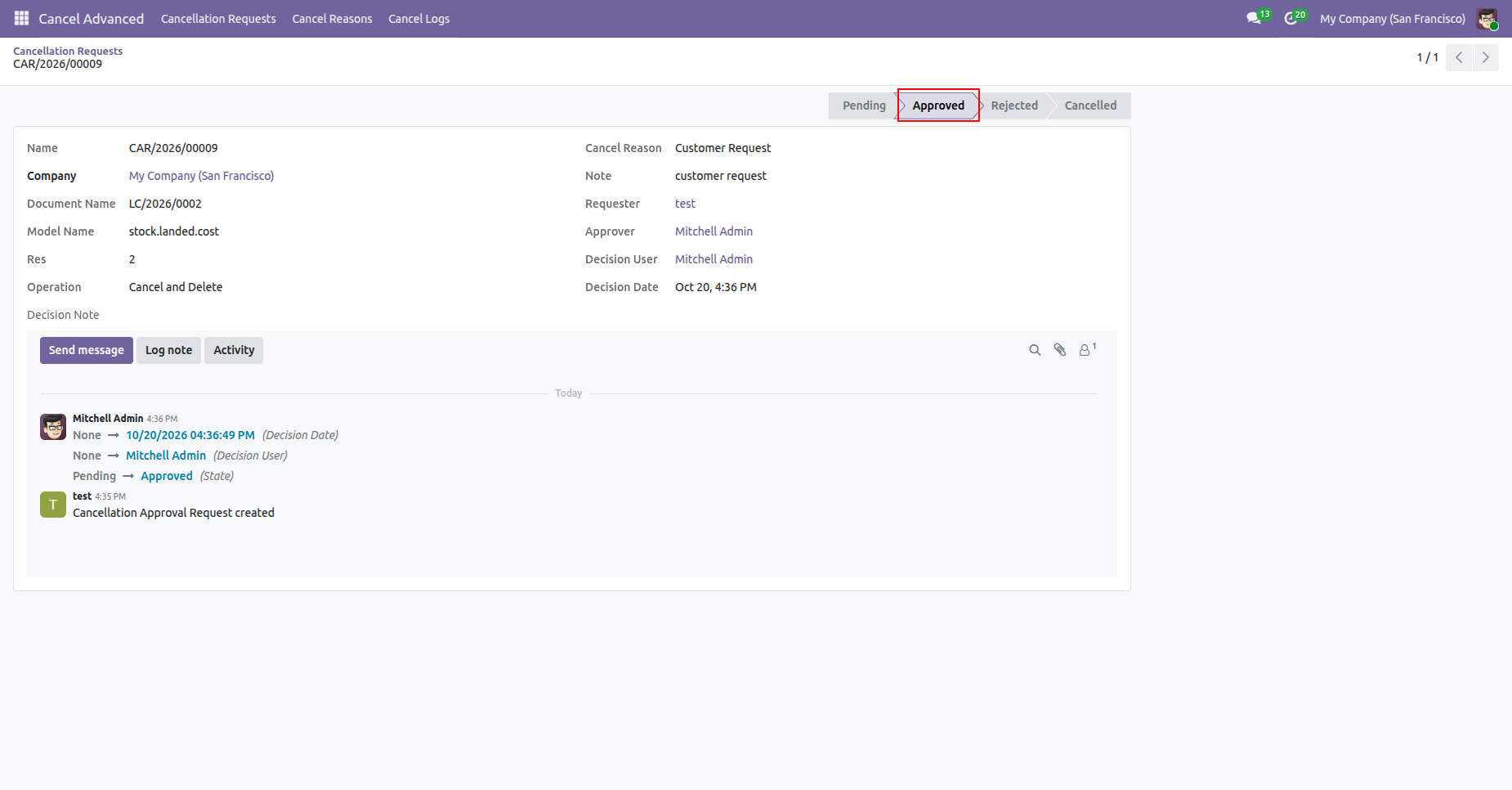
Click on the Approve button to approve the request and request stage will be moved to approved stage.
Inventory Transfer
The approver reviews the cancellation request and confirms or rejects the action.
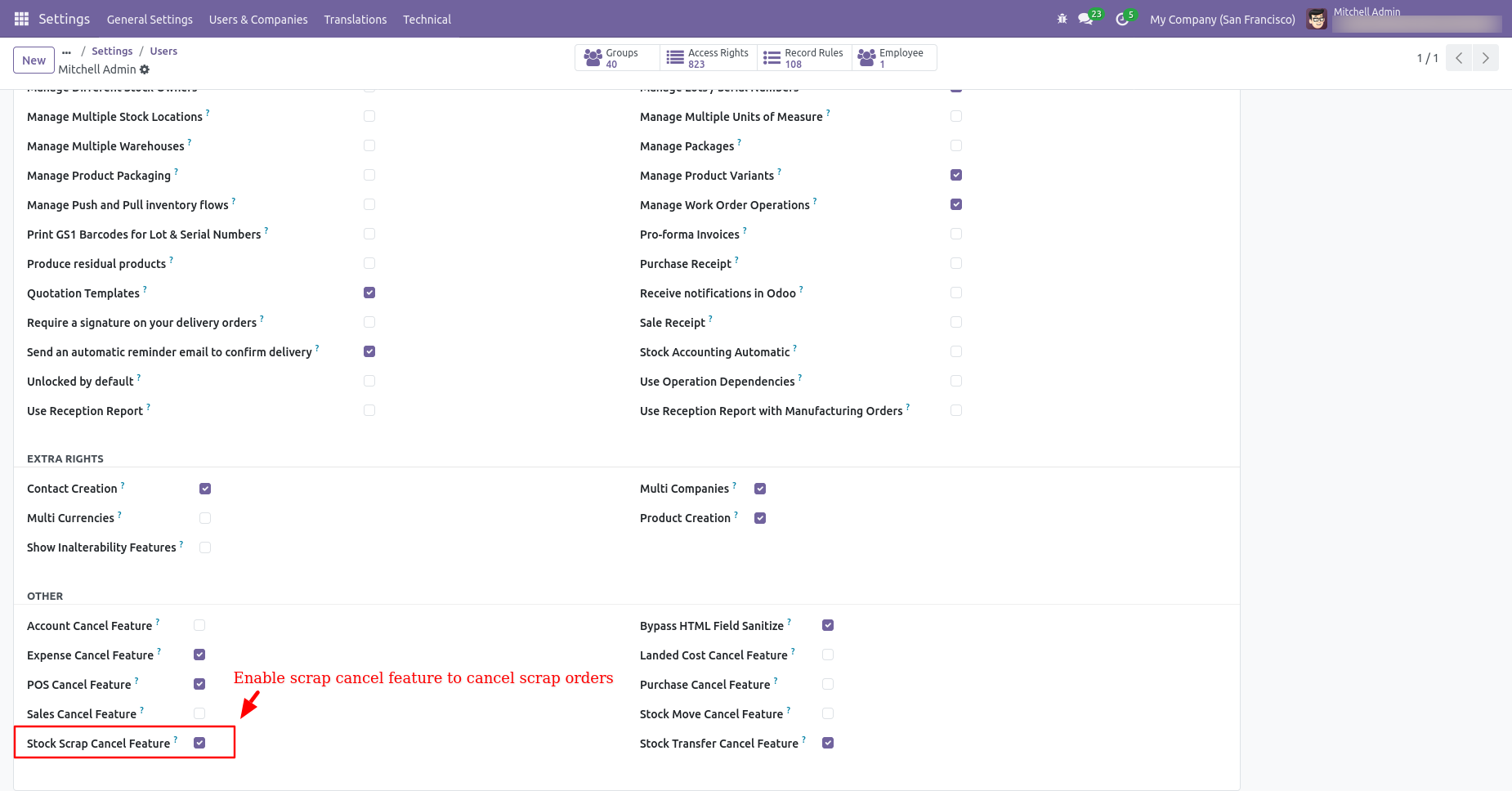
Scrap Order
Select the landed costs that require cancellation and start the approval request.
Inventory Transfer
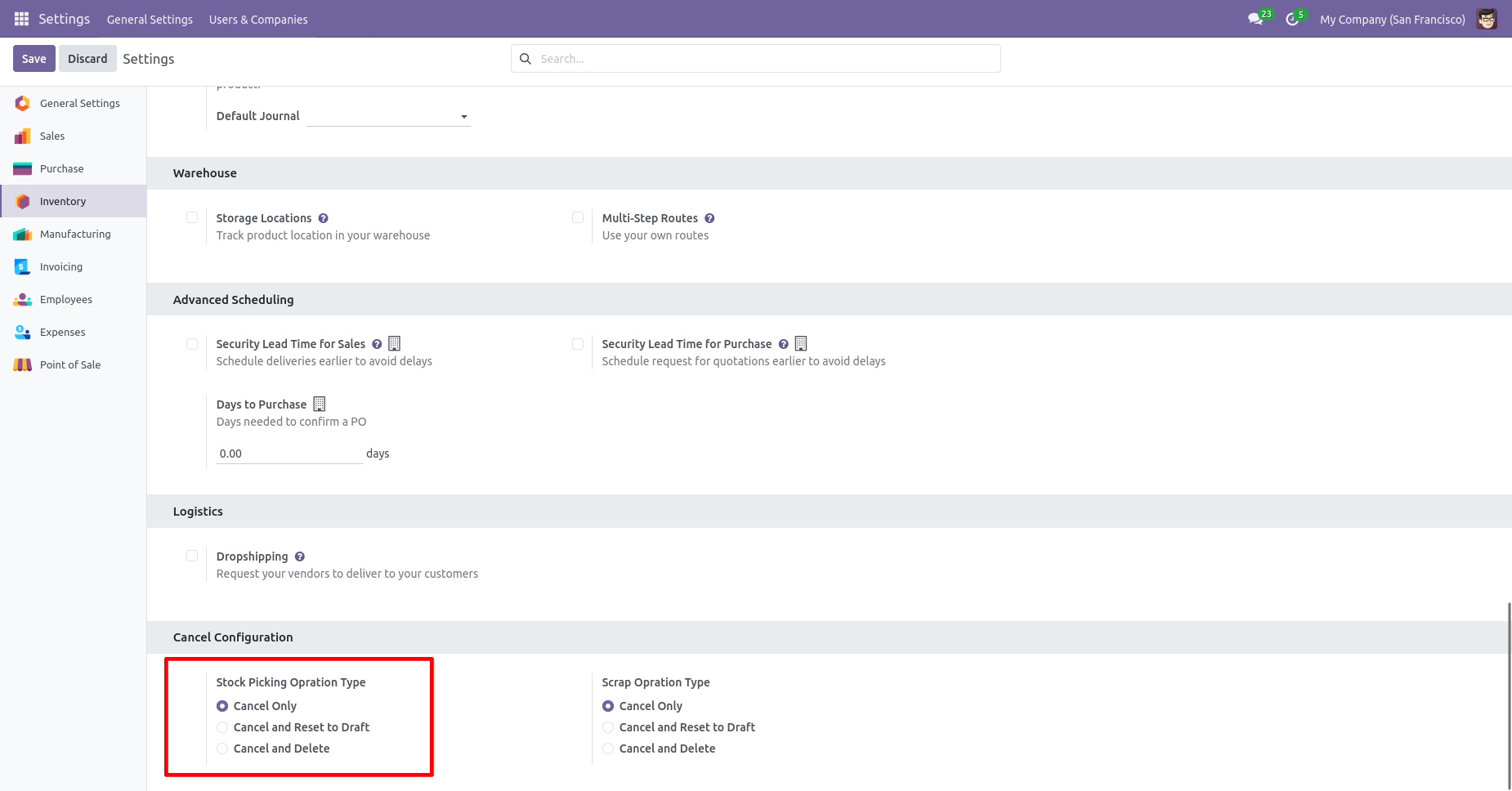
When you want to cancel the stock-picking only then choose the "Cancel Only" option.
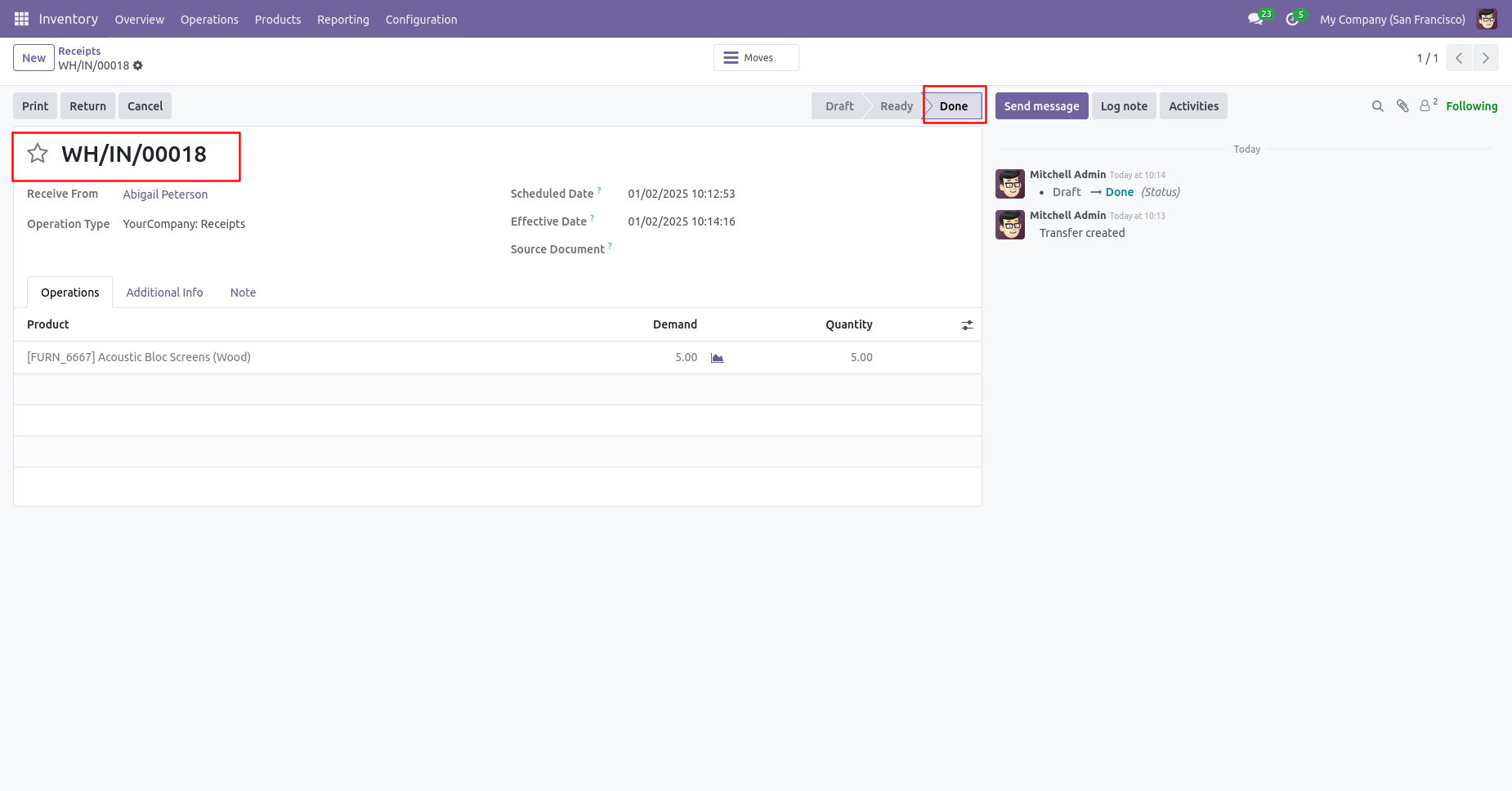
Receipt in "Done" stage.
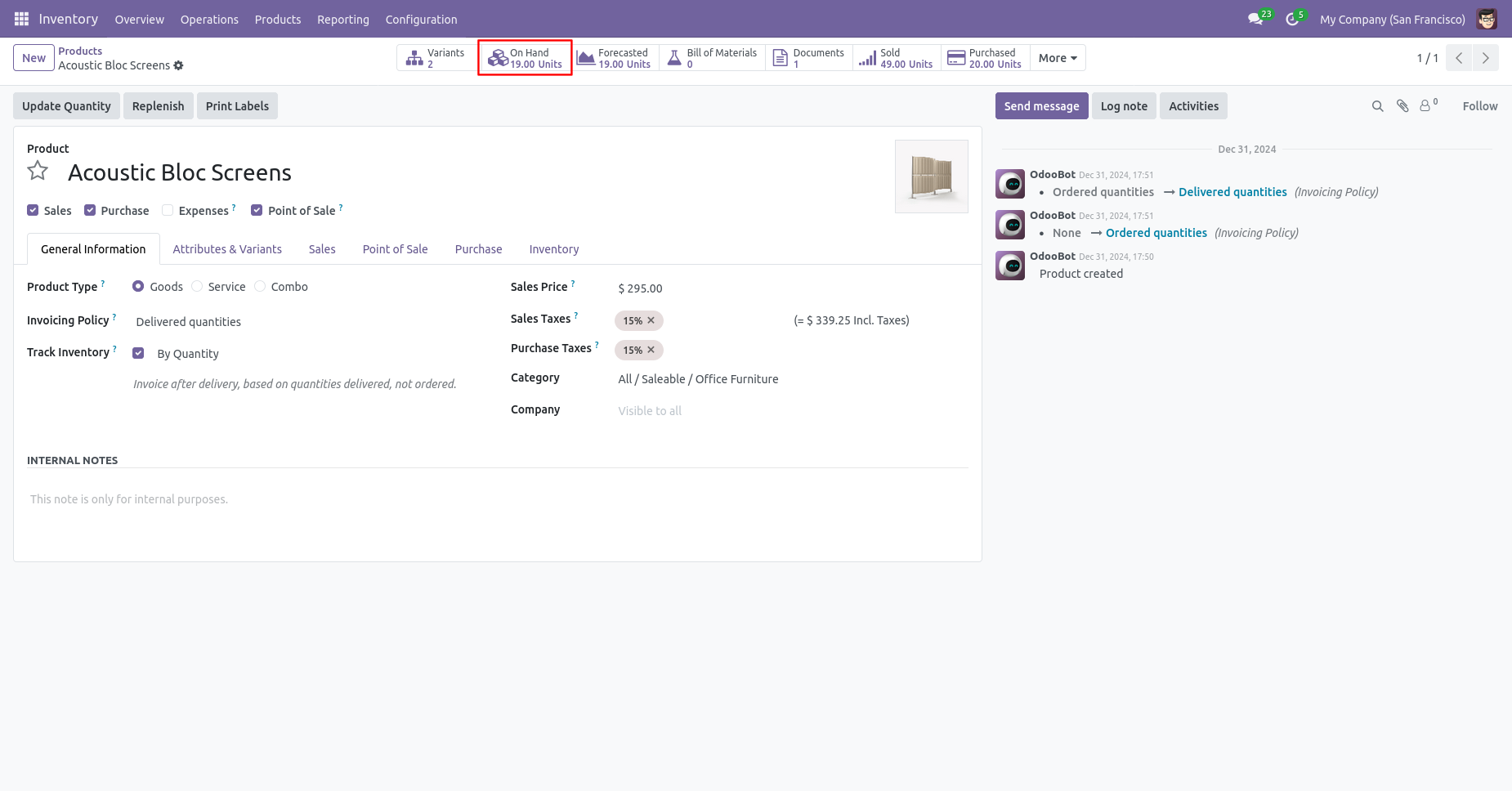
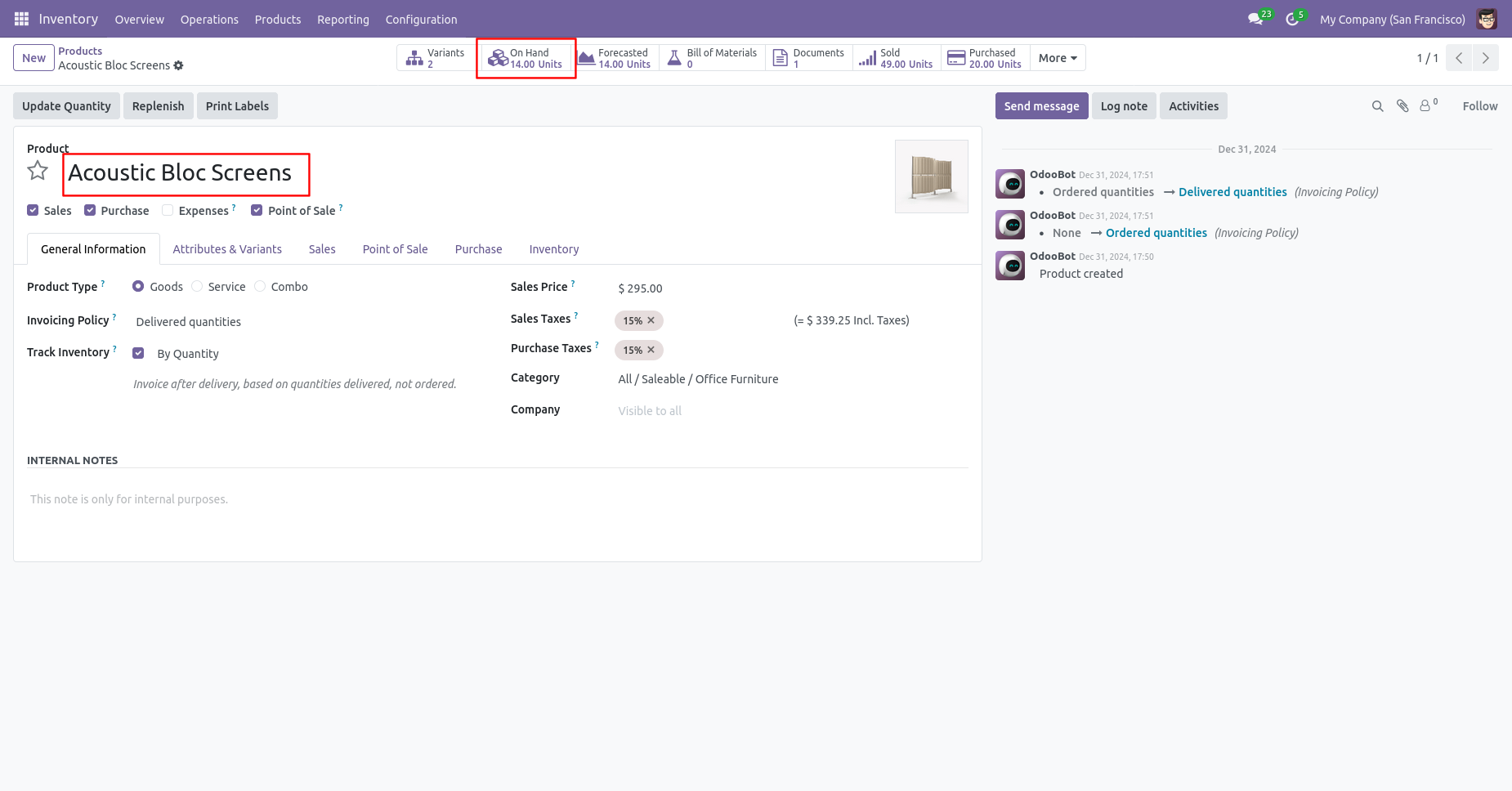
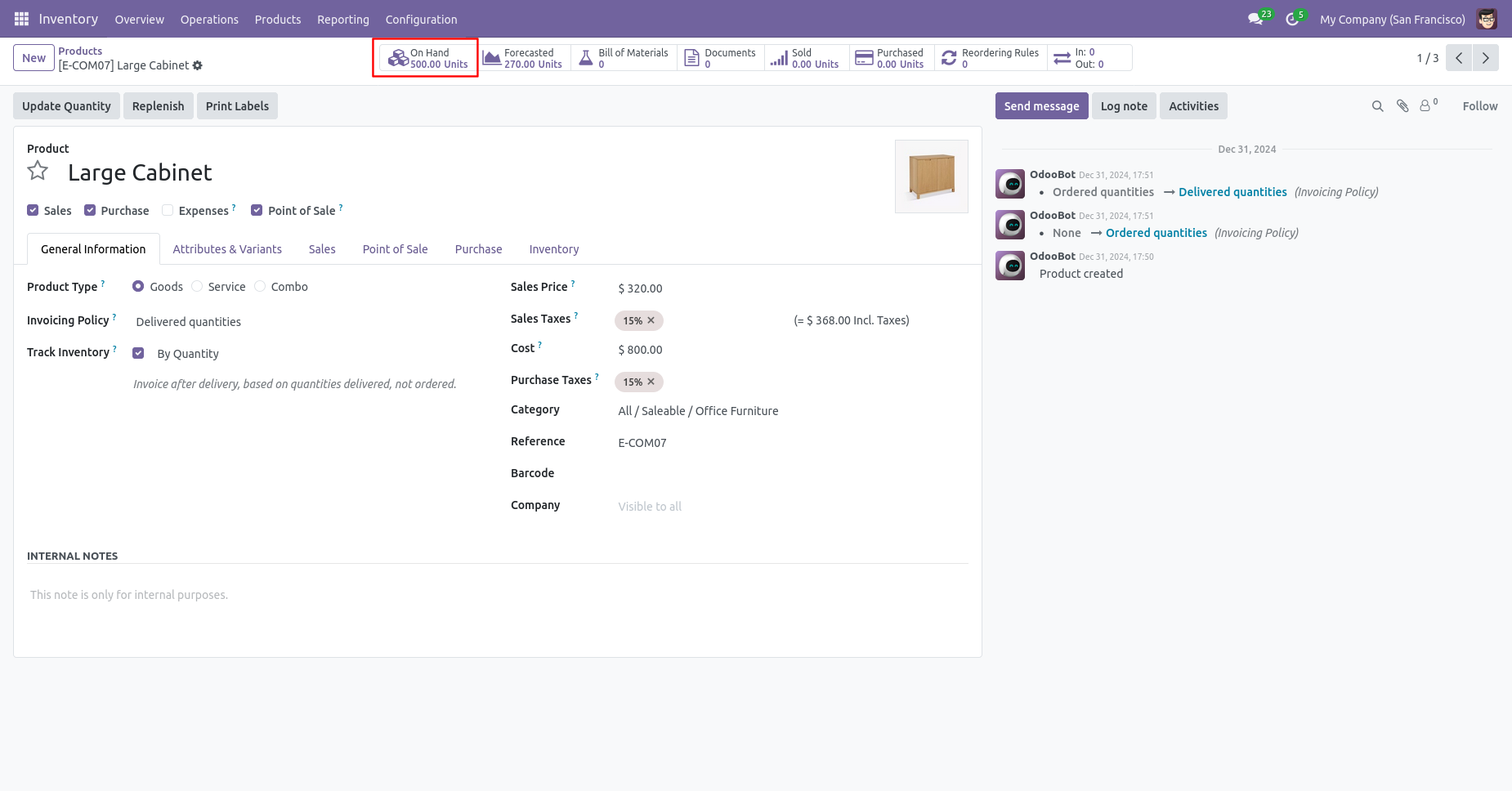
Our onhand qty is now 19.00 units.
Now we cancel receipt.
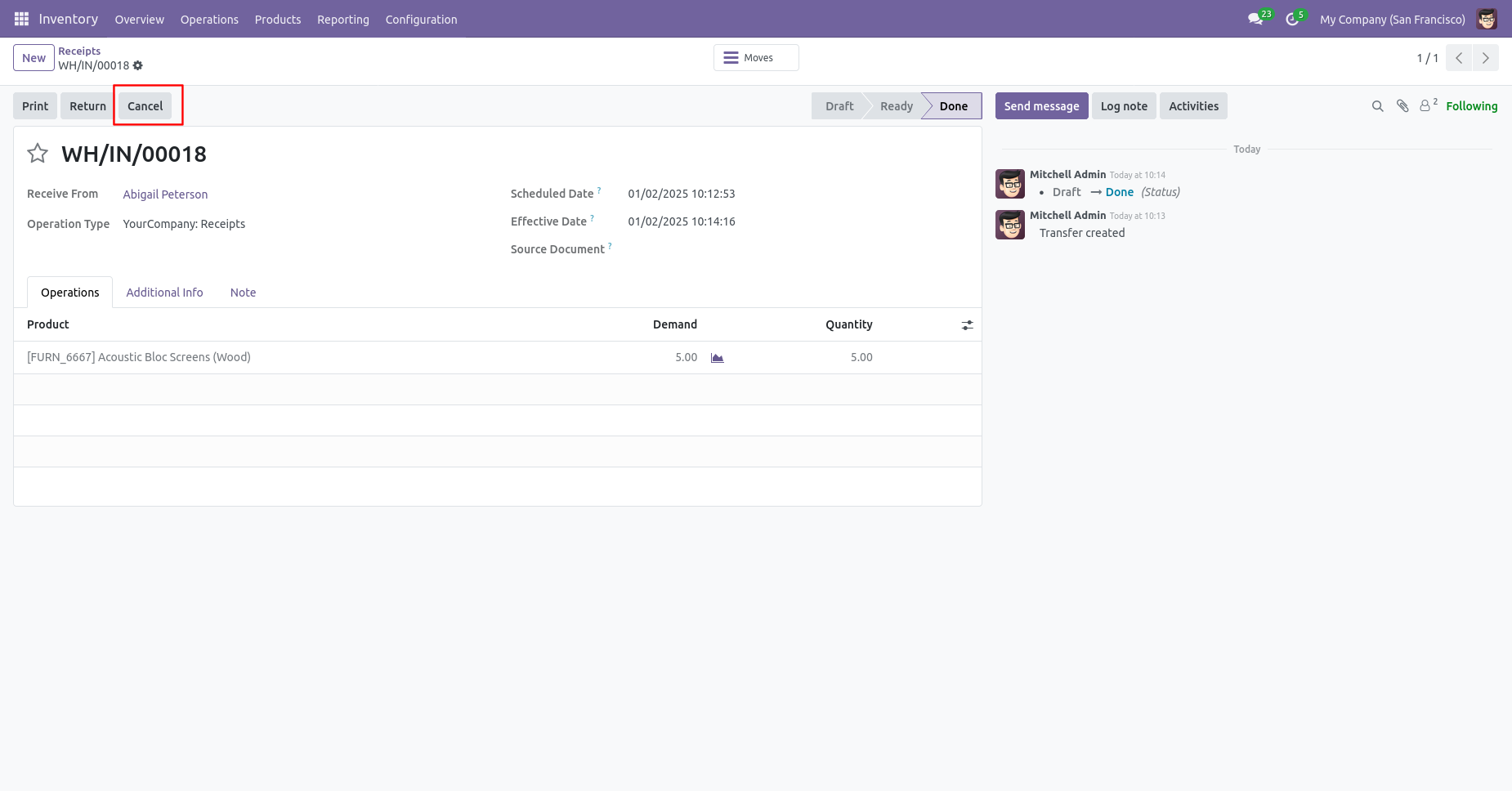
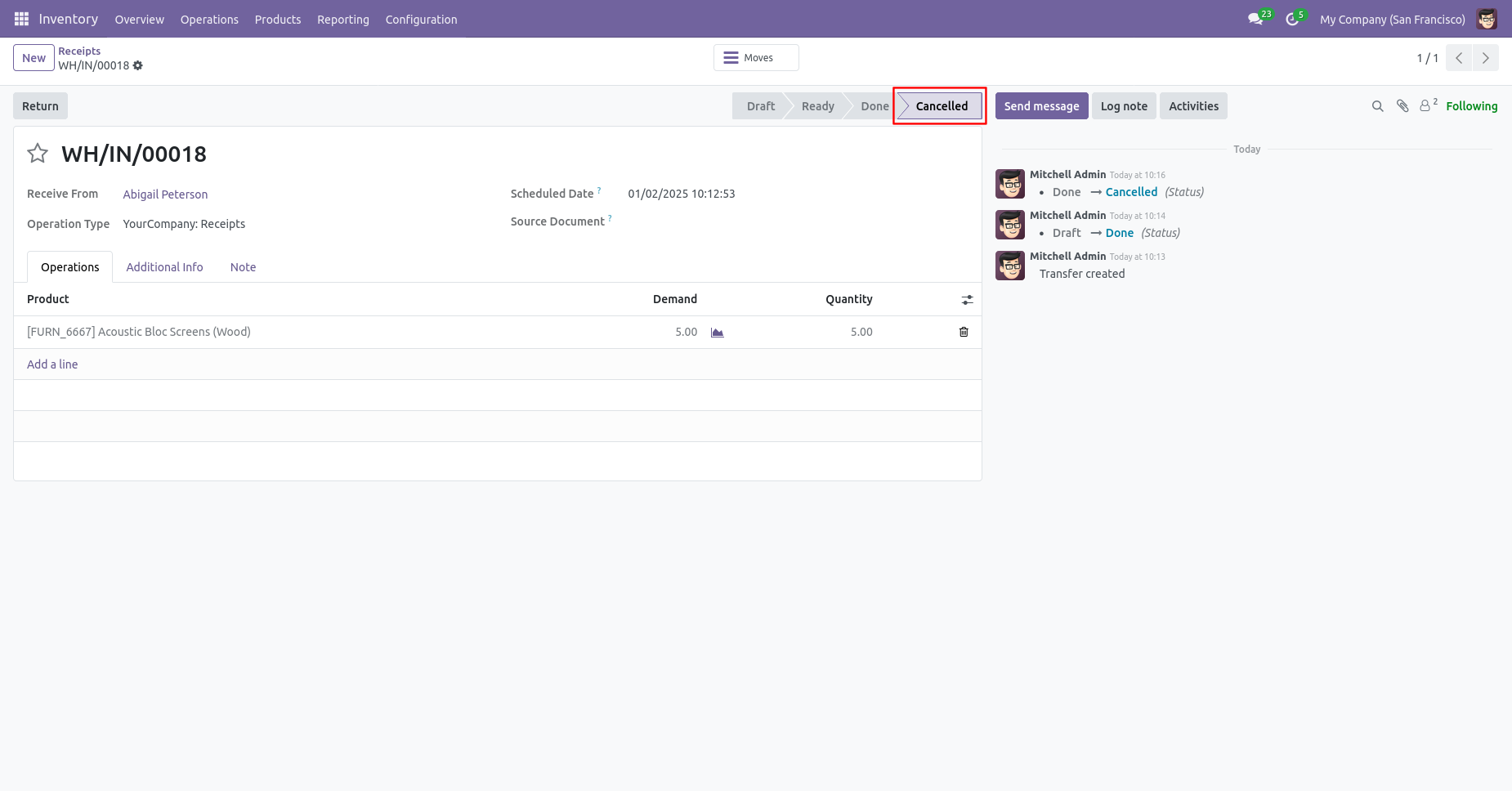
When you cancel the receipt then the receipt is cancelled and the state is changed to "cancelled".
After cancelled picking our onhand qty is updated.
Scrap Order
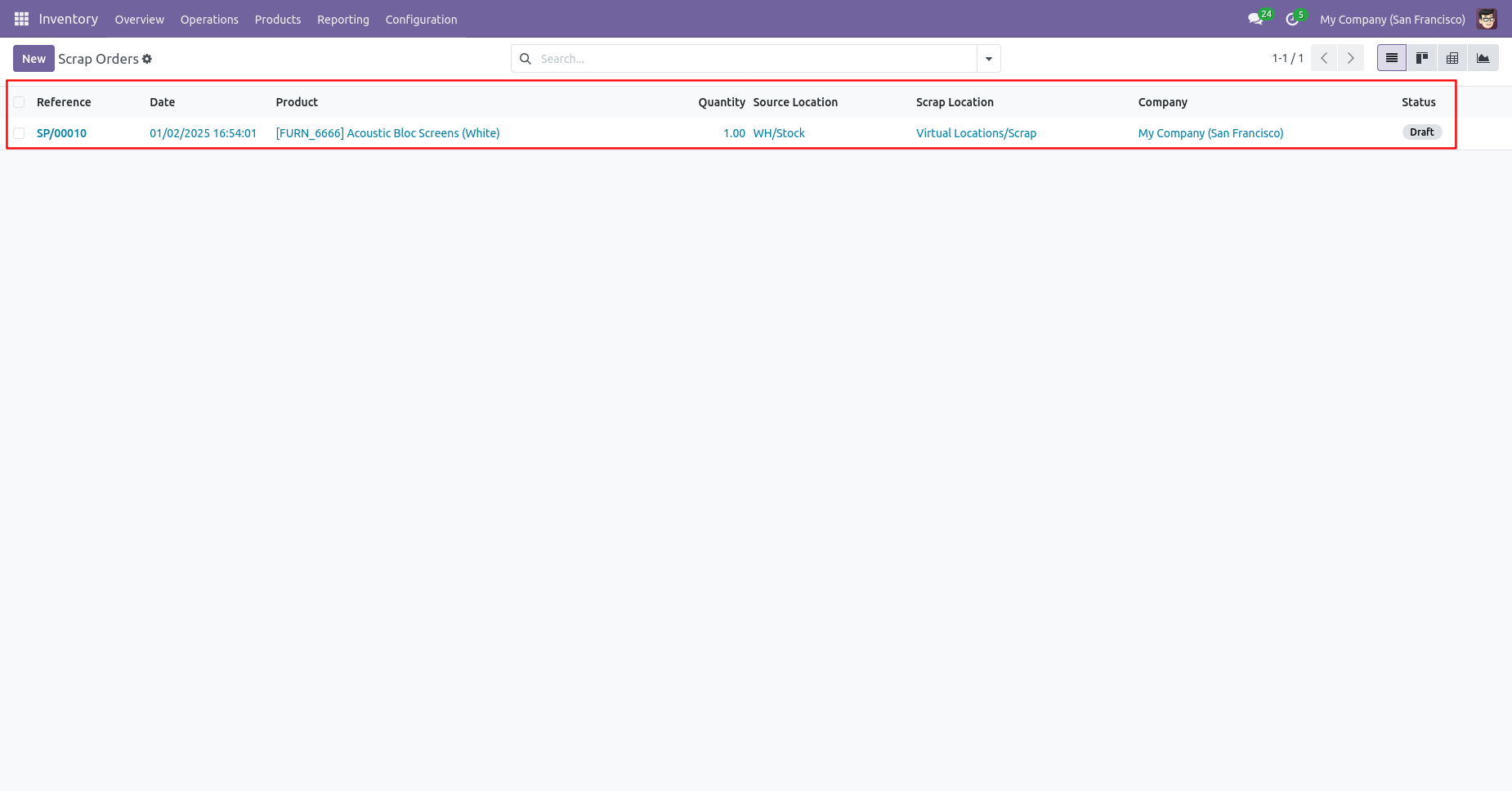
When you want to cancel the scrap ordrs only then choose the "Cancel Only" option.
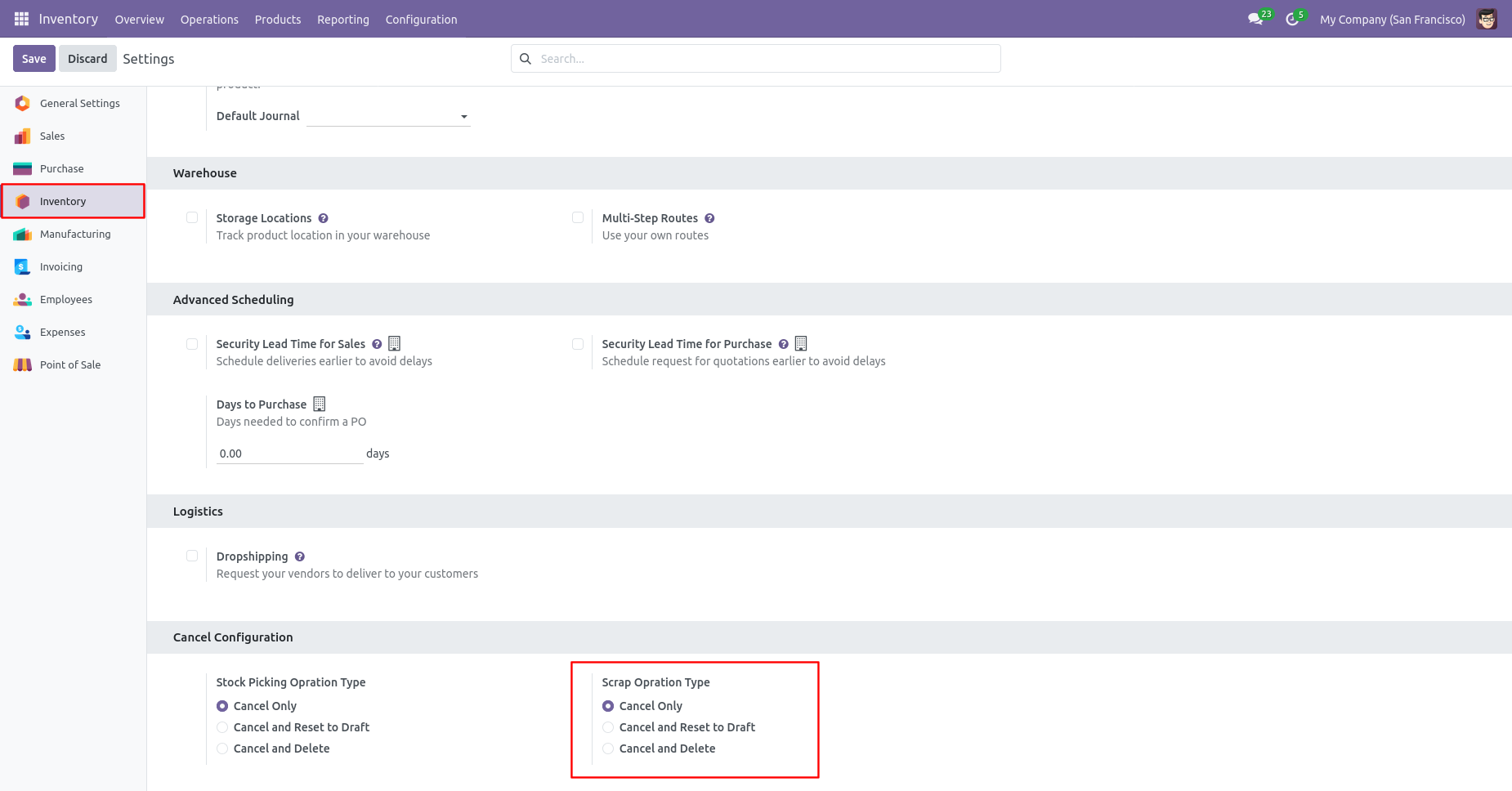
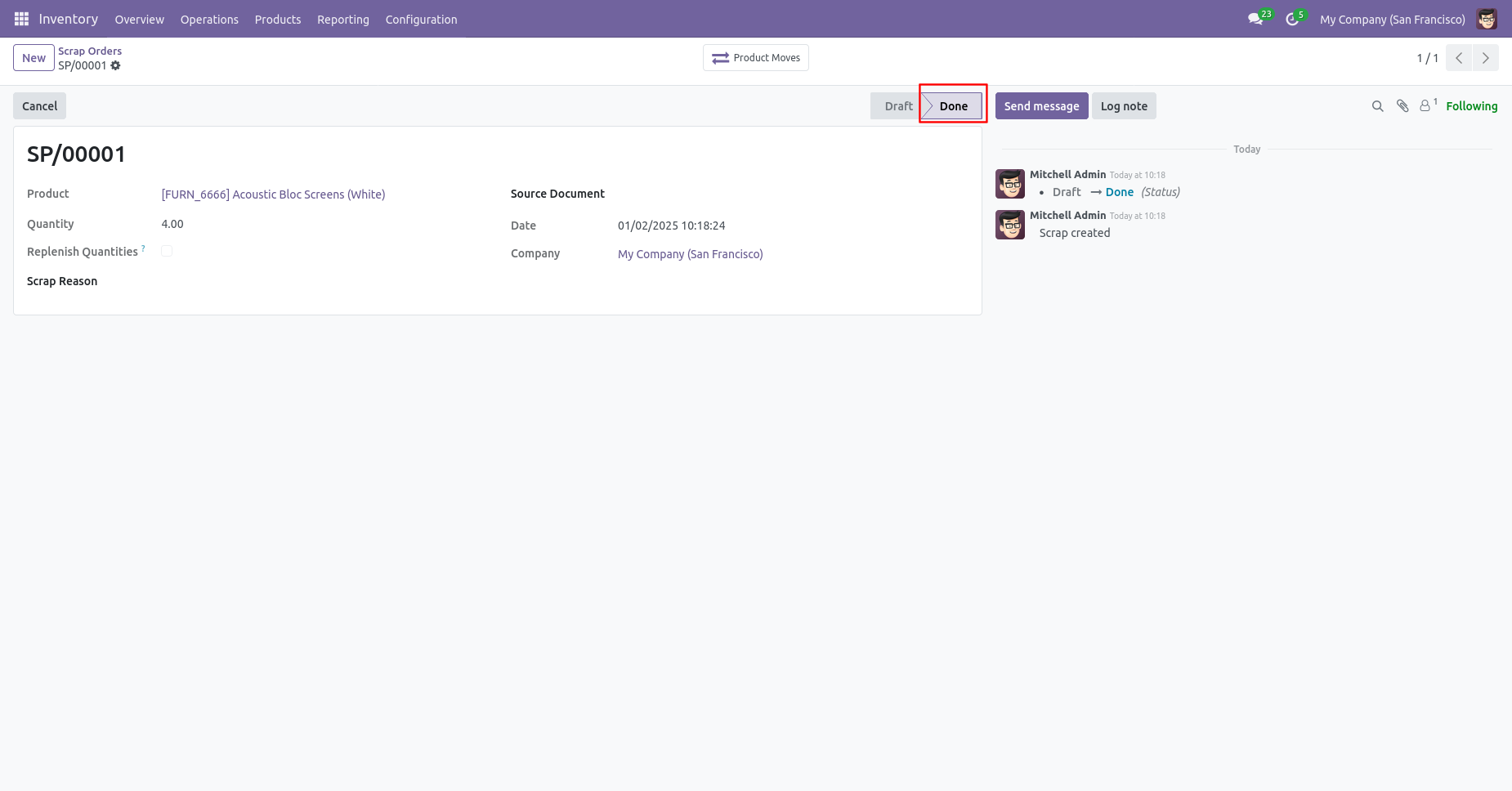
Our scrap order is in the "Done" state.
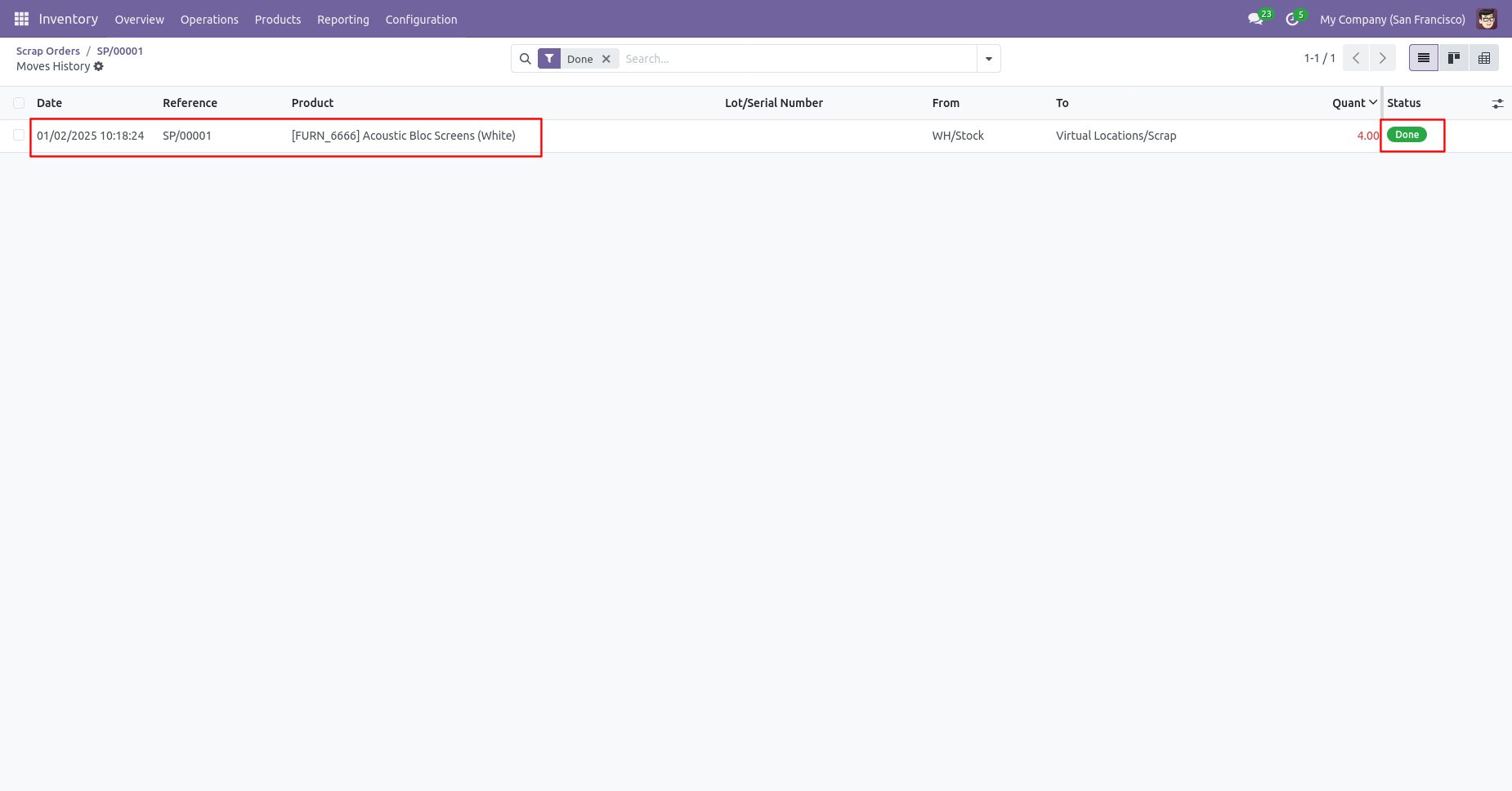
Our scrap order move history status is "Done".
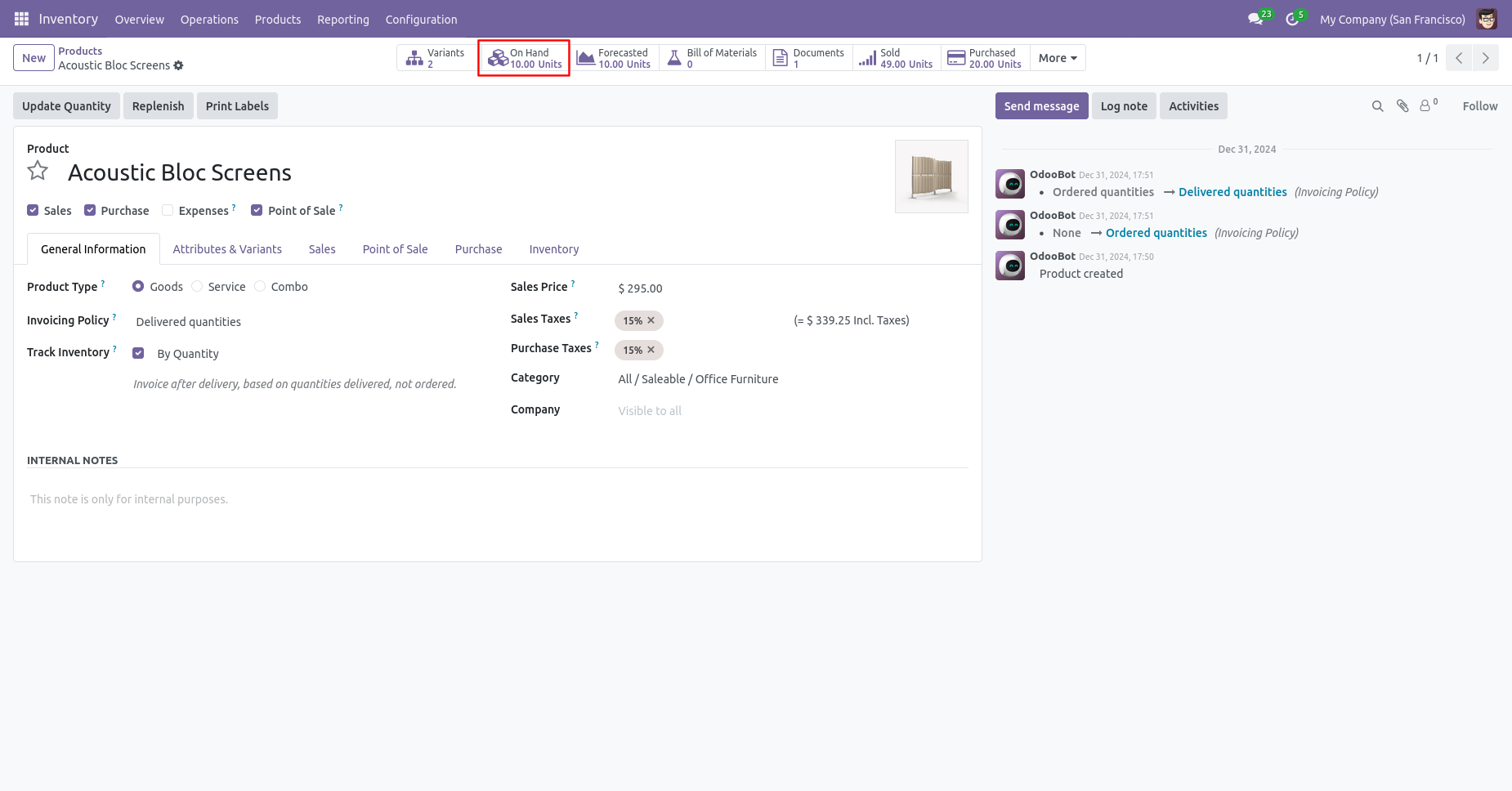
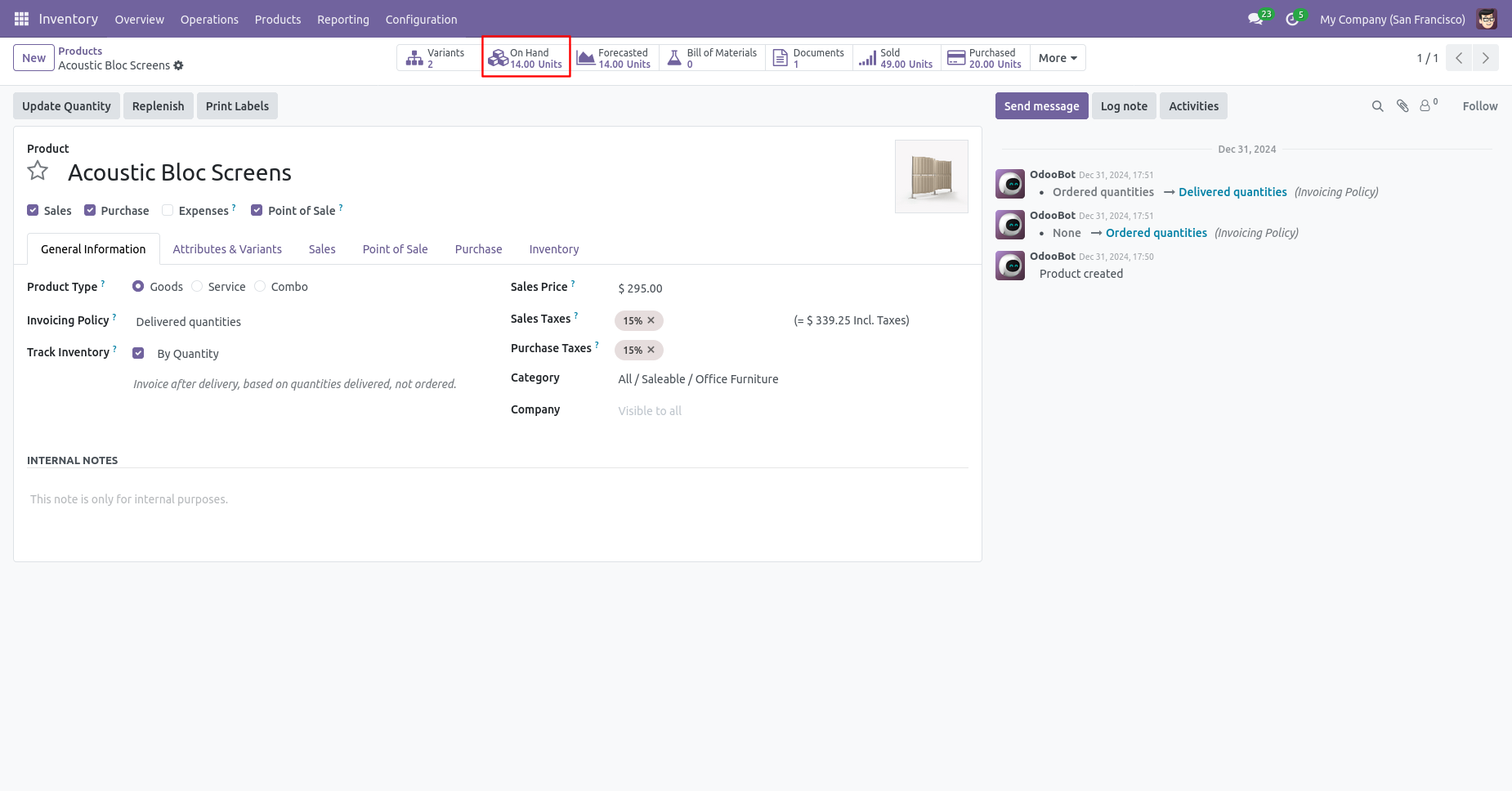
Our onhand qty is now 10.00 units.
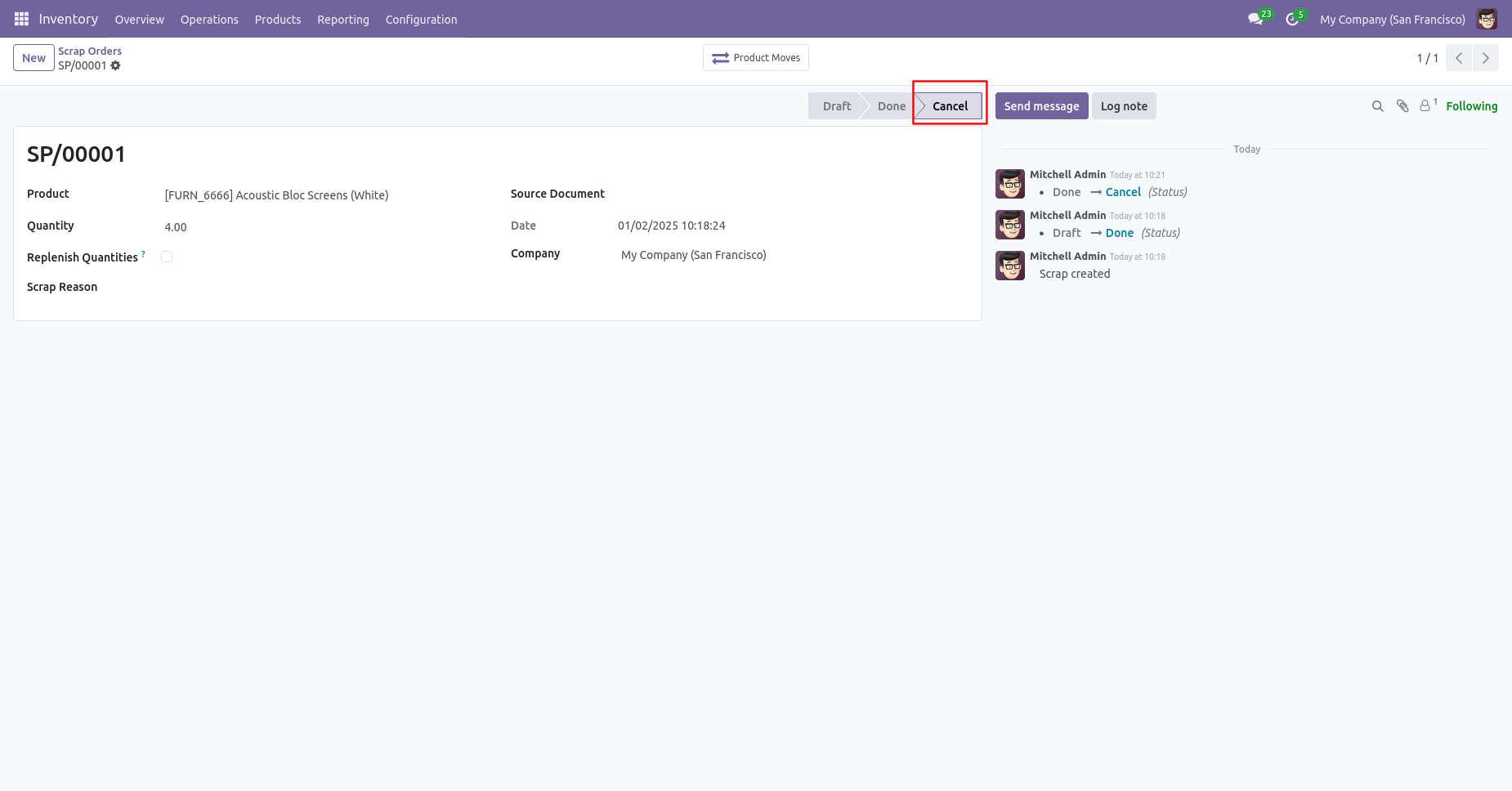
Now we cancel the scrap order.
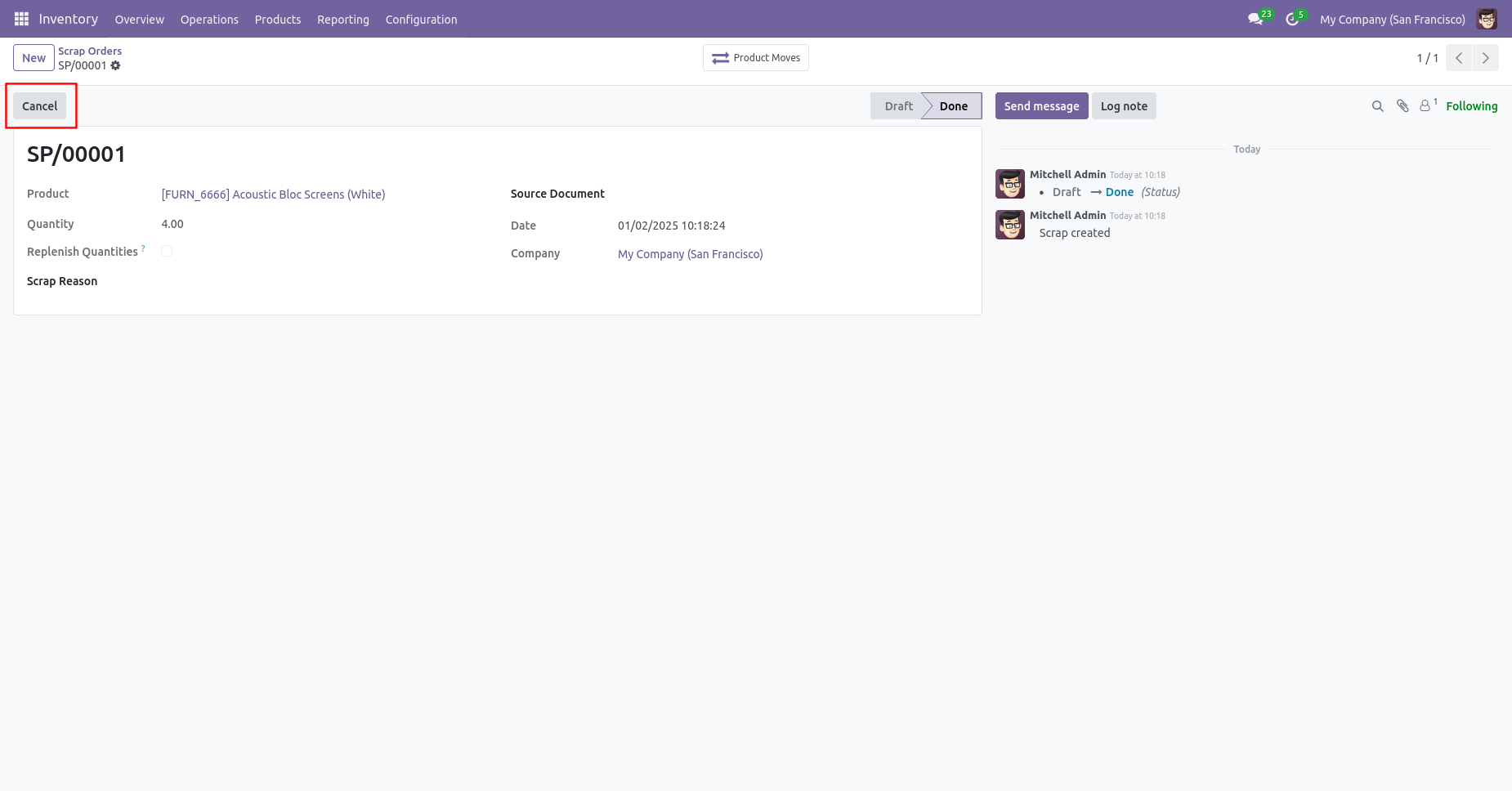
So scrap order is canceled and the state is changed to "cancel".
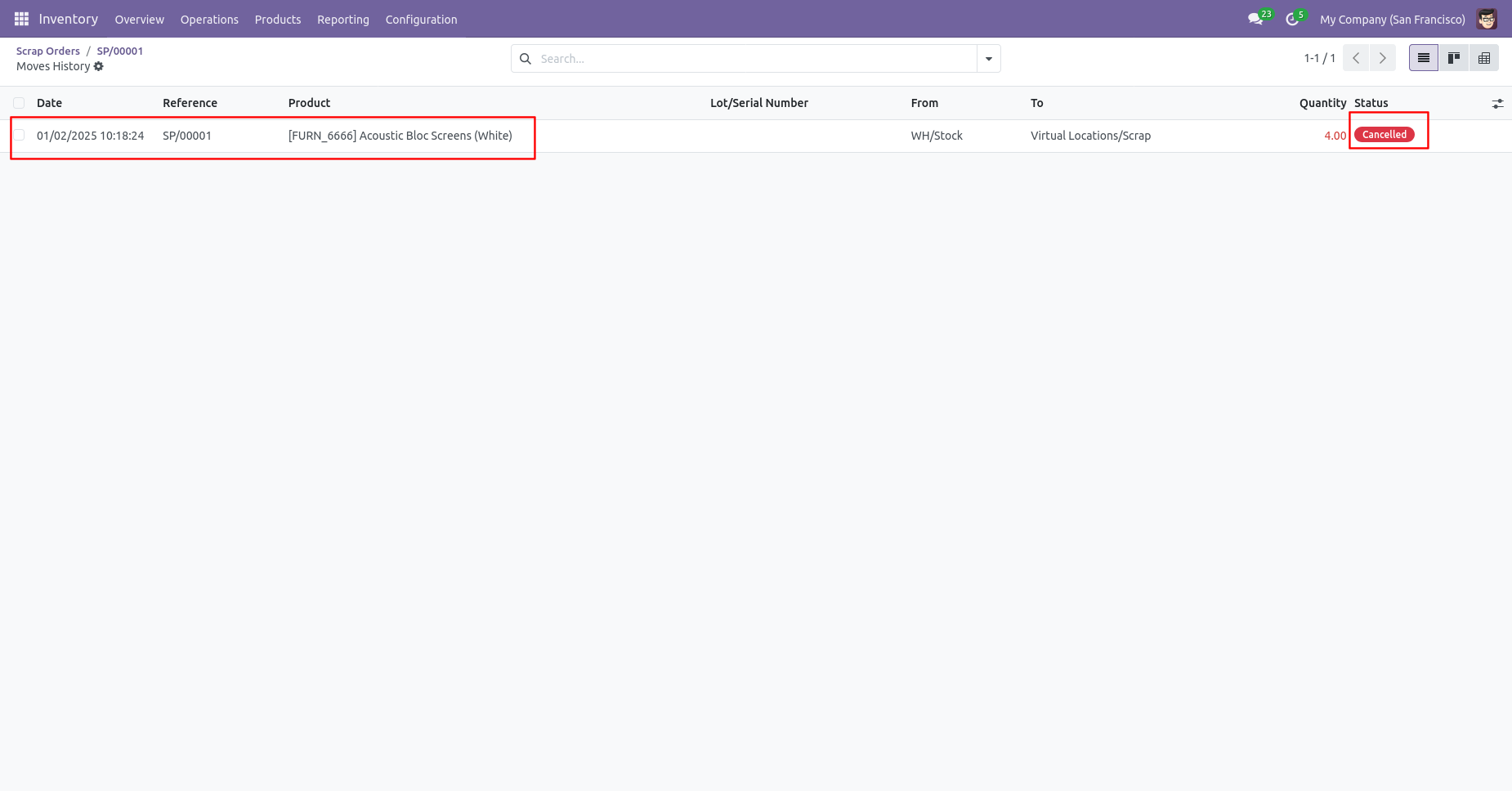
Now our scrap order move history status is "Cancelled".
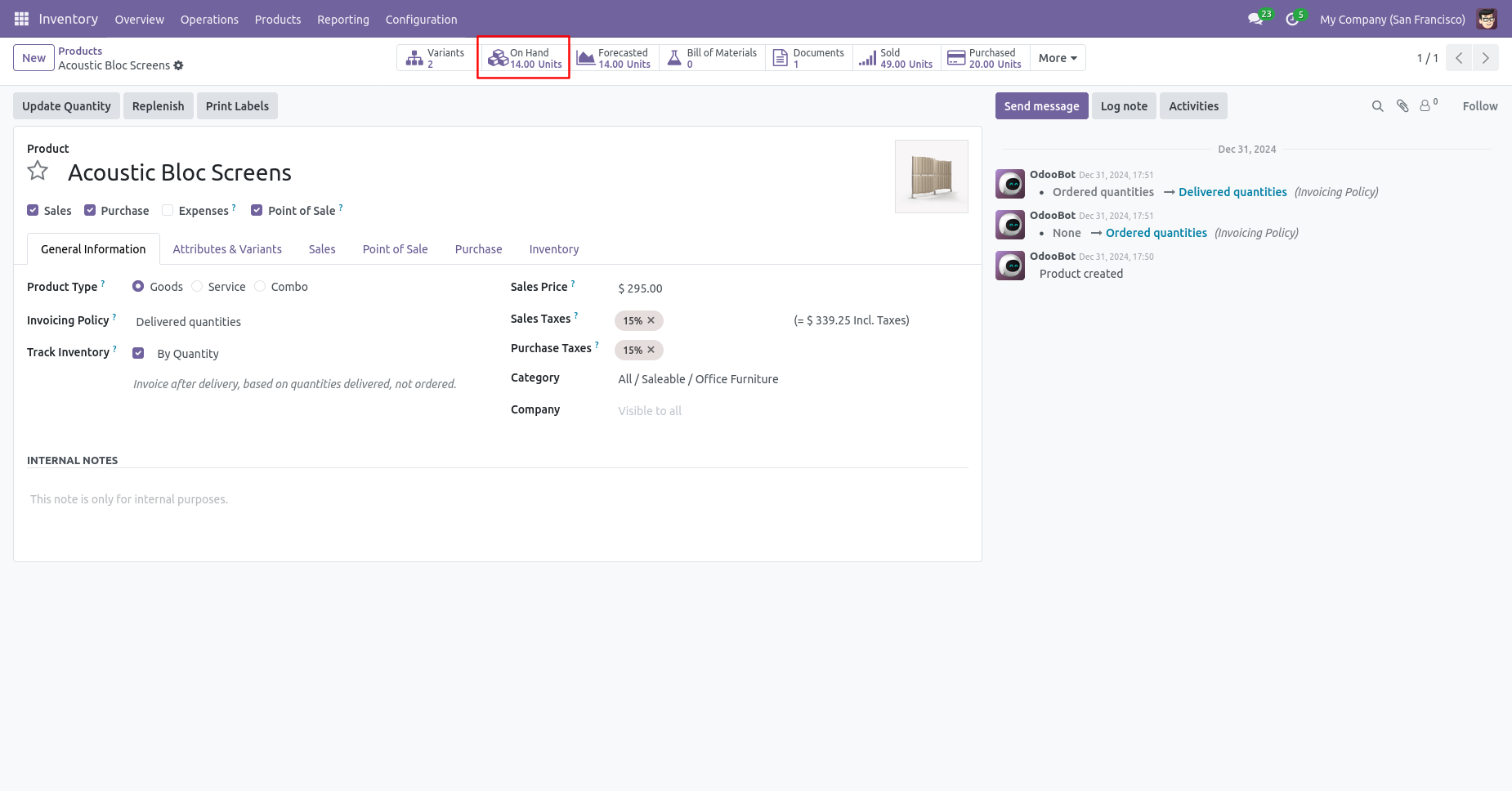
After cancelled scrap order our onhand qty is updated.
Inventory Transfer
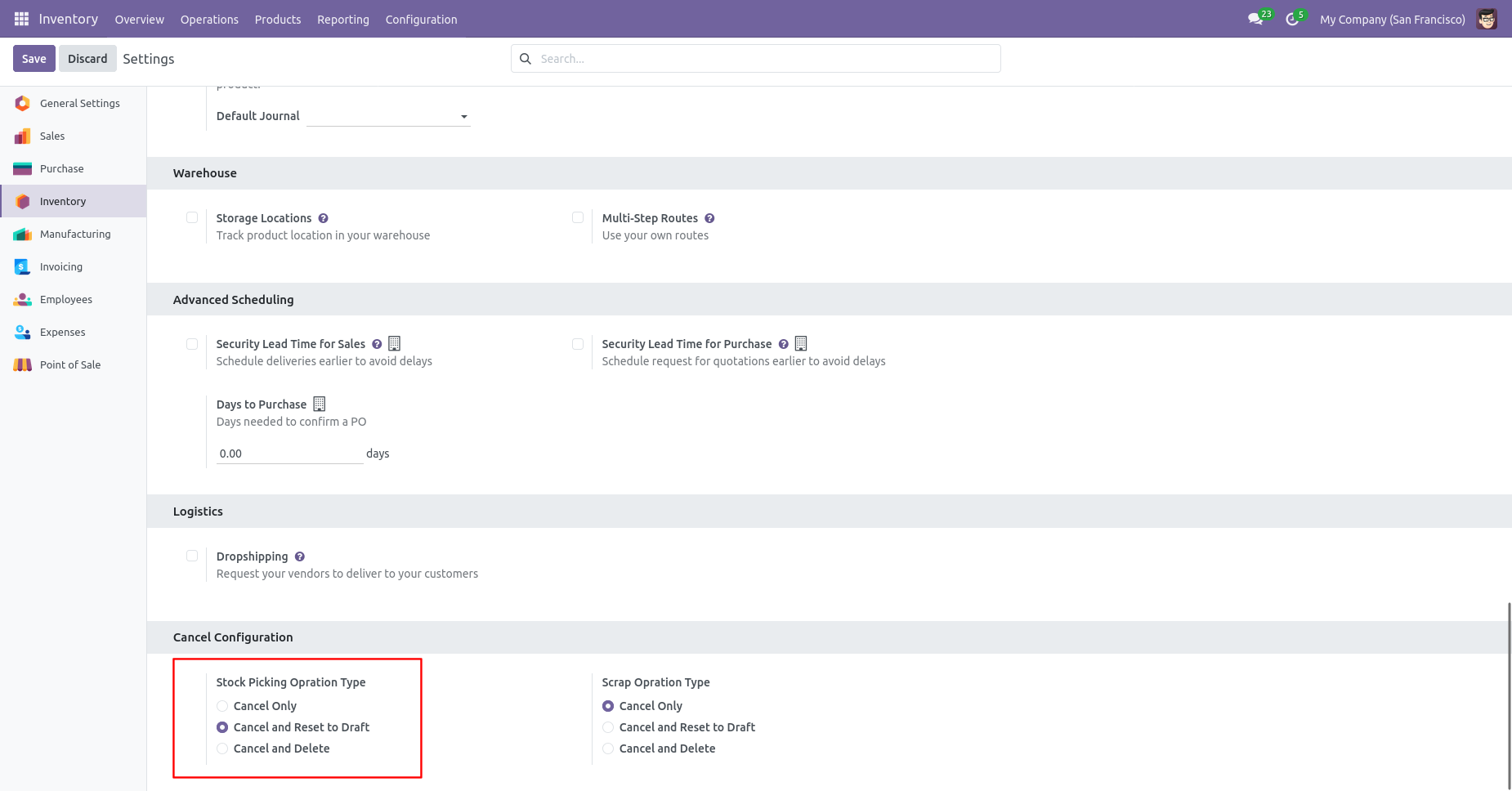
When you want to cancel the stock-picking and reset to the draft state tick "Cancel and Reset to Draft".
Our stock-picking in the done state.
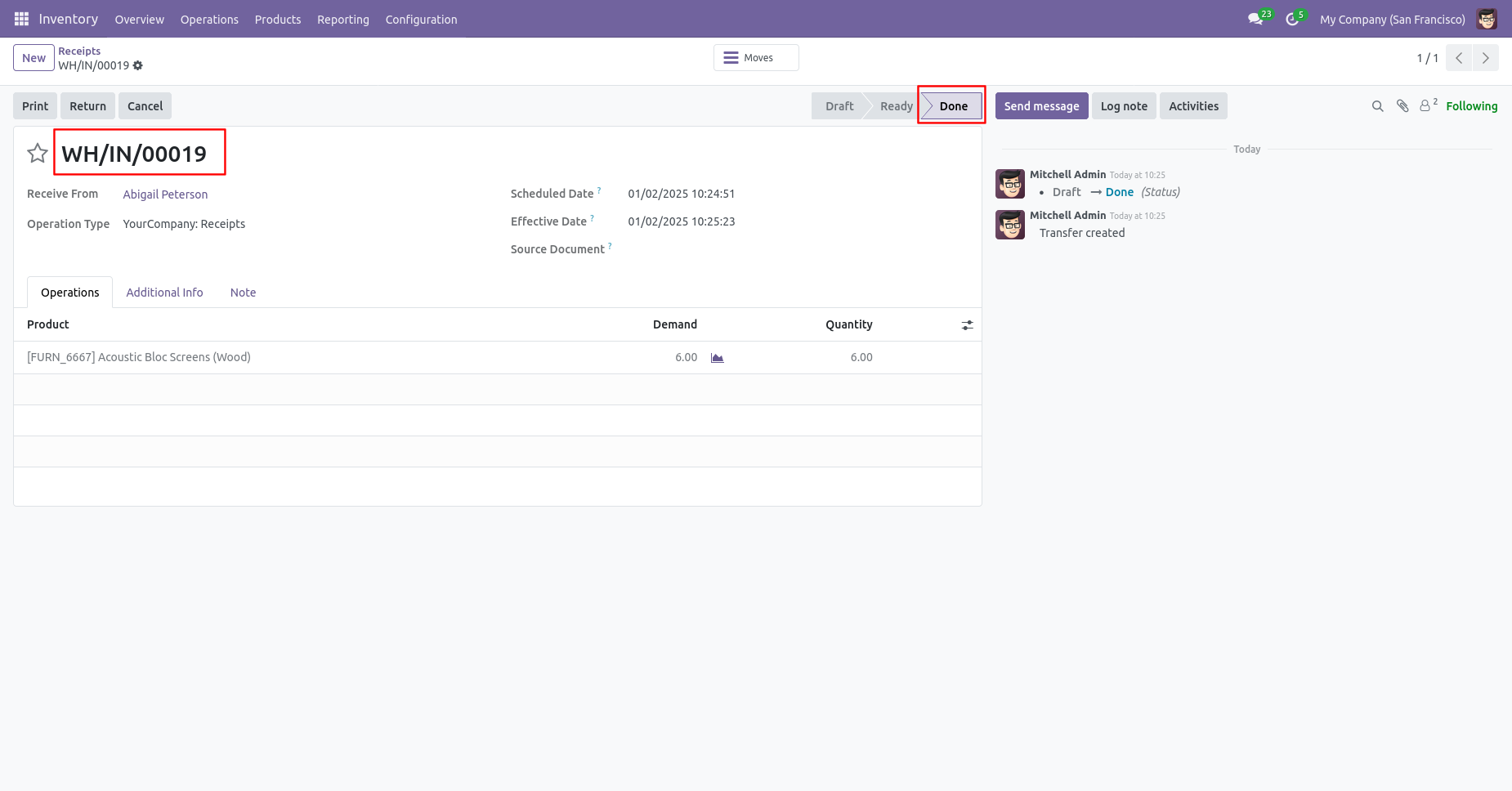
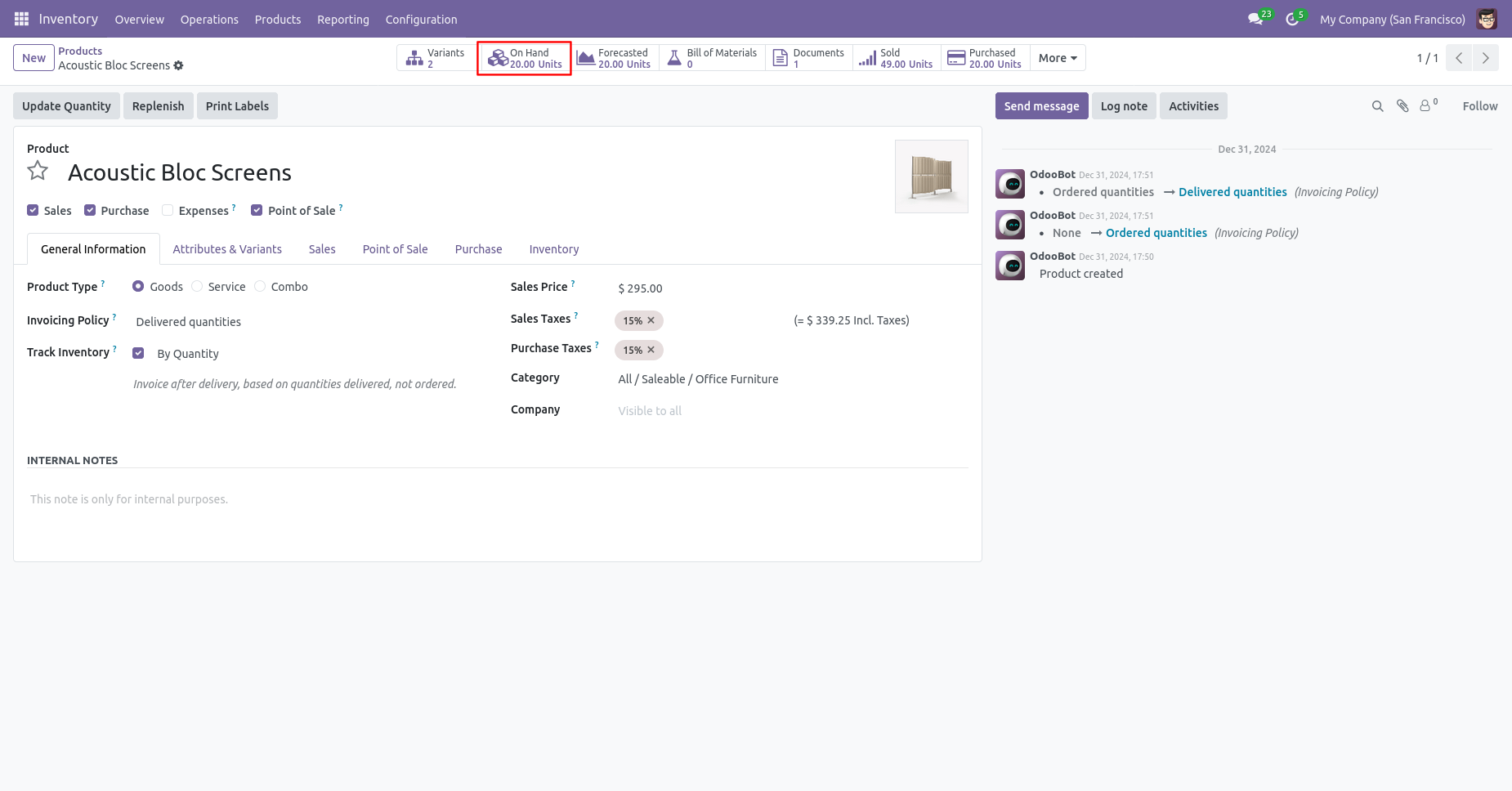
Our onhand qty is now 20.00 units.
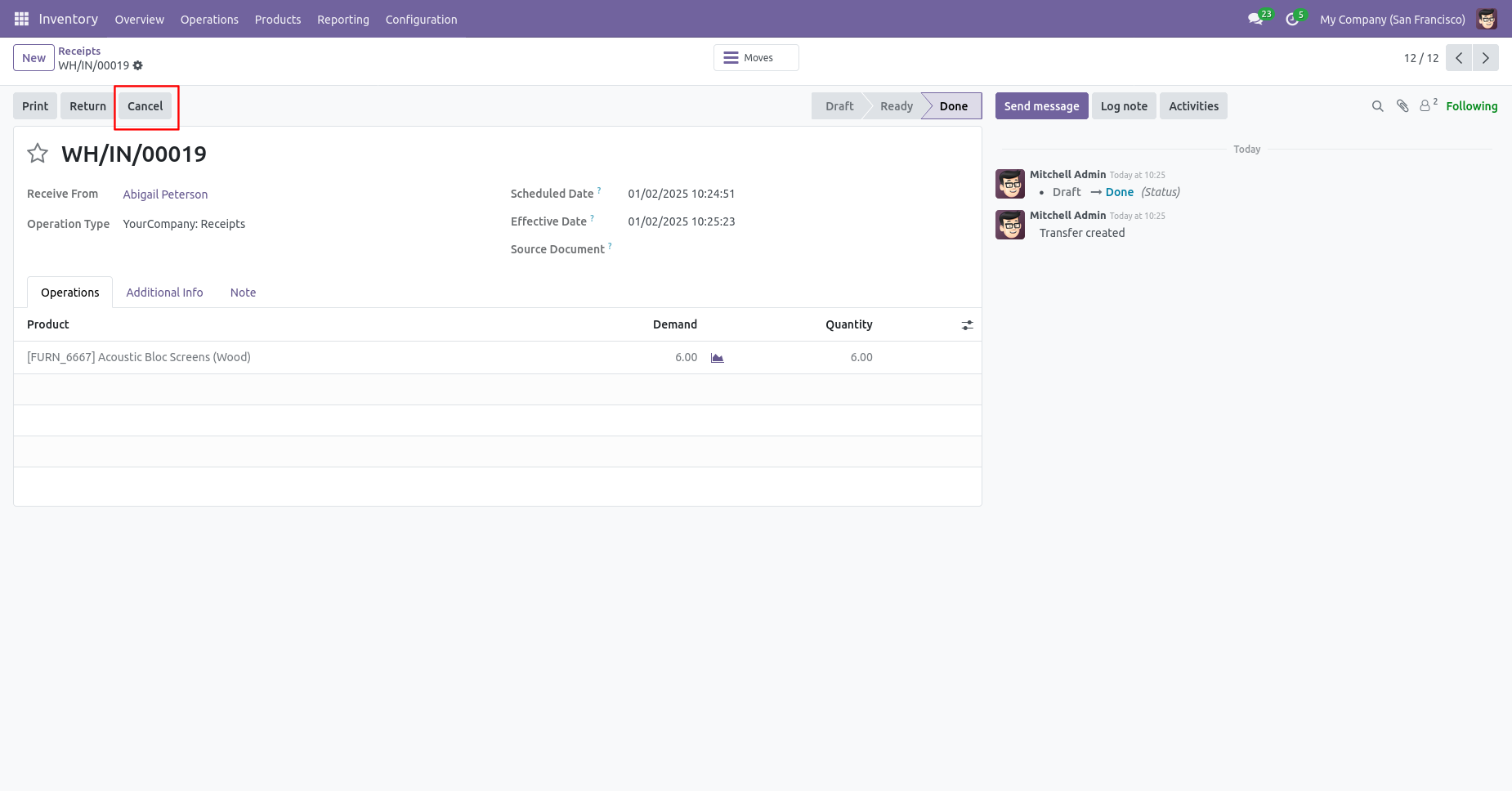
When you cancel the picking then the picking is cancelled and reset to the draft.
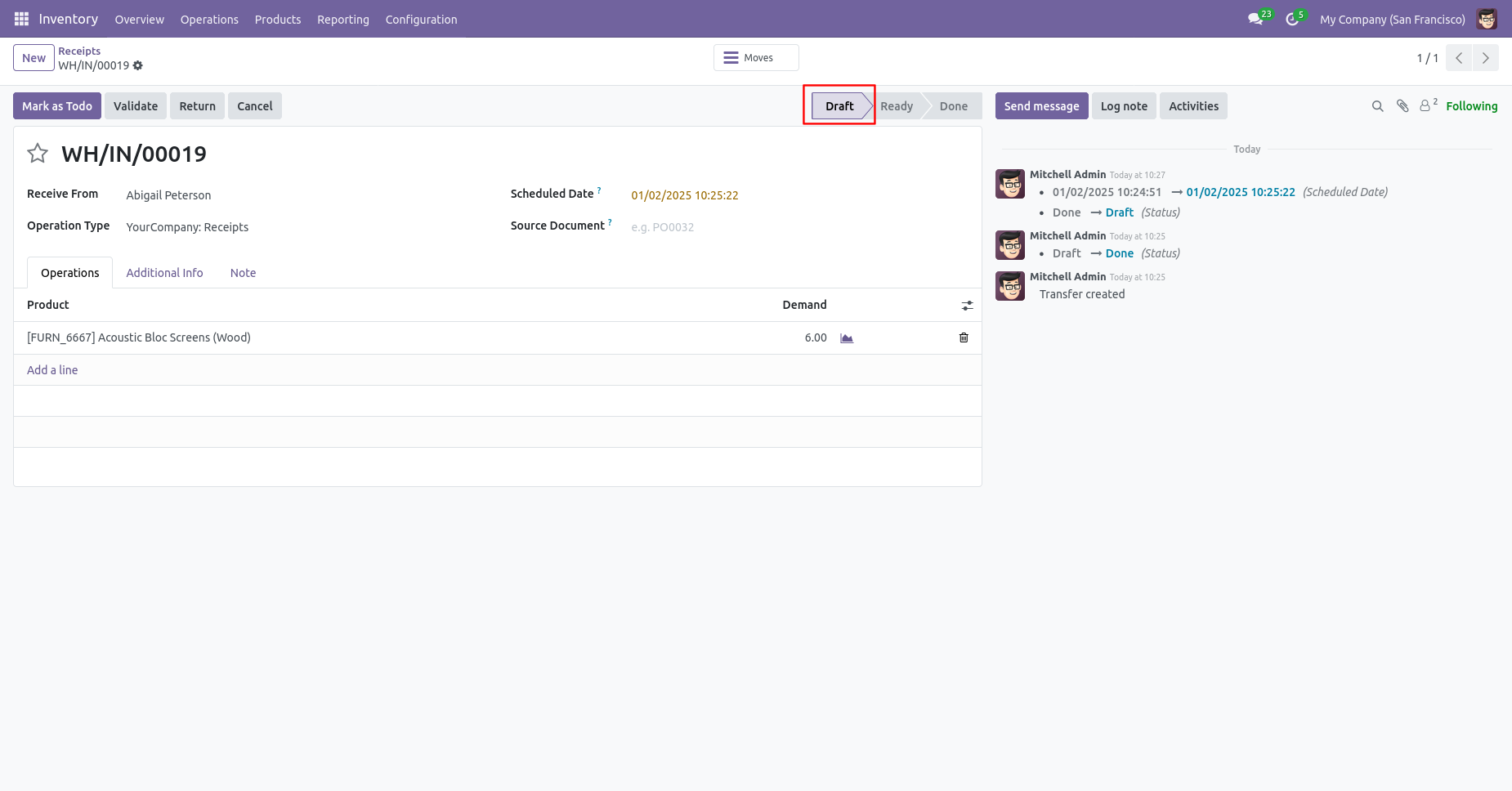
So our state is changed to the draft state.
After cancelled picking our onhand qty is updated.
Scrap Order
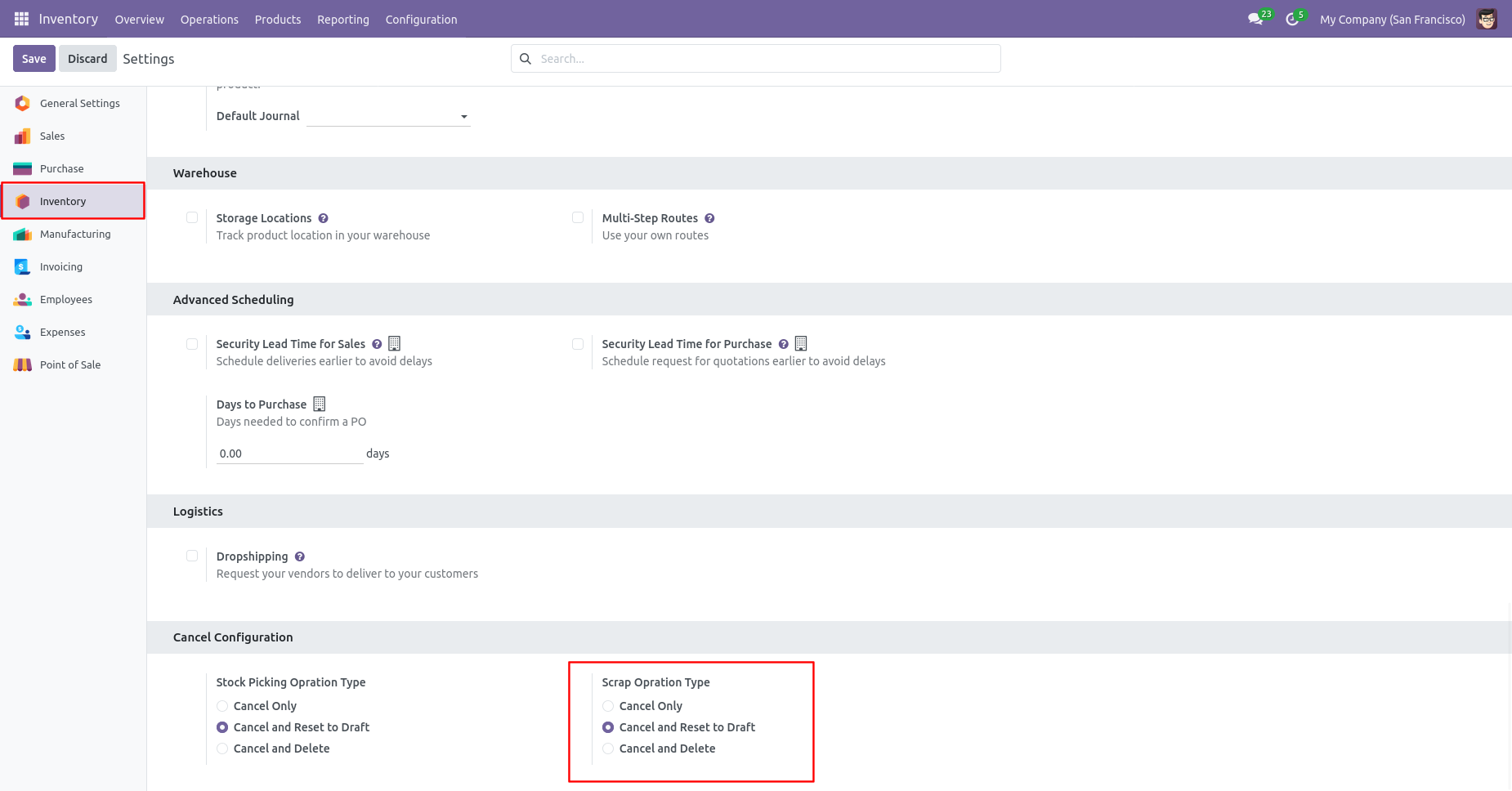
When you want to cancel the scrap ordrs and reset to the draft state tick "Cancel and Reset to Draft".
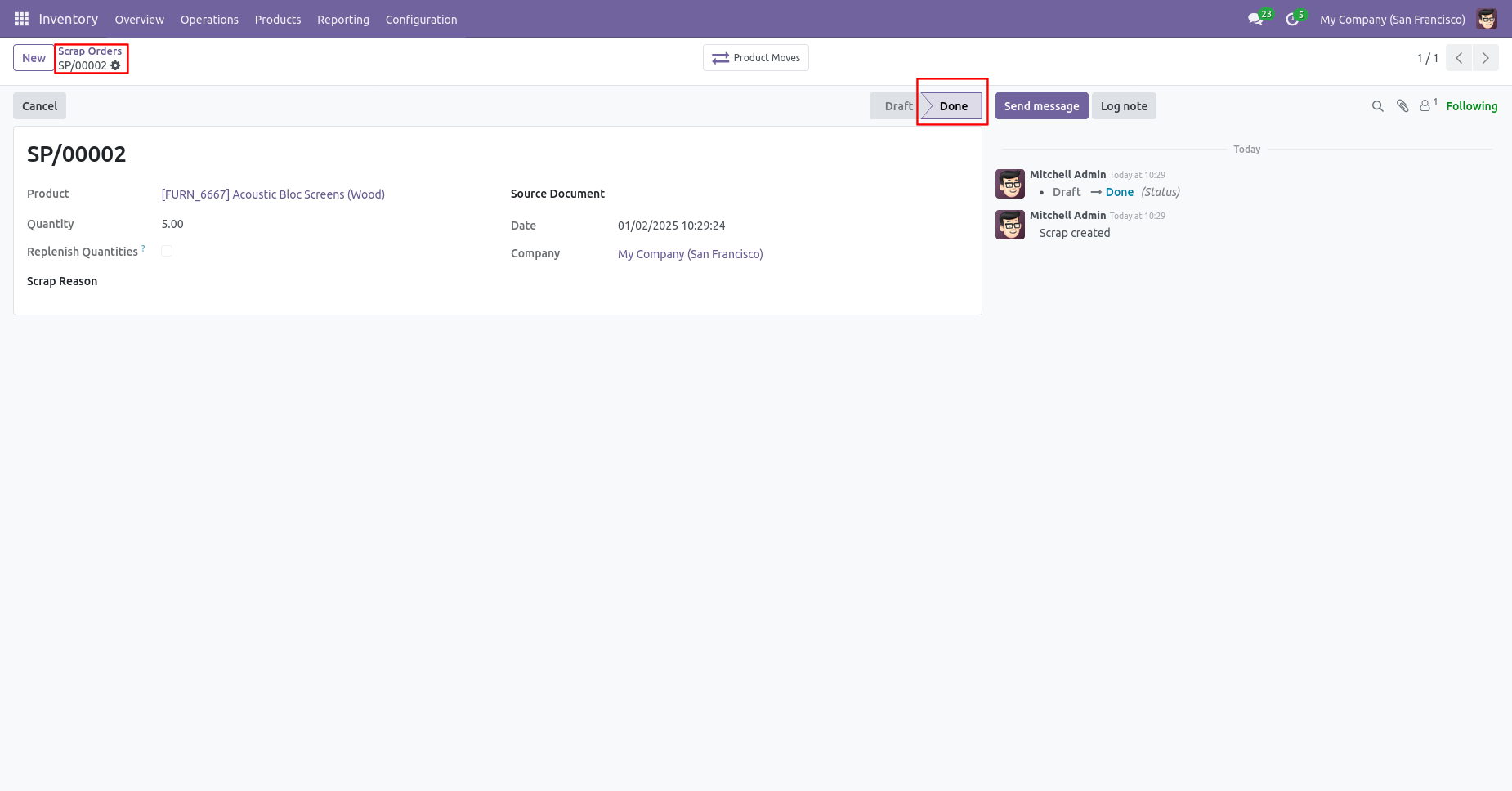
Our scrap order is in the "Done" state.
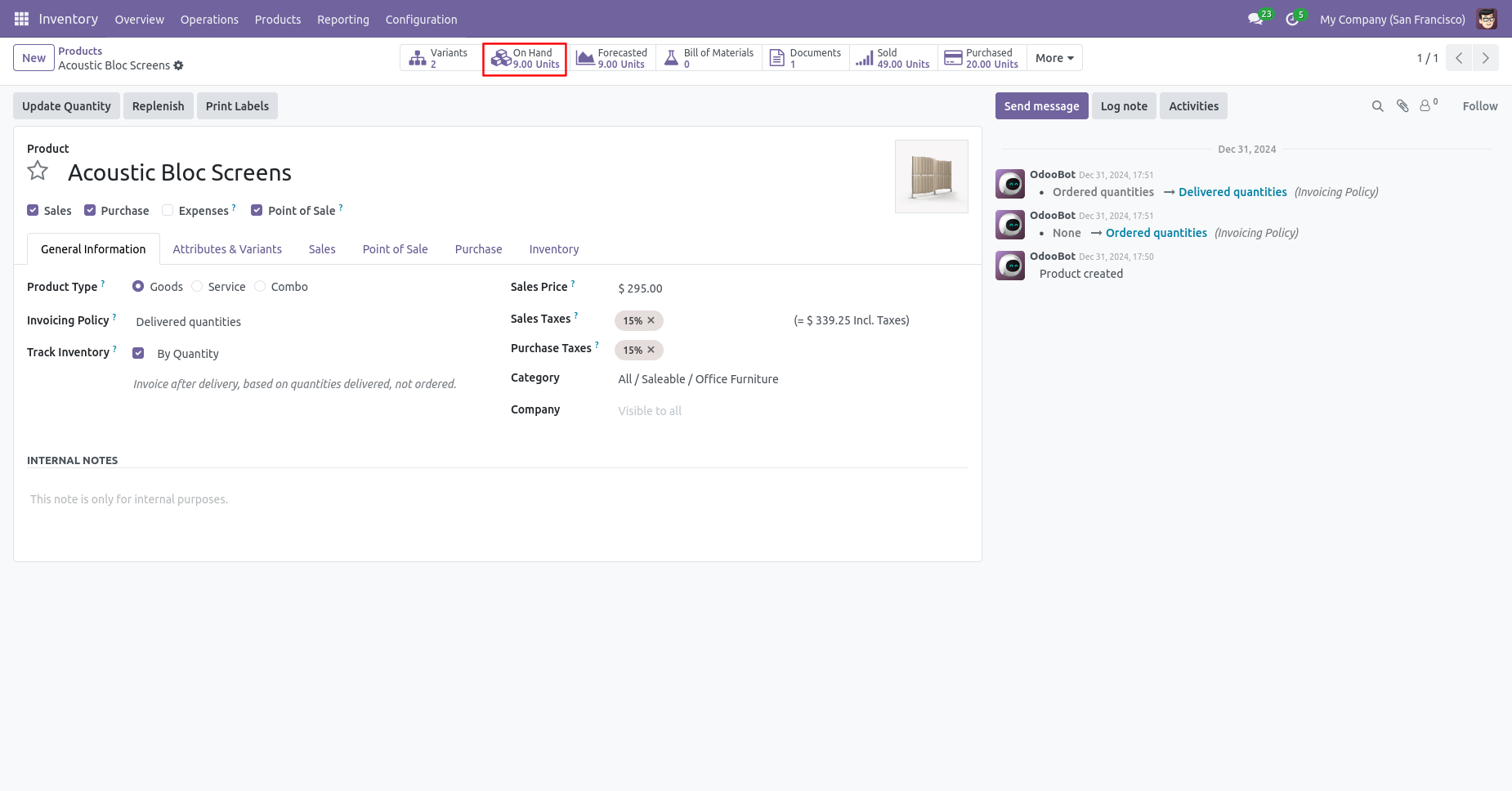
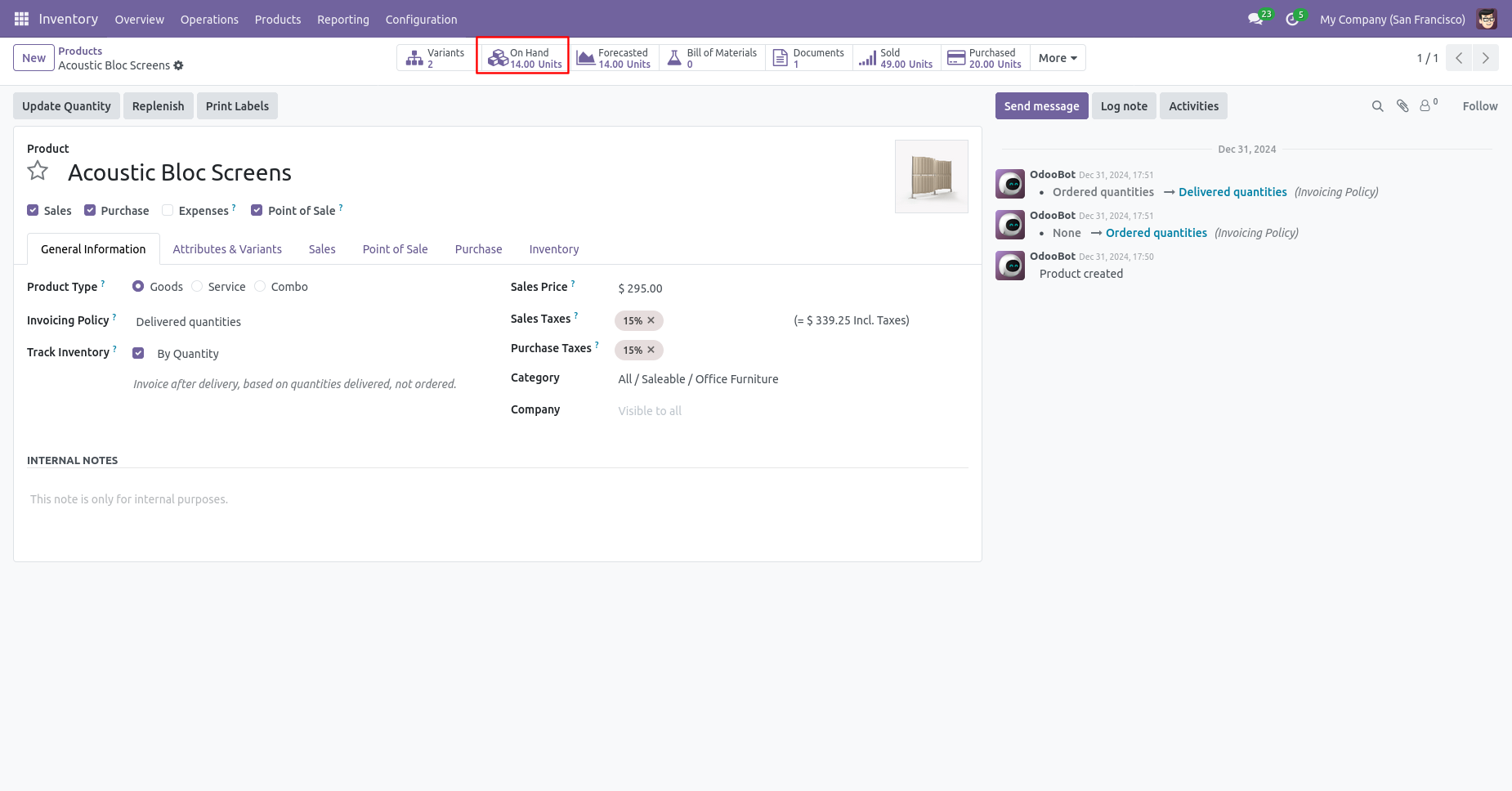
Our onhand qty is now 9.00 units.
Our scrap order move history status is "Done".
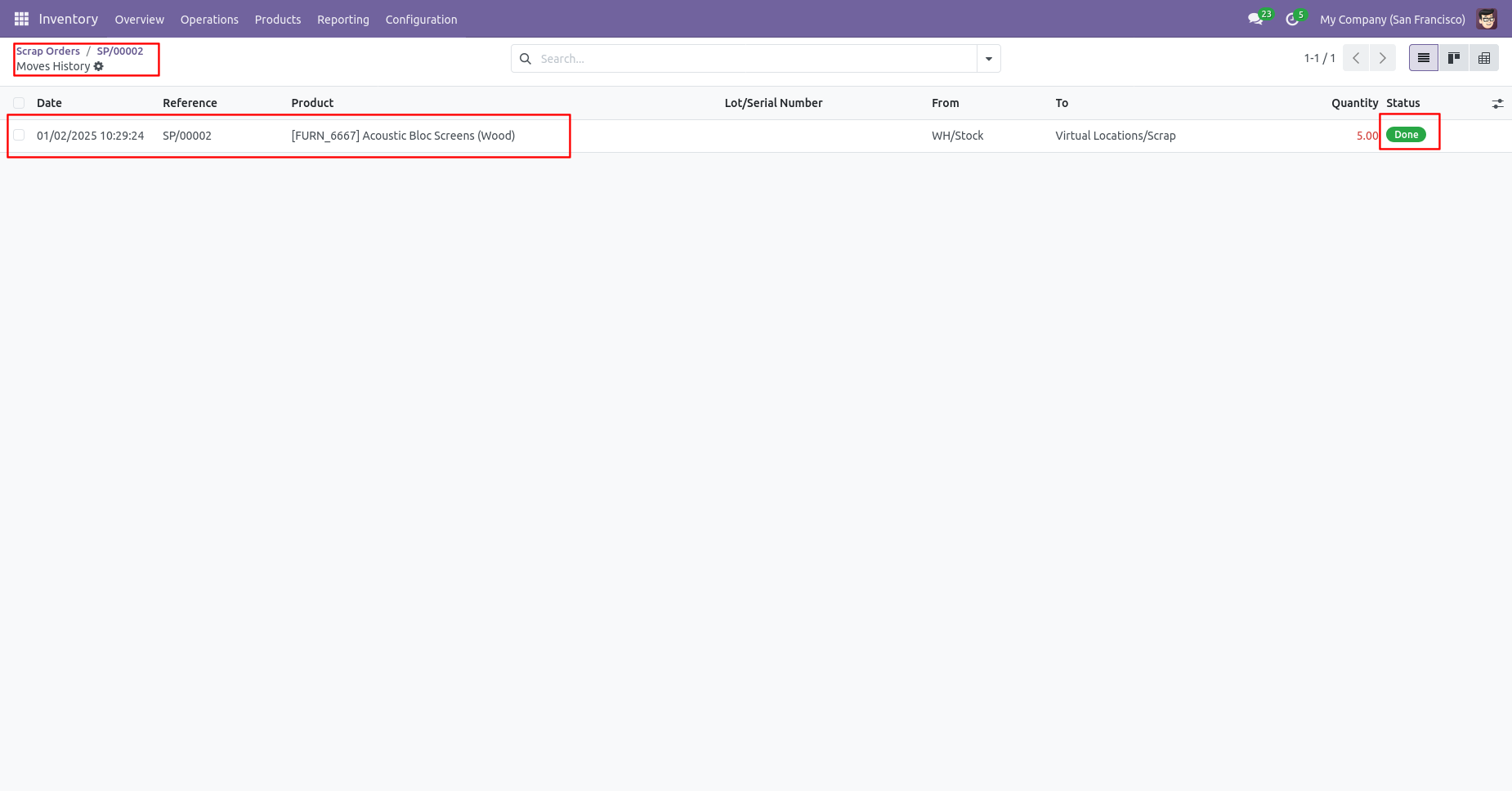
Now we cancel the scrap order.
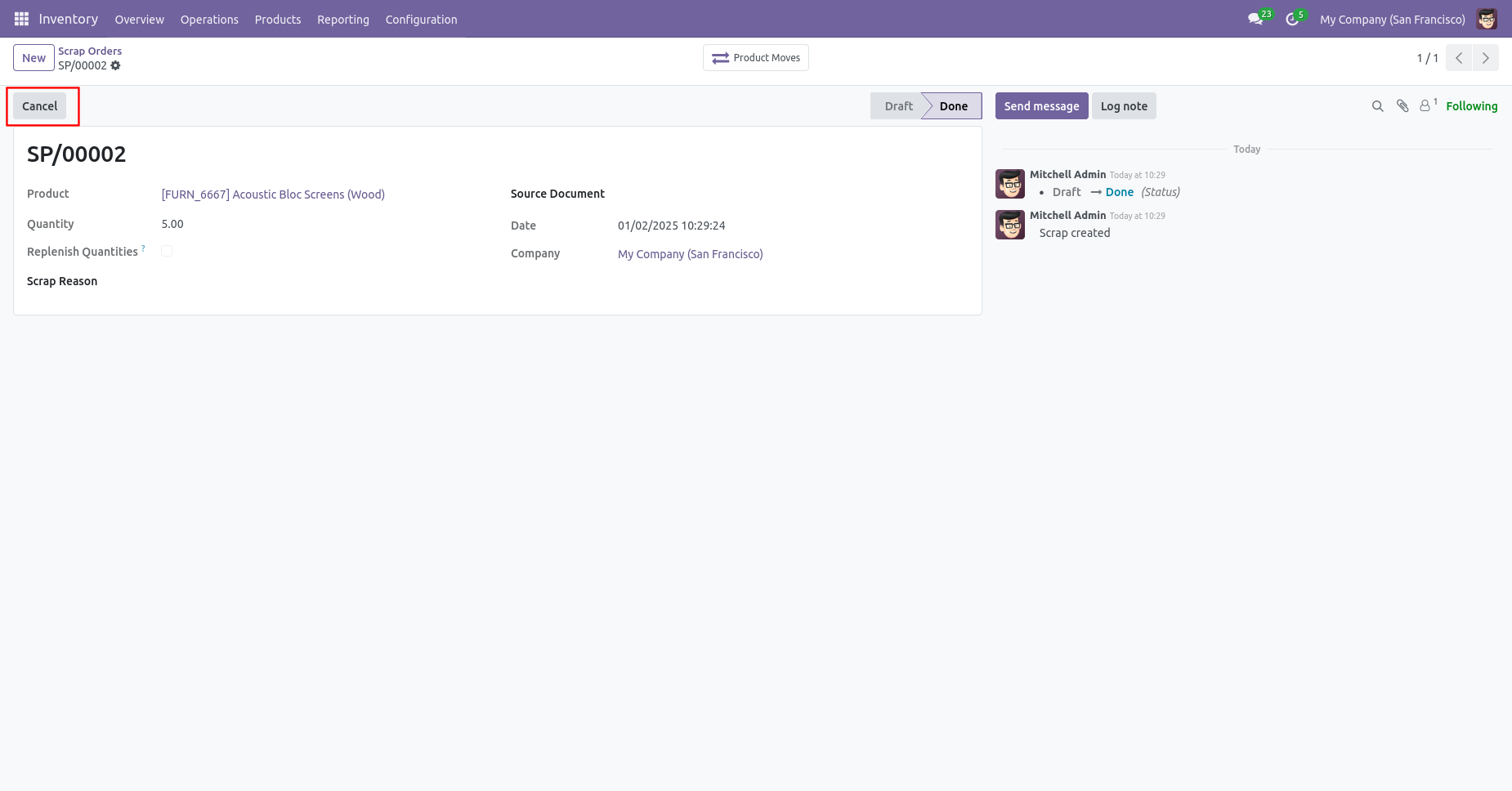
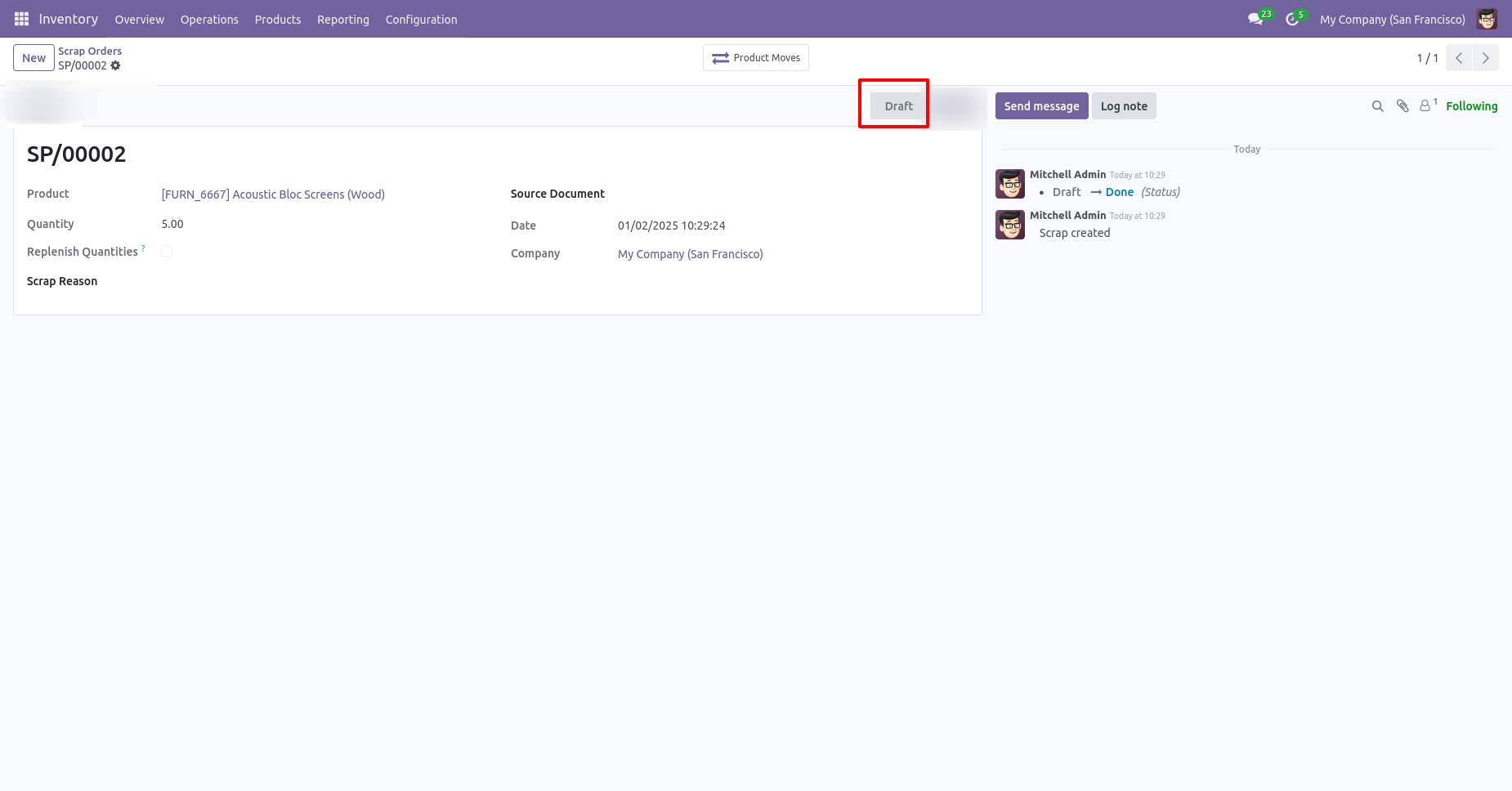
So scrap order is cancelled and reset to the draft.
After cancelled scrap order our onhand qty is updated.
Inventory Transfer
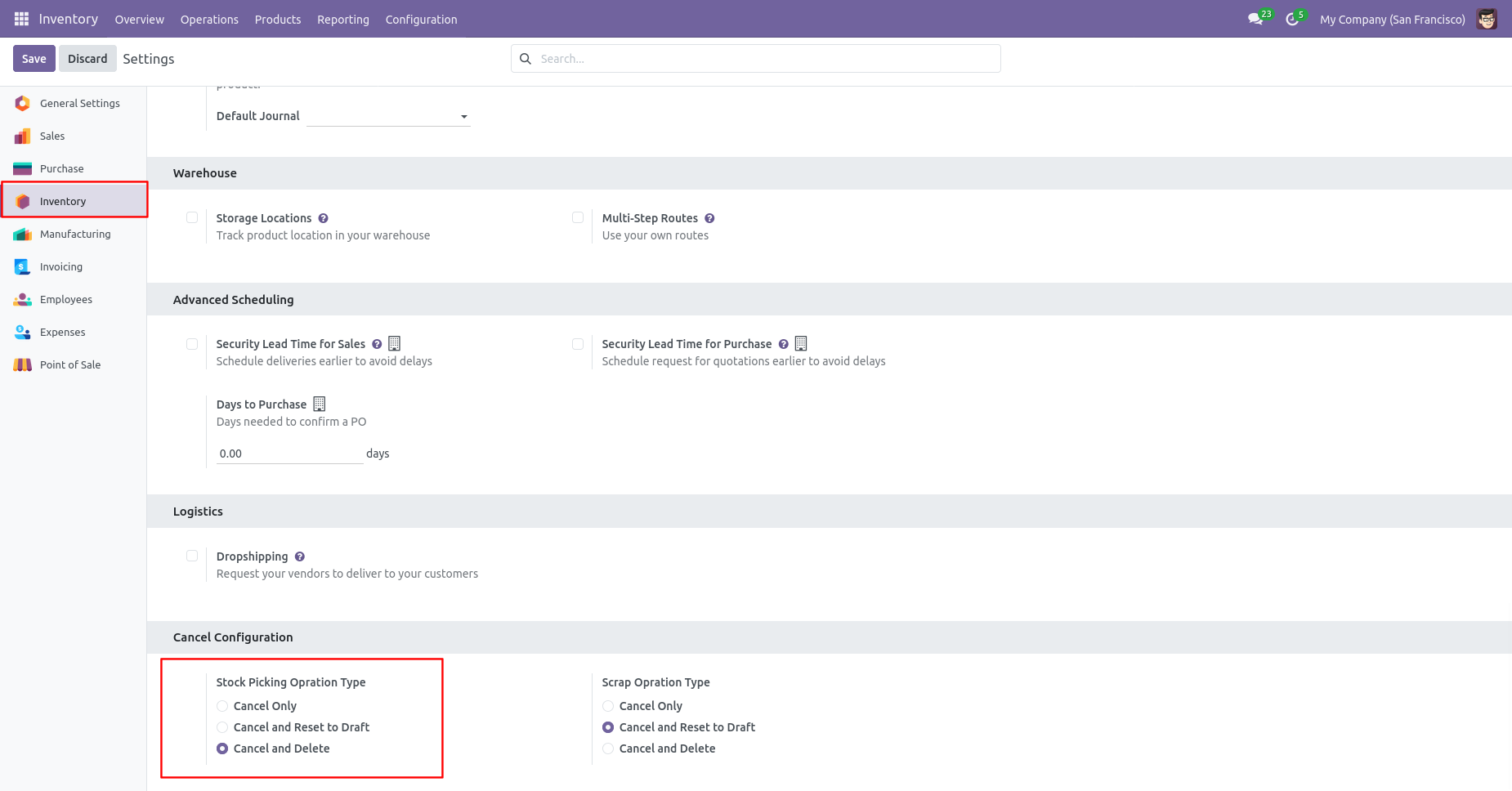
When you want to cancel & delete the stock-picking then choose the "Cancel and Delete" option. .
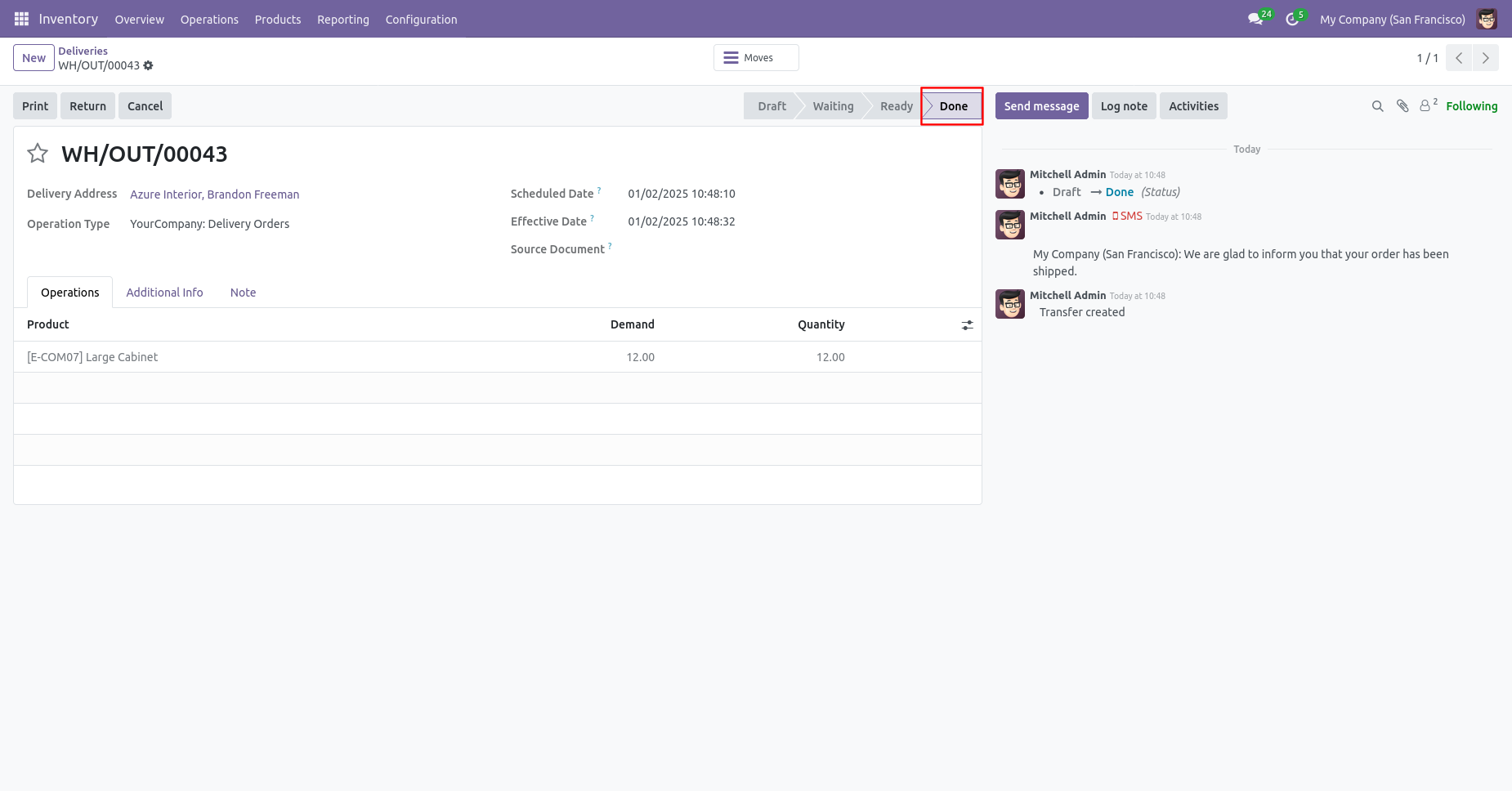
The delivery order is in "Done" stage.
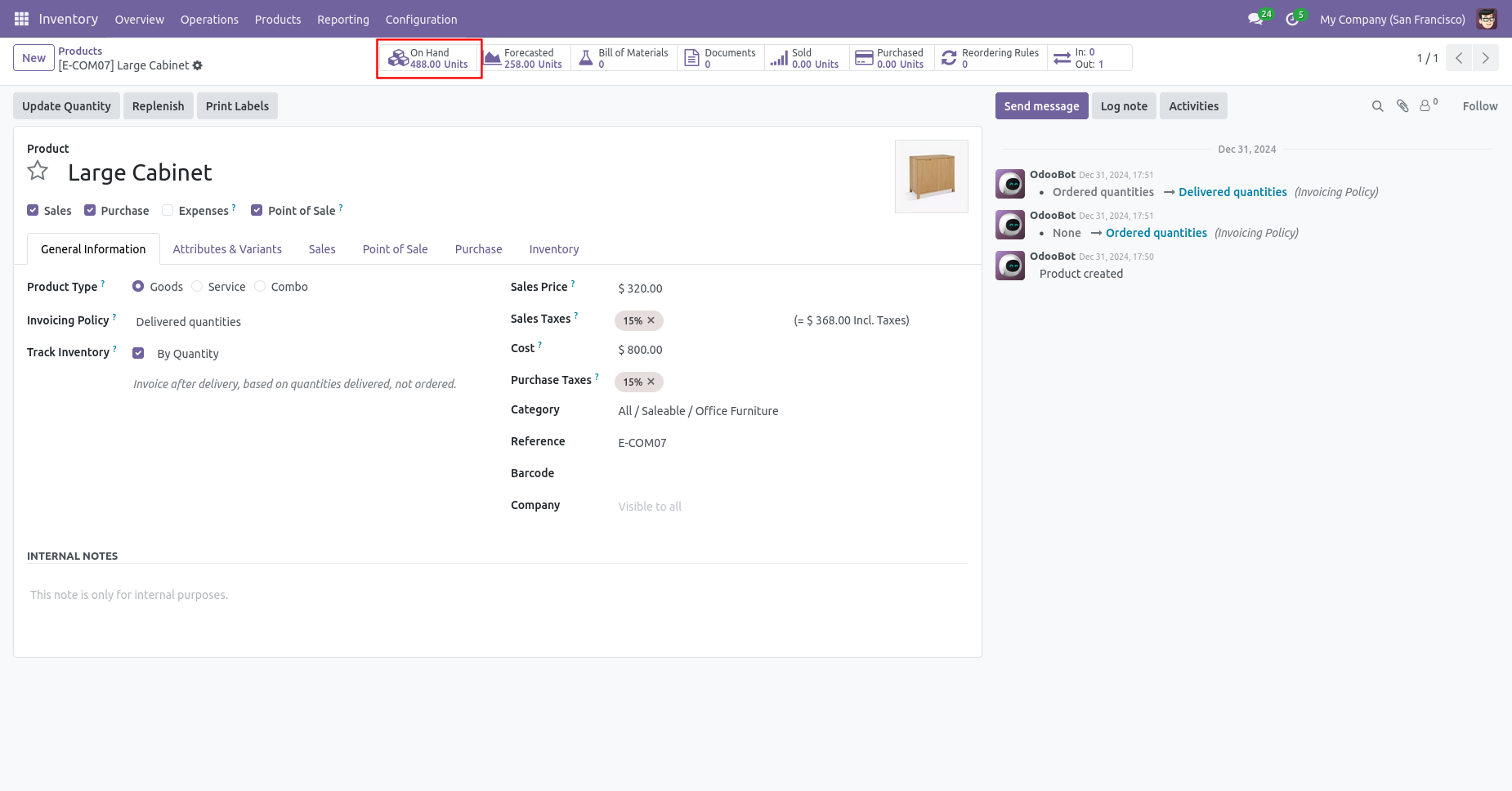
Our onhand qty is now 488.00 units.
Scrap Order
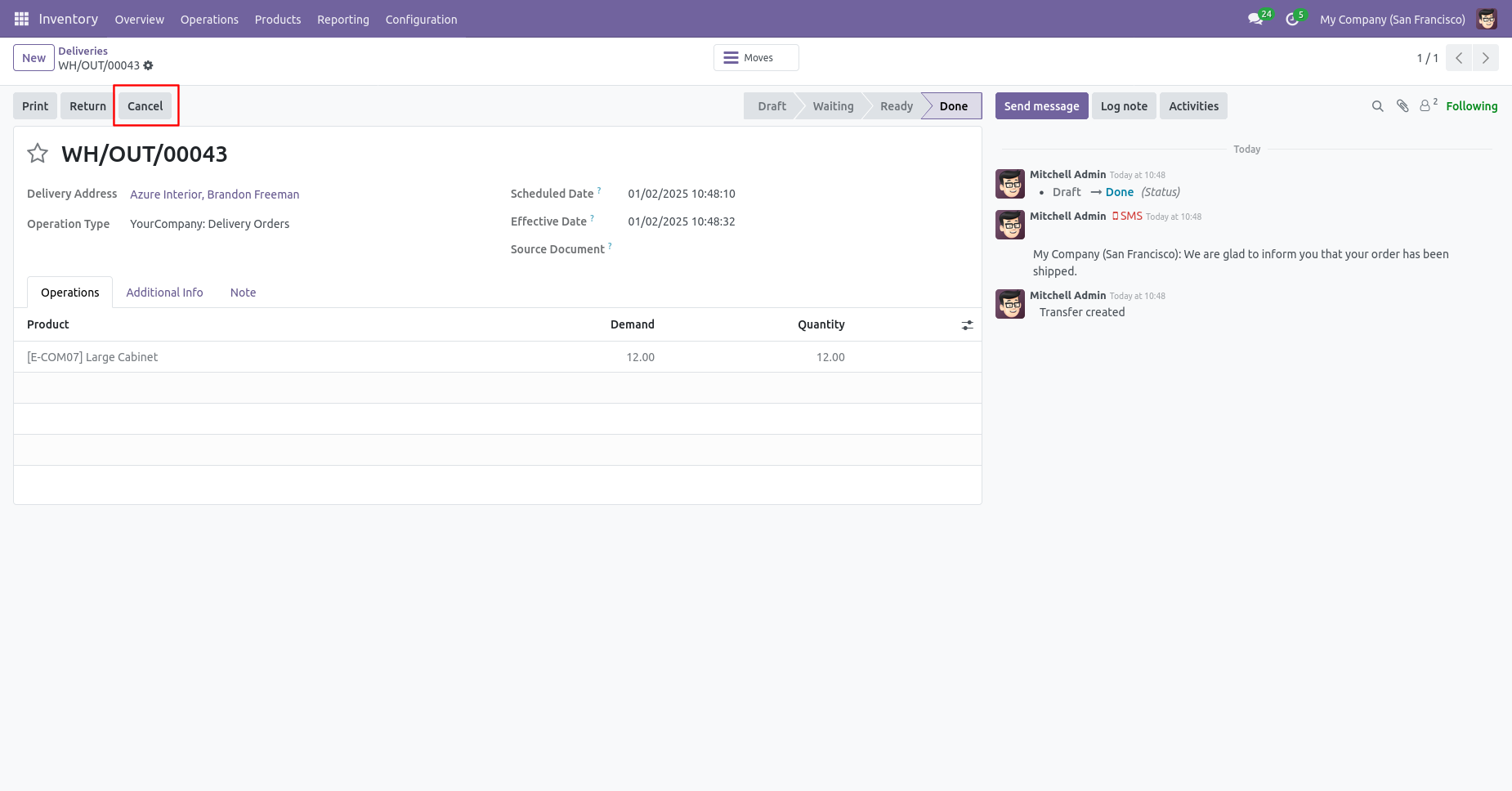
We cancel stock-picking.
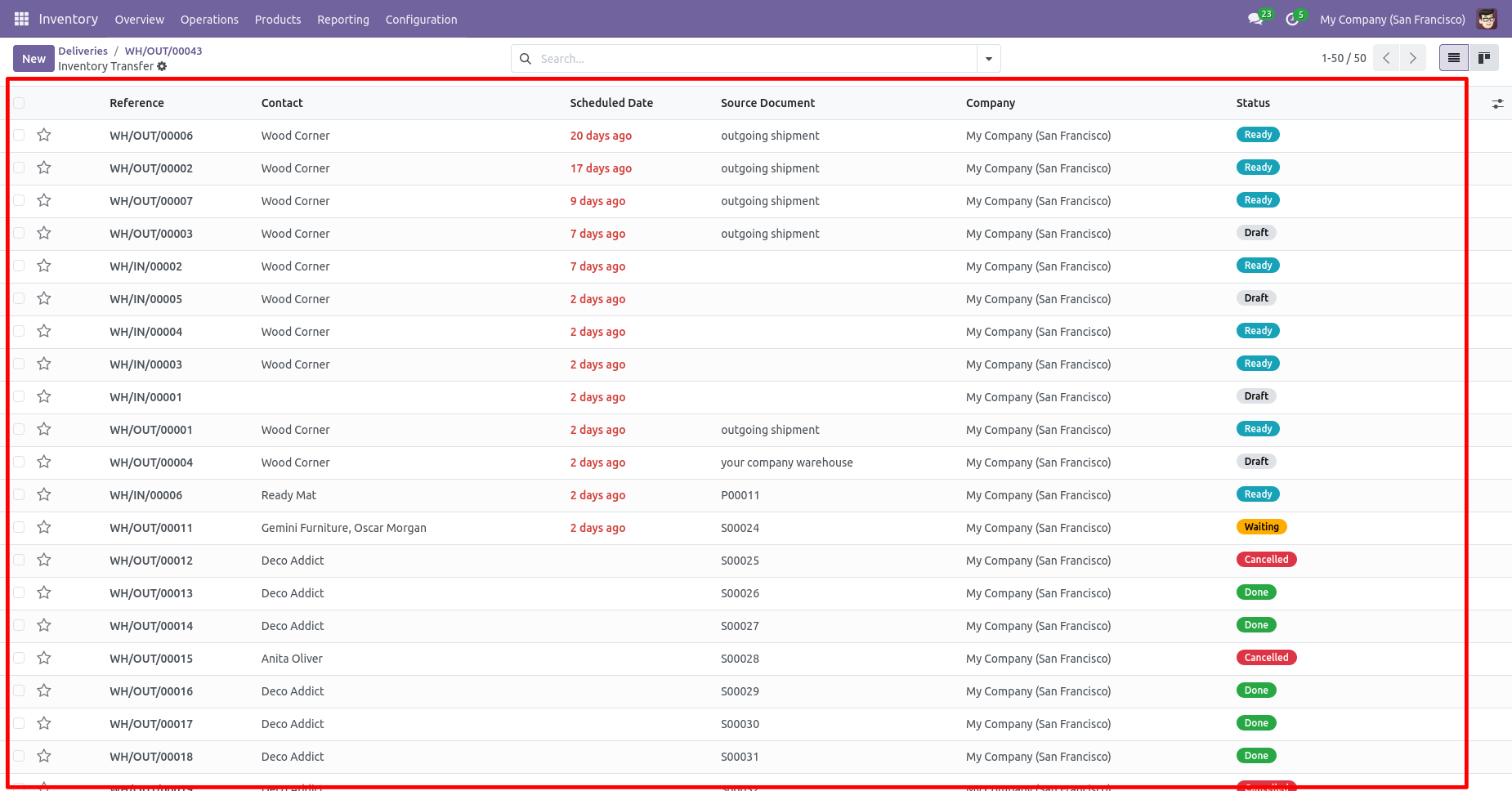
Tree view of the Inventory Transfer.
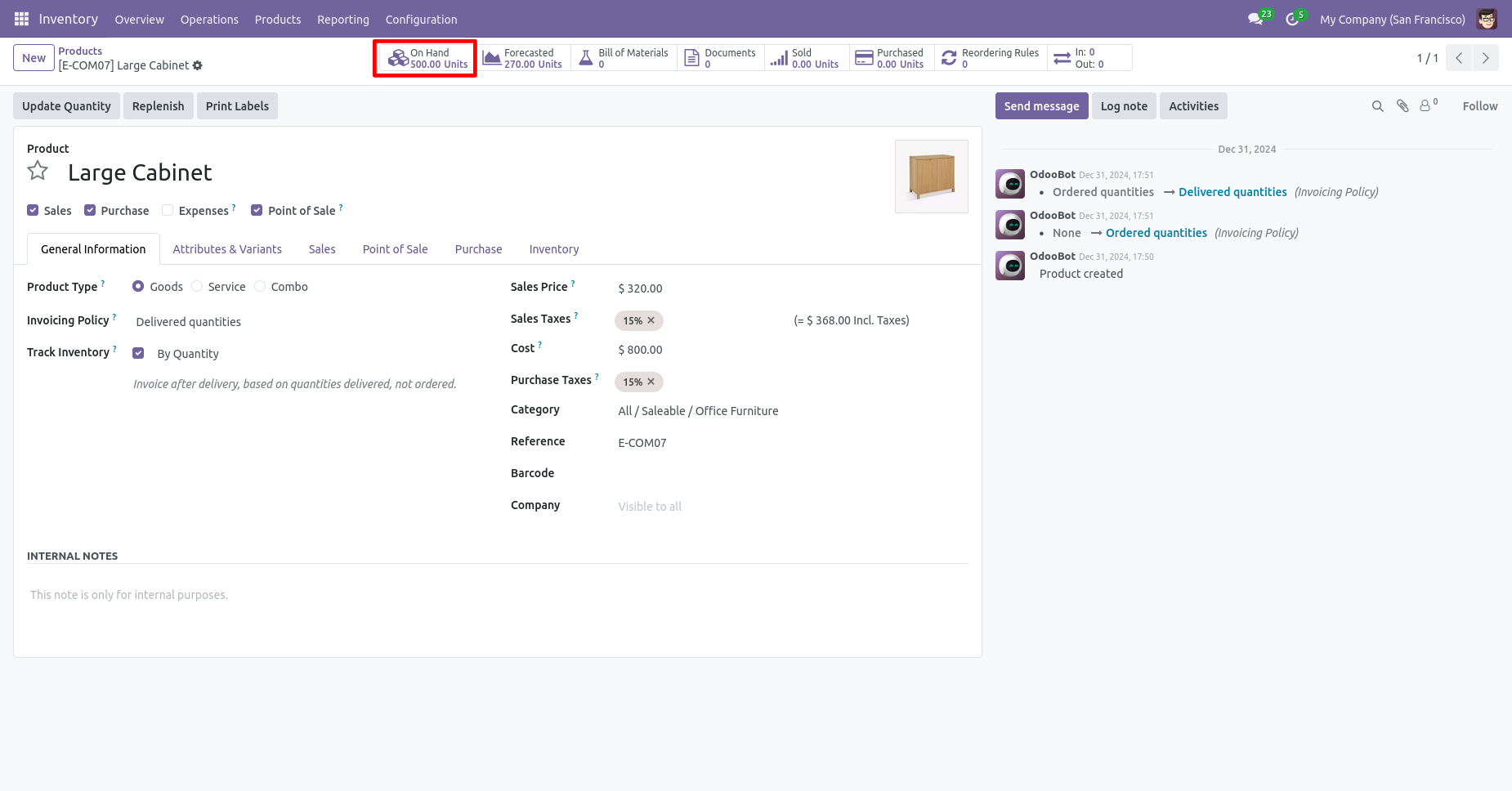
Our onhand qty is now updated.
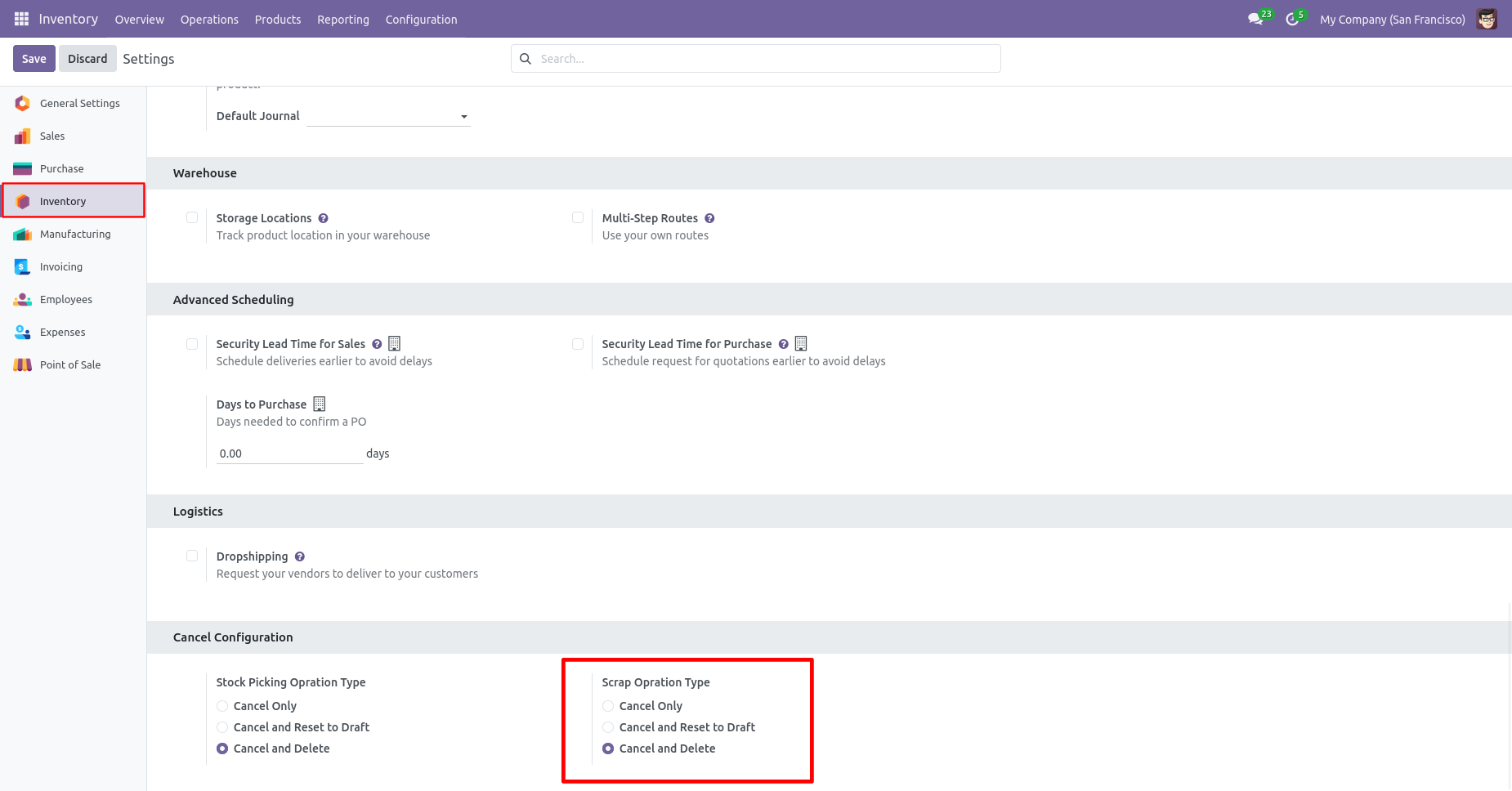
When you want to Cancel & Delete the scrap ordrs then choose the "Cancel And Delete" option.
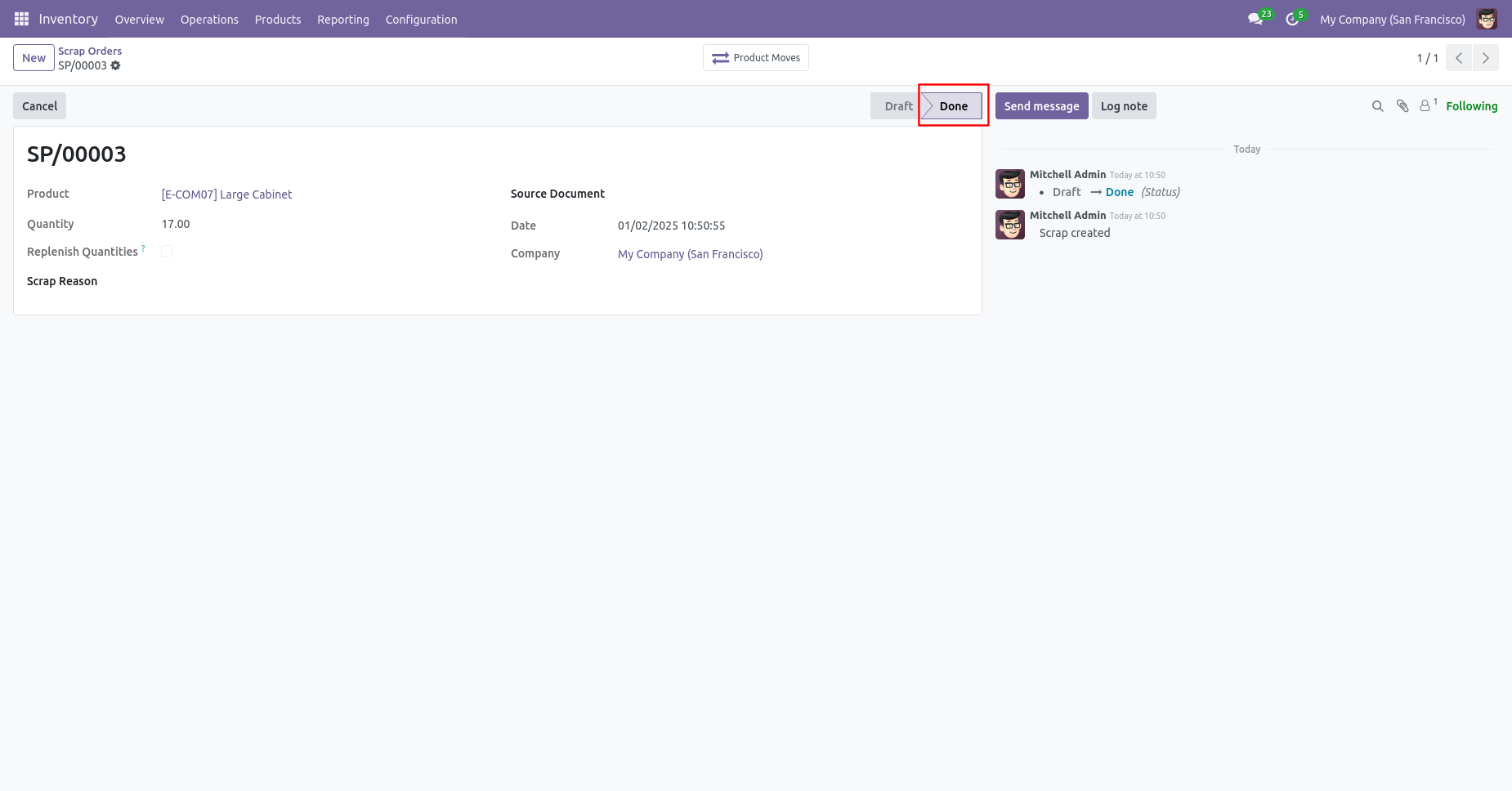
Our scrap order is in the "Done" state.
Our scrap order move history status is "Done".
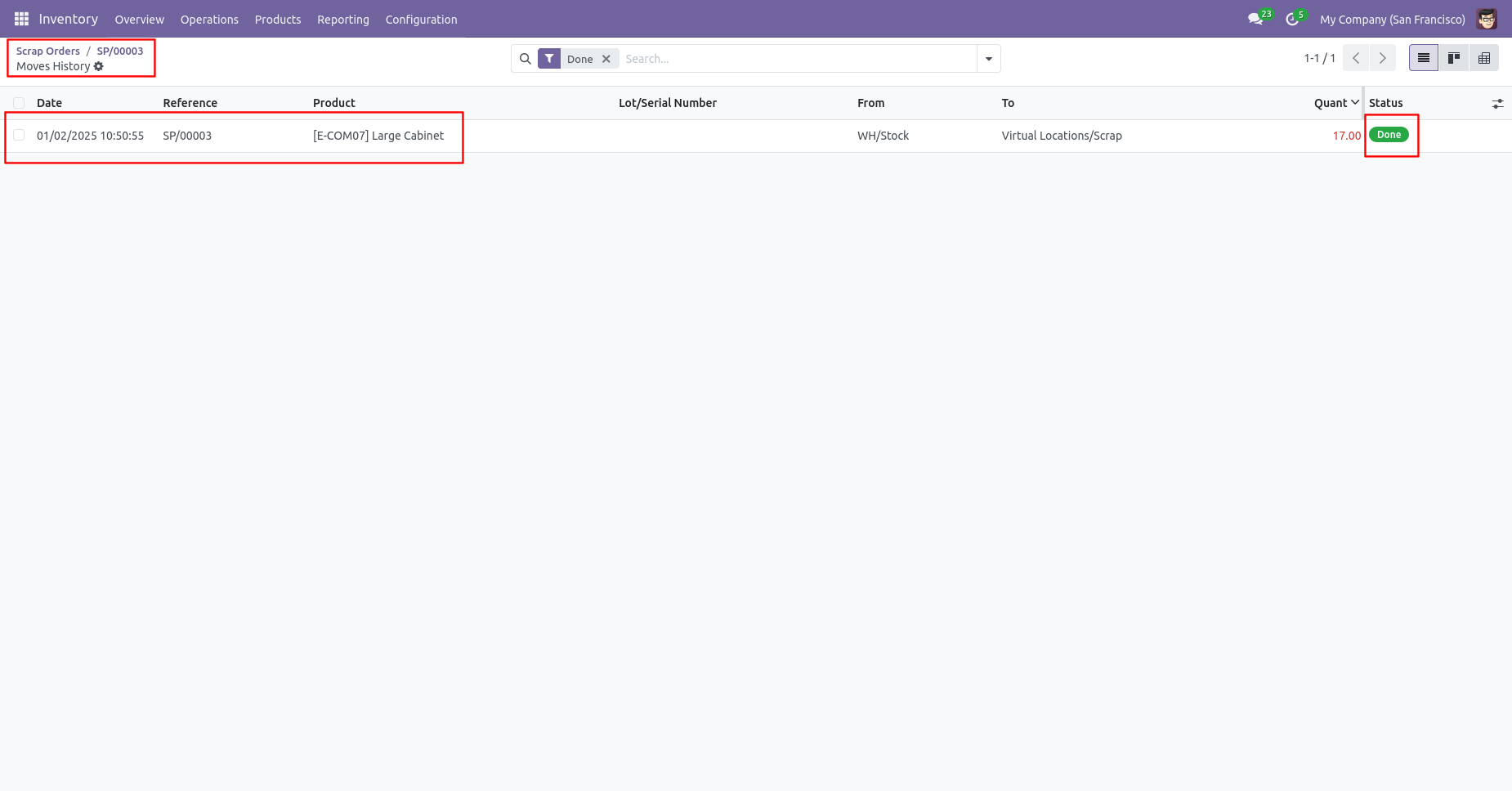
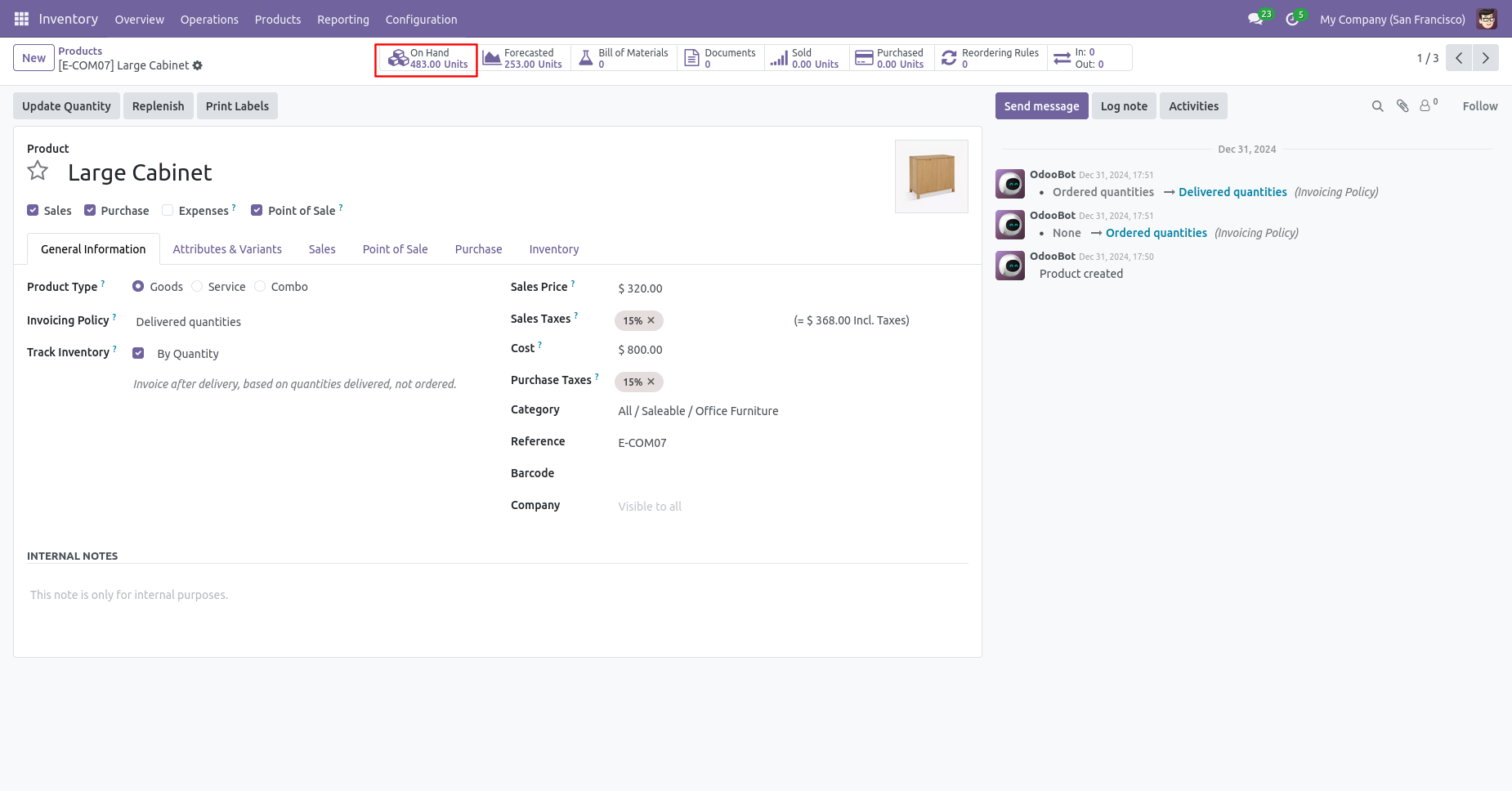
Our onhand qty is now 483.00 units.
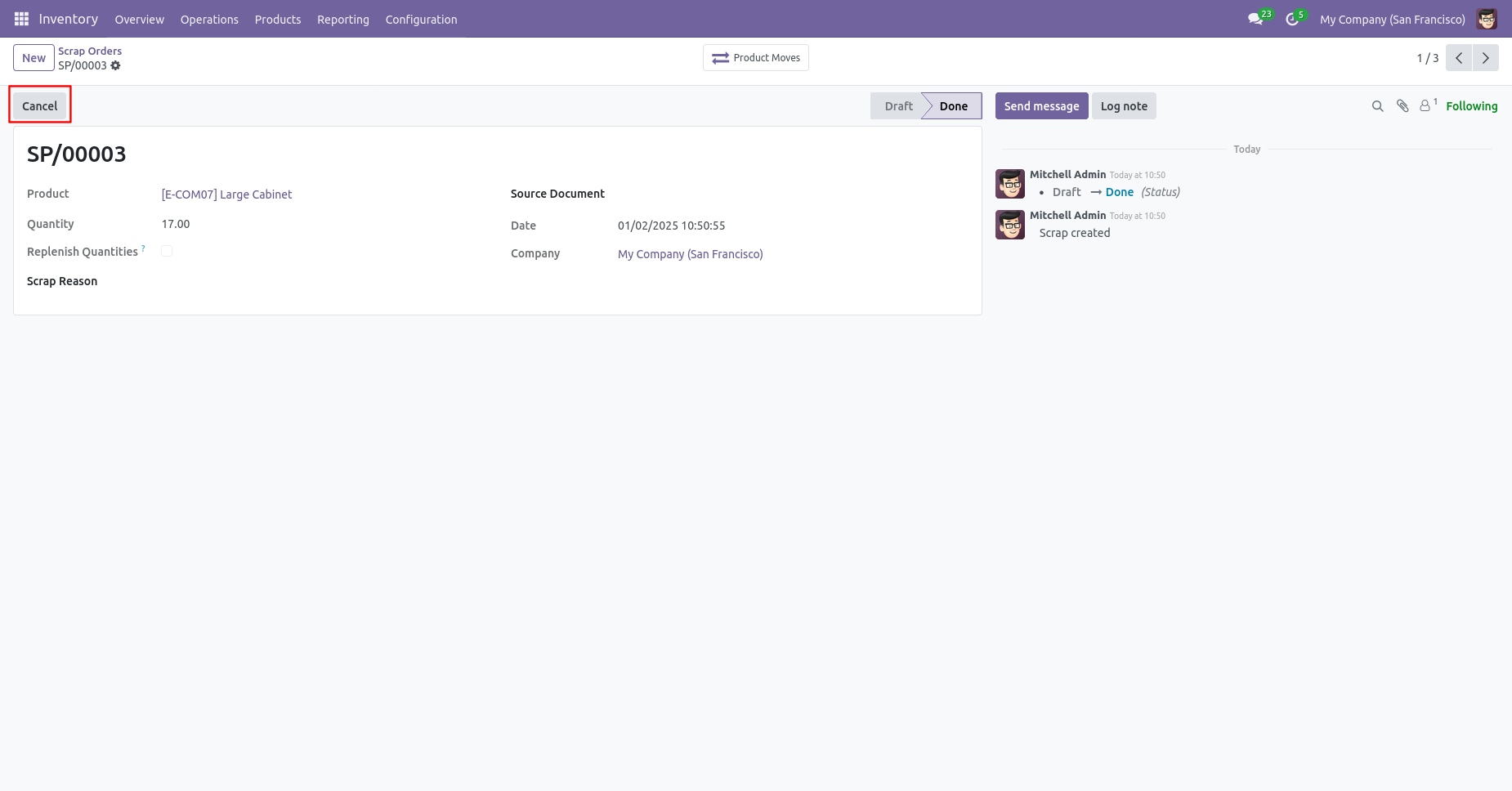
Now we cancel the scrap order.
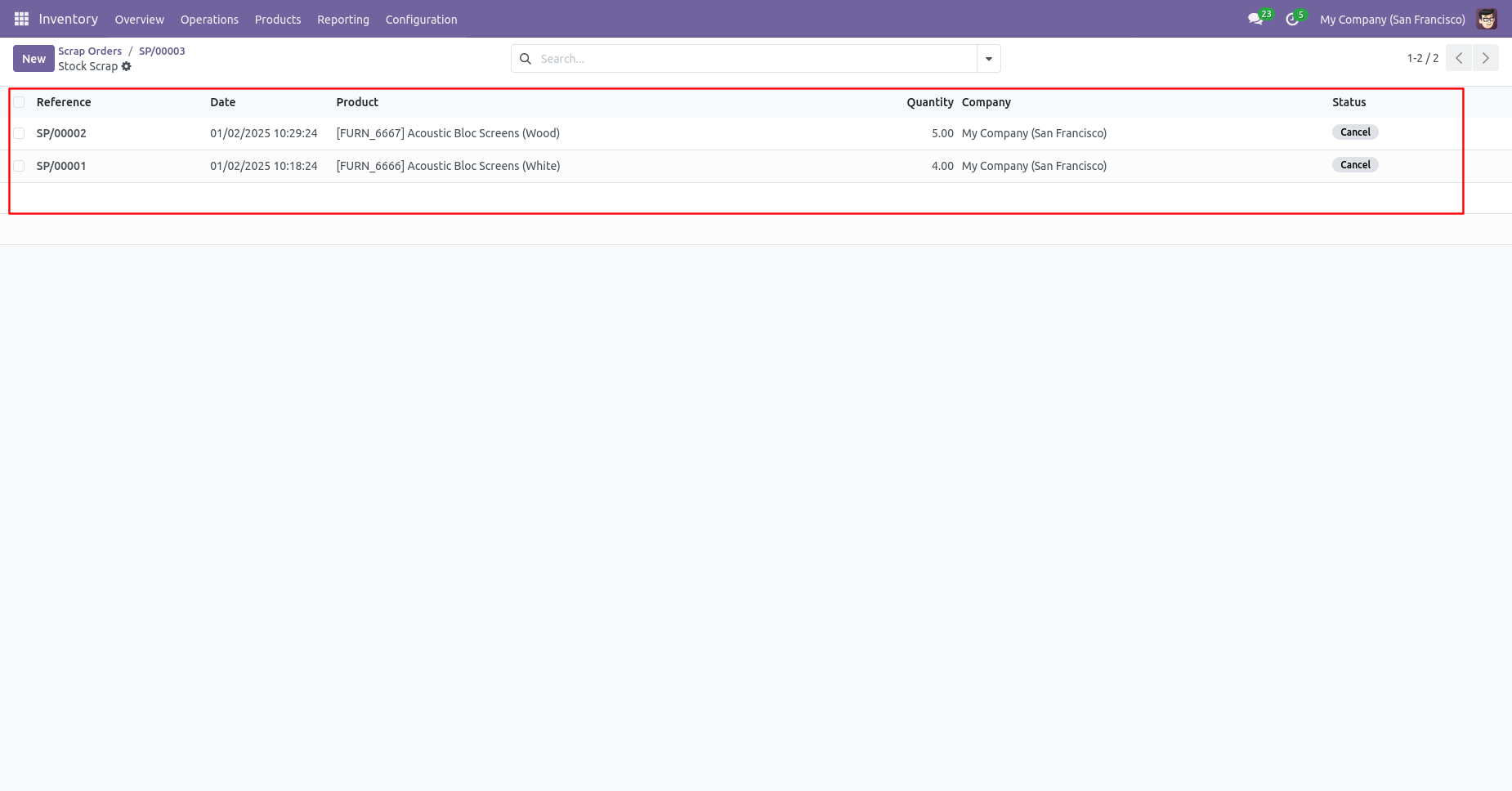
After the "Cancel" the scrap order will be deleted.
After cancelled scrap order our onhand qty is updated.
Inventory Transfer
Now we cancel multiple pickings from the tree view.
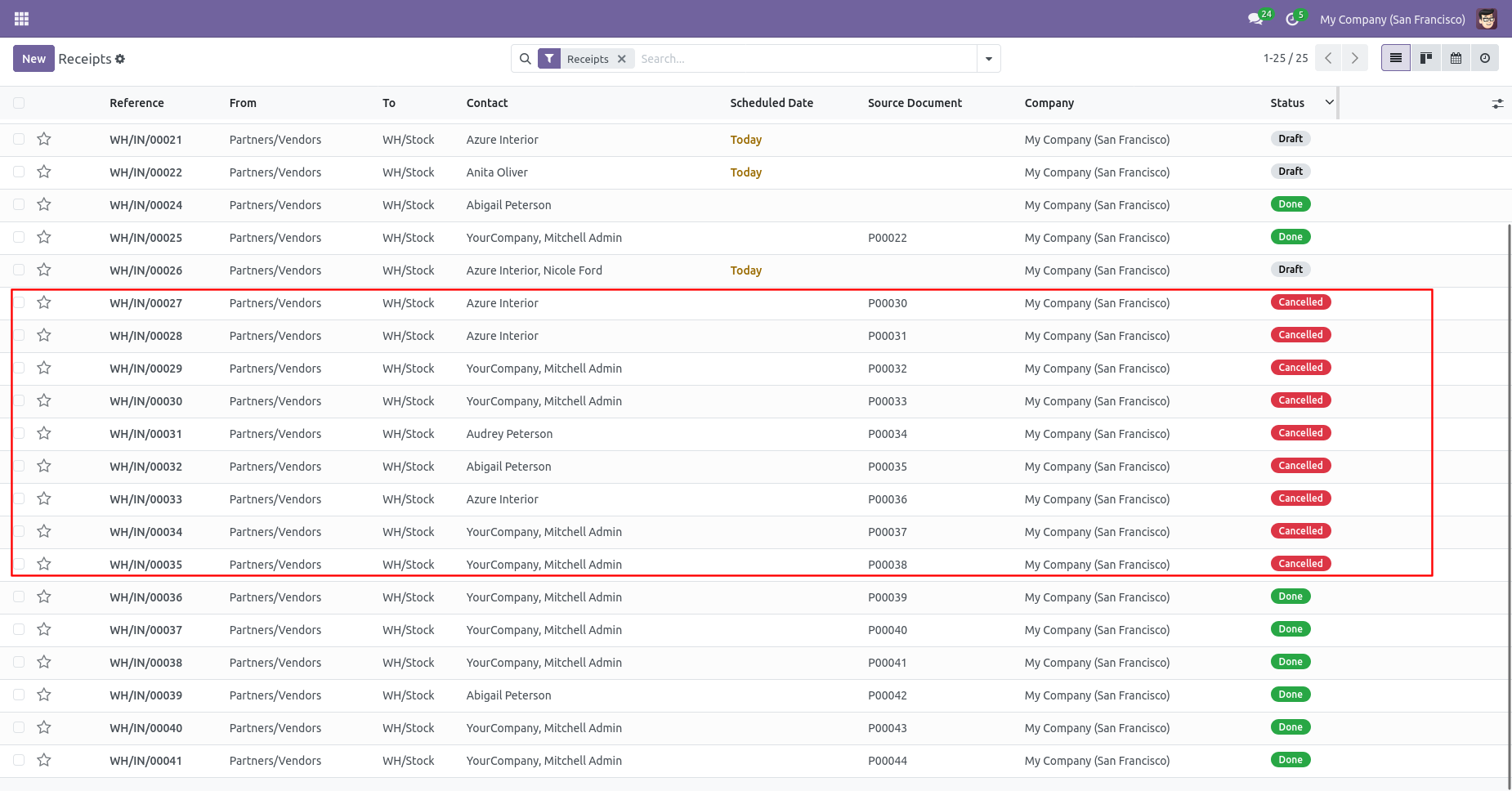
All selected pickings are cancelled.
Now we "cancel & reset draft" multiple pickings from the tree view.
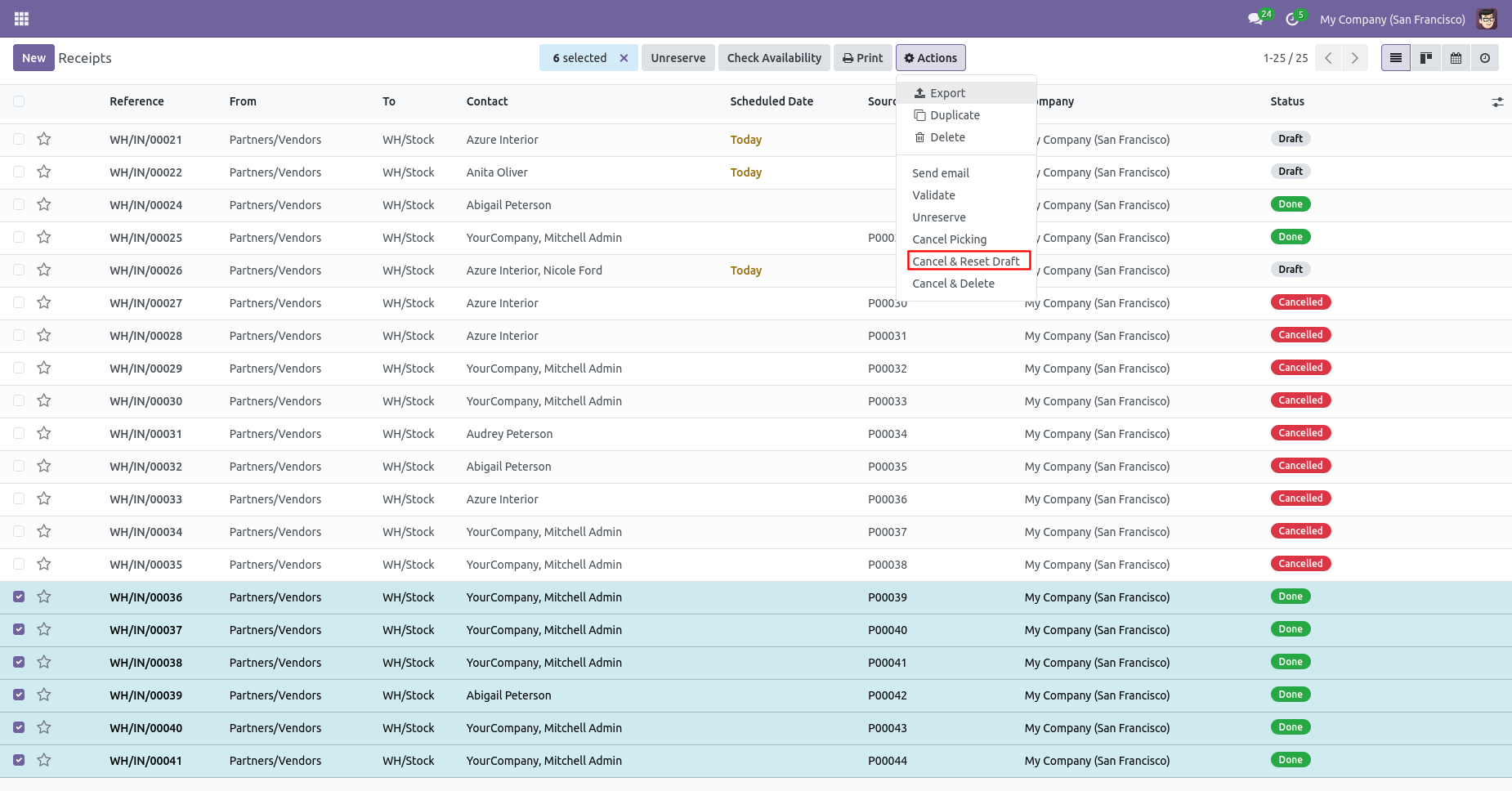
All selected pickings are cancelled and reset to the draft.
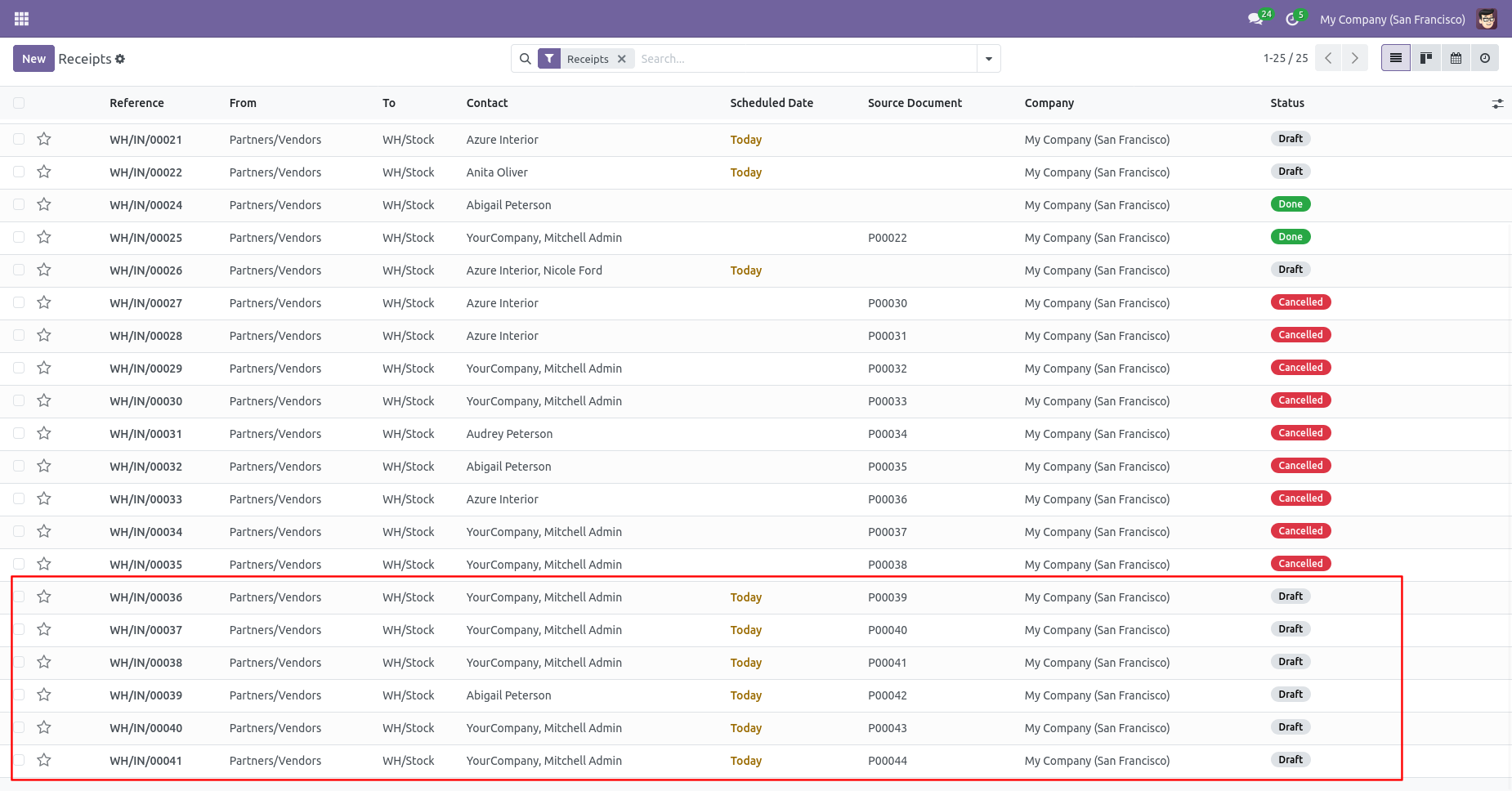
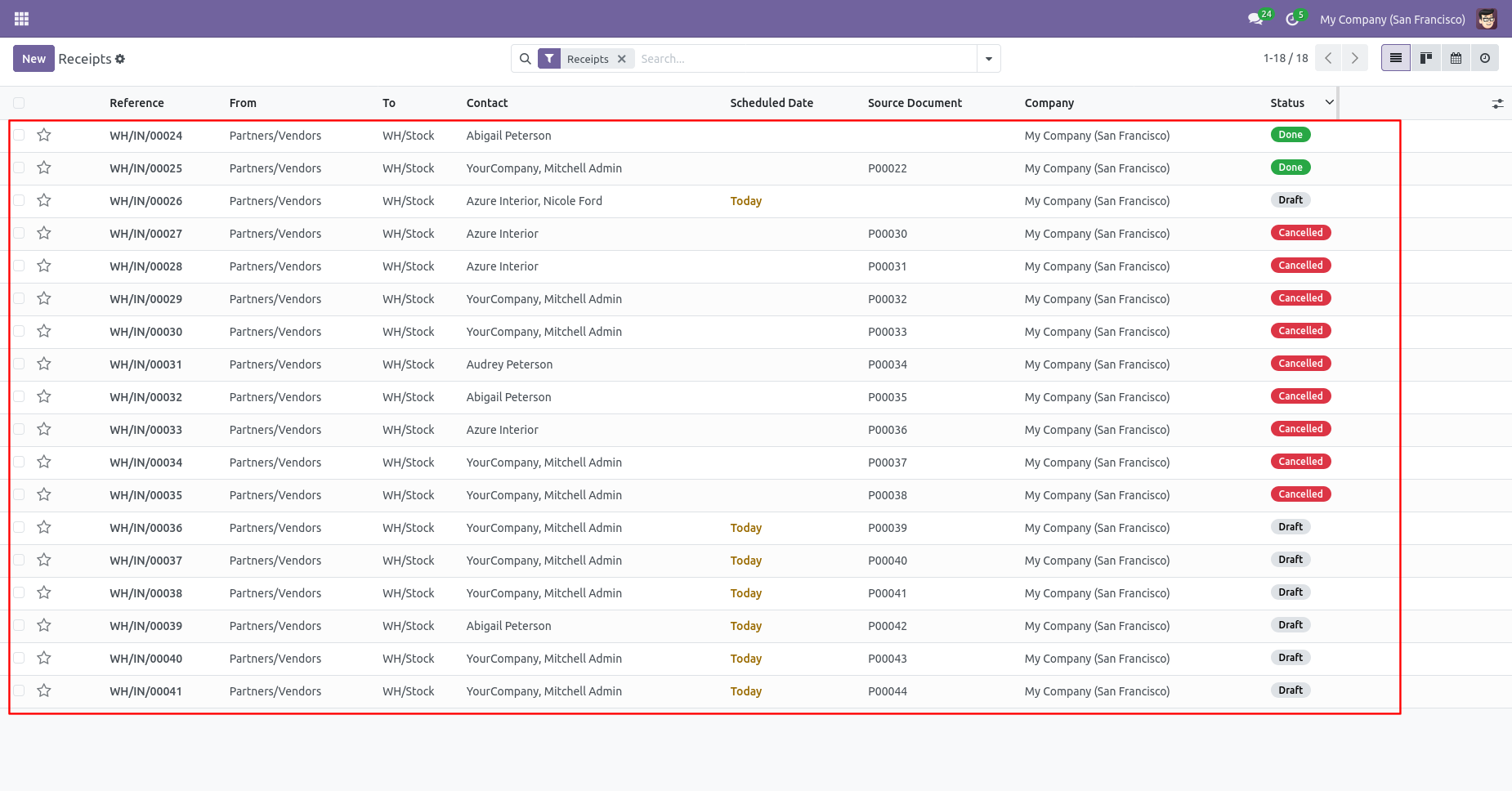
Now we "cancel & delete" multiple pickings from the tree view.
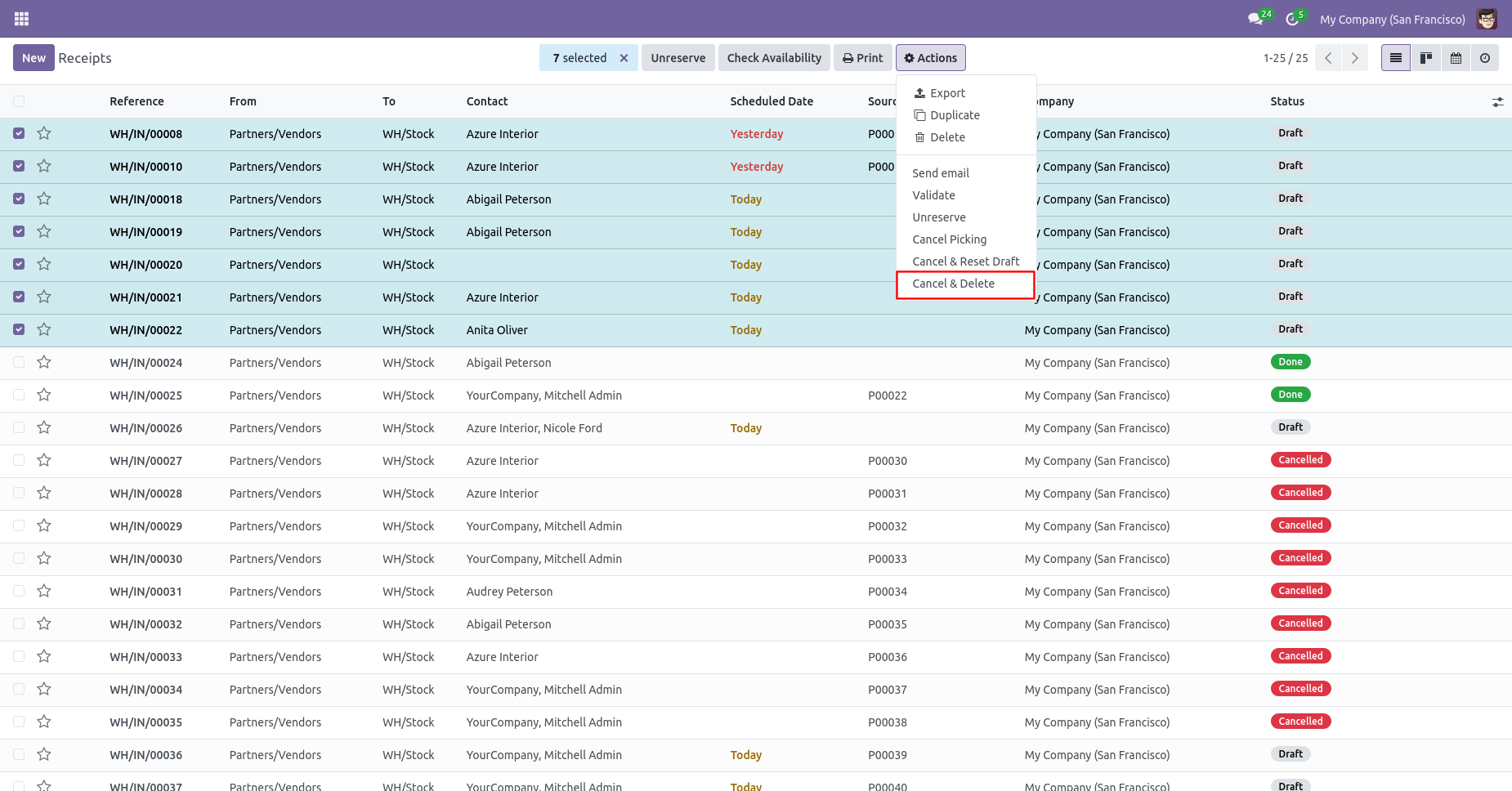
All pickings will be deleted after cancelled.
Scrap Order
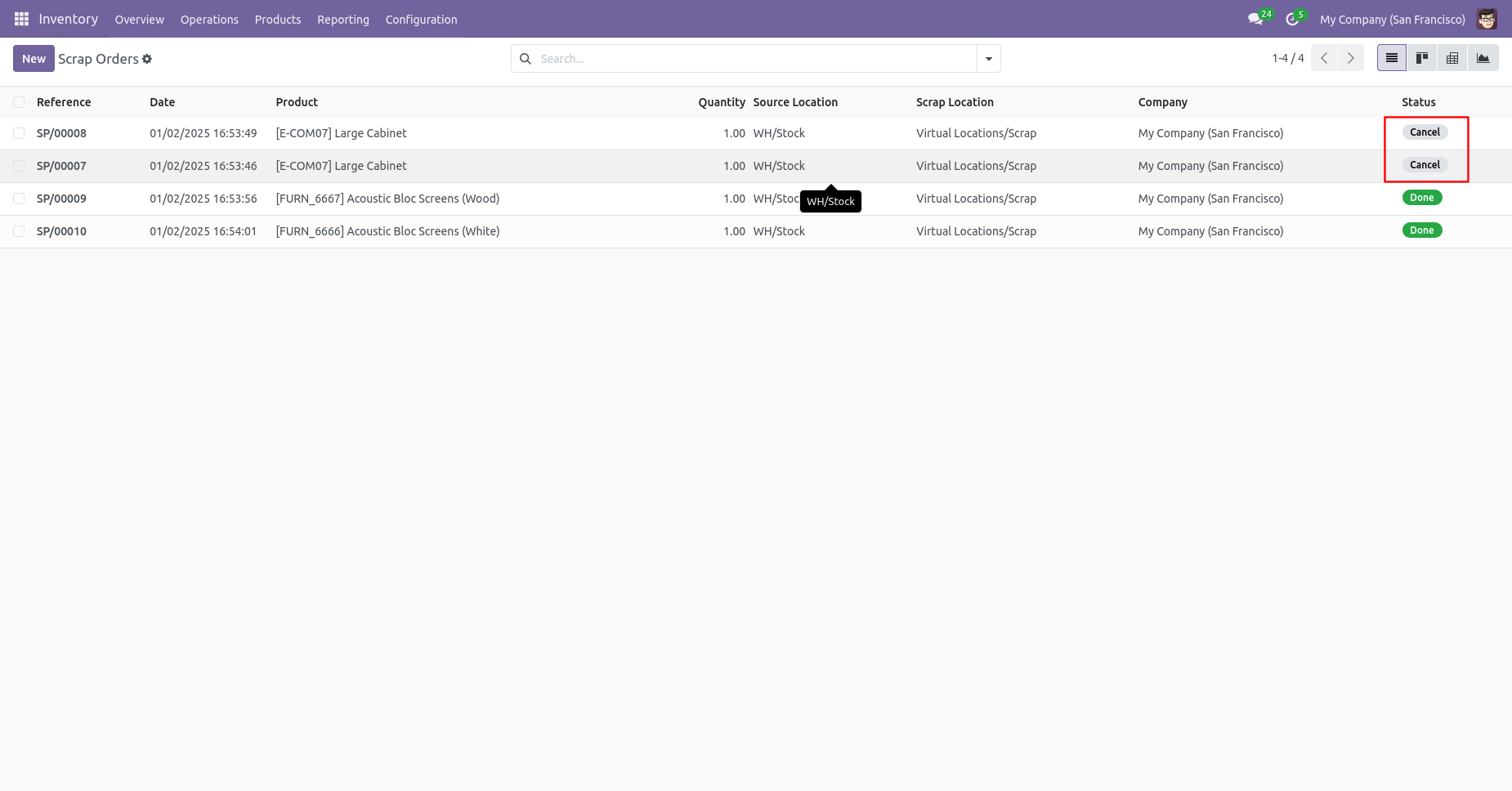
Now we cancel multiple scrap orders from the tree view.
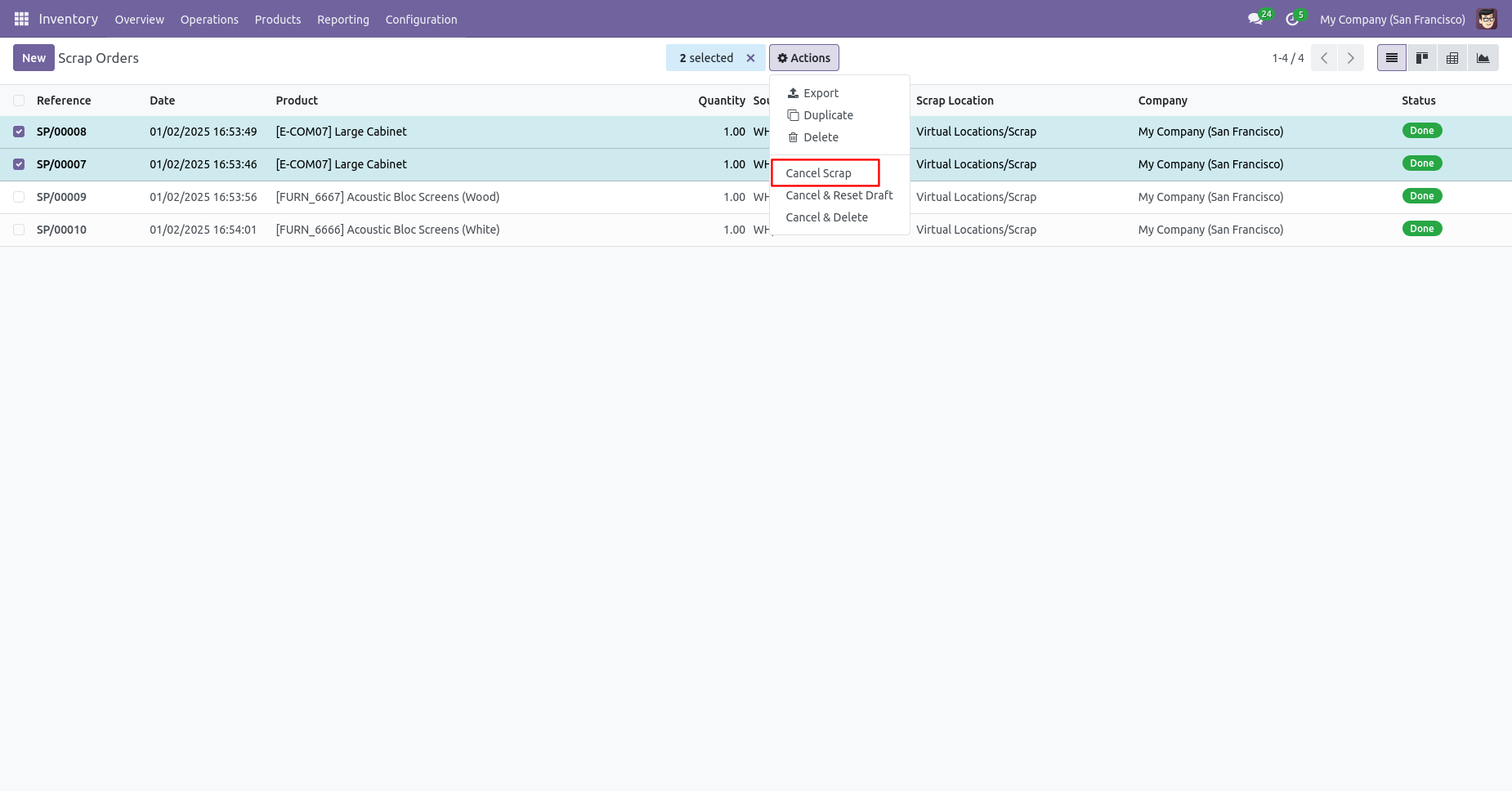
All selected scrap orders are cancelled.
Now we "cancel & reset draft" multiple scrap orders from the tree view.
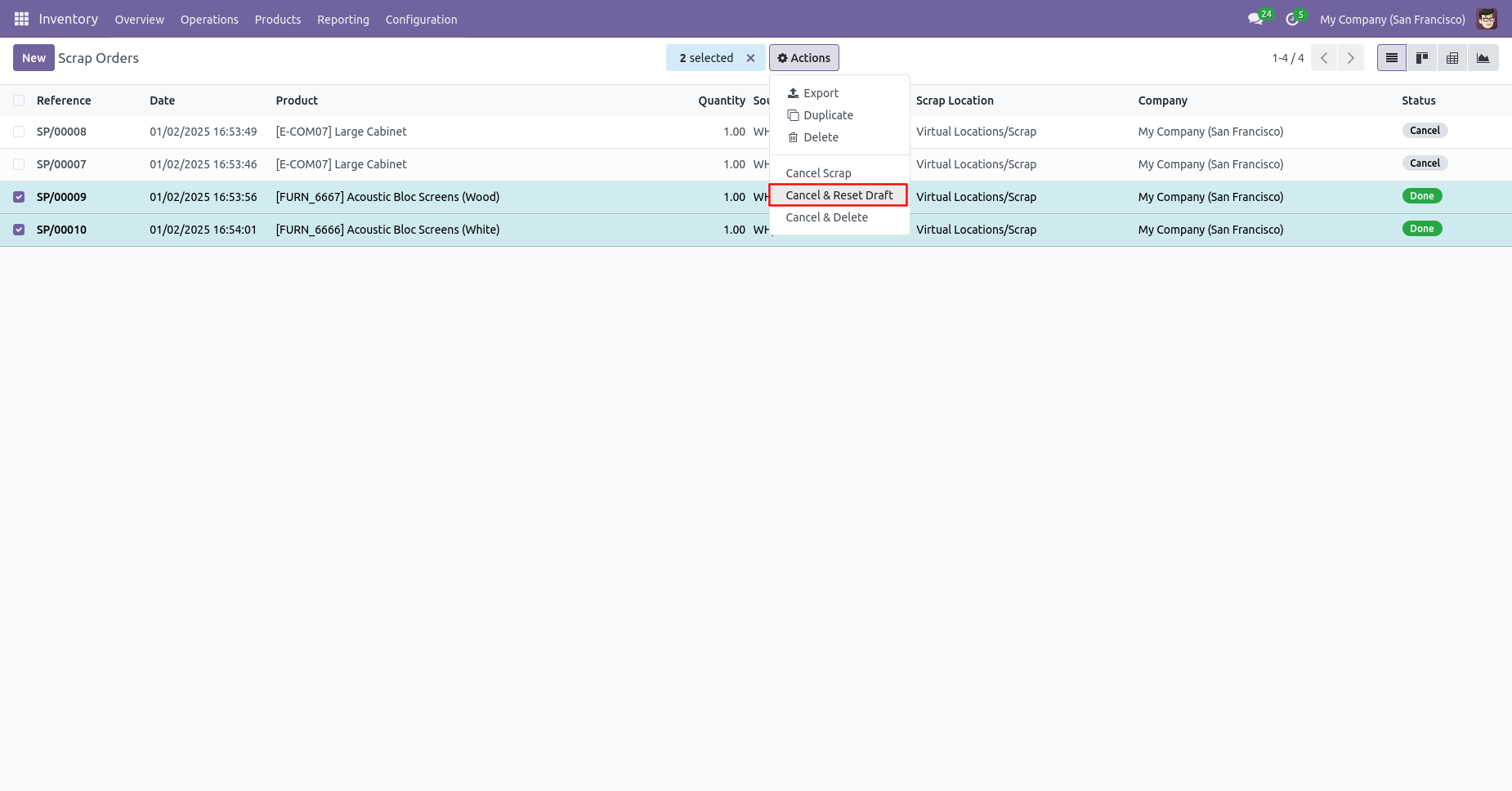
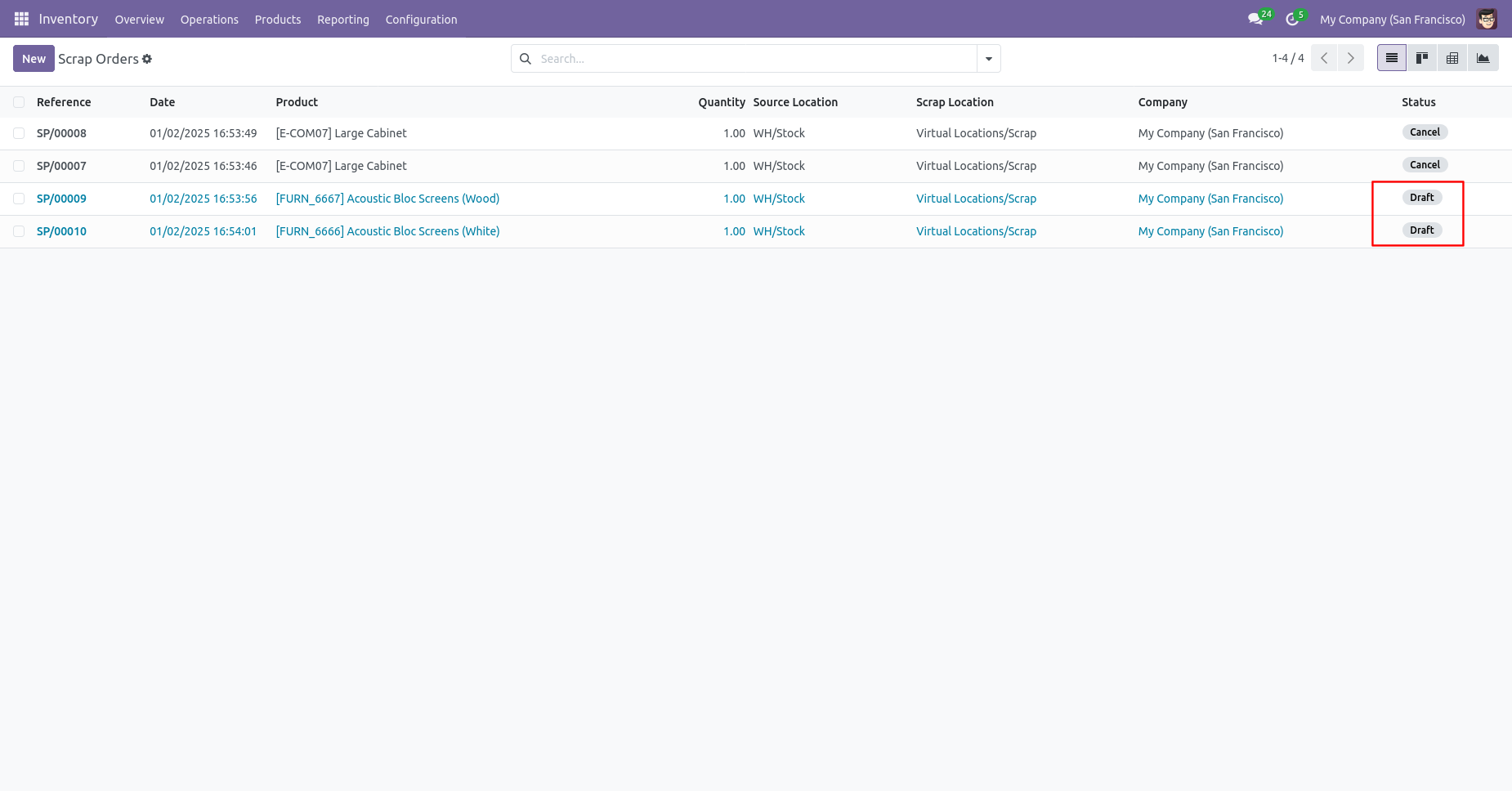
All selected scrap orders are cancelled and reset to the draft.
Now we "cancel & delete" multiple scrap orders from the tree view.
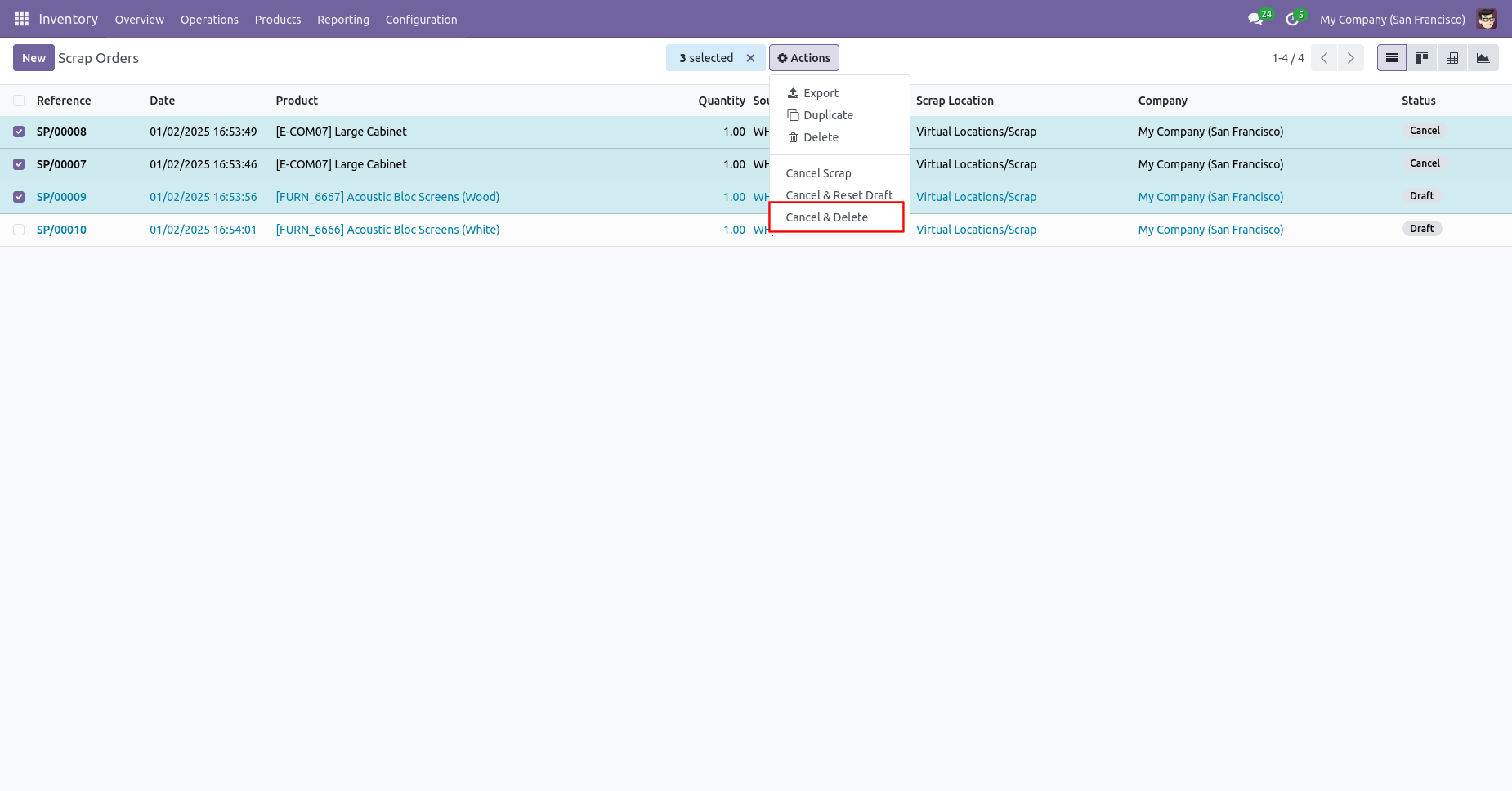
All scrap orders will be deleted after cancelled.
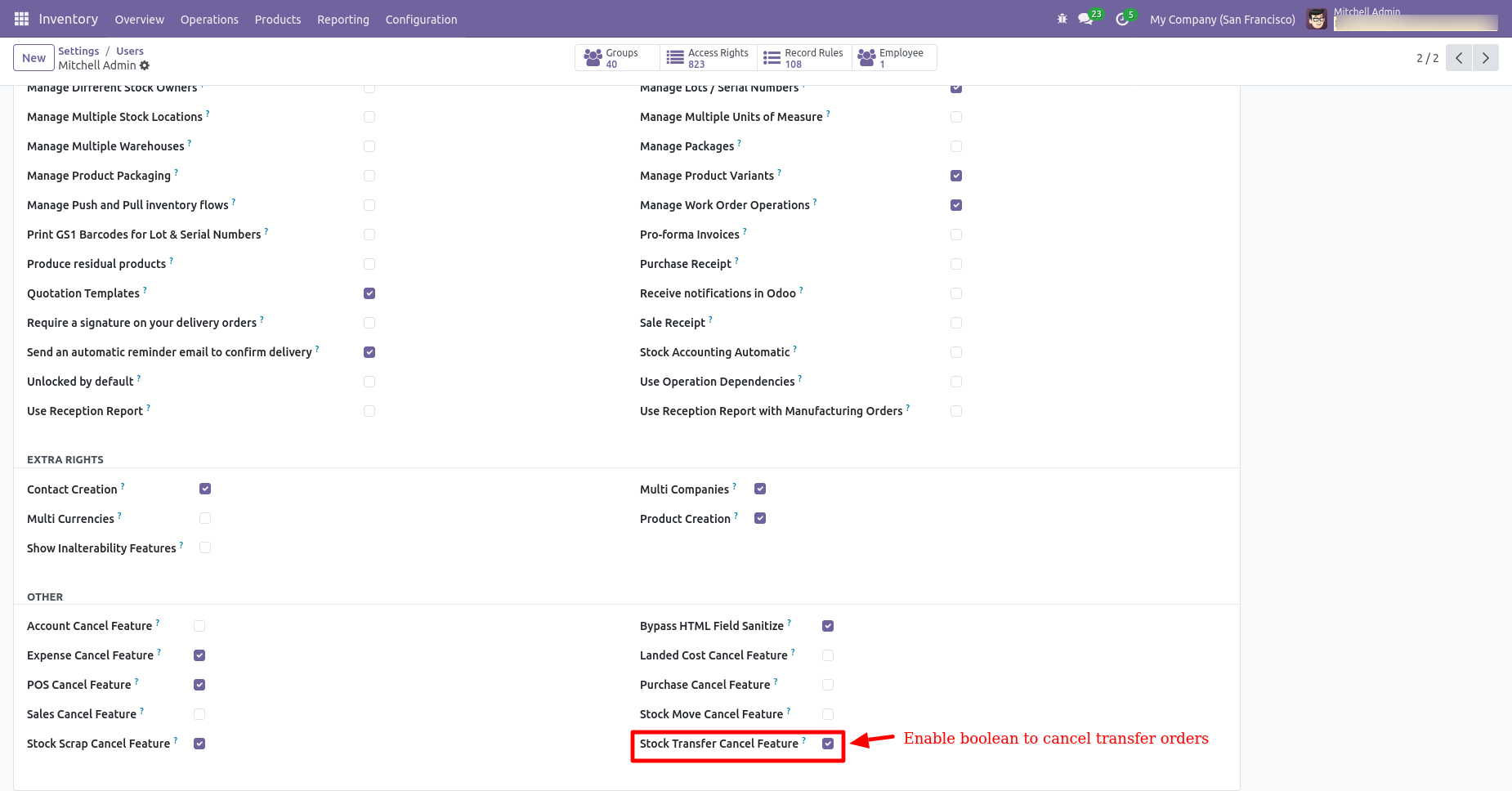
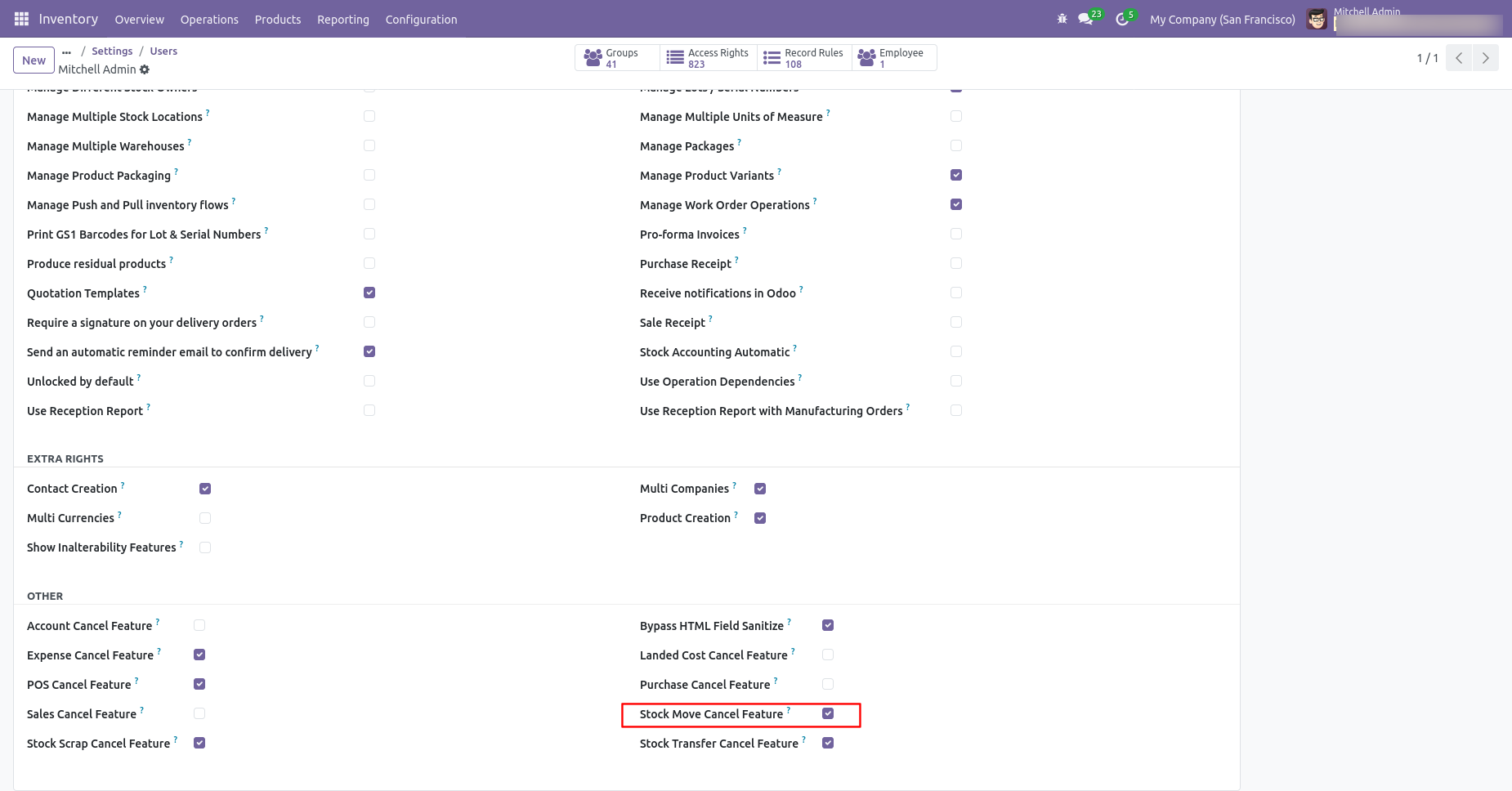
Tick the "Stock Move Cancel Feature" to cancel stock moves.
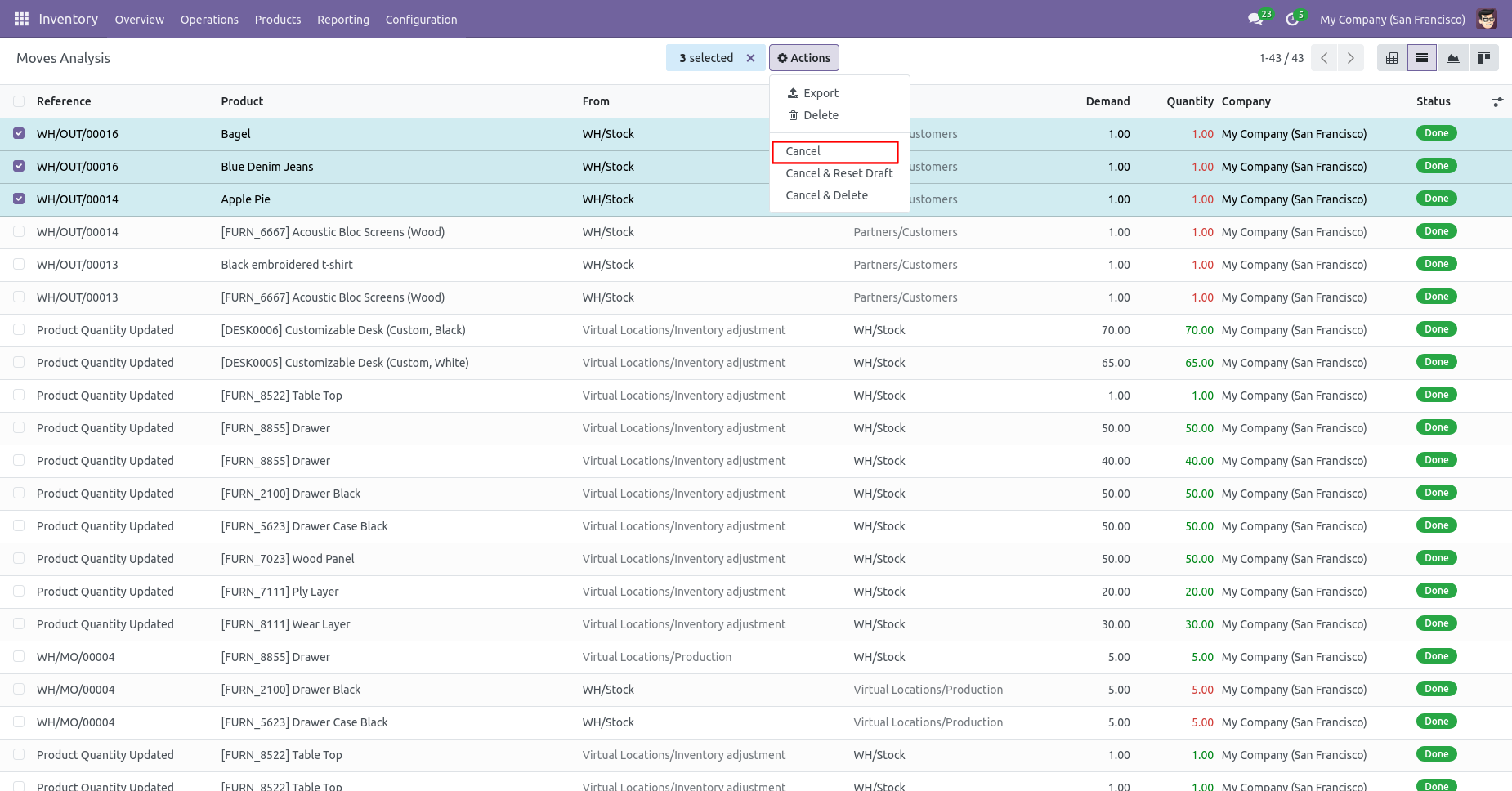
Now we cancel multiple stock moves from the tree view.
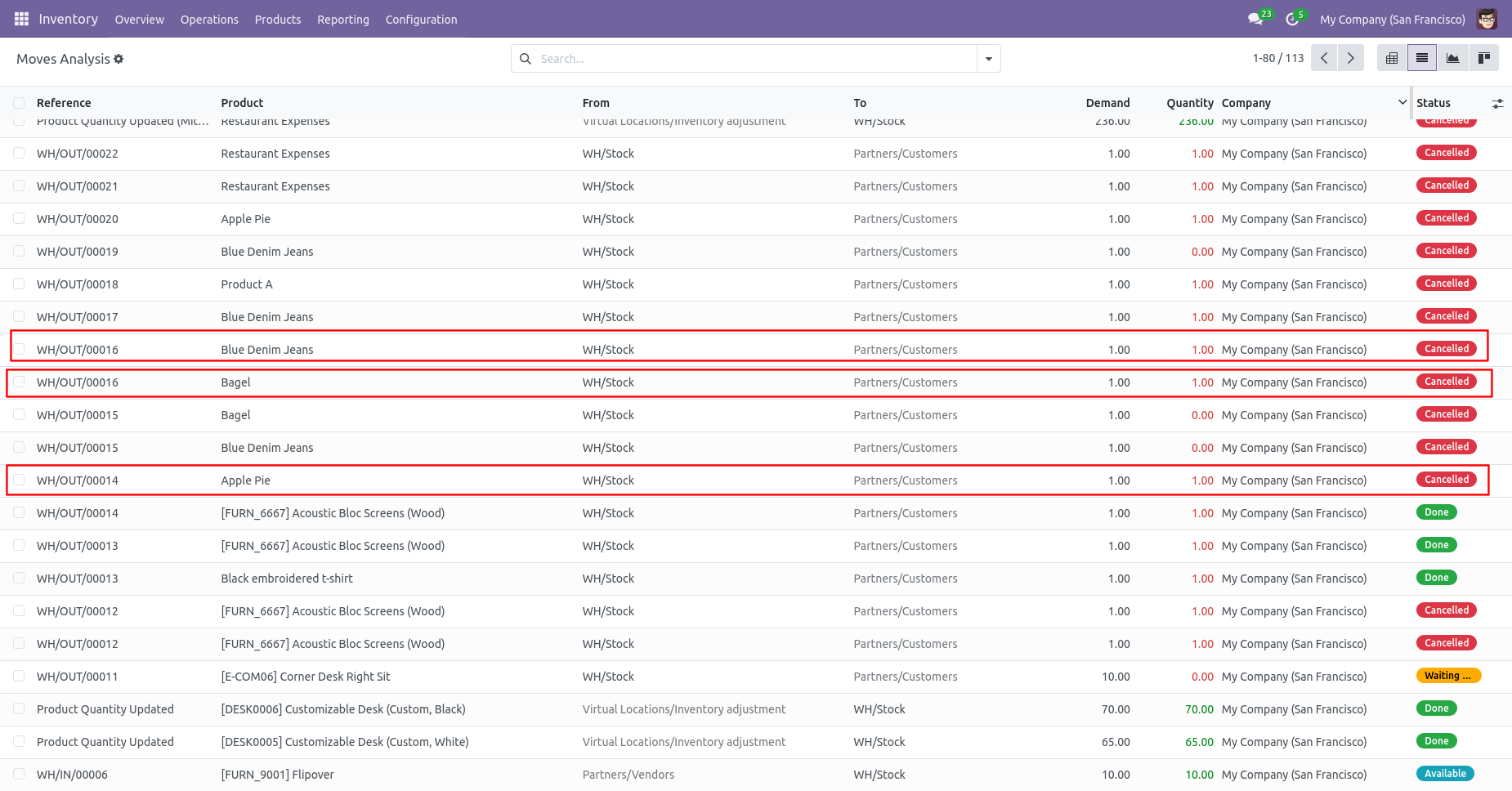
All selected stock moves are cancelled.
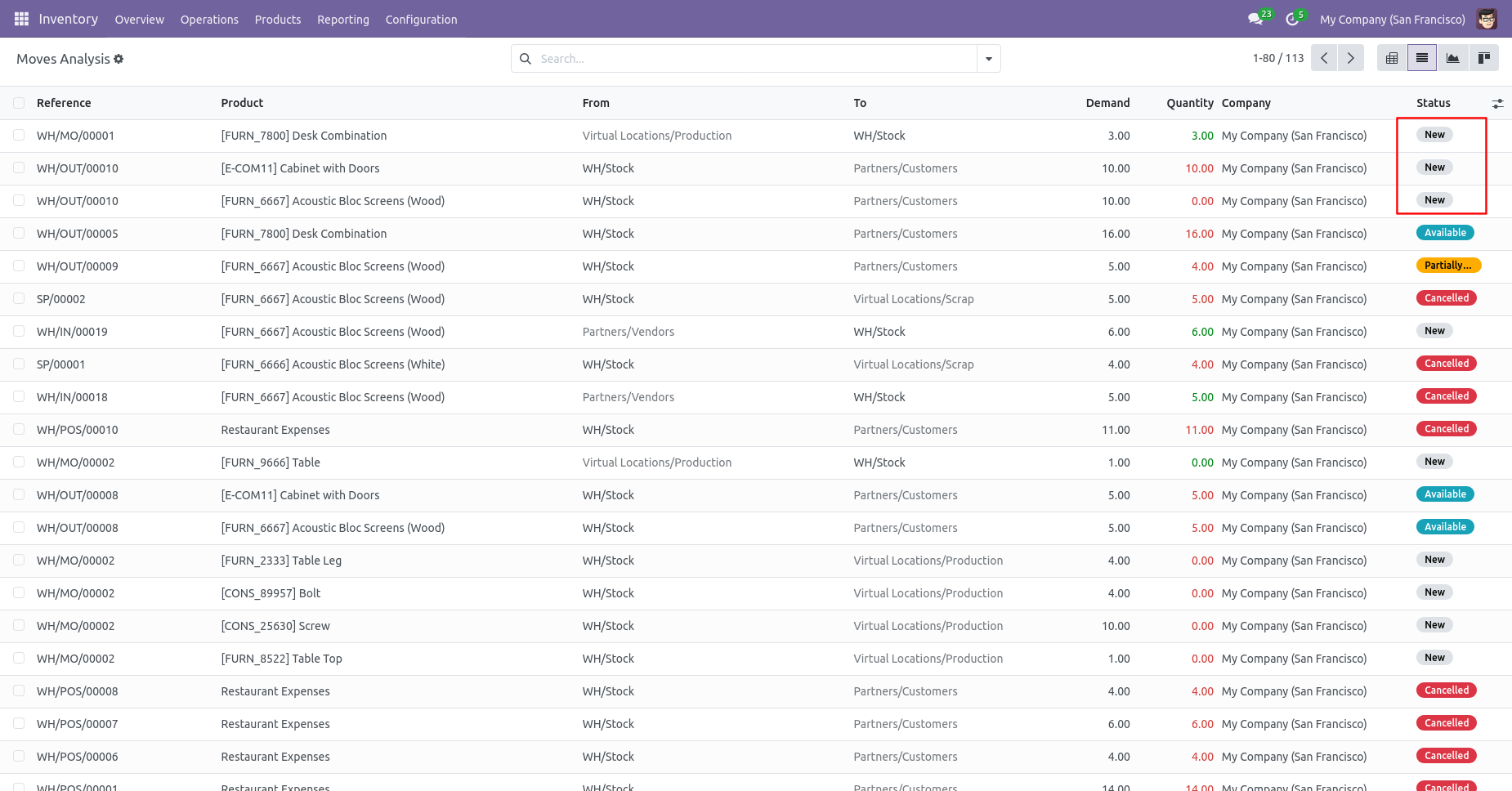
Now we "cancel & reset draft" multiple stock moves from the tree view.
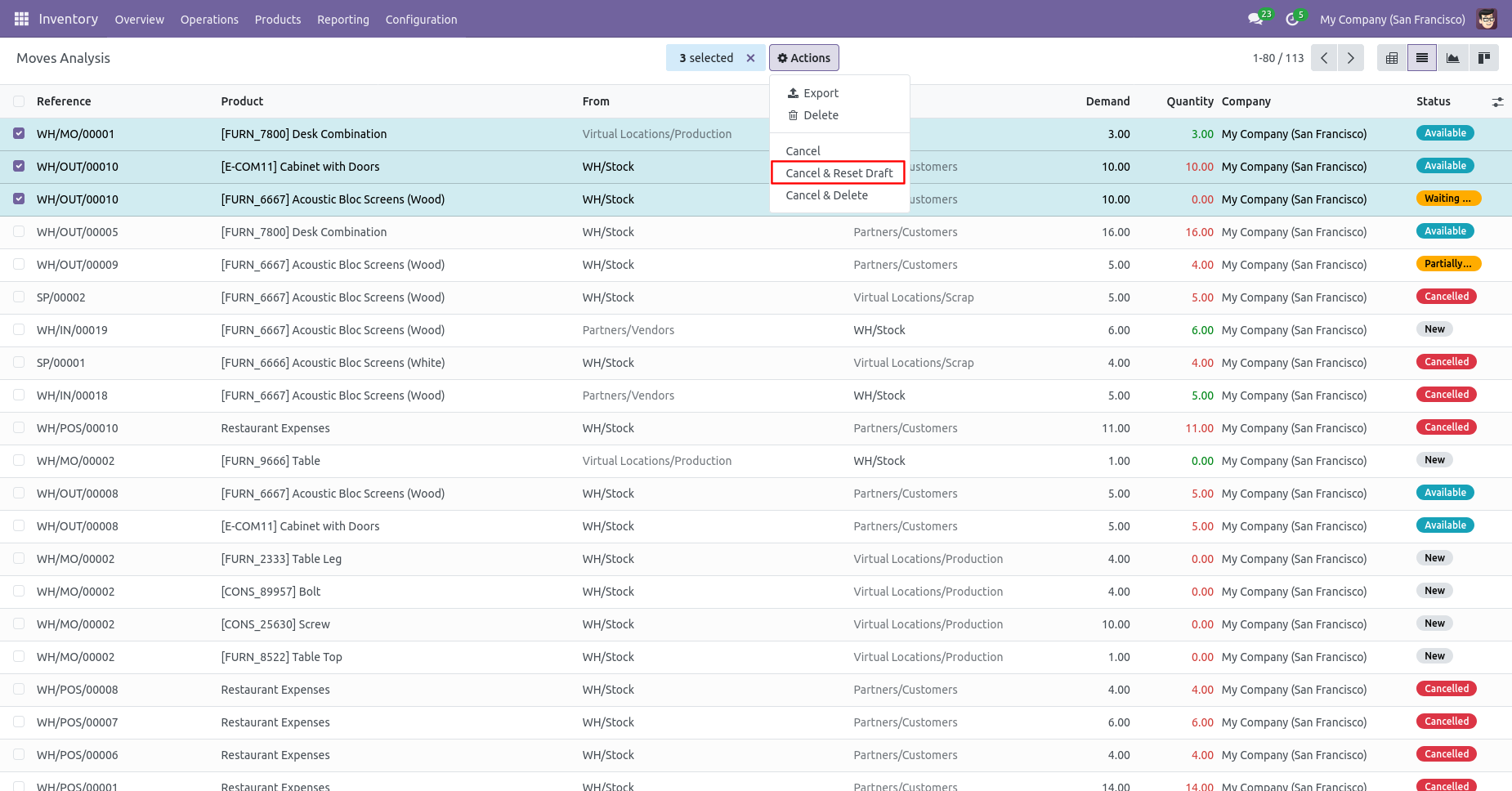
All selected stock moves are cancelled and reset to the draft.
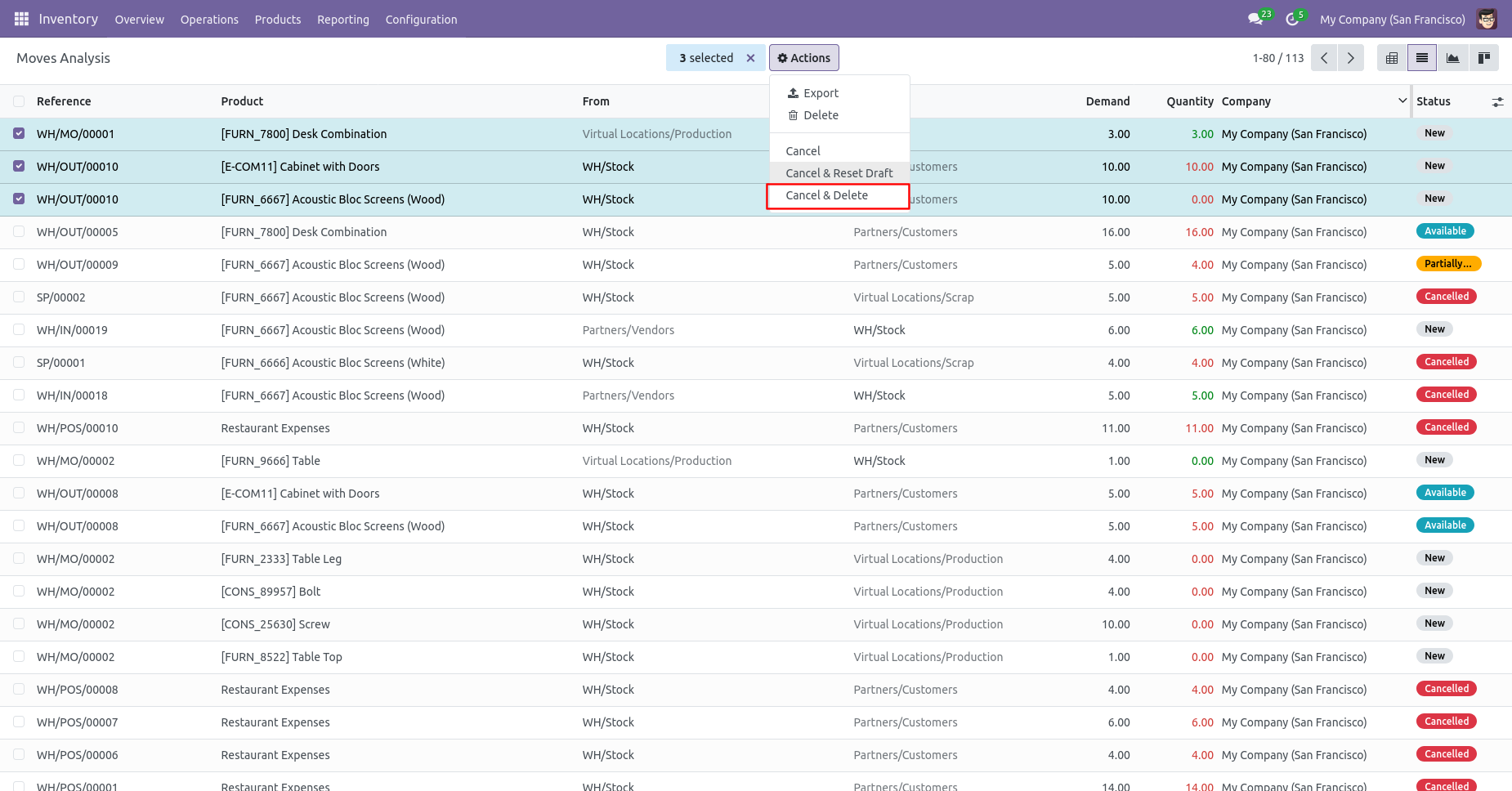
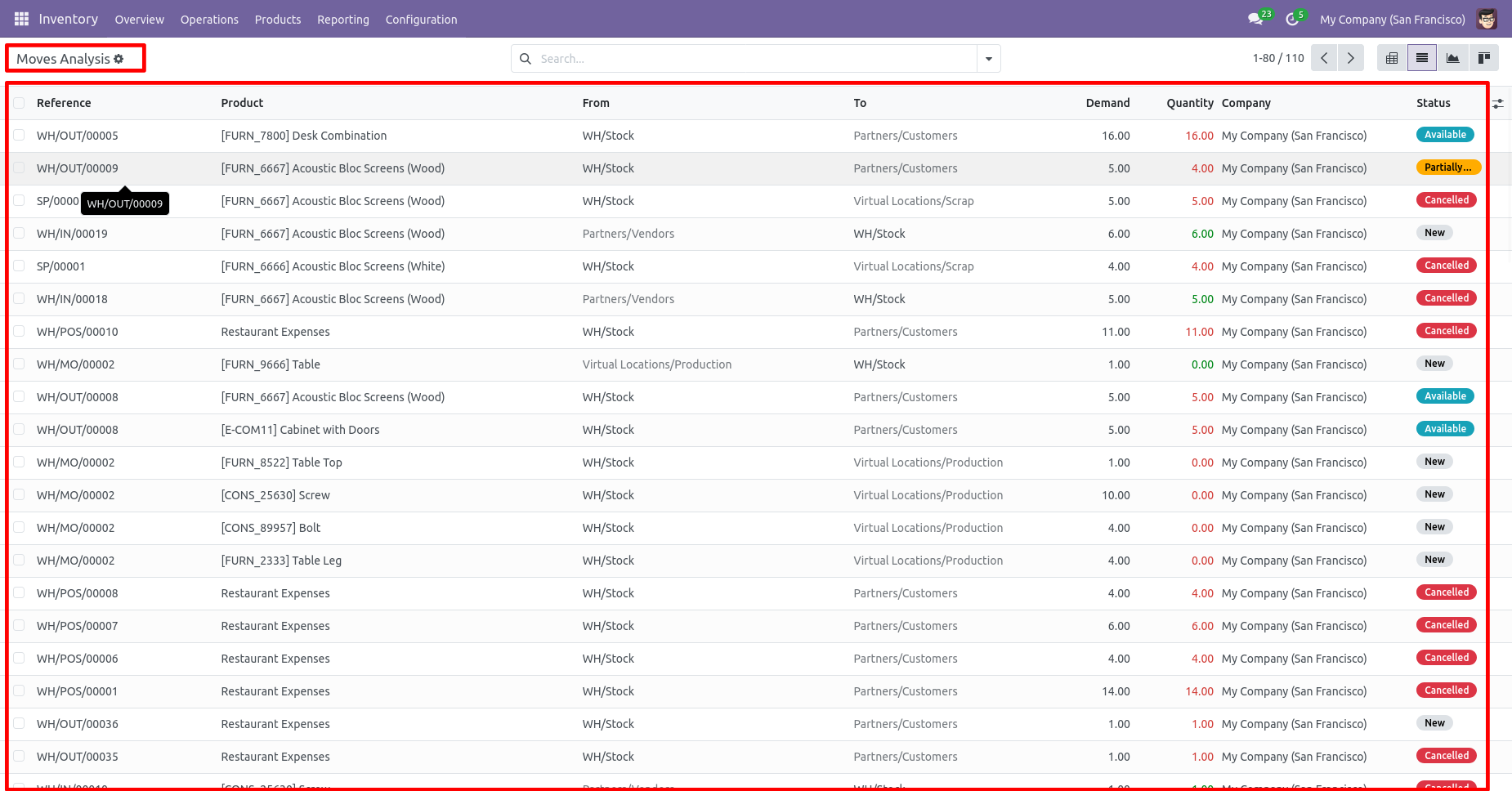
Now we "cancel & delete" multiple stock moves from the tree view.
All stock moves will be deleted after cancelled.
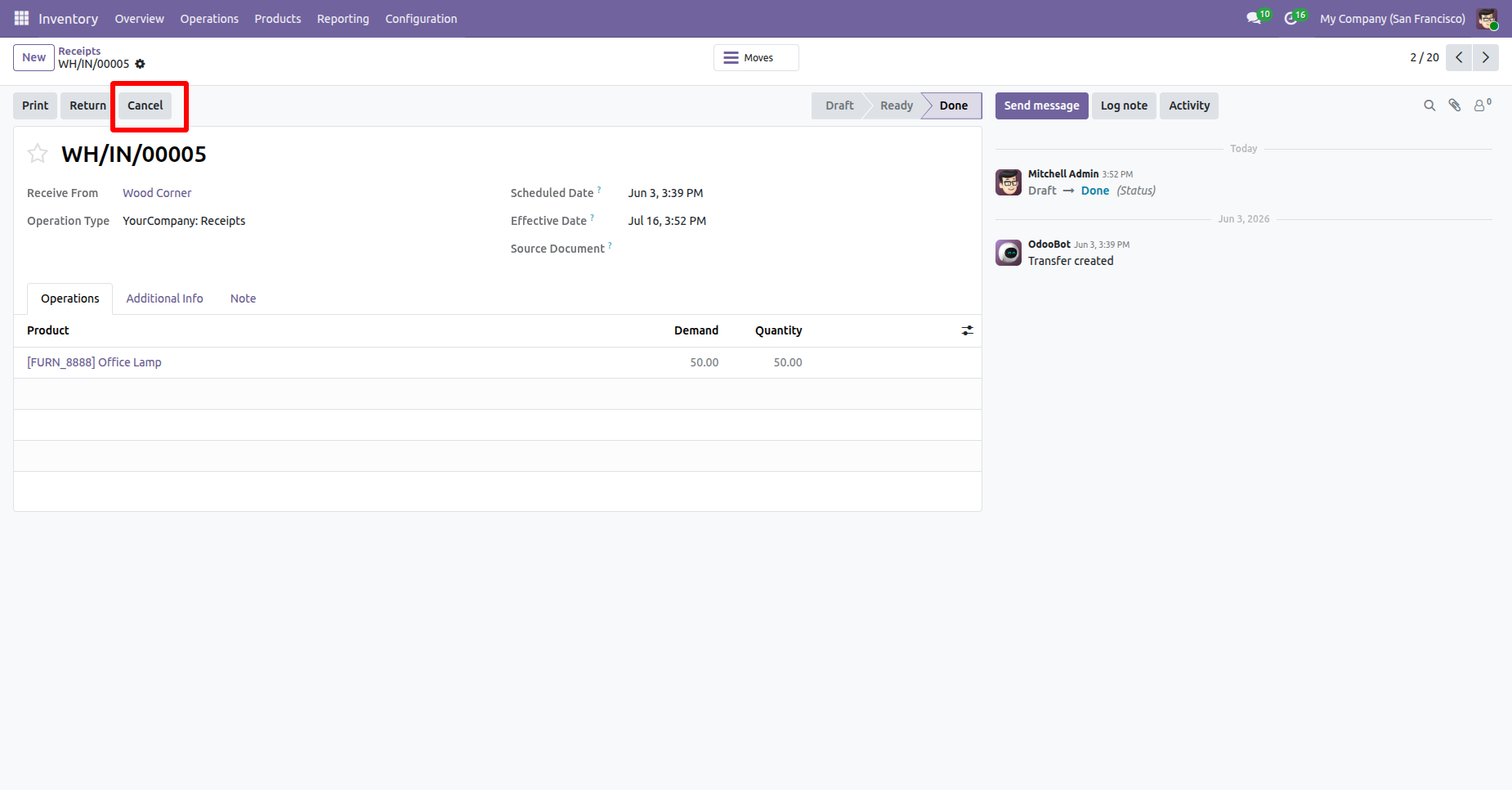
Click the Cancel button on the Picking Order to initiate the
order cancellation process.
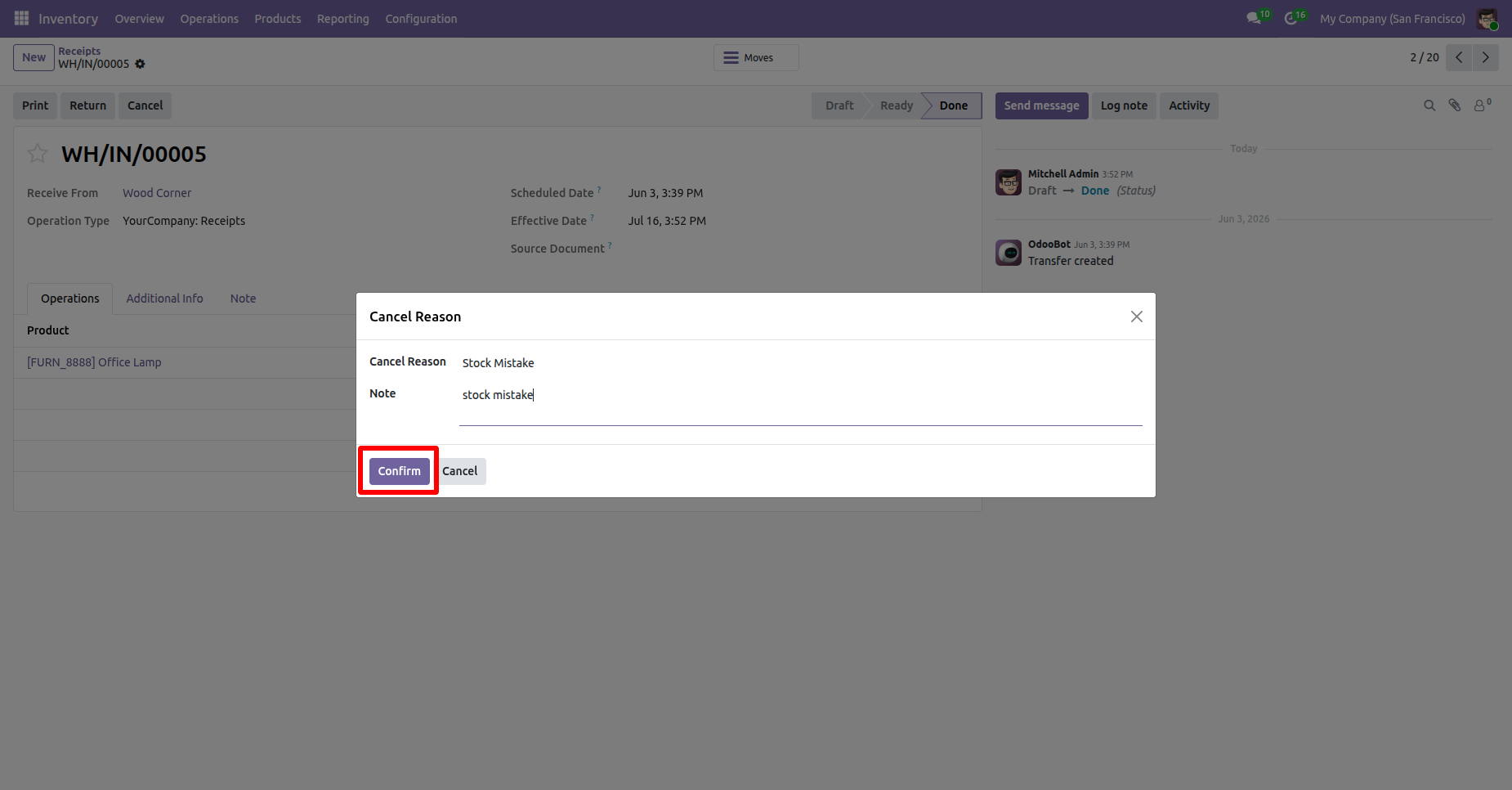
The Cancel Reason wizard opens, allowing you to select or enter
the reason for cancellation before confirming the cancellation.
After selecting the cancellation reason, click the
Confirm button to cancel the Picking Order.
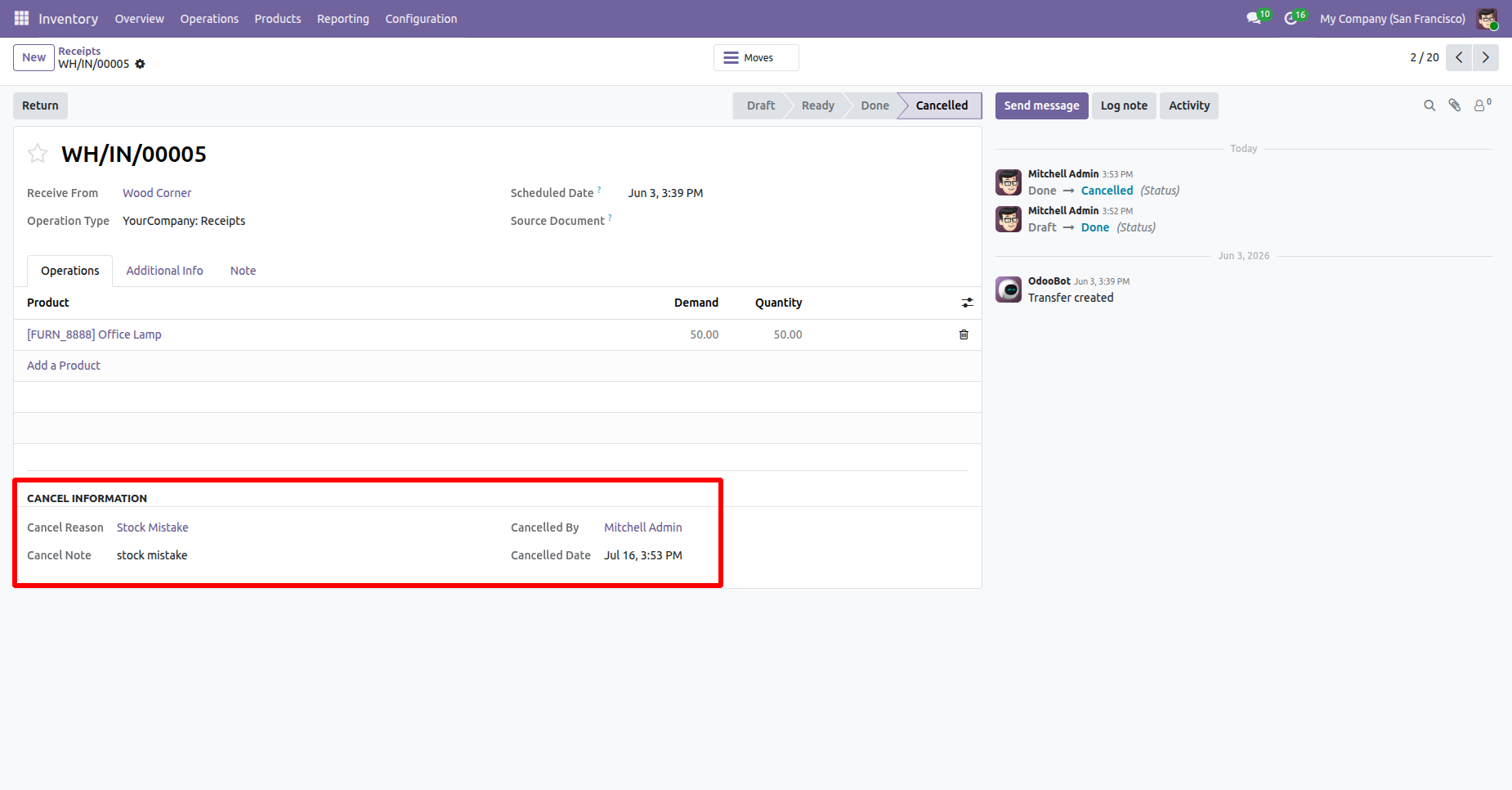
After the Order is canceled, the cancellation information, including the cancellation reason, canceled by, and cancellation date, is displayed in the Picking Order Form View for future reference.
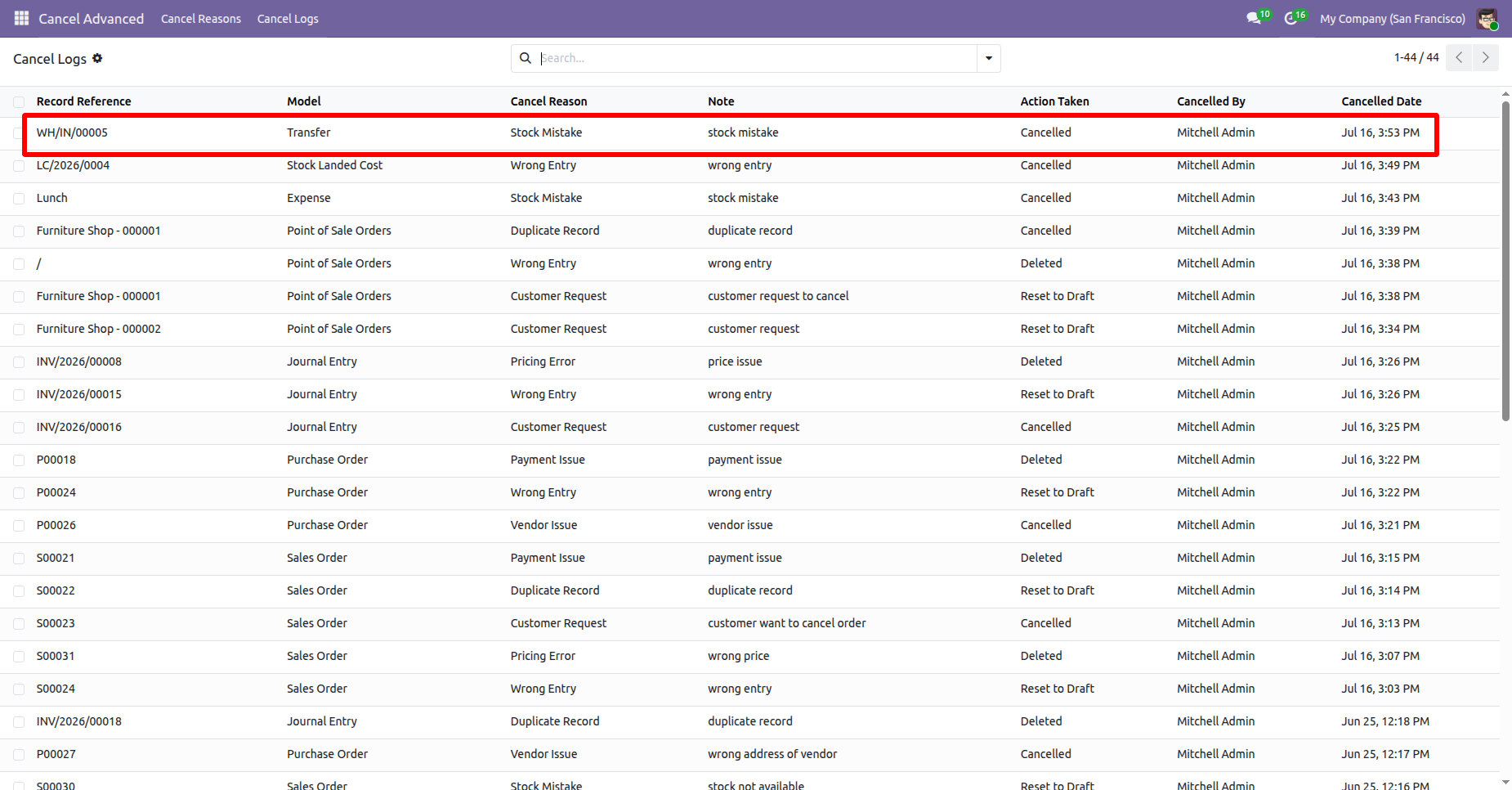
The cancellation logs are also available under the Cancel Logs menu in the Cancel Advanced app, where you can view and track all canceled records along with their cancellation reasons, canceled by, and cancellation dates.
User can preview the cancellation details before confirming the cancellation process.
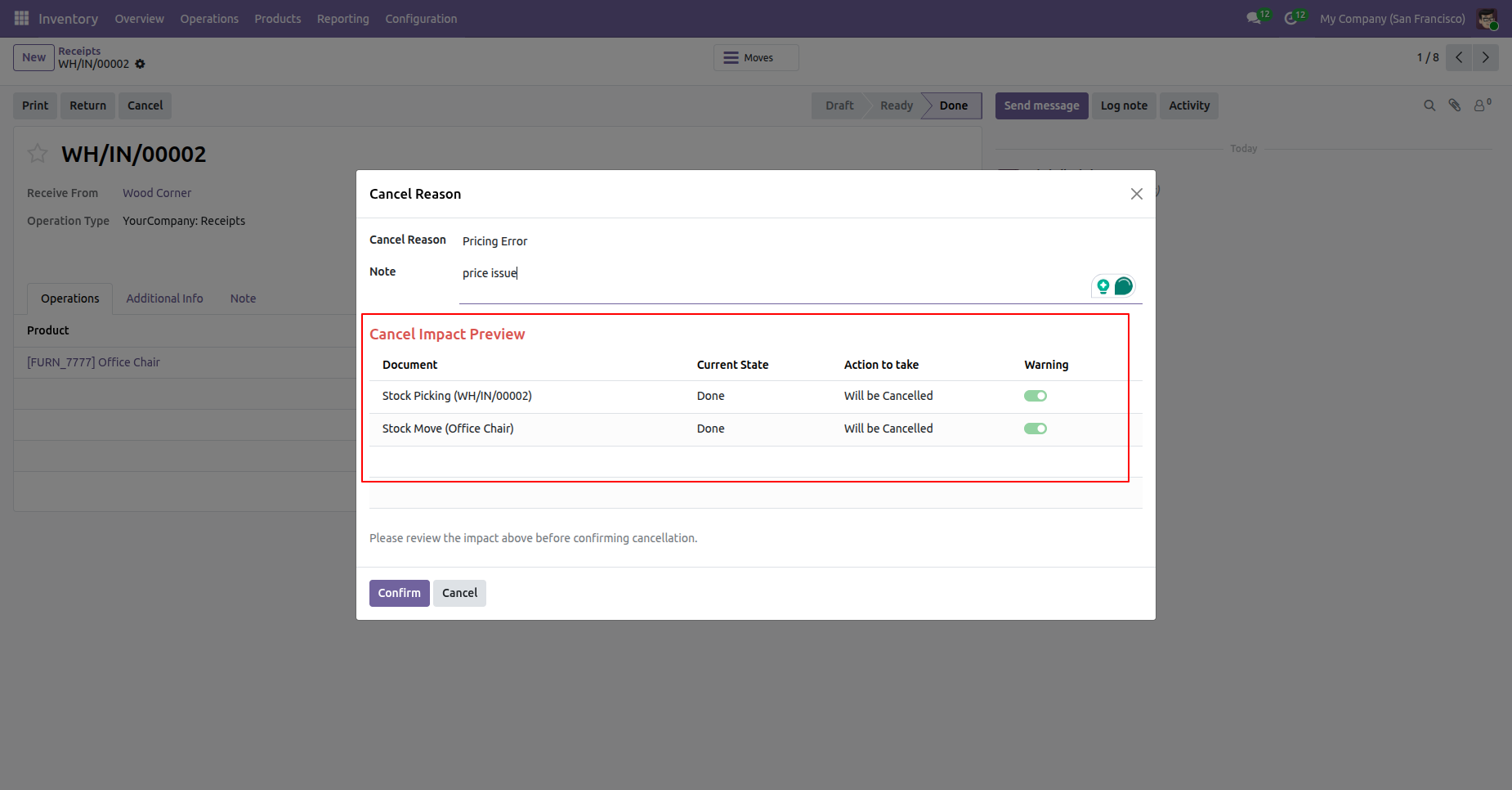
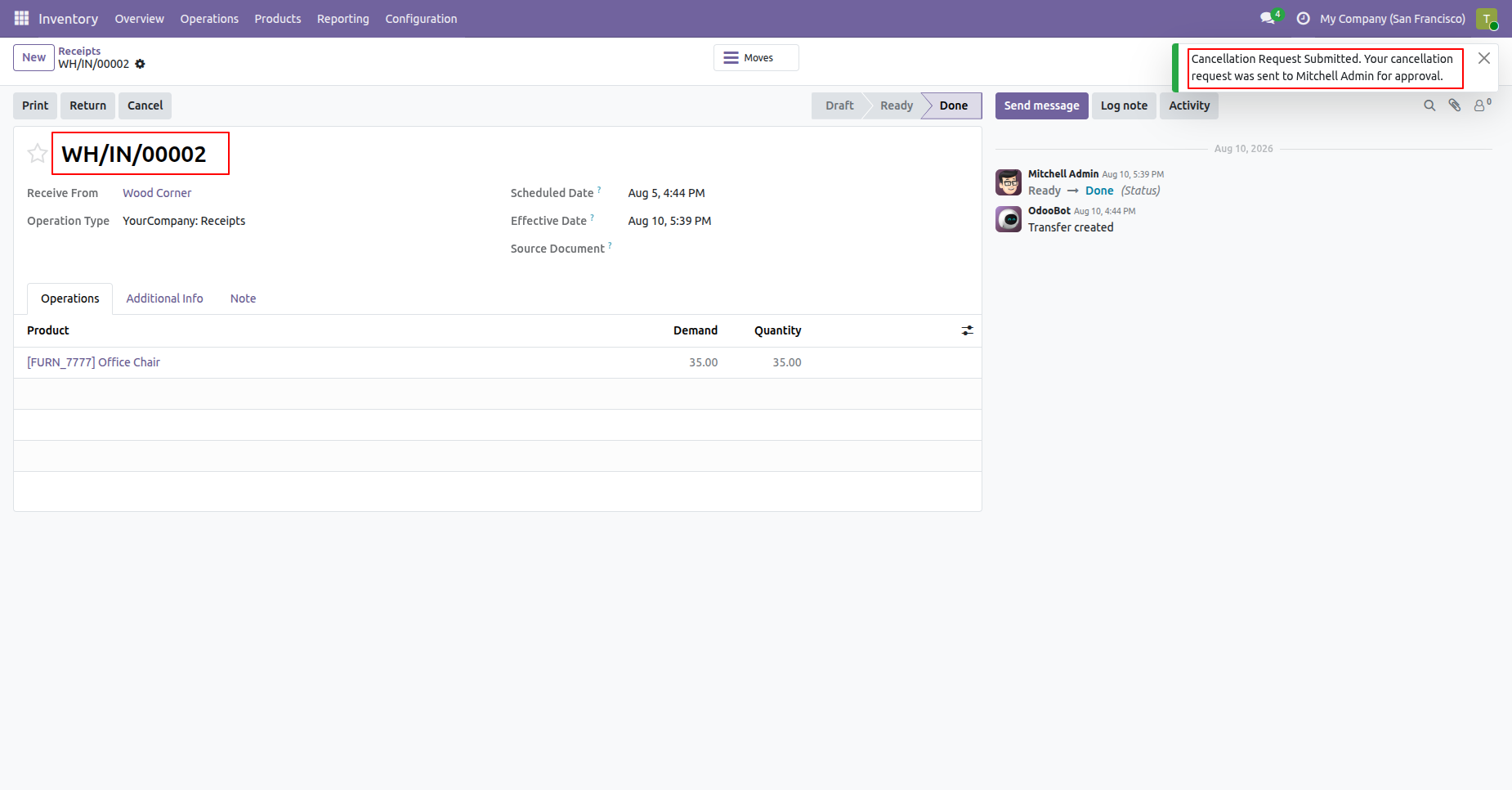
Select the picking that require cancellation and and click on cancel button to cancel the picking, Cancellation request will be submitted to the Approver and also displays the notification.
The approver reviews the cancellation request and confirms or rejects the action. Cancel and Delete operation has been selected.
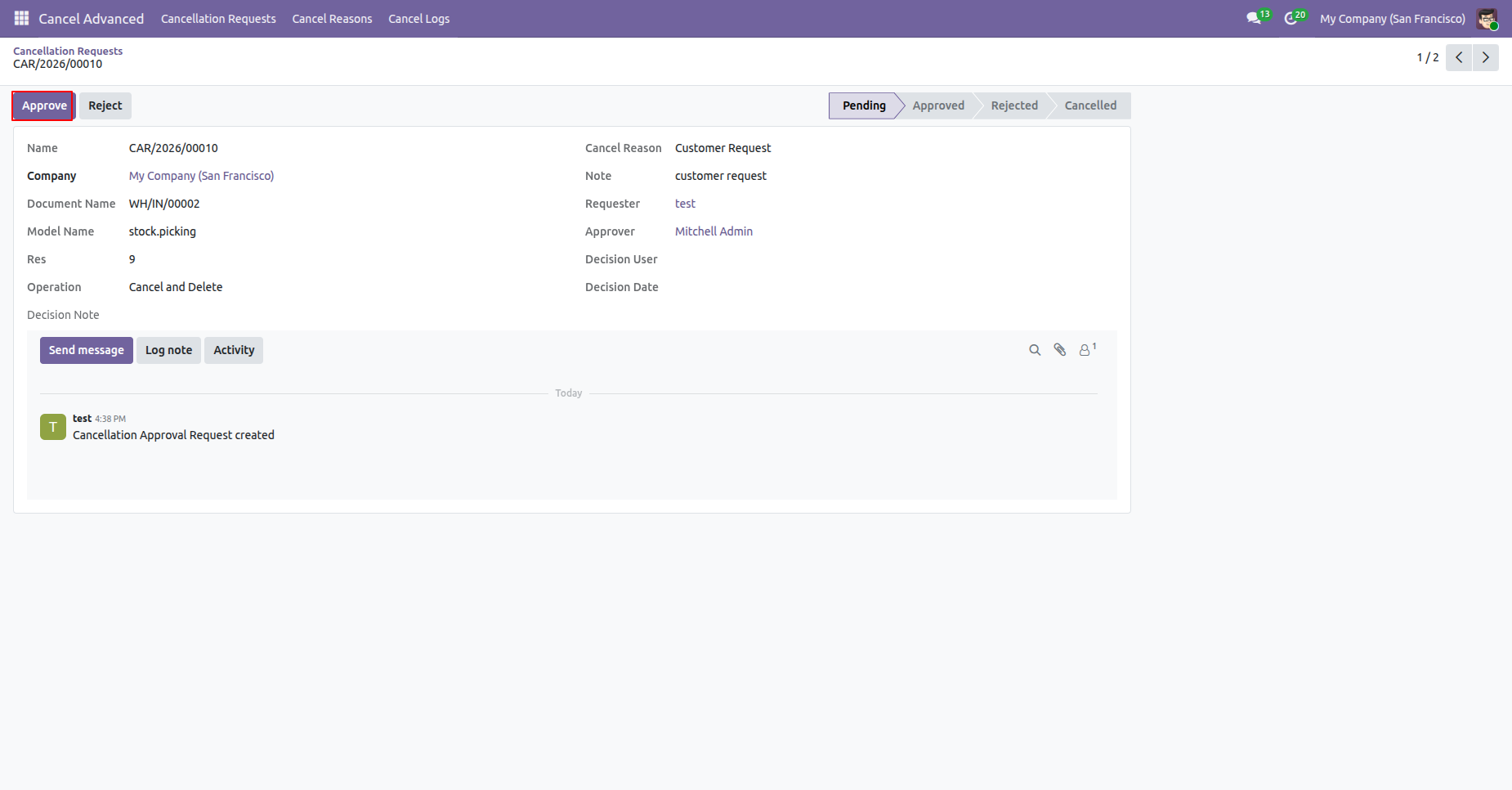
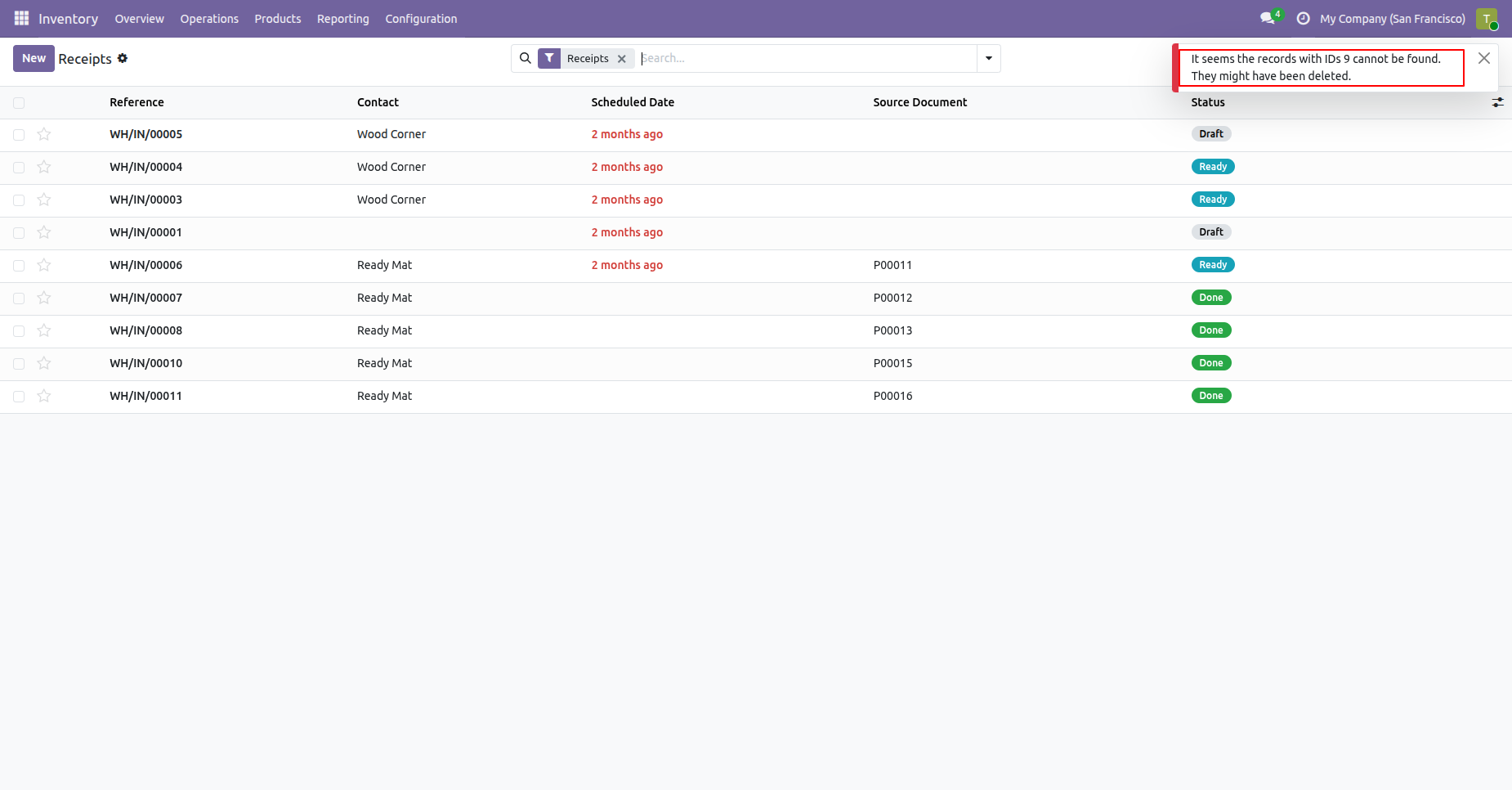
Click on the Approve button to approve the request and picking has been deleted.
The approver reviews the cancellation request and confirms or rejects the action.
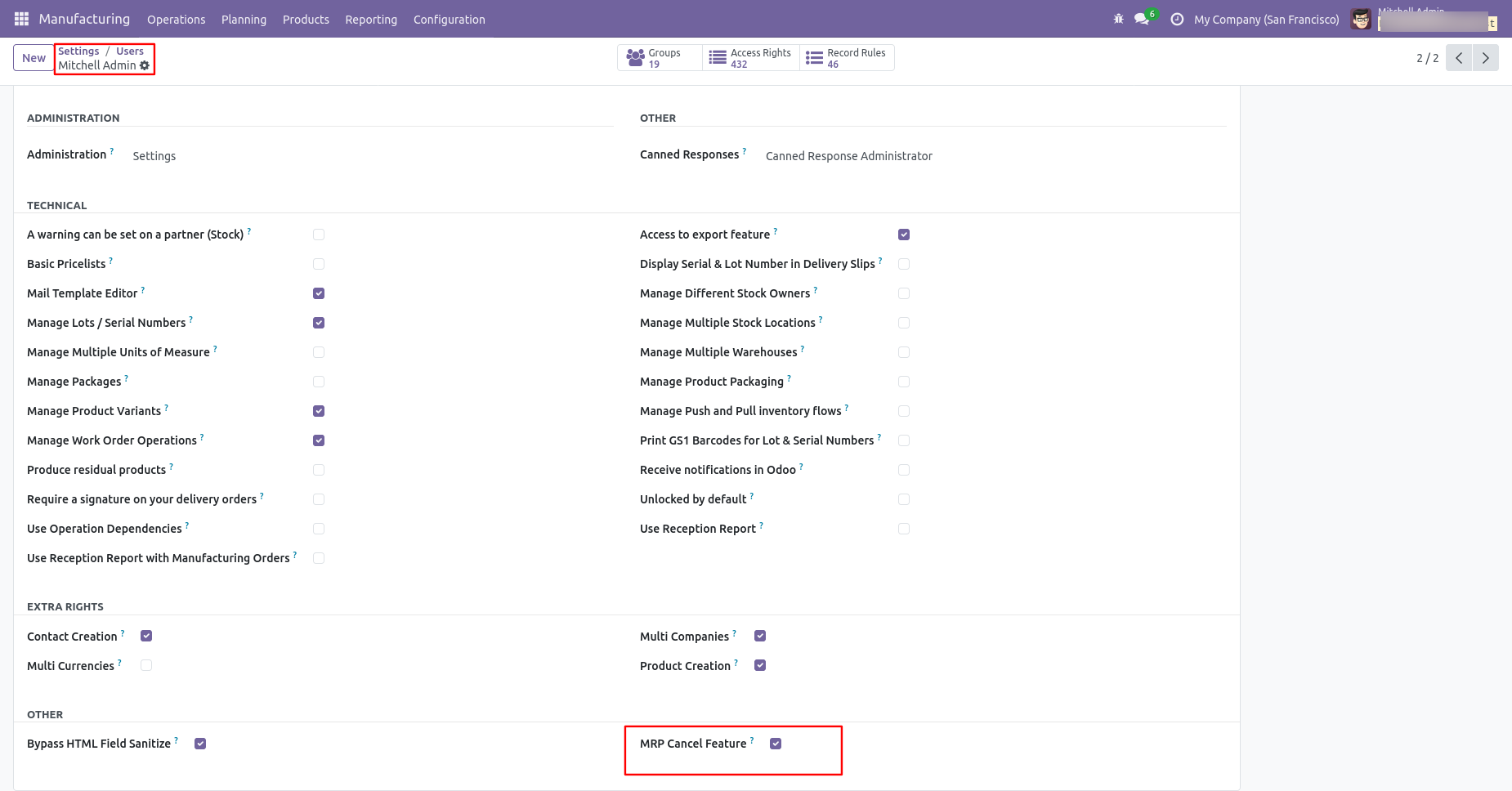
Select the inventory transfers that require cancellation and start the approval request.
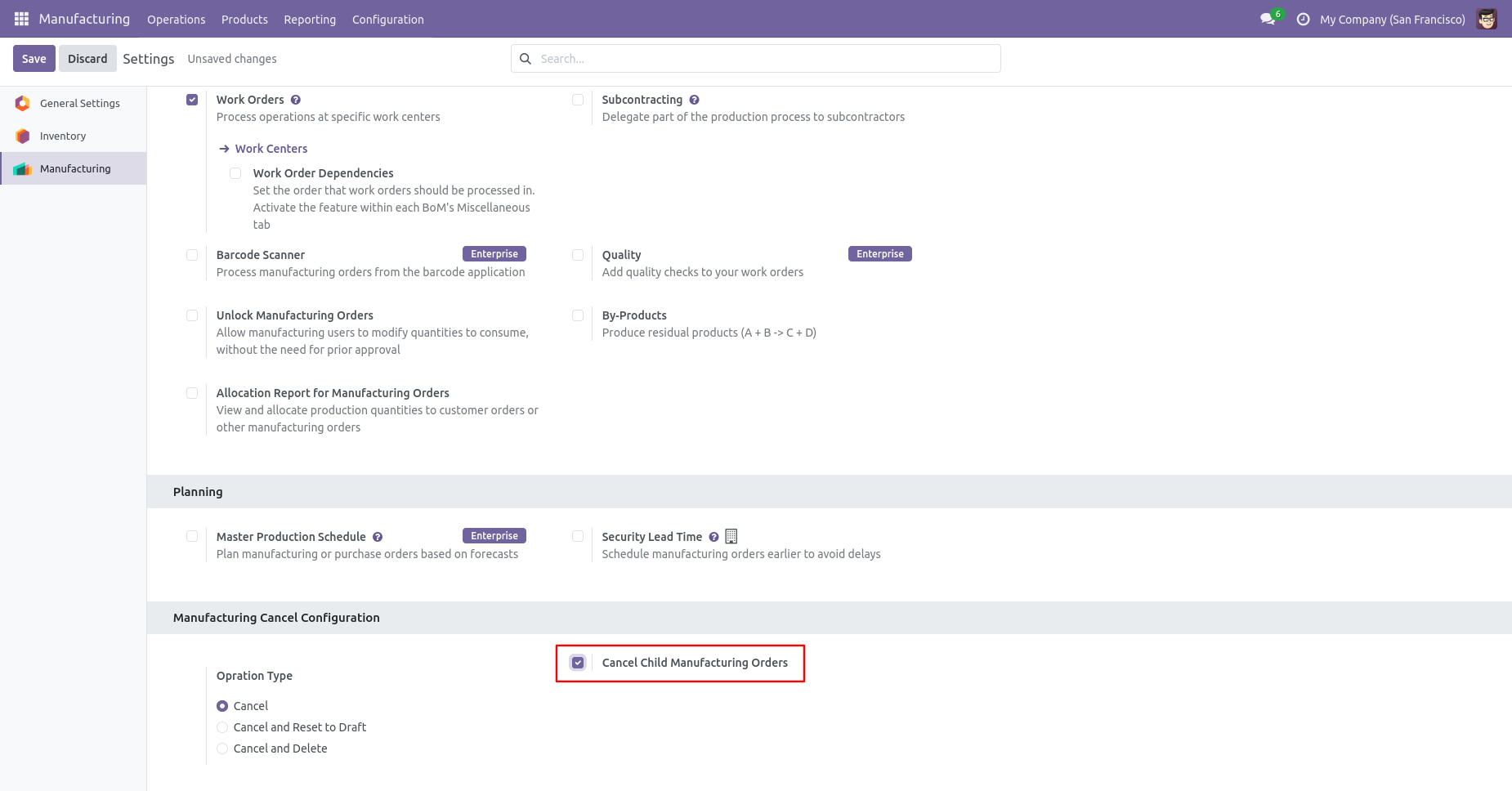
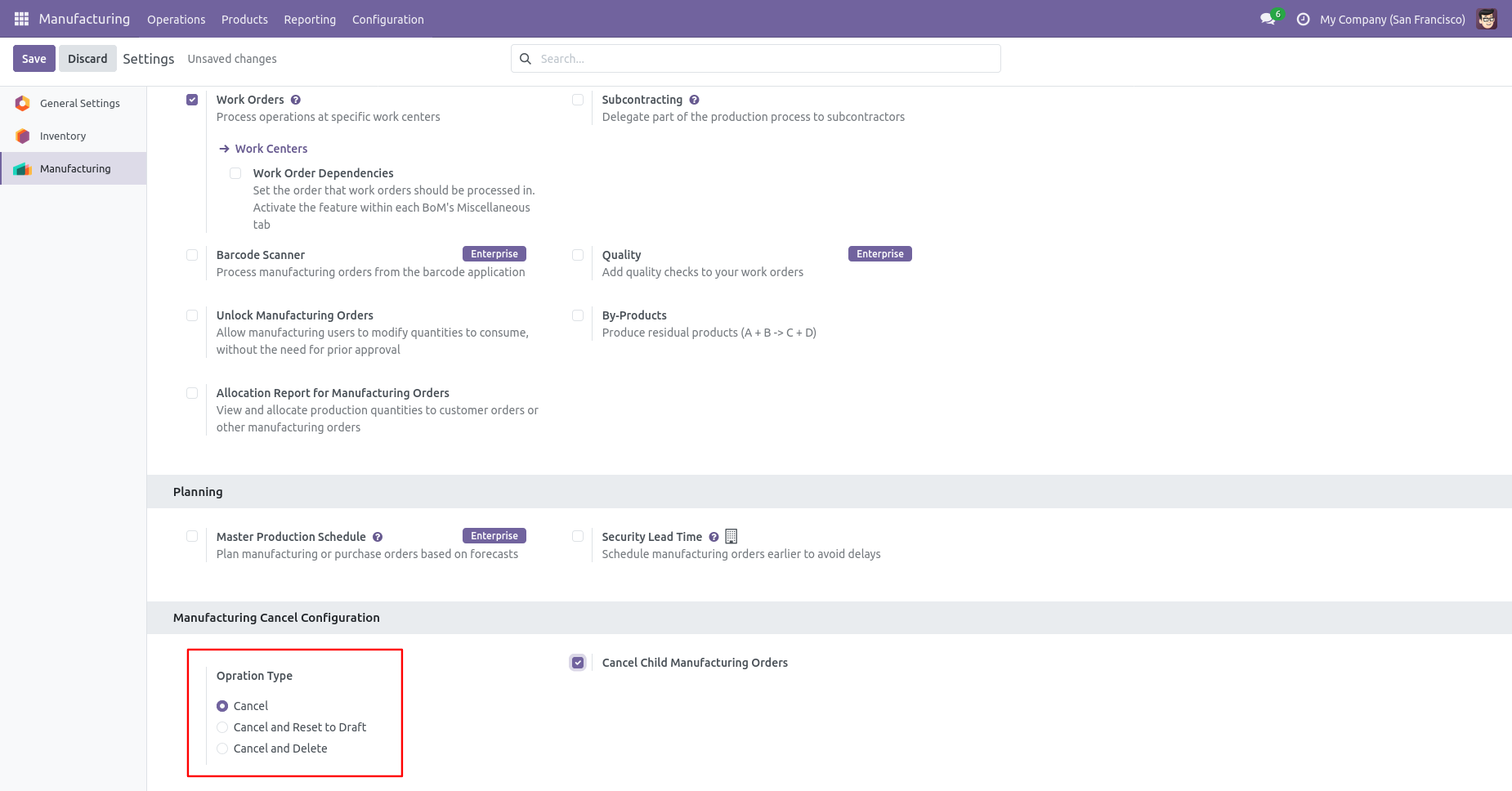
When you want to cancel the MRP orders only then choose the "Cancel Only" option.
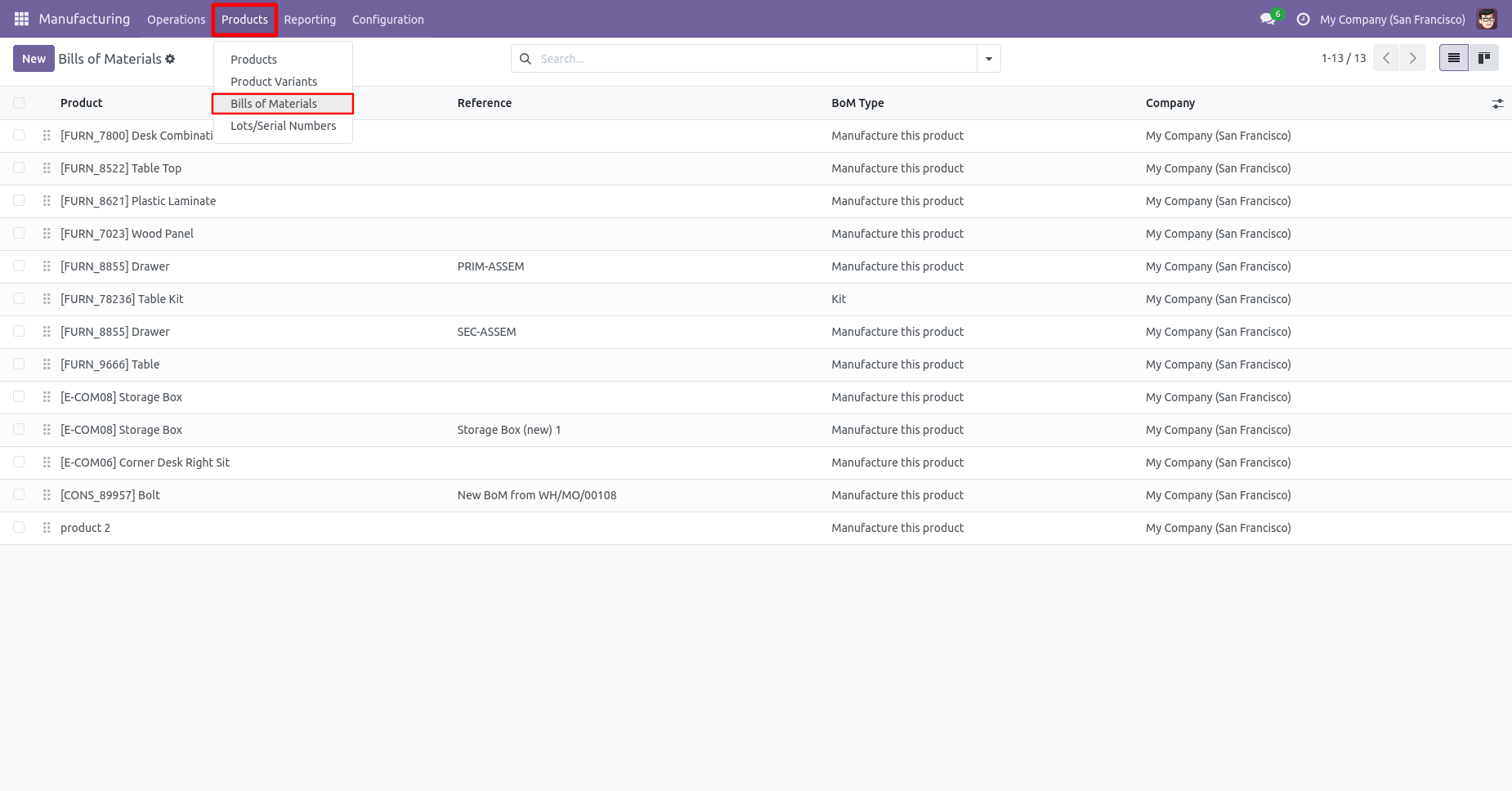
Tree view of the Bill of material.
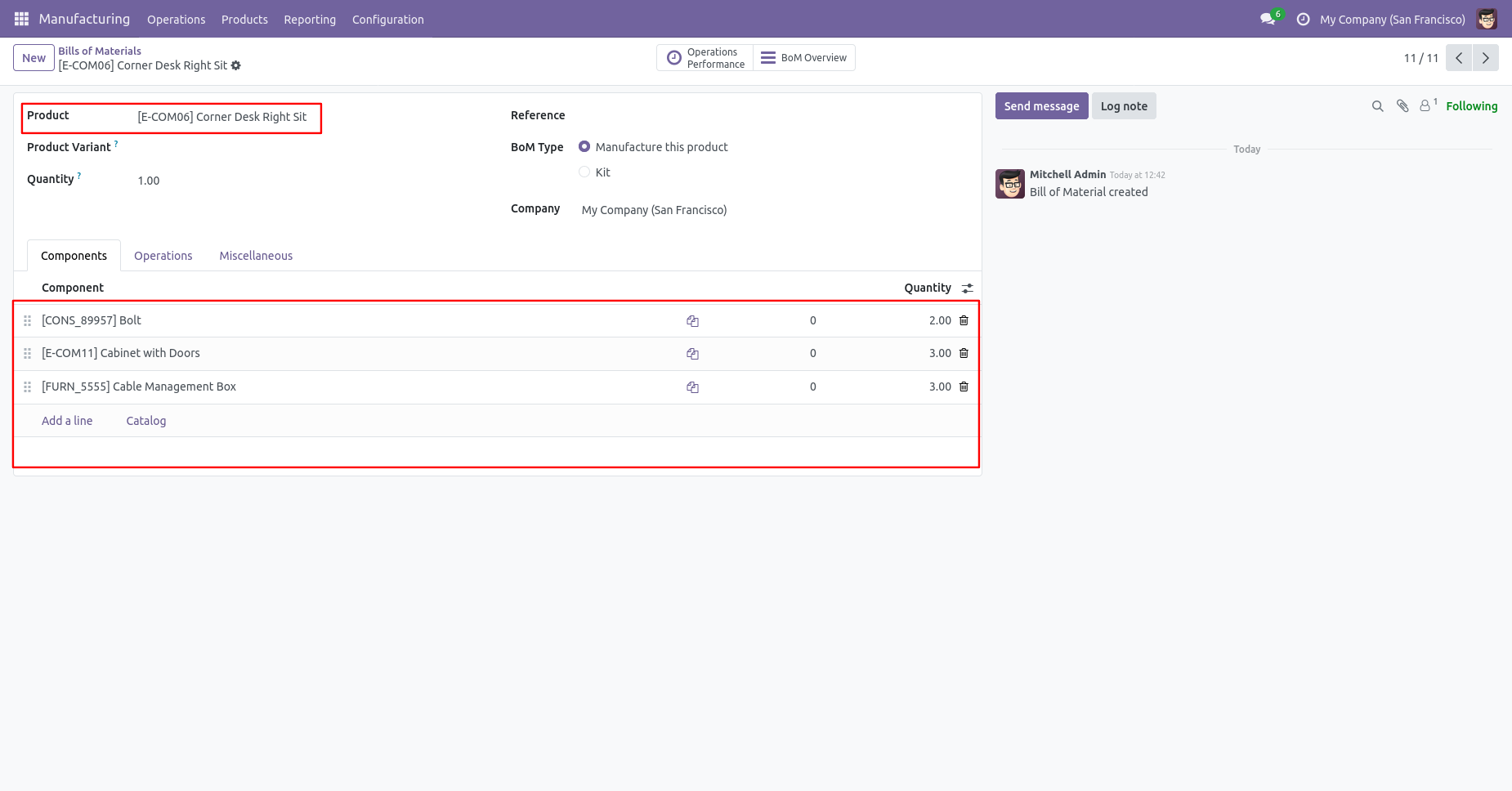
Bill of material with product and components.
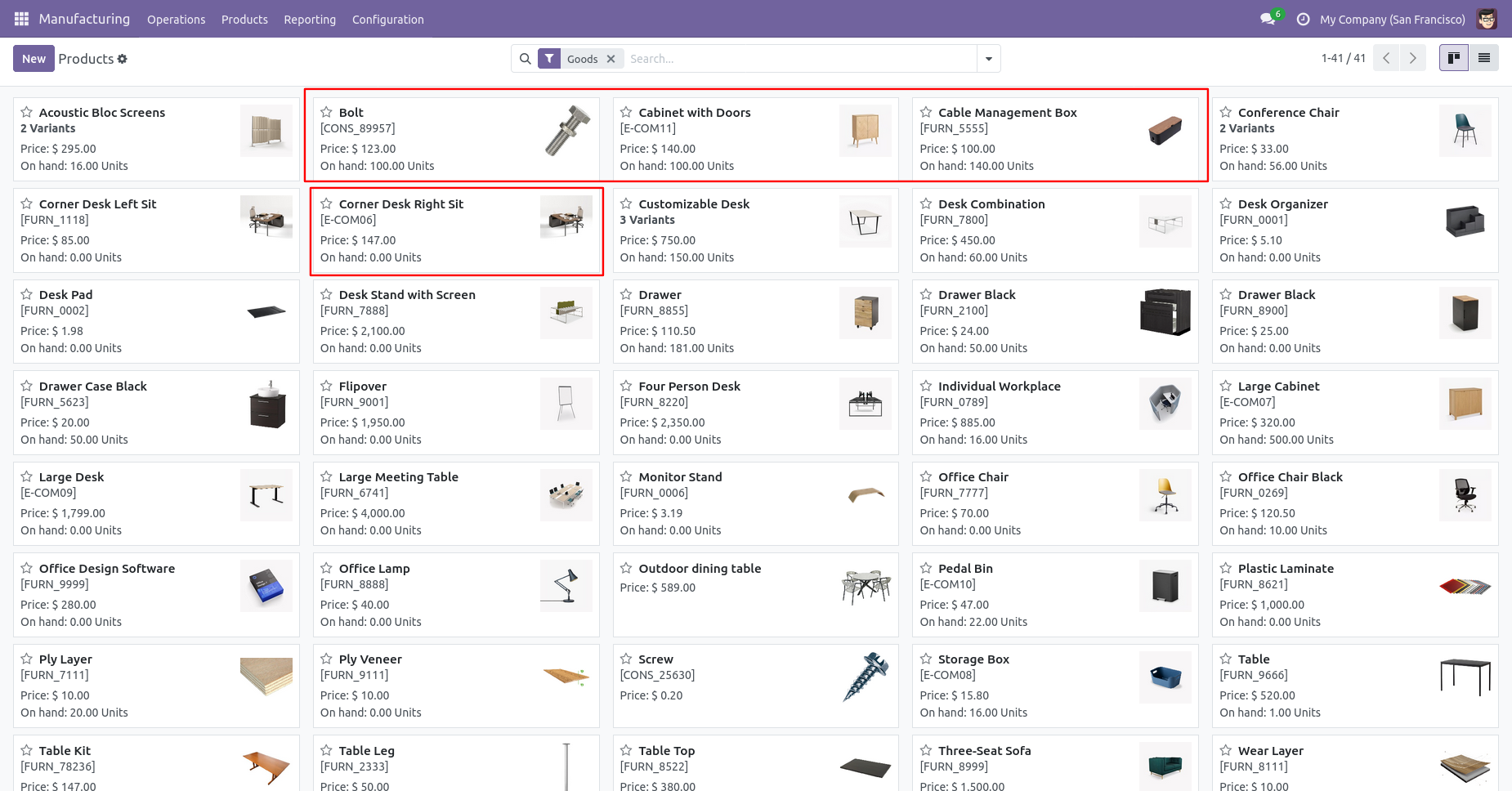
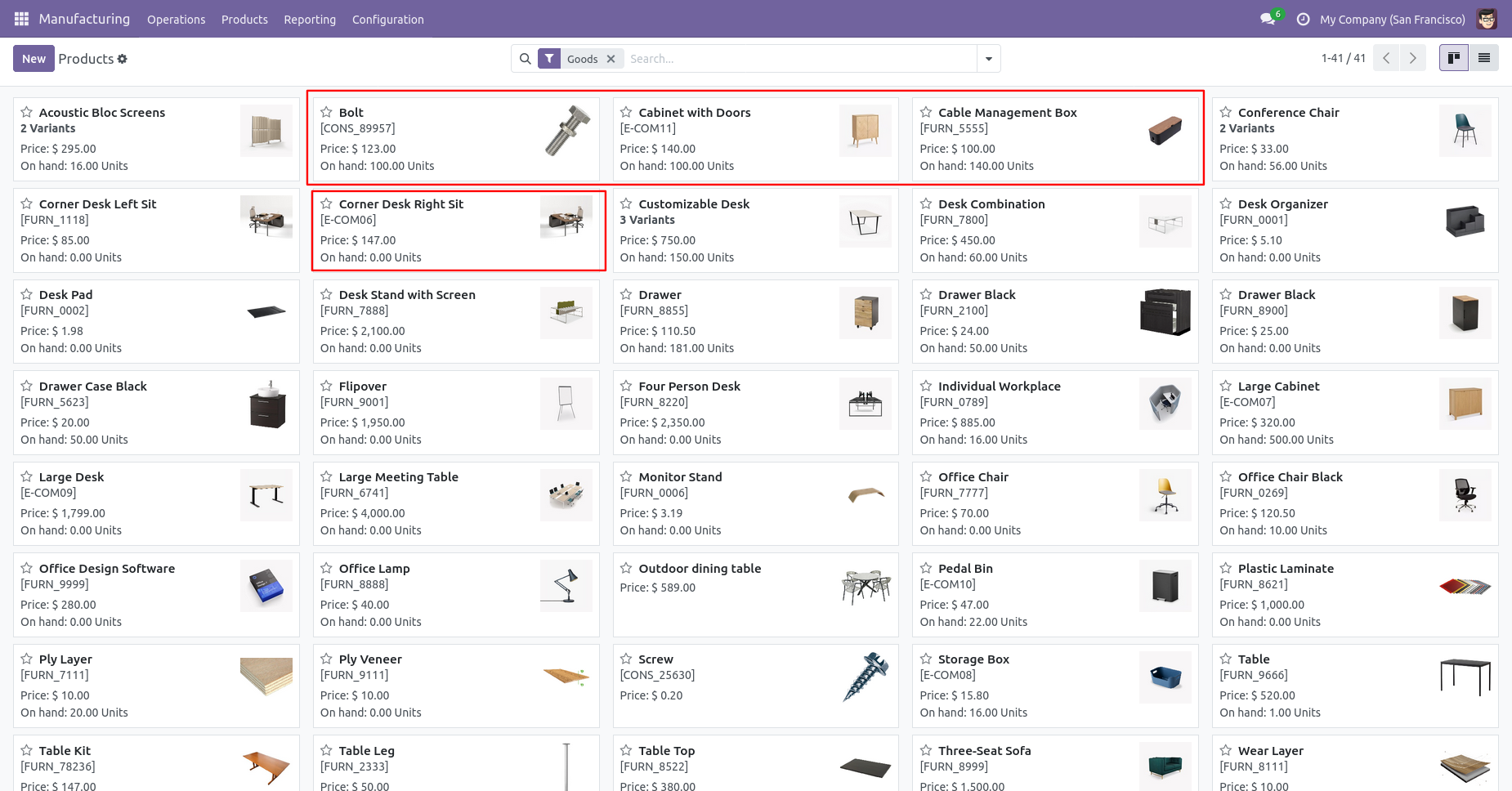
The products with on-hand quantity.
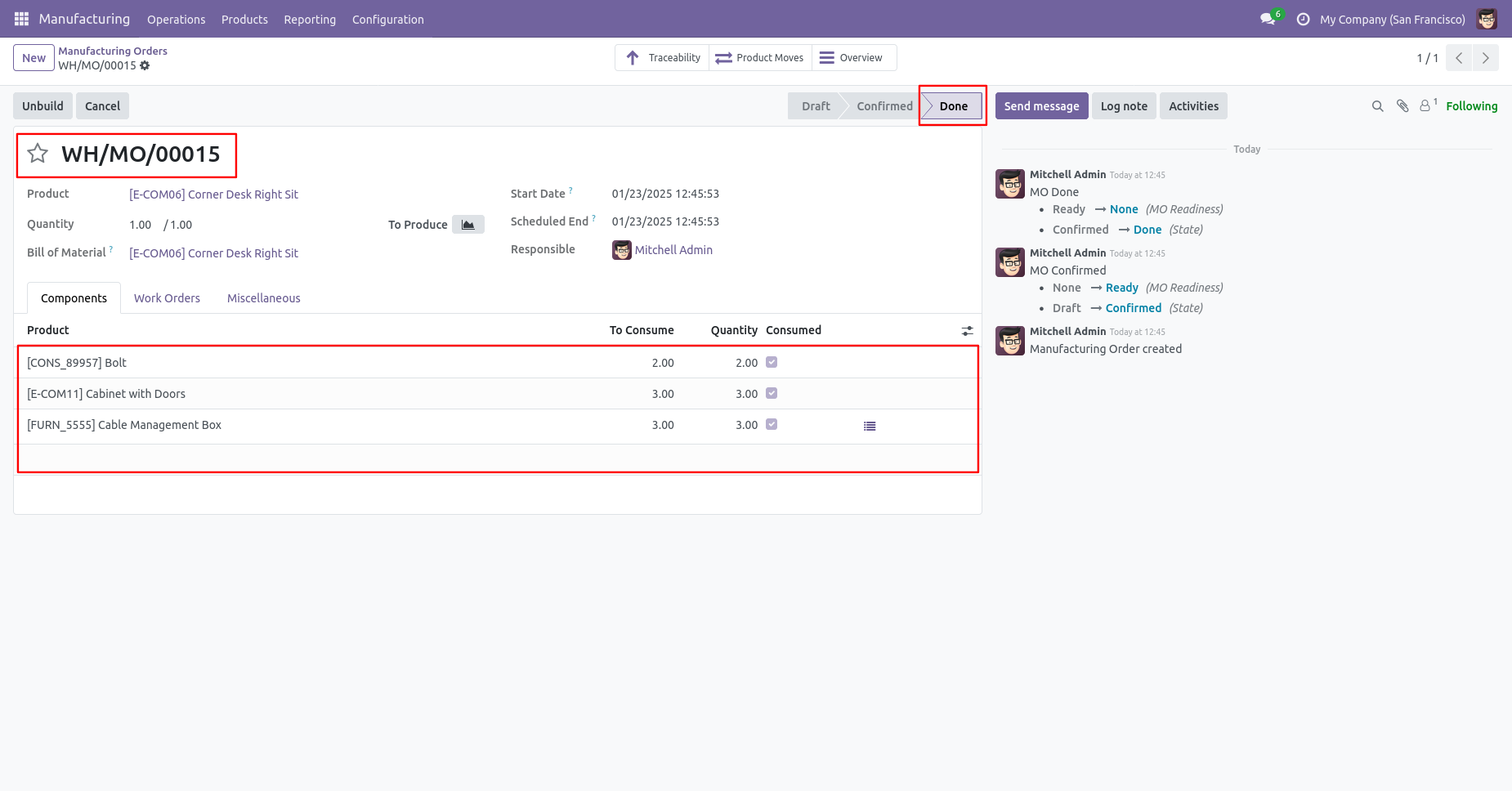
Our manufacturing order is in the "Done" state.
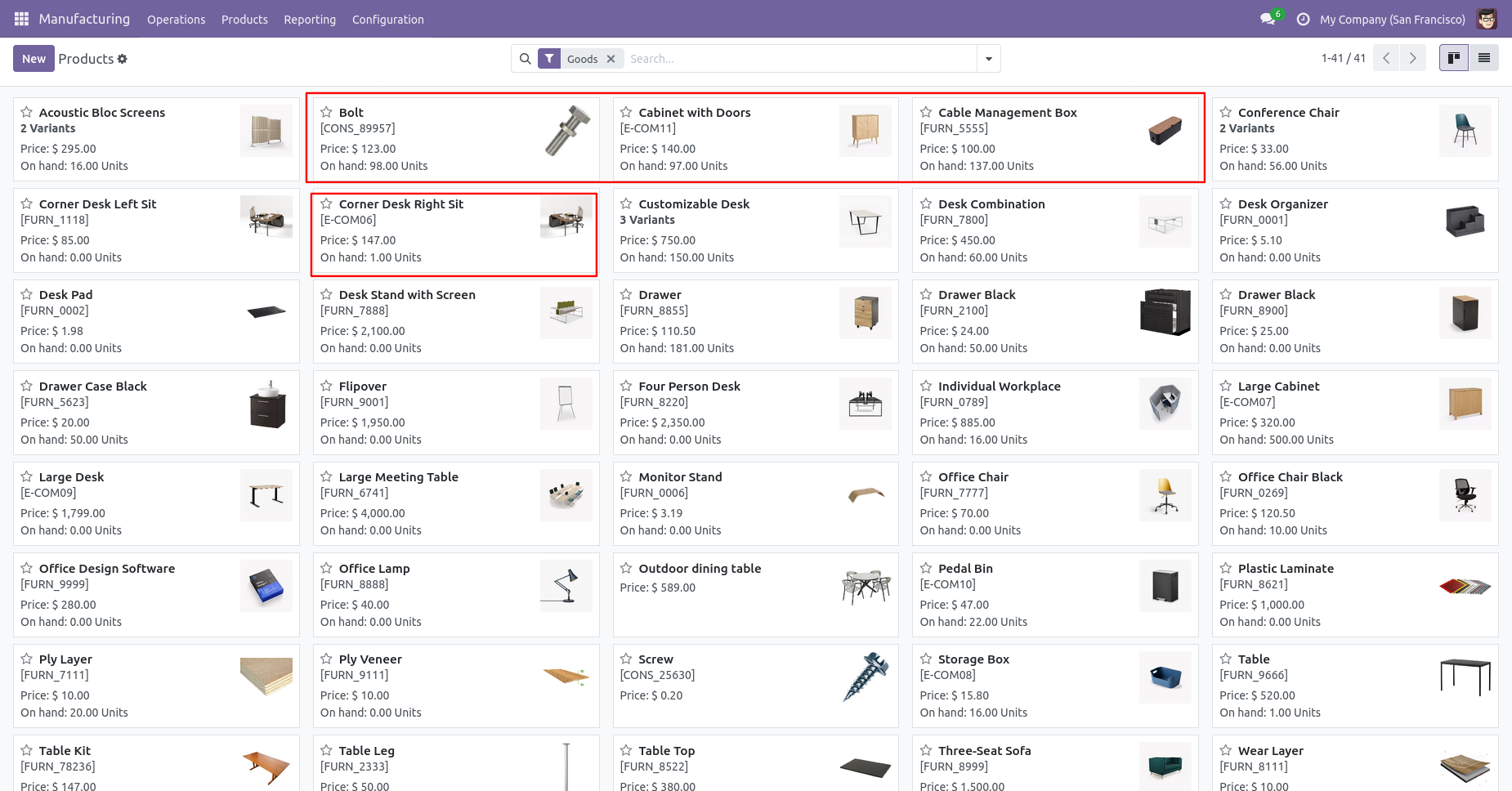
The products with updated on-hand quantity.
Press the "Cancel" button to cancel the MRP order.
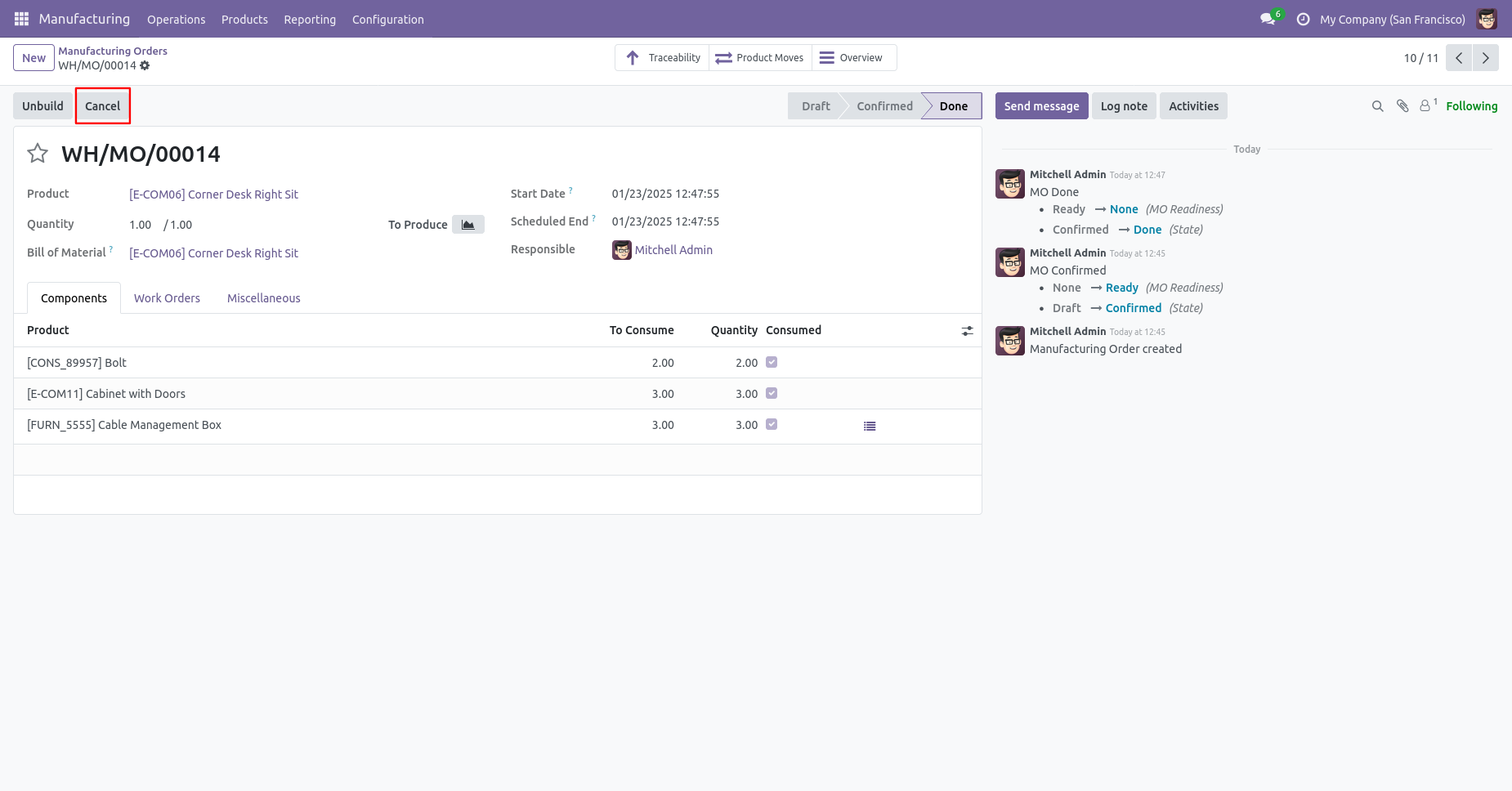
When you cancel the MRP order then the MRP order is cancelled and the state is changed to "cancelled".
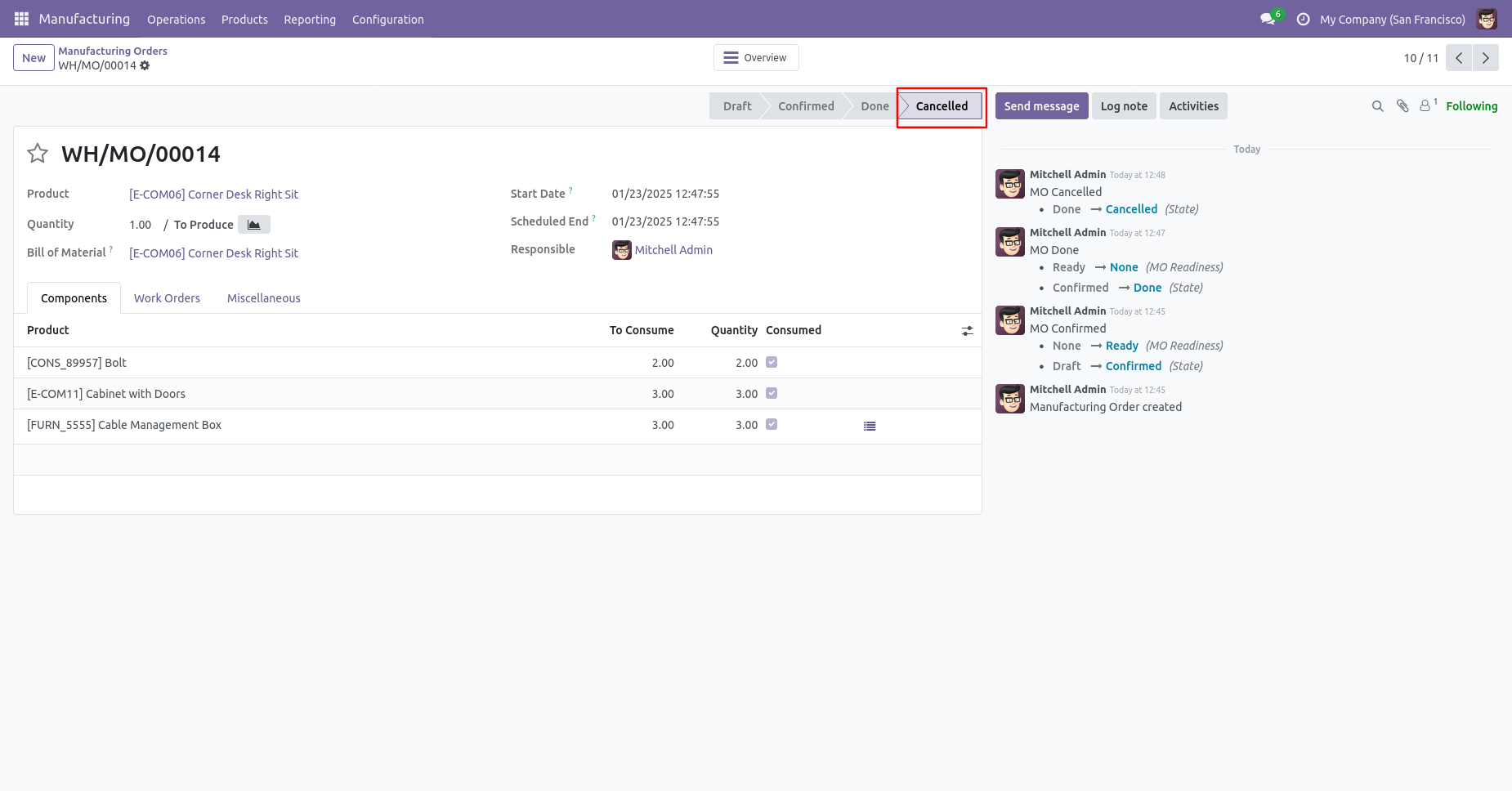
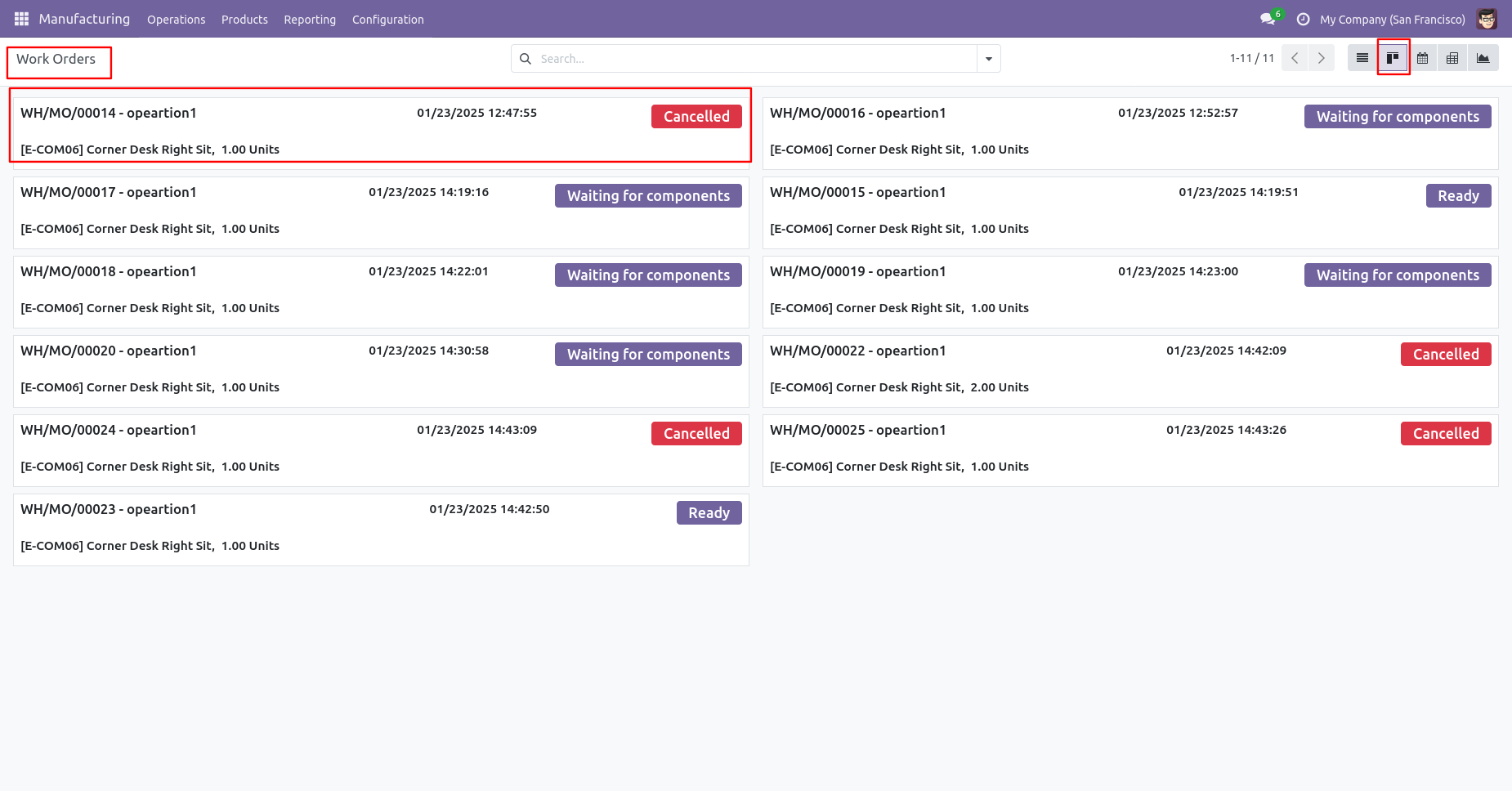
When you cancel the MRP order then the work order is also cancelled.
The products with updated on-hand quantity.
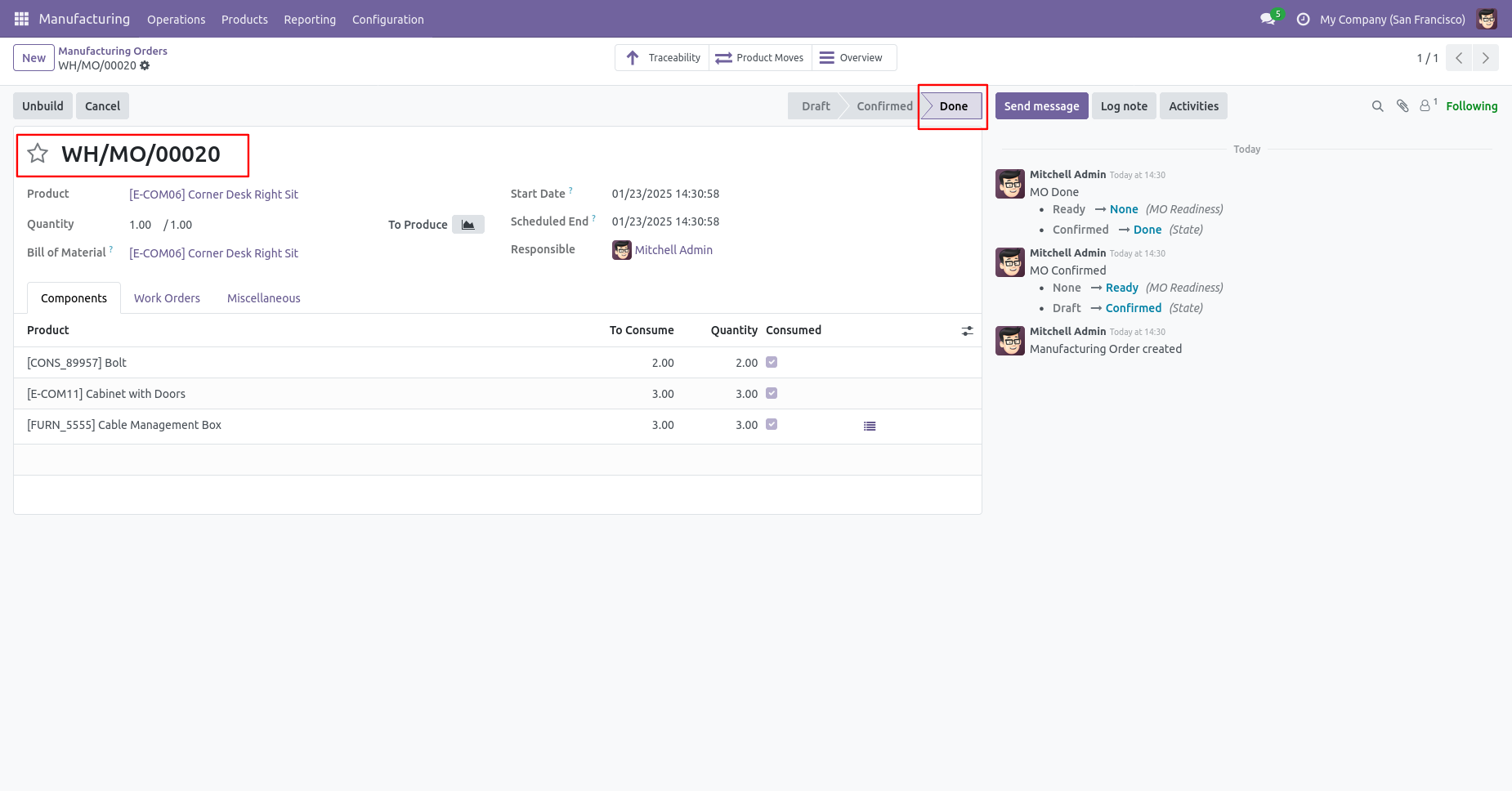
When you want to cancel the MRP and reset to the draft state tick "Cancel And Reset To Draft".
Our manufacturing order is in the "Done" state.
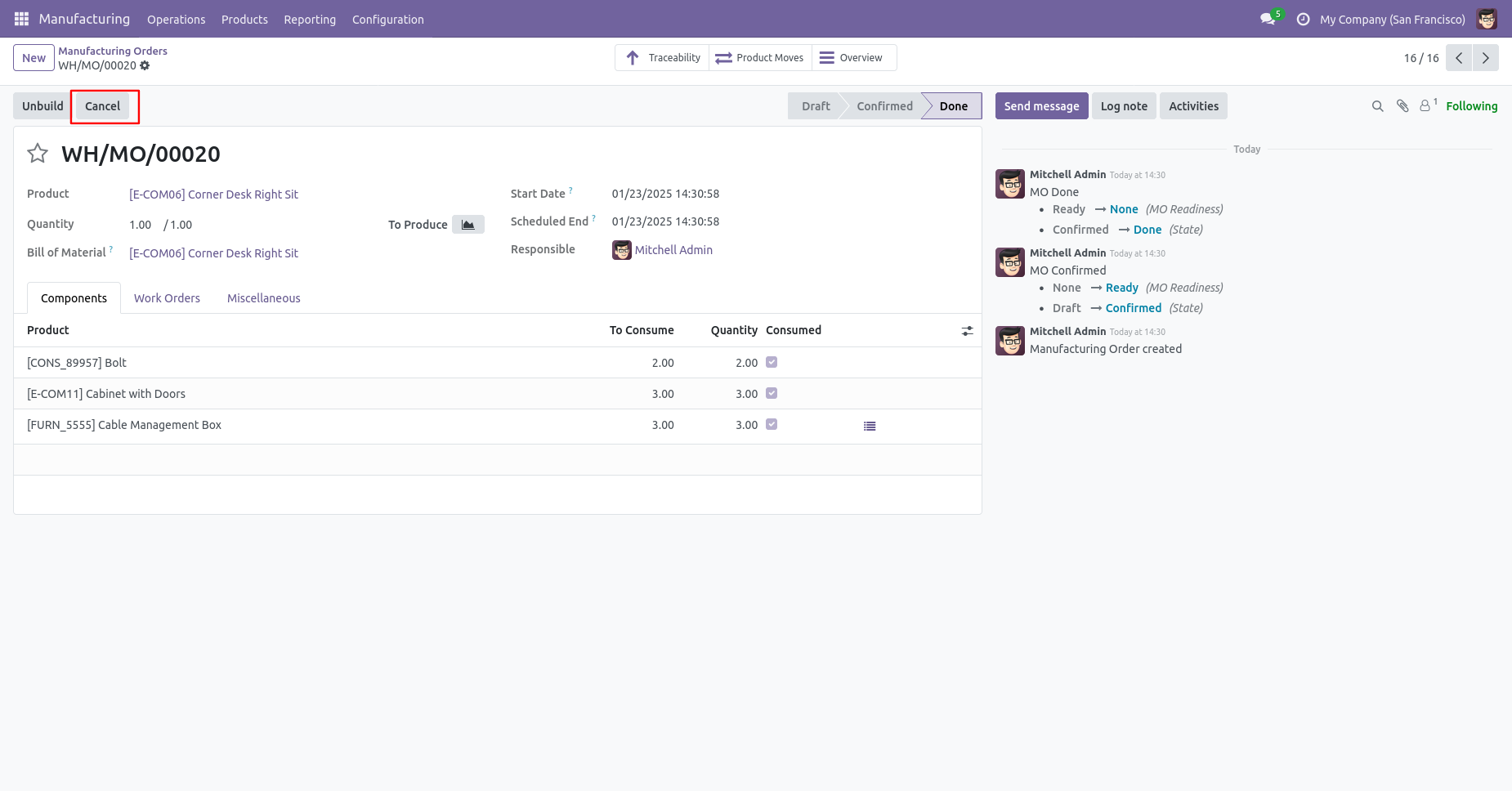
Press the "Cancel" button to cancel the MRP order.
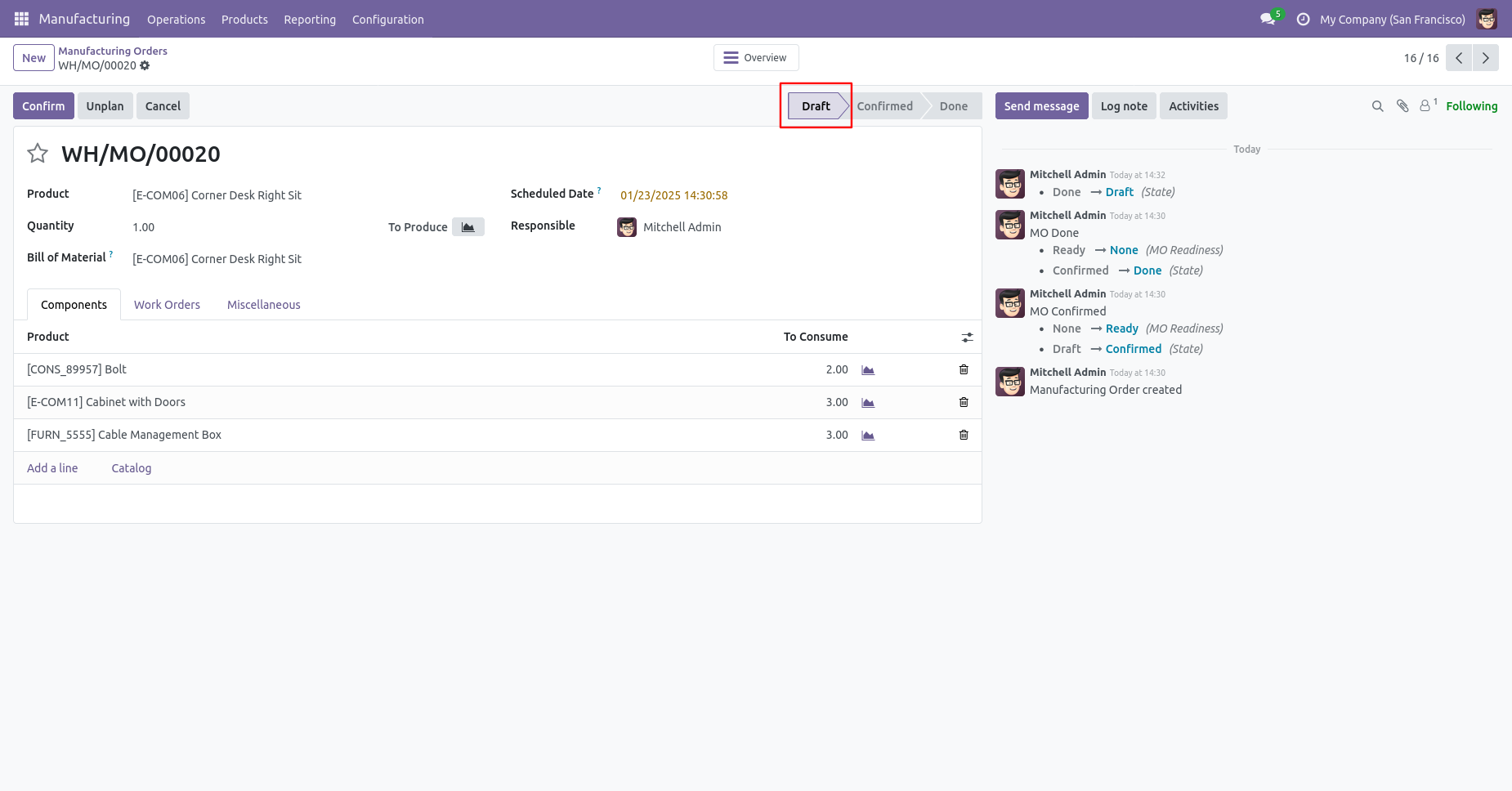
After canceling the MRP order it reset to the draft.
When you want to Cancel & Delete the MRP orders then choose the "Cancel And Delete" option.
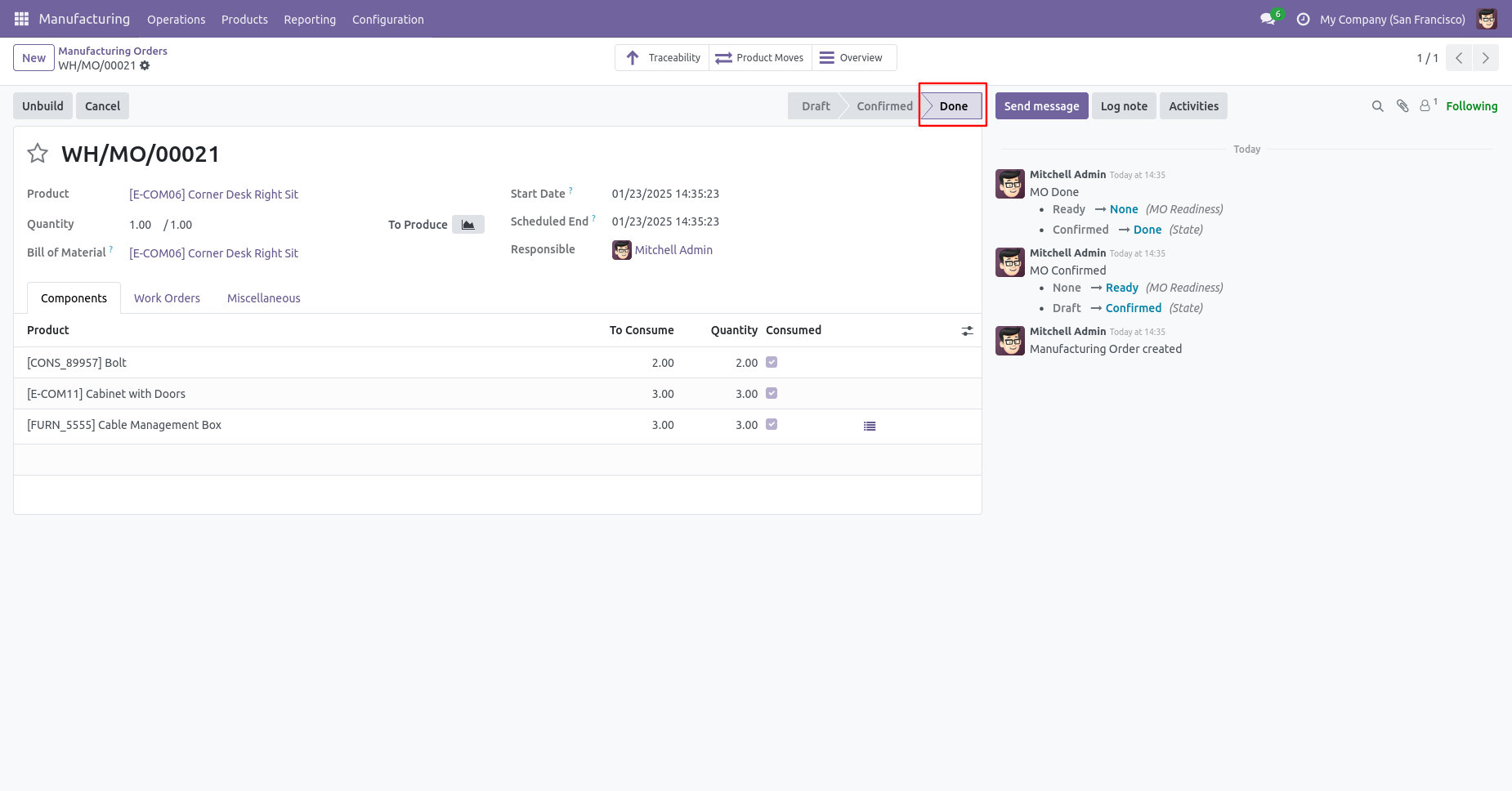
Our manufacturing order is in the "Done" state
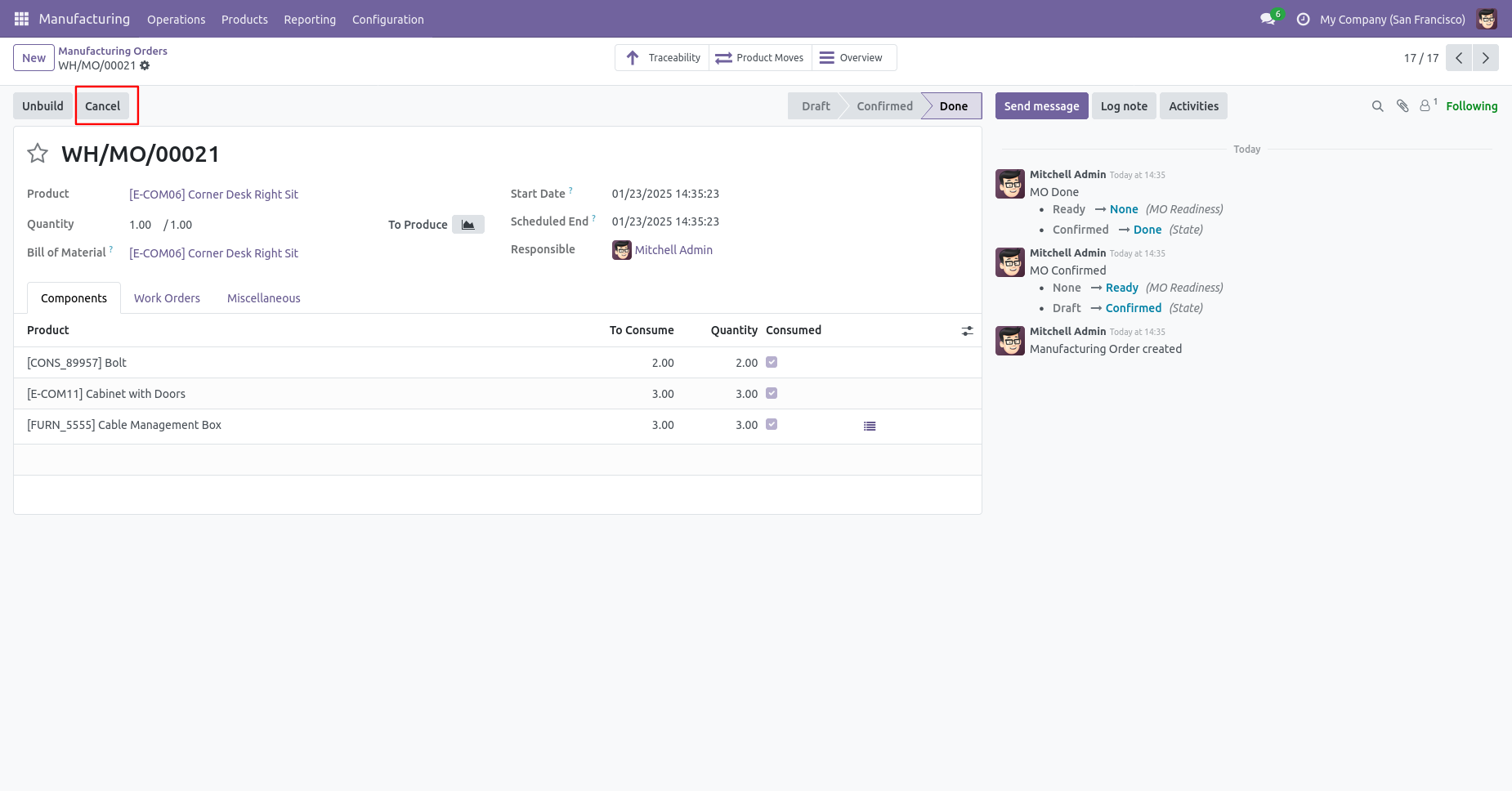
Press the "Cancel" button to cancel the MRP order.
After the "Cancel" the MRP order, our MRP order will be deleted.
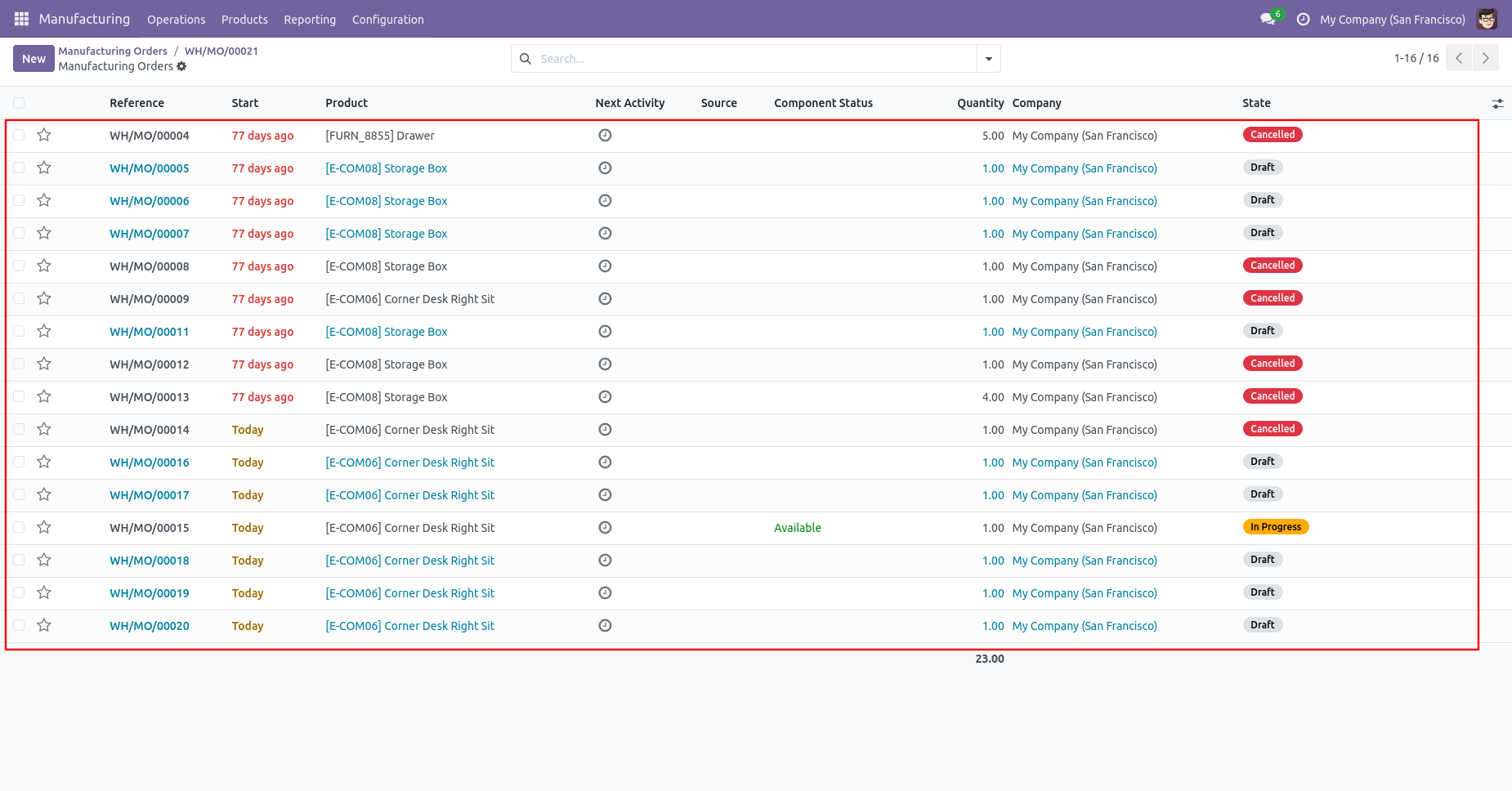
Now we cancel multiple MRP orders from the tree view.
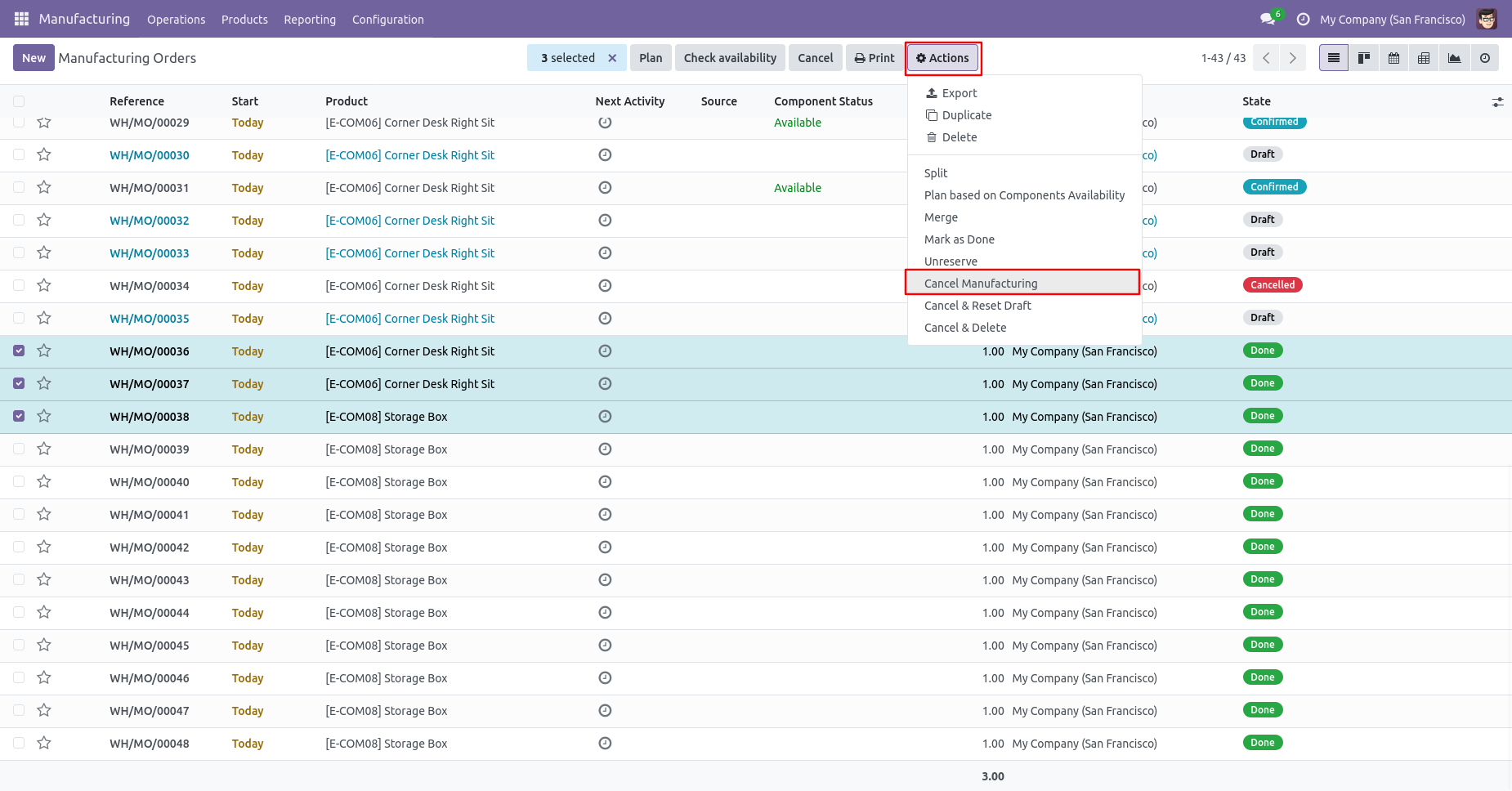
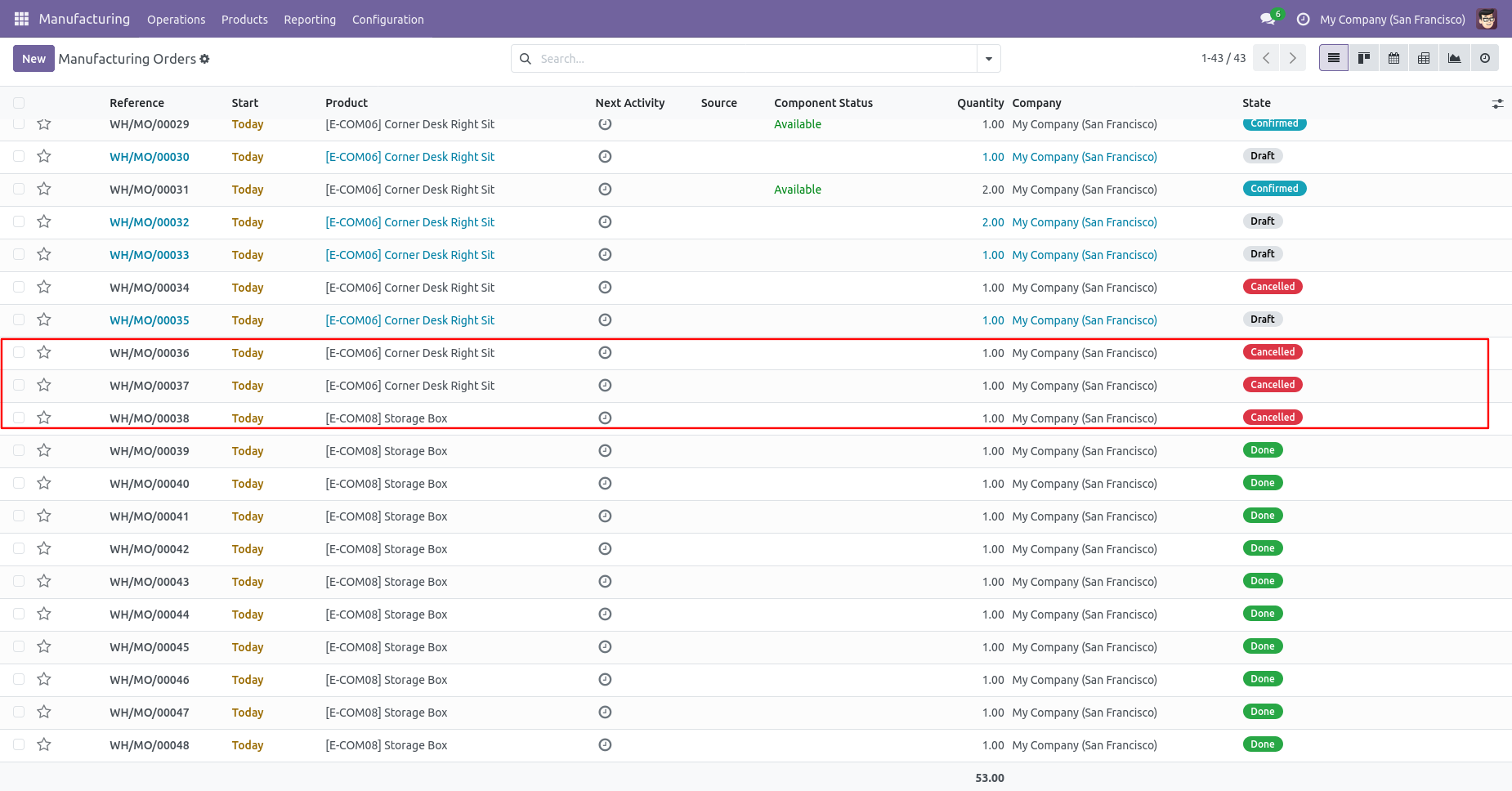
All selected MRP orders are cancelled.
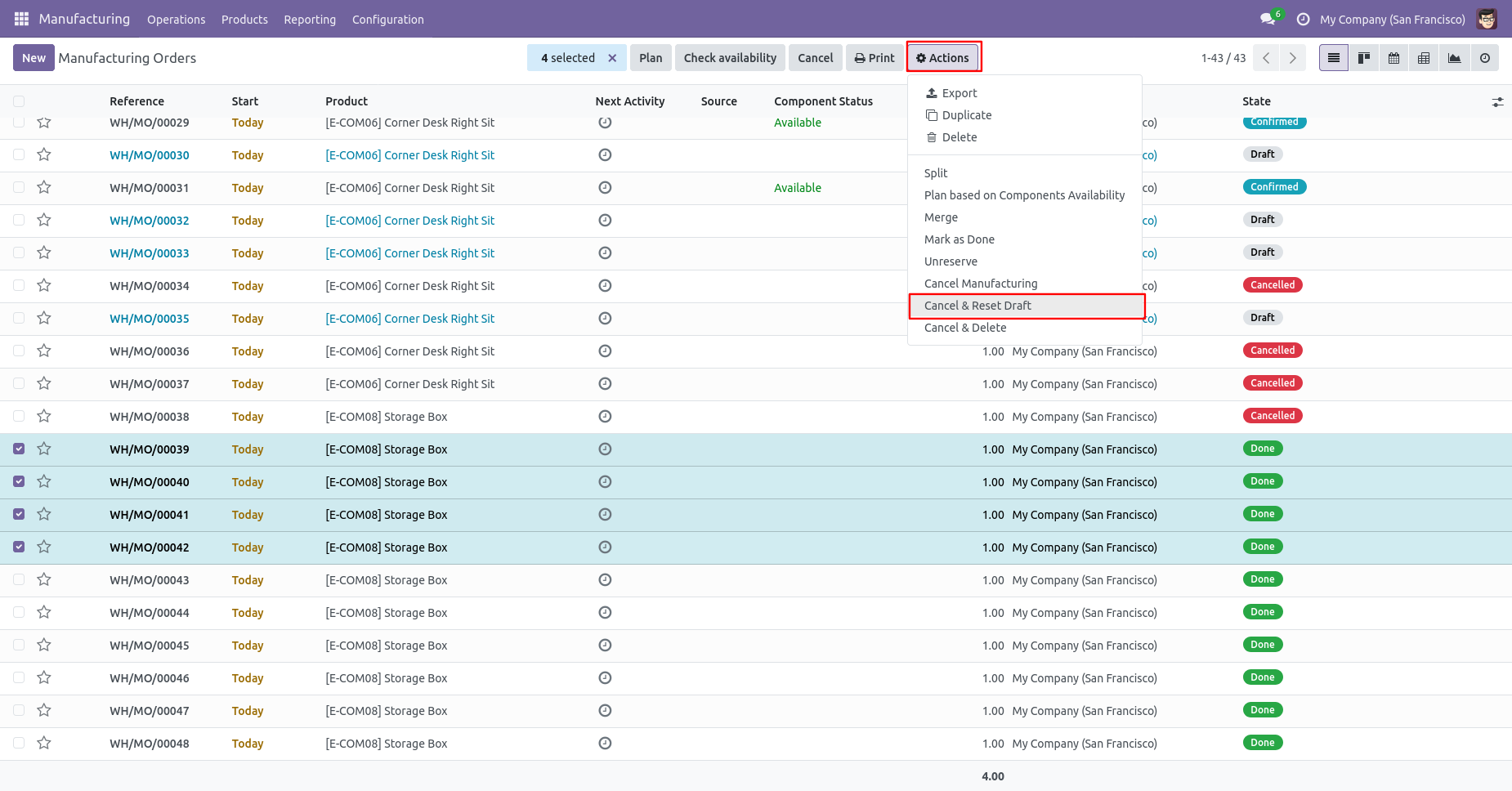
Now we "Cancel & Reset Draft" multiple MRP orders from the tree view.
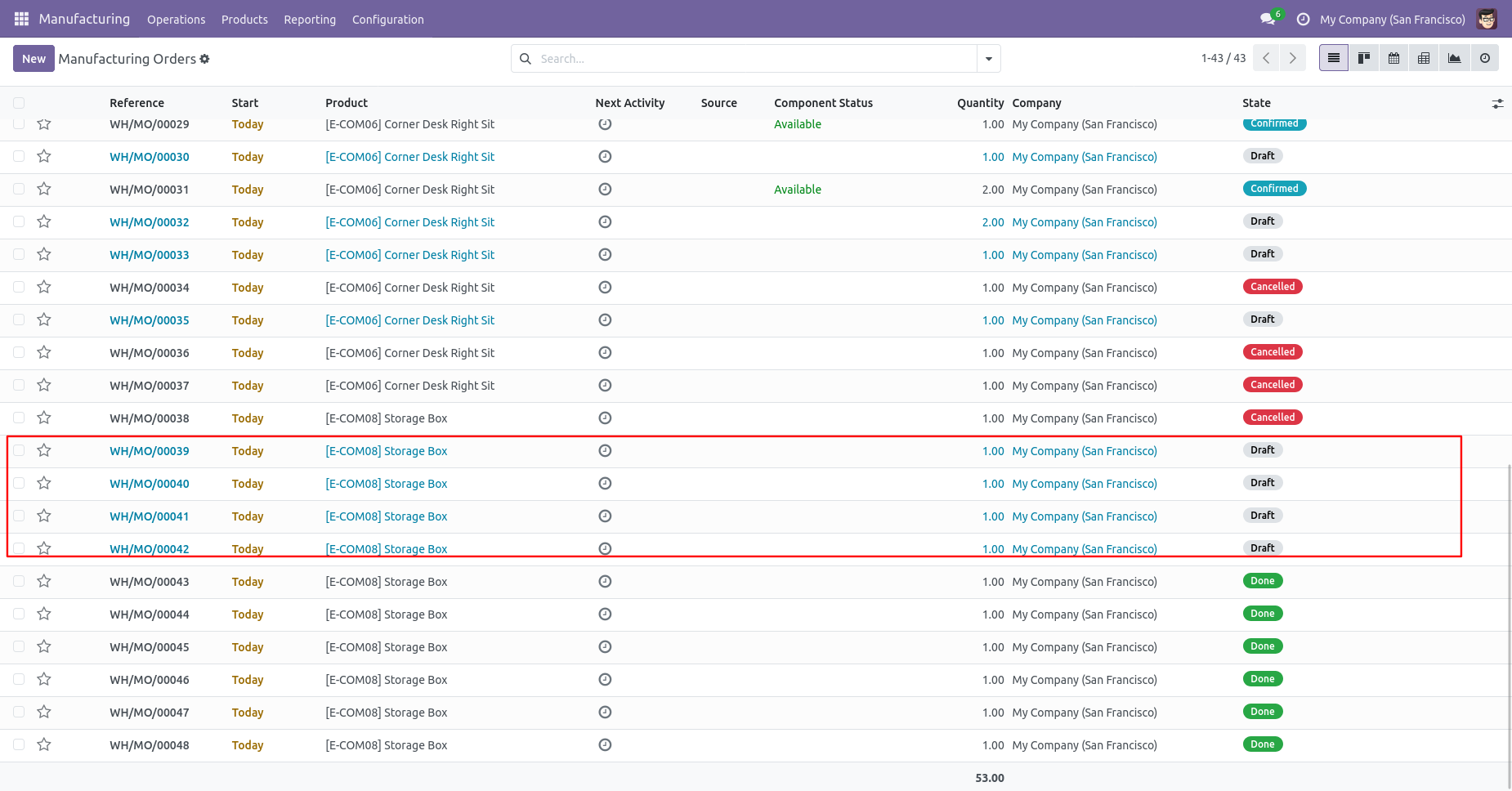
All selected MRP orders are cancelled and reset to the draft.
Now we "Cancel & Delete" multiple MRP orders from the tree view.
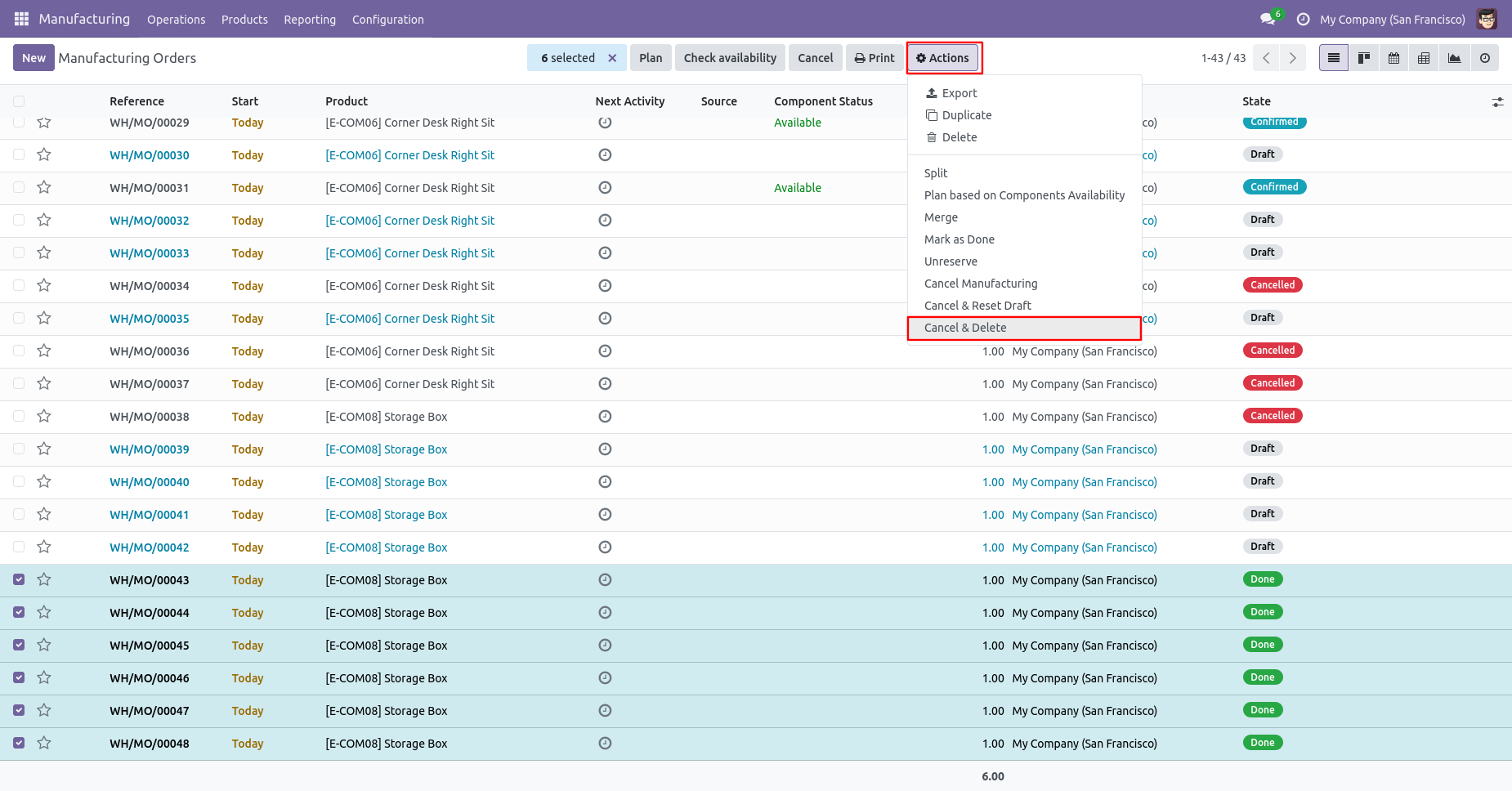
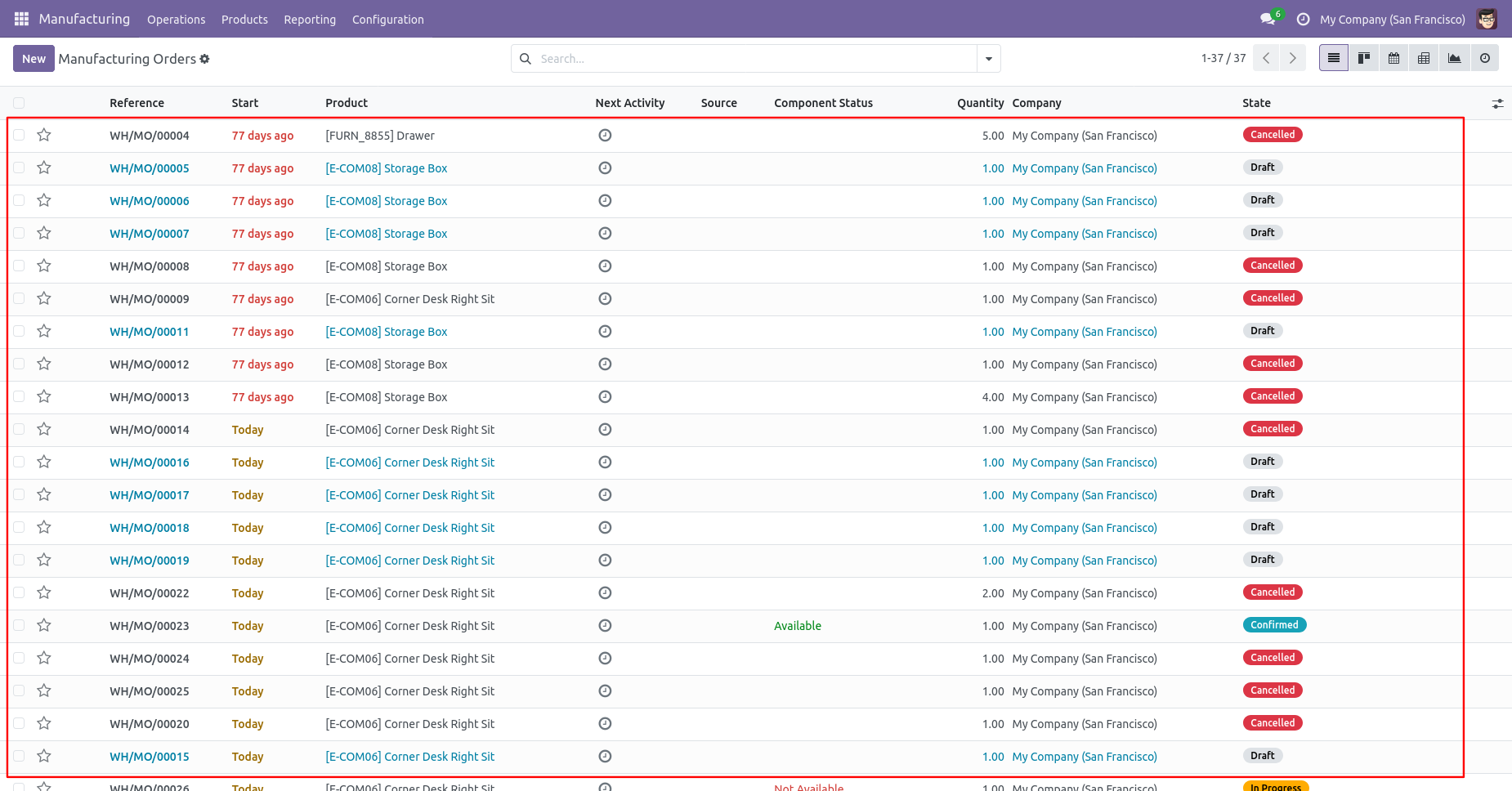
All MRP orders will be deleted after cancelled.
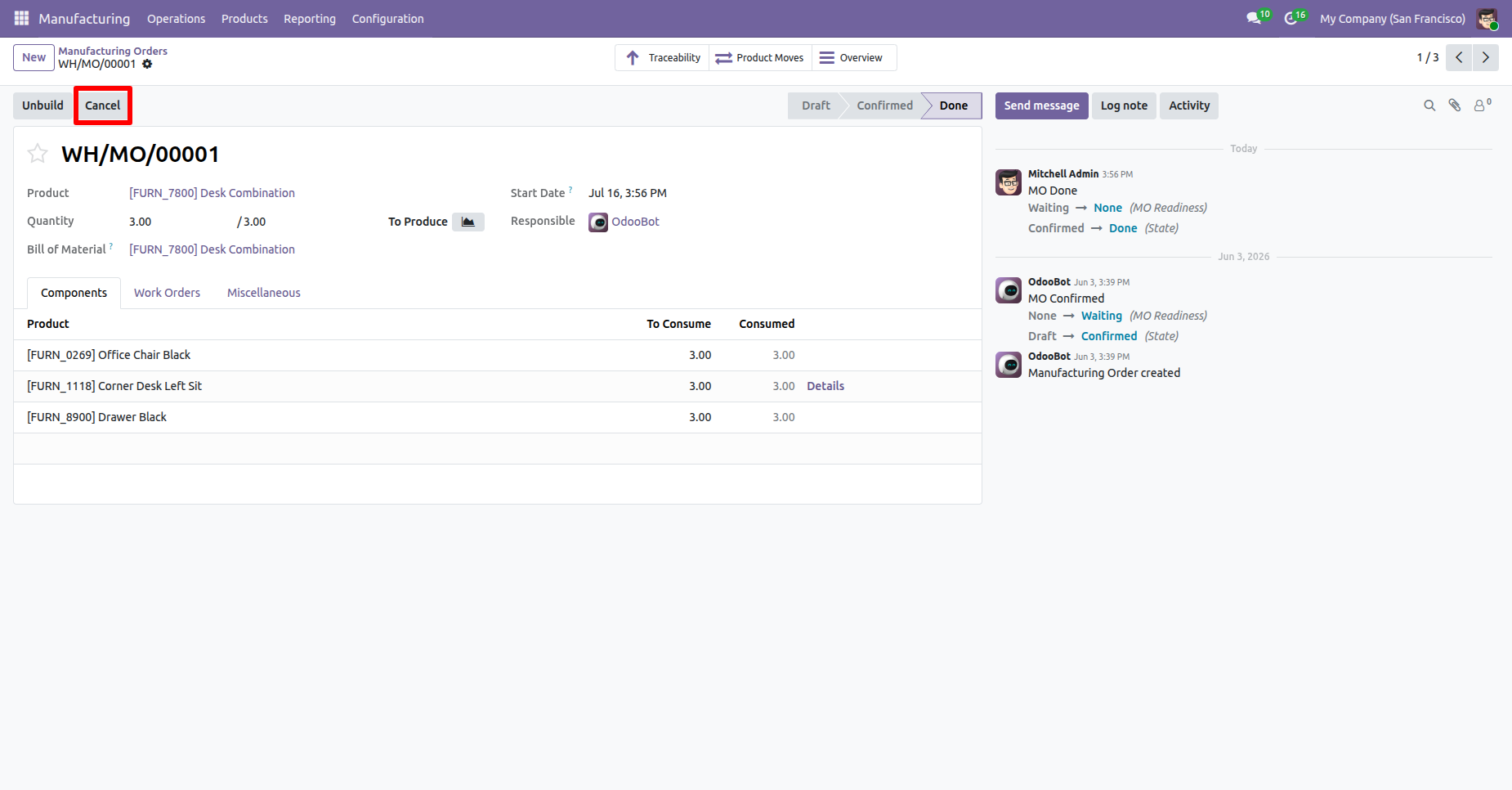
Click the Cancel button on the Manufacturing Order to initiate
the order cancellation process.
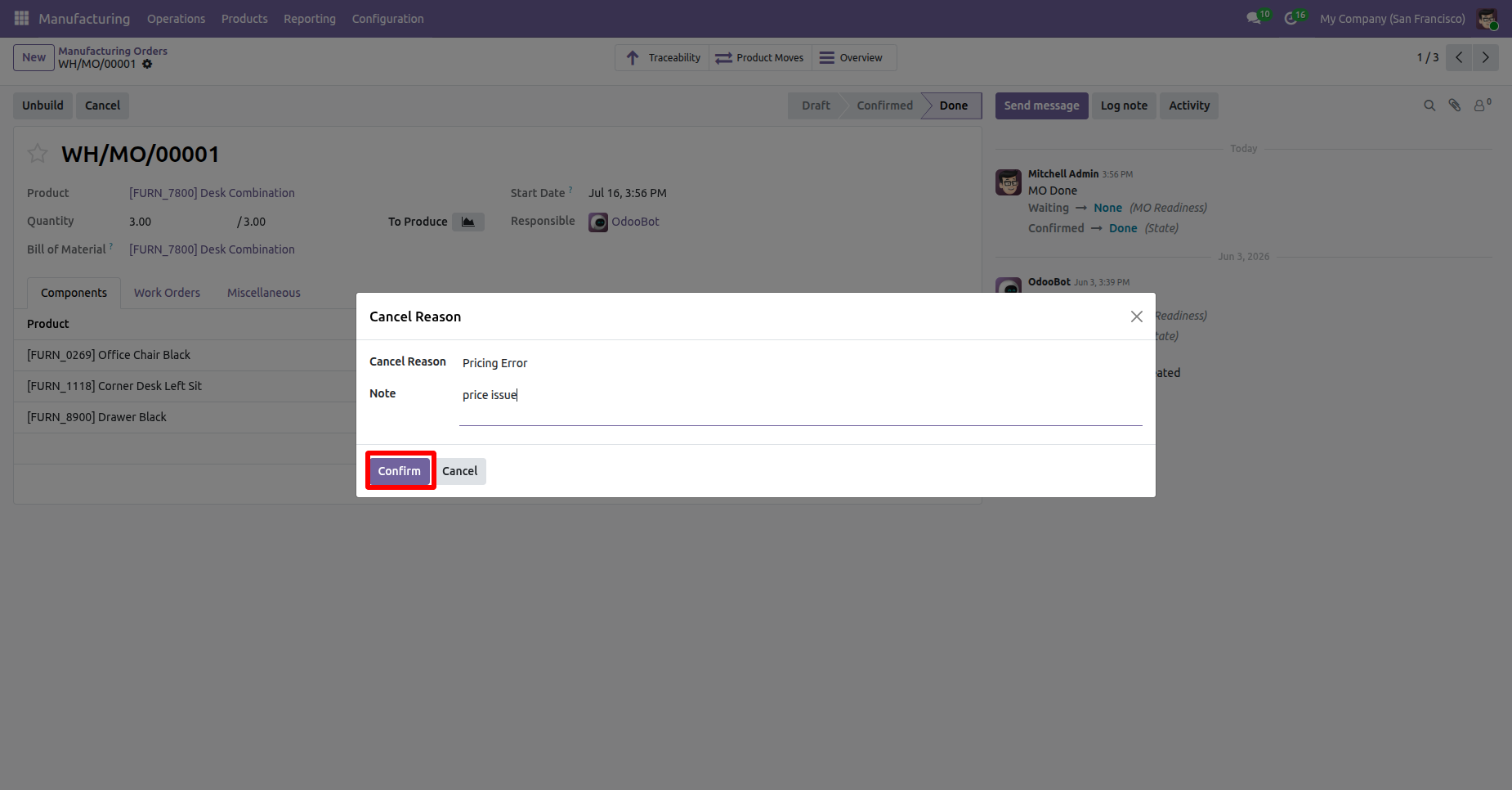
The Cancel Reason wizard opens, allowing you to select or enter
the reason for cancellation before confirming the cancellation.
After selecting the cancellation reason, click the
Confirm button to cancel the Manufacturing Order.
After the Order is canceled, the cancellation information, including the cancellation reason, canceled by, and cancellation date, is displayed in the Manufacturing Order Form View for future reference.
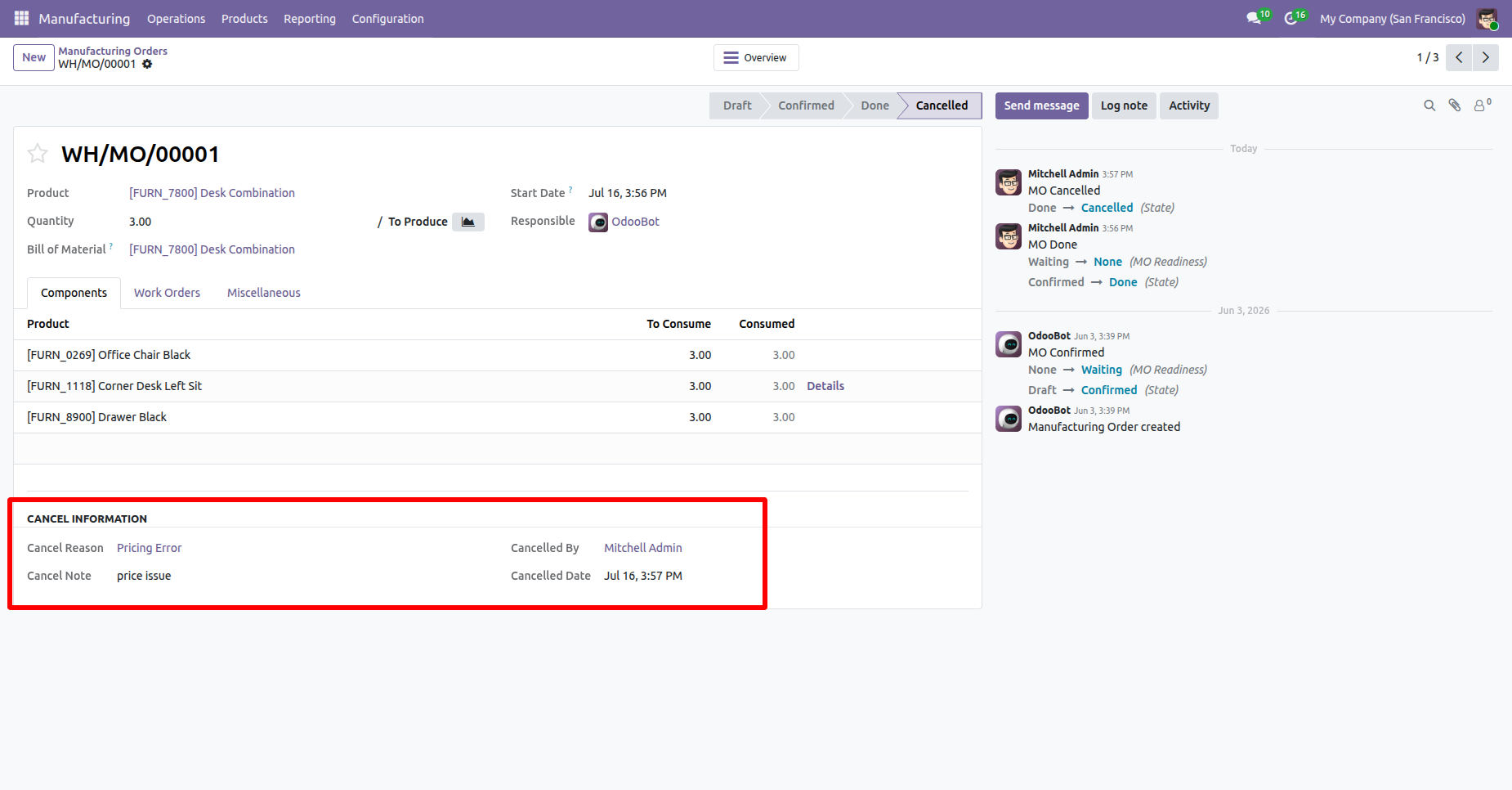
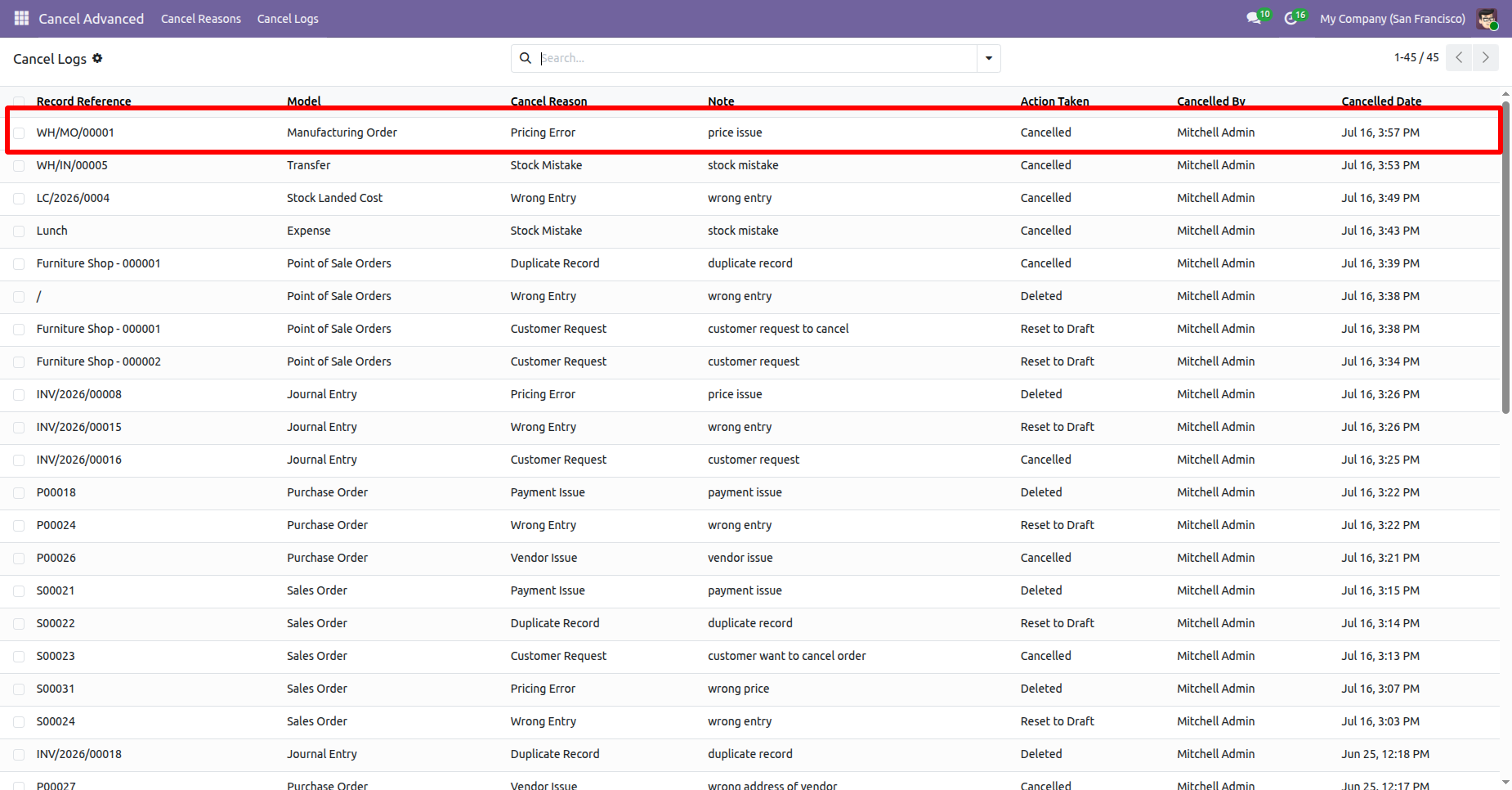
The cancellation logs are also available under the Cancel Logs menu in the Cancel Advanced app, where you can view and track all canceled records along with their cancellation reasons, canceled by, and cancellation dates.
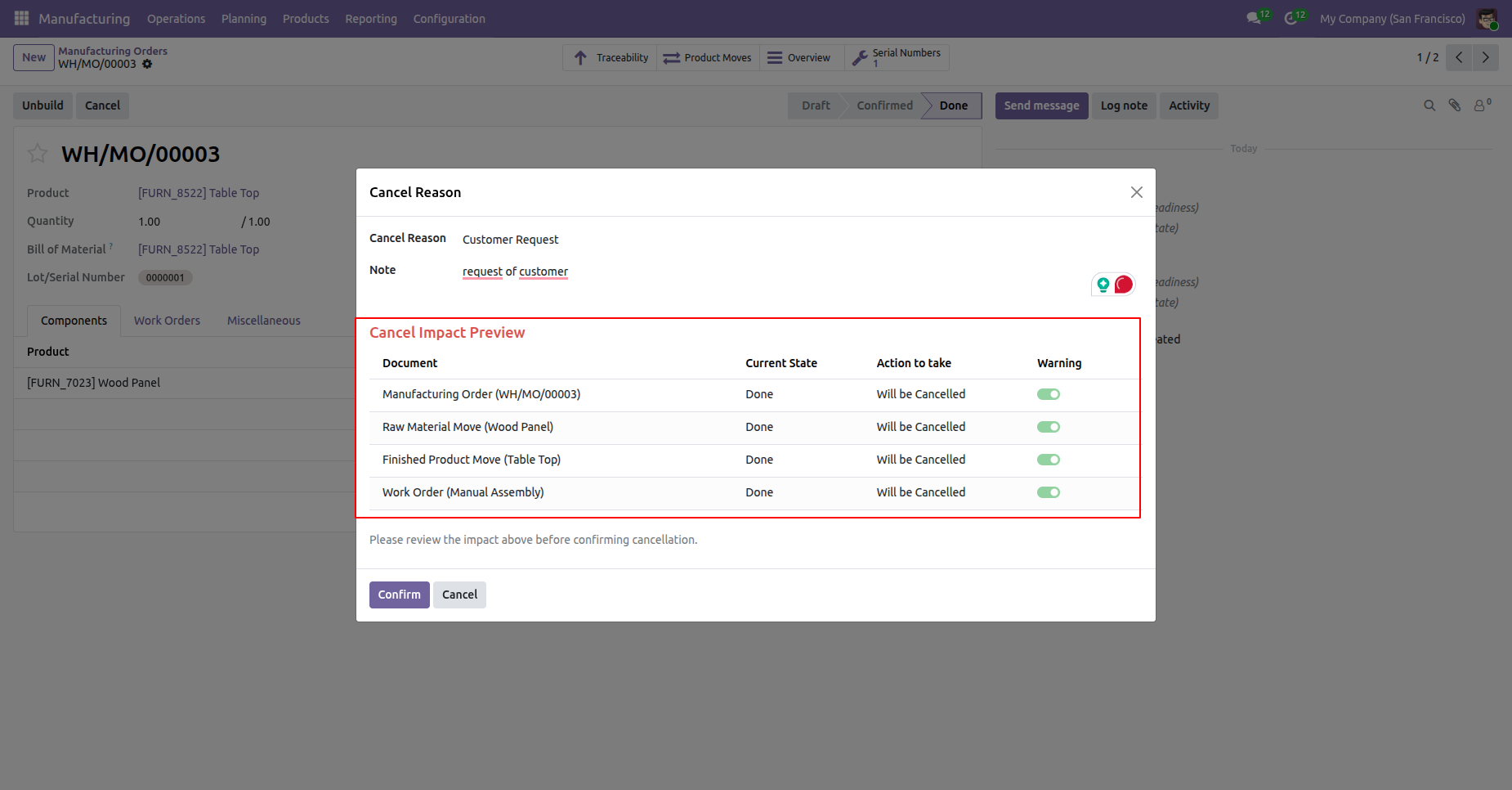
User can preview the cancellation details before confirming the cancellation process.
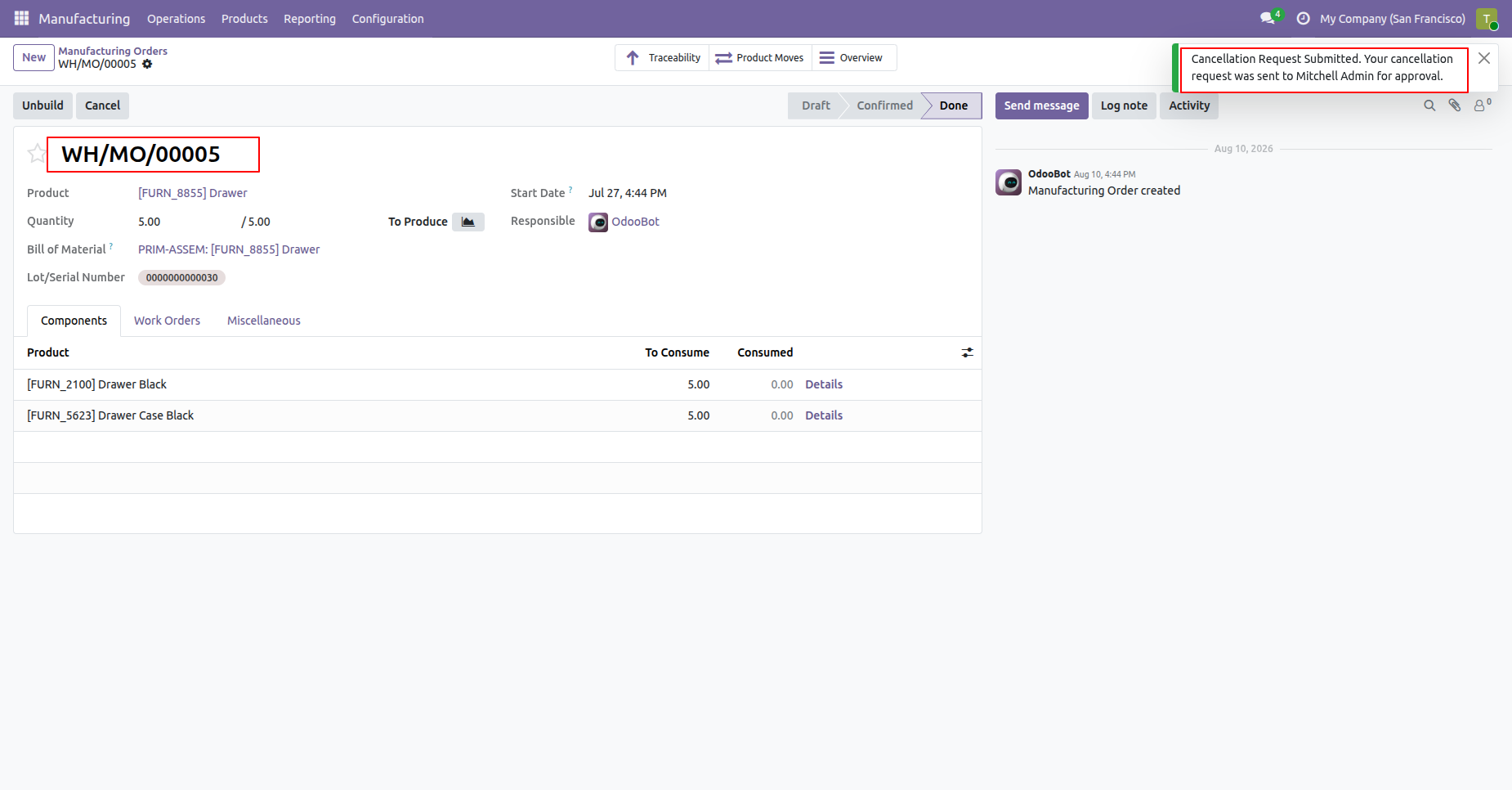
Select the manufacturing orders that require cancellation and click on cancel button to cancel the MRP order, Cancellation request will be submitted to the Approver and also displays the notification.
The approver reviews the cancellation request and confirms or rejects the action.
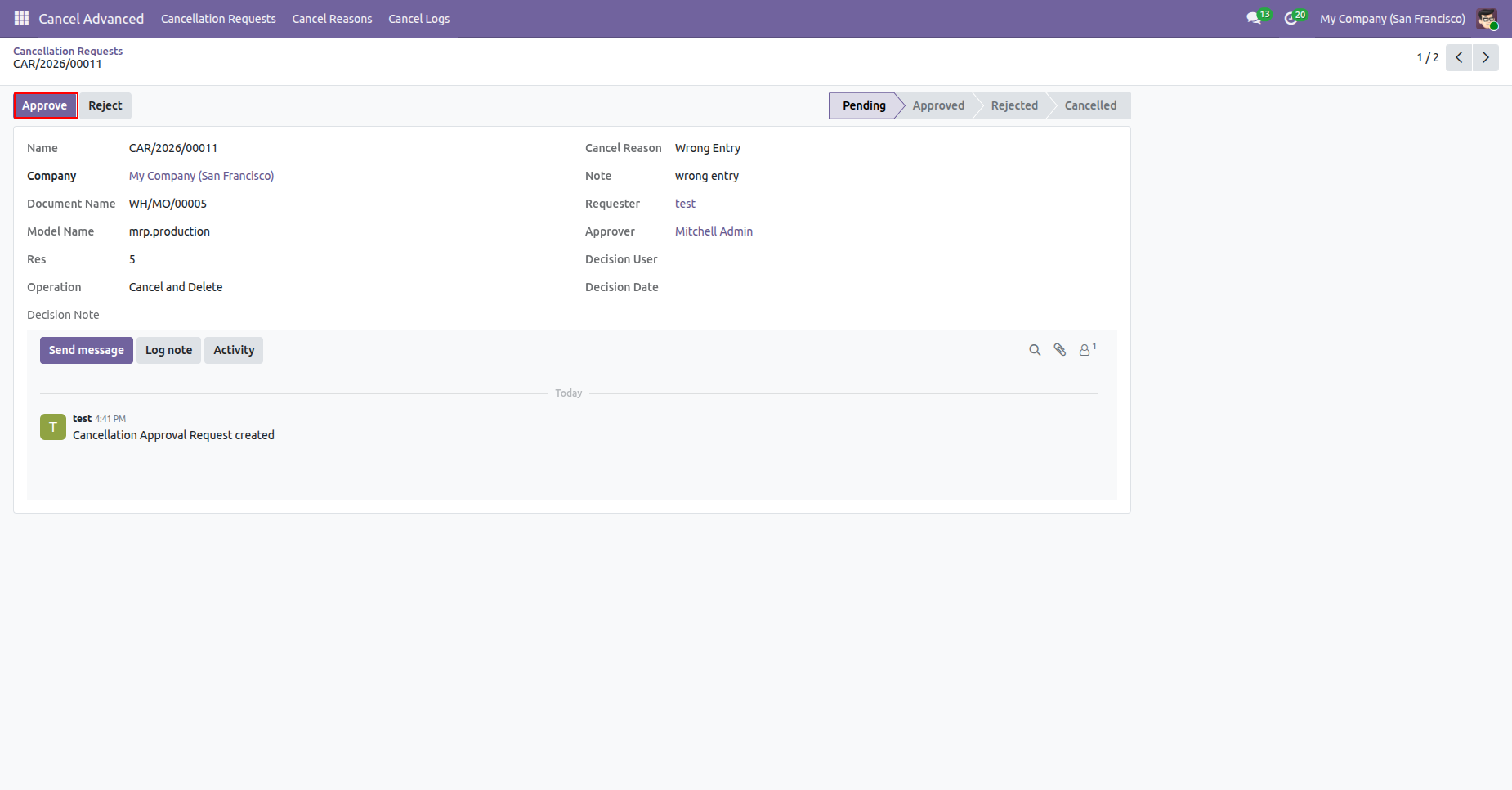
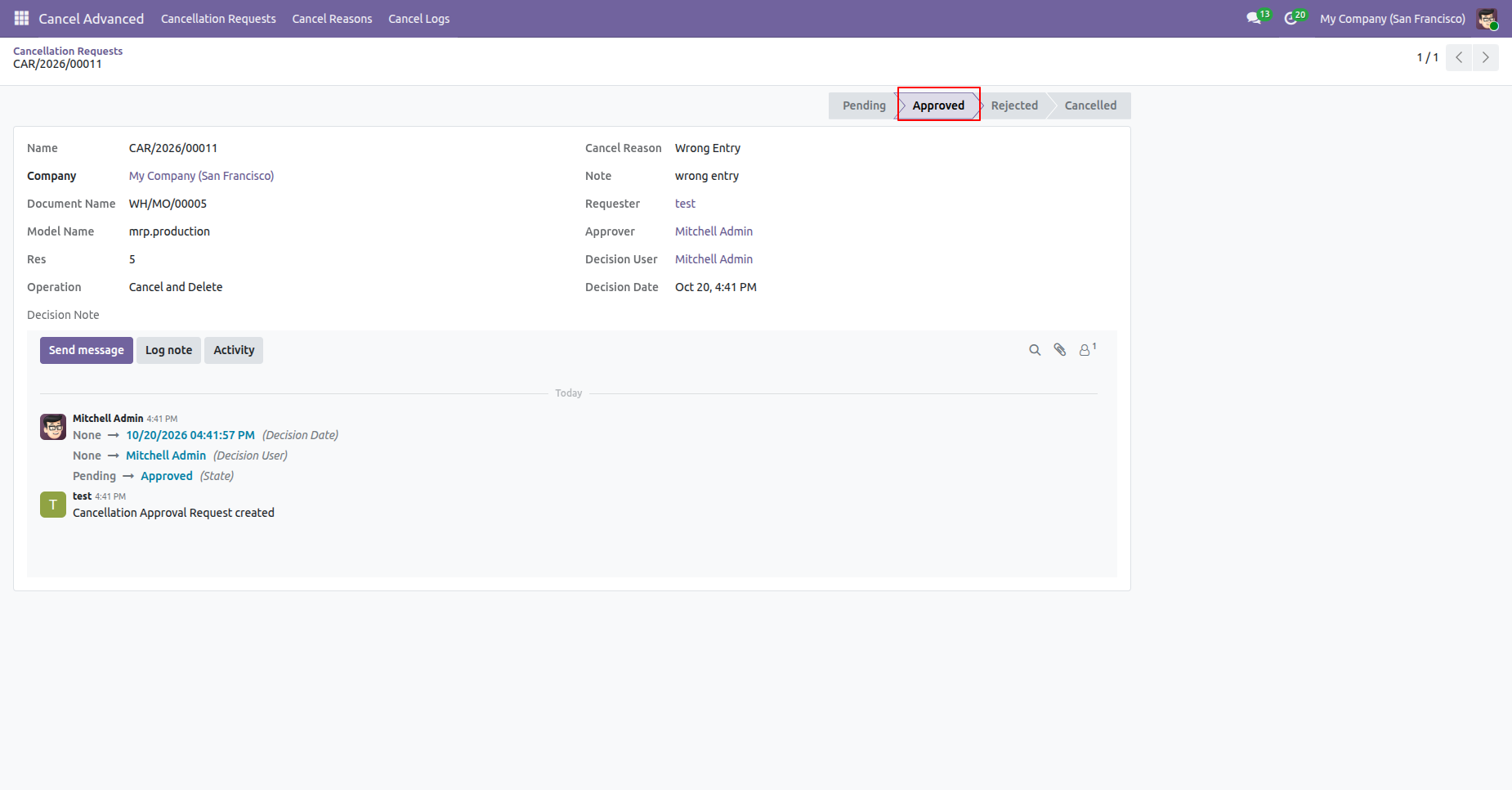
Click on the Approve button to approve the request and request stage will be moved to approved stage.
Version 19.0.5.0.0 | Released on : 22nd October 2026
Version 19.0.4.0.0 | Released on : 16th September 2026
Version 19.0.3.0.0 | Released on : 17th July 2026
Version 19.0.2.0.0 | Released on : 8th January 2026
Version 19.0.1.0.0 | Released on : 17th September 2025
- Yes, this app works perfectly with Odoo Enterprise (Odoo.sh & Premise) as well as Community.
- No, this application is not compatible with odoo.com(odoo saas/Odoo Online)
- Yes, we are deleting the valuation layer history as part of the process
- In this module we have consider Average cost method & Standard cost price. but we have not considered FIFO method.
- Yes, to test this module, please contact us at sales@softhealer.com.
- Please contact us at sales@softhealer.comto request customization.
- Yes, we provide free lifetime support for the version you purchased.
- Yes, you will receive lifetime free updates for the version of the module you purchased.
- No, there is no need to install any additional libraries.
- Yes, for version 12 and above, you need to purchase the module separately for each version you intend to use.
- No, exchanges or refunds are not allowed. Please make sure to select the correct version before purchasing.
- You can contact us at support@softhealer.com for language translation support. We use Google Translator tools to provide translations in multiple languages, so the accuracy may vary. We welcome your suggestions to help improve translations.


 Buy Once,
Supported Forever
Buy Once,
Supported Forever



 Scan to email sales






 Your Ideas
Shape Our Roadmap
Your Ideas
Shape Our Roadmap

 Got an Idea?
We'll Build It
Got an Idea?
We'll Build It
Discover Our Latest Apps