












All In One Advance Product Search

Do you have lots of products and variants? Feeling difficulty to filter/search and choose specific products in Sale, Purchase, Inventory, Invoice, BOM? So here we come with a solution, Our module will help you to filter products with fully customized your favorite products fields and variant attributes. Our module will save your time and efforts for the selection of products based on different criteria. We have provided the configuration of product fields and attributes. You can easily customize it as you required. After configurations of your favorites fields and attributes, you will be able to add products on basis of that customized fields and attributes criteria or patterns.

Features
- Powerful configurations of fields and attributes.
- Supported configurable field types: Char, Integer, Float, Boolean, Many to one, Selection.
- Product Template and Product Variant Supported.
- Smart filtering with =,!=, =, like, I like,=like, not like, not like.
- Easy to filter and add products in Sale, Purchase, Inventory, Invoice, BOM.
- Options that allow the person to select which product they would like to add in sale, purchase, inventory, invoice, BOM.
- Search and Select Products in Sale, Purchase, Inventory, Invoice, BOM.
- Launched new functions for select specific products from search results.
- Easy to select specific products or all products from search results.
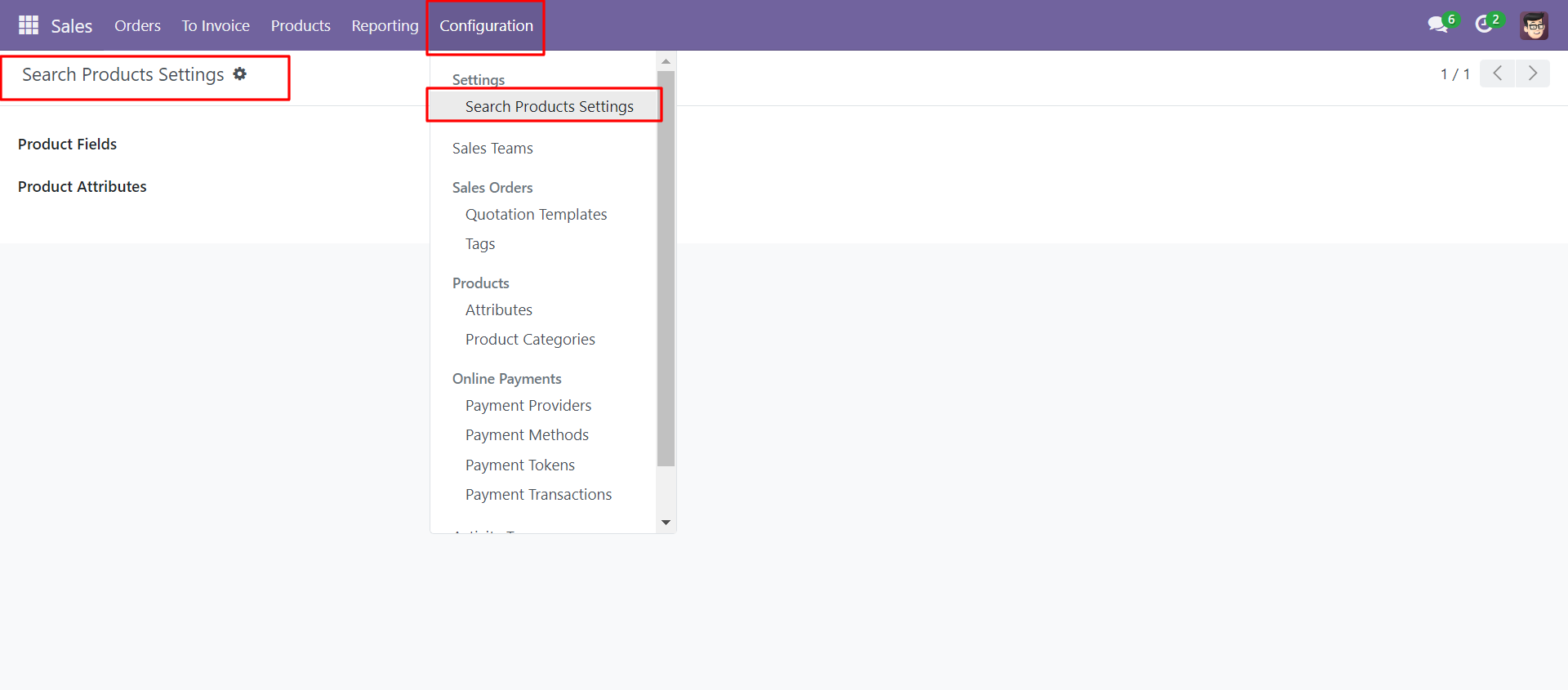
In settings, Select product fields and attributes that you want to search
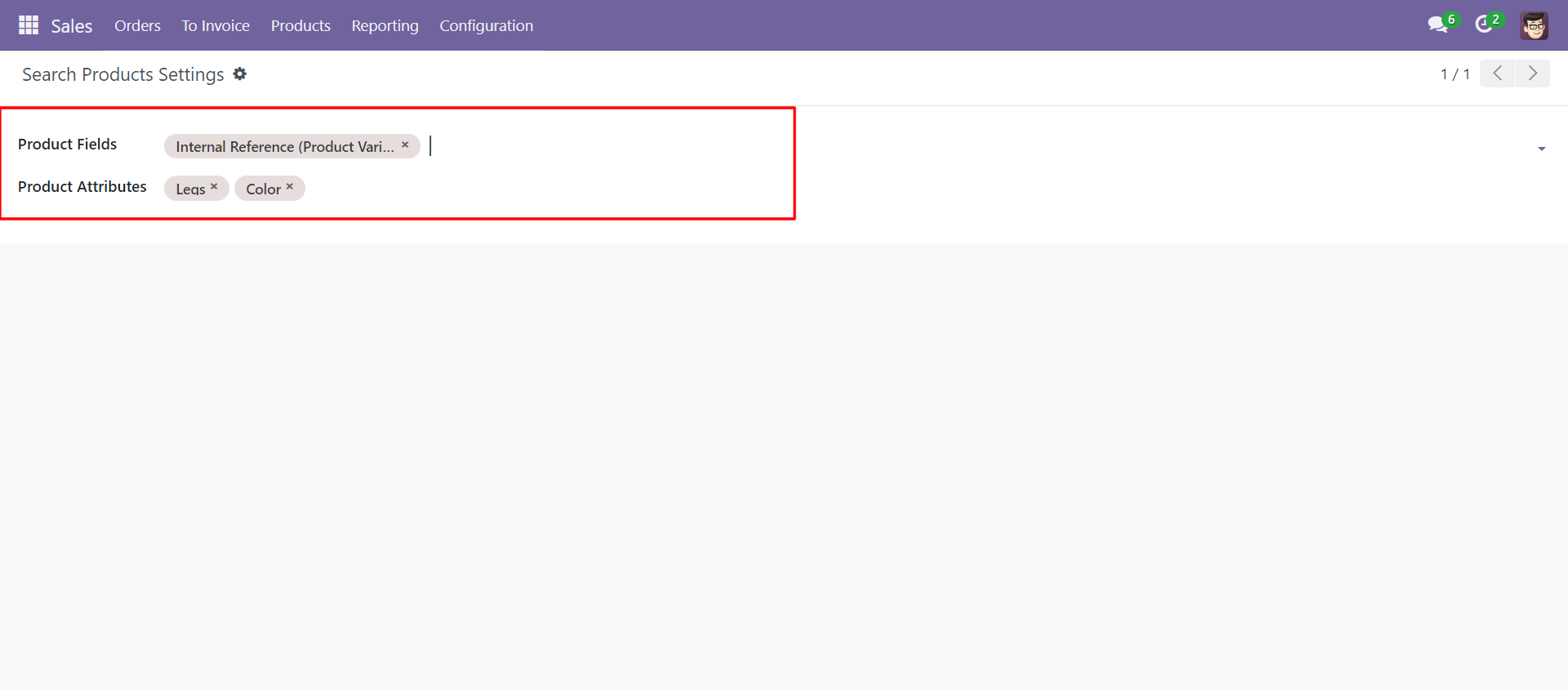
You can select product template and product fields as you want.
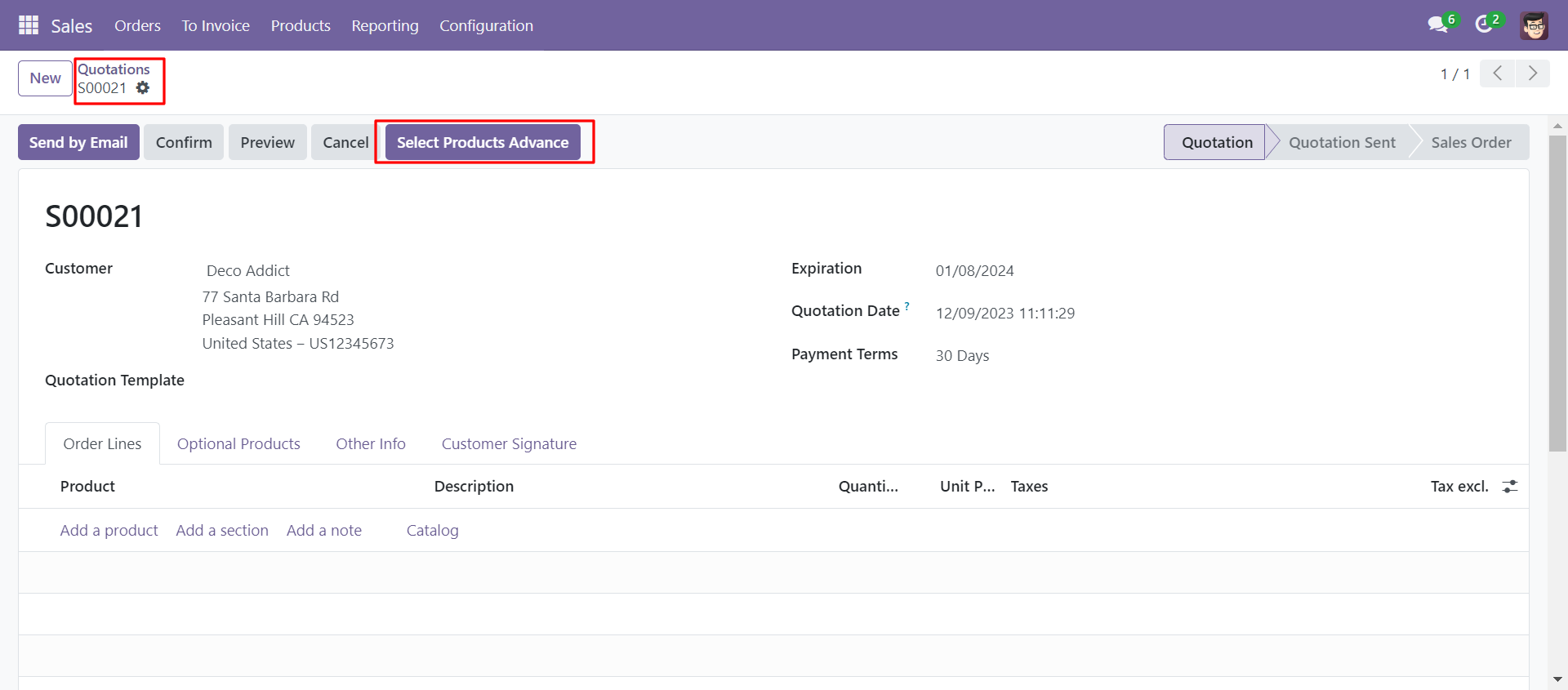
'Select Products Advance' button in Quotation/Sale Order Form View.
When you click 'Select Products Advance' button, wizard will open that looks like below. Wizard contains all the fields and attribute that you selected in settings, related comparison operators and Filter button, Reset button.
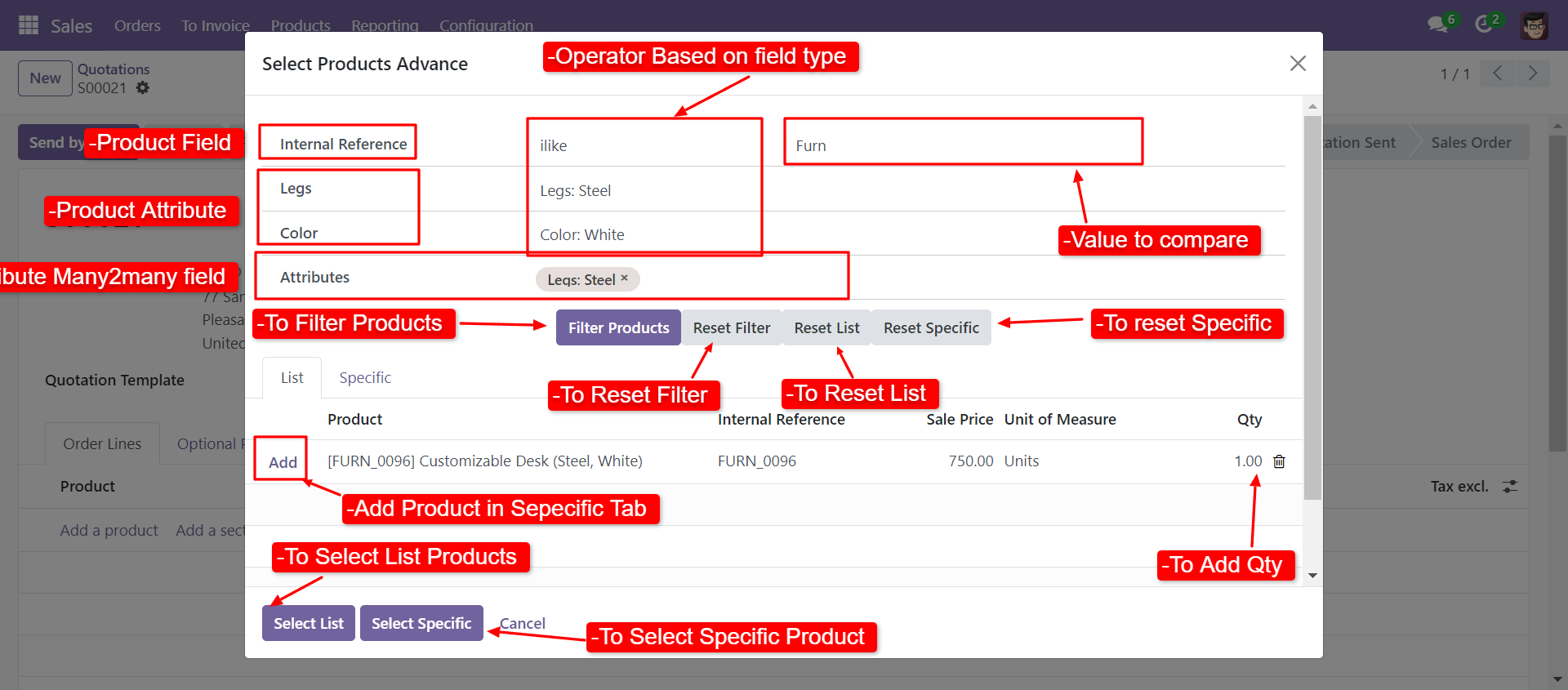
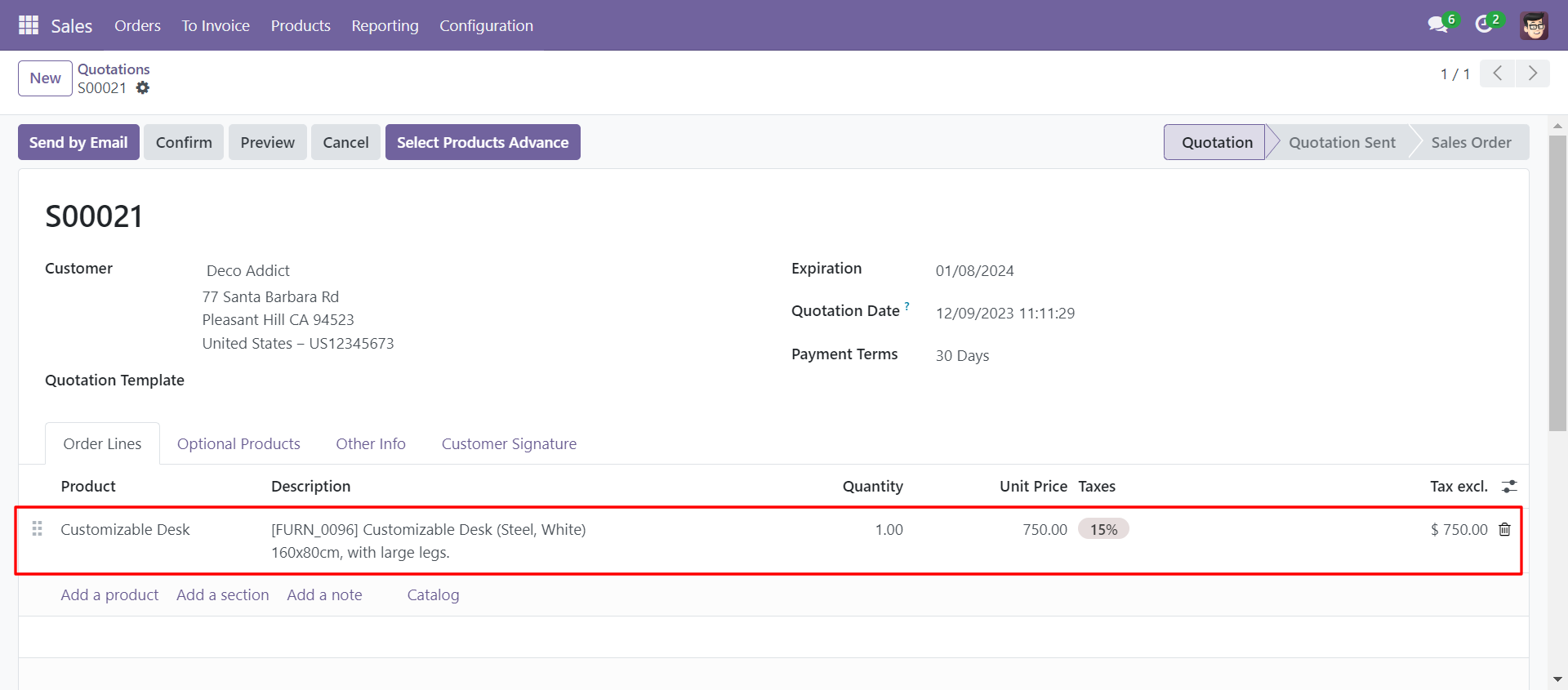
When you click 'Select List' or 'Select Specific' button in wizard, All the products and it's qty automatic add in sale order line from List or Specific tab of wizard.
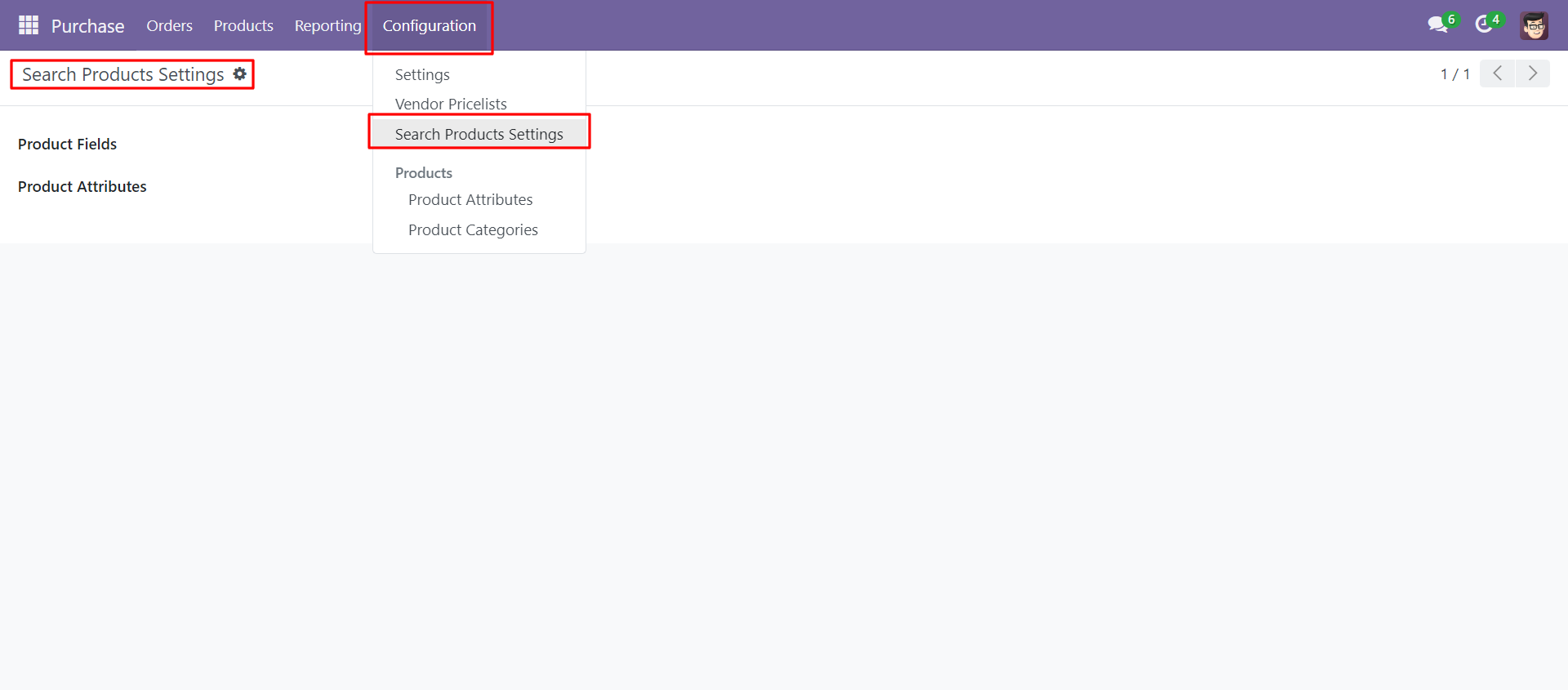
In Search Products Settings, Select product fields and attributes that you want to search.
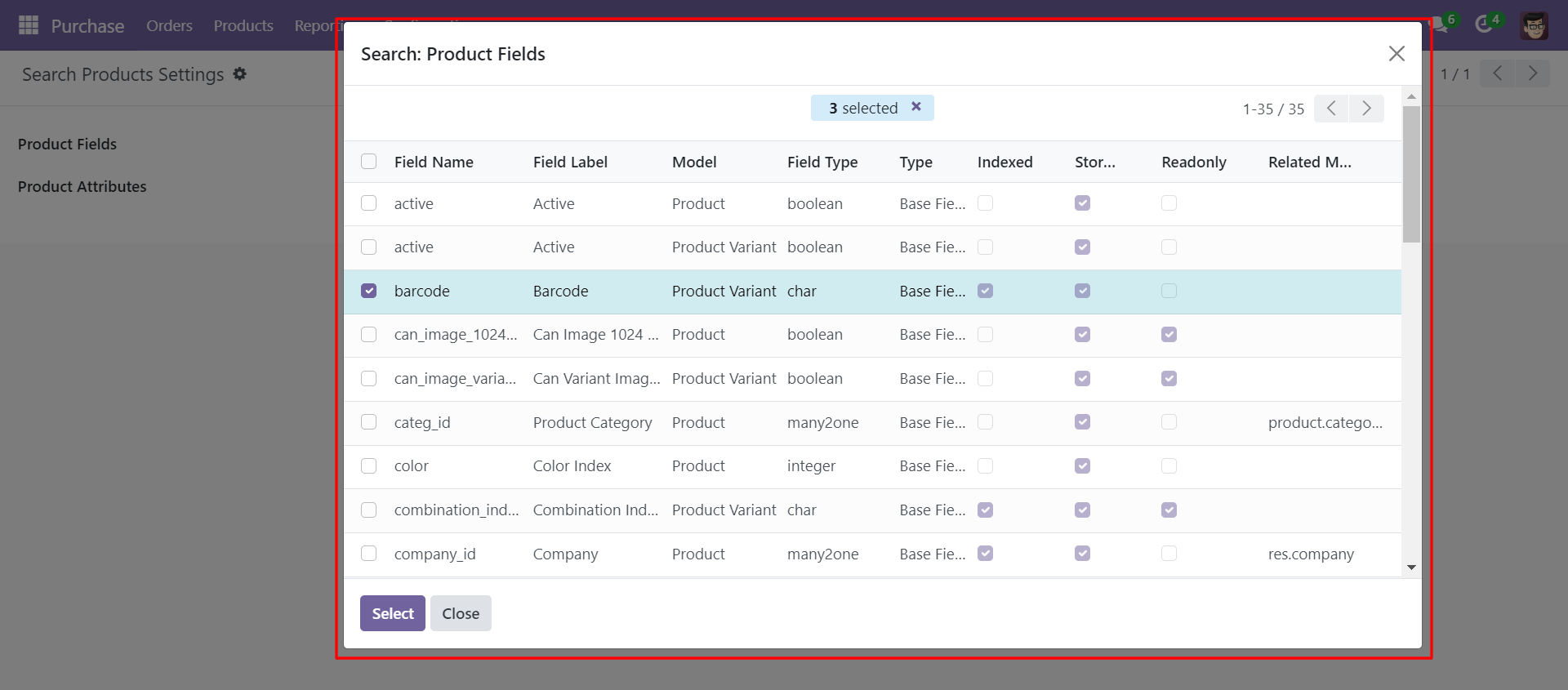
You can select product template and product fields as you want.
'Select Products Advance' button in RFQ/Purchase Order Form View.
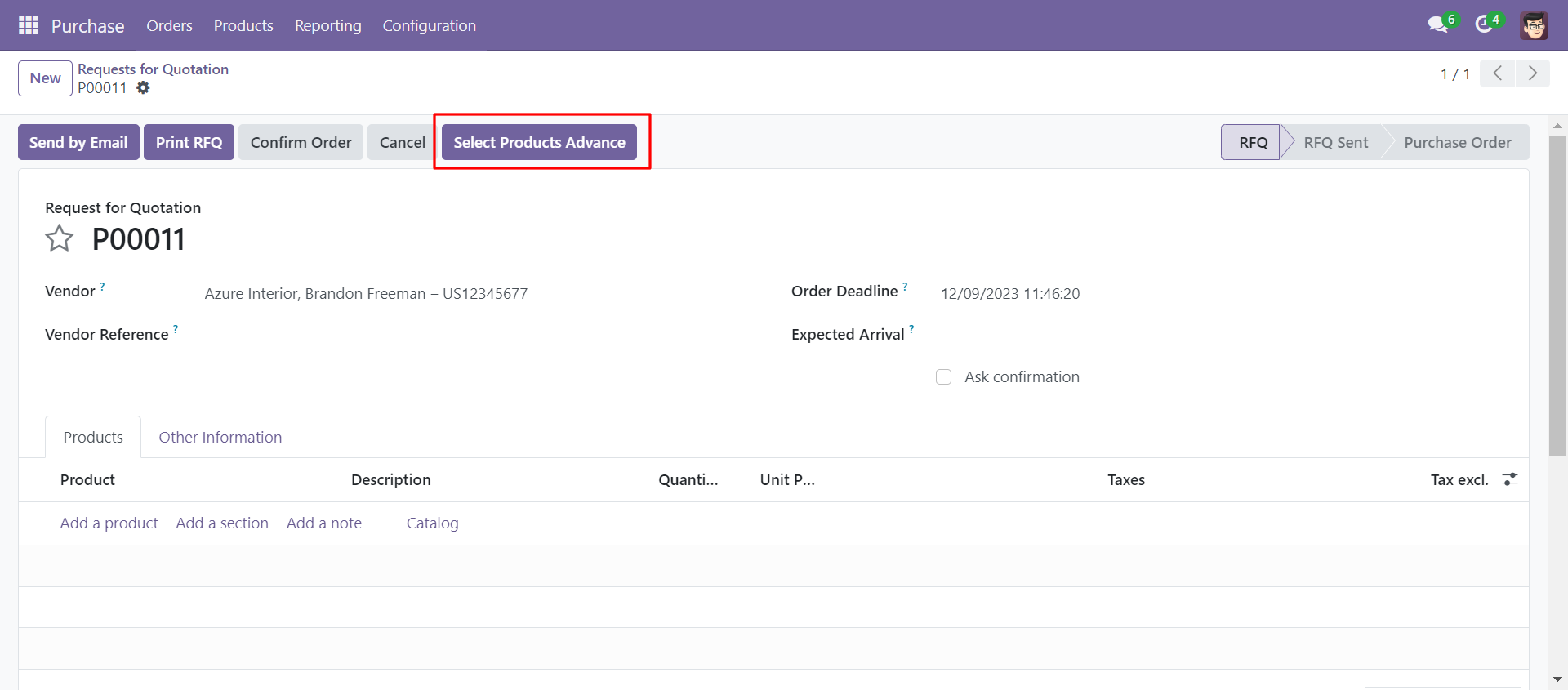
When you click 'Select Products Advance' button, wizard will open that looks like below. Wizard contains all the fields and attribute that you selected in settings, related comparison operators and Filter button, Reset button.
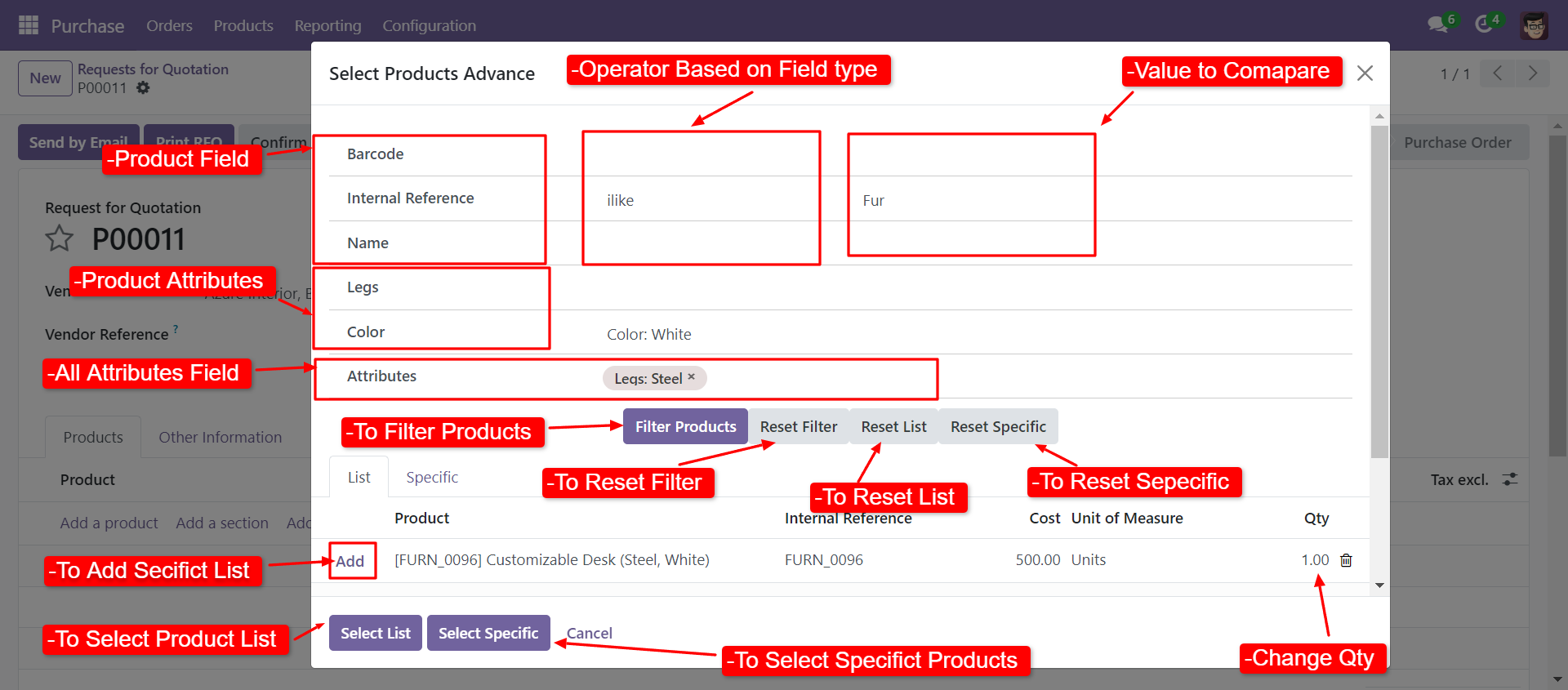
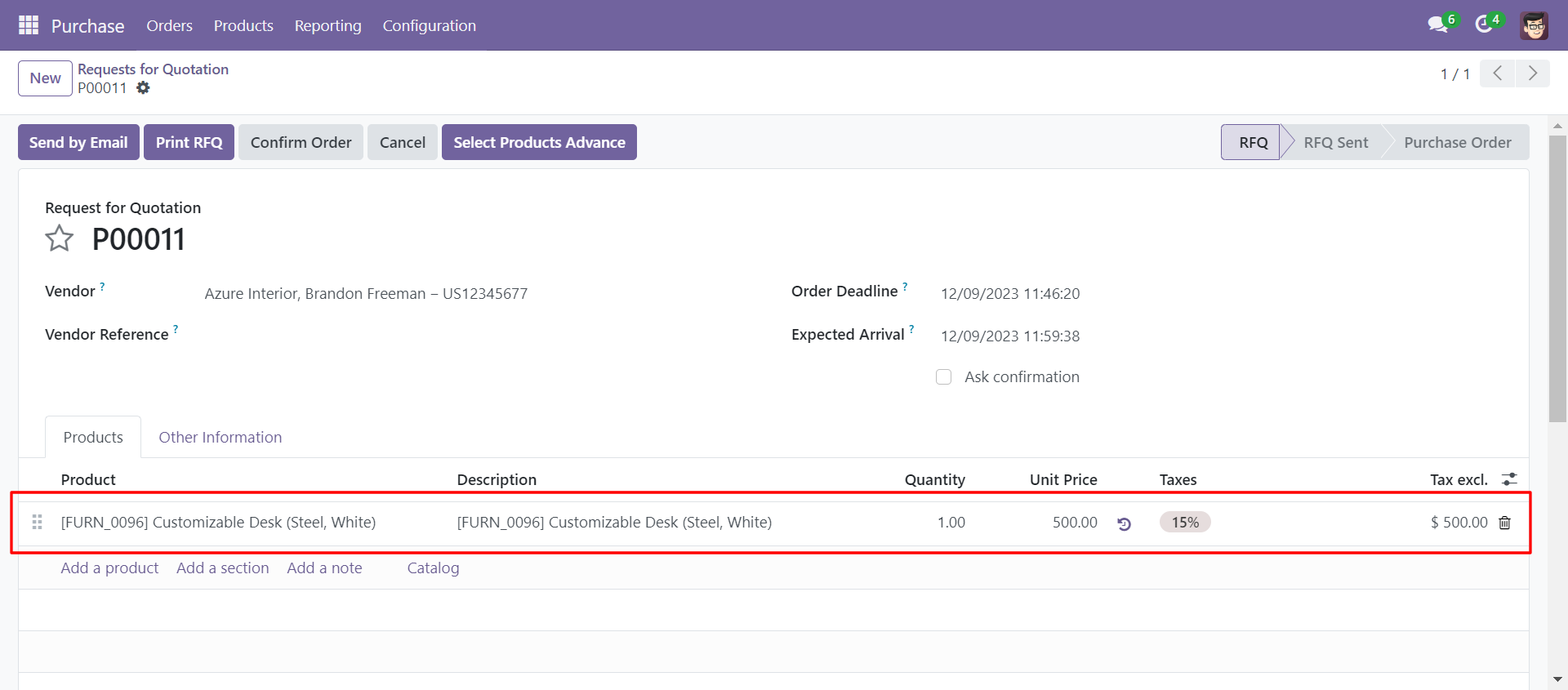
When you click 'Select List' or 'Select Specific' button in wizard, All the products and it's qty automatic add in purchase order line from List or Specific tab of wizard.
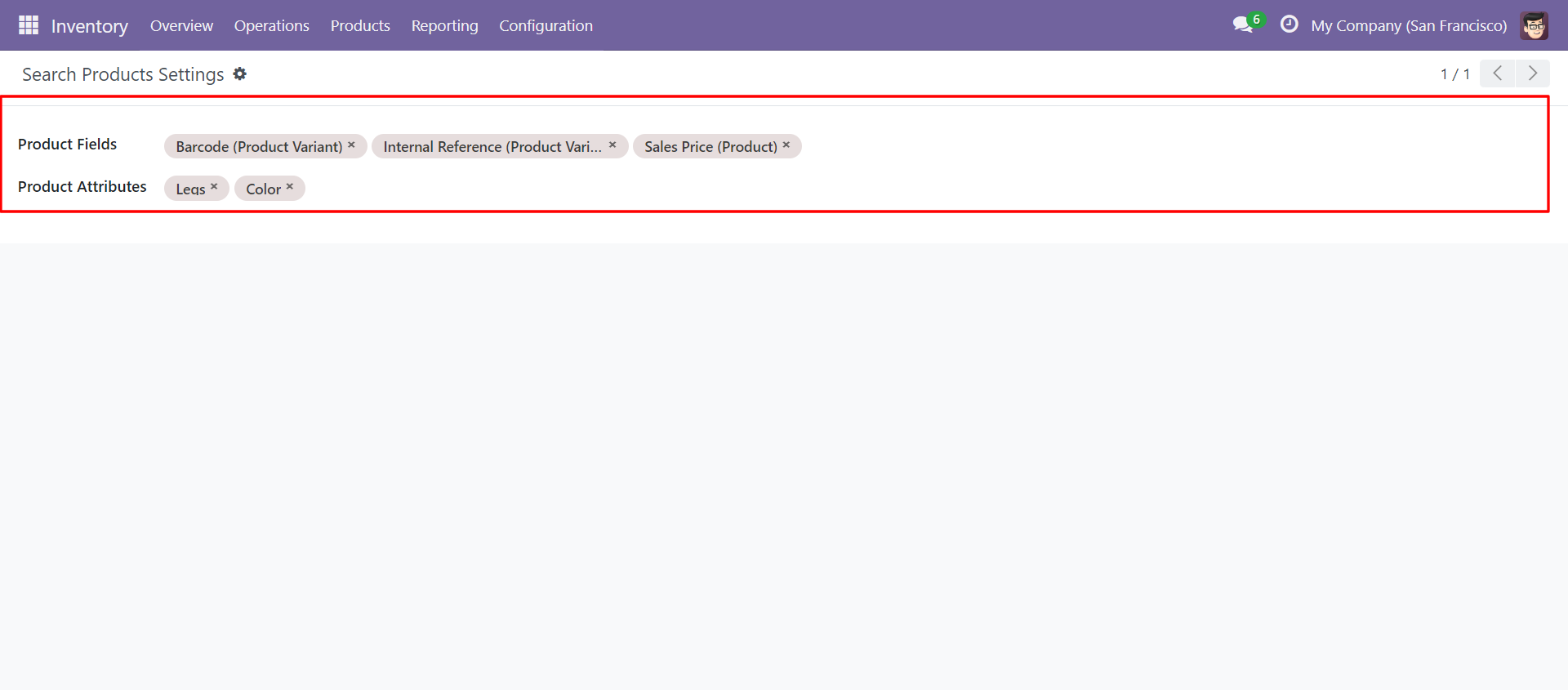
In Search Products Settings, Select product fields and attributes that you want to search.
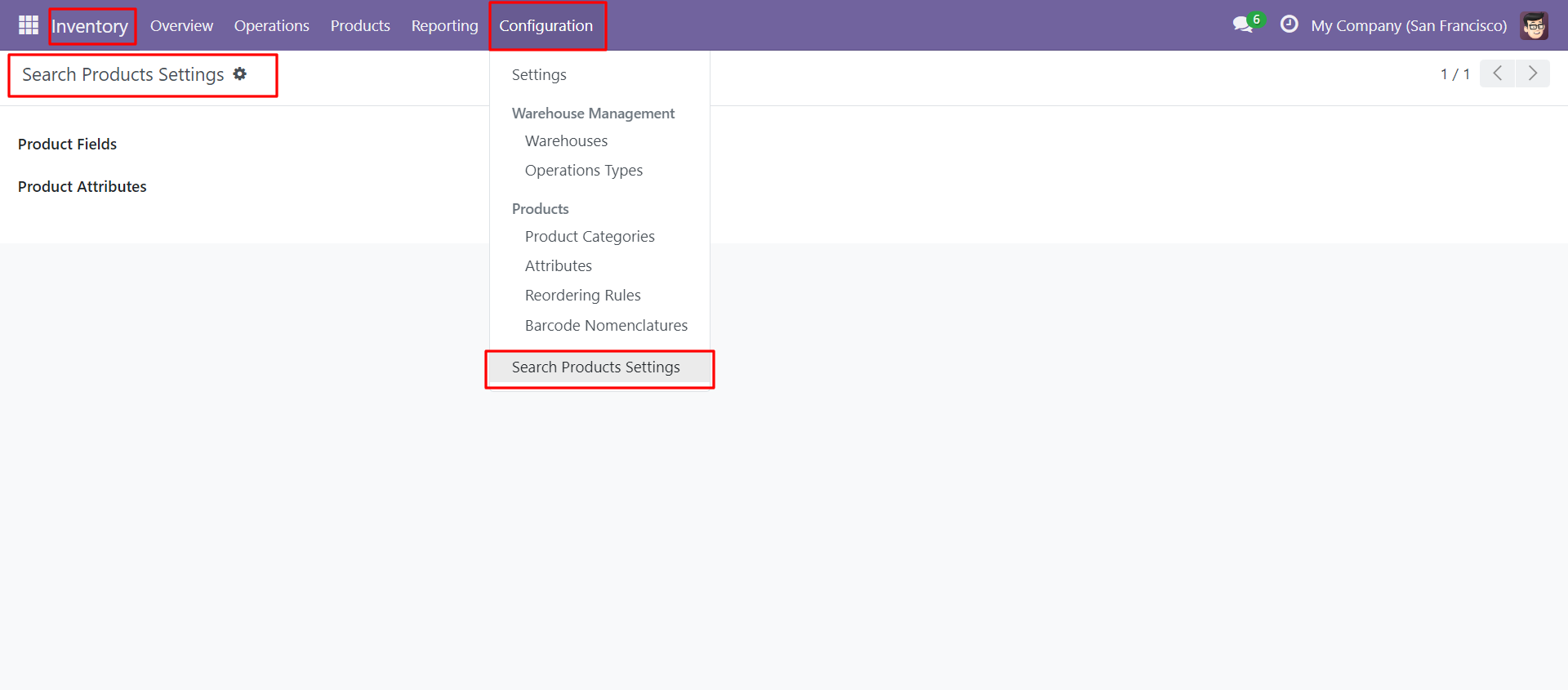
You can select product template and product fields as you want.
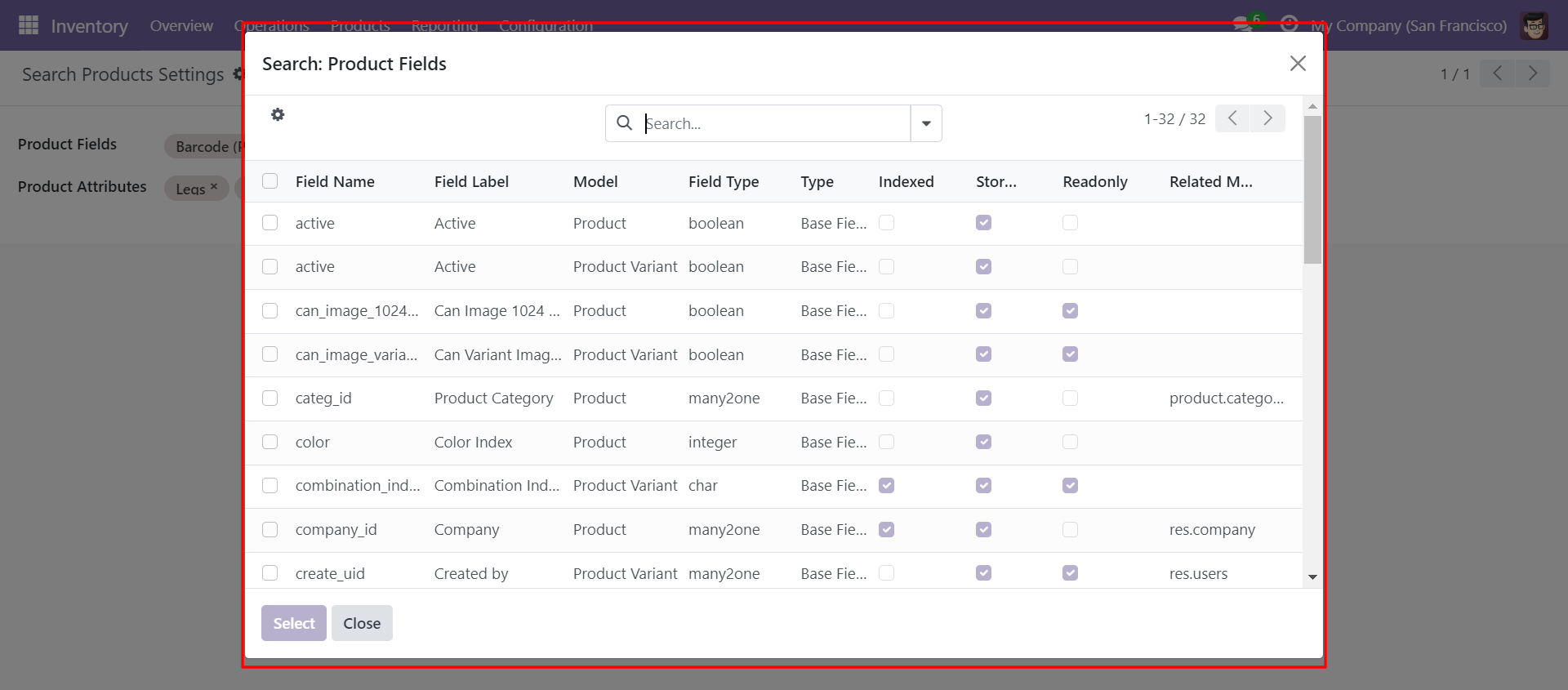
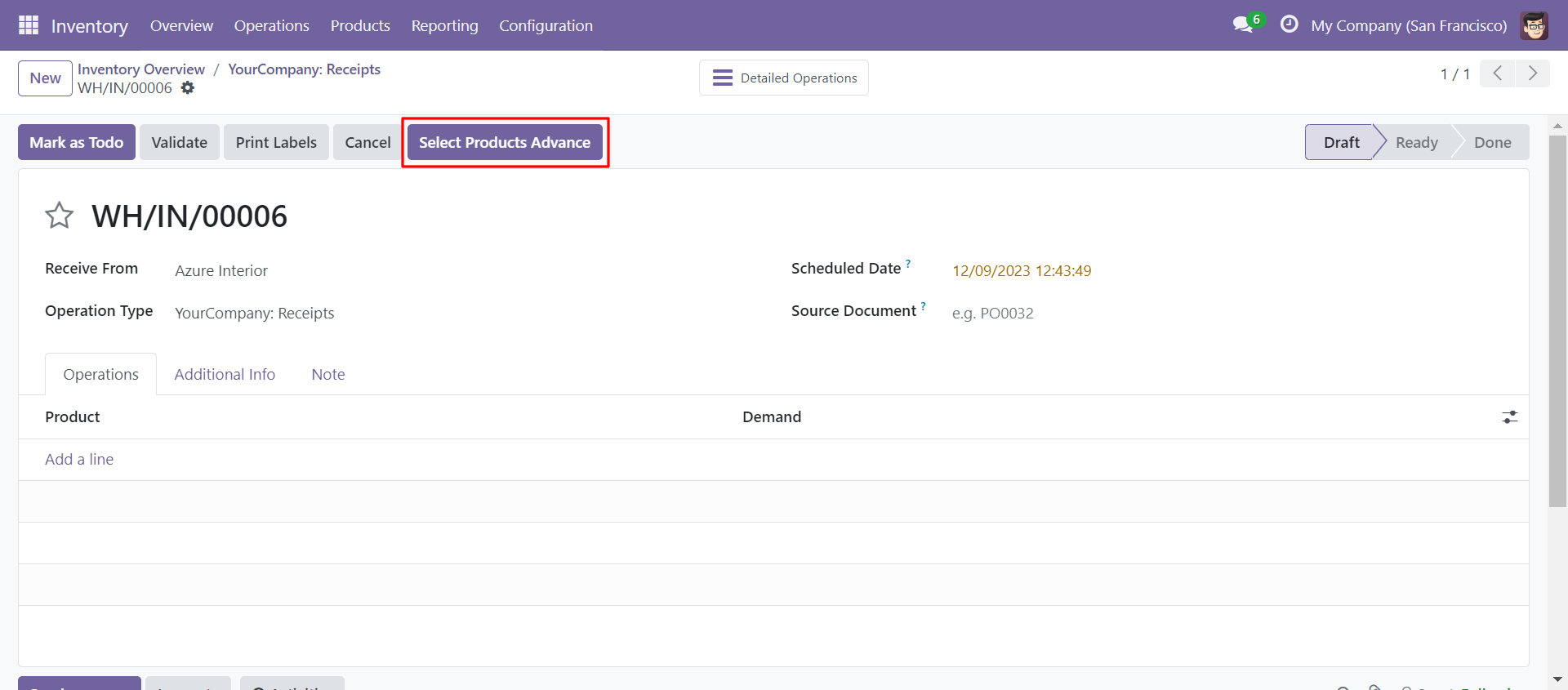
Select Products Advance' button in Receipts Form View.
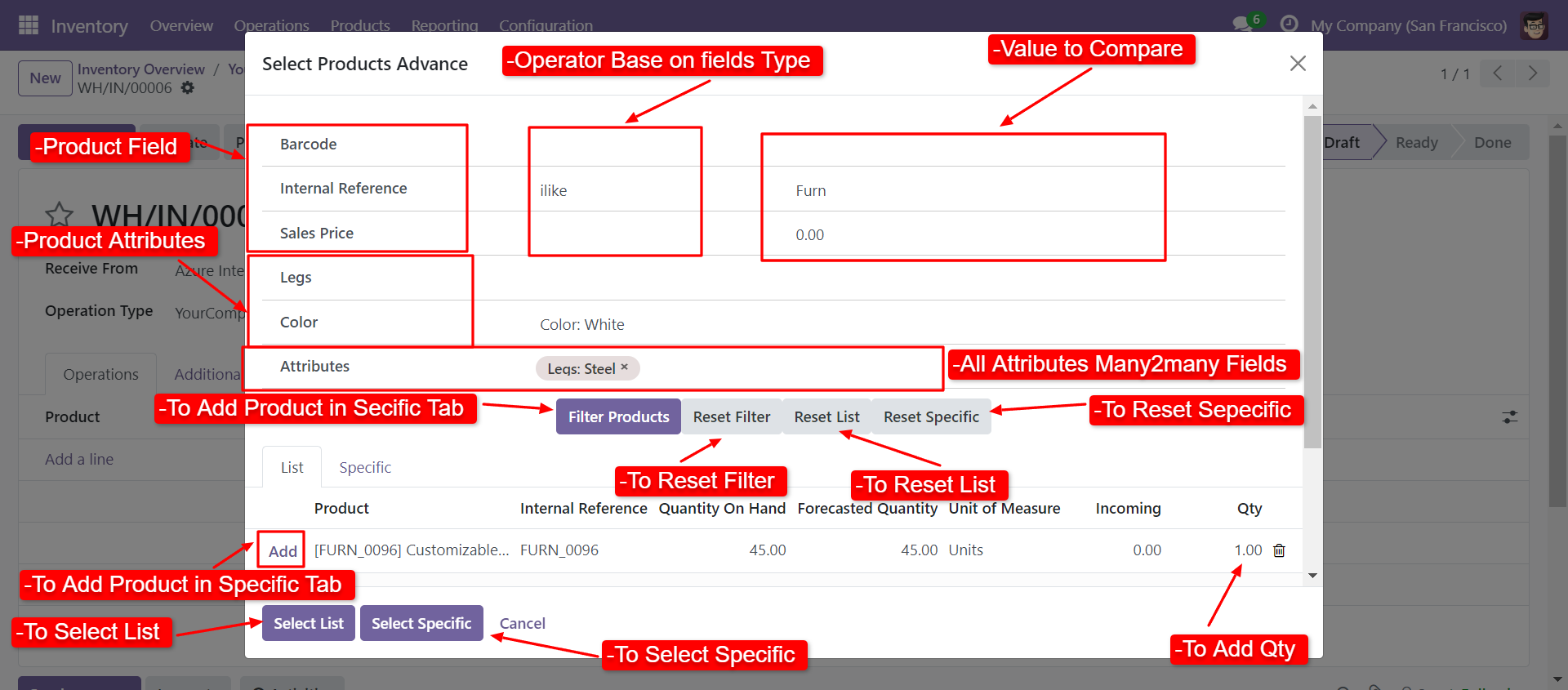
When you click 'Select Products Advance' button, wizard will open that looks like below. Wizard contains all the fields and attribute that you selected in settings, related comparison operators and Filter button, Reset button.
When you click 'Select List' or 'Select Specific' button in wizard, All the products and it's qty automatic add in Operation lines from List or Specific tab of wizard.
You can also search and select products in Internal Transfer.
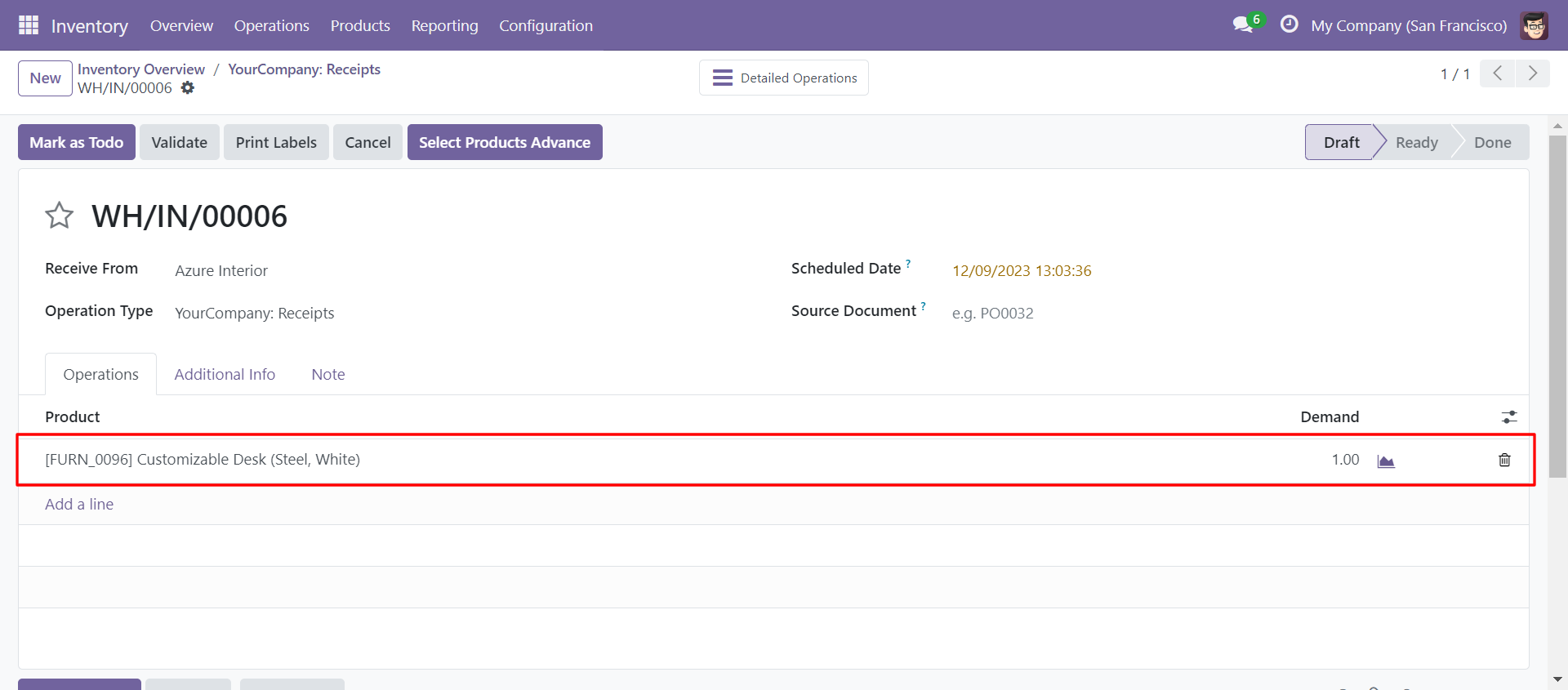
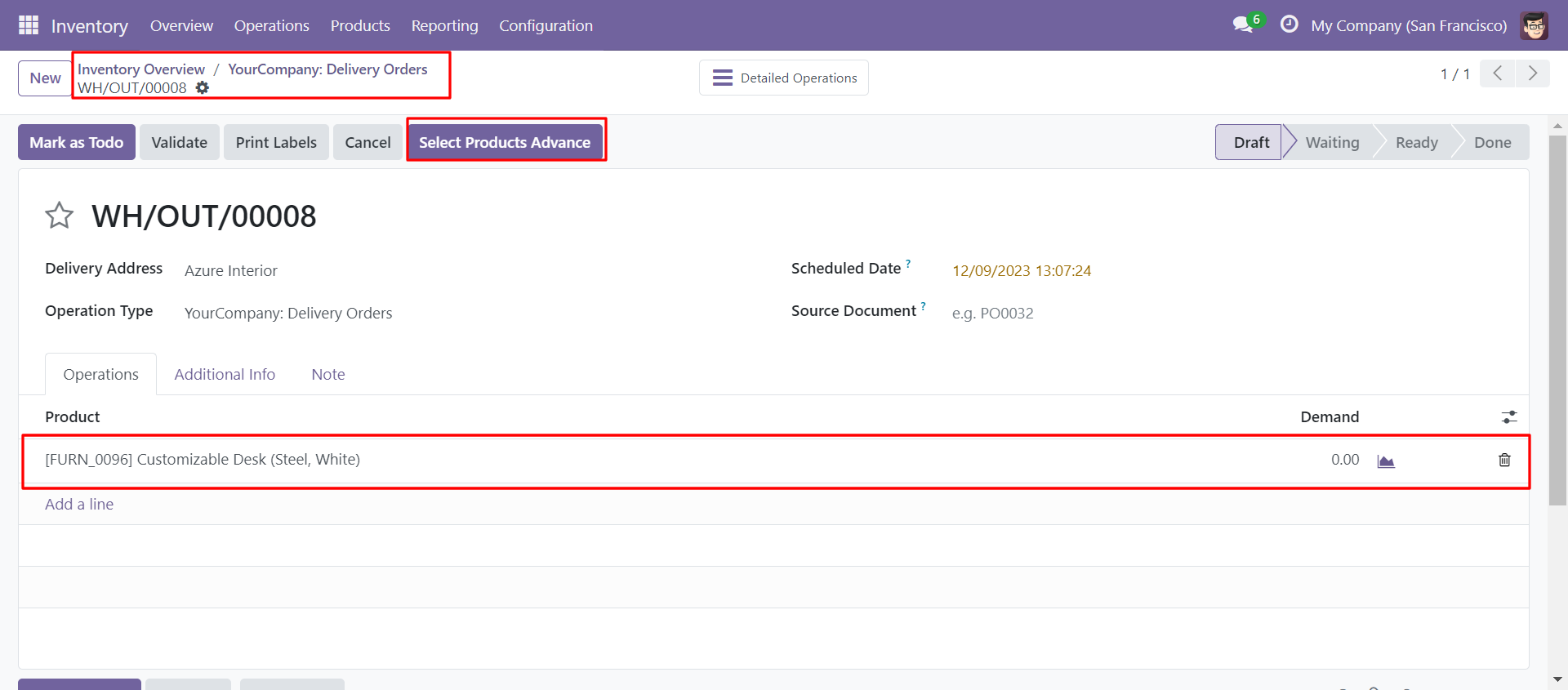
You can also search and select products in Delivery Order.
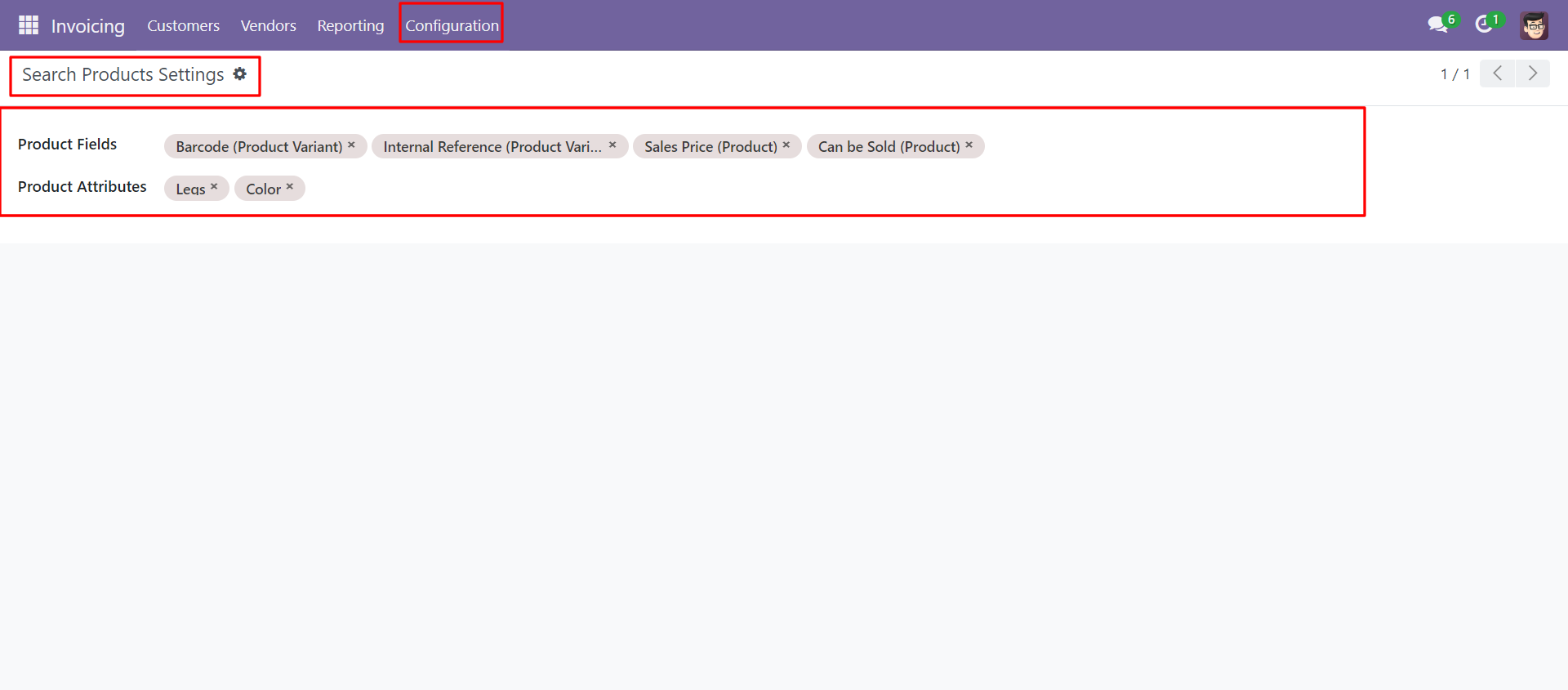
In Search Products Settings, Select product fields and attributes that you want to search
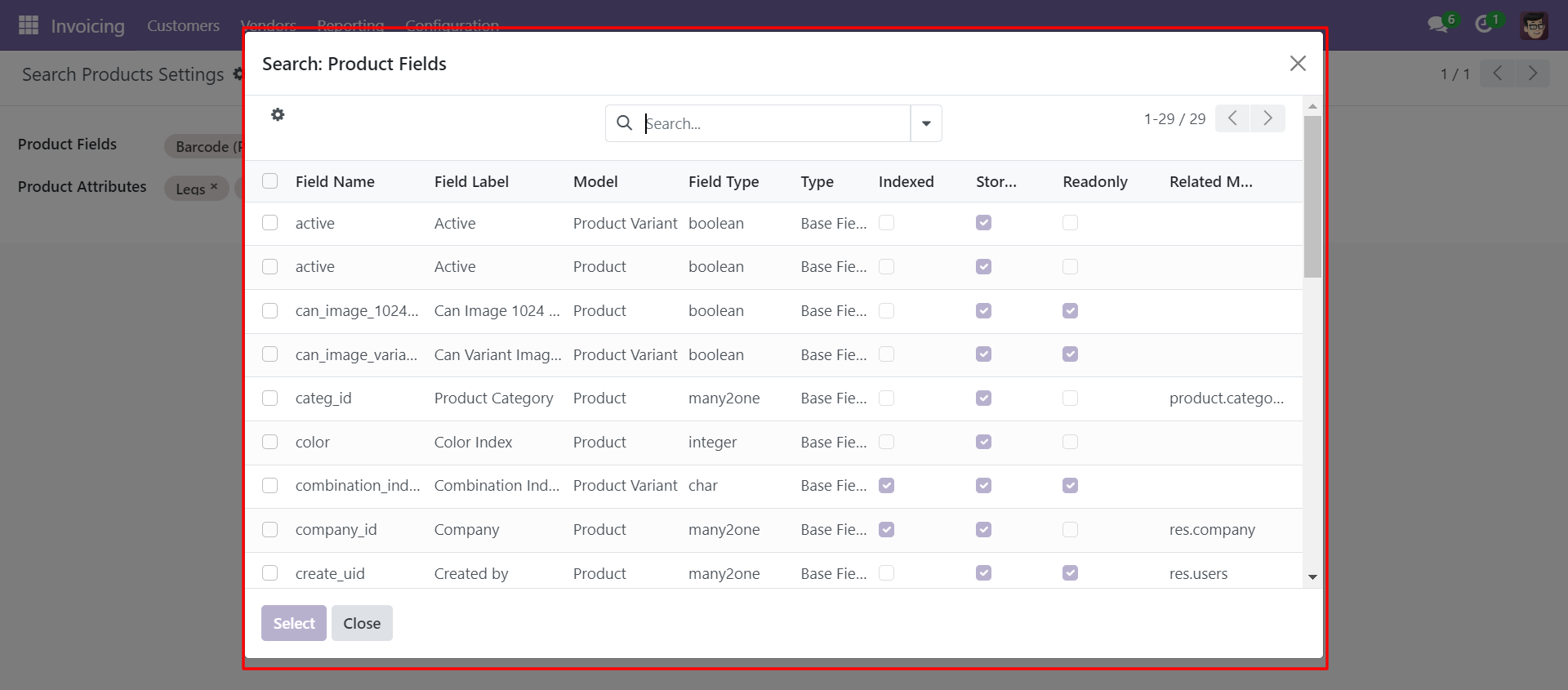
You can select product template and product fields as you want.
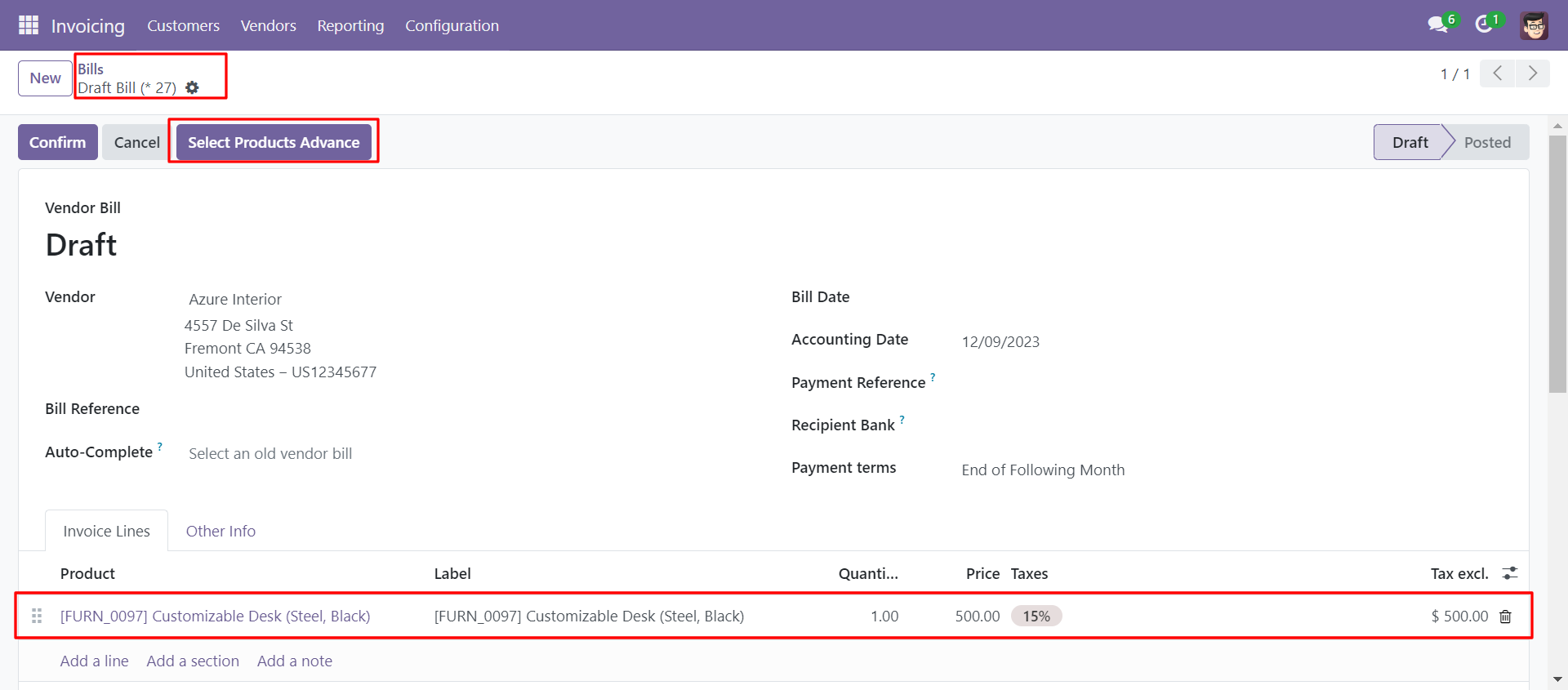
'Select Products Advance' button in invoice Form View.
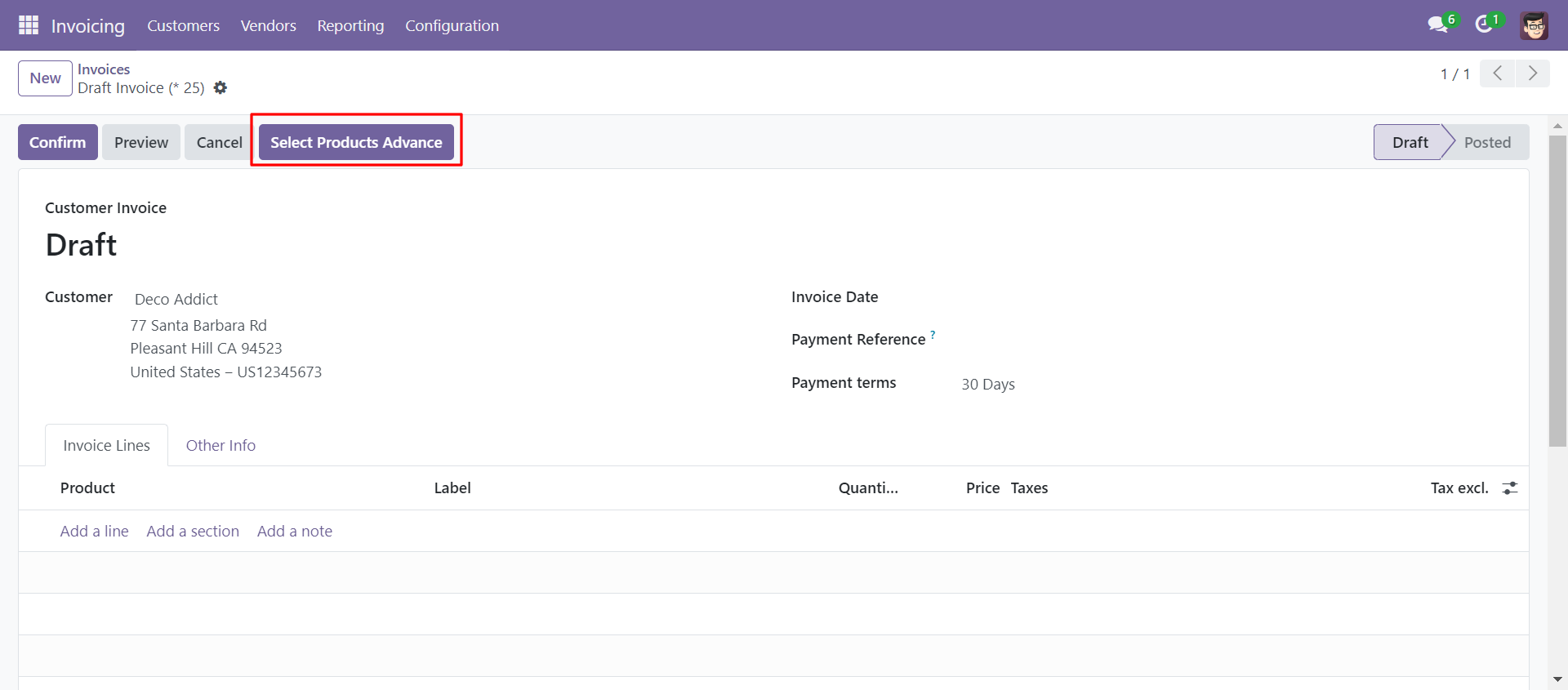
When you click 'Select Products Advance' button, wizard will open that looks like below. Wizard contains all the fields and attribute that you selected in settings, related comparison operators and Filter button, Reset button.
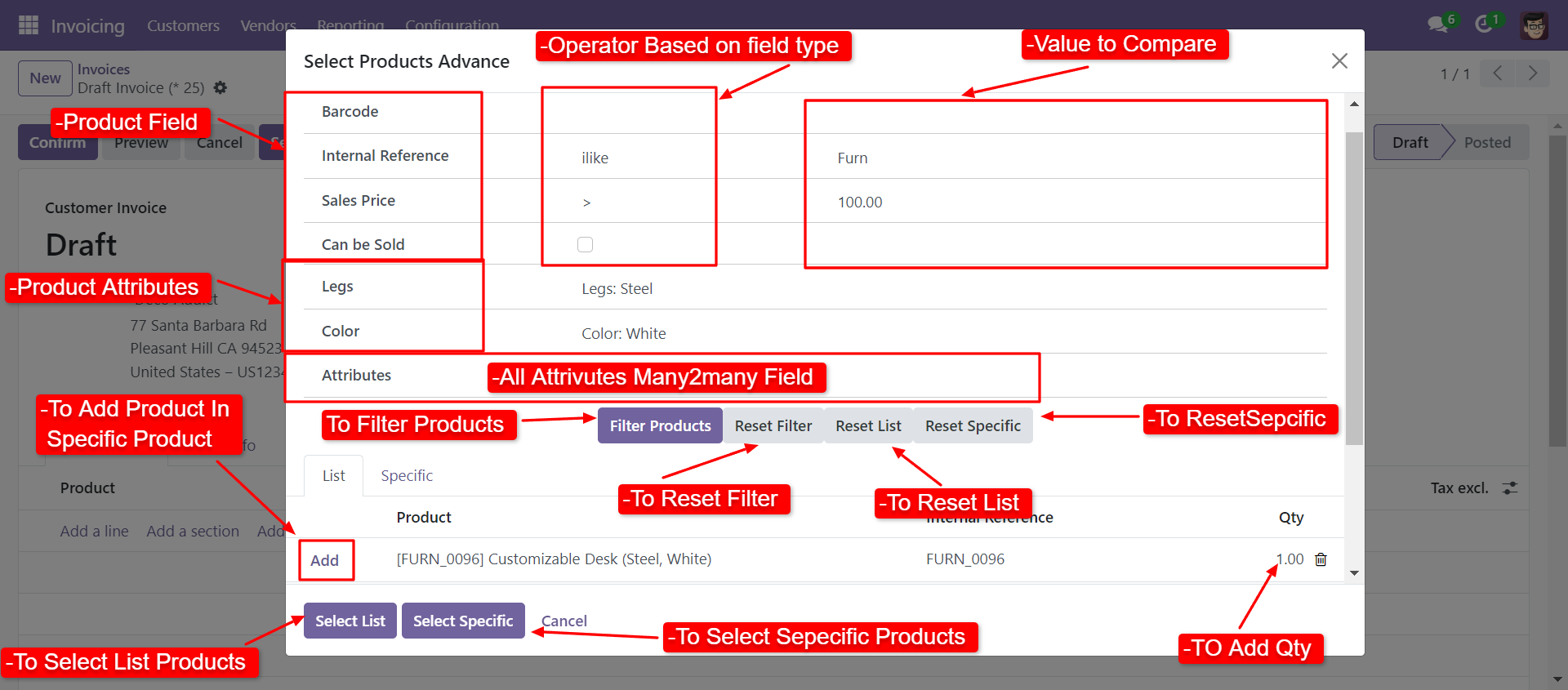
When you click 'Select List' or 'Select Specific' button in wizard, All the products and it's qty automatic add in invoice line from List or Specific tab of wizard.
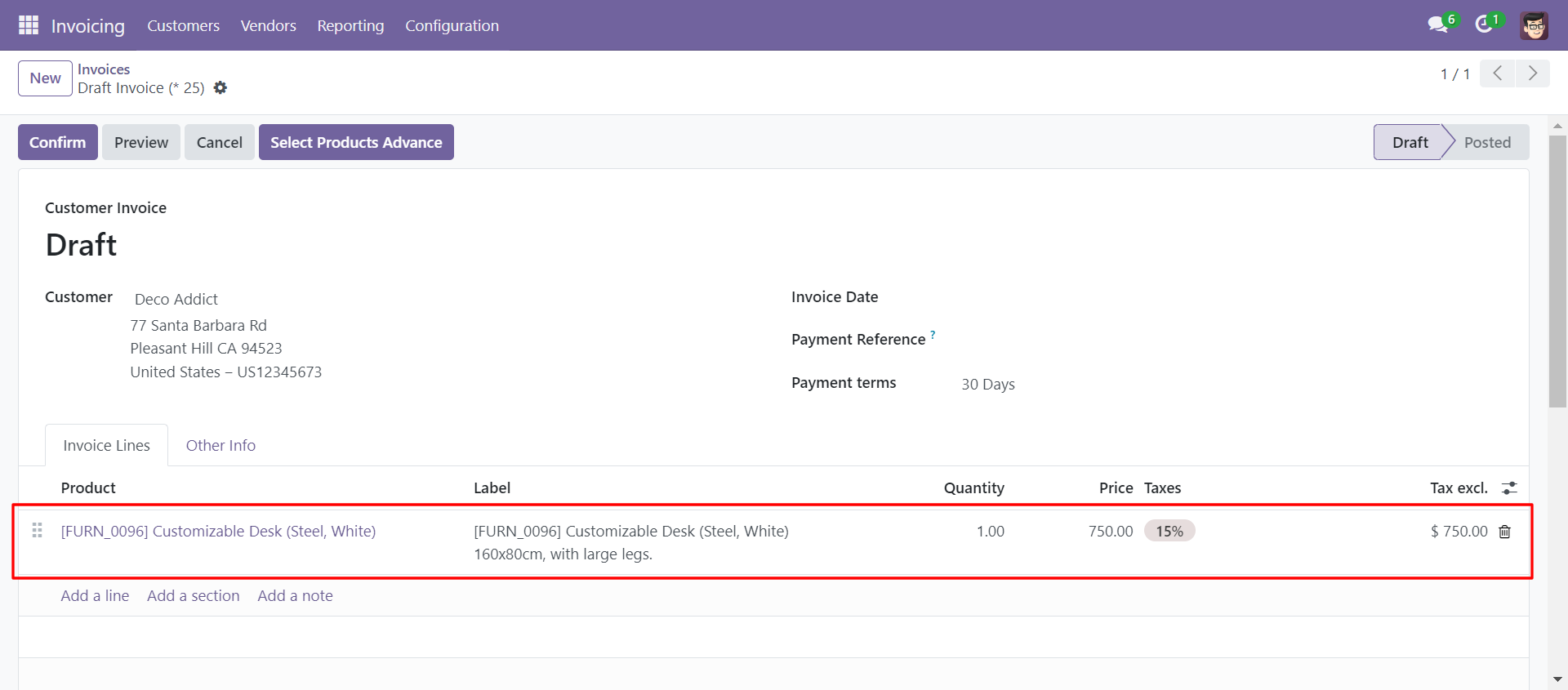
You can also search and select products in customer credit note.
You can also search and select products in vendor bill
In Search Products Settings, Select product fields and attributes that you want to search.
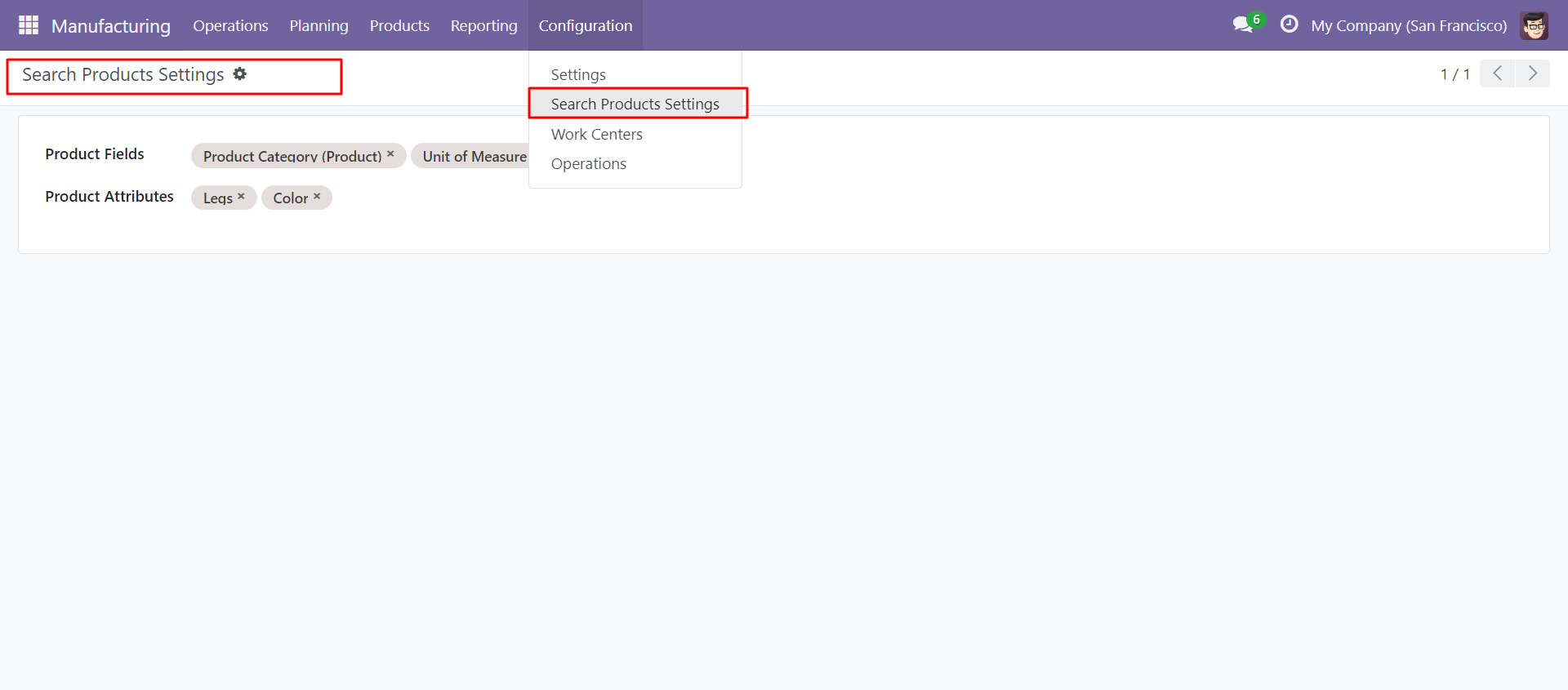
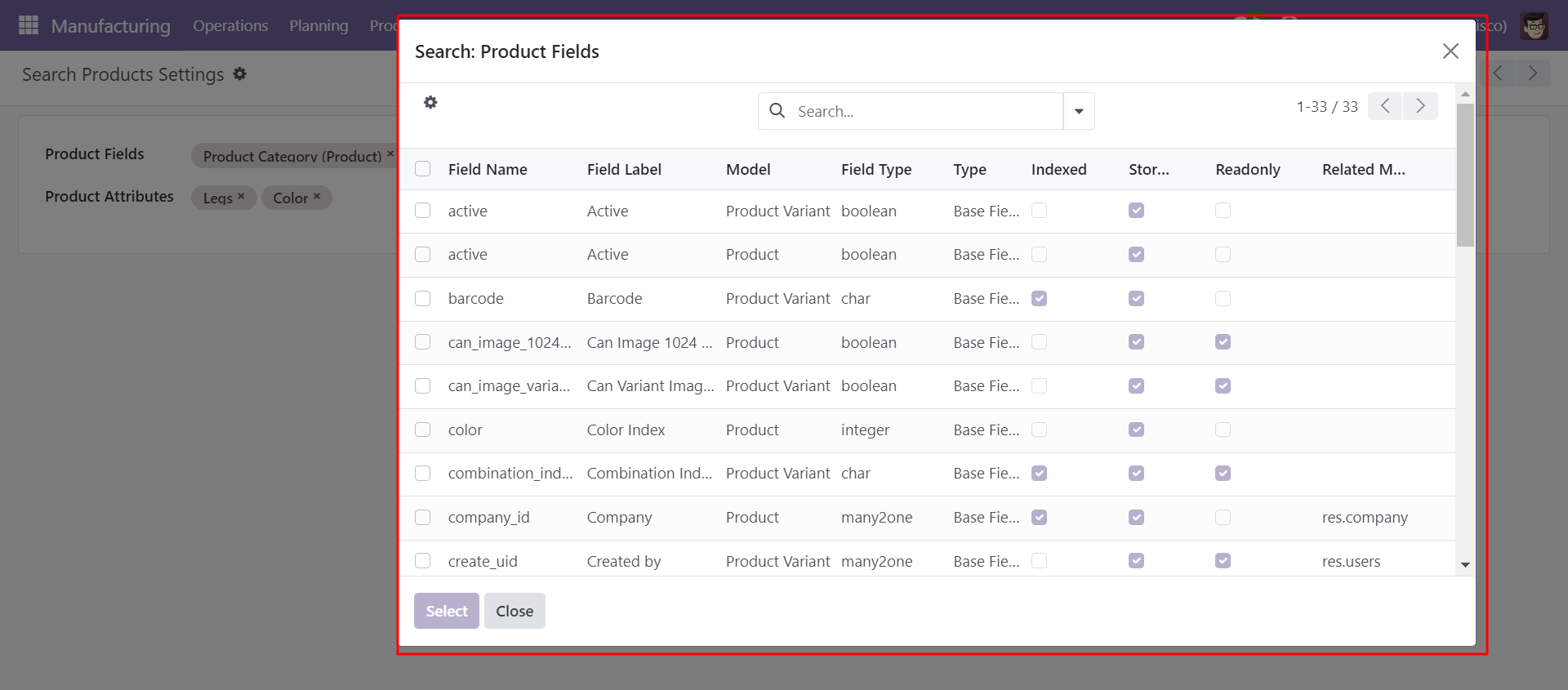
You can select product template and product fields as you want.
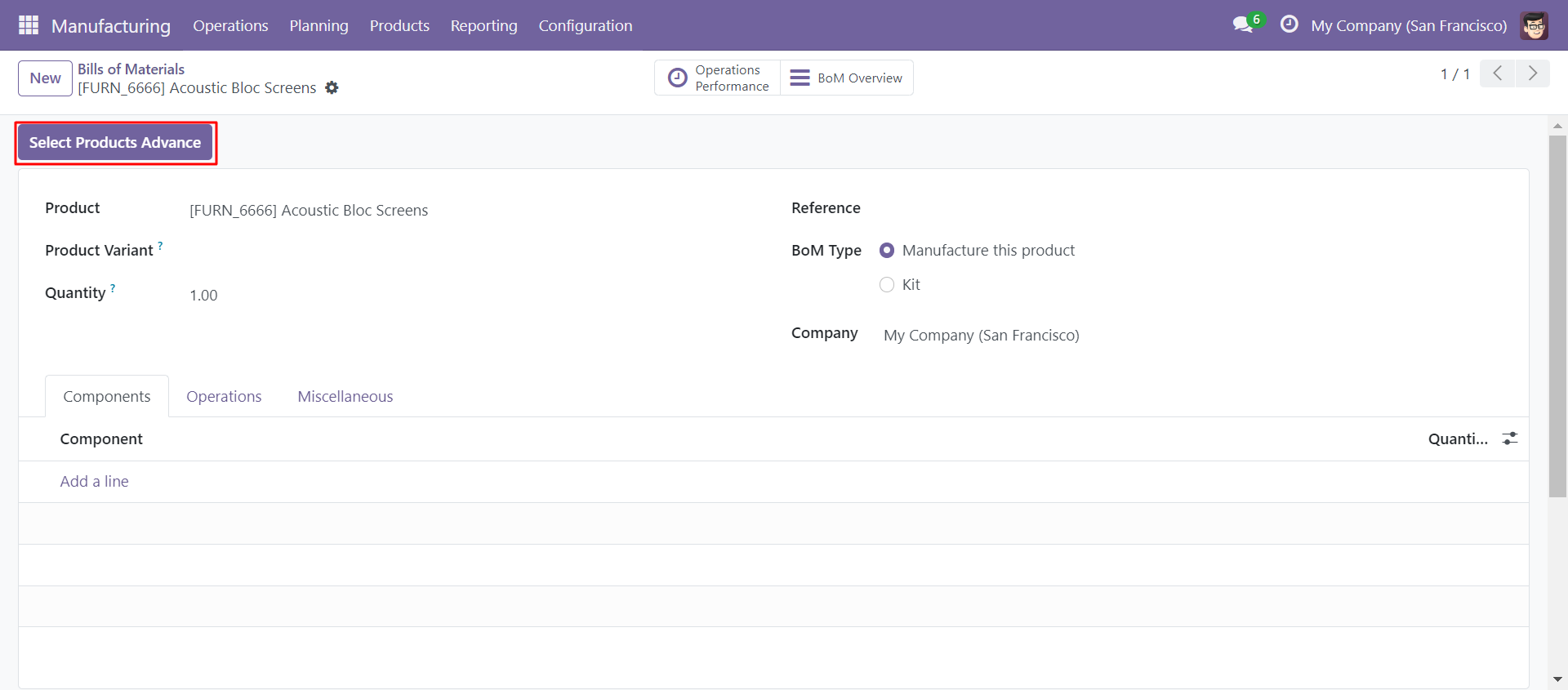
'Select Products Advance' button in Bill Of Materials Form View.
When you click 'Select Products Advance' button, wizard will open that looks like below. Wizard contains all the fields and attribute that you selected in settings, related comparison operators and Filter button, Reset button.
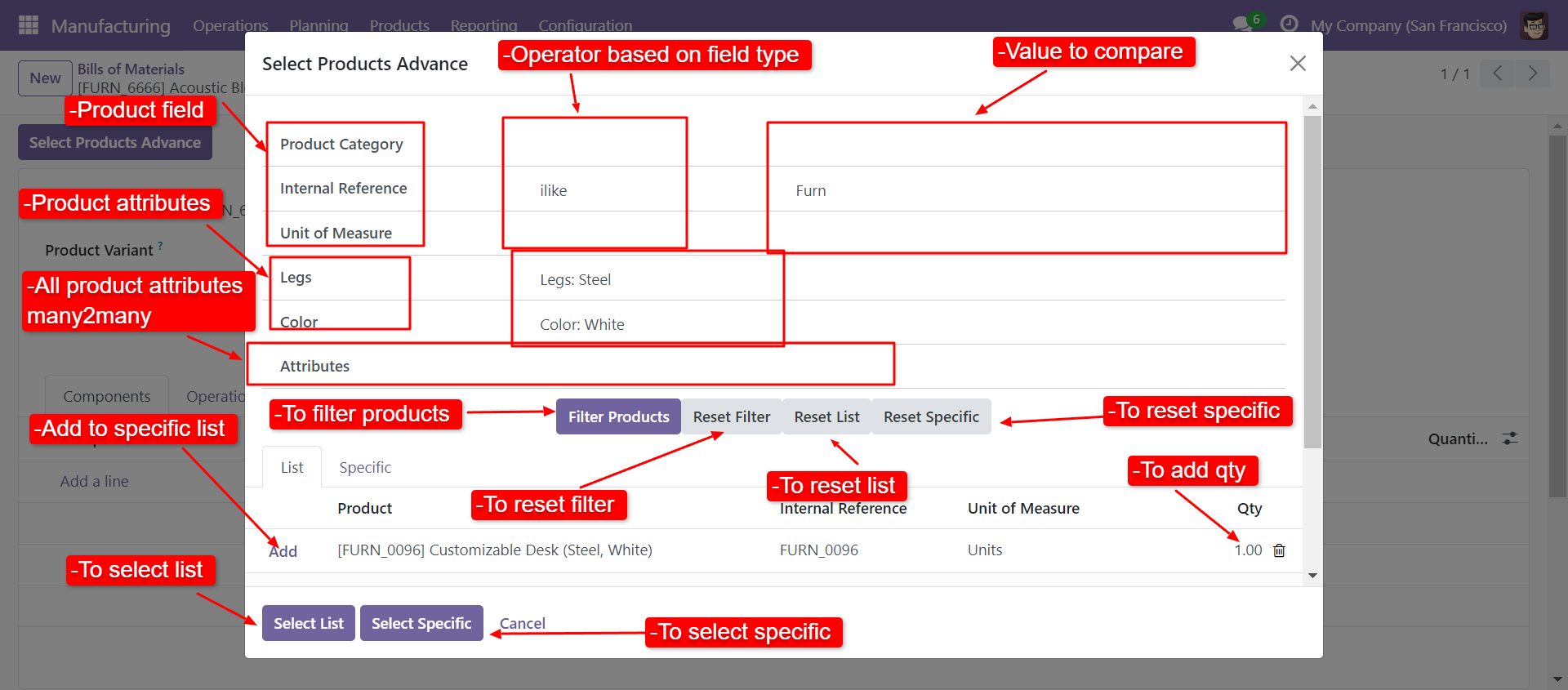
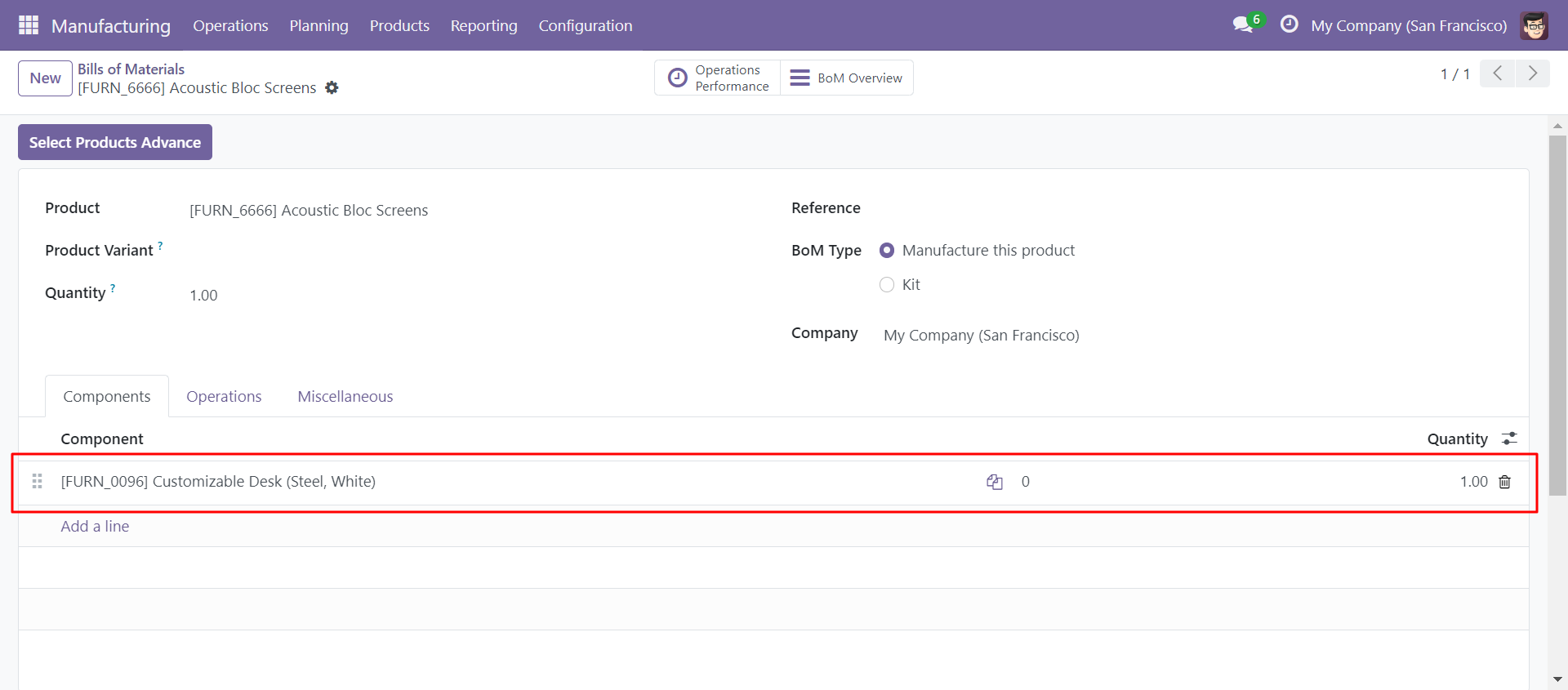
When you click 'Select List' or 'Select Specific' button in wizard, All the products and it's qty automatic add in bom line from List or Specific tab of wizard.
Version 20.0.1.0.0 | Released on : 15th September 2026
- Yes, this app works perfectly with Odoo Enterprise (Odoo.sh & Premise) as well as Community.
- No, this application is not compatible with odoo.com(odoo saas/Odoo Online)
- Yes, to test this module, please contact us at sales@softhealer.com.
- Please contact us at sales@softhealer.comto request customization.
- Yes, we provide free support for 365 days from the date of purchase.
- Yes, you will receive lifetime free updates for the version of the module you purchased.
- No, there is no need to install any additional libraries.
- Yes, for version 12 and above, you need to purchase the module separately for each version you intend to use.
- No, exchanges or refunds are not allowed. Please make sure to select the correct version before purchasing.
- You can contact us at support@softhealer.com for language translation support. We use Google Translator tools to provide translations in multiple languages, so the accuracy may vary. We welcome your suggestions to help improve translations.
Discover Our Latest Apps