












Agriculture Management System

Unlock smarter farming with our Agriculture Management module! This powerful tool allows users to efficiently manage every aspect of agricultural operations from setting up farmers, crops, disease and farm locations to tracking equipment, animals, crop requests, and orders. Designed to streamline the entire workflow, the module simplifies planning, boosts productivity, and brings structure to your farm management process.

Features
- Easily define products as agricultural items and categorize them as crops, animals, or equipment.
- Easily create and manage detailed farmer profiles.
- Easily track agricultural animals linked to farms or crop processes.
- Manage farming equipment and fleets seamlessly across all operations.
- Simplify agriculture project management with tasks.
- Easy to generate and monitor crop requests through each stage.
- Easily track and manage crop related diseases and incidents.
When a ticket is created that time customer will notify via email.

When a ticket is created that time assigned users will notify via email.

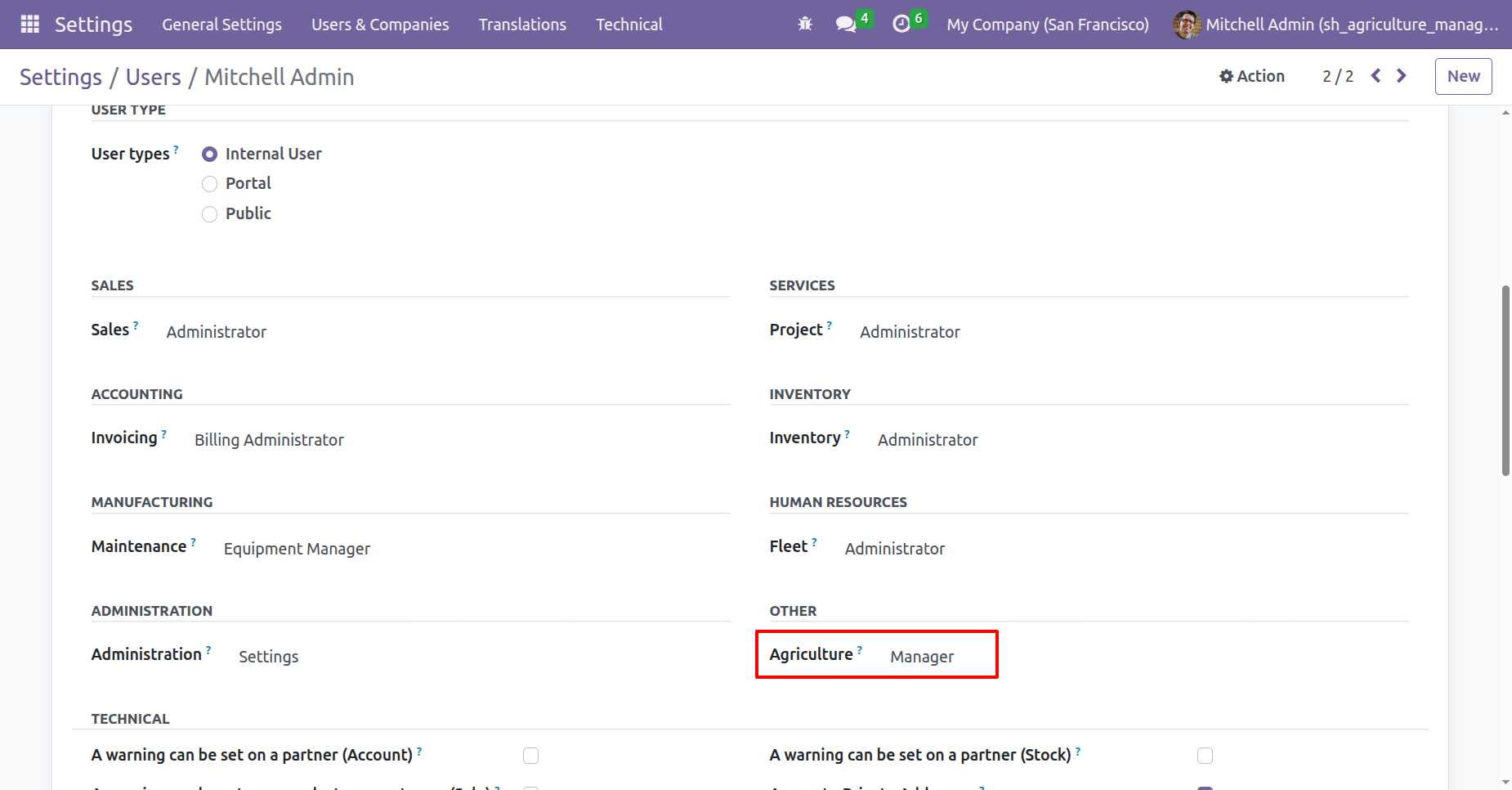
Go to User Settings and assign the role Agriculture: Manager.
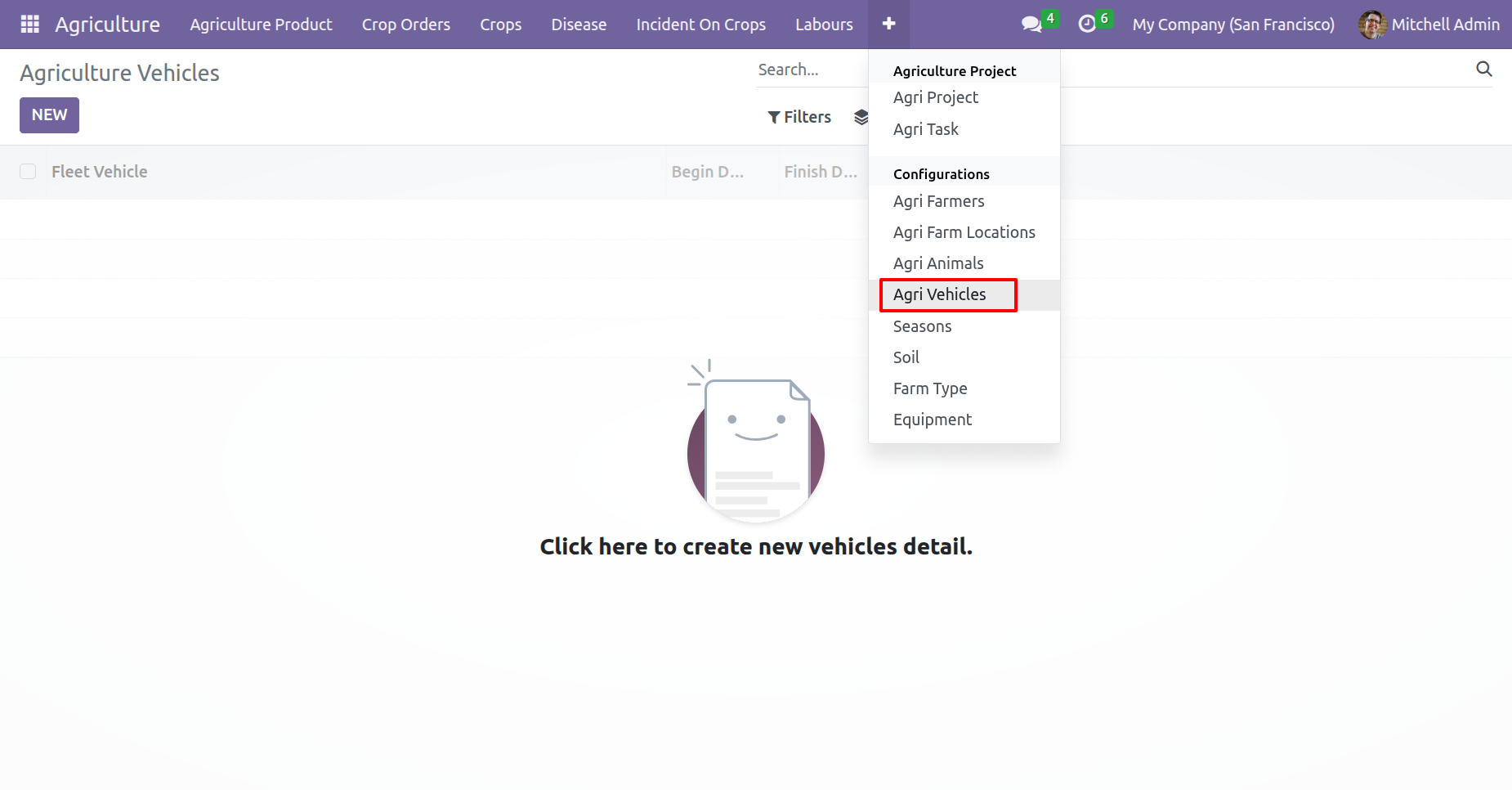
Agriculture vehicles menu and kanban view.
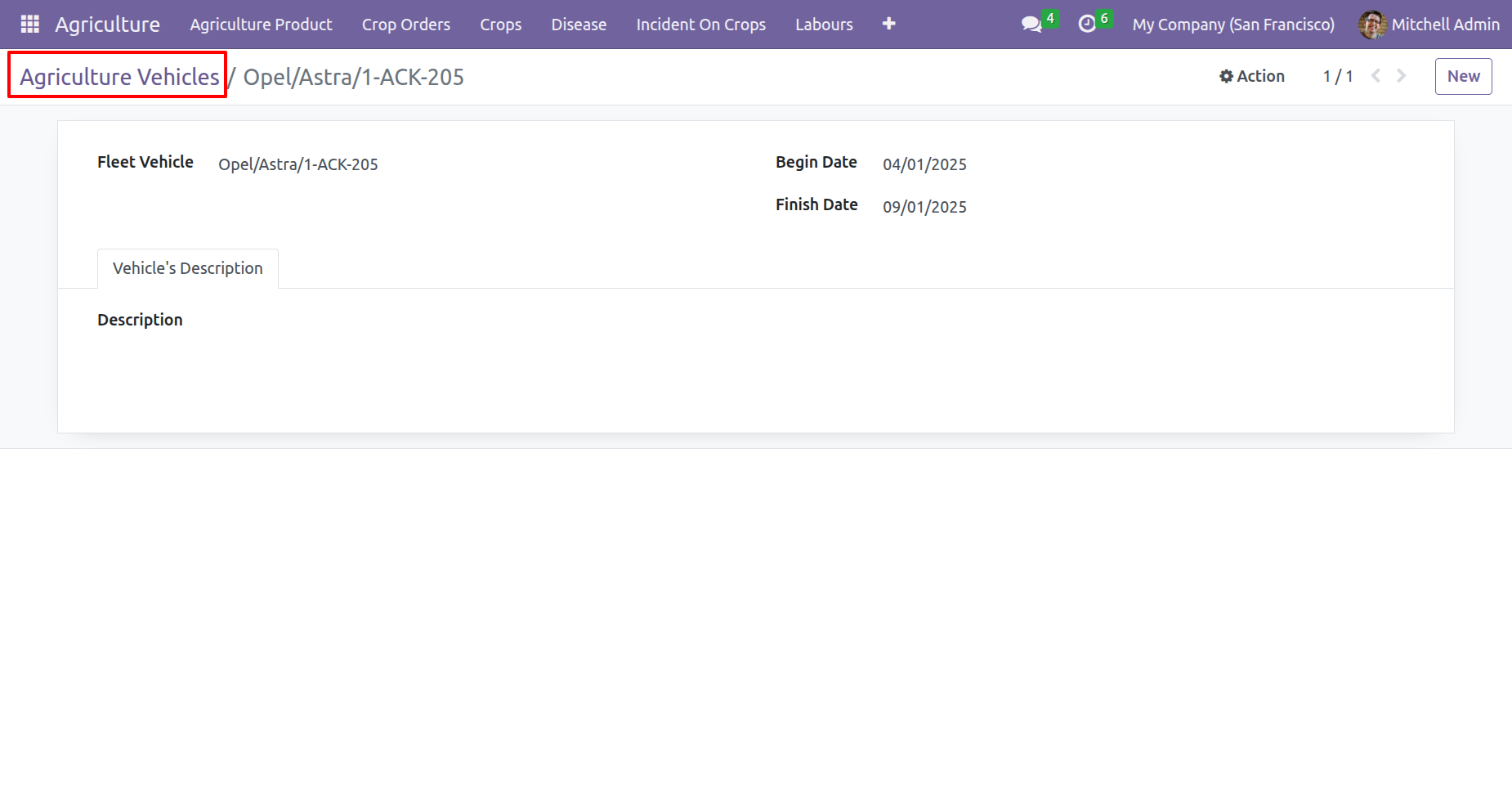
Form view of the Agriculture vehicles.
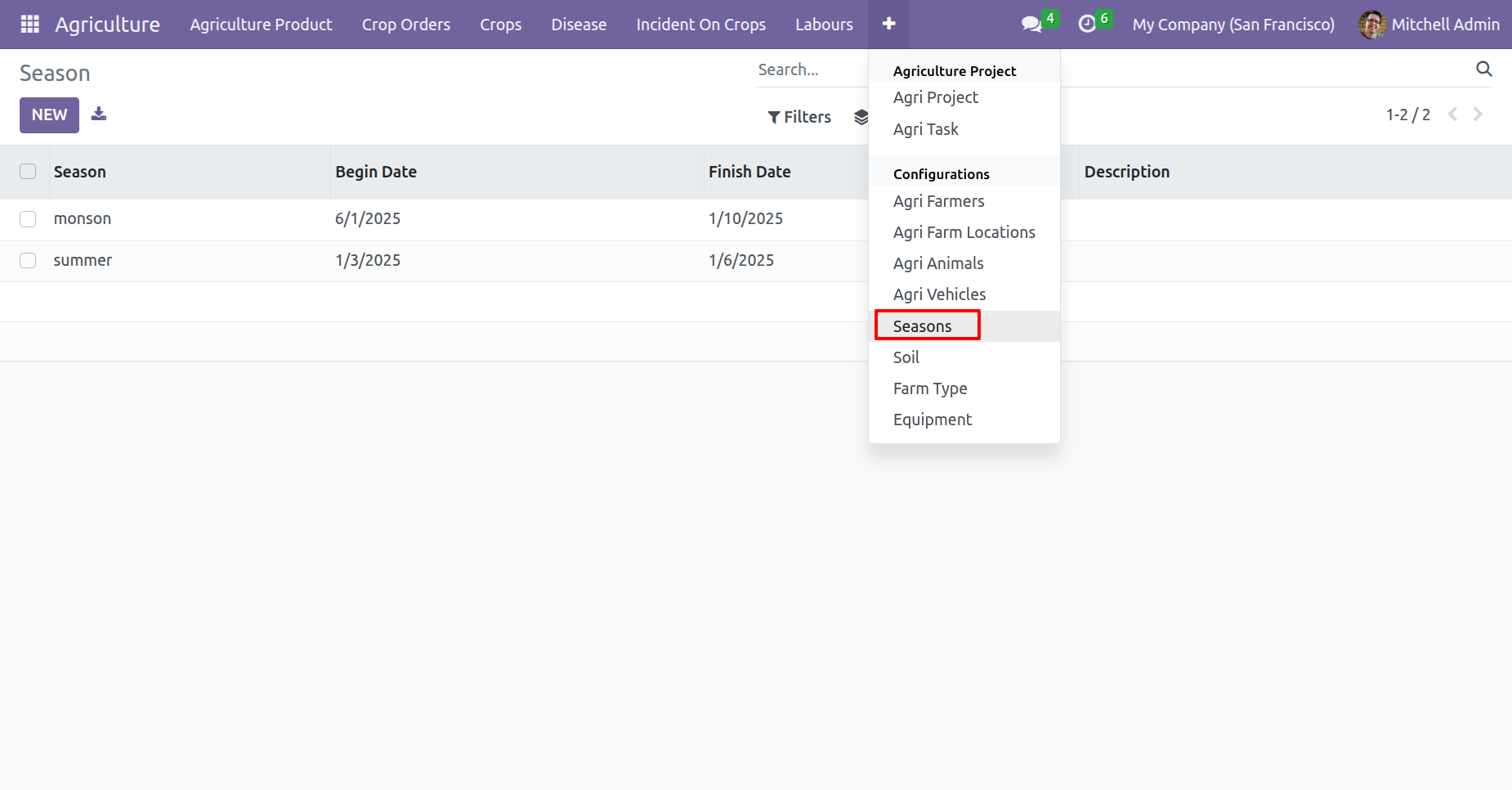
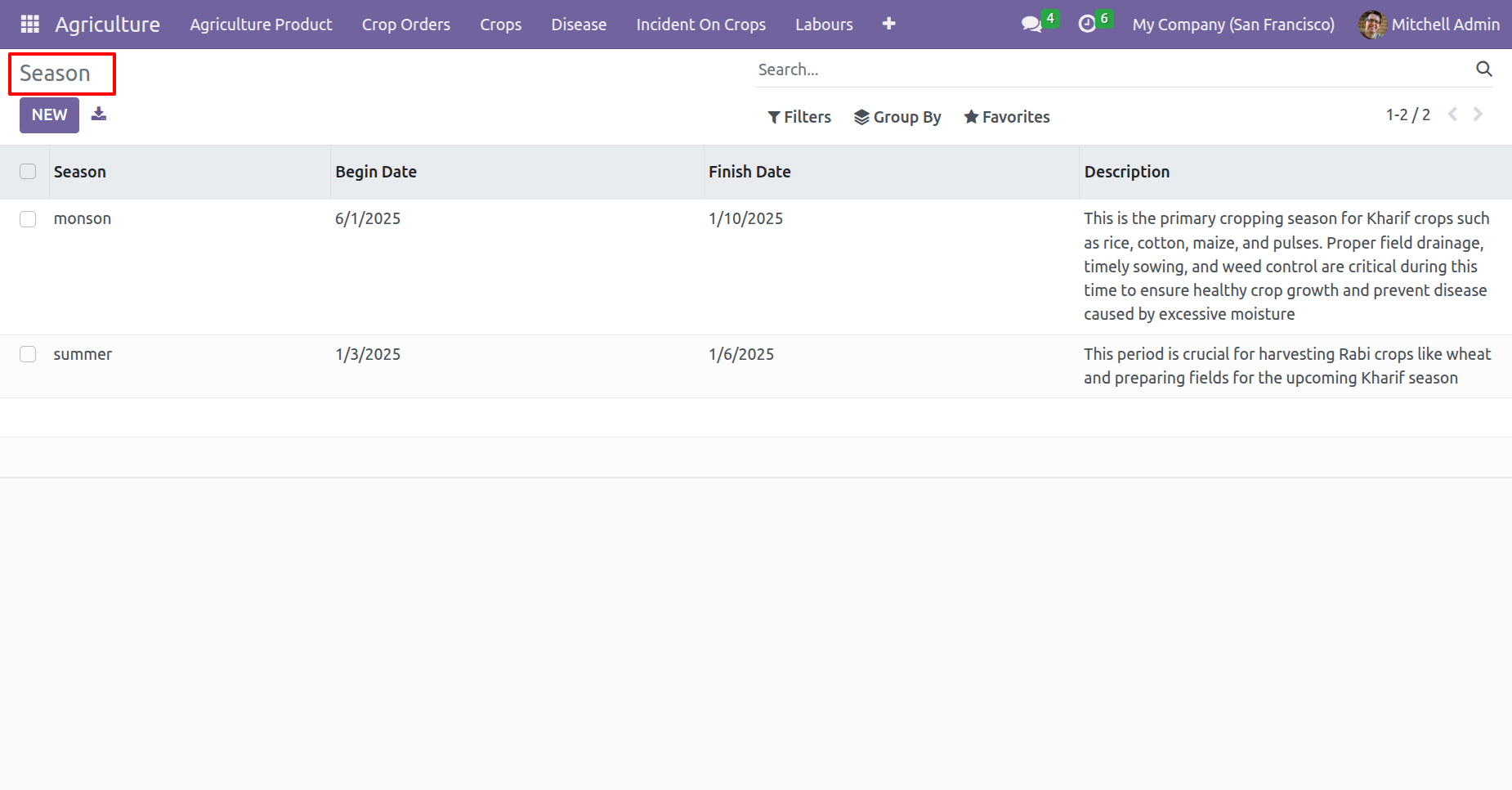
Seasons menu and tree view.
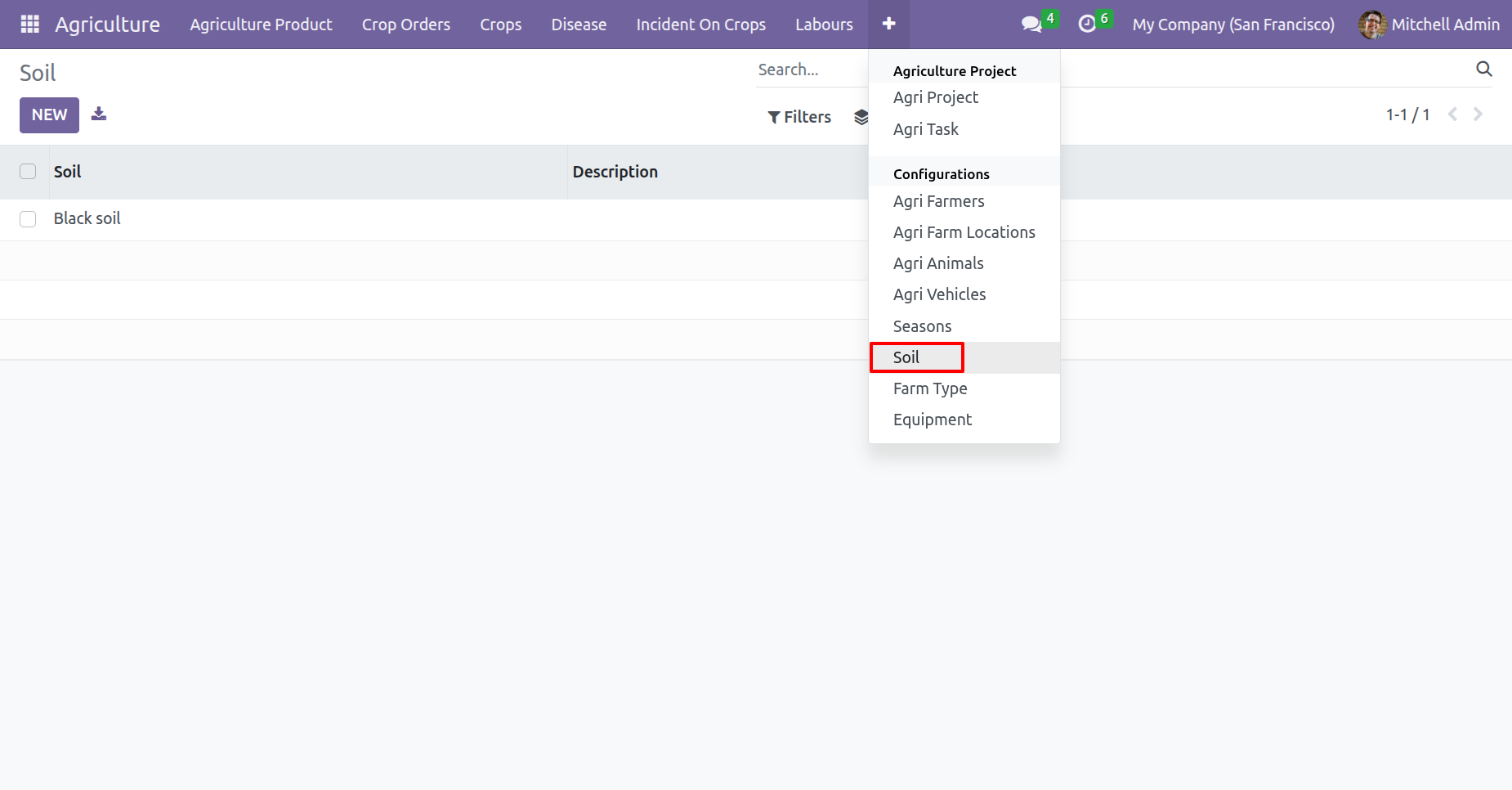
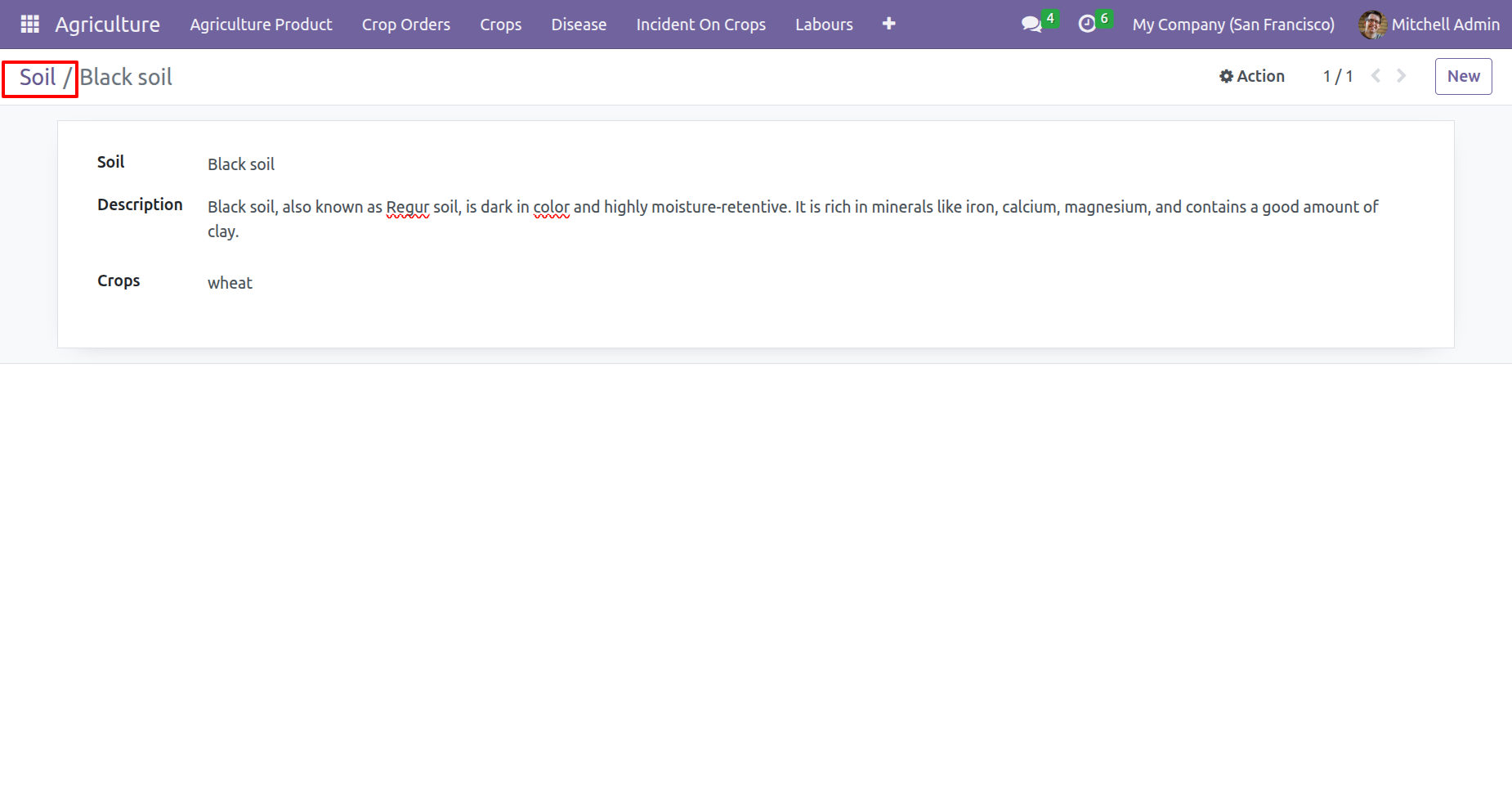
Soil menu and tree view.
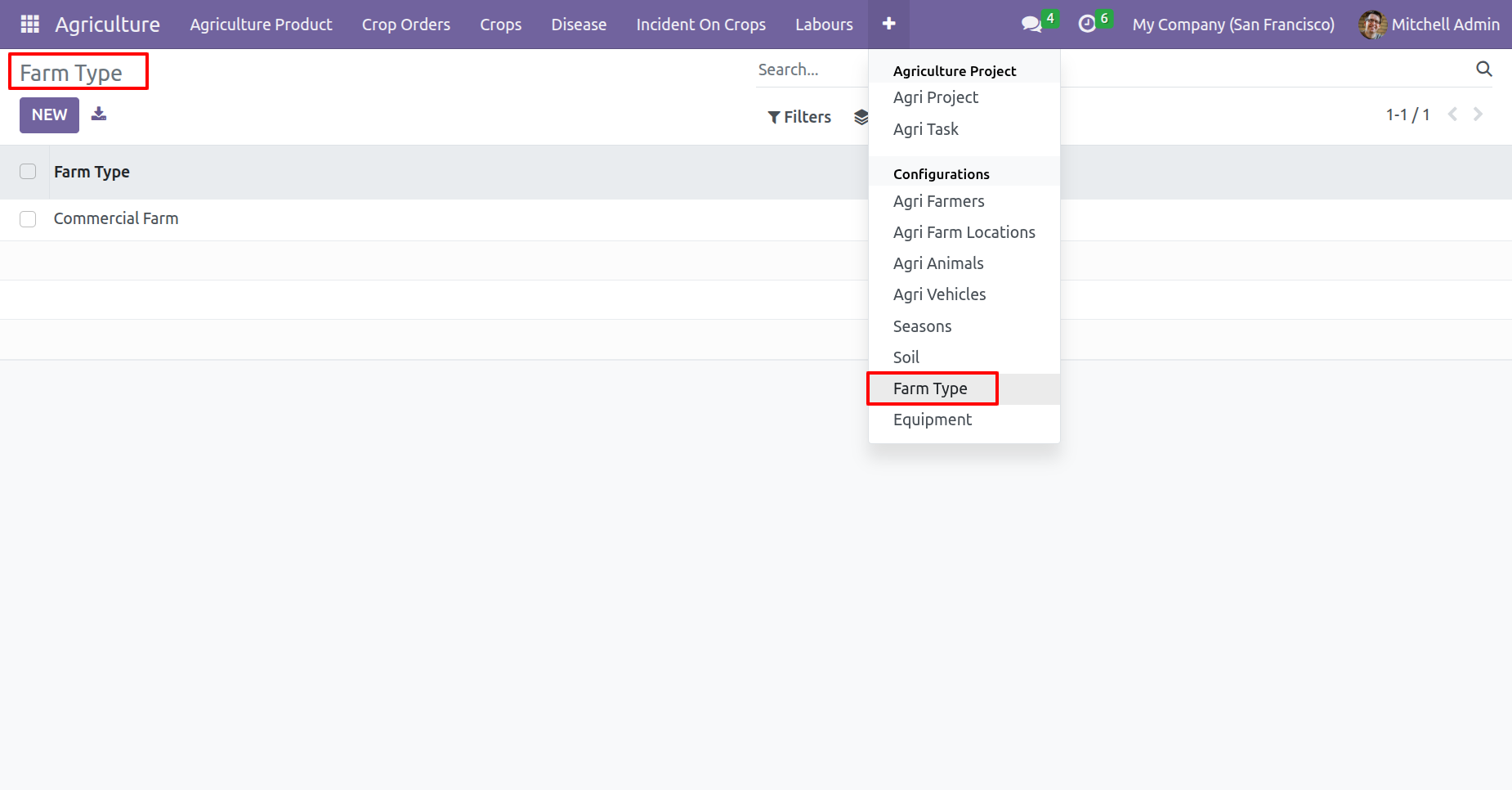
Farm Type menu and tree view.
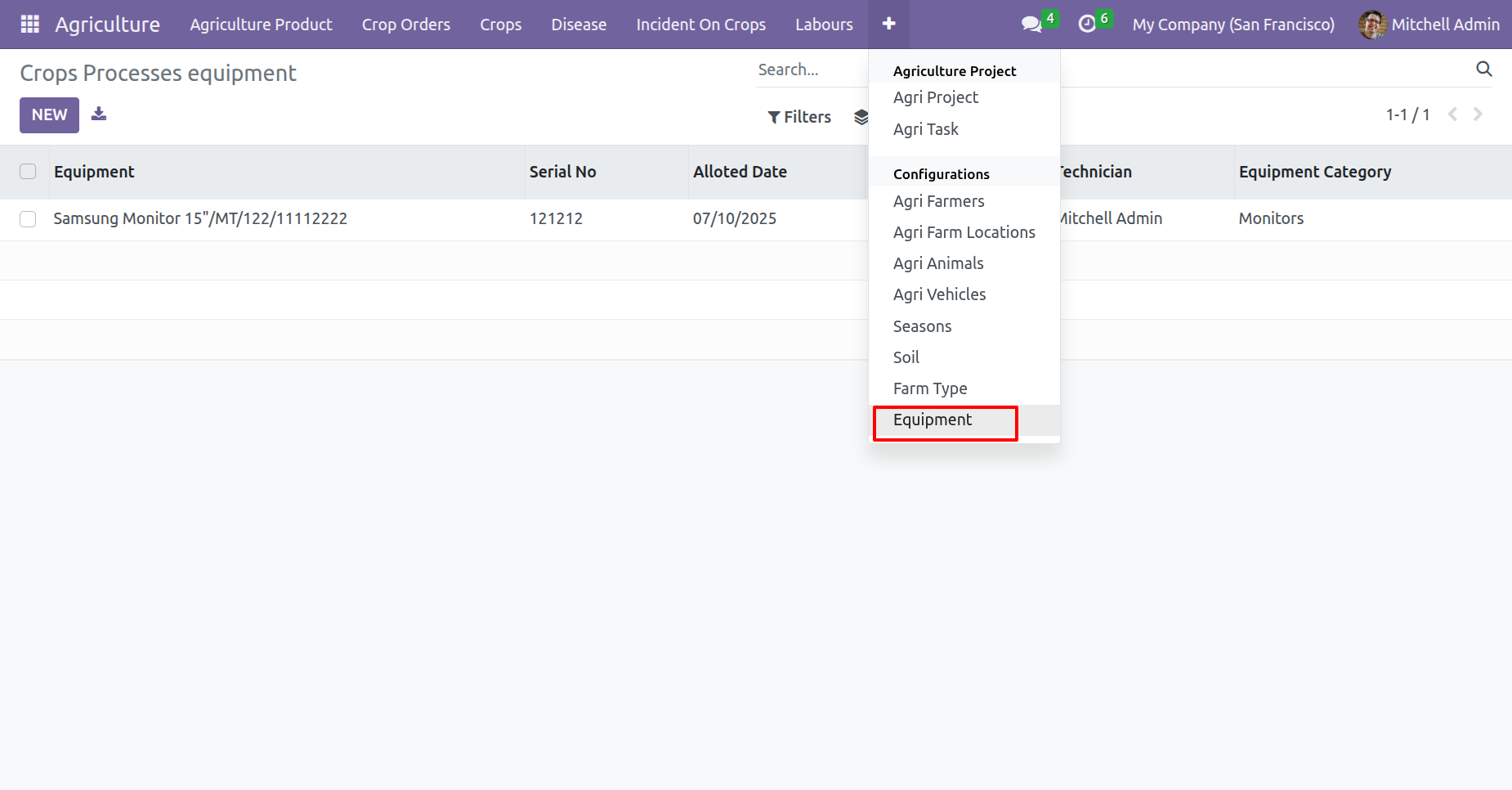
'Equipments' menu.
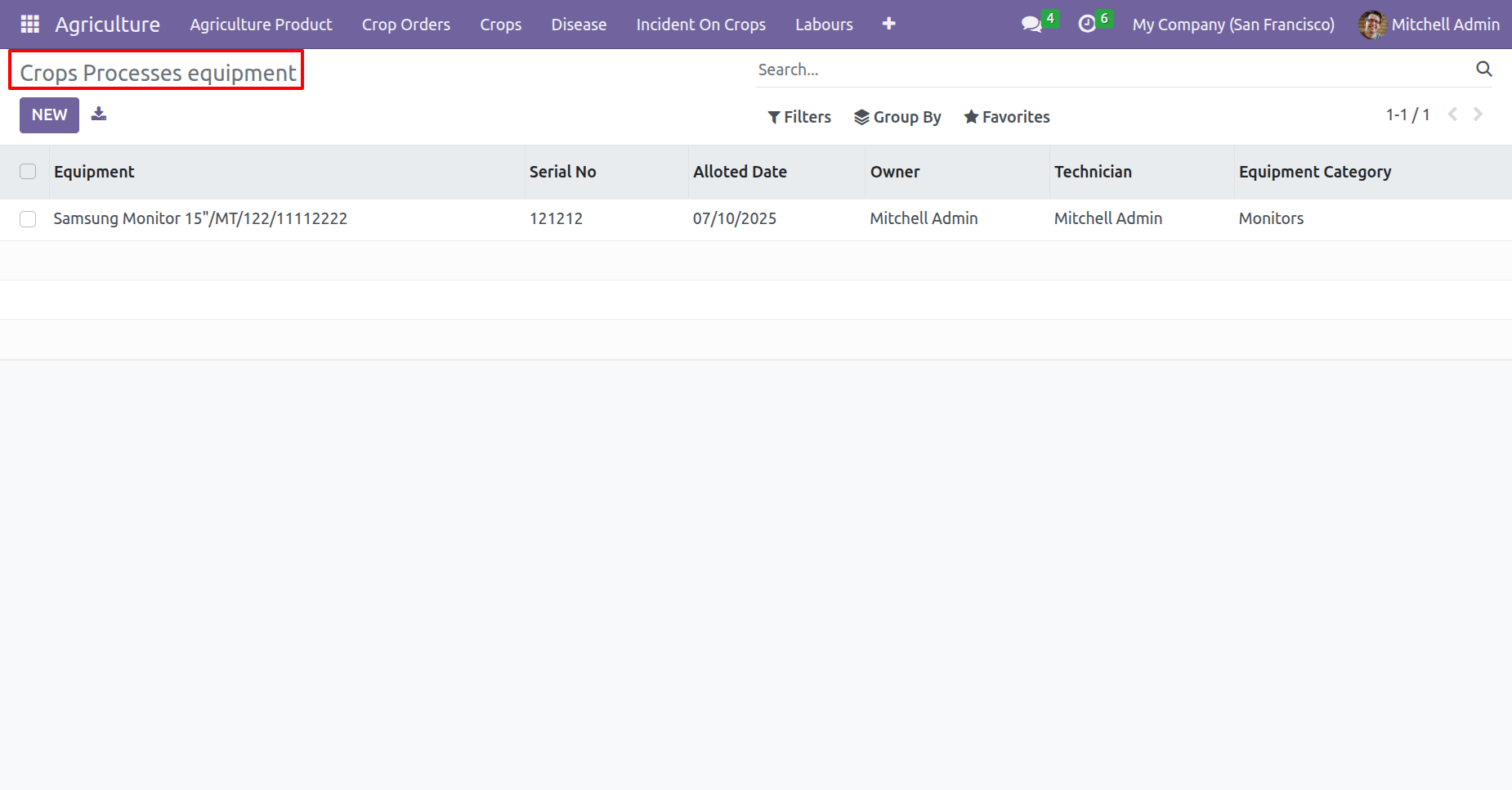
Tree view of the 'Equipment'.
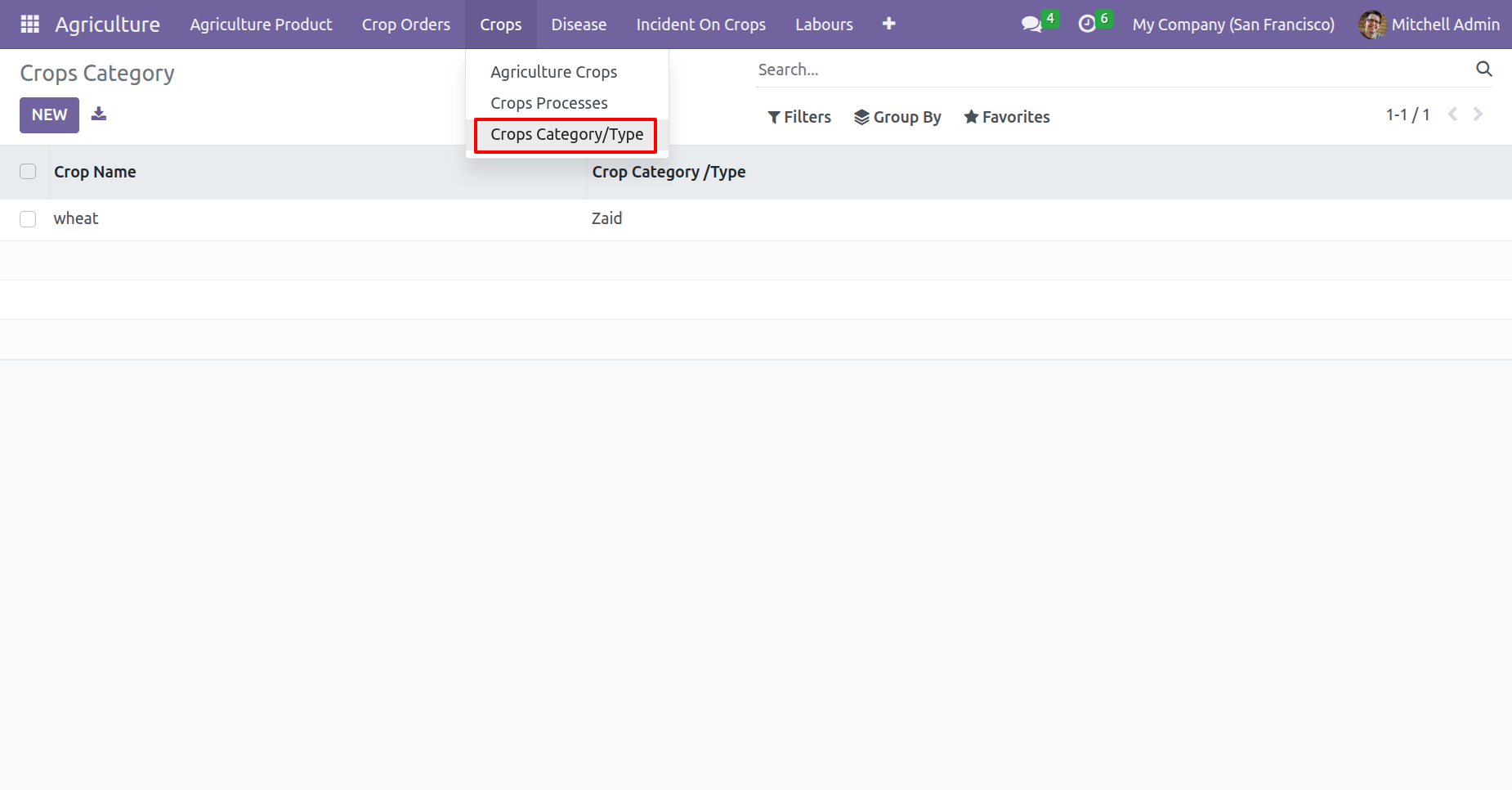
'Crops Category/Type' menu and tree view.
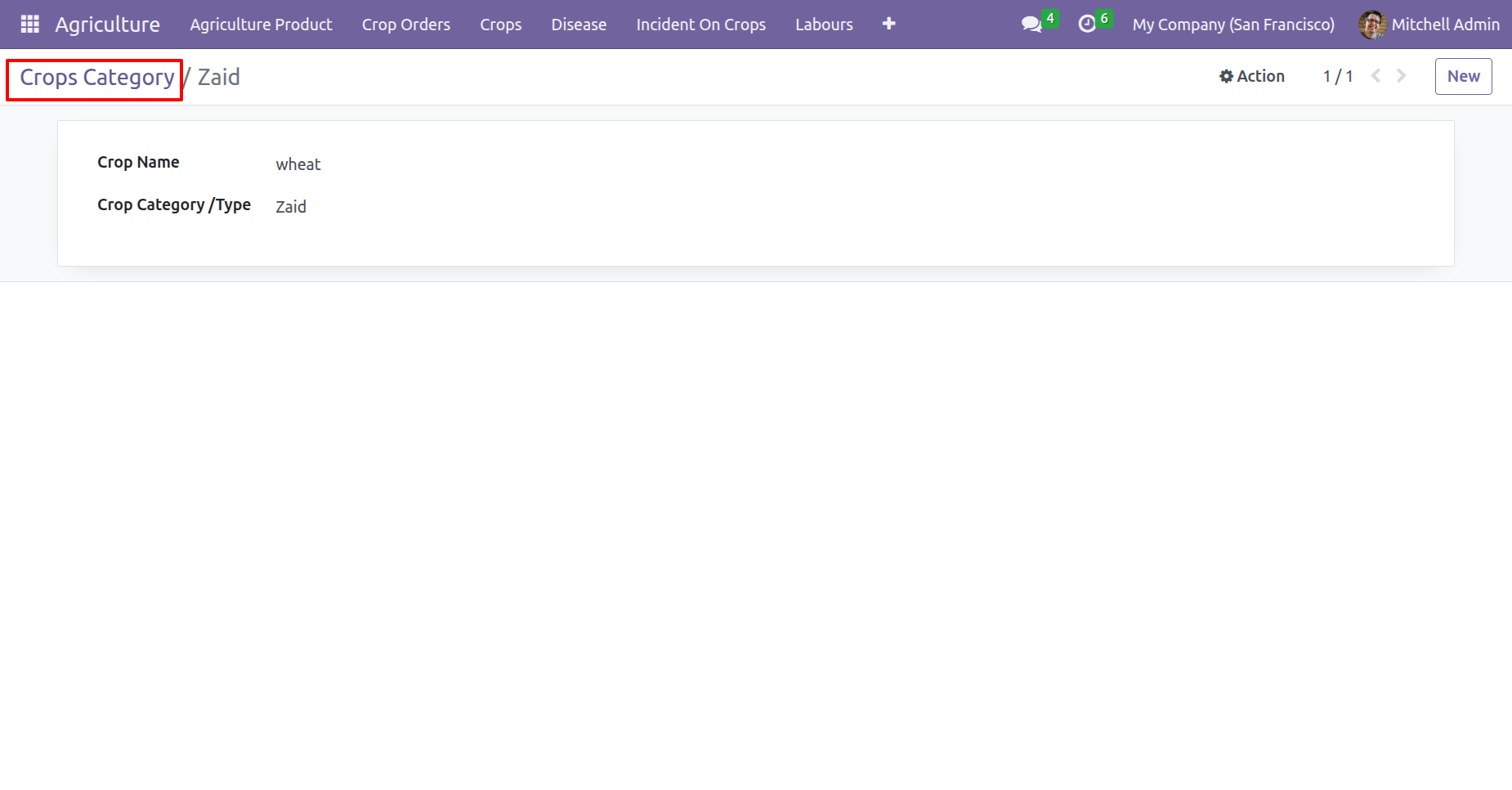
Form view of the 'Crops Category'.
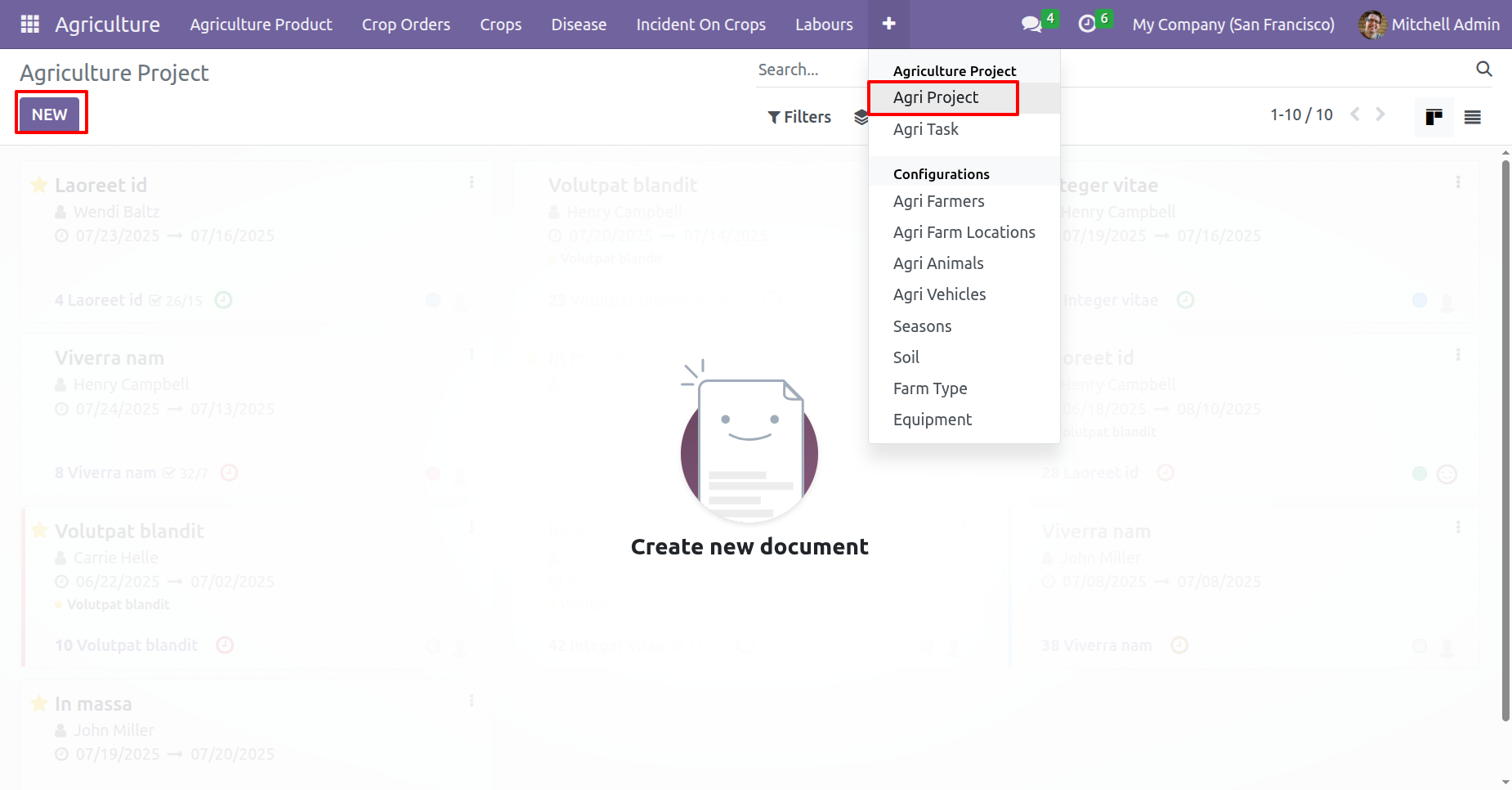
Go to the Agriculture Project menu and click on the 'New' button to create a project.
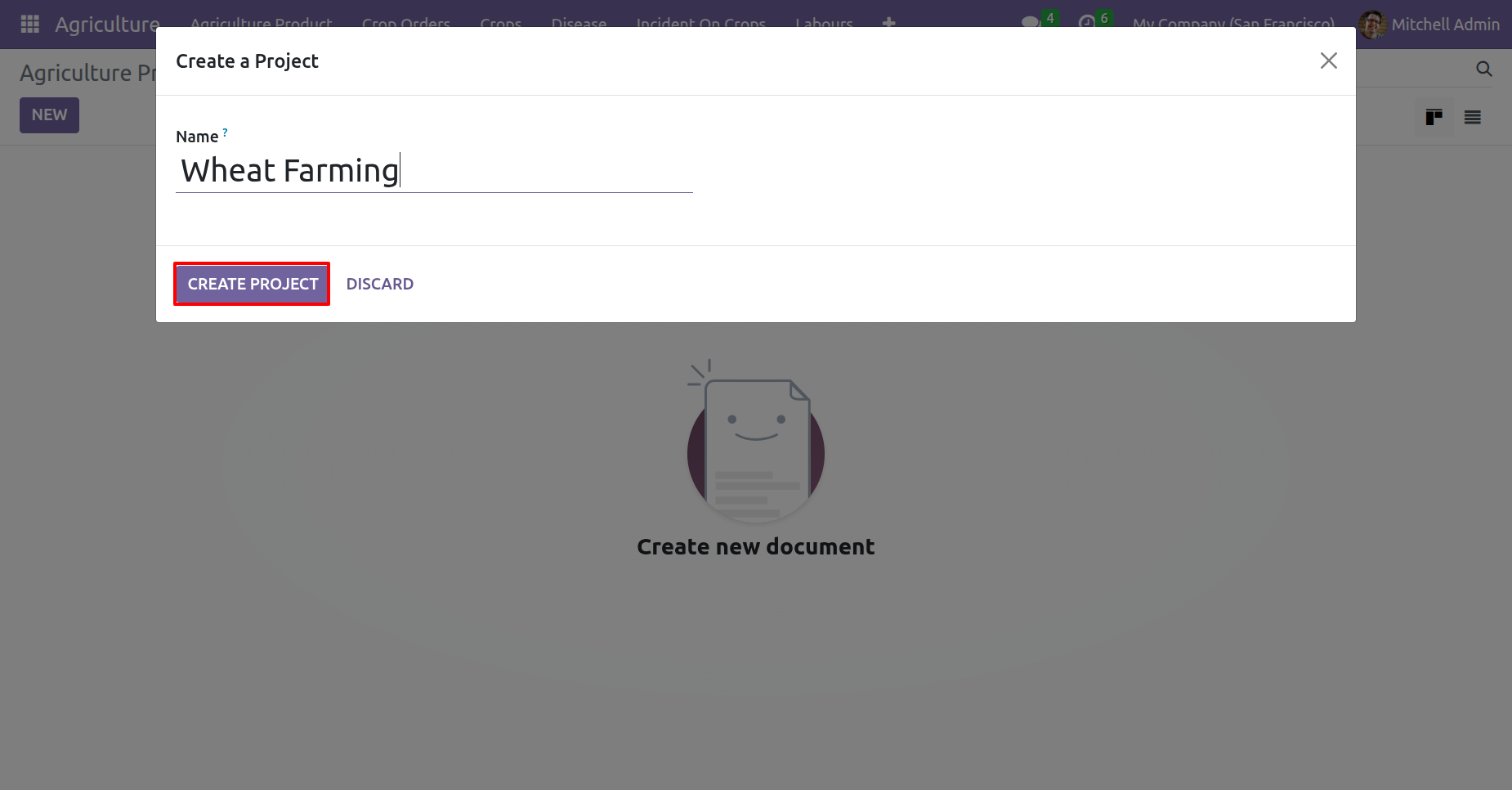
The project creation wizard will appear. Fill the details and click on the 'Create Project' button.
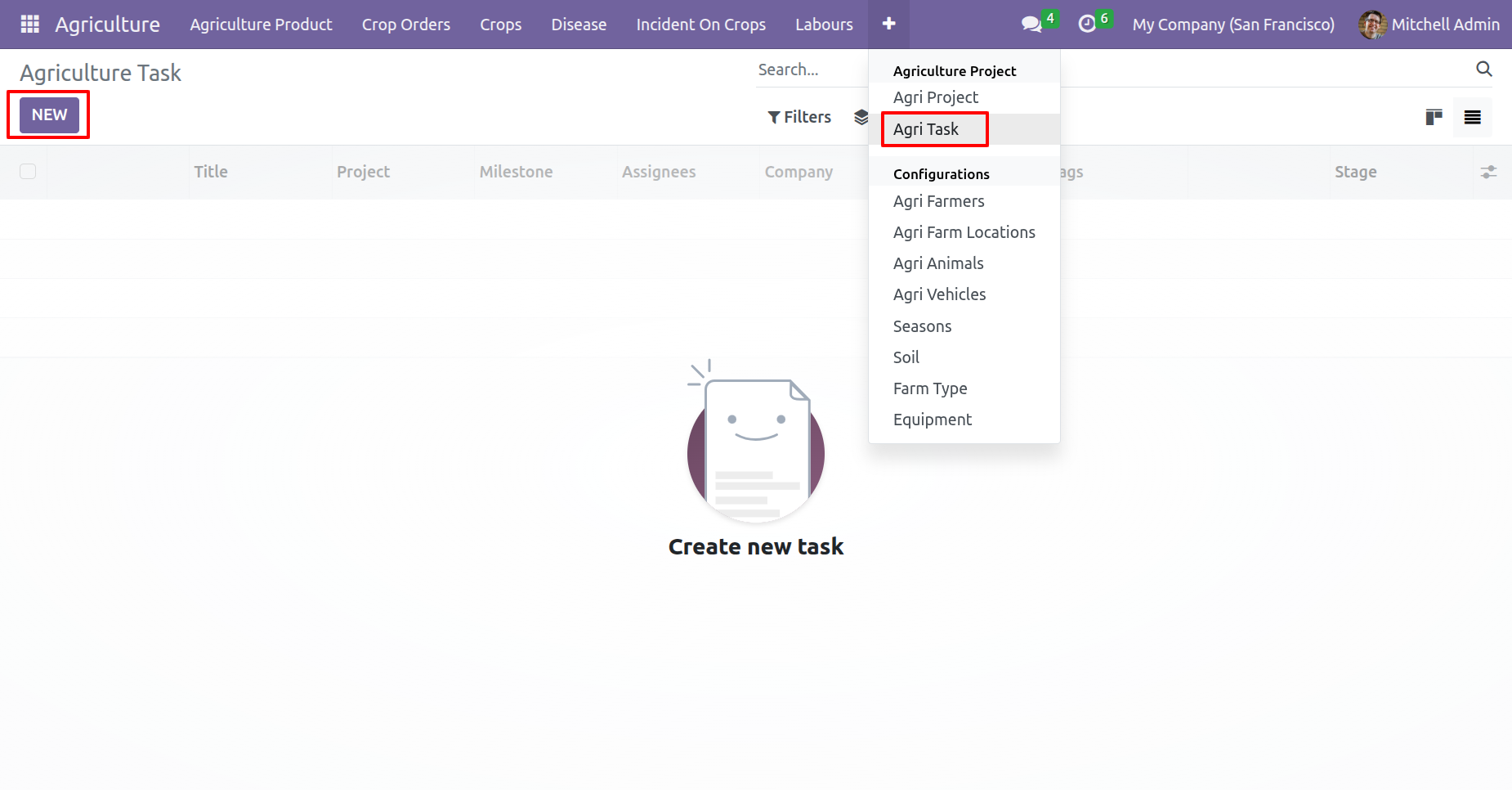
Agriculture Task menu and kanban view.
Form view of the Agriculture Task.
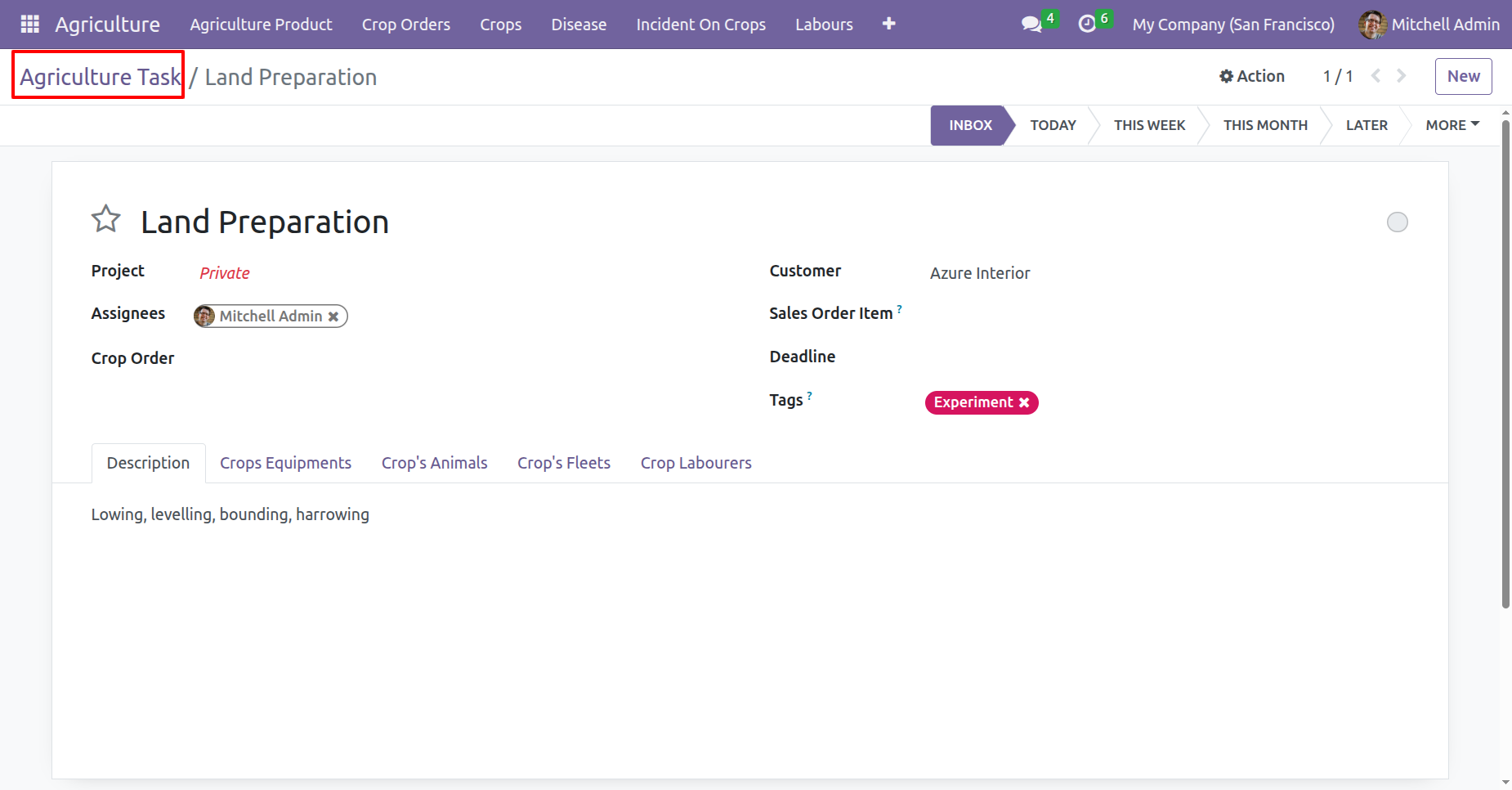
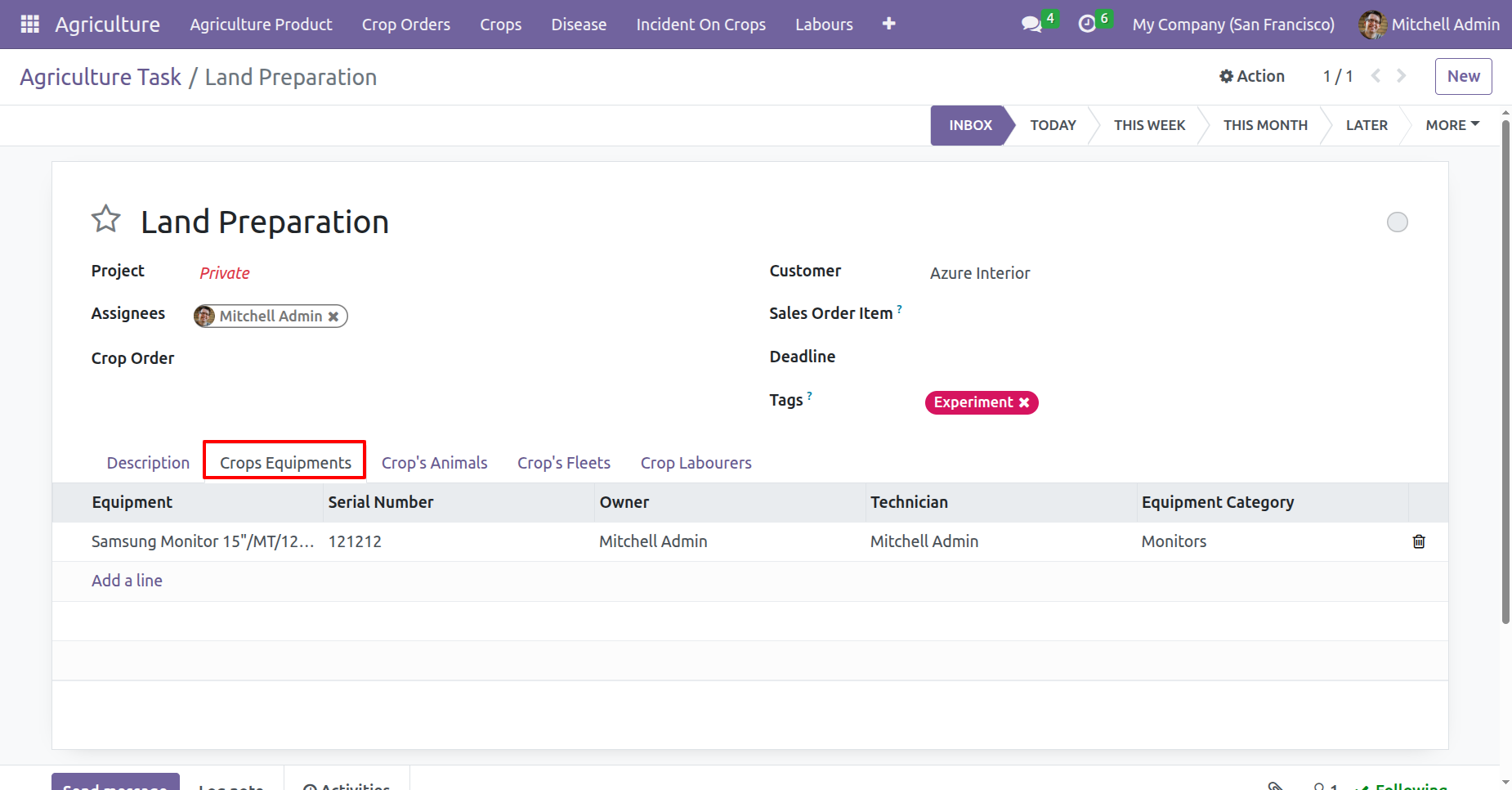
Add equipment information under the 'Crops Equipments' tab.
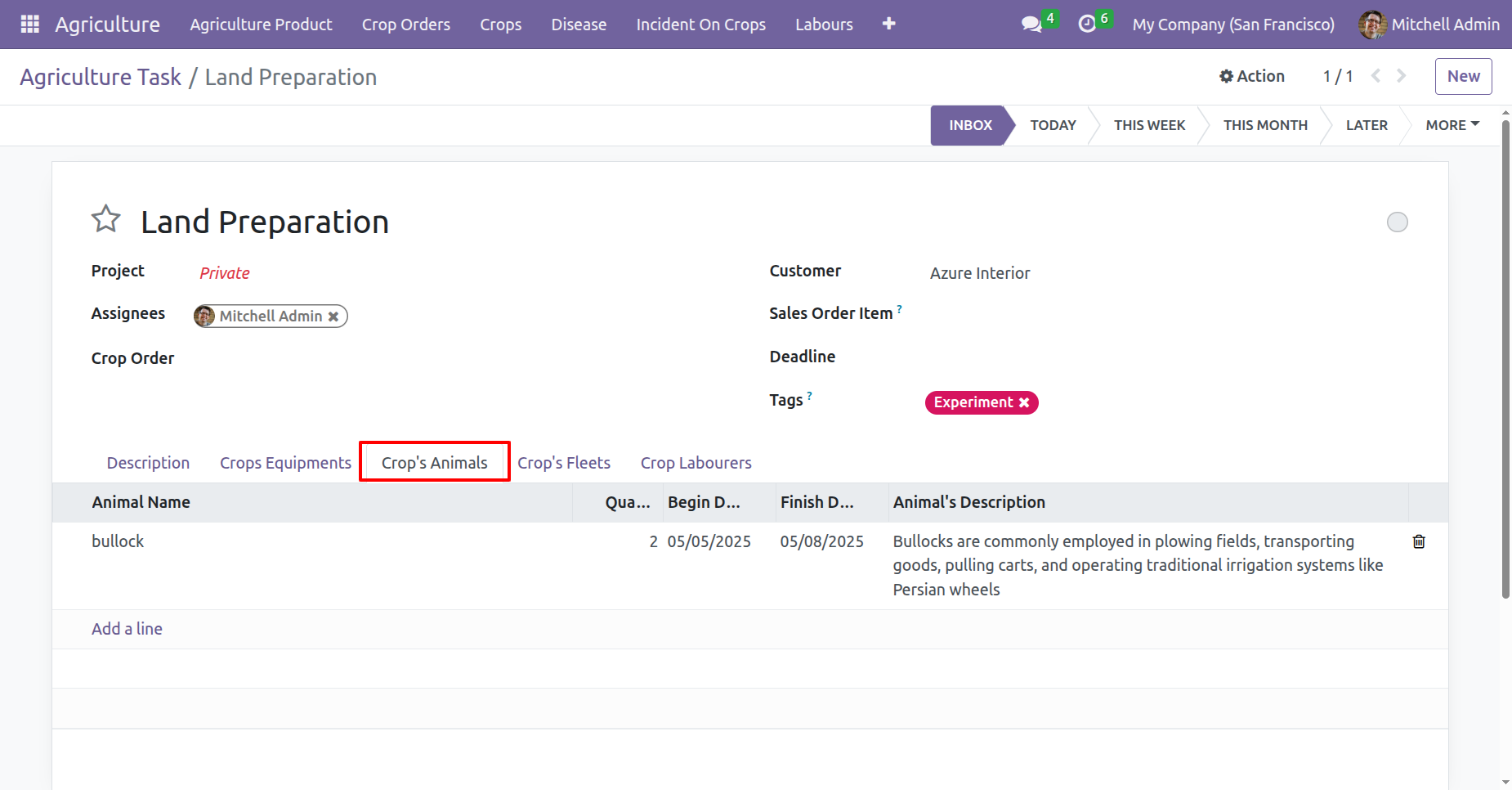
Add animal information under the 'Crops Animal' tab.
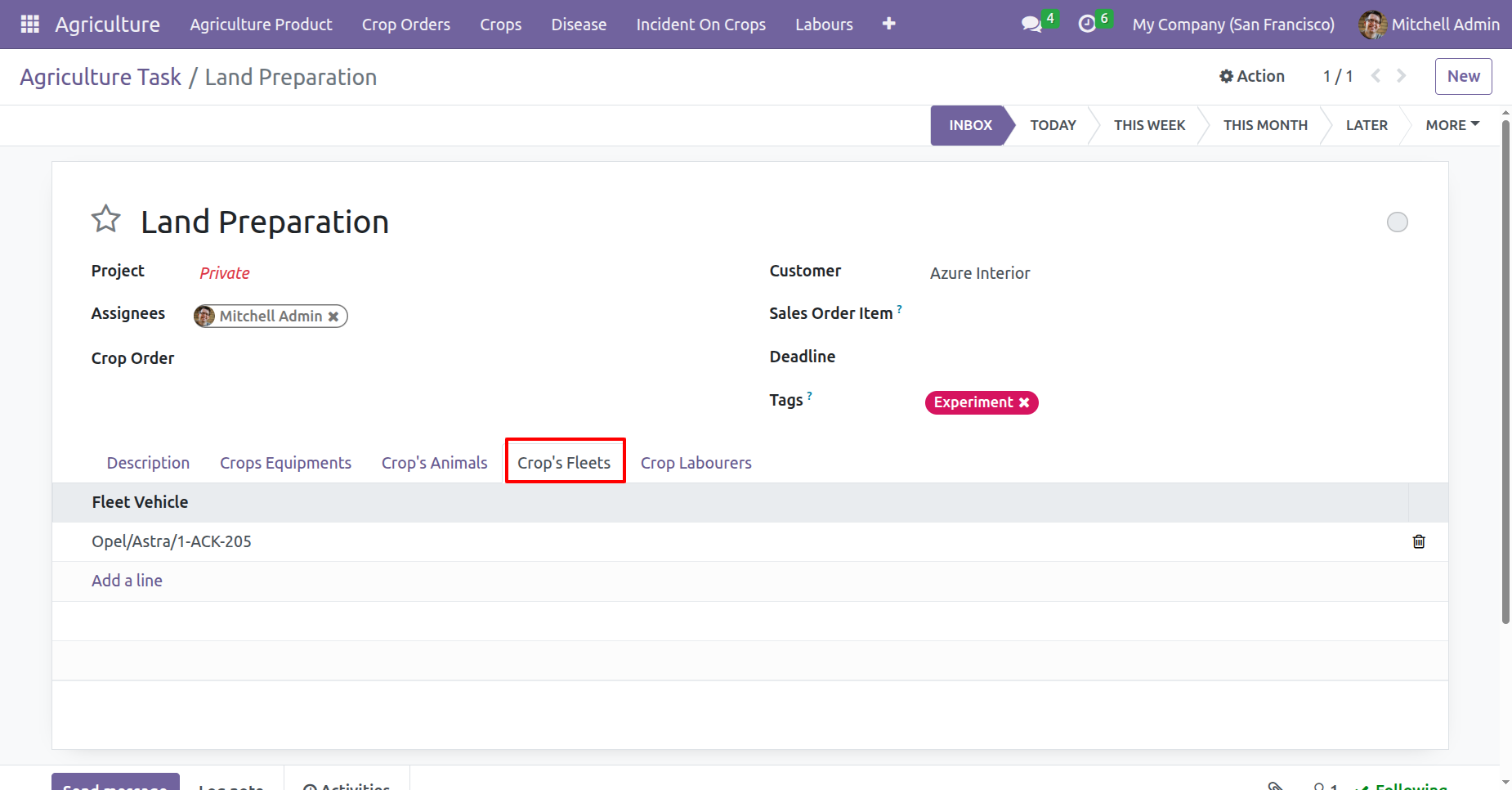
Add fleet information under the 'Crops Fleets' tab.
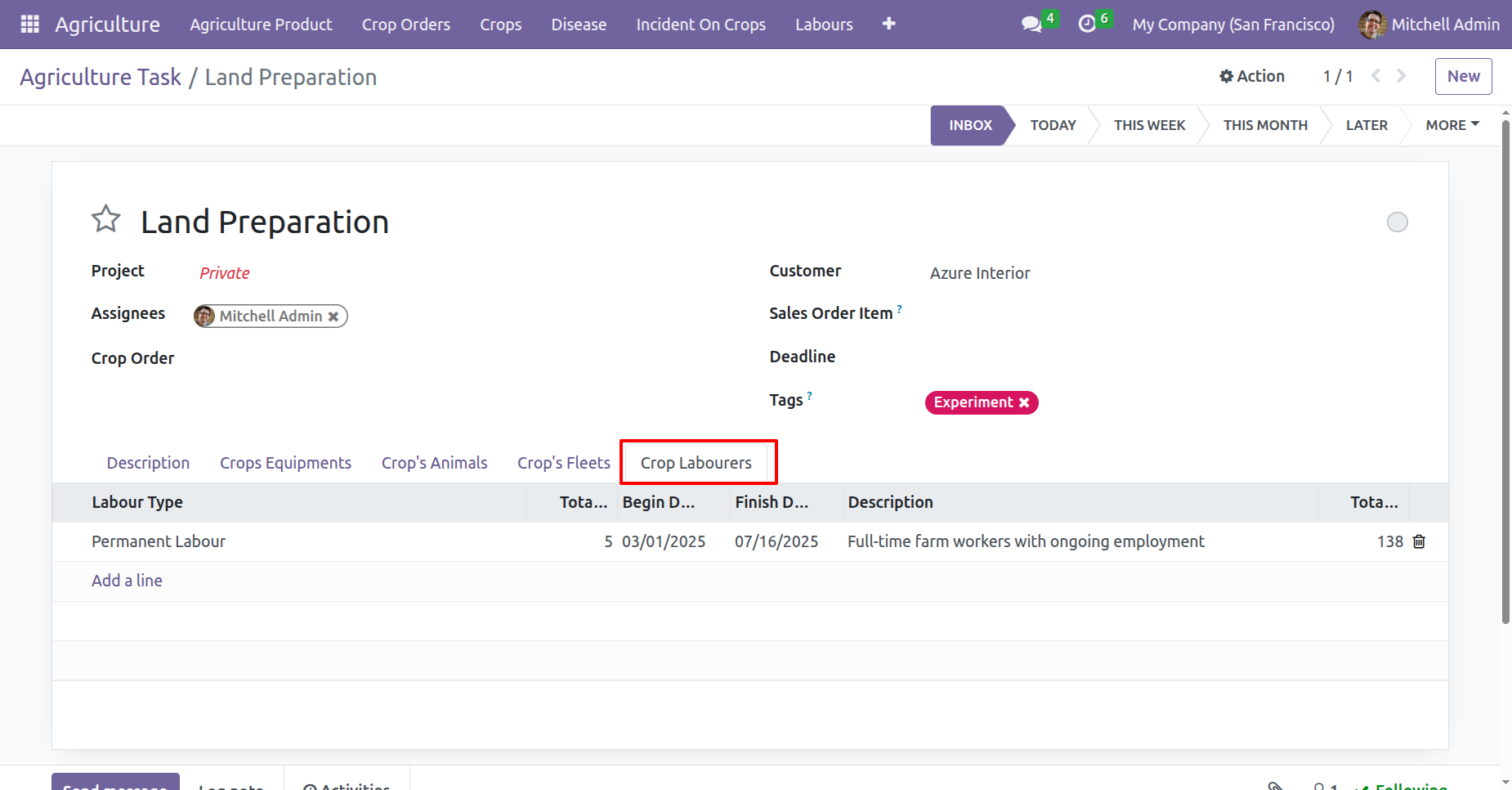
Add labourers information under the 'Crops Labourers' tab.
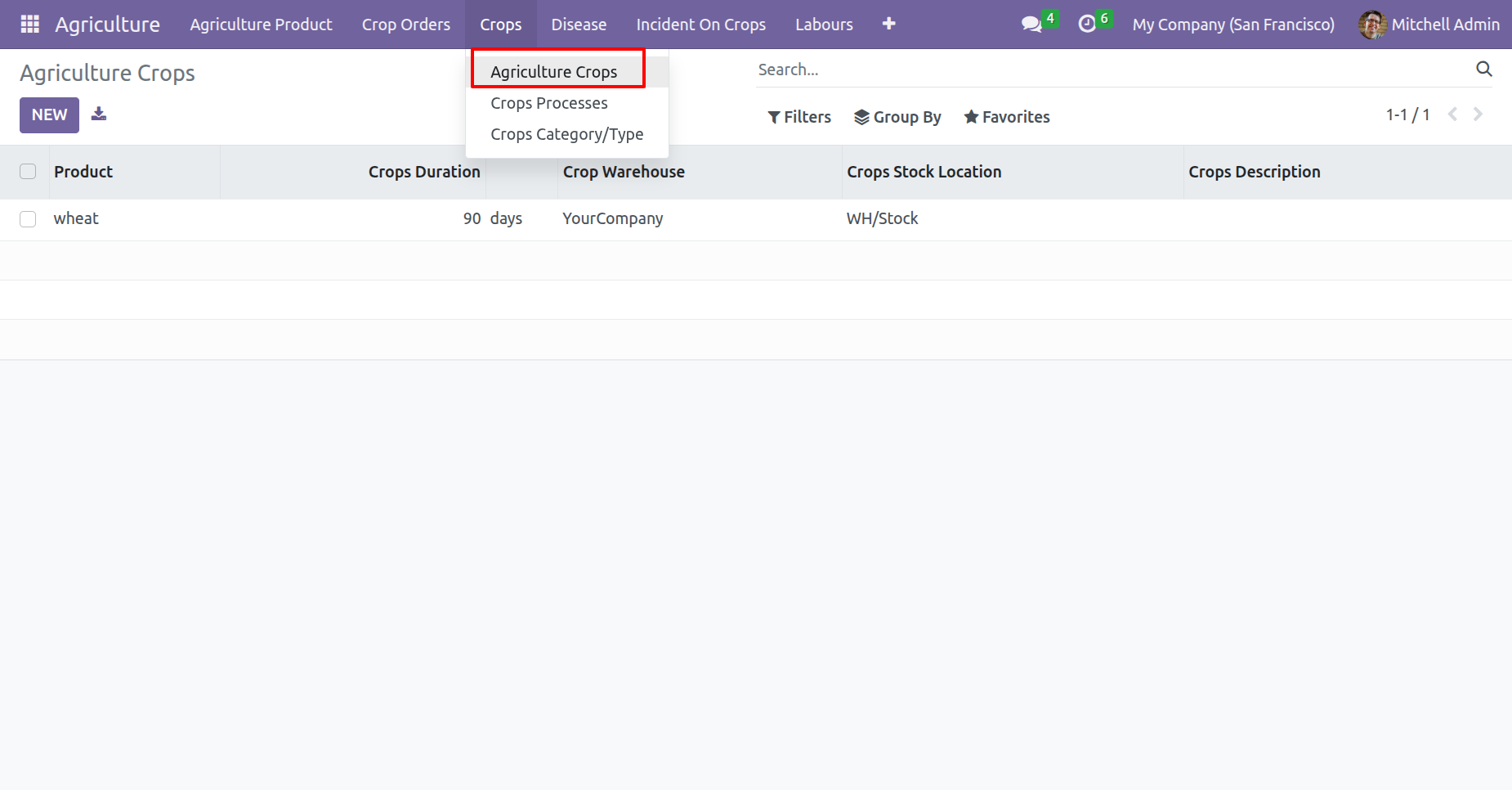
'Agriculture Crops' menu and kanban view.
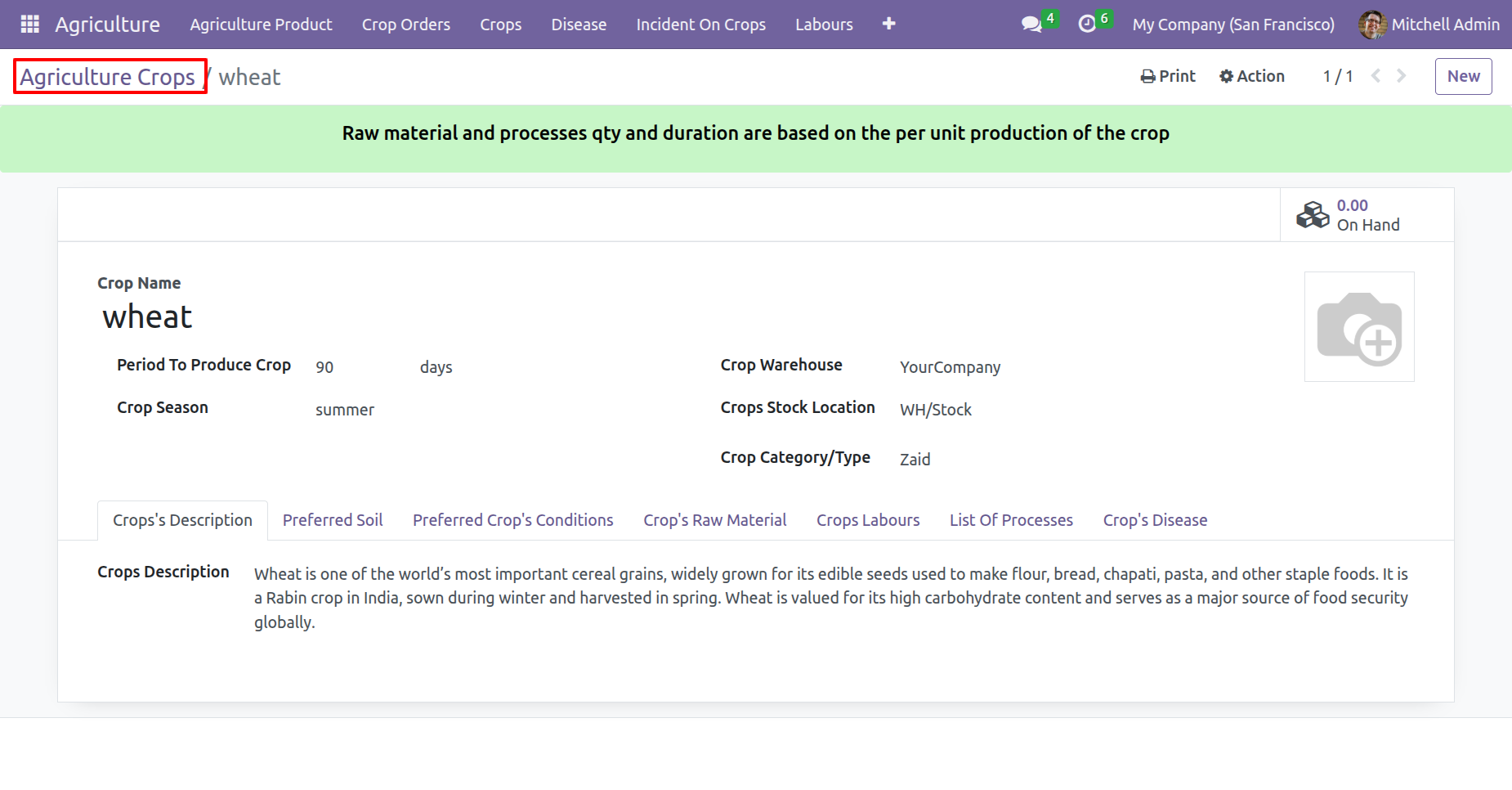
Form view of the 'Agriculture Crops'.
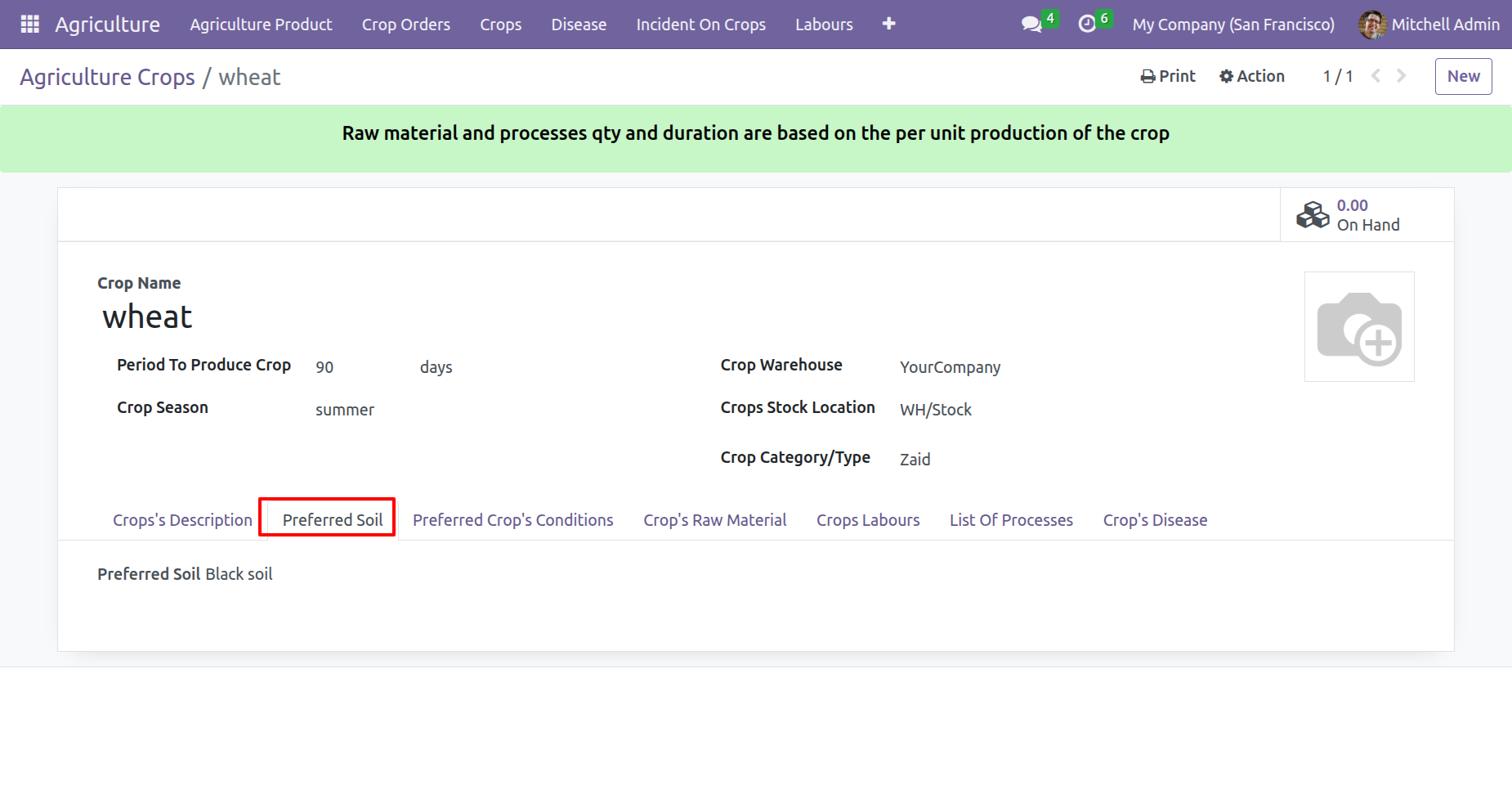
Add soil information under the 'Preferred Soil' tab.
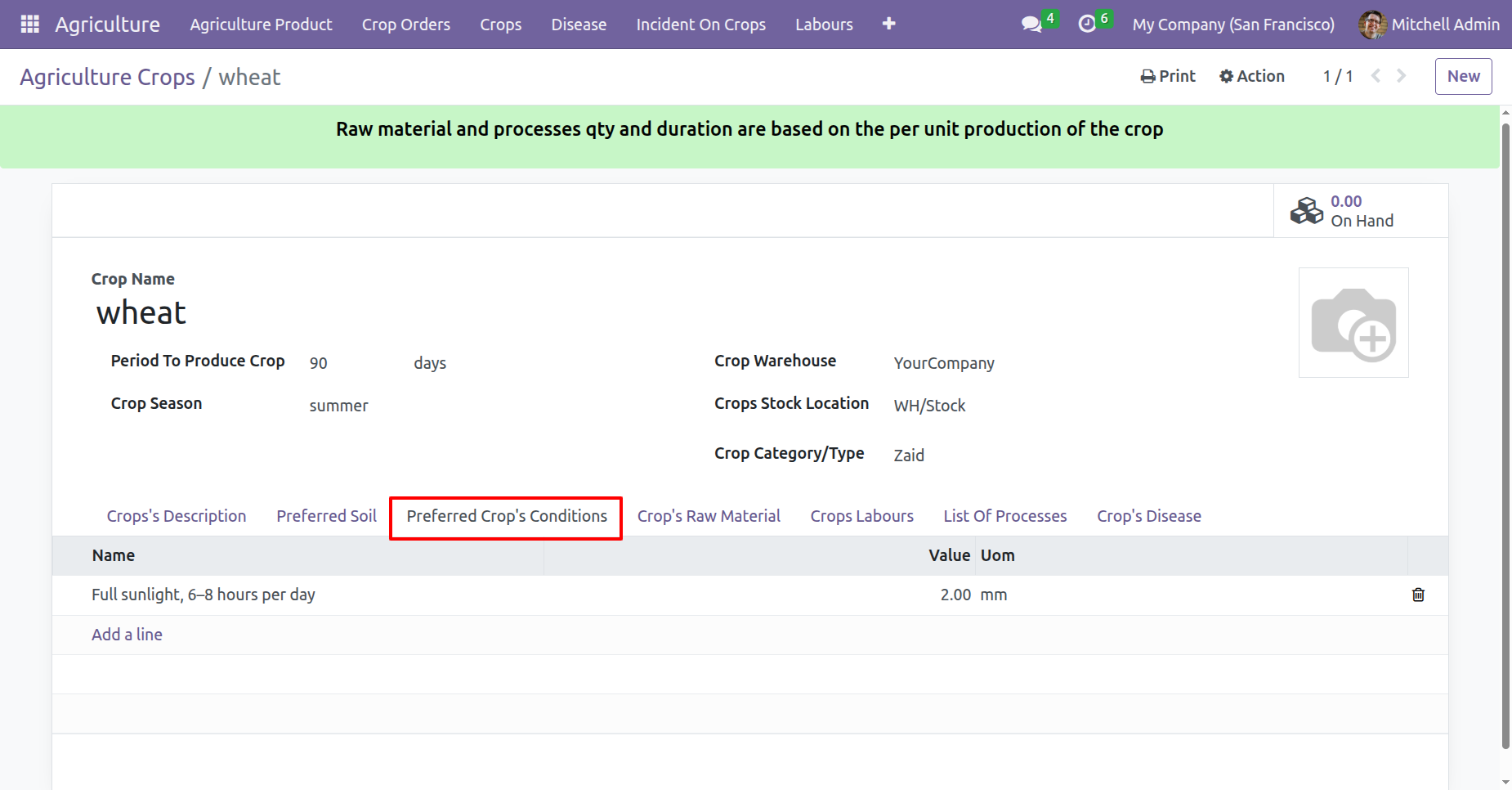
Add conditions under the 'Preferred Crops Conditions' tab.
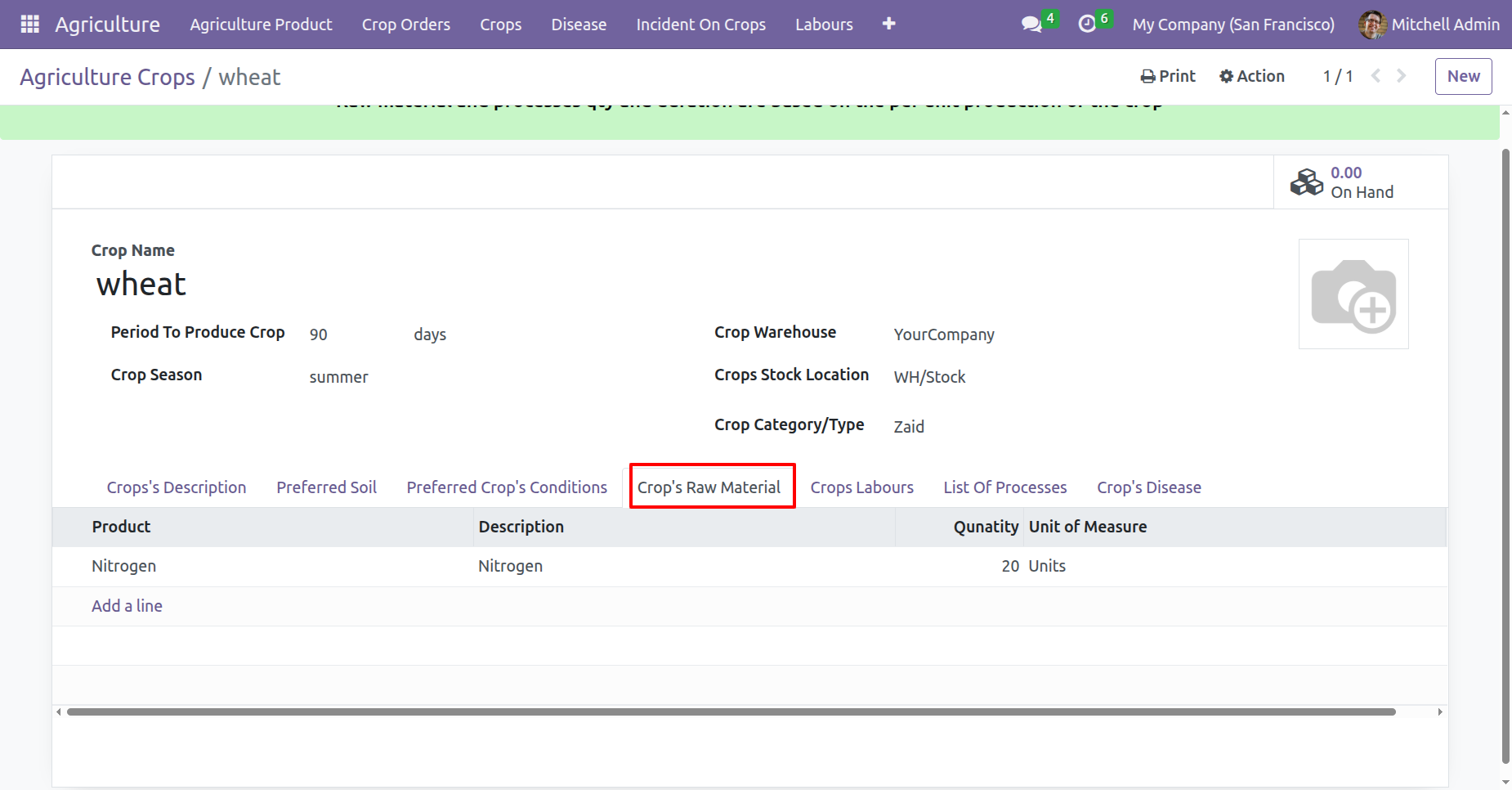
Add row materials under the 'Crops Row Material' tab.
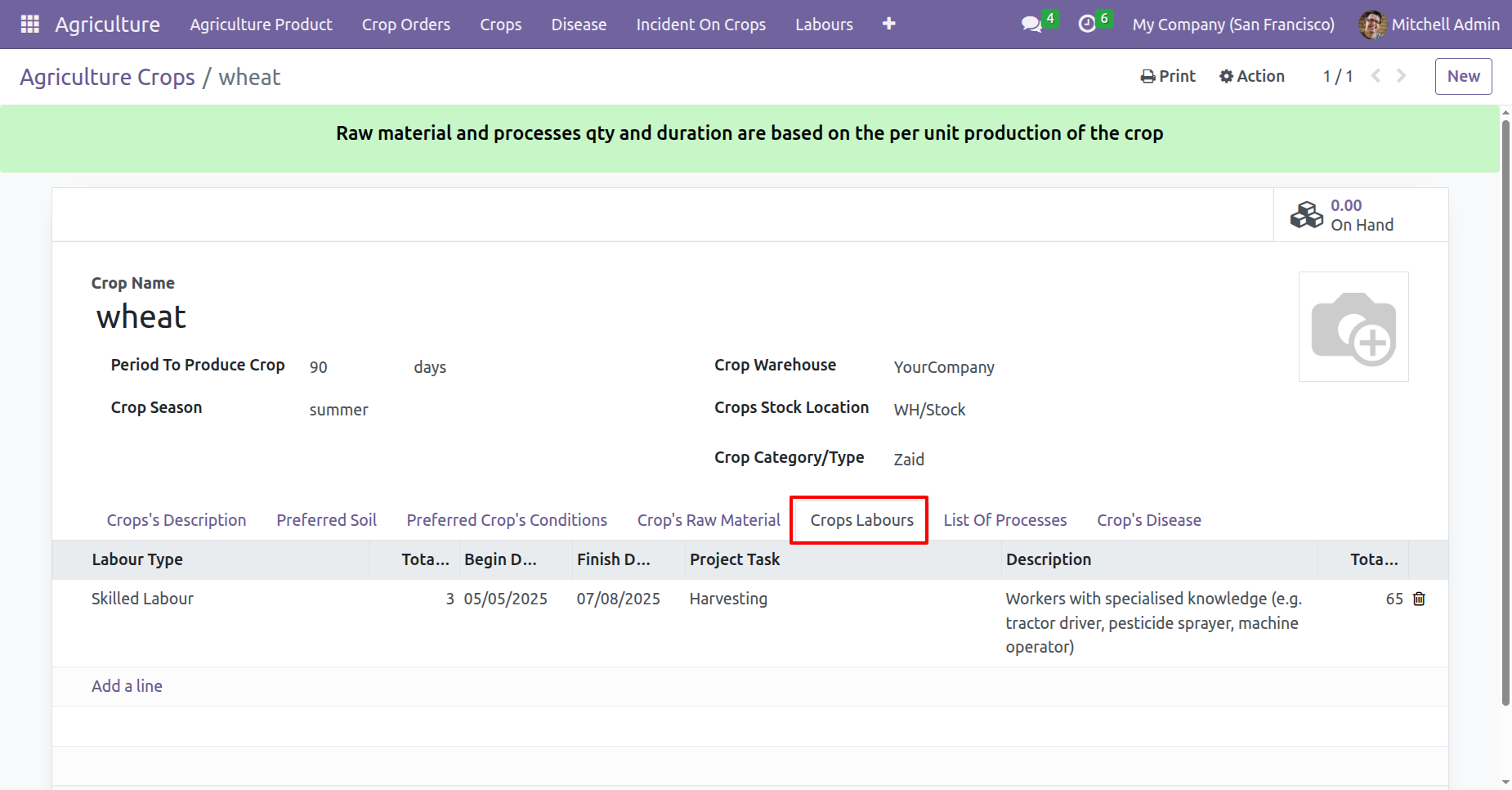
Add labours information under the 'Crops Labours' tab.
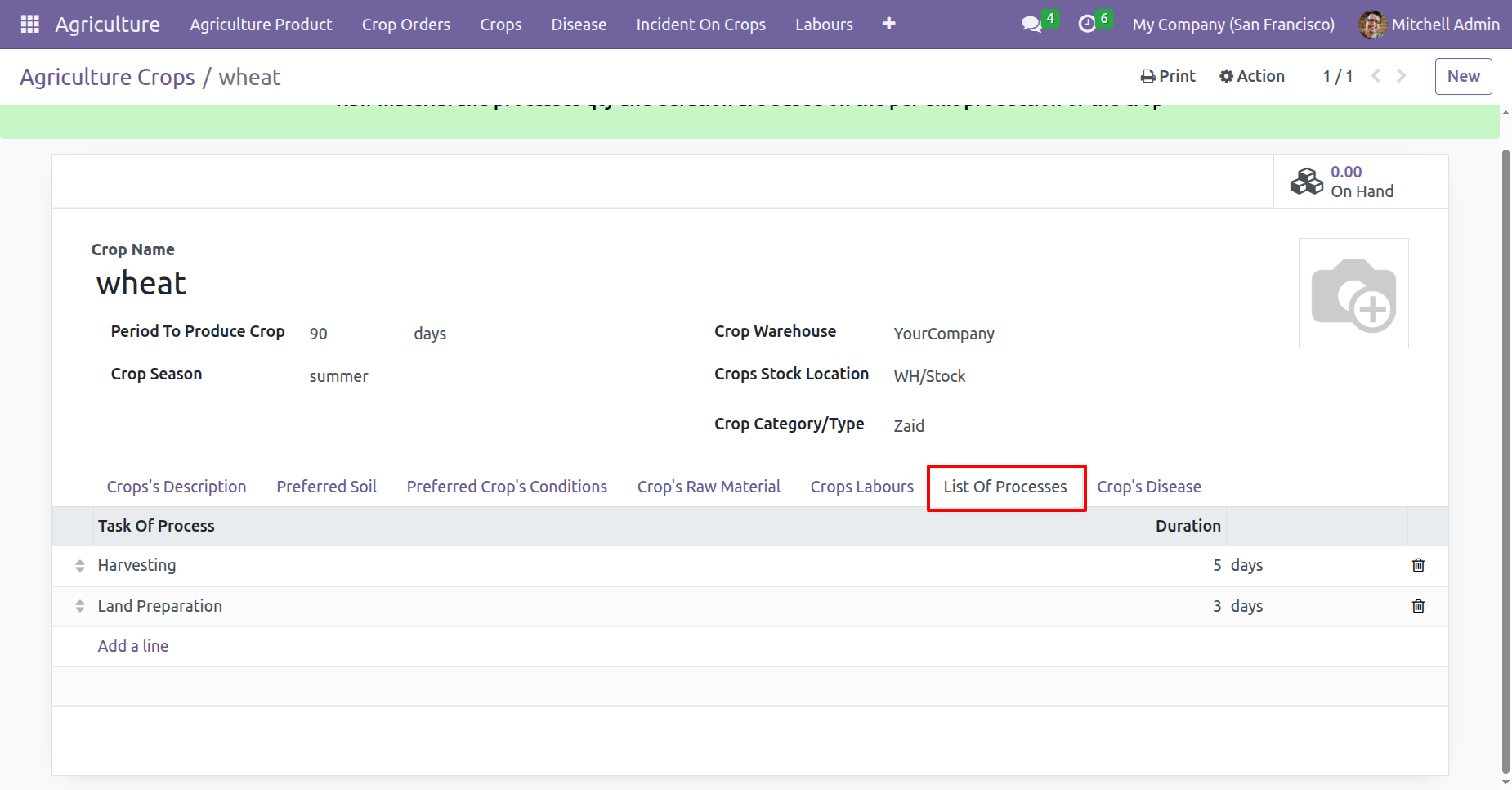
Add processes under the 'List Of Processes' tab.
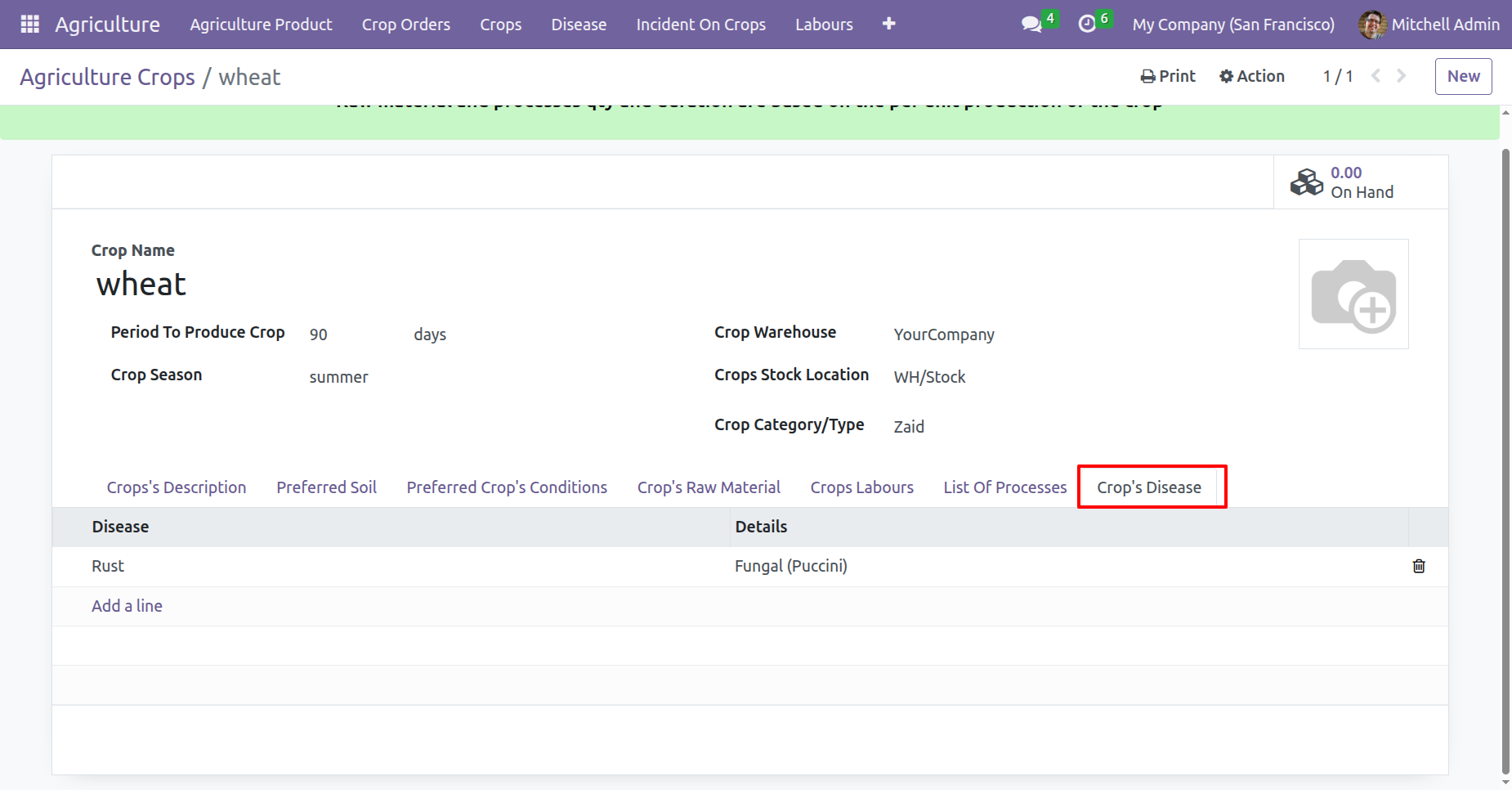
Add disease under the 'Crops Disease' tab.
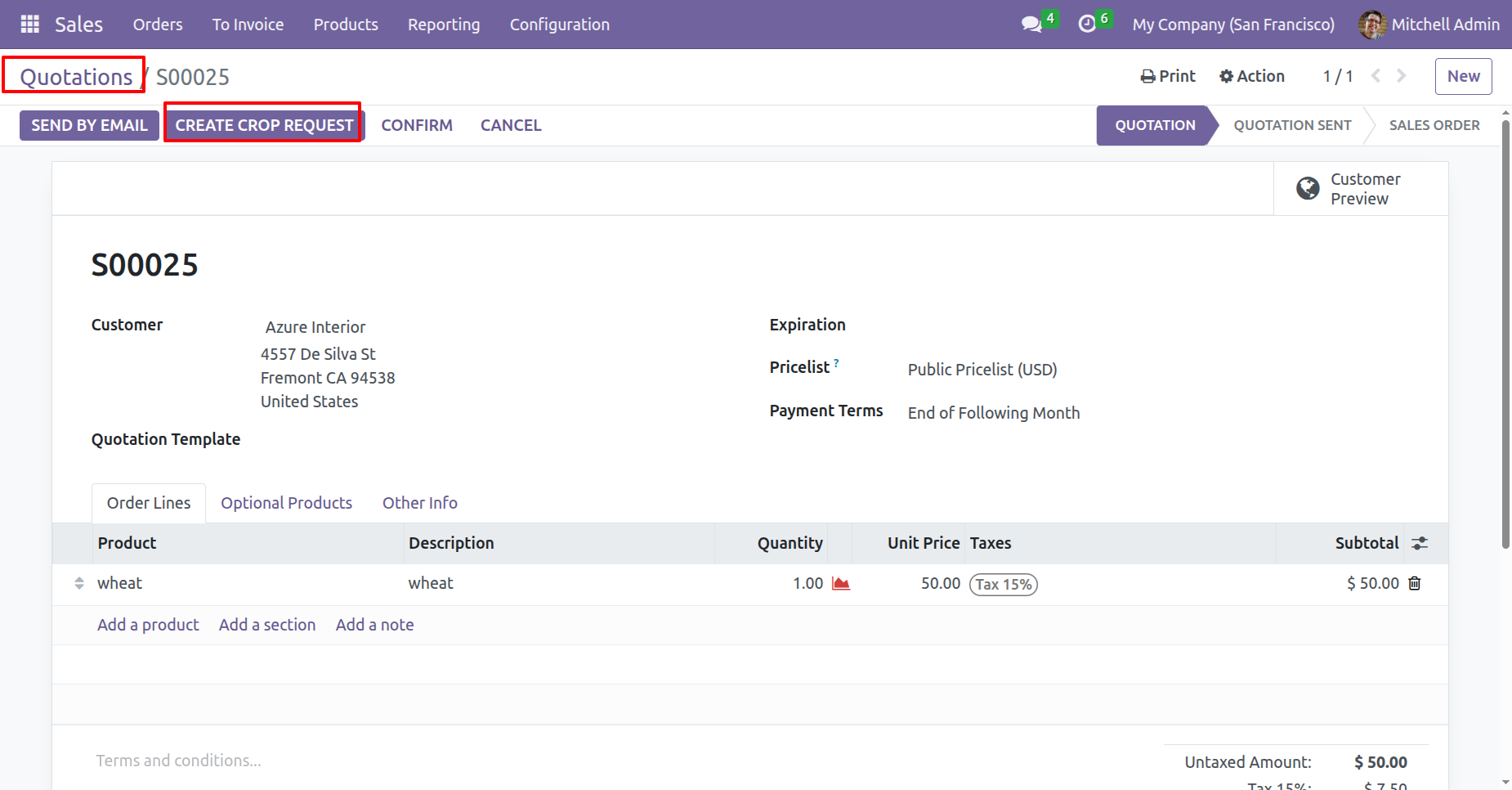
Click on the 'Create Crop Request' button to initiate a new crop request.
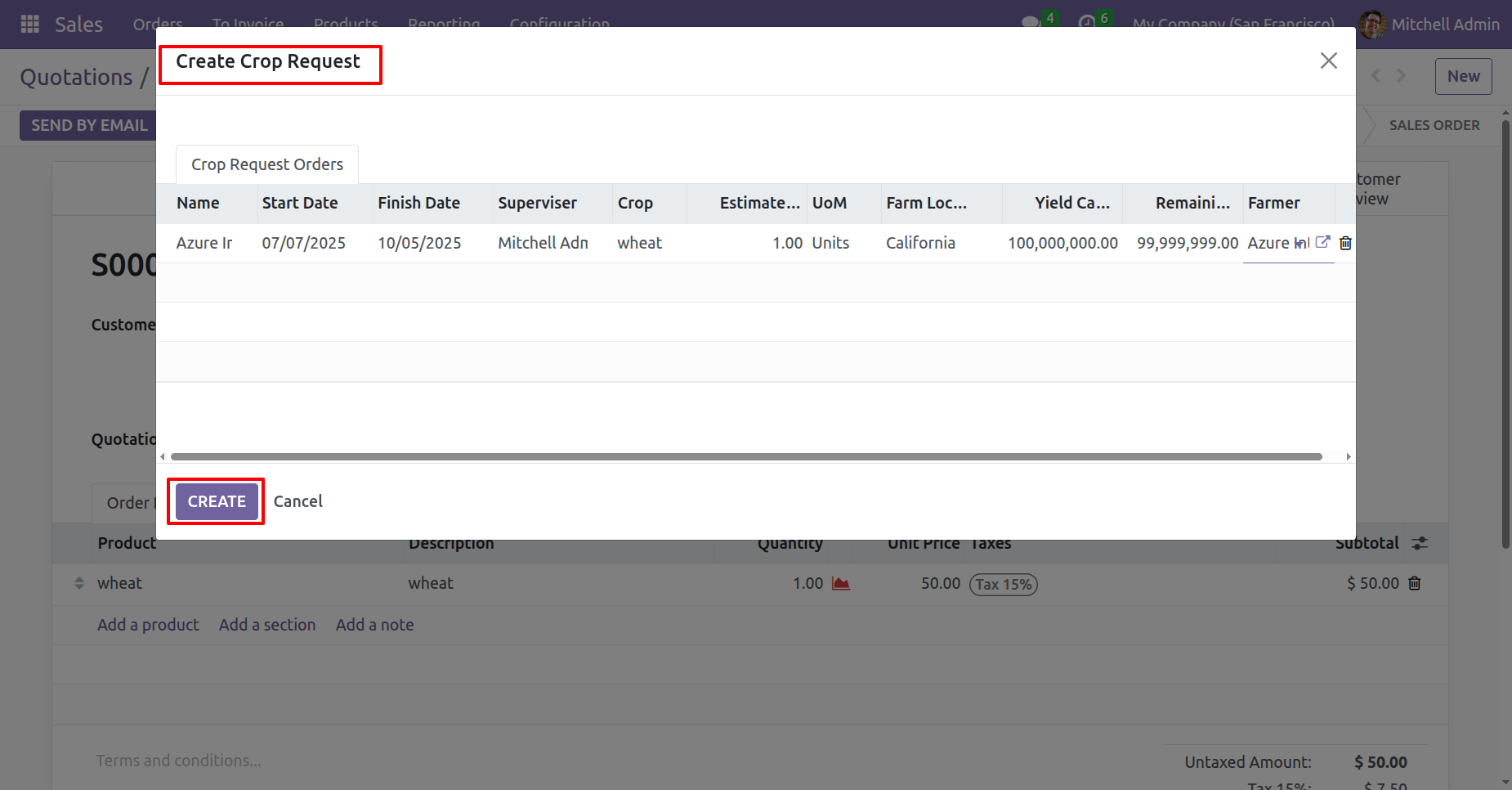
After that, the Crop Request wizard will appear. Review the details and click on the 'Create' button.
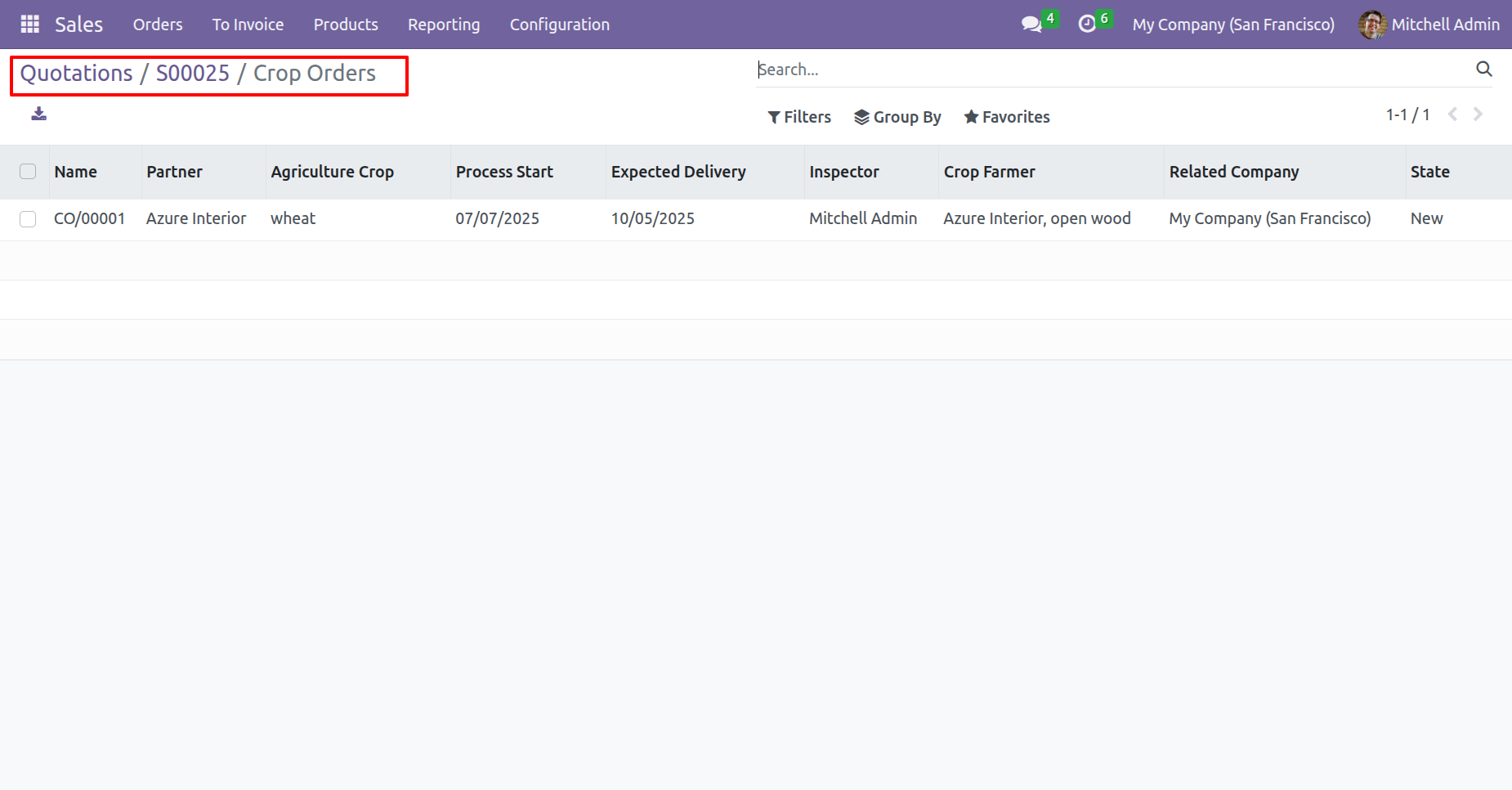
Here, you can see that the crop order has been created.
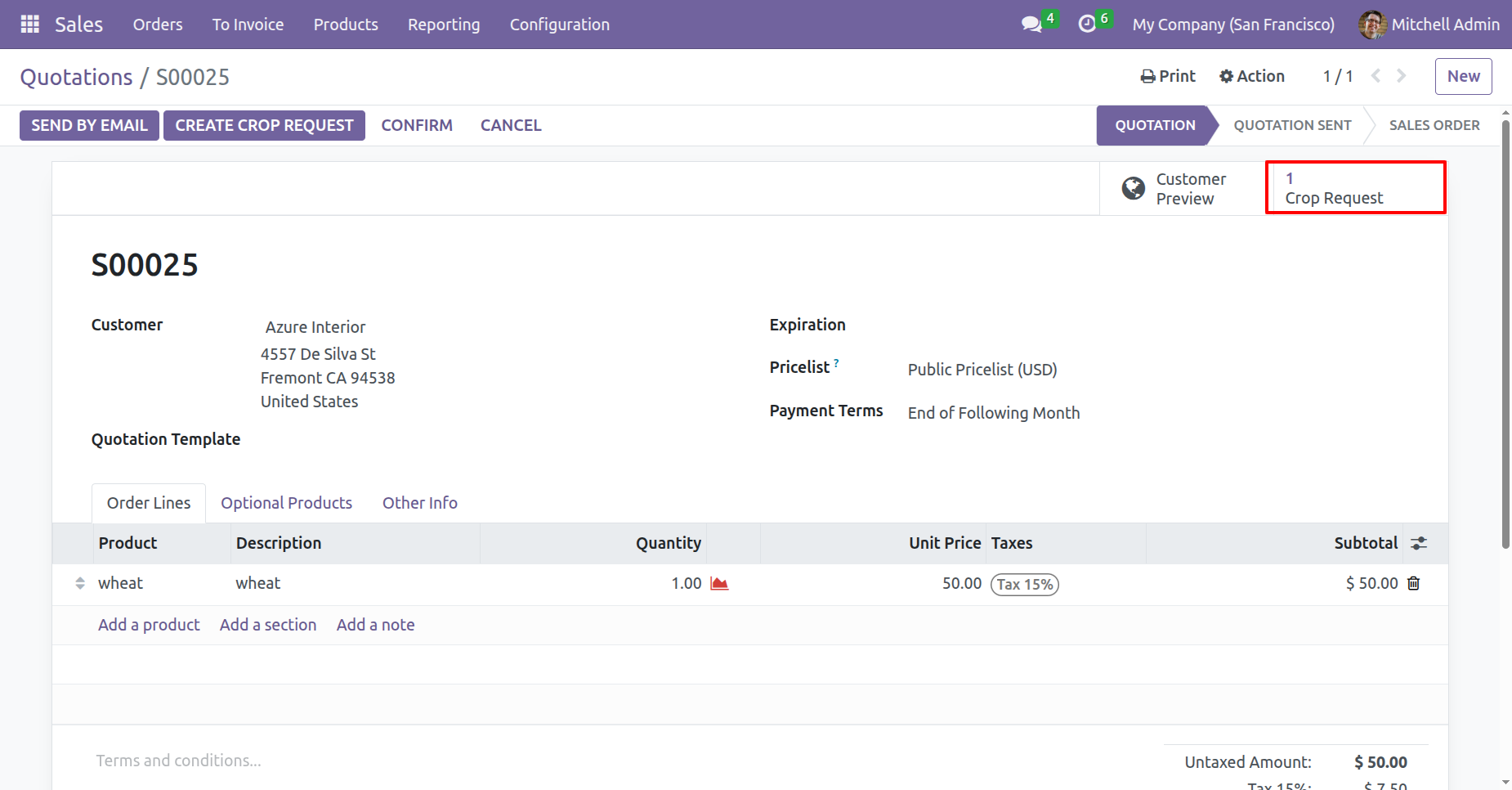
In the Sales Order, the Crop Request smart button will be available.
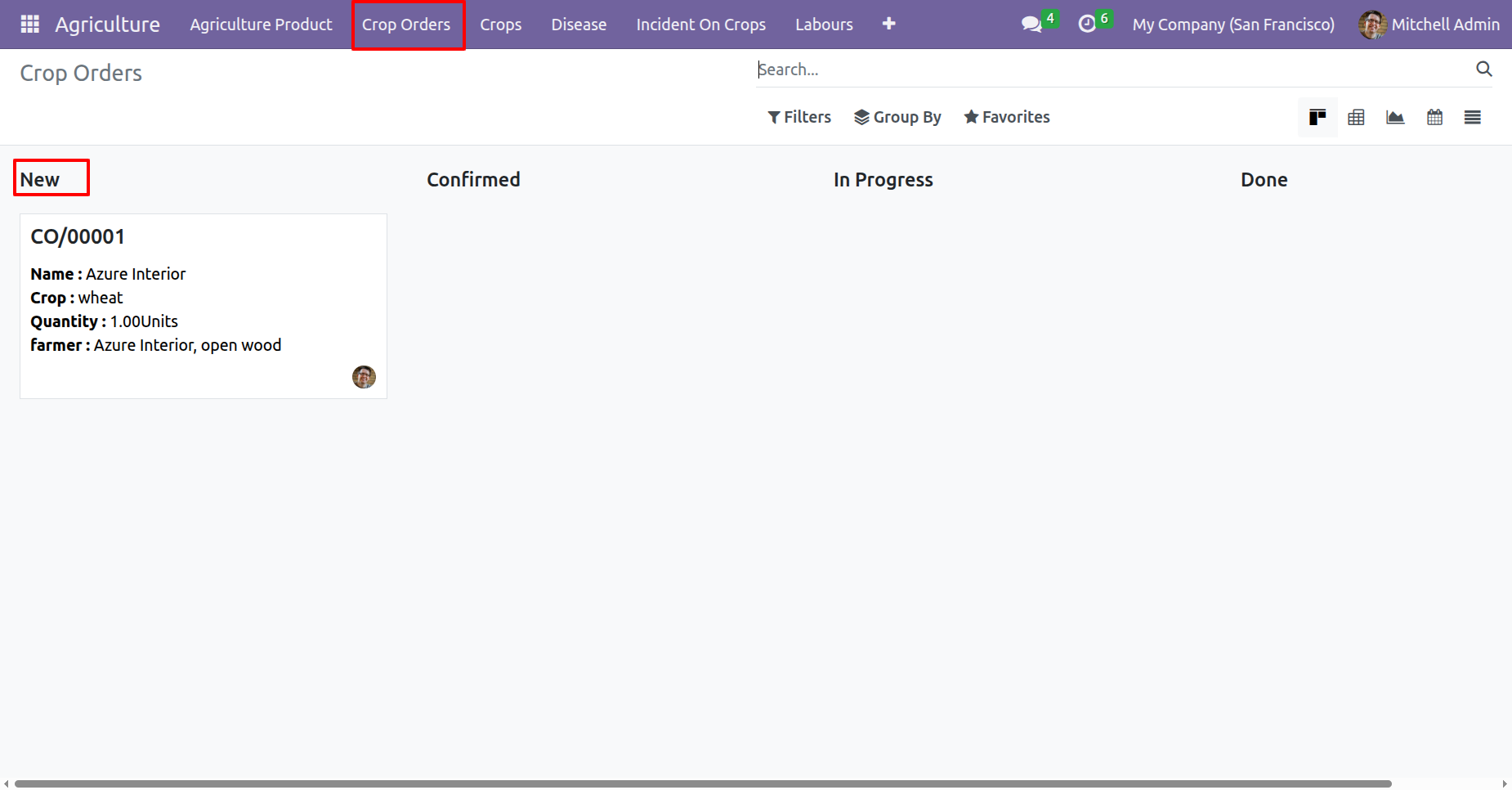
'Crop Orders' menu and kanban view.
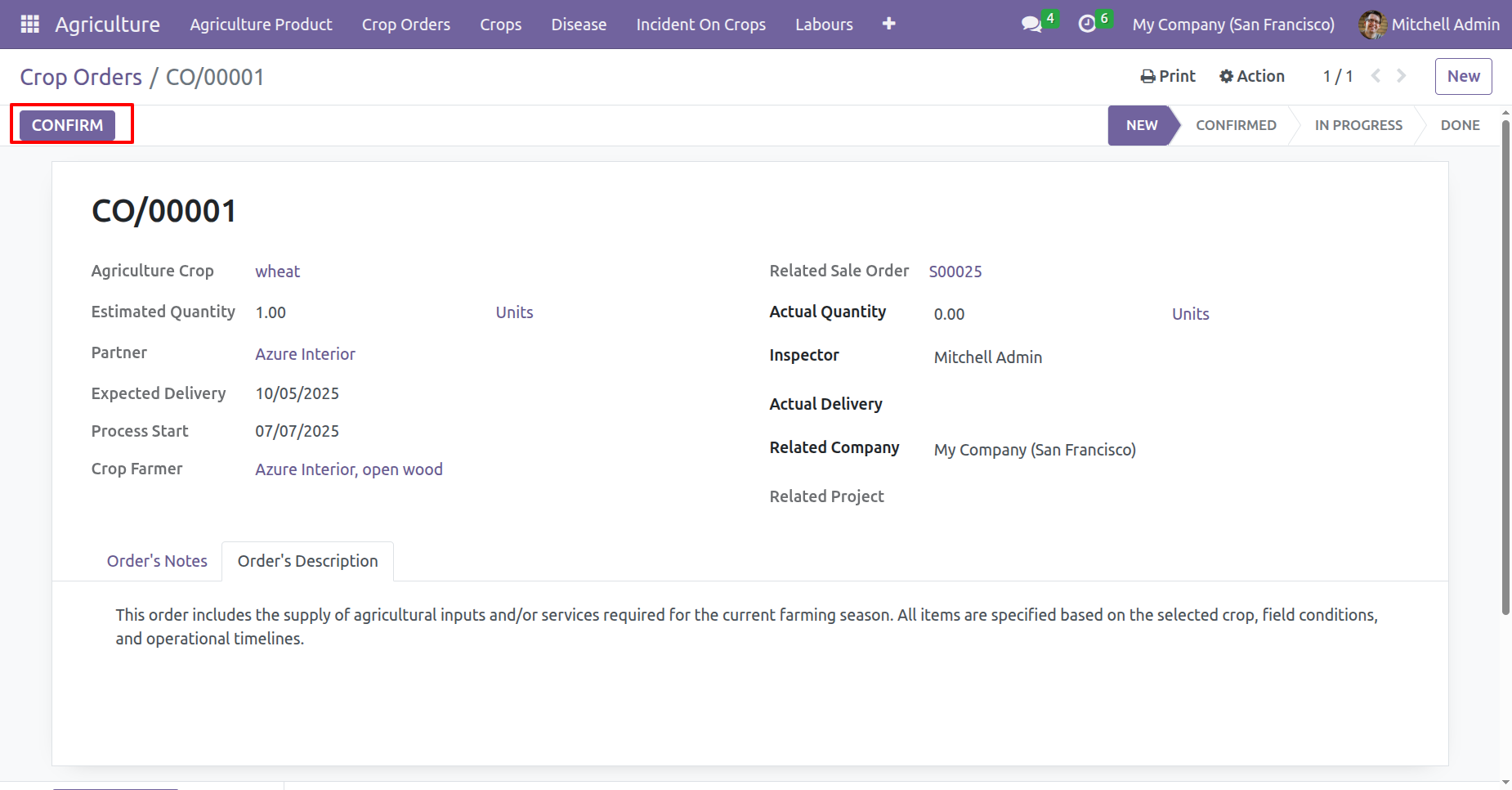
Form view of the crop orders. Click on the 'Confirm' button.
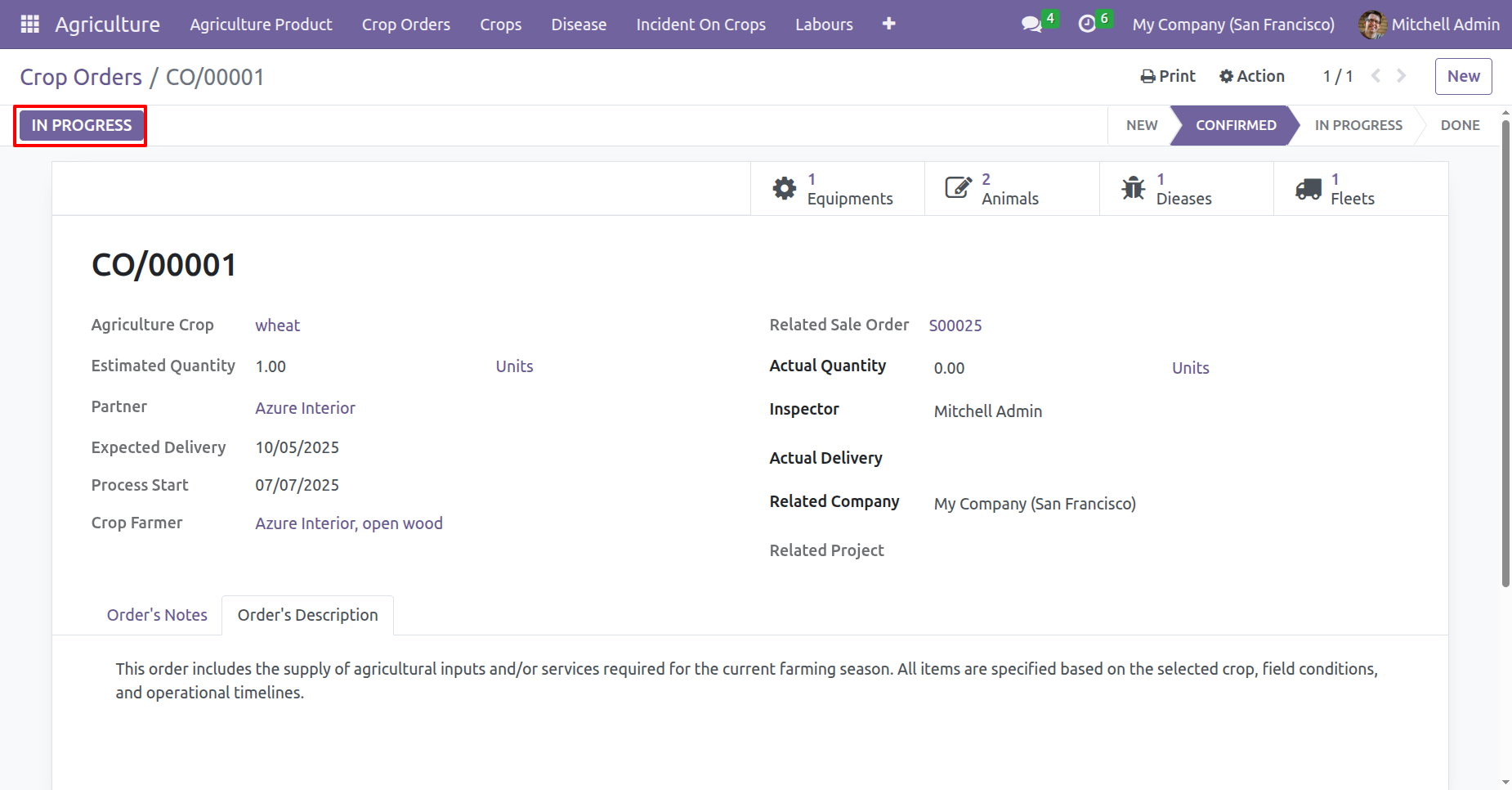
Click on the 'In Progress' button.
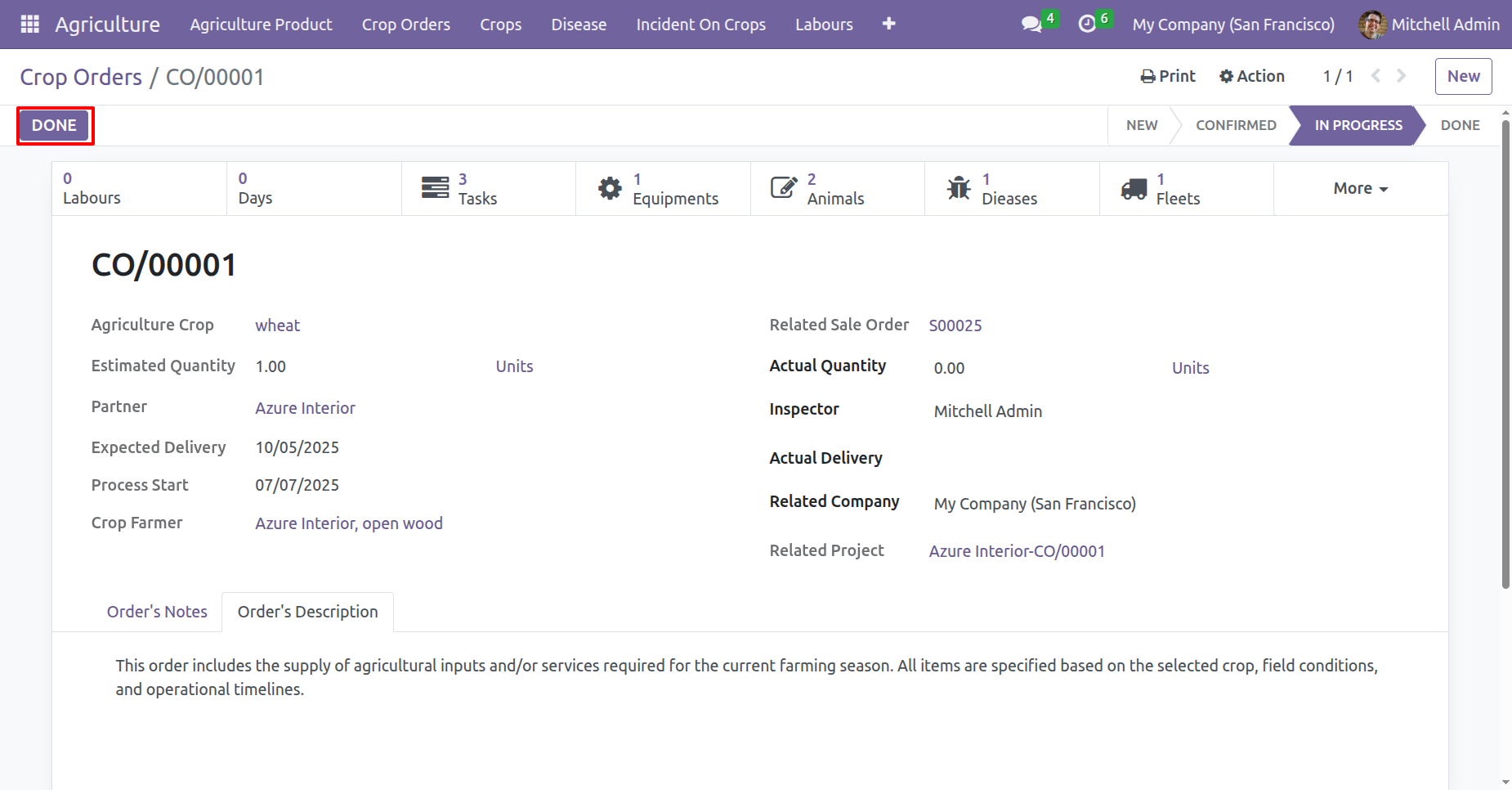
Click on the 'Done' button.
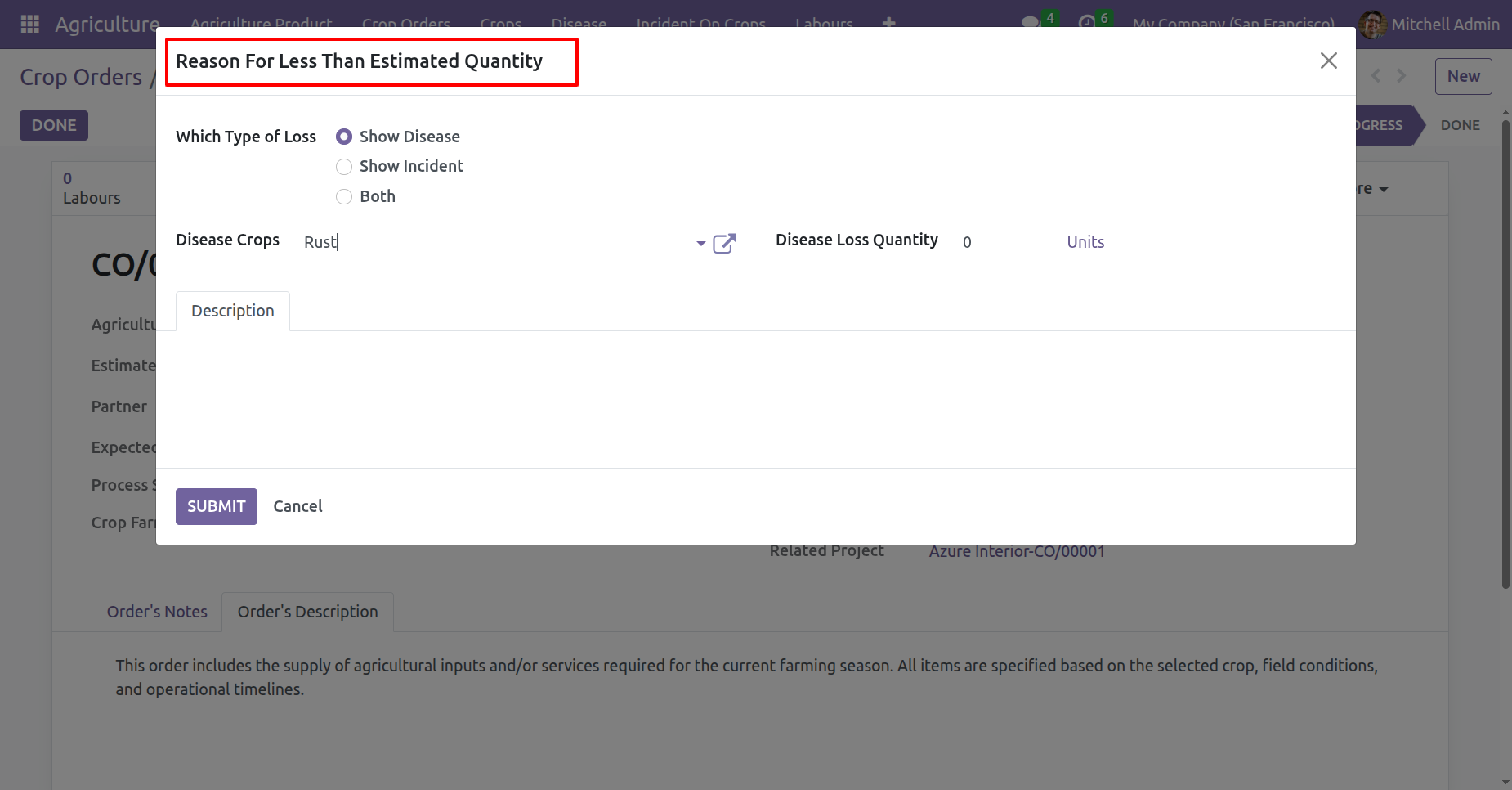
If the actual quantity is less than estimated quantity, a wizard will appear. Fill the details and click on the 'Submit' button.
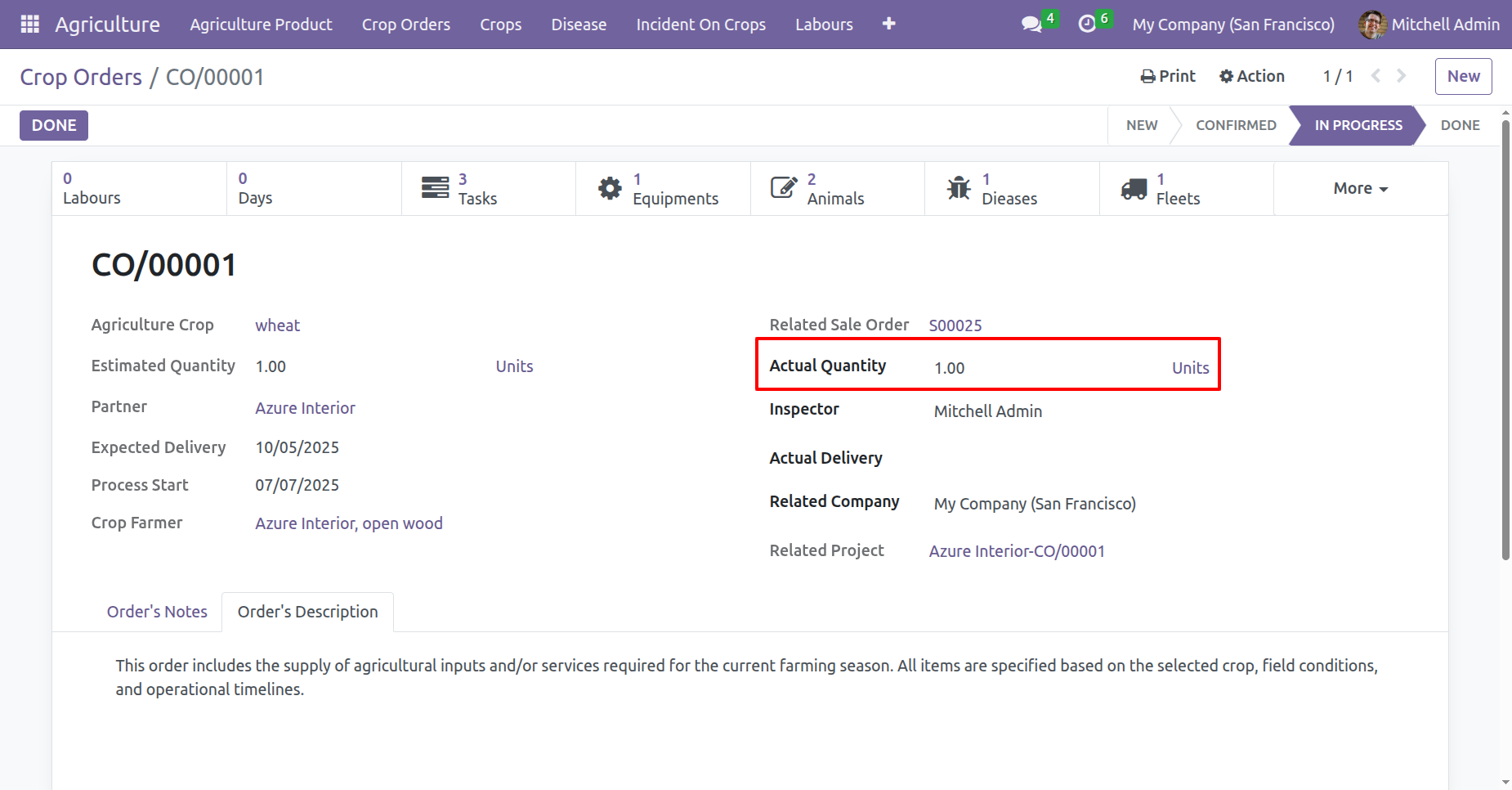
Add Actual Quantity and click on the 'Done' buton..
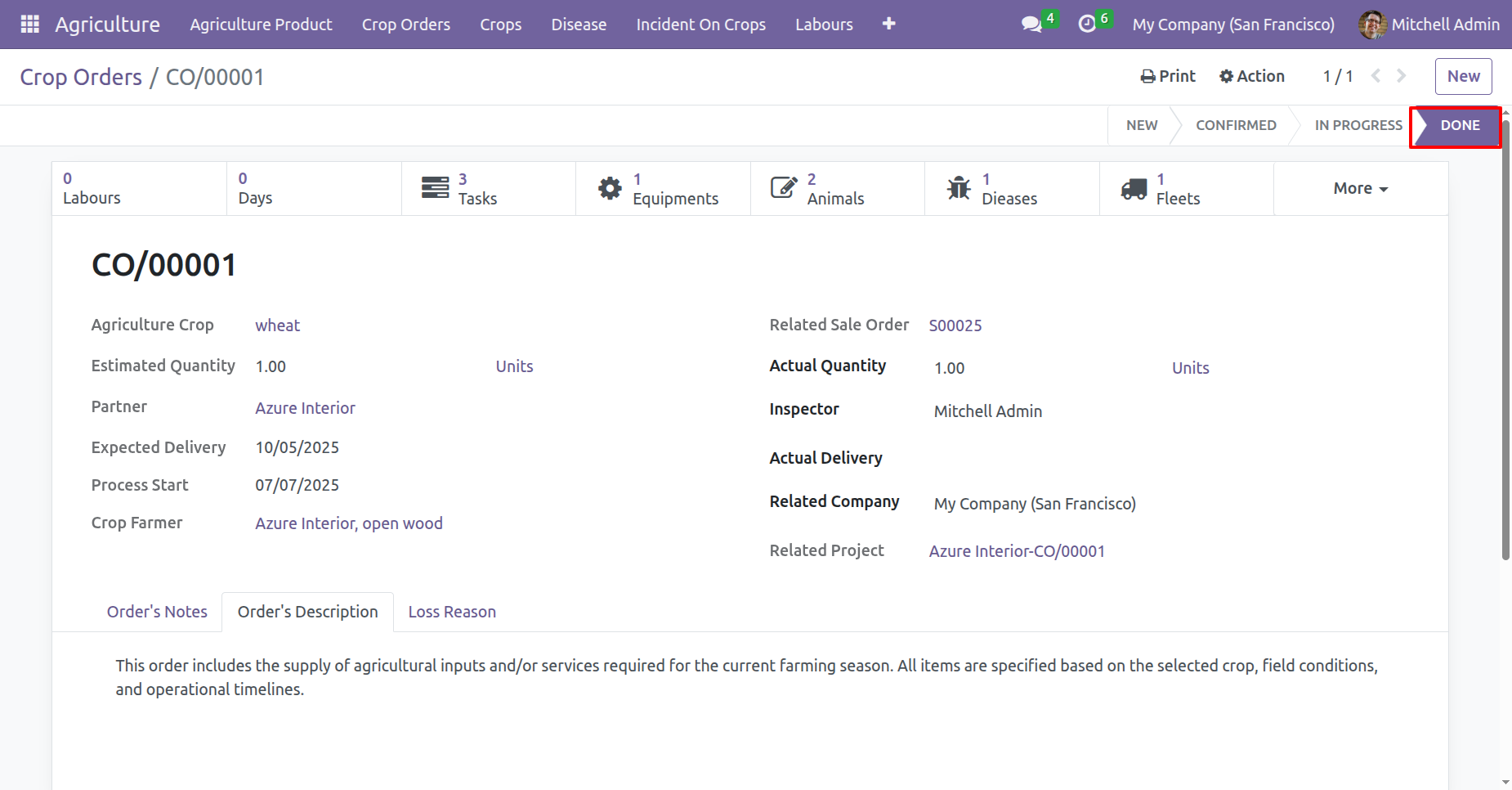
The crop order is now marked as Done.
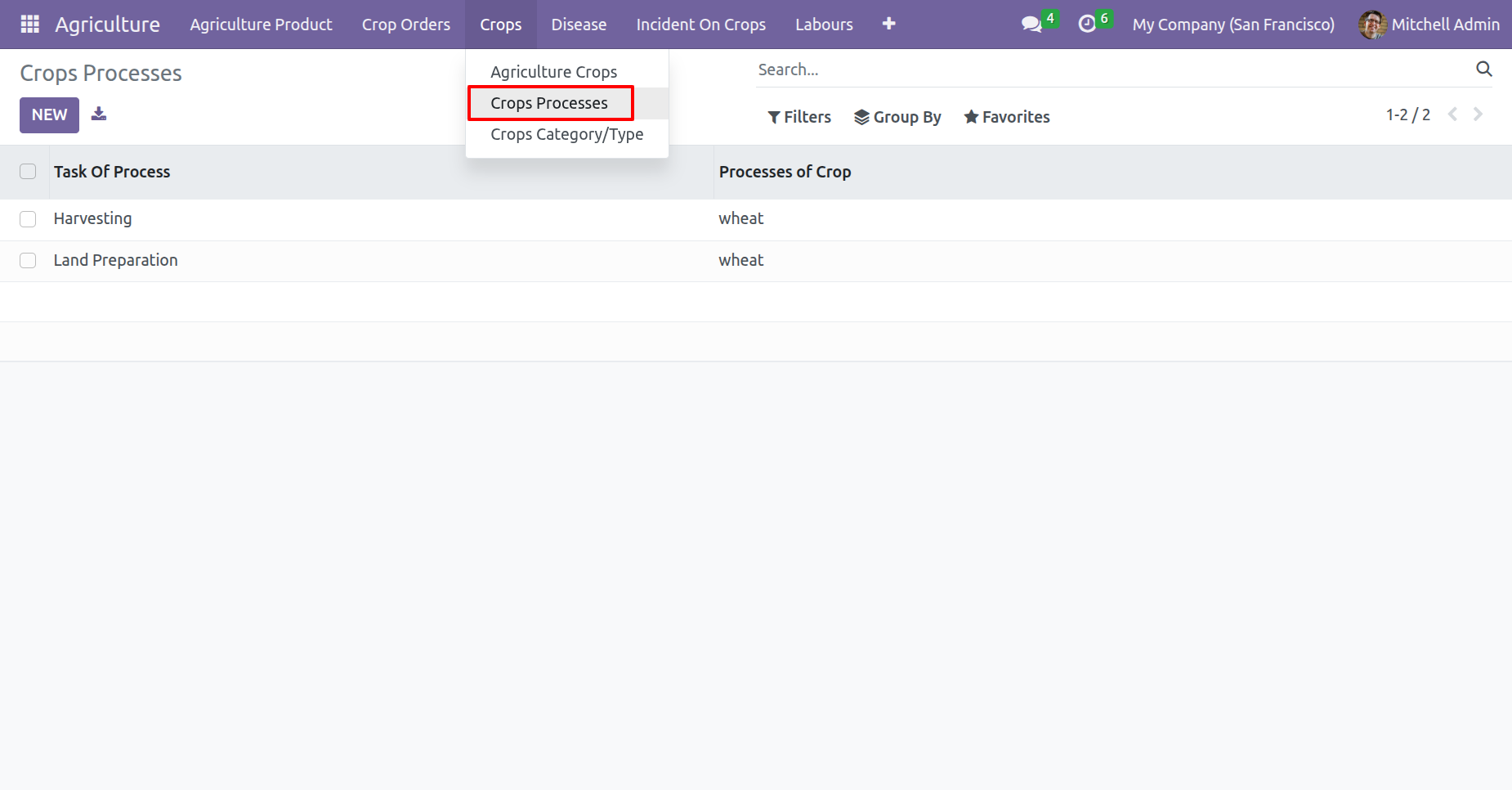
'Crops Processes' menu and tree view.
Form view of the 'Crops Processes'.
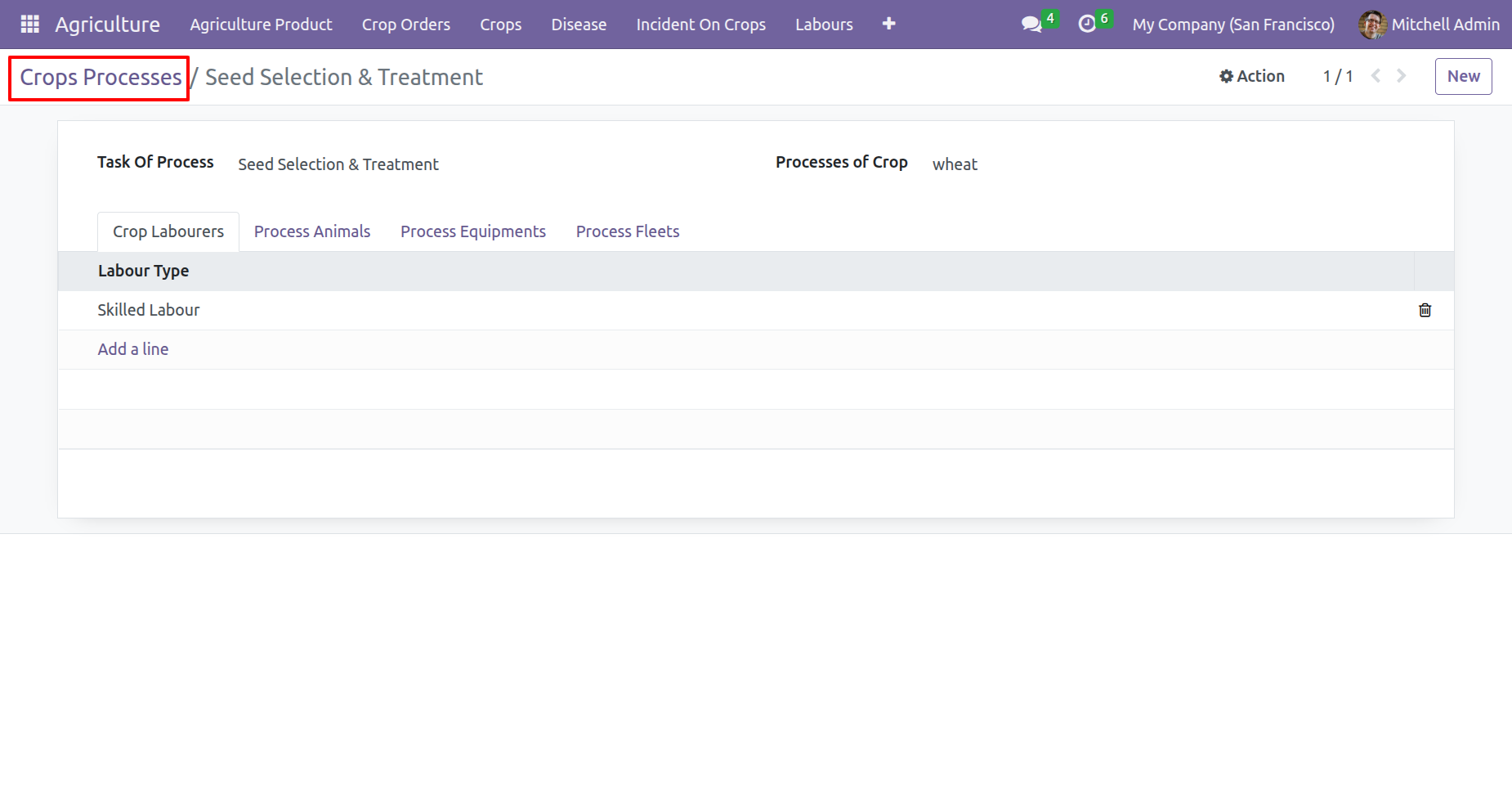
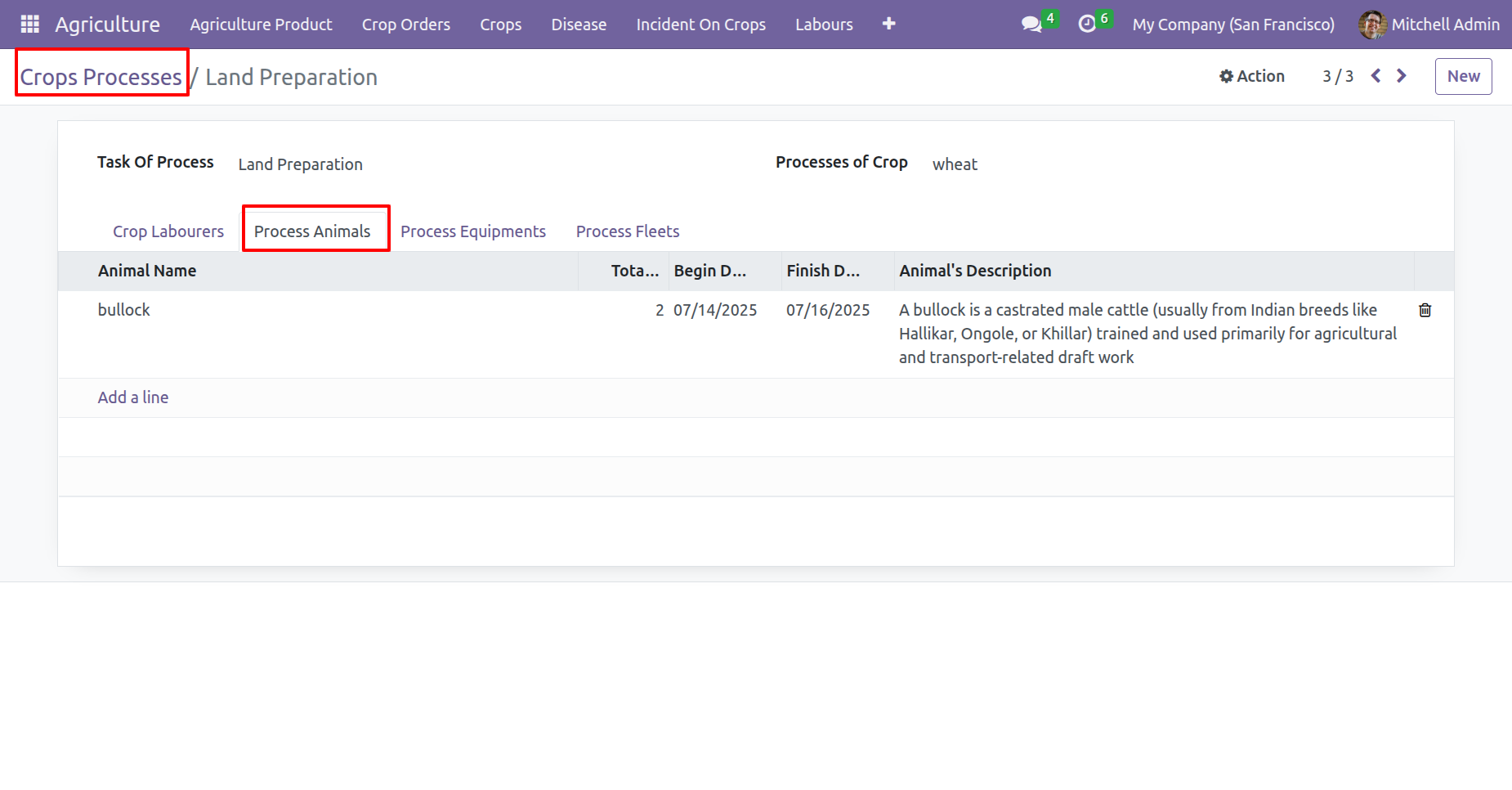
Add animal information under the 'Process Animals' tab.
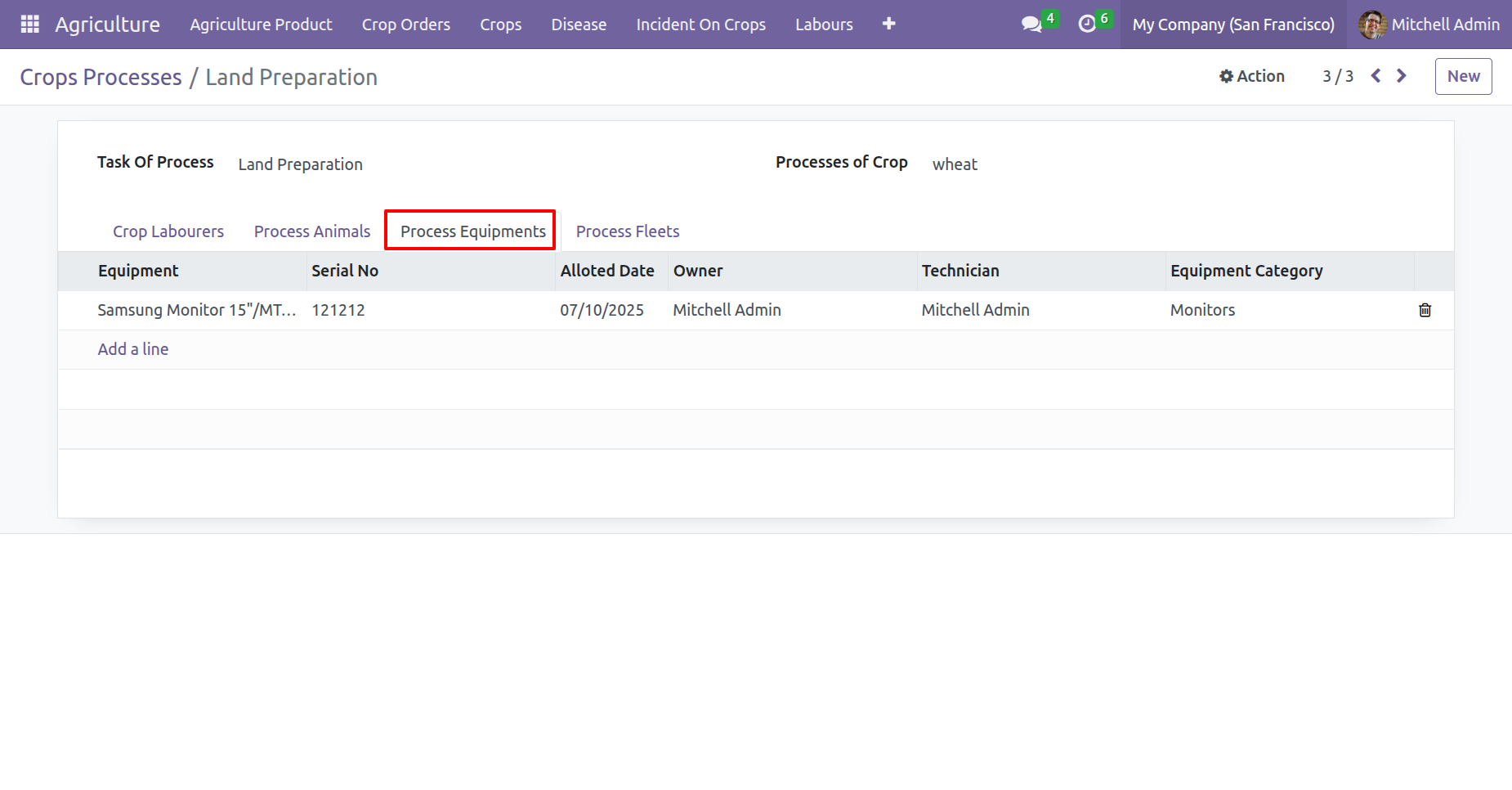
Add Equipment information under the 'Process Equipments' tab.
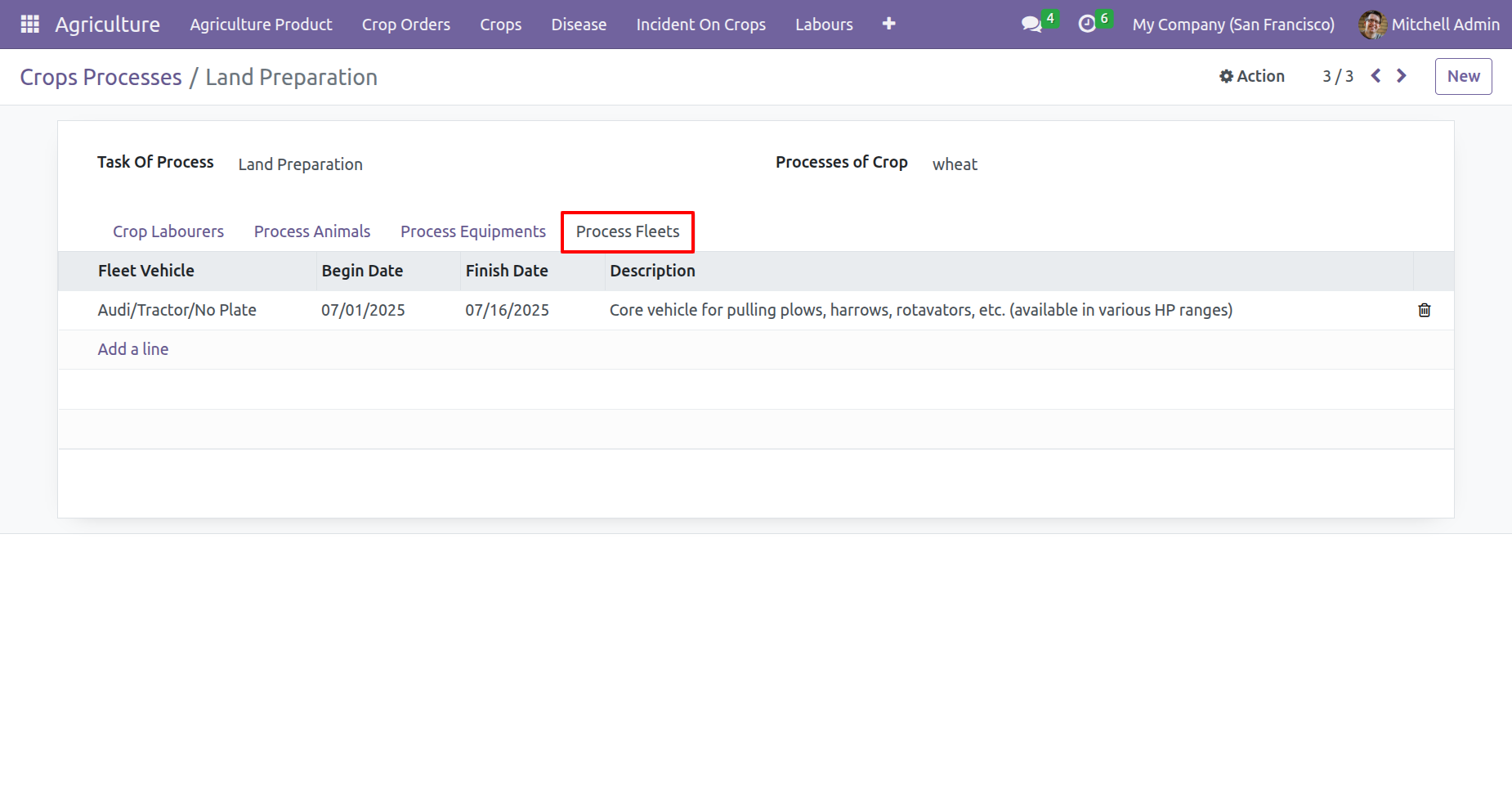
Add Fleets information under the 'Process Fleets' tab.
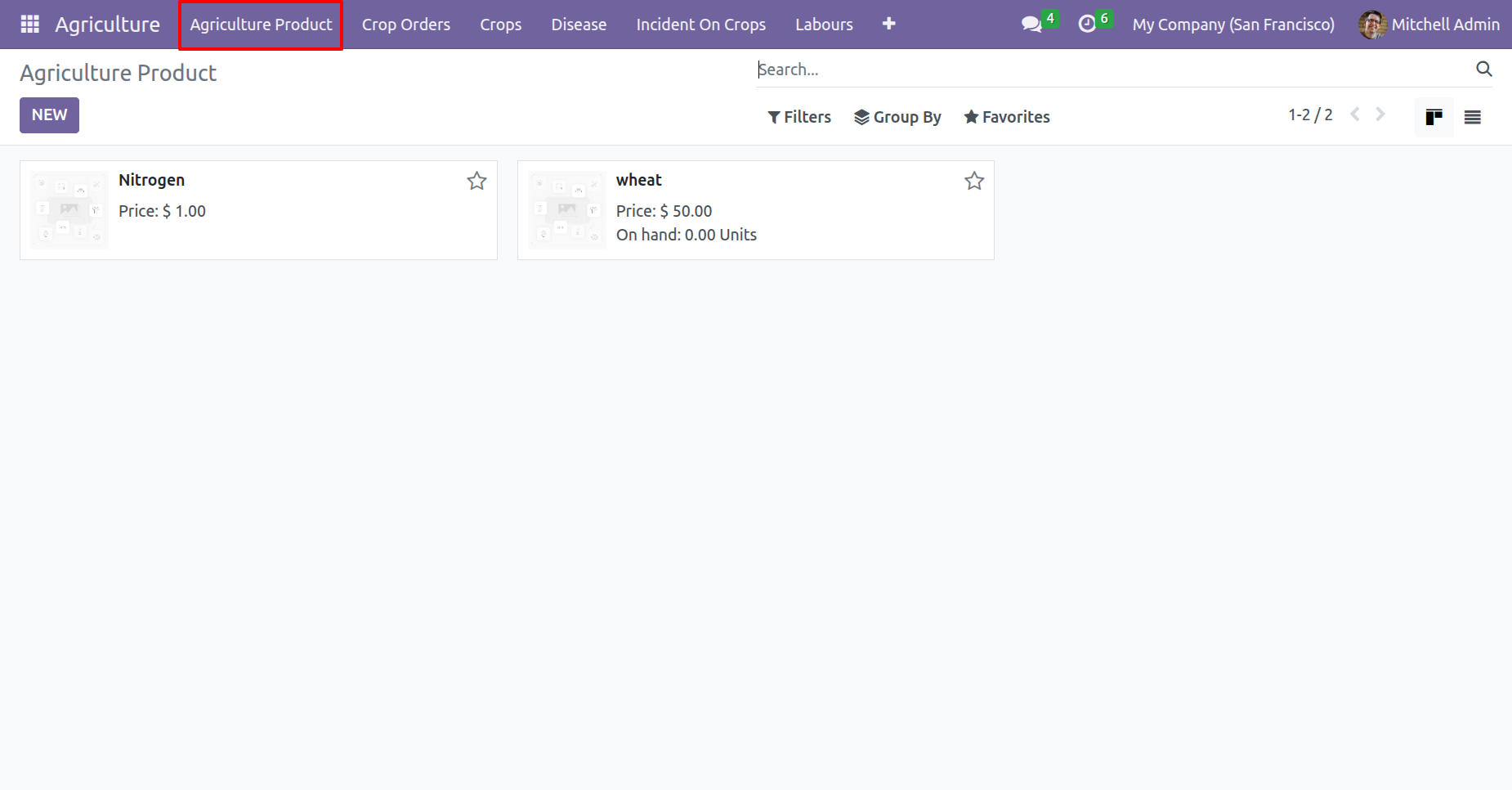
'Agriculture Product' menu and kanban view.
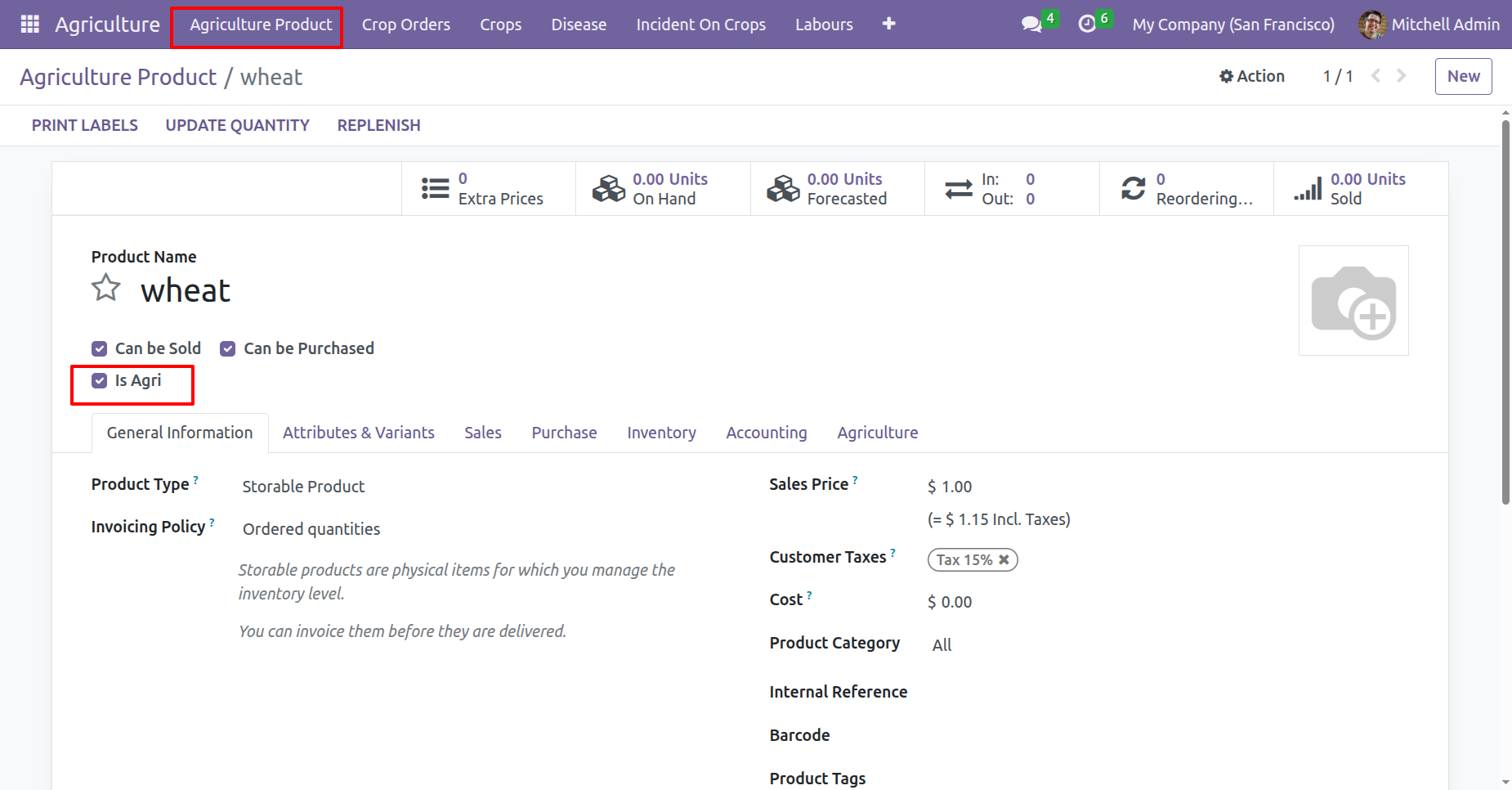
In the Agriculture product, tick the 'Is Agri' boolean.
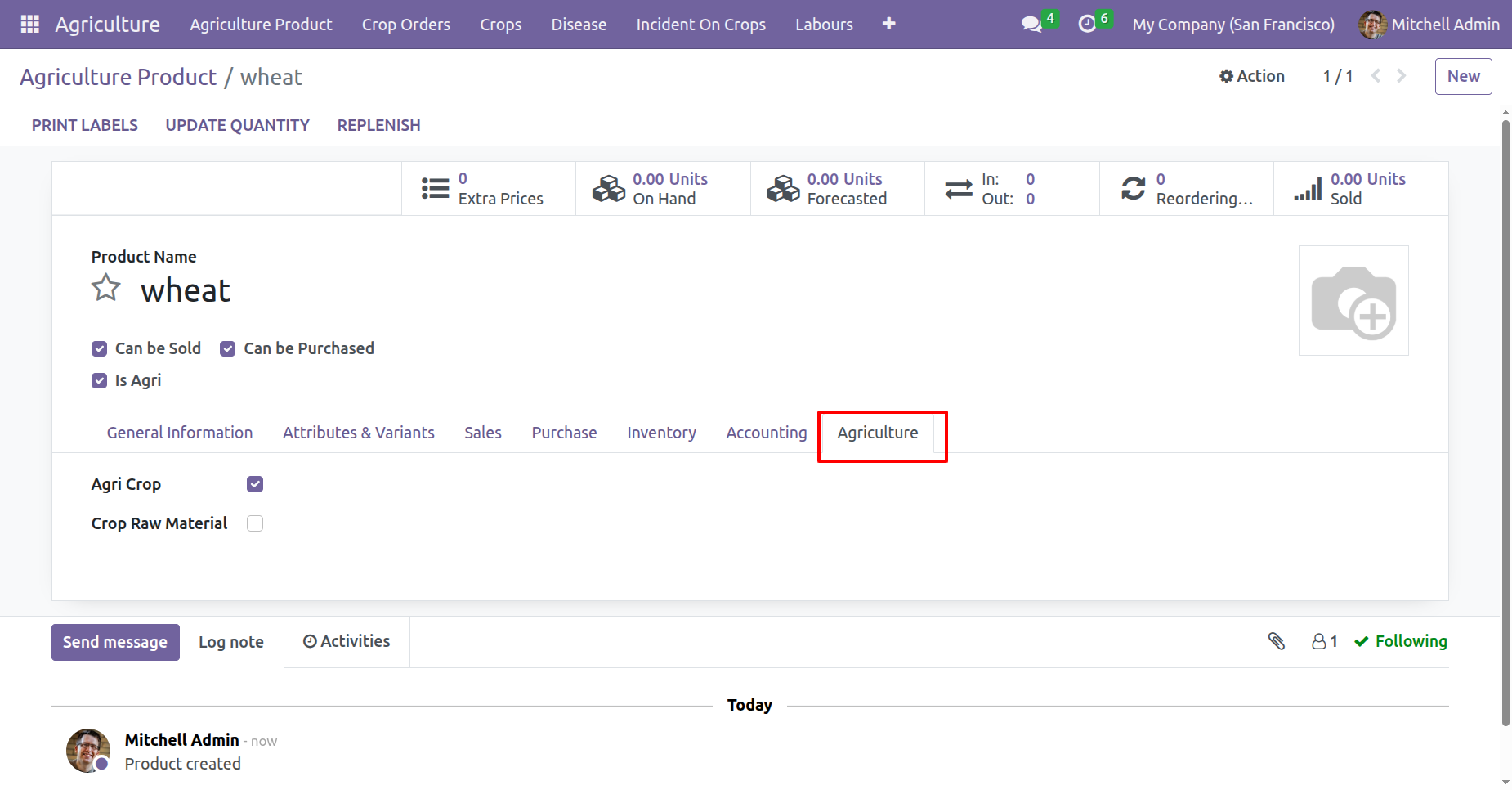
In the Agriculture tab, enable the 'Agri Crop' boolean if the product is a crop.
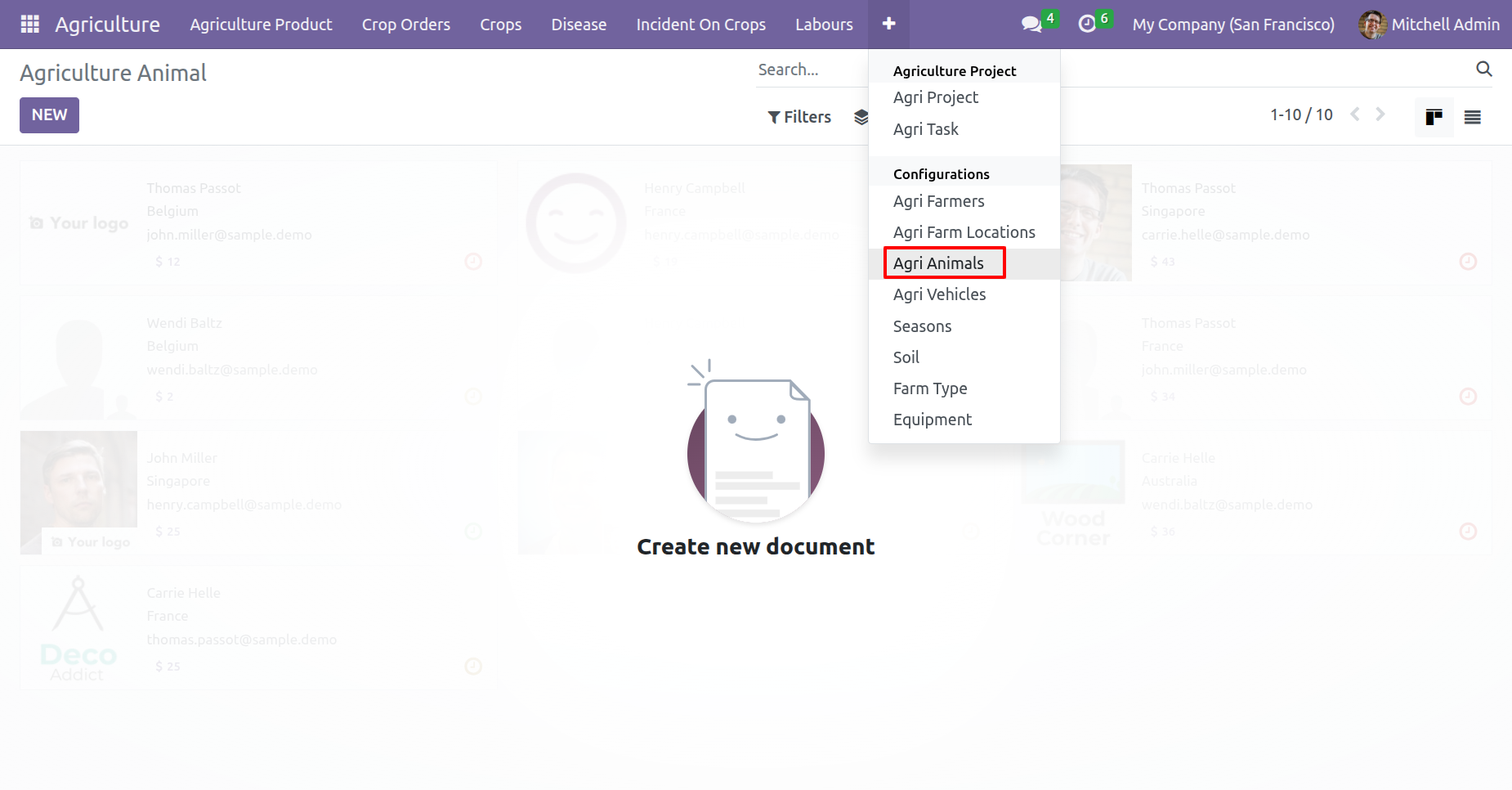
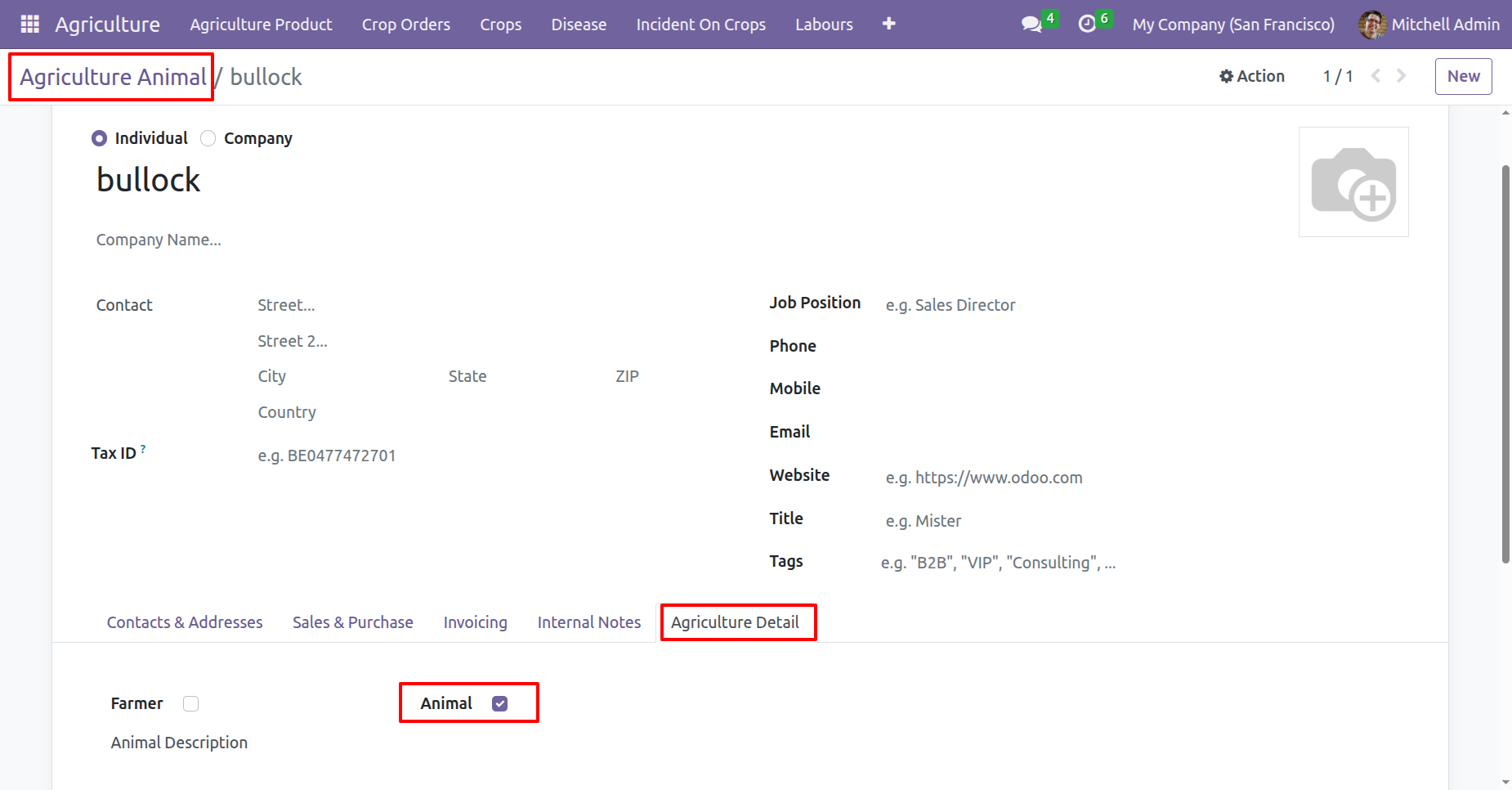
Agriculture Animal menu and kanban view.
In the agriculture animal form, open the Agriculture Detail tab and tick the 'Animal' boolean.
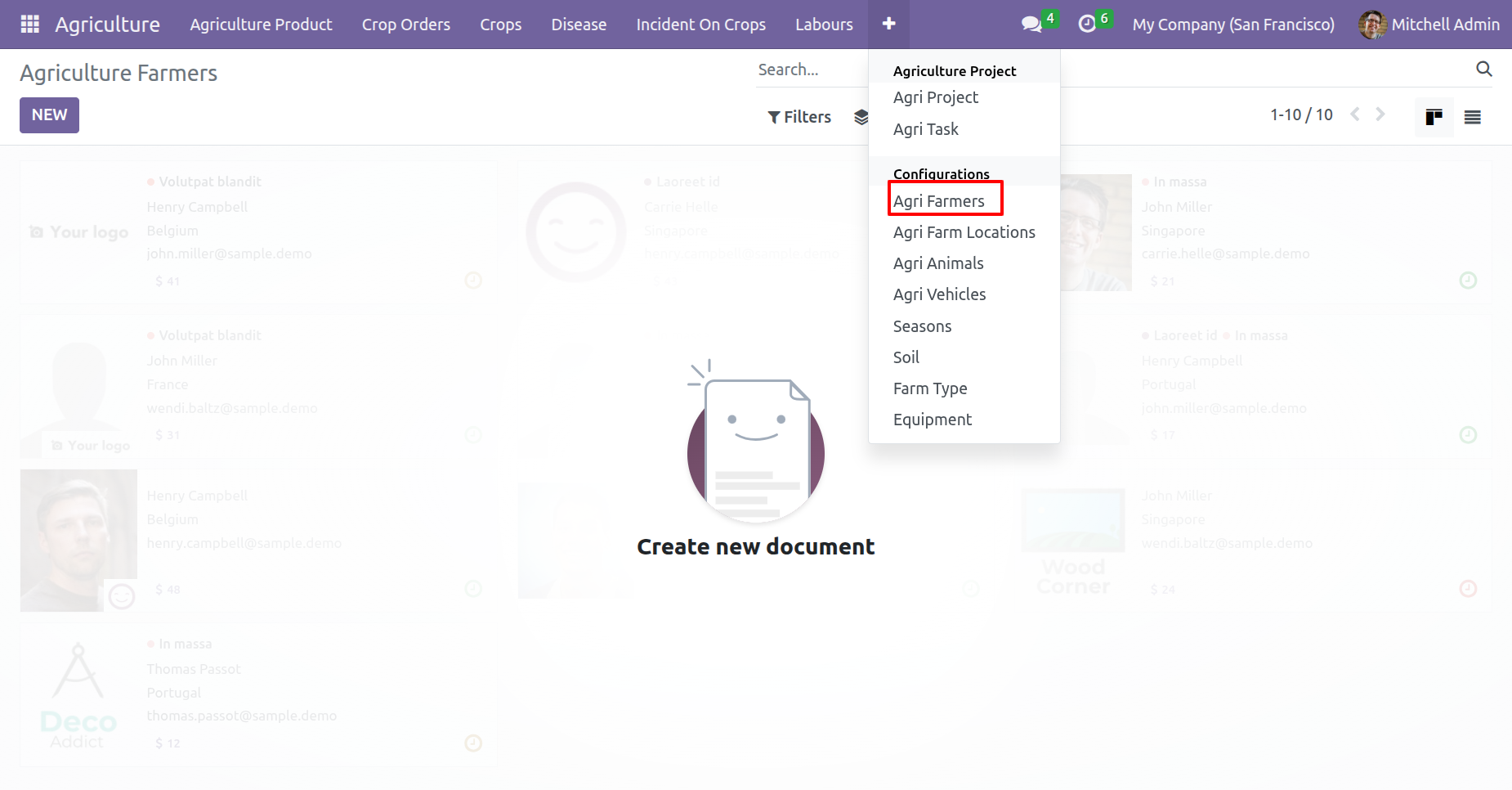
Agri Farmers menu and kanban view.
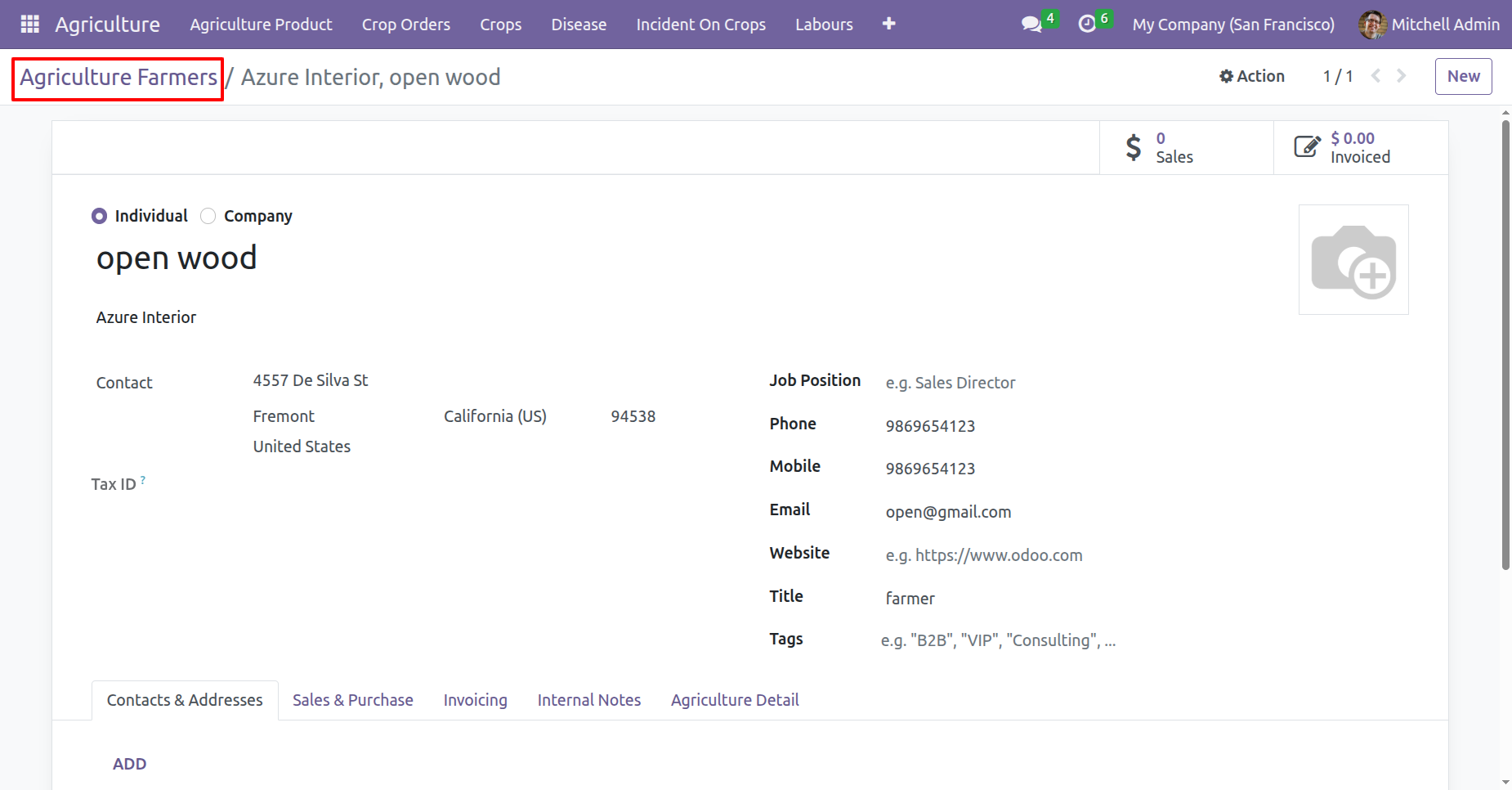
Create an agriculture farmer.
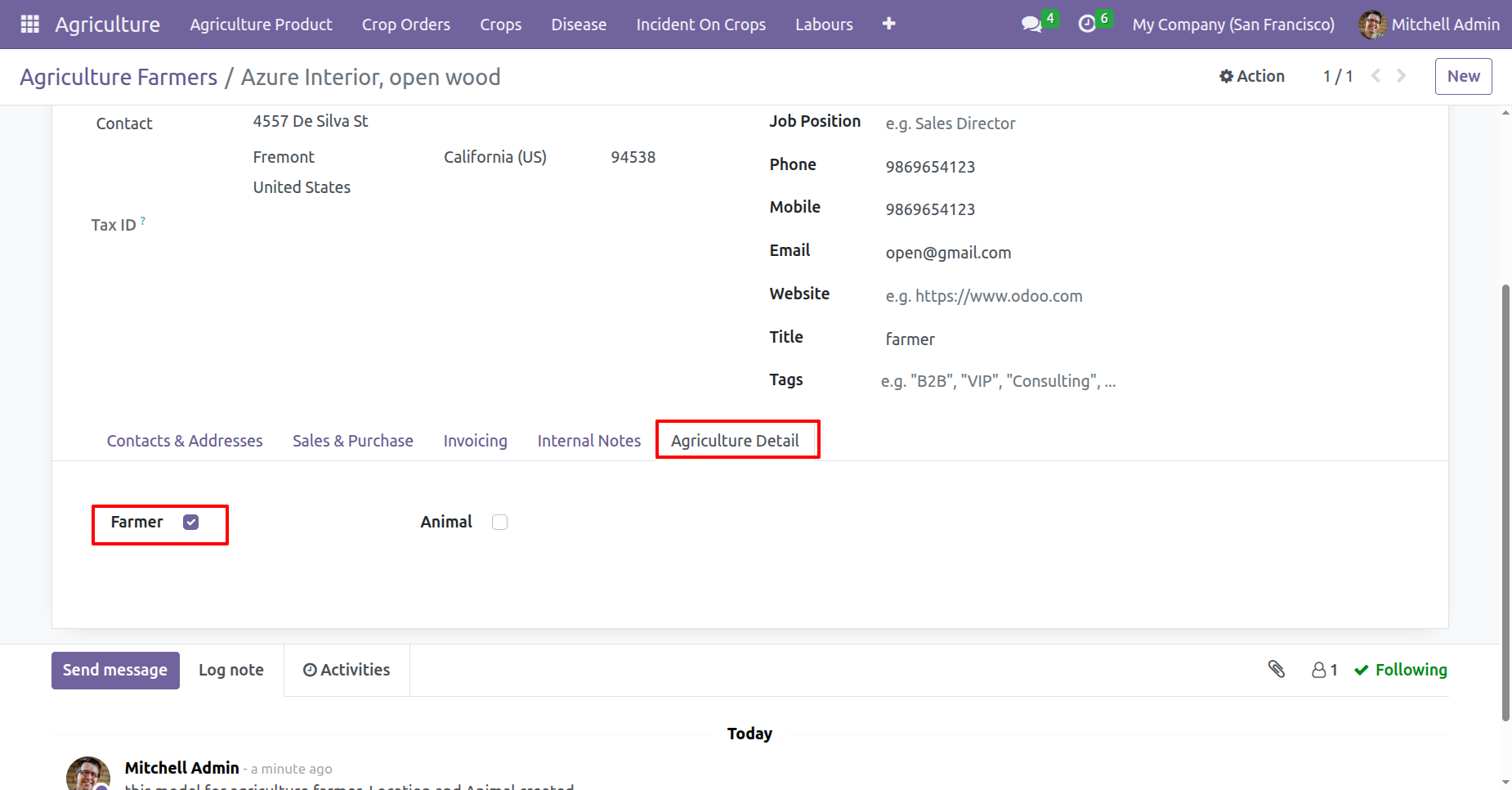
In the Agriculture Detail tab, enable the 'Farmer' boolean.
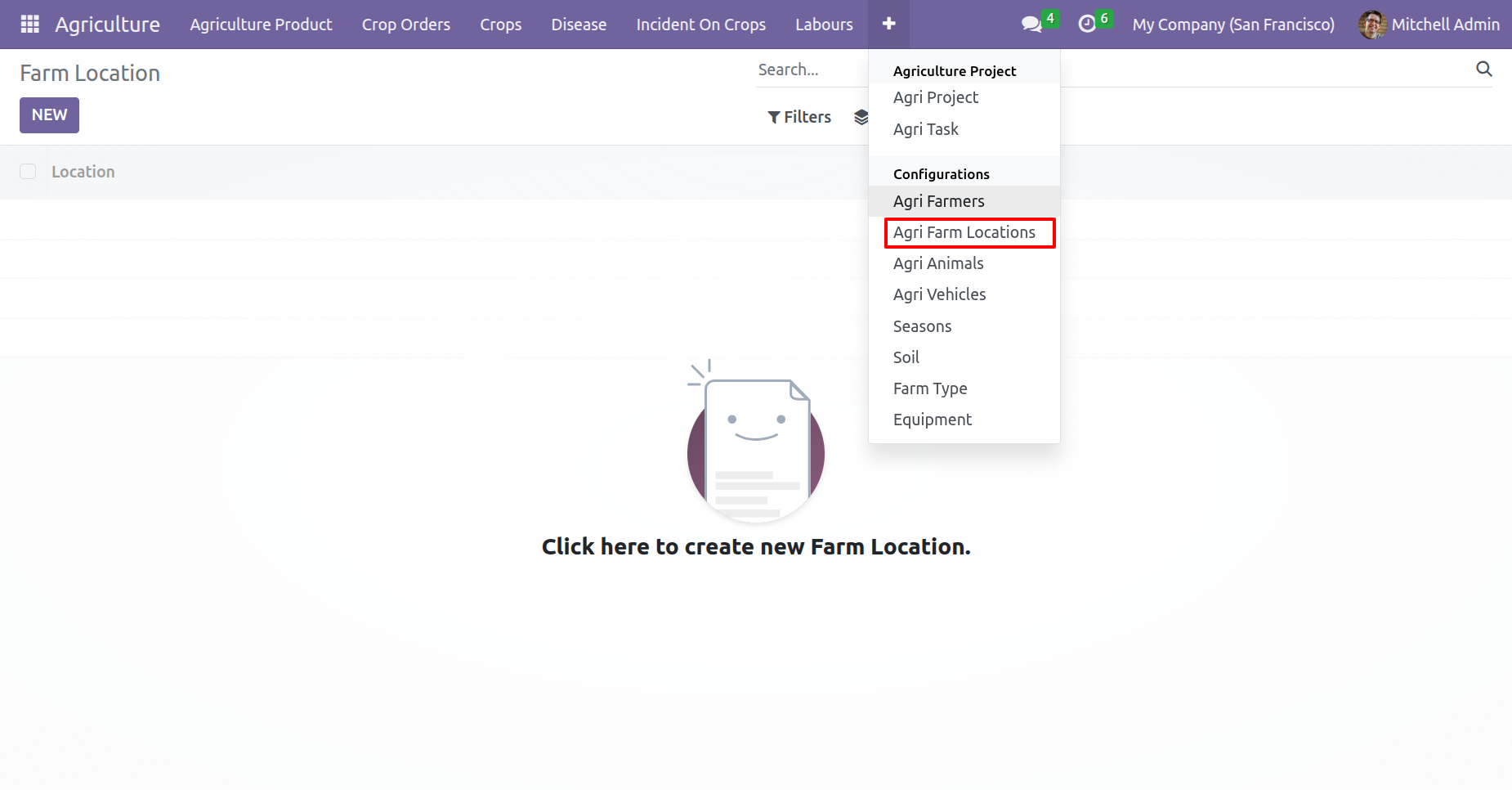
Agri Farm Locations menu and kanban view.
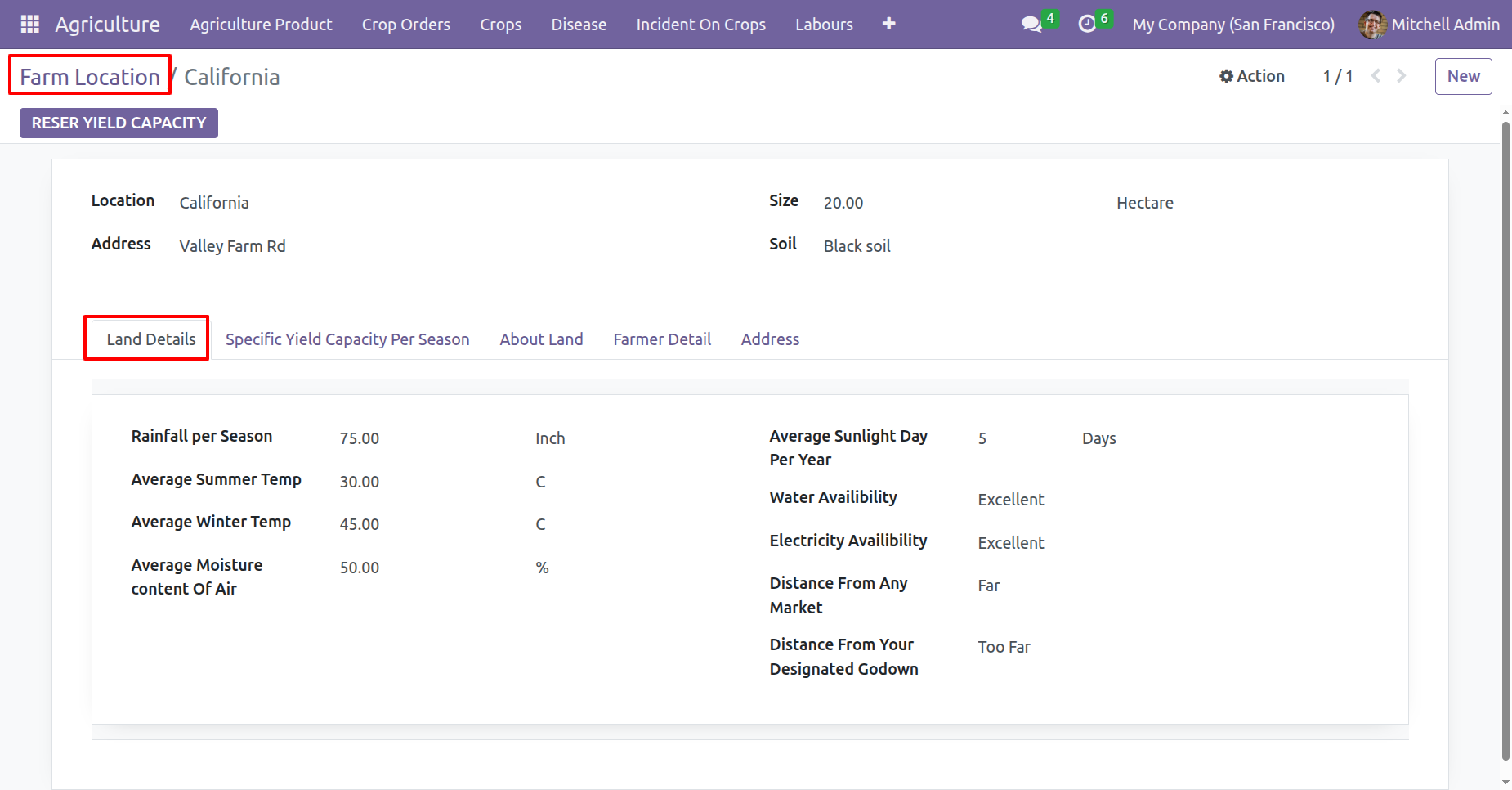
In the farm location form view, fill the land details.
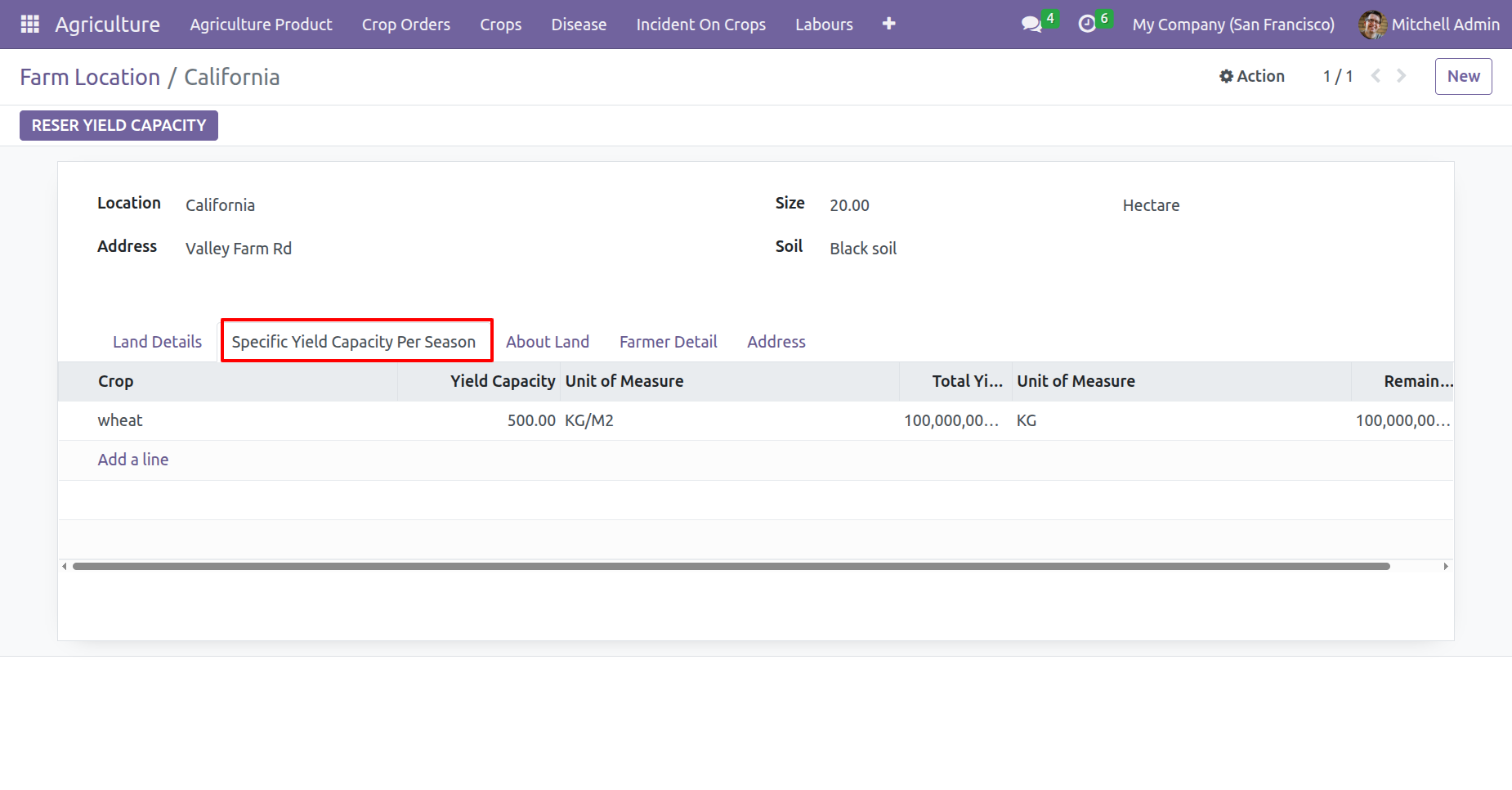
Add details under the 'Specific Yield Capacity Per Season' tab.
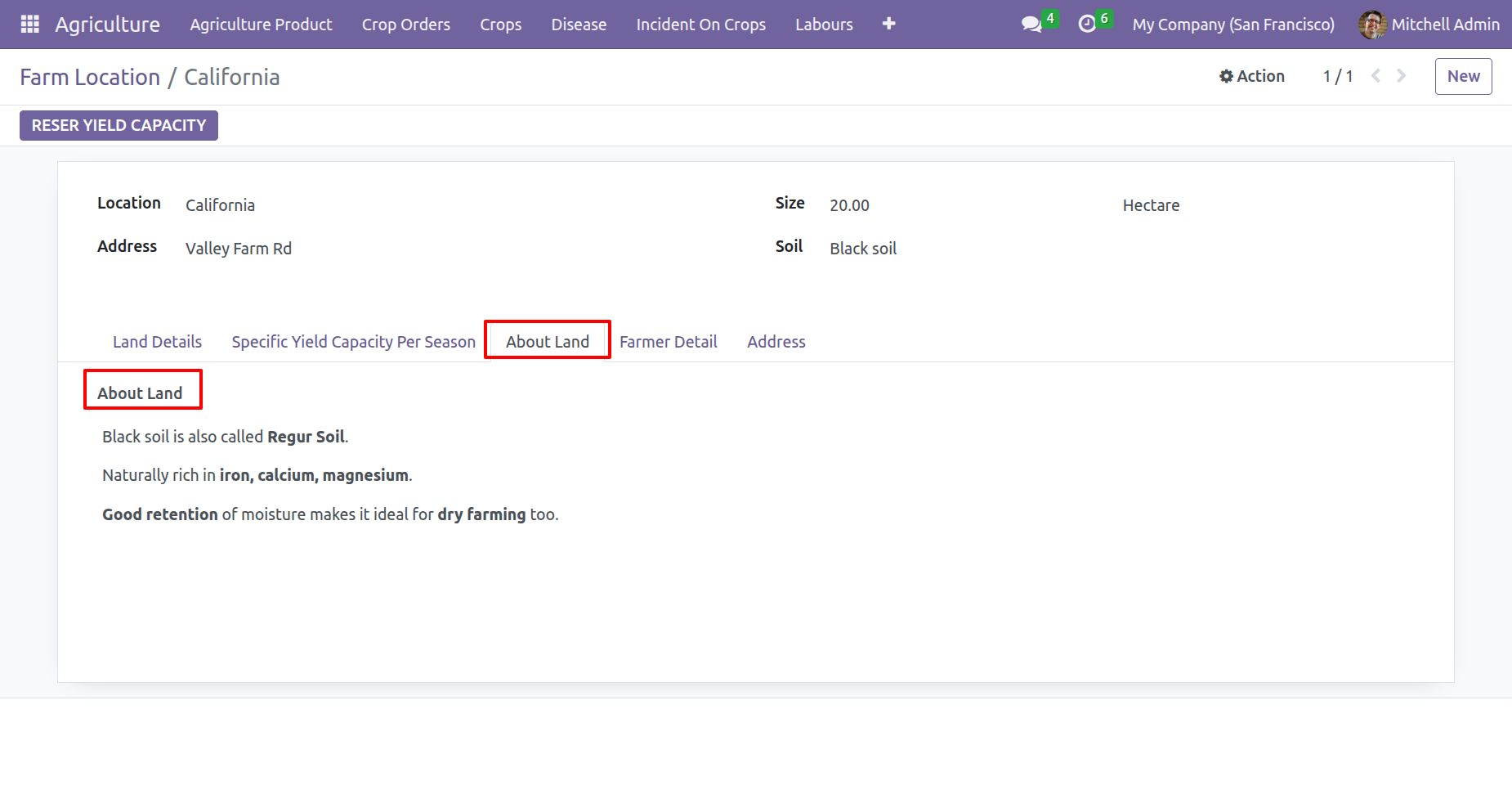
Add land information under the 'About Land' tab.
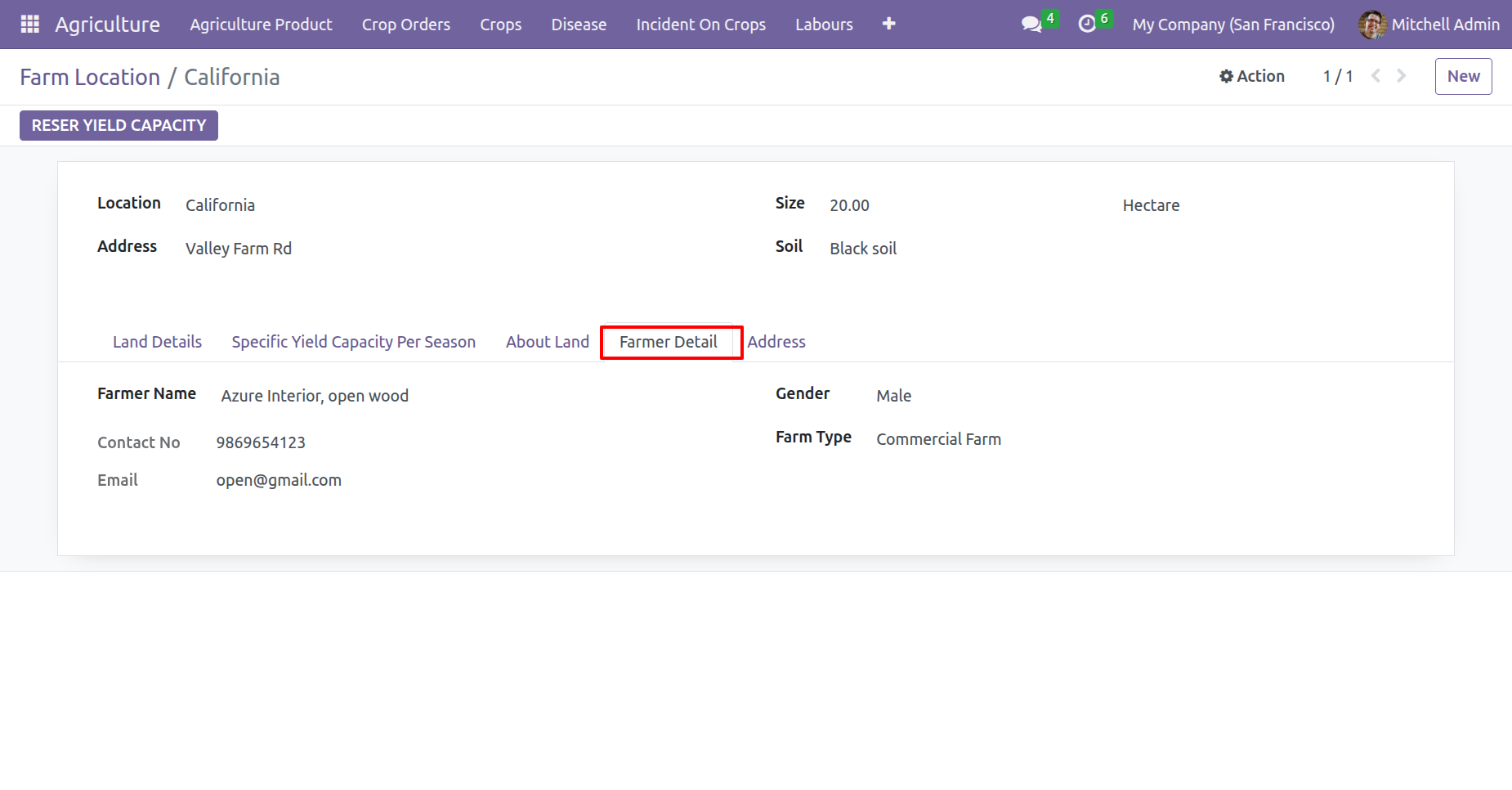
Add farmers information in the 'Farmer Detail' tab.
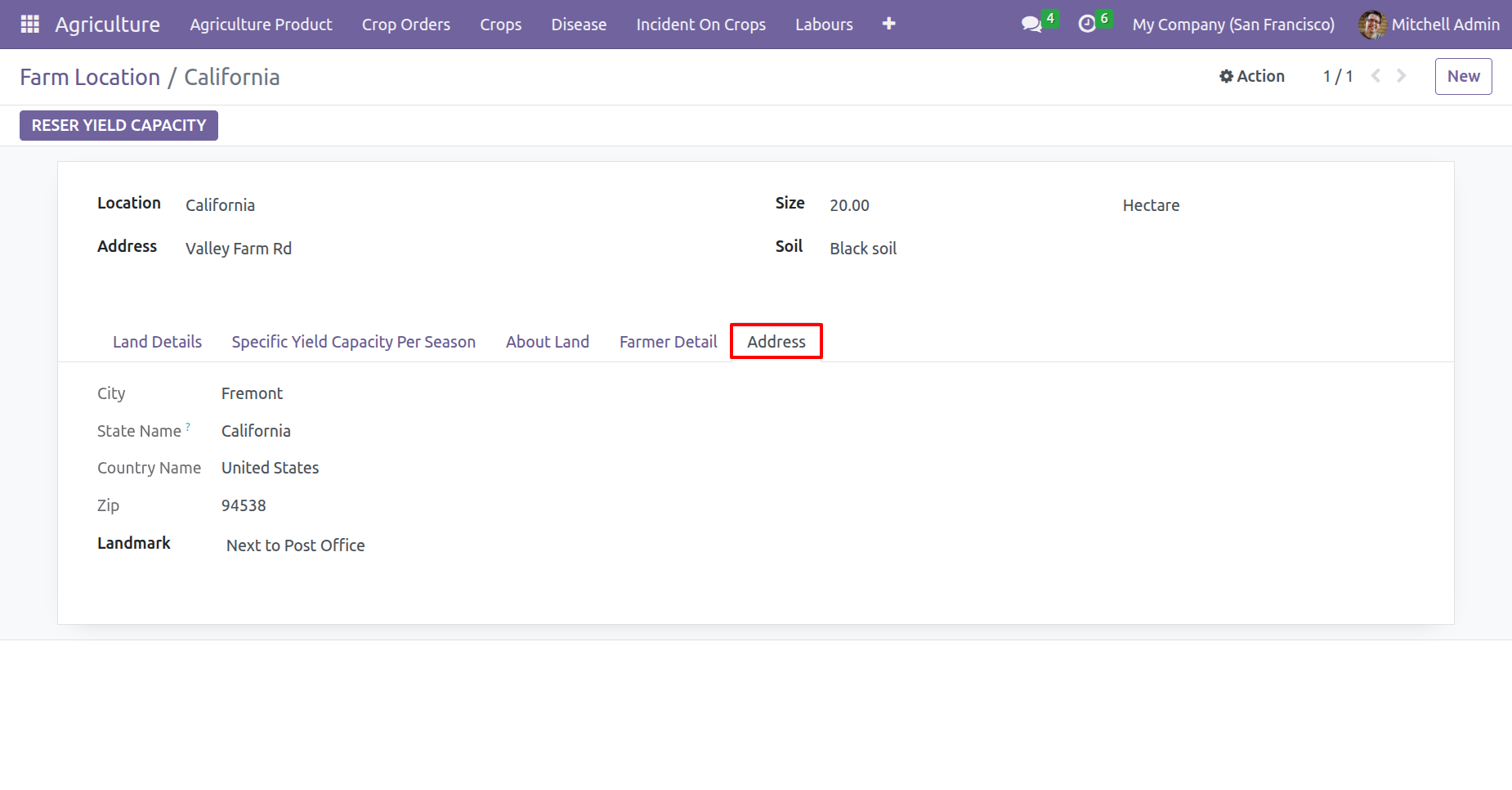
Specify the farm address in the 'Address' tab.
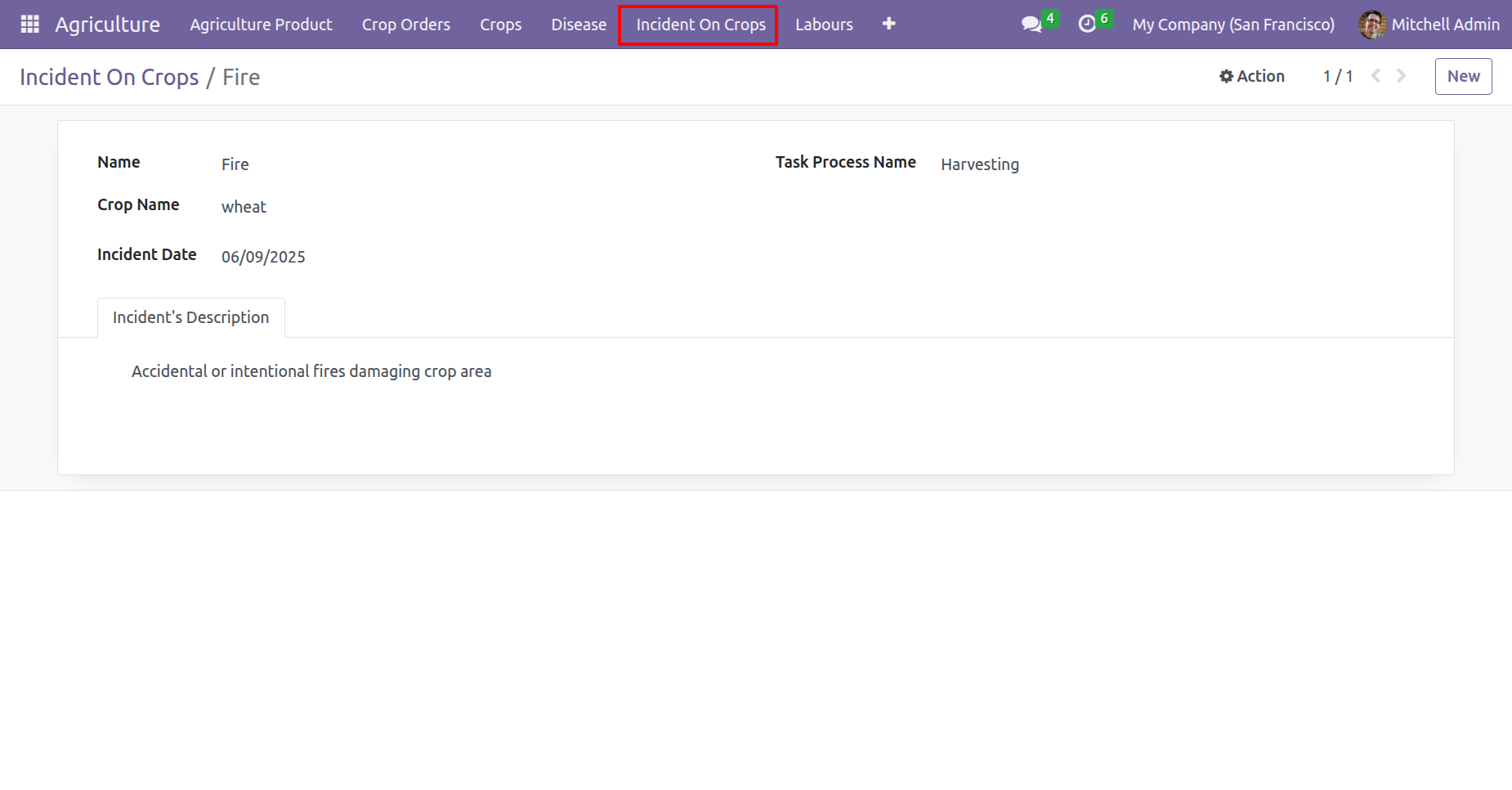
Form view of the 'Incident On Crops'.
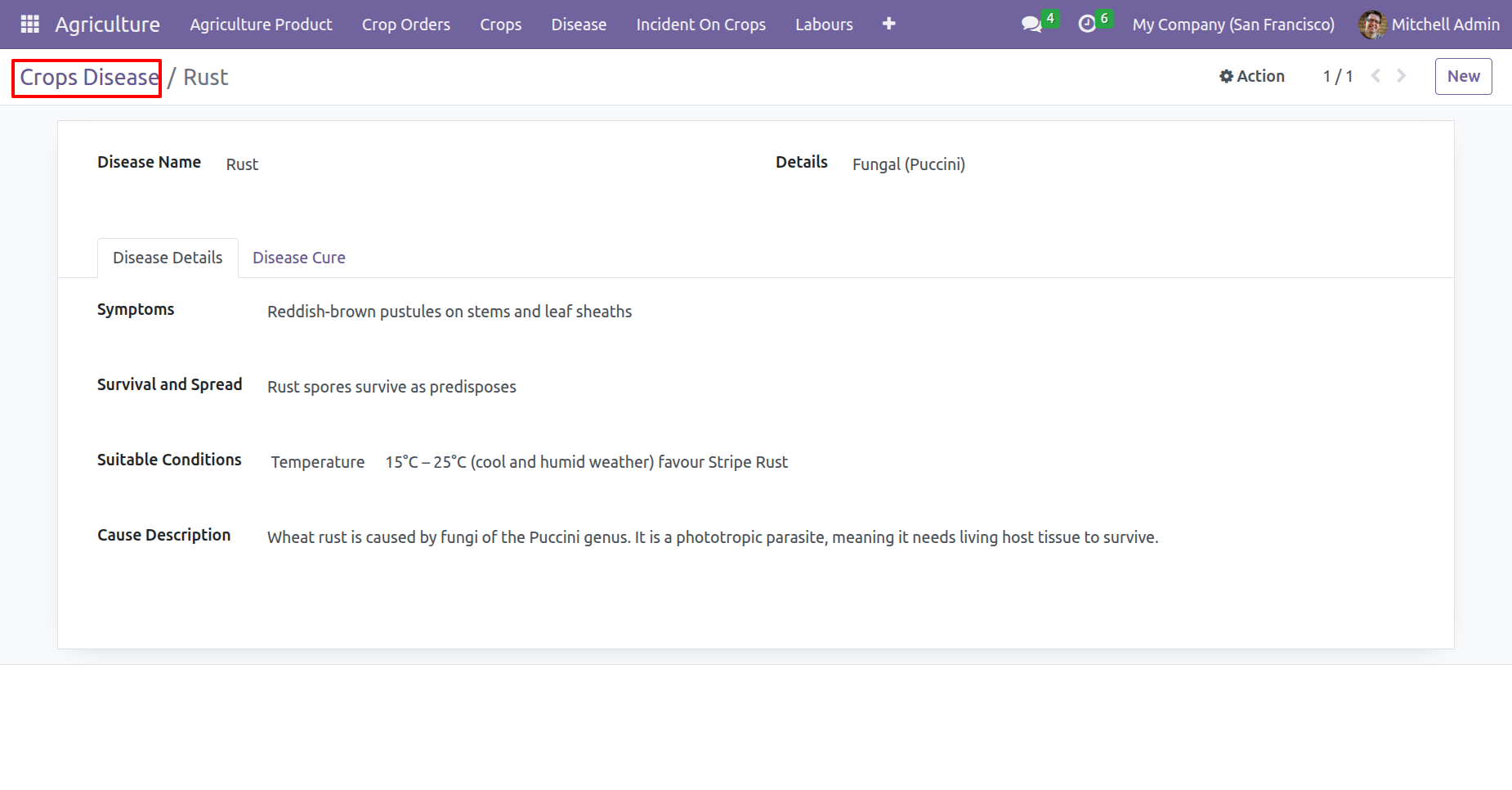
Form view of the 'Crops Disease'.
Version 17.0.1.0.0 | Released on : 10th February 2026
- Yes, this app works perfectly with Odoo Enterprise (Odoo.sh & Premise) as well as Community.
- No, this application is not compatible with odoo.com(odoo saas/Odoo Online)
- Yes, to test this module, please contact us at sales@softhealer.com.
- Please contact us at sales@softhealer.com to request customization.
- Yes, we provide free support for 365 days from the date of purchase.
- Yes, you will receive lifetime free updates for the version of the module you purchased.
- No, there is no need to install any additional libraries.
- Yes, for version 12 and above, you need to purchase the module separately for each version you intend to use.
- No, exchanges or refunds are not allowed. Please make sure to select the correct version before purchasing.
- You can contact us at support@softhealer.com for language translation support. We use Google Translator tools to provide translations in multiple languages, so the accuracy may vary. We welcome your suggestions to help improve translations.
