












Affiliate Management System

Streamline affiliate and referral management in Odoo with this powerful Affiliate Management module. Easily manage affiliate programs, commission structures, referral activities, payout workflows, and affiliate portal operations from a centralized system. Configure commission templates, automate commission bill validation, track referral history, manage commission clawback on canceled orders, and provide affiliates with transparent commission and payout visibility through the portal. The module helps businesses automate affiliate operations and simplify commission management efficiently.
Related Modules
Key Features
Features

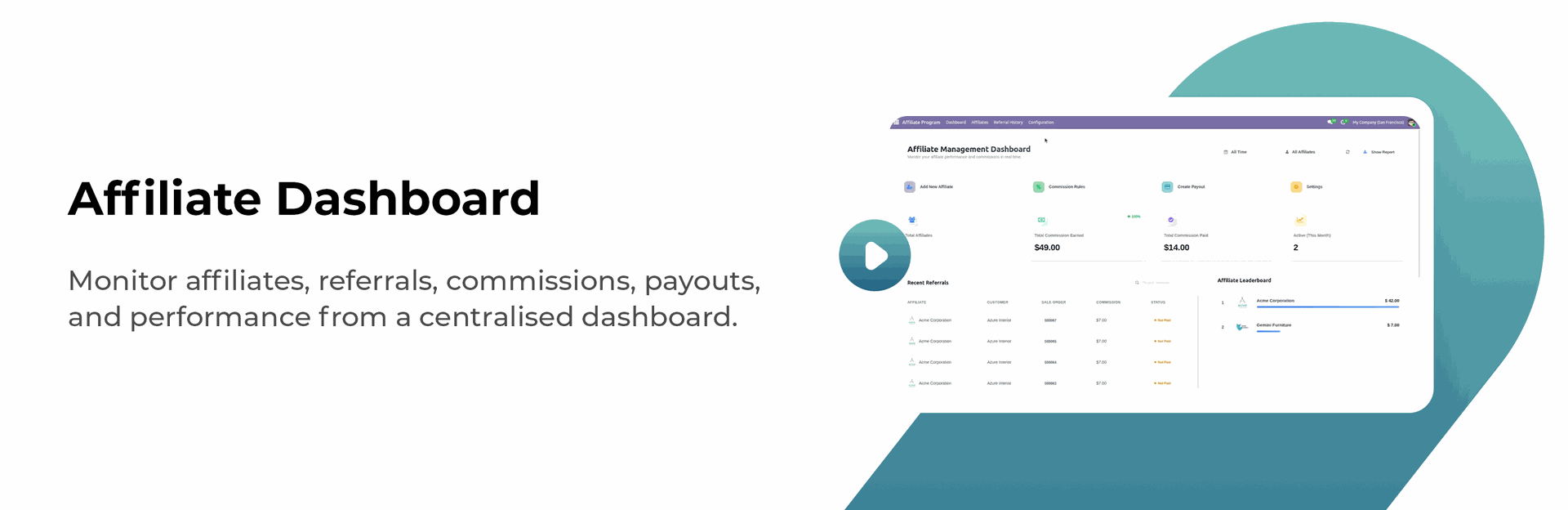
Affiliate Program Dashboard
Monitor affiliate performance, commissions, and affiliate activities from a centralized dashboard.

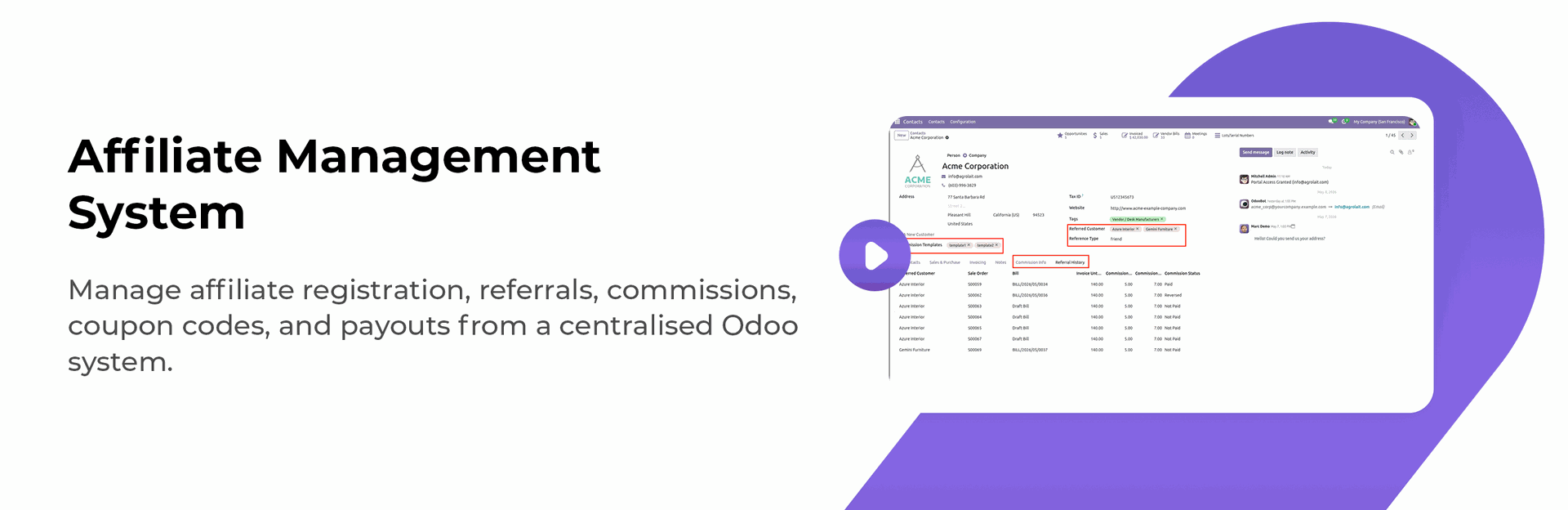
Affiliate Program Workflow
Manage the complete affiliate lifecycle from referral generation to commission calculation and payout processing.
Commission Templates
Create reusable commission templates with configurable rules, percentages, and calculation methods.
Reference Type Management
Configure multiple reference types to manage affiliate commission calculations for different business operations.
Auto Validate Commission Bills
Automatically validate affiliate commission bills to simplify payout processing and reduce manual work.

Clawback Commission on Order Cancellation
Automatically reverse affiliate commissions when related sales orders are canceled.

Portal Commission Management
Allow affiliates to view commission records, payout details, and payment status directly from the portal for better transparency.

Referral History
Track complete referral history with detailed records of affiliate-generated customers, orders, and commission activities.

Paid Commission Email Notification
Automatically send email notifications to affiliates when commission payments are completed successfully.

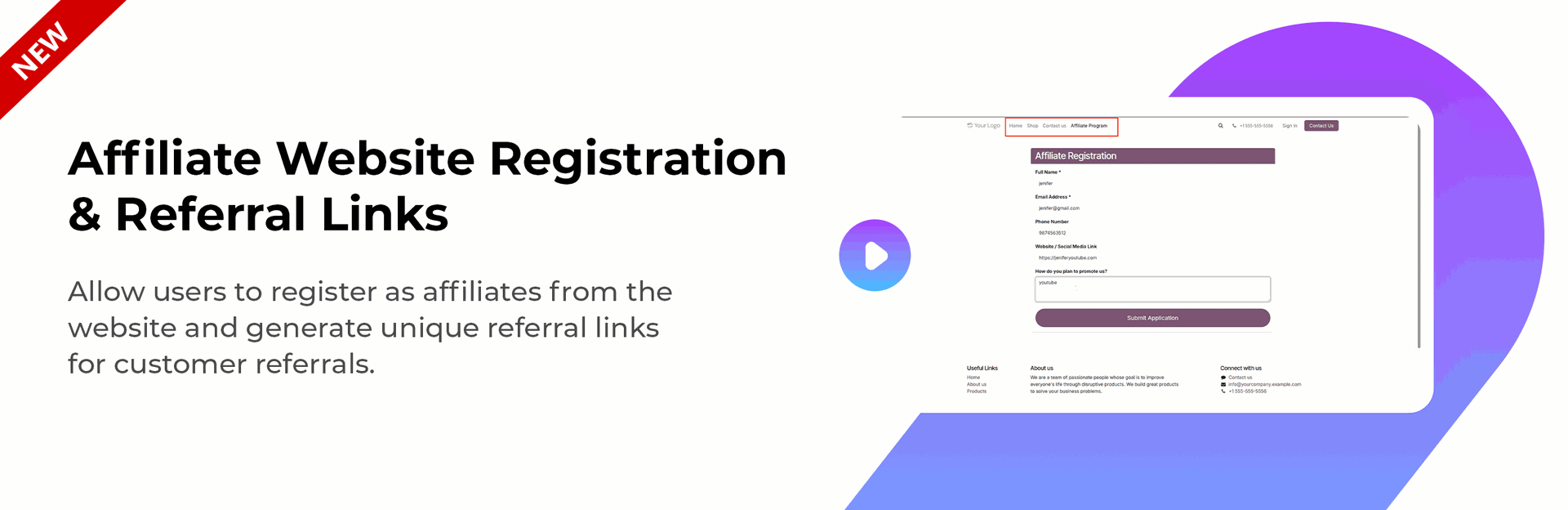
Affiliate Registration Management
Allow users to register as affiliates from the website and generate unique referral links for customer referrals.

Referral Links & Coupon Codes
Generate unique referral links and optional affiliate coupon codes for customer referrals.

Customer Referral Attribution
Attribute customers to affiliates using referral links or coupon codes.

Affiliate Assignment Rules
Assign customers to affiliates permanently or for a configurable duration.

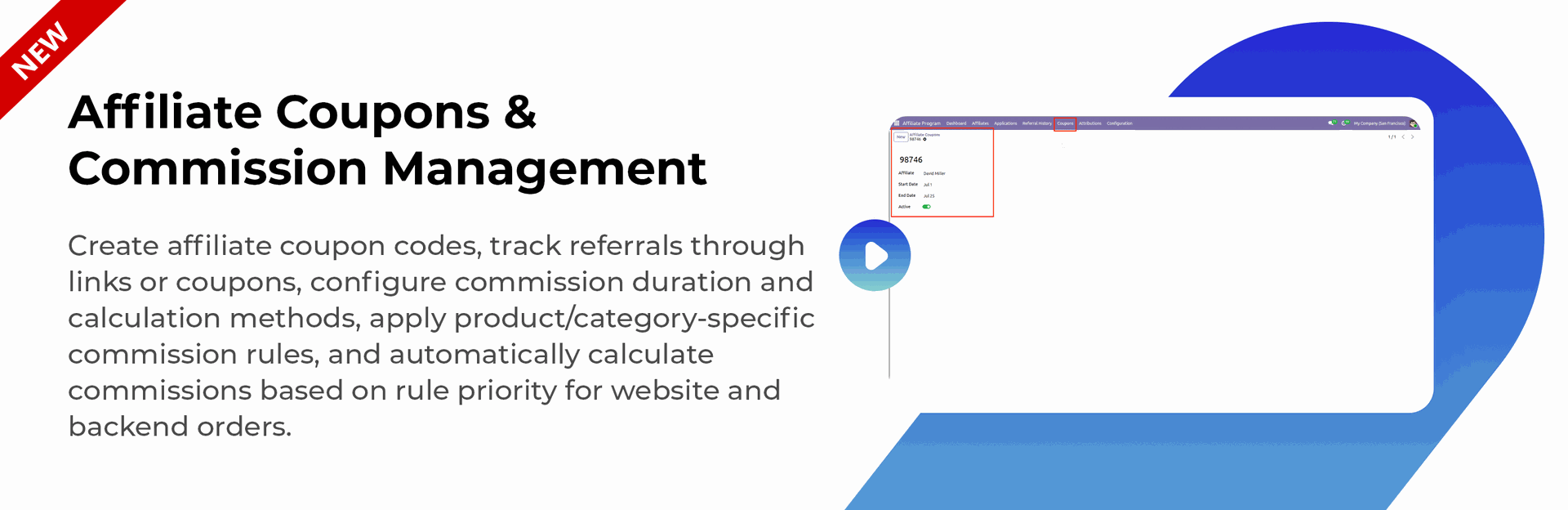
Configurable Commission Duration
Define commission eligibility periods such as 30 days, 90 days, 12 months, or lifetime.

Automatic Commission Calculation
Automatically calculate commissions on qualifying website and backend orders.

Flexible Commission Rules
Configure fixed or percentage-based commissions for products, categories, or all products.

Smart Commission Rule Priority
Automatically apply the highest-priority commission rule when multiple rules are available.

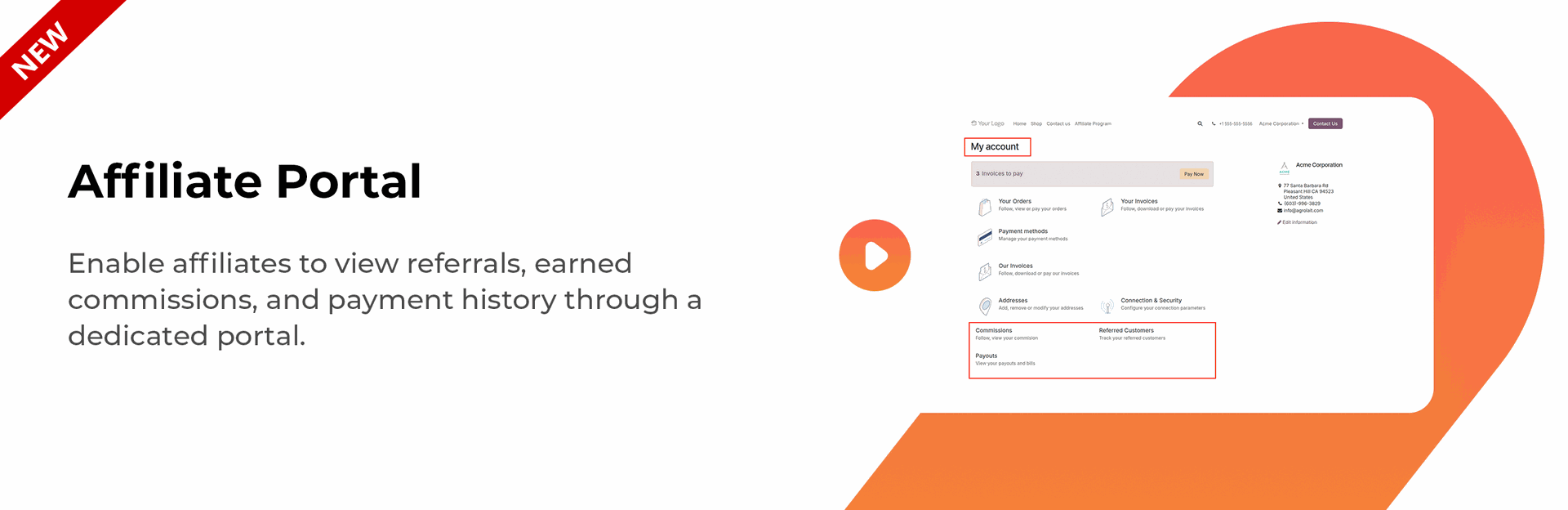
Affiliate Portal
Allow affiliates to track referrals, commissions, and payment history through a dedicated portal.

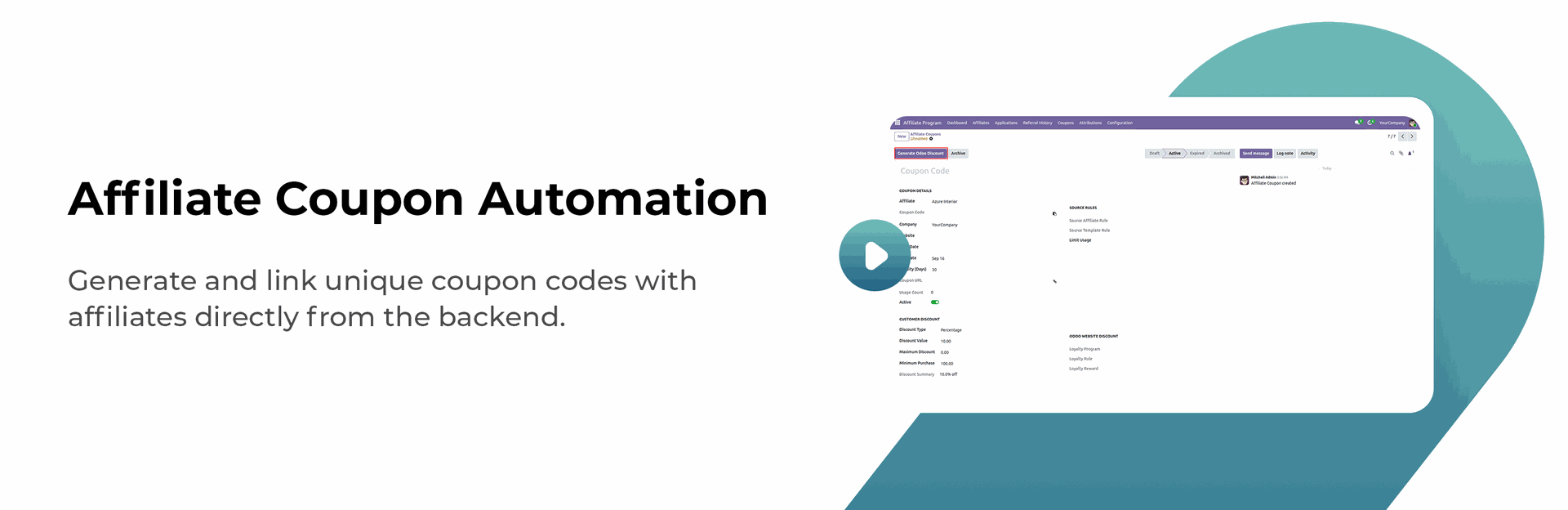
Affiliate Coupon Automation

Generate and link unique coupon codes with affiliates directly from the backend.
Website Coupon Integration
Allow affiliate coupons to work on the website cart and checkout like regular discount codes.

Customer Discount & Affiliate Commission
Manage customer discounts and affiliate commissions separately for better control.

Partner-Wise Commission Rules
Set custom commission rules for each affiliate based on your business requirements.
Coupon-Based Affiliate Attribution
Automatically identify and track the referring affiliate when a customer uses an affiliate coupon.

Affiliate Coupon Portal
Let affiliates view their assigned coupons and easily copy coupon codes or sharing URLs from the portal.

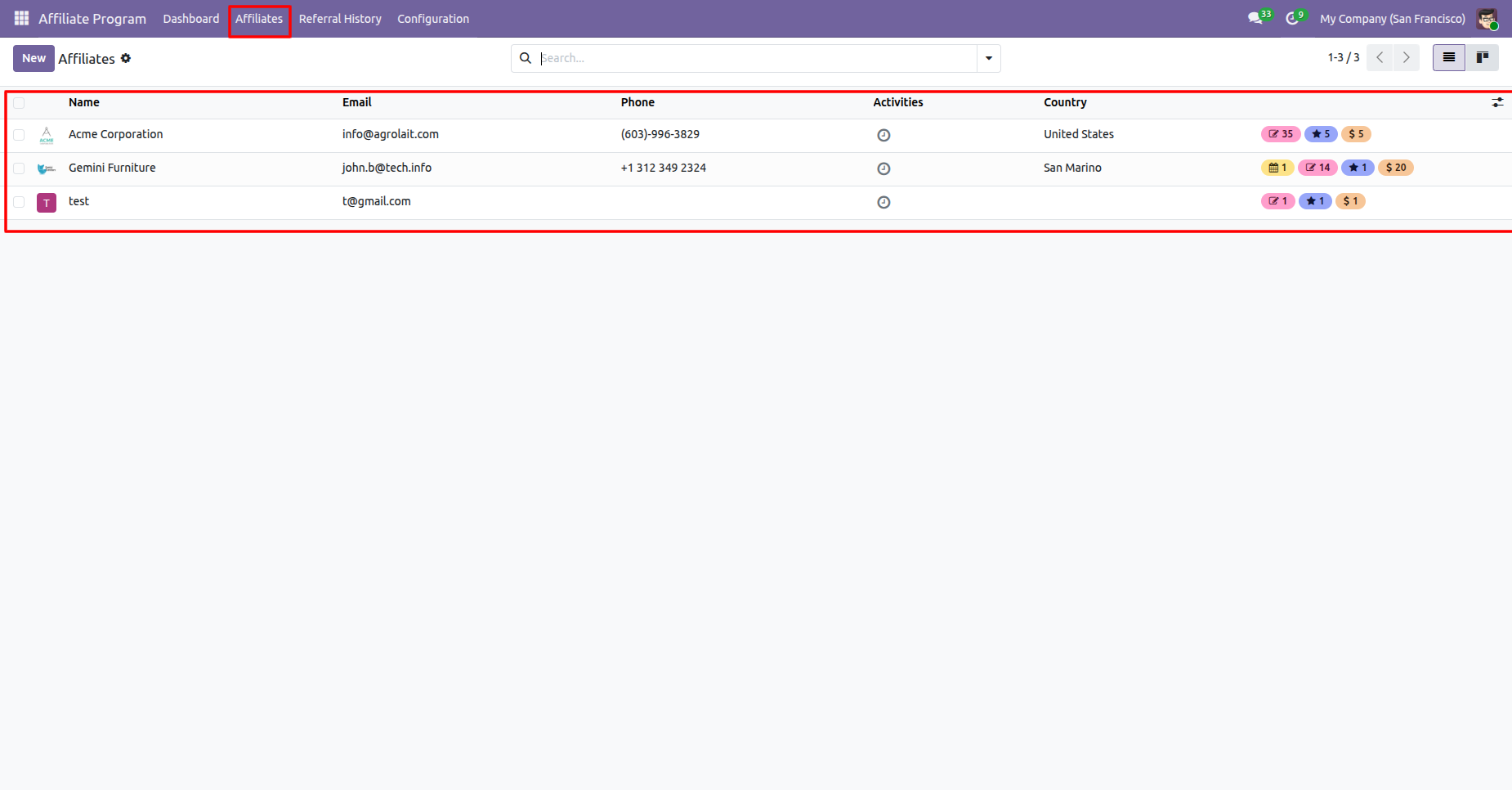
Affiliates list view.
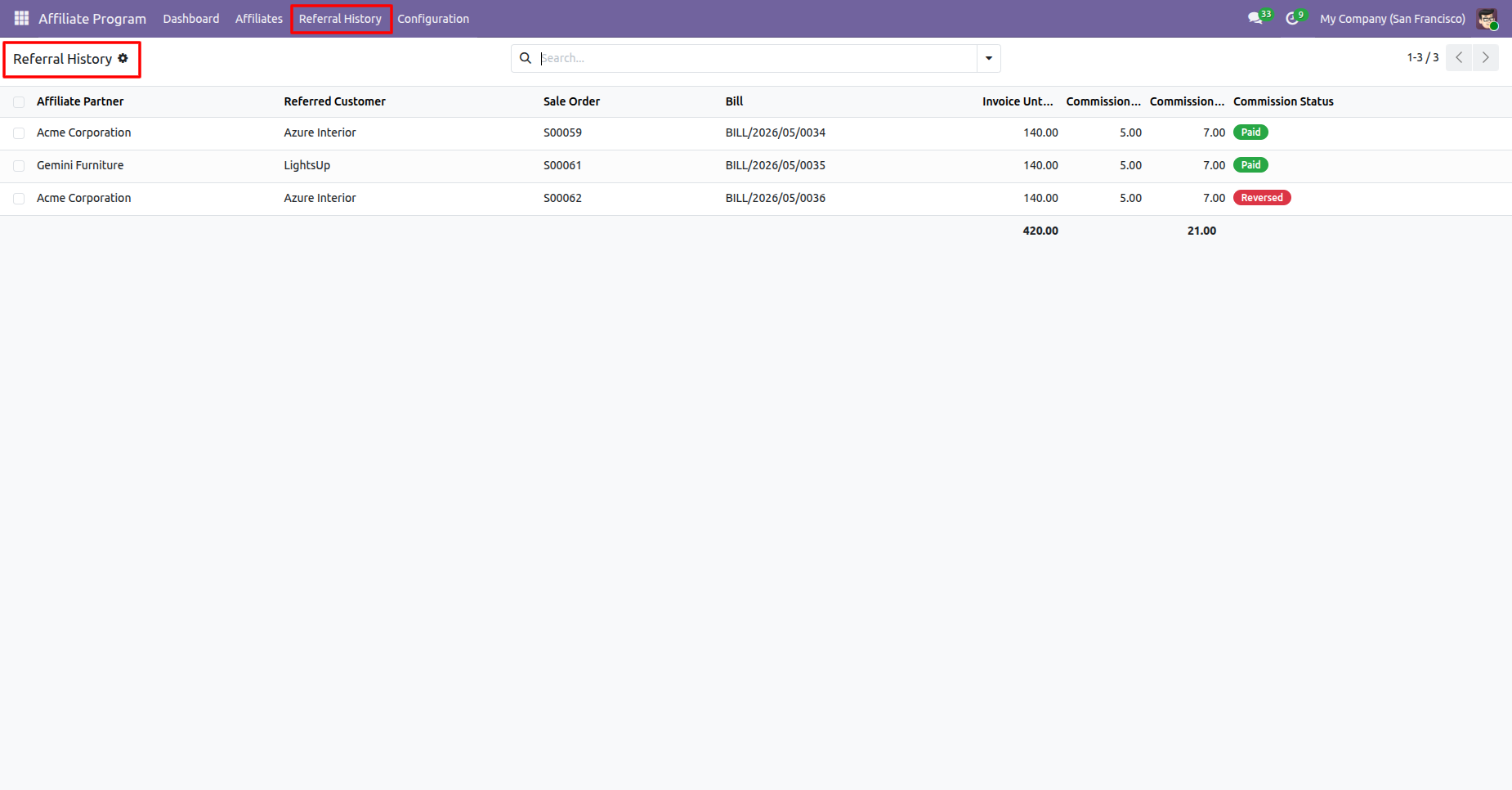
Referral history list view.
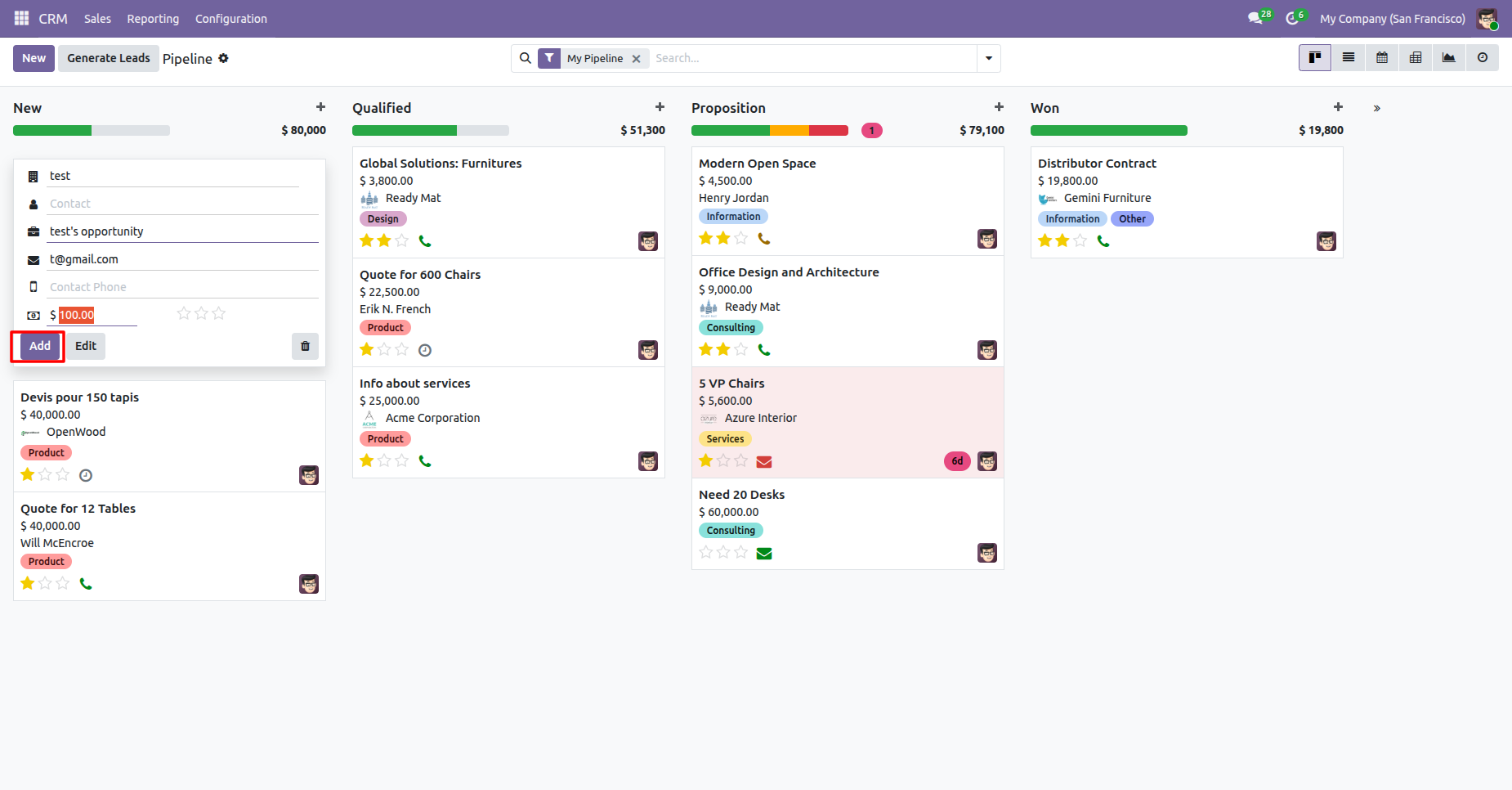
Click Add in CRM to create a new opportunity.
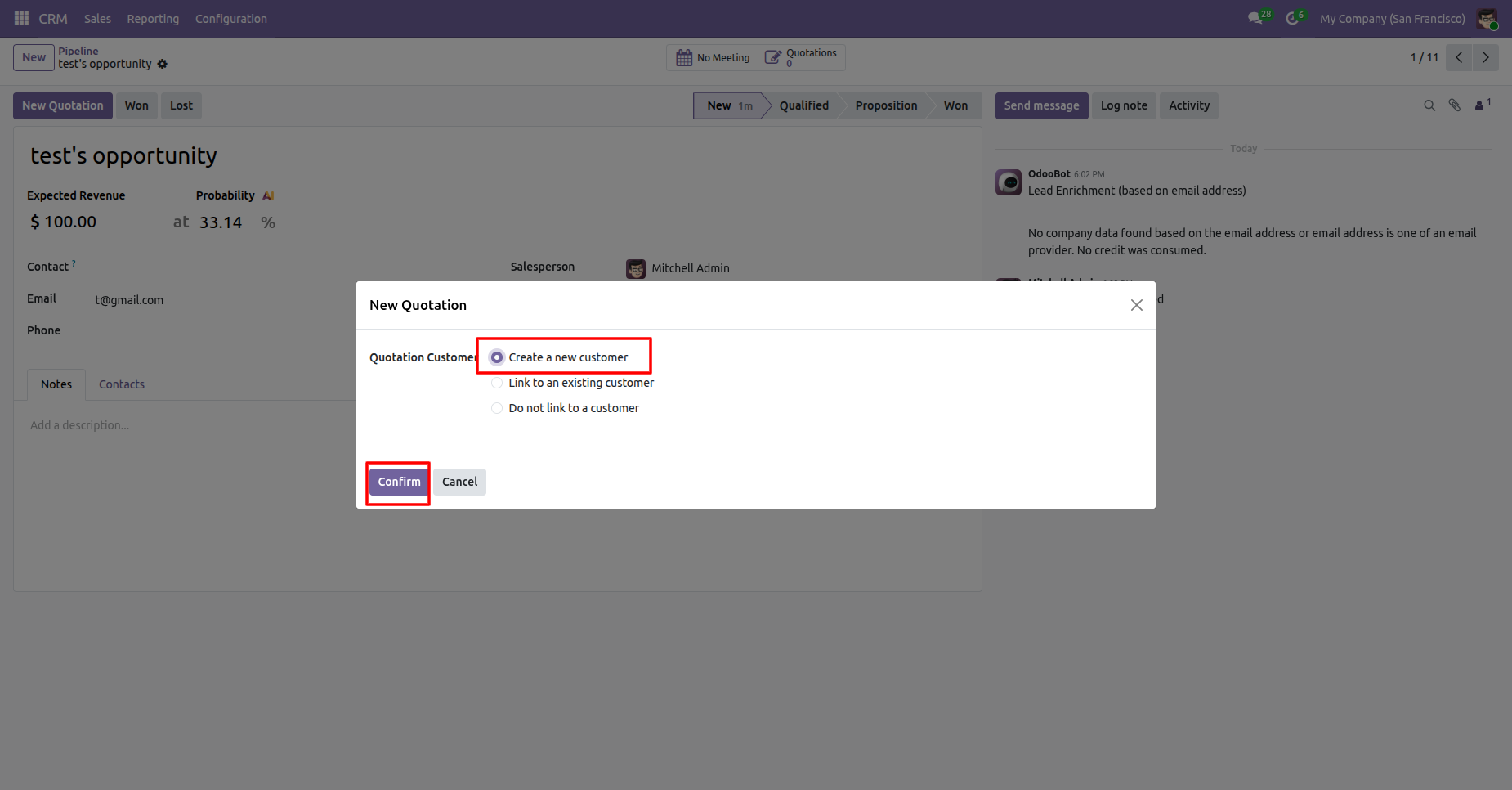
Select Create a new customer and click confirm.
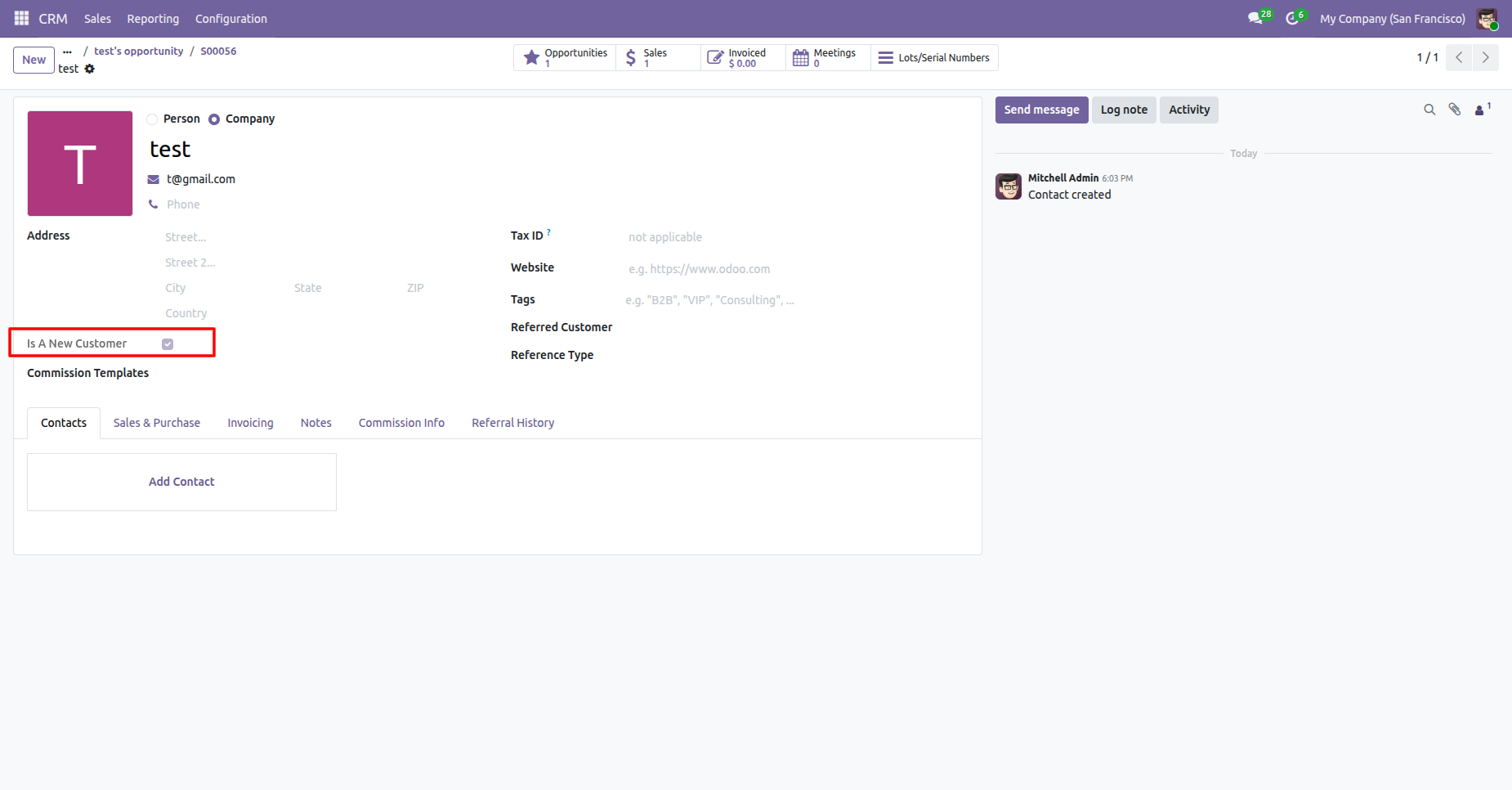
New contact created with Is A new Customer enabled.
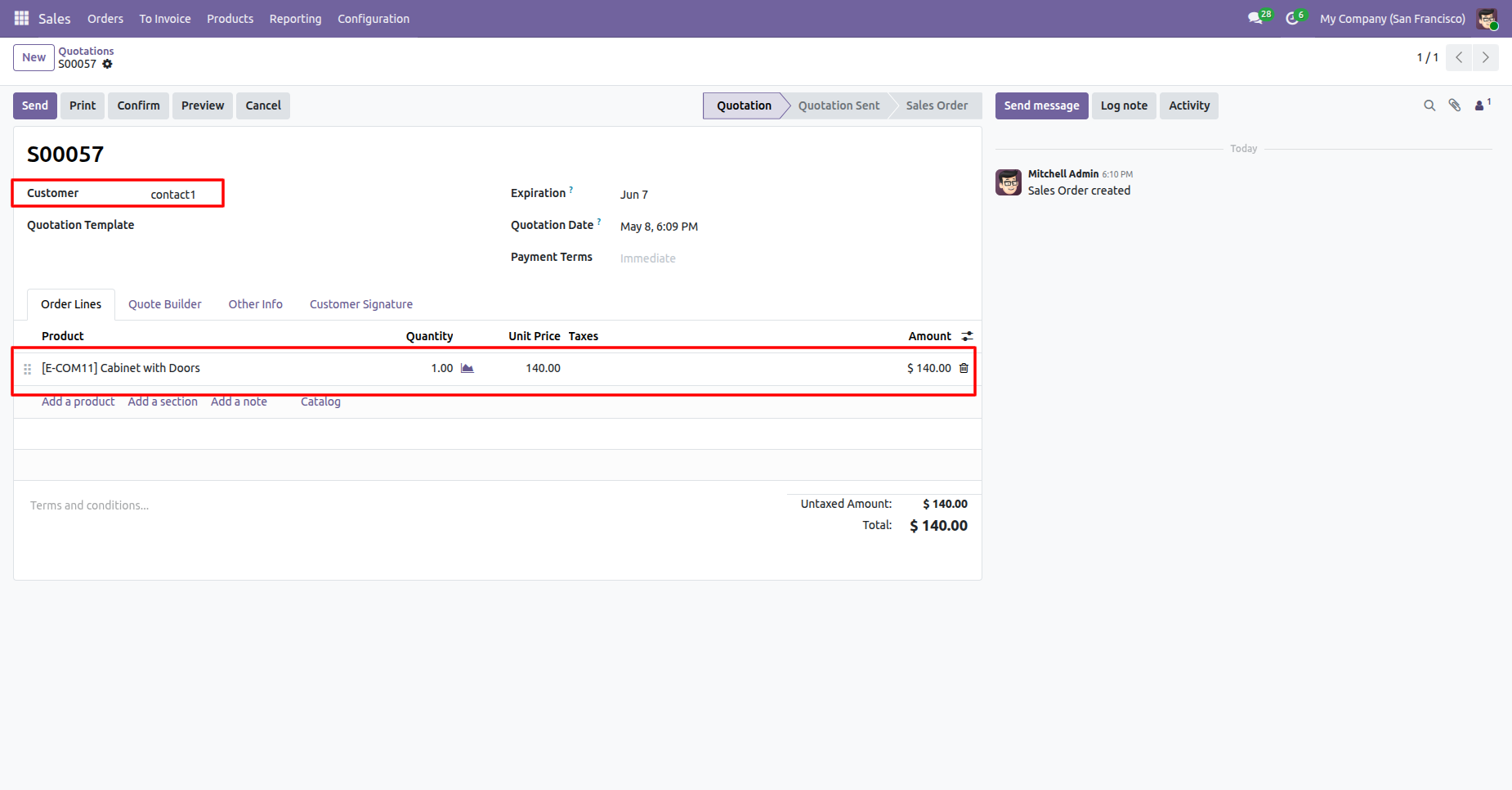
Creating a sale order of that customer.
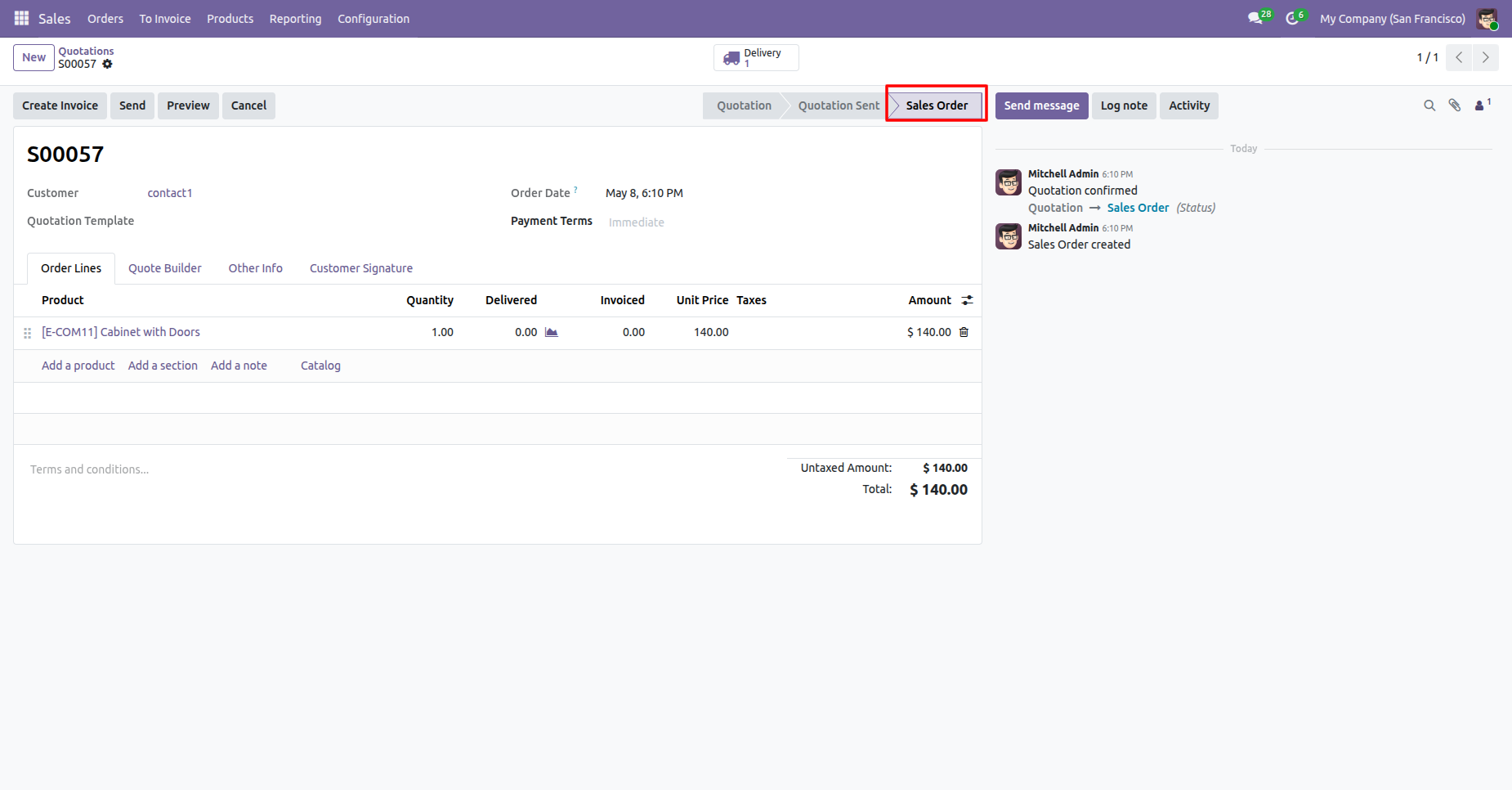
Sales Order created.
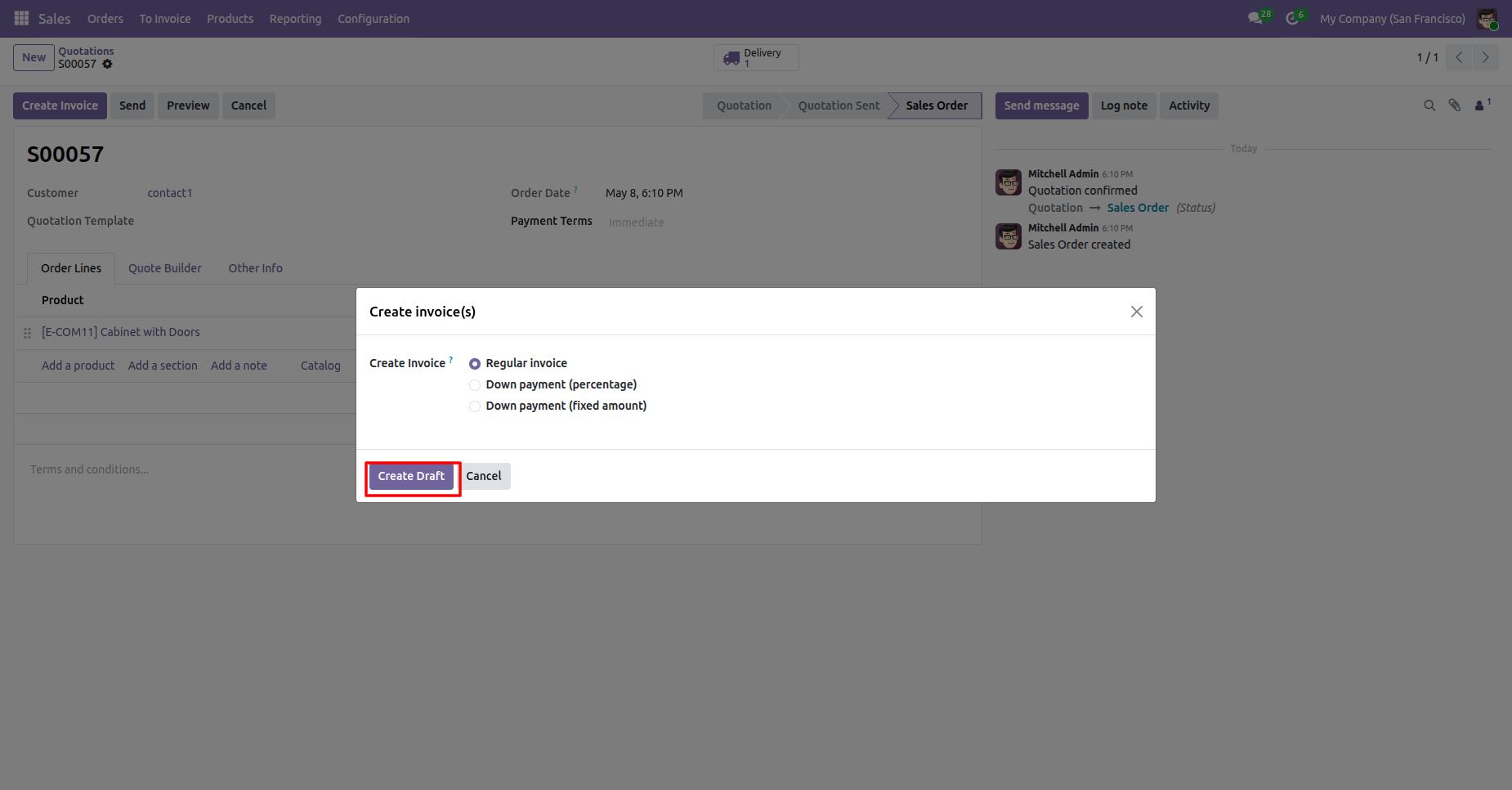
Creating a regular invoice.
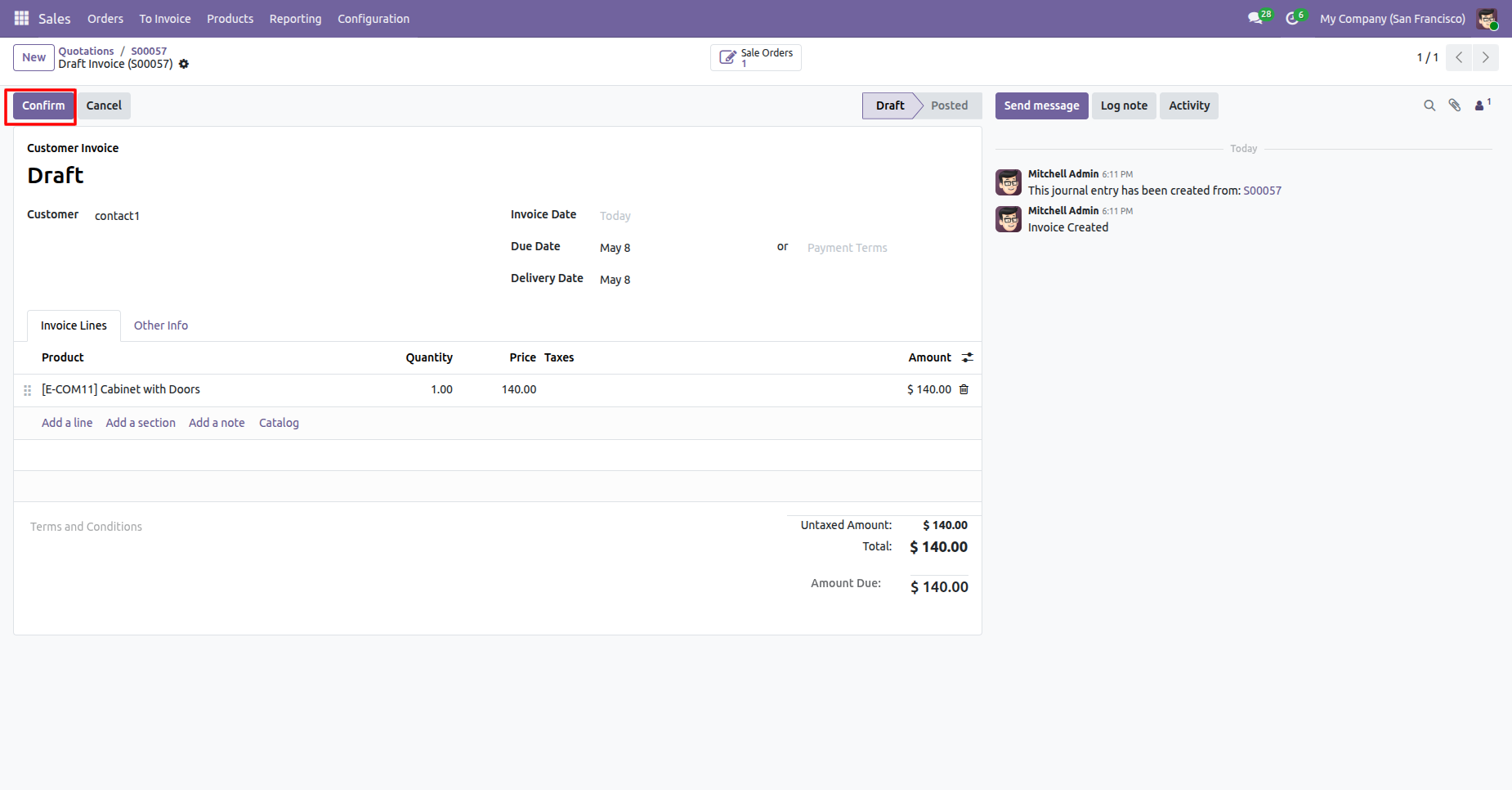
Confirming the draft invoice.
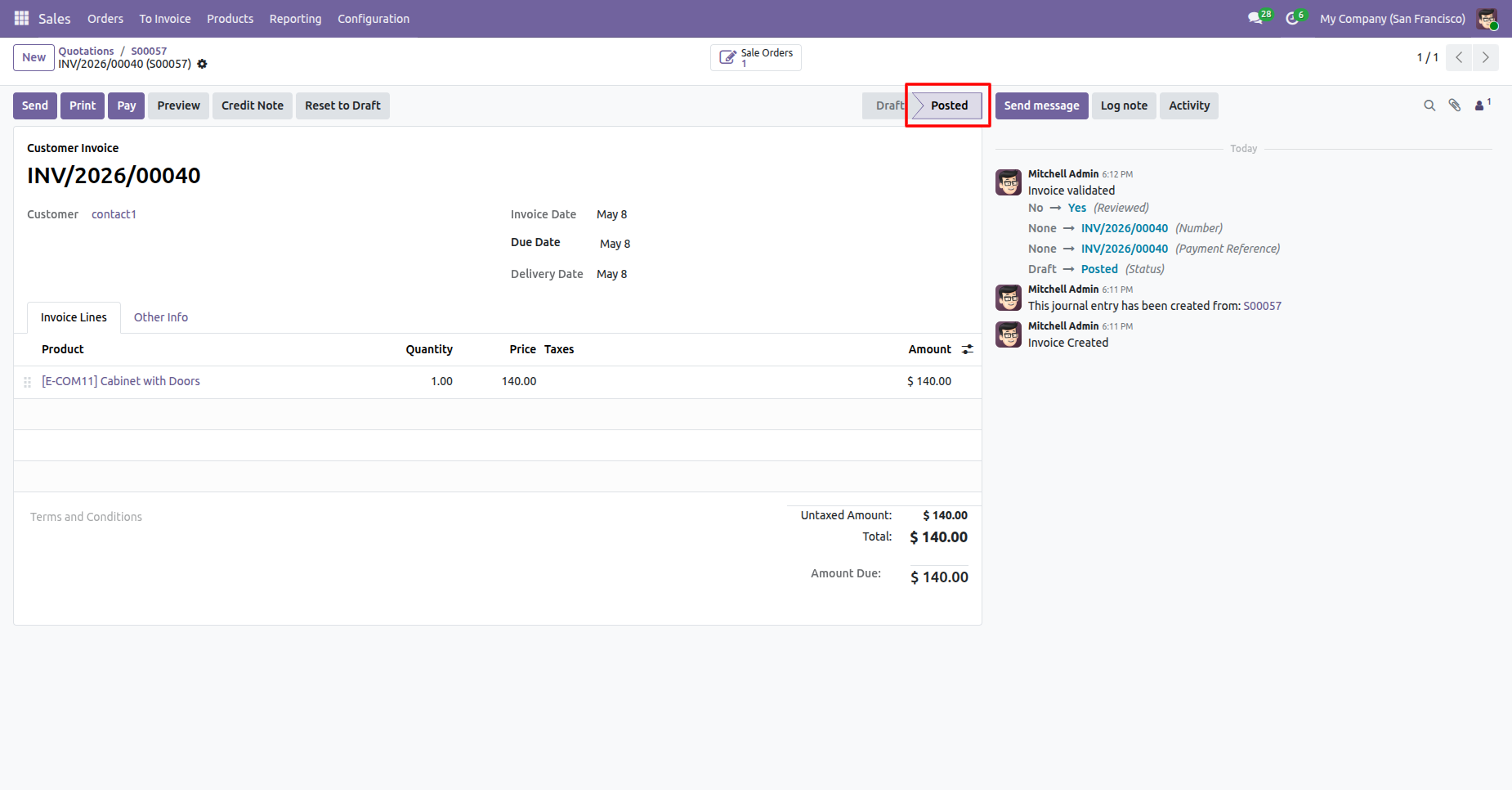
Posted the invoice.
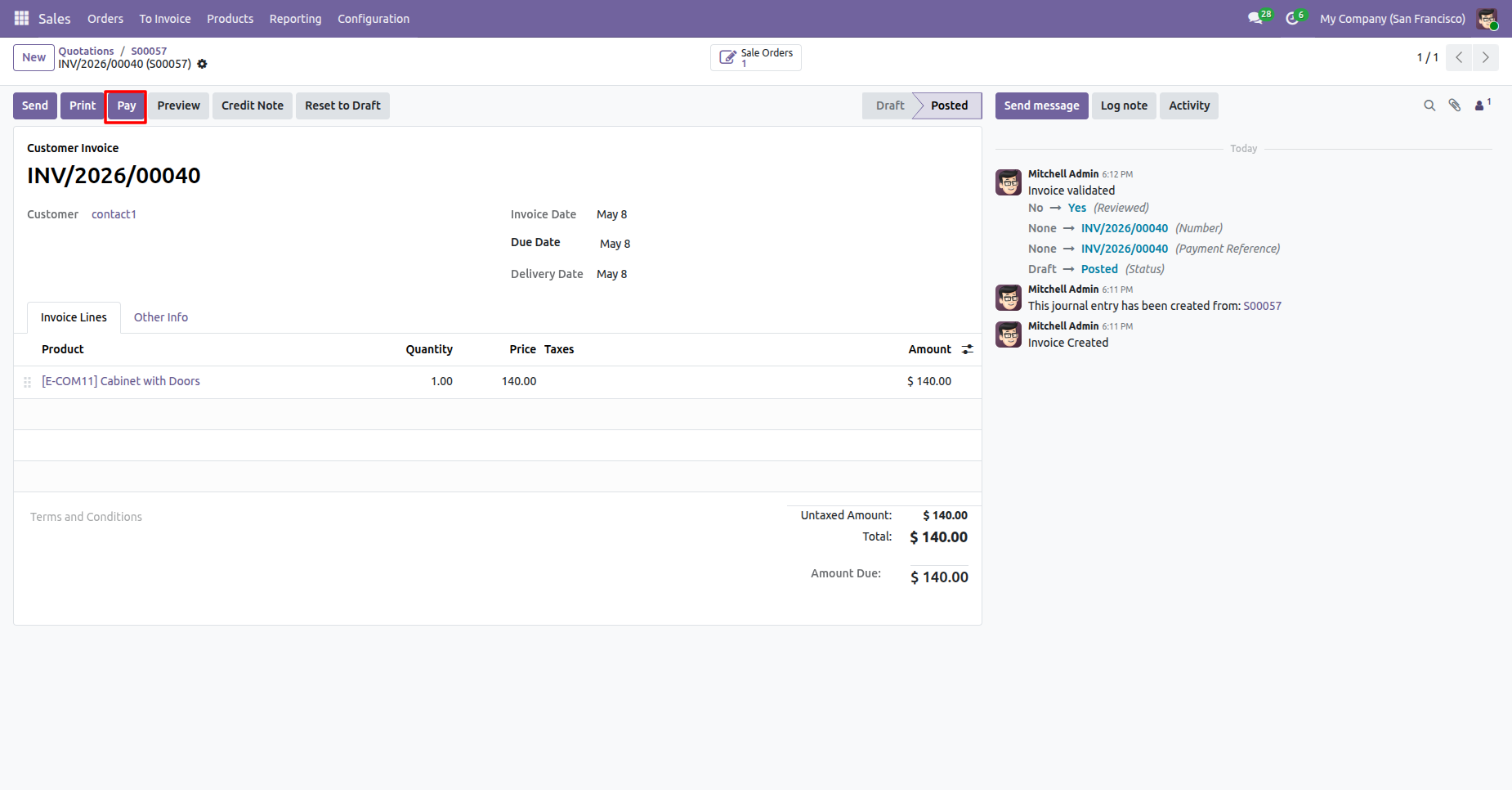
Creating the payment for the invoice.
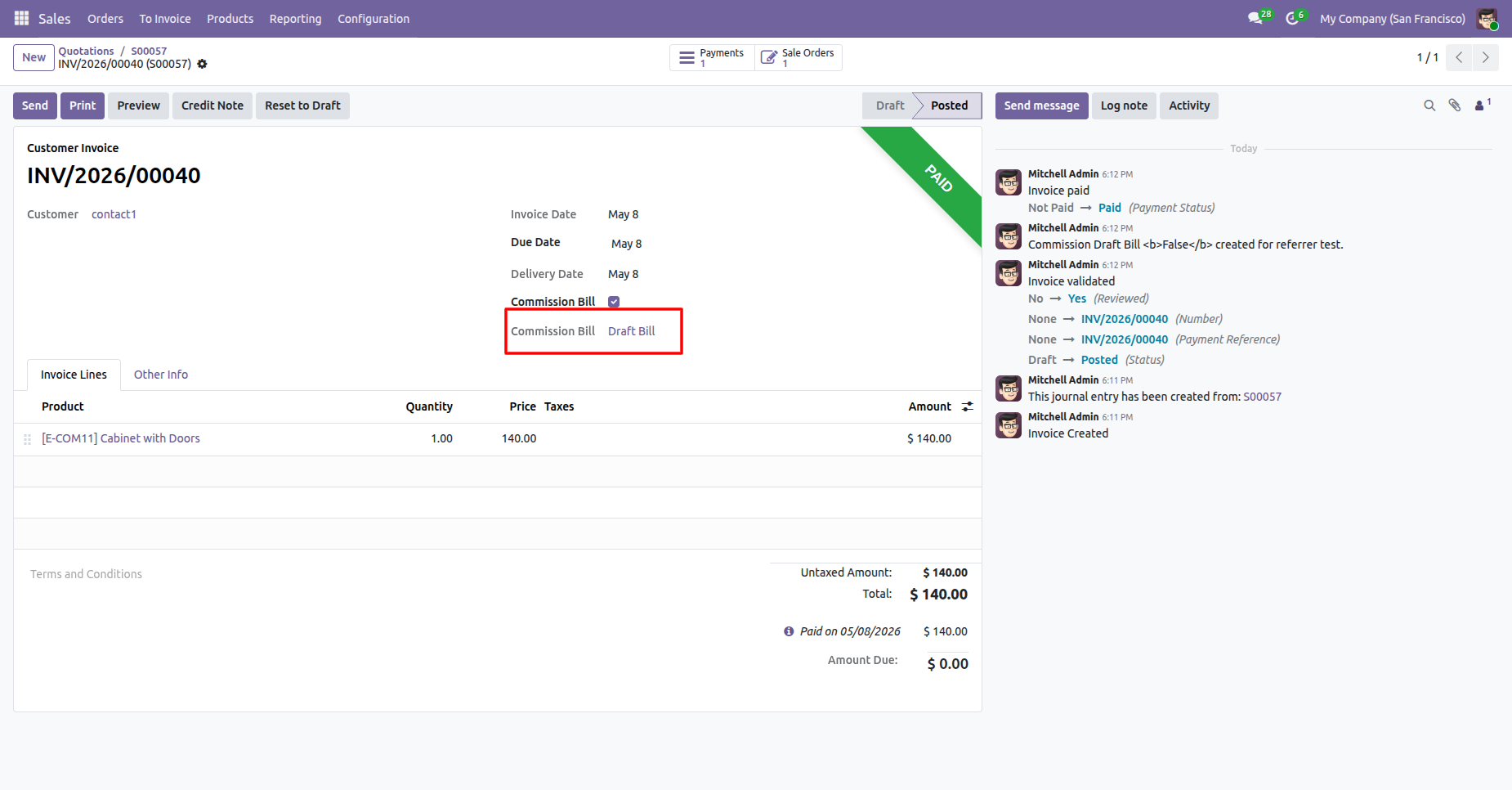
Invoice is paid and the Comission Bill is currently Draft Bill.
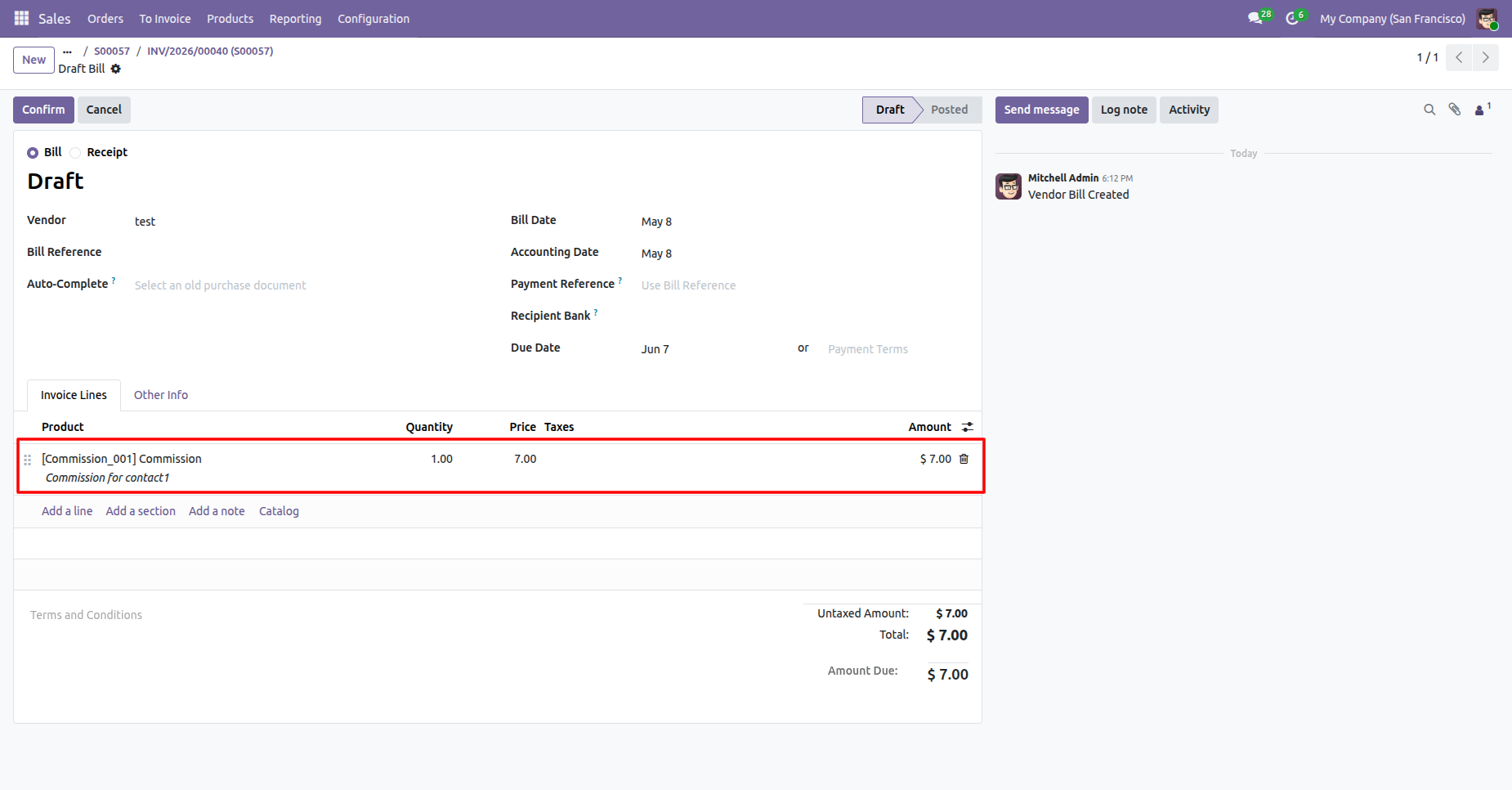
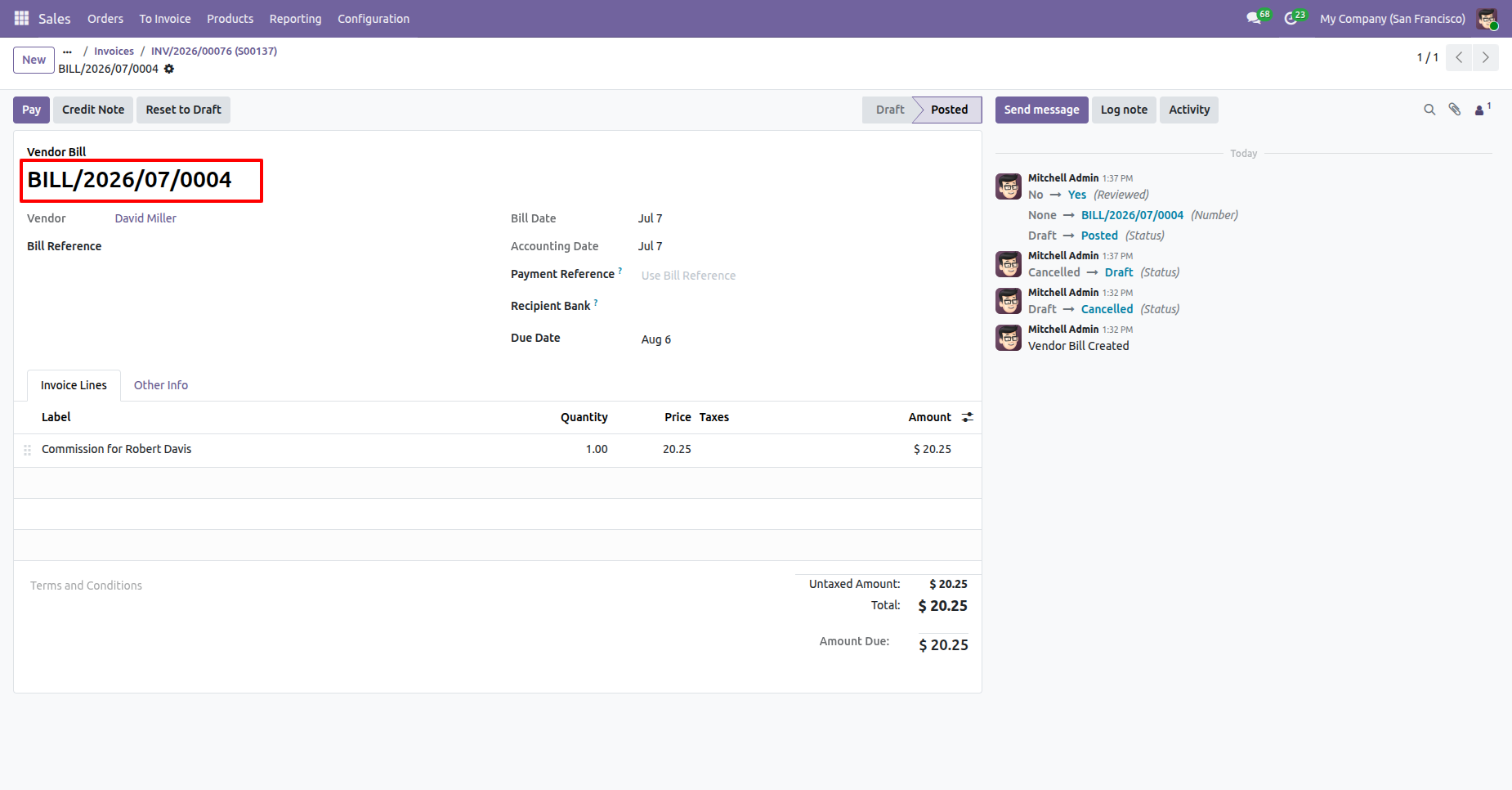
Draft bill is created for the commission.
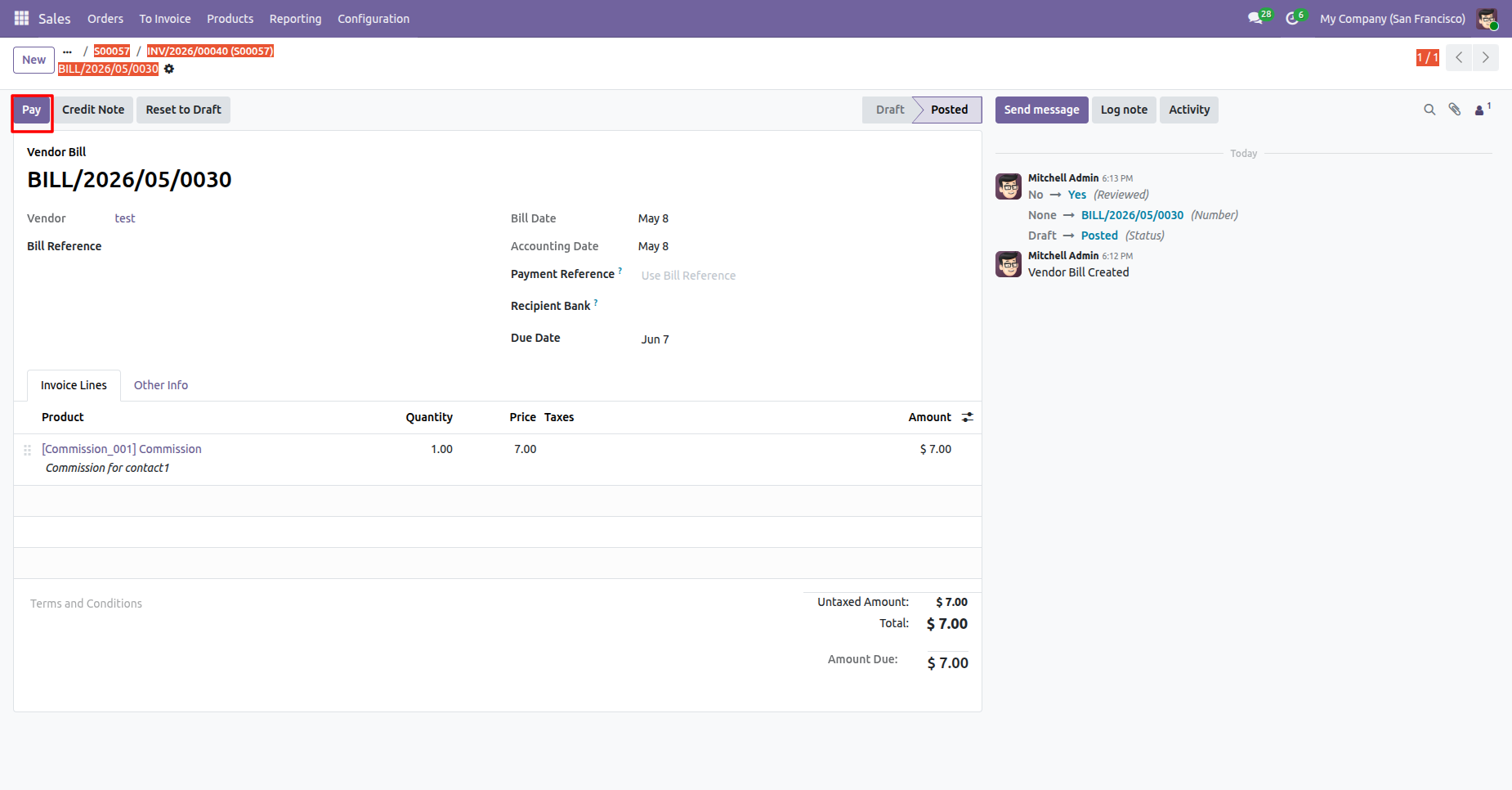
Posted bill for the comission.
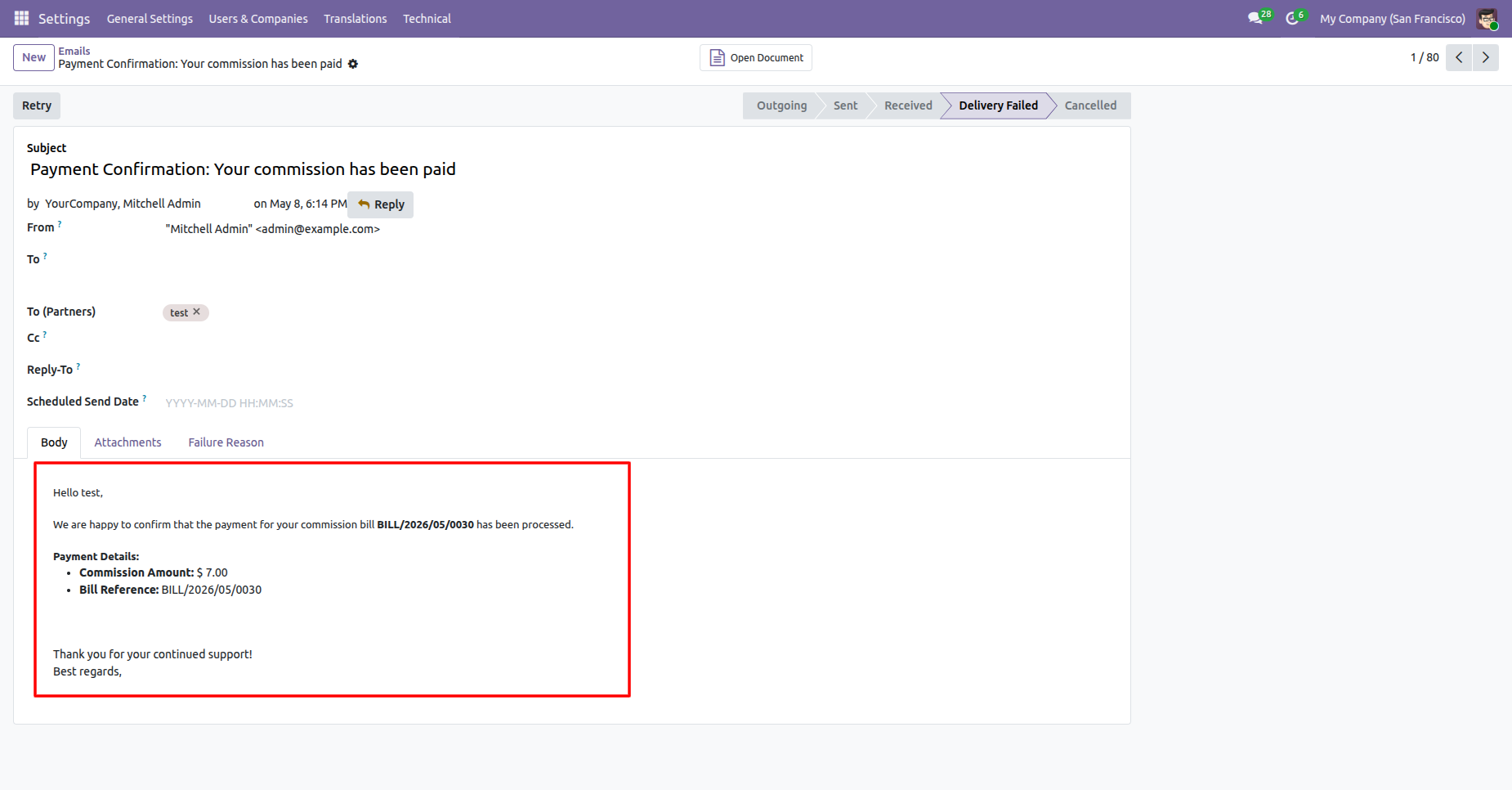
Paid comission mail demonstrating that the bill has been paid.
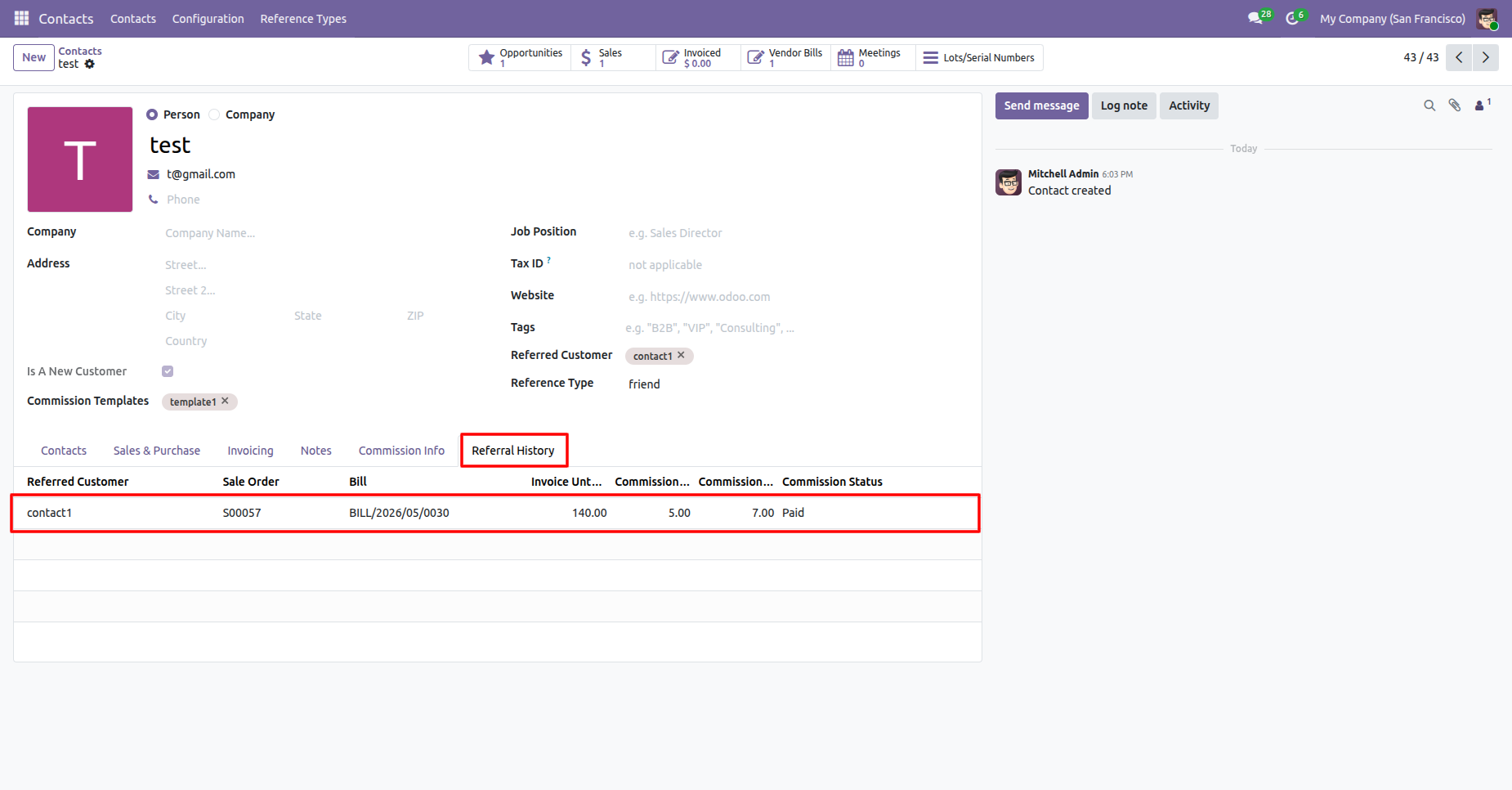
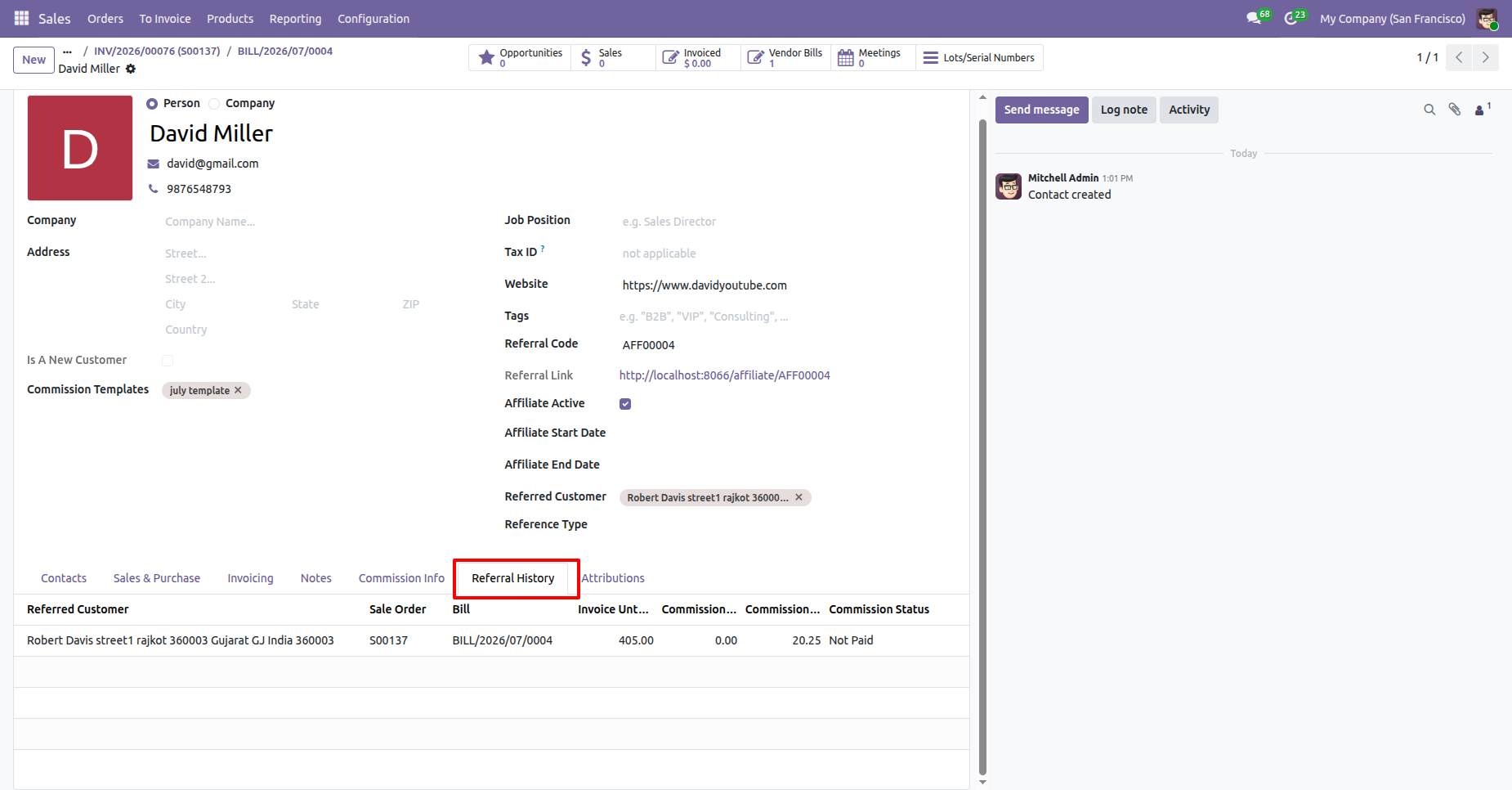
You can view the referrals in the Referral History Tab in the contacts.
In the Affiliate Program configuration you can set the Comission Templates.
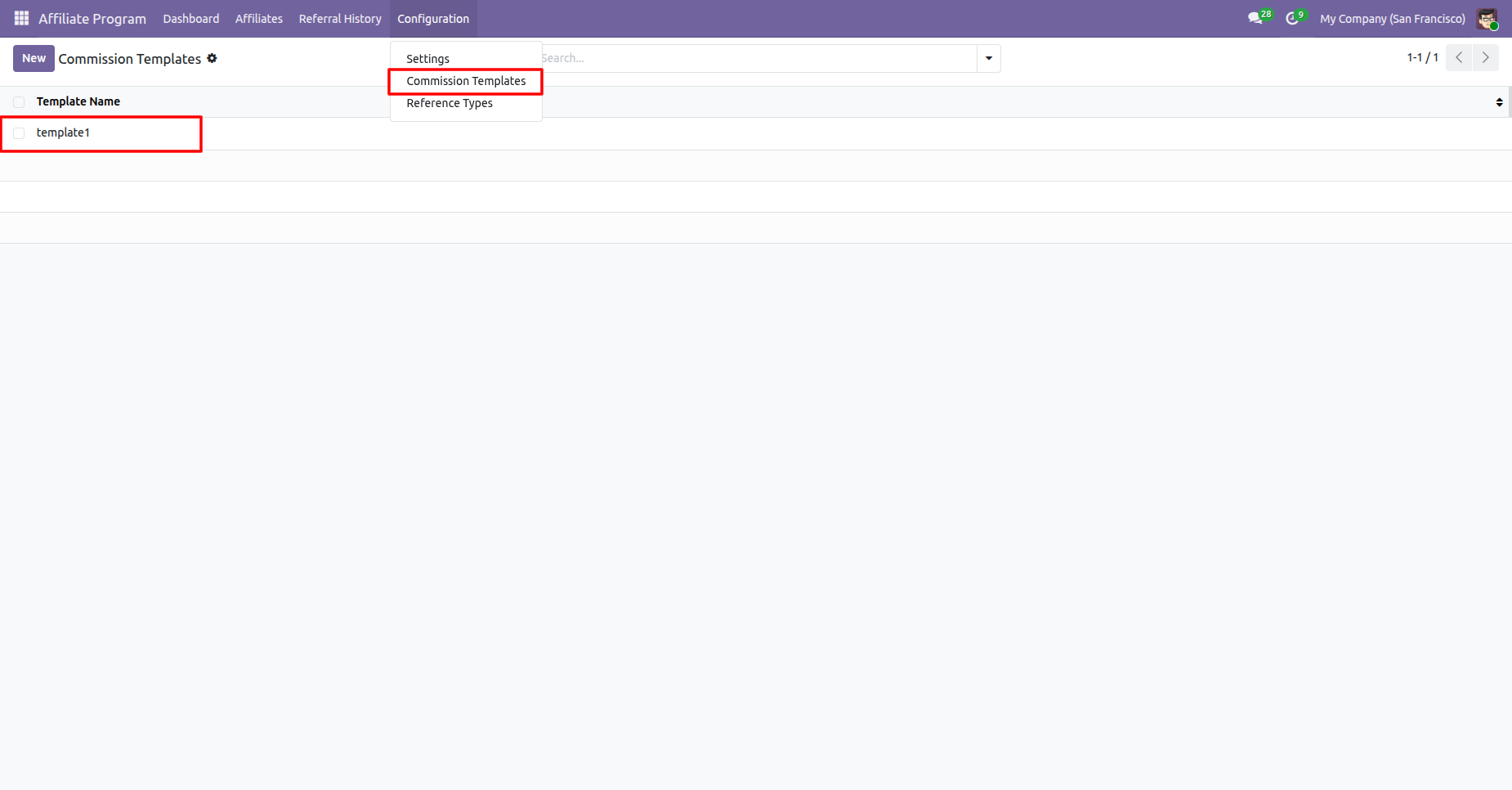
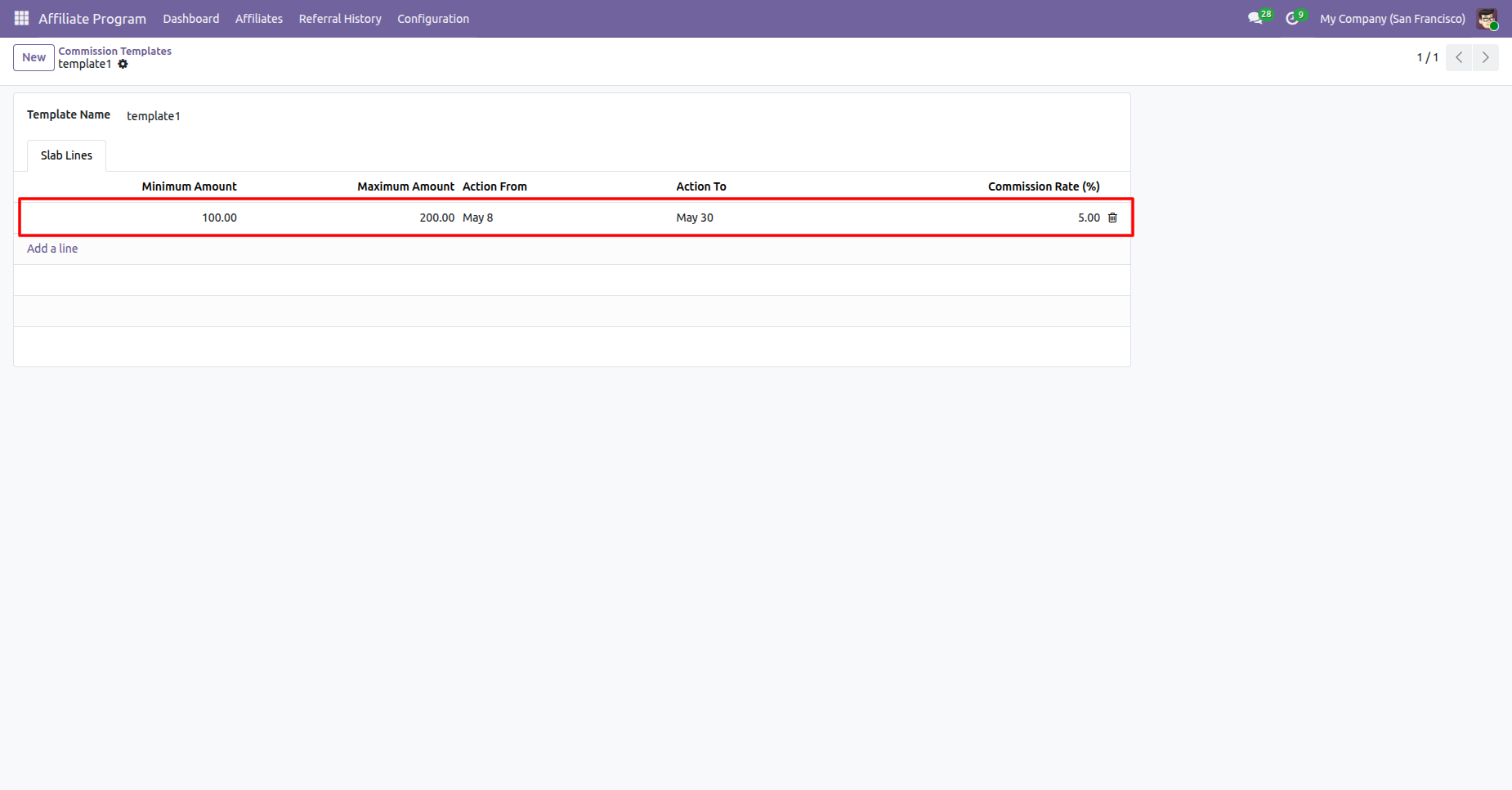
In the templates you can set the minimum and maximum ammount, date range and comission rates.
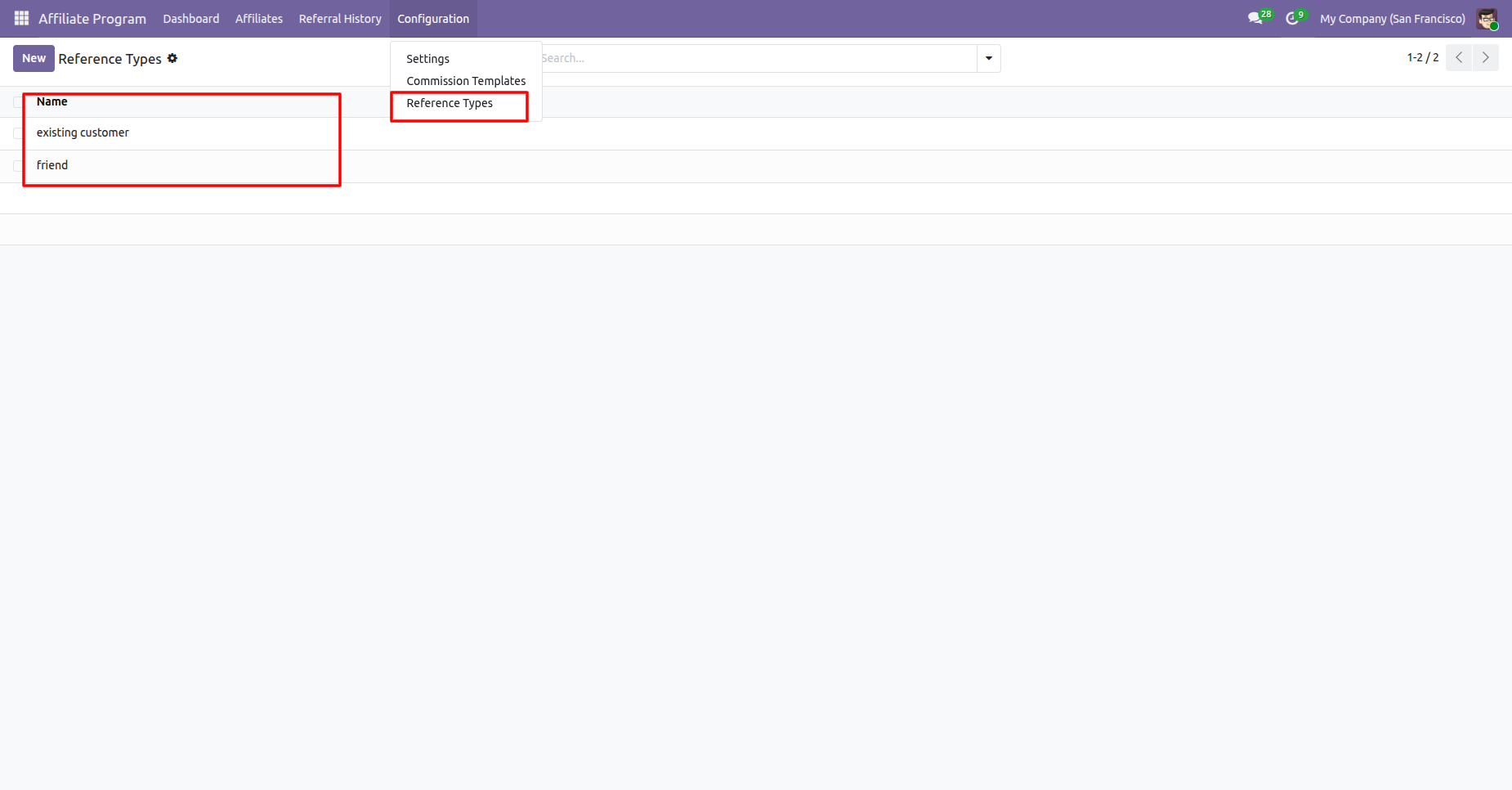
In the Affiliate Program configuration you can set the Reference Types.
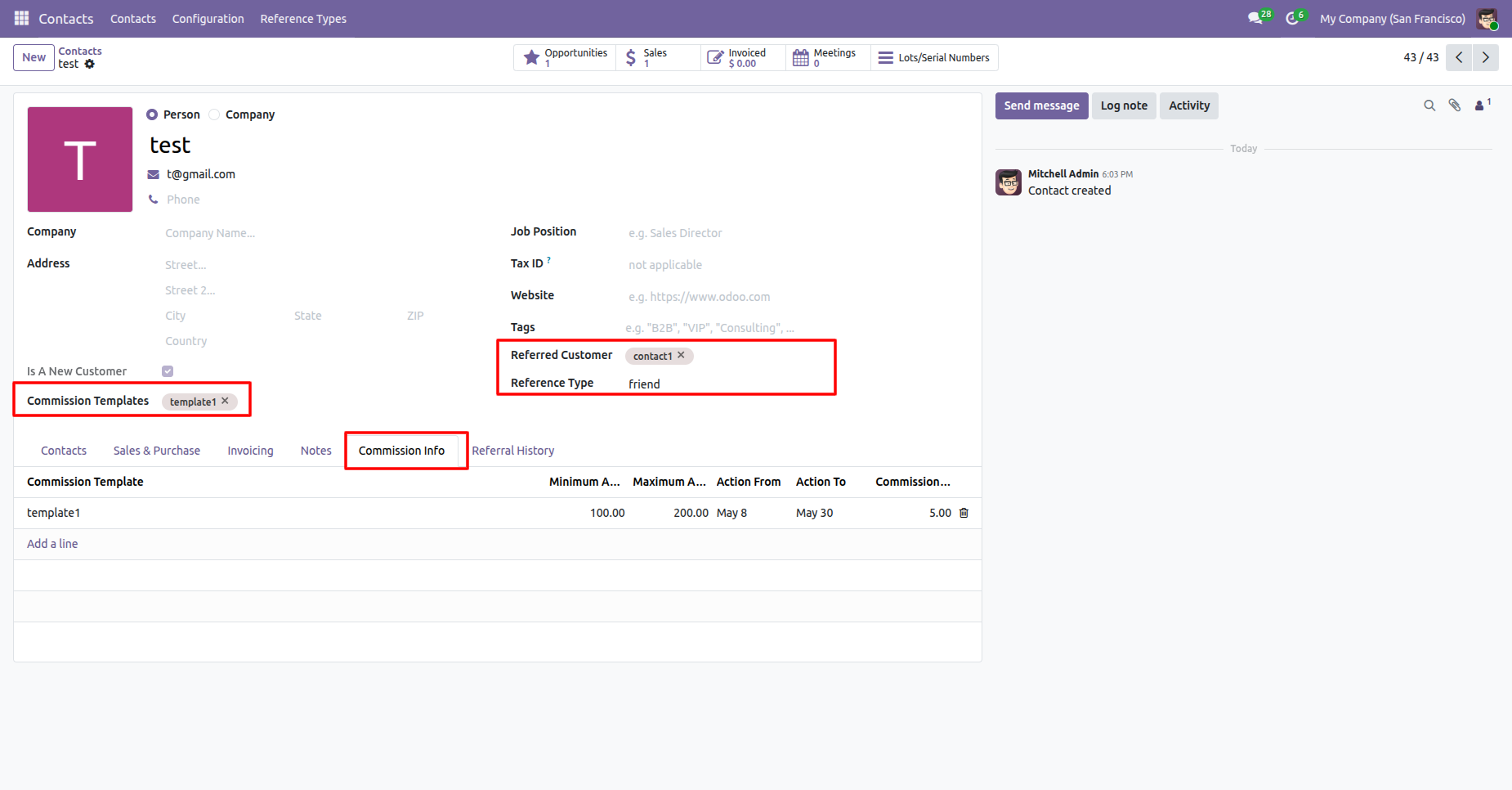
In the contact you can set the Comission Templates, Referred Customers and Reference Type.
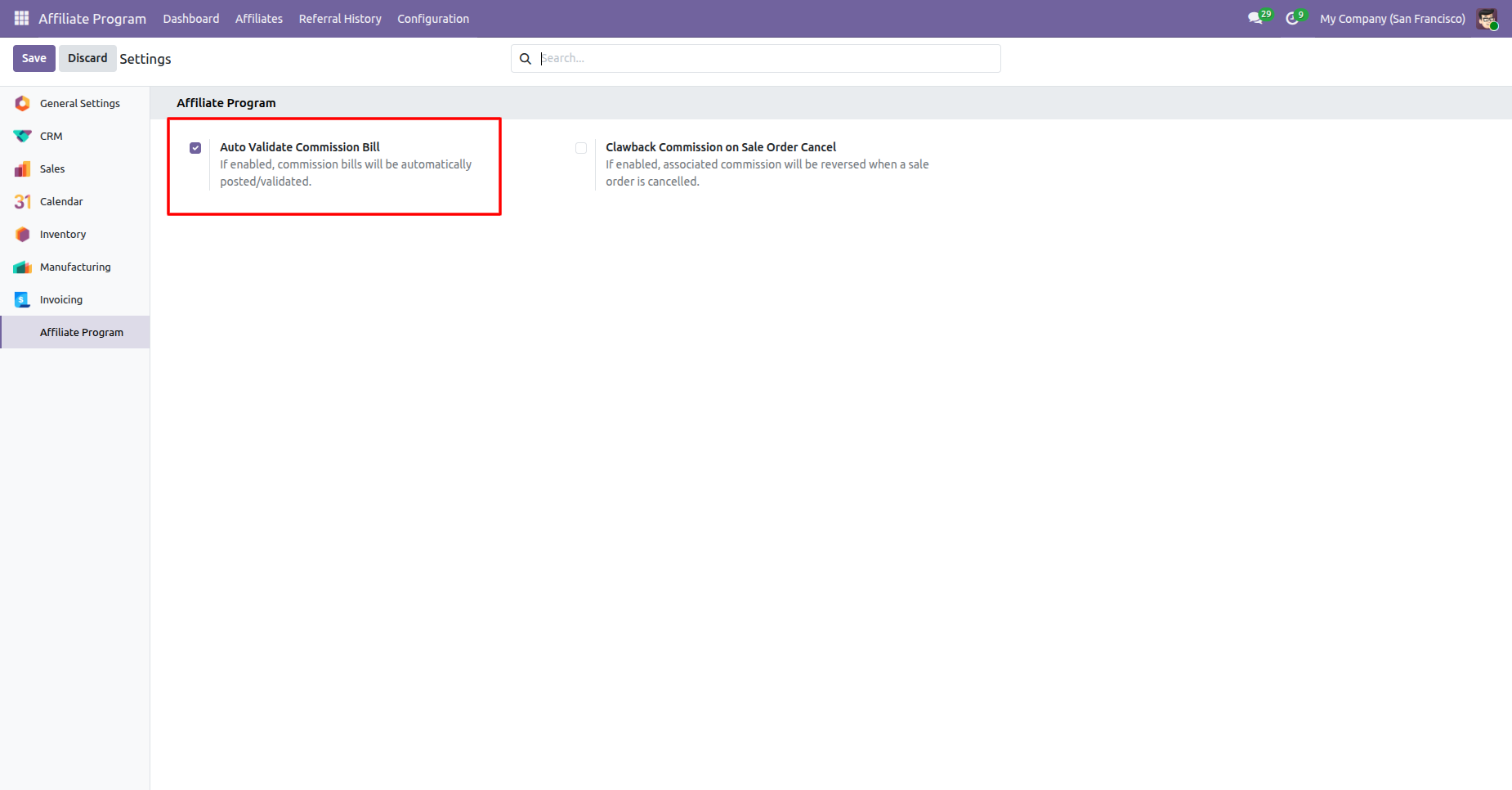
Enable the Auto Validate Comission Bill.
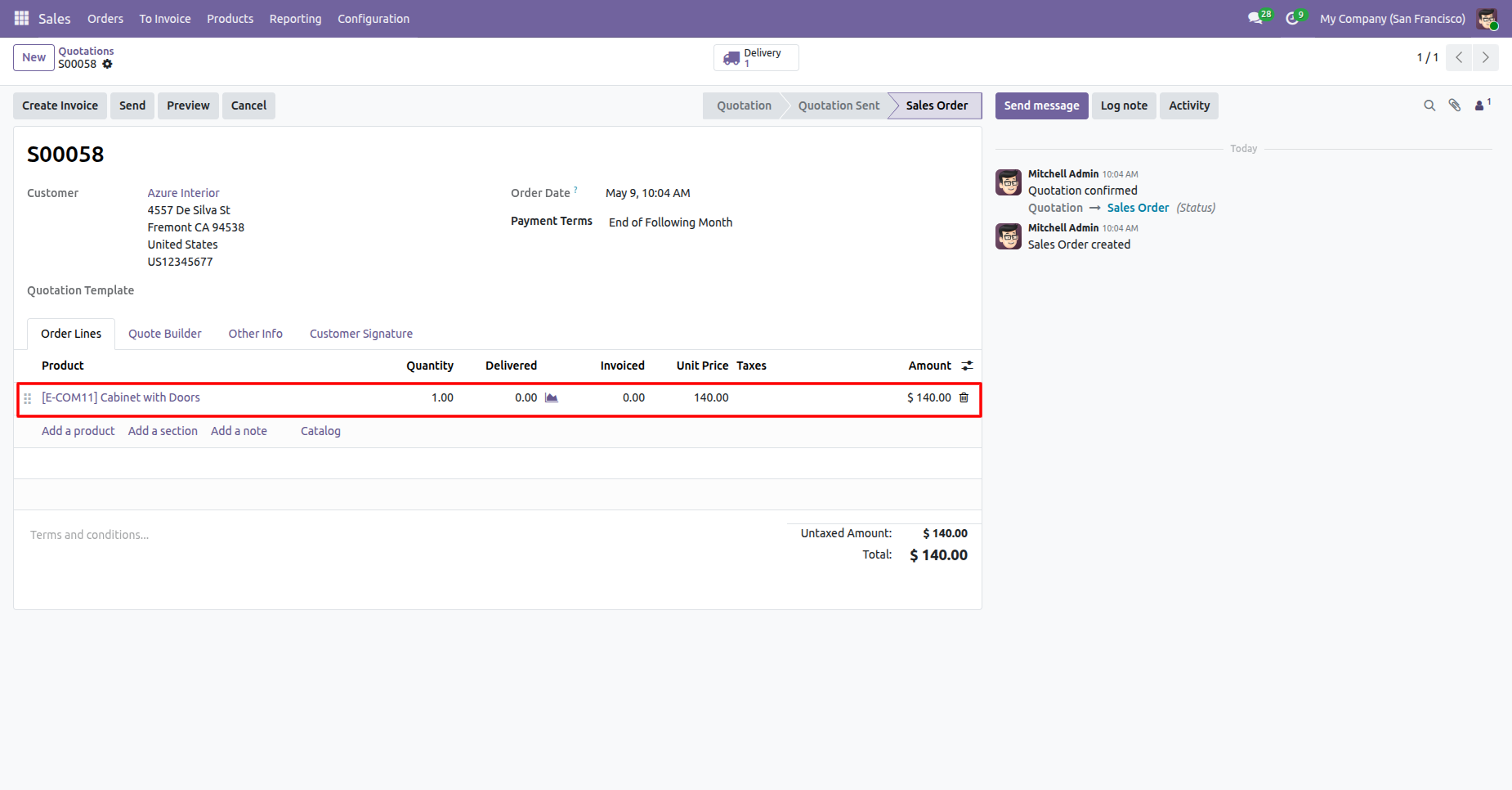
Created a sale order.
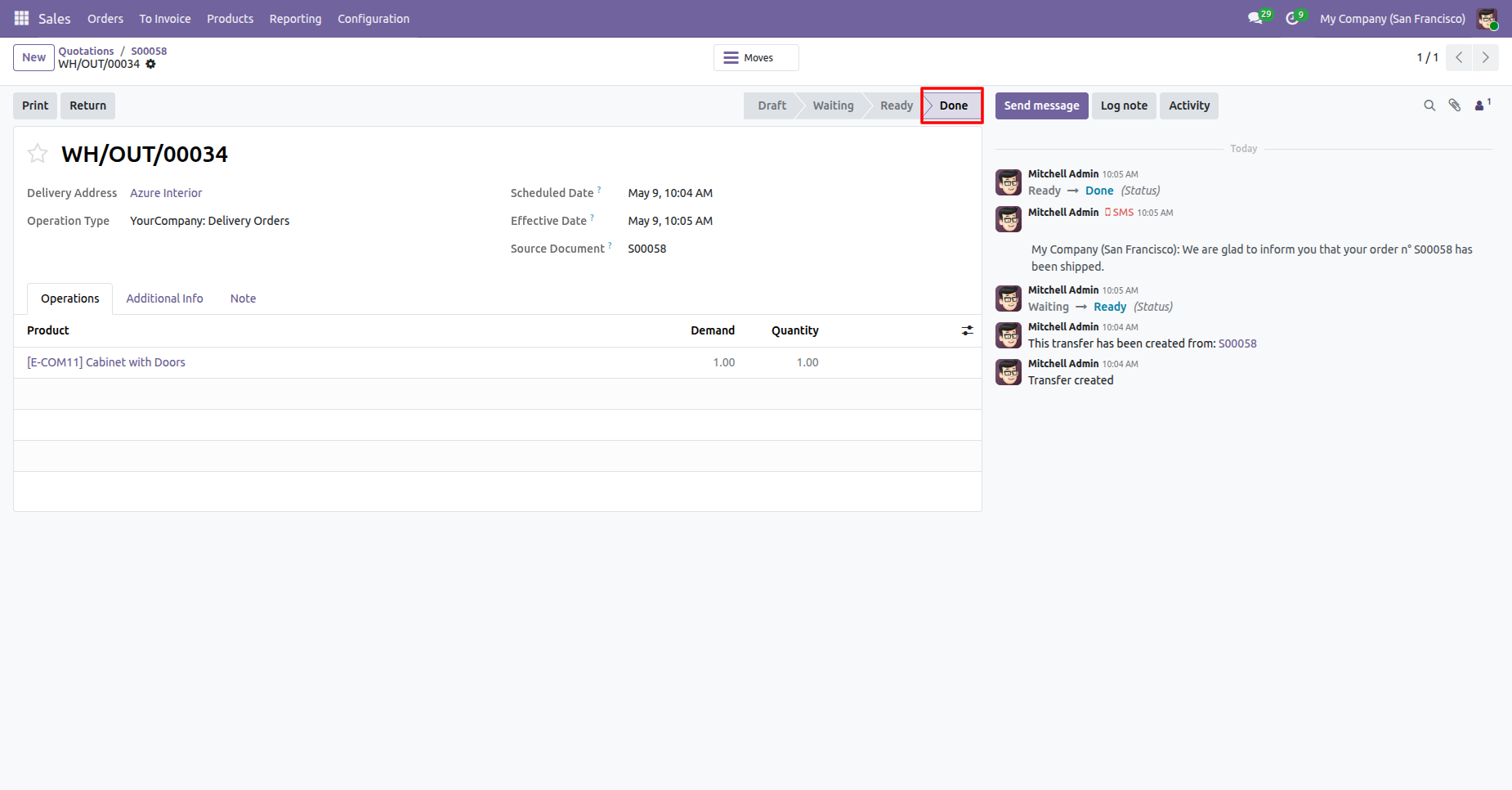
Validated the deliveries.
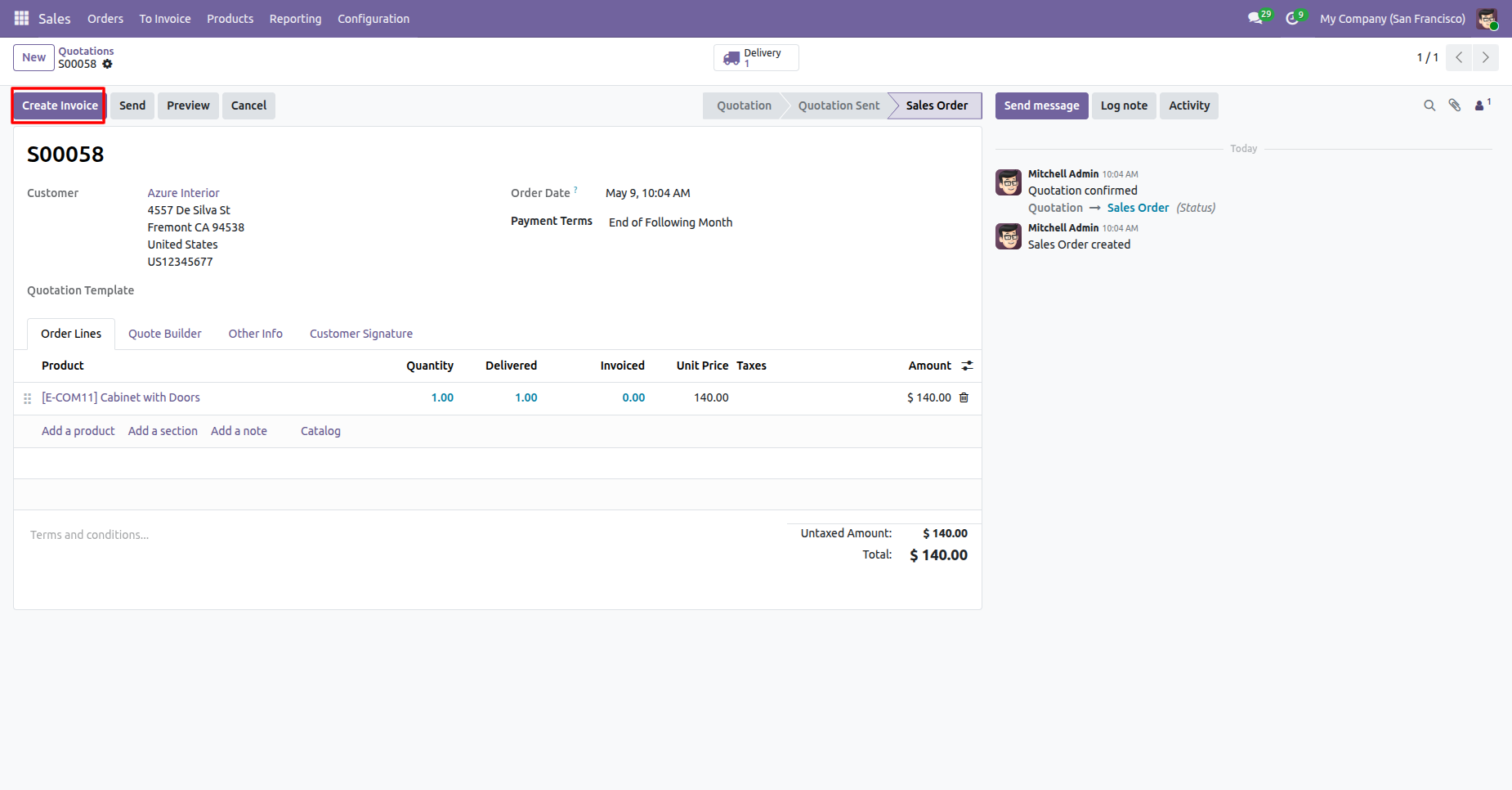
Creating the invoice fro the sale order.
Confirm the draft invoice.
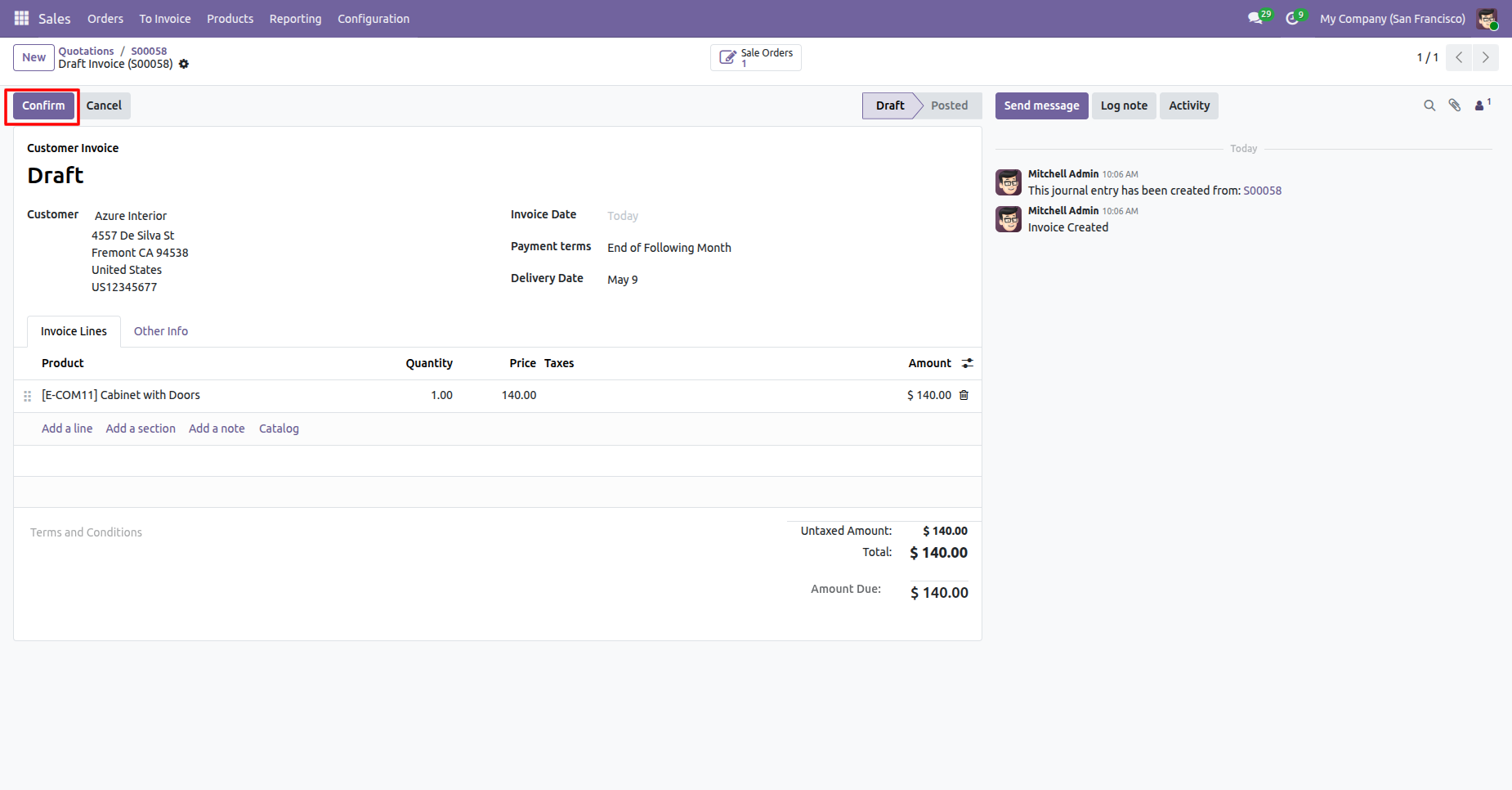
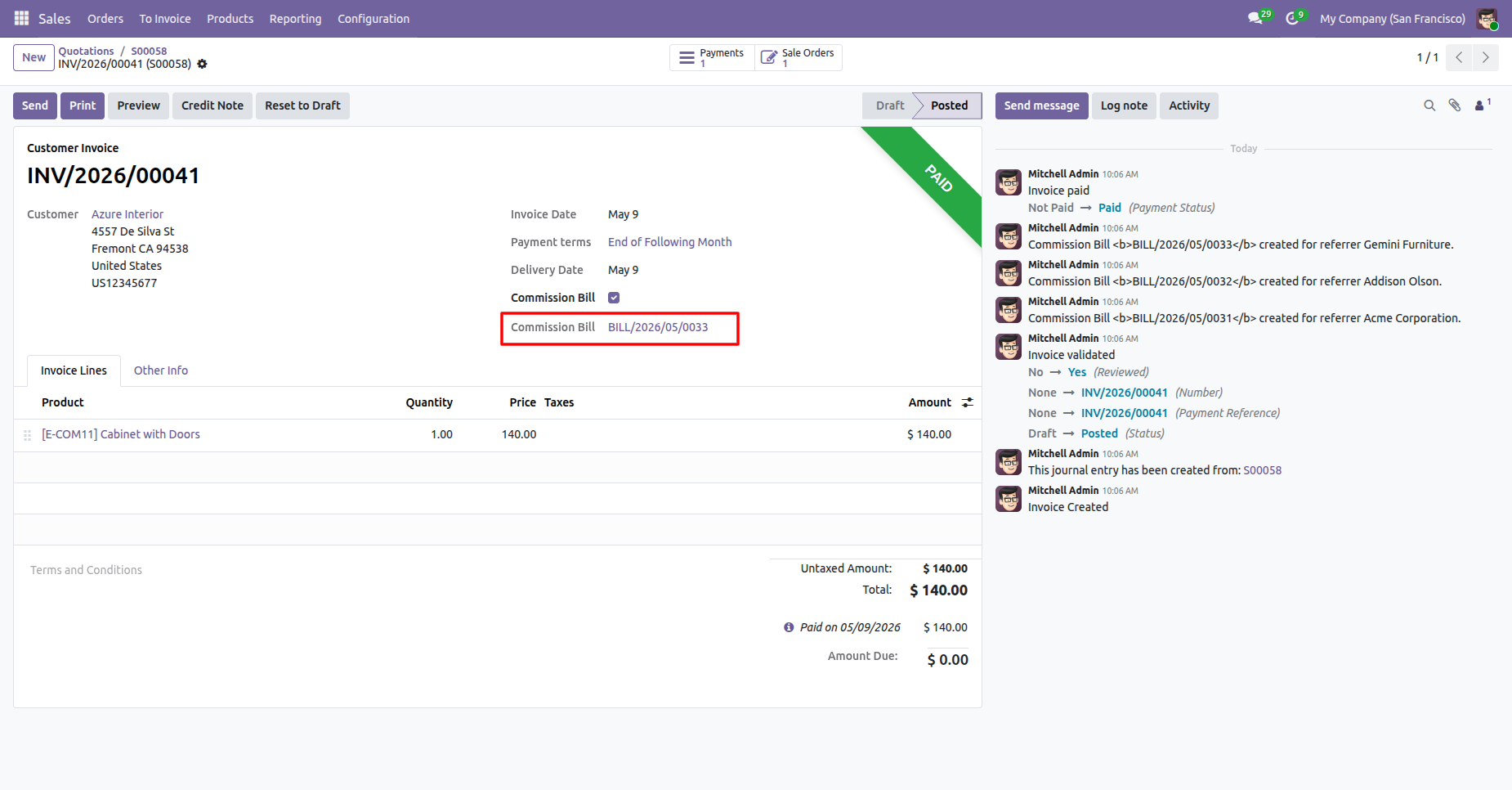
Posting the draft invoice results in the auto validation for the Comission Bill.
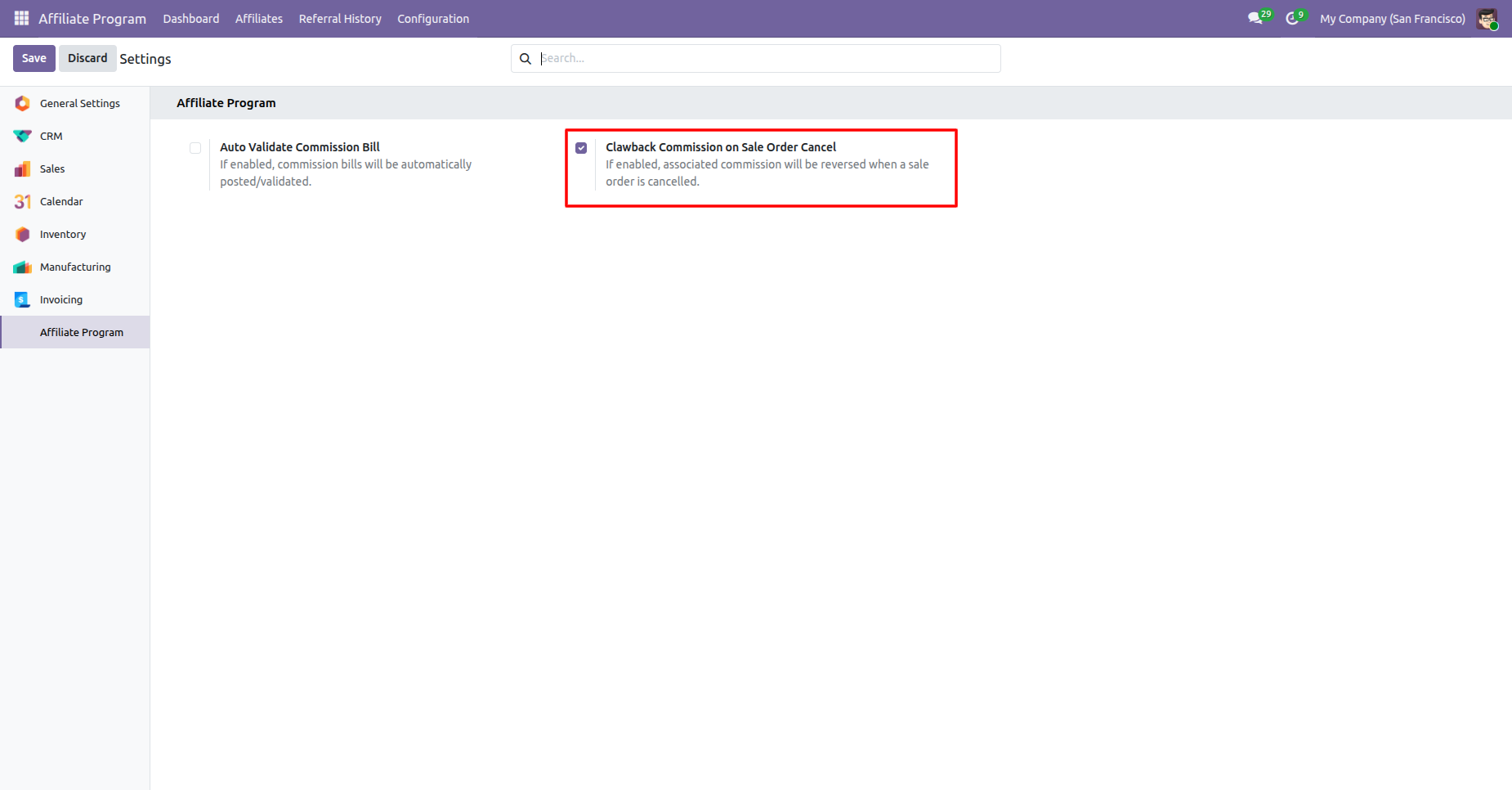
Enable the Clawback Comission on Sale Order Cancel
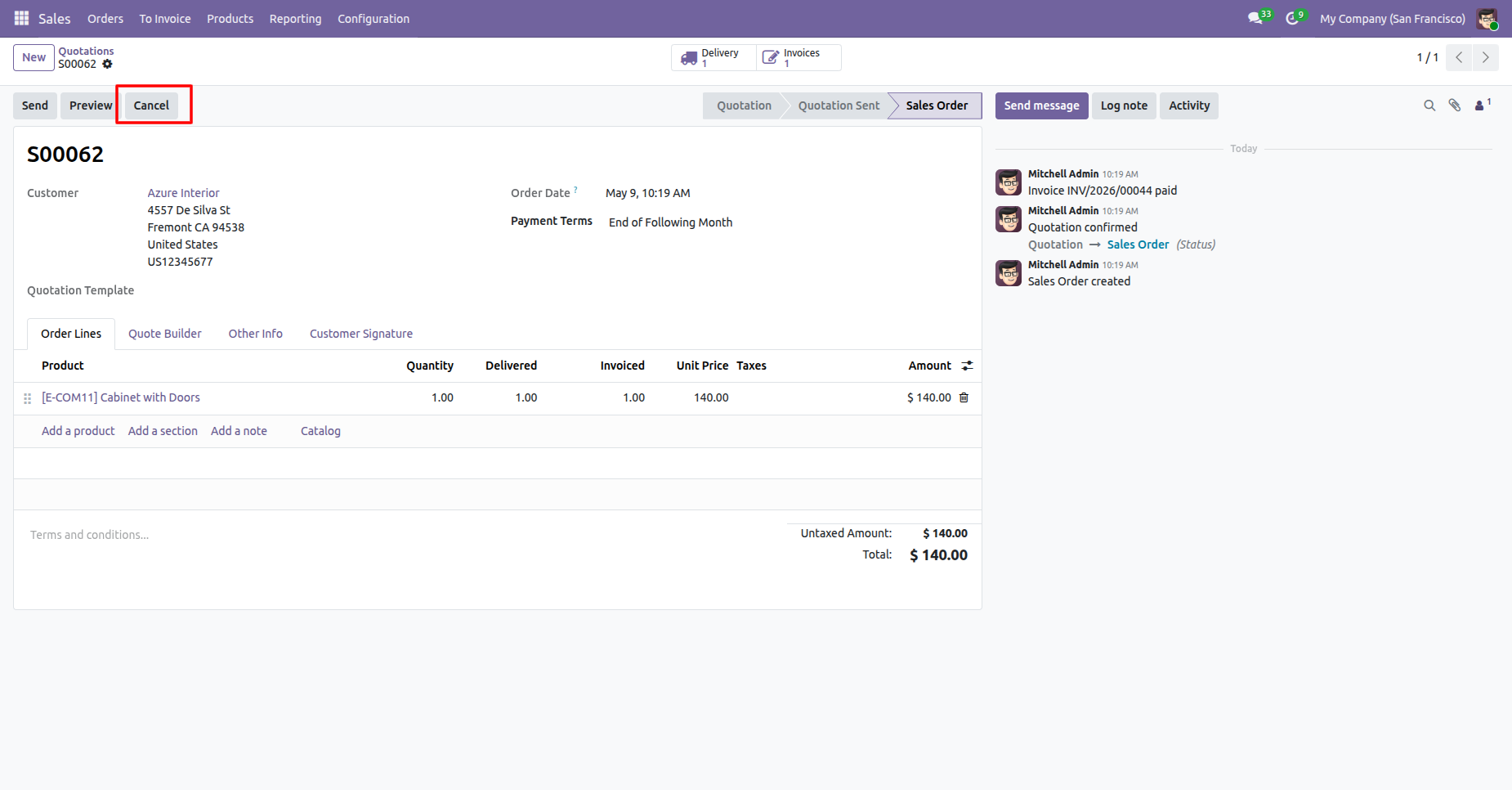
Now cancel the sale order.
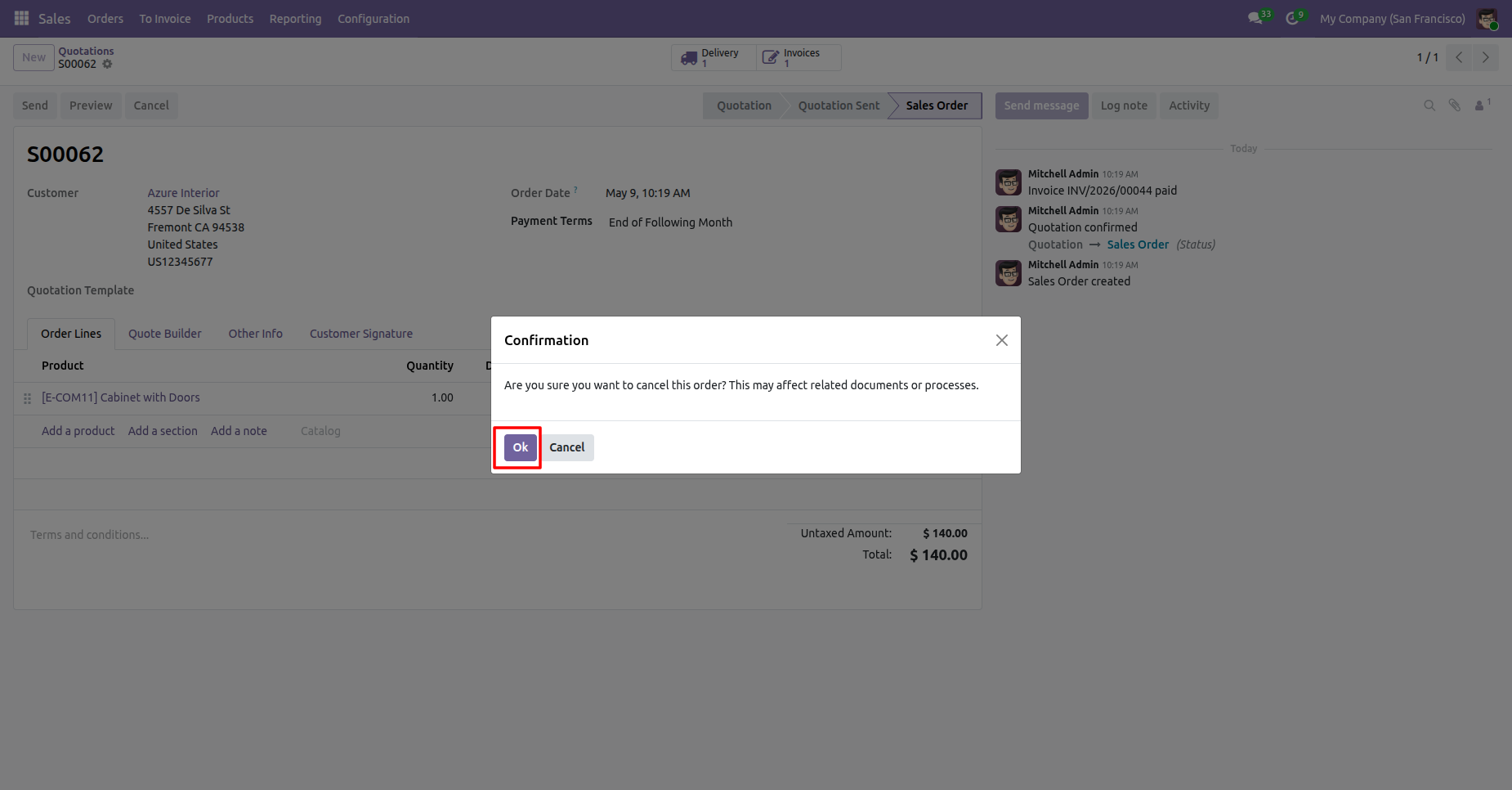
Confirmation on cancelling the sale order.
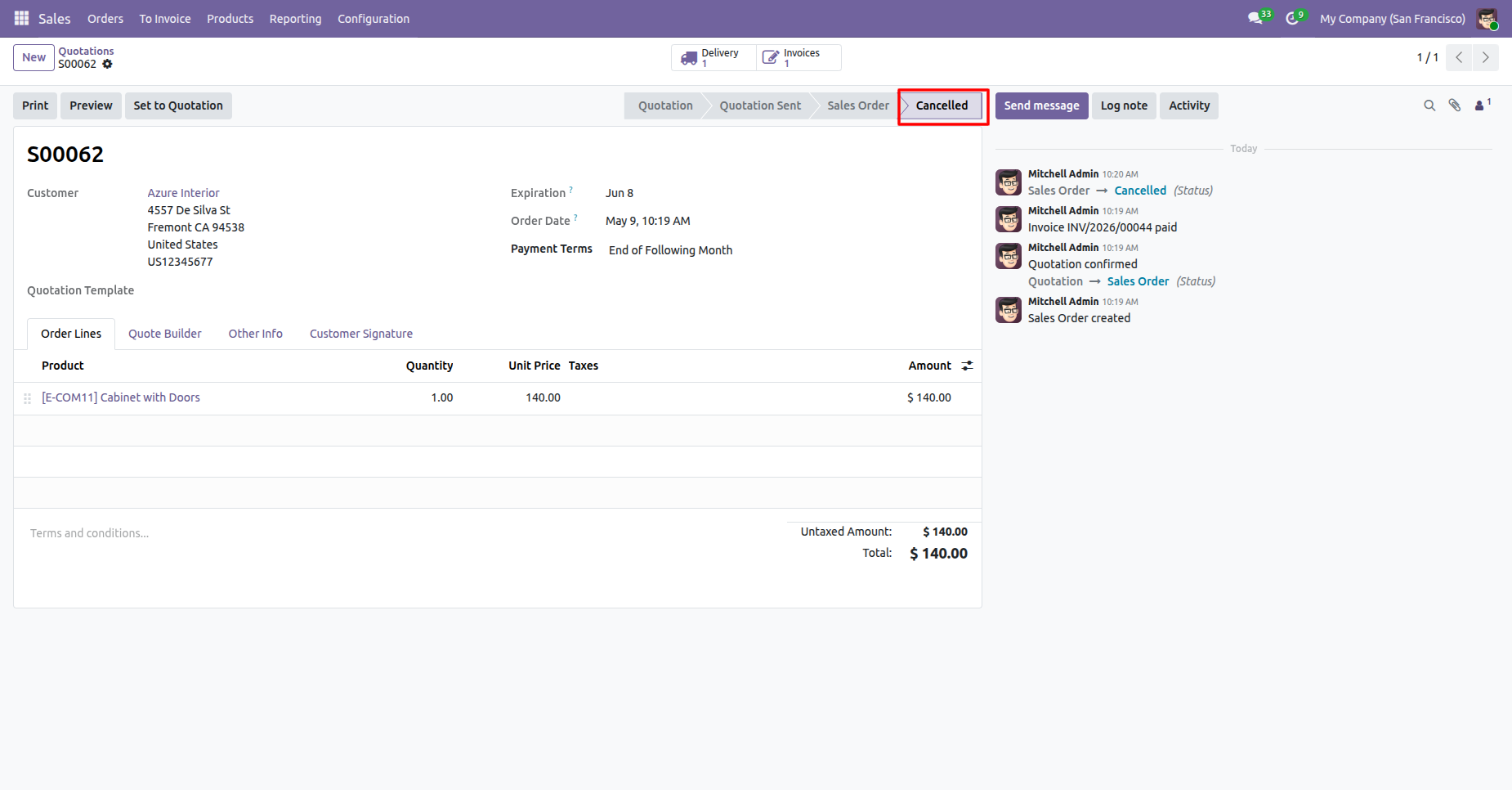
Sale order cancelled.
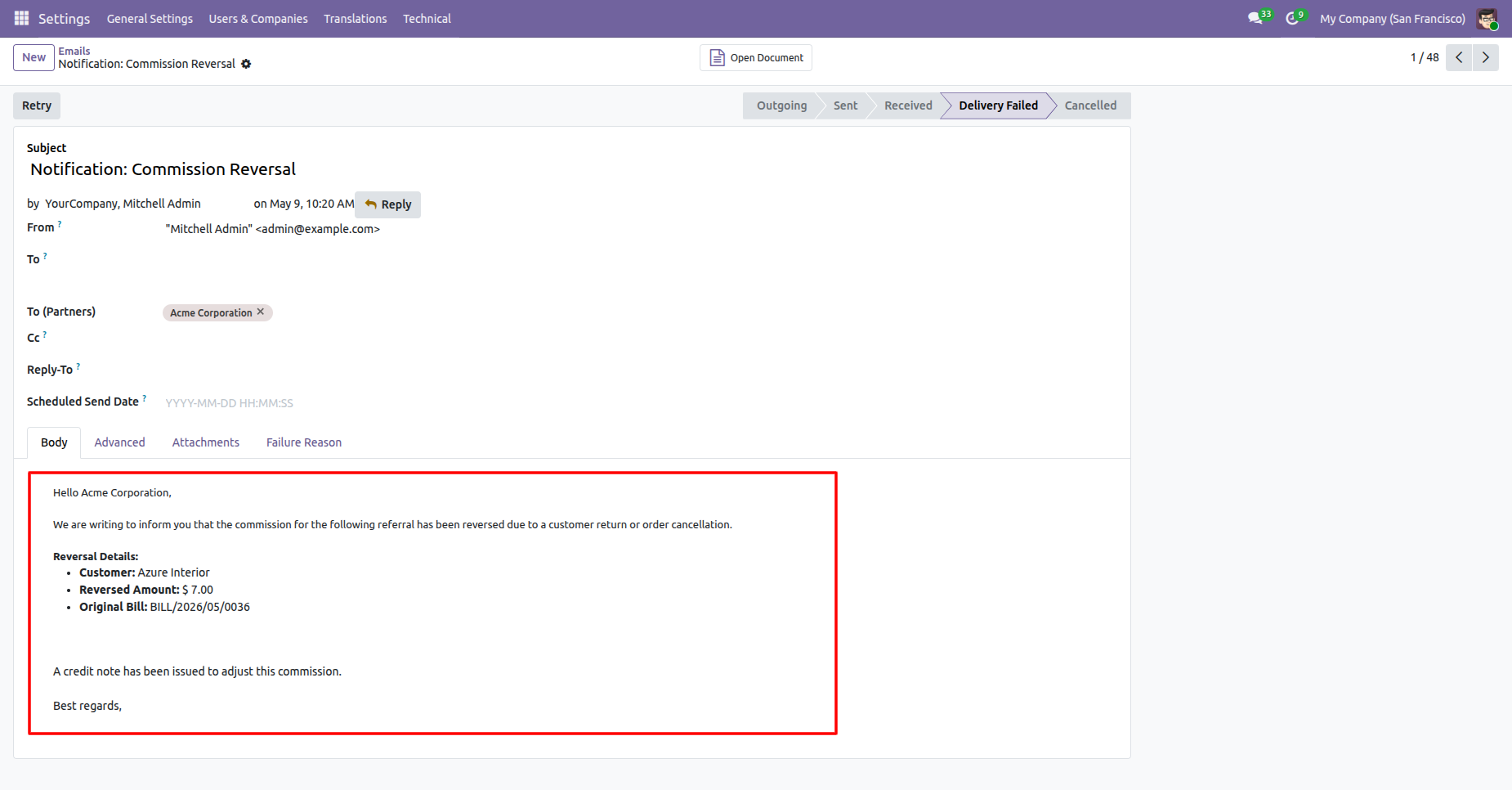
Mail showing that the comission has been reversed due to sale order cancellation.
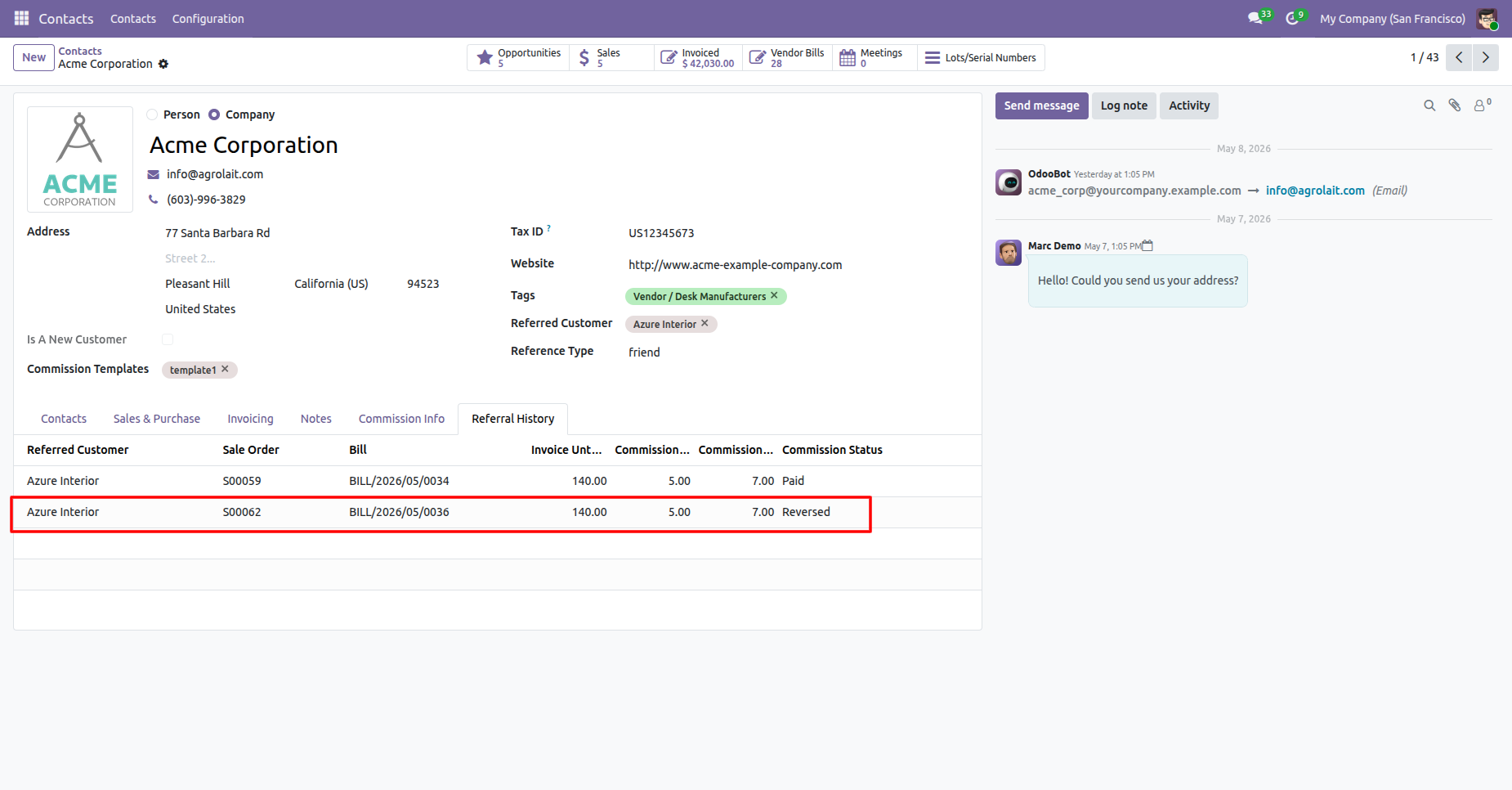
Referral History tab in contact shows that the comission has been reversed.
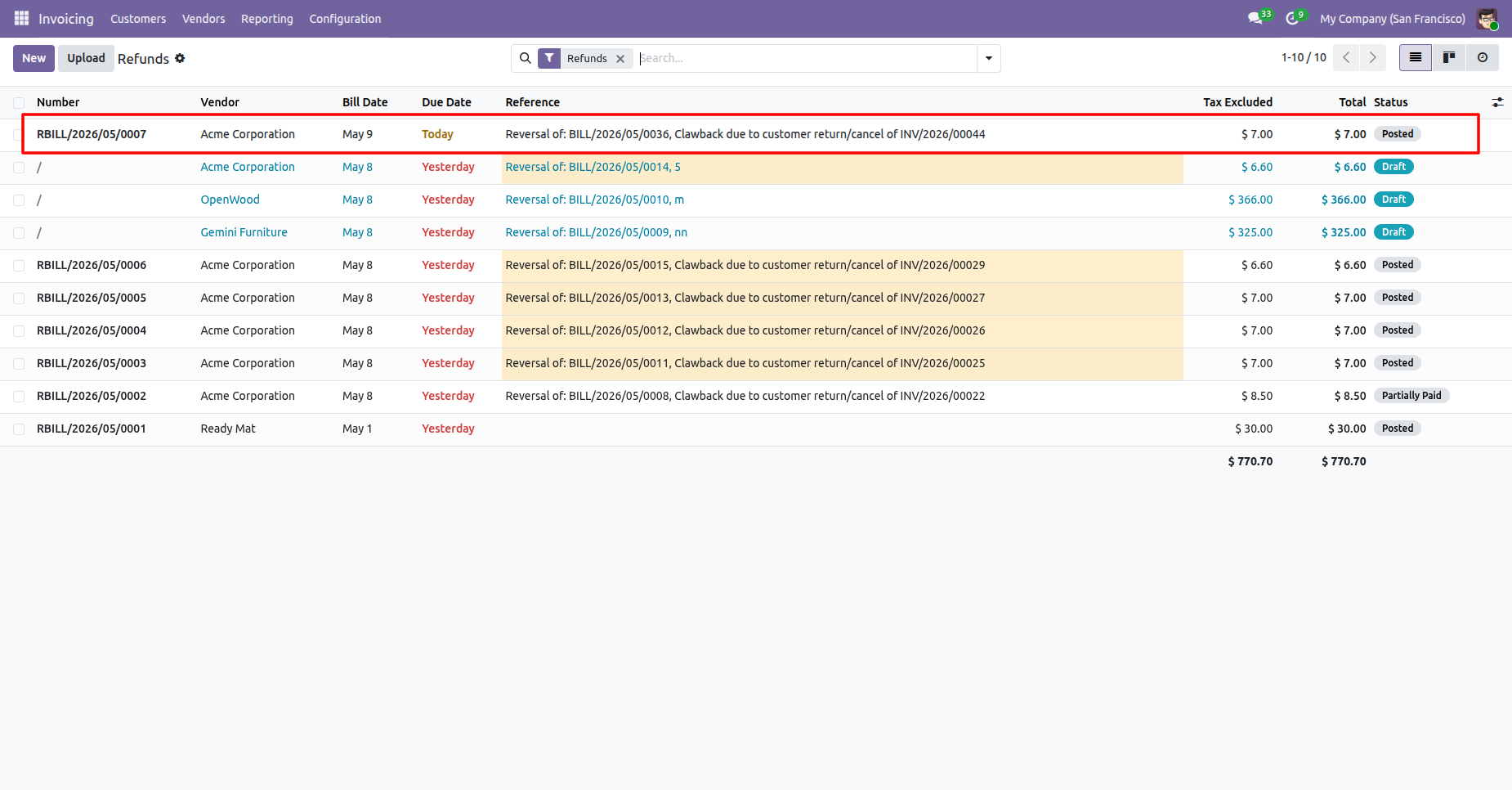
We can also check in the refunds in Invoicing demonstrating the reversal of comission.
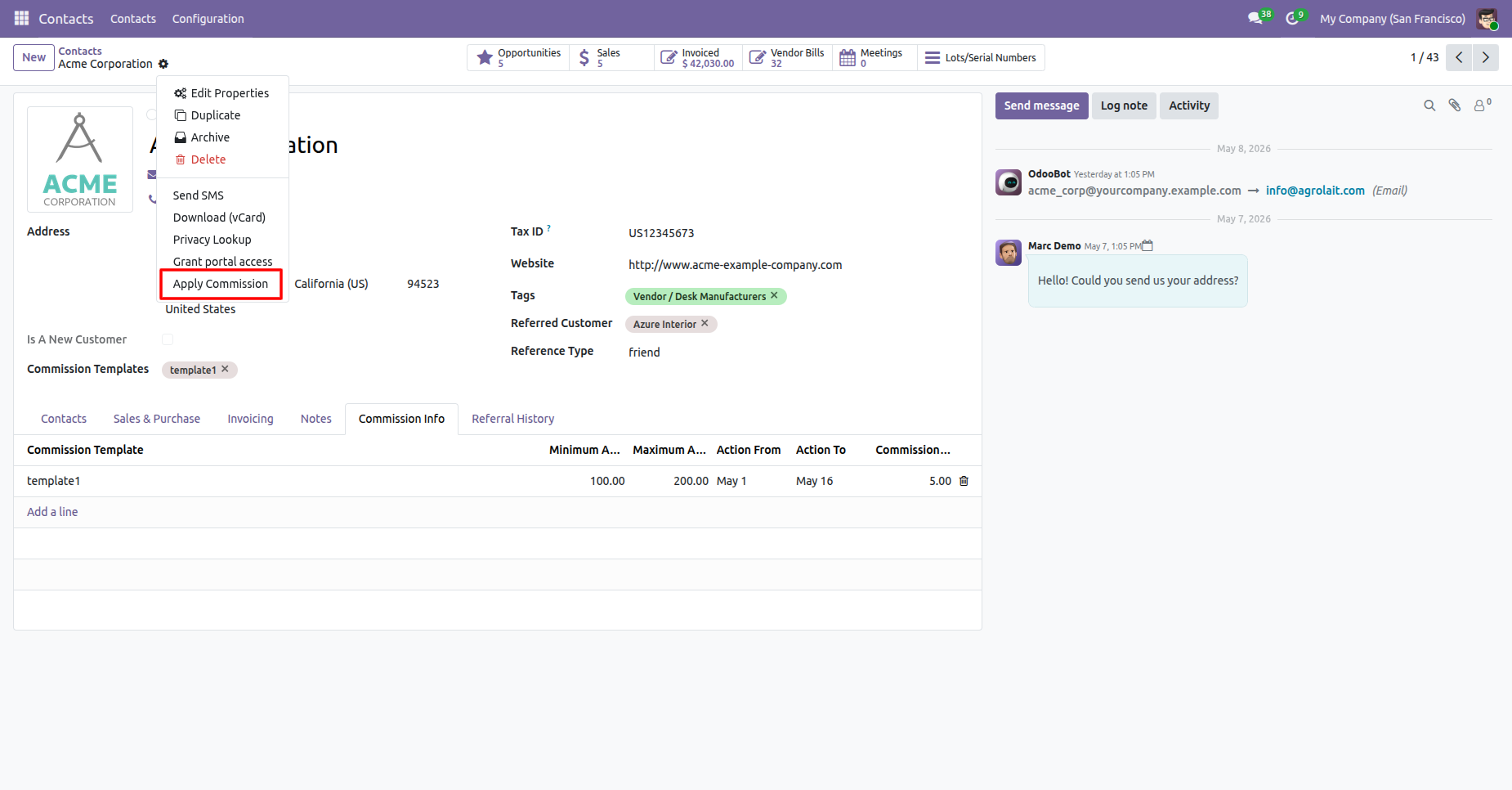
Select the Apply Comission in the action menu.
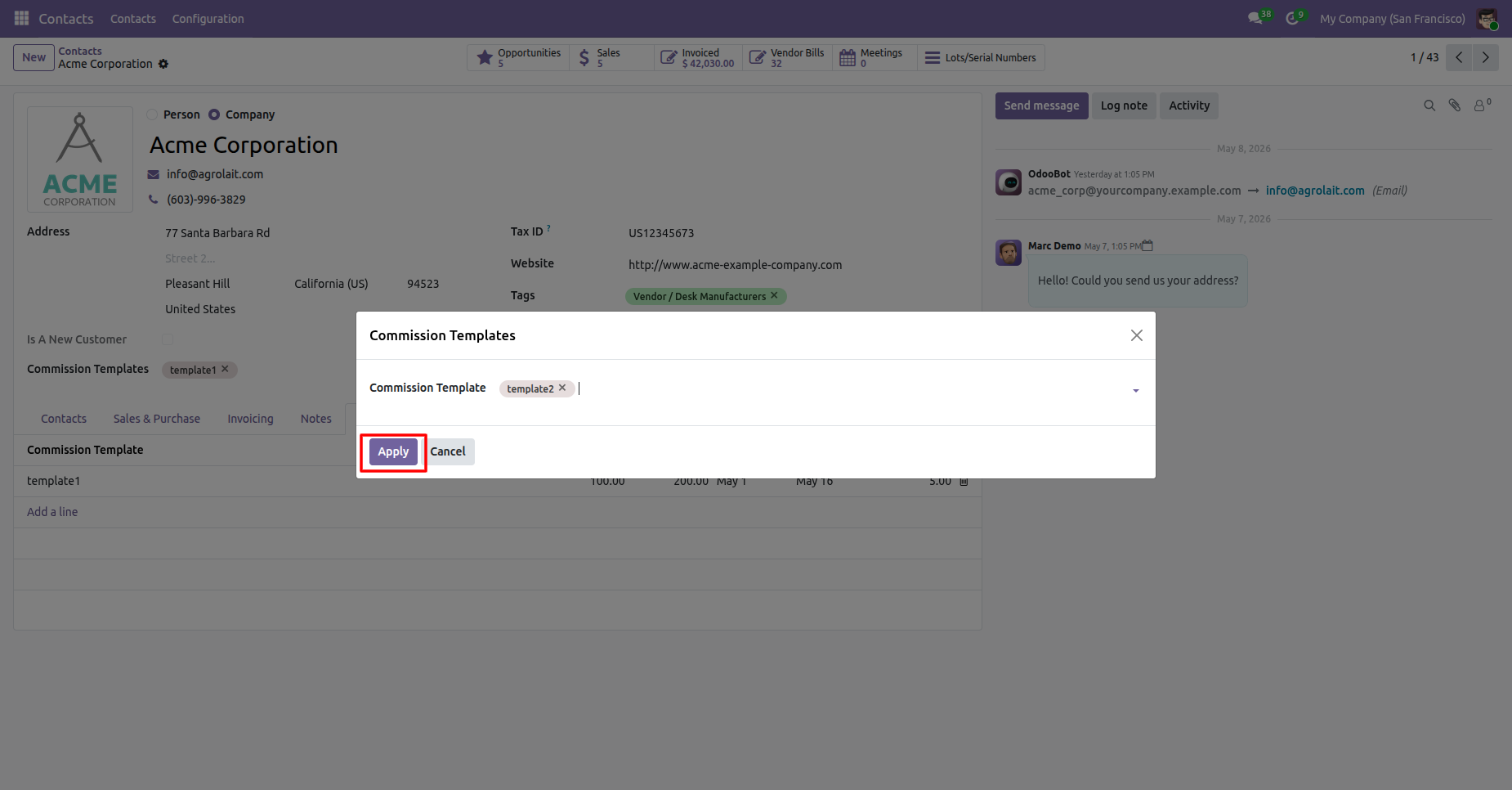
Apply the comission templates to the contact.
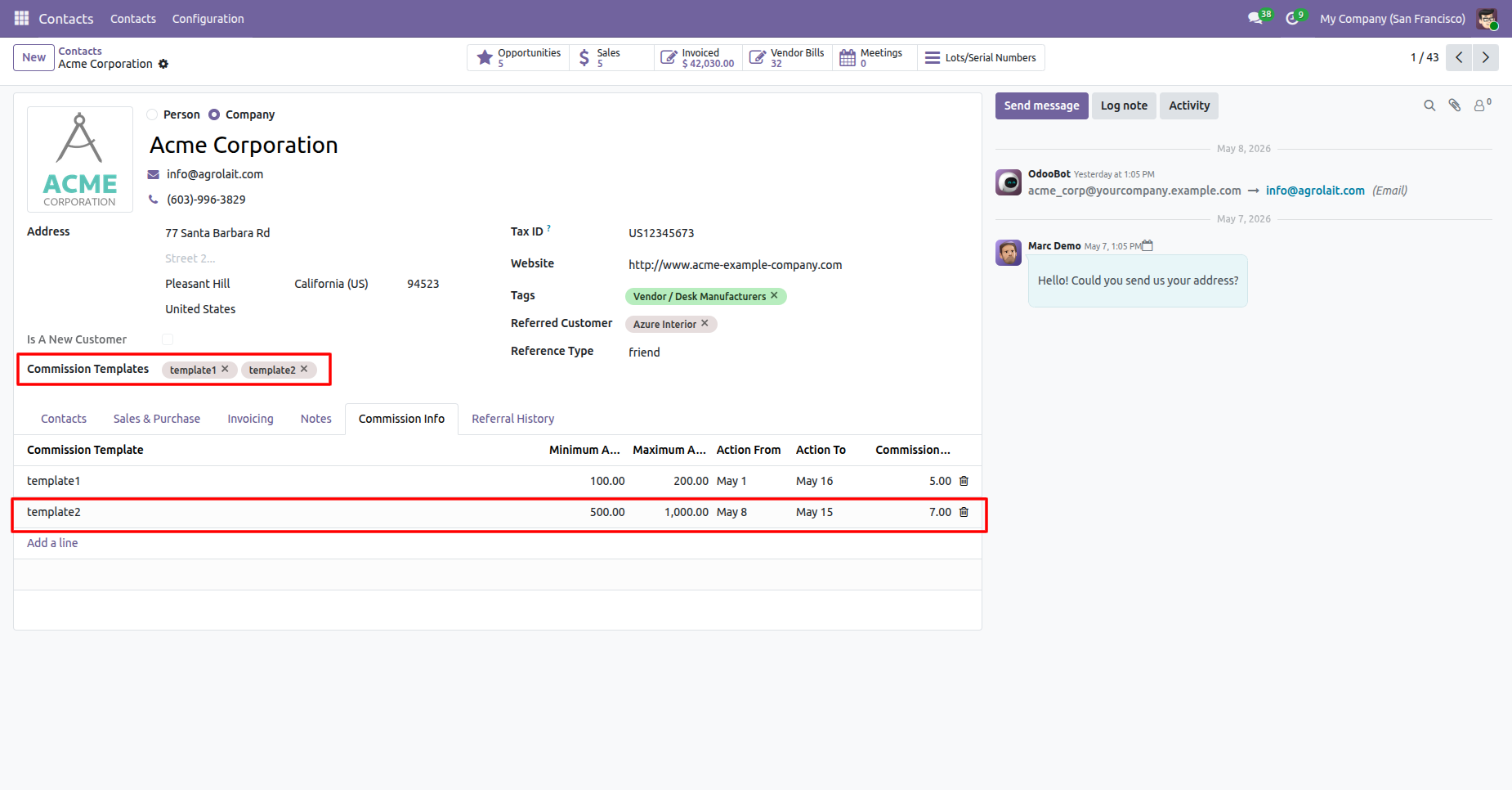
Added the comission templates to the contact.
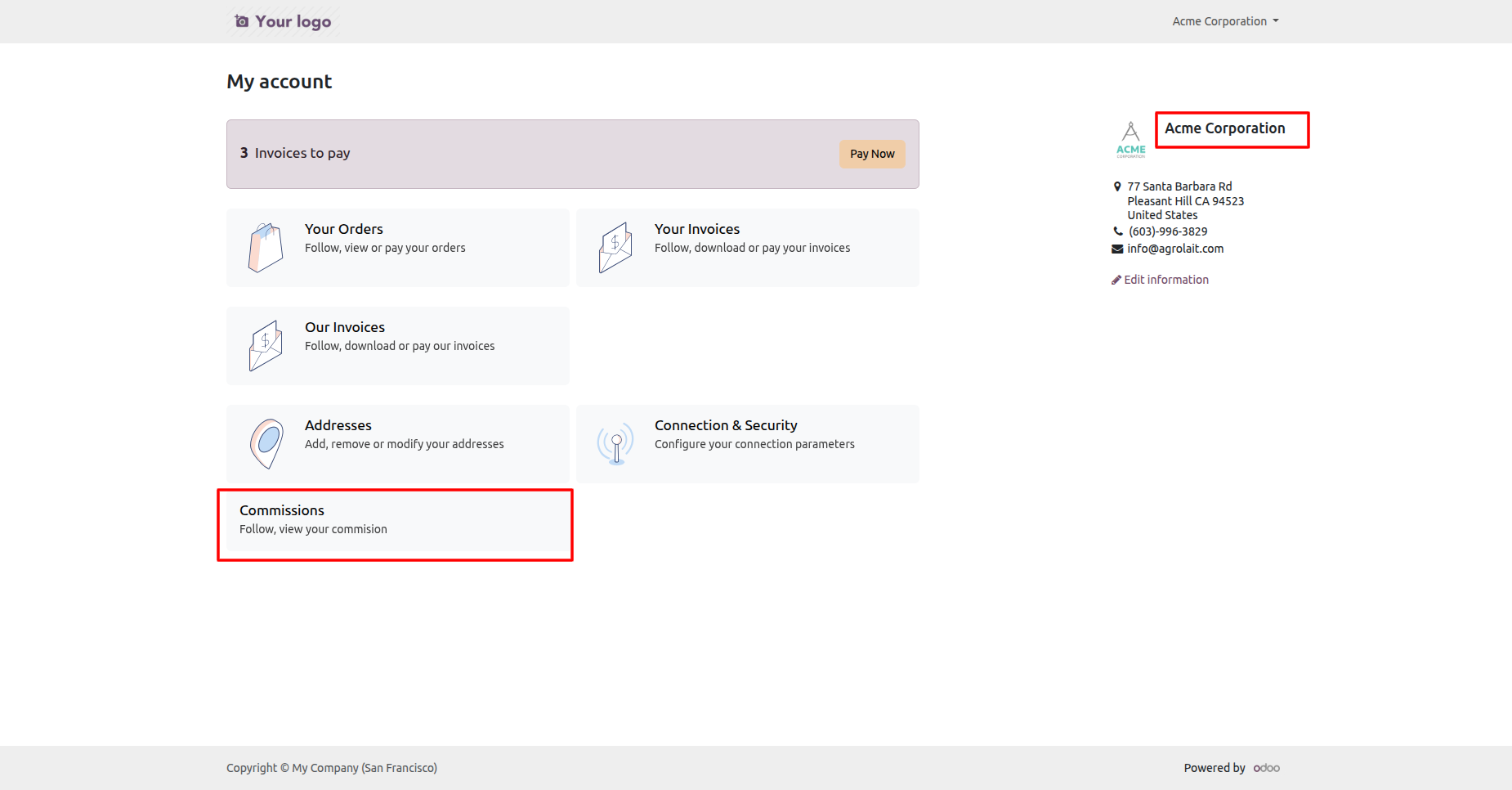
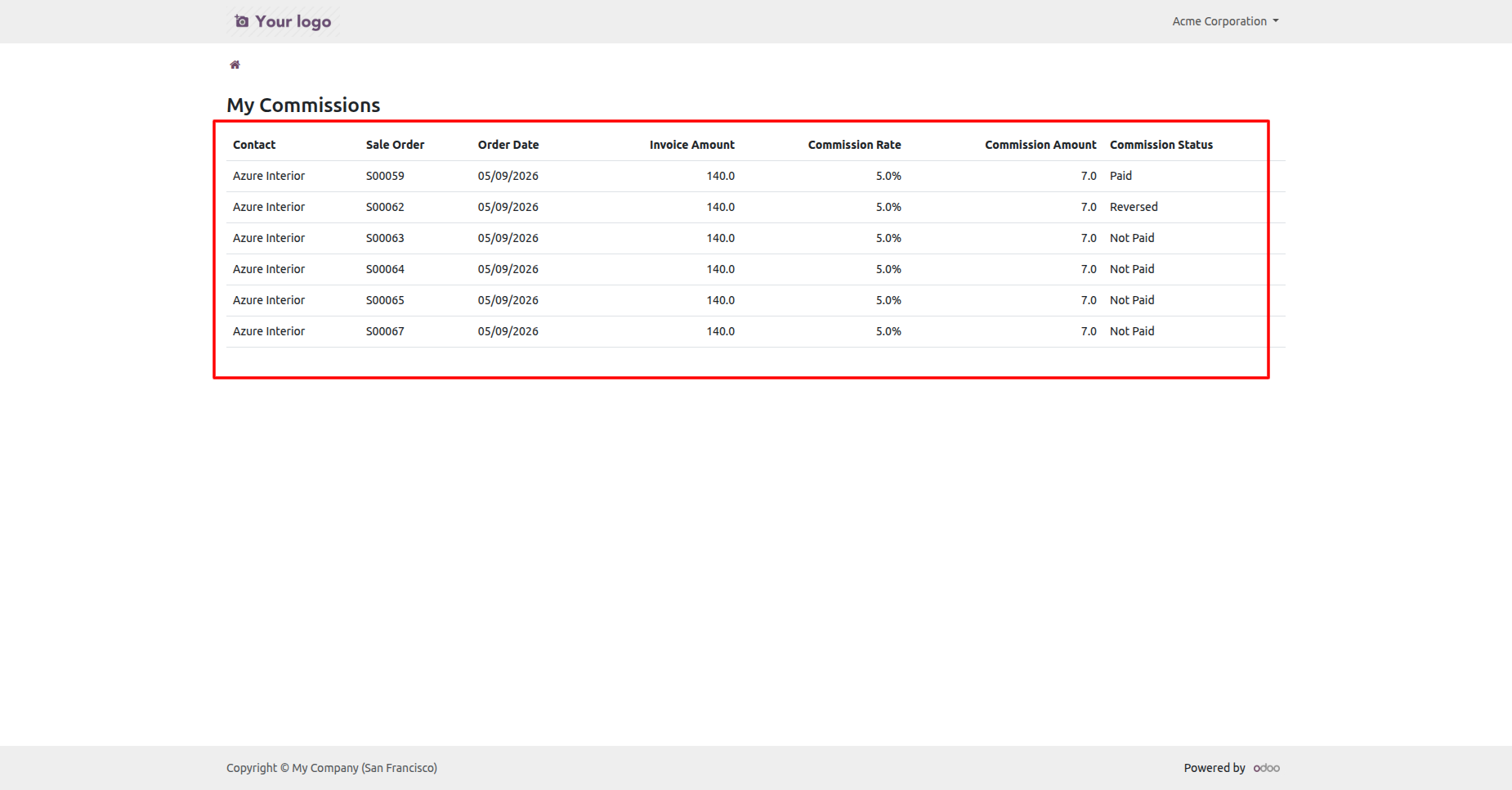
You can also view the comissions through the portal.
List view of the comissions in the portal.
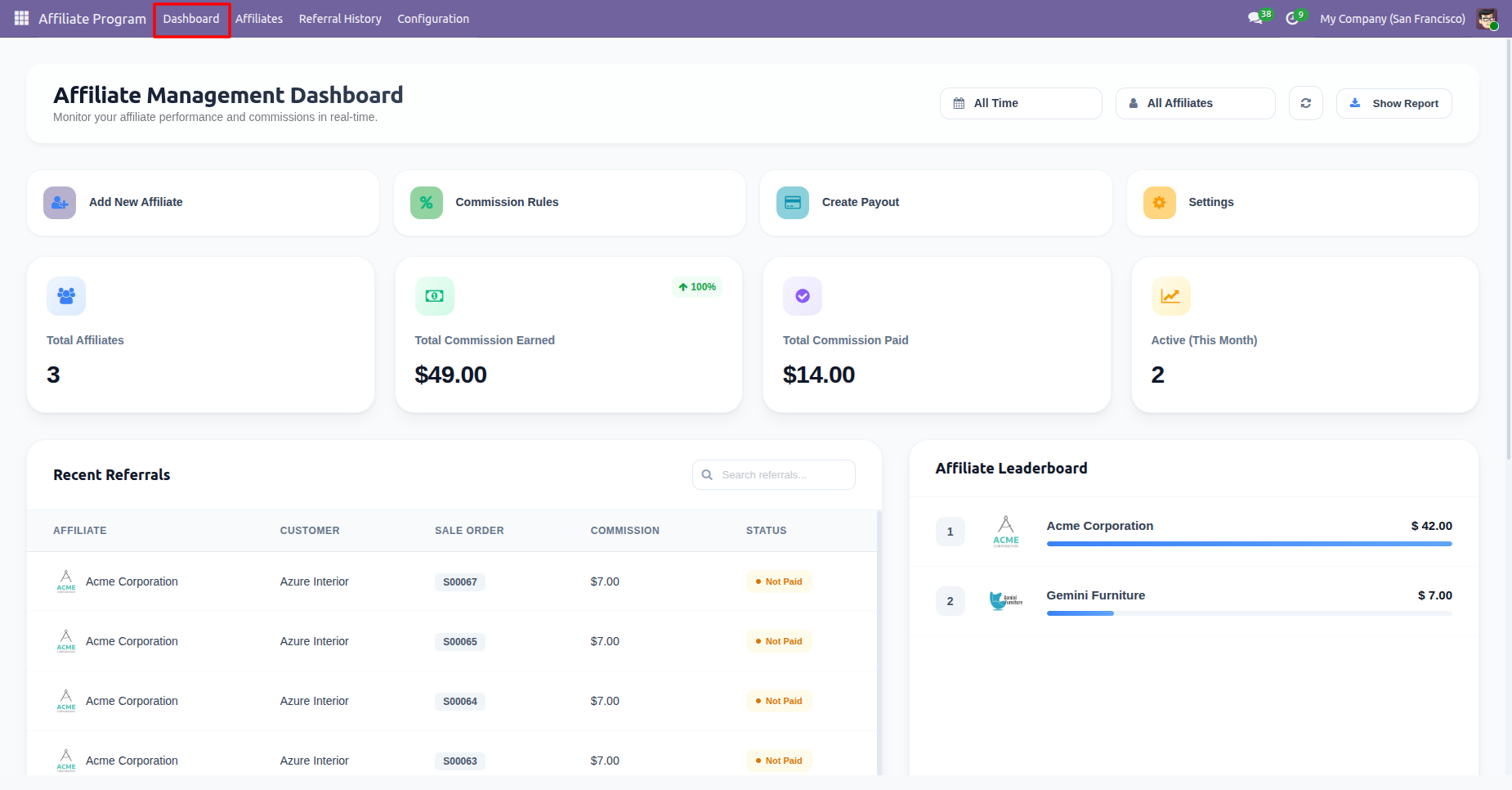
Affiliate Management Dashboard.
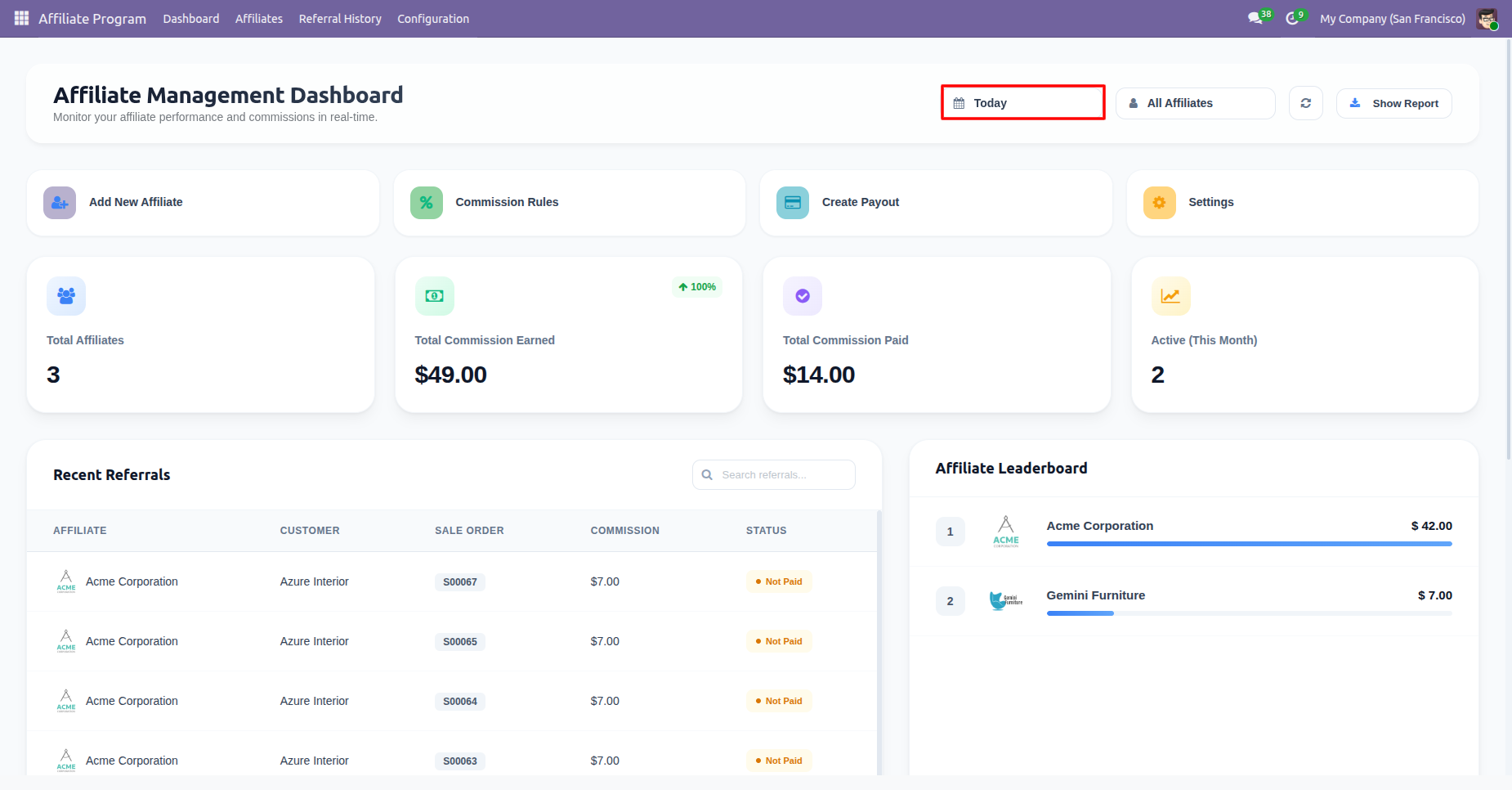
Date Filters.
Customer filters.
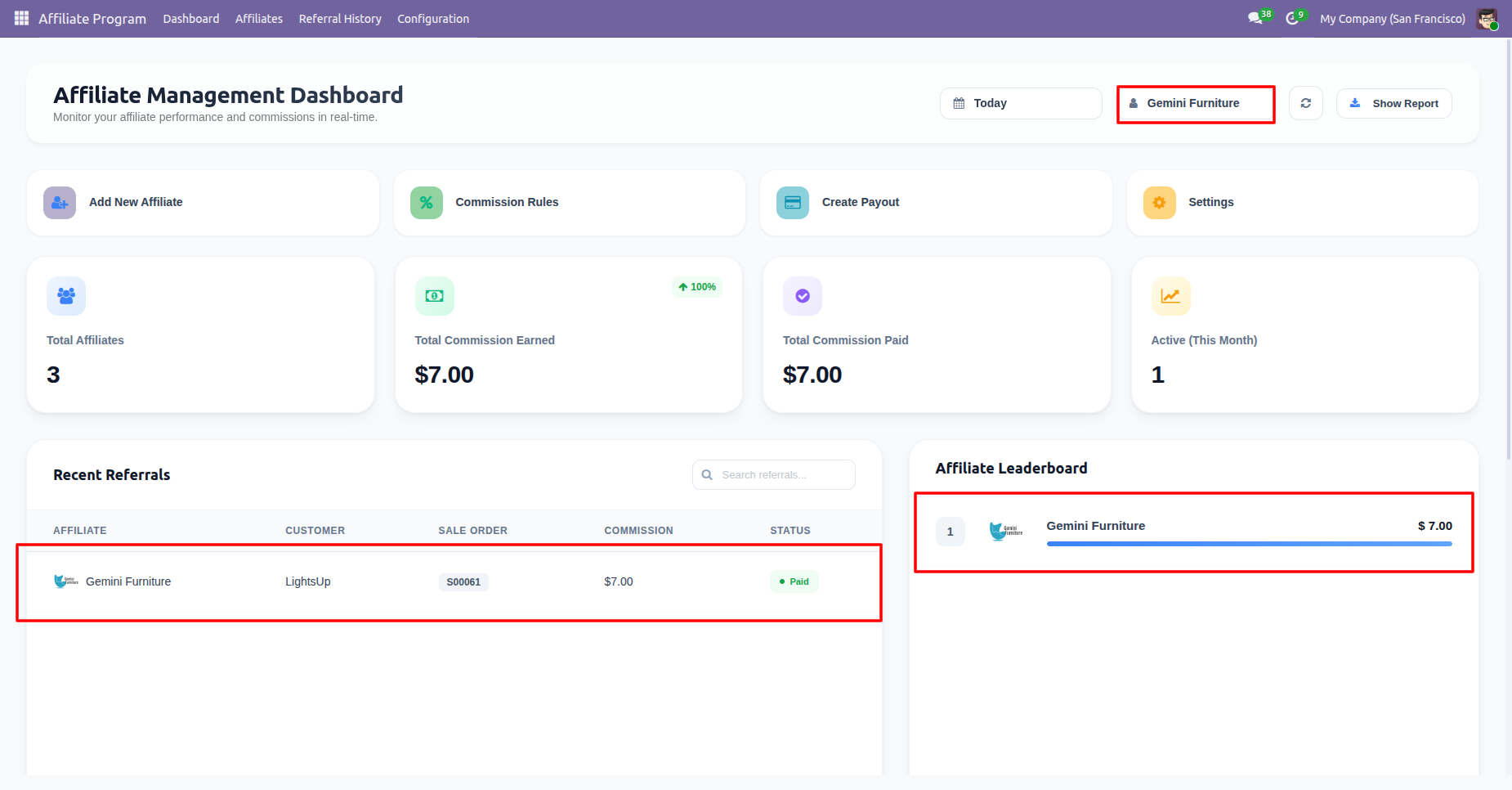
Recent Referrals and Affiliate Leaderboard.
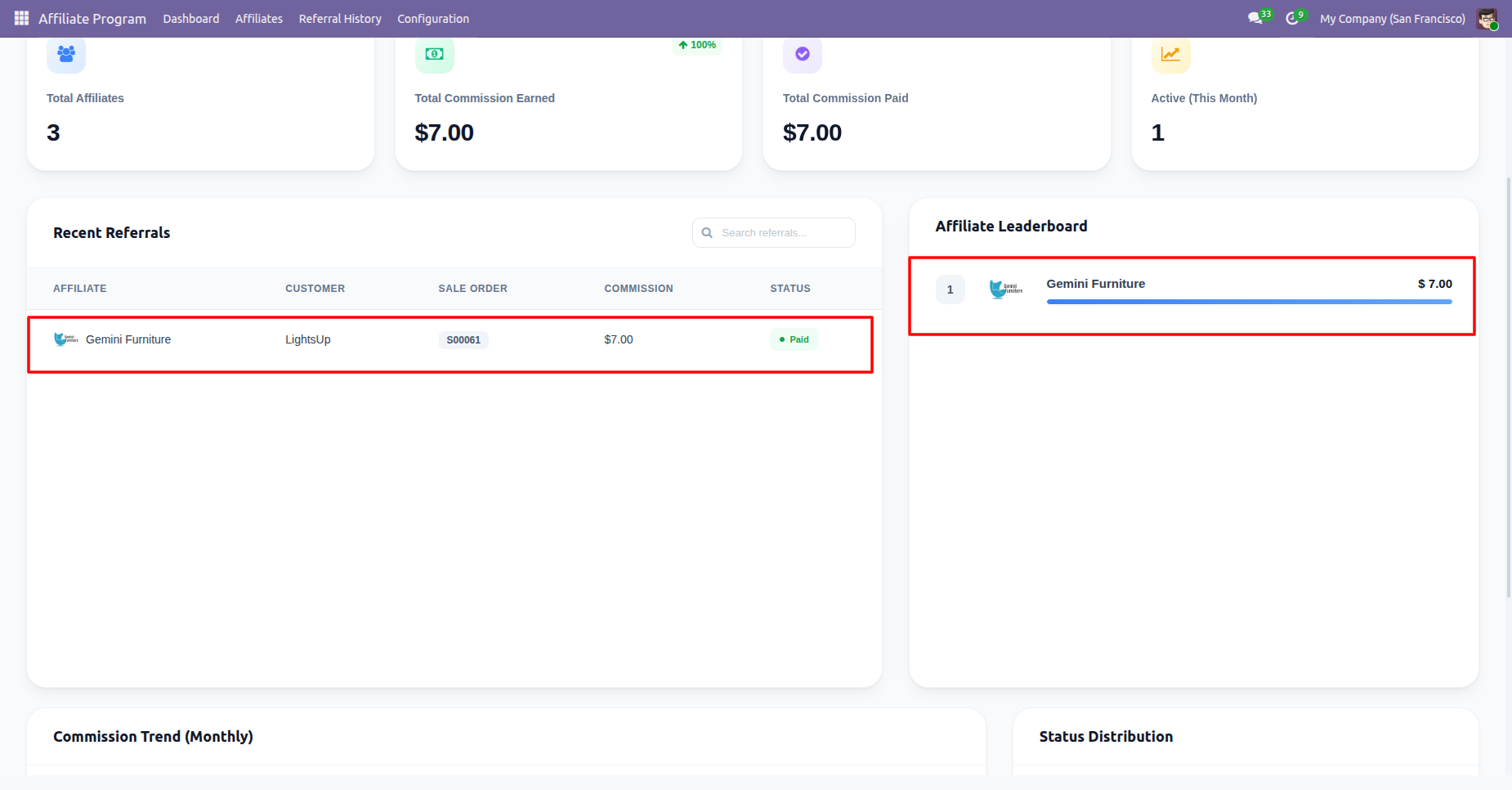
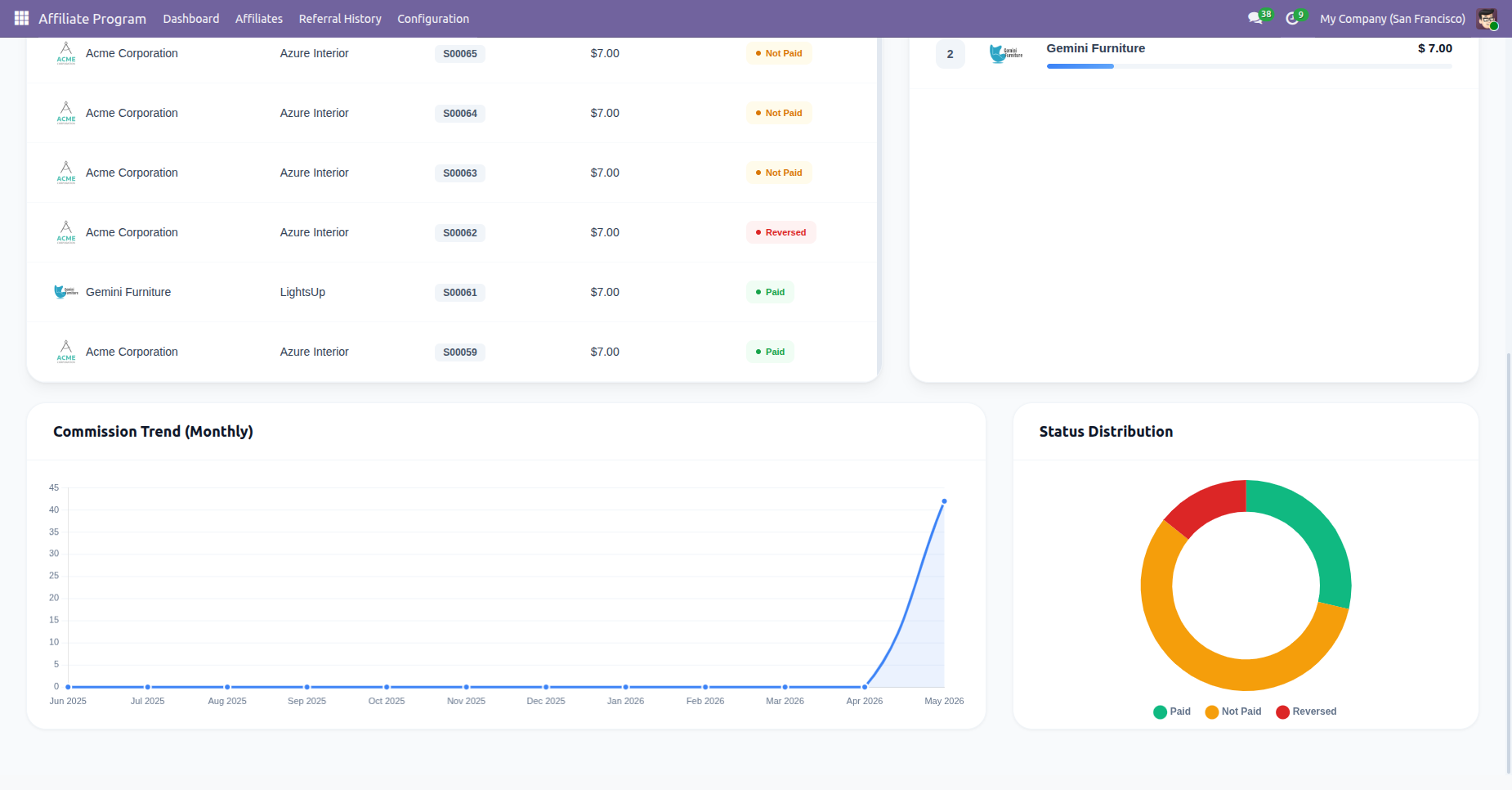
Comission Trends and Status Distribution charts.
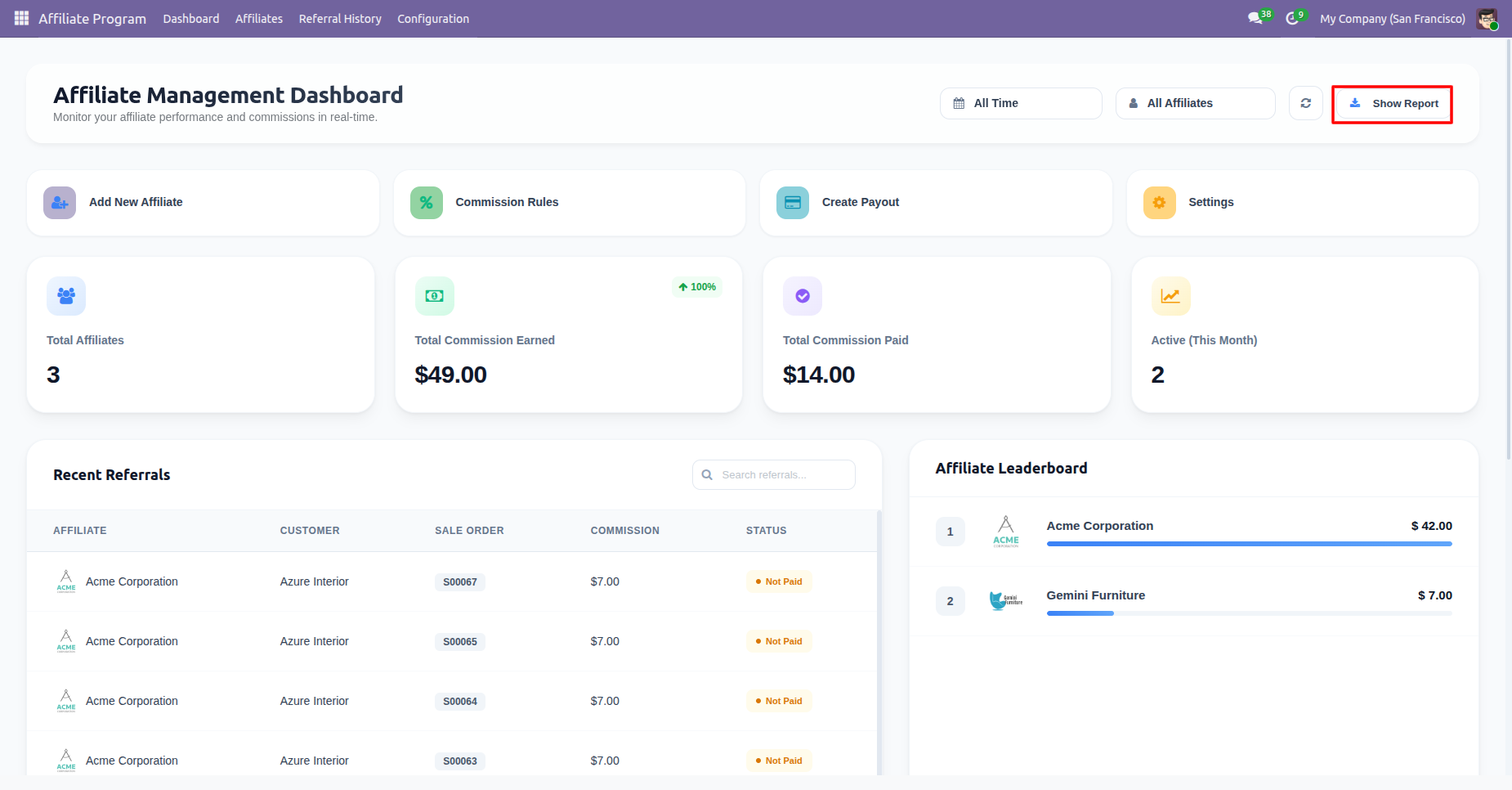
You can download reports by clicking the Show Report.
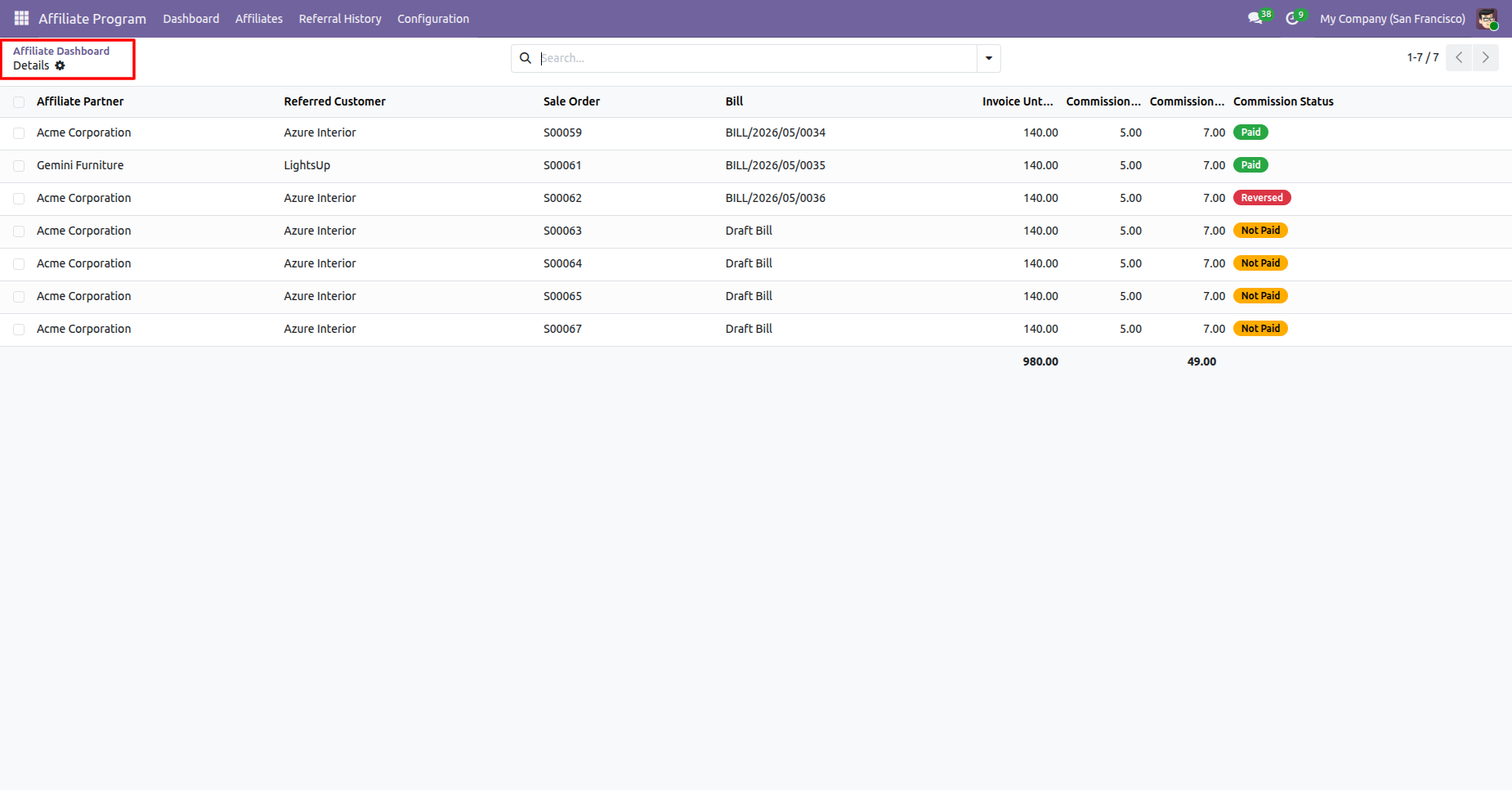
Alliliate paretners list view.
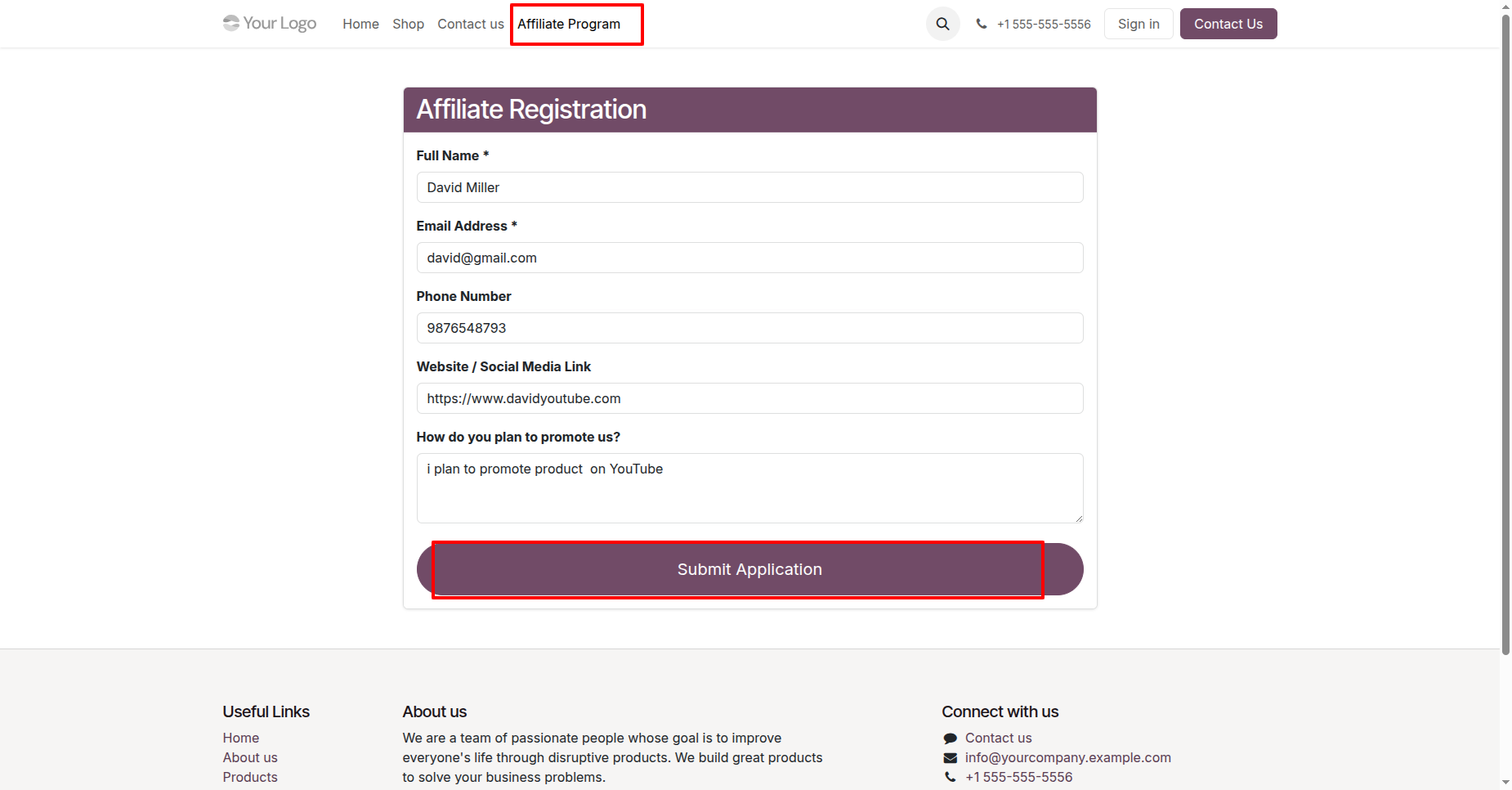
Go to the website, complete the Affiliate Program Application form, and click the Submit Application button to apply for the affiliate program.
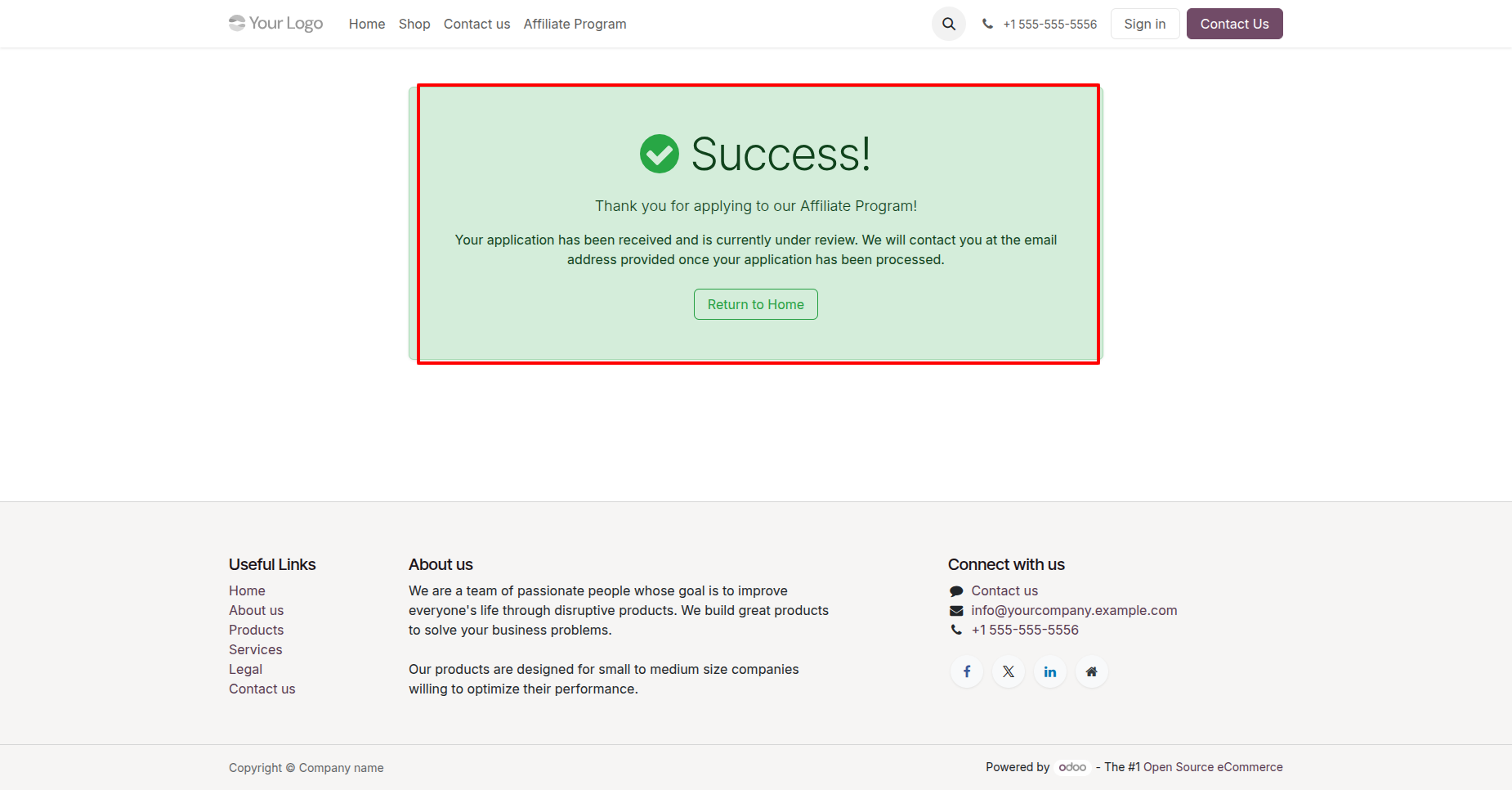
The Affiliate Program Application has been submitted successfully.
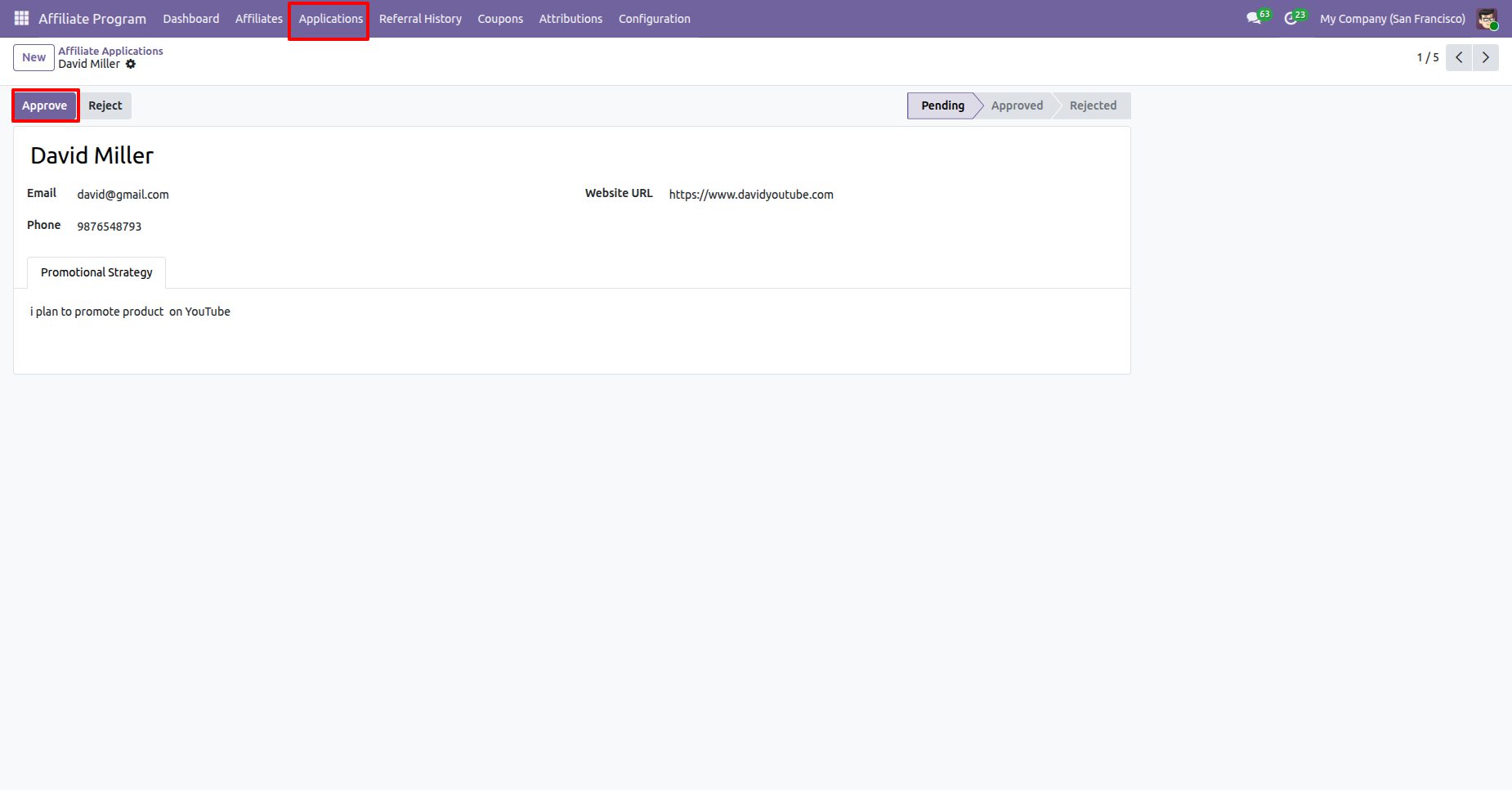
Go to the Affiliate Program Applications menu in the backend, open the submitted application, and click the Approve button to approve the affiliate program request.
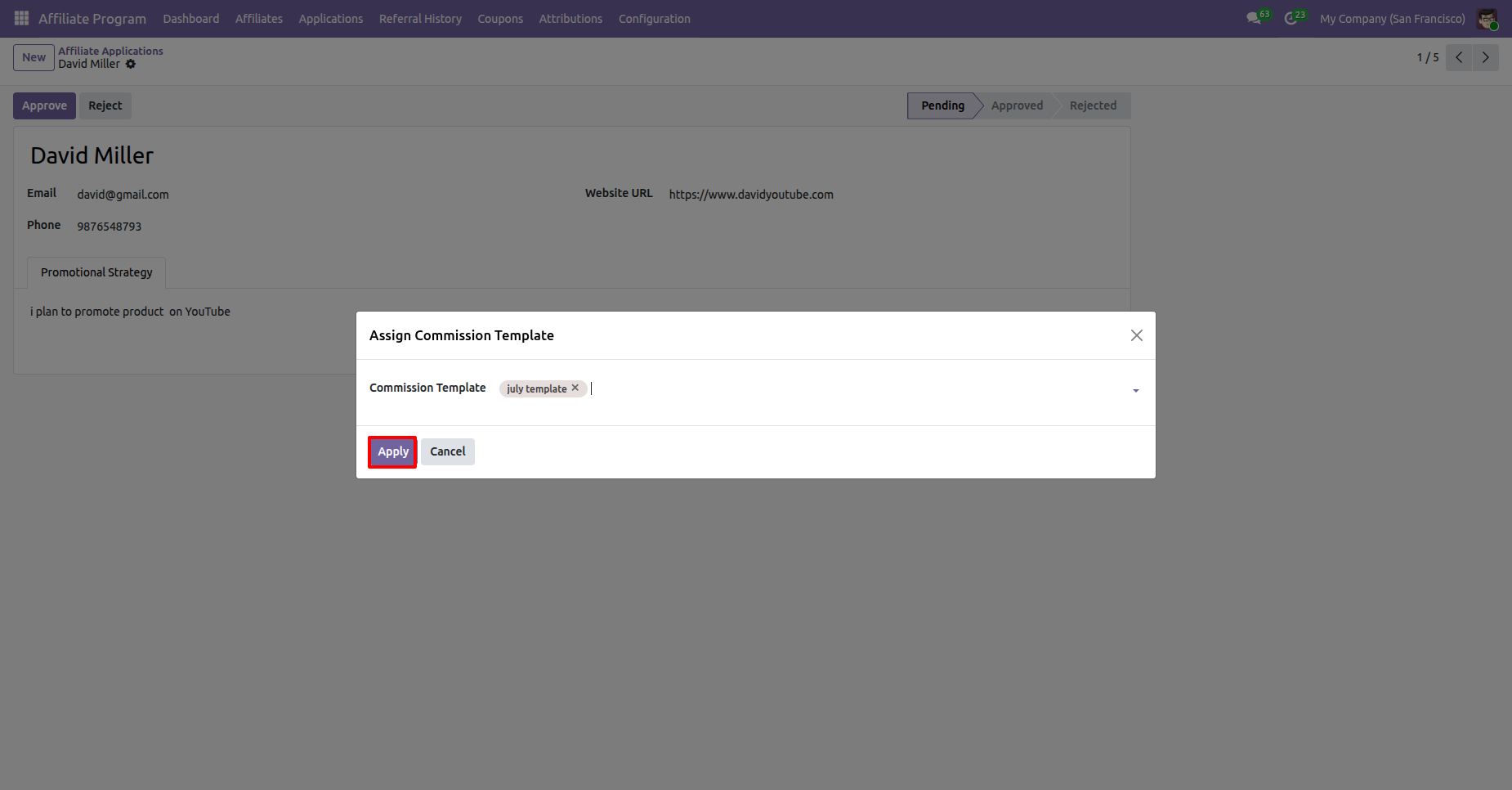
By clicking the Approve button, a wizard opens, allowing you to select the Commission Template to be assigned to the affiliate before approving the application. Select the desired Commission Template and click the Apply button.
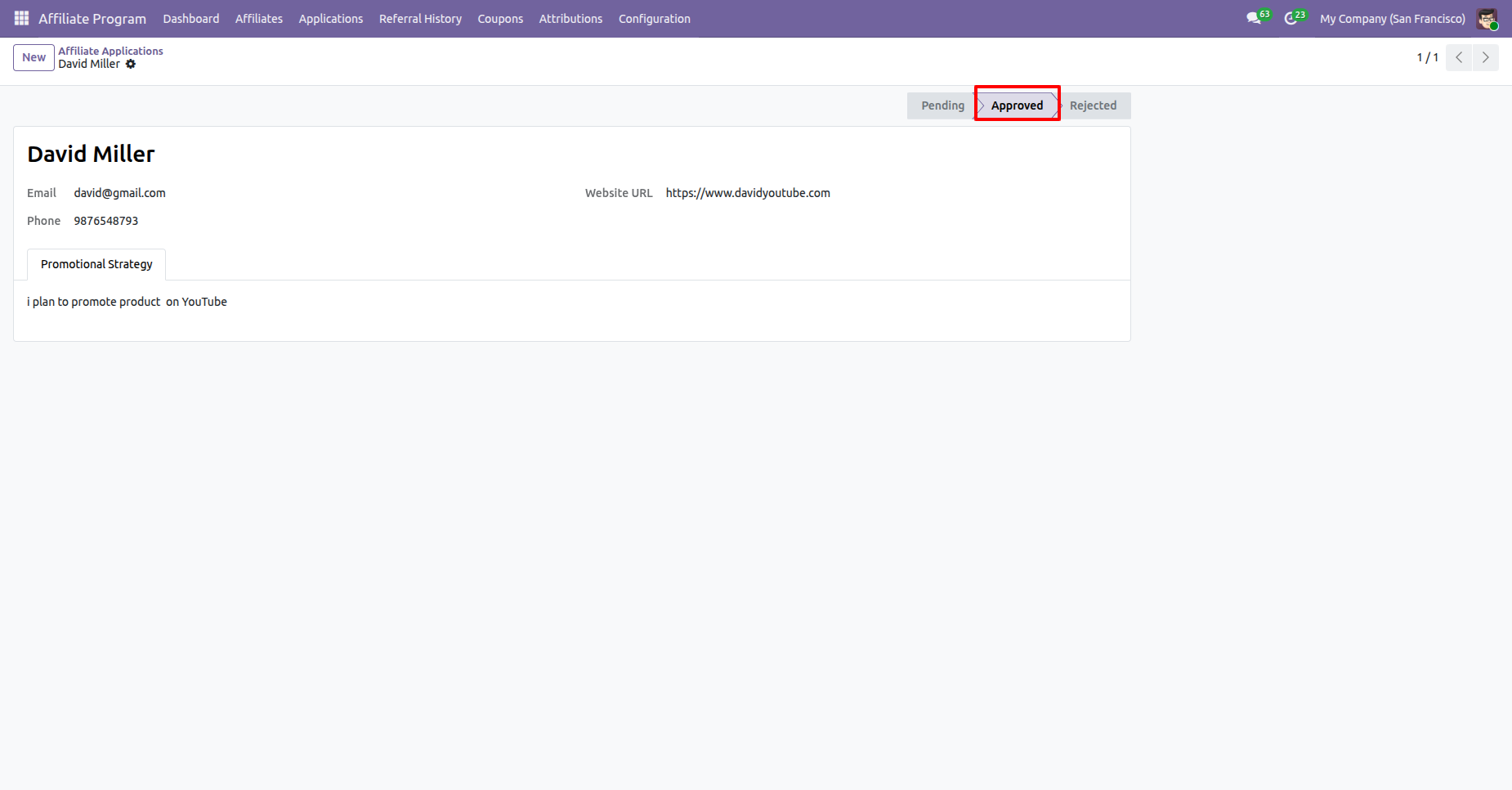
The Affiliate Program Application has been approved successfully and is automatically moved to the Approved stage.
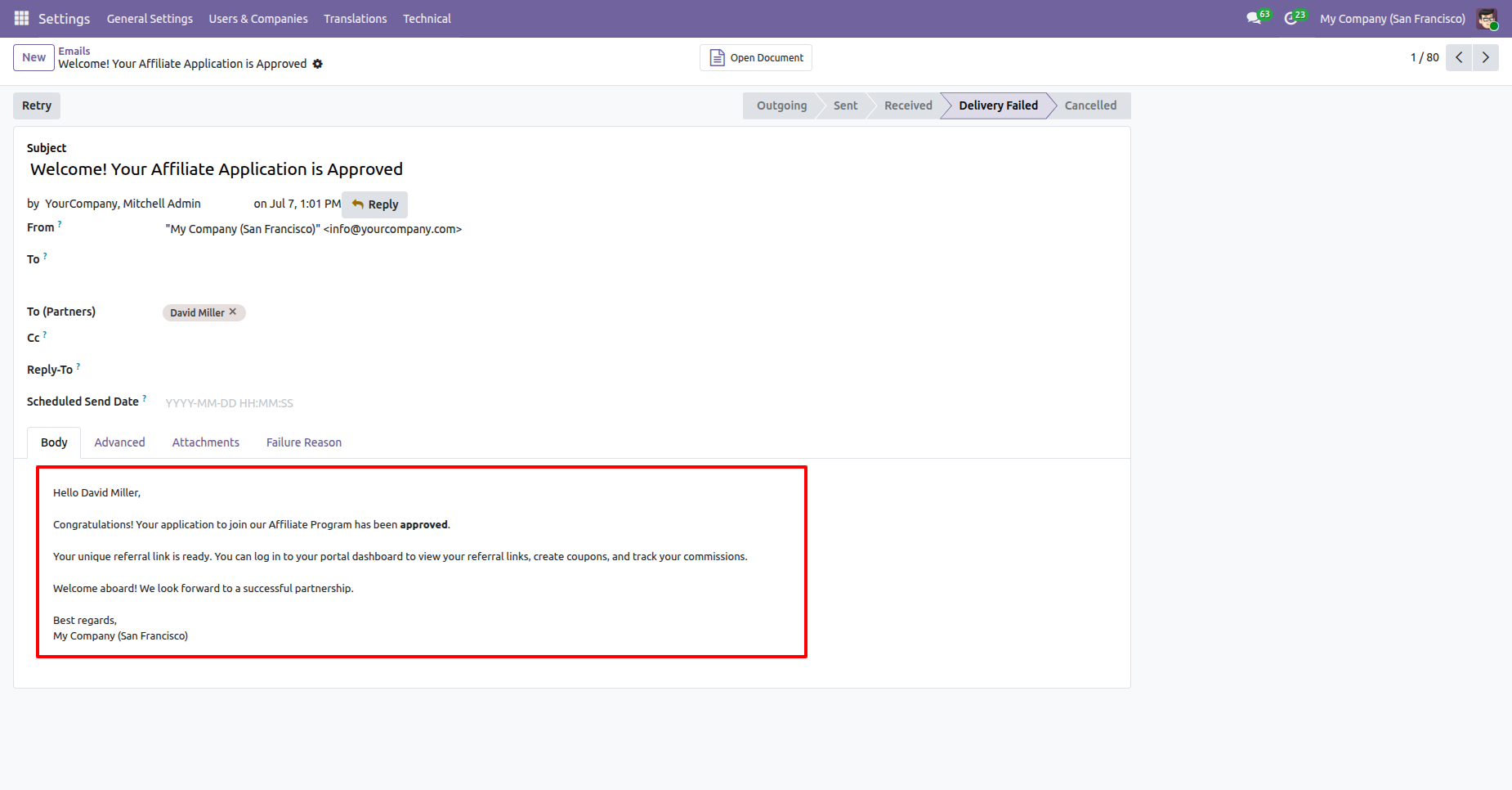
Upon approving the Affiliate Program Application, a confirmation email is automatically sent to the customer, notifying them that their affiliate application has been approved.
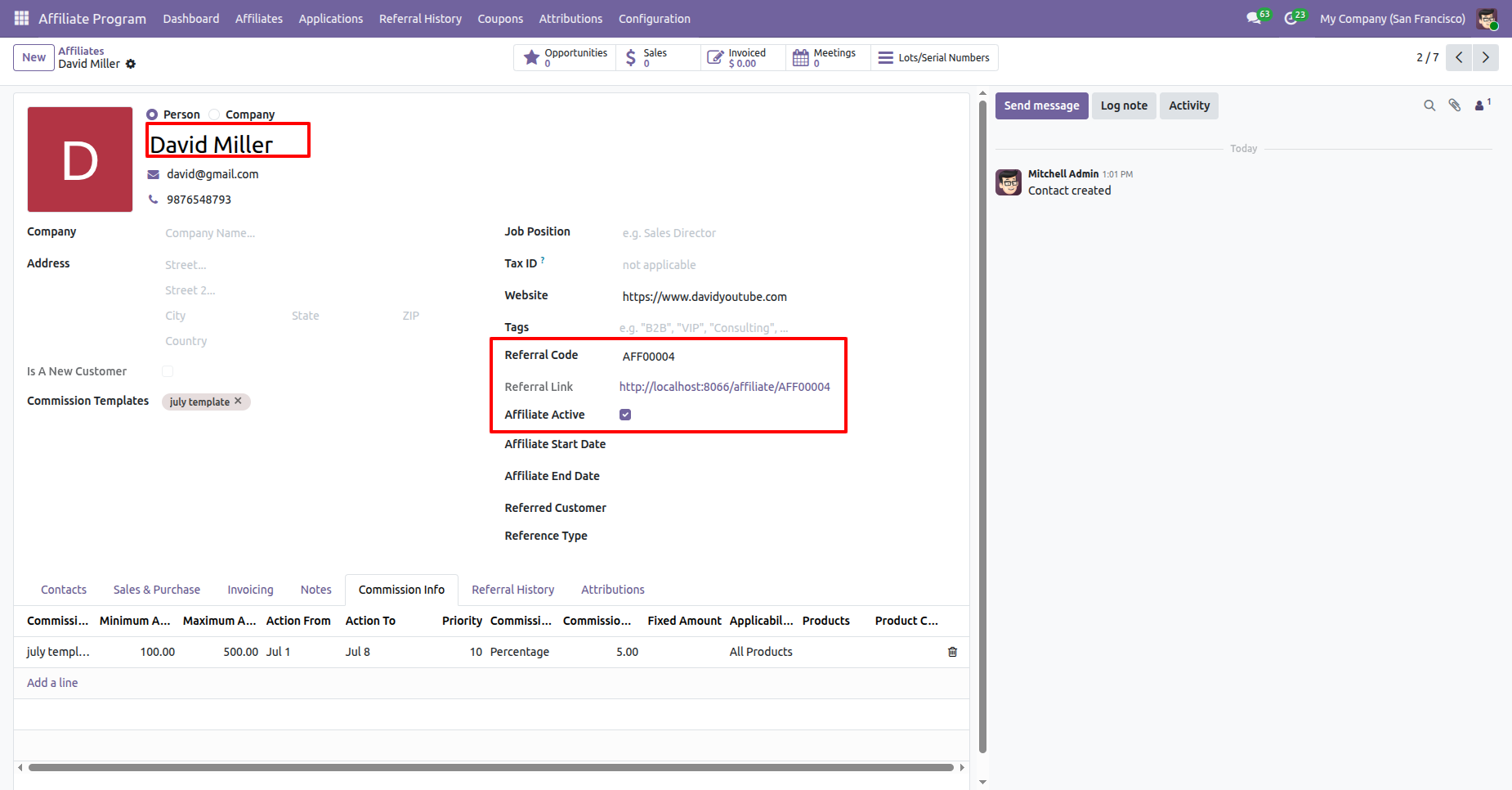
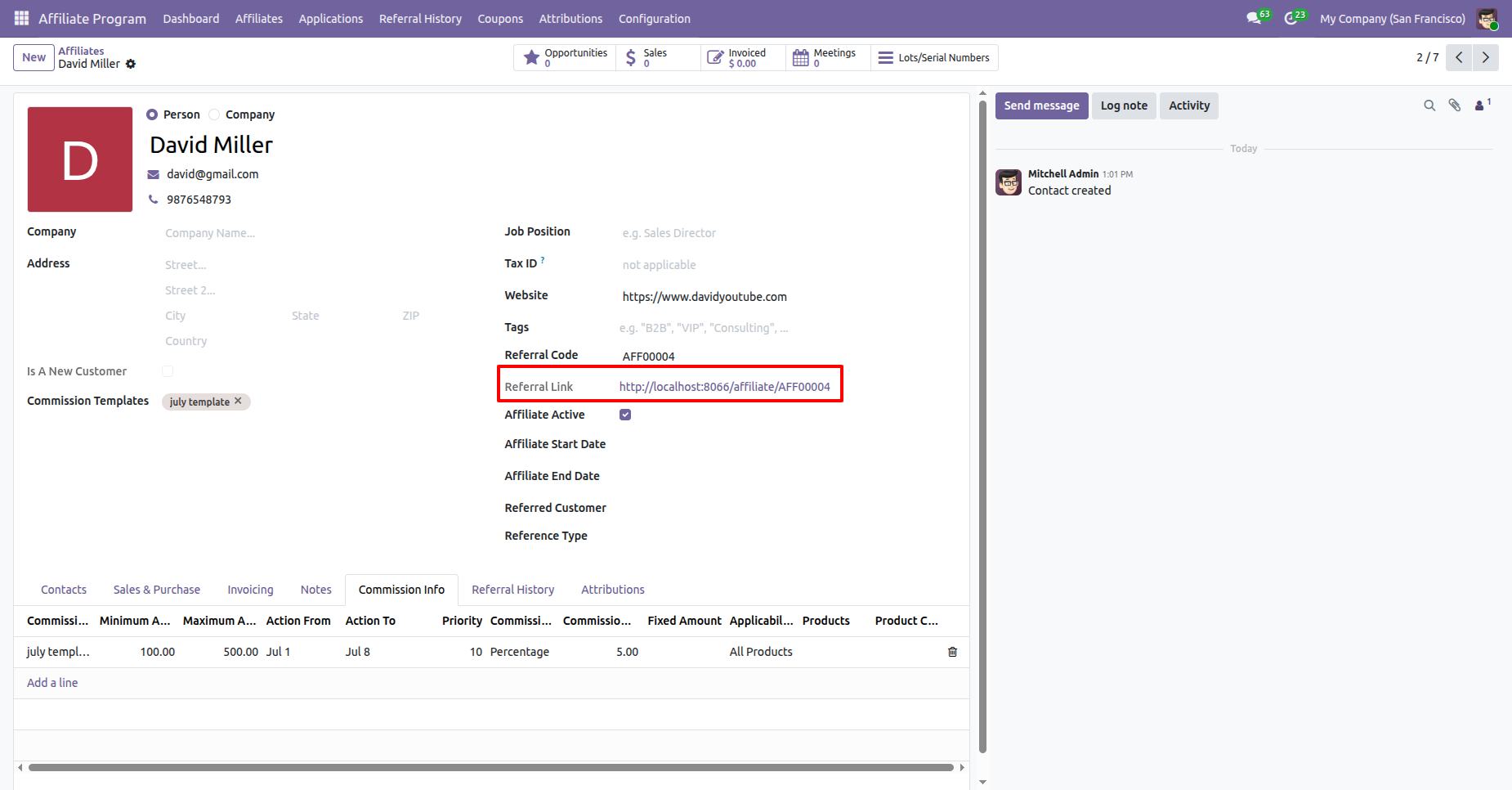
In the Customer Form View, the Referral Link, Affiliate Code, and Active status are displayed, indicating that the customer has been successfully activated as an affiliate.
Click the Referral Link from the Customer Form View to open the affiliate referral page or copy the referral URL for sharing with potential customers.
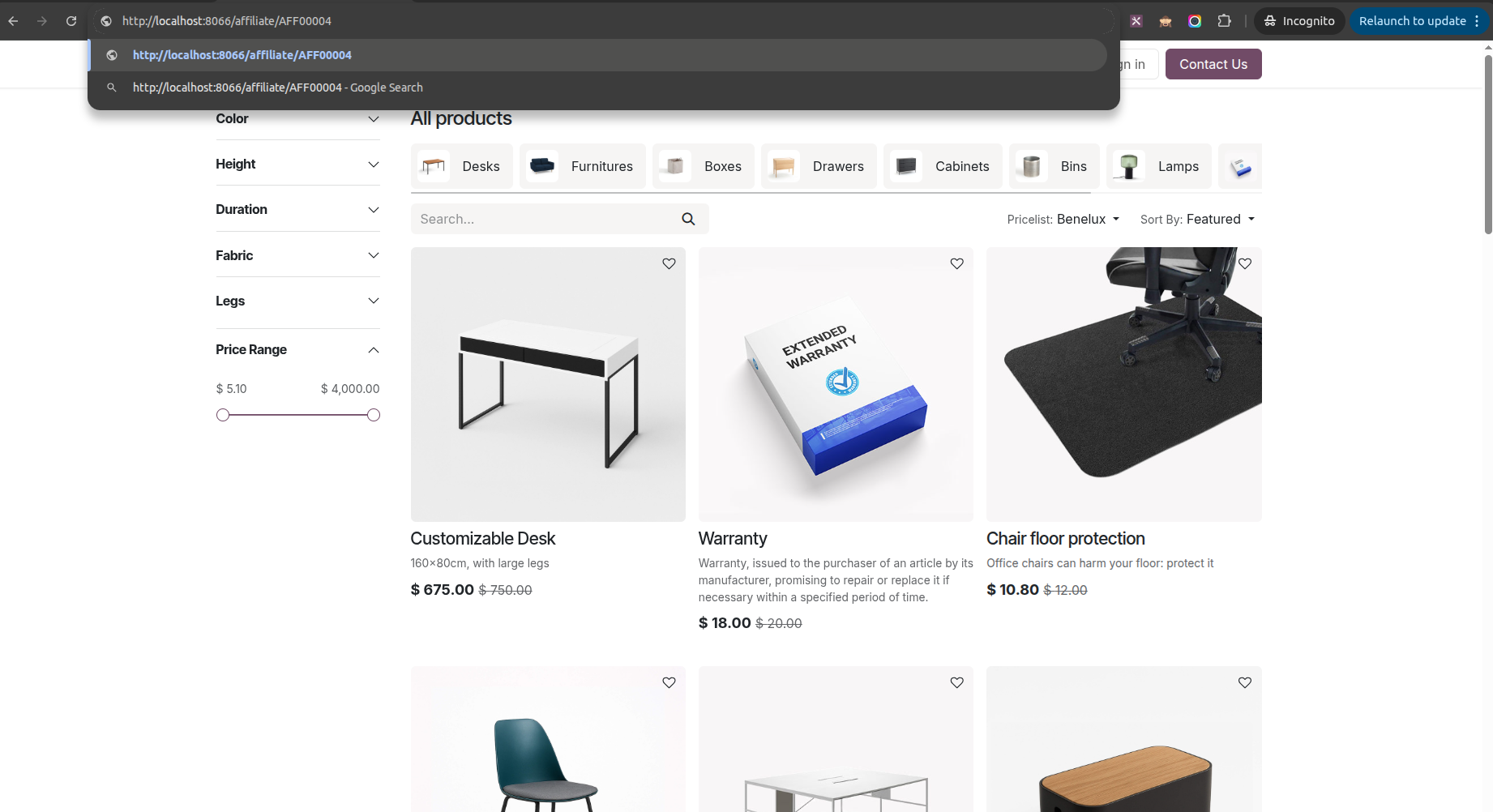
Open the Referral Link in a web browser, then select the desired product to continue with the purchase through the affiliate referral.
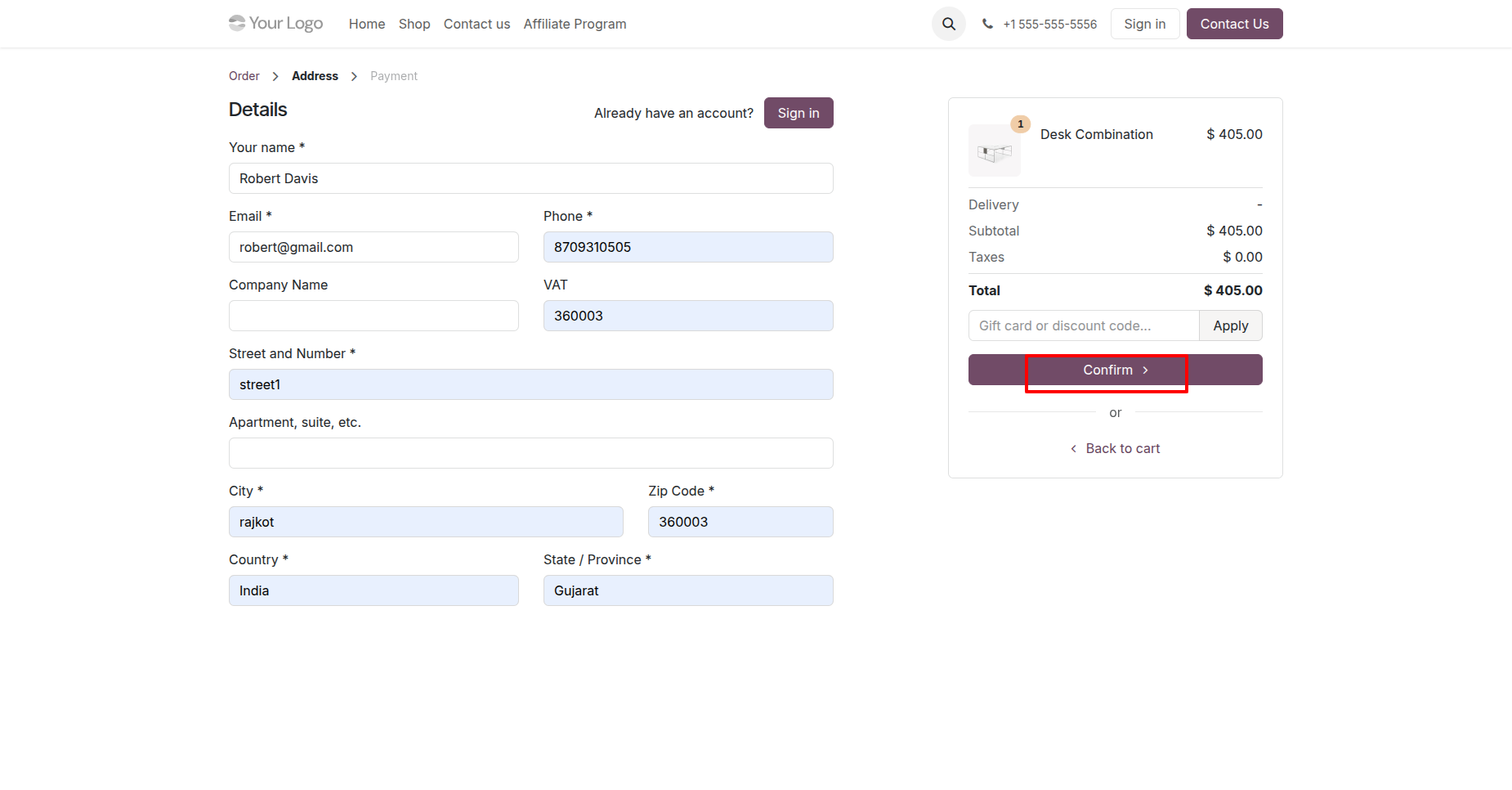
Enter the required name and address details, then click the Confirm button to proceed with the order.
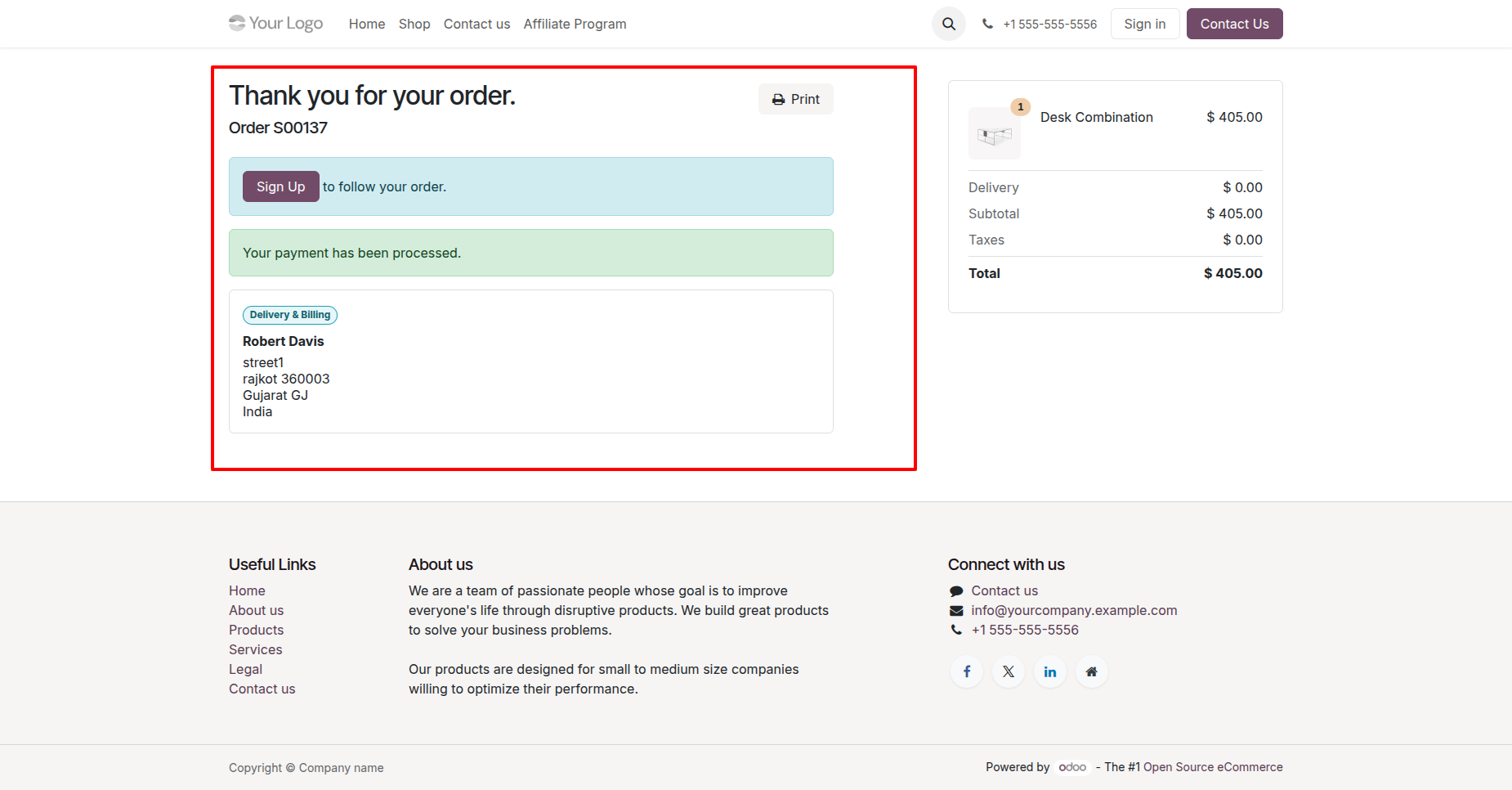
The order has been placed successfully using the affiliate referral code, and the referral is automatically tracked for commission calculation.
Go to the Affiliate Program General Settings.
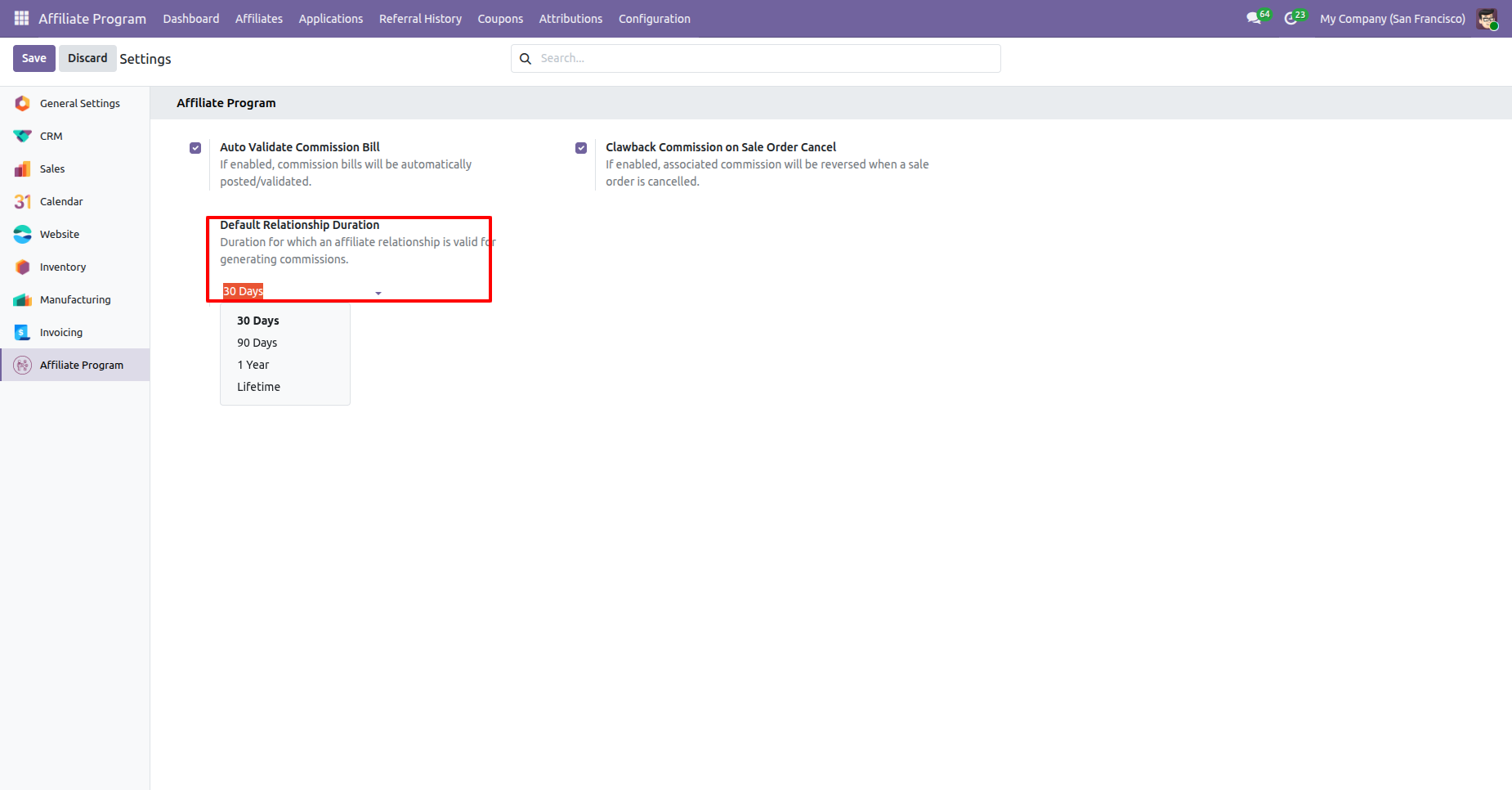
Set the Default Relationship Duration in the Affiliate Program General Settings.
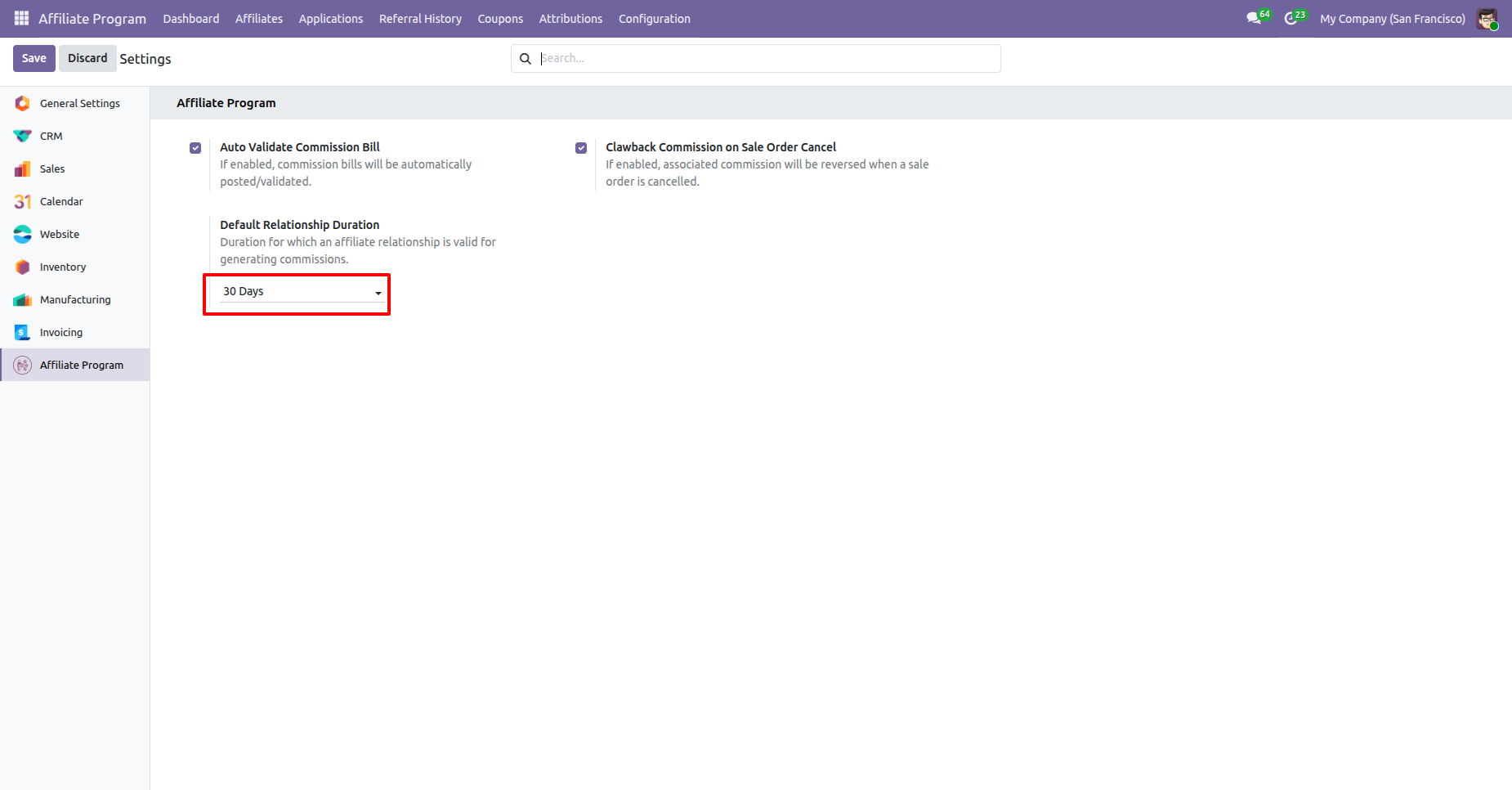
Go to the Affiliate Attribution form view. You can view the Referral Date and the Valid Until date, which is automatically calculated based on the configured Default Relationship Duration.
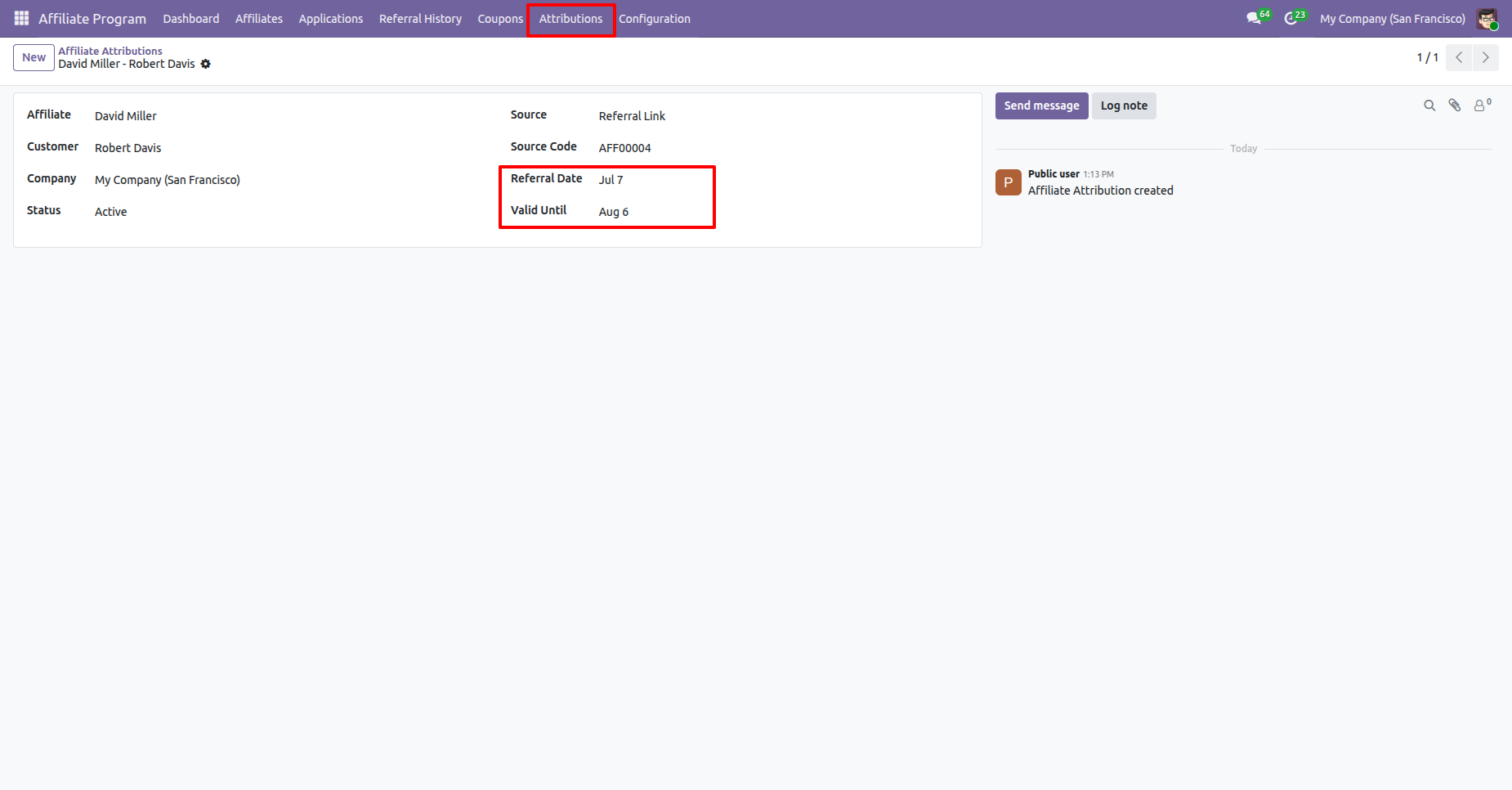
Open the invoice generated from the Sales Order created through the website and click the Confirm button to Post the invoice and proceed with the affiliate commission process.
When the invoice is posted, a Commission Bill is automatically created in the contact's name according to the configured affiliate commission rules.
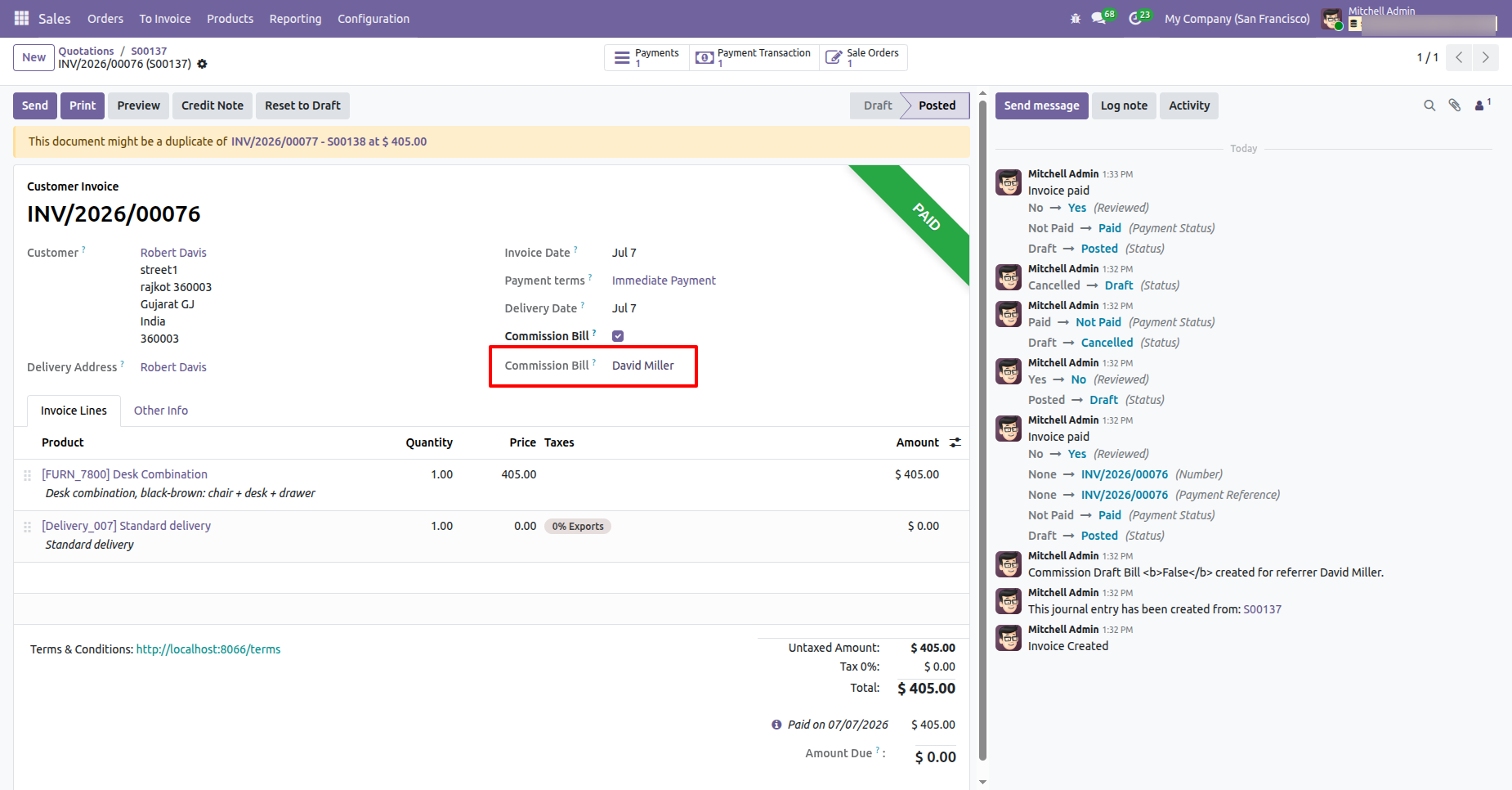
When the invoice is posted, a Commission Bill is automatically created in the contact's name according to the configured affiliate commission rules.
The Referral History tab in the Customer Form View displays the following
information:
Referred Customer Name, Sales Order Number, Commission Bill Details,
Commission Amount/Details, Commission Status
The Referred Customers tile will be visible in My Account, allowing users to view all customers referred through their affiliate links or coupon codes.
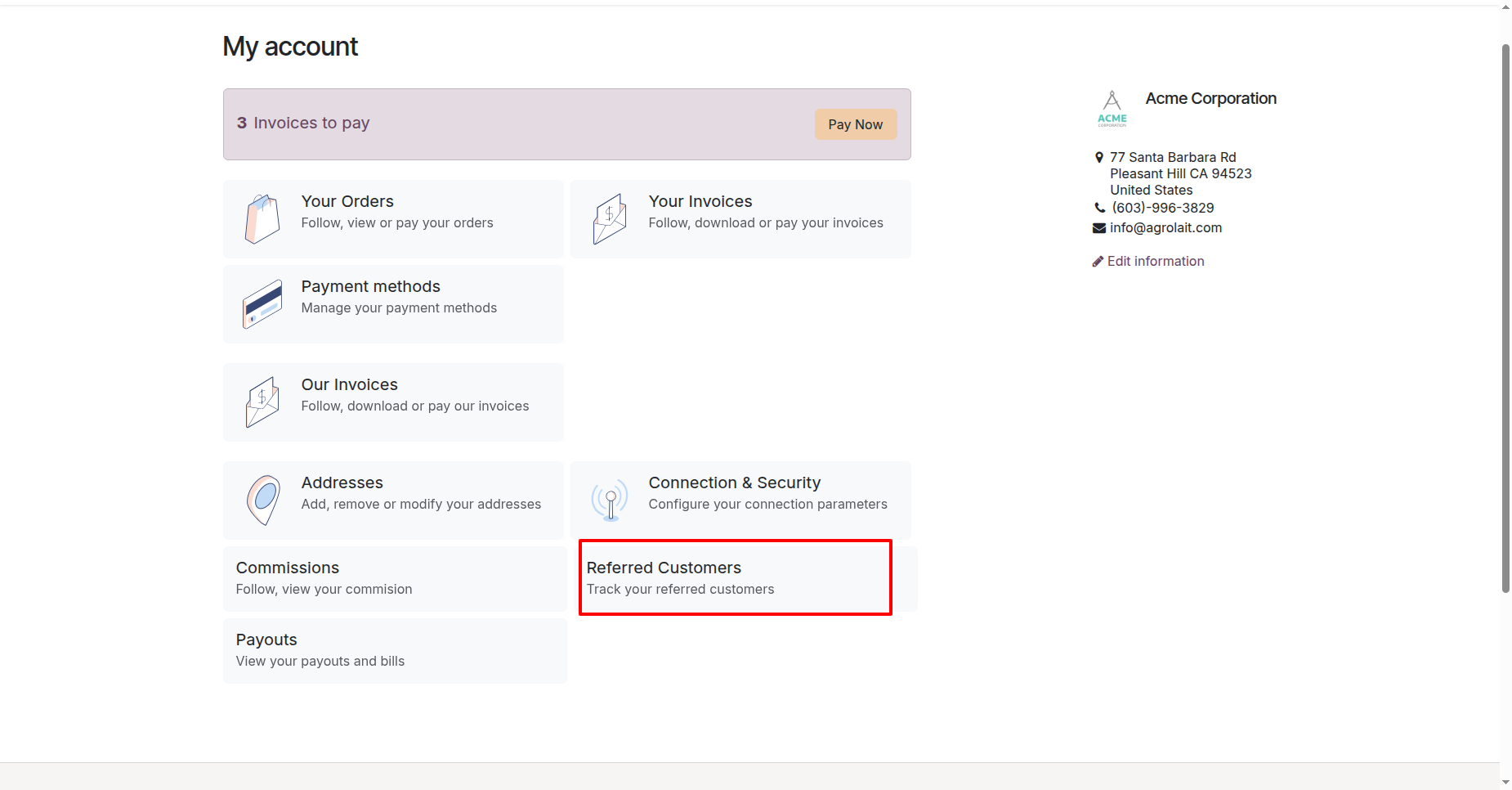
The Commissions tile is visible in My Account, allowing users to view their earned commissions and commission history.
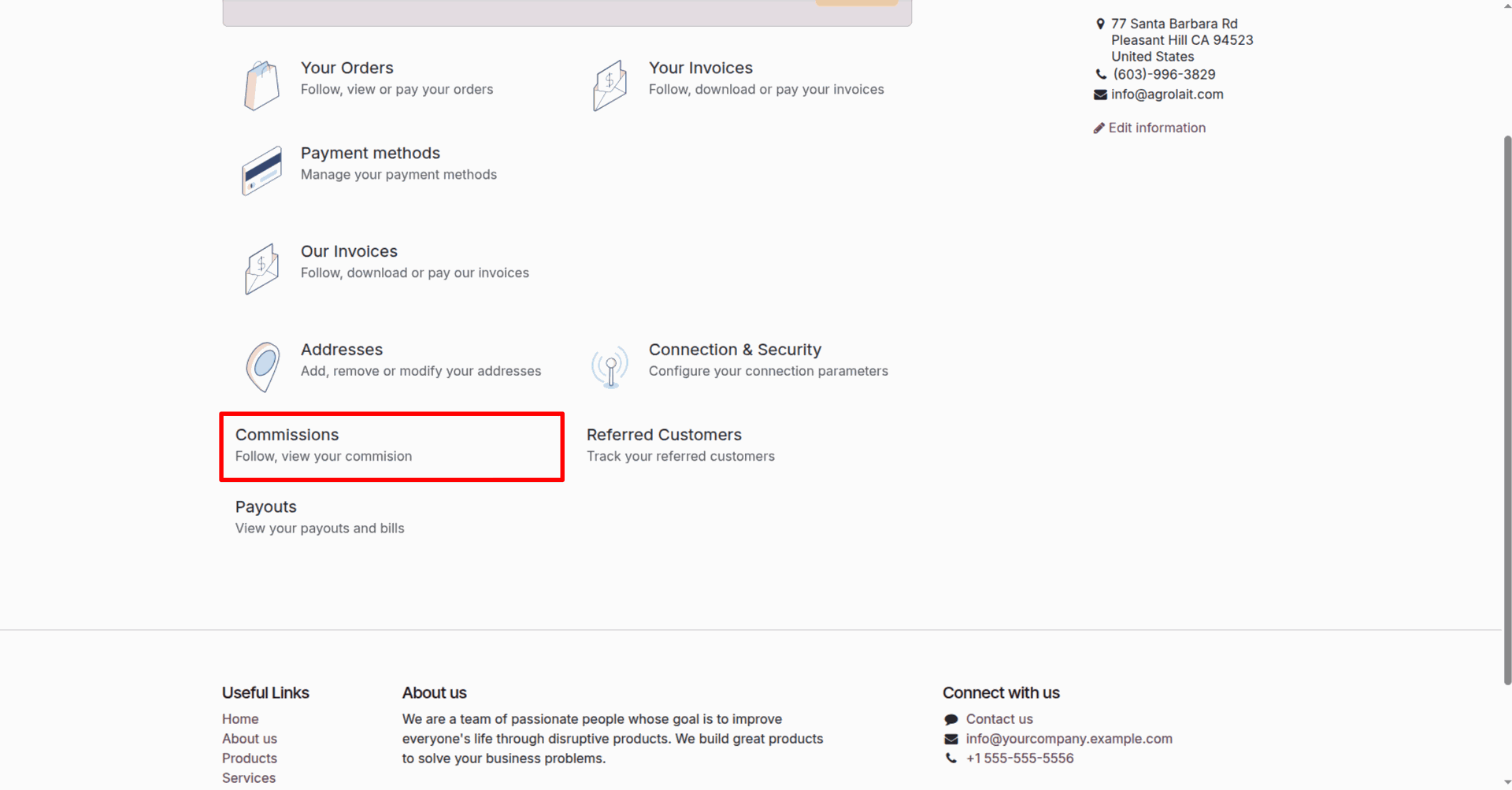
The Payouts tile is visible in My Account, allowing users to view their payout requests, payment status, and payout history.
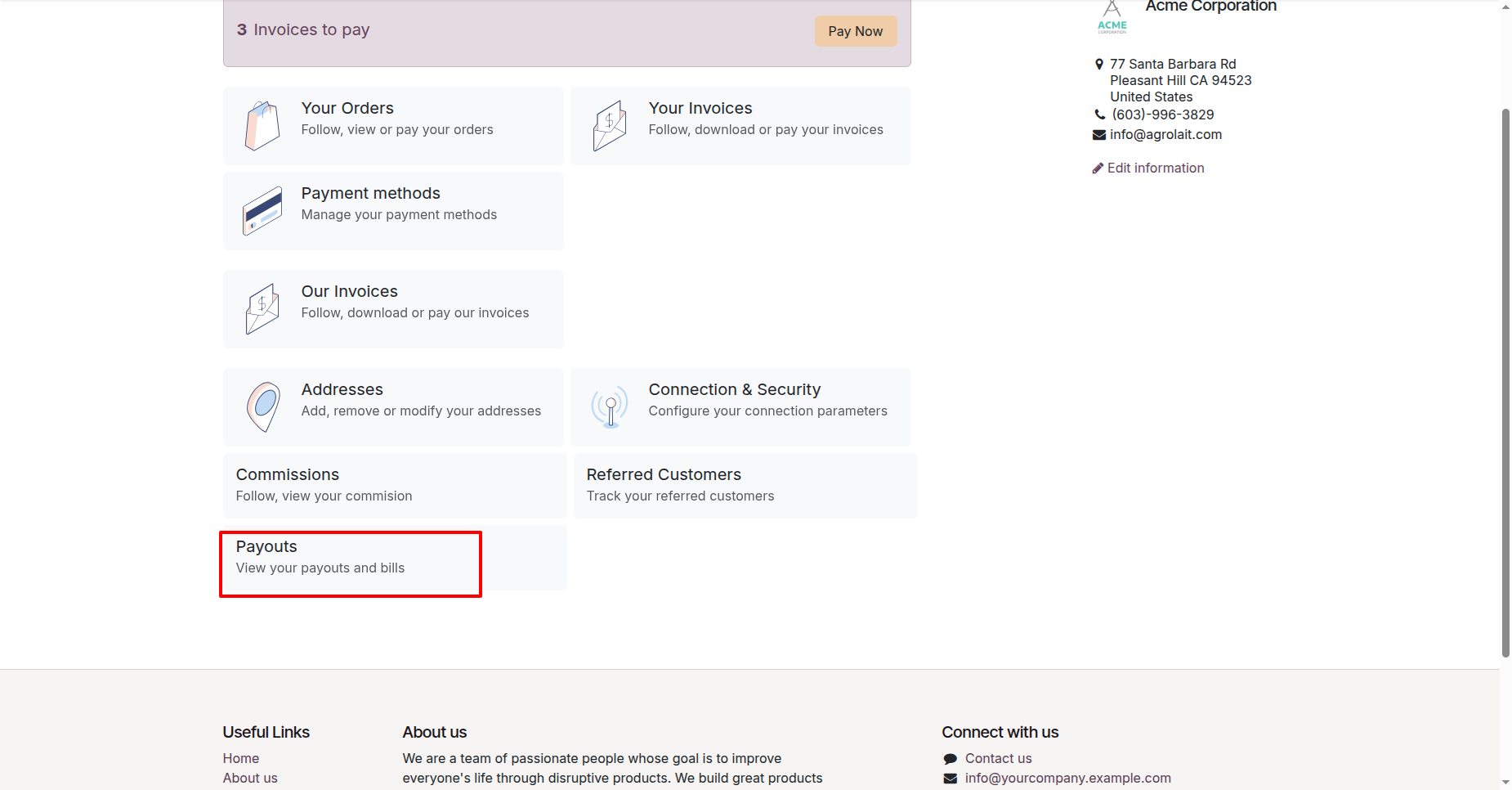
Click the Payouts tile to open the list of Vendor Bills, where users can view their affiliate payout records and payment status.
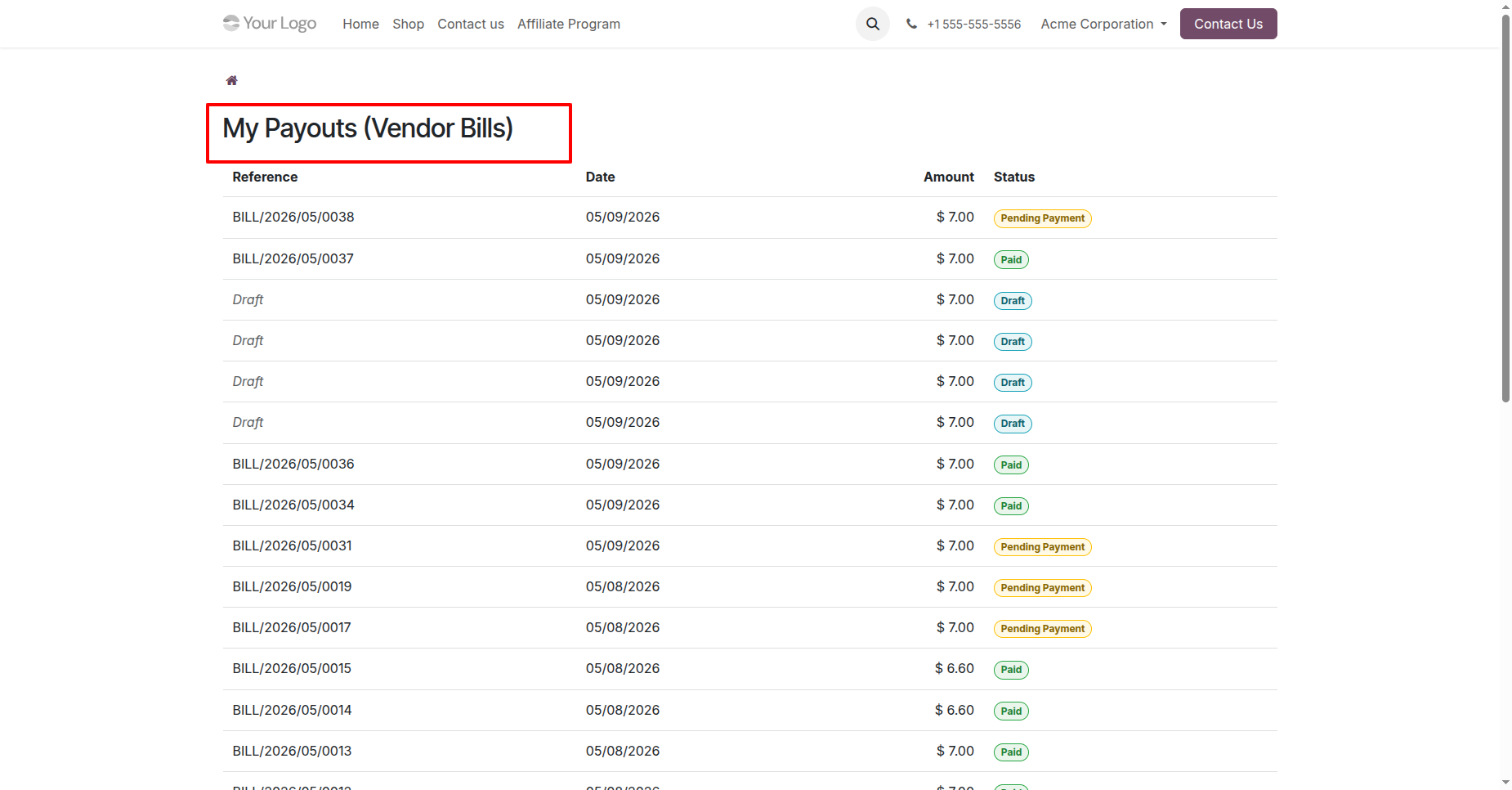
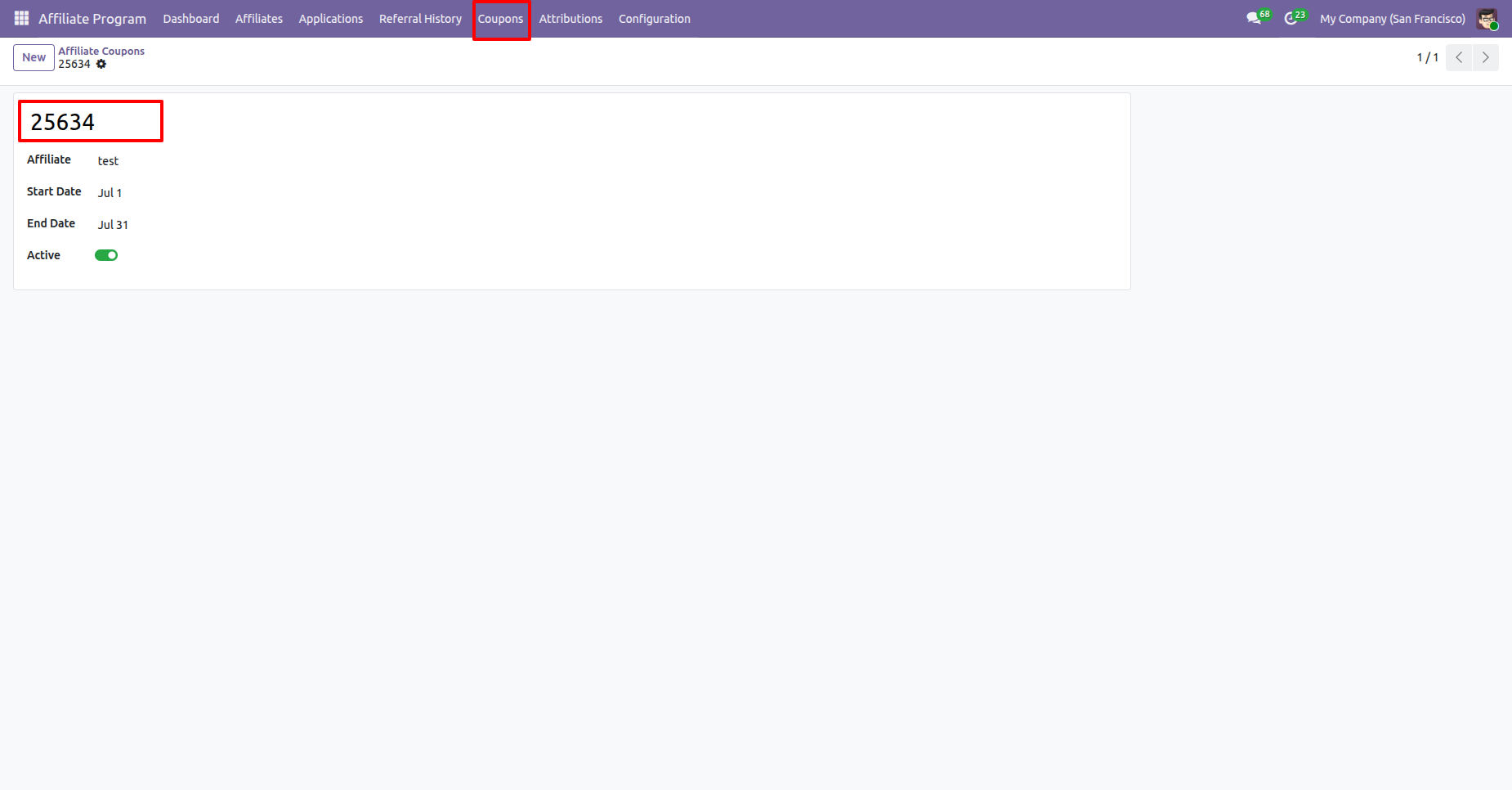
Create Affiliate Coupons to provide affiliates with unique coupon codes that can be shared with customers for referral tracking and commission attribution.
Go to the website, add the desired product to the cart, and apply the affiliate coupon code during checkout.
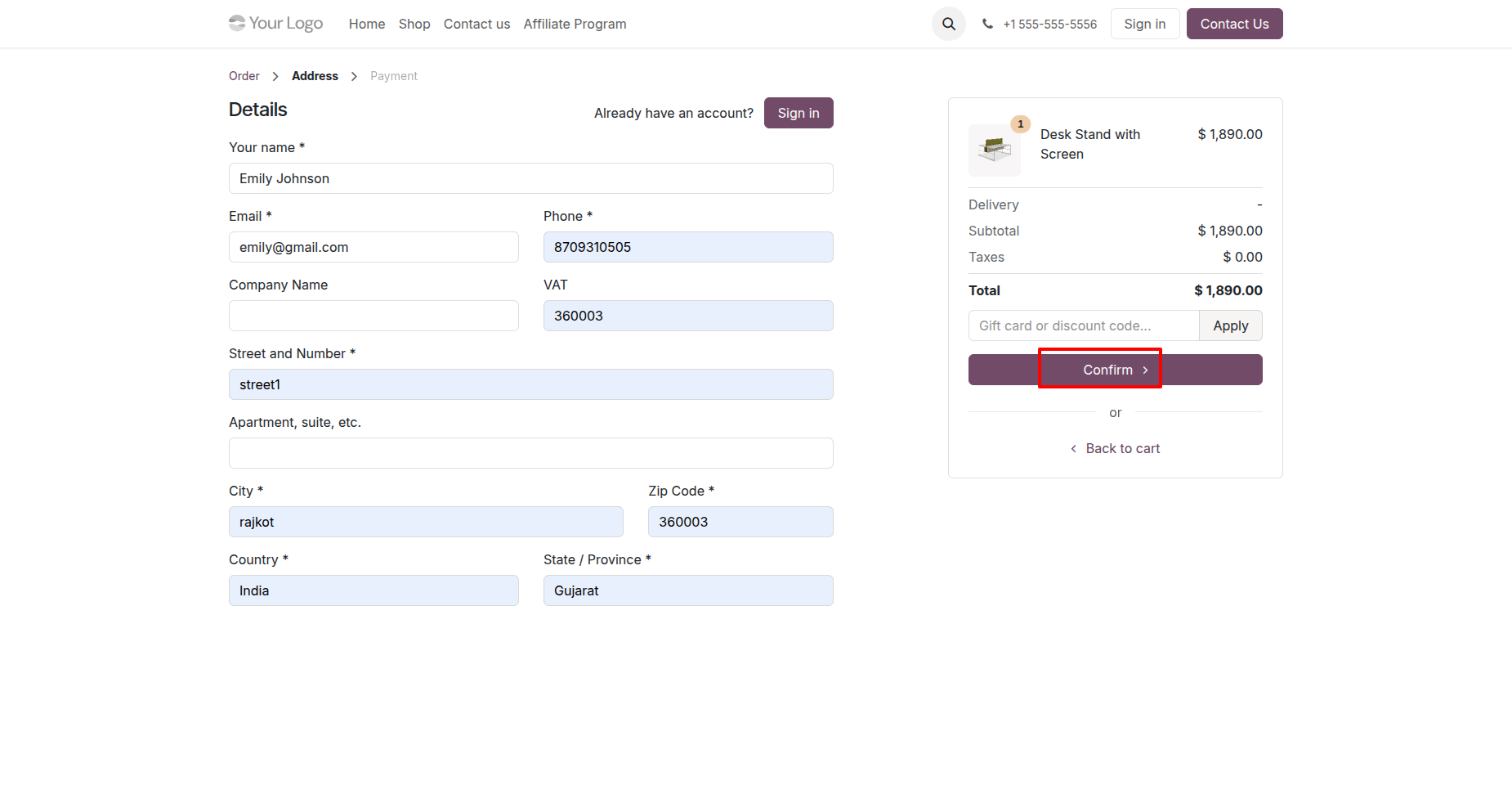
Enter the required name and address details, then click the Confirm button to proceed with the order.
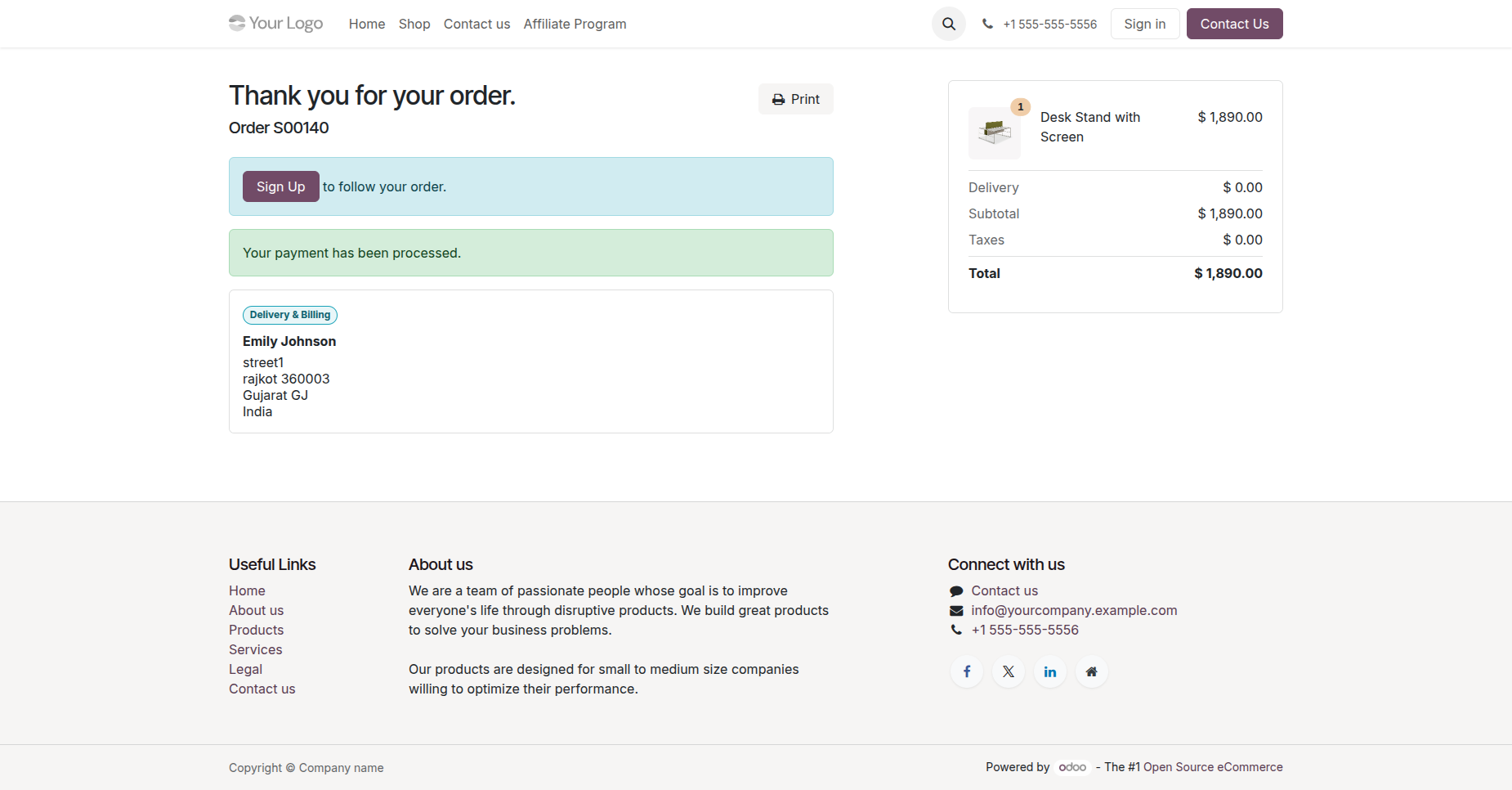
The order has been placed successfully from the website.
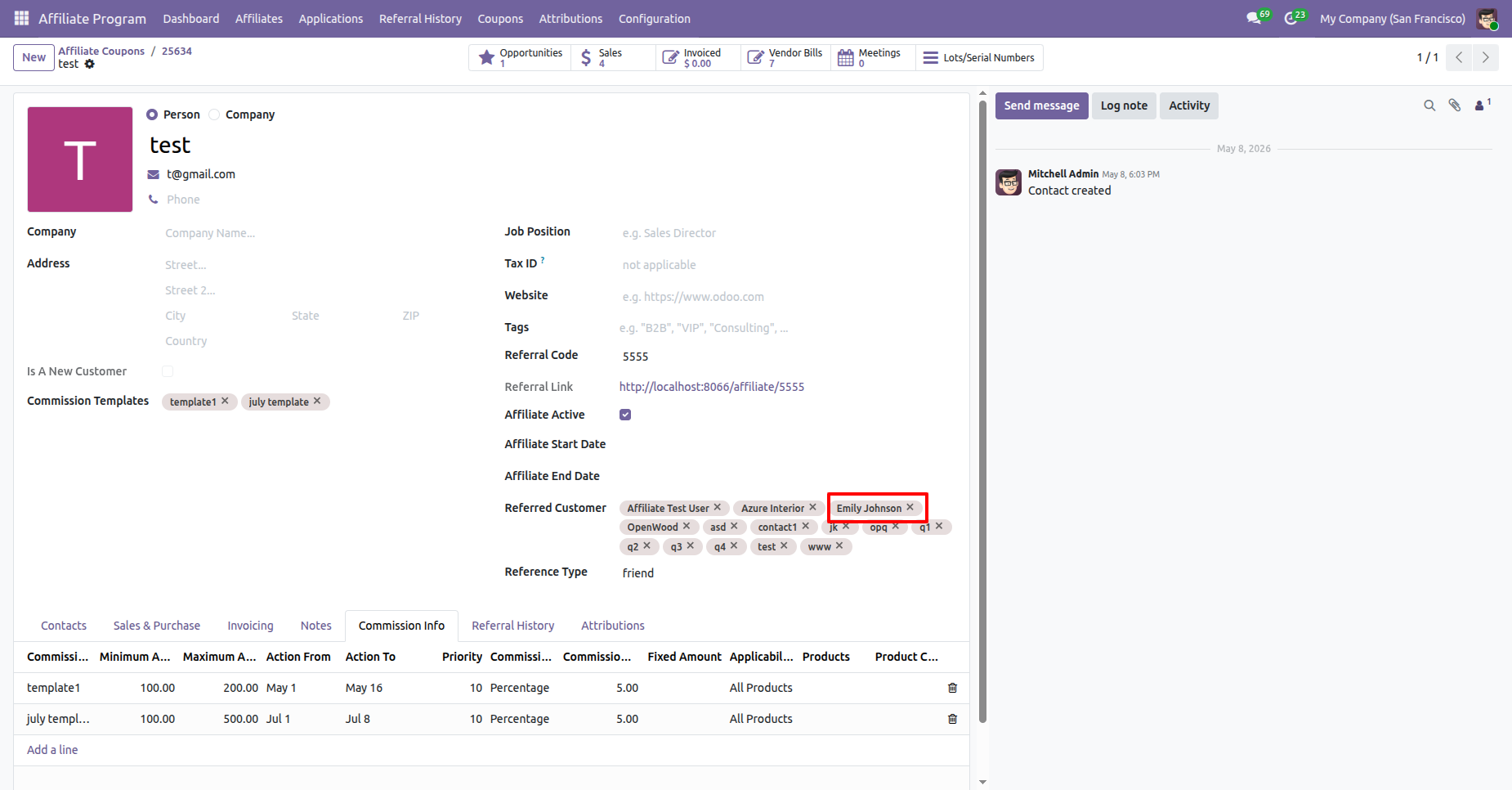
Go to the Customer Form View in the backend. The referred contact is automatically linked to the customer (affiliate) whose coupon code was used during the website order.
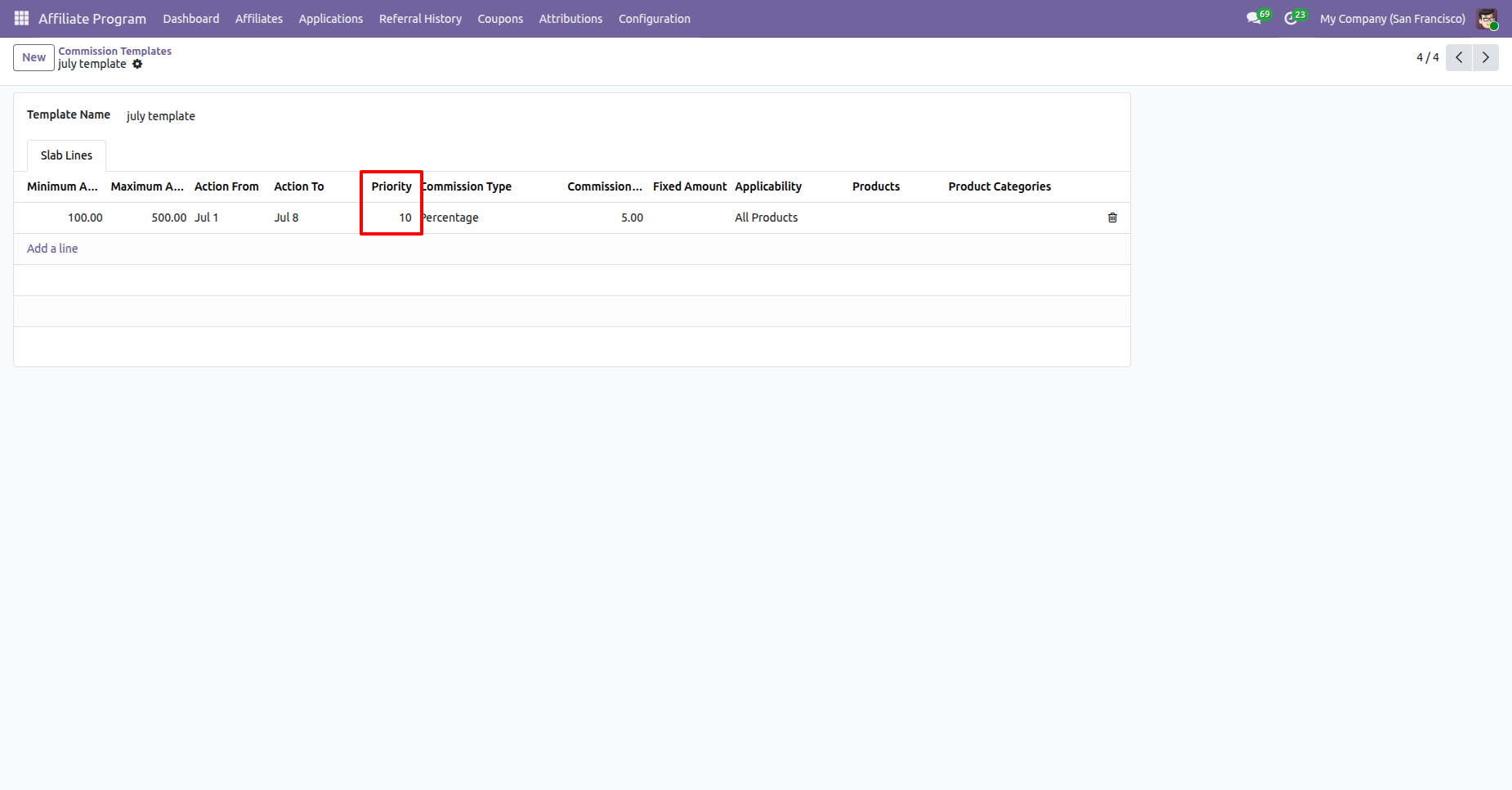
Create a Quotation Template and set its Priority.
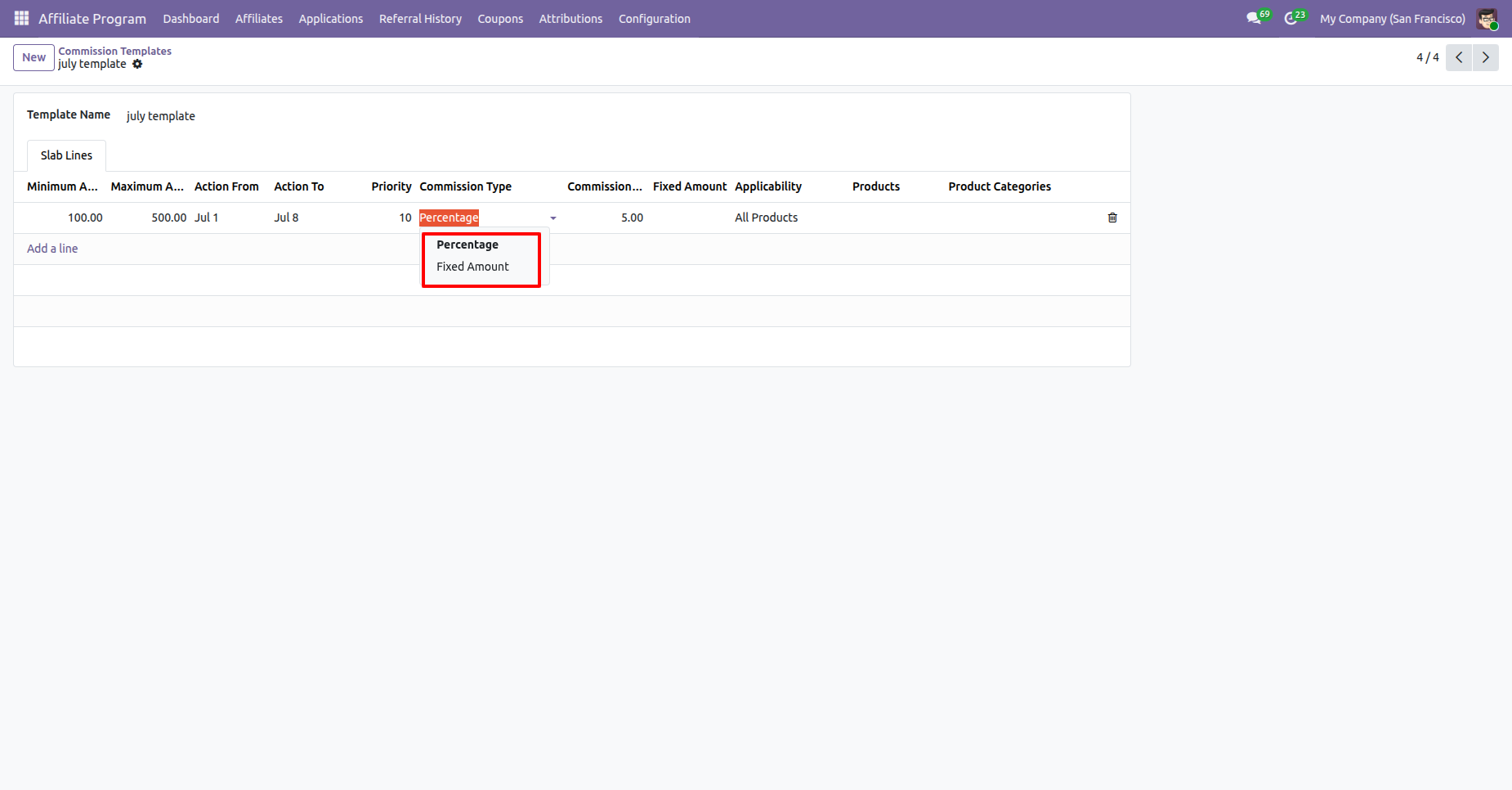
Set the Commission Type in the Quotation Template to define how affiliate commissions will be calculated for orders created using that template.
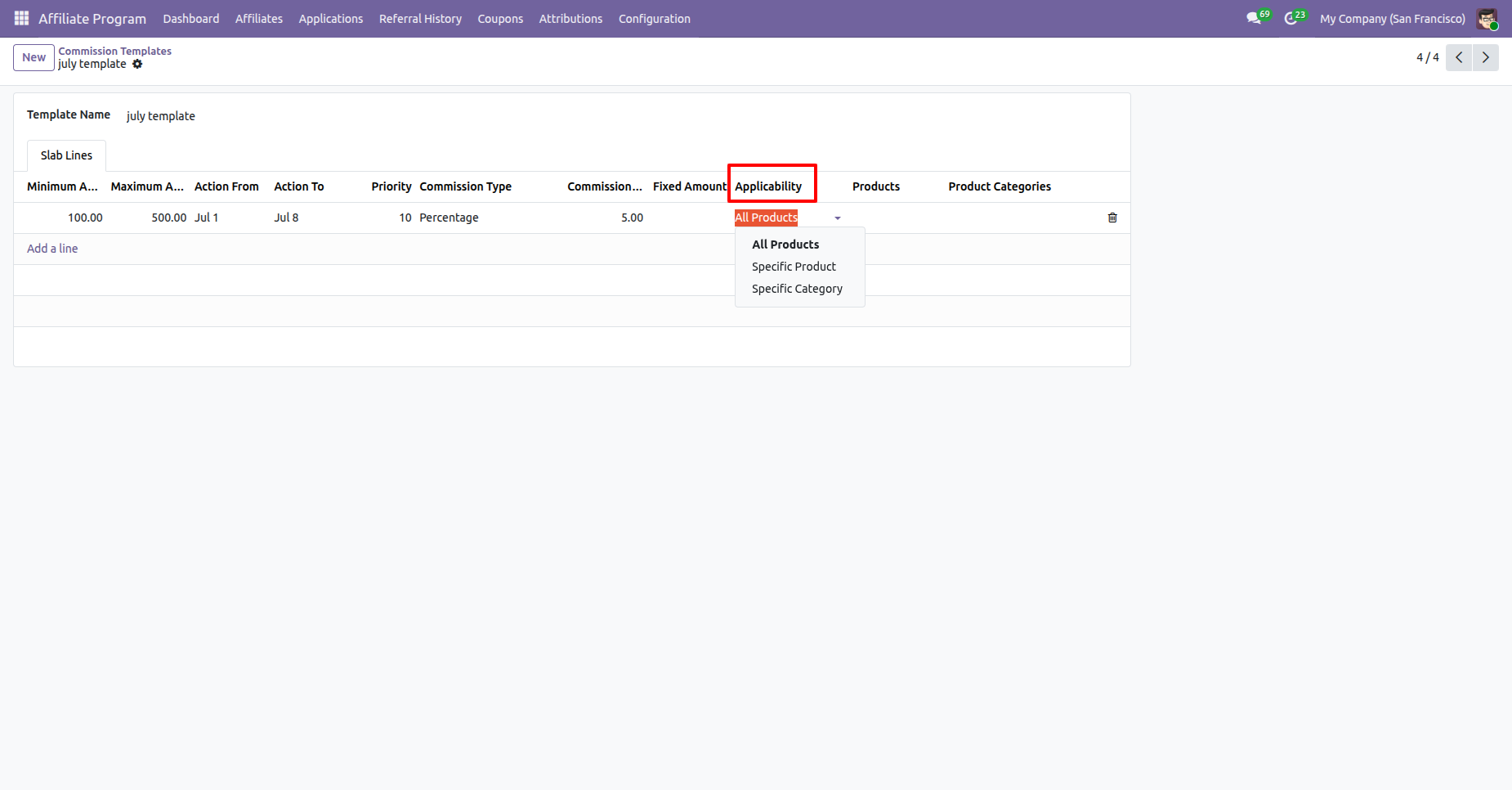
Set the Applicability in the Quotation Template to define the conditions under which the commission configuration will be applied.
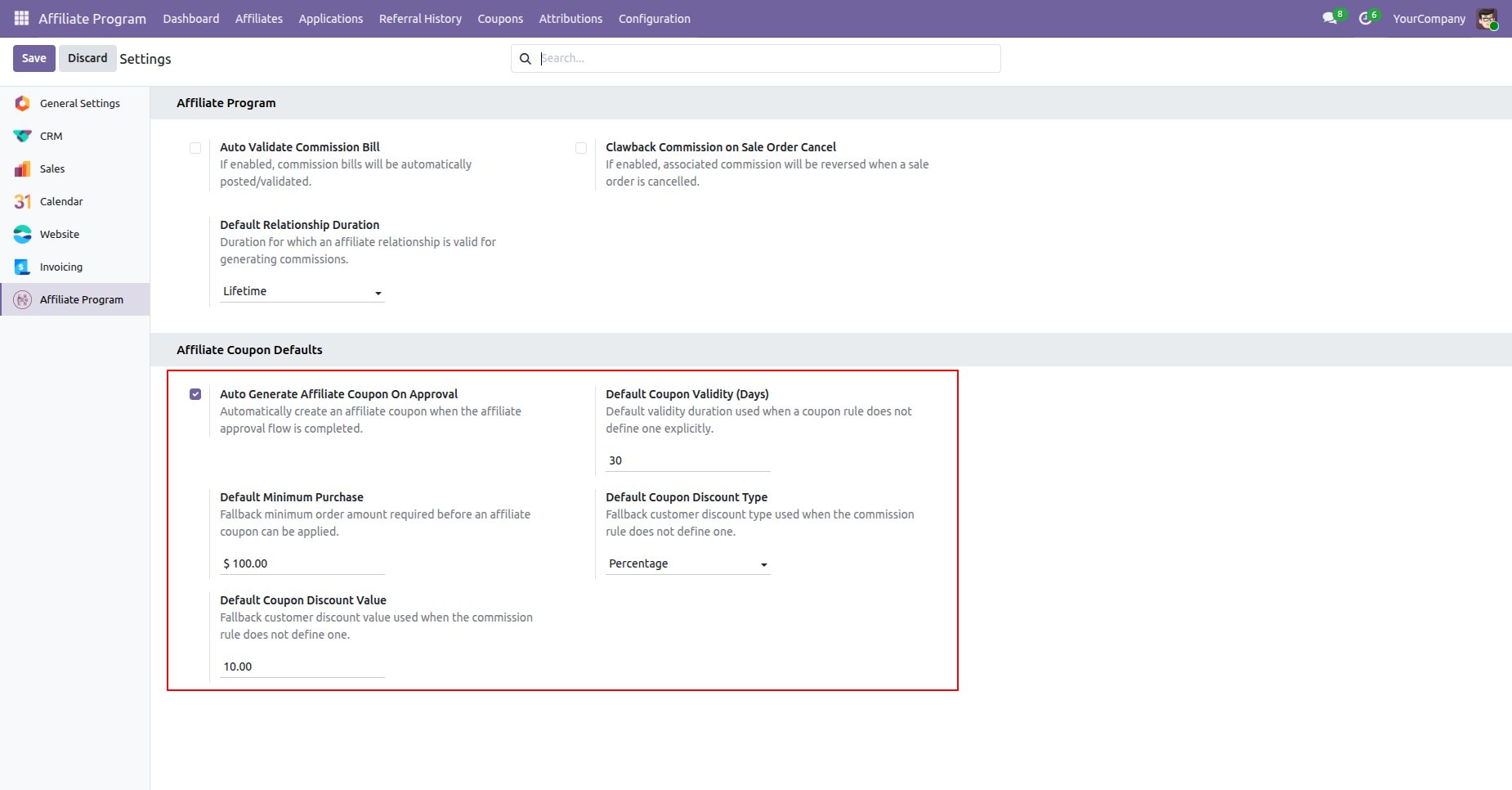
Configure default settings for affiliate coupons under Affiliate Program Settings, including auto generation upon approval, coupon validity, minimum purchase amount, discount type, and discount value.
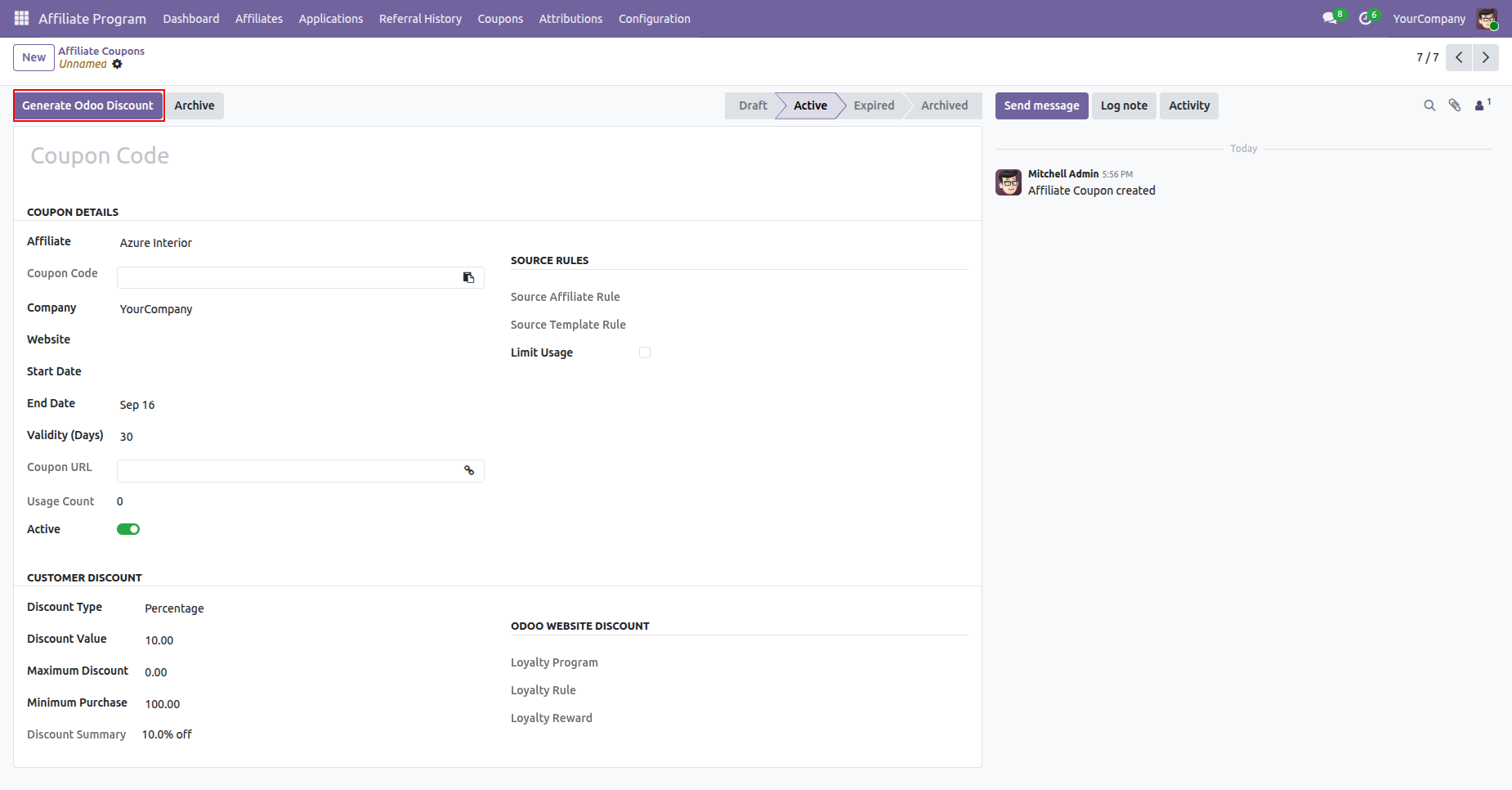
Click the "Generate Odoo Discount" button on the Affiliate Coupon form view to automatically create and link the corresponding Odoo Website Discount loyalty program, rule, and reward.
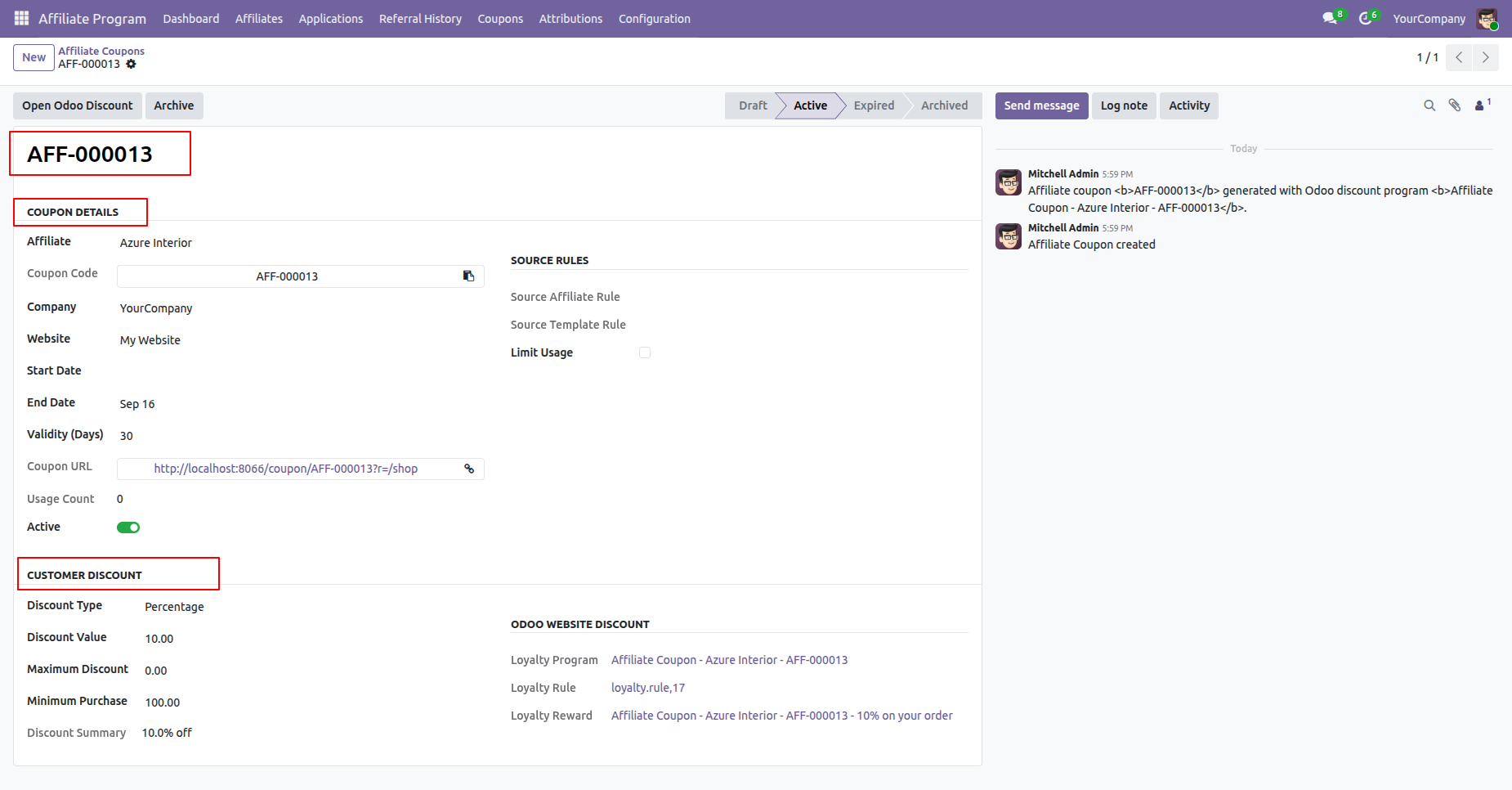
The generated Affiliate Coupon displays coupon details, customer discount configurations, and automatically linked Odoo Website Discount details.
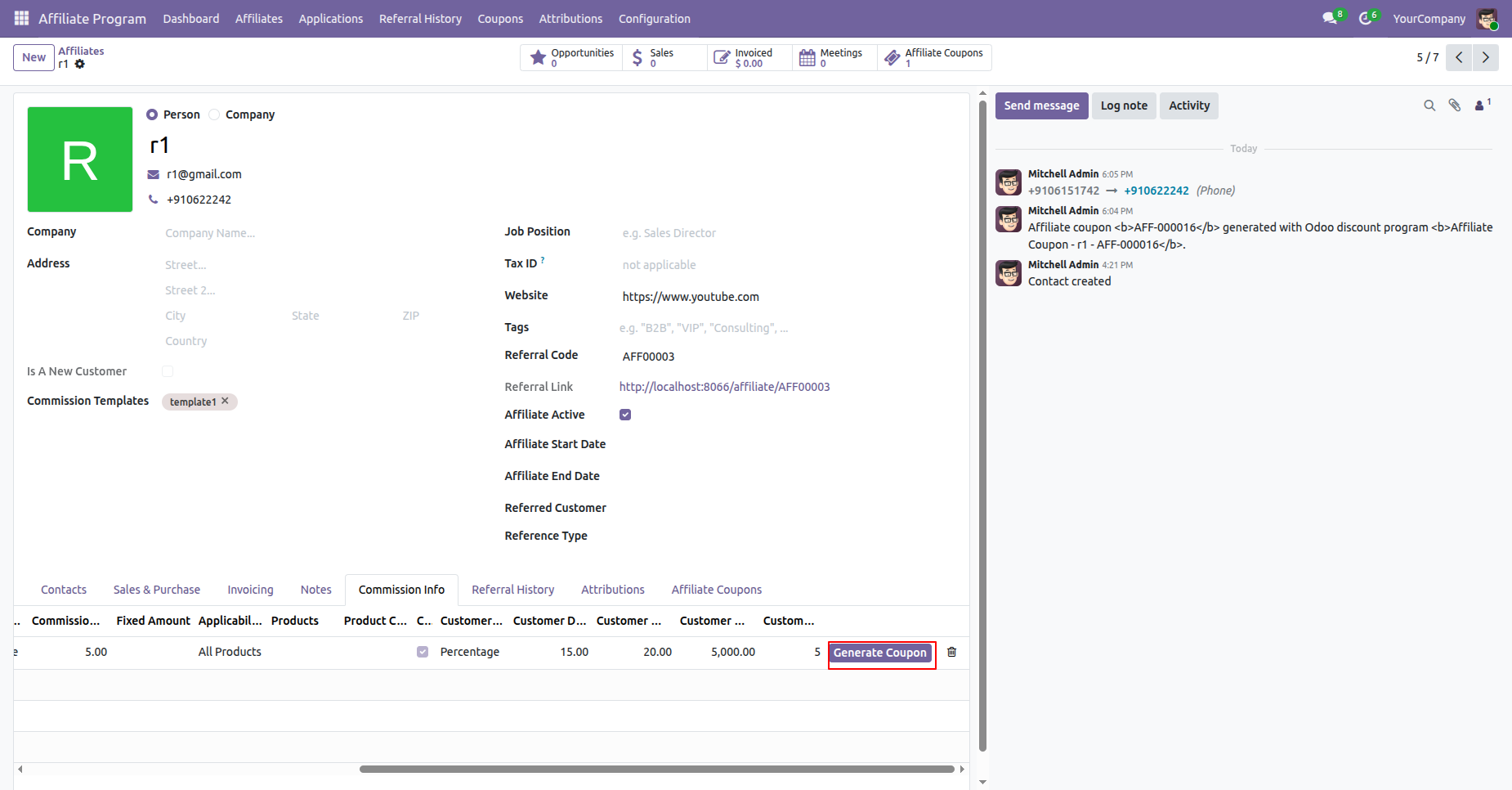
In the Affiliate form view under the Commission Info tab, click the "Generate Coupon" button to generate an affiliate coupon directly for a specific commission rule line.
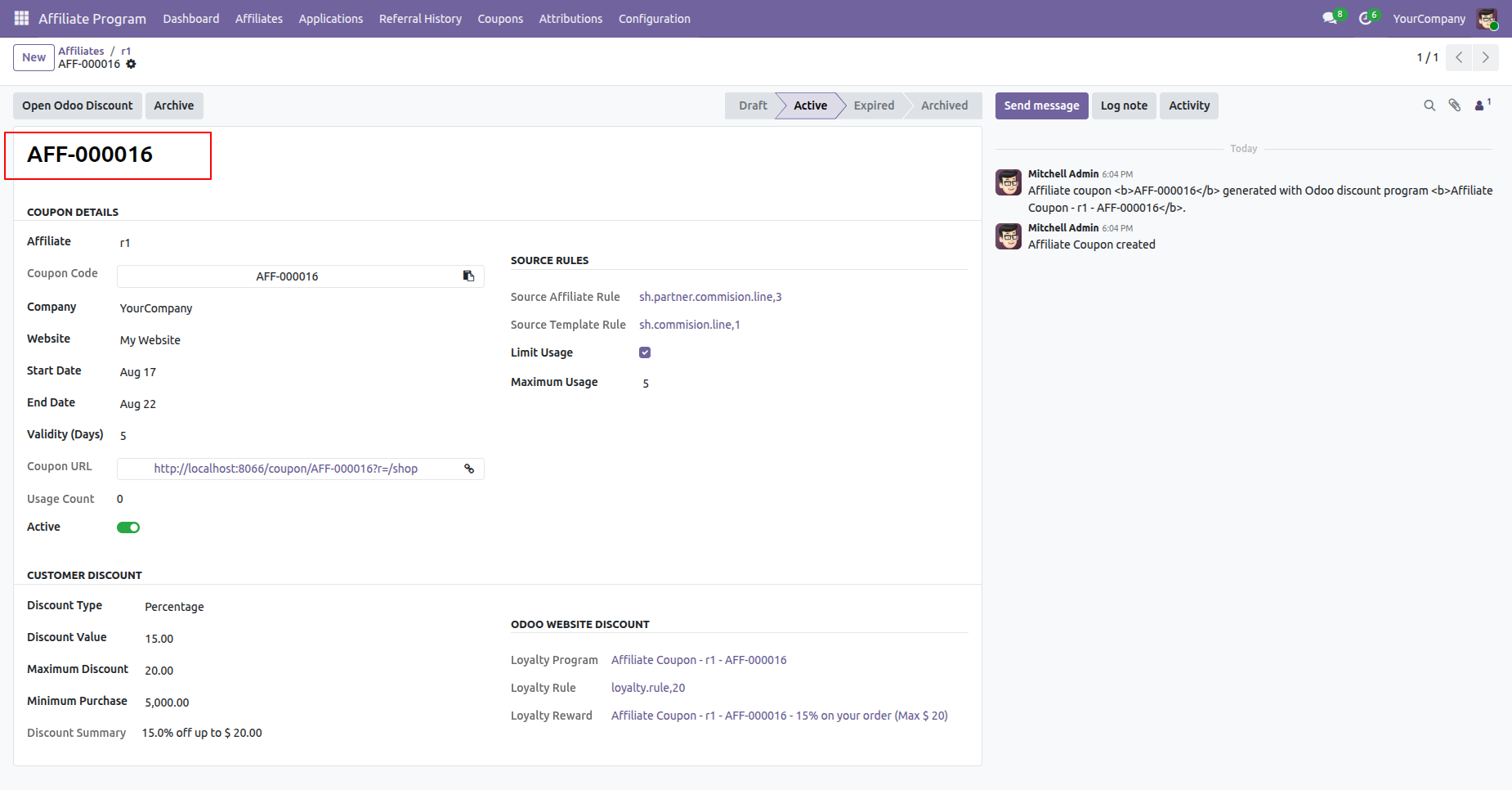
View the generated Affiliate Coupon showing its source rules, usage limits, customer discount configurations, and linked Odoo Website Discount.
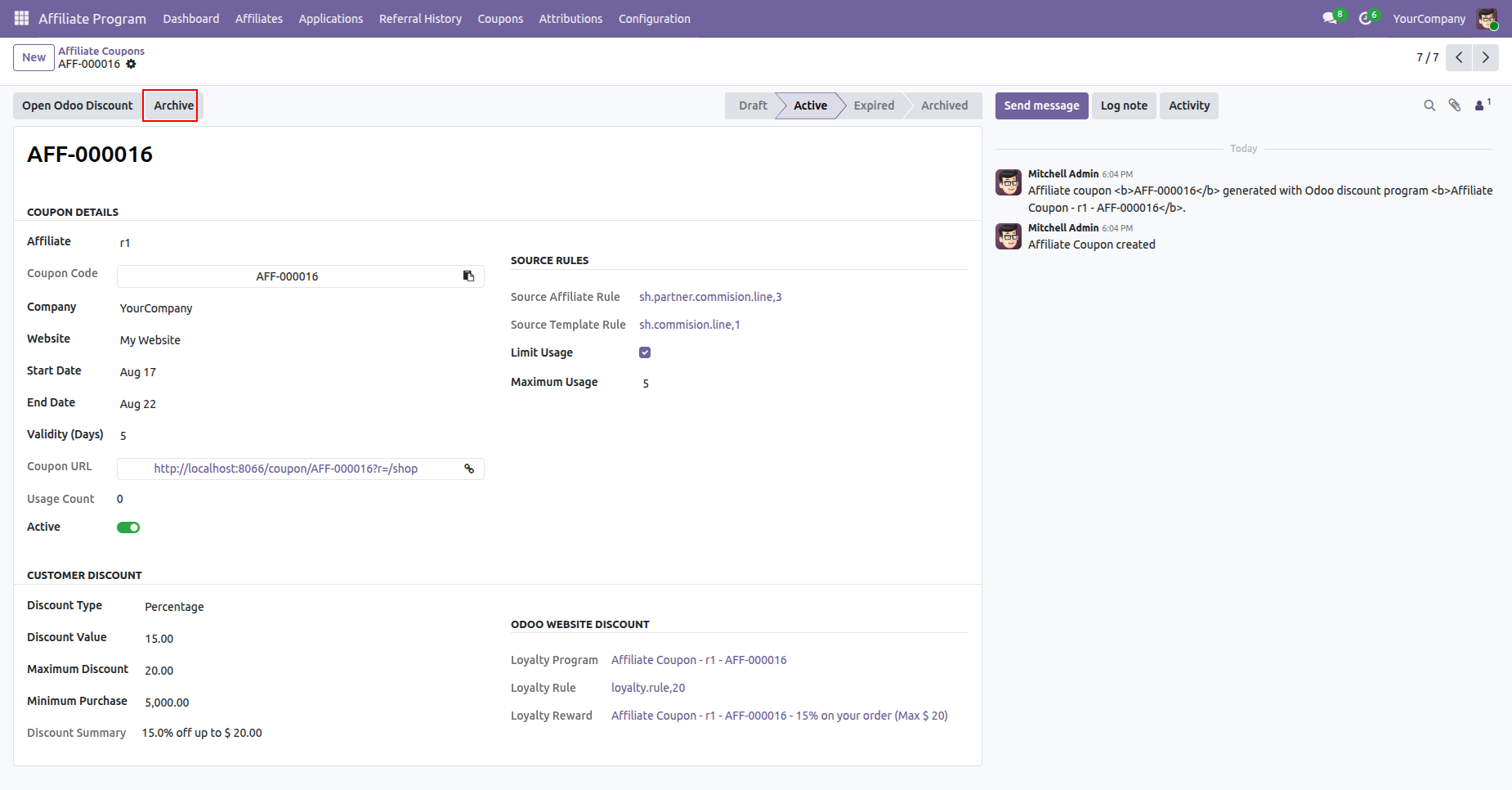
Click the "Archive" button on the Affiliate Coupon form view to archive an active coupon.
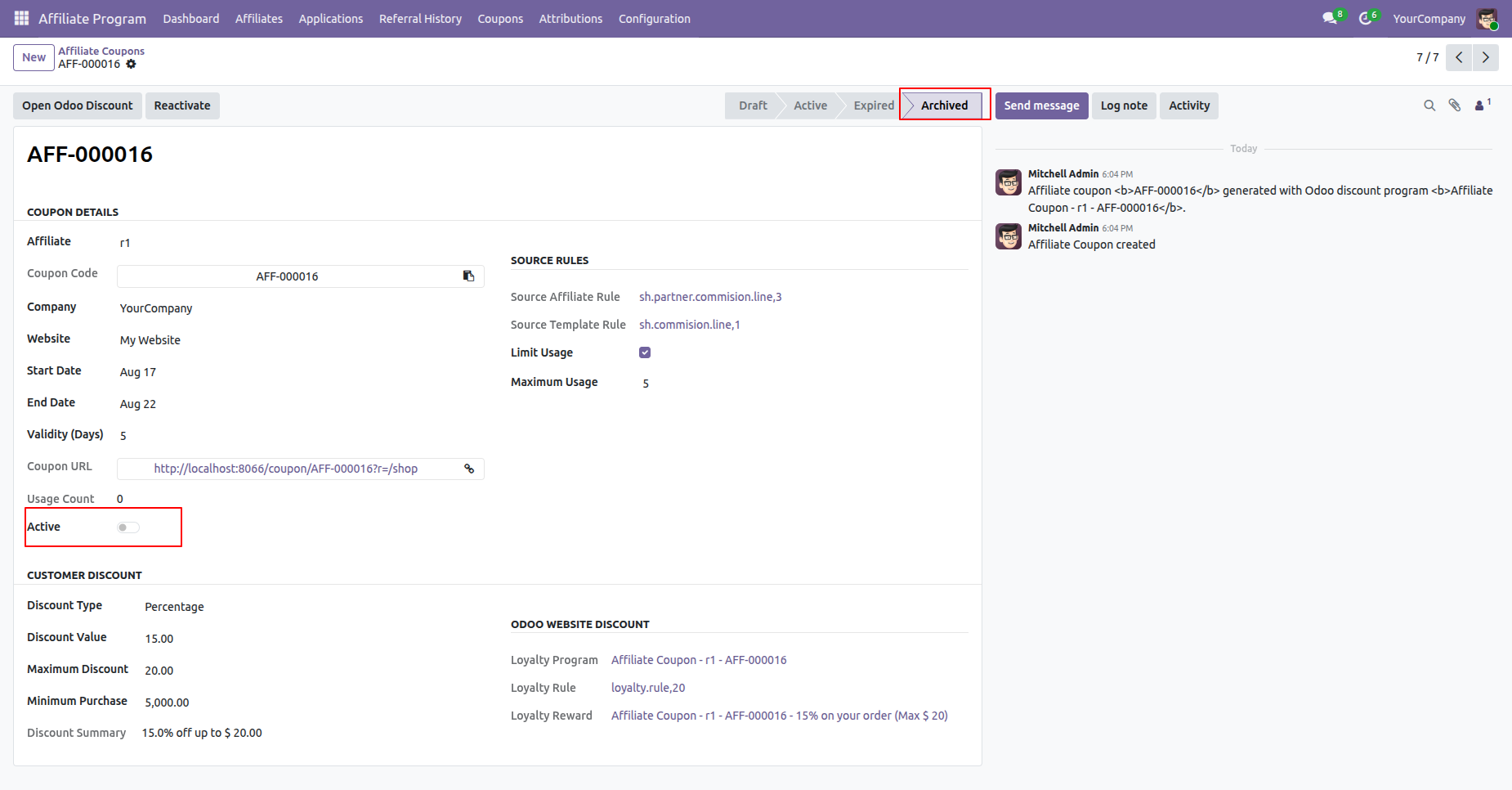
Once archived, the coupon state changes to "Archived" and the Active status toggle is automatically disabled.
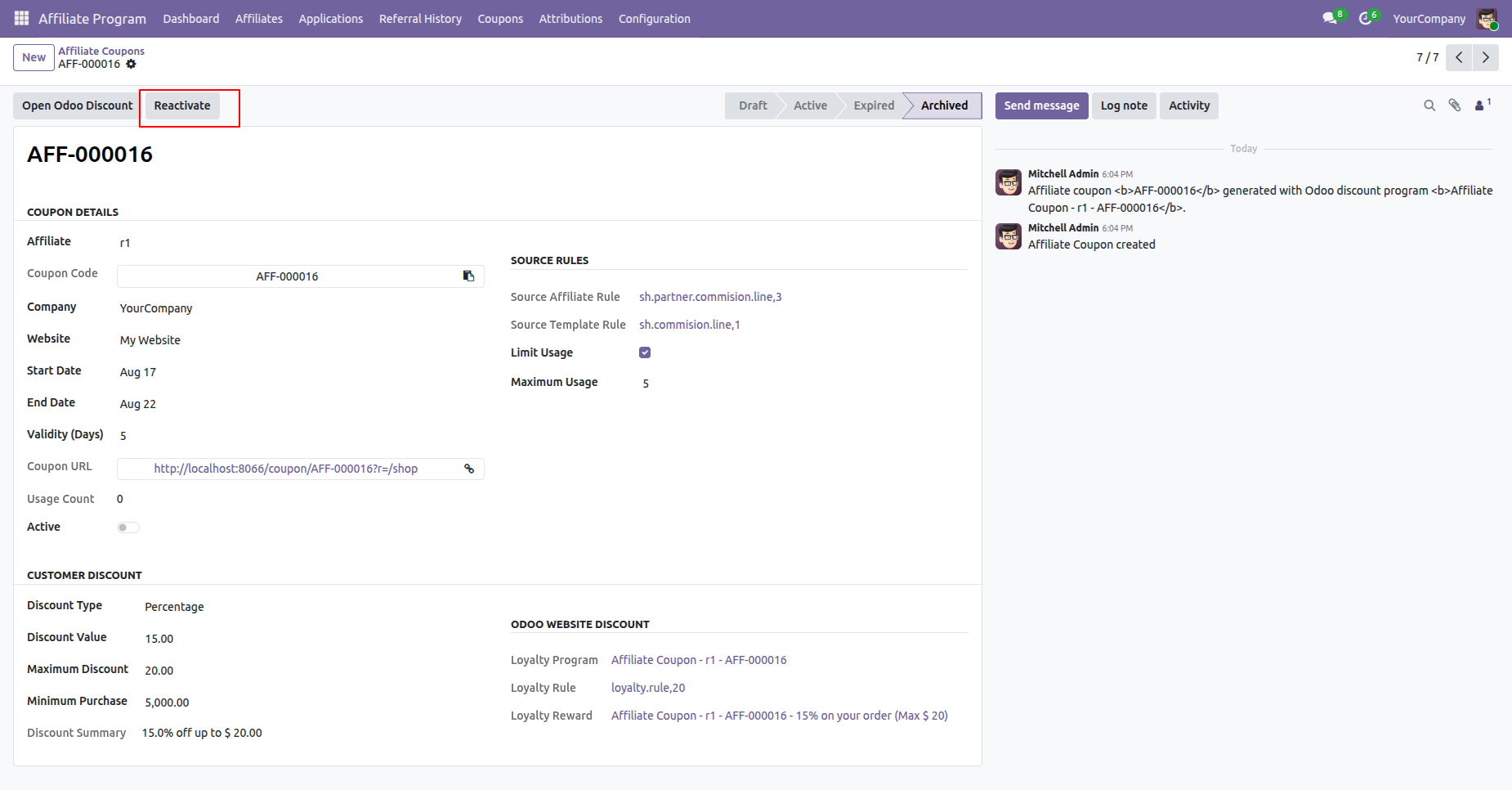
Click the "Reactivate" button on an archived coupon to restore and reactivate it.
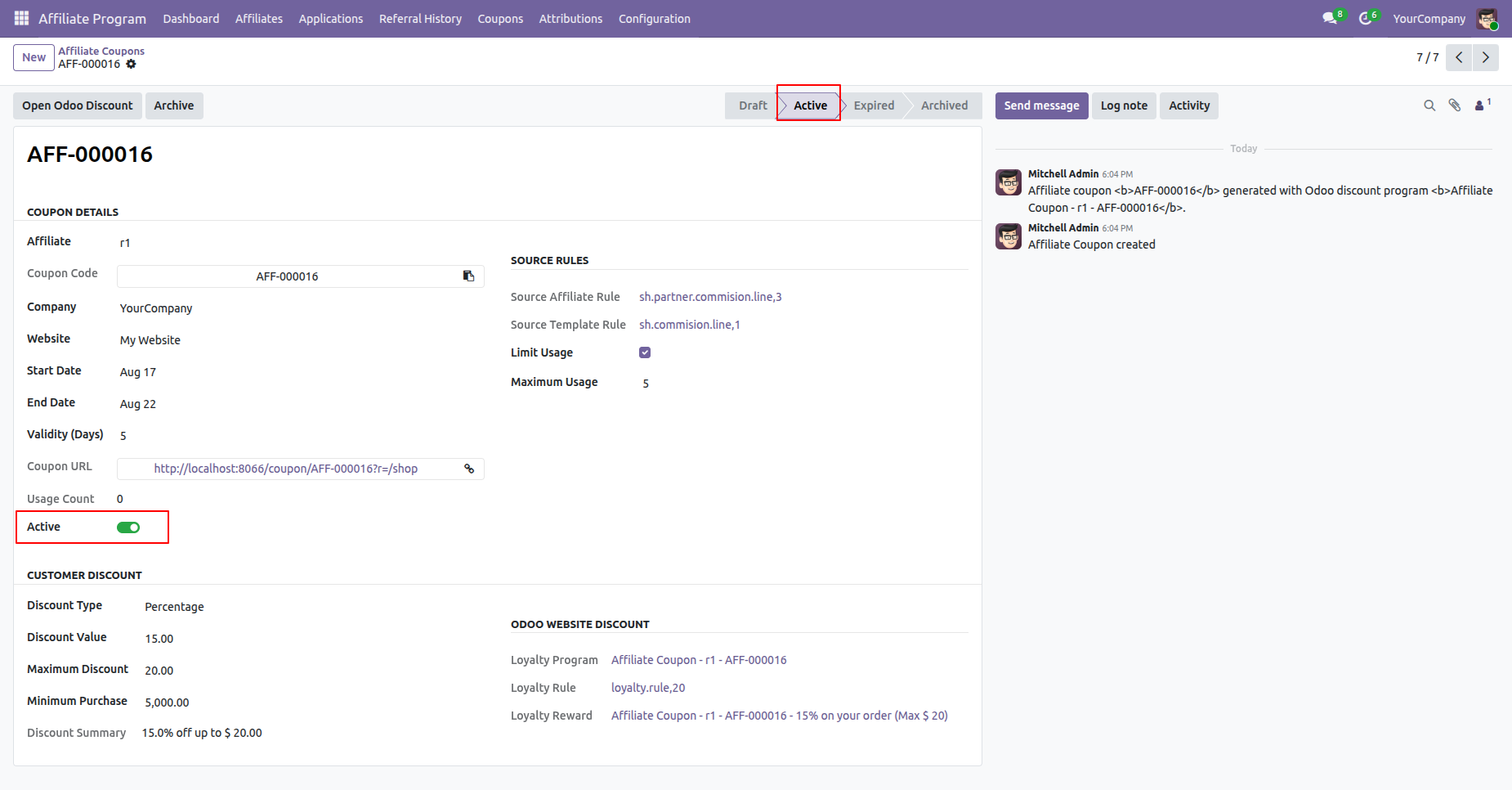
Upon reactivation, the coupon state returns to "Active" and the Active toggle is re-enabled.
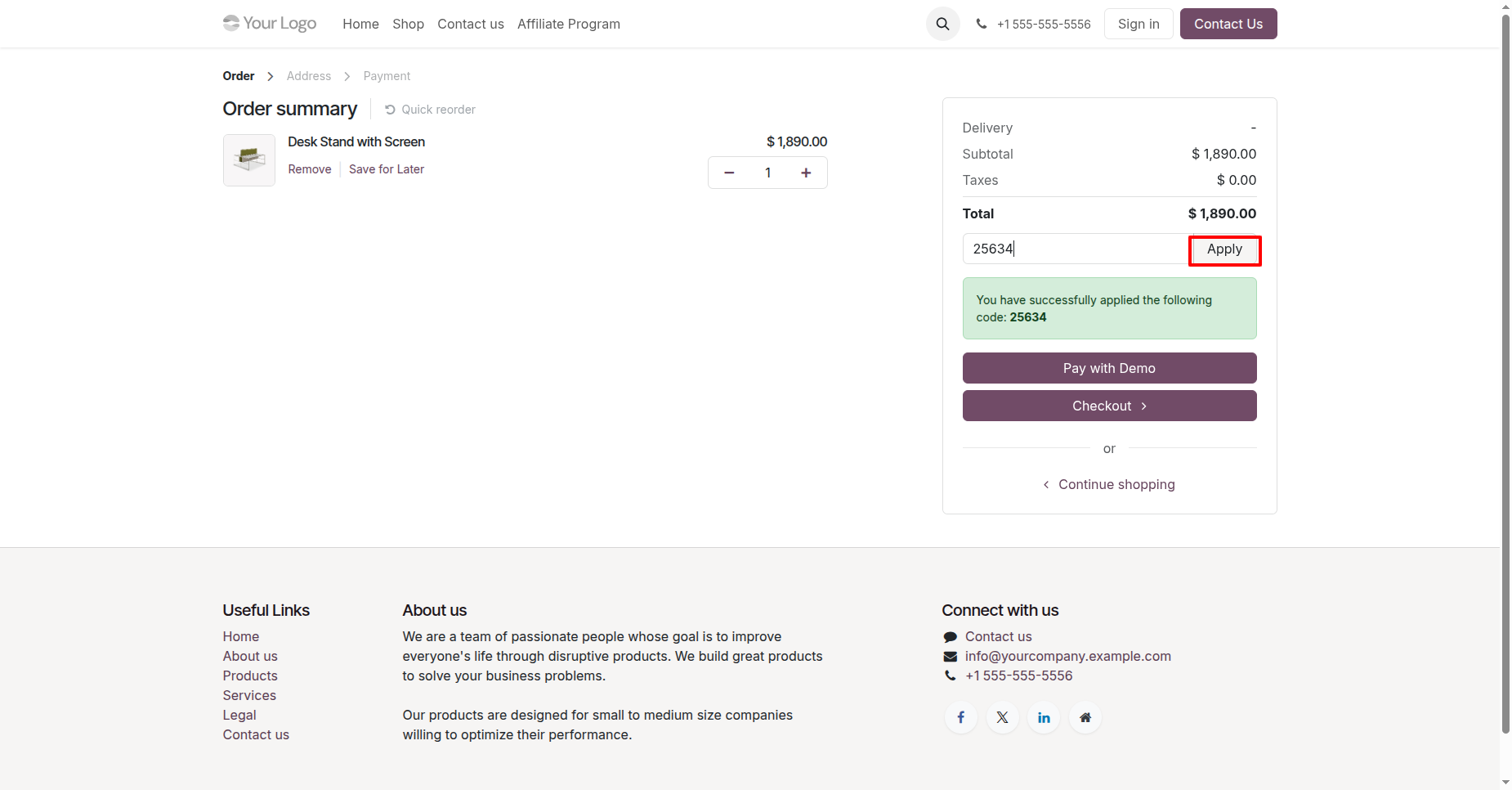
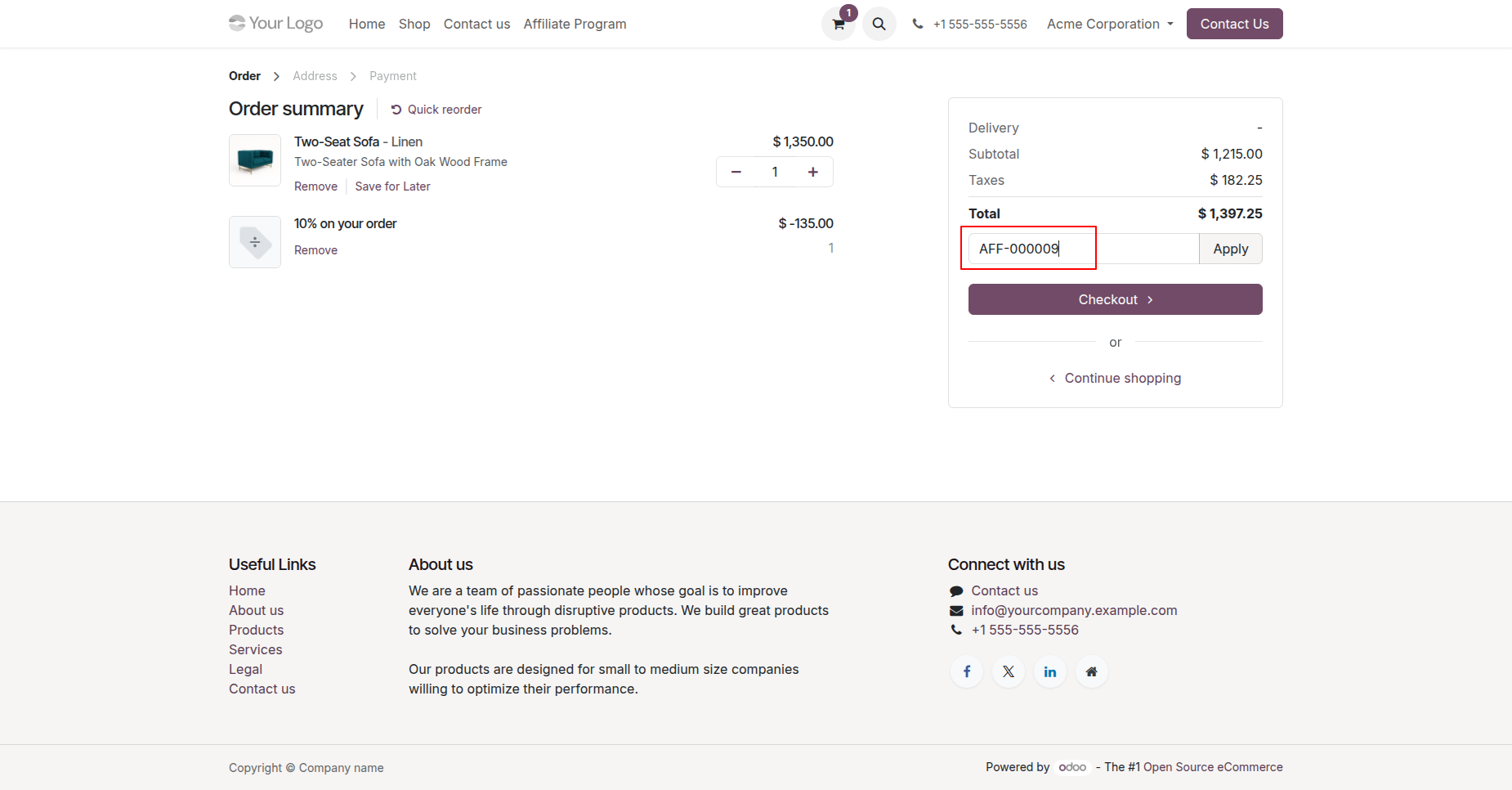
On the website shopping cart checkout page, customers can enter the affiliate coupon code into the discount code field and click Apply.
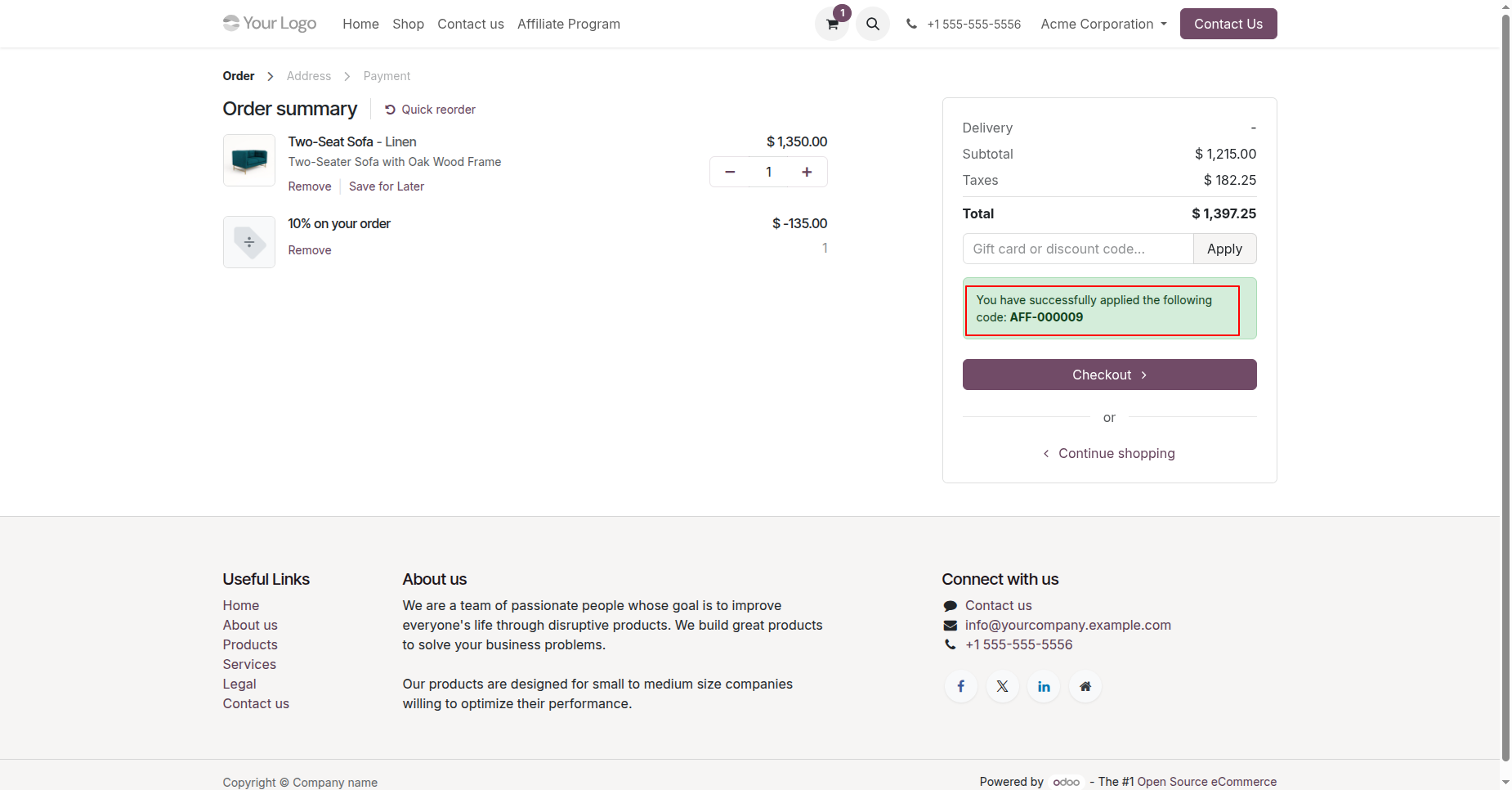
The affiliate coupon code is successfully applied, displaying a confirmation message and deducting the discount from the order subtotal.
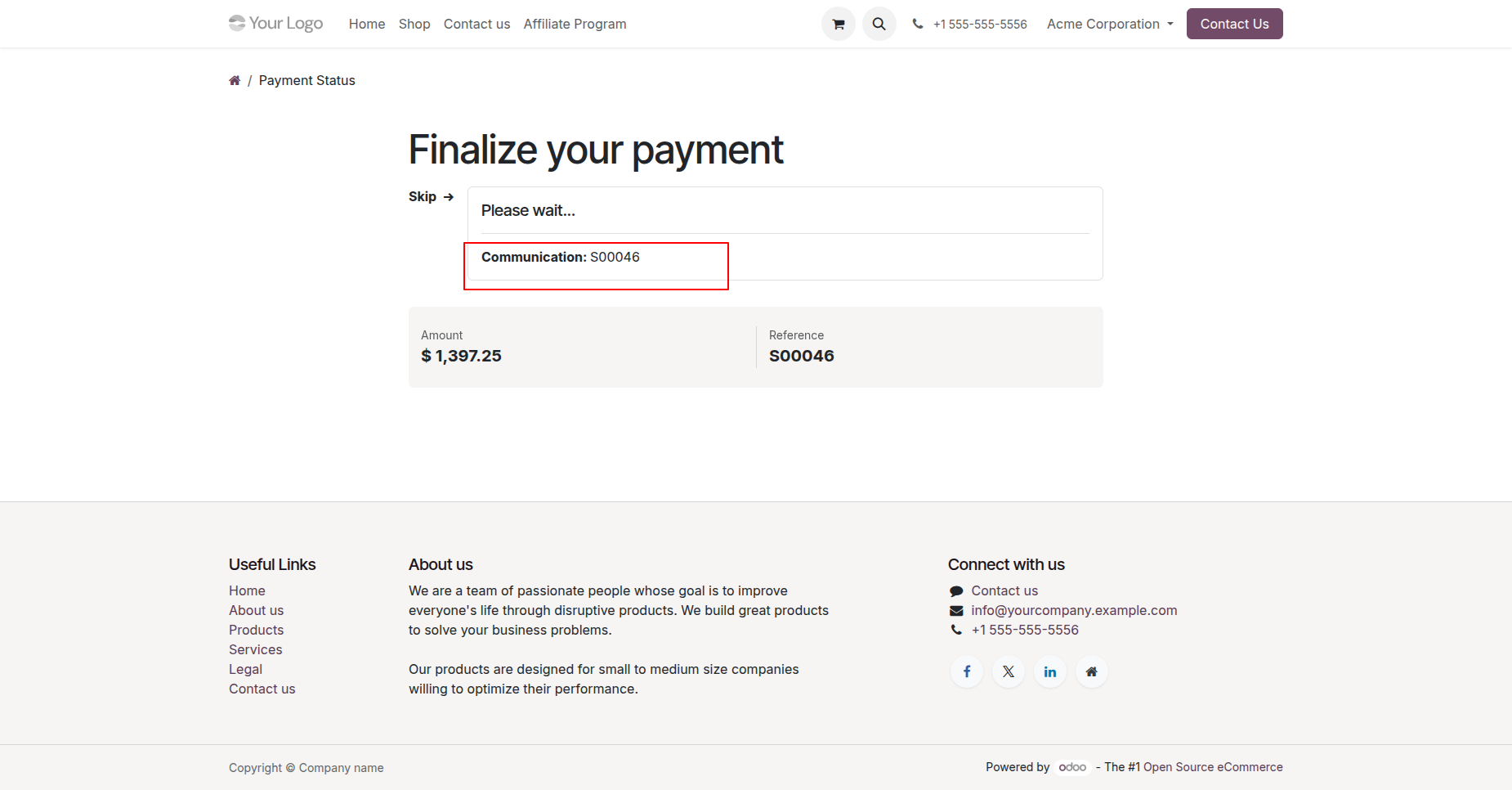
Complete the payment process on the website to place the order.
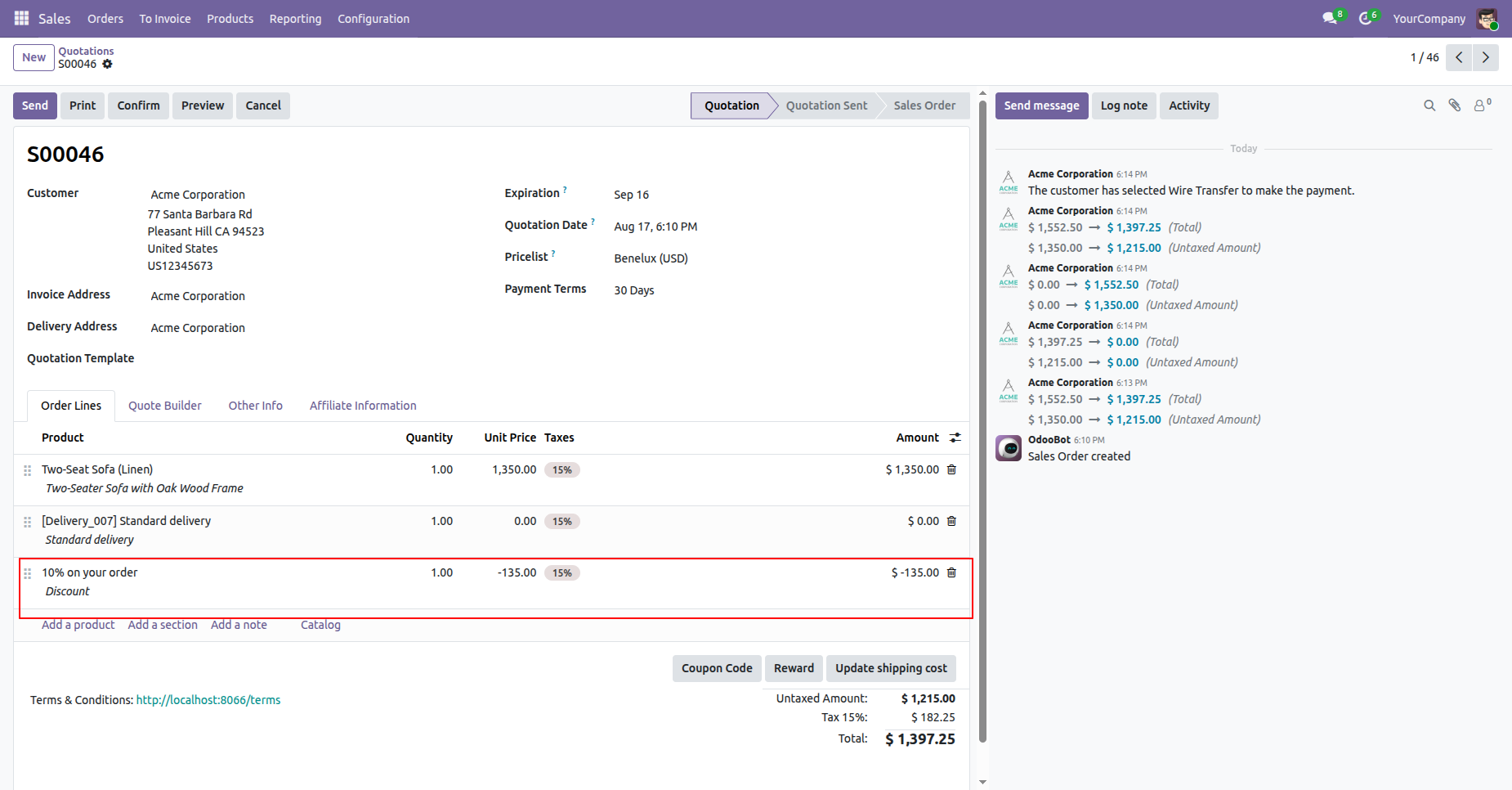
In the backend Sales Order view, the customer discount line applied via the affiliate coupon is automatically reflected under order lines.
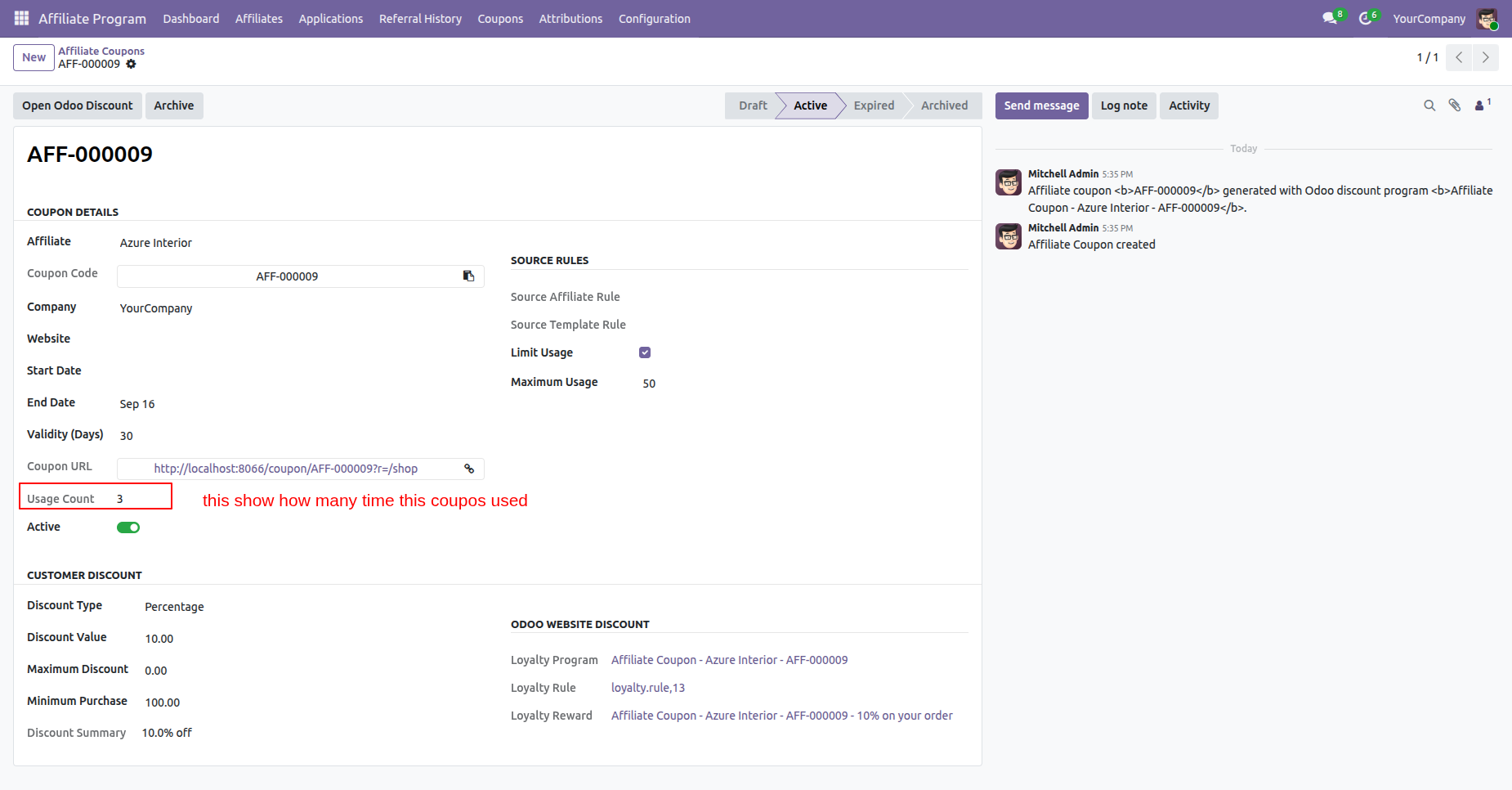
Track coupon usage in real time on the Affiliate Coupon form view, which automatically updates the Usage Count each time the coupon is used.
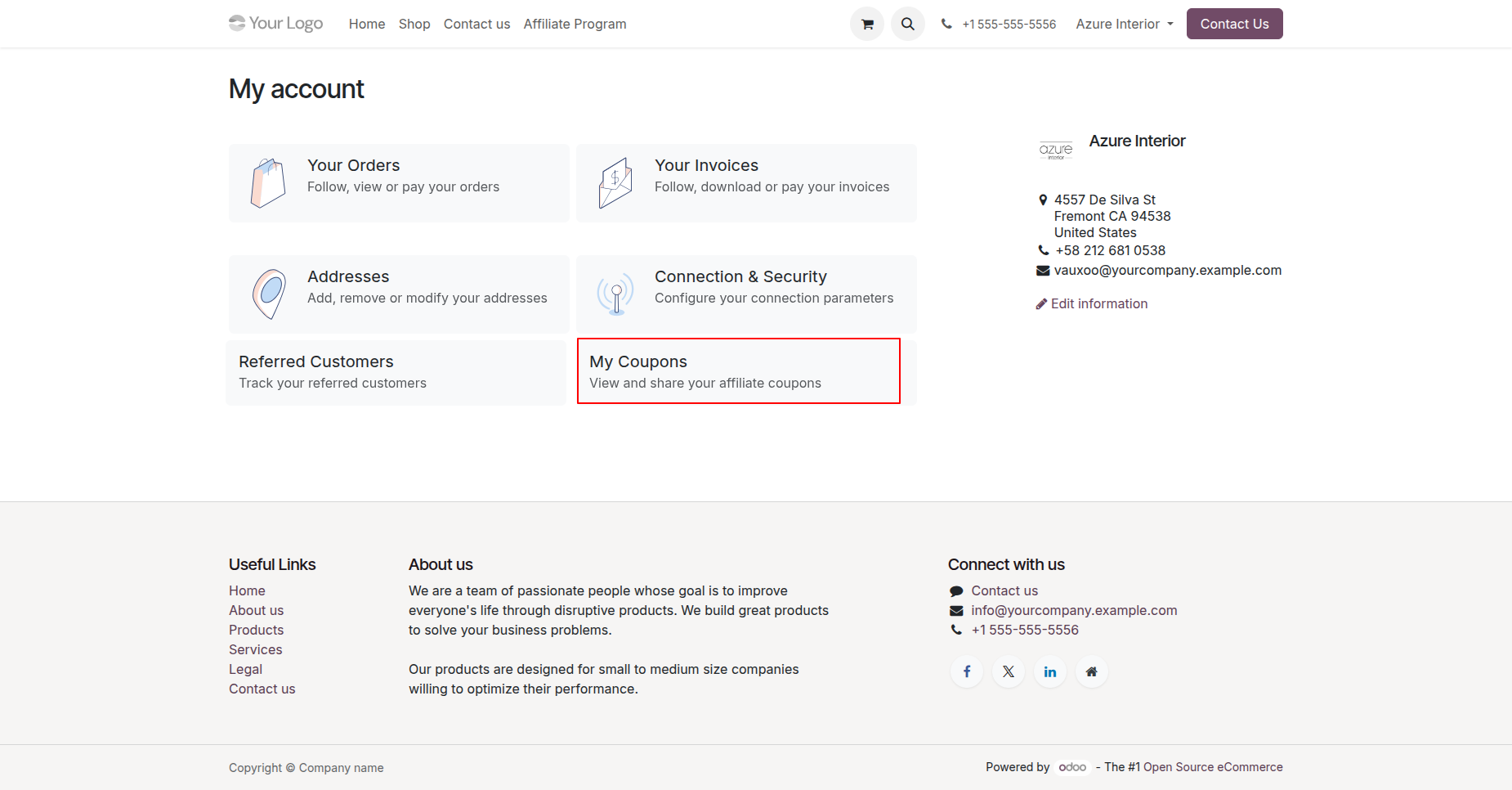
Affiliates can access the "My Coupons" section from their portal account dashboard.
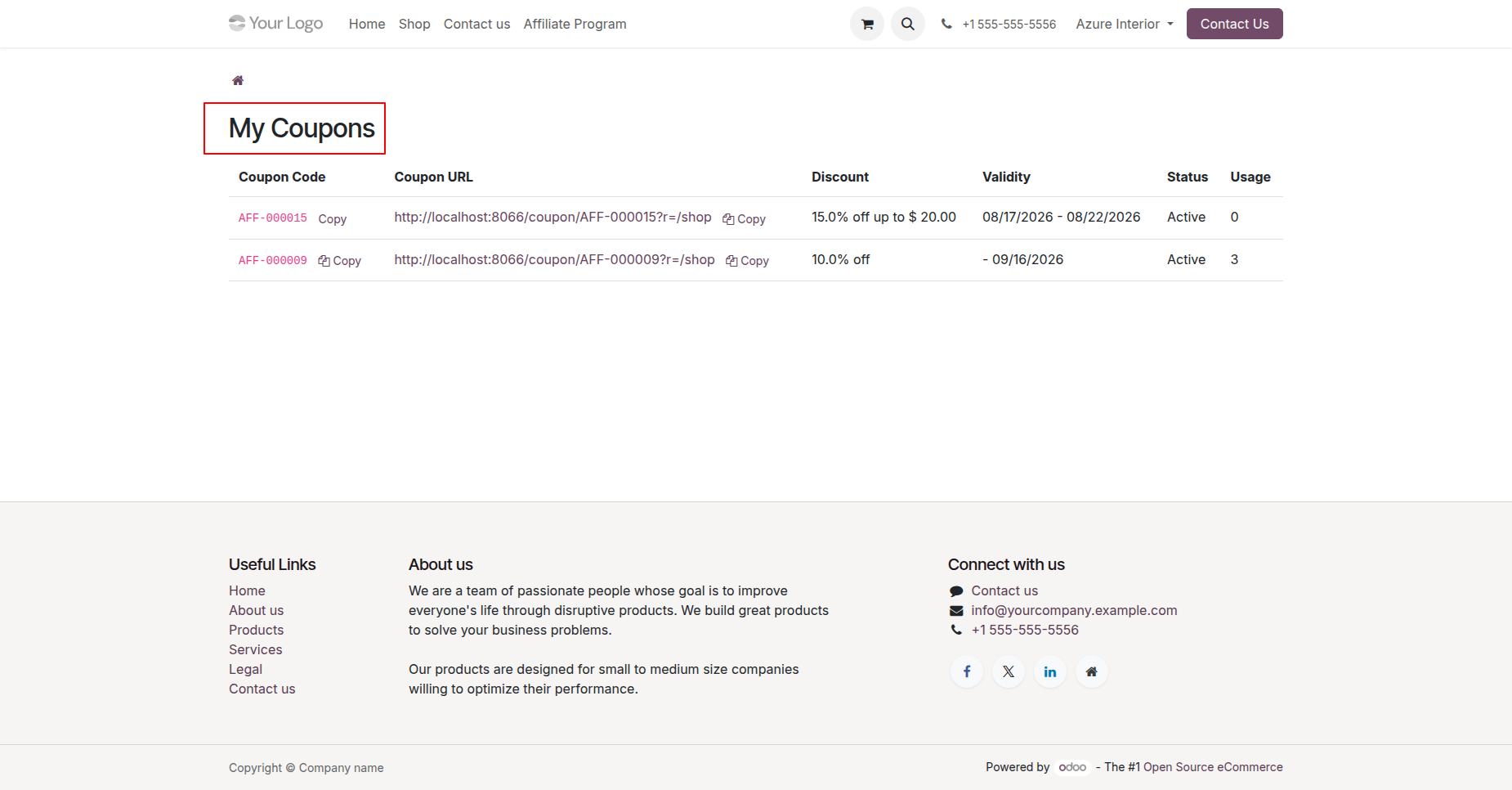
Affiliates can view all their active coupons, copy shareable coupon URLs, check discount details, validity dates, status, and usage counts directly from the portal.
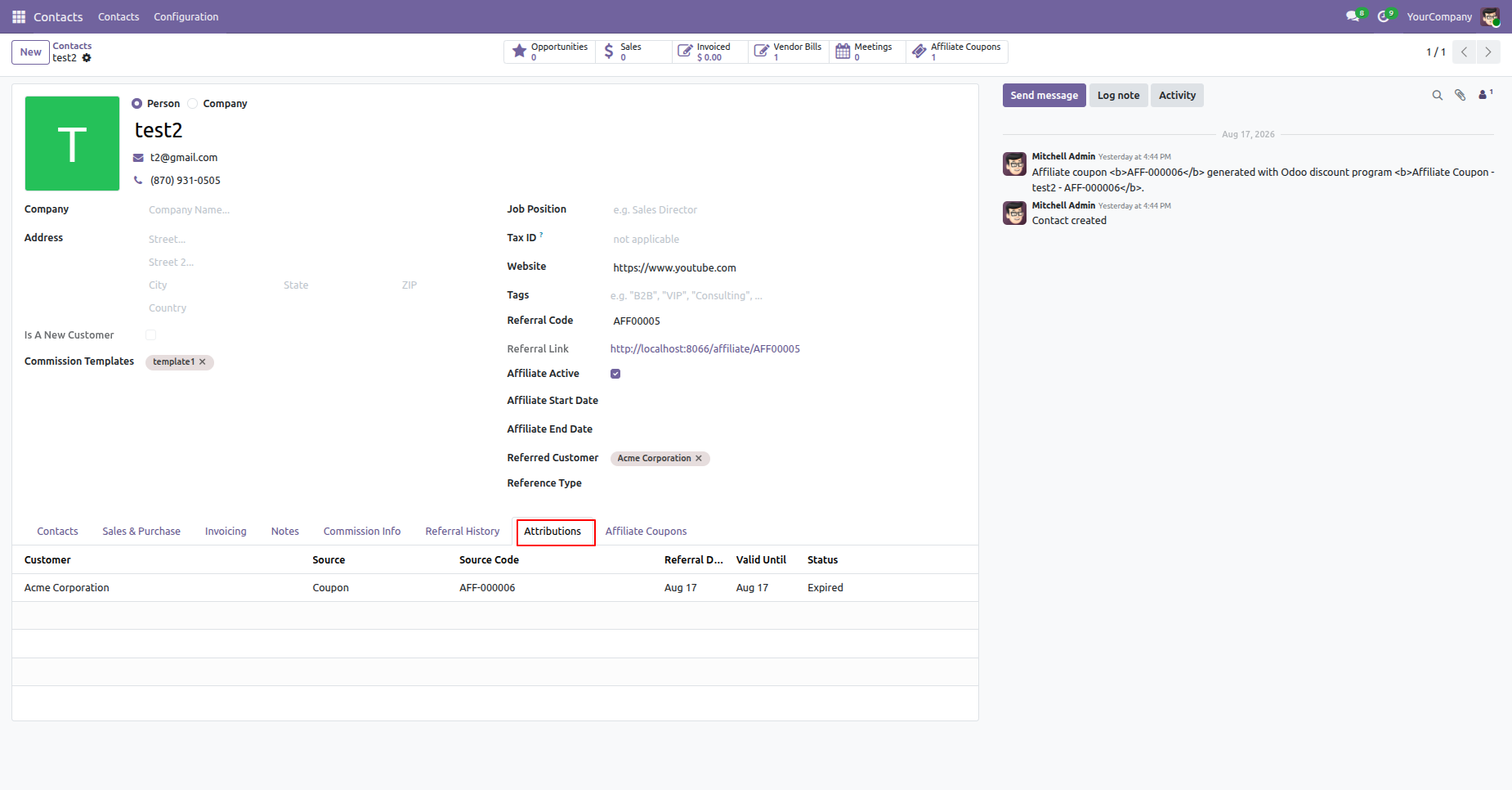
Under the Attributions tab on the Affiliate contact form view, view customer referral attribution details linked to coupon usage.
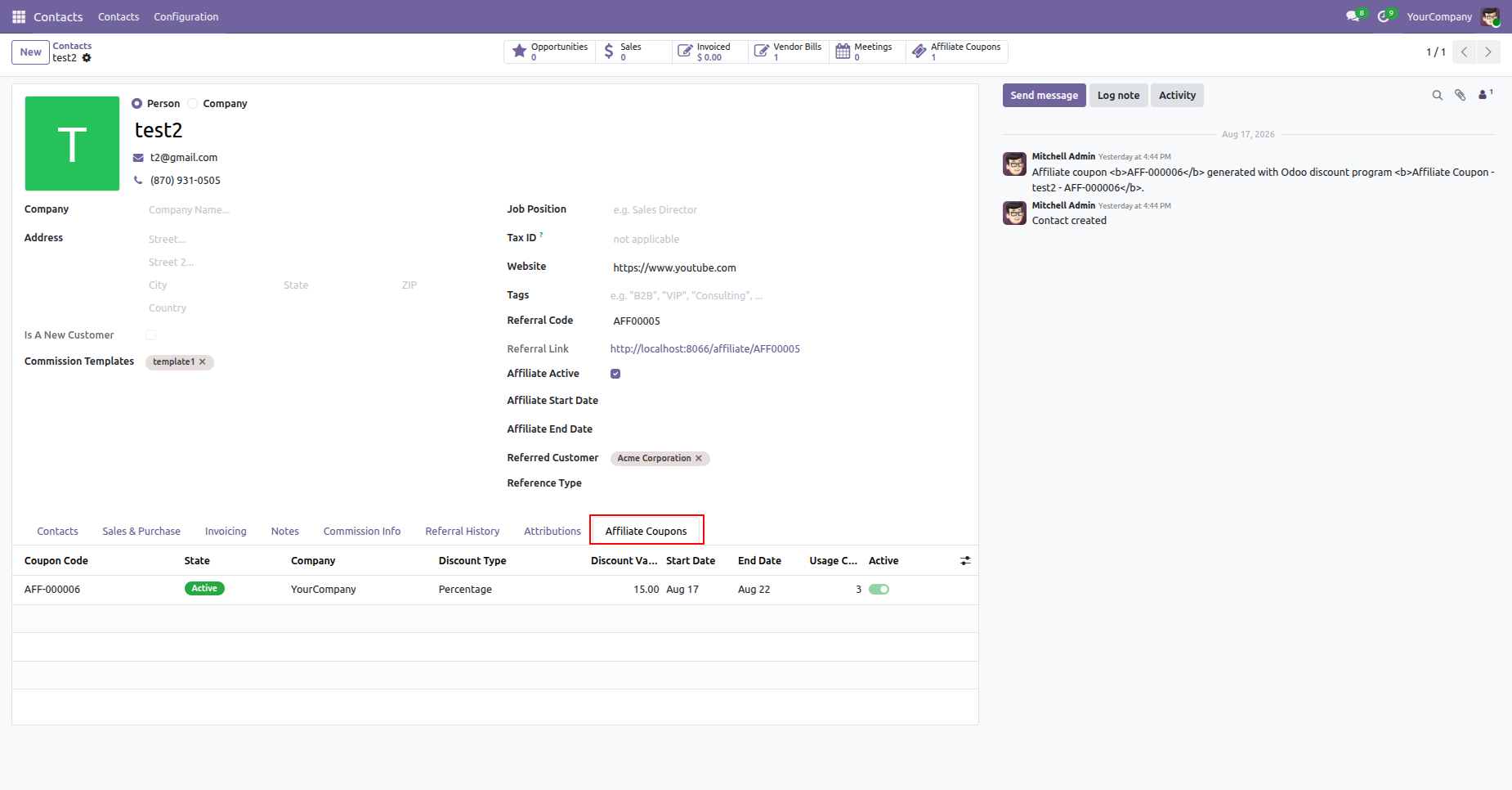
Under the Affiliate Coupons tab on the Affiliate contact form view, view all coupons associated with the affiliate.
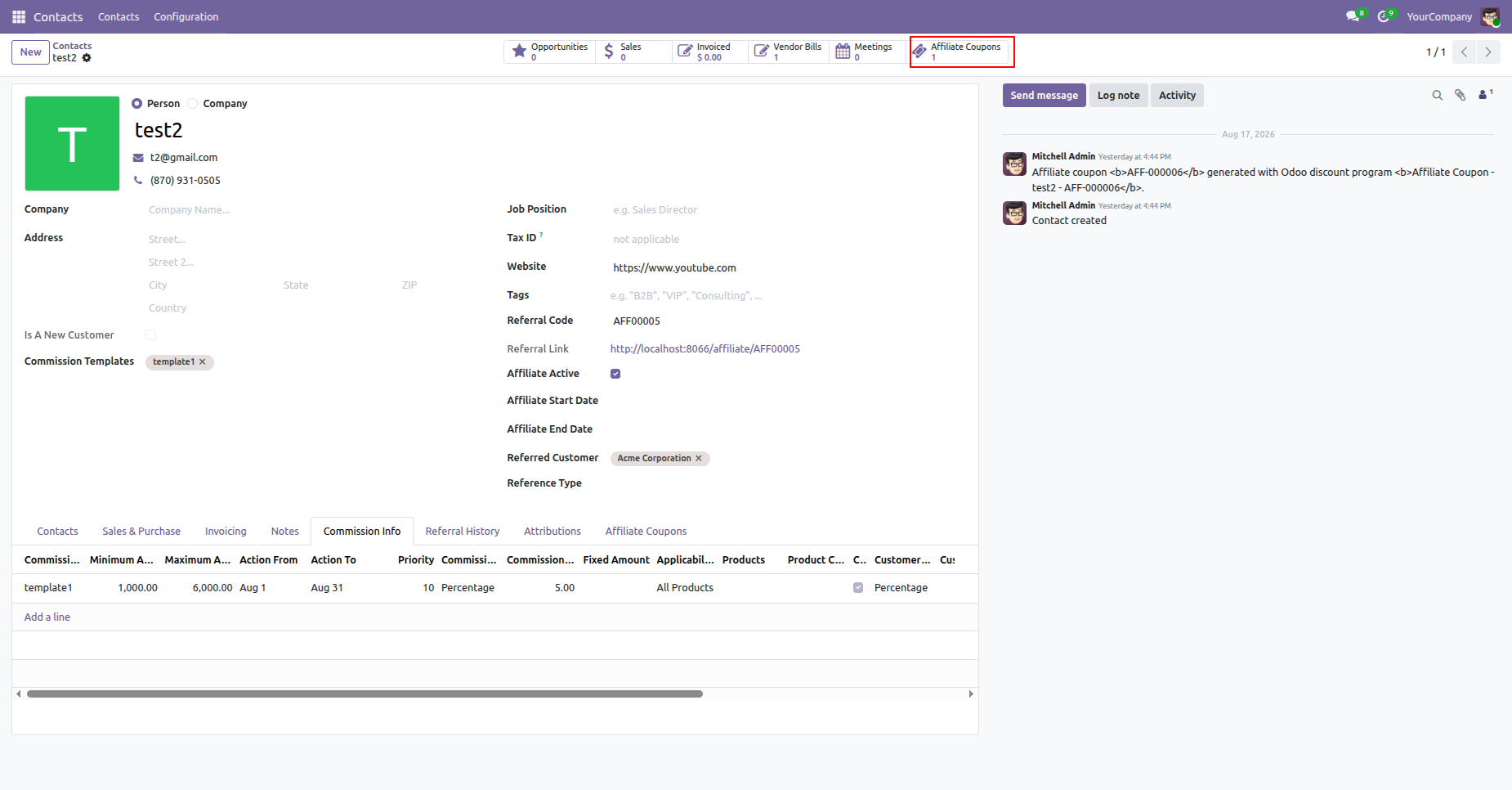
Click the "Affiliate Coupons" smart button on top of the Affiliate contact form view to quickly access all coupons generated for that affiliate.
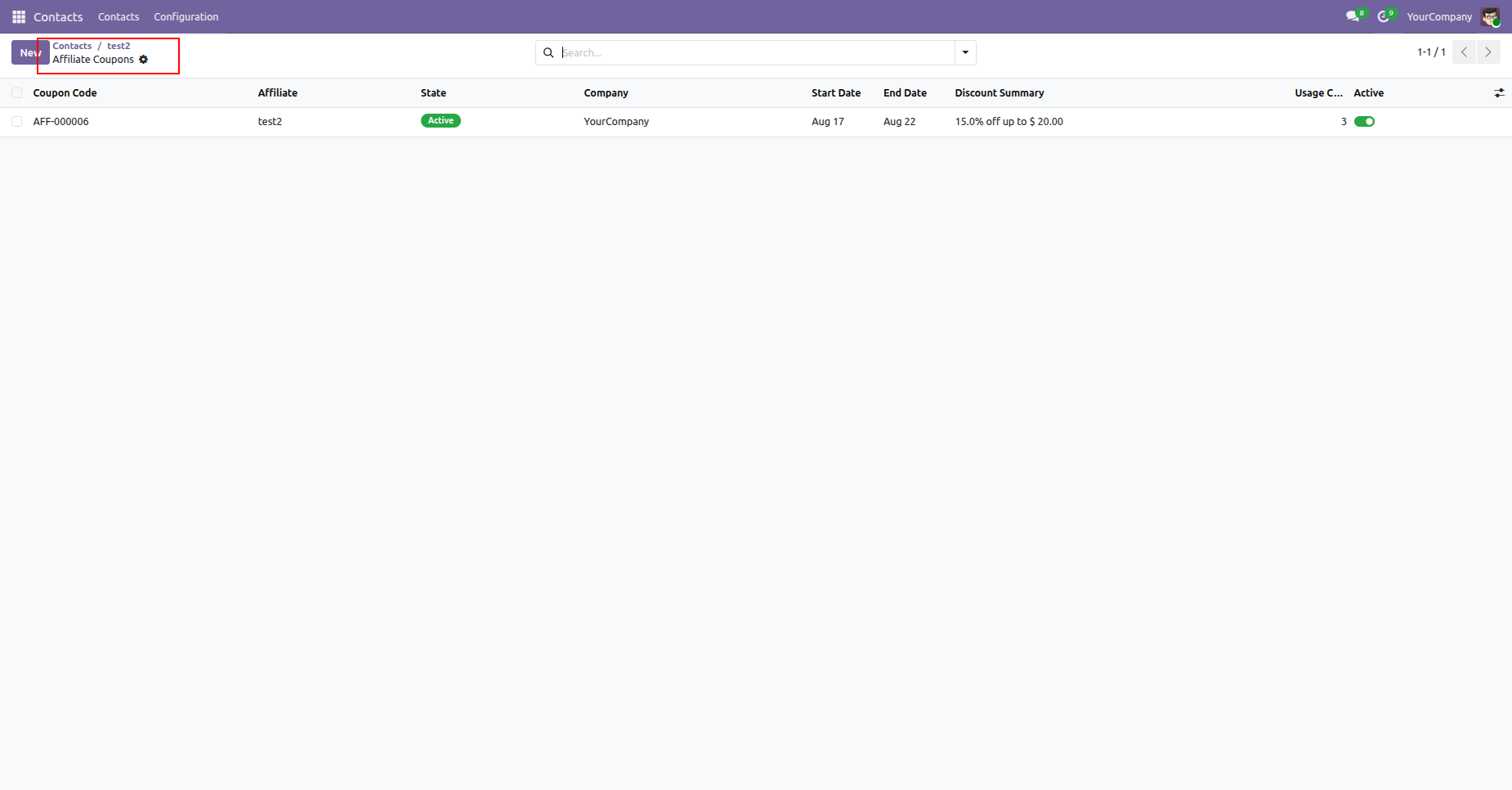
The smart button opens a dedicated list view displaying all affiliate coupons created for that specific contact.
Version 19.0.3.0.0 | Released on : 09th September 2026
Version 19.0.2.0.0 | Released on : 8th July 2026
Version 19.0.1.0.0 | Released on : 01st June 2026
- Yes, this app works perfectly with Odoo Enterprise (Odoo.sh & Premise) as well as Community.
- No, this application is not compatible with odoo.com(odoo saas/Odoo Online)
- Yes, to test this module, please contact us at sales@softhealer.com.
- Please contact us at sales@softhealer.comto request customization.
- Yes, we provide free lifetime support for the version you purchased.
- Yes, you will receive lifetime free updates for the version of the module you purchased.
- No, there is no need to install any additional libraries.
- Yes, for version 12 and above, you need to purchase the module separately for each version you intend to use.
- No, exchanges or refunds are not allowed. Please make sure to select the correct version before purchasing.
- You can contact us at support@softhealer.com for language translation support. We use Google Translator tools to provide translations in multiple languages, so the accuracy may vary. We welcome your suggestions to help improve translations.
Discover Our Latest Apps