













Advanced Document Management

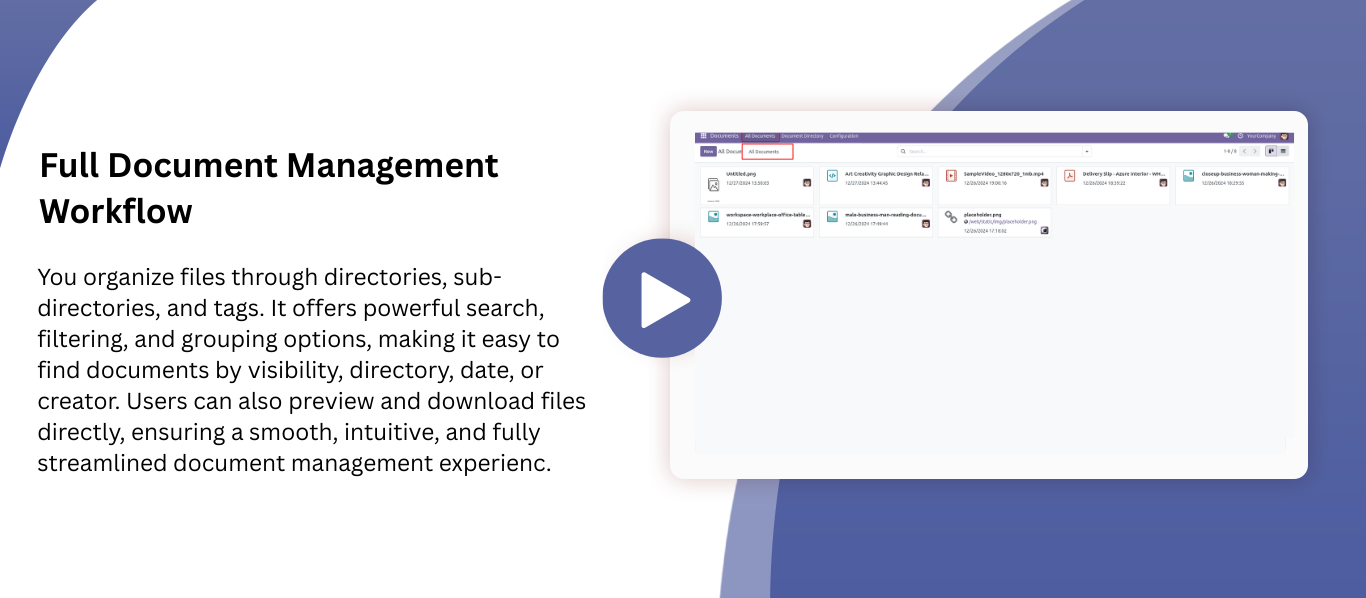
This advanced Document Management System lets users organize files through directories and
sub-directories with ease. Users can filter documents using 'Visible Directory' and 'My Directory', and
group them by directory, date, or creator for quick access. Powerful search tools and customizable
filters make navigating even large file sets simple.
The module also supports directory and document tags for extra classification, along with previewing and
downloading files directly from each directory. With its smooth interface and intuitive folder-based
structure, it provides a complete, user-friendly document management experience in Odoo.

Related Modules
Key Features
Features
Directory Creation & Organized Folder Structure
Create directories and sub-directories to maintain a clean, structured, and easily navigable document hierarchy.
Secure Document Storage
Store and manage documents safely with controlled access and organized directory-wise storage.
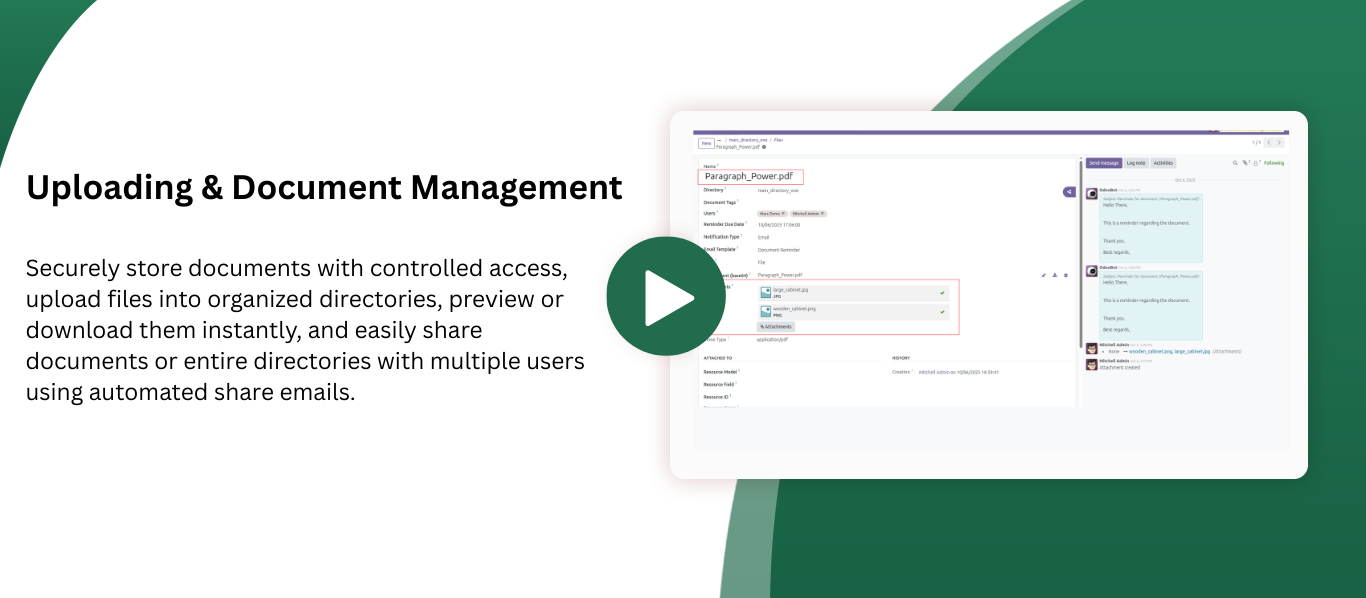
Upload, Preview & Download Documents
Upload files into directories, preview documents instantly, and download them as needed.
Smart Reminders & Notifications
Set reminders on documents, and the system sends automatic email notifications at the scheduled date and time.
Customizable Email Templates
Use flexible and editable email templates to send document-related notifications.
Quick Access to Tags & Directories
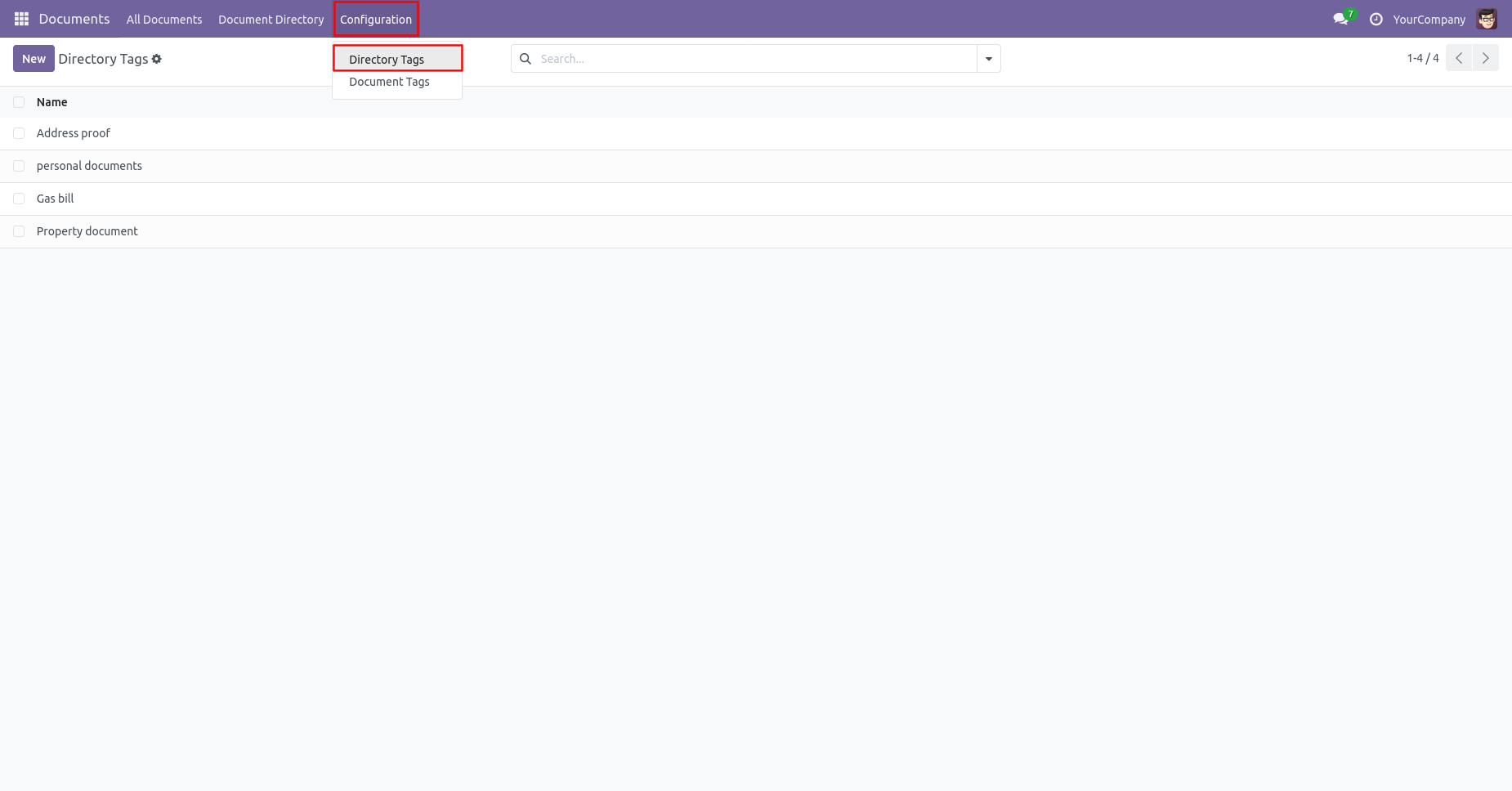
Access directory tags, document tags, main directories, and sub-directories instantly from the menu bar.
Advanced Search, Filters & Grouping
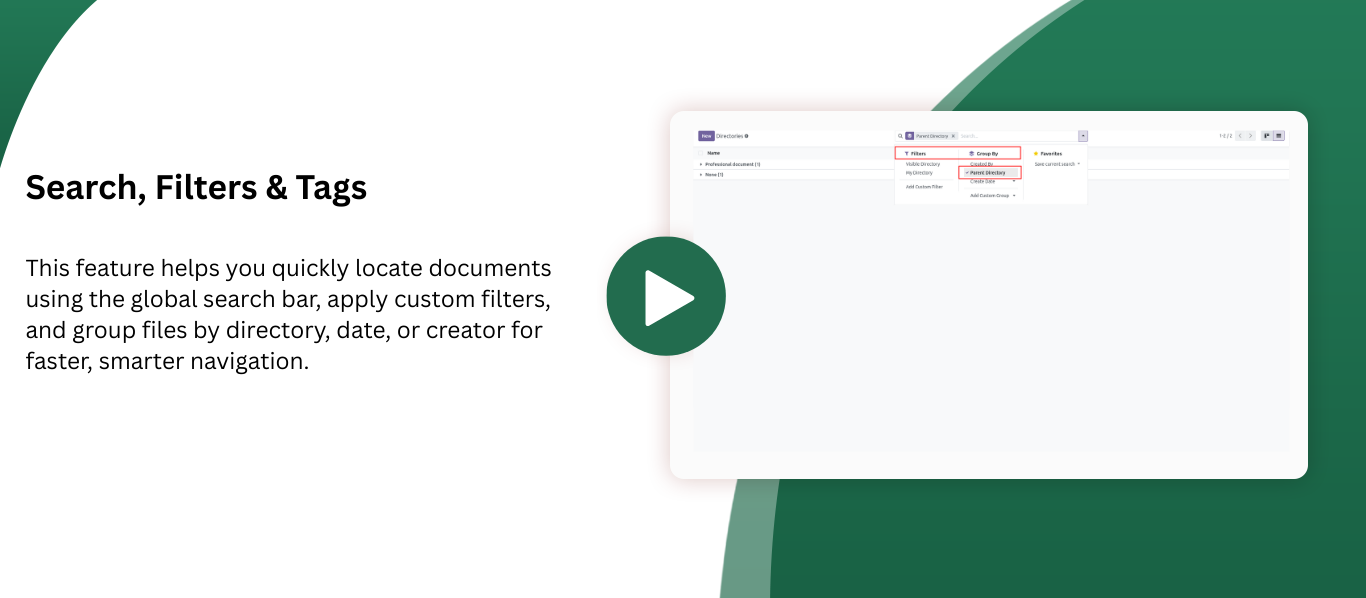
Search documents using the global search bar, apply custom filters, and group documents by directory, created date, or created by.
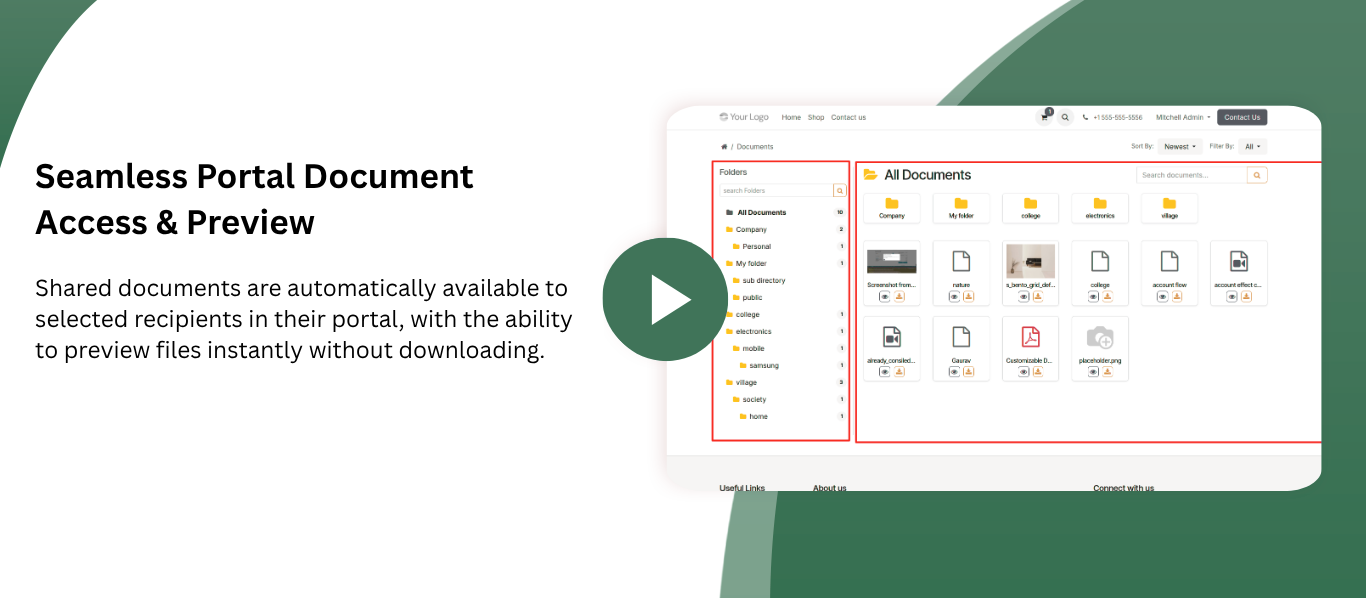
Seamless Portal Document Access & Preview
Shared documents are automatically available to selected recipients in their portal, with the ability to preview files instantly without downloading.
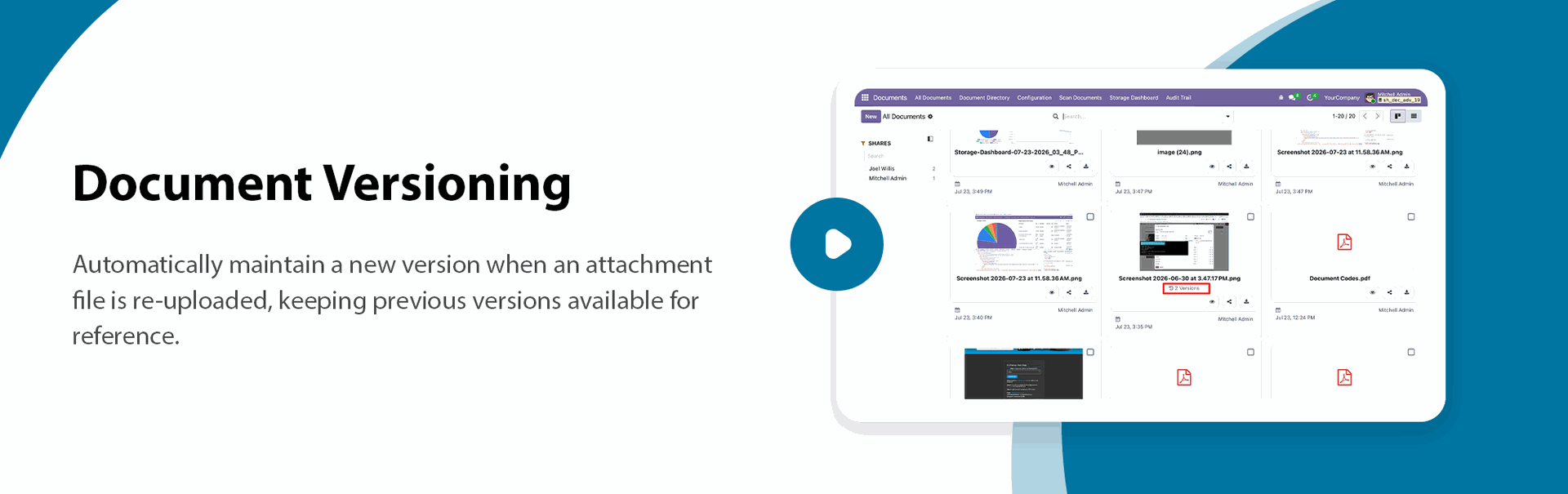
Document Versioning

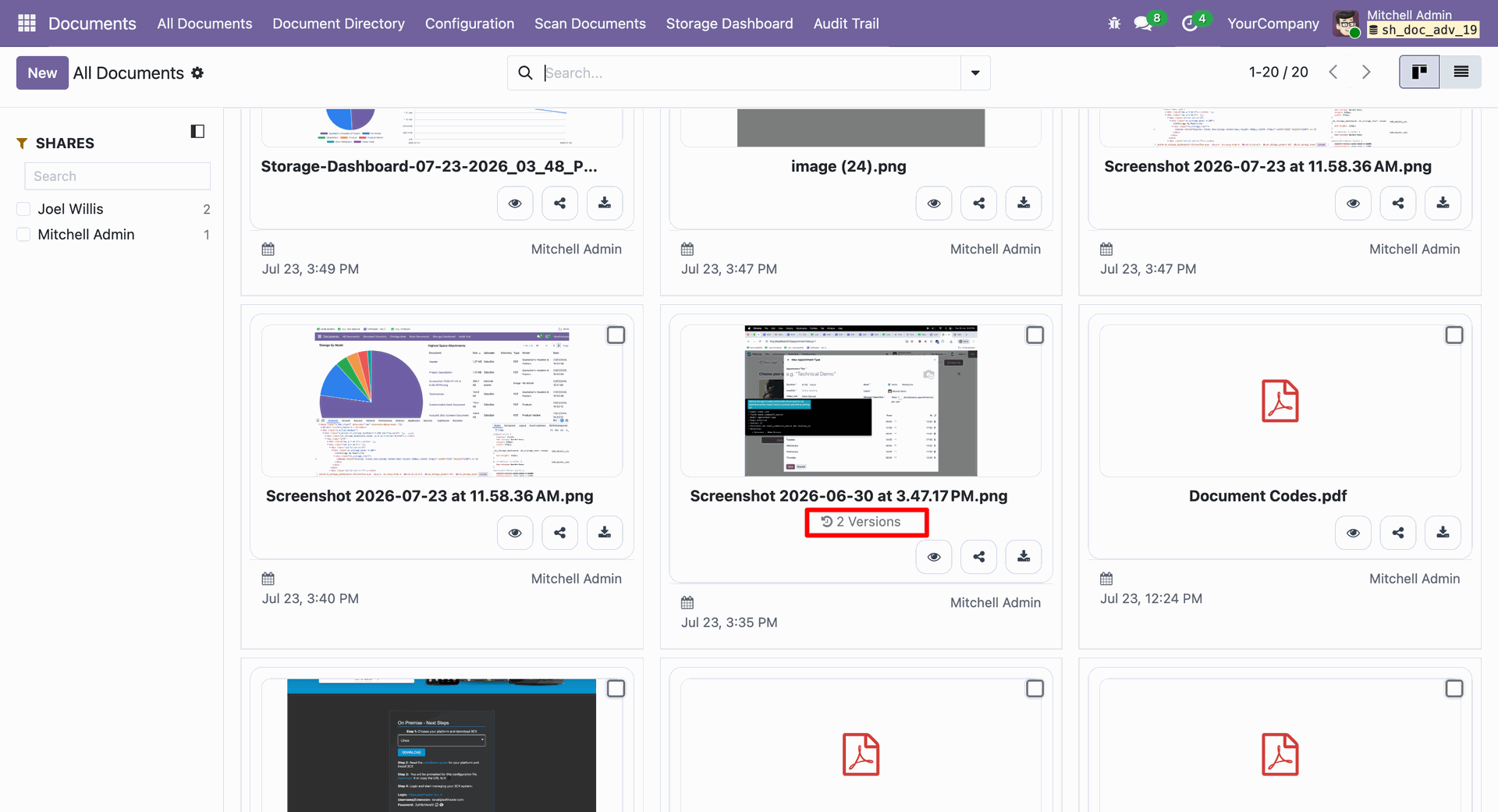
Automatically maintain a new version when an attachment file is re-uploaded, keeping previous versions available for reference.
Visible Directory & My Directory Filters
Quickly filter documents based on visibility — view your personal directories or only shared/public directories.
Document Tags & Directory Tags Management
Add, edit, and manage tags for both documents and directories to classify and find files faster.
Share Documents & Directories Easily
Share documents or entire directories with multiple users at once and send share emails automatically.

Activity Tracking & History
Track all activities related to a document — uploads, edits, comments, and updates.
View Related Files (Sub-Directory Files)
Easily view related documents from sub-directories or linked directories for quick navigation between related folders.

Bulk Actions & Multi-Select Management
Perform bulk operations such as mass-select, bulk download, and multiple document actions in one click.

Create Directory from Scheduled Activities
Generate a new directory directly from scheduled activity actions without navigating away.
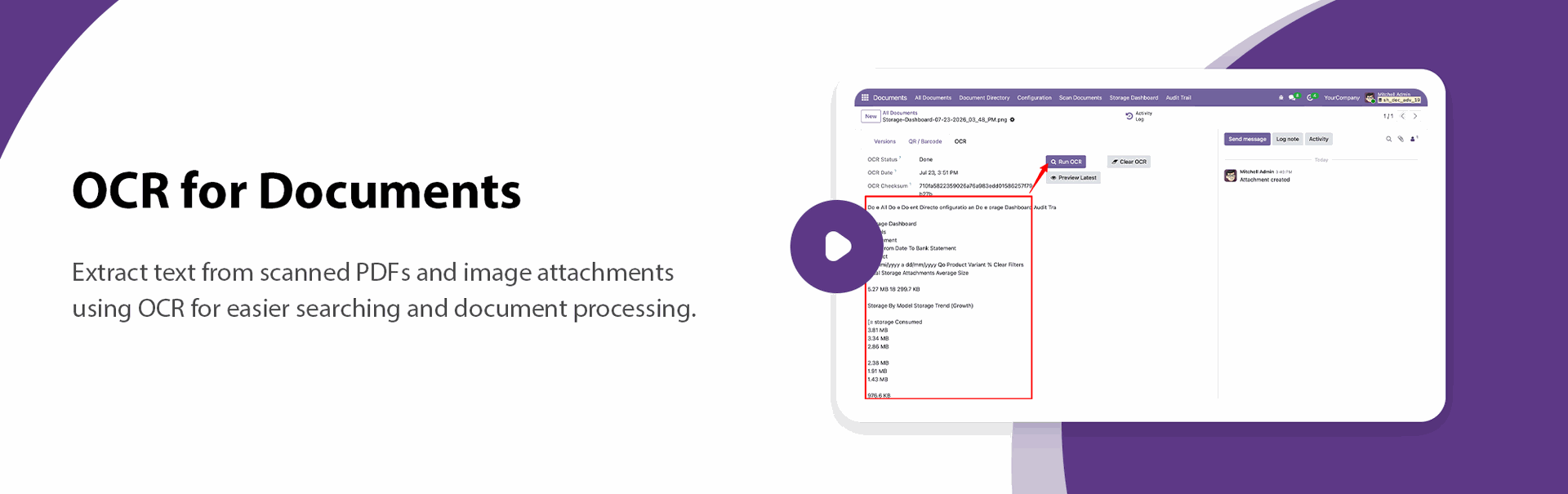
OCR for Documents
Extract text from scanned PDF and image attachments using OCR for easier searching and document processing.
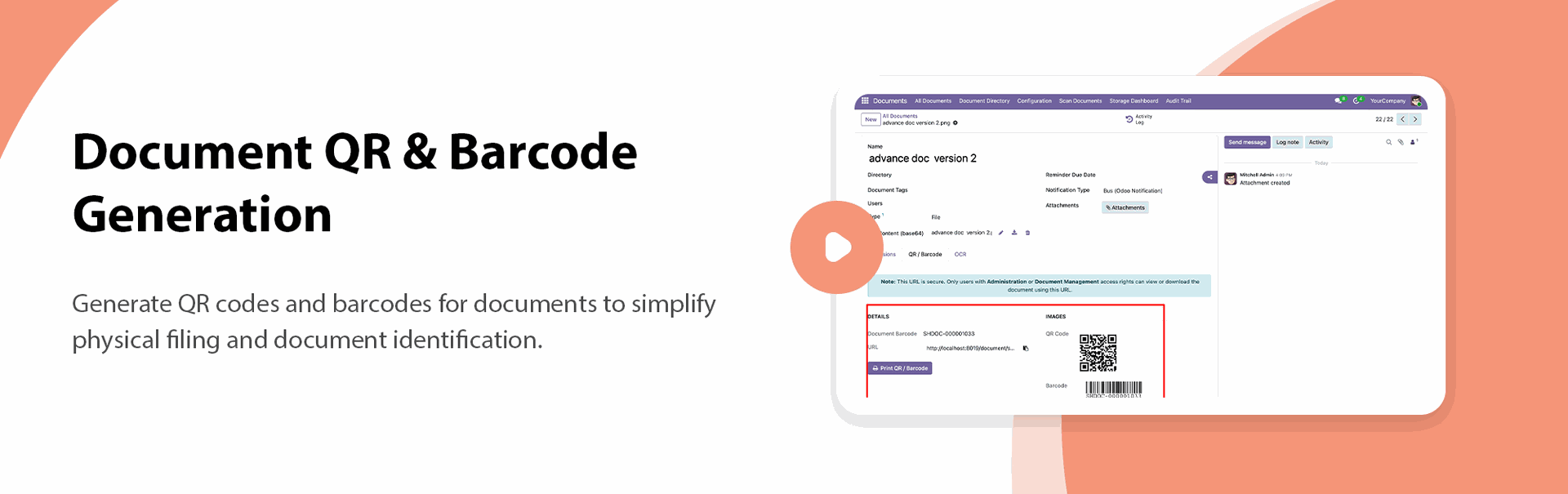
Document QR & Barcode Generation
Generate QR codes and barcodes for documents to simplify physical filing and document identification.
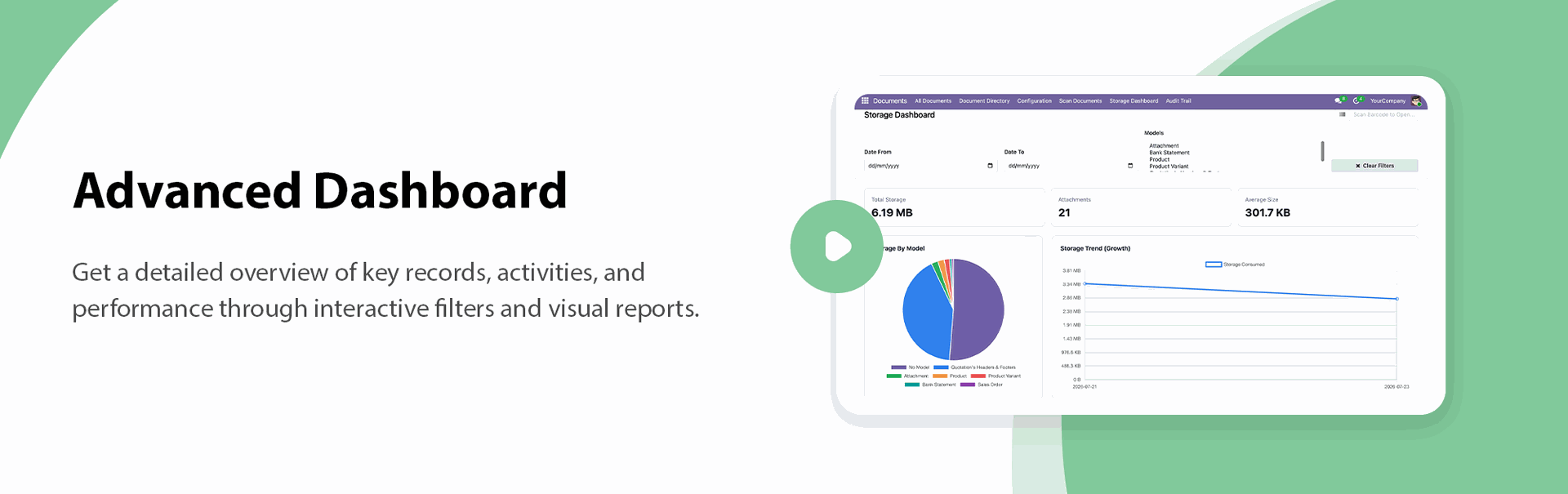
Advanced Dashboard
Get a detailed overview of key records, activities, and performance through interactive filters and visual reports.

In 'Configuration' go to directory tags, list view of the directory tags looks like below.
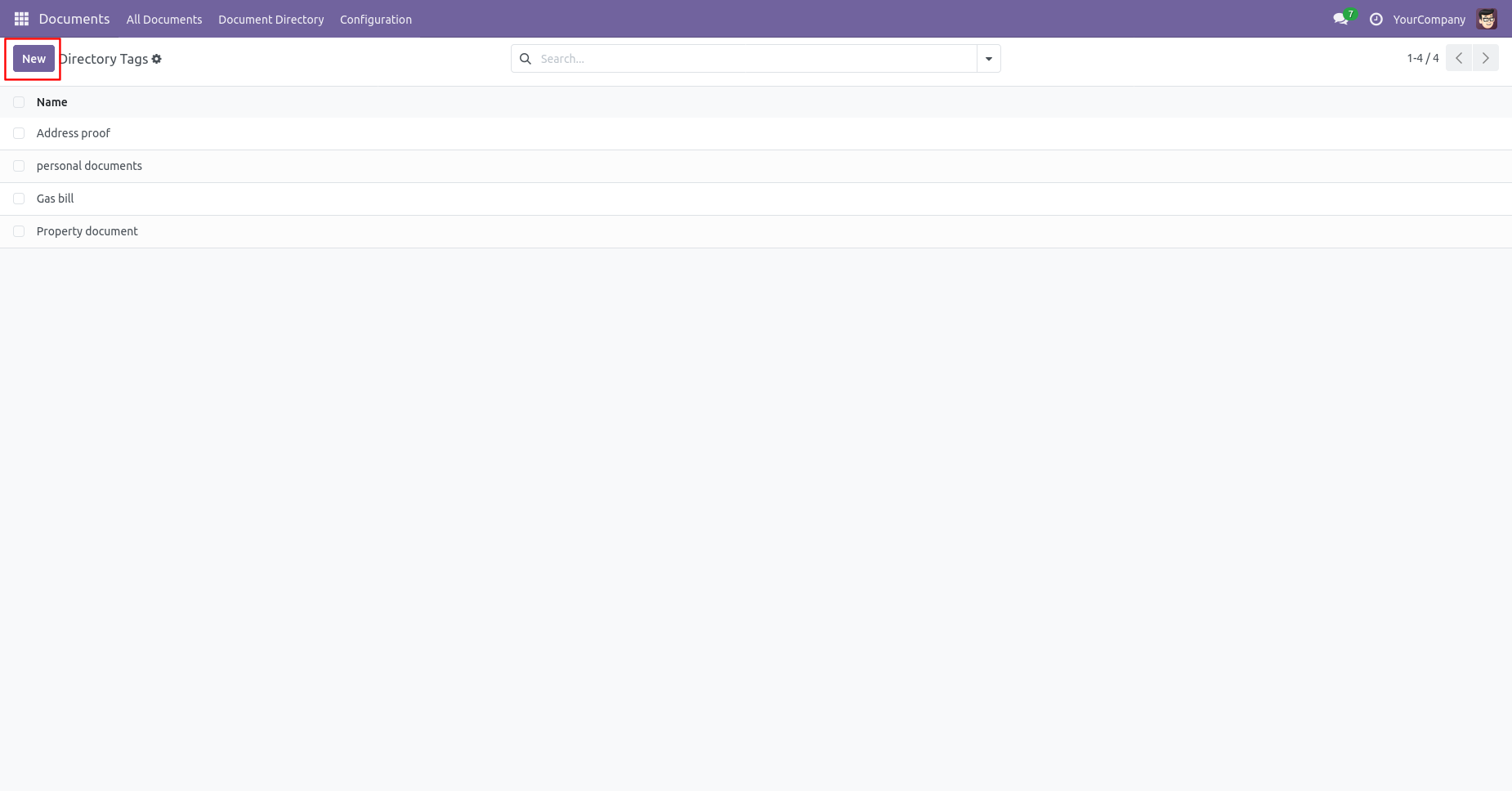
Click on the 'New' button to create a new directory tag.
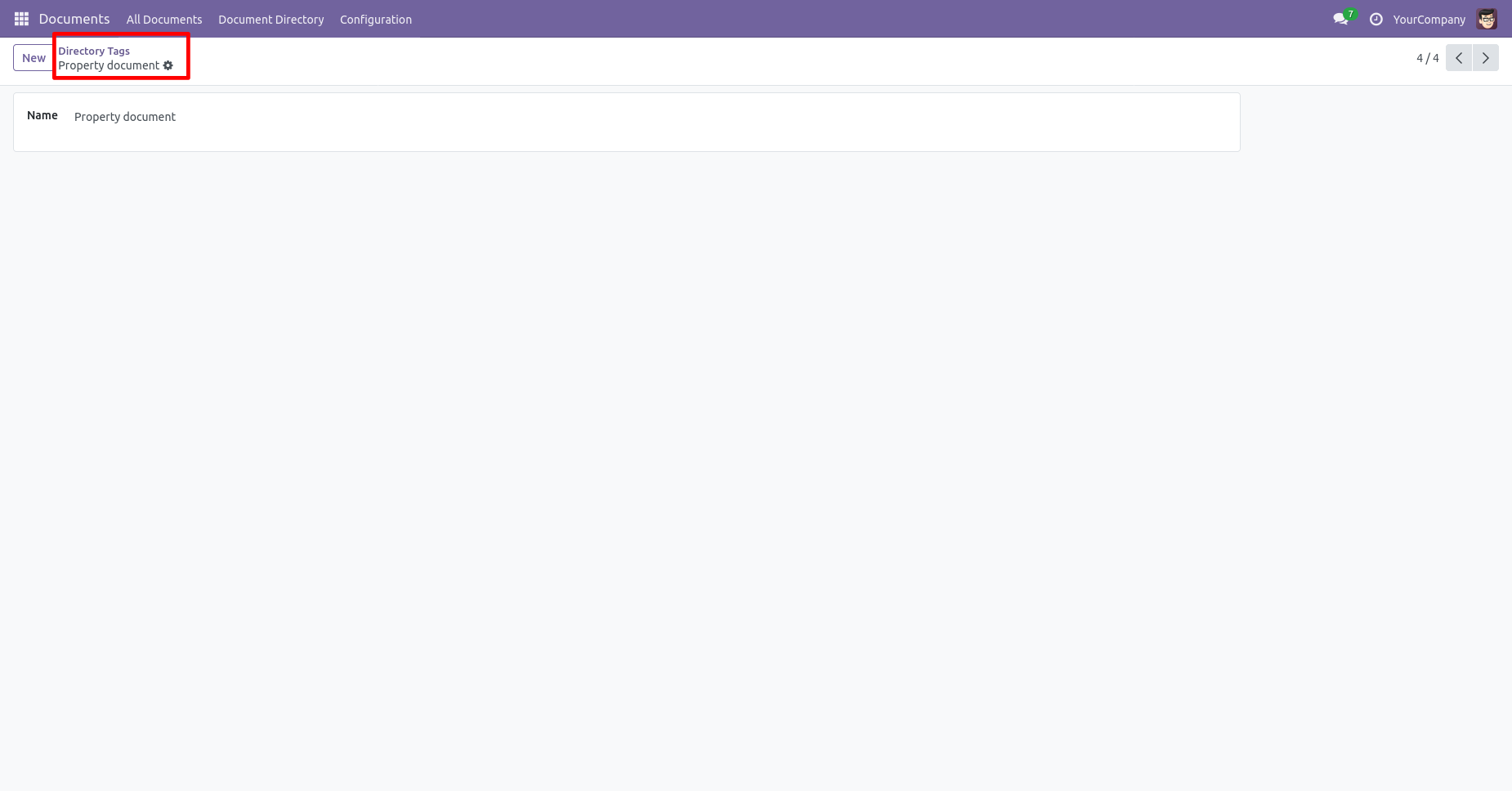
Directory tags form view looks like below.
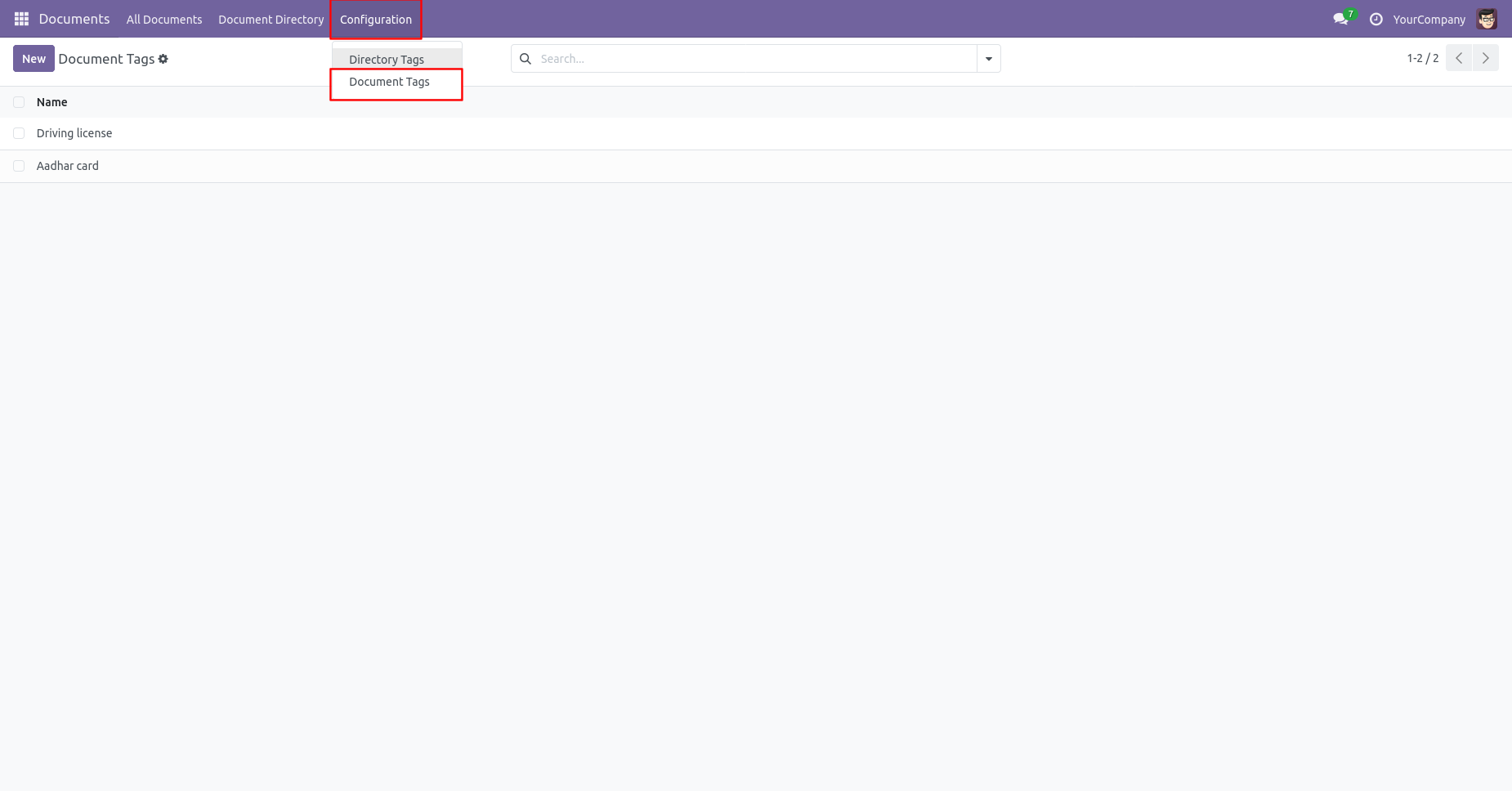
In 'Configuration' go to directory tags, list view of the document tags look like below.
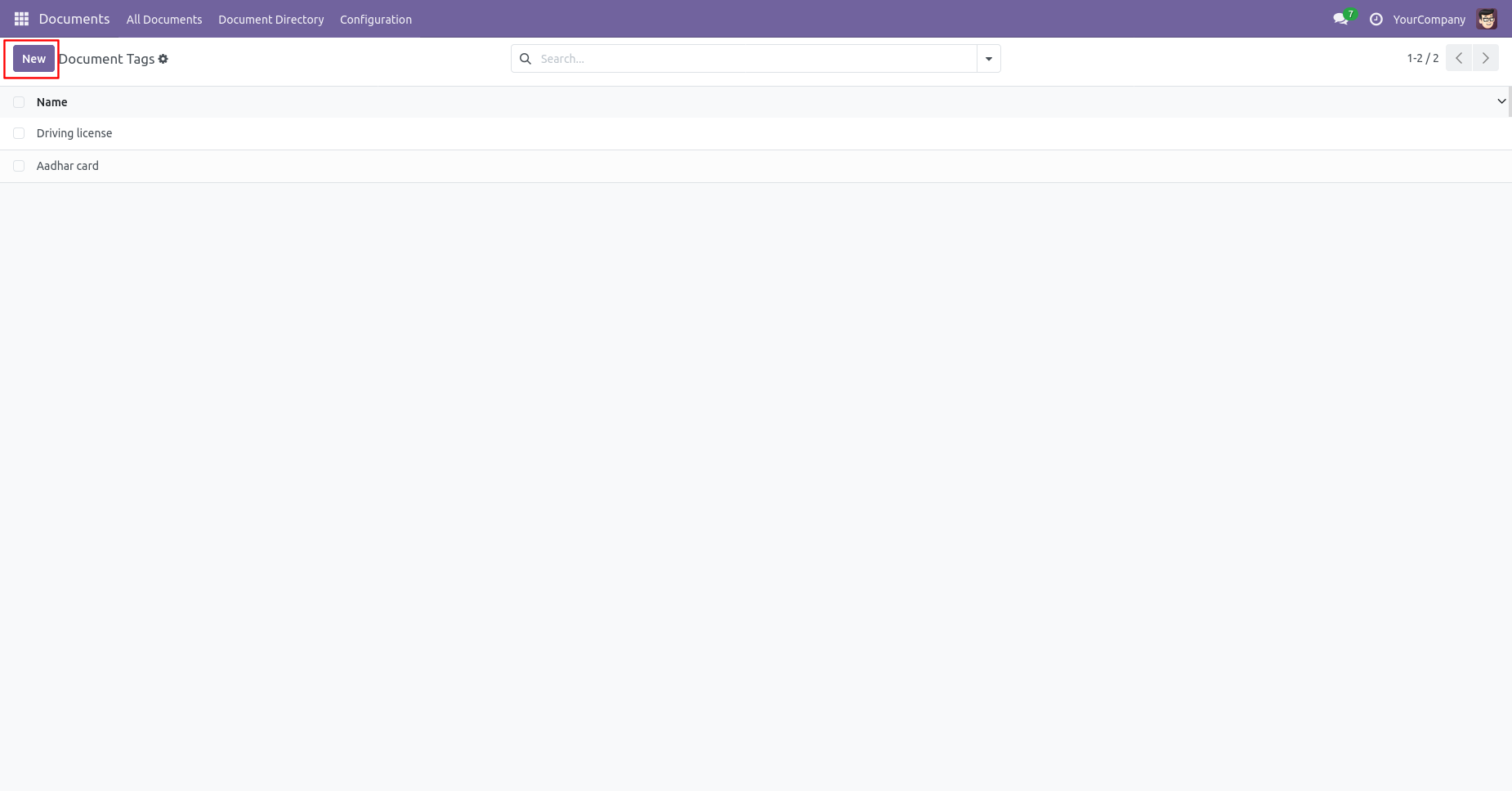
Click on the 'New' button to create a new document tag.
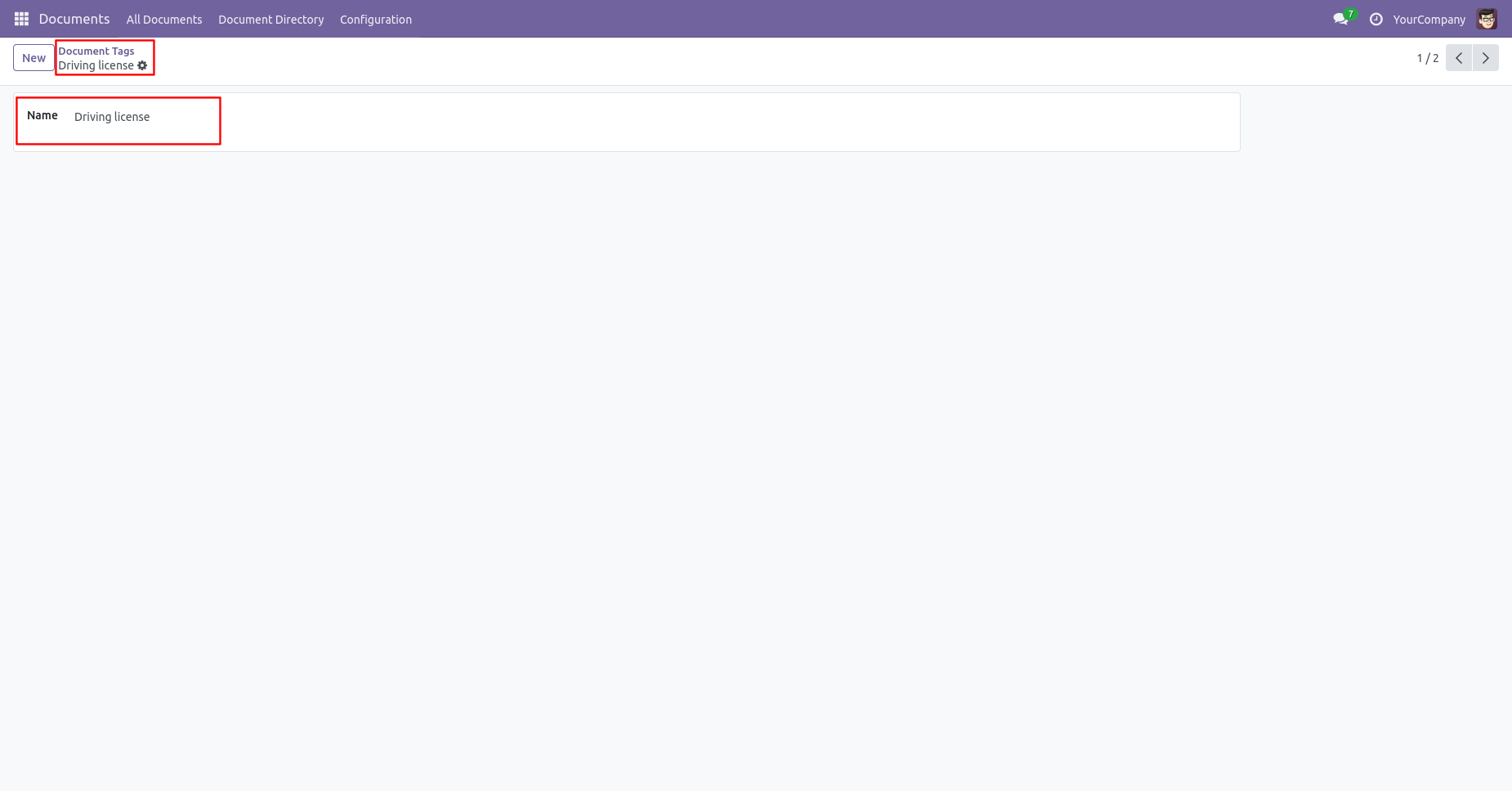
Document tags form view looks like below.
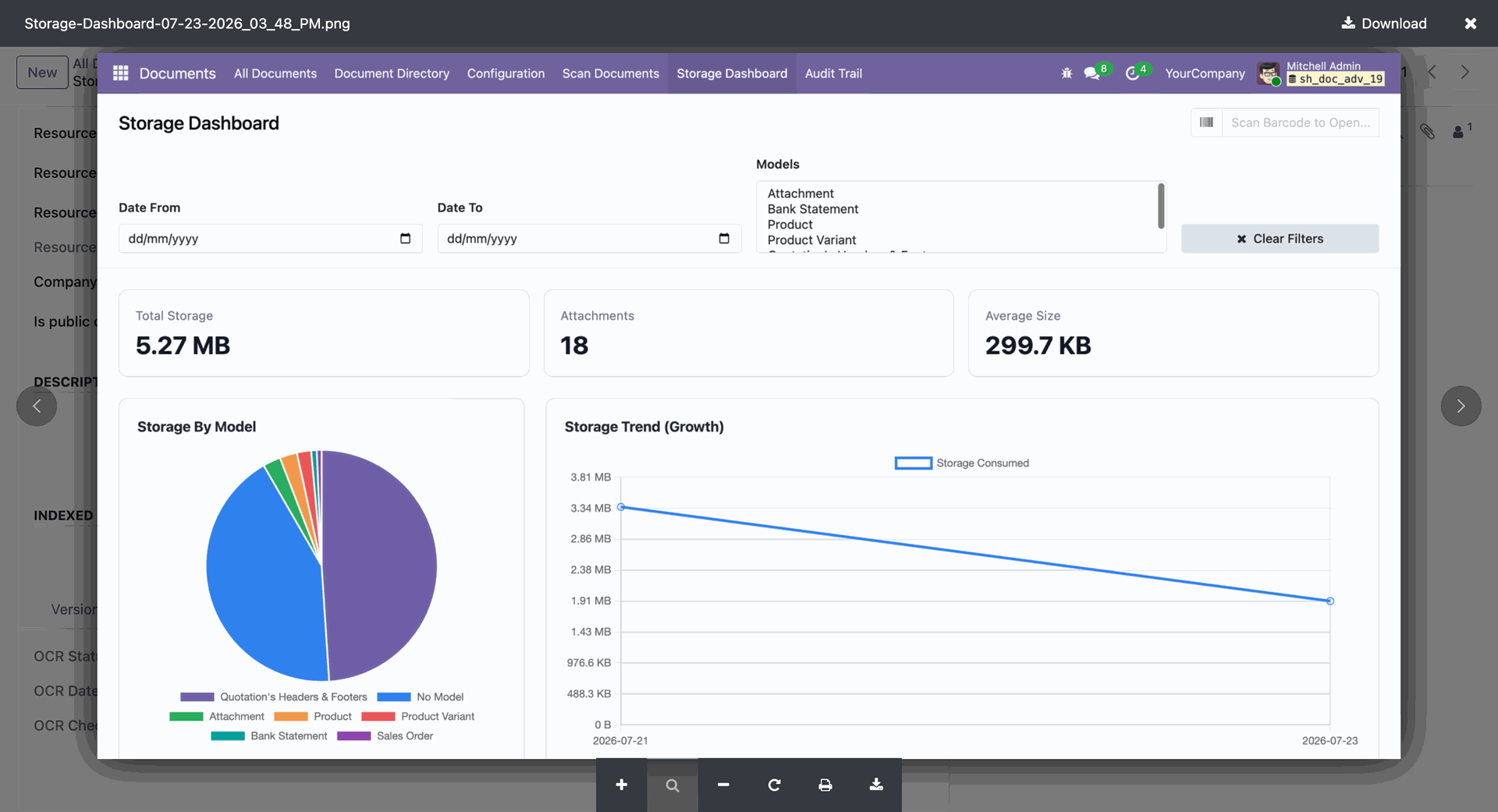
View comprehensive document statistics and insights on the Advanced Dashboard.
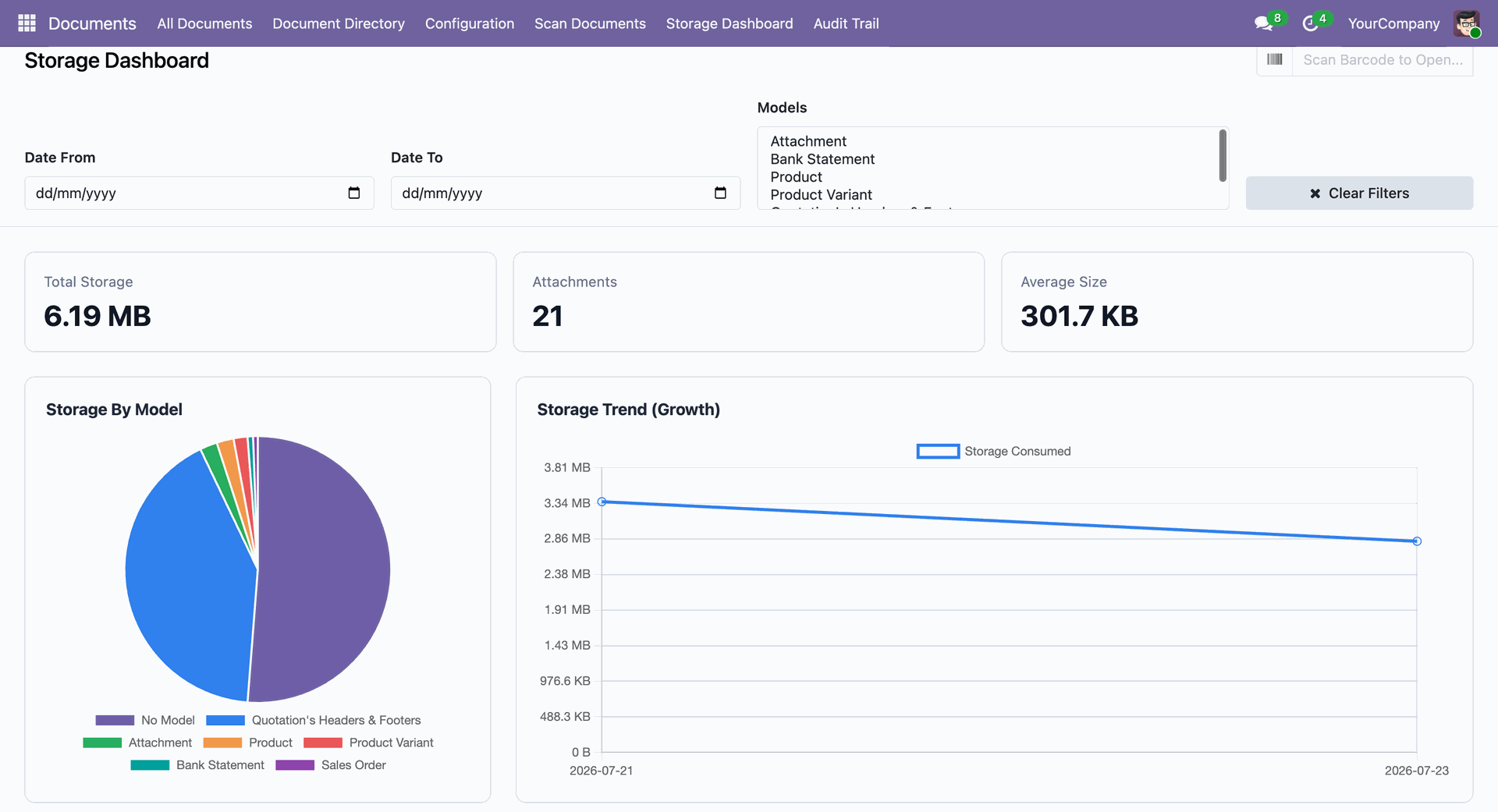
Detailed analytical view of the advanced dashboard metrics.
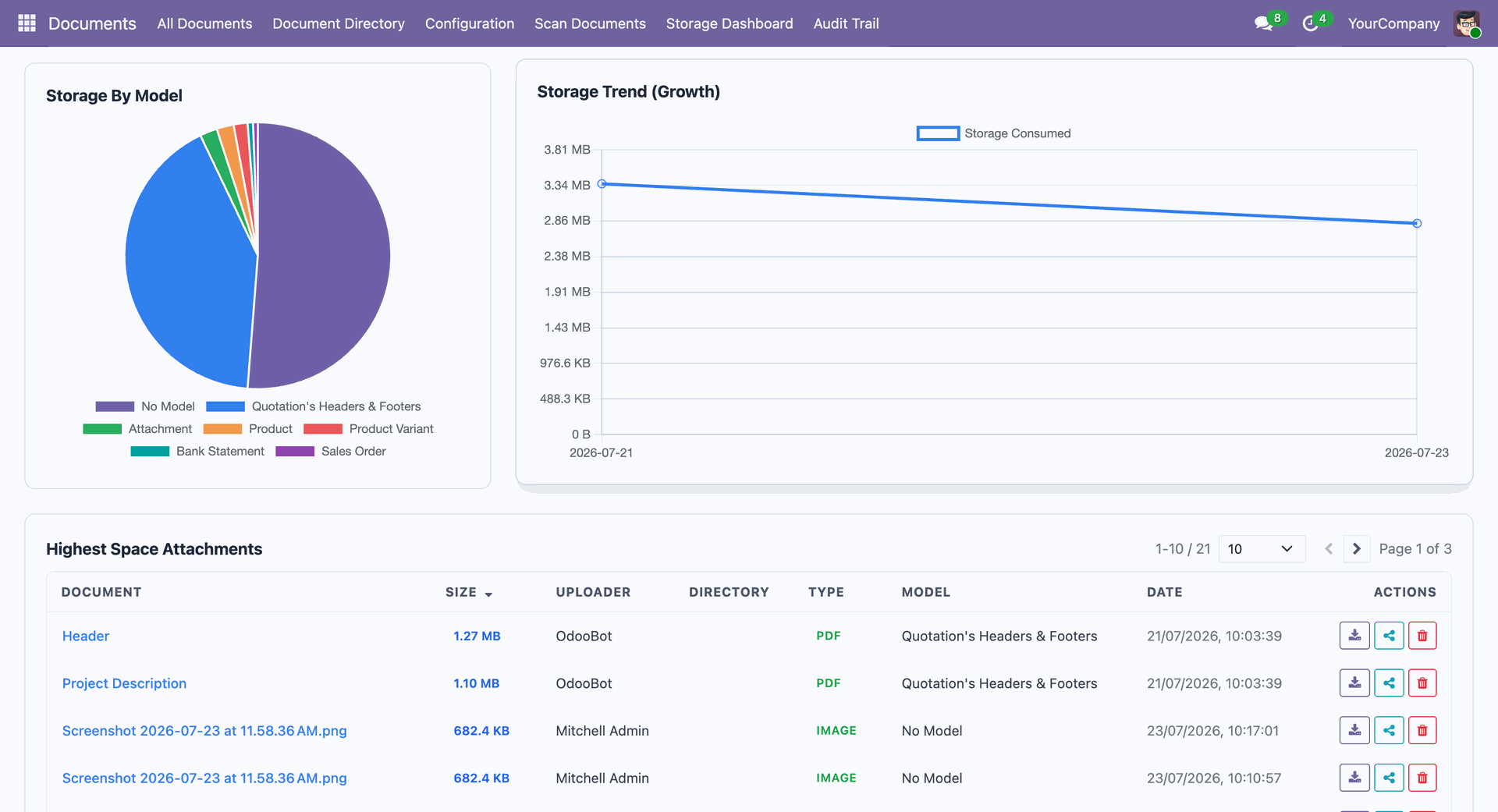
Highest space attachments list in the advanced dashboard.
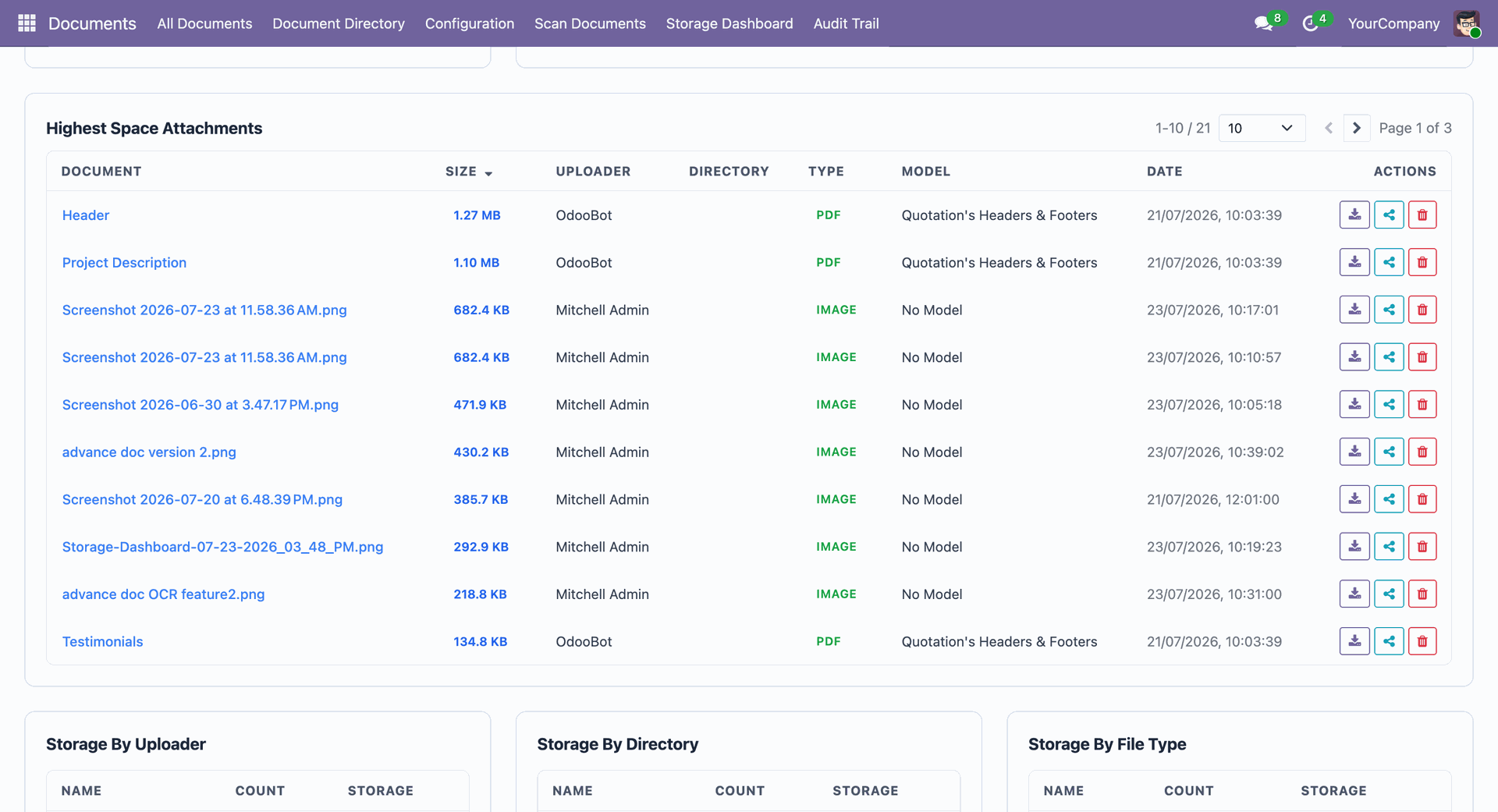
Additional data analysis and document breakdown in the advanced dashboard.
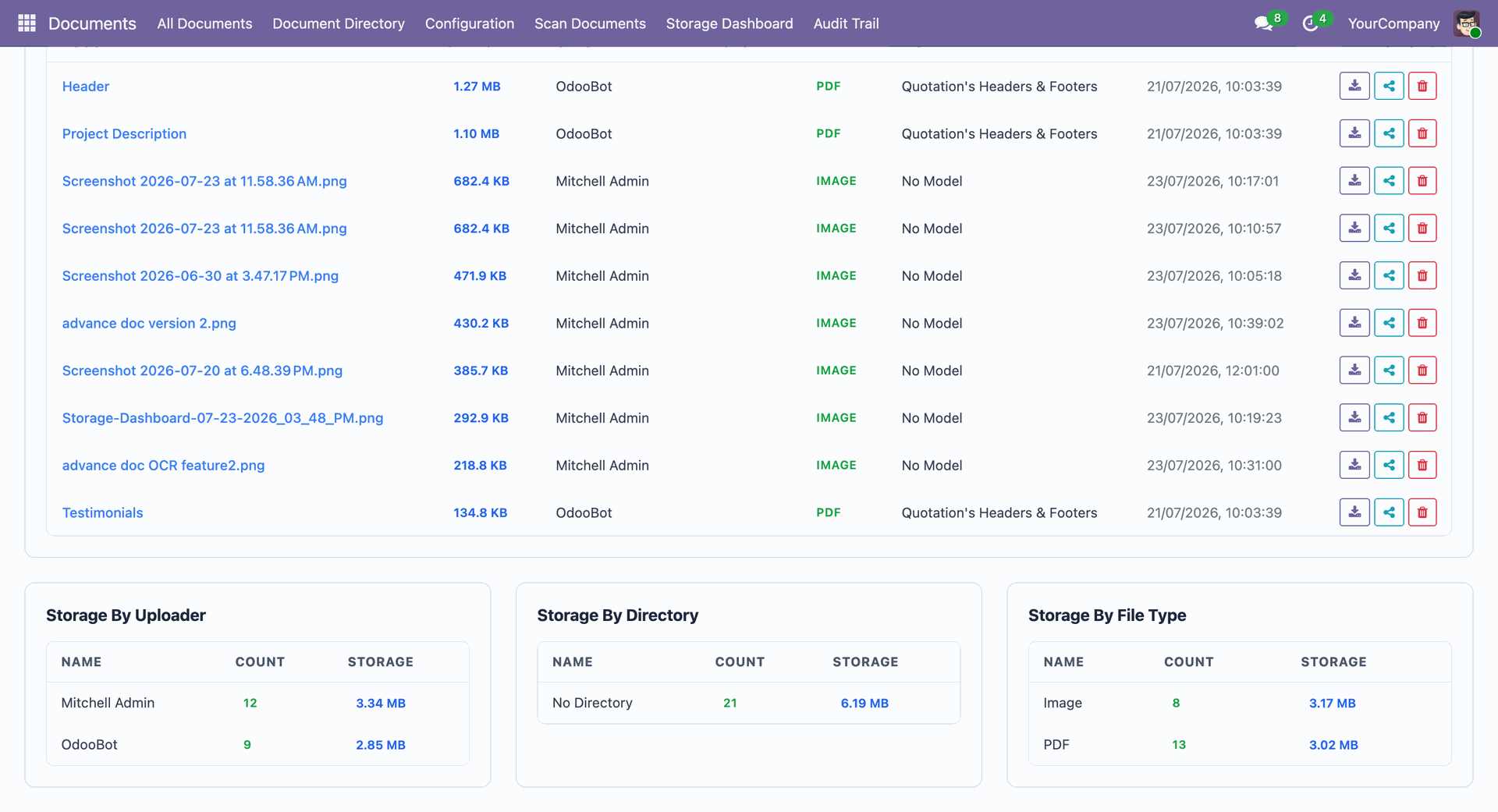
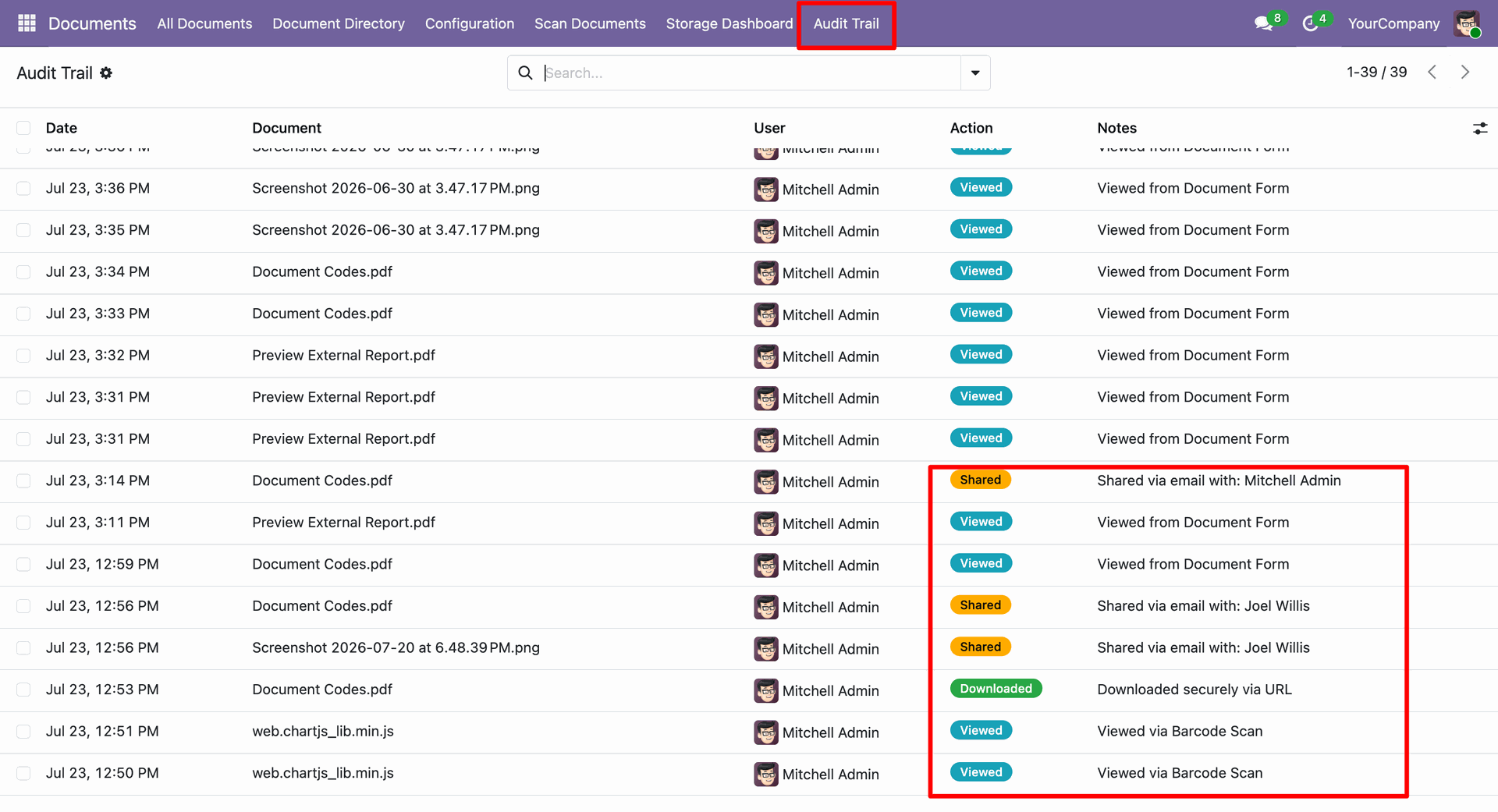
Comprehensive overview of document management activities via the Audit Trail.
In 'Documents' go to all documents.
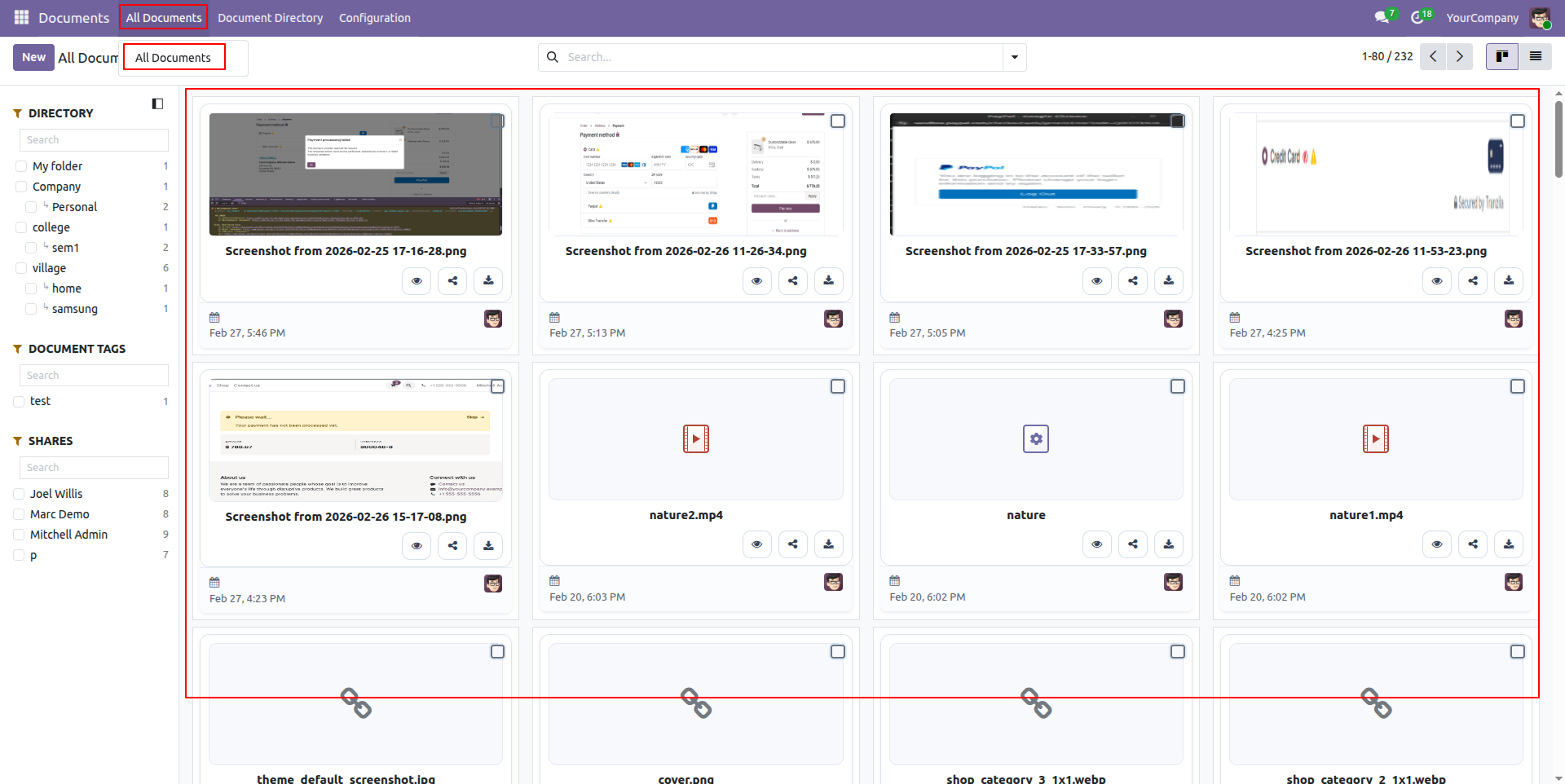
Kanban view of the "All Documents'.
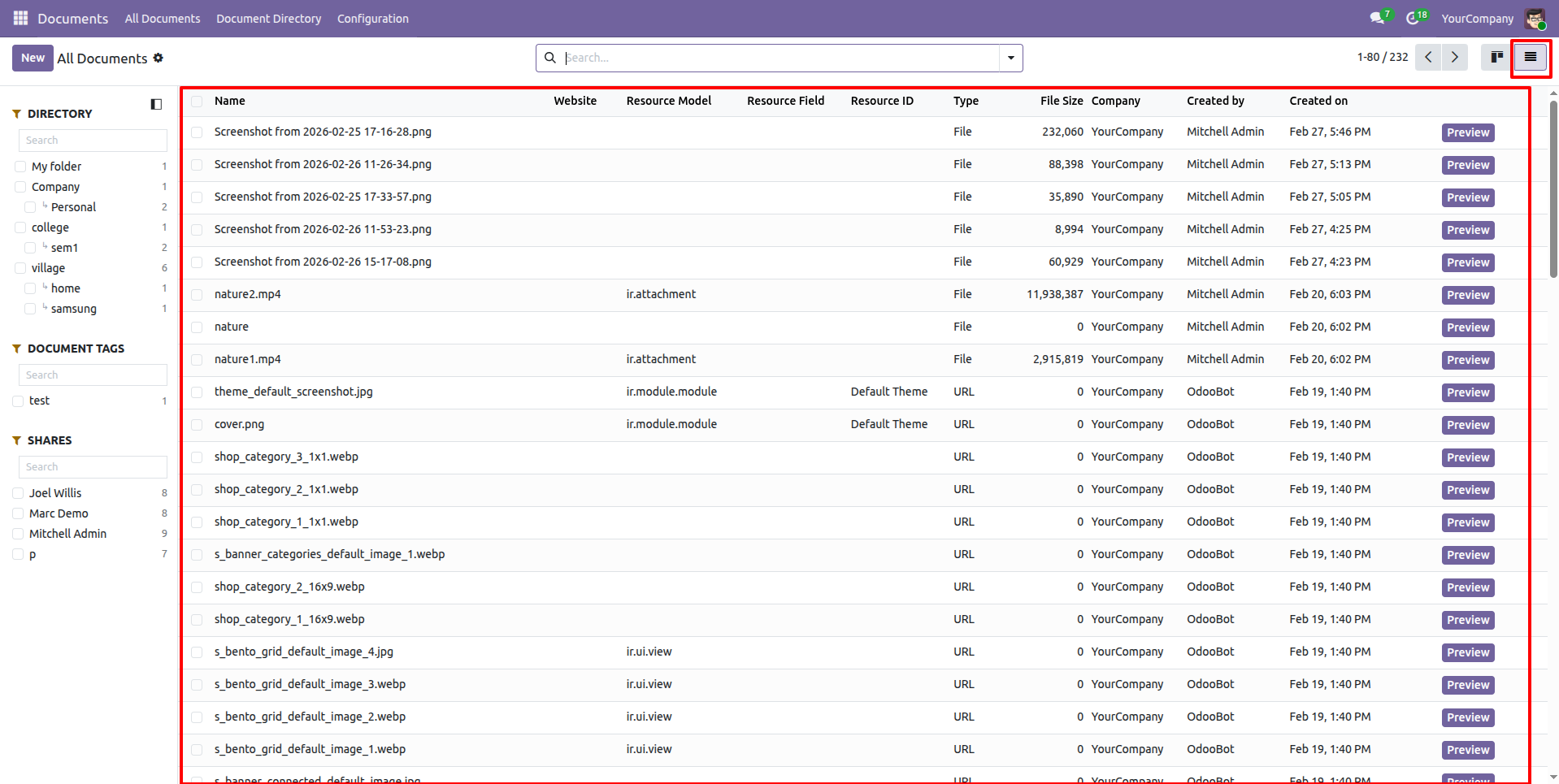
Tree view of the "All Documents'.
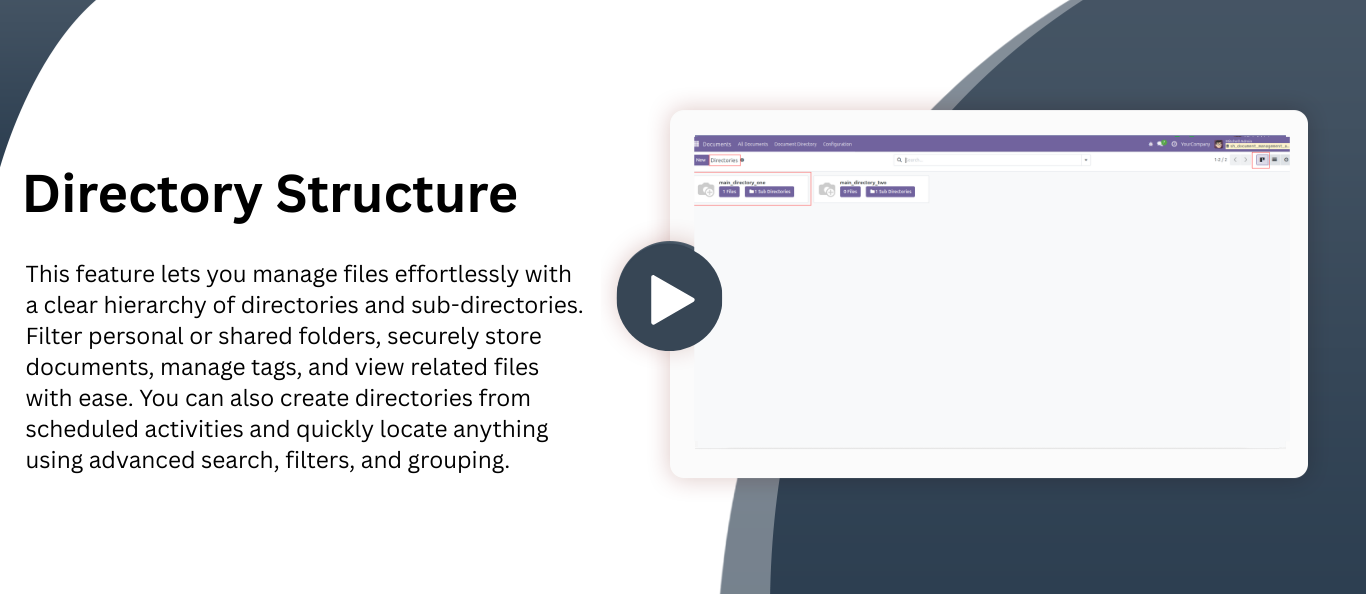
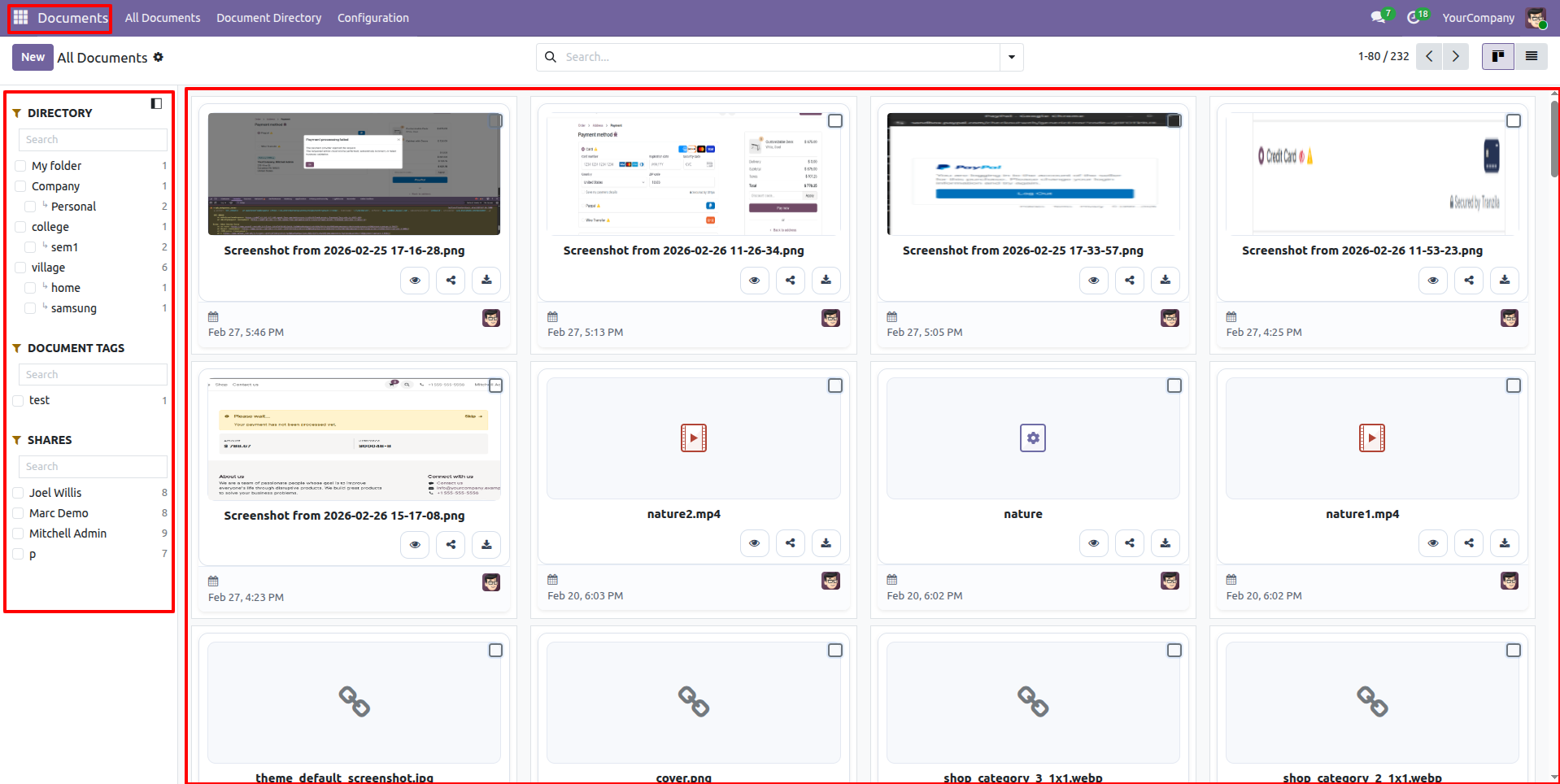
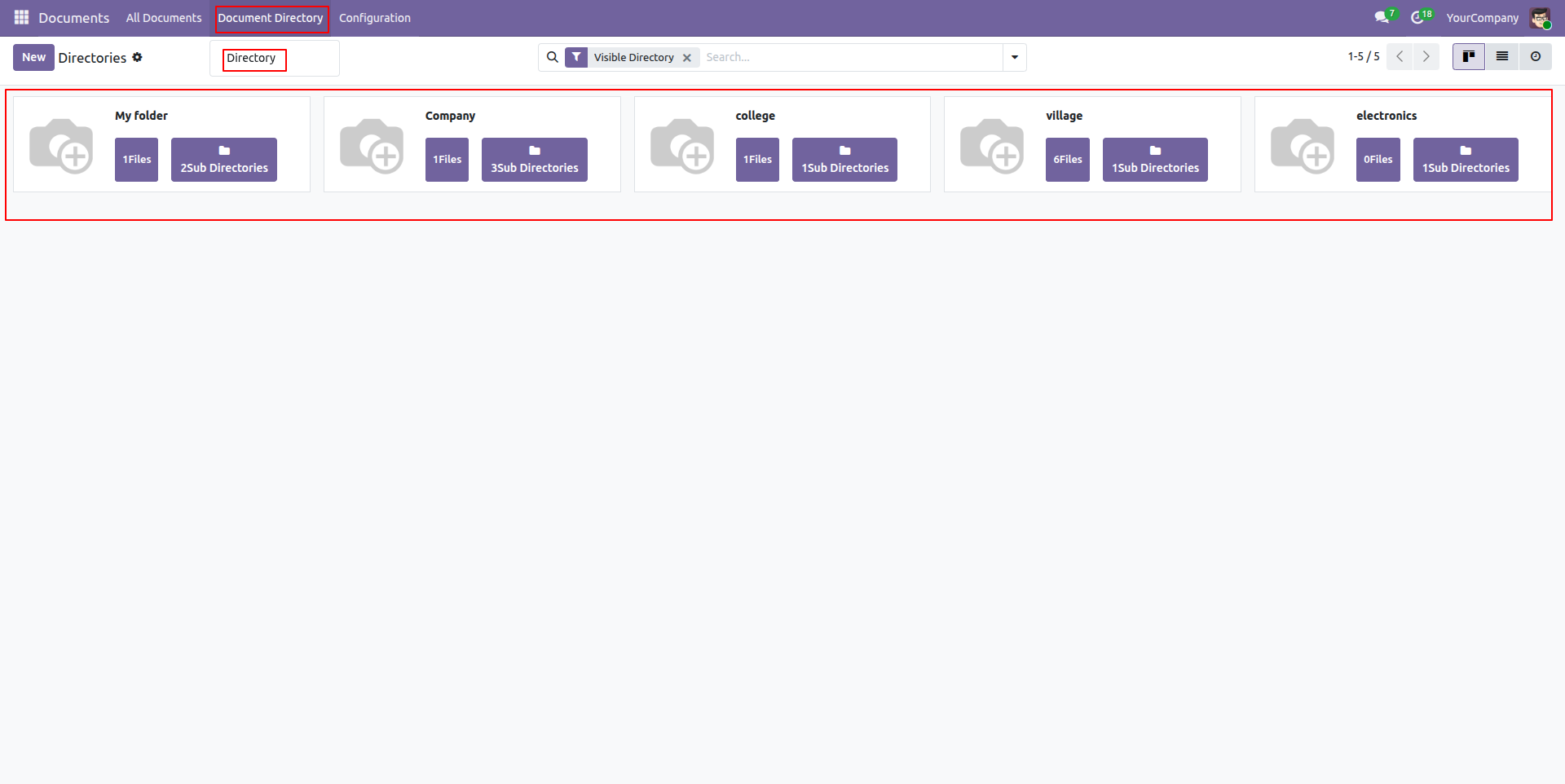
Menu and Kanban view of the directories.
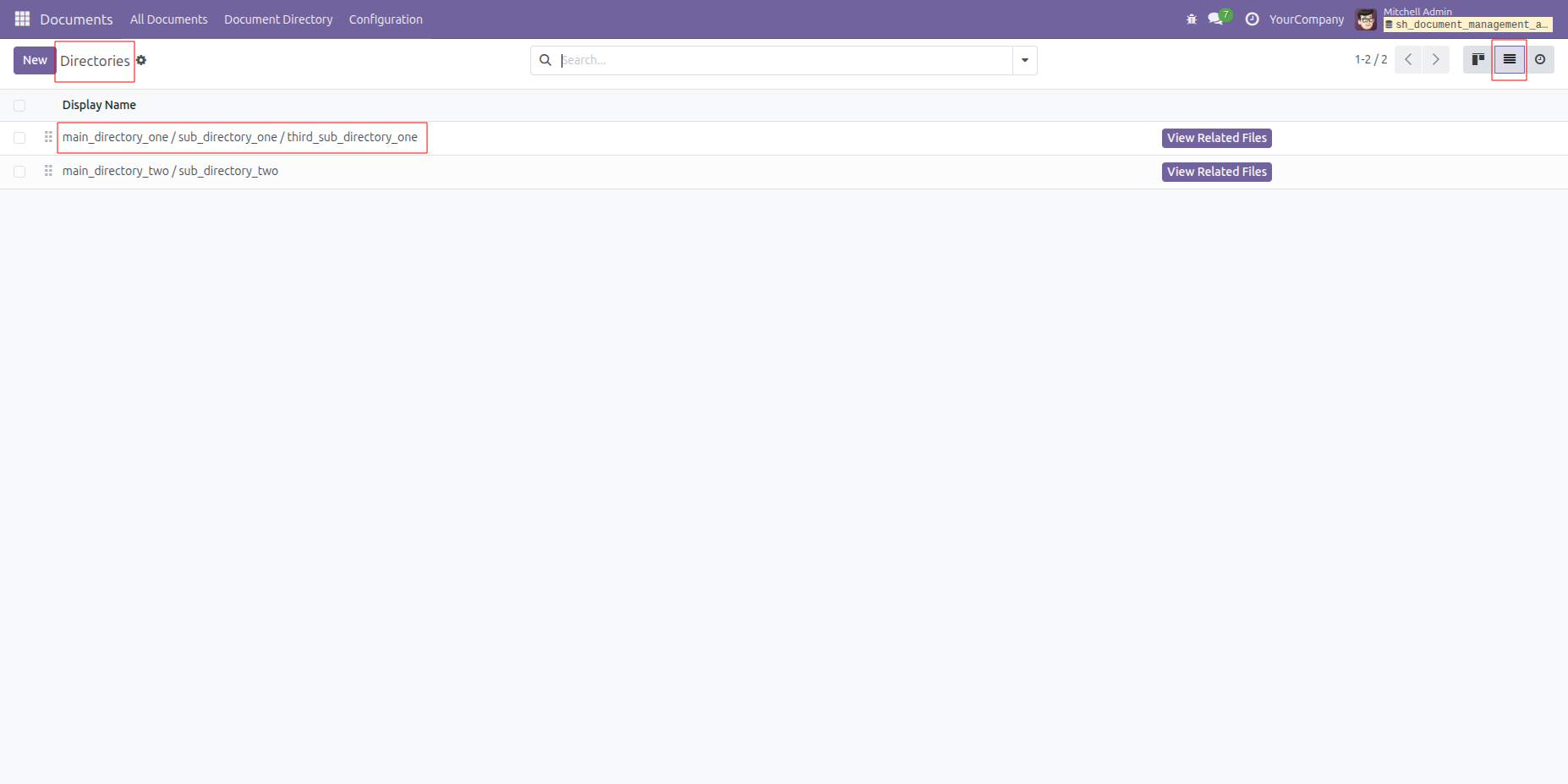
Tree view of the directories.
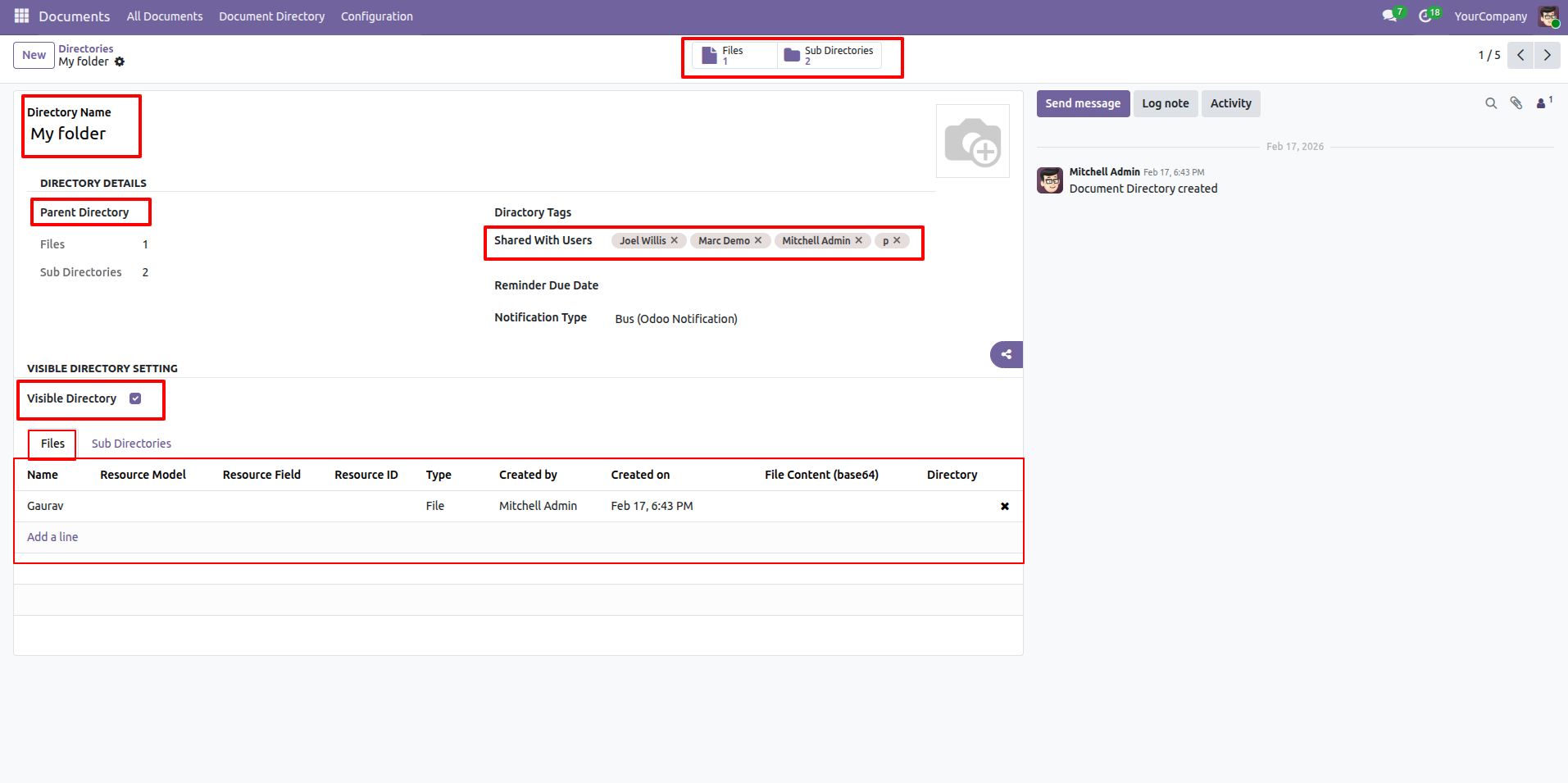
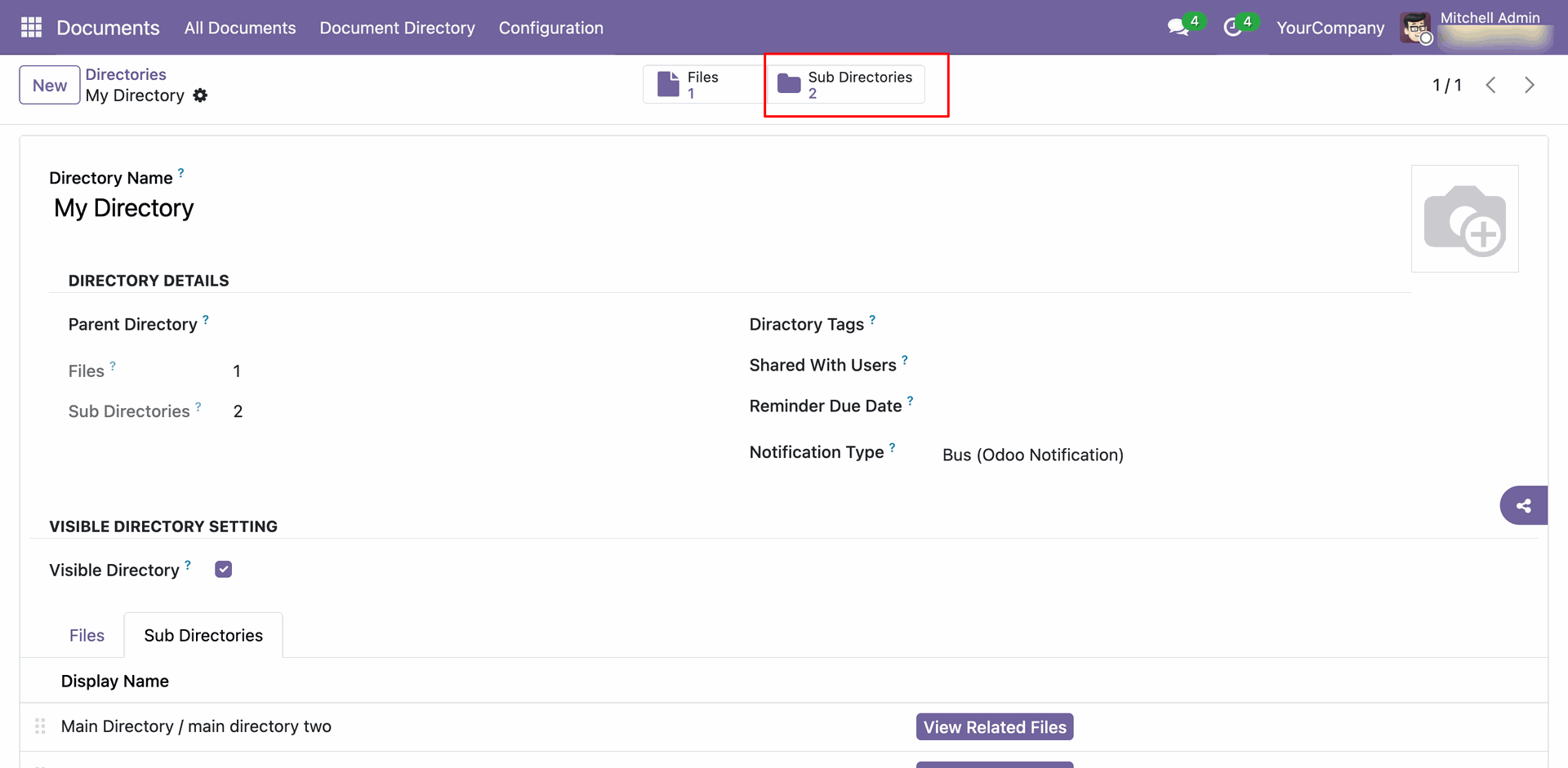
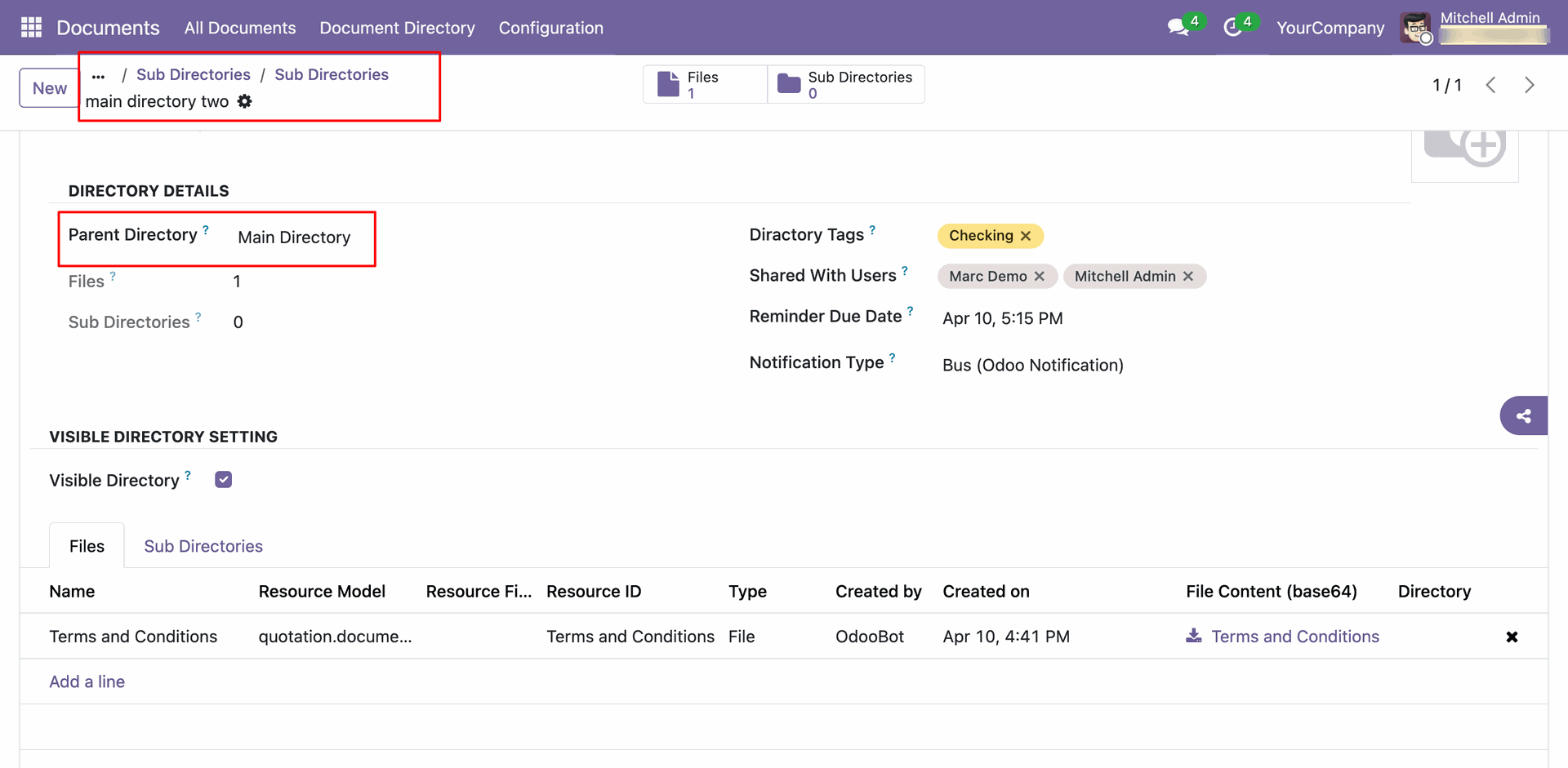
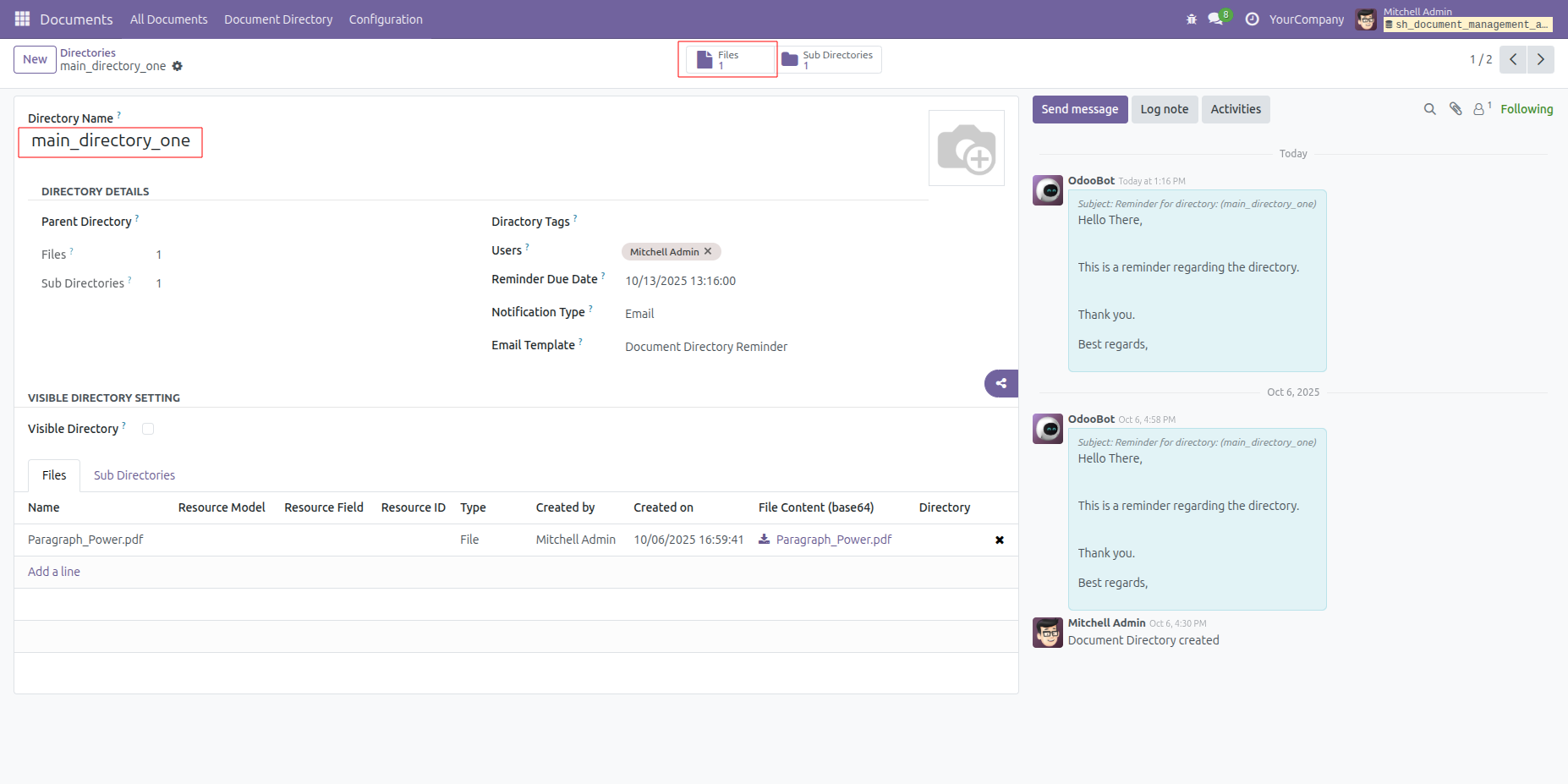
Form view of the directories.
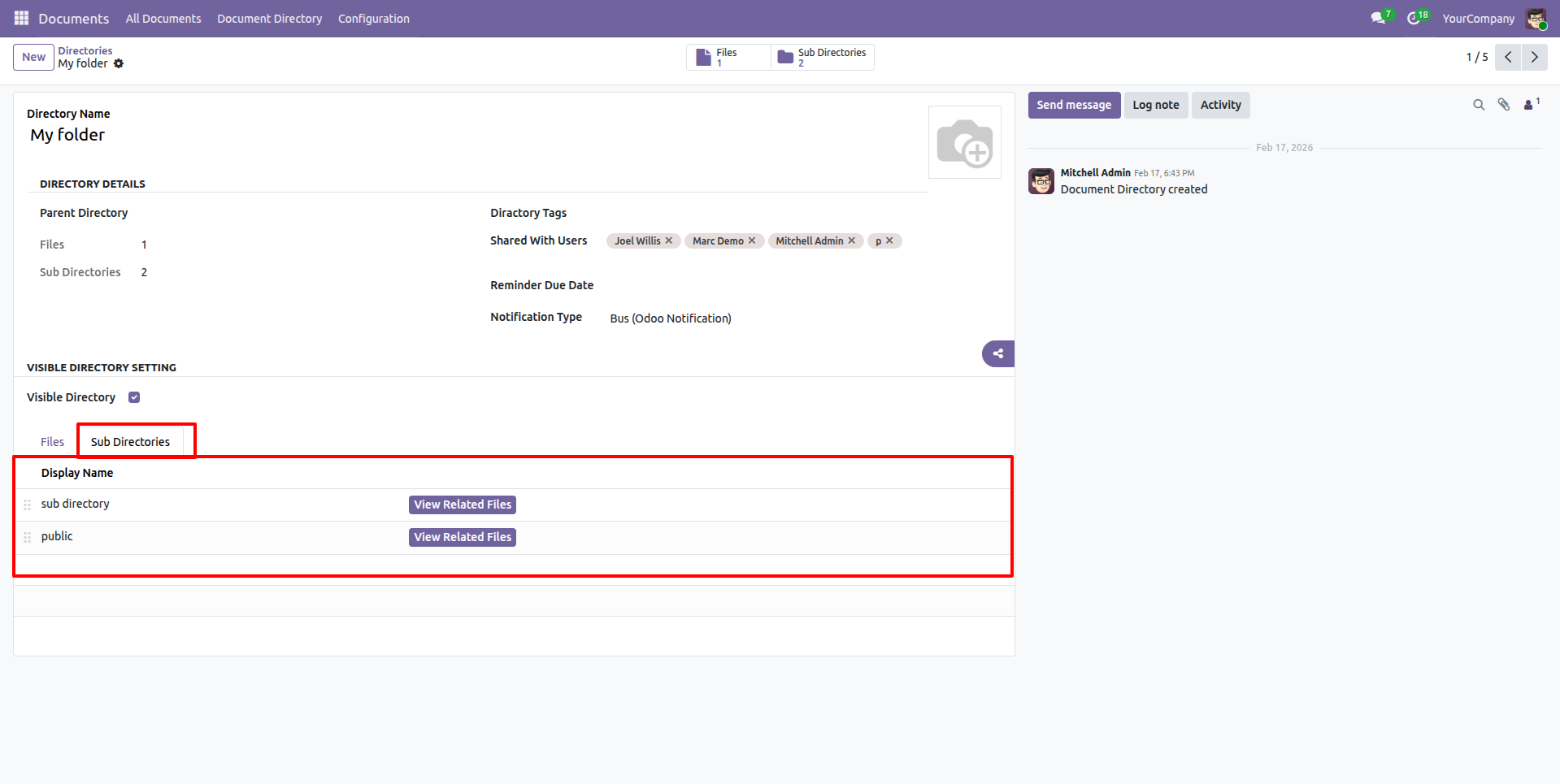
Activity view of the directories.
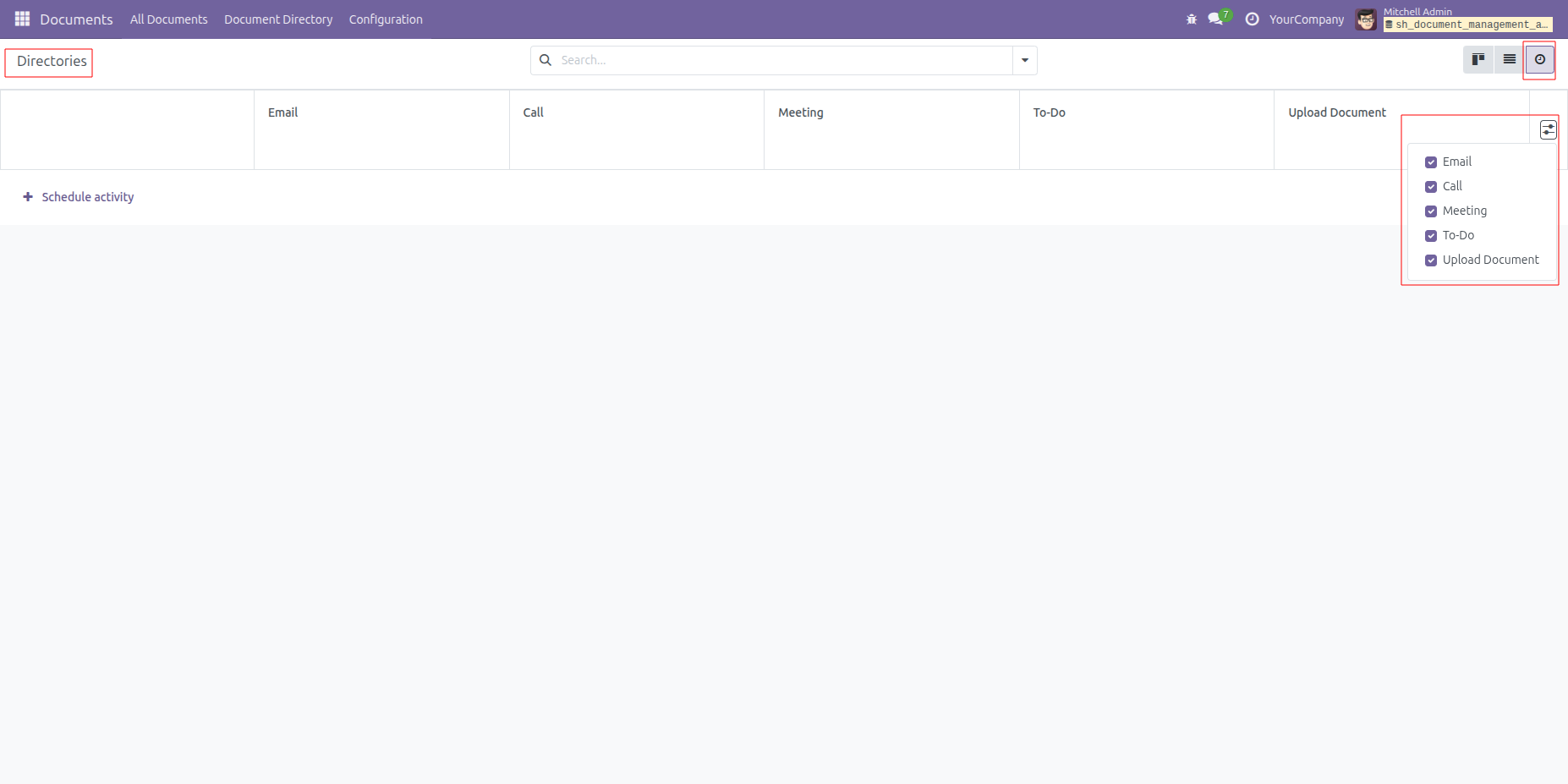
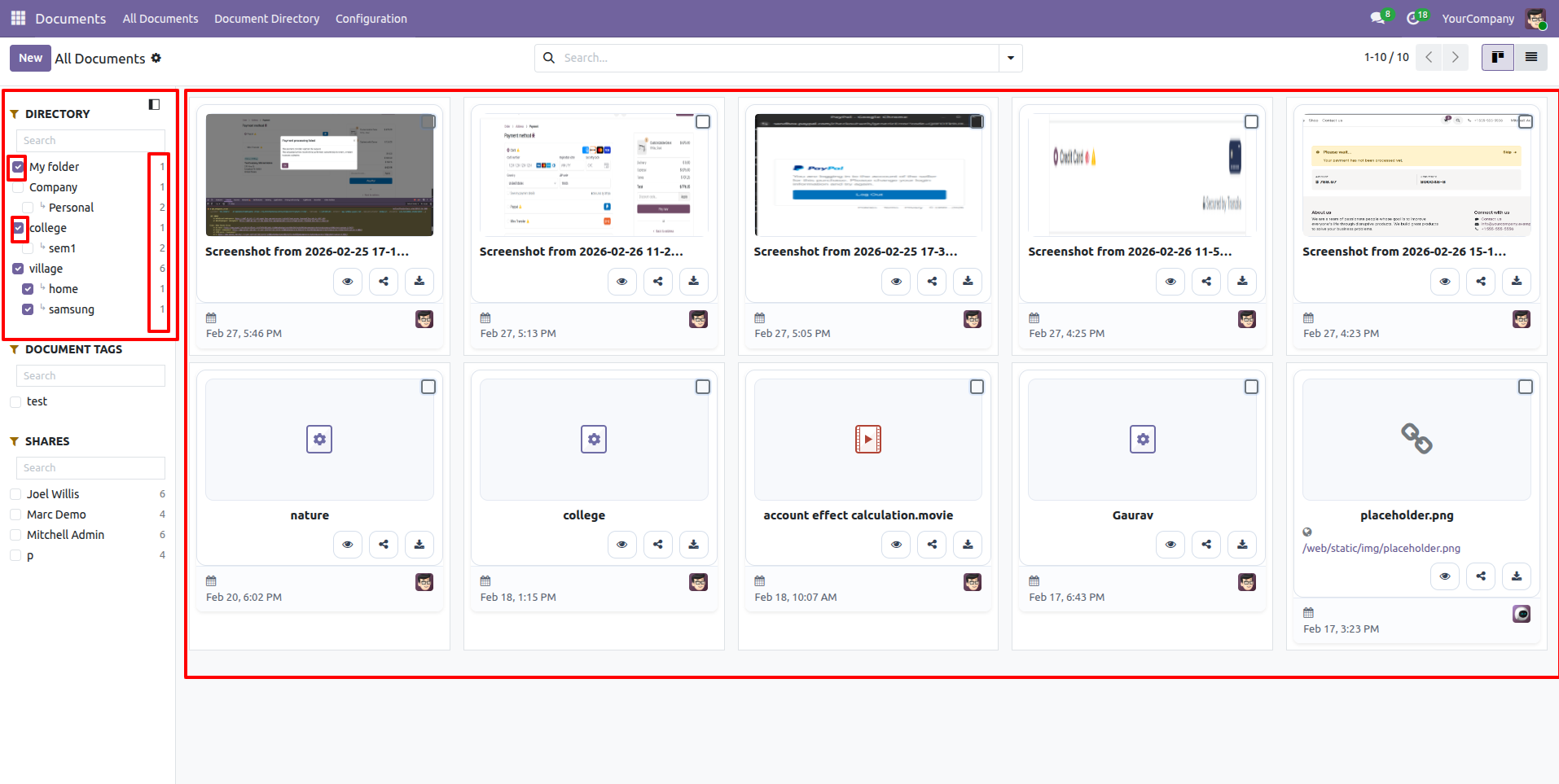
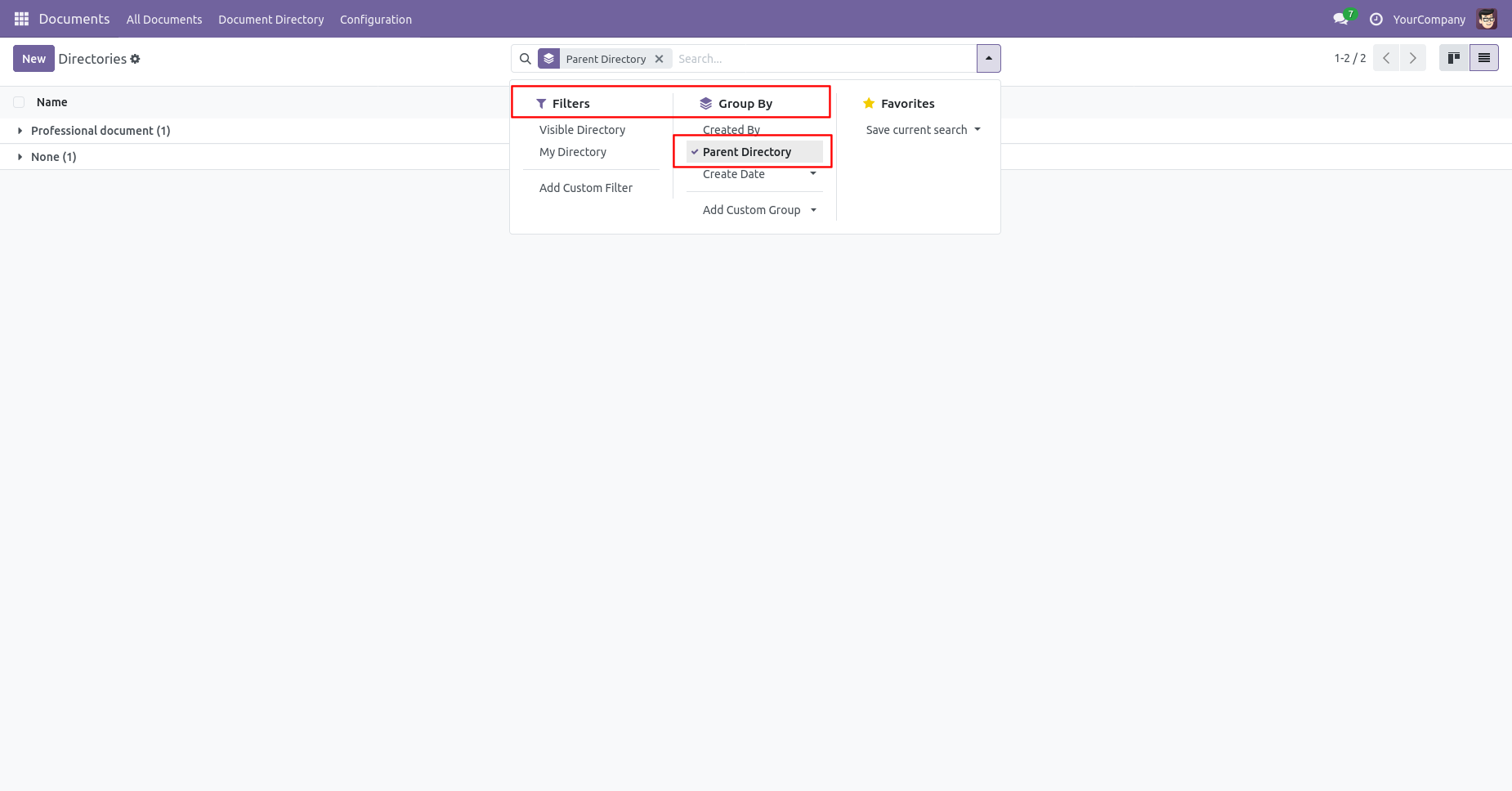
You can filter the directories using the boolean options, and also view the count of directories.
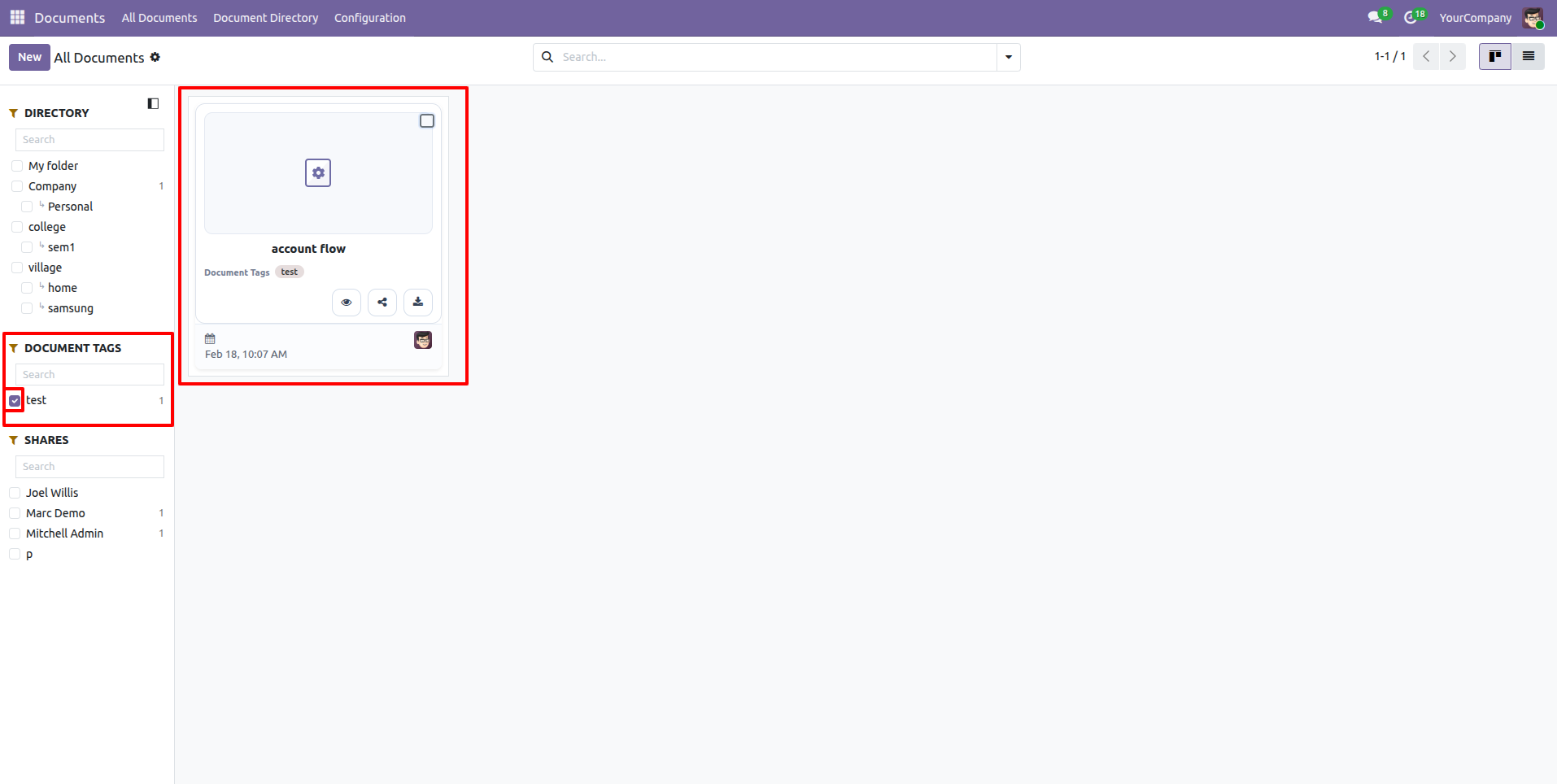
You can filter document tags using the Boolean options and also view the count of document tags.
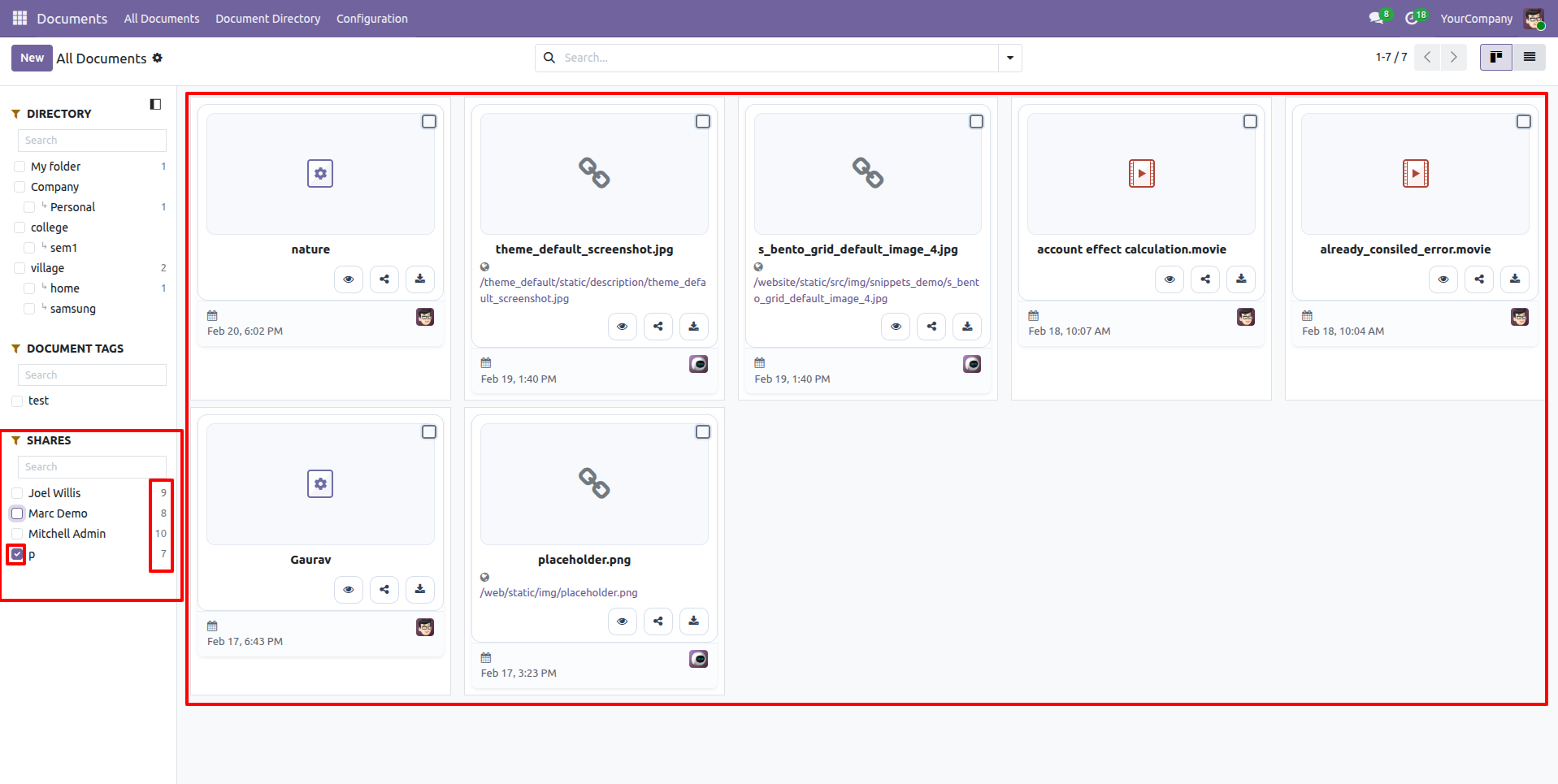
You can filter shares using the Boolean options and view the total count of shares.
In 'Documents' go to Document Directory ==> Directory.
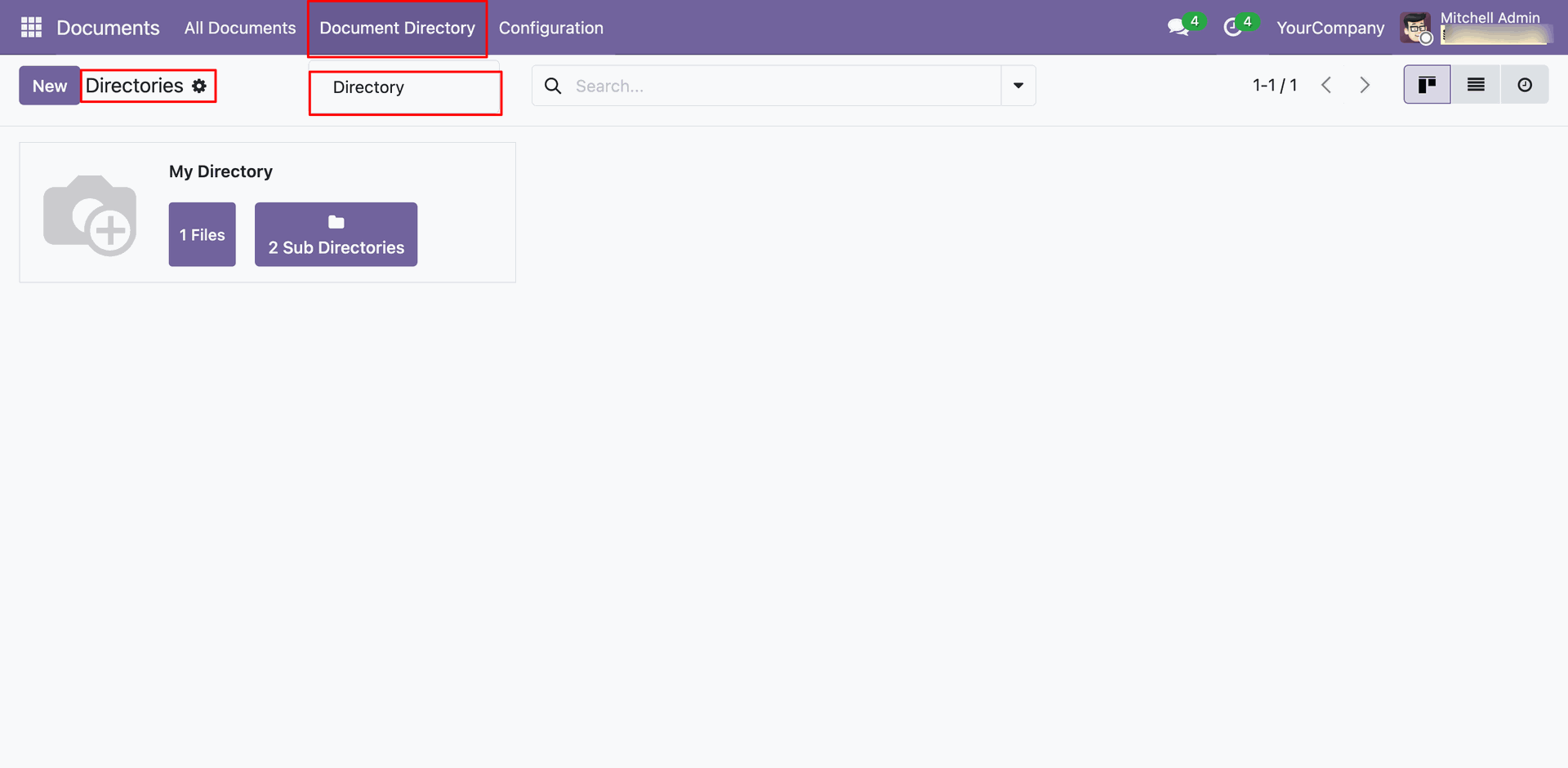
Kanban view of the directories.
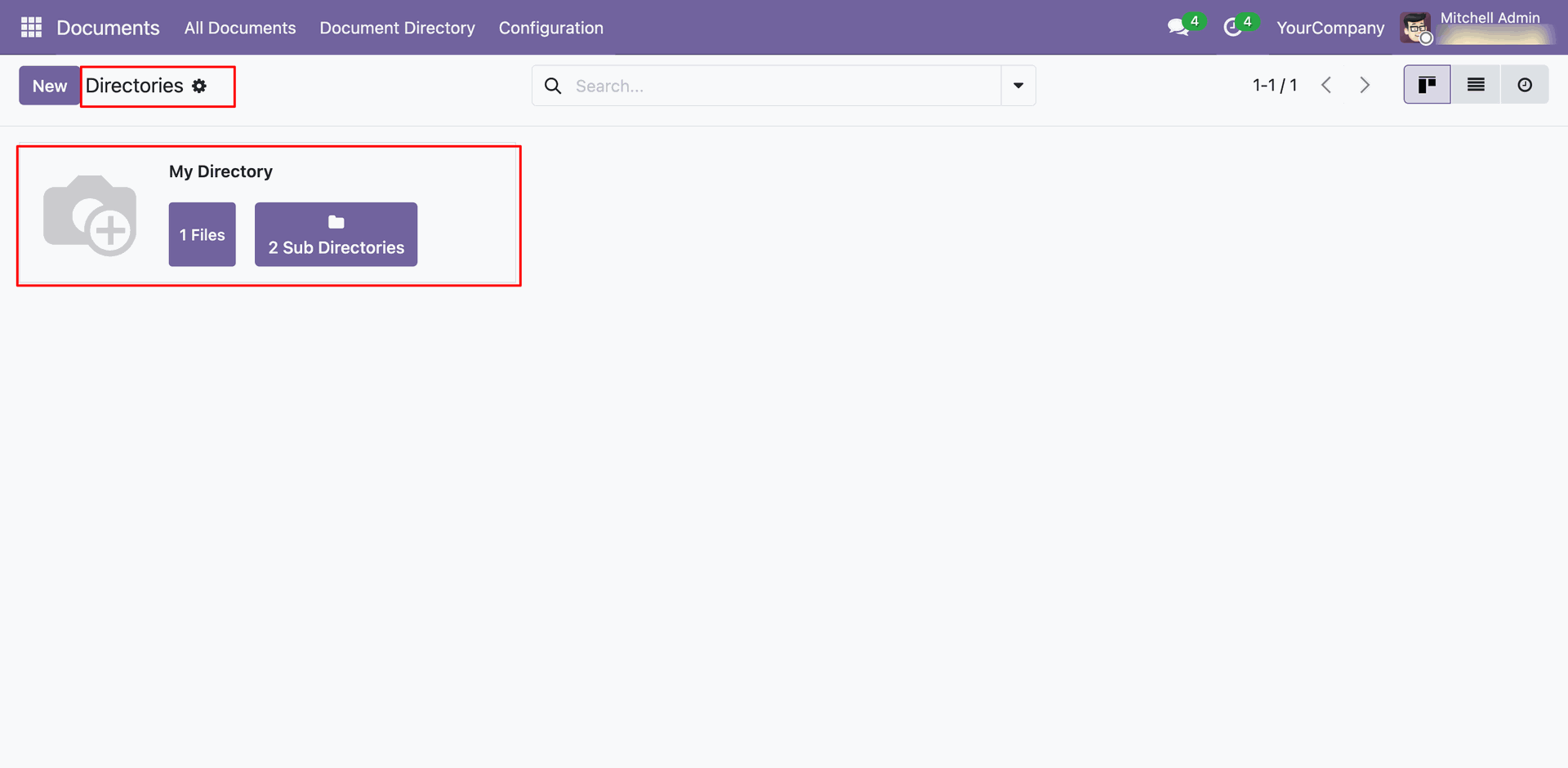
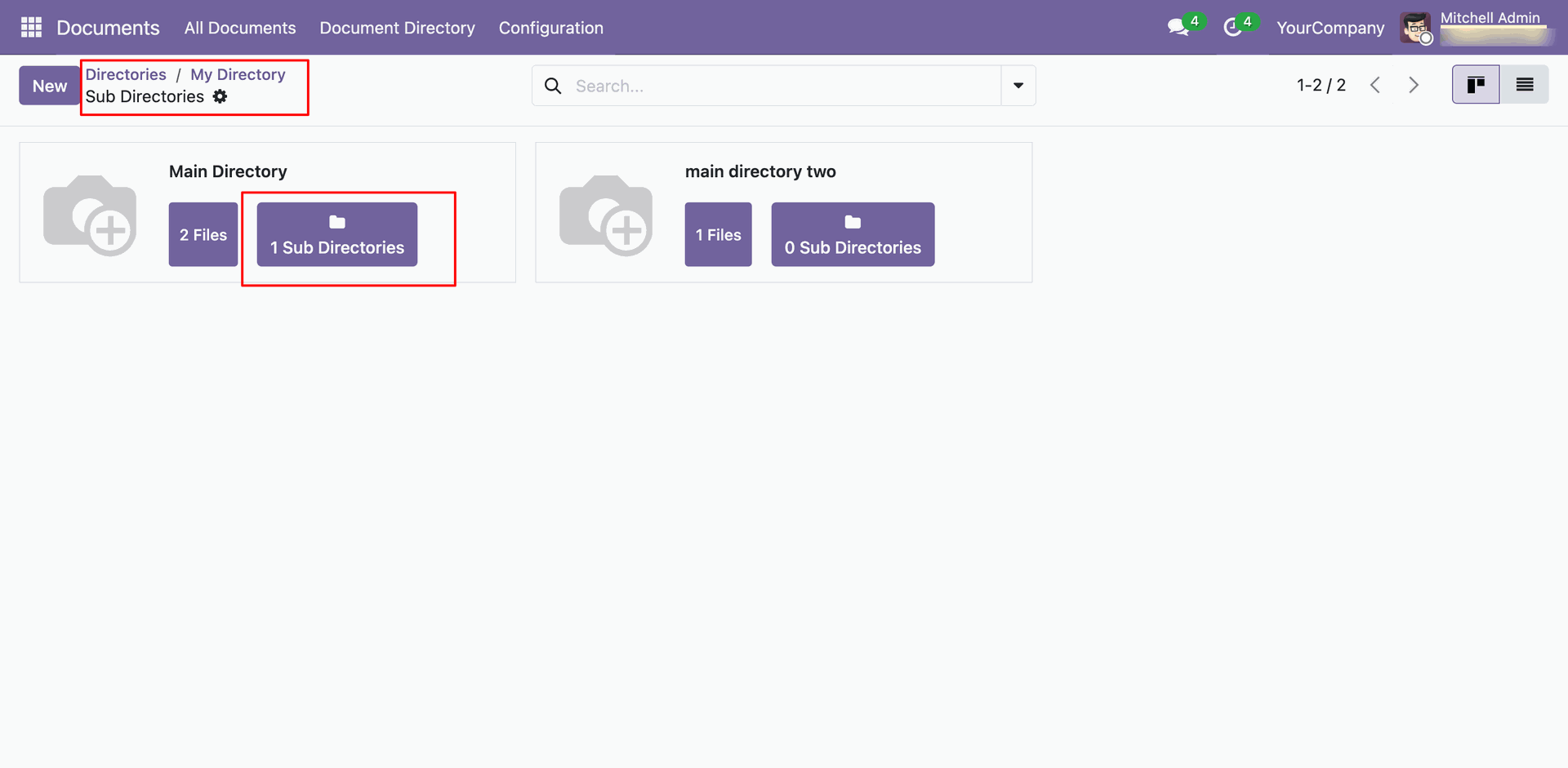
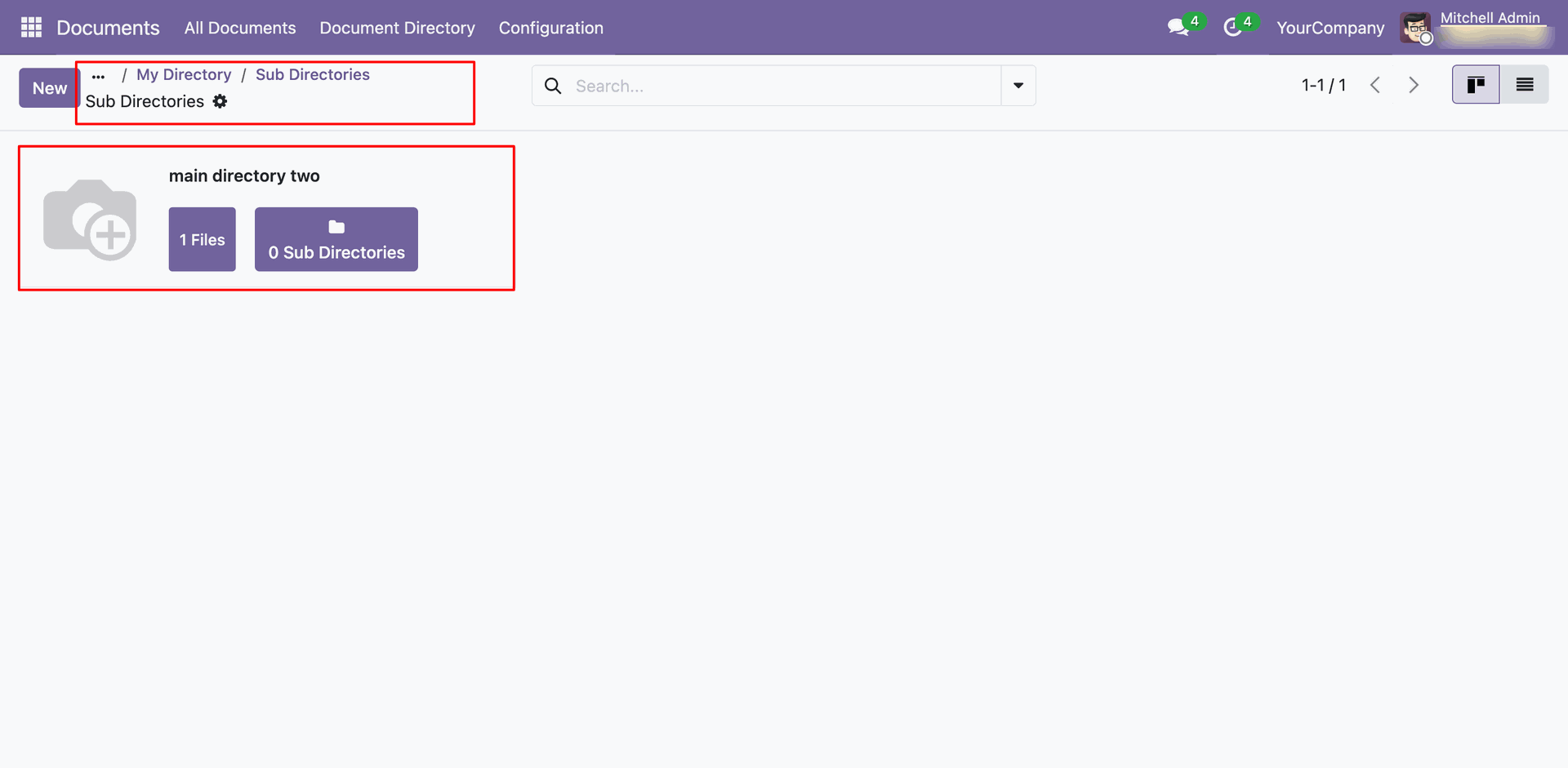
In 'Document Directories' go to the directory, you can create a directory here. Using files & sub-directory users can see details of particular documents. Search bar used for search directory.
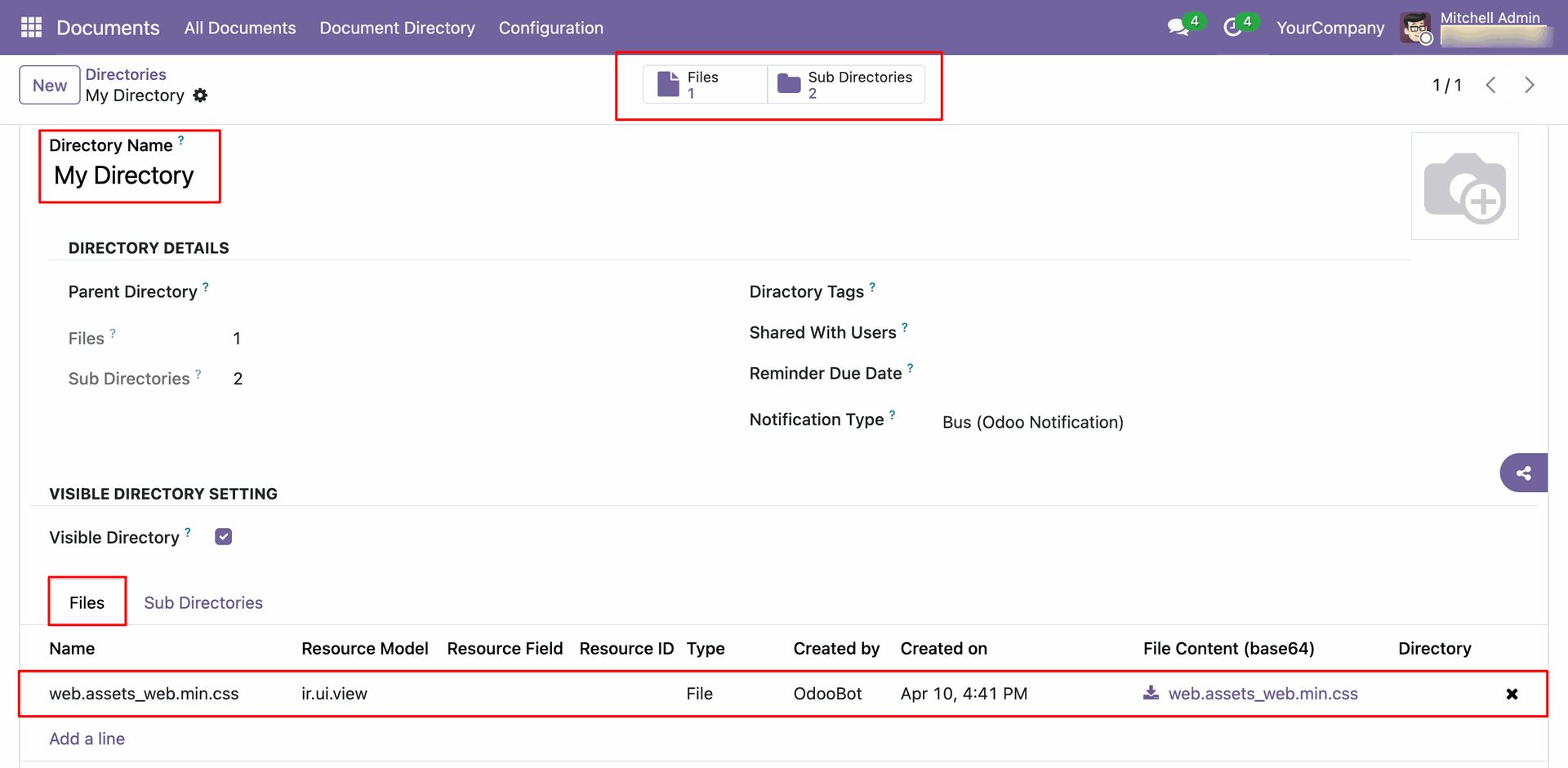
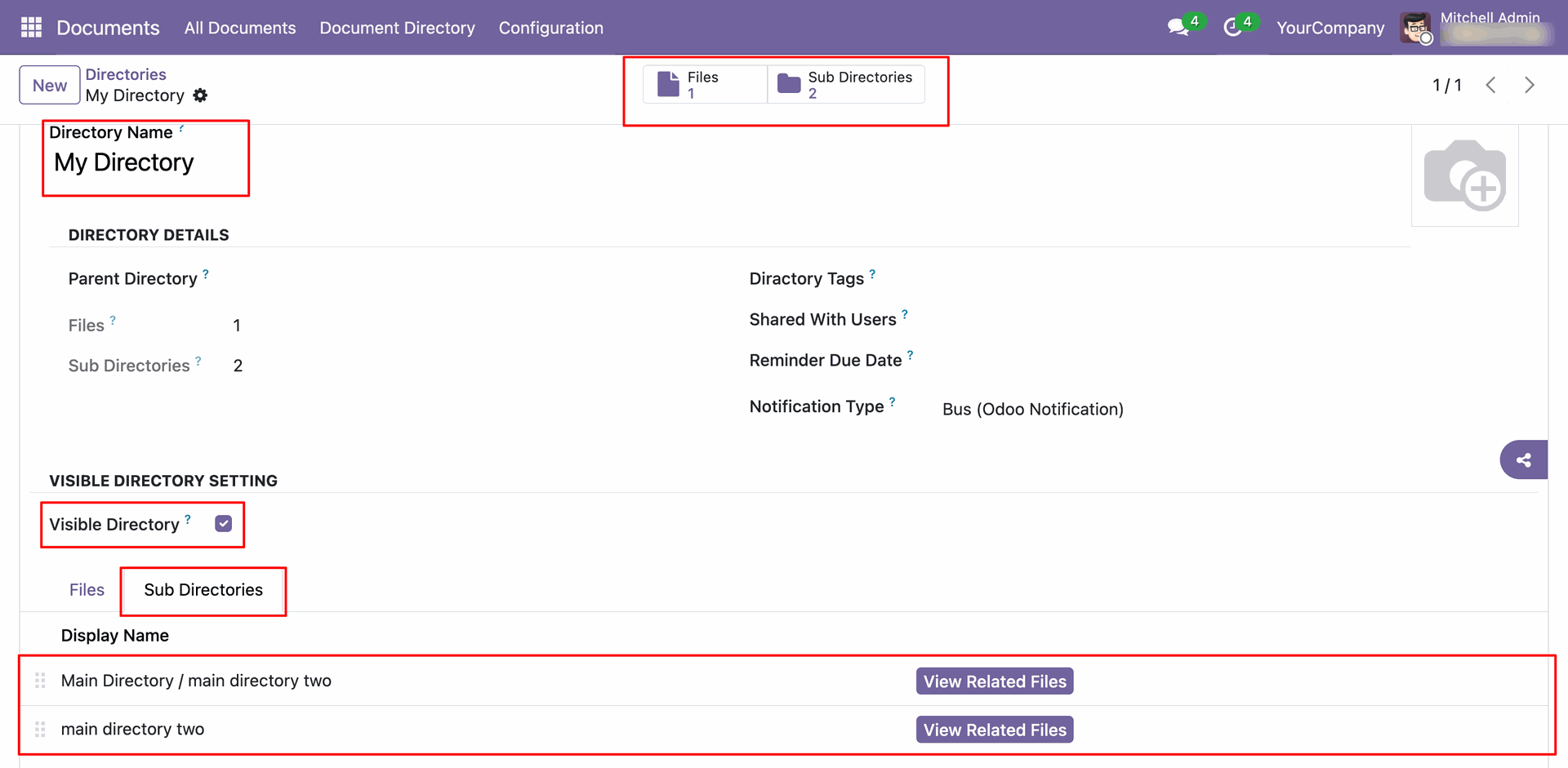
Tree view of the directories.
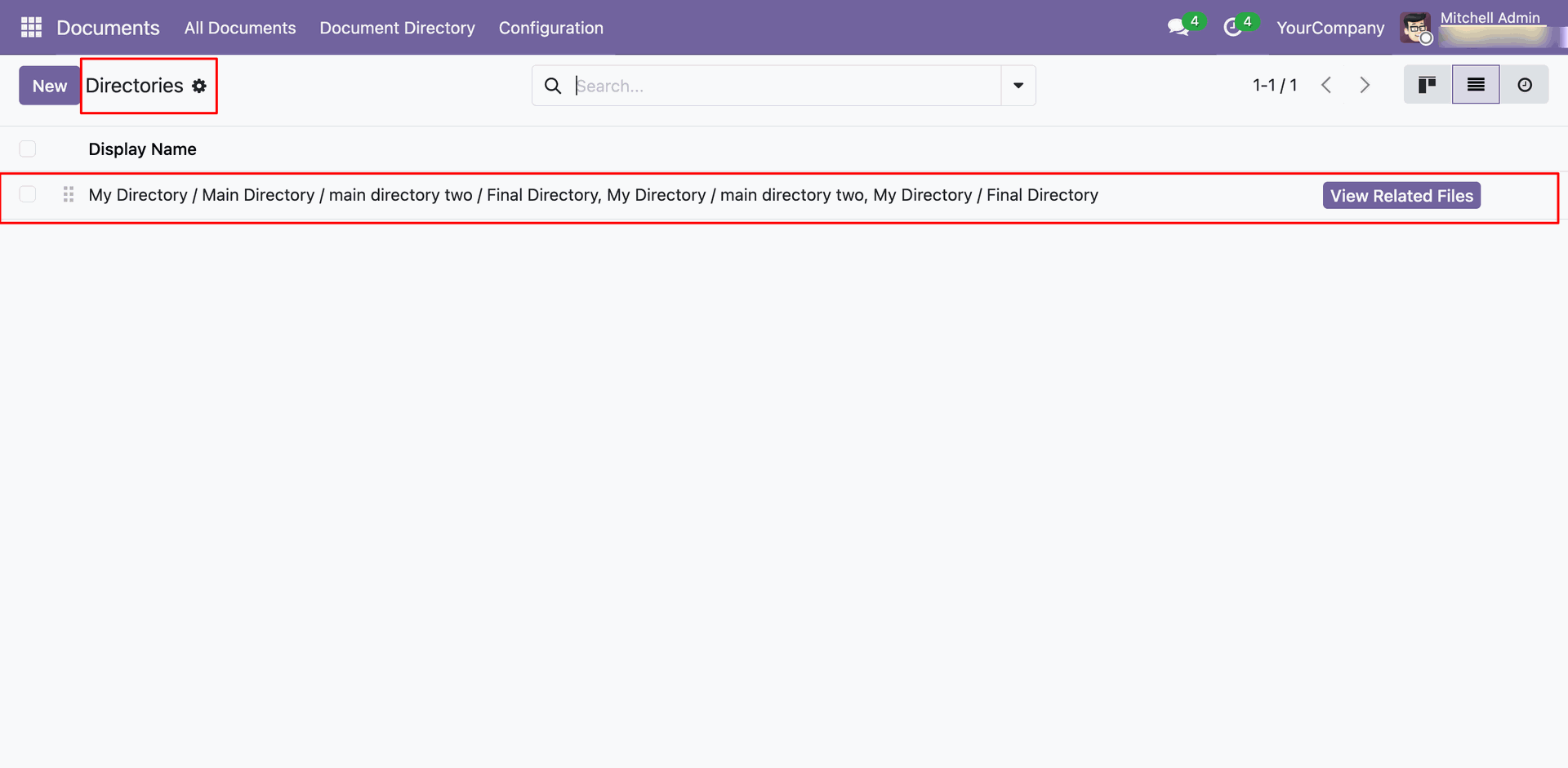
Click on the 'Schedule Activity'.
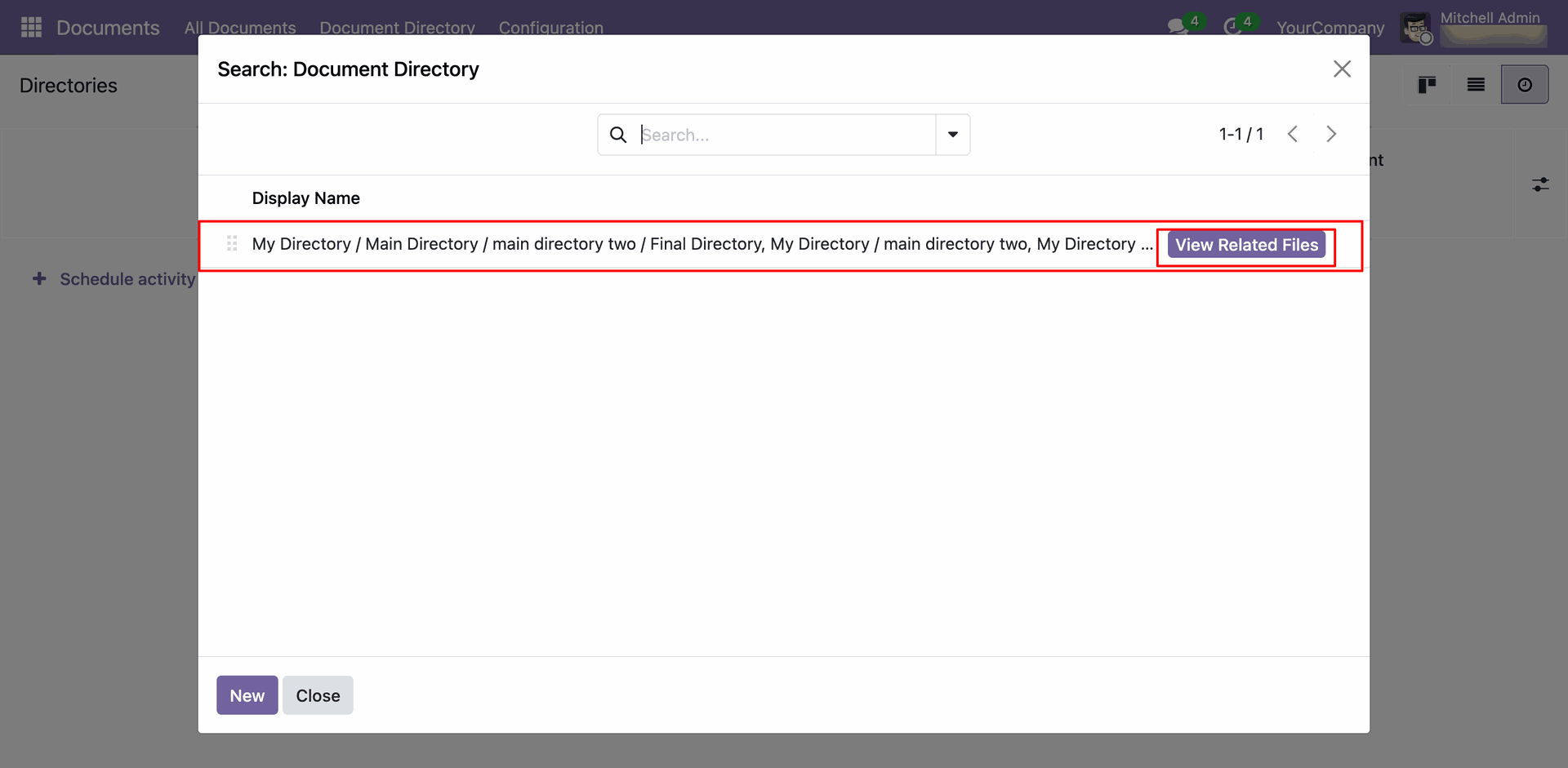
The 'Search: Document Directory' wizard will appear. Then, click
on the 'View Related Files' button.
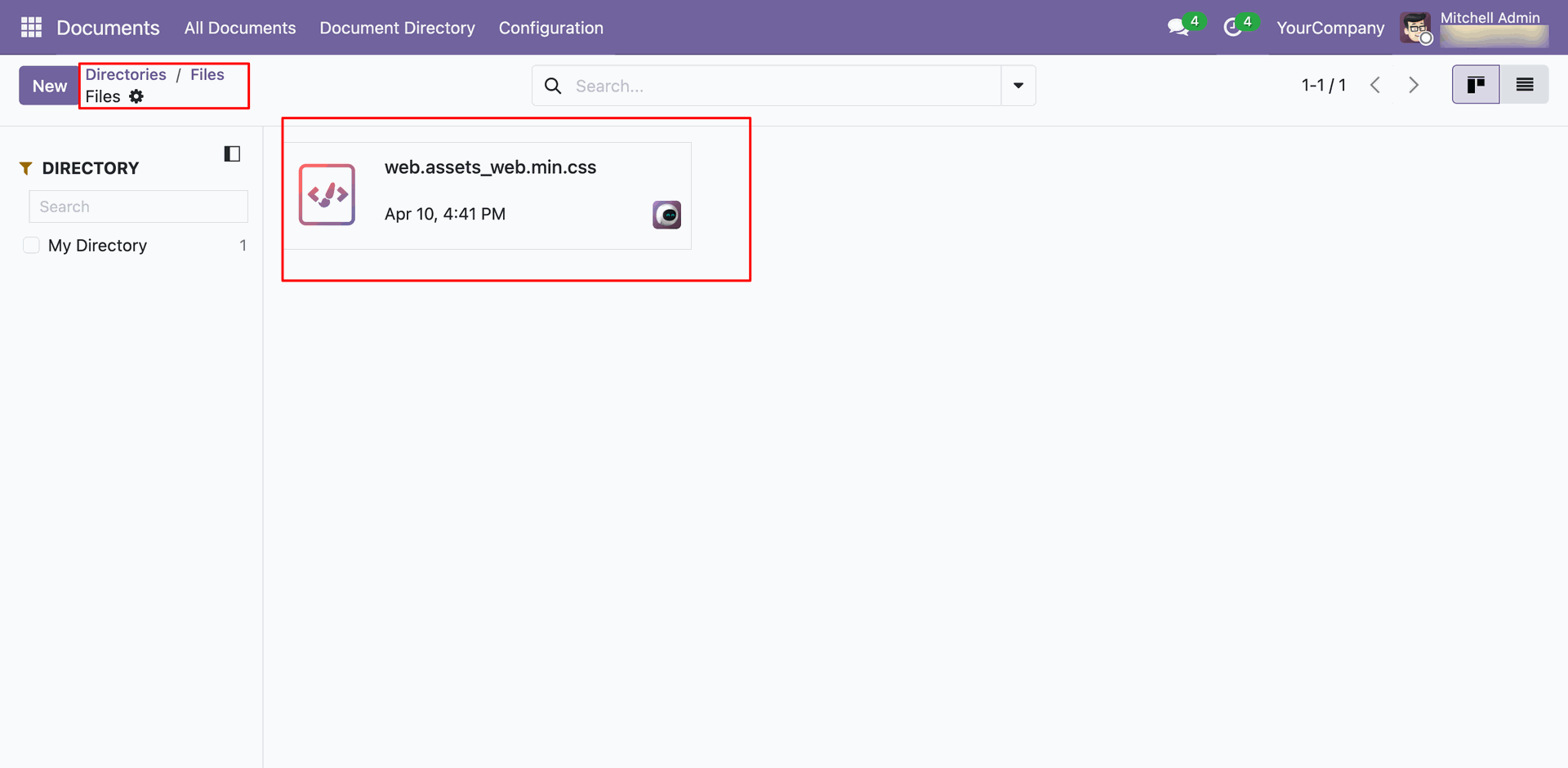
After that, you will be redirected to the directories file view.
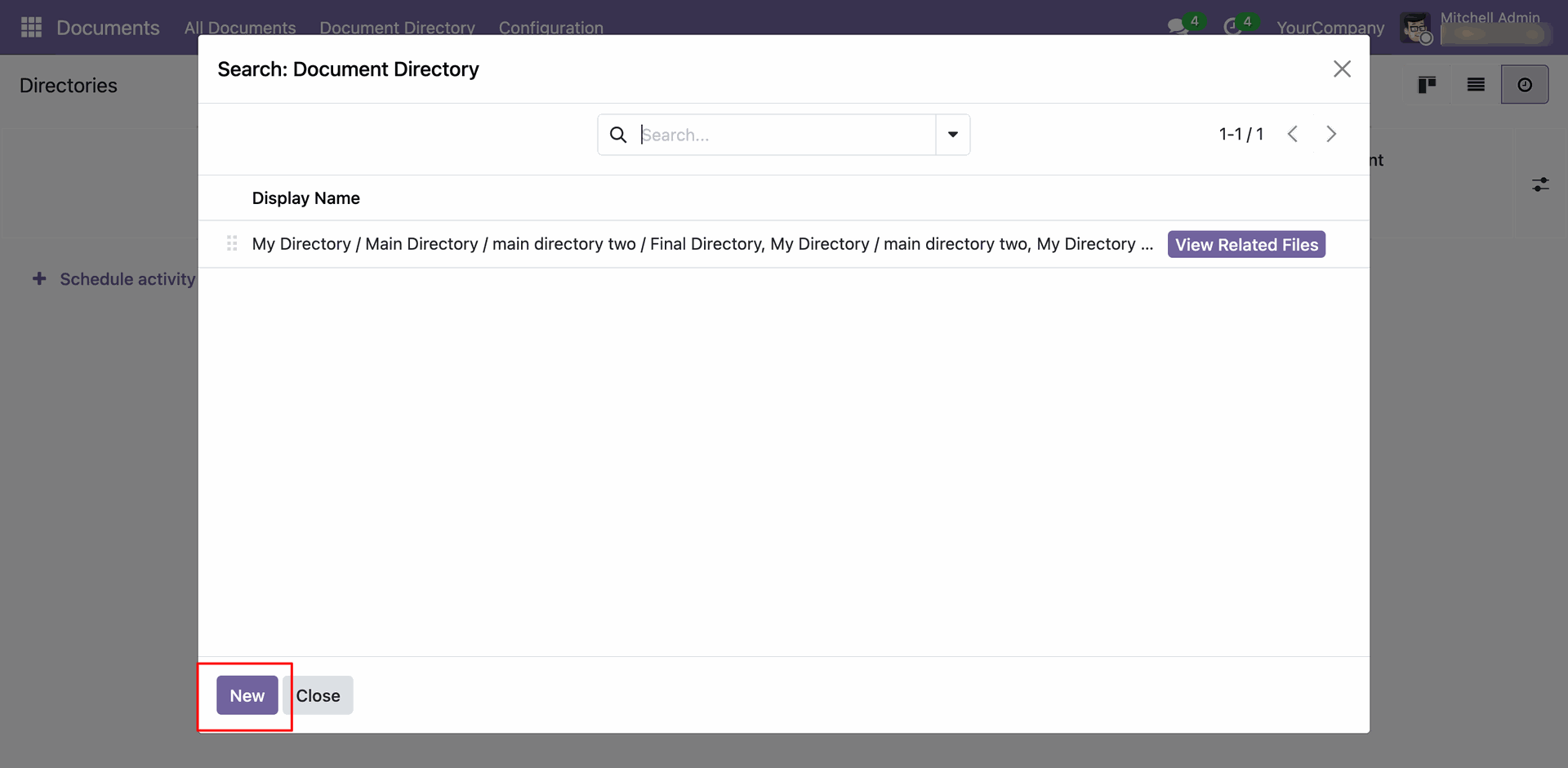
To create a new directory, click the 'New' button in the "Search: Document Directory" wizard.
Add details and click on the 'Save' button.
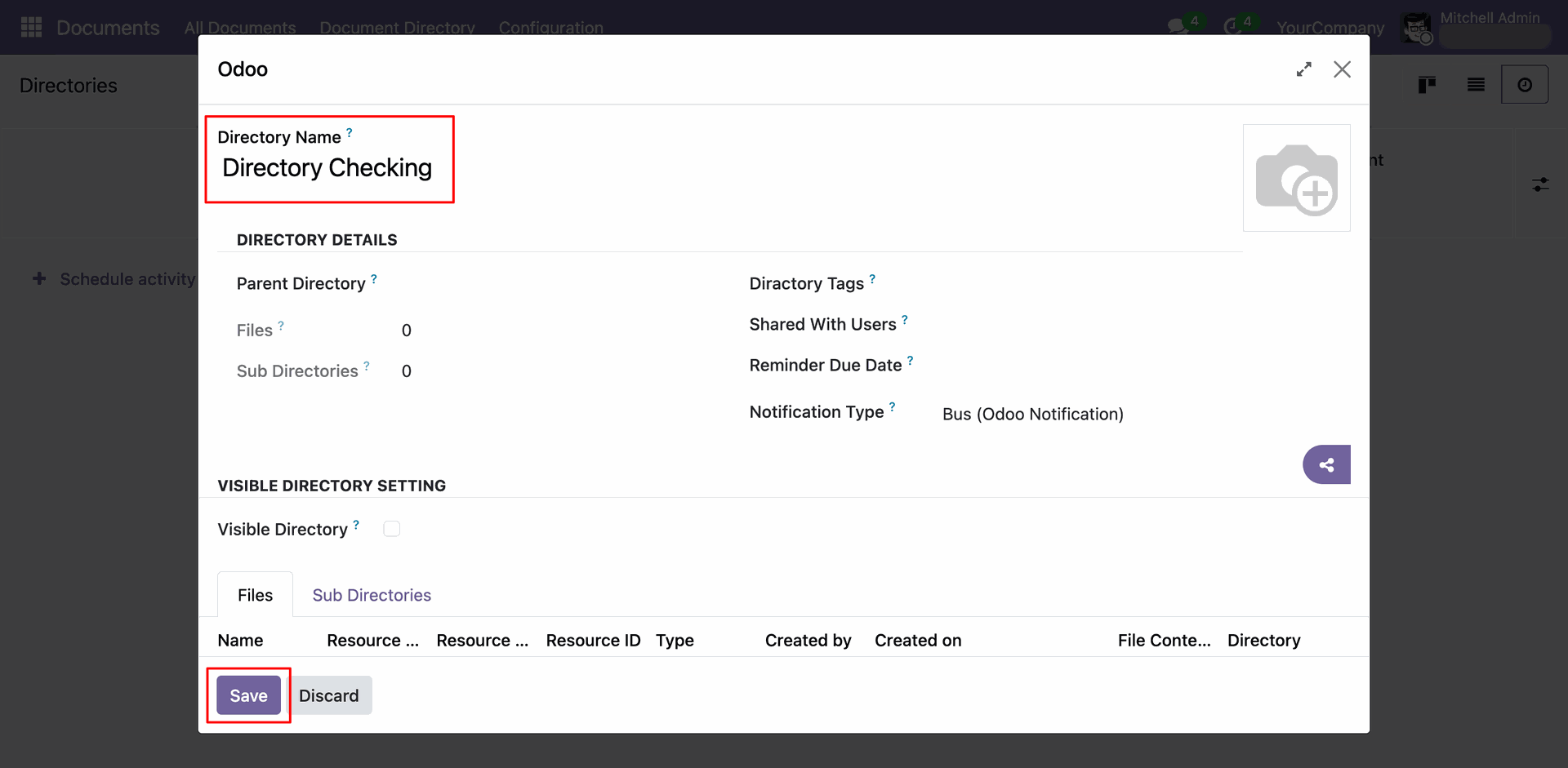
Add details and click on the 'Save' button.
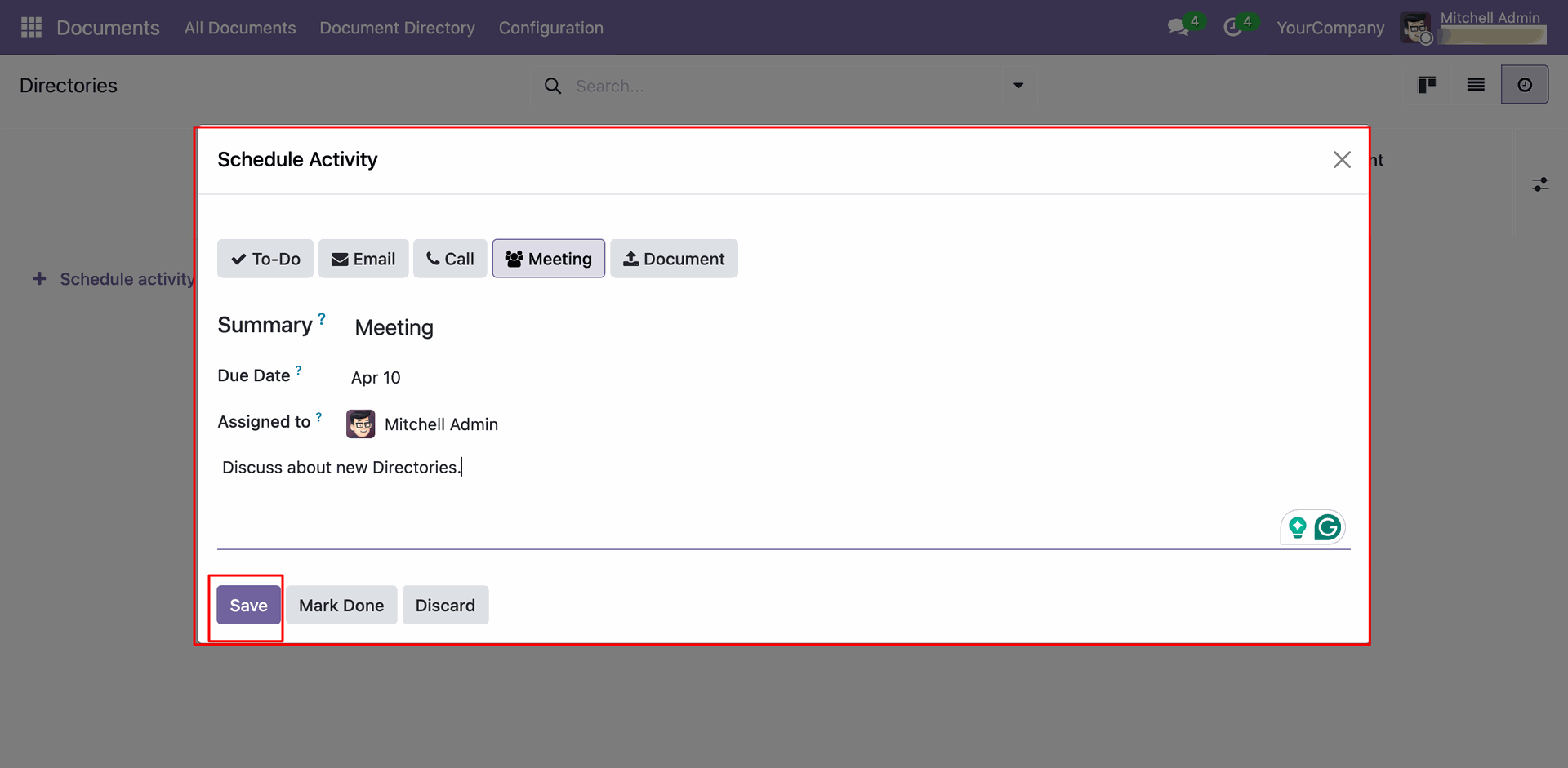
Here you can see the created directory.
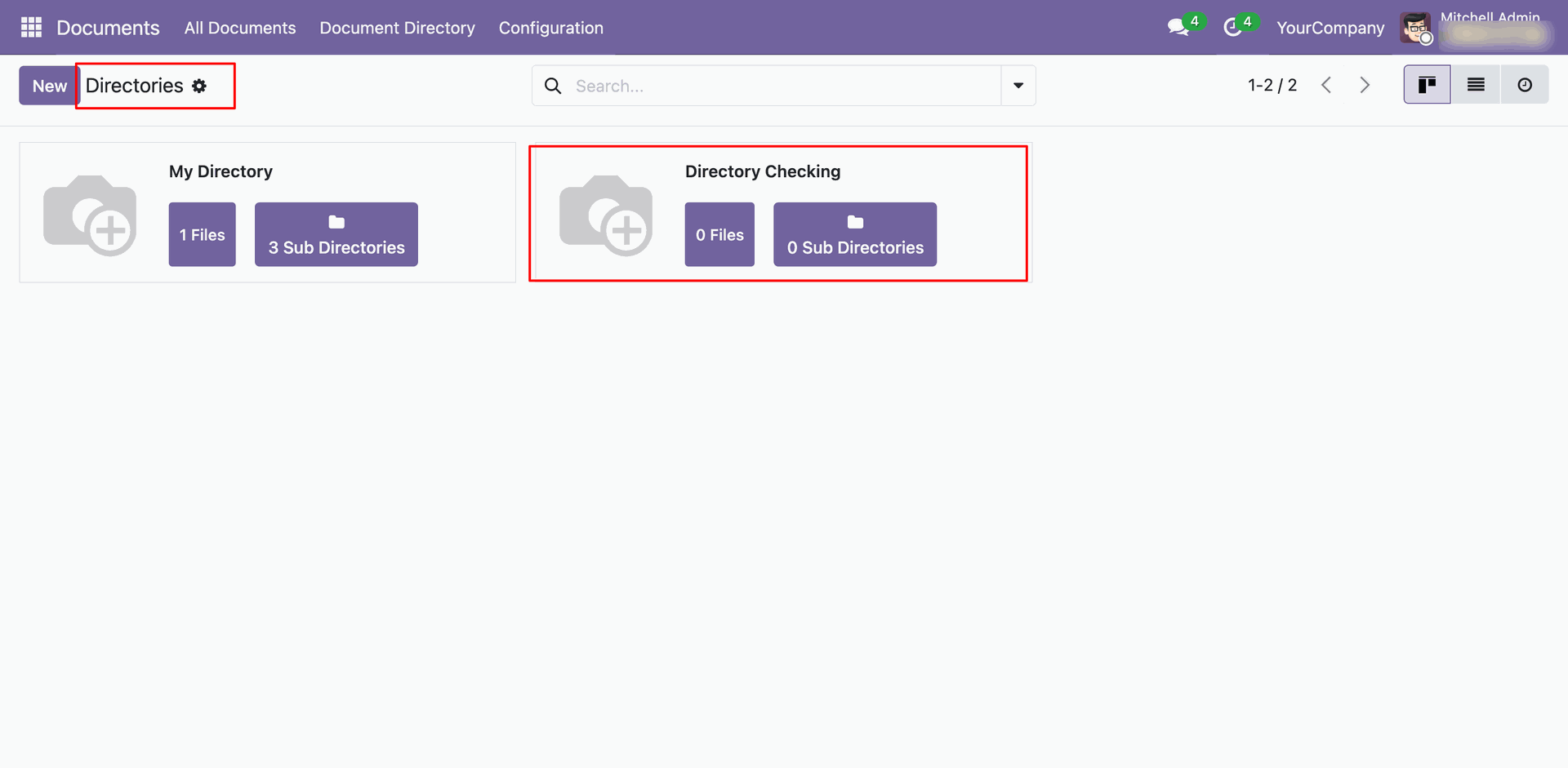
Form view of the directories.
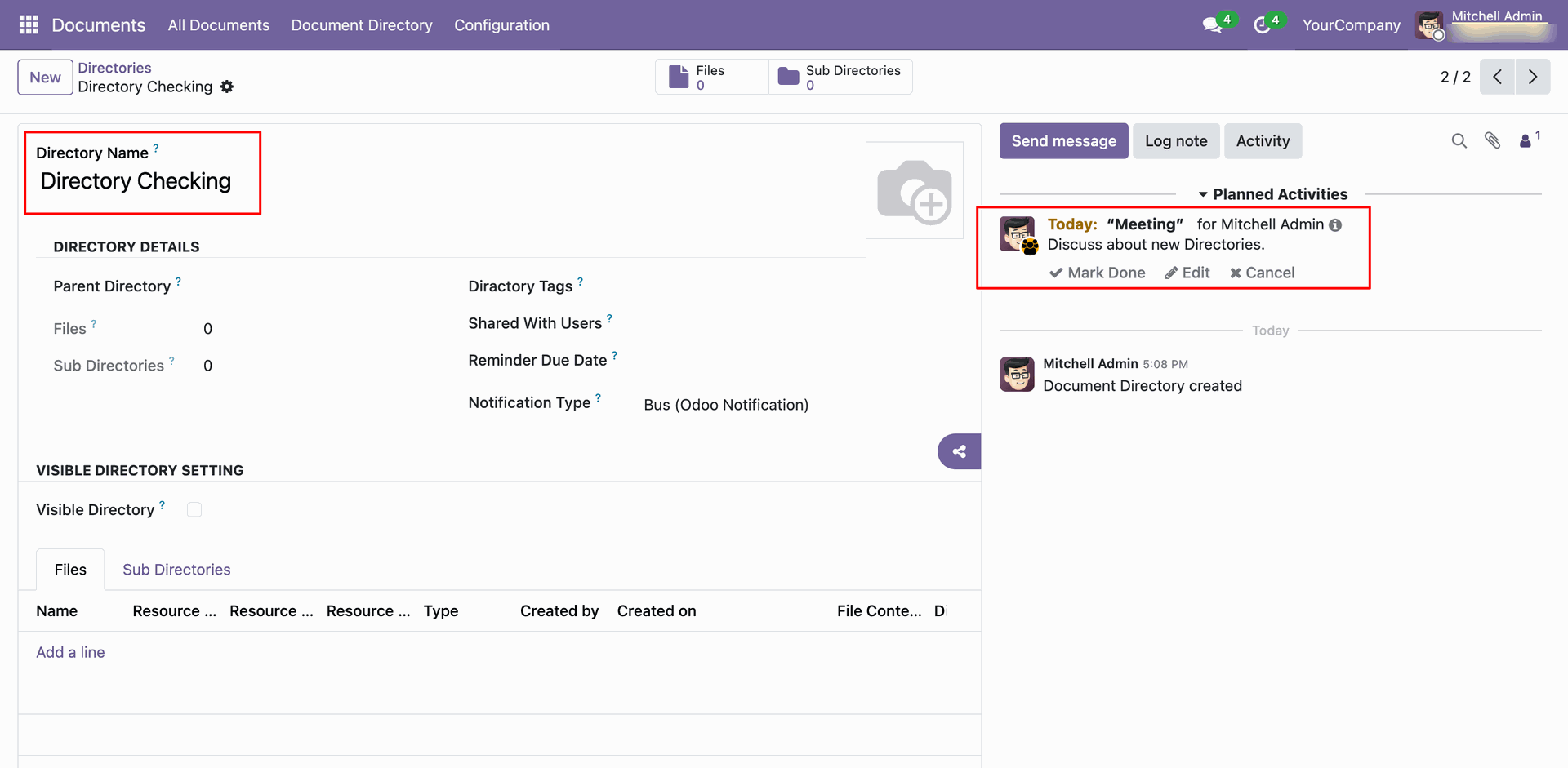
Click on the directory that you want to view.
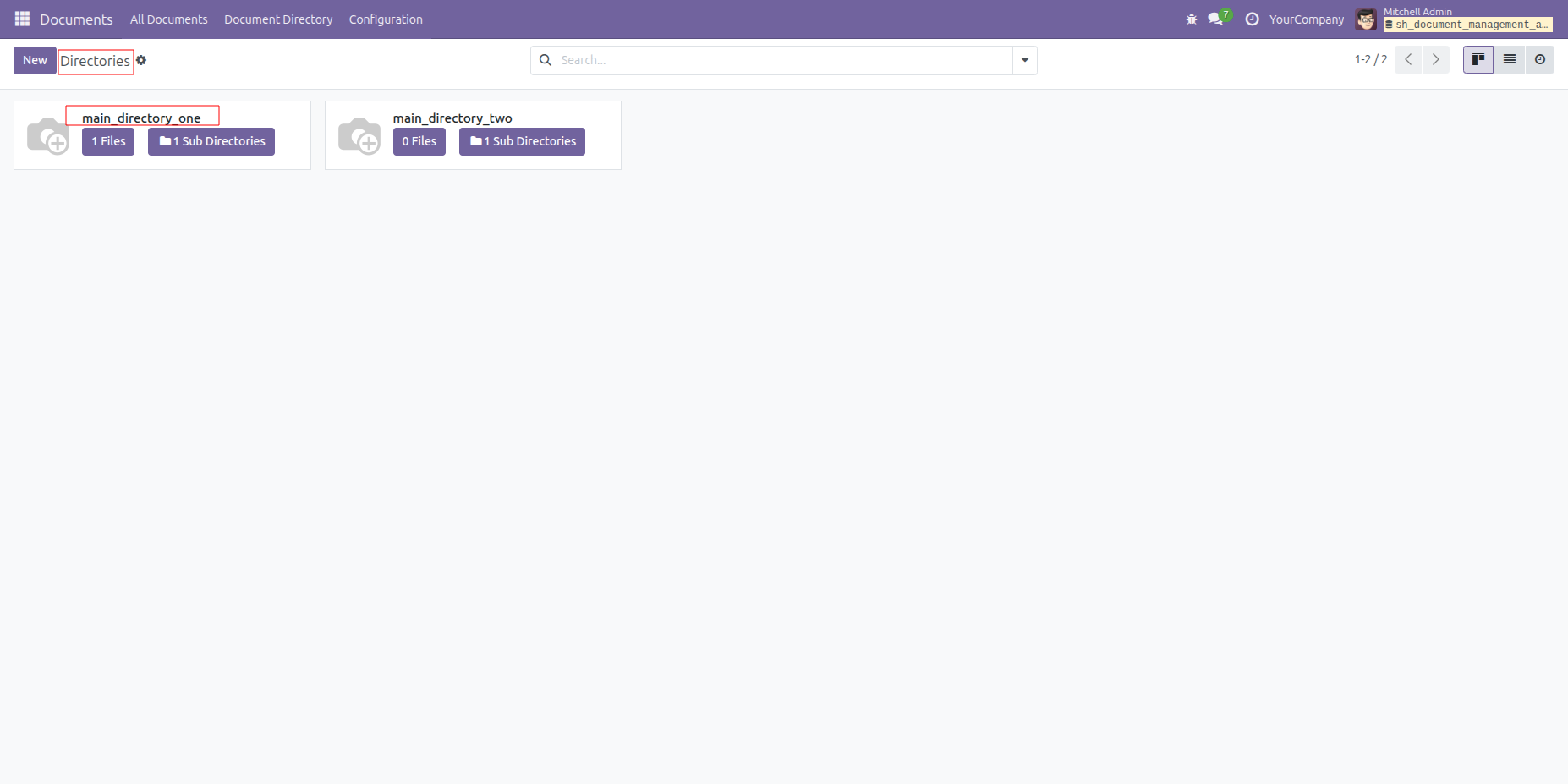
Add the details such as User, Reminder Due Date, and Notification Type: Bus (Odoo Notification).
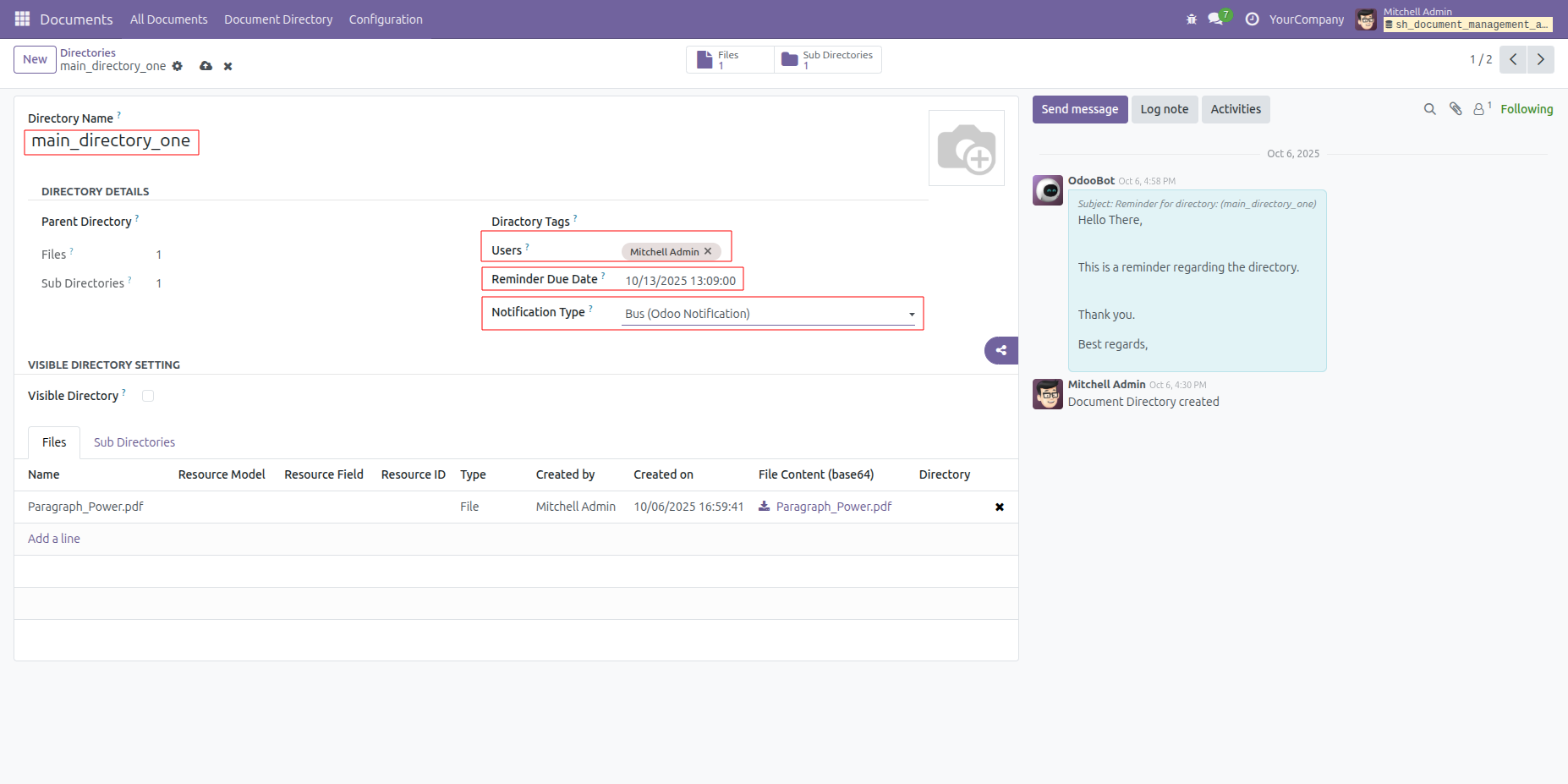
The user receives a reminder notification on the scheduled date and time.
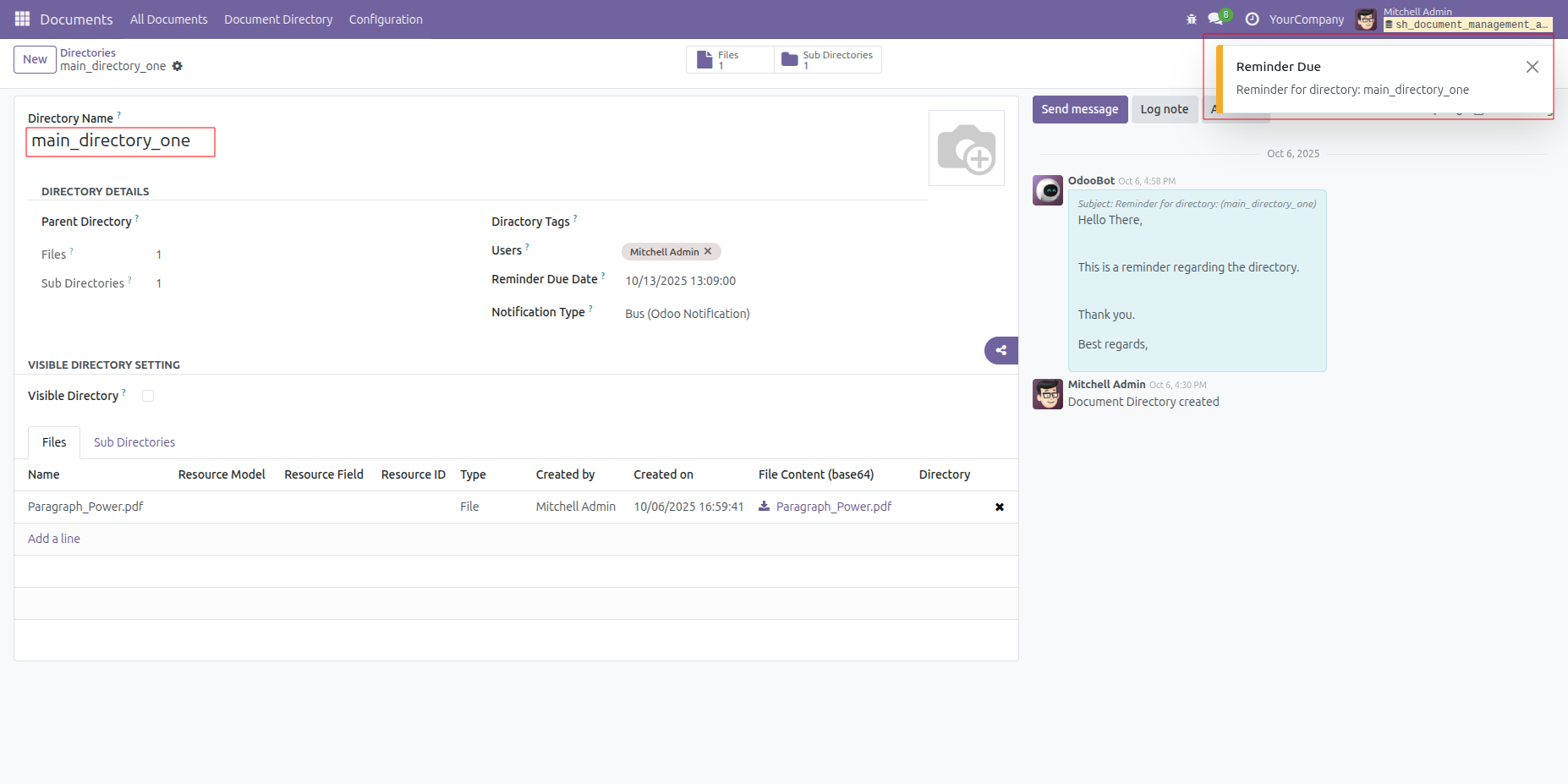
In the directories form view, select the Notification Type: Email, and choose the corresponding Email Template
The user receives the reminder email notification on the scheduled date and time.
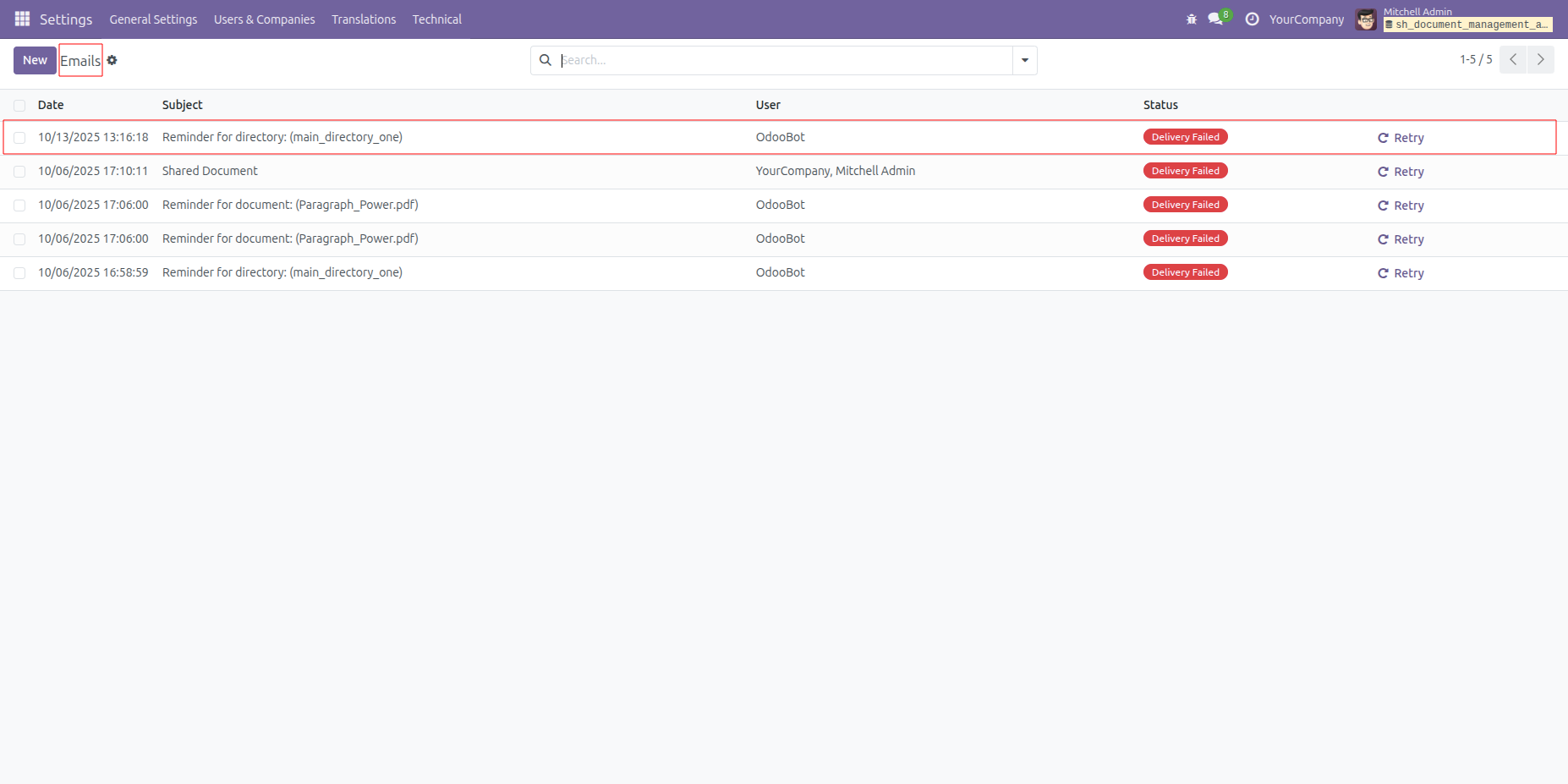
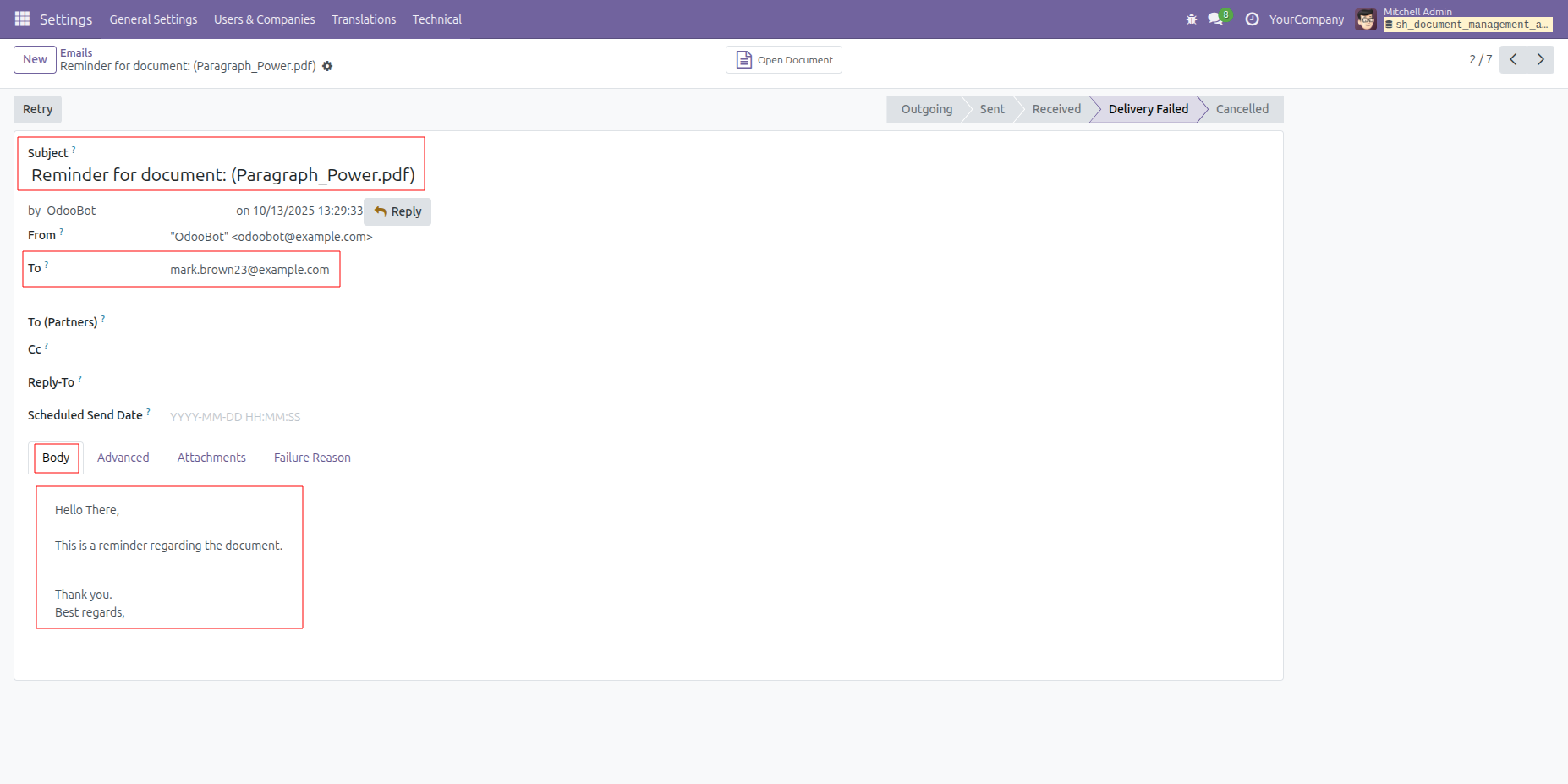
Form view of the email.
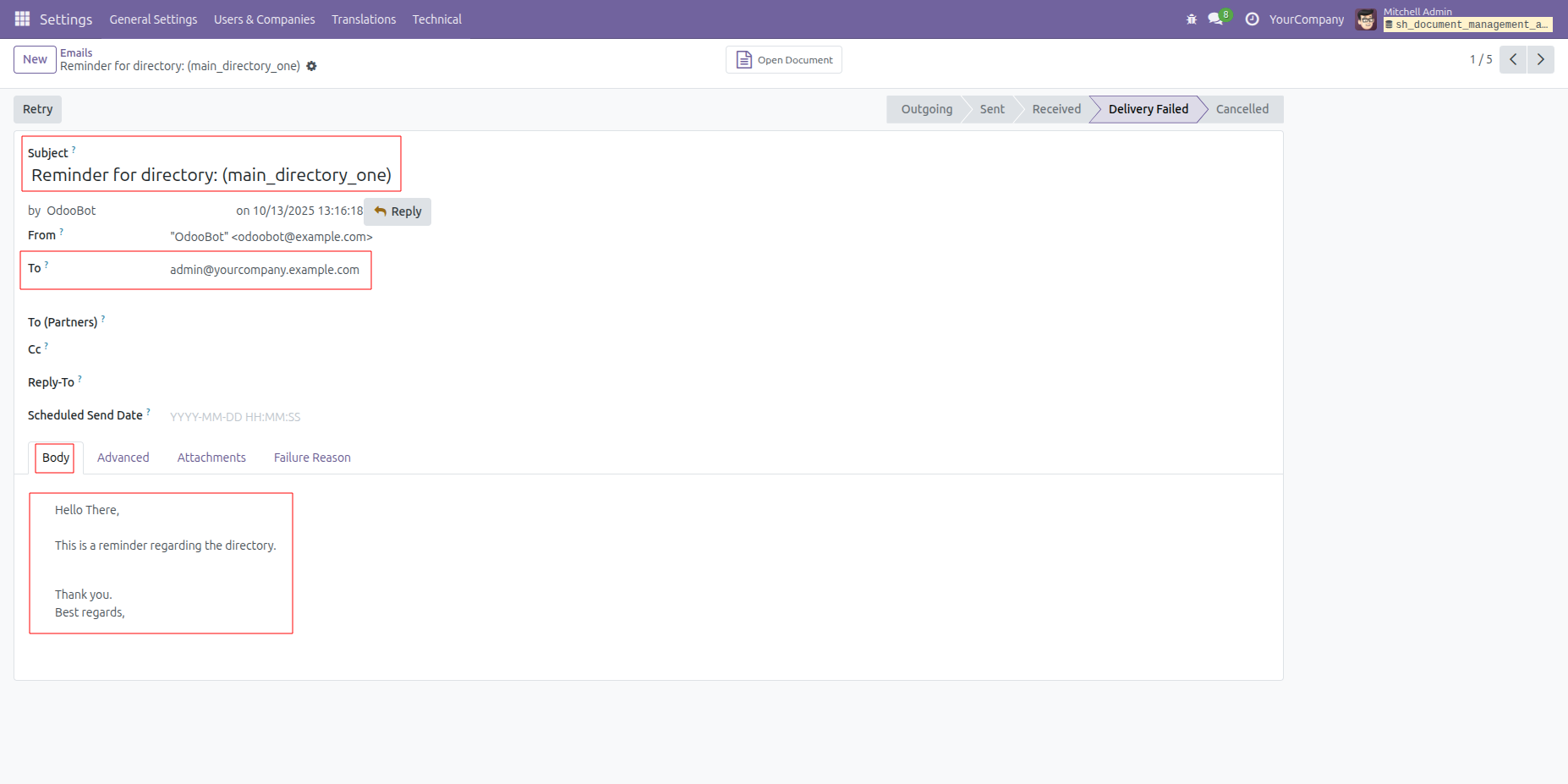
Click on the 'Eye' icon to view the document.
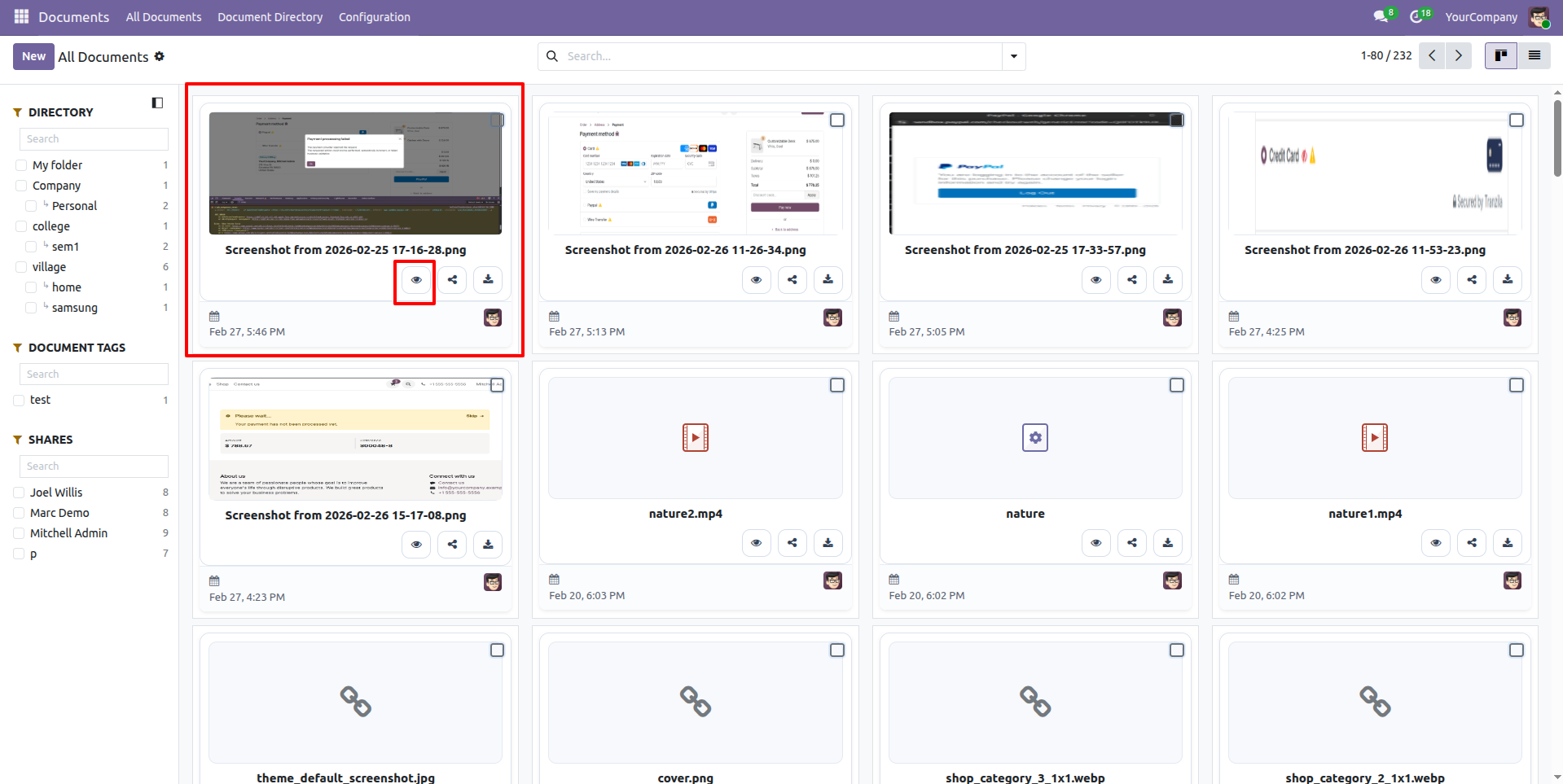
Click on the 'Download' icon to download the document.
Here, you can see that the document ZIP file has been downloaded.
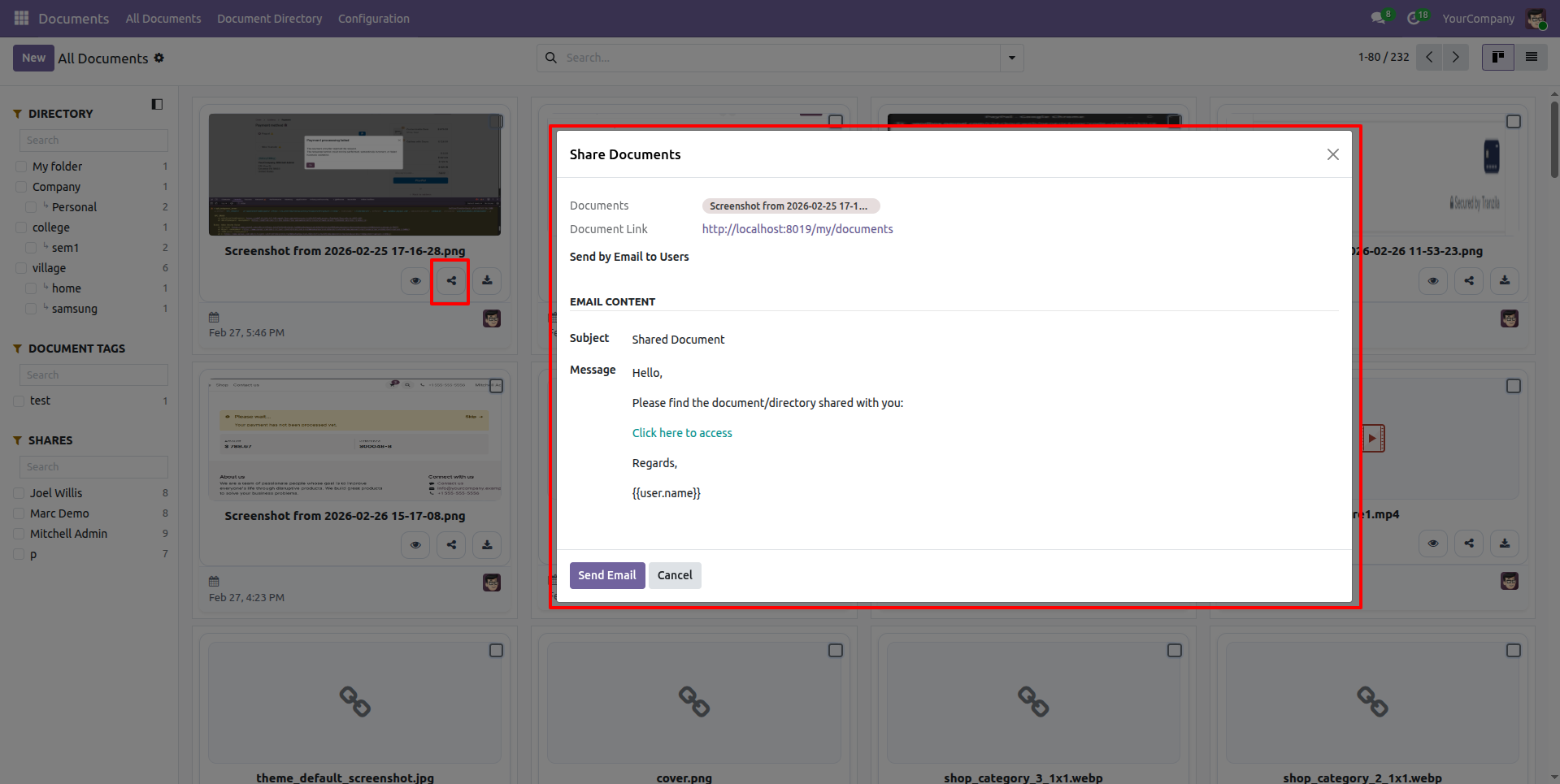
Click on the 'Share' icon to share the document.
This will open the 'Share Document' popup. Enter the required
details and click on the 'Send Email' button.
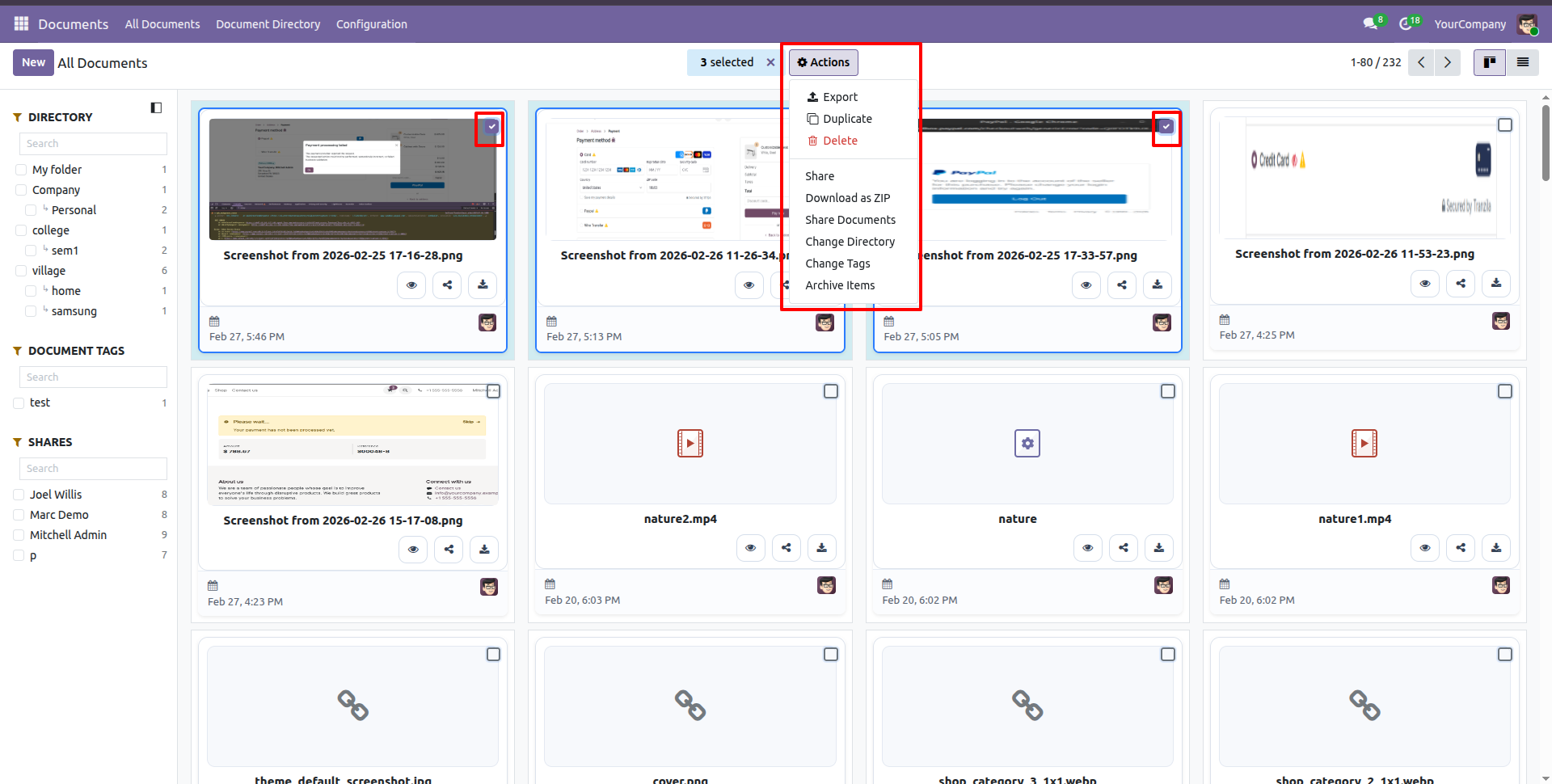
Select user or manager.
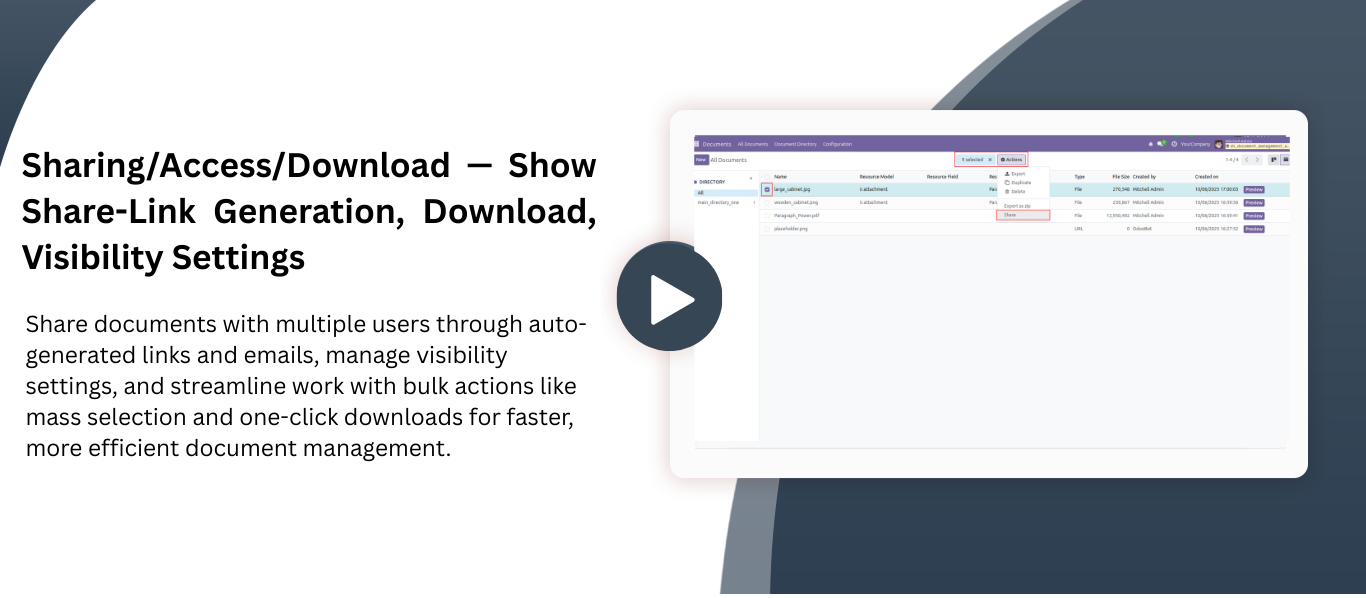
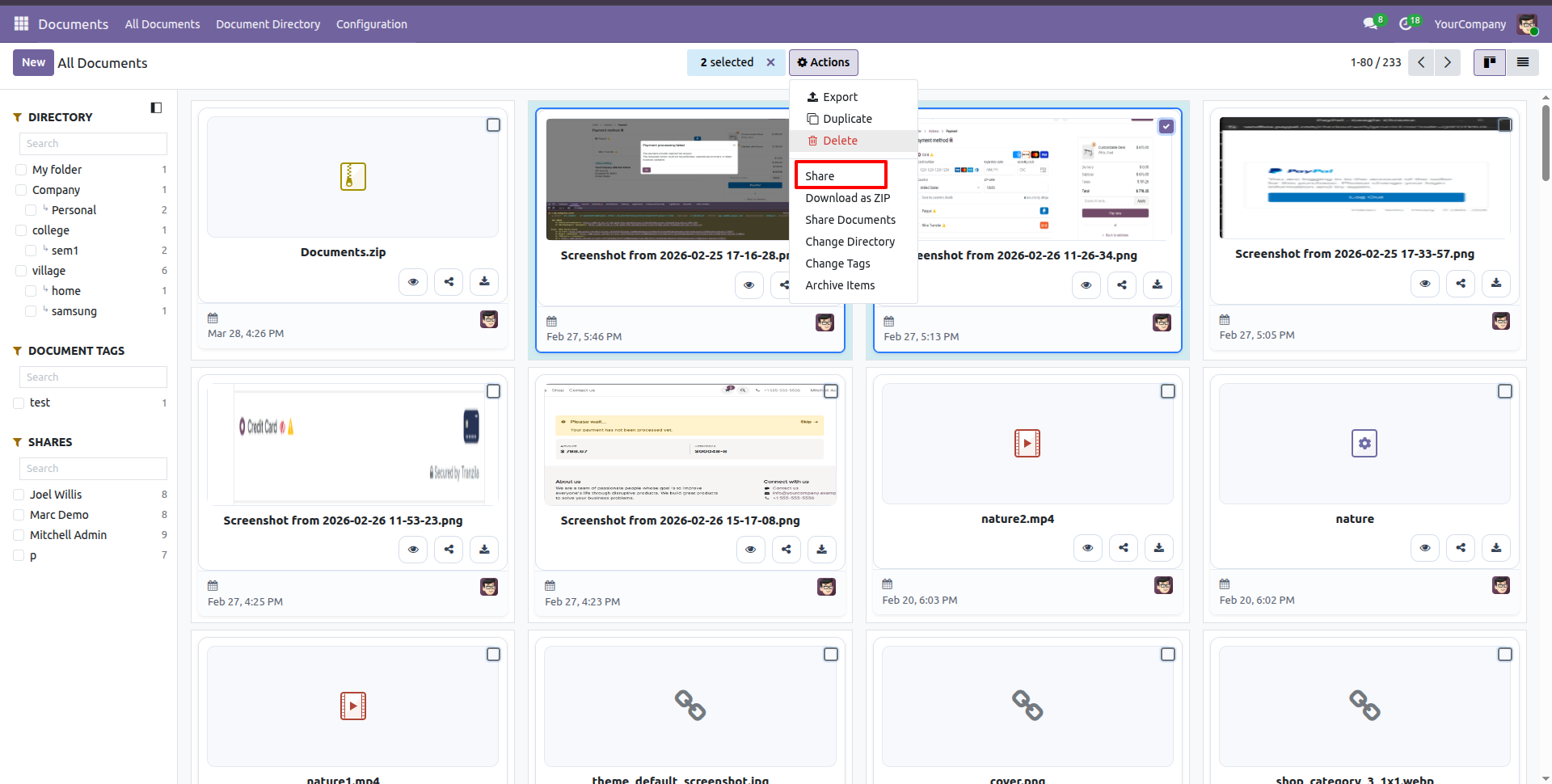
Select the document you want to share, then click on the 'Share' option from the 'Action' menu.
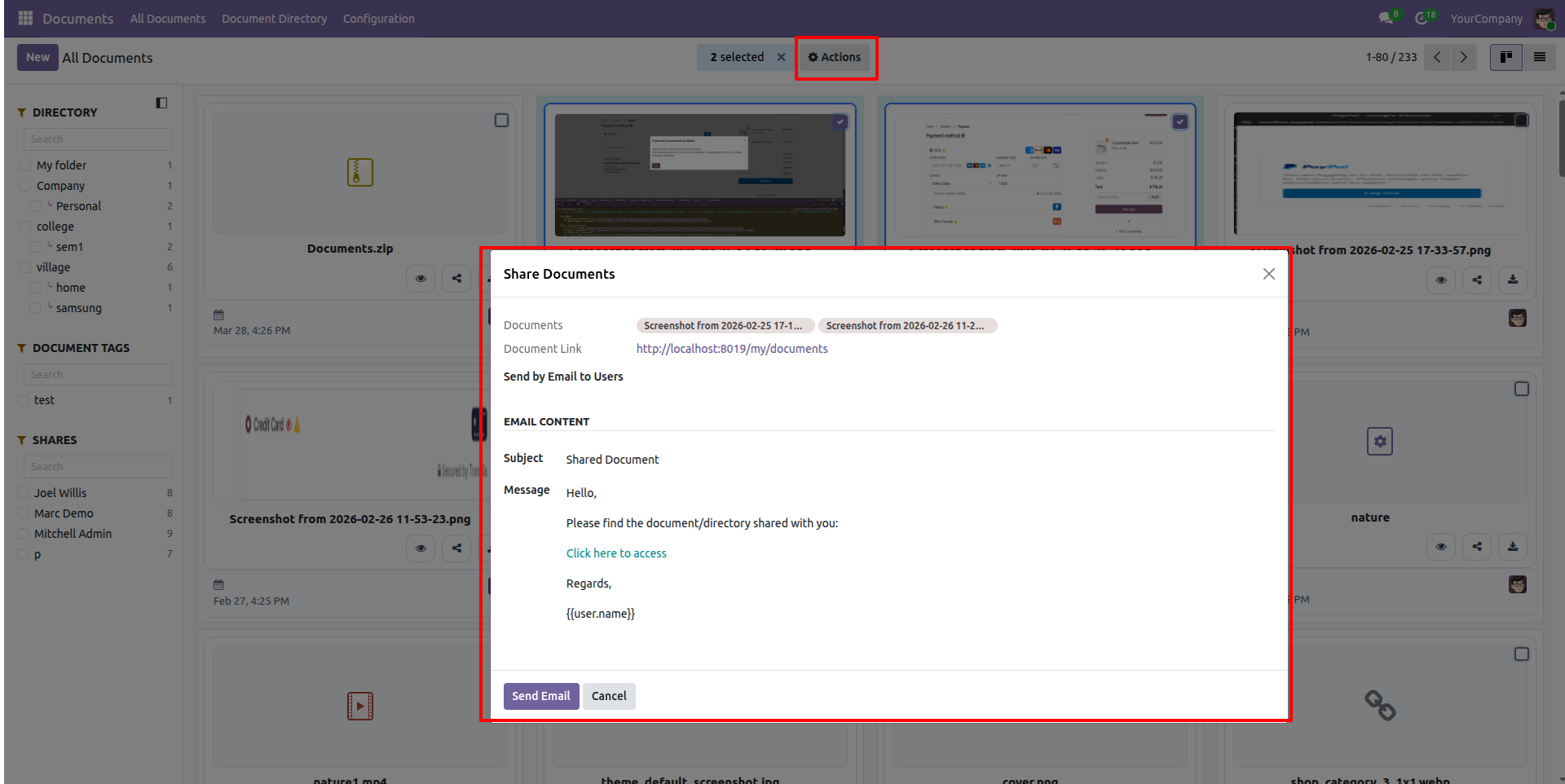
This will open the 'Share Document' popup. Enter the required details and click on the 'Send Email' button.
The email is sent to all the users you selected.
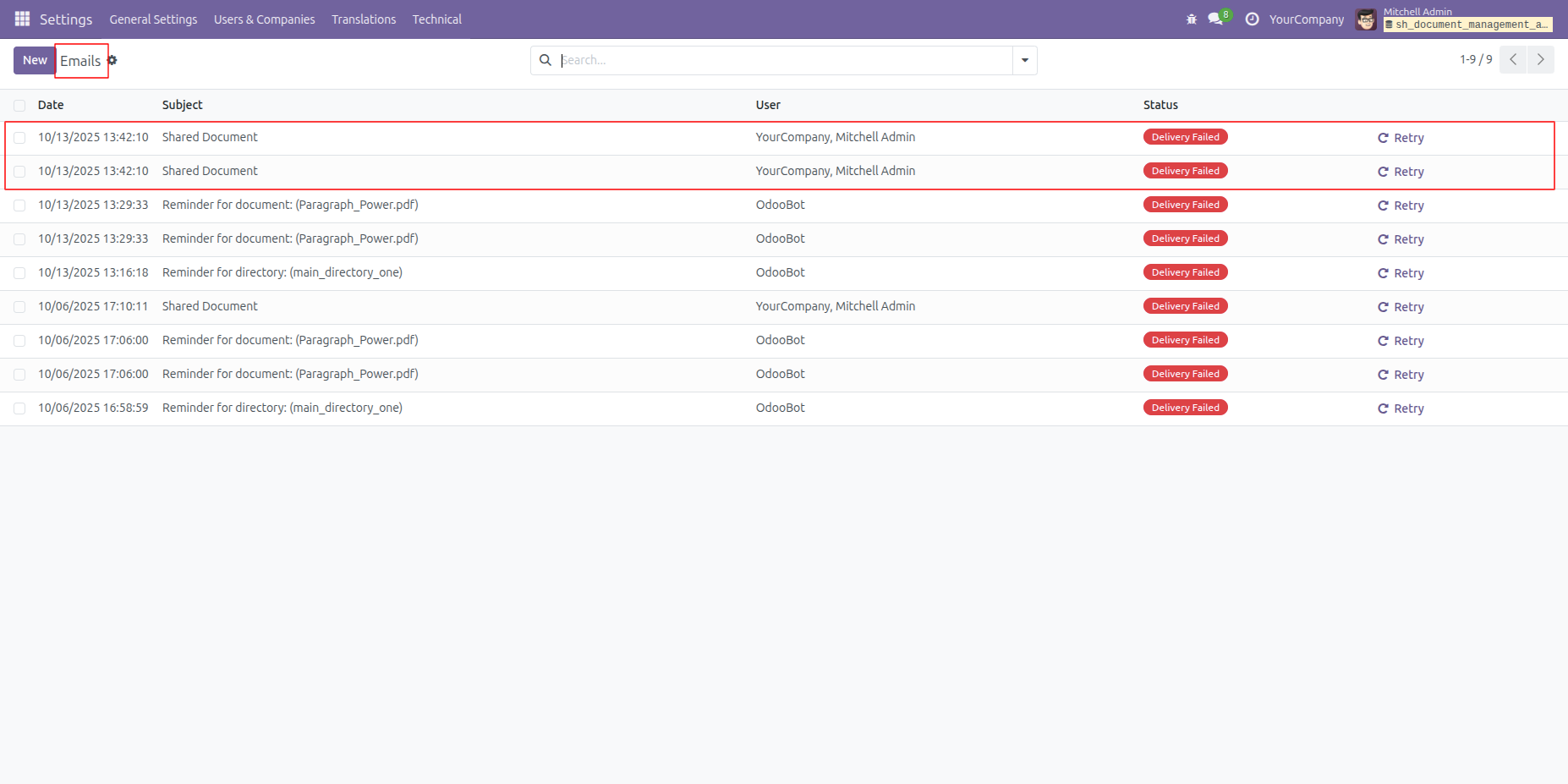
Select the document you want to download, then click on the 'Download as ZIP' option from the 'Action' menu.
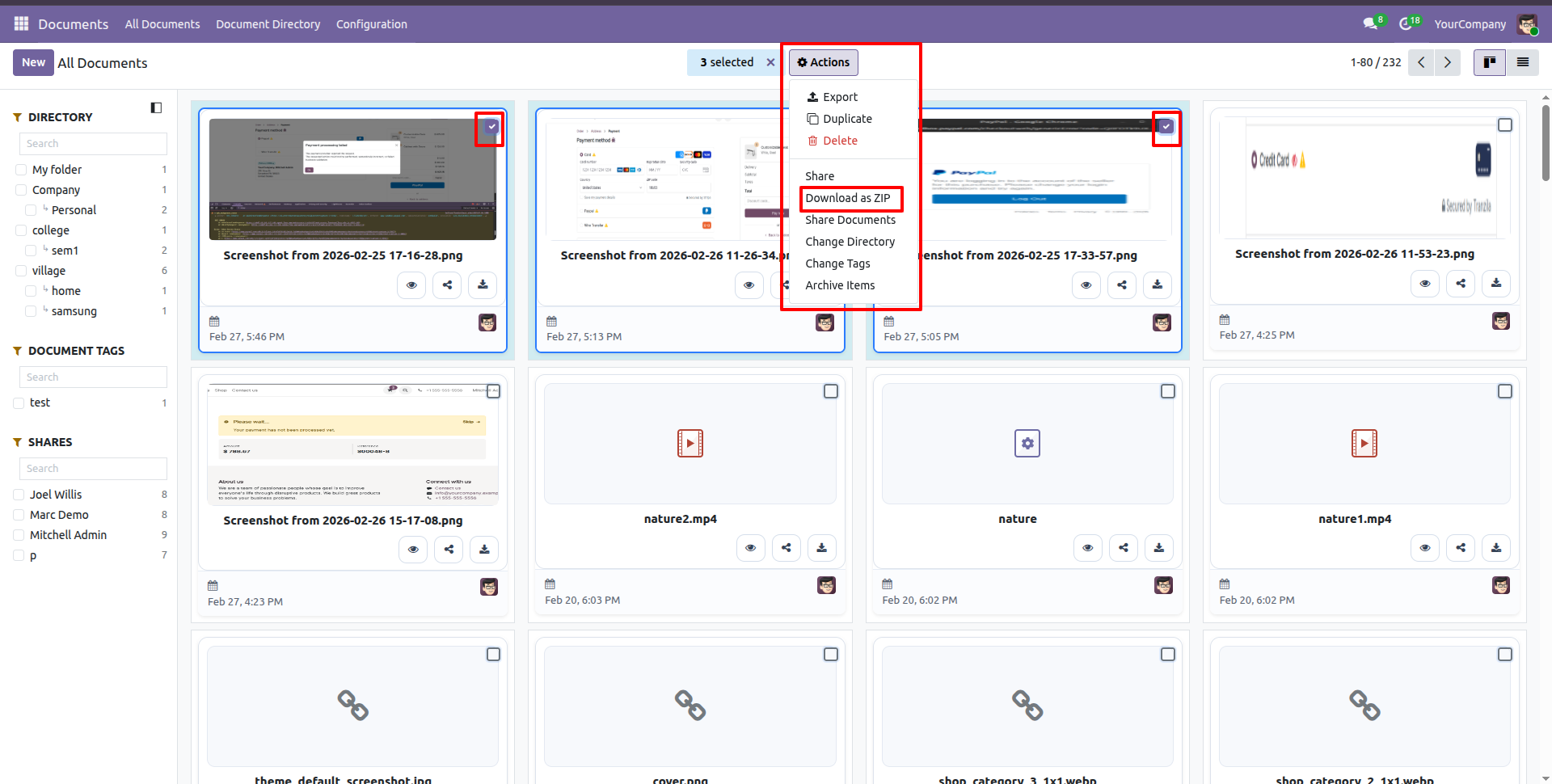
Here, you can see that the document ZIP file has been downloaded and is displayed in the Kanban view.
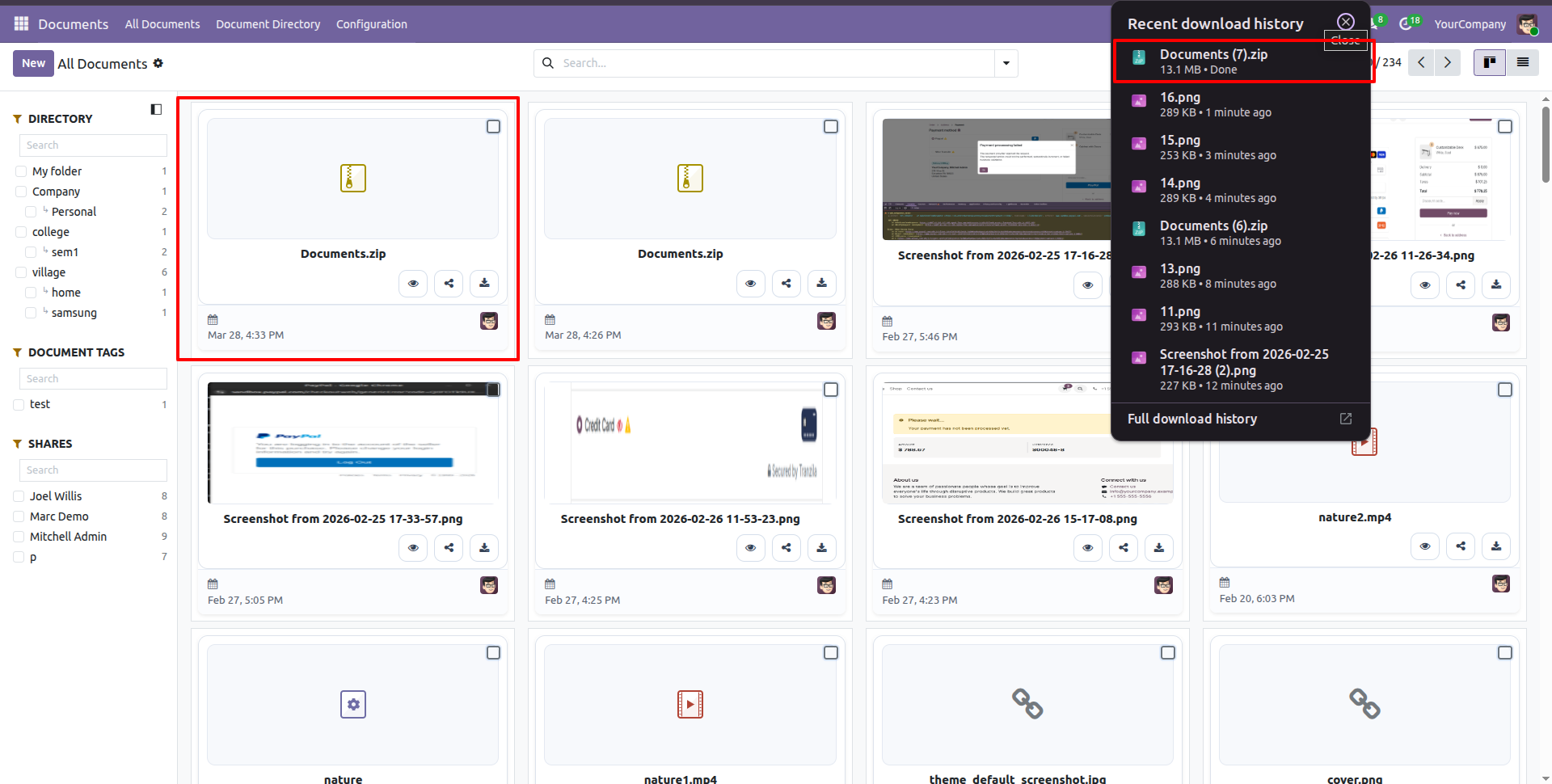
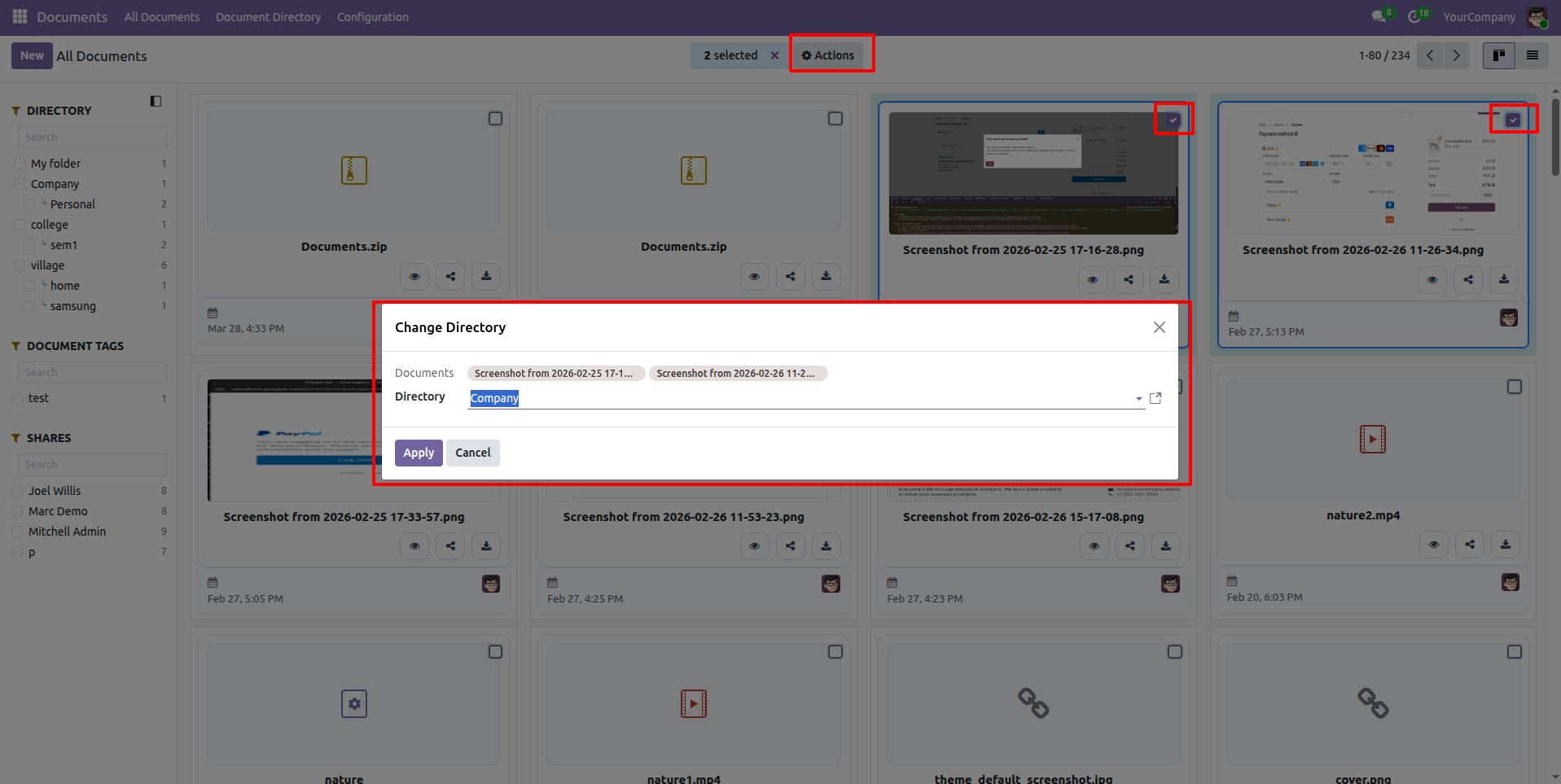
Select the document for which you want to change the directory, then click on the 'Change Directory' option from the 'Action' menu.
After that, the Change Directory wizard will appear. Enter all the required details and click on the 'Apply' button.
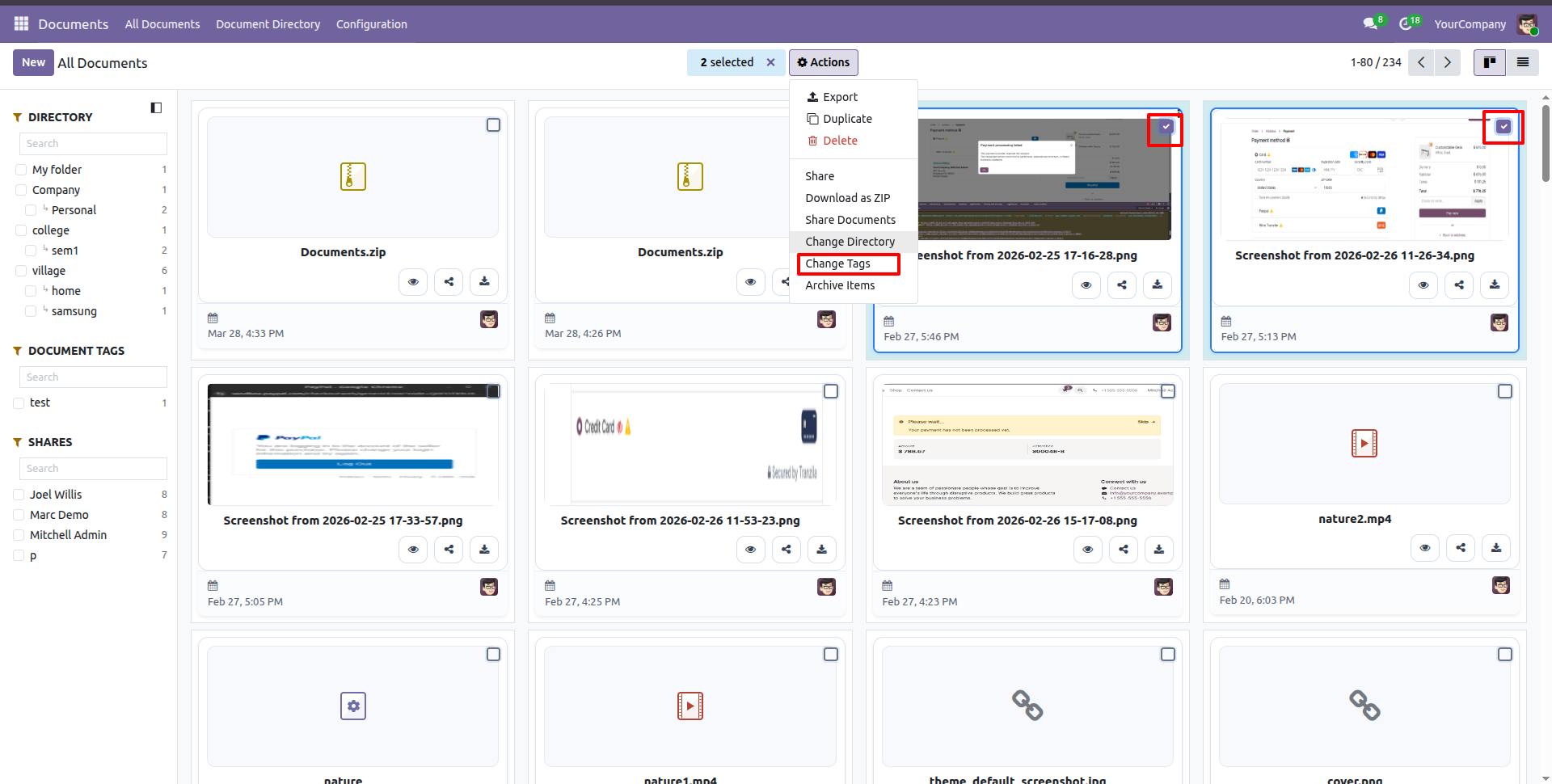
Select the document for which you want to change the tags, then click on the 'Change Tags' option from the 'Action' menu.
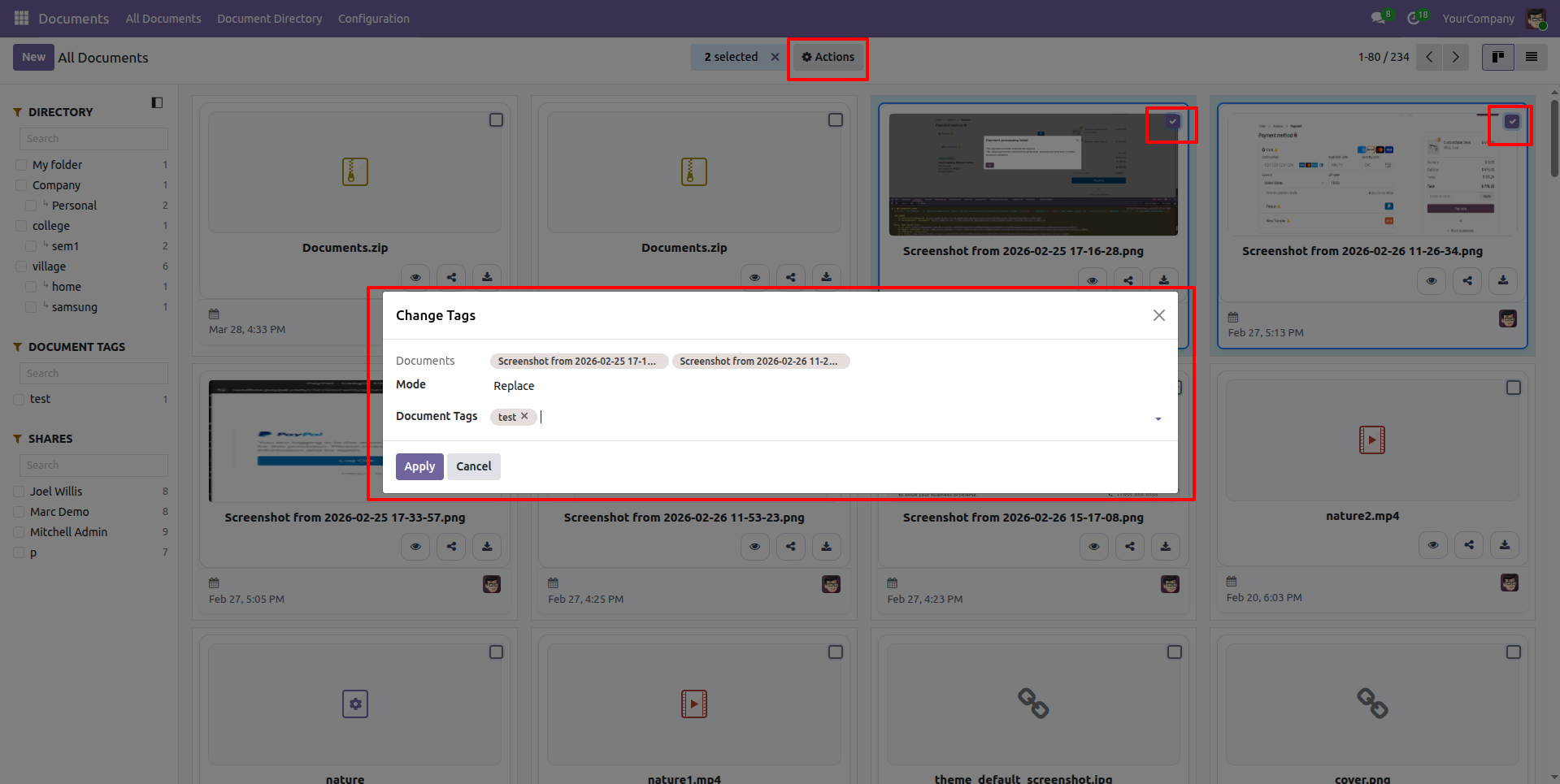
After that, the Change Tags wizard will appear. Enter all the required details and click on the 'Apply' button.
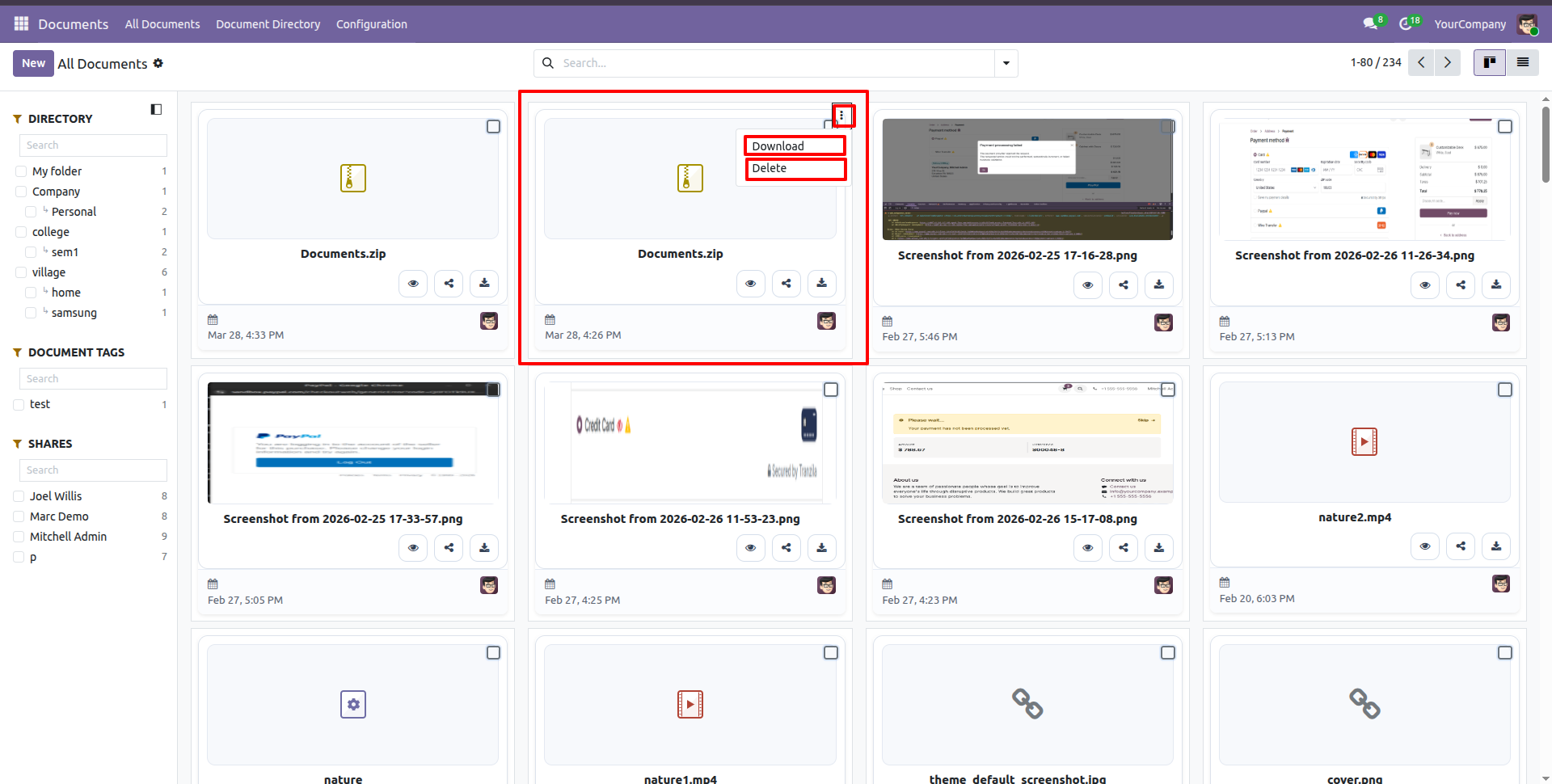
You can download or share the document from the Kanban view by clicking on the three dots.
You can group by directory using parent directory.
In the directories form view, click on the "Files" smart button.
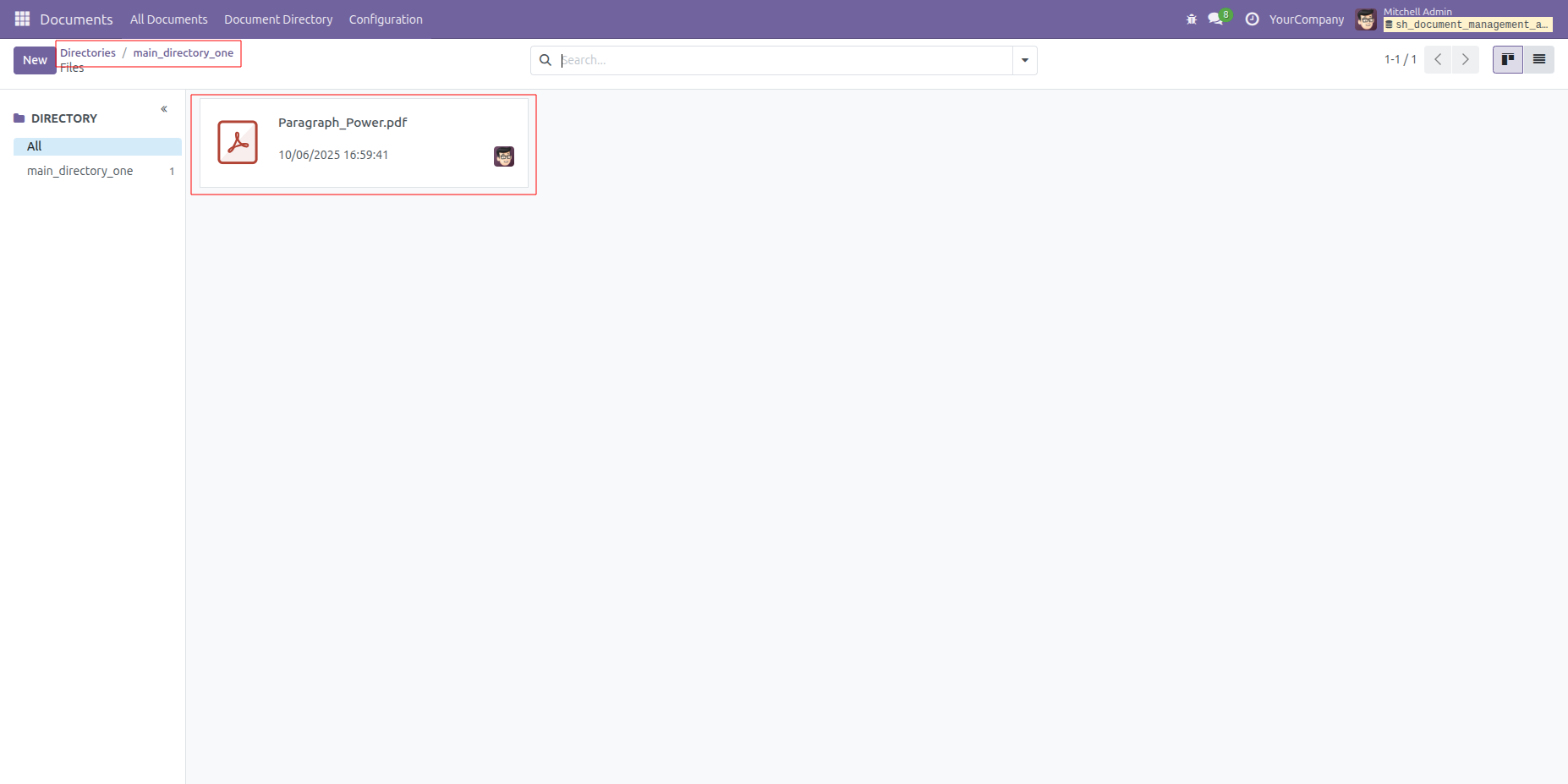
Kanban view of the "Files".
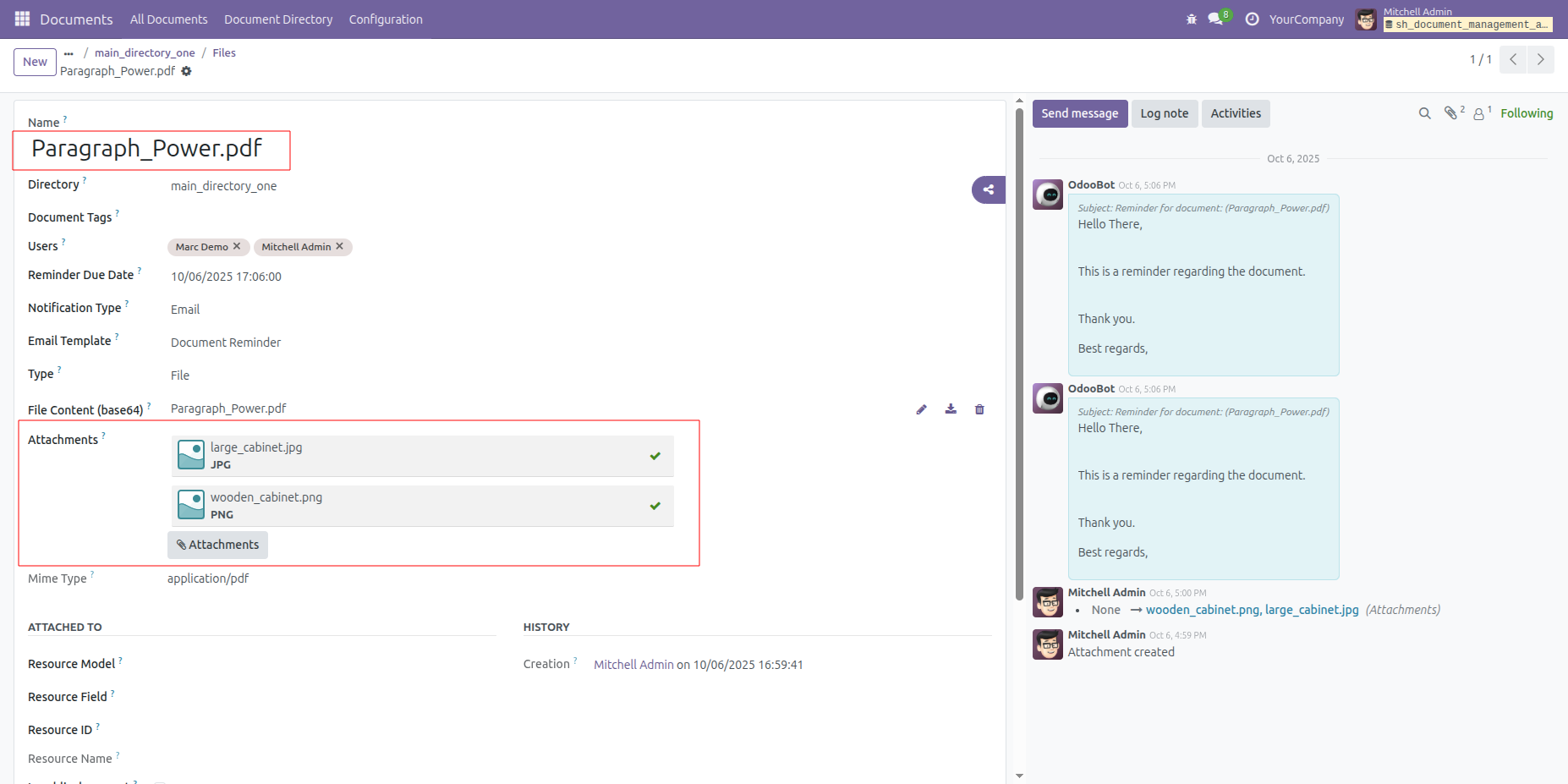
In the files form view, attach the document.
In the files form view, add the details such as User, Reminder Due Date, and Notification Type: Bus (Odoo Notification).
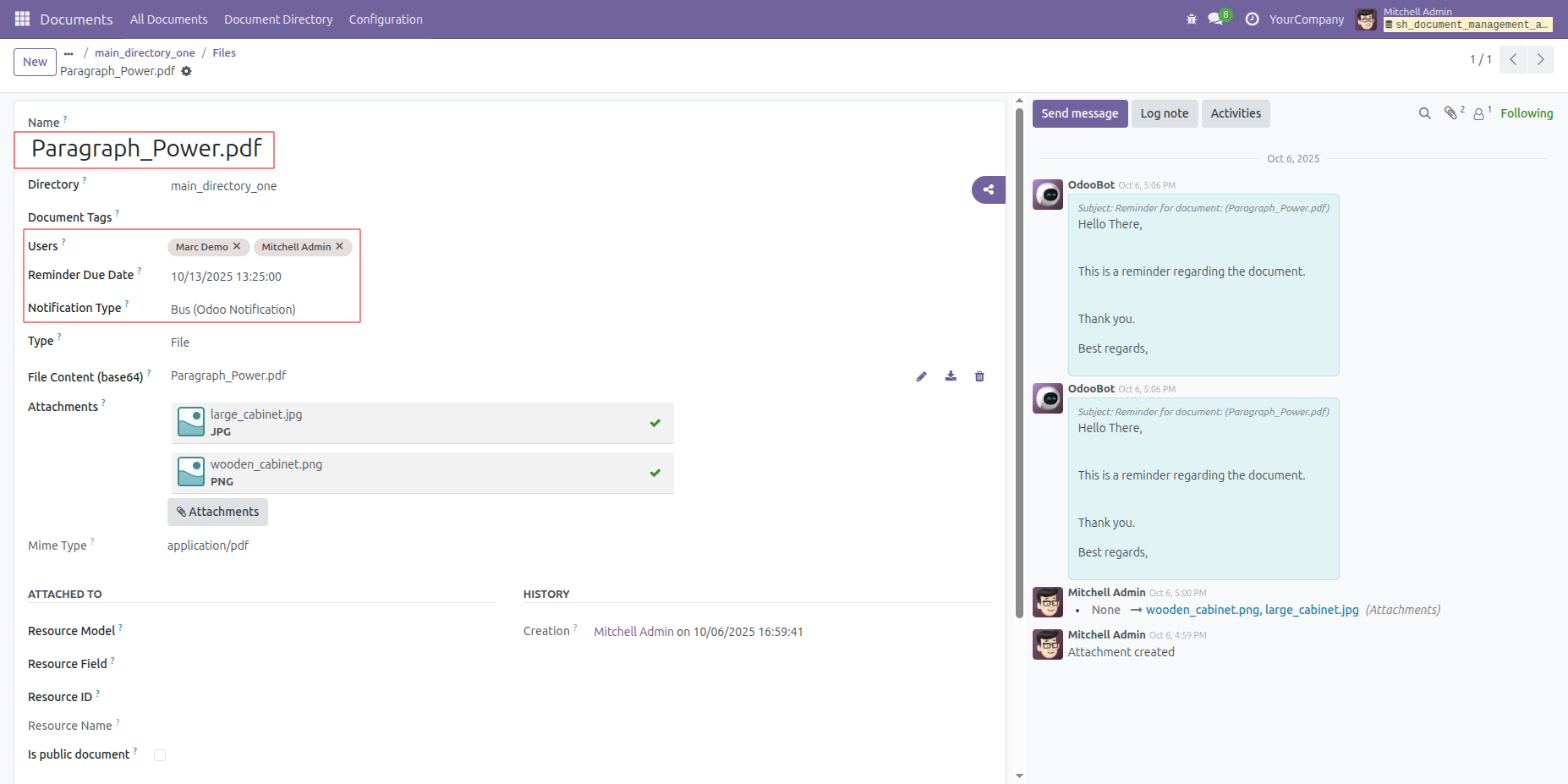
The user receives a reminder notification on the scheduled date and time.
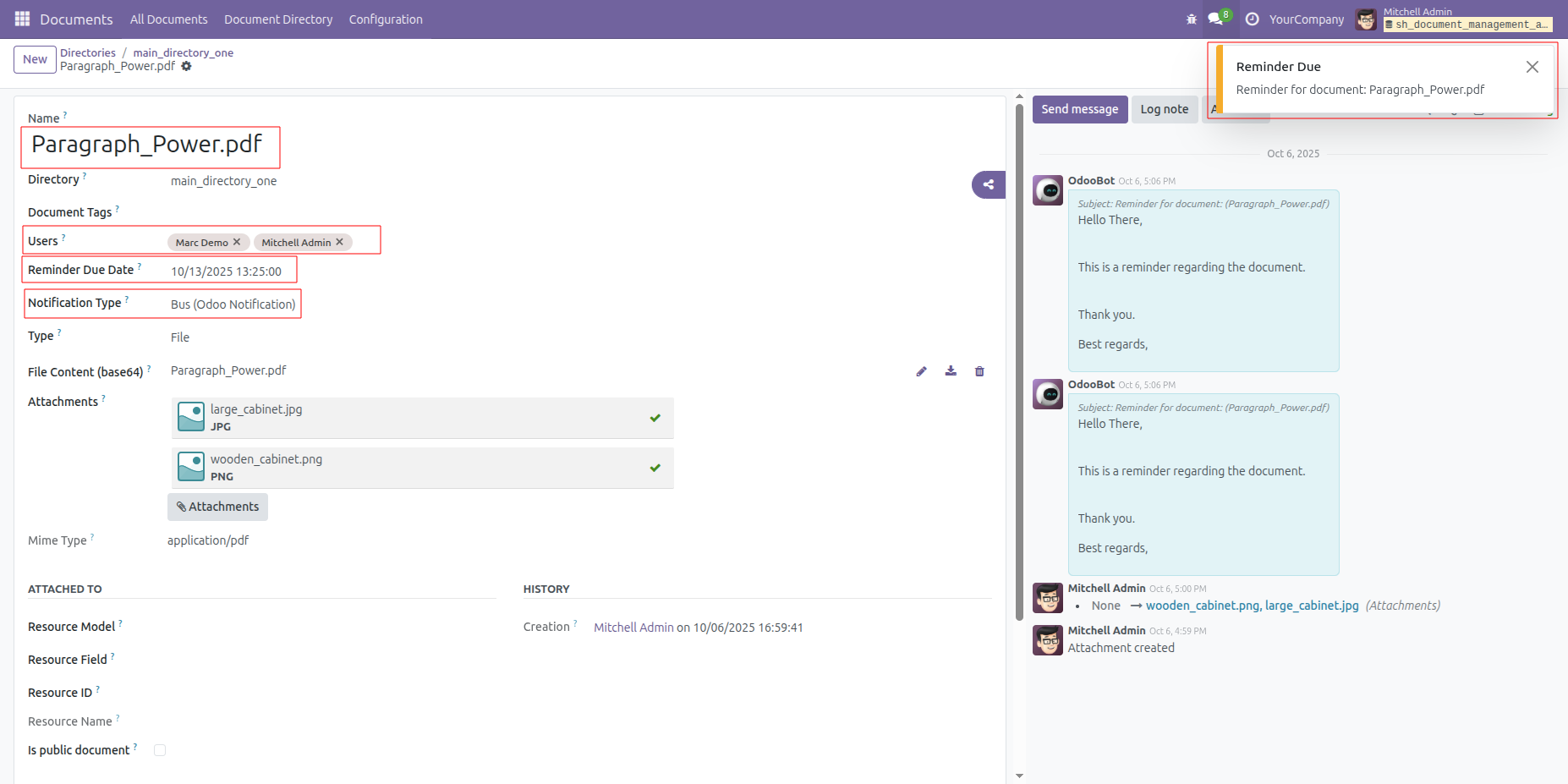
In the files form view, select the Notification Type: Email and choose the corresponding Email Template.
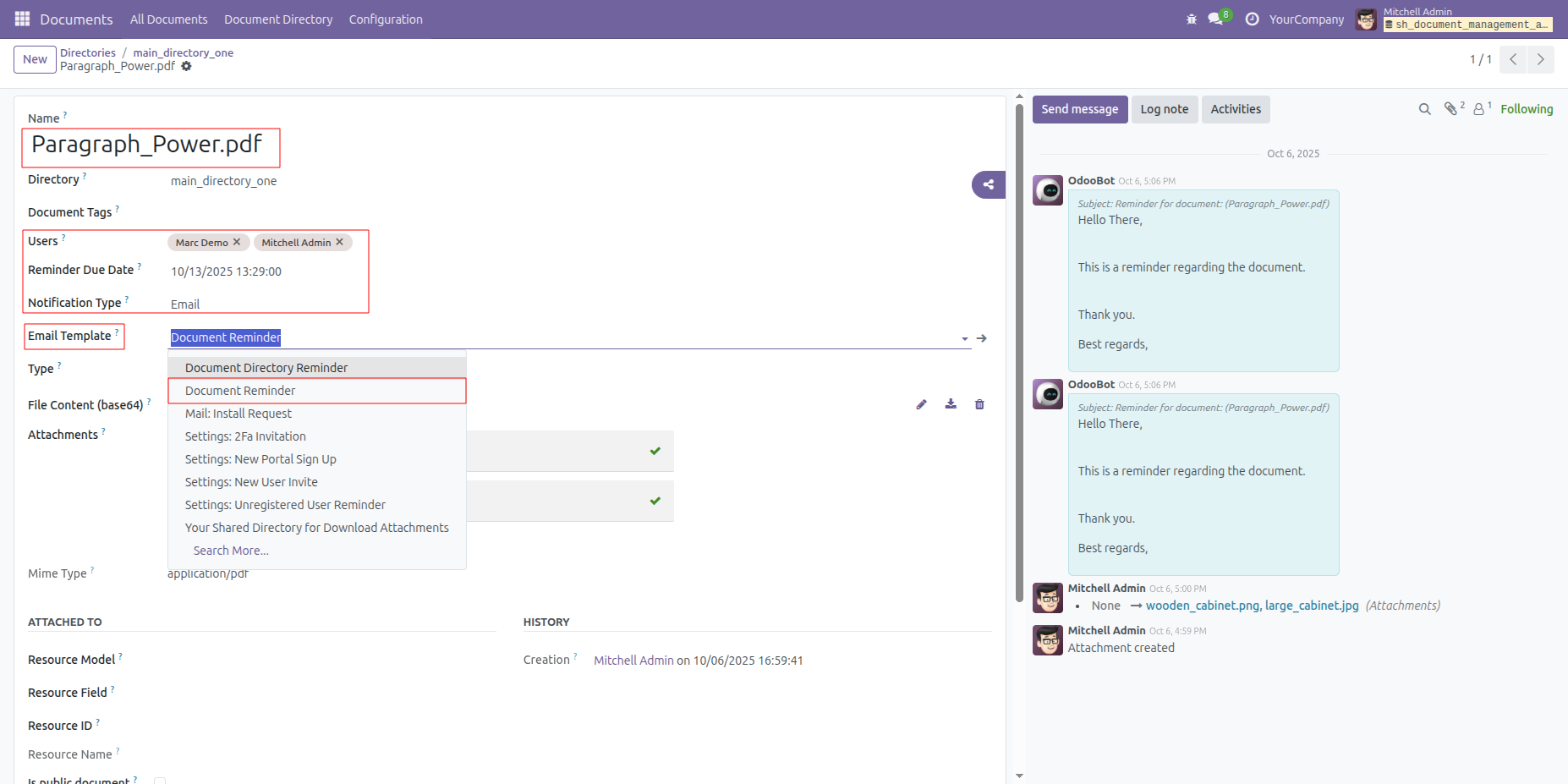
The user receives the reminder email notification on the scheduled date and time.
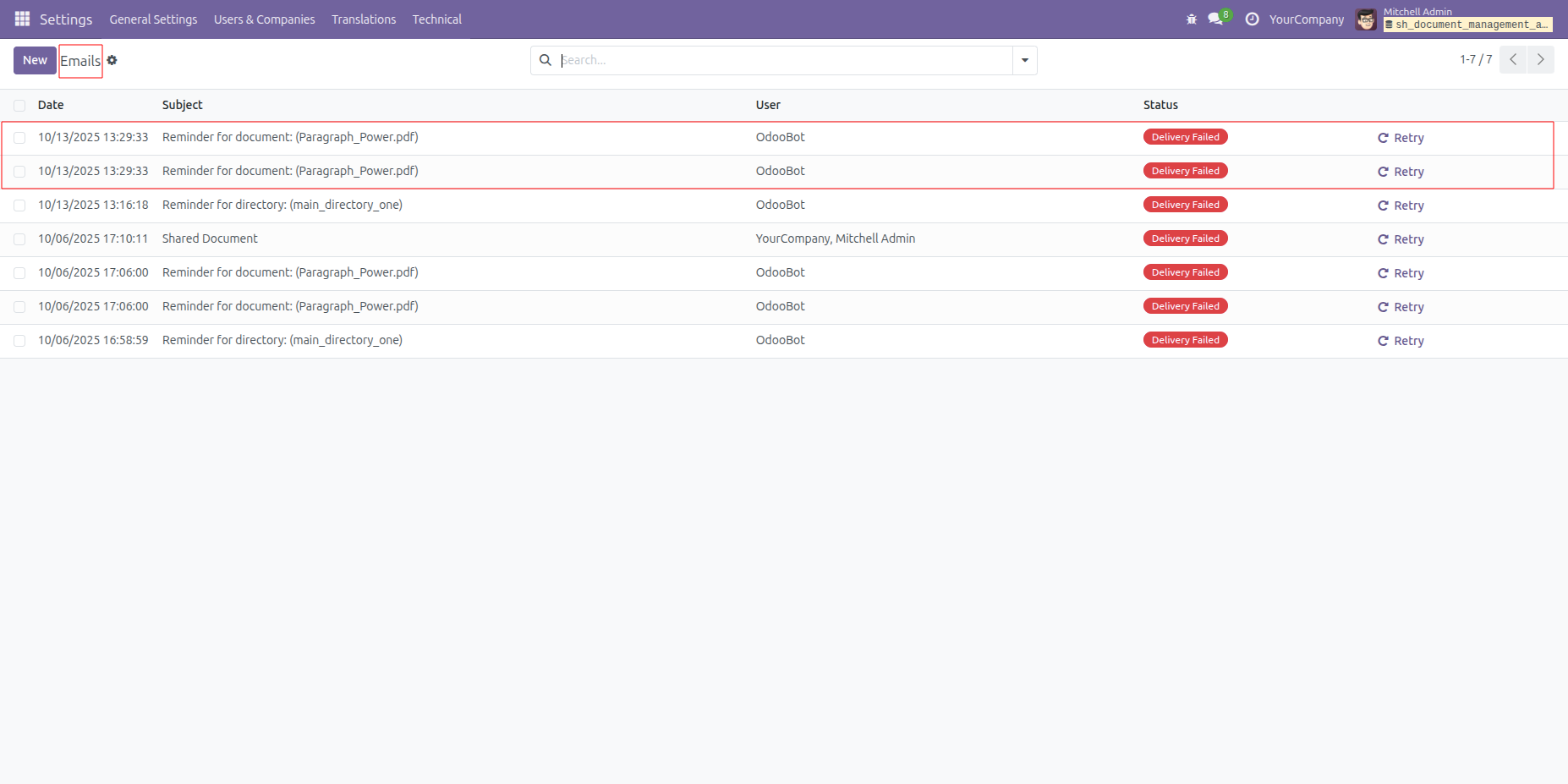
Form view of the email.
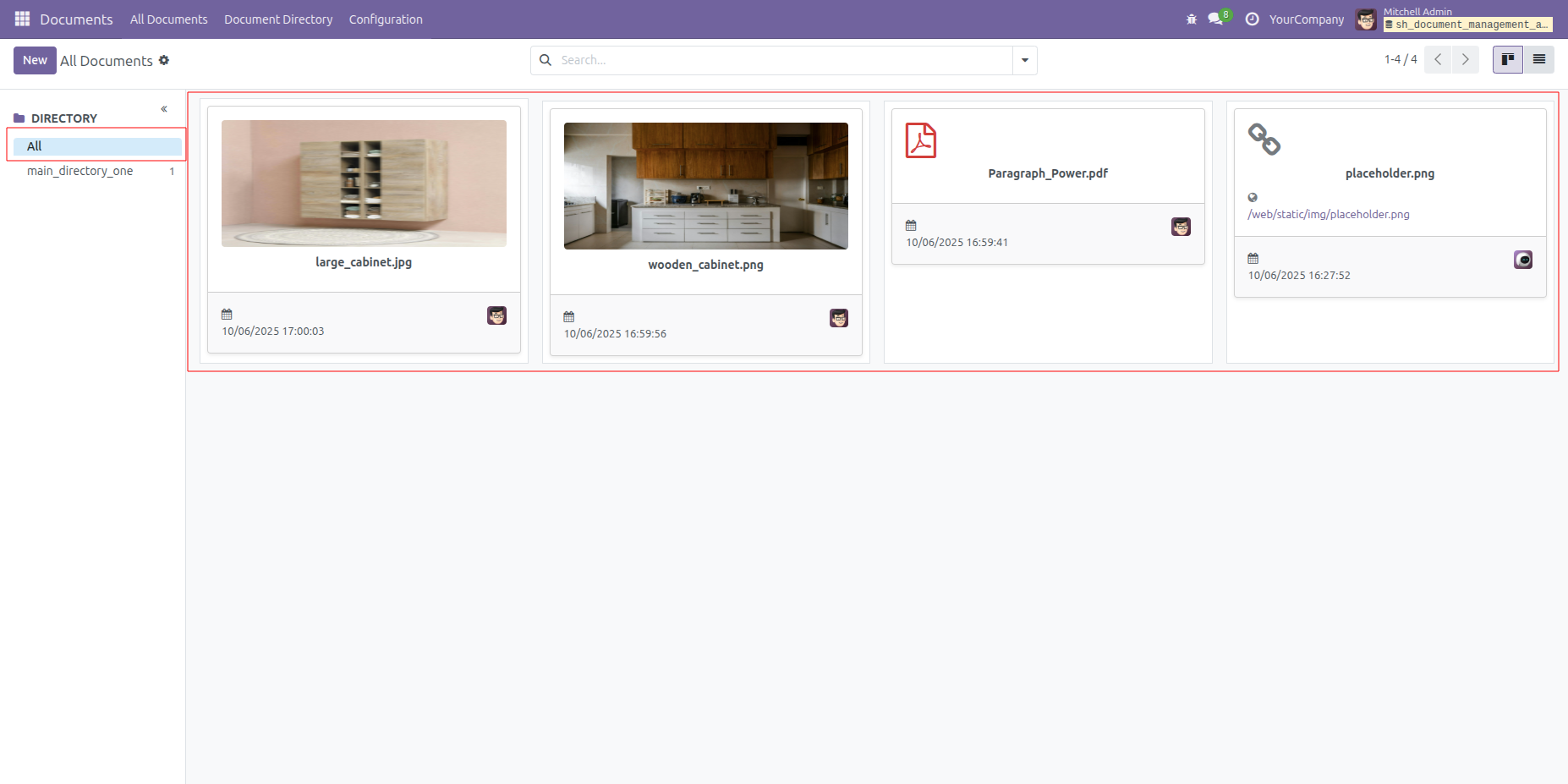
In the Kanban view of "All Documents", you can see the attached documents.
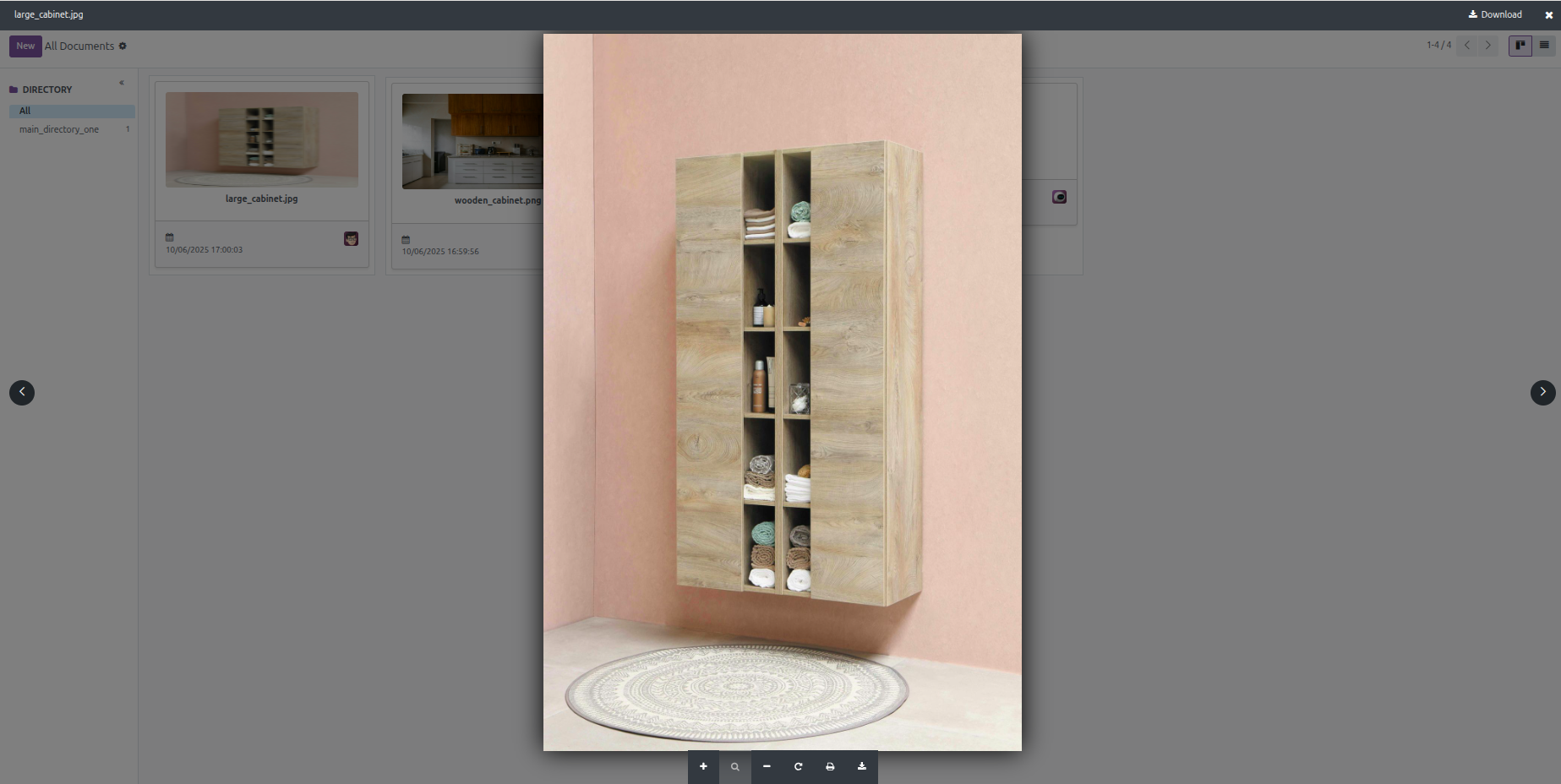
The image popup looks like below.
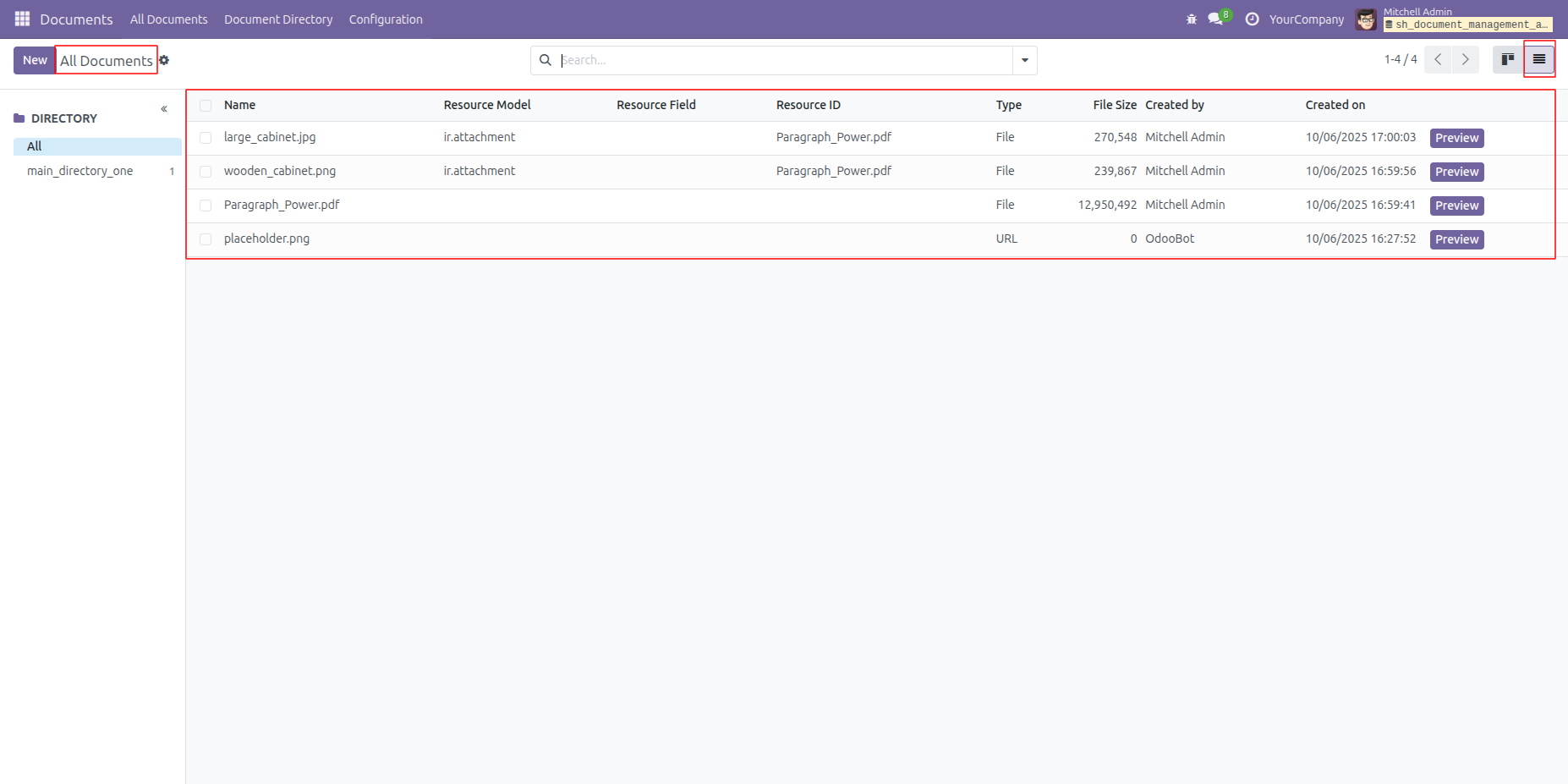
Tree view of the "All Documents'.
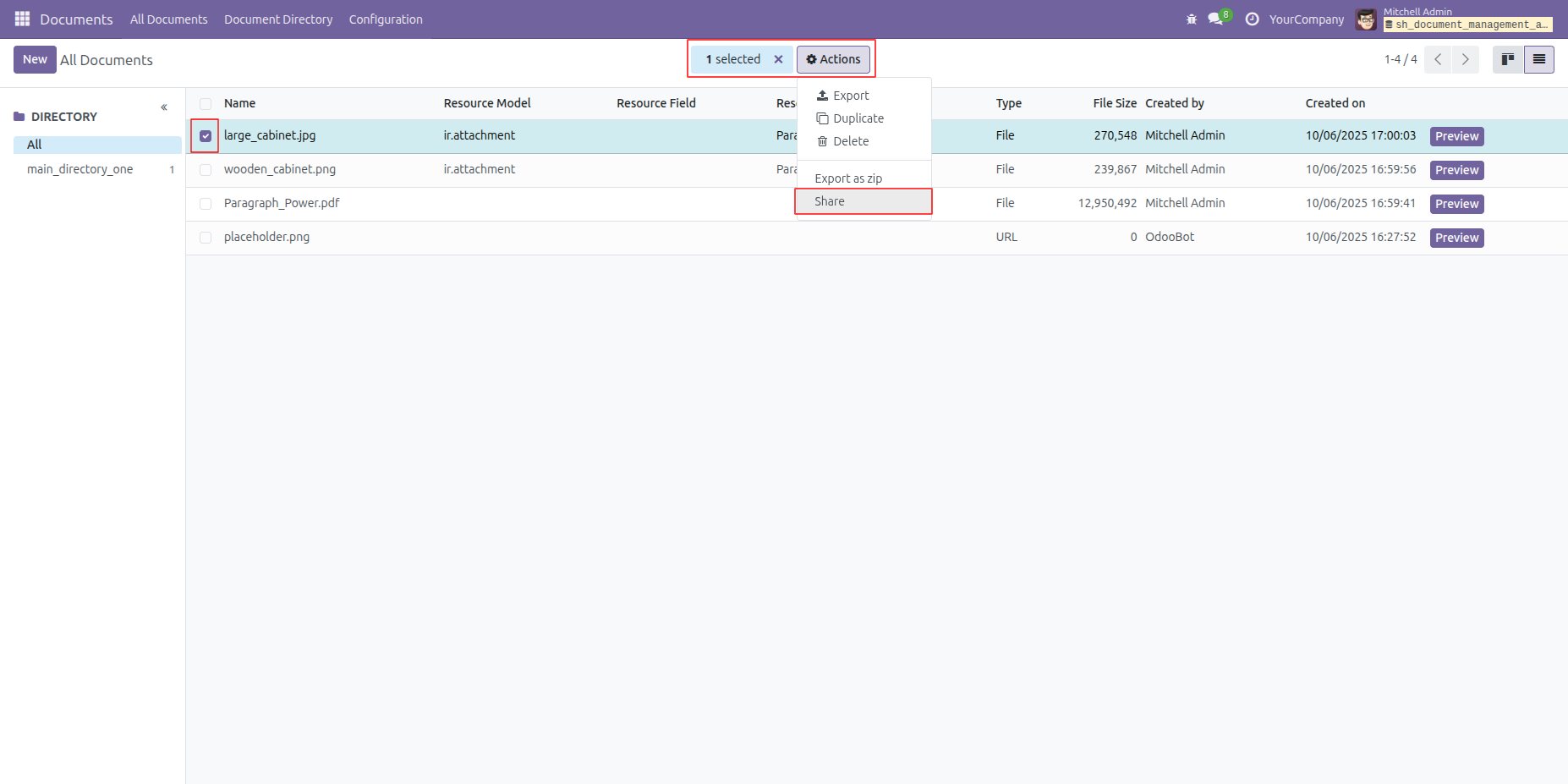
Select the document you want to share, then click on the "Share" option under "Action."
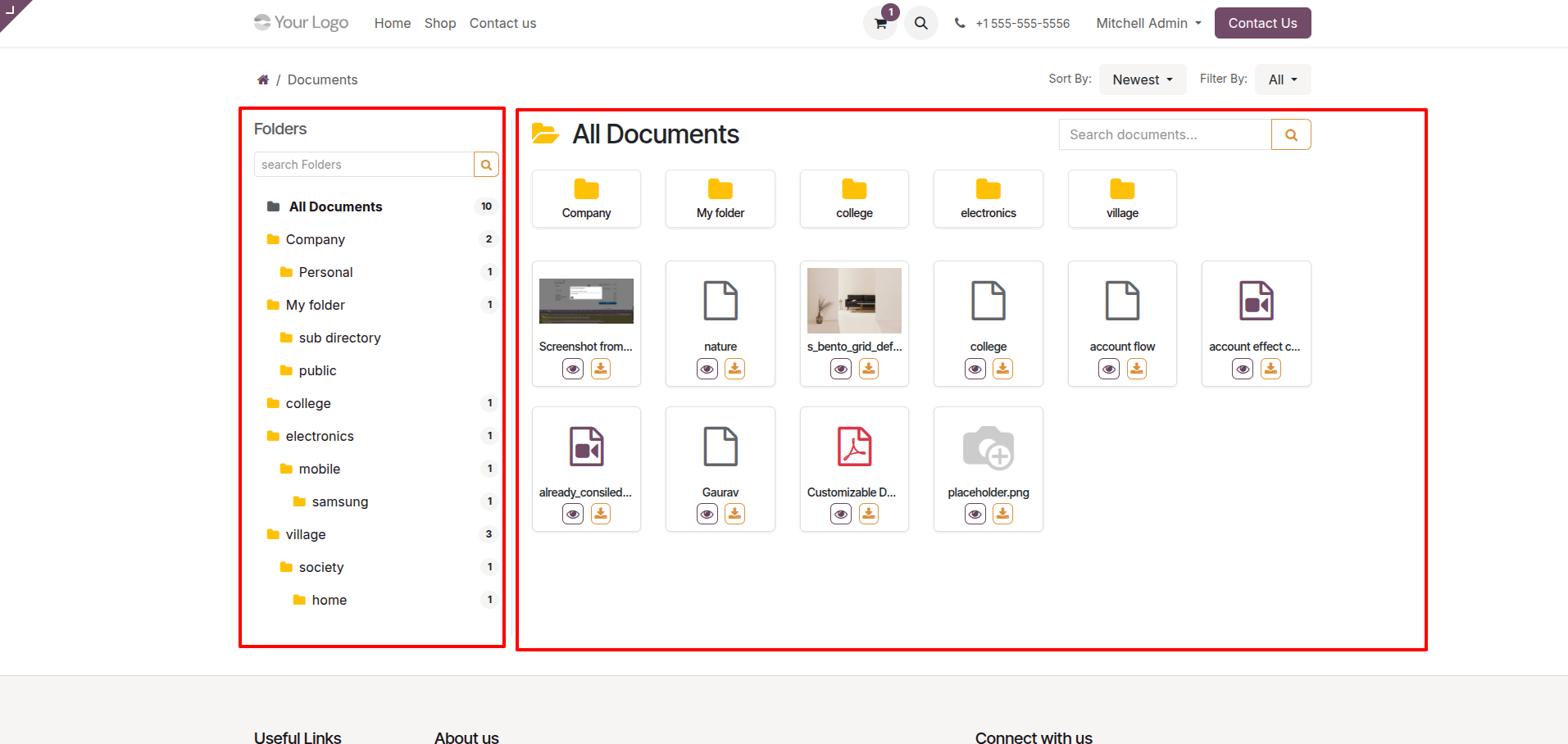
Kanban view for the portal user.
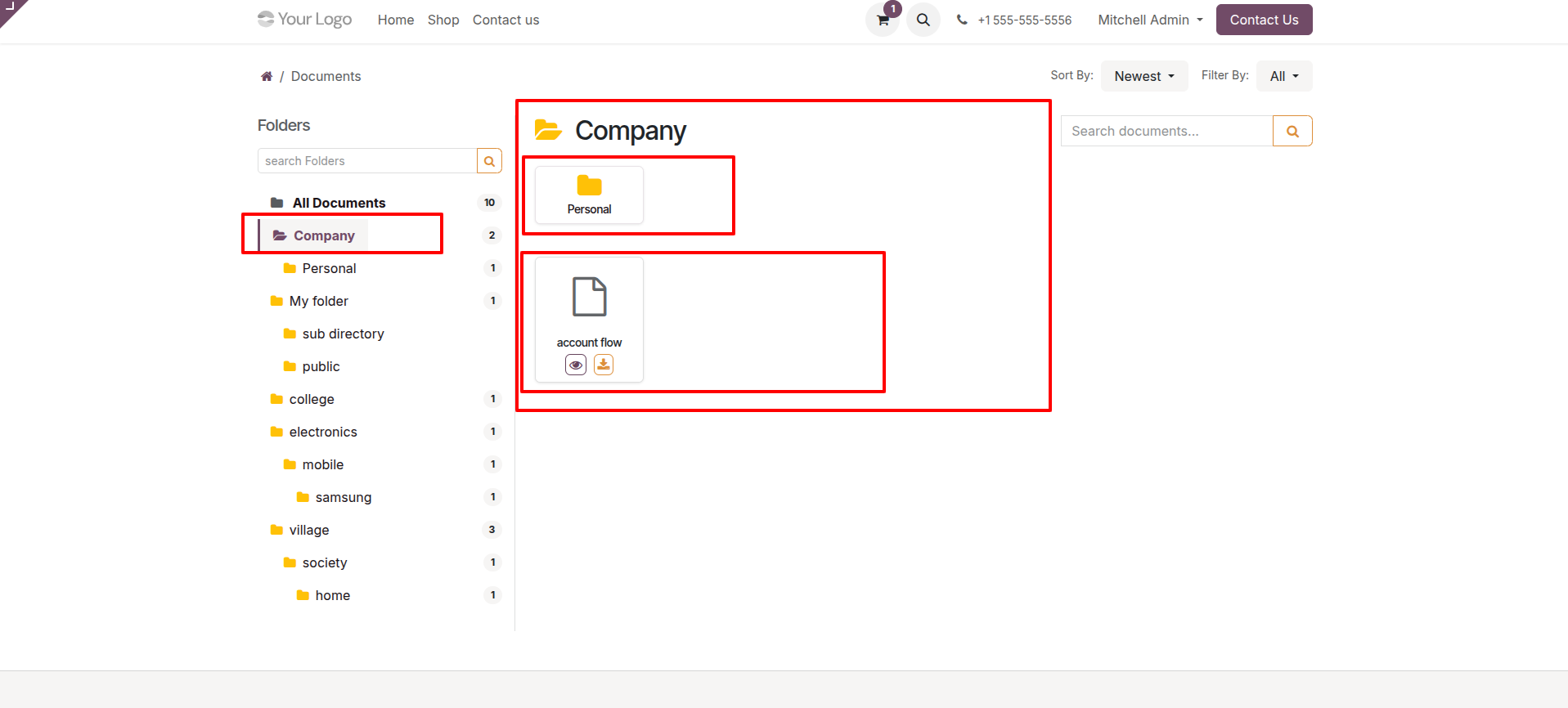
Company-wise document list.
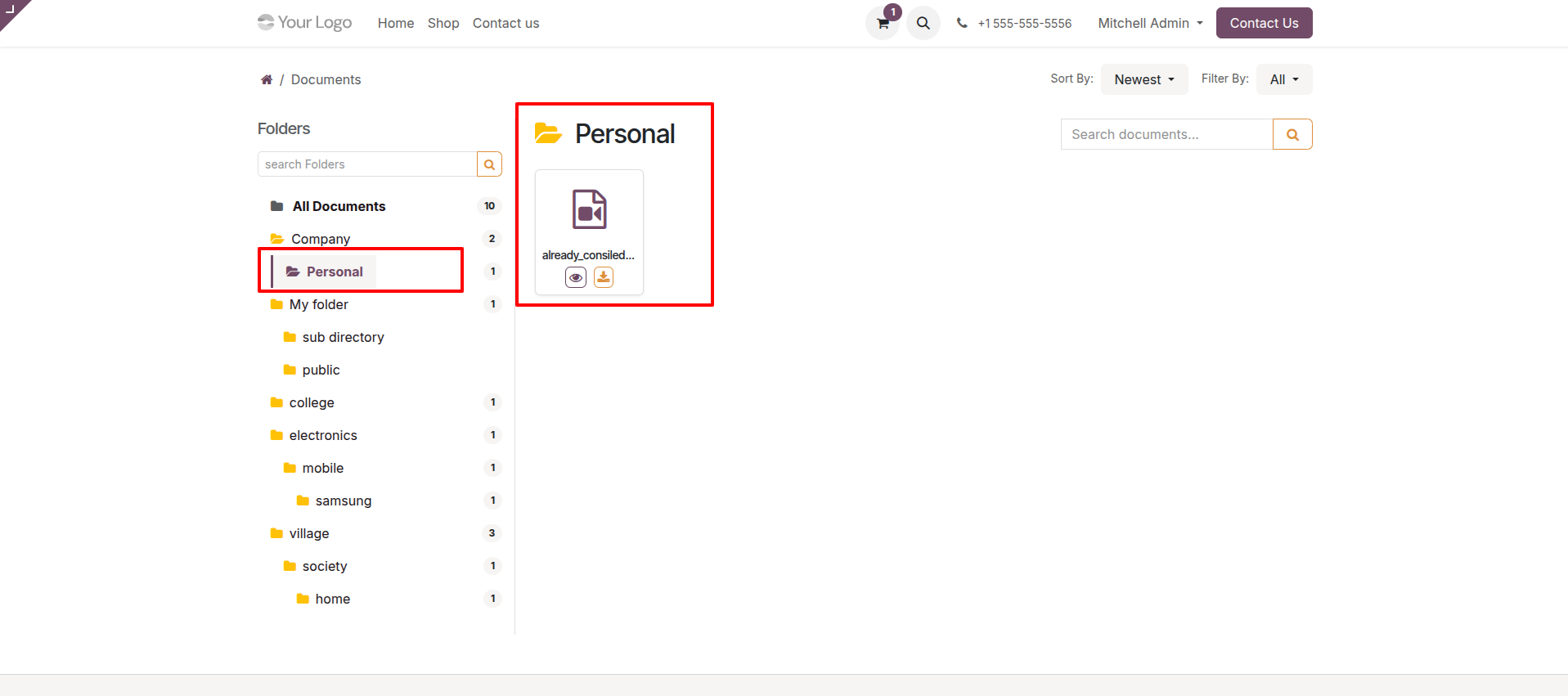
Personal document list.
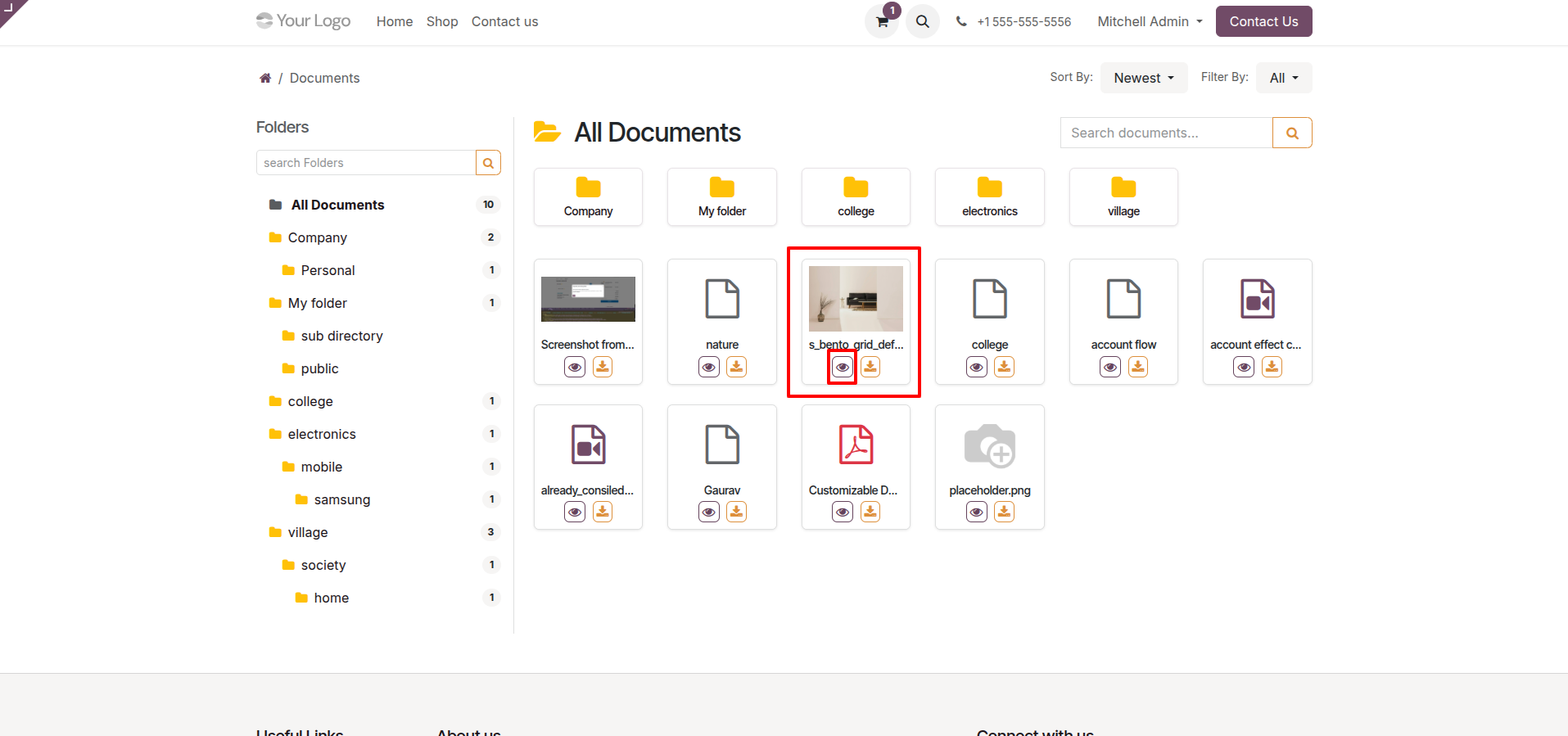
Click on the 'Eye' icon to view the document.
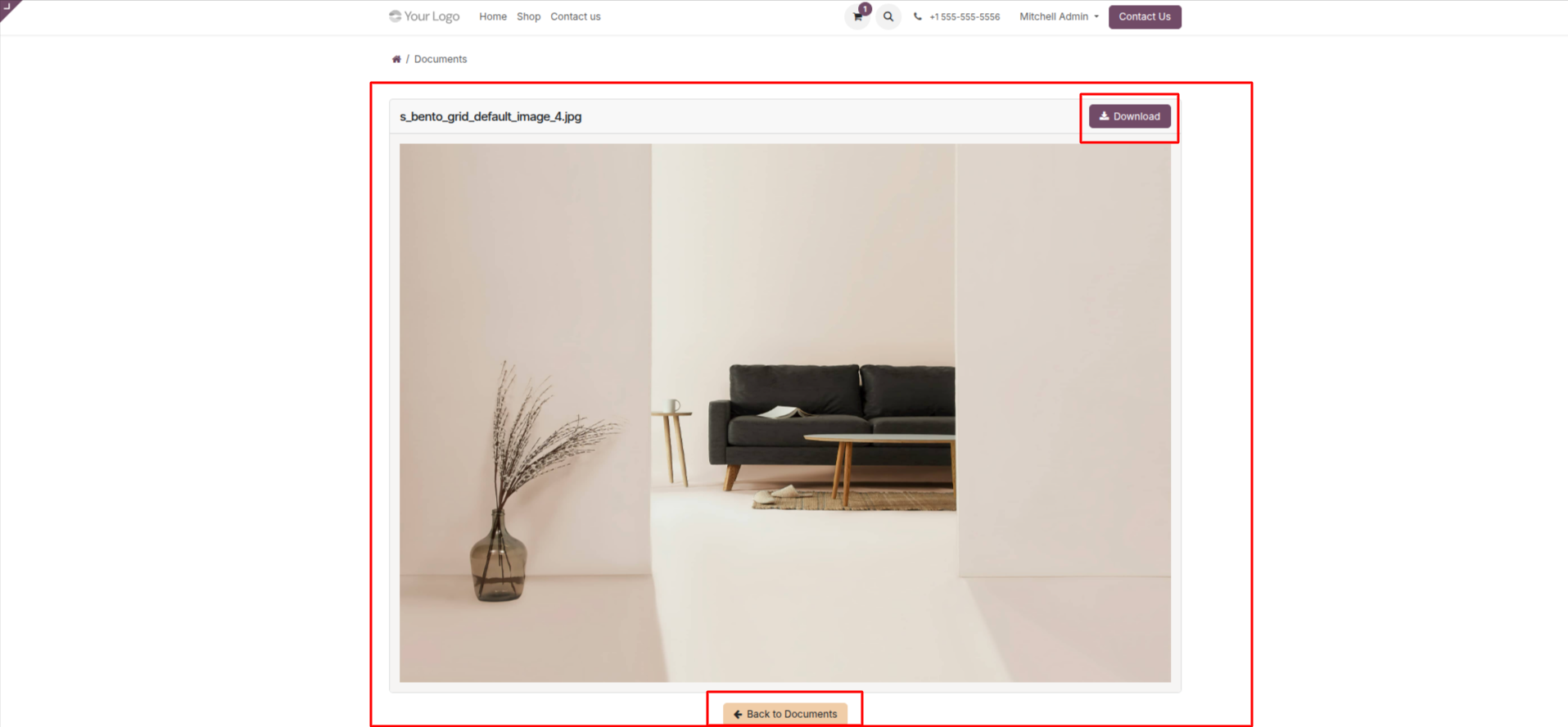
After that, the document popup will appear. Click on the 'Back to Document' button.
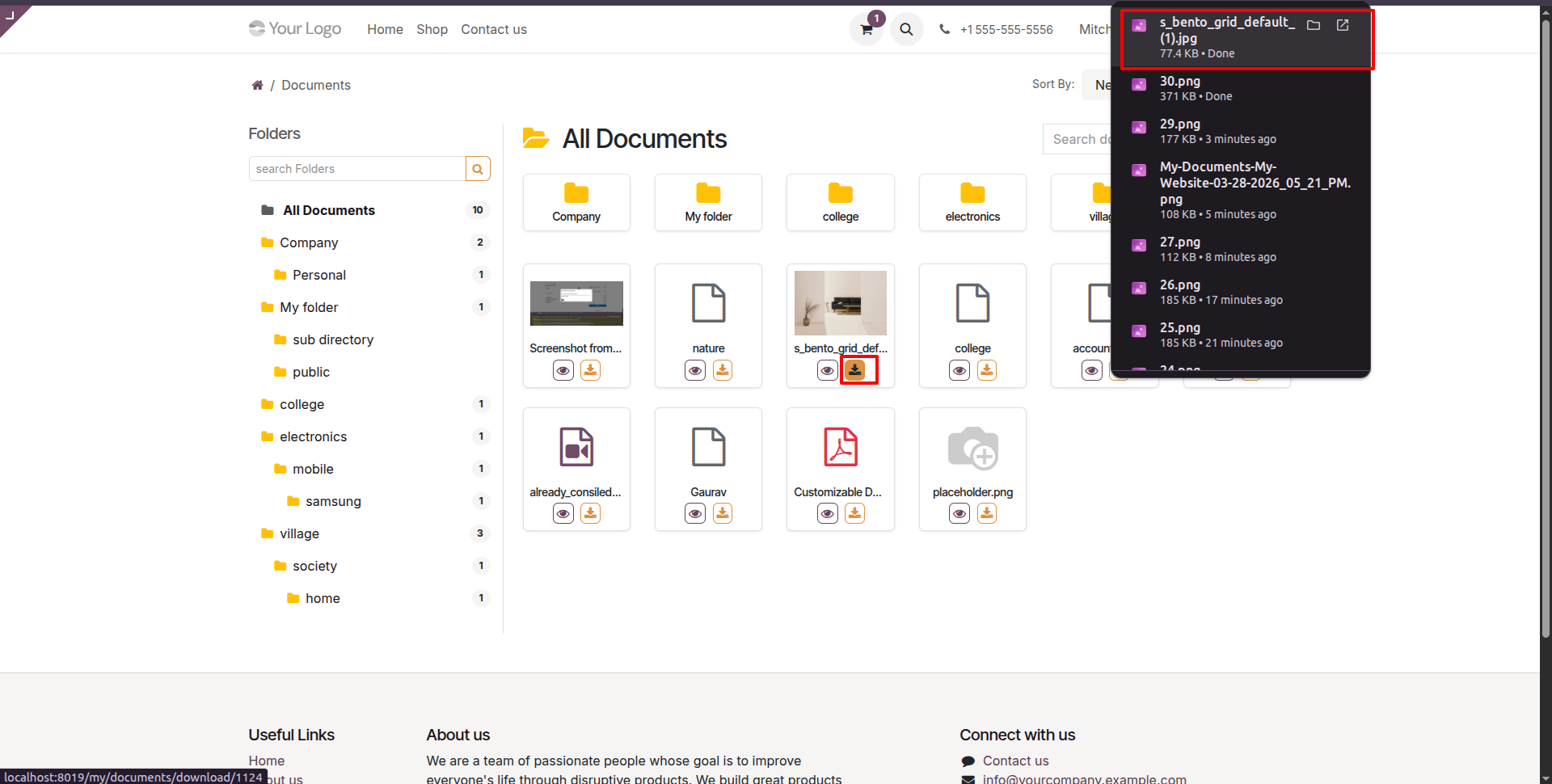
Click on the 'Download' icon to download the document.
Here, you can see that the document ZIP file has been downloaded.
Document Versioning: Easily track and manage different versions of your documents.
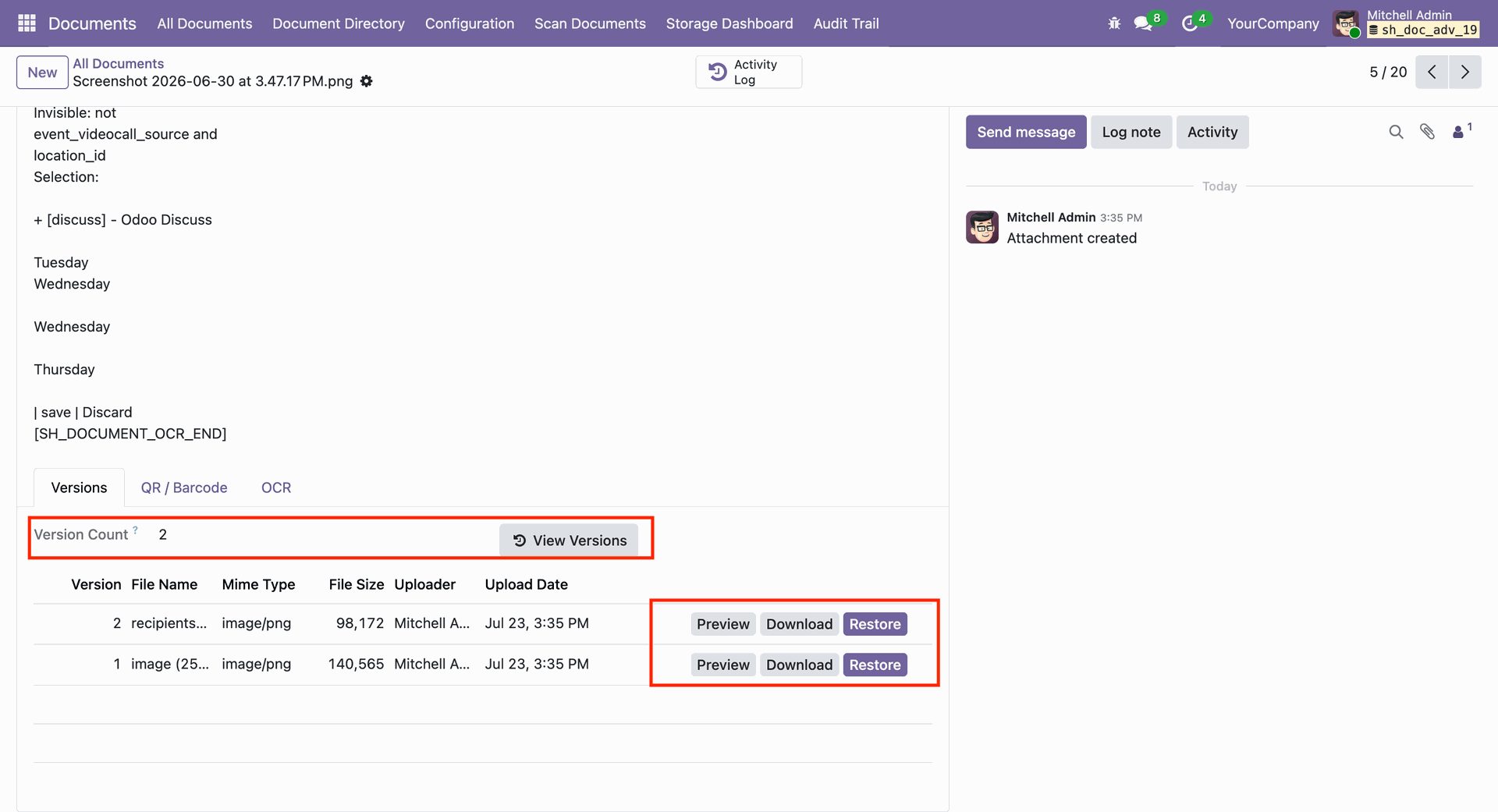
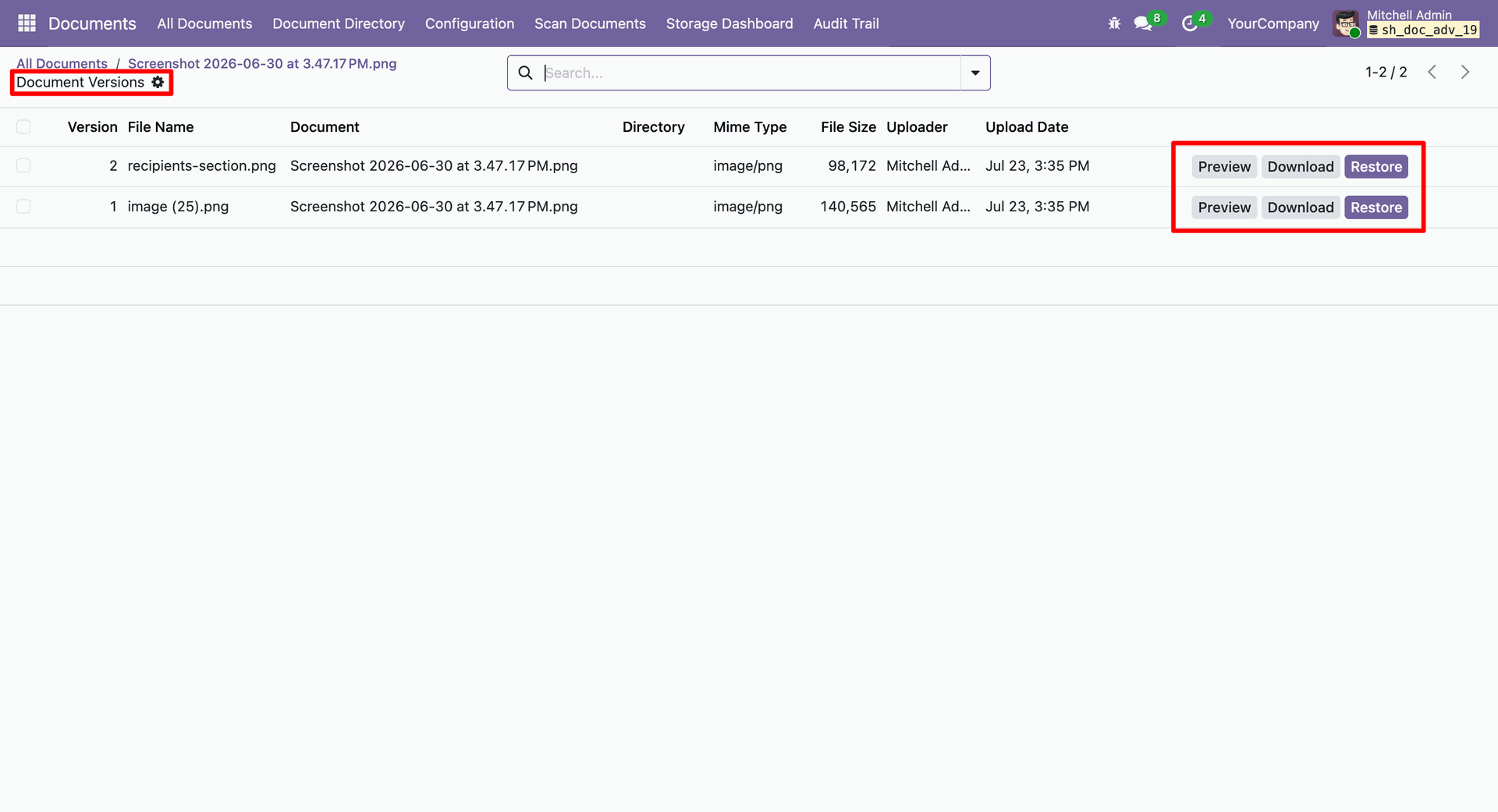
View version history and changes made to the document over time.
Easily restore or download previous versions of the document.
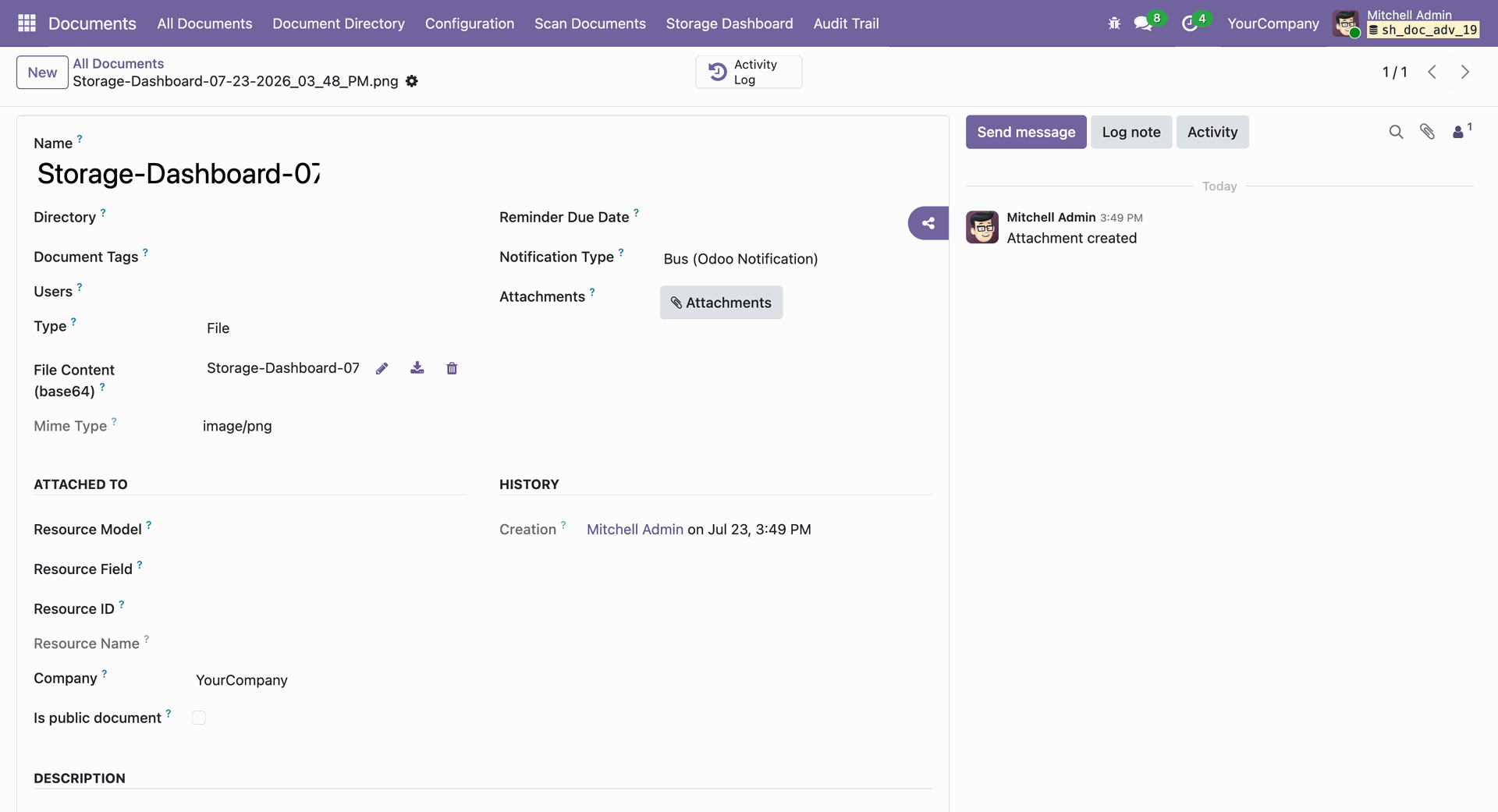
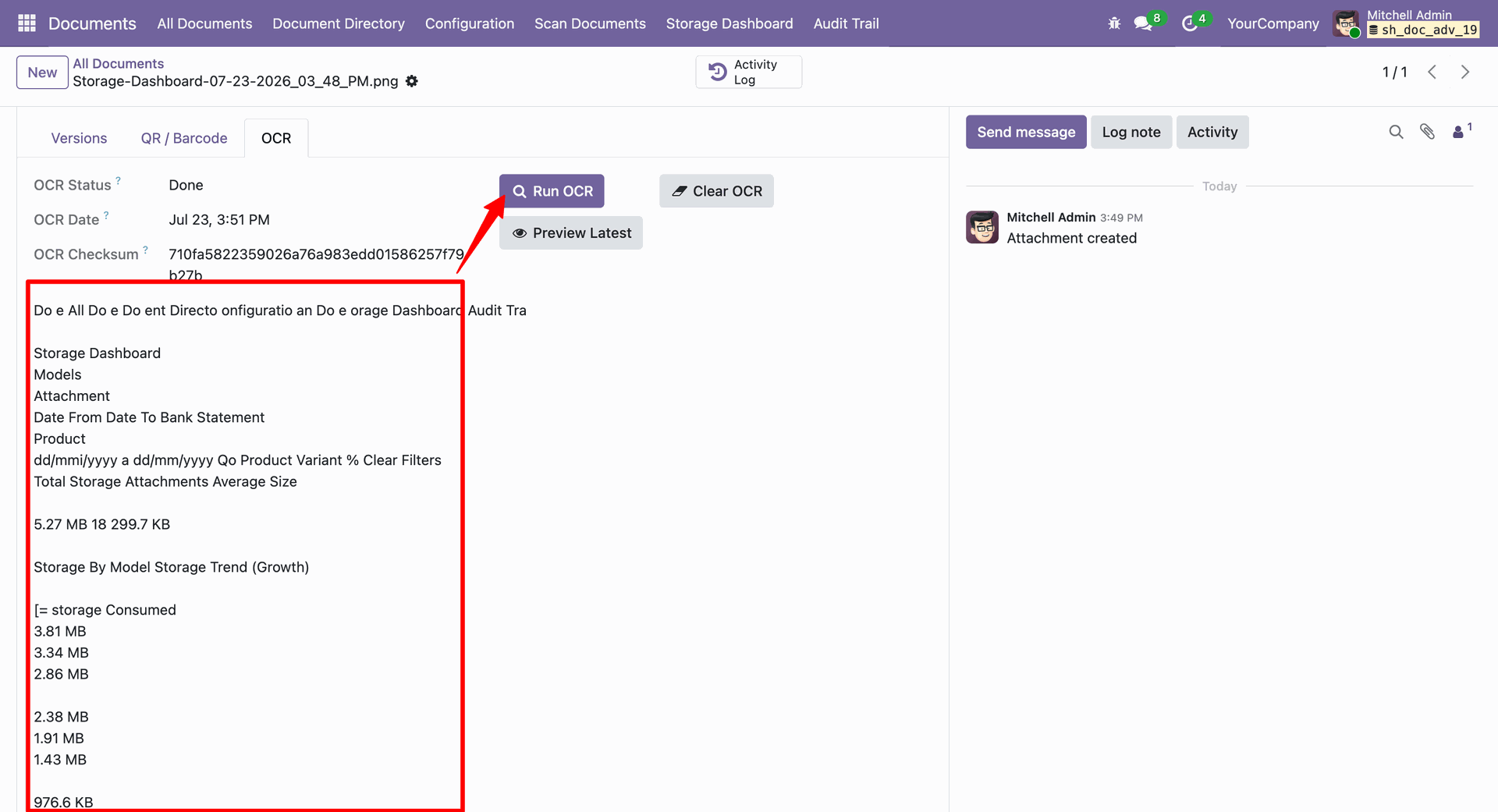
OCR Integration: Extract text from scanned documents and image attachments automatically.
Preview of the extracted text using OCR for easy searching.
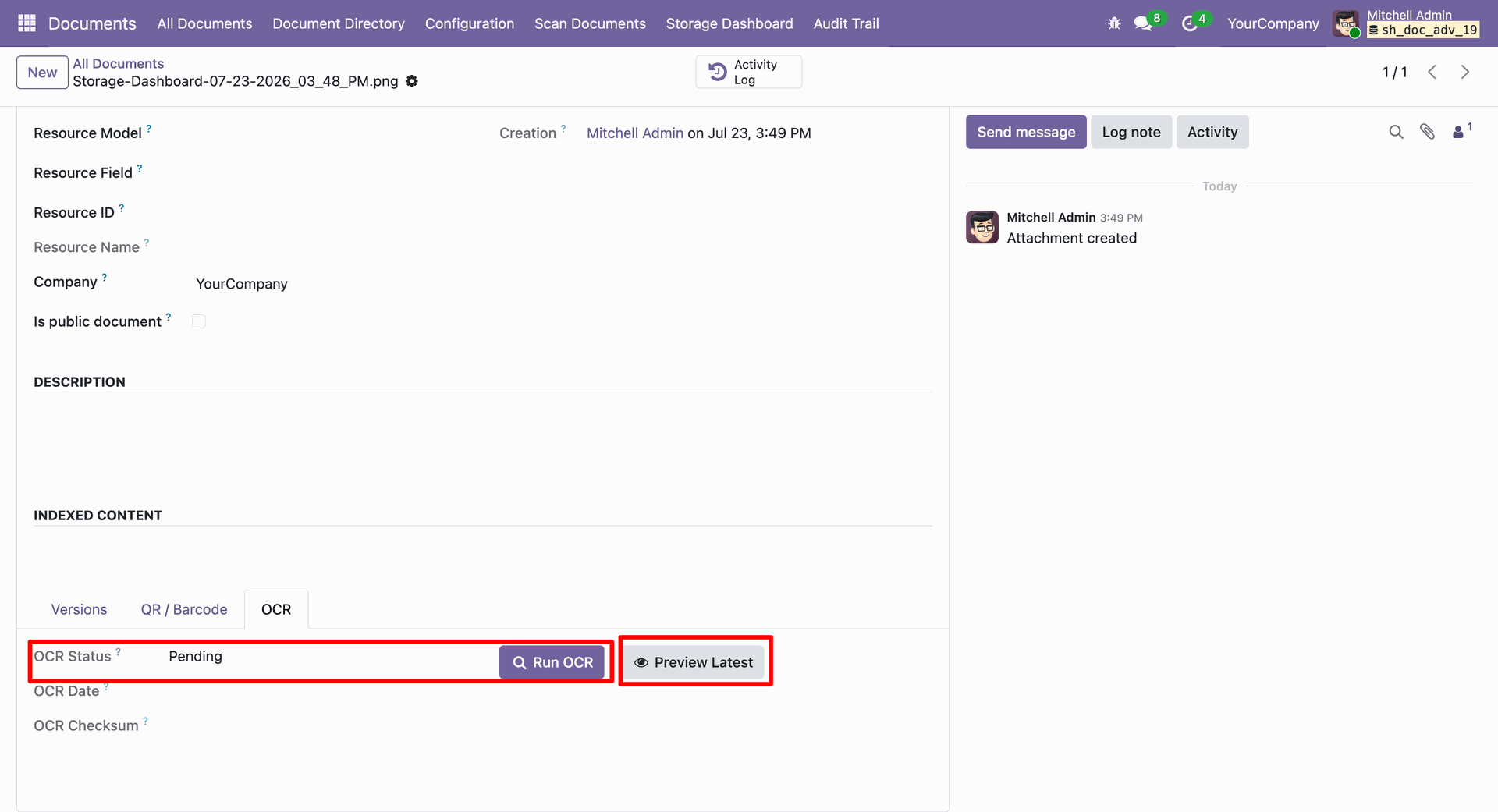
OCR processing details and text extraction.
Easily search through your documents utilizing the data extracted by OCR.
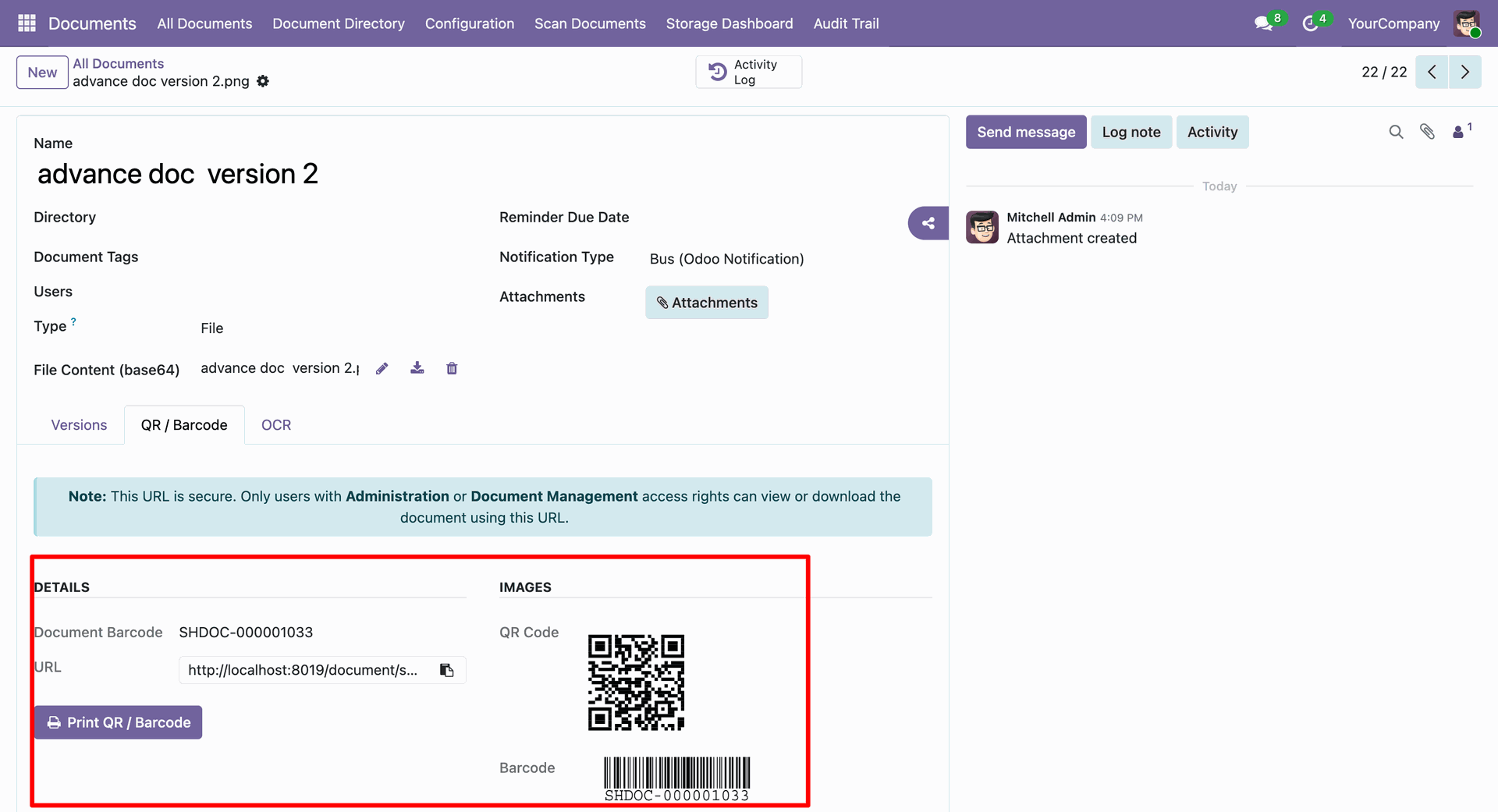
Generate QR codes and Barcodes to simplify tracking physical documents.
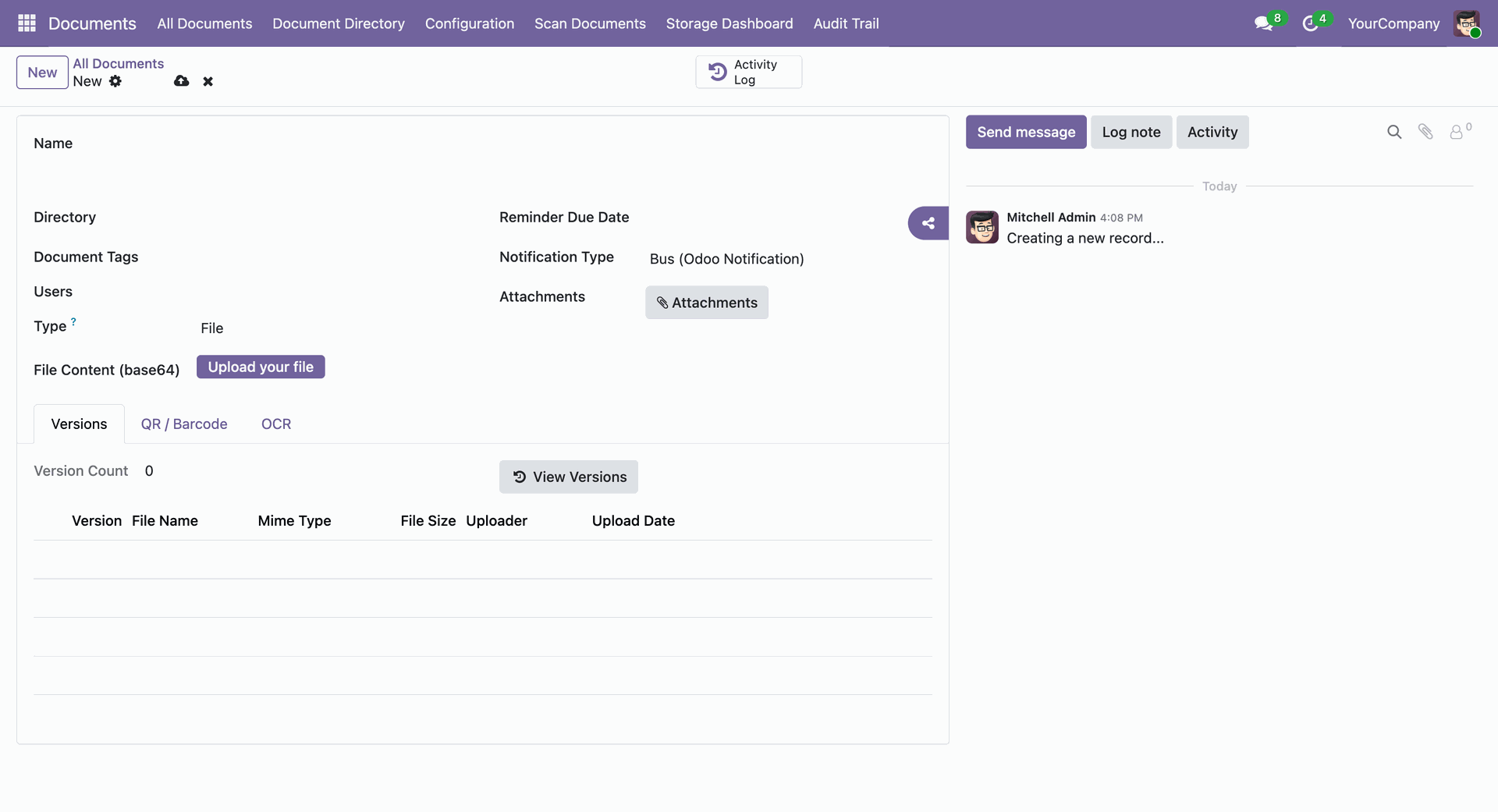
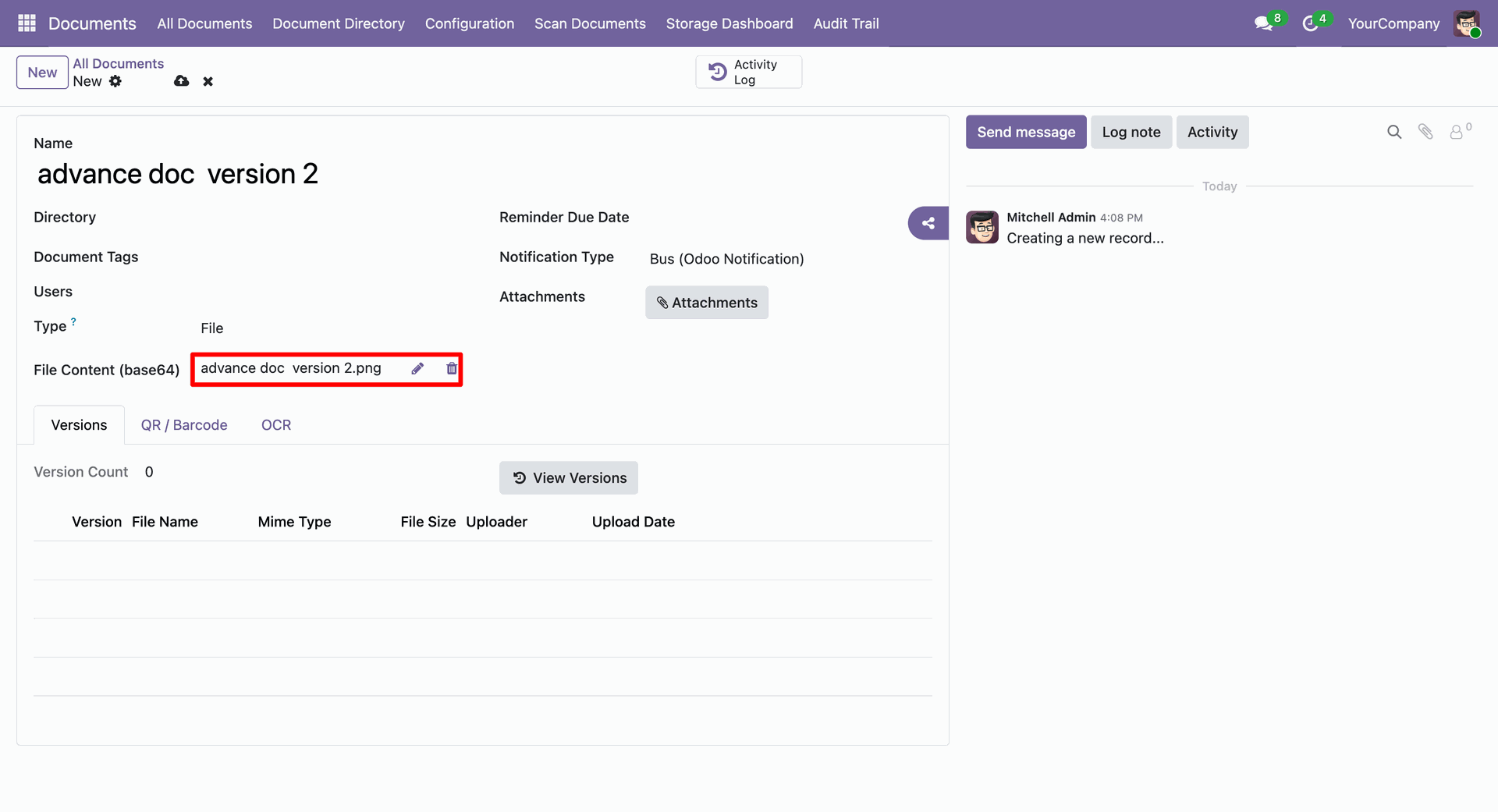
Upload the document or image directly to the file content field to the document records.
Barcode generation for quick scanning and document identification.
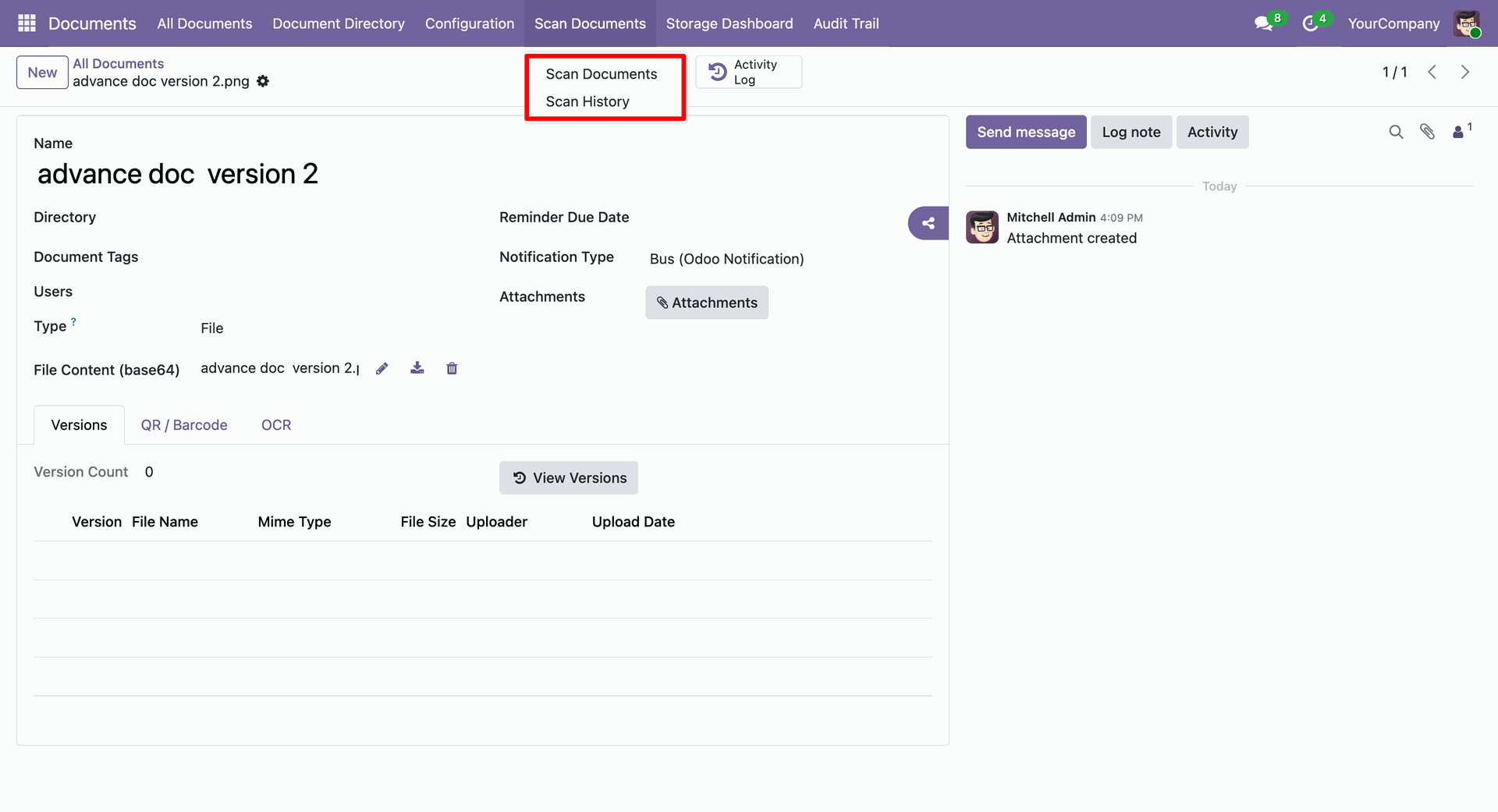
To Quickly scan QR codes click on the Scan Documents menu.
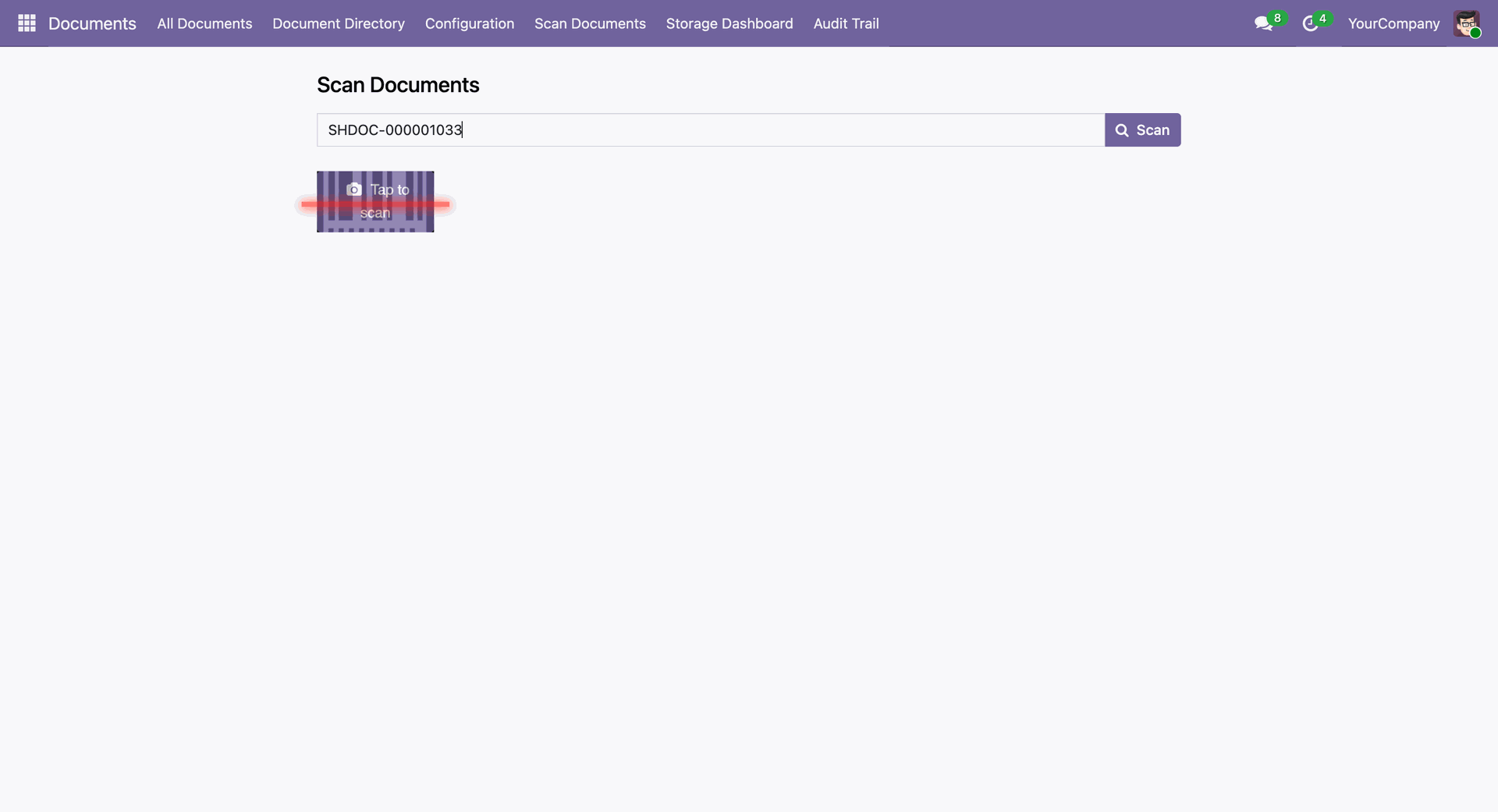
Scanning QR codes and Barcodes wizard will open and scan QR code.
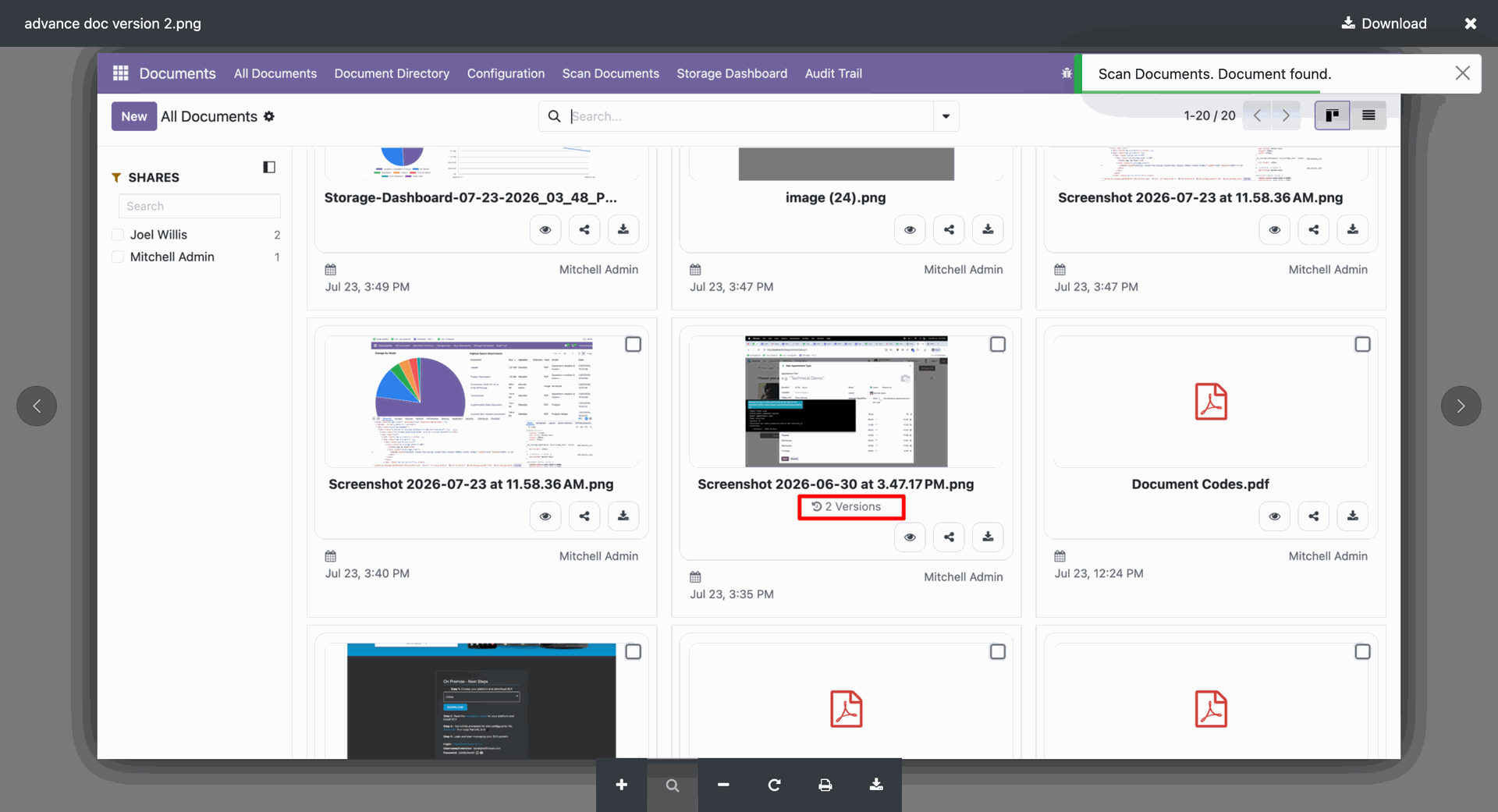
System will automatically process the scanned QR code and open the document.
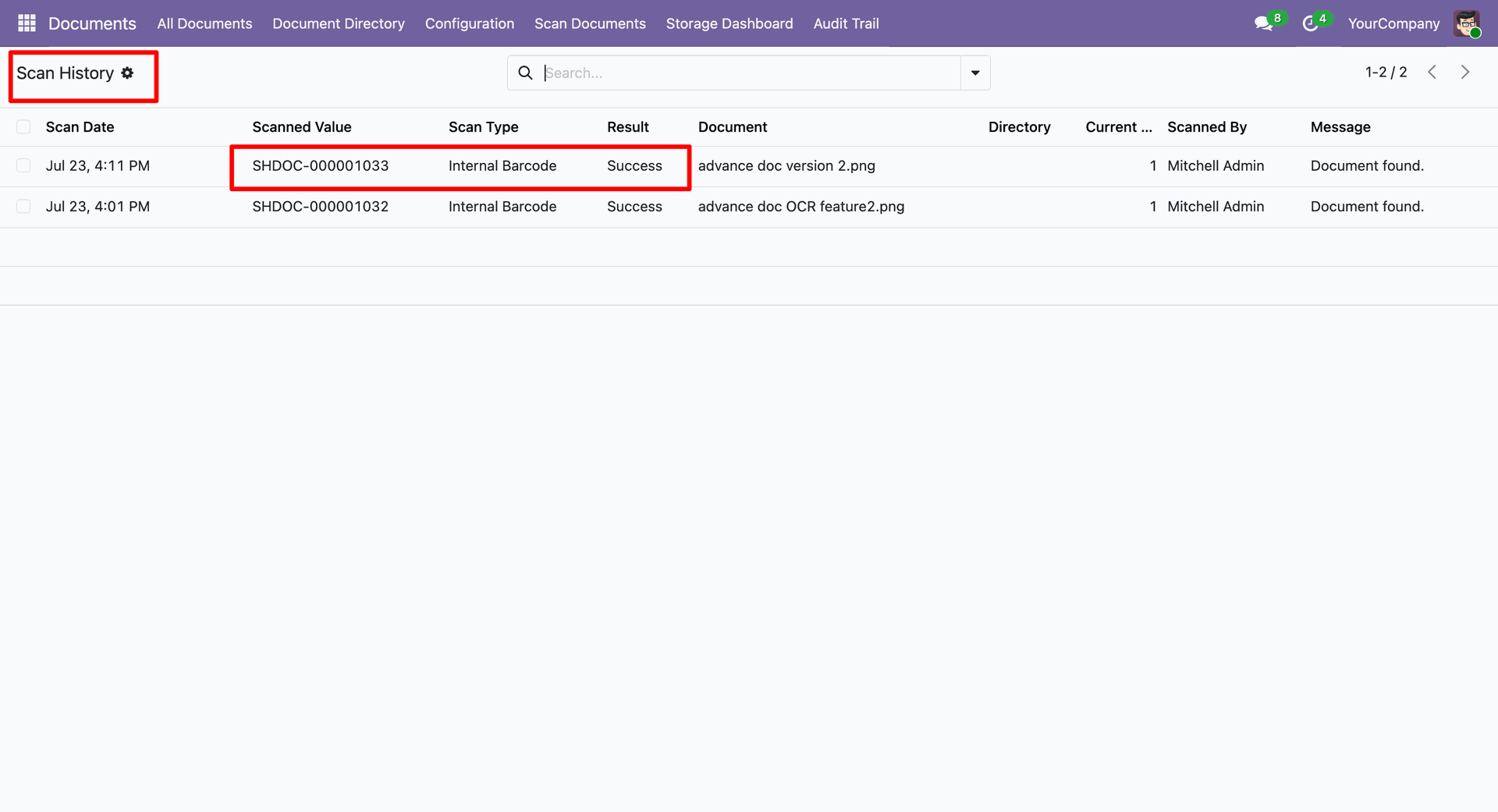
User can see the scan history from the scan history menu.
Version 20.0.2.0.0 | Released on : 01st october 2026
Version 20.0.1.0.0 | Released on : 15th September 2026
- Yes, this app works perfectly with Odoo Enterprise (Odoo.sh & Premise) as well as Community.
- No, this application is not compatible with odoo.com(odoo saas/Odoo Online)
- Yes, to test this module, please contact us at sales@softhealer.com.
- Please contact us at sales@softhealer.com to request customization.
- Yes, we provide free lifetime support for the version you purchased.
- Yes, you will receive lifetime free updates for the version of the module you purchased.
- Yes, additional libraries such as pytesseract, PyMuPDF (fitz), PIL, and Tesseract need to be installed.
- Yes, for version 12 and above, you need to purchase the module separately for each version you intend to use.
- No, exchanges or refunds are not allowed. Please make sure to select the correct version before purchasing.
- You can contact us at support@softhealer.com for language translation support. We use Google Translator tools to provide translations in multiple languages, so the accuracy may vary. We welcome your suggestions to help improve translations.
