

 Easy to Manage
 Dedicated Support















 Scan to email sales



Activity Custom Checklist

This module is designed to help you track your activities. You can easily create a checklist for the activity. With the ability to create custom templates, you can quickly set up new checklists as per your needs. You can divide checklist items into different stages like Completed, Cancel & New. You can also filter the complete & incomplete checklists. You can also import a multiple-activity custom checklist at once using CSV or EXCEL file.

Related Modules
Features
- Easy to create checklist from the activity custom checklist.
- Also you can create a checklist templates.
- Easy to import multiple activity custom checklist through CSV & XLS file at once.
- You can easily filter out the task based on their stages like Completed, Cancel & Delete.
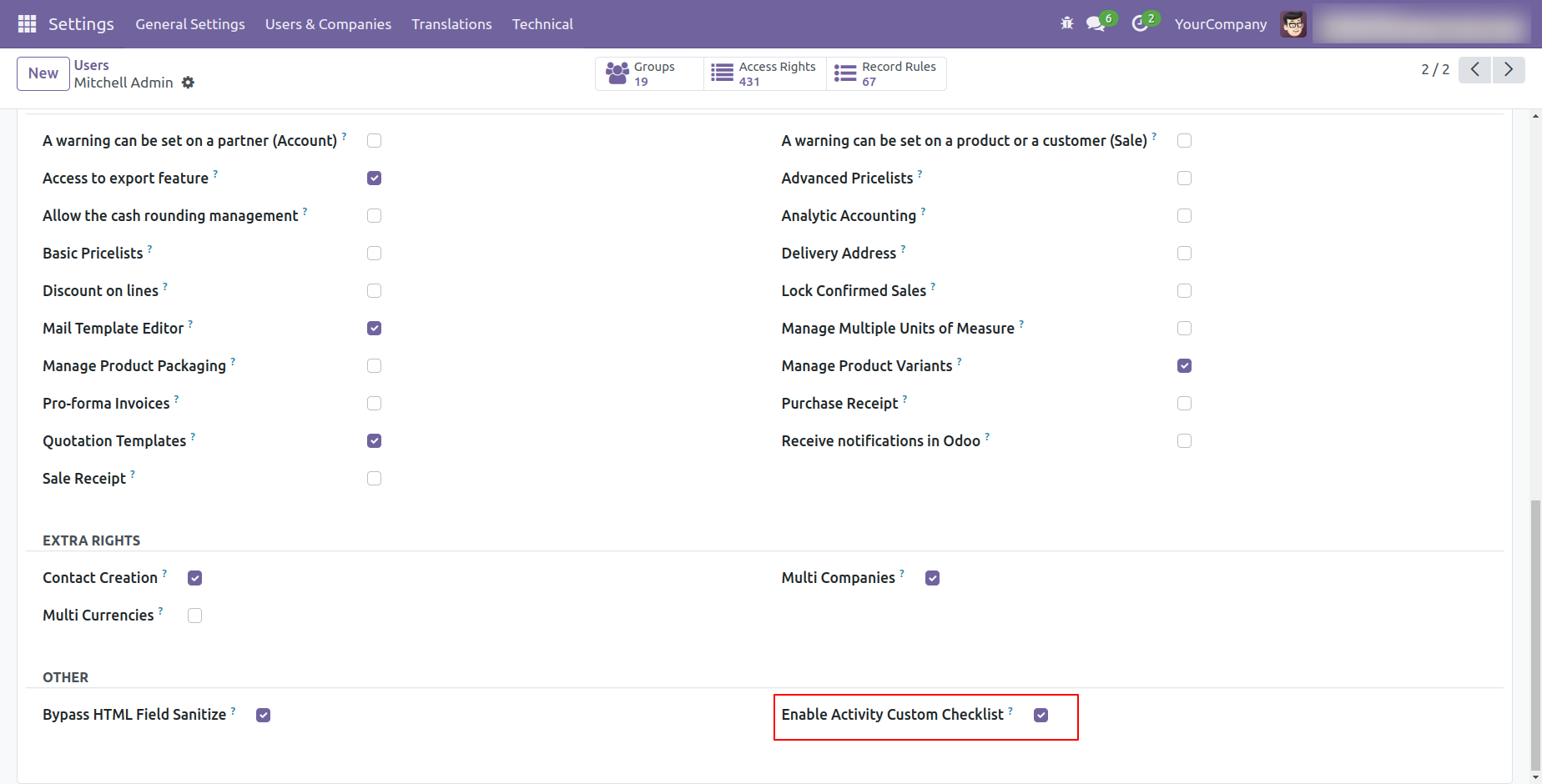
Enable 'Activity Custom Checklist'.
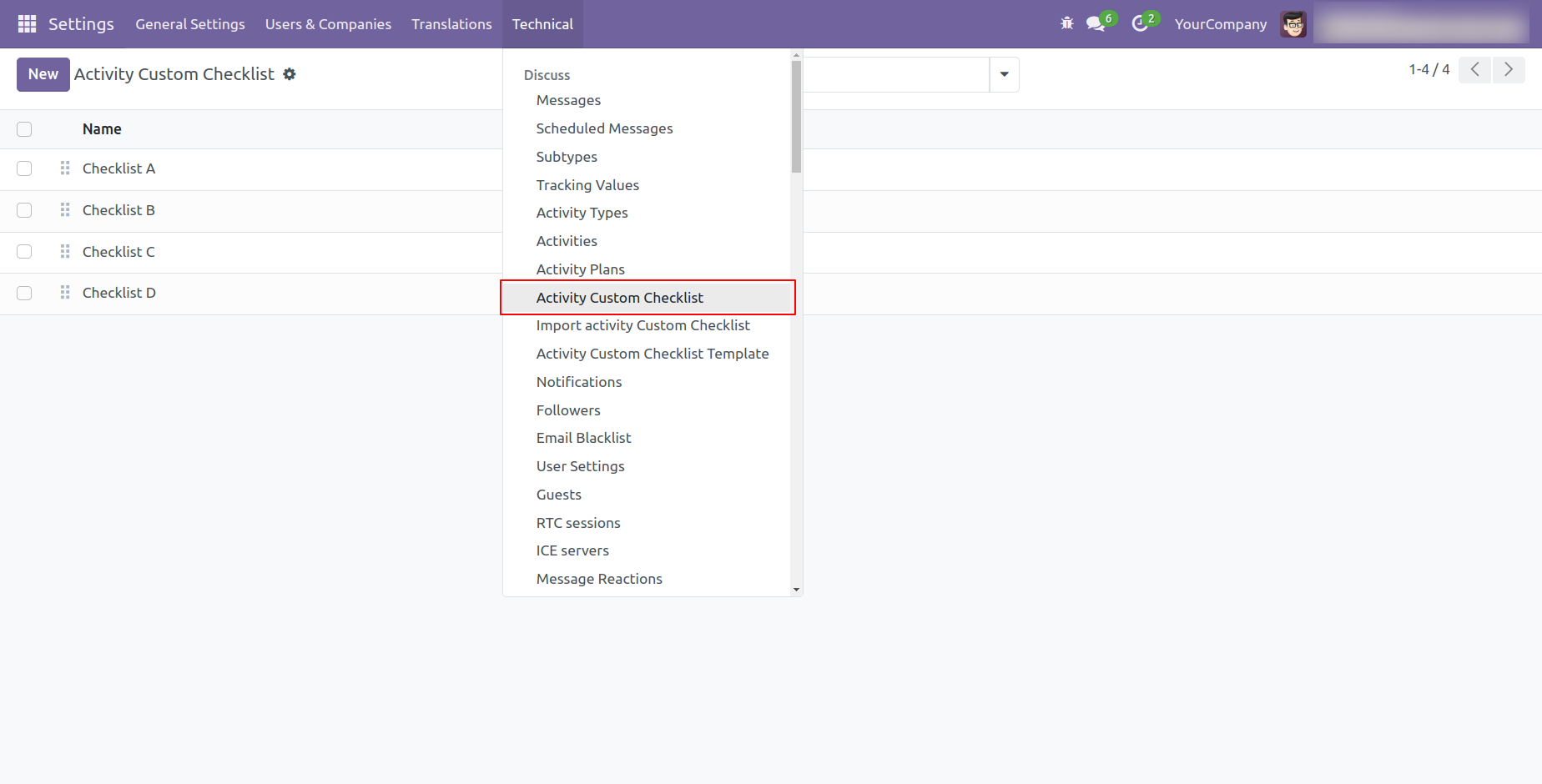
Go to the setting and open the technical menu. From there, Click on the option labeled 'Activity Custom Checklist'.
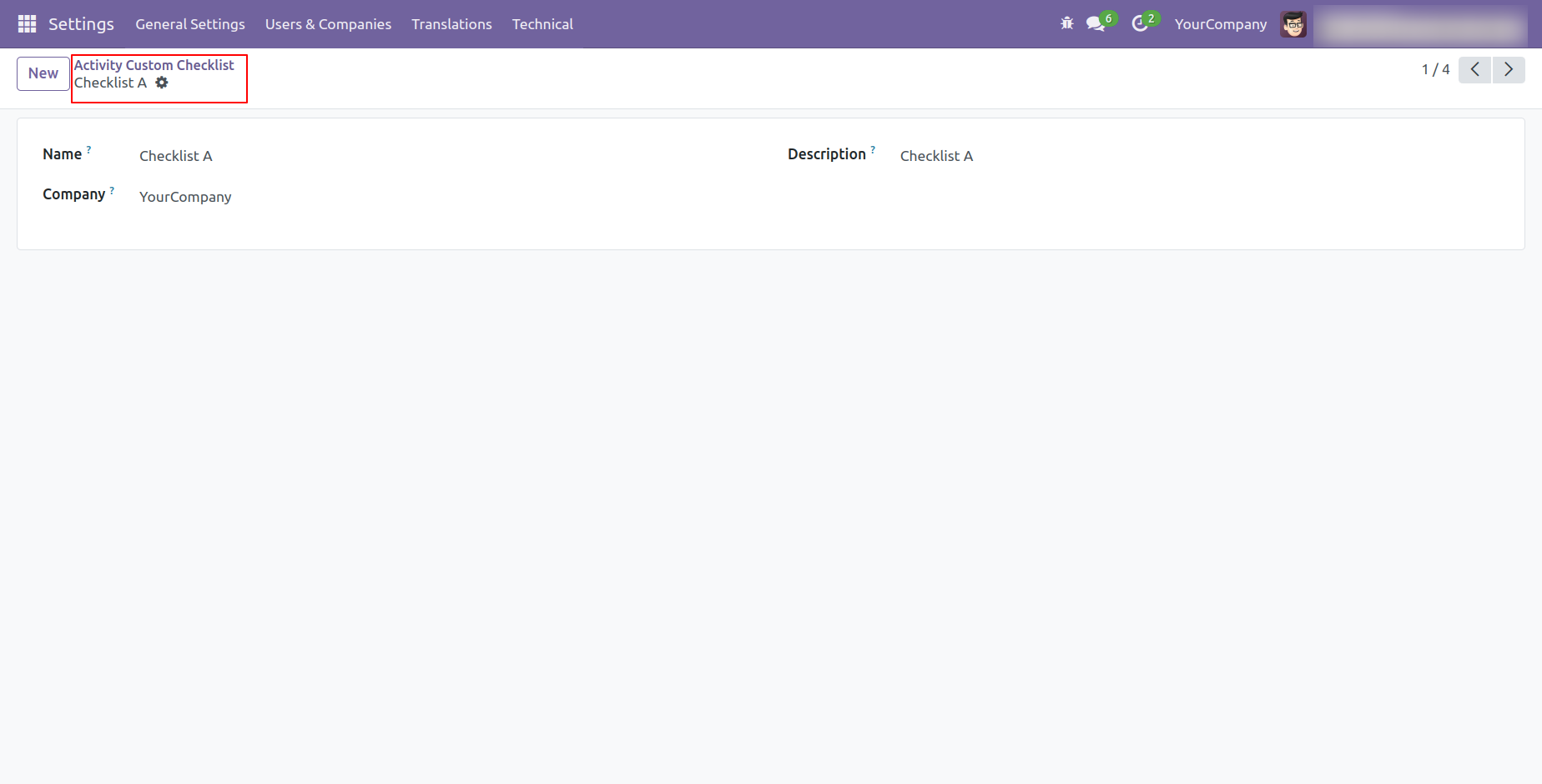
Form view of the activity custom checklist.
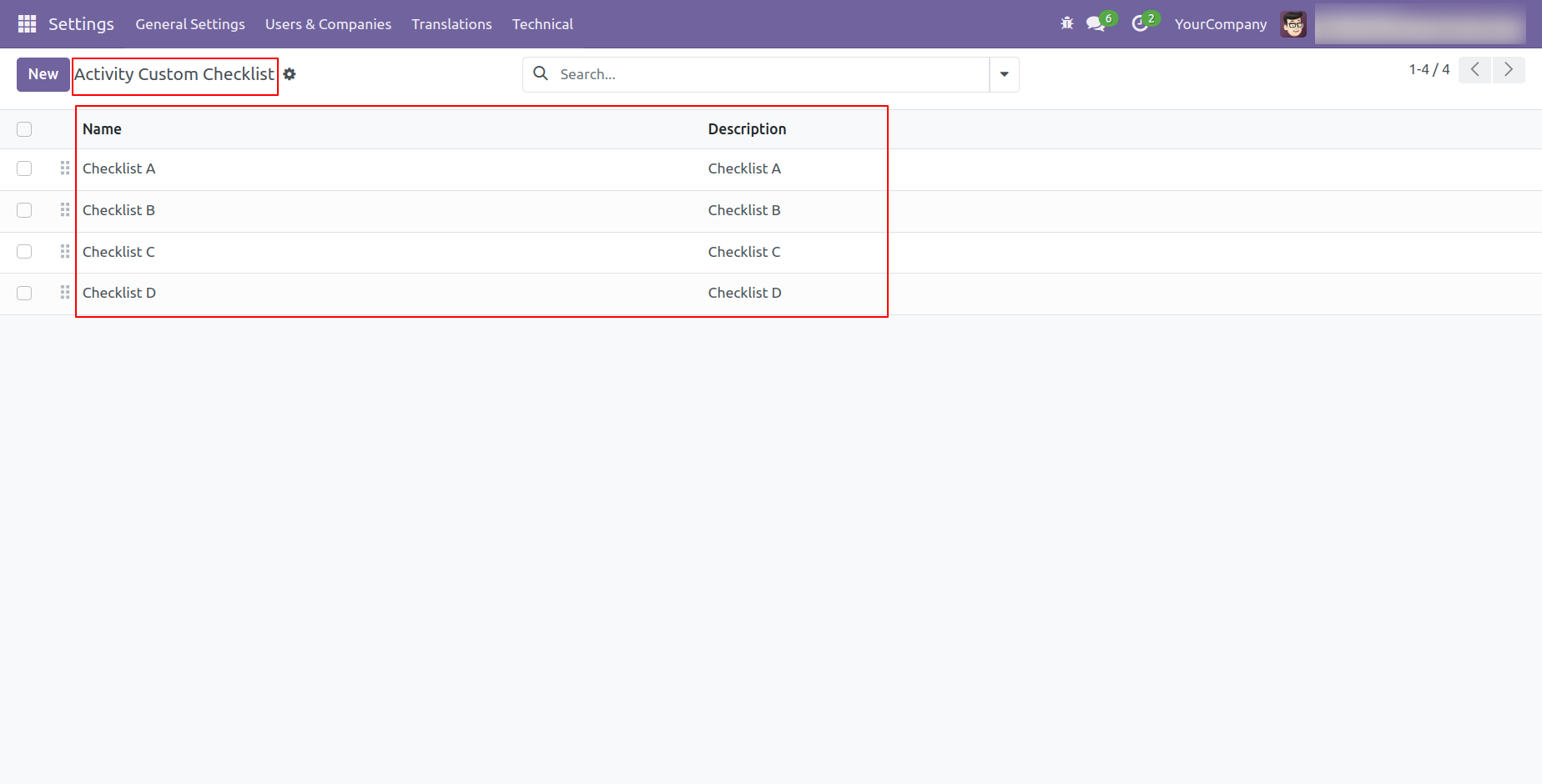
The list view of the activity custom checklist looks like this.
Go to the setting and open the technical menu. From there, Click on the option labeled 'Activity Custom Checklist Template'.
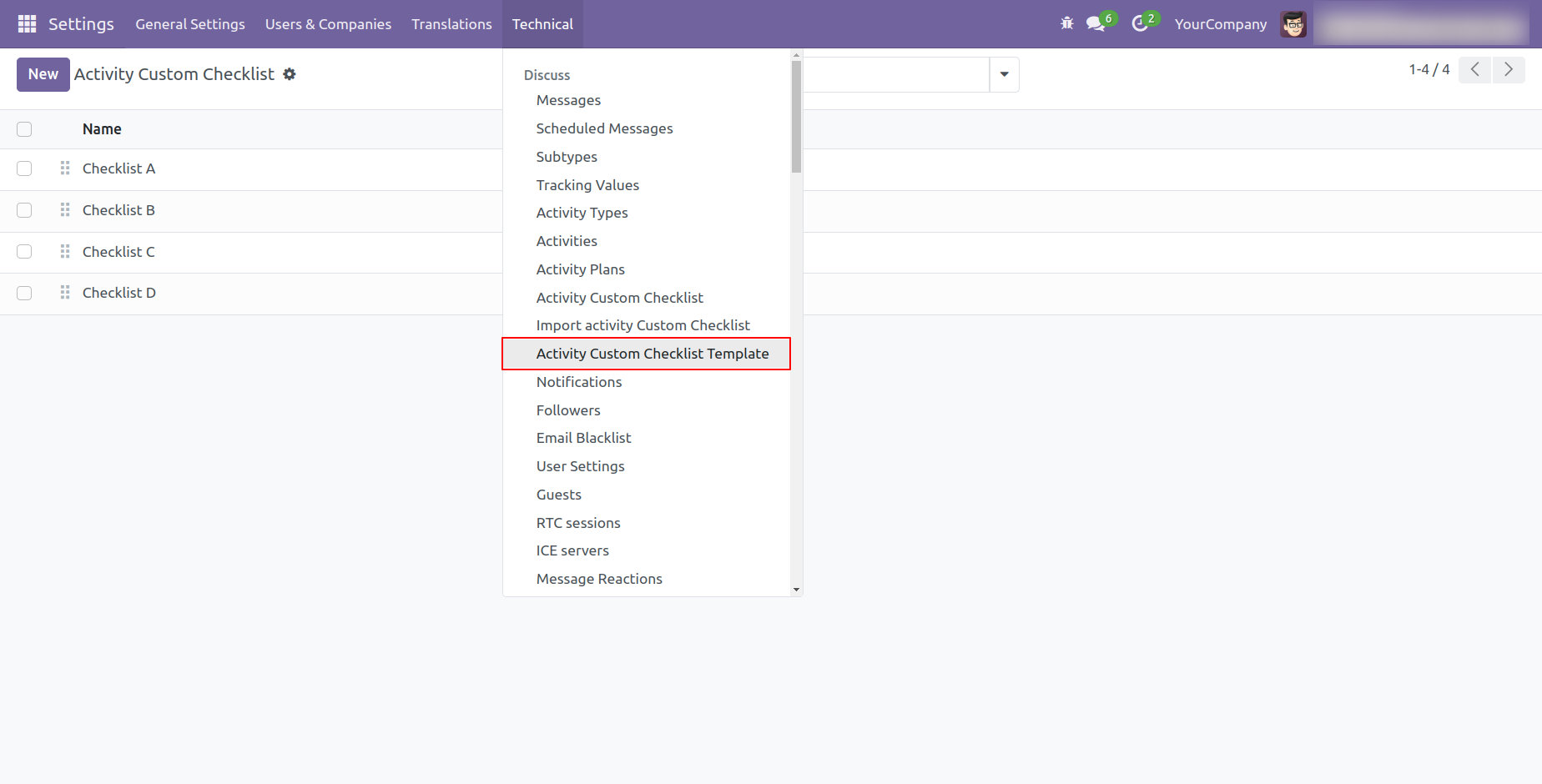
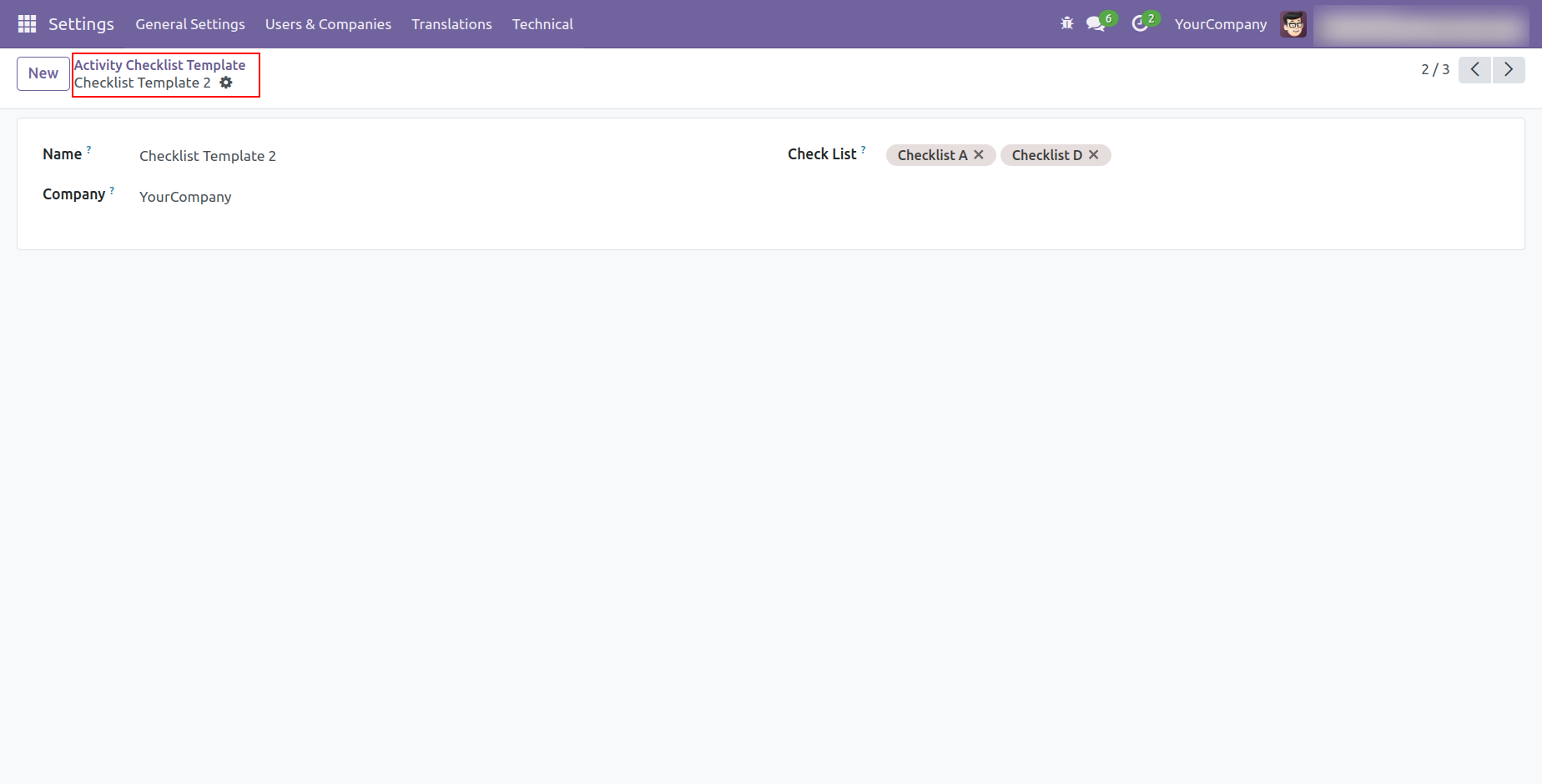
Form view of the activity custom checklist template.
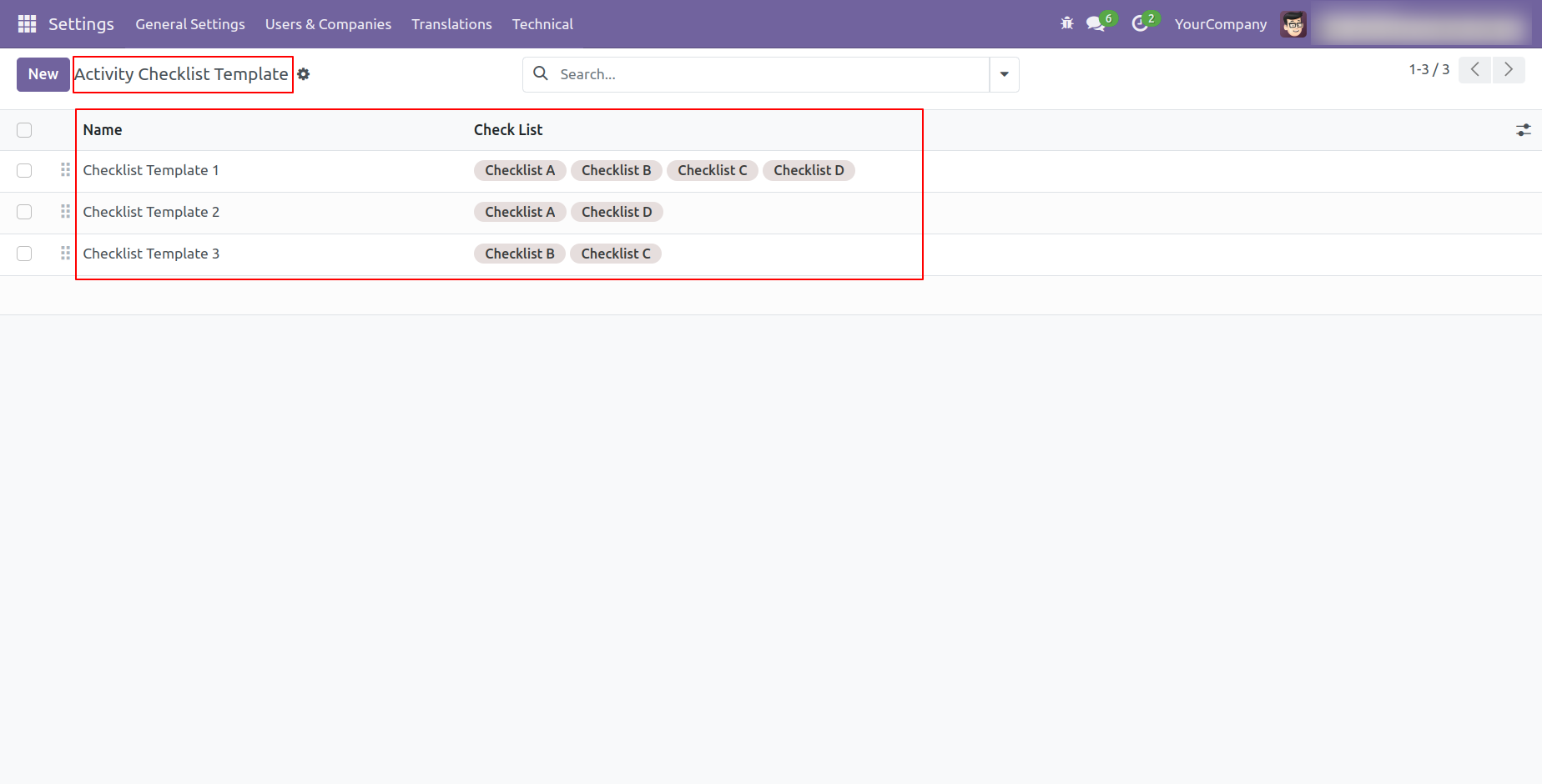
The list view of the activity custom checklist template looks like this.
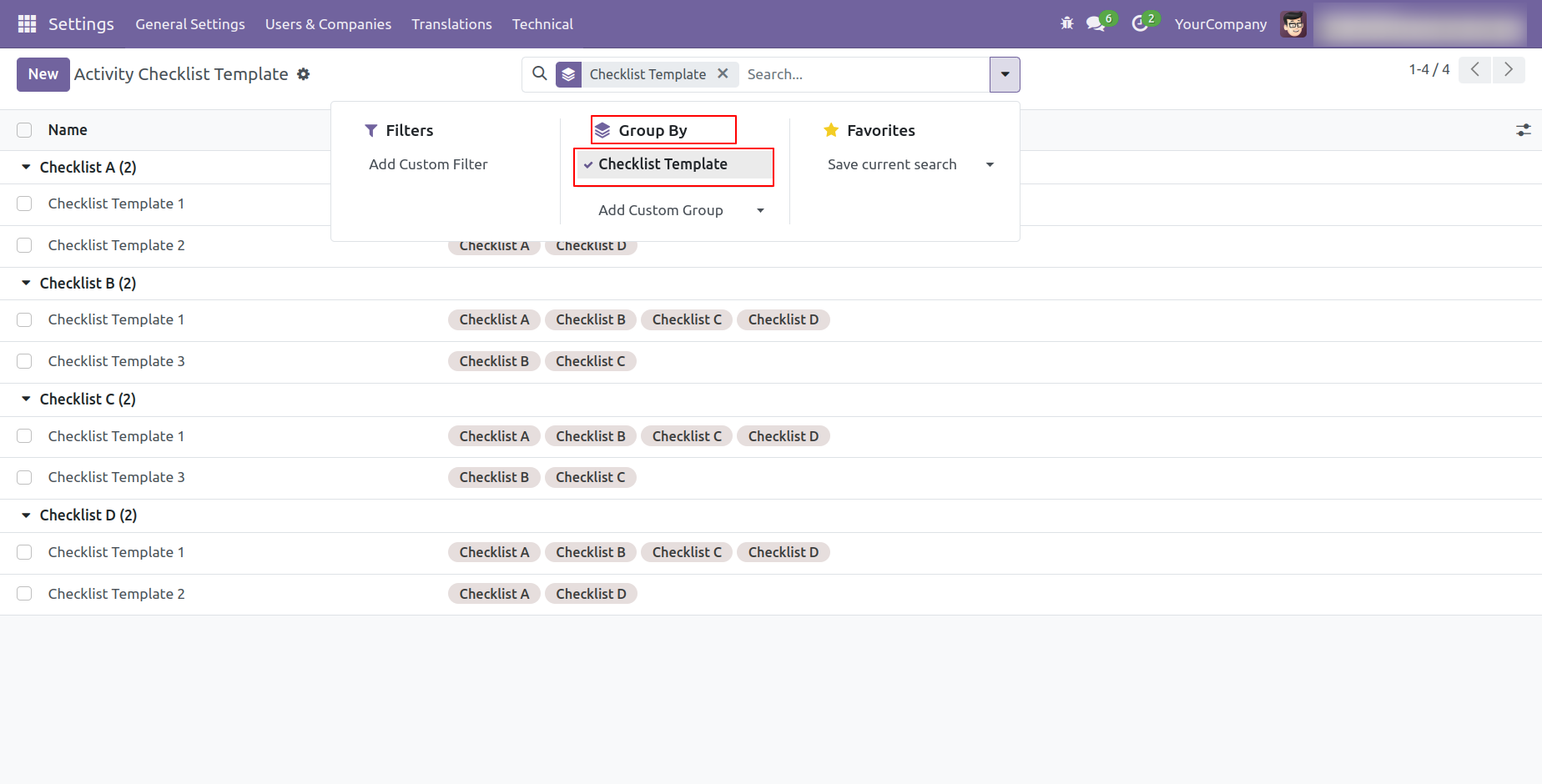
You can group by checklist templates.
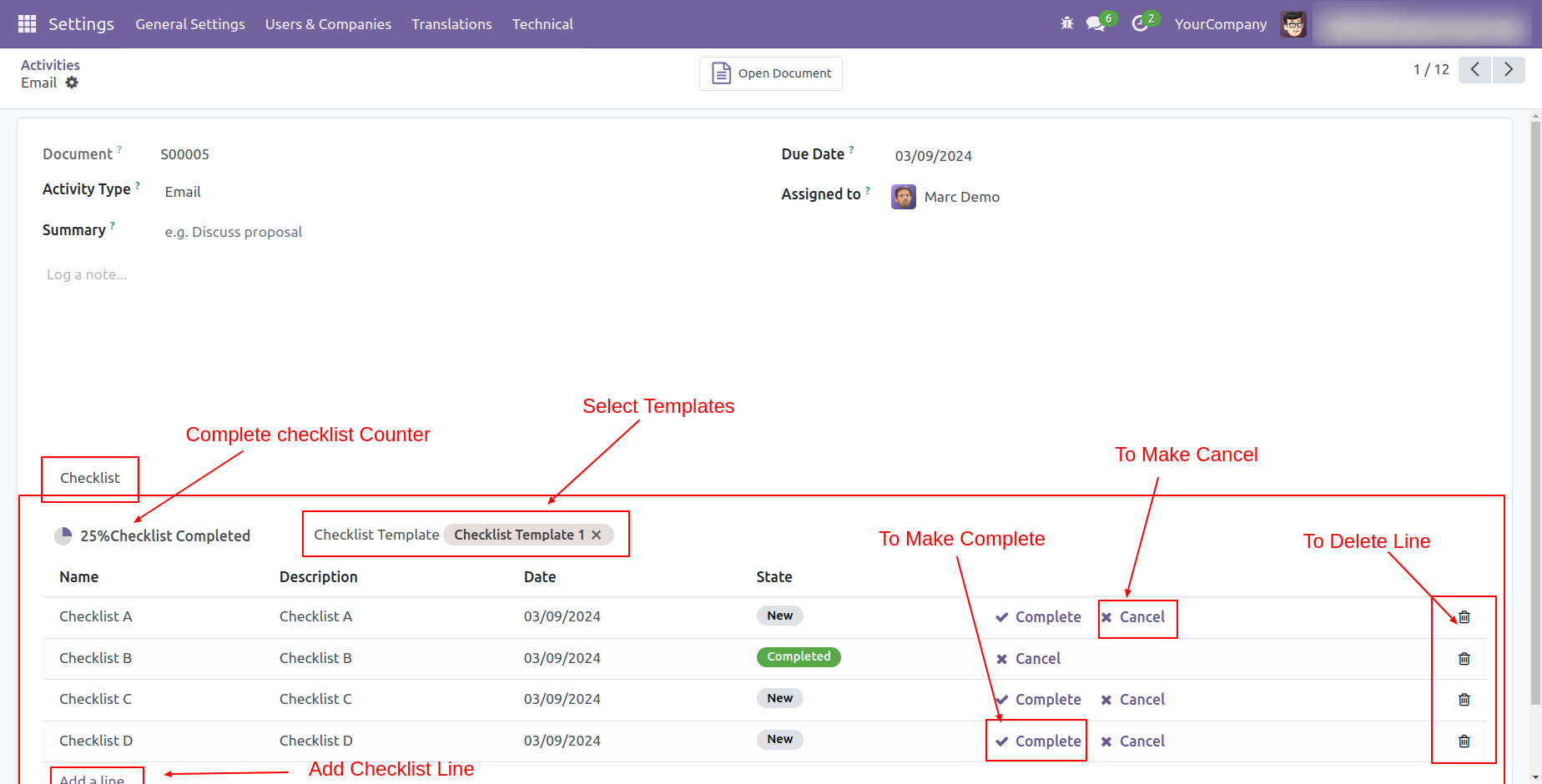
After accessing the "Activity Custom Checklist", you can fill out the checklist by selecting the checklist template. After selecting a template, a new record will be added with the checklist's default states: "New", "Completed", and "Cancelled". Click on Complete Icon To Complete Checklist & Cancel Icon to Cancel Checklist.
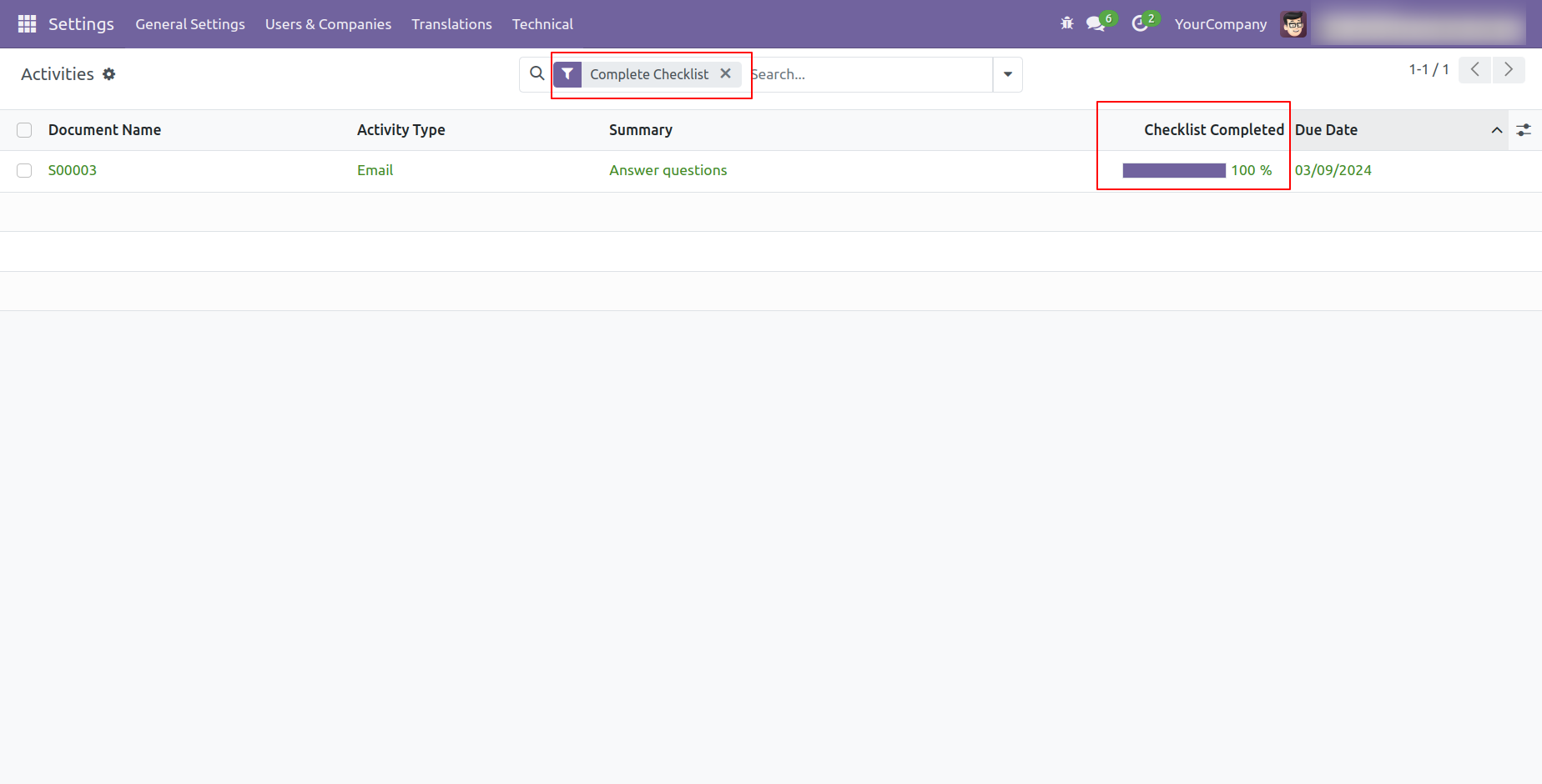
You can see the completed percentage of the checklist in the list view of the activities. You can filter checklists by 'Complete Checklist'.
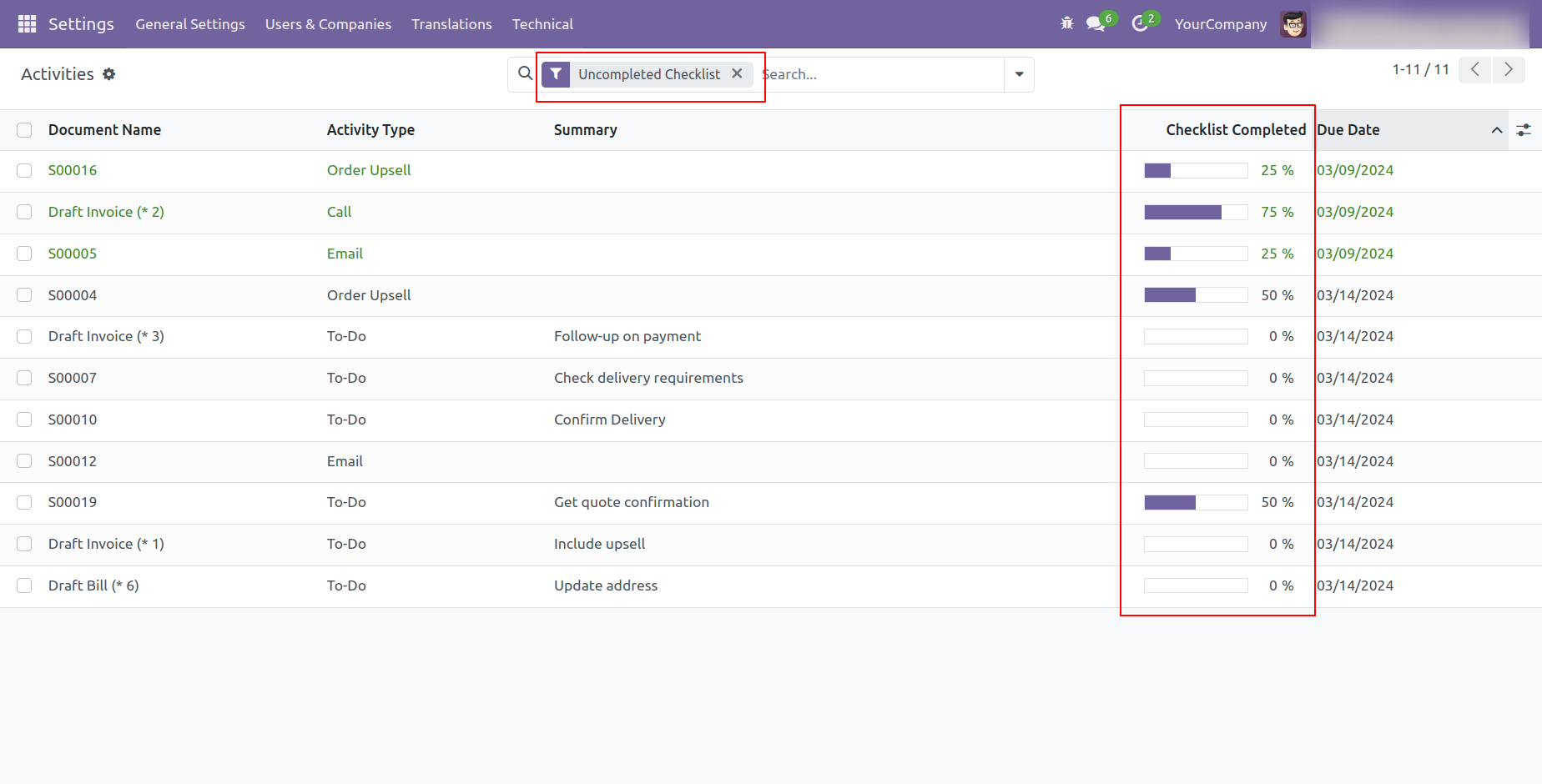
You can filter checklists by 'Uncompleted Checklist'.
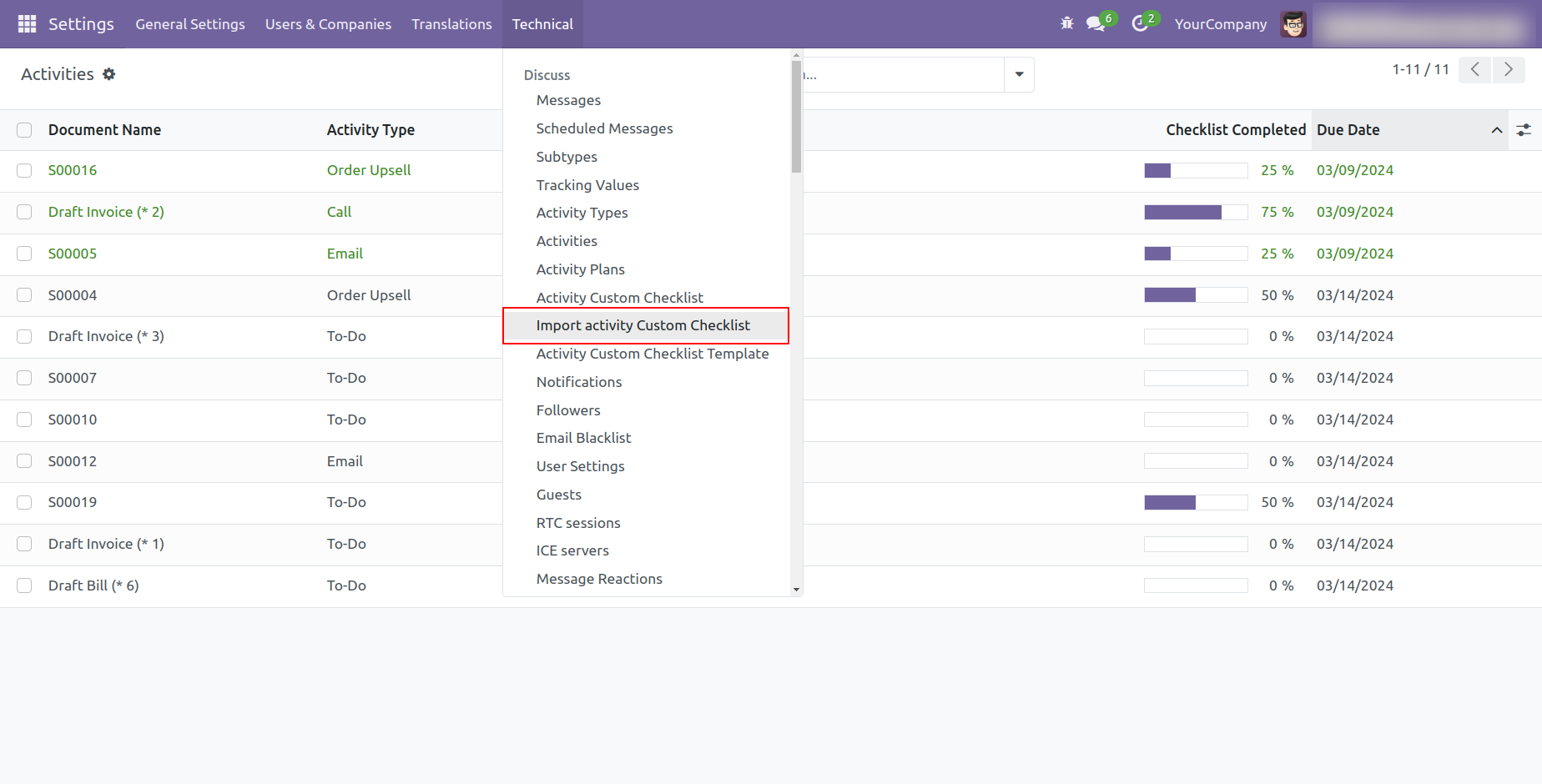
Go to the setting and open the technical menu. From there, Click on the option labeled 'Import Activity Custom Checklist'.
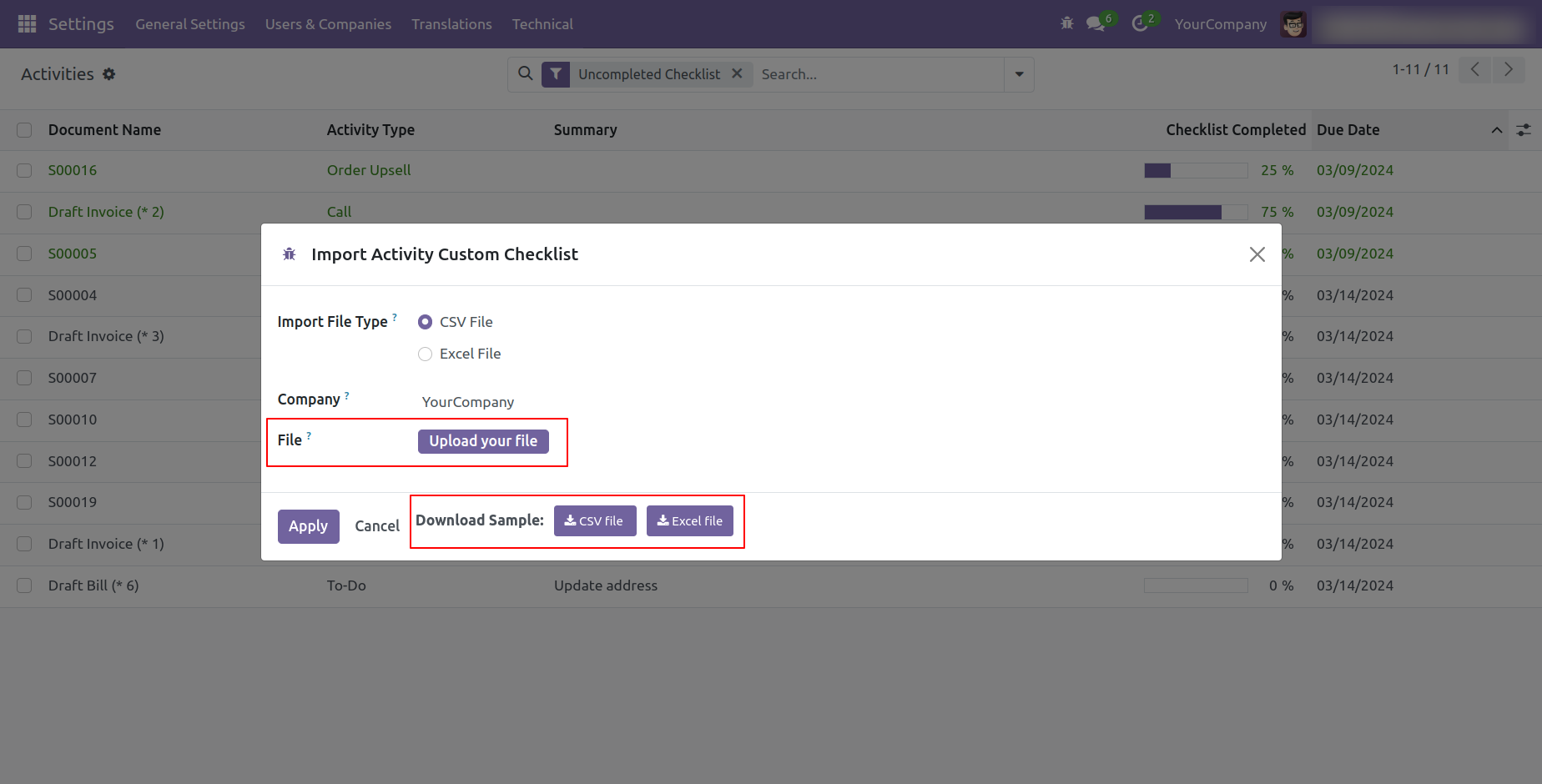
After that, the 'Import Activity Custom Checklist' wizard will appear.
You can download the sample file from the "CSV File" & "EXCEL File" buttons.
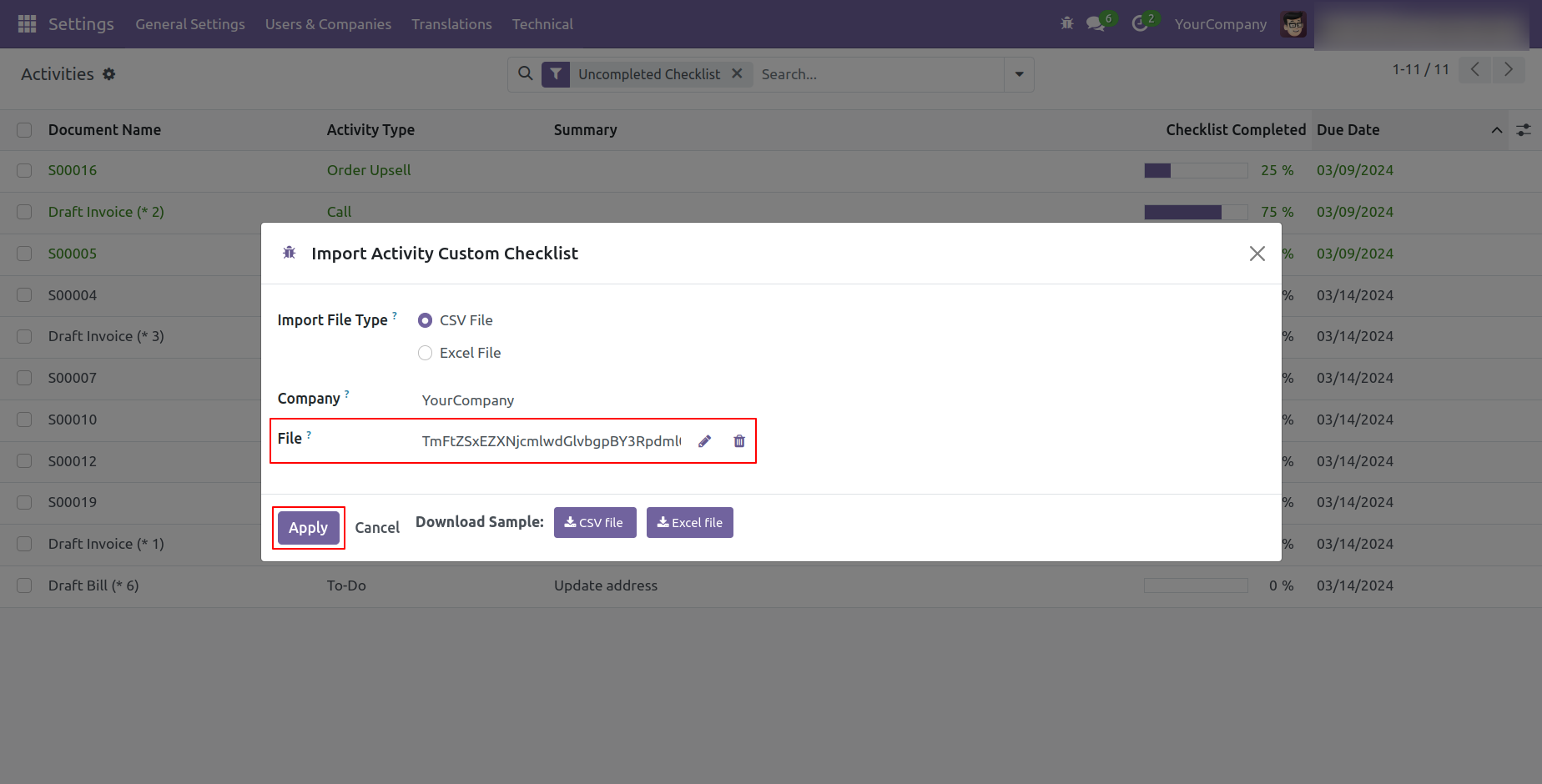
Select the import file type, and company name & Select the file which you want to import.
Click on the 'Apply' button after the file is uploaded.
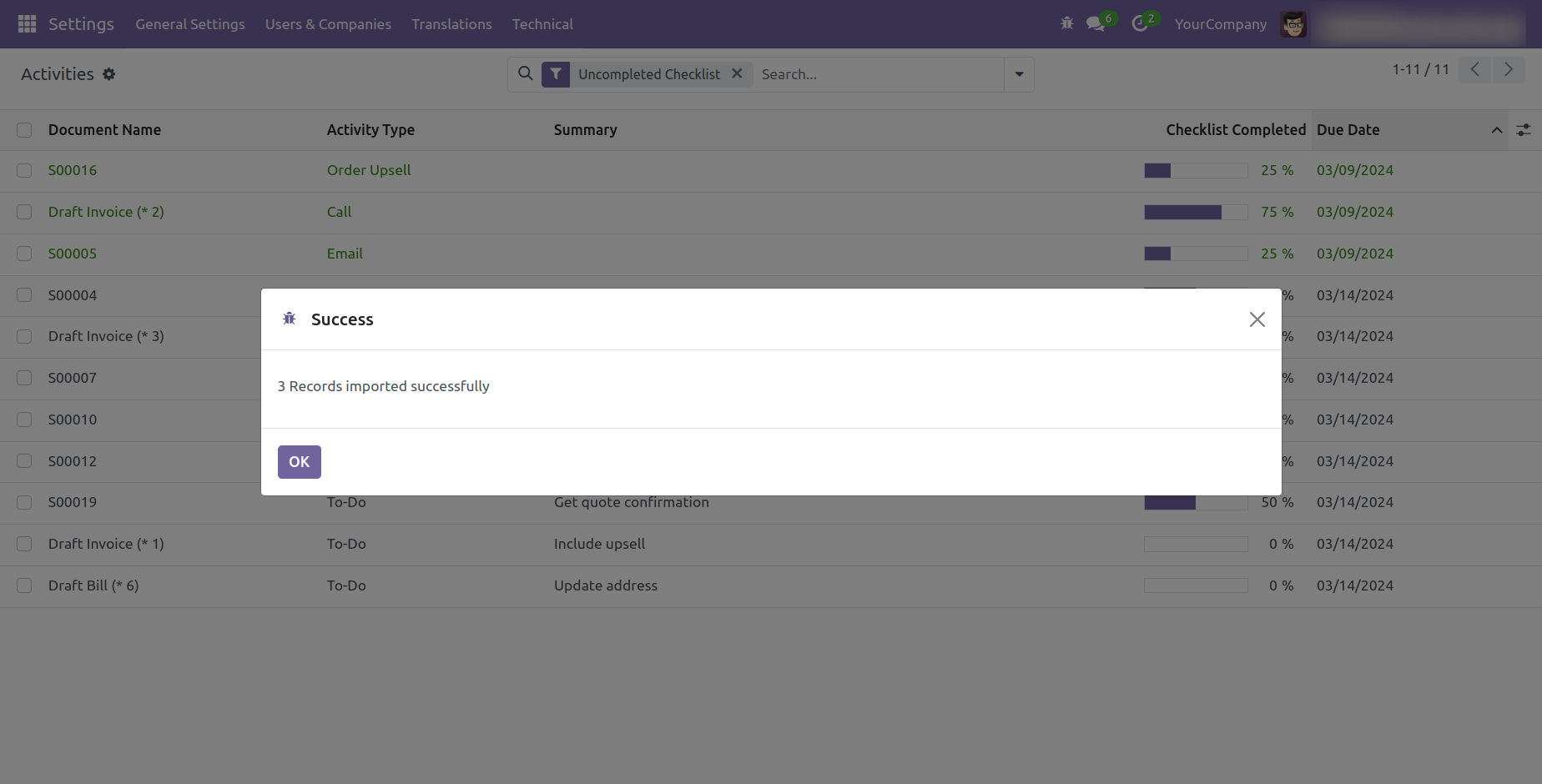
Success message.
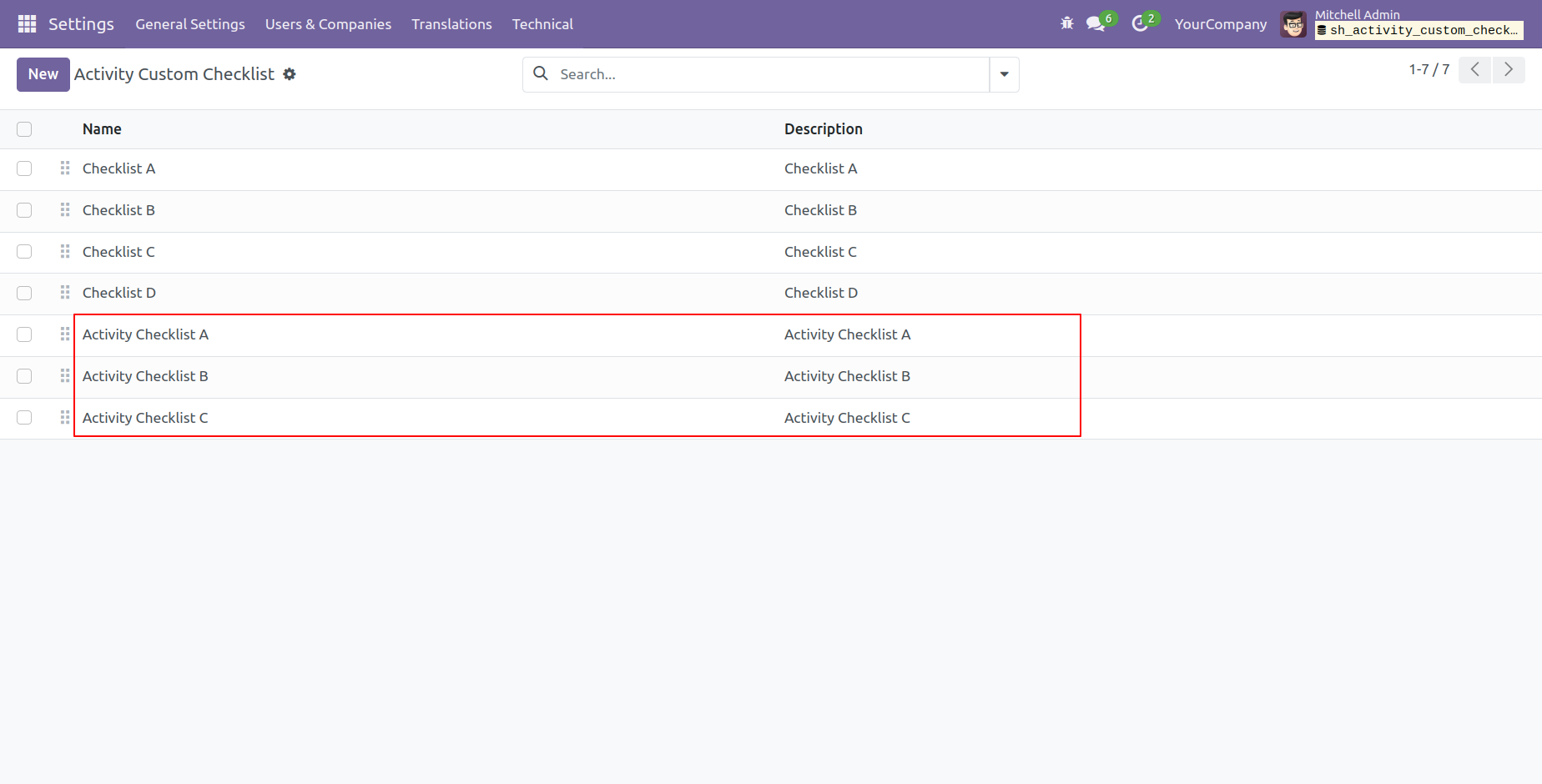
Here, You can see the imported activity custom checklists.
Version 19.0.1 | Released on : 5th September 2025
- Yes, this app works perfectly with Odoo Enterprise (Odoo.sh & Premise) as well as Community.
- No, this application is not compatible with odoo.com(odoo saas/Odoo Online)
- Yes, to test this module, please contact us at sales@softhealer.com.
- Please contact us at sales@softhealer.comto request customization.
- Yes, we provide free support for 365 days from the date of purchase.
- Yes, you will receive lifetime free updates for the version of the module you purchased.
- No, there is no need to install any additional libraries.
- Yes, for version 12 and above, you need to purchase the module separately for each version you intend to use.
- No, exchanges or refunds are not allowed. Please make sure to select the correct version before purchasing.
- You can contact us at support@softhealer.com for language translation support. We use Google Translator tools to provide translations in multiple languages, so the accuracy may vary. We welcome your suggestions to help improve translations.
Discover Our Latest Apps