









ActiveCampaign Odoo Connector

Establish a bidirectional, real-time connection between Odoo and ActiveCampaign to synchronize contacts, tags, lists, deals, and forms seamlessly. With an interactive sync dashboard, secure webhook receivers and queue processing. This connector keeps Odoo and ActiveCampaign in perfect harmony, preventing duplicate records and enabling efficient workflow automation.
Key Features
Features
Role-based Access Groups
Control connection settings and synchronization permissions based on user security groups.
Self-service Help Documentation
Access quick configuration instructions, webhook setup steps, and connection guides directly inside Odoo menus.
Interactive Dashboard
Monitor and execute all activities and manage connections from a single unified interface.
Automated Sync Scheduler
Utilize Odoo scheduled actions to periodically process the sync queue and pull updates in the background.

Manual Execution Controls
Execute immediate manual data syncs between Odoo and ActiveCampaign with optional date-range filtering parameters.
Bidirectional Contact Sync
Synchronize contact profiles between Odoo and ActiveCampaign contacts to ensure database alignment.
Bidirectional Tags Sync
Sync tags between ActiveCampaign tags list and Odoo to ensure database alignment.

ActiveCampaign Deal Synchronization
Import and export sales opportunities between Odoo CRM pipelines and ActiveCampaign deals pipeline structures.
Mailing List Import
Import mailing list from ActiveCampaign directly into Odoo's mass mailing lists.
Forms Import
Import forms from ActiveCampaign into Odoo to keep form-related data synchronized and available for management.

Campaigns Import
Import campaigns from ActiveCampaign into Odoo to maintain campaign details and marketing data within Odoo.
Real-time Webhook Receiver
Receive instant incoming webhook callbacks from ActiveCampaign to update contacts, tags, and deals dynamically.
Asynchronous Sync Queueing
Queue data synchronization jobs in the background to prevent user interface delays during large actions.
Detailed Integration Logs
Track every synchronization activity with detailed logs, including successful and failed operations.
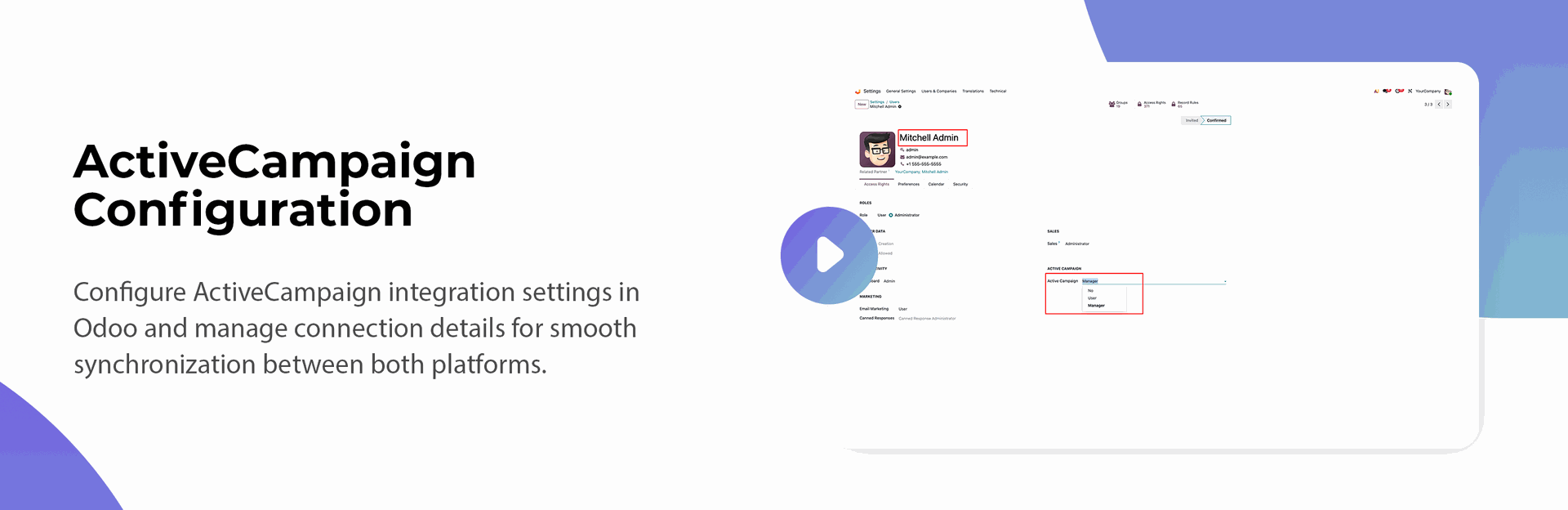
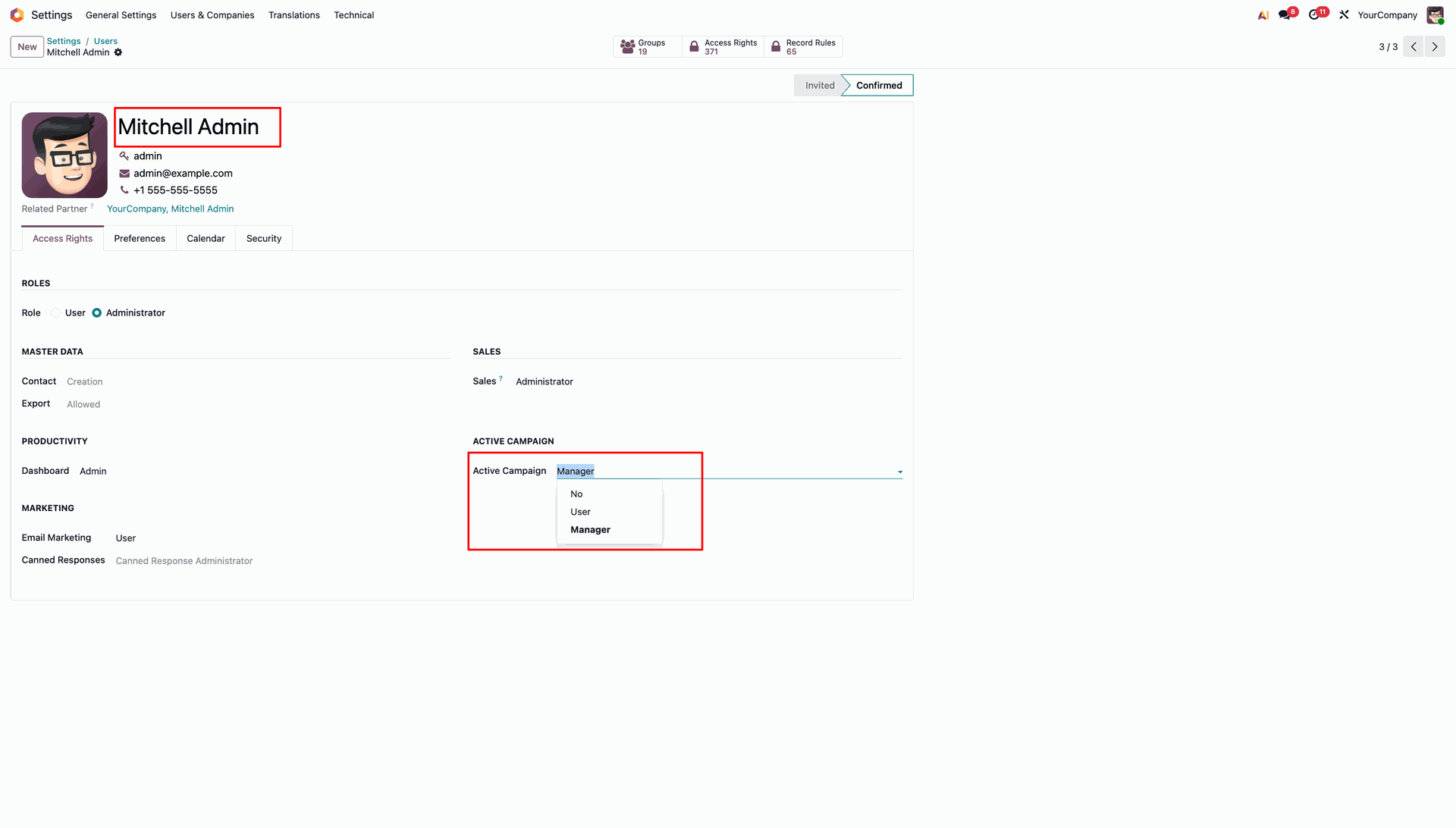
Select Admin access rights under the Active Campaign user settings to grant full administrative privileges.
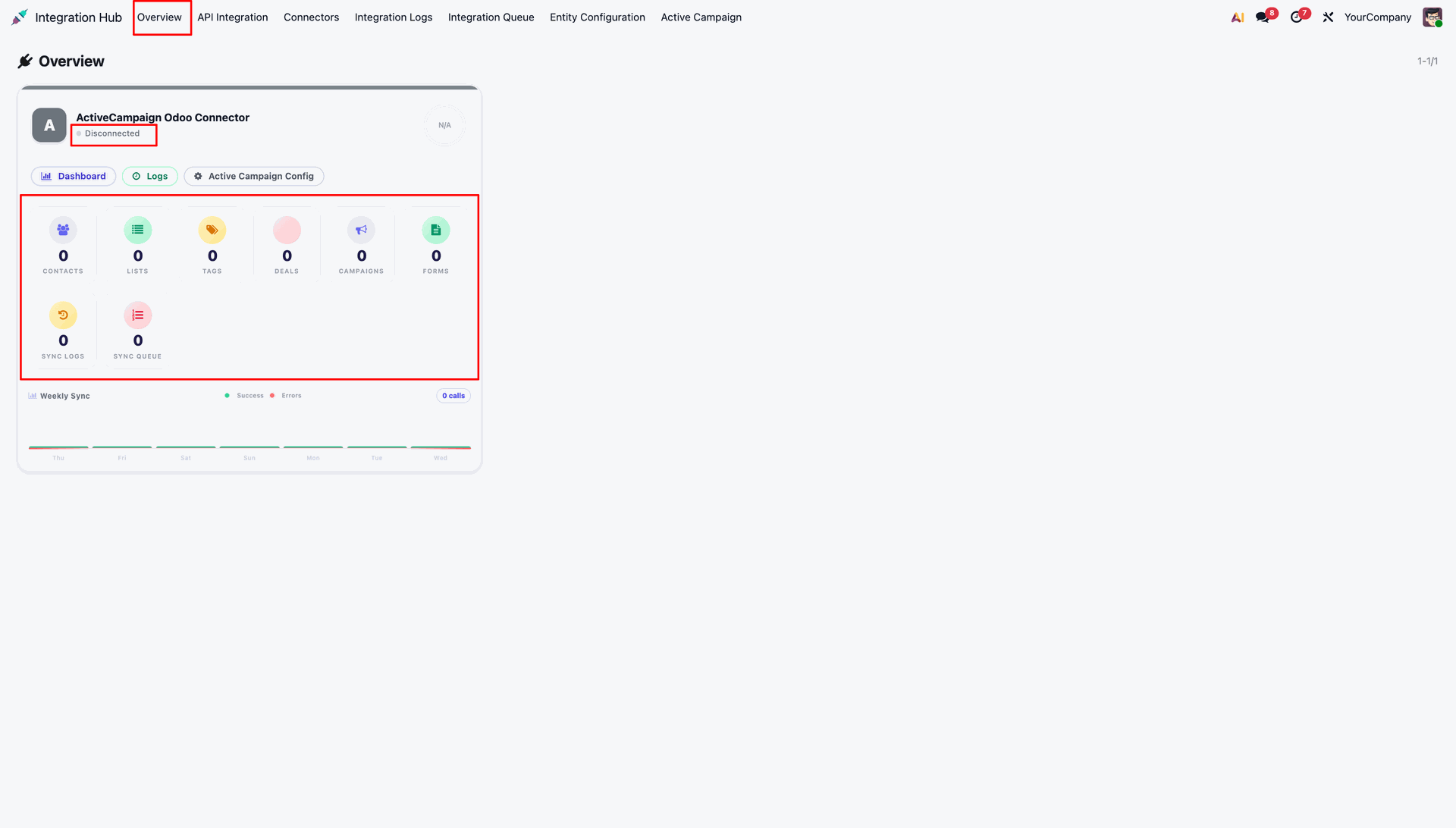
Open the Integration Hub Overview dashboard to check initial connector status and metrics.
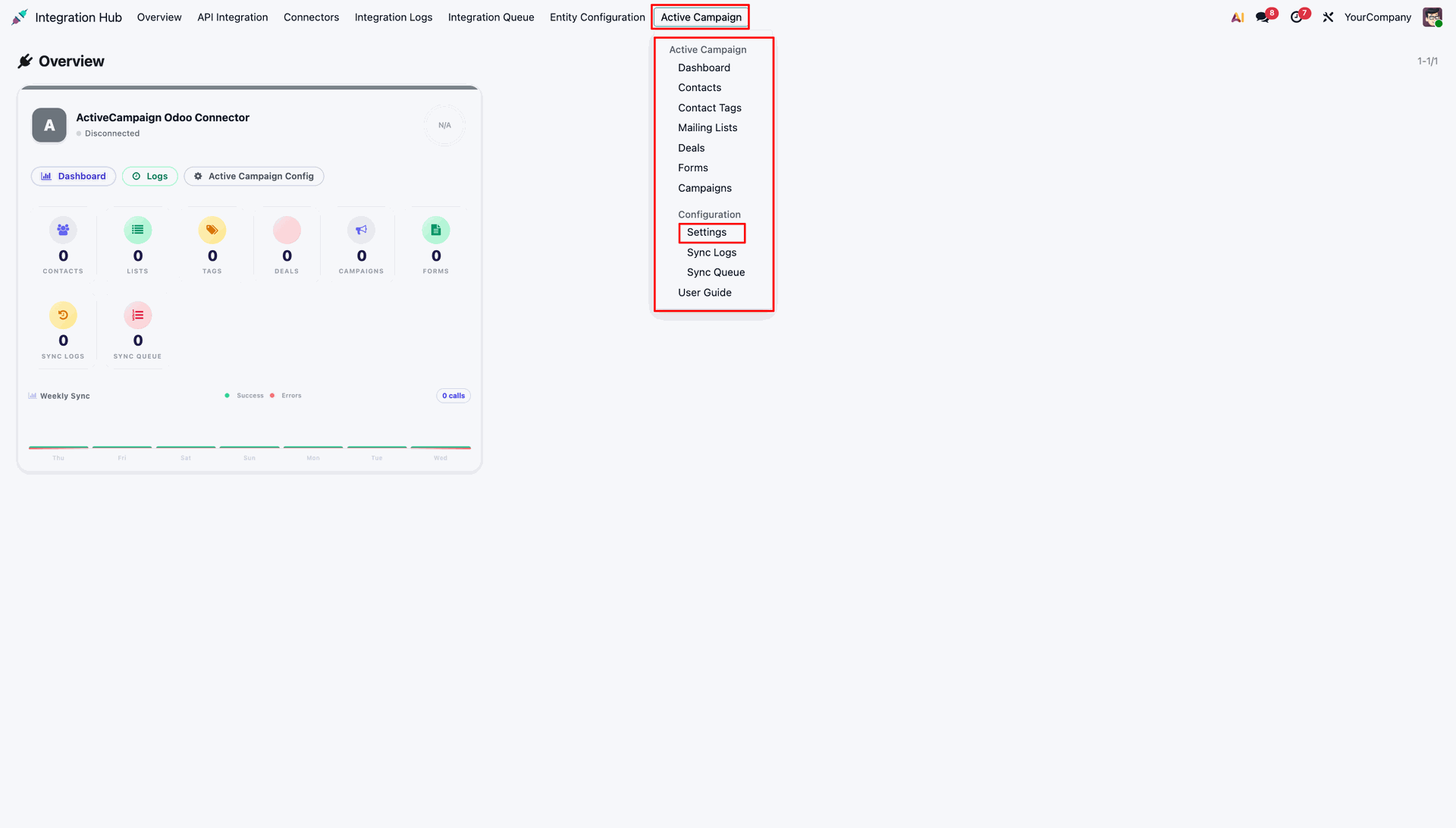
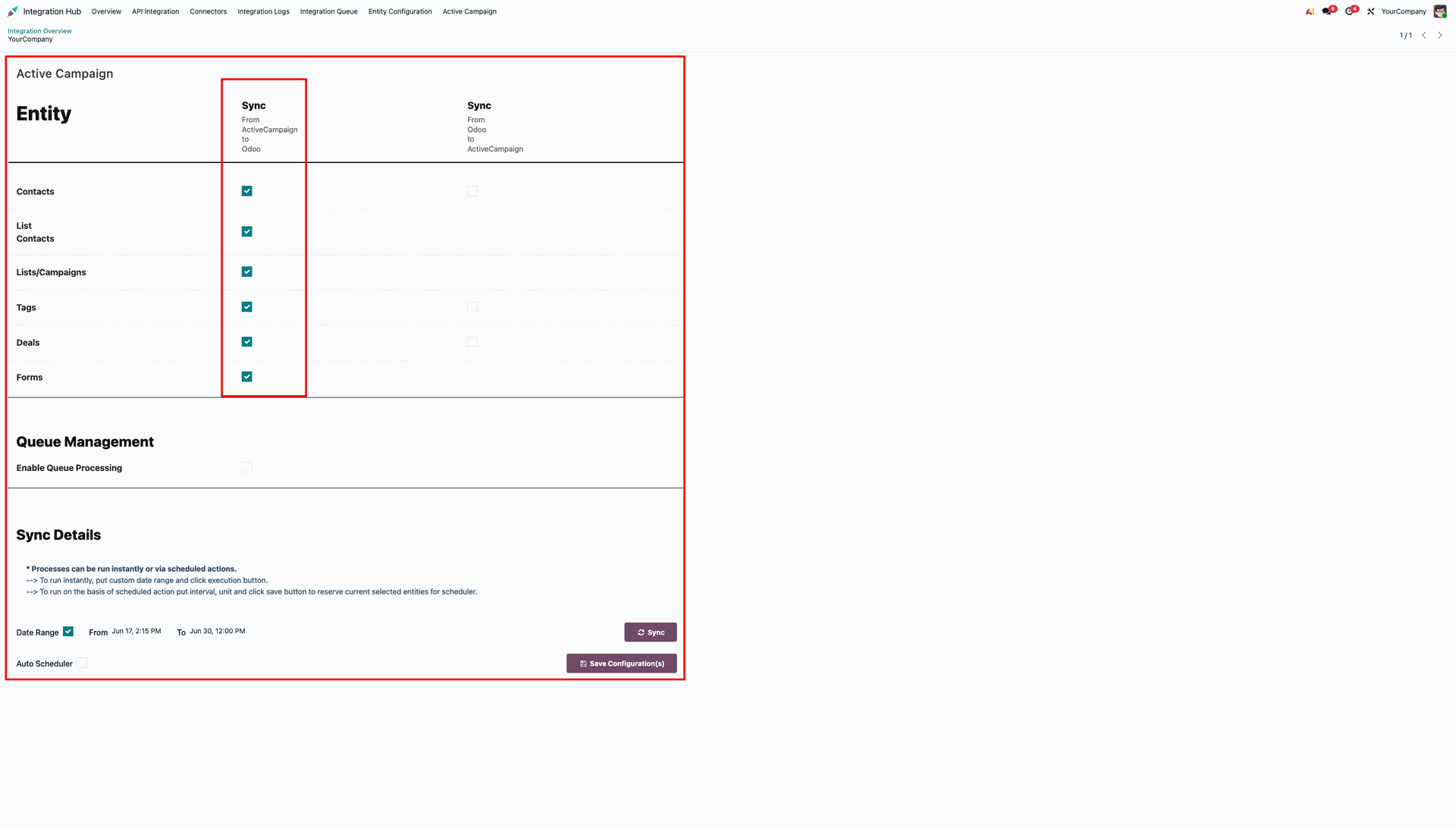
Select Settings from the Active Campaign top navigation menu to access API credentials.
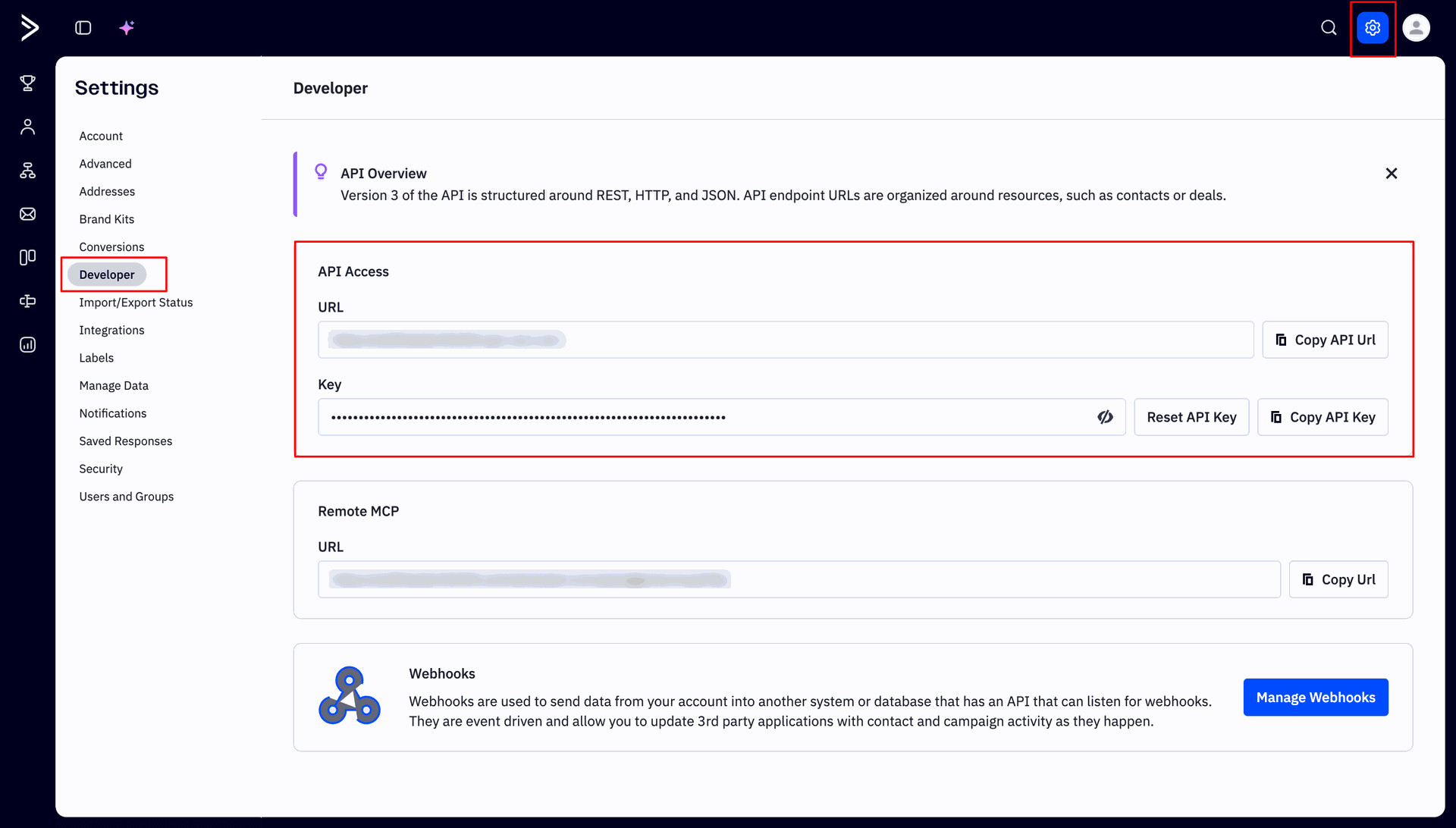
Copy your ActiveCampaign API URL and Key.
Verify that the Integration Hub Overview dashboard displays a Connected status badge.
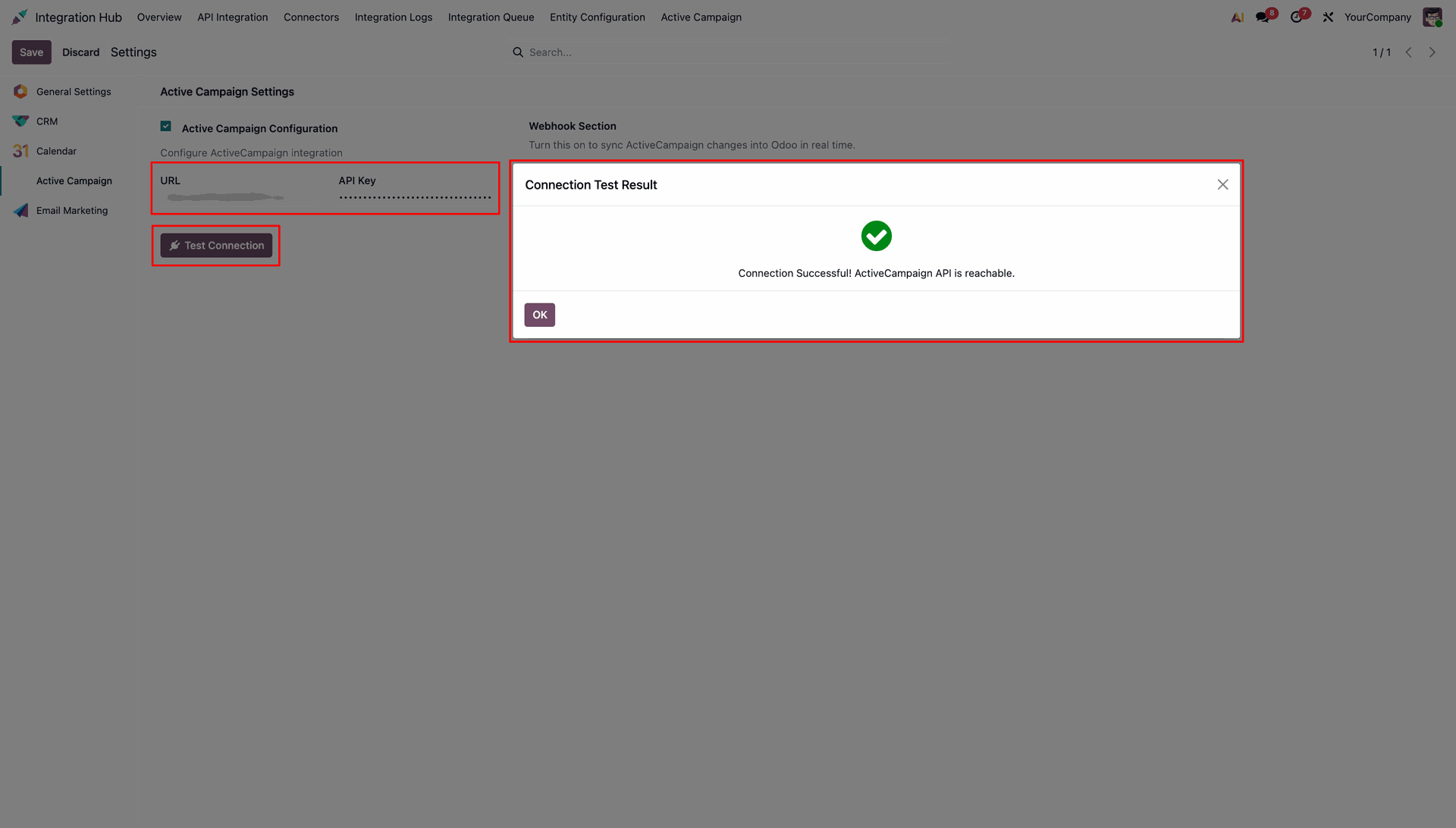
Access the embedded User Guide directly from the Active Campaign menu bar.
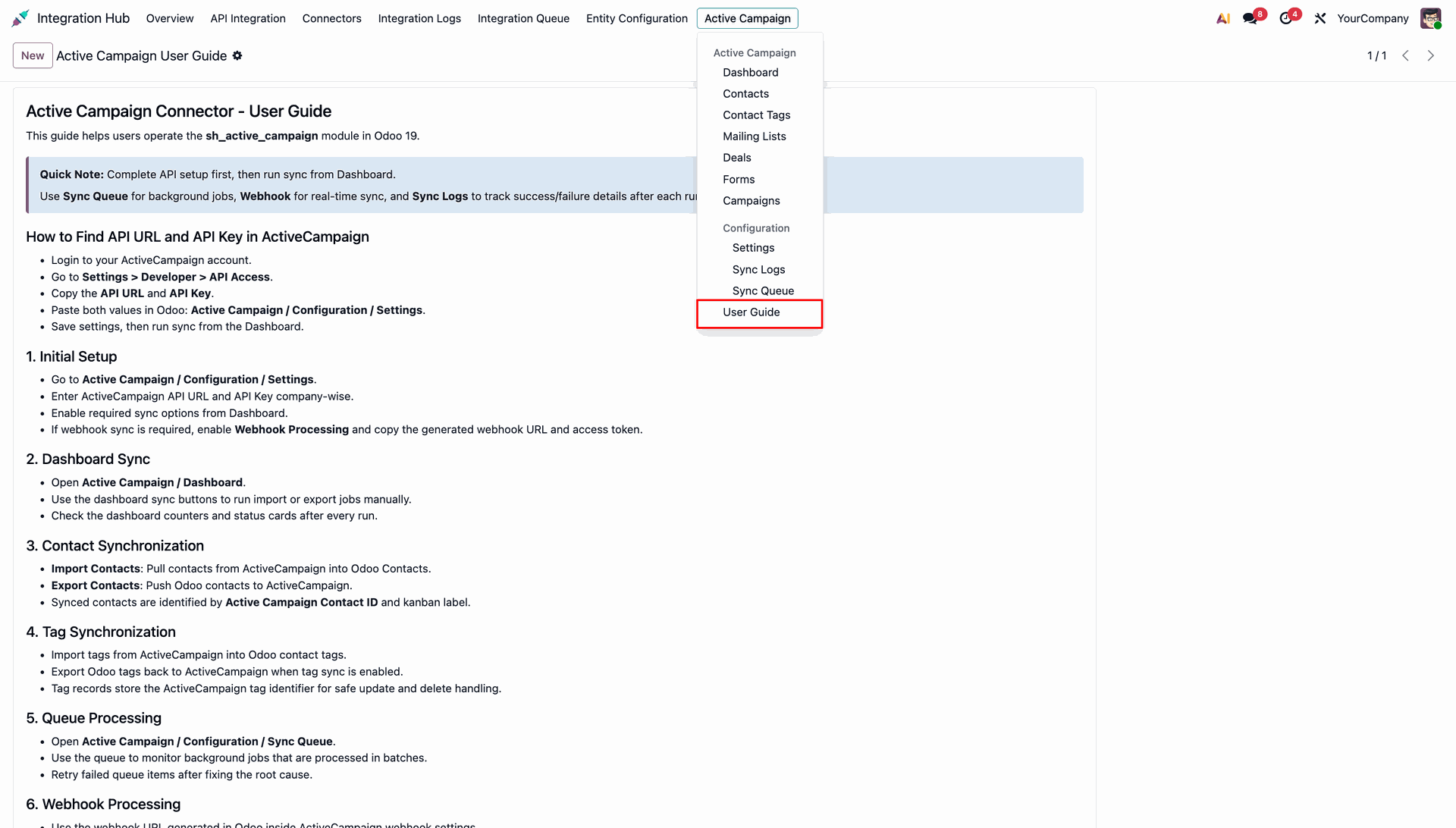
Read through step-by-step instructions in the embedded User Guide page to understand module workflows.
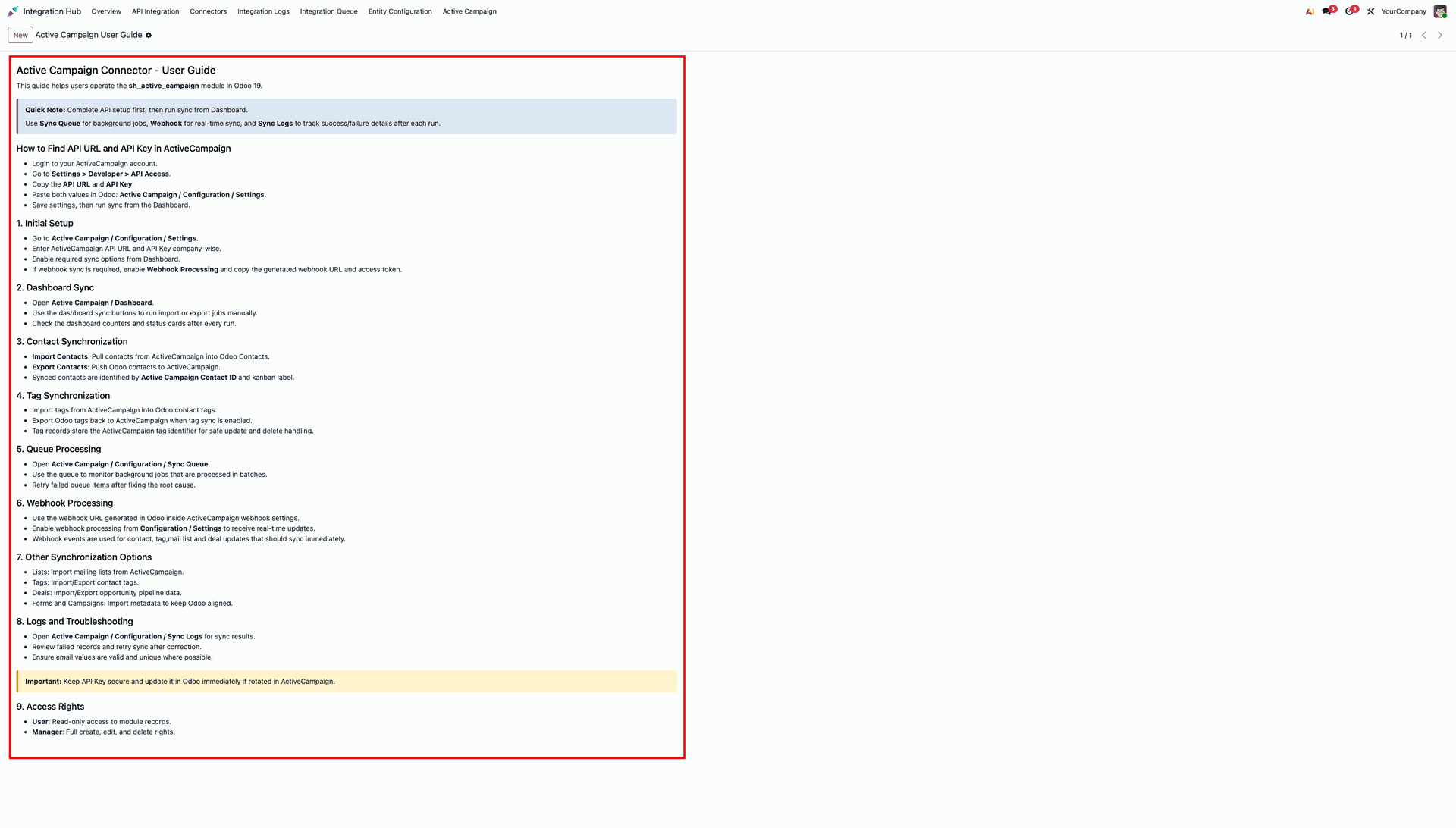
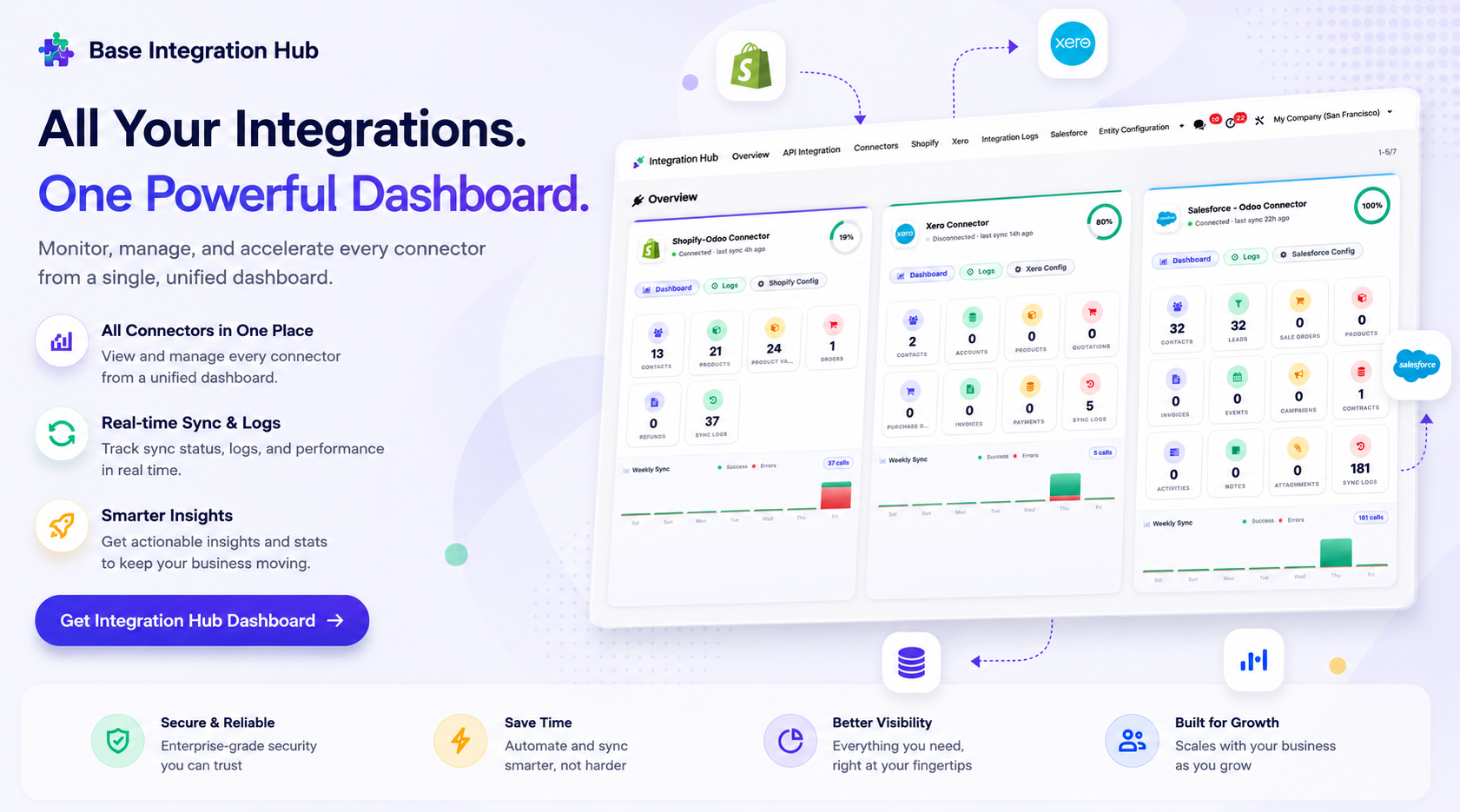
Centralized dashboard to manage and monitor all connectors from one place. Quickly access sync summary, activity logs, and configuration controls with improved visibility.
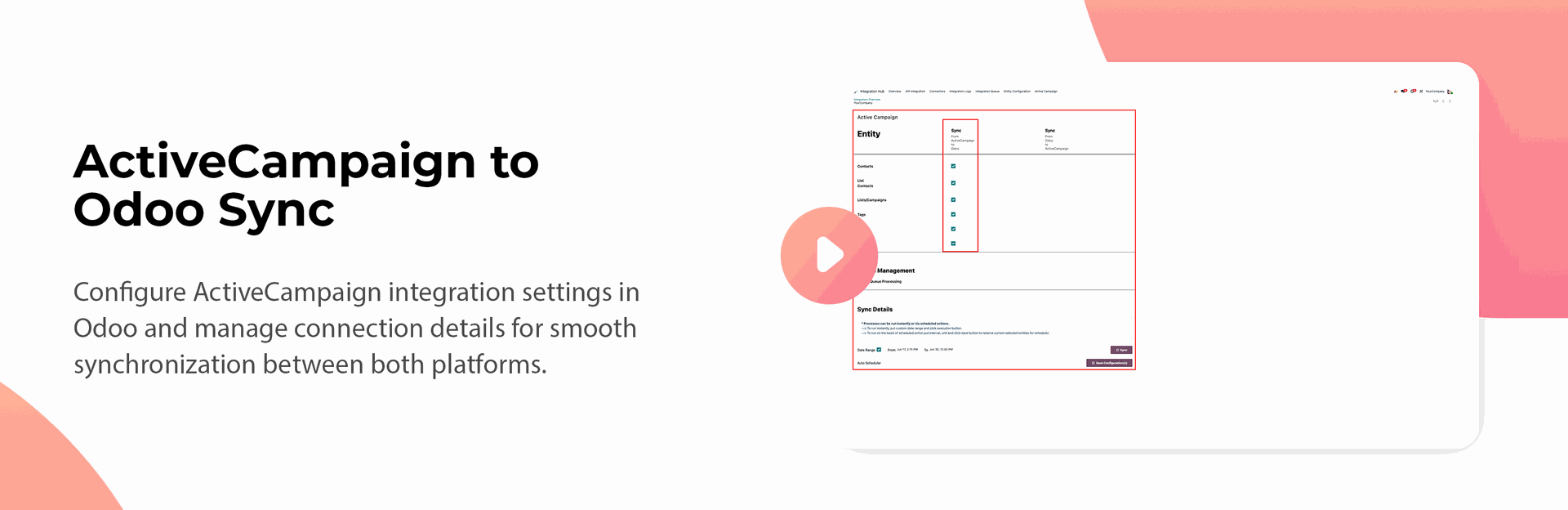
Enable check boxes under Sync From ActiveCampaign to Odoo to select entities for import.
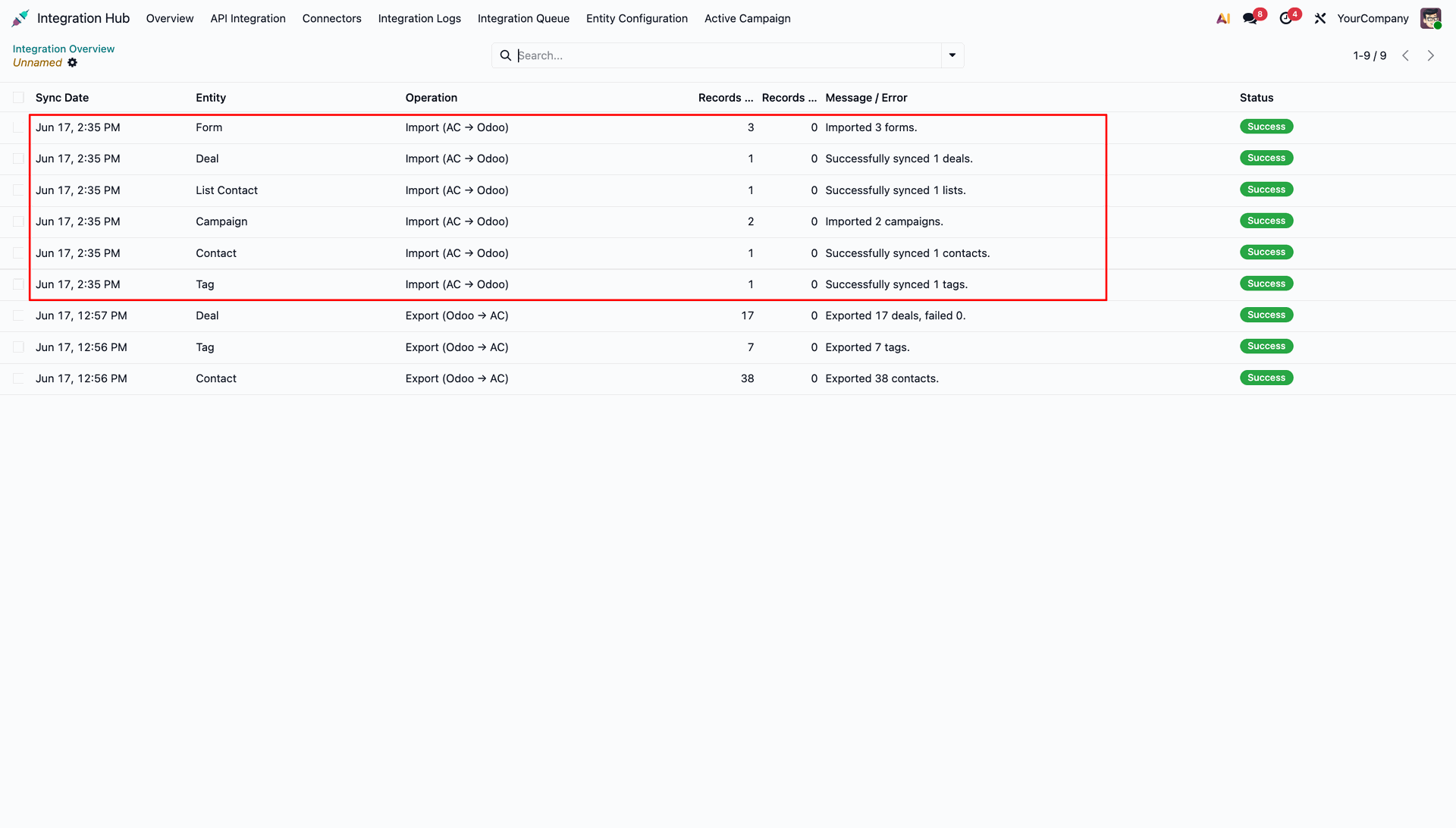
Review successful inbound synchronization records in the Integration Logs list view.
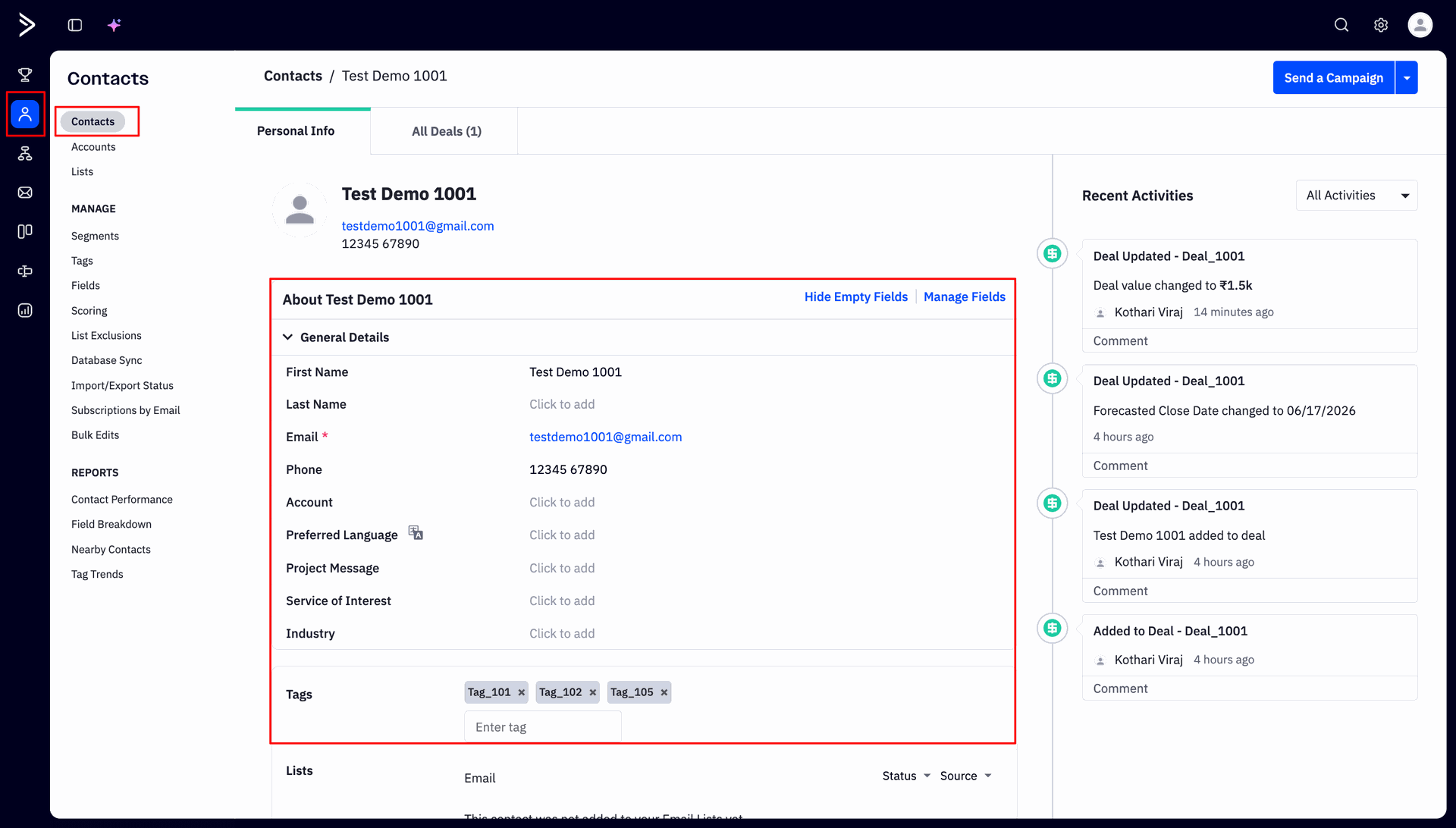
Open a contact record in ActiveCampaign to inspect general details and associated tag assignments.
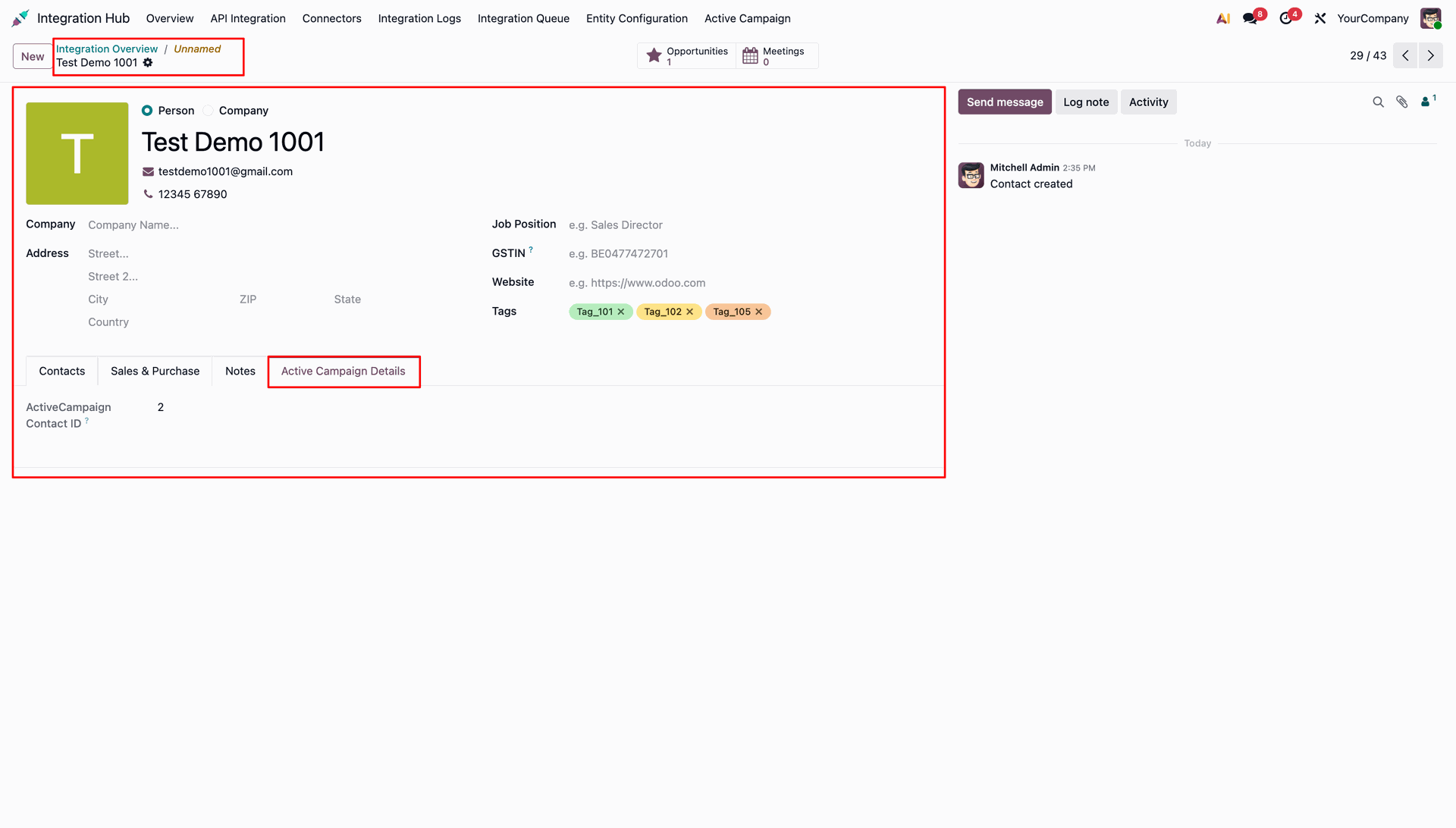
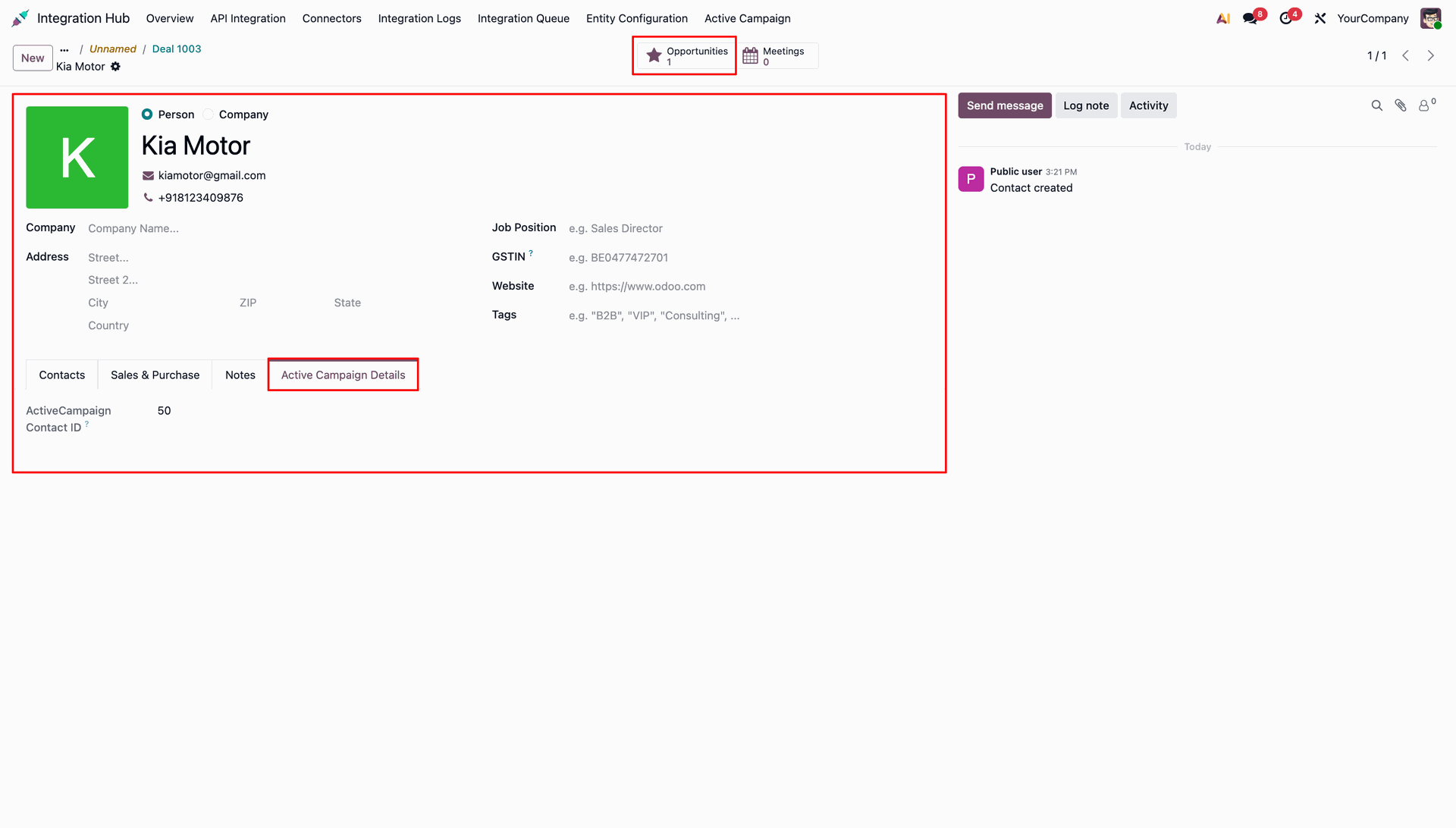
Verify imported contact details and assigned ActiveCampaign Contact ID on the Odoo contact form.
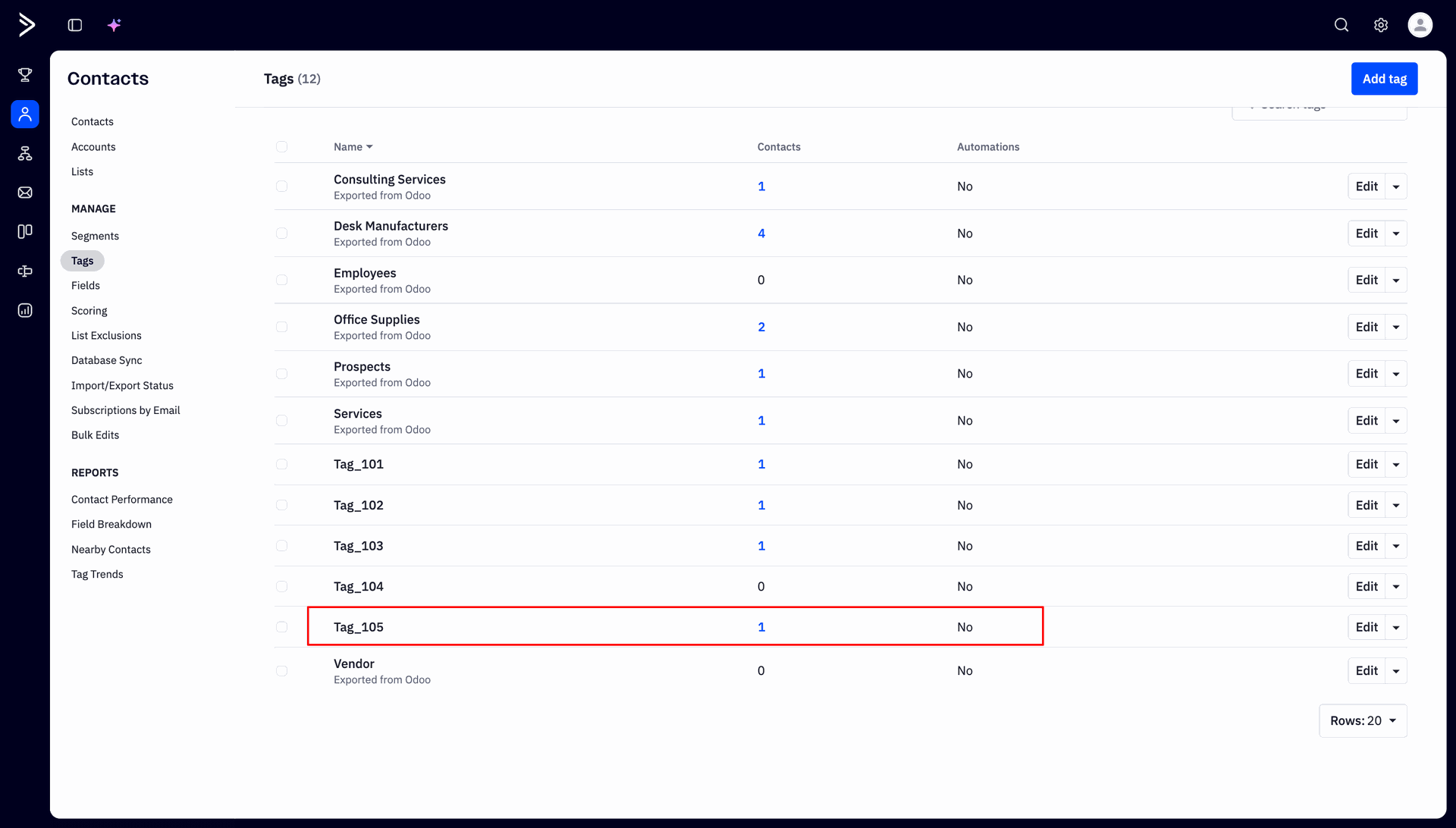
Check existing tags within the ActiveCampaign platform tags list view before running synchronization.
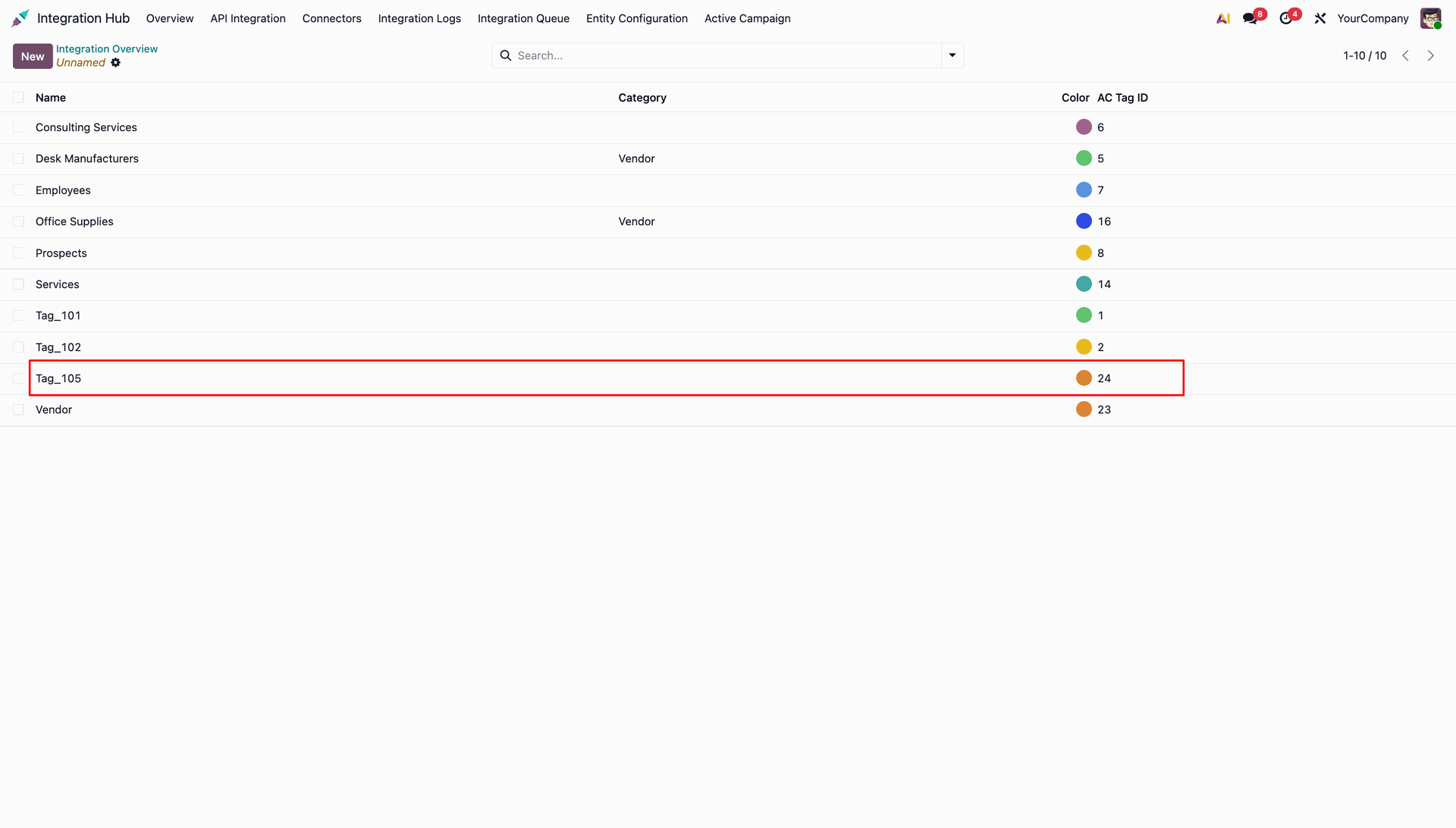
Open the Tags list view in Odoo to confirm imported tags and their mapped ID values.
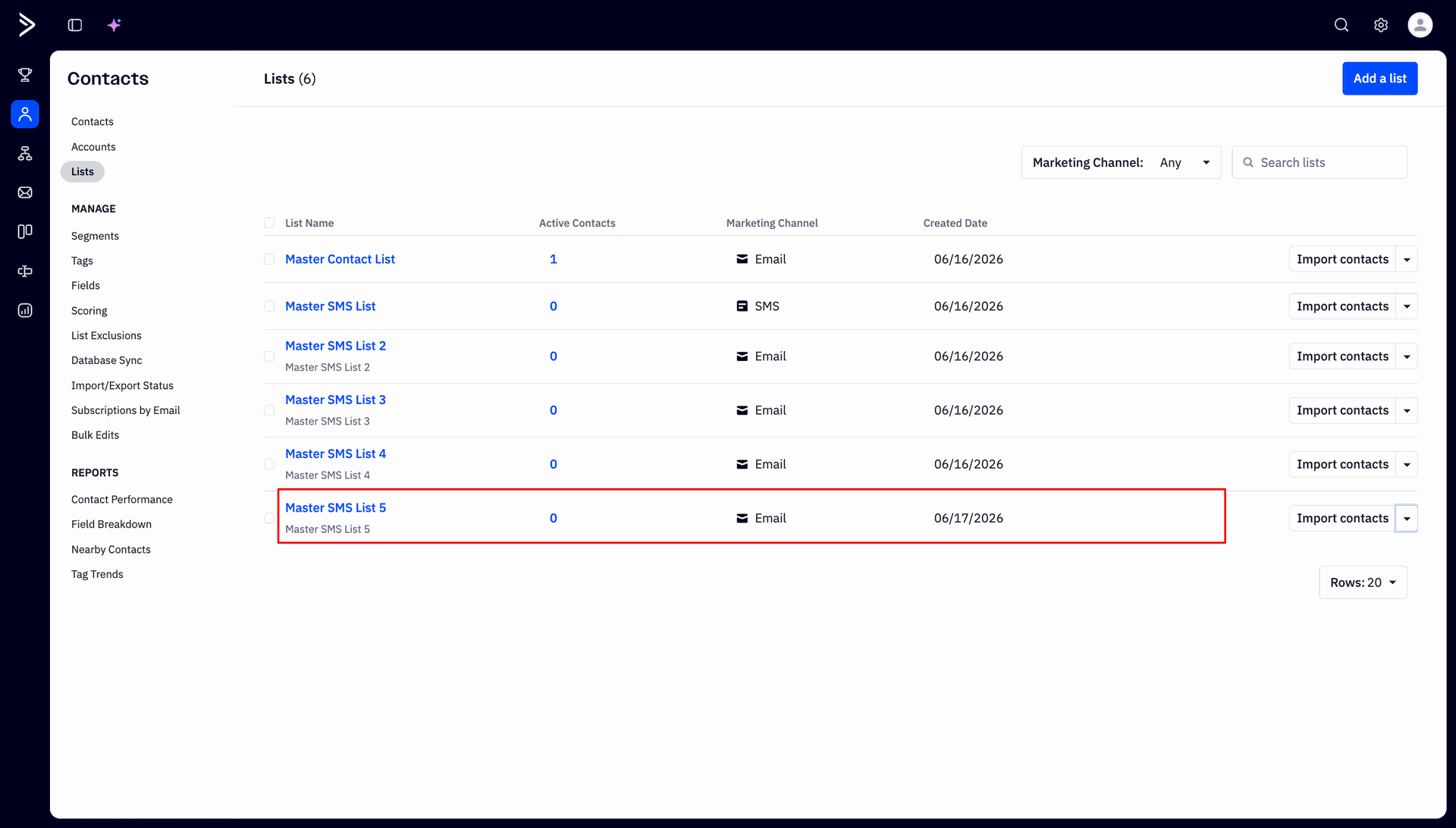
Inspect mailing lists in the ActiveCampaign platform under the Contacts Lists section.
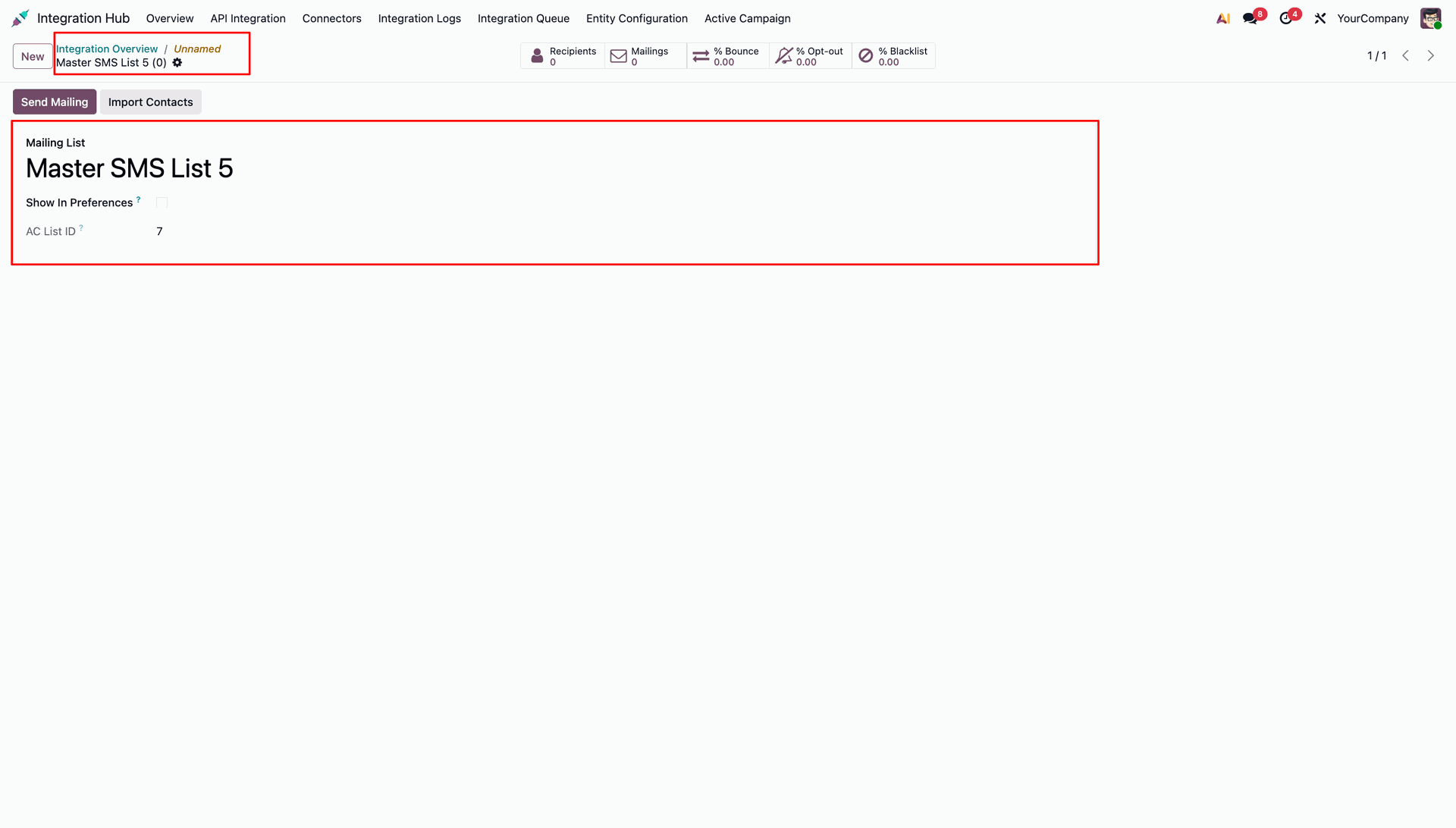
Open a Mailing List record in Odoo to check its imported AC List ID identifier.
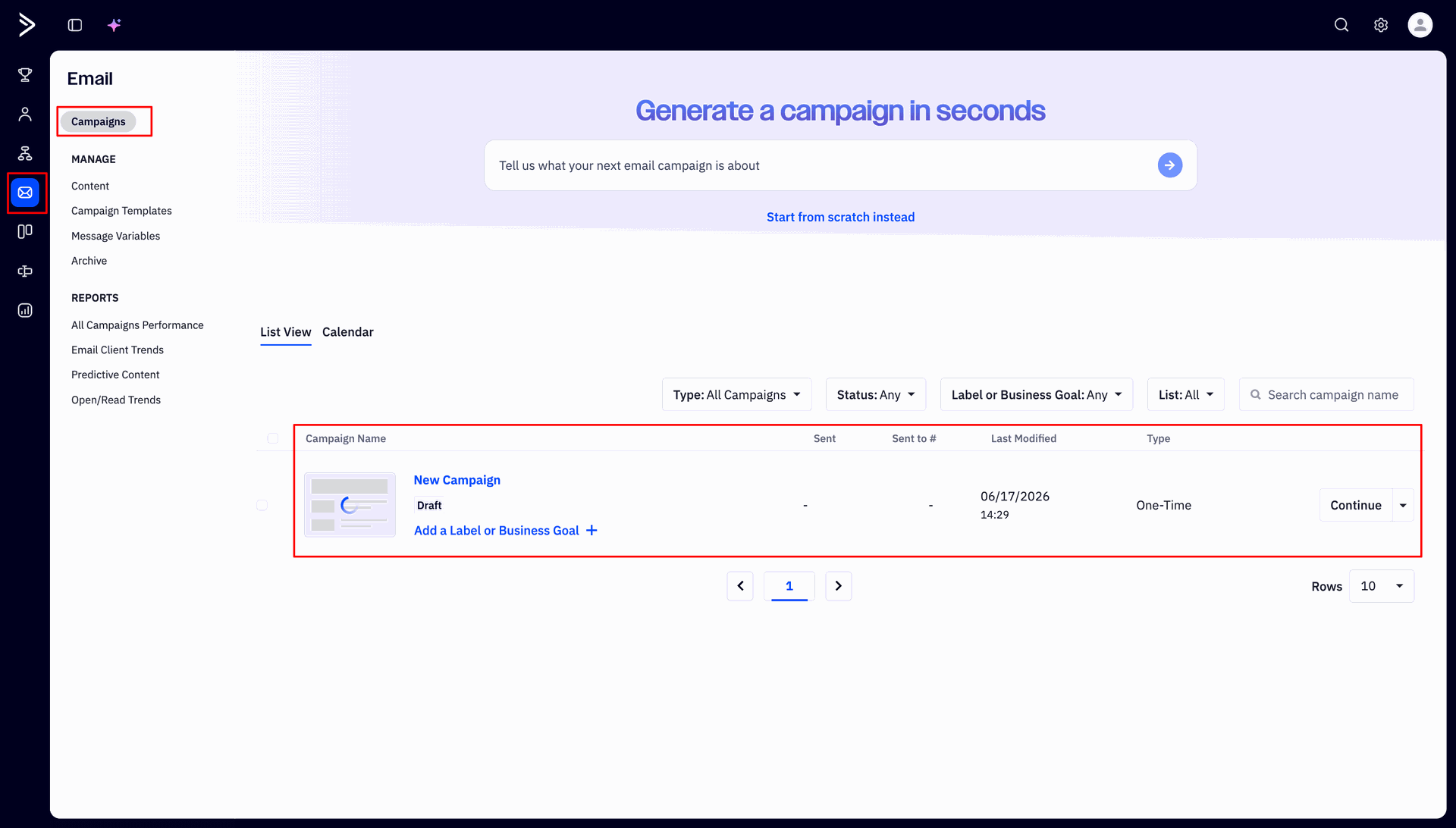
Check marketing campaigns listed in the ActiveCampaign platform campaign overview list view.
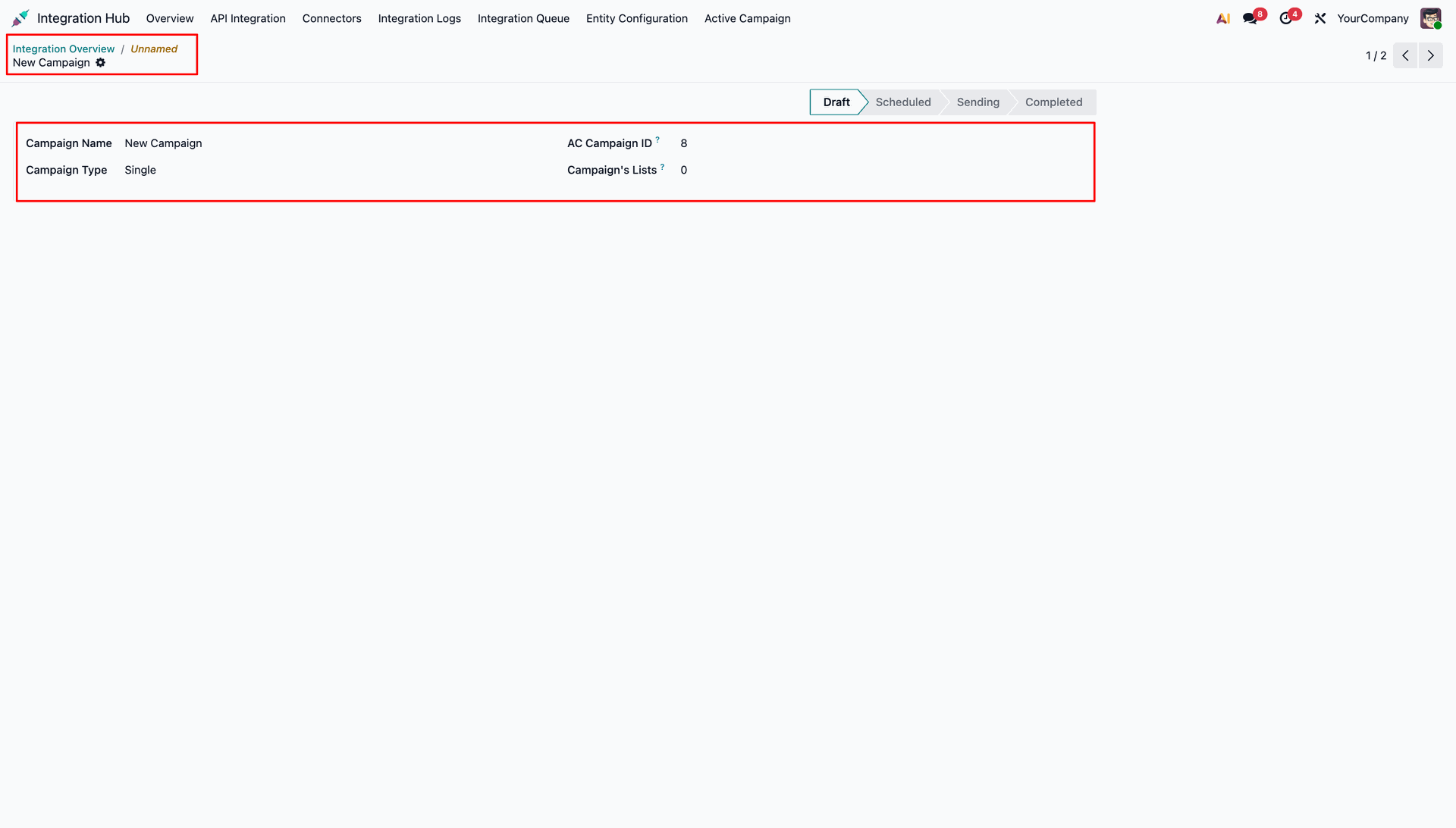
Open an imported campaign record in Odoo to verify its assigned ActiveCampaign Campaign ID.
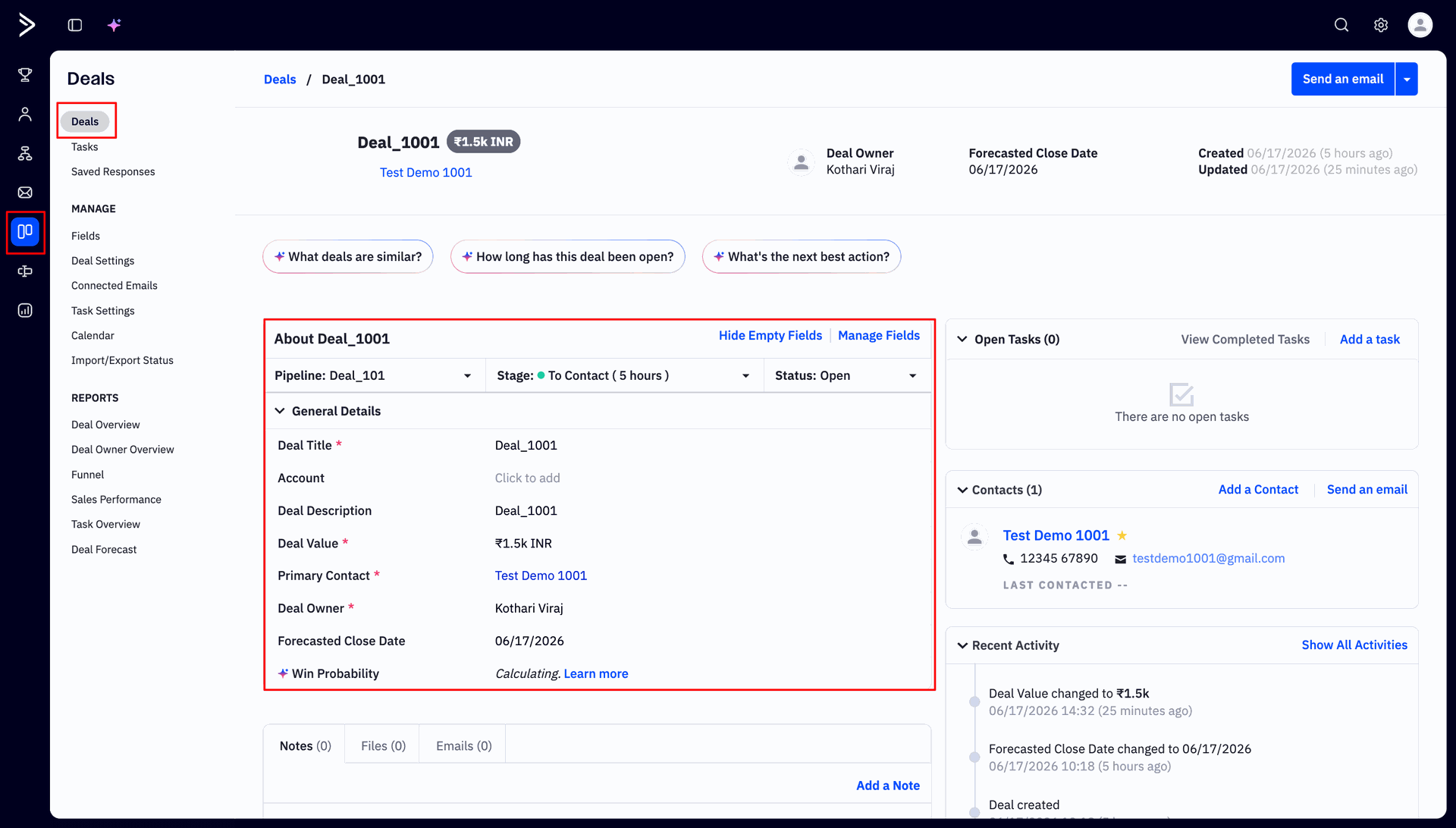
Review deal parameters directly within ActiveCampaign before importing to Odoo CRM.
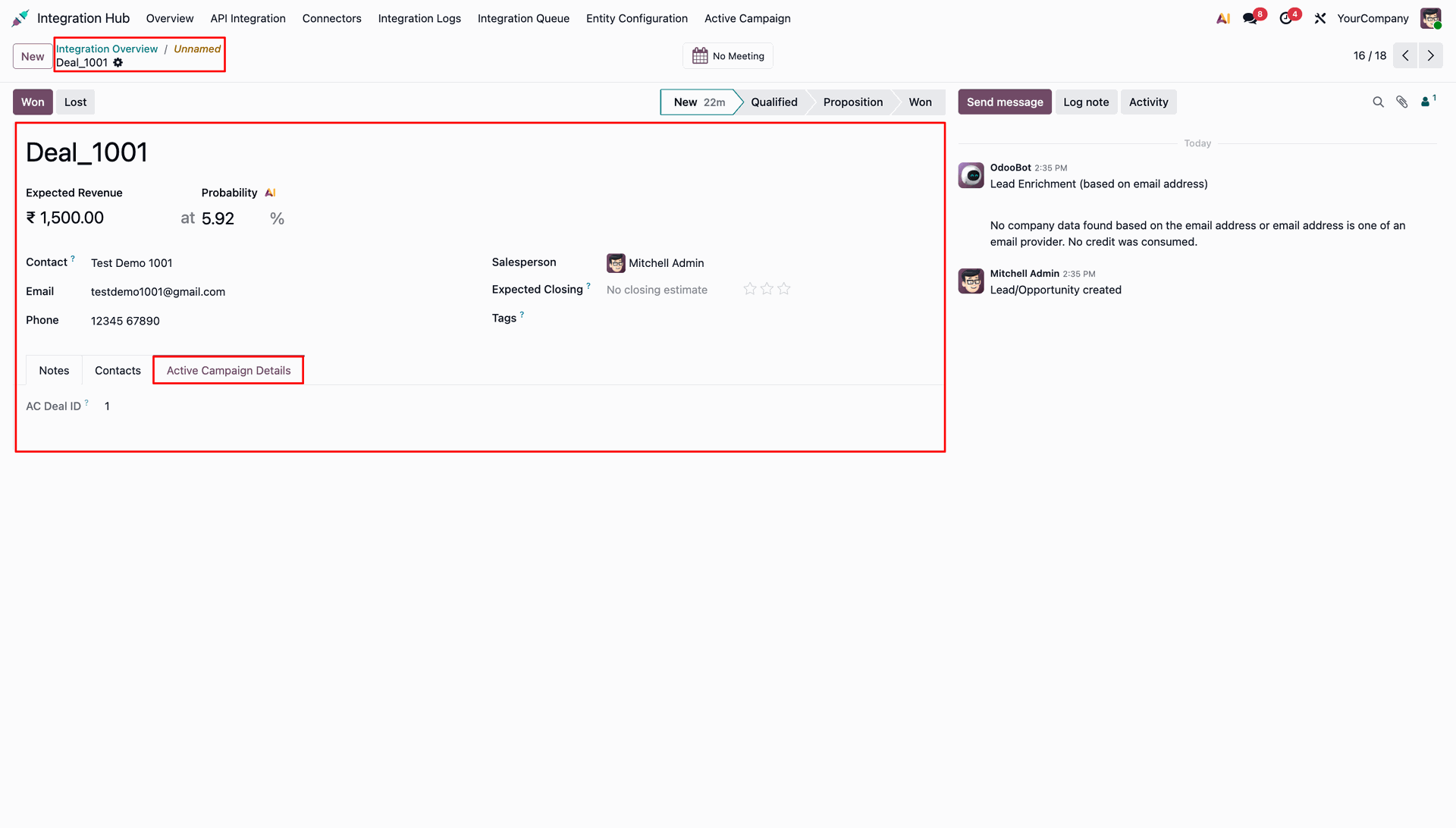
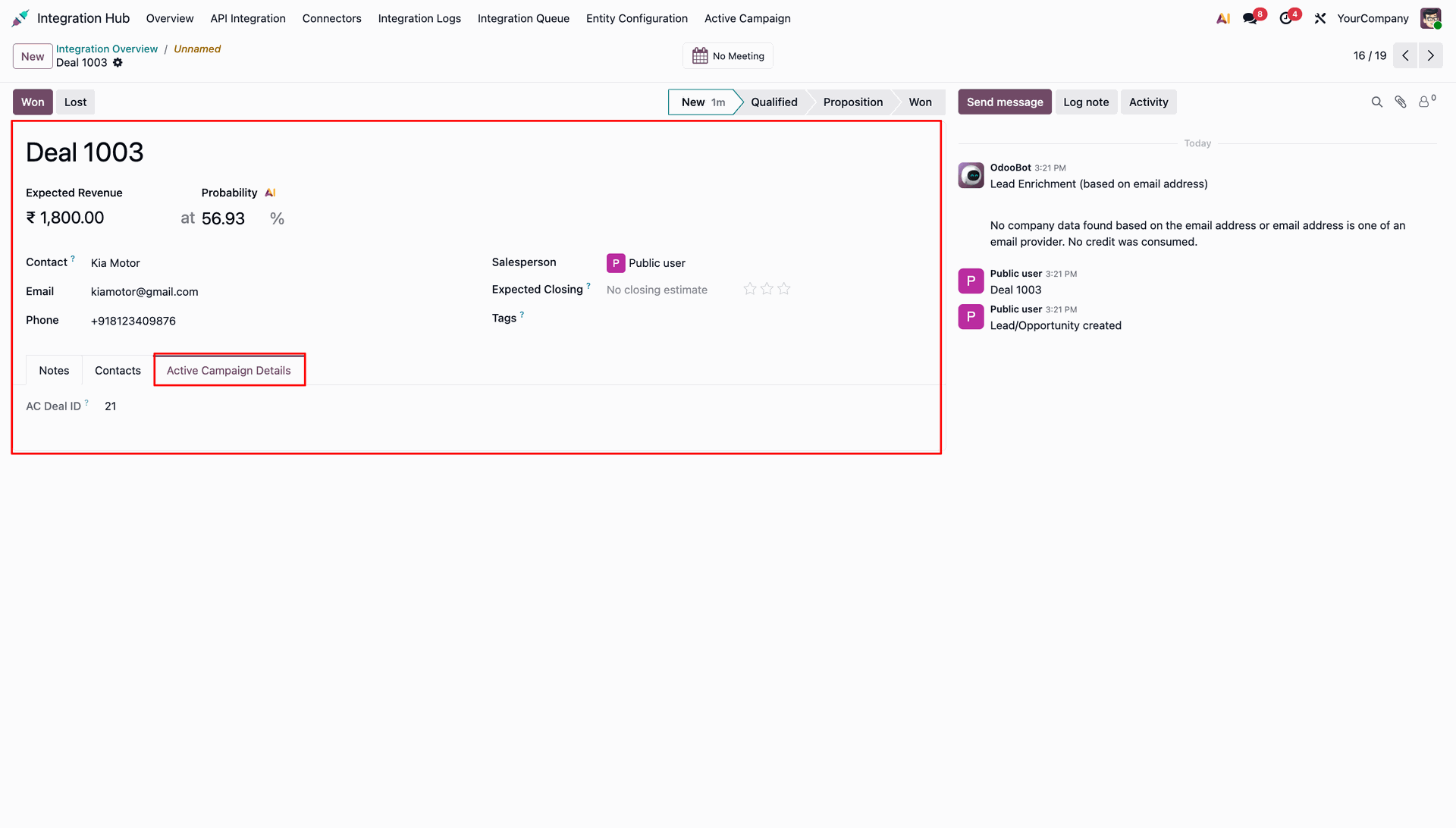
Verify imported opportunity details and mapped AC Deal ID in the Odoo CRM Pipeline.
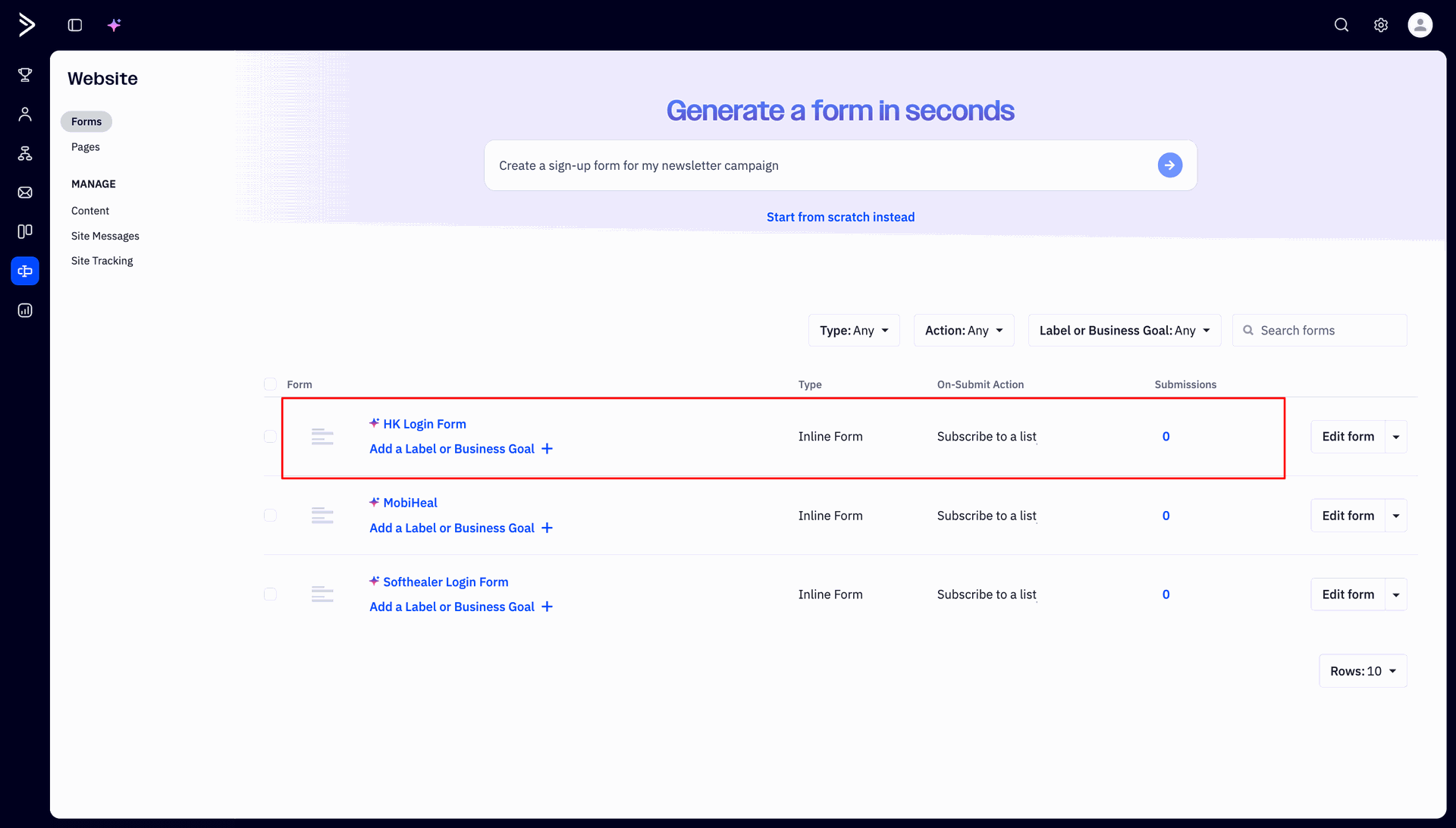
Inspect web forms created in ActiveCampaign under the Website Forms section.
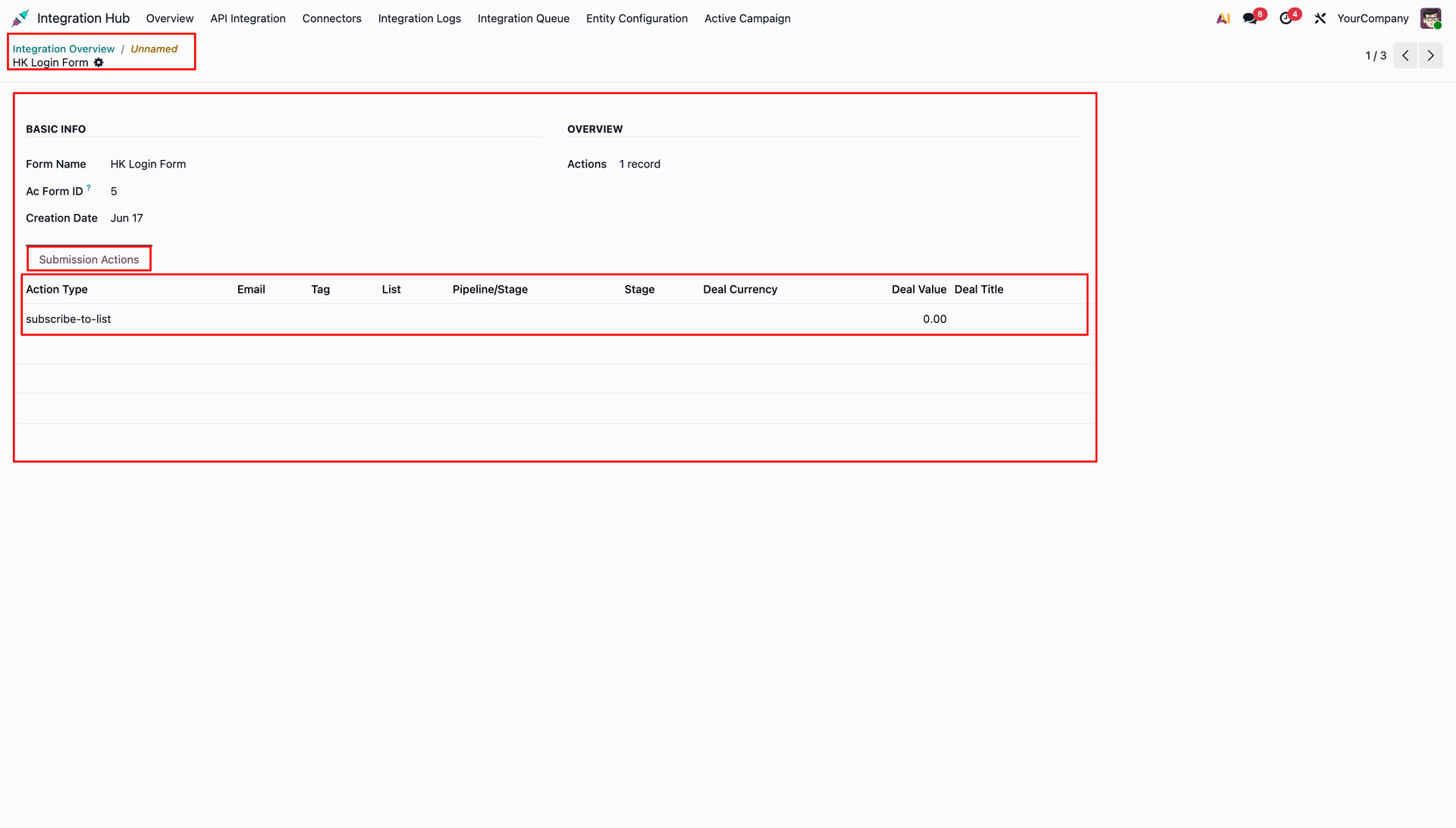
Open an imported form record in Odoo to check form ID and submission action rules.
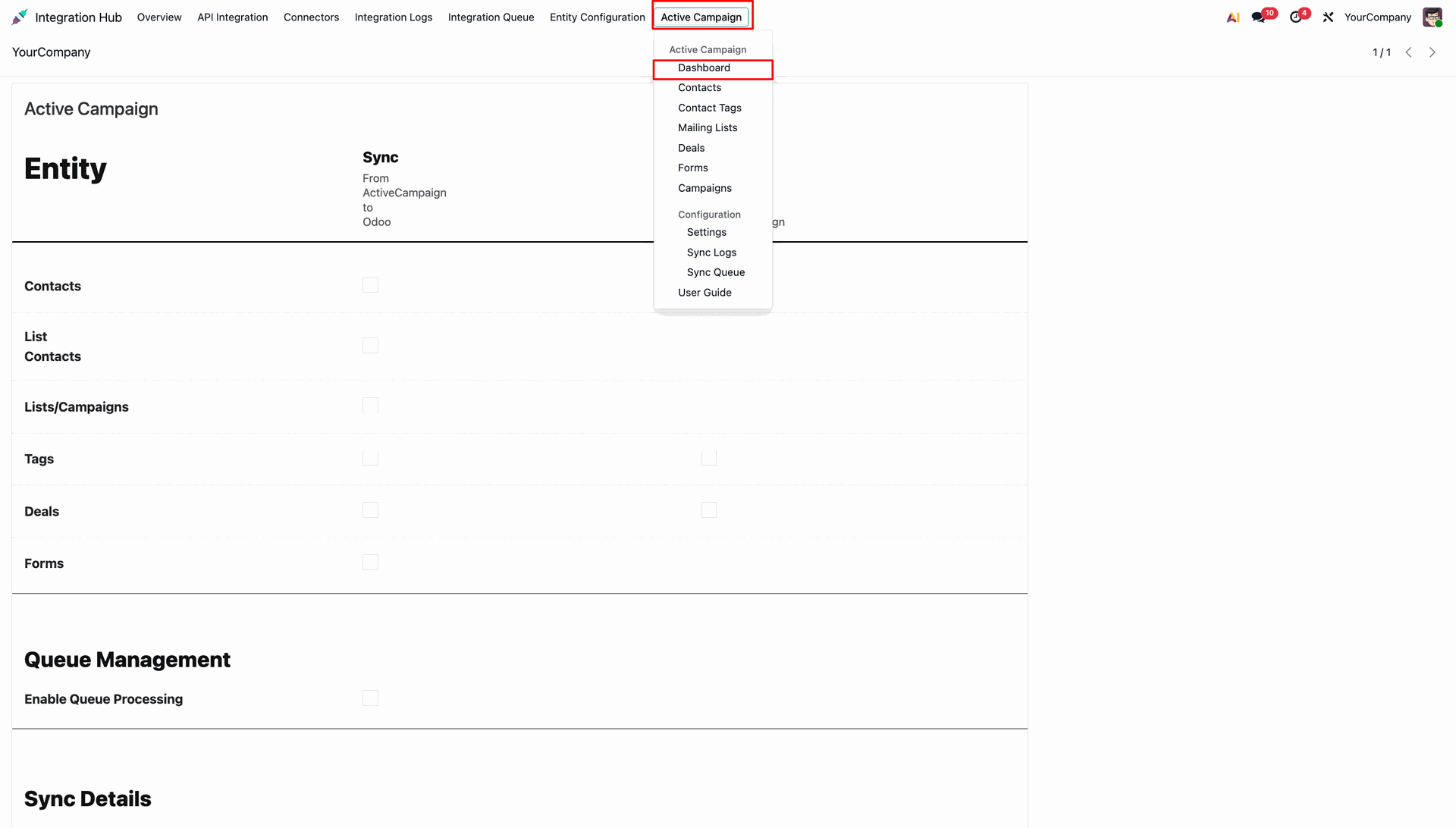
Click Dashboard under the Active Campaign menu to navigate to synchronization control options.
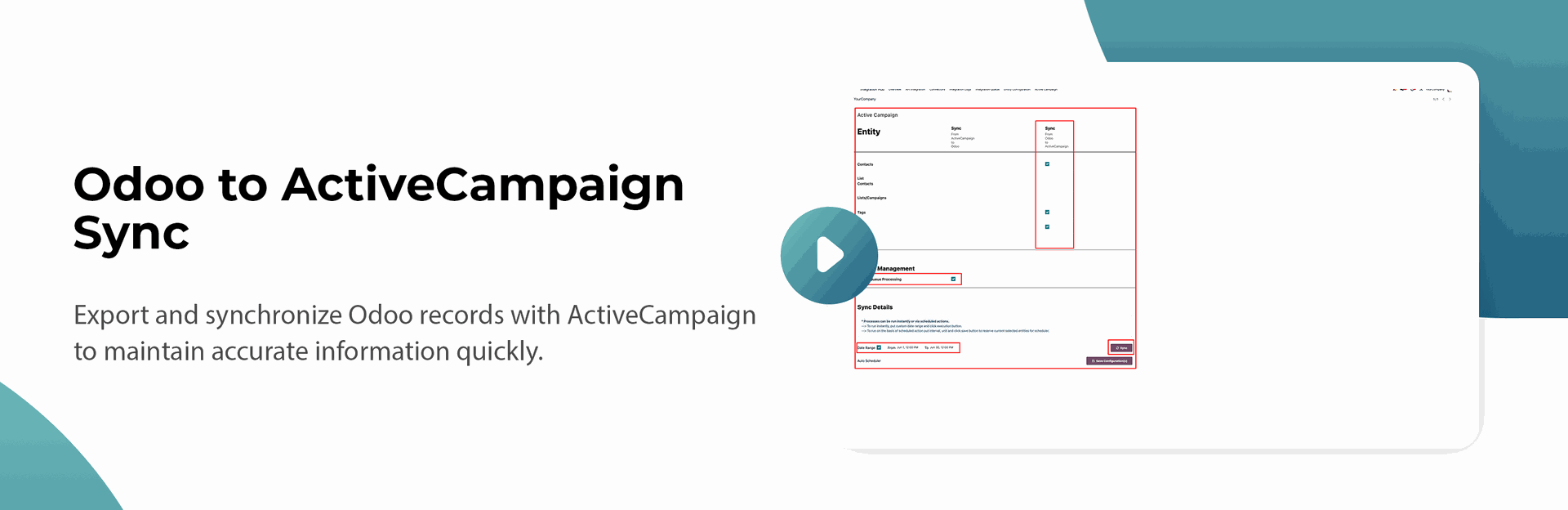
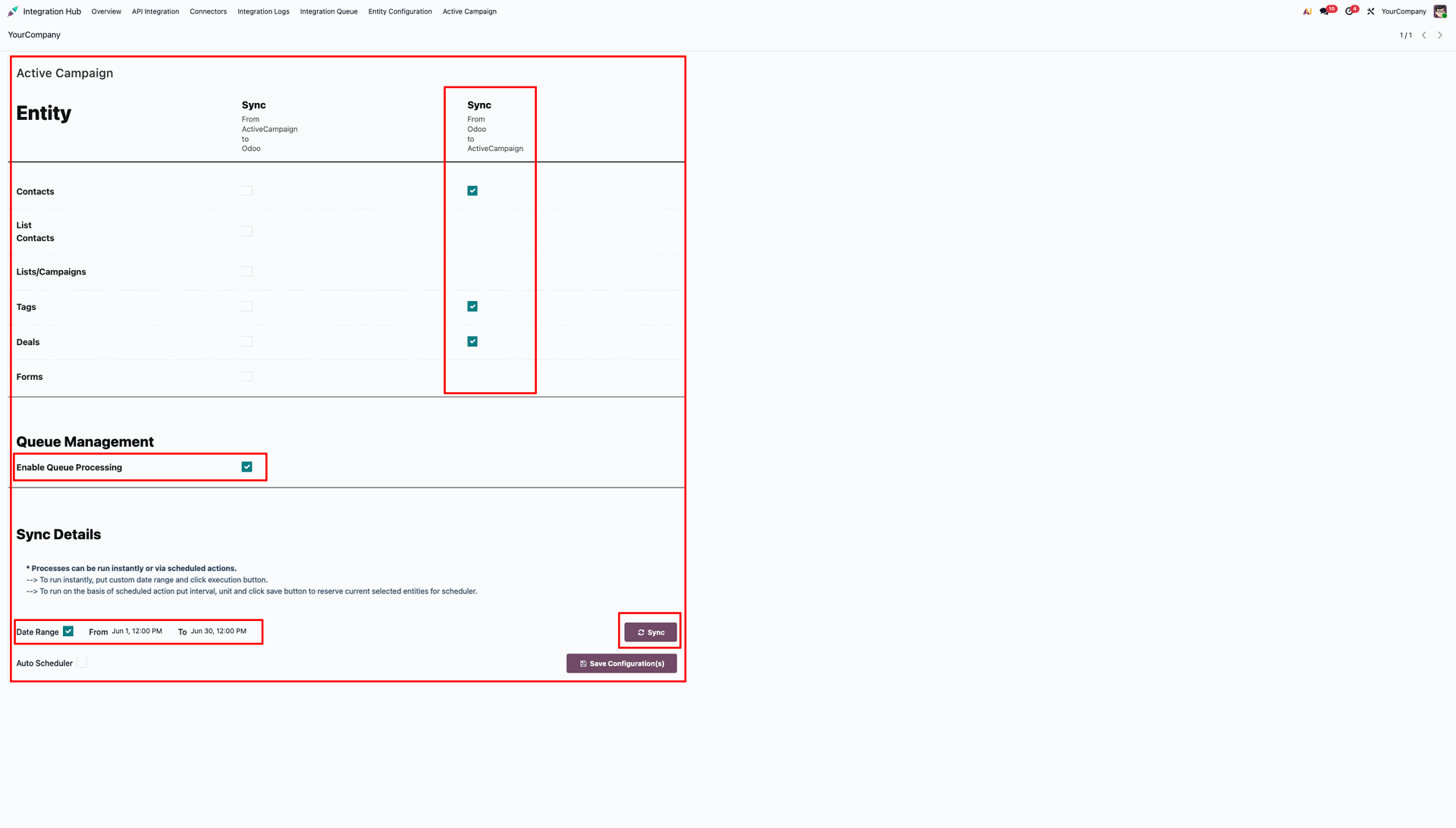
Enable check boxes under Sync From Odoo to ActiveCampaign and click Sync to initiate outbound transfer.
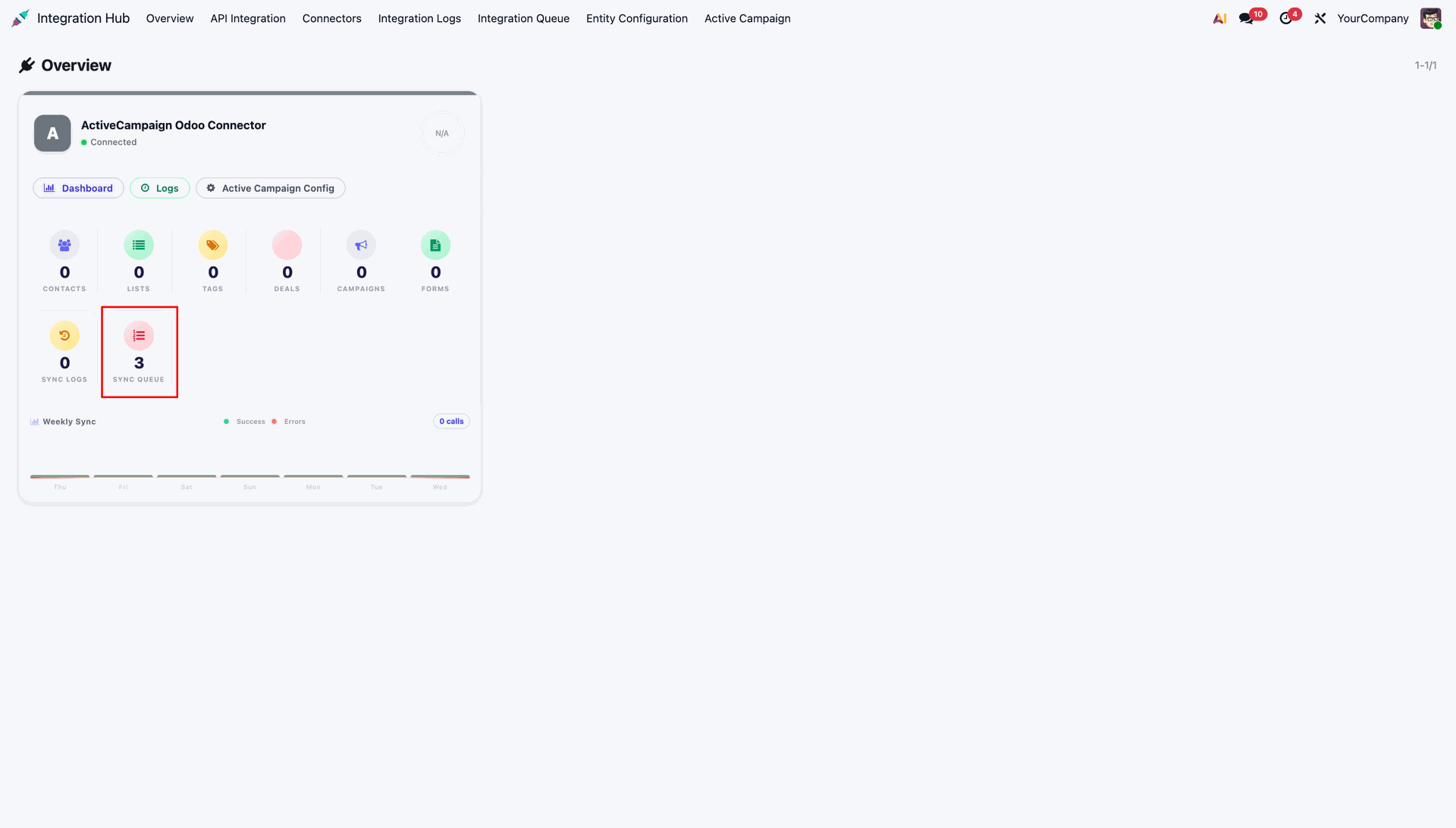
Check the Sync Queue card on the Overview dashboard to monitor generated export jobs.
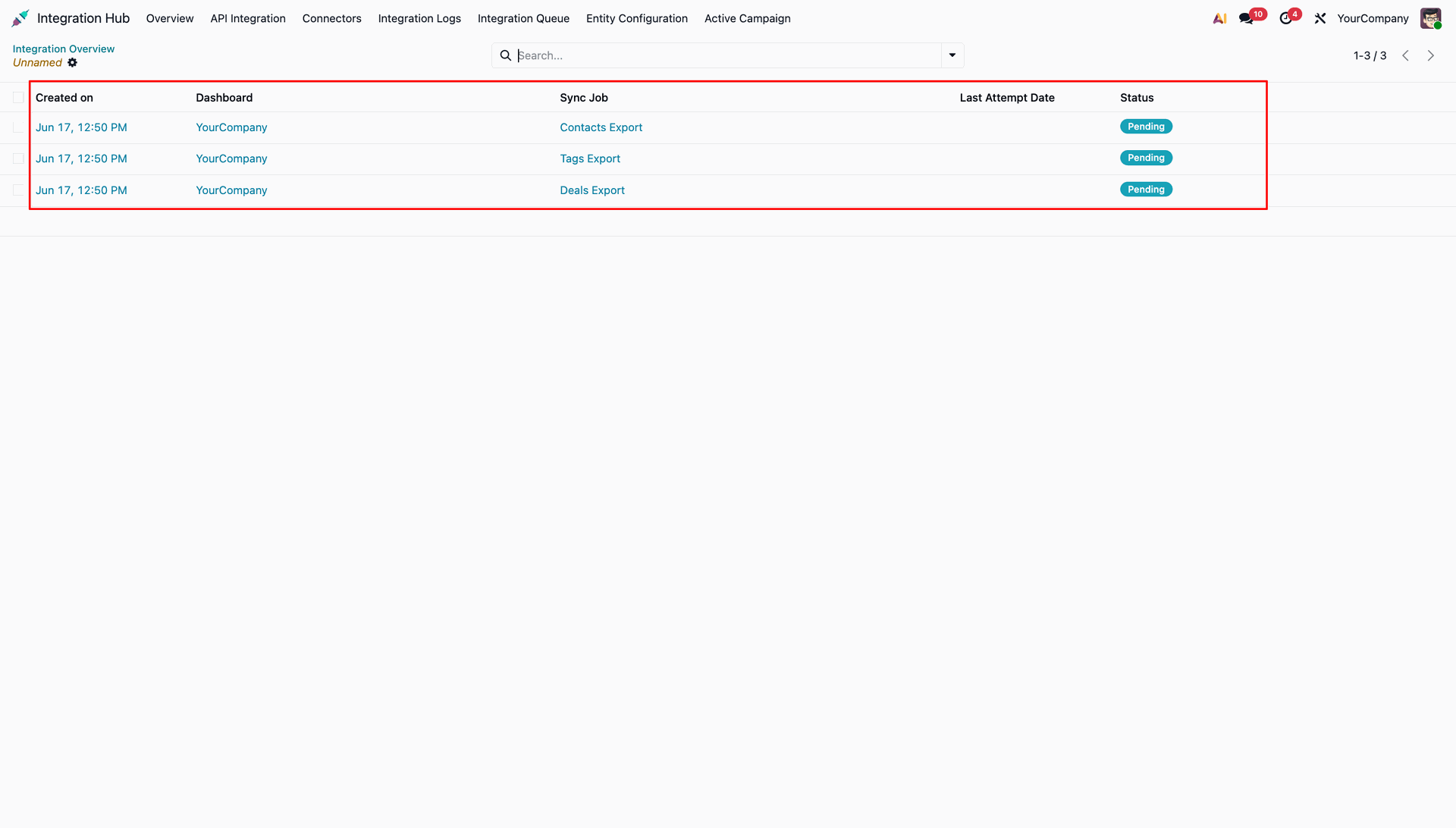
Review generated outbound sync jobs listed in Pending status inside the Integration Queue panel.
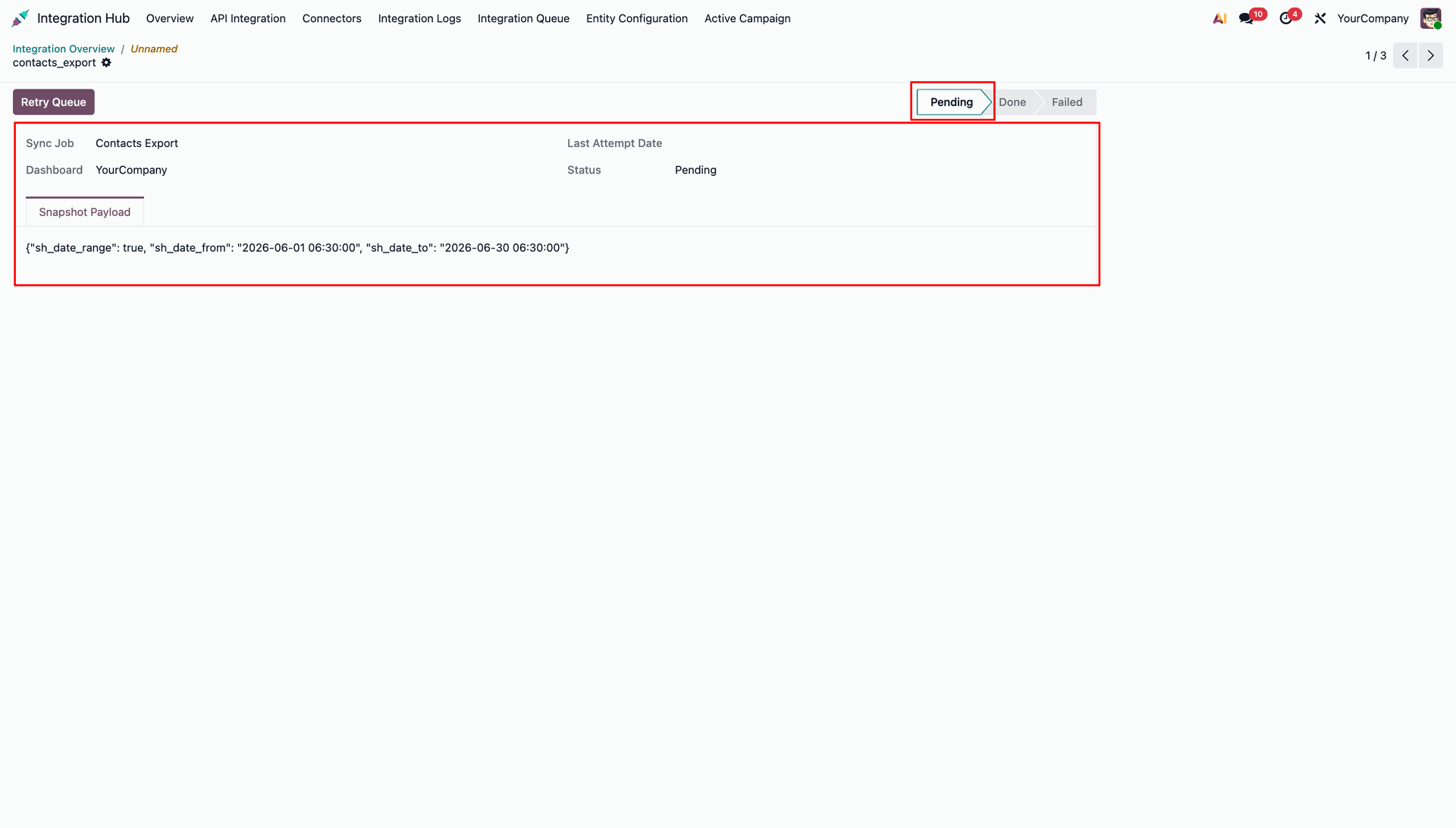
Open an outbound queue item to inspect payload date range filters and execution status.
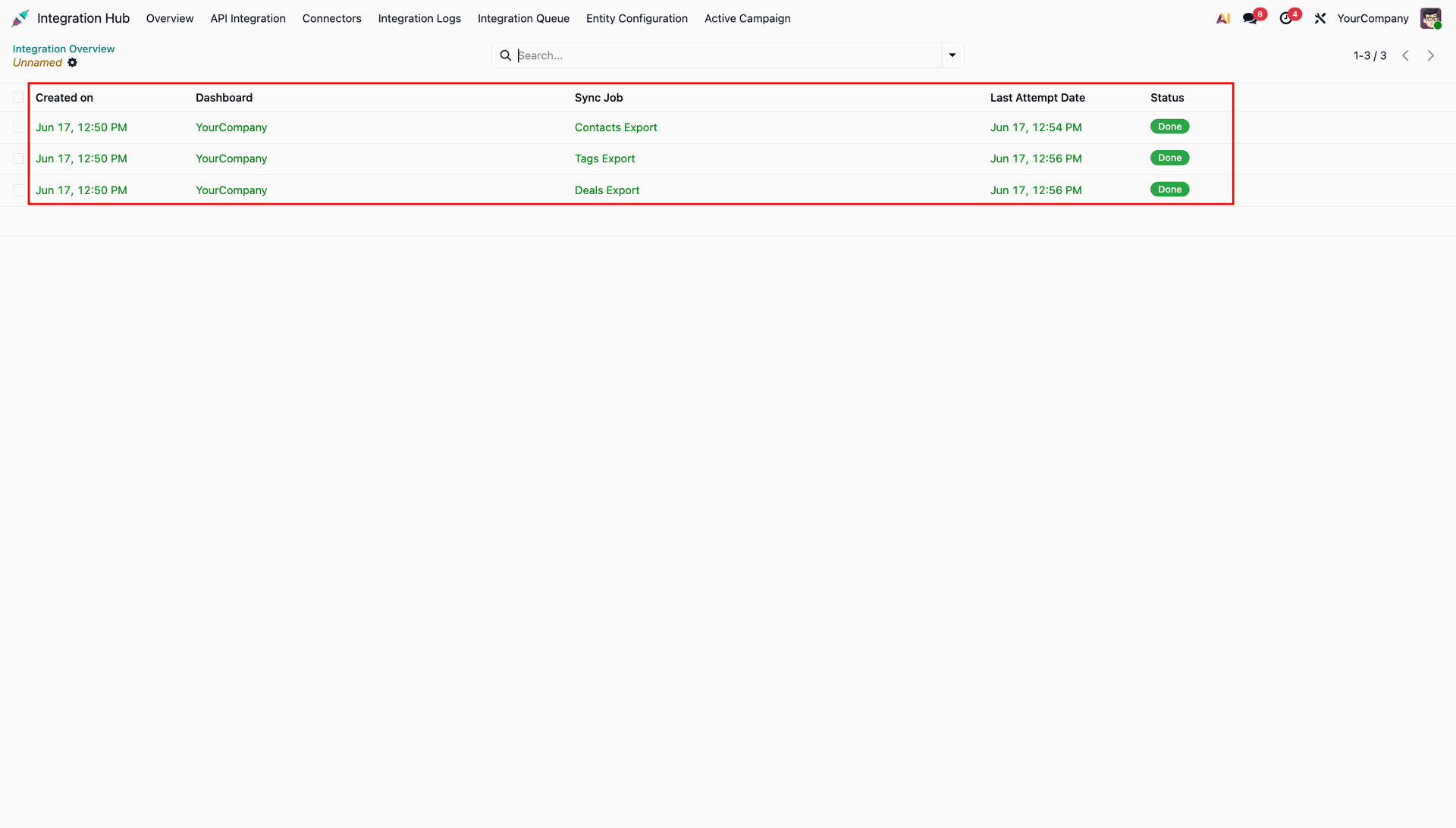
Verify completed outbound queue jobs displaying Done status badges in the Integration Queue list view.
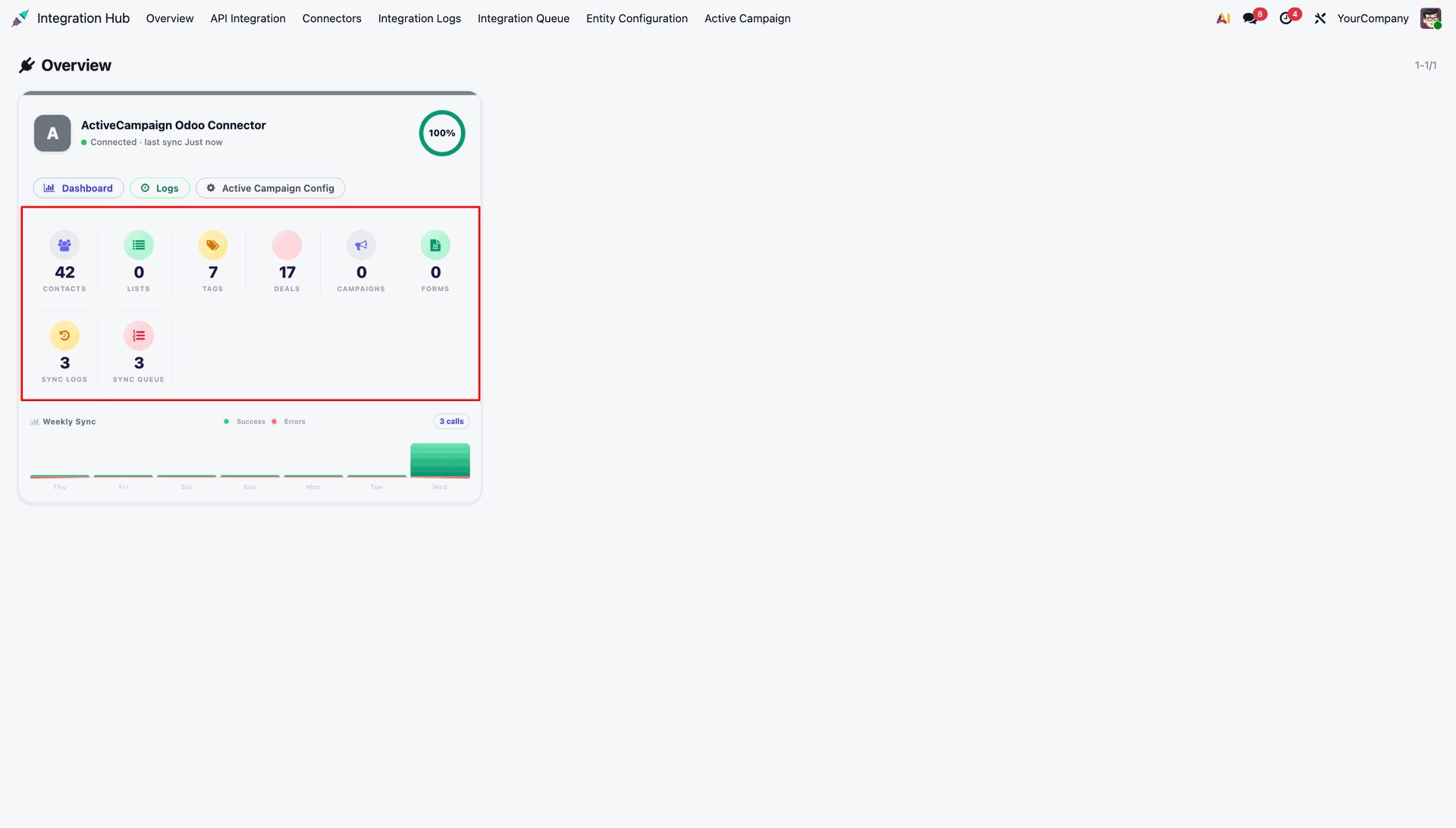
Check updated summary stats on the Overview dashboard after completing outbound synchronization.
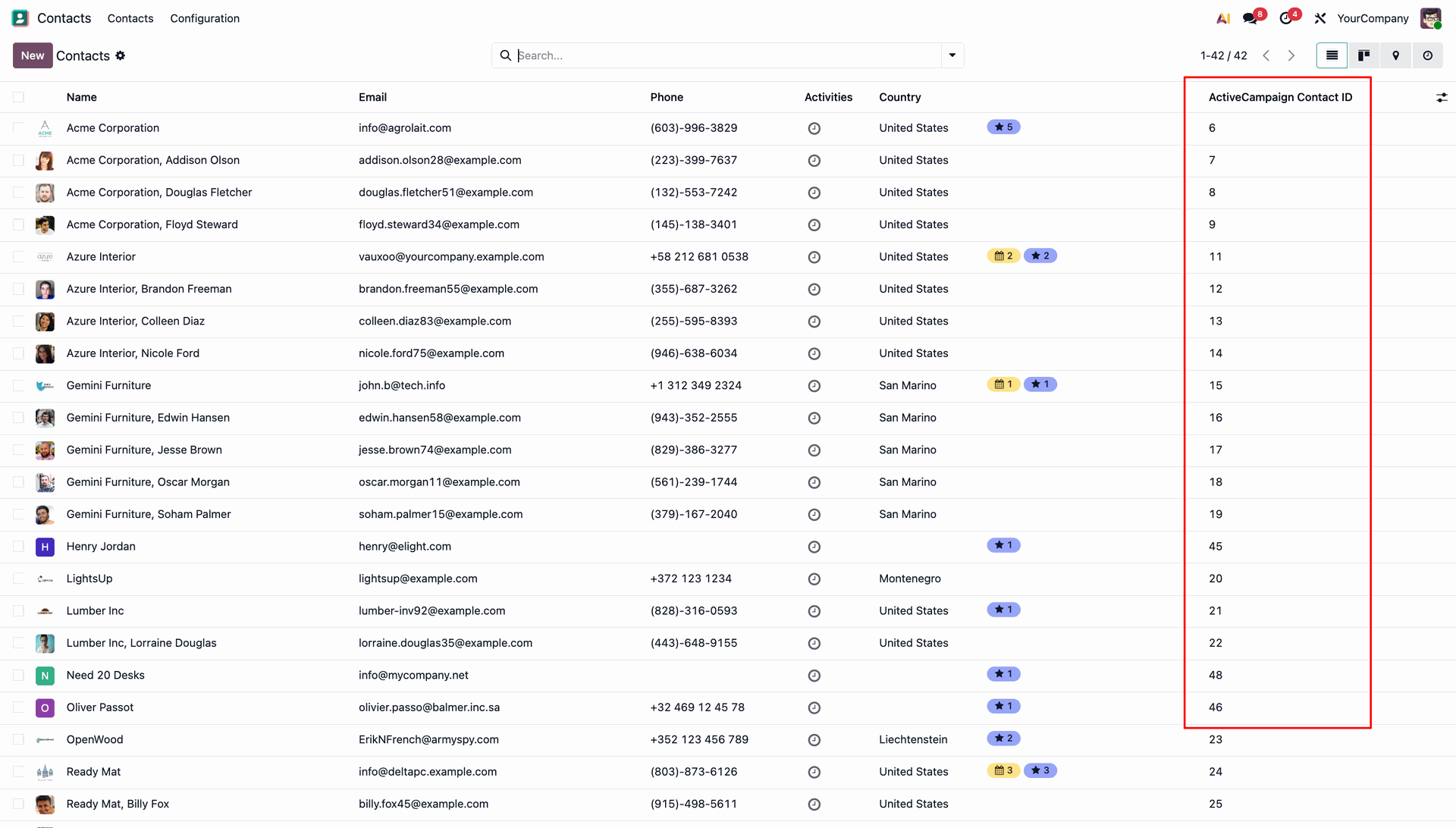
Review completed outbound export entries in the Integration Logs section with record counts.
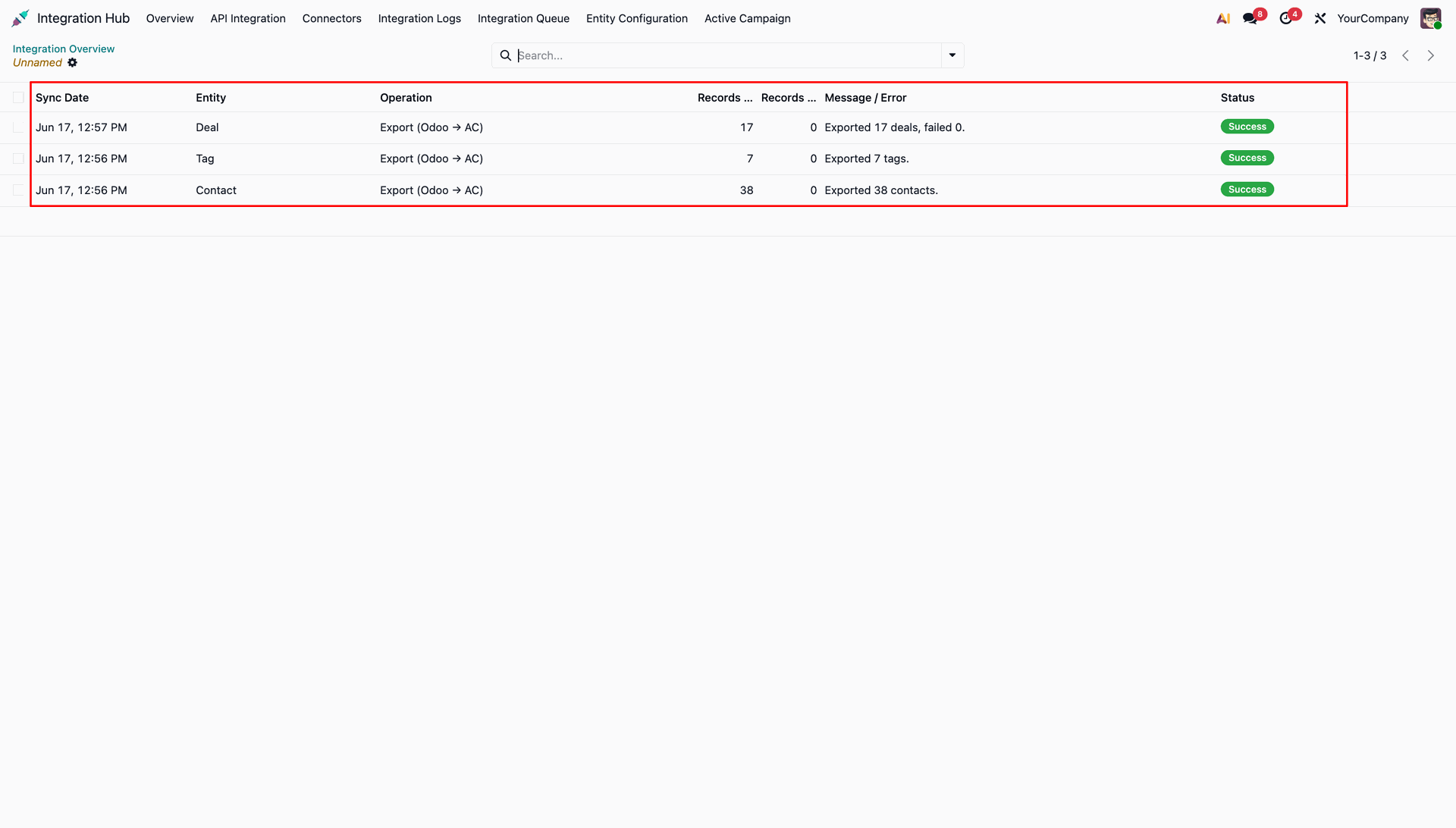
Open the Contacts Kanban layout to identify customer cards assigned the Active Campaign Contact tag.
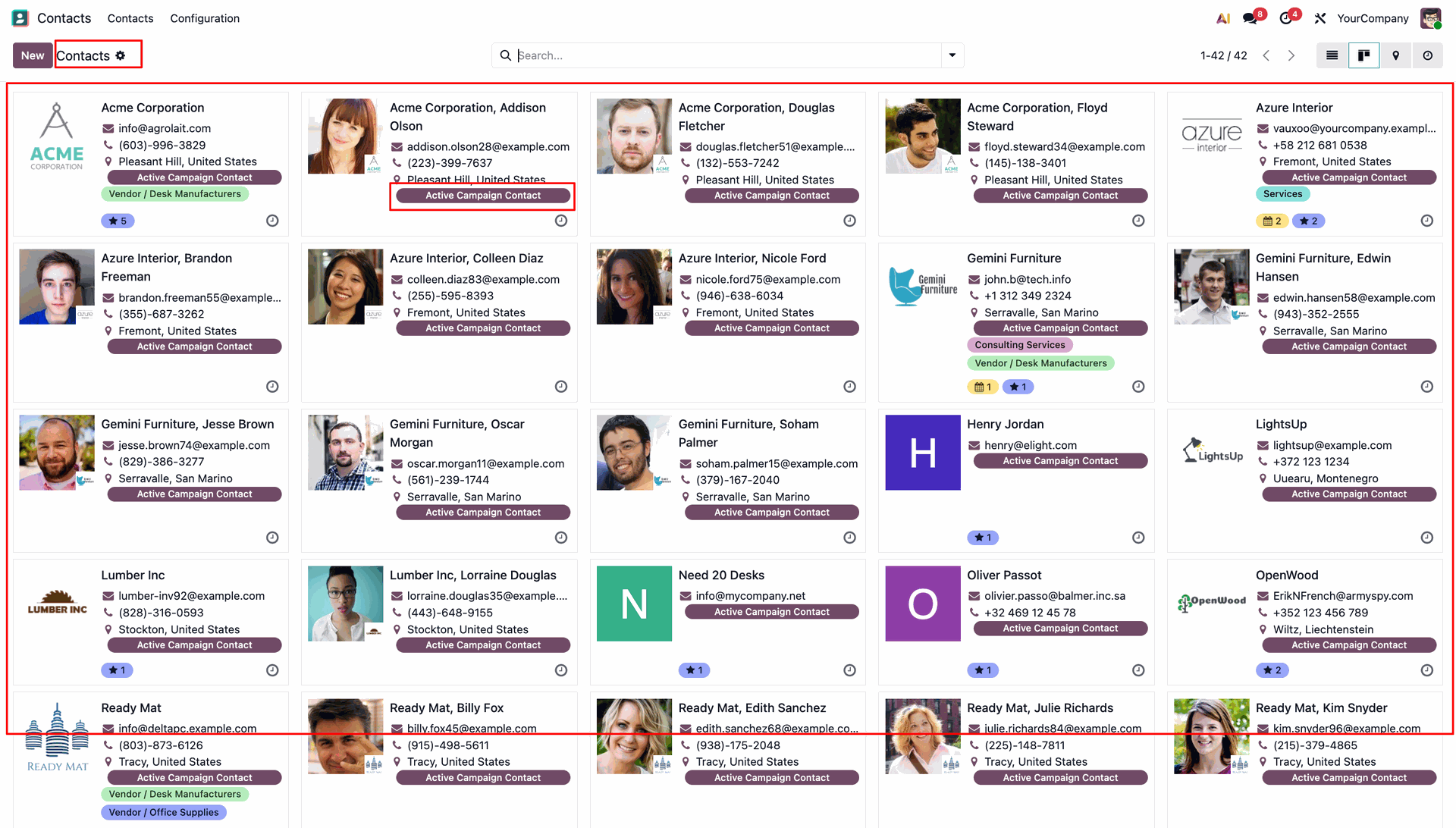
Select the Active Campaign Details tab on a partner form to review the exported Contact ID.
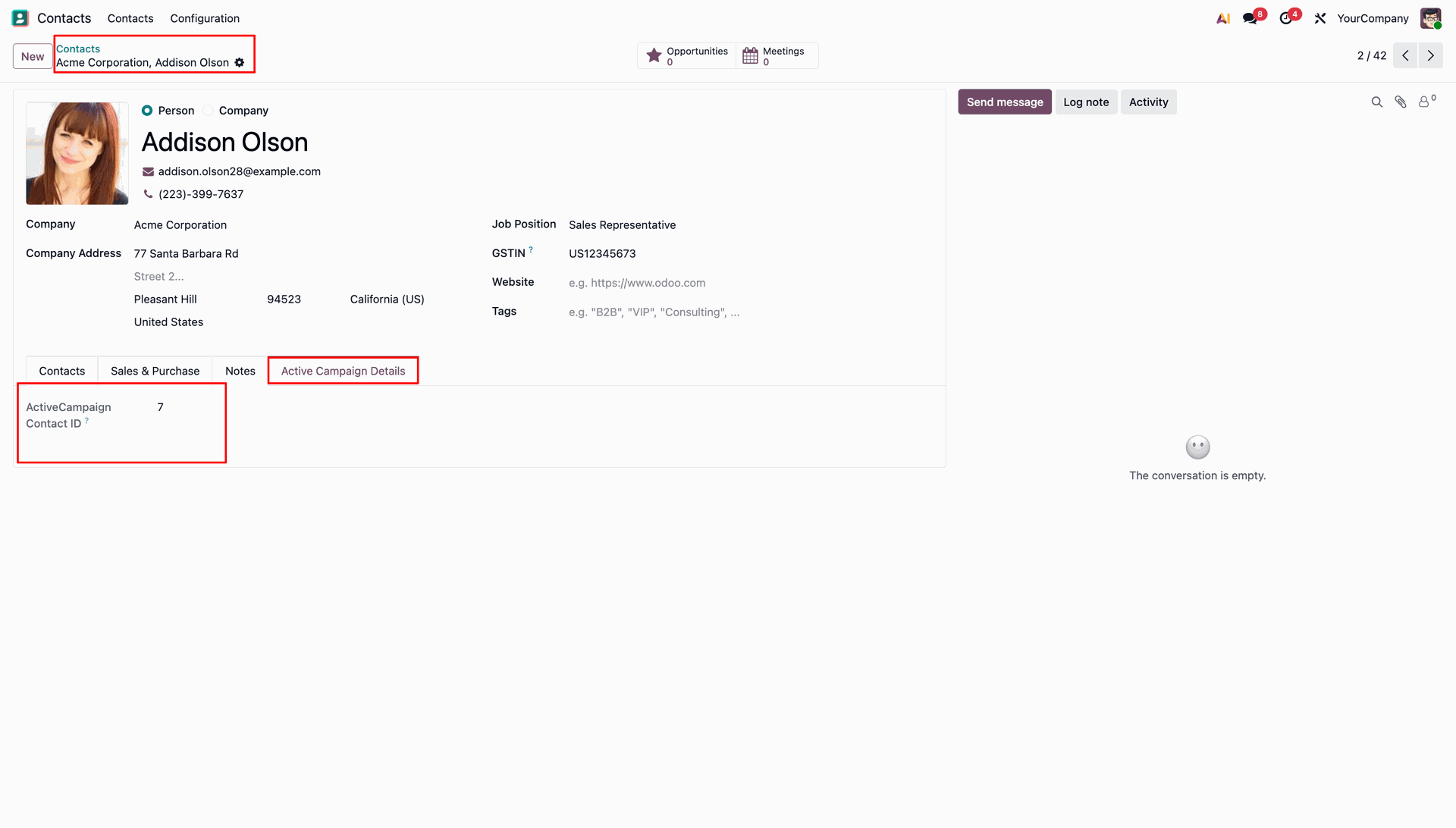
Switch to the Contacts list layout in Odoo to check assigned ActiveCampaign Contact ID values.
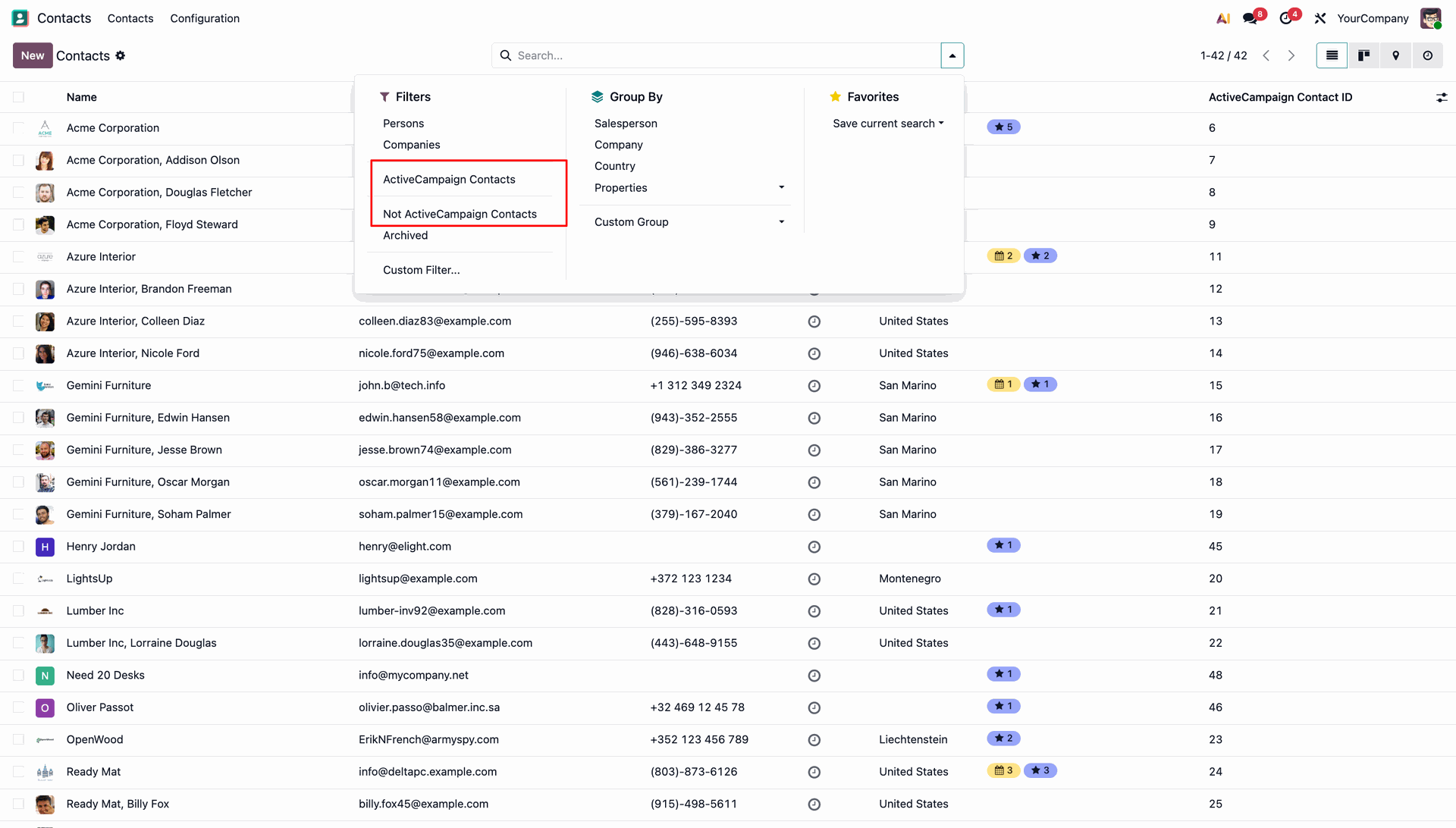
Apply ActiveCampaign search filters in Odoo to segregate synced and non-synced customer records.
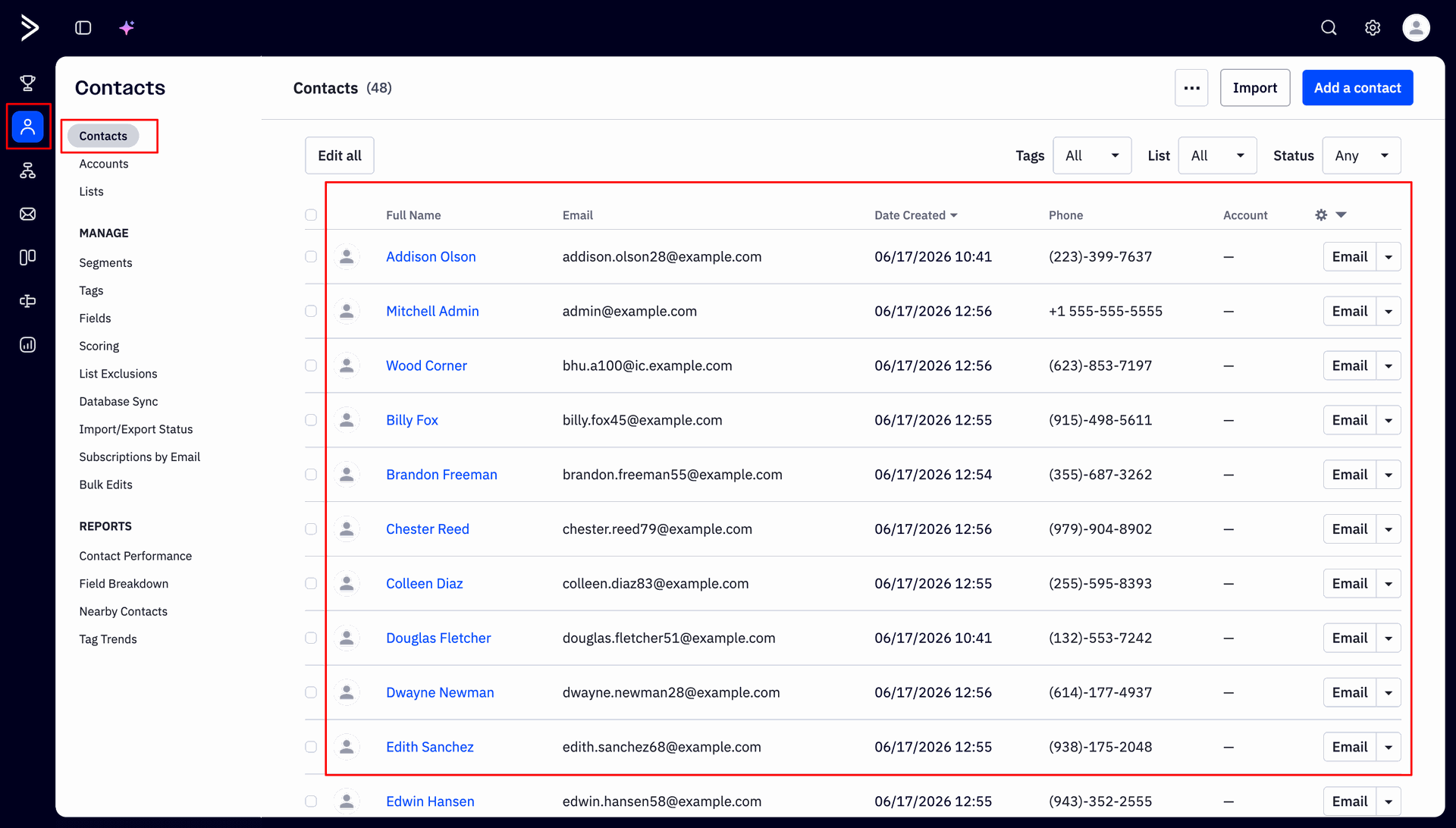
Verify exported customer profiles directly inside the ActiveCampaign Contacts overview grid.
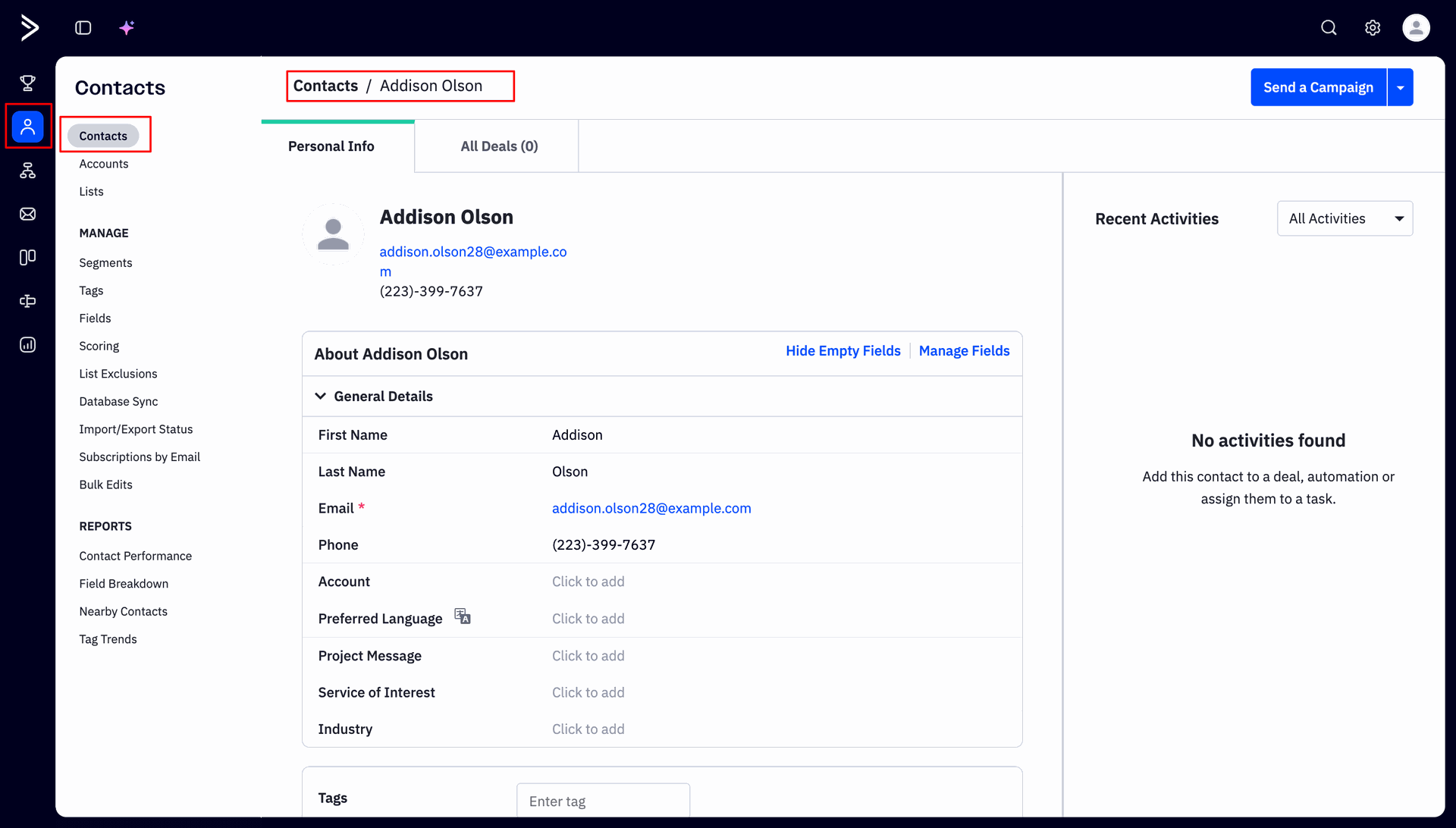
Open an exported contact profile in ActiveCampaign to inspect synchronized personal details.
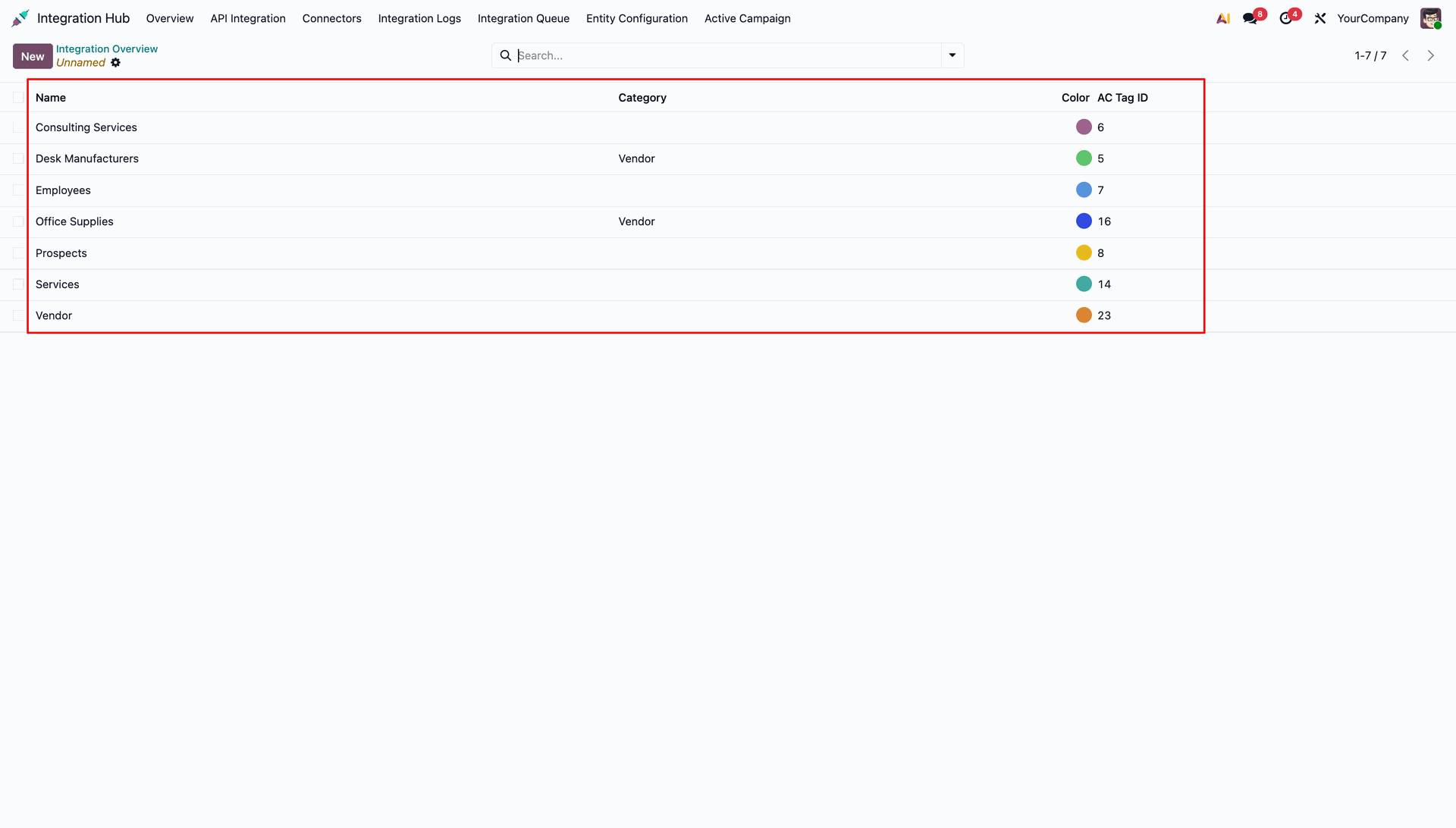
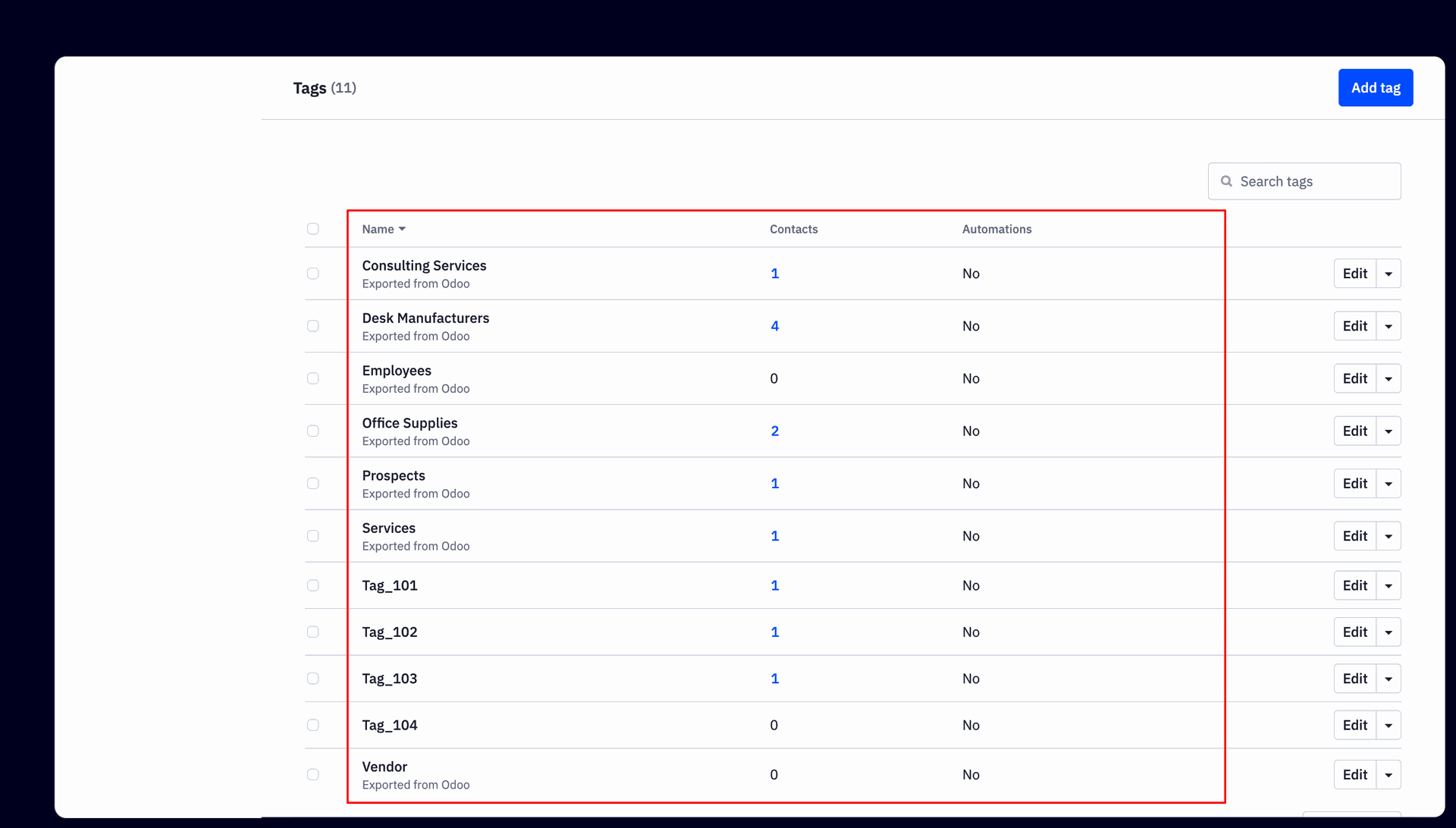
Open the Tags summary list view in Odoo to review partner tags along with their generated AC Tag ID.
Verify exported partner tags inside the ActiveCampaign platform tags overview dashboard.
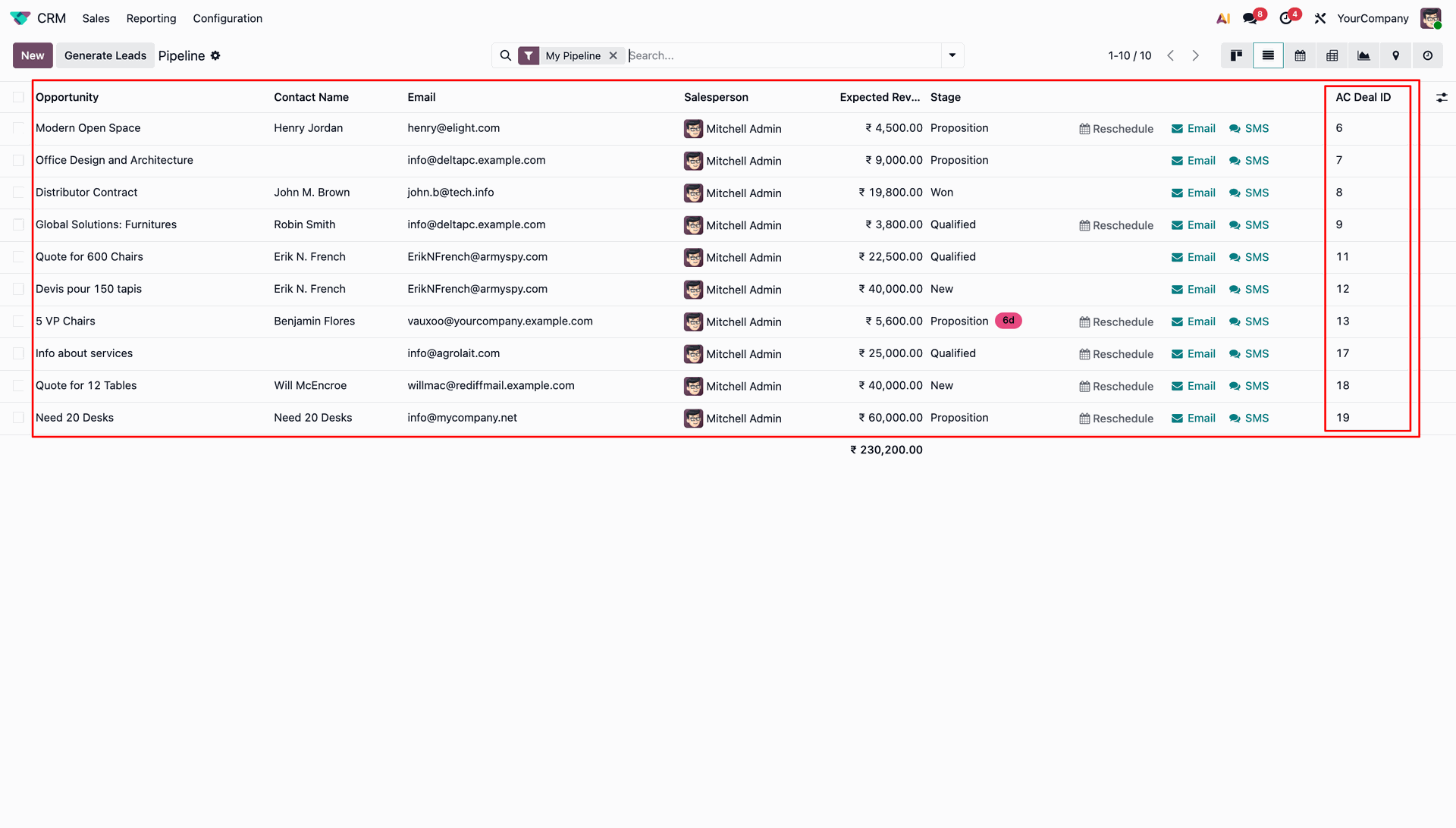
Switch to the CRM Pipeline list view in Odoo to verify populated AC Deal ID values.
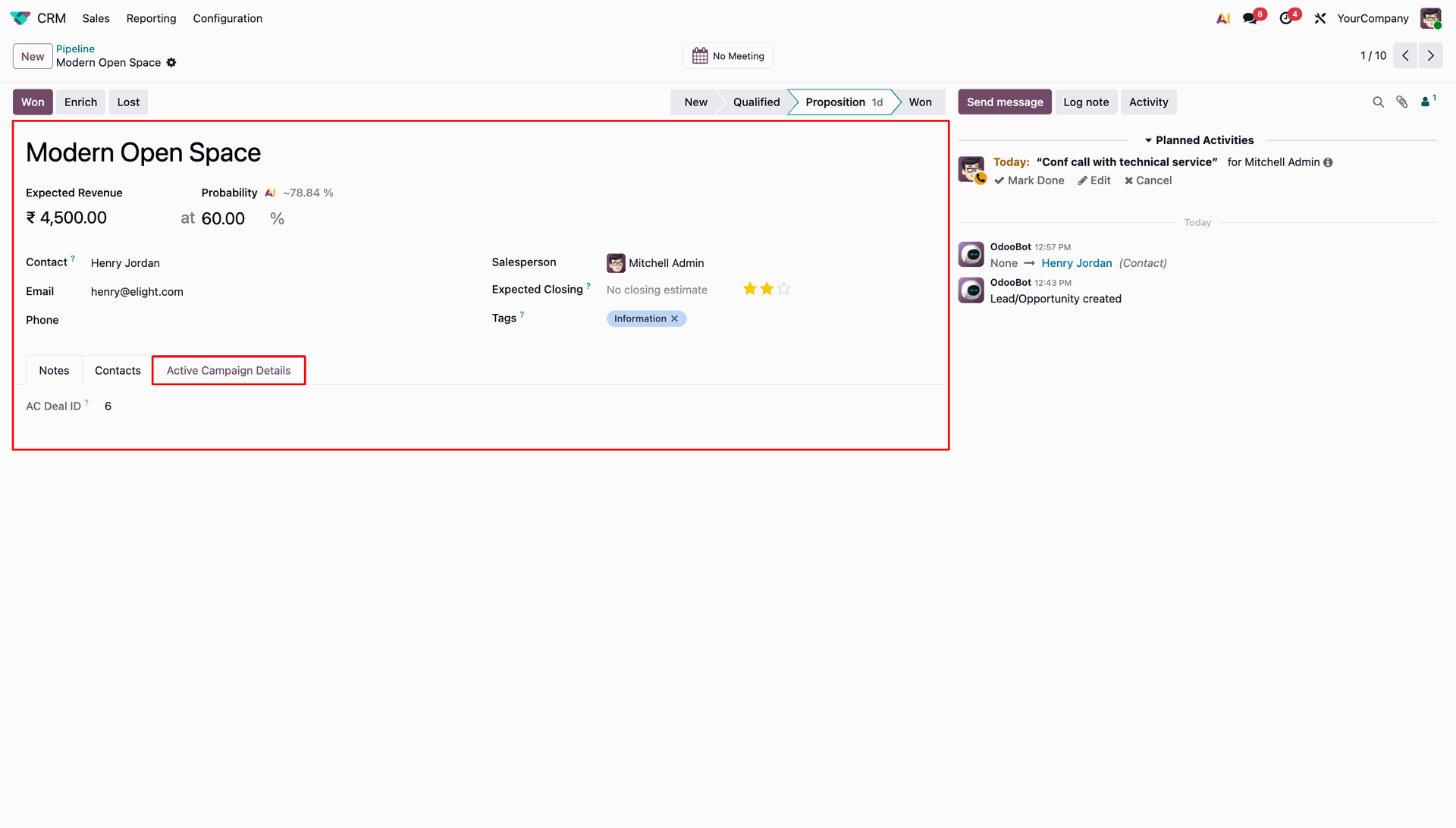
Select the Active Campaign Details tab on an opportunity form to check its assigned AC Deal ID.
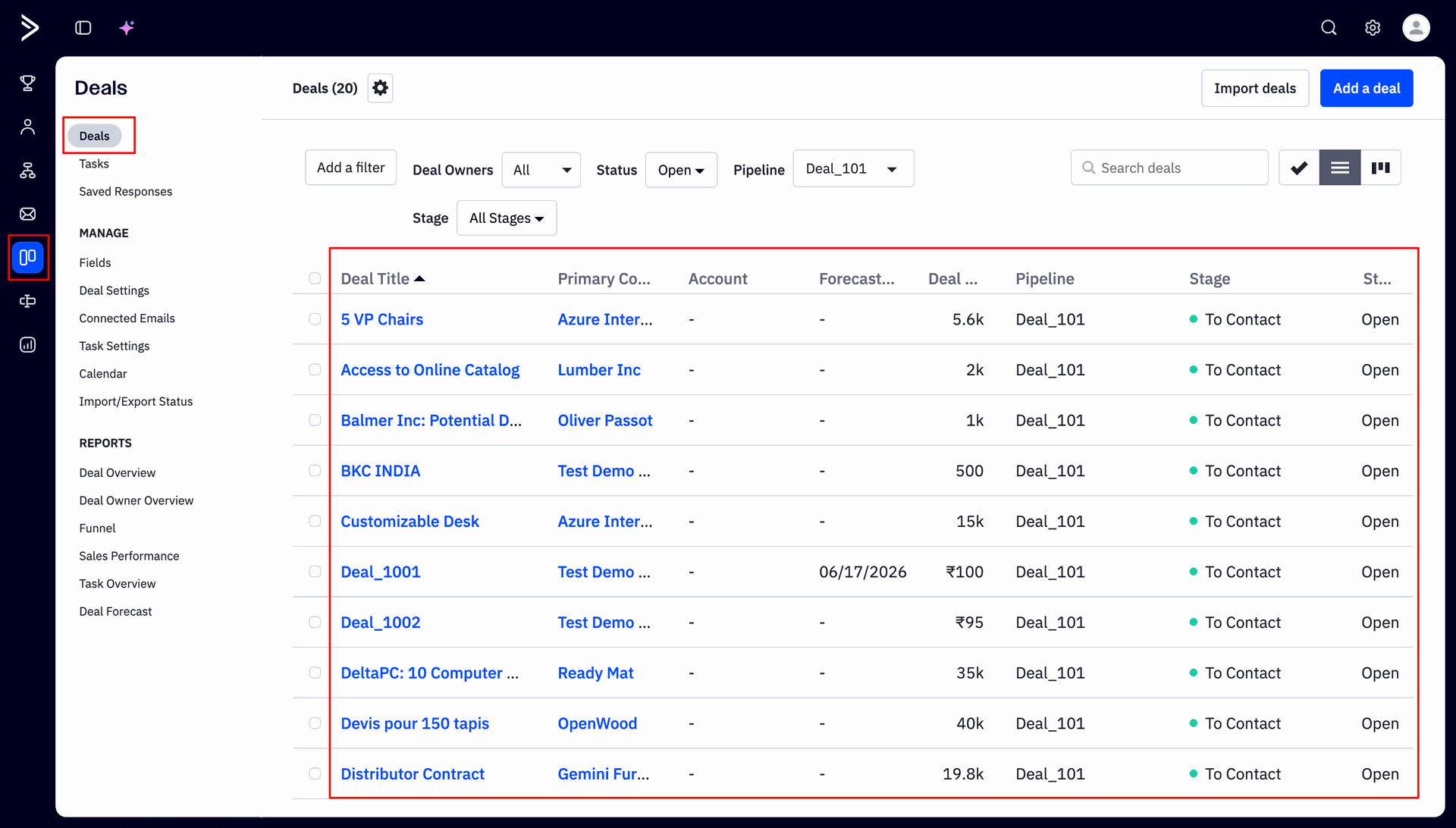
Review transferred sales opportunities listed in the ActiveCampaign platform Deals overview list view.
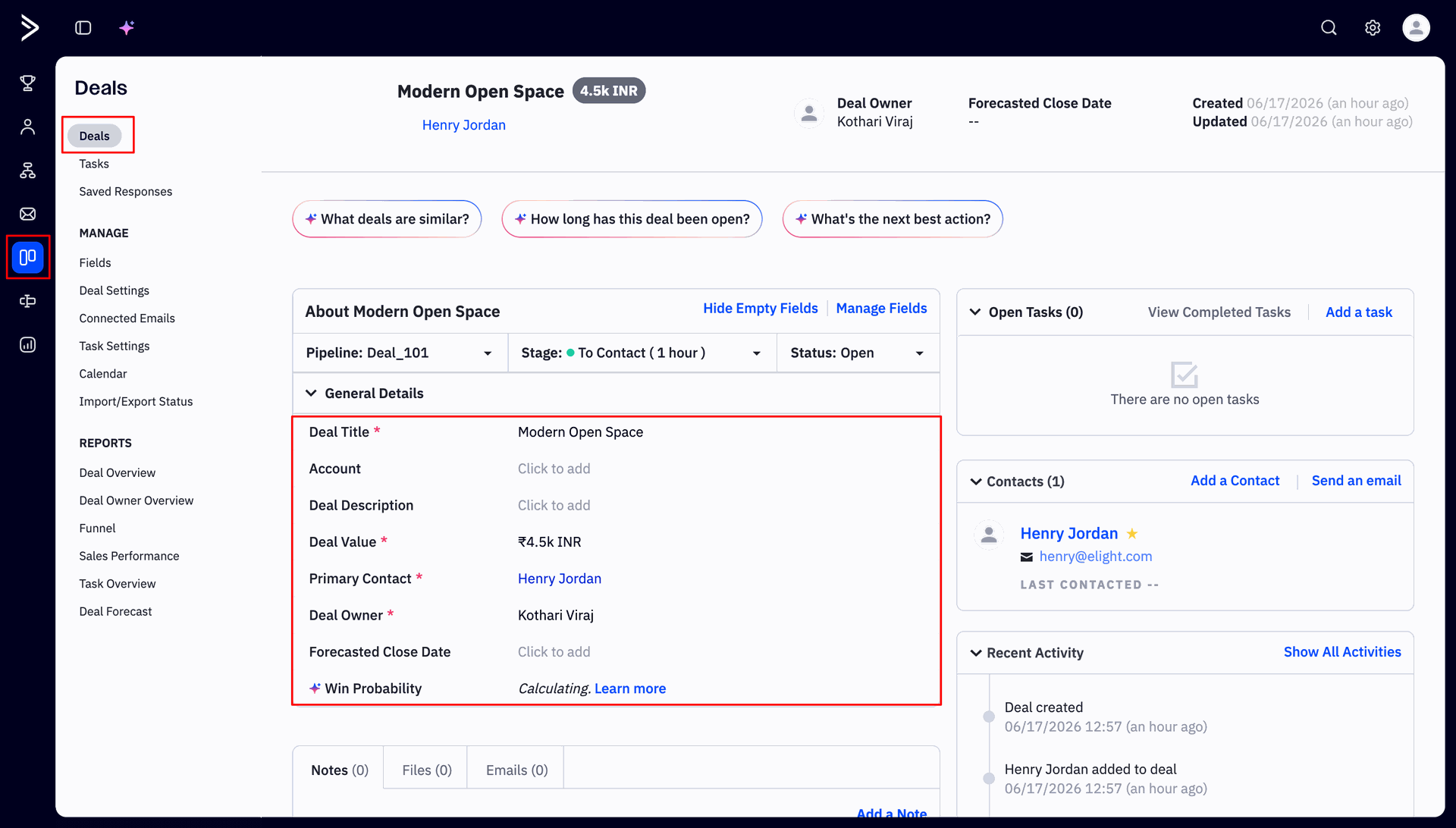
Open individual deal pages in ActiveCampaign to inspect synced stage, contact, and financial metrics.
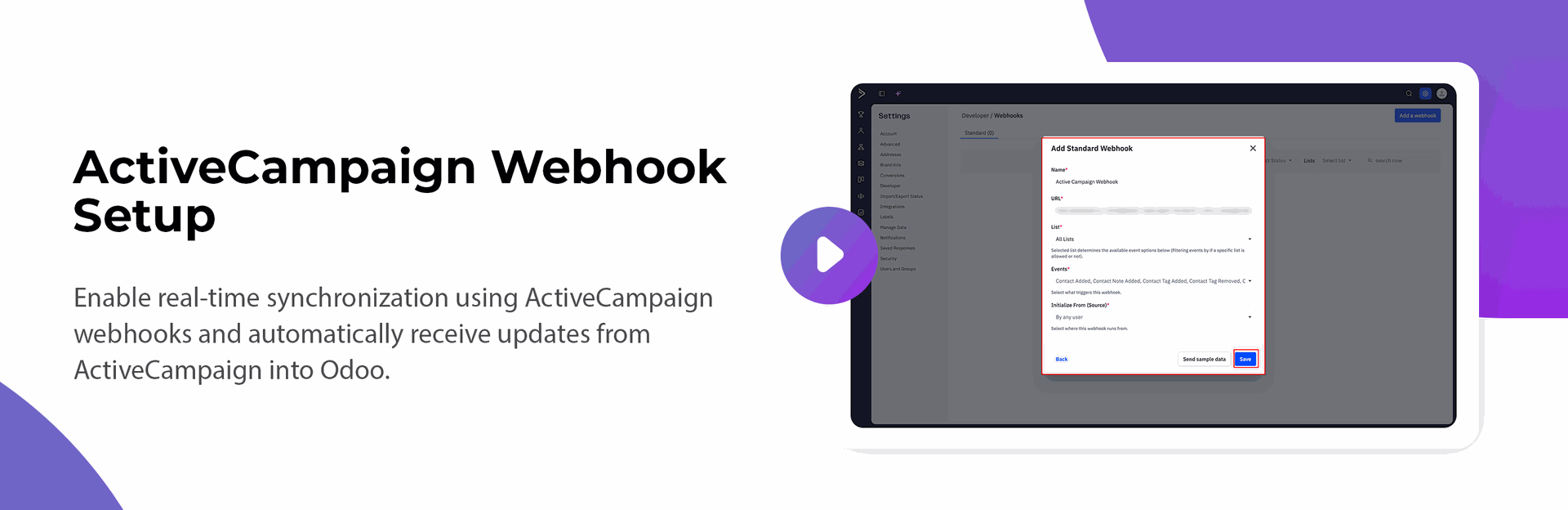
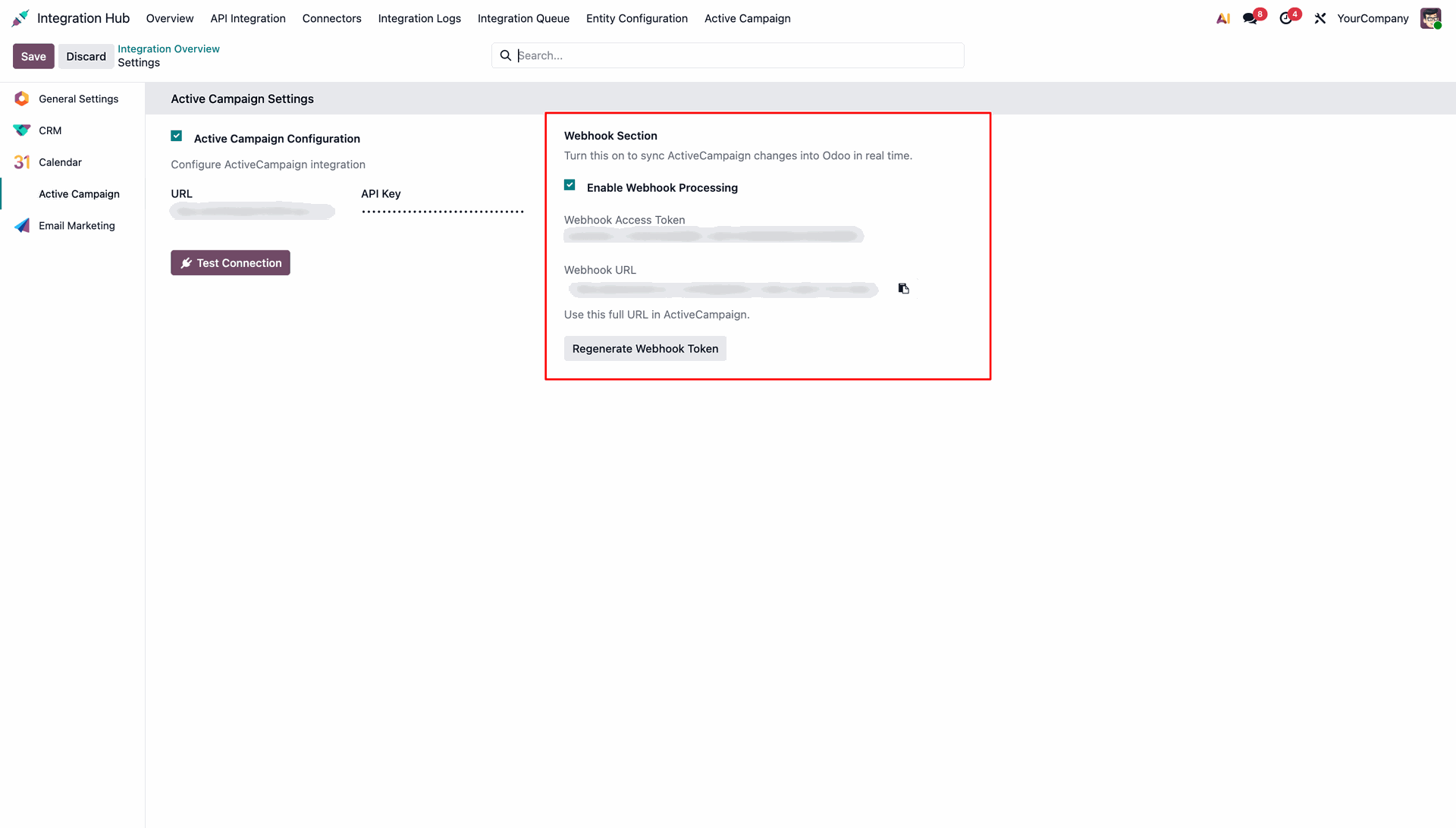
Enable Webhook Processing in Active Campaign Settings to receive real-time updates from ActiveCampaign.
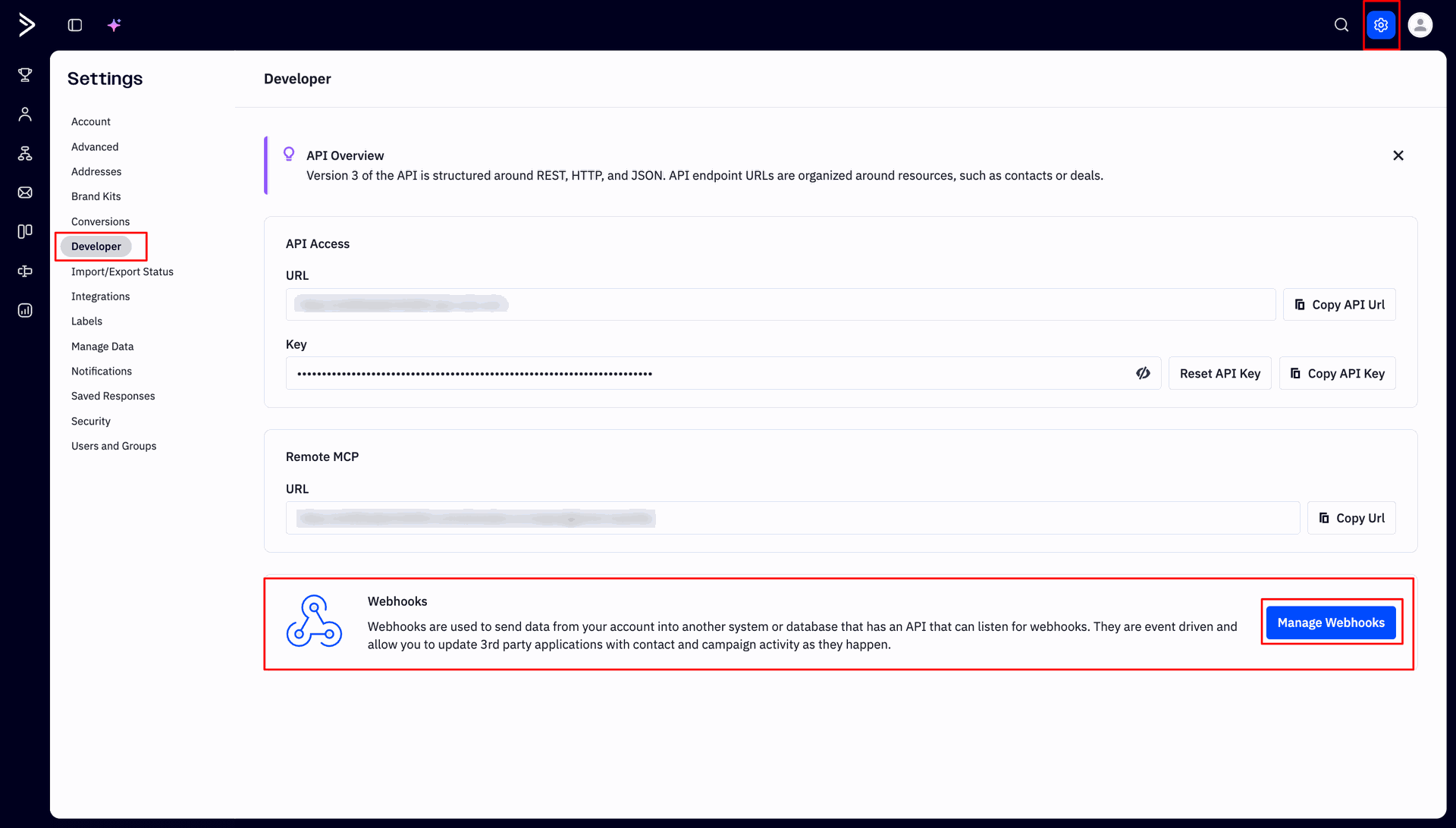
Navigate to Settings > Developer in ActiveCampaign and click the manage webhooks button.
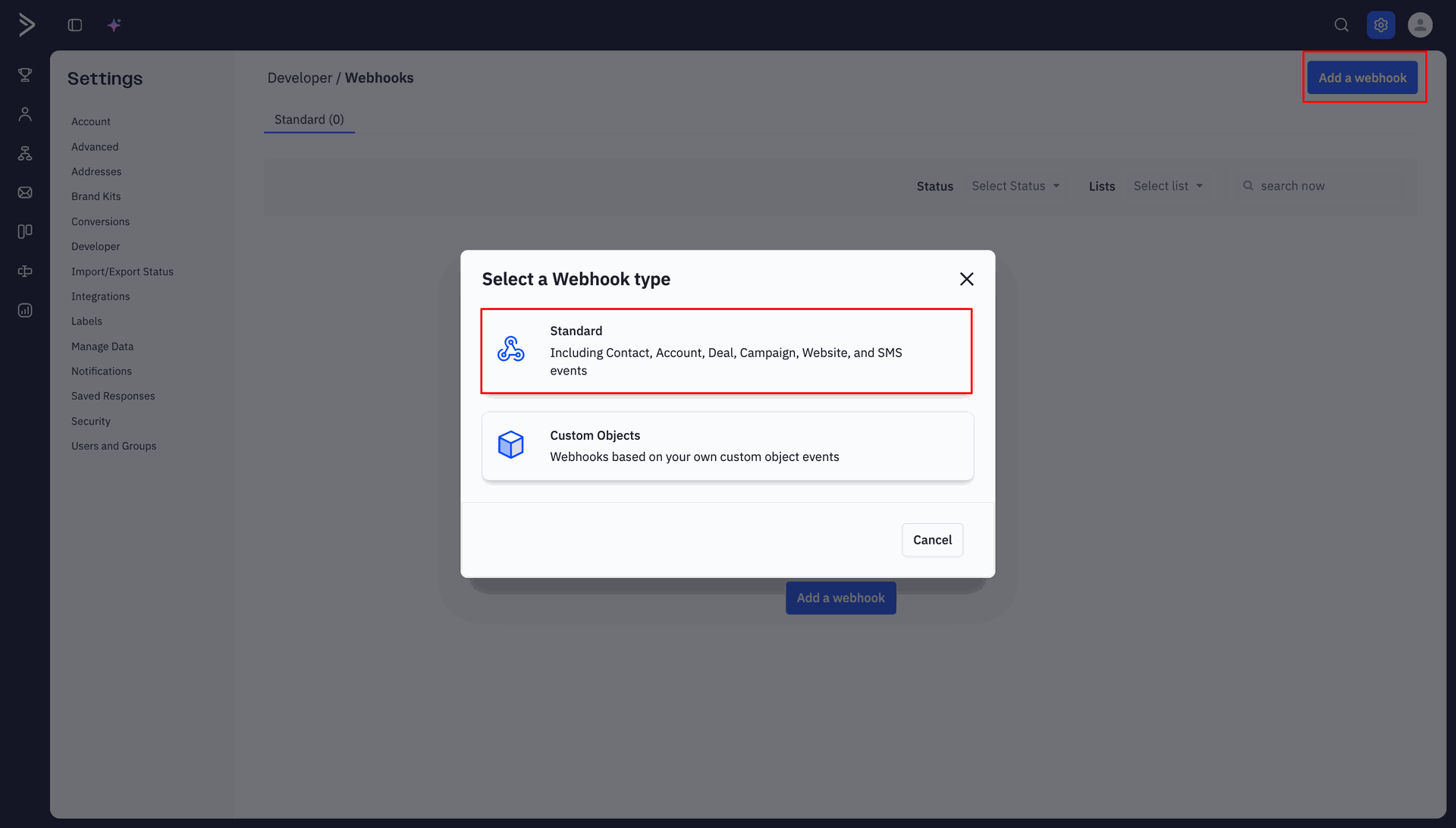
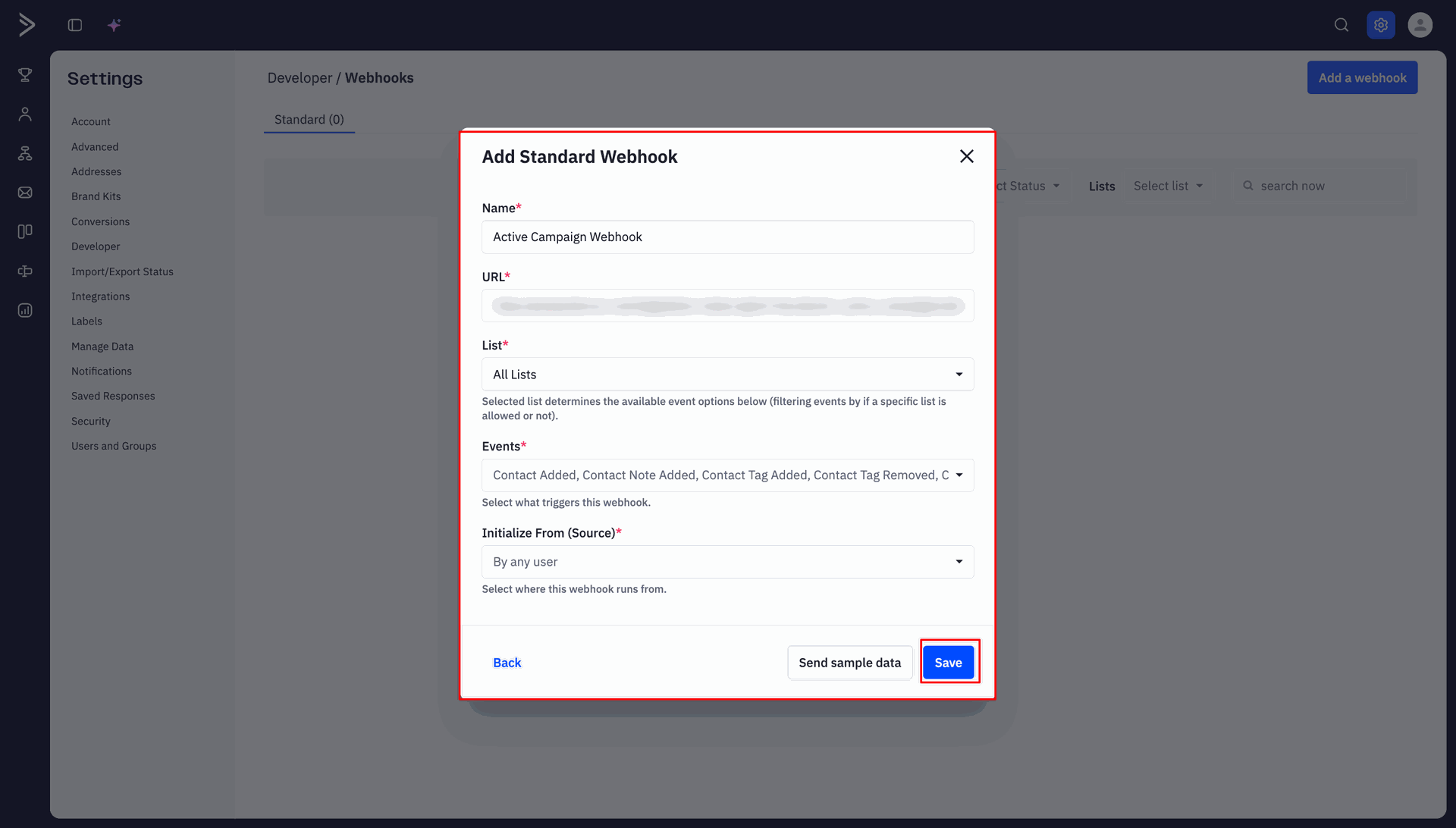
Click Add a webhook and select Standard webhook type to begin setting up your integration.
Enter your Odoo Webhook URL, select triggering events, and click Save to create the webhook.
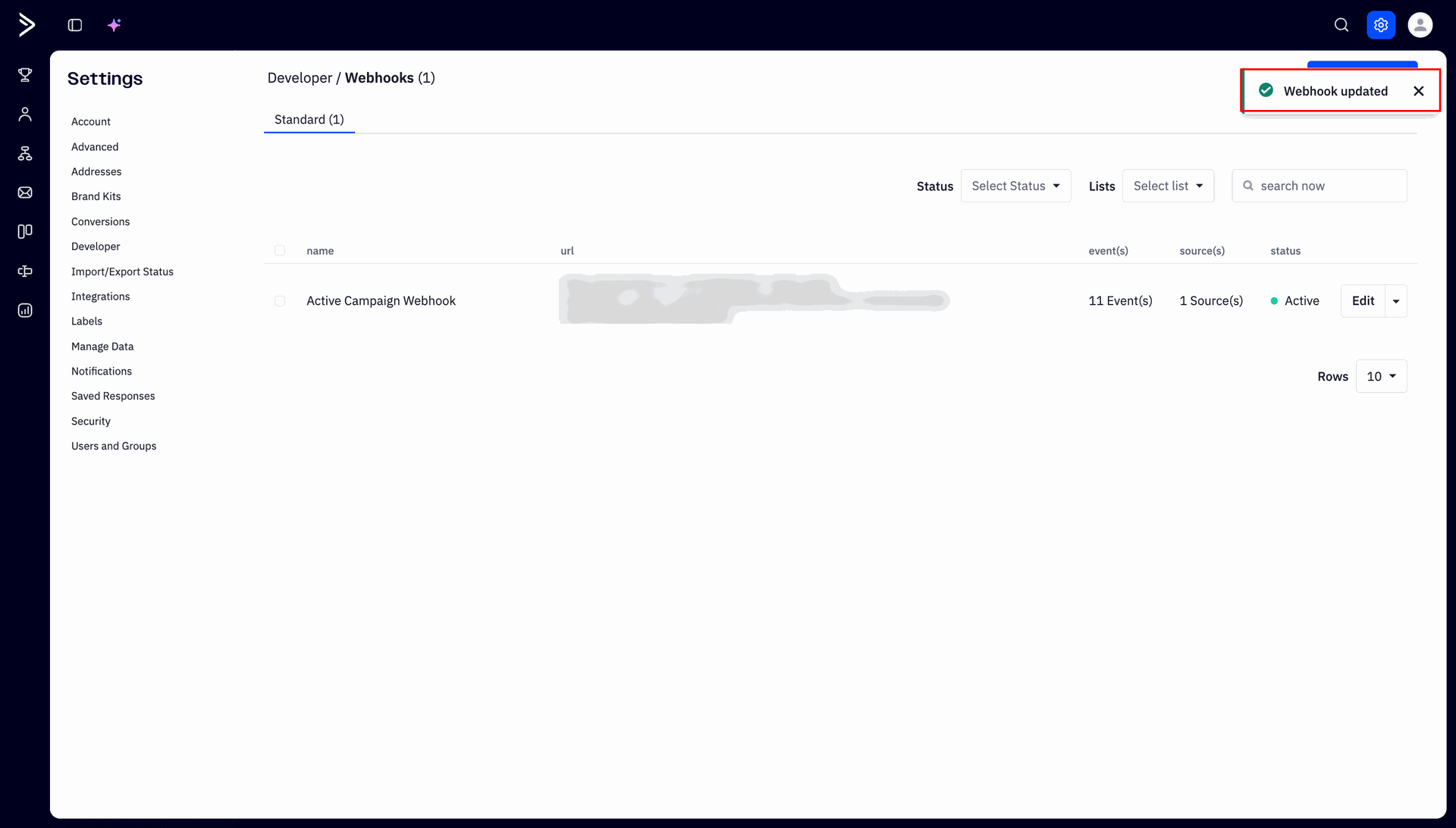
Verify that the created webhook appears in Active Status within the ActiveCampaign webhooks grid.
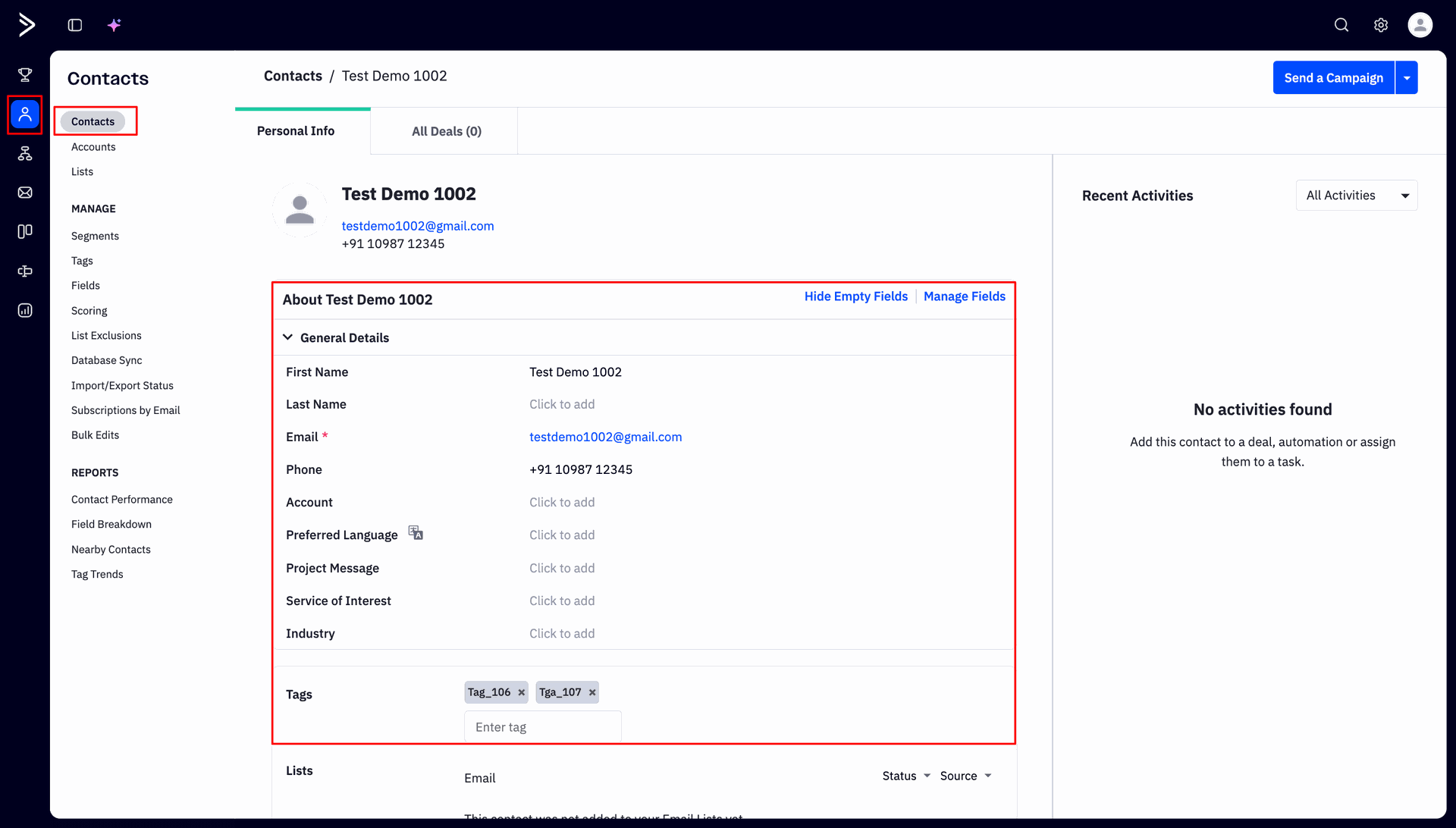
Update contact details and tags in ActiveCampaign to trigger automatic real-time webhook synchronization.
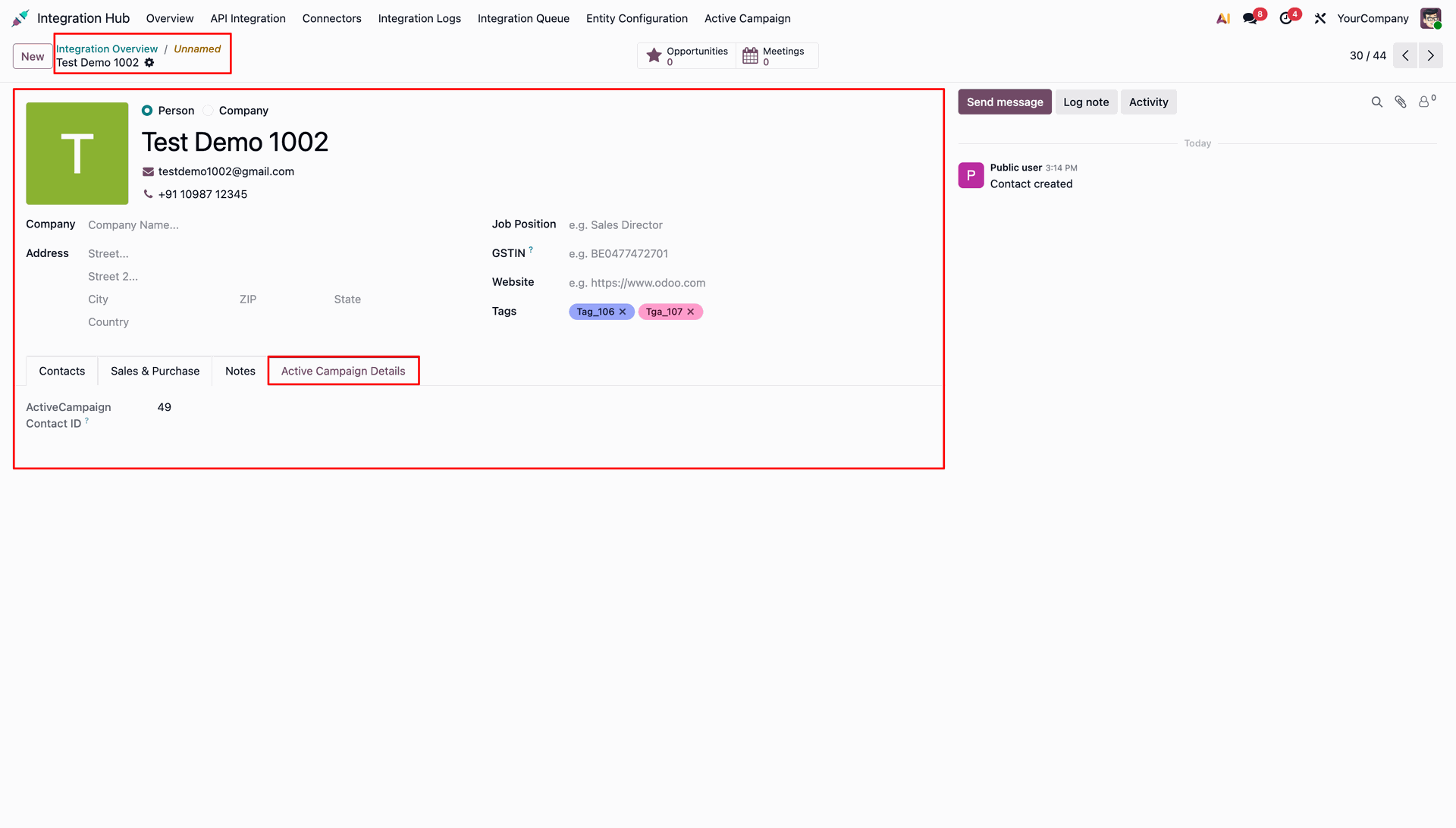
Confirm real-time updated contact info and assigned tags on the Odoo contact form.
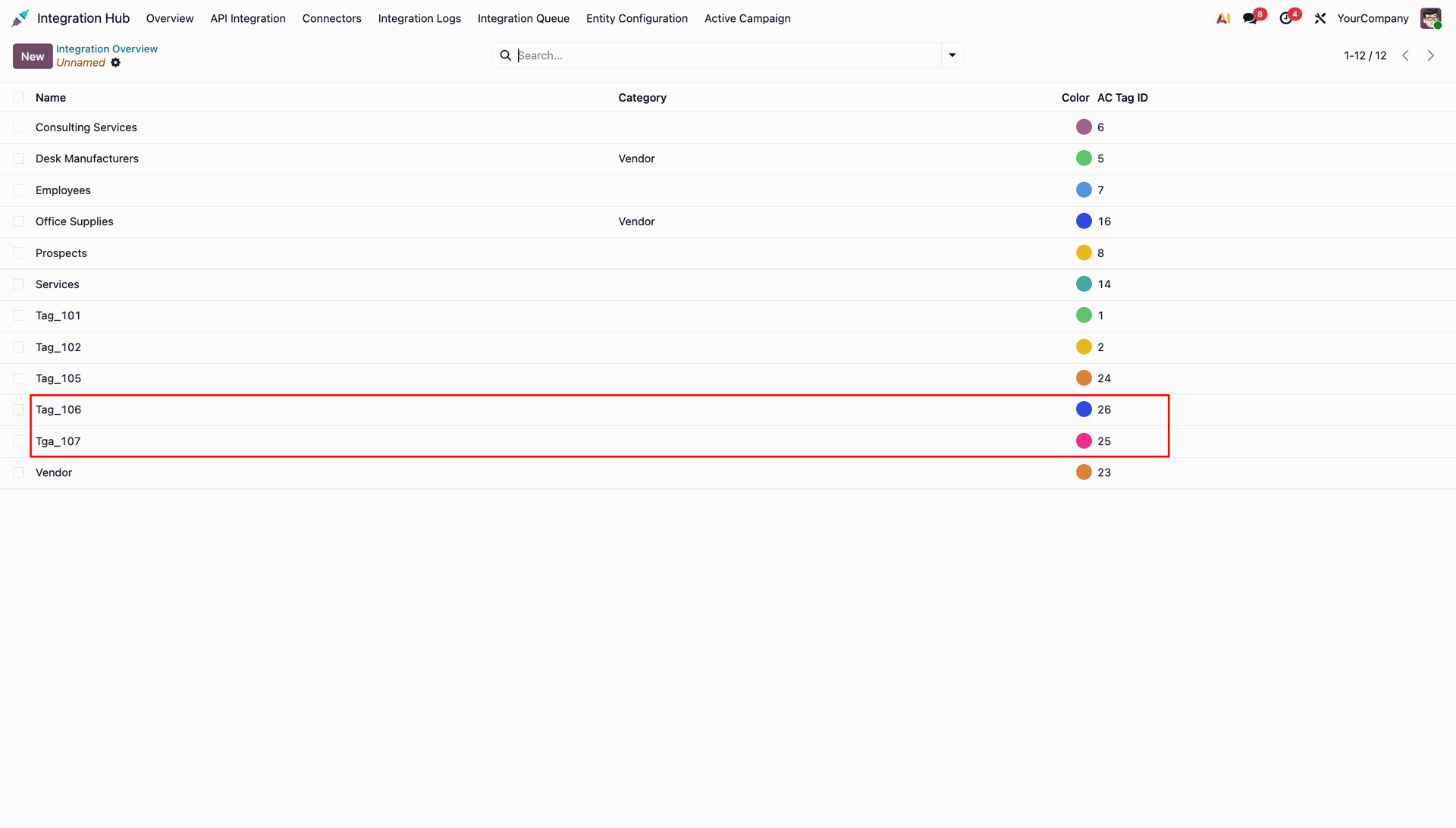
Check the Tags summary list view in Odoo to verify automatically created real-time tag records.
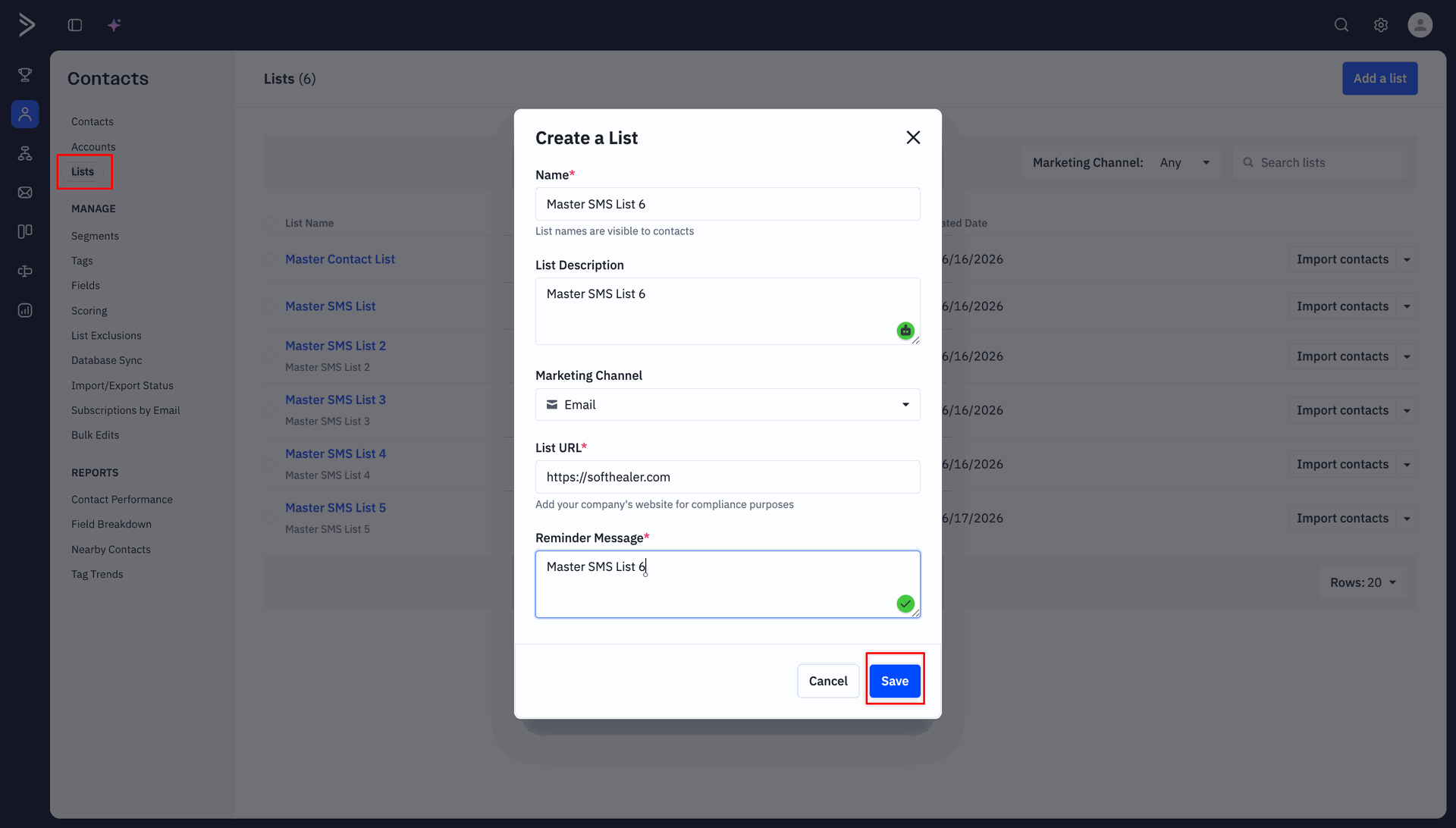
Create a new mailing list in ActiveCampaign to test real-time list creation webhook processing.
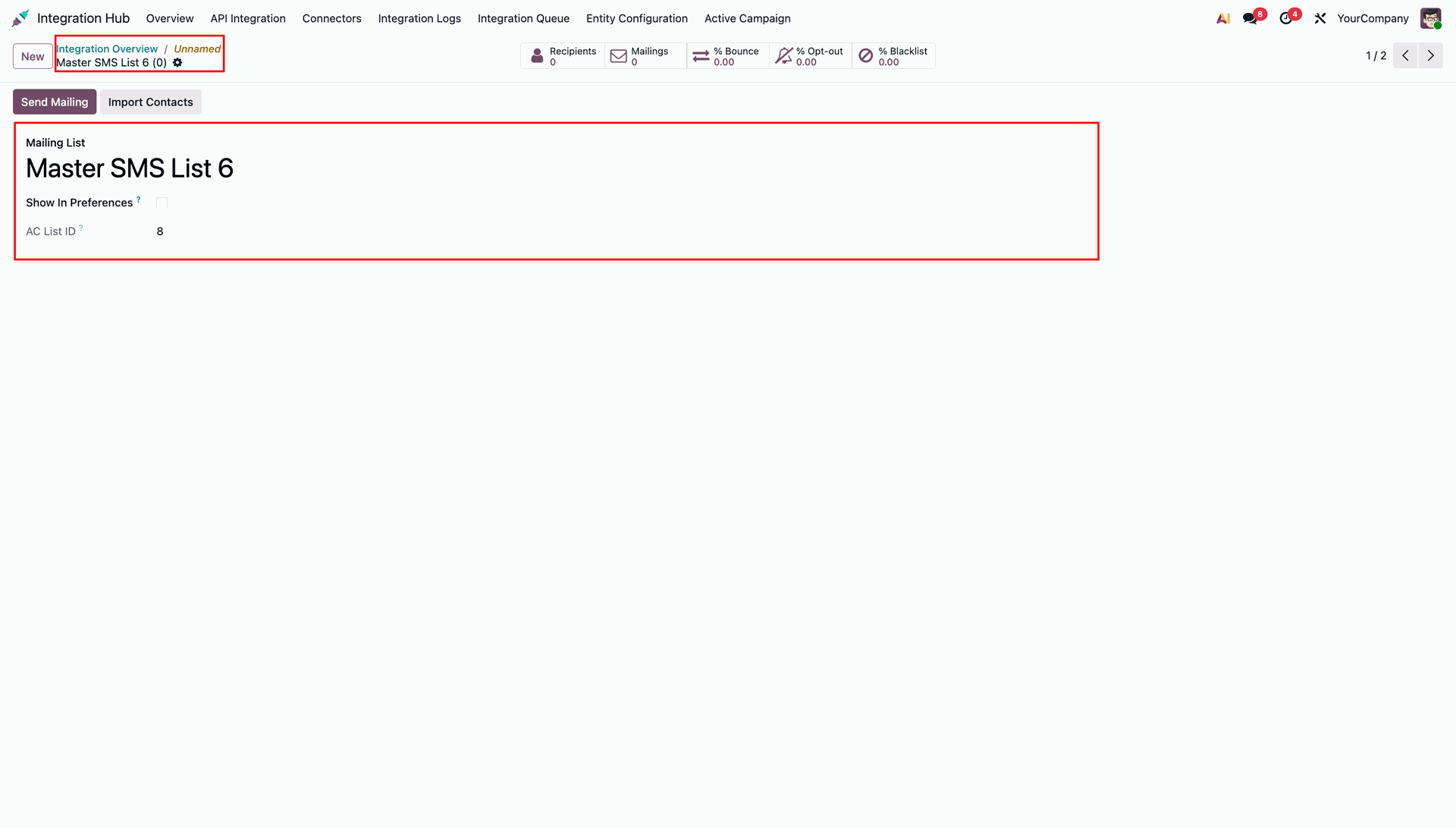
Verify the automatically generated Mailing List record and its assigned AC List ID in Odoo.
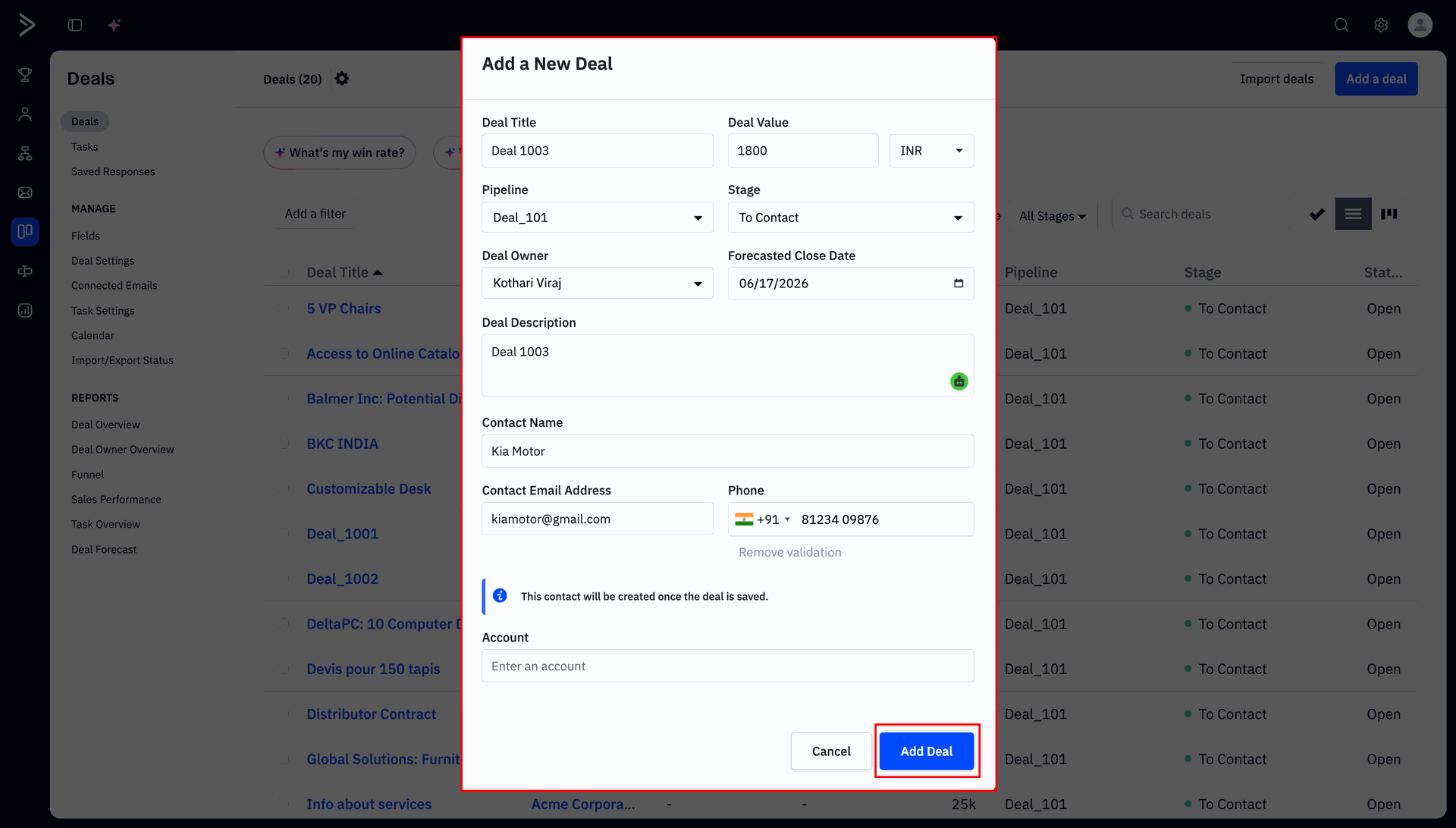
Create a new deal in ActiveCampaign with contact information to trigger real-time deal creation.
Check the created CRM Opportunity record in Odoo showing populated AC Deal ID metrics.
Verify the automatically created contact record in Odoo linked to the real-time created deal.
Version 18.0.1.0.0 | Released on : 24th July 2026
- Yes, this app works perfectly with Odoo Enterprise (Odoo.sh & Premise) as well as Community.
- No, this application is not compatible with odoo.com(odoo saas/Odoo Online)
- Yes, to test this module, please contact us at sales@softhealer.com.
- Please contact us at sales@softhealer.com to request customization.
- Yes, we provide free support for 365 days from the date of purchase.
- Yes, you will receive lifetime free updates for the version of the module you purchased.
- No, there is no need to install any additional libraries.
- Yes, for version 12 and above, you need to purchase the module separately for each version you intend to use.
- No, exchanges or refunds are not allowed. Please make sure to select the correct version before purchasing.
- You can contact us at support@softhealer.com for language translation support. We use Google Translator tools to provide translations in multiple languages, so the accuracy may vary. We welcome your suggestions to help improve translations.
Discover Our Latest Apps