

 Easy
to Manage
 Dedicated
Support















 Scan to email sales




4PX Shipping Integration

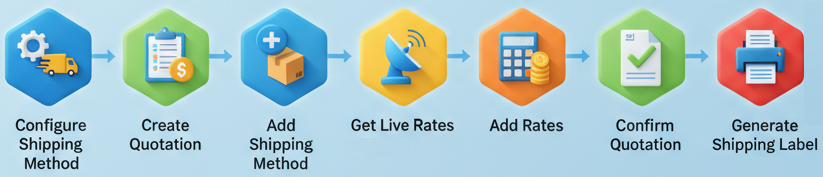
The 4PX Shipping Integration module connects your Odoo system directly with 4PX to automate your complete shipping workflow. From quotation to delivery, every step is streamlined with real-time communication. Users can add shipping methods, fetch accurate live rates, manage multiple packages, confirm orders, generate 4PX labels, track shipments and cancel shipments directly from Odoo without switching platforms. This integration reduces manual effort, improves dispatch accuracy, and ensures a smooth, fast, and reliable order-to-shipment process for businesses of any size.
Related Modules
Key Features
Features

4PX Integration
Real-time 4PX integration for instant data sync between Odoo and 4PX.

Instant Rate Calculation
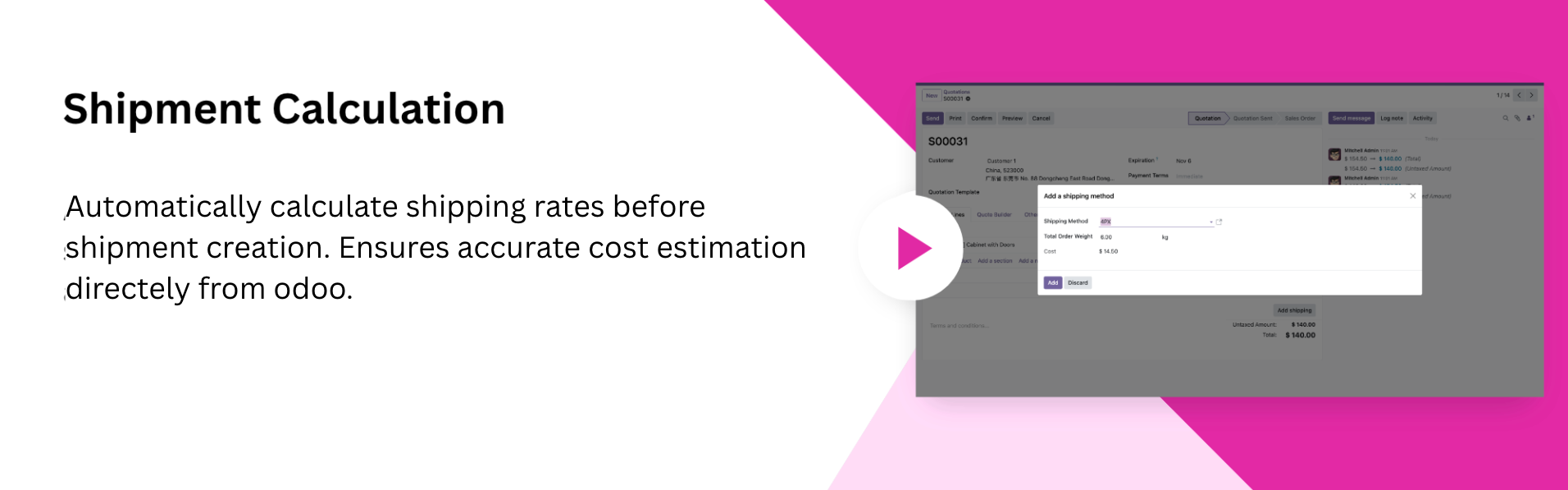
Automatic rate fetching to provide live 4PX shipping prices during Quotation creation.

Real-time Tracking (Backend & Portal)
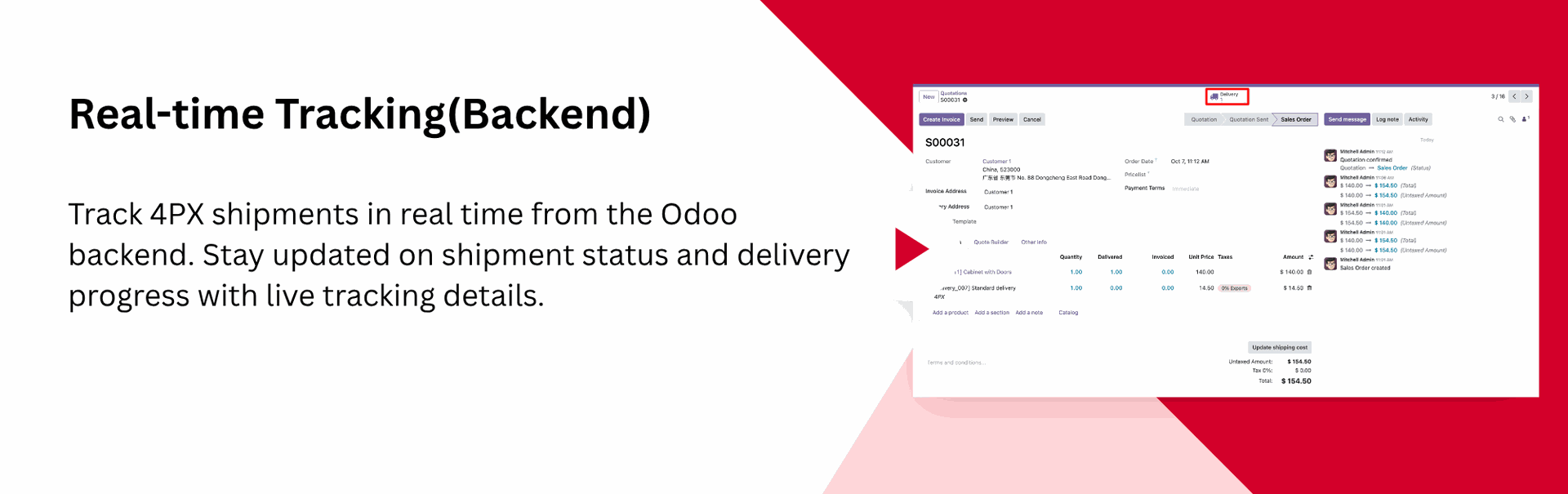
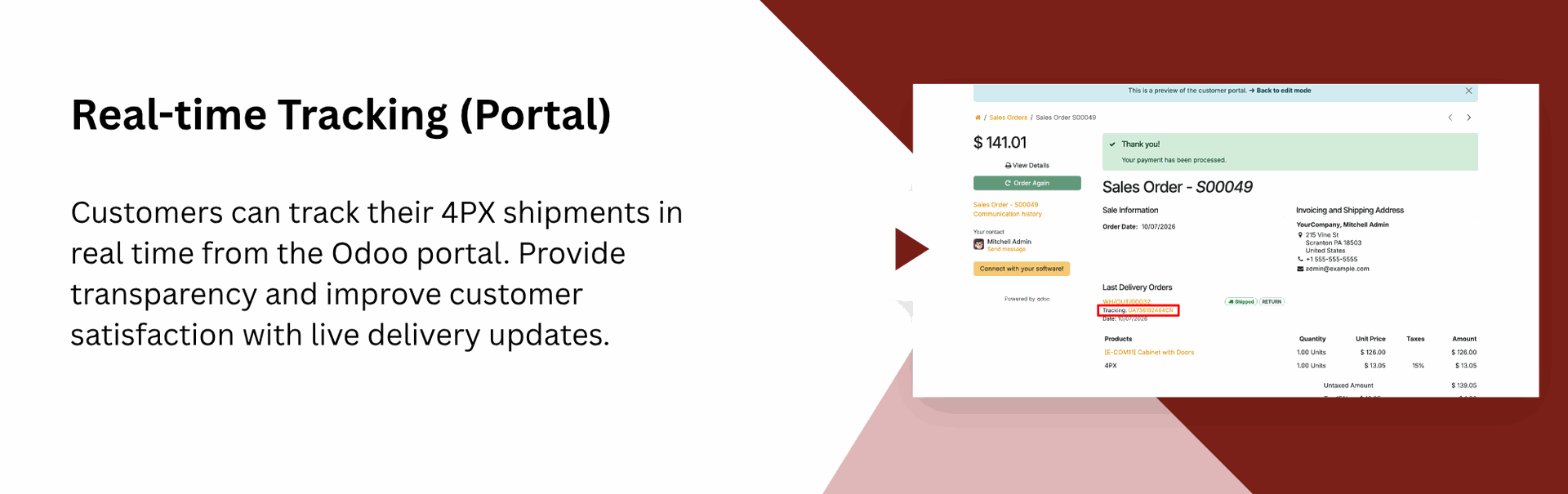
Track shipments in real-time within Odoo, admins can monitor deliveries from the backend, while customers can track from portal.
Support for Sandbox and Production Environments
You can connect and use both Sandbox and production environments, making it easy to check your setup safely before using it live.

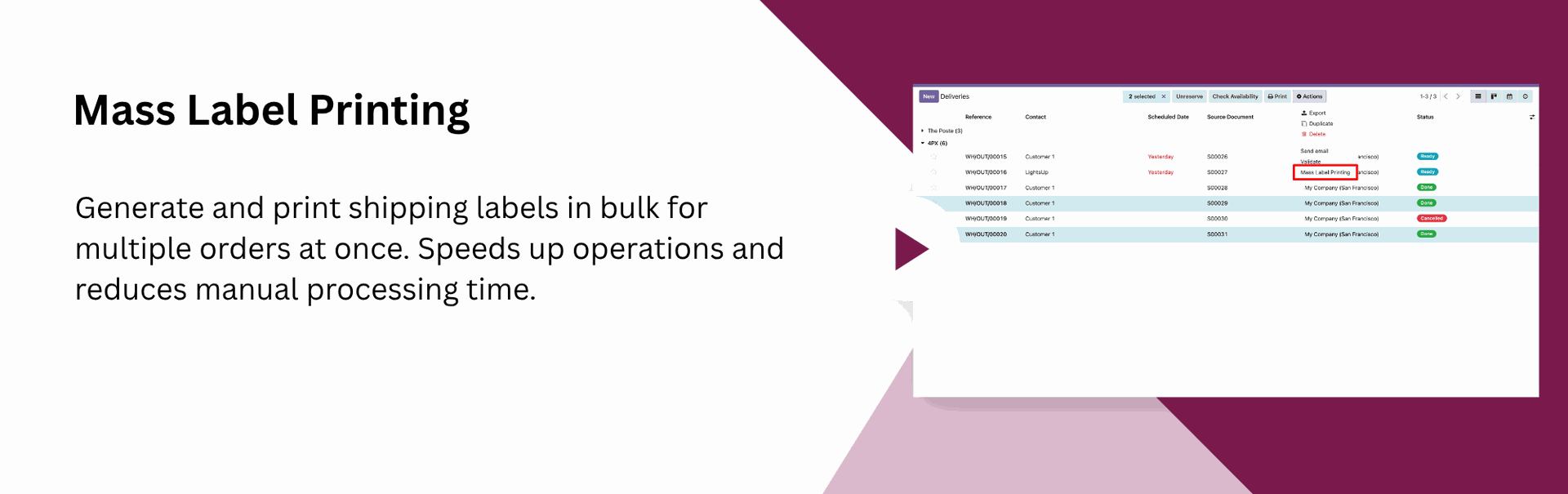
Generate Mass Shipping Labels
Generate multiple shipping labels in one action directly from Odoo, allowing you to process bulk delivery orders faster.
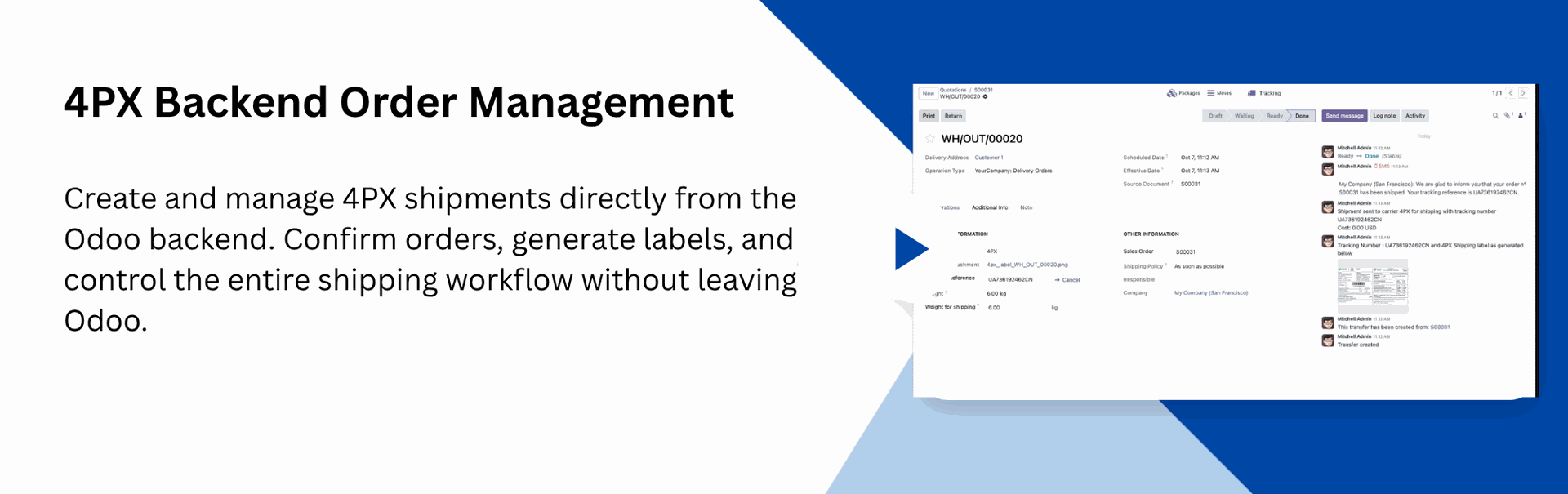
Generate Shipping Labels
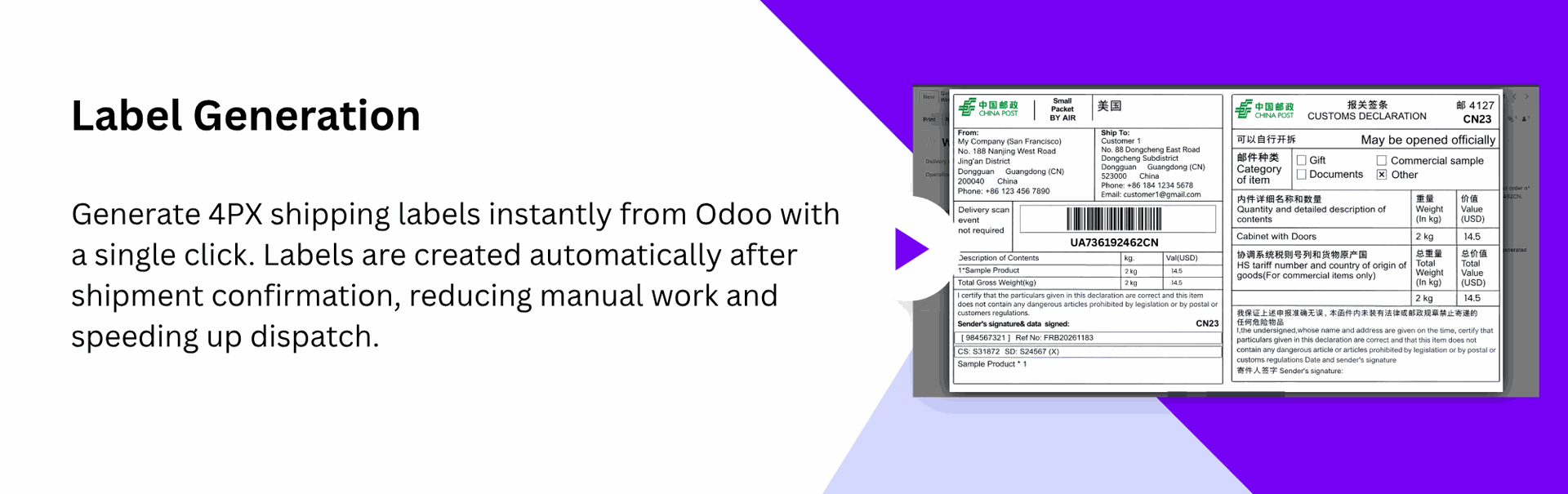
One-click label generation and download for seamless 4PX shipment processing.
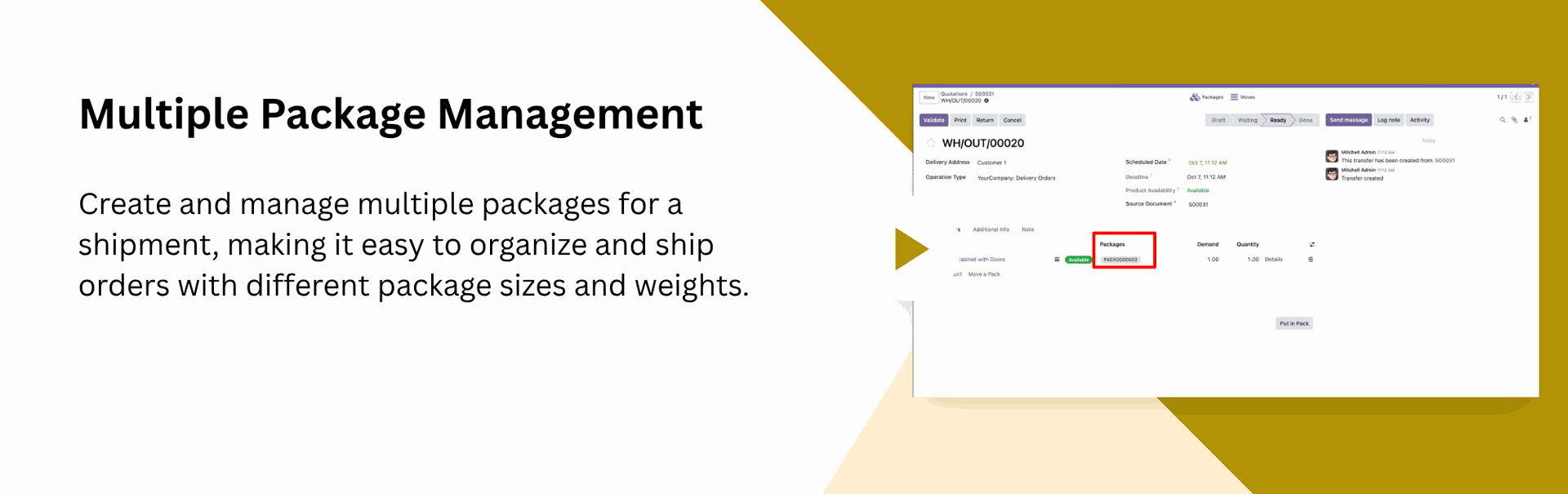
Multiple Package Management
A Multiple package handling to create and manage several packages within one shipment.

Attach Details in Chatter
Automatically attach generated label PDFs and tracking details in Chatter.

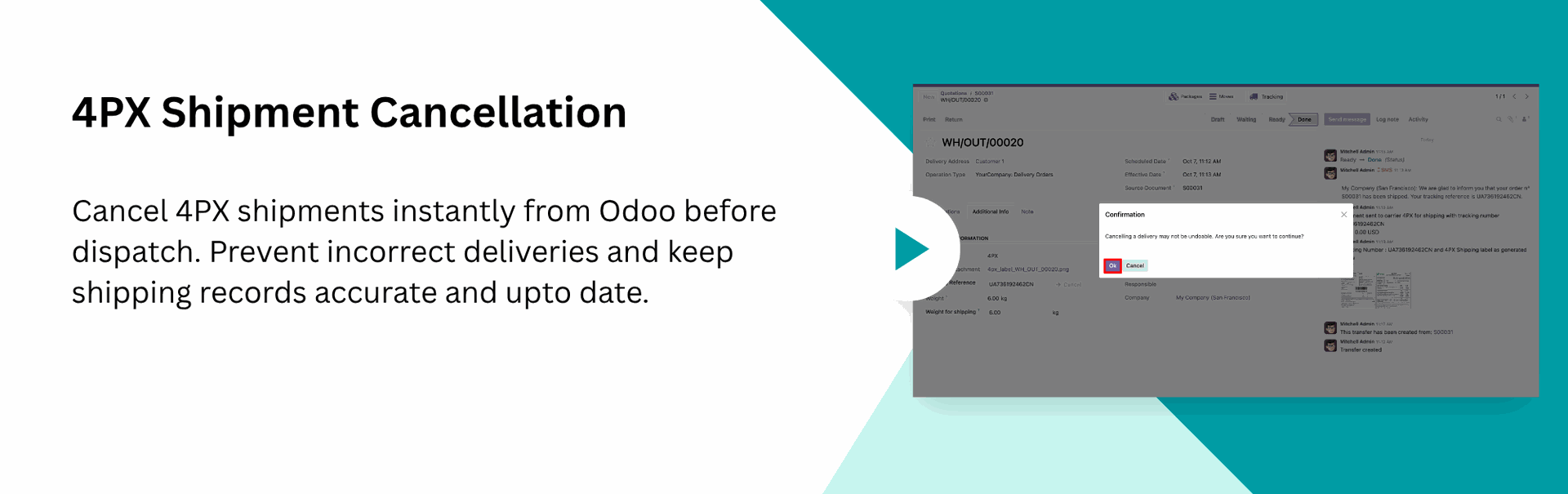
Cancel Shipment
Cancel 4PX shipments instantly from Odoo to avoid incorrect deliveries and maintain accurate shipping records.

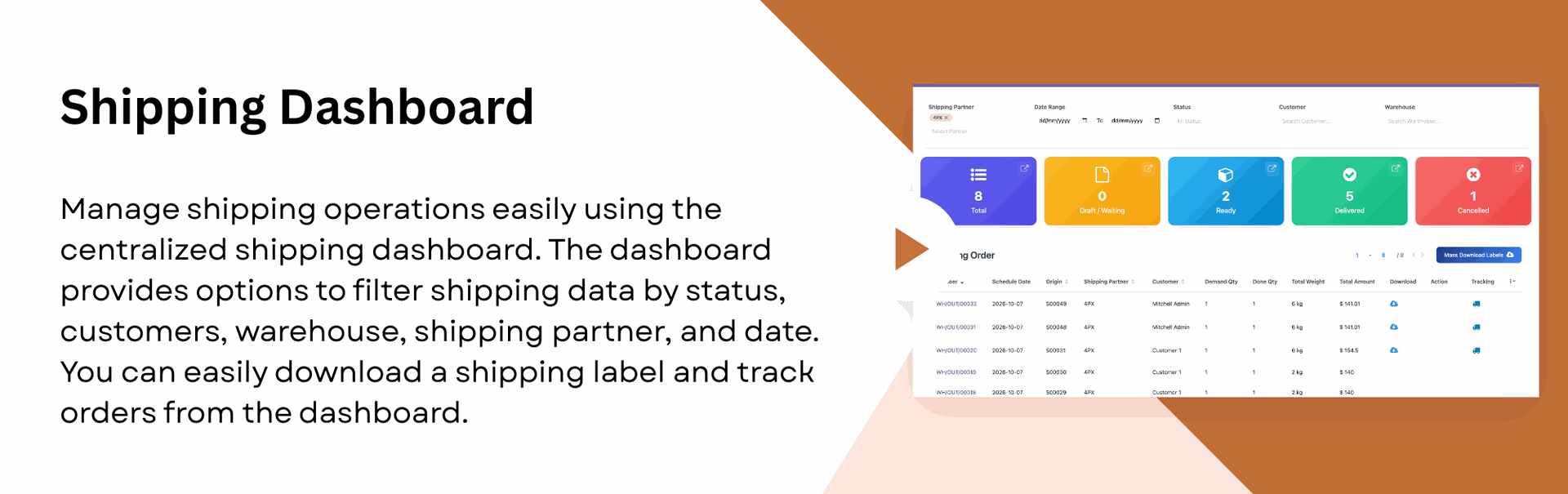
Shipping Dashboard
Get a centralized view of all shipping activities in one place. The dashboard provides quick operational insights.

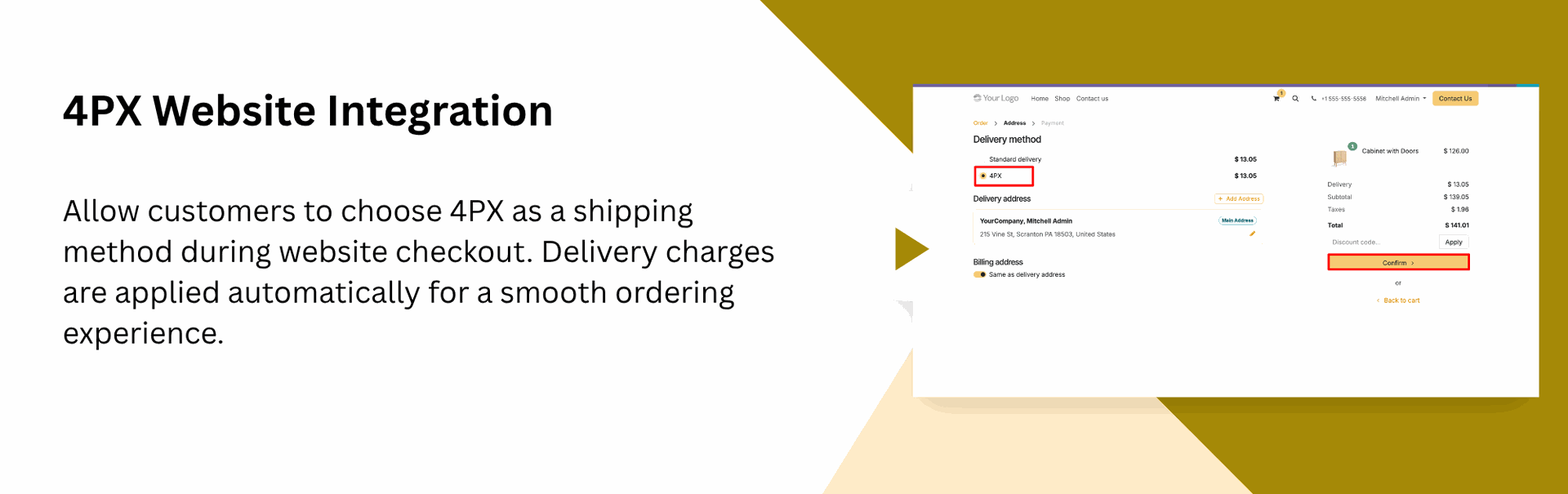
Compatible with Odoo Website and Backend
Allow admins to manage 4PX shipping from the backend while customers can select 4PX during website checkout.
Go to the Inventory ==> Delivery Partner.
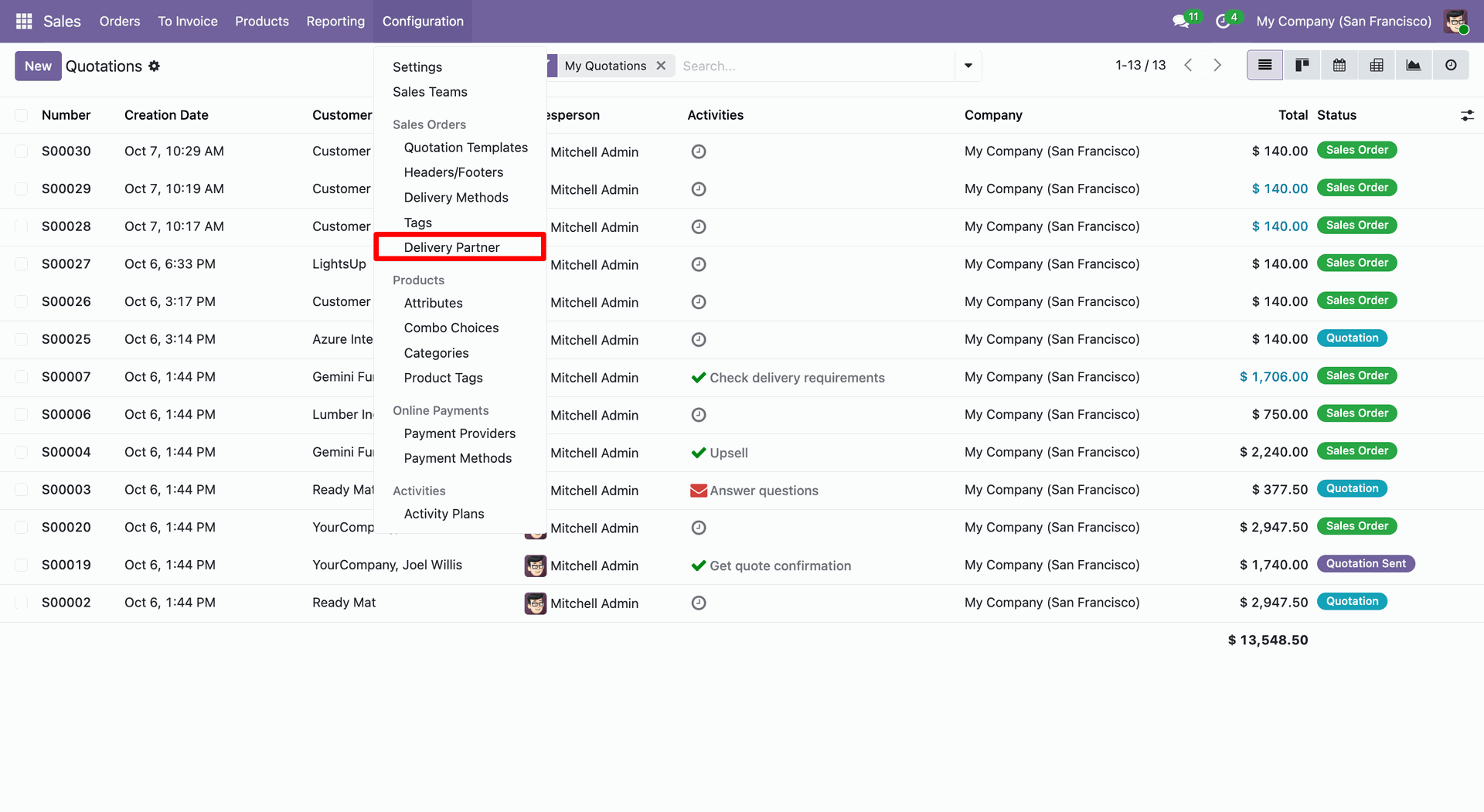
Kanban view of the Delivery Partner.
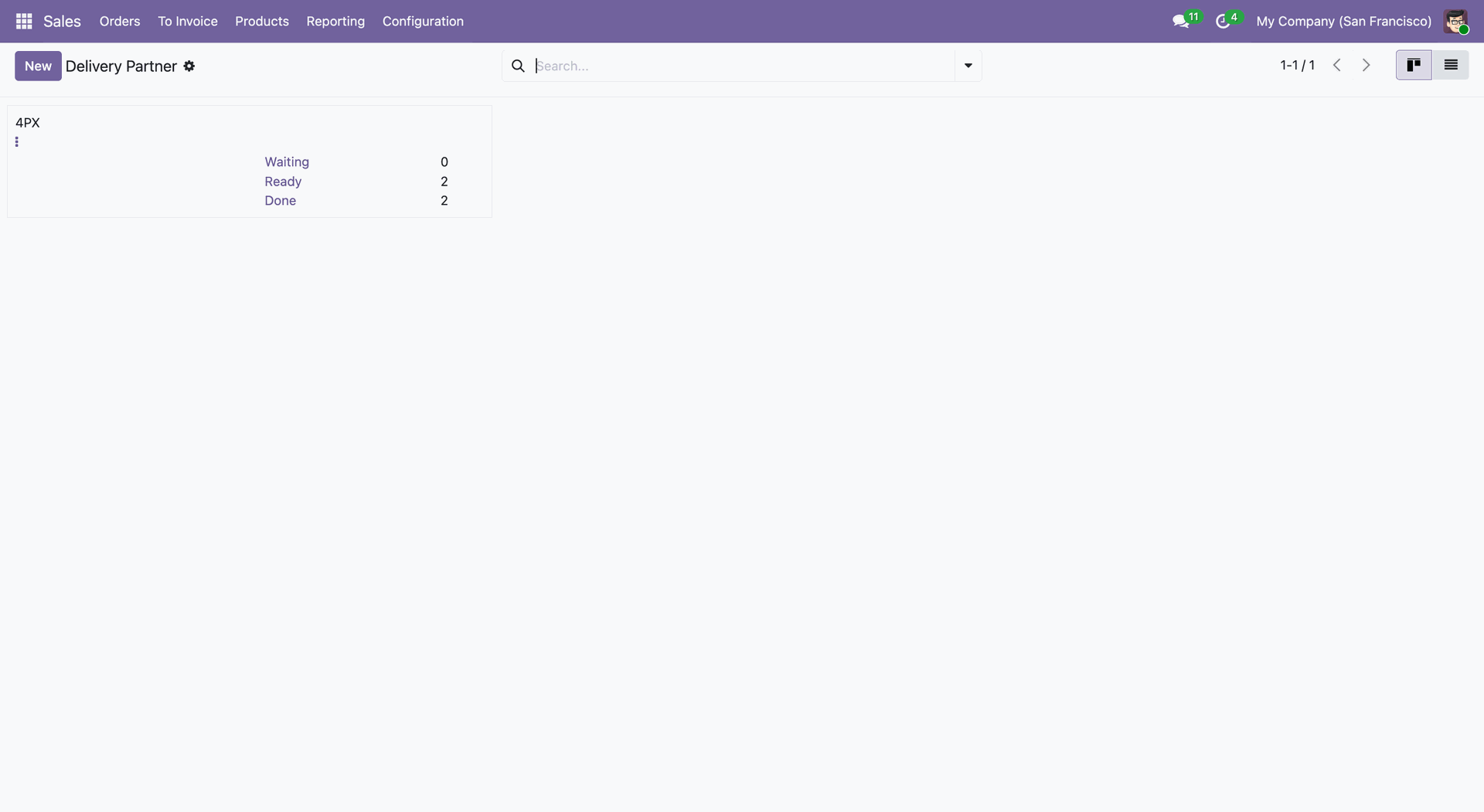
You can generate a token by clicking the 'Generate Token' button.
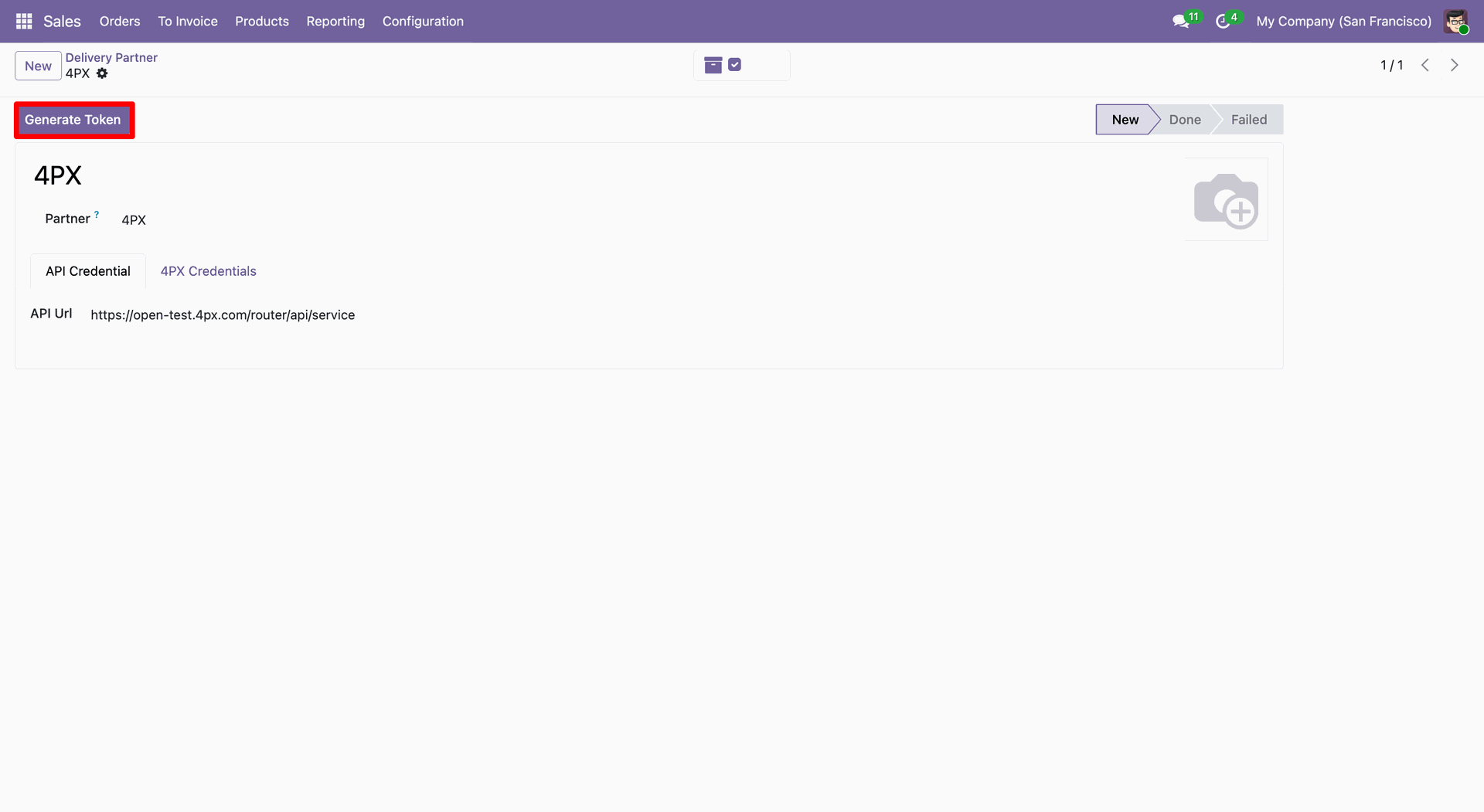
Now, the shipping is in the 'Done' stage.
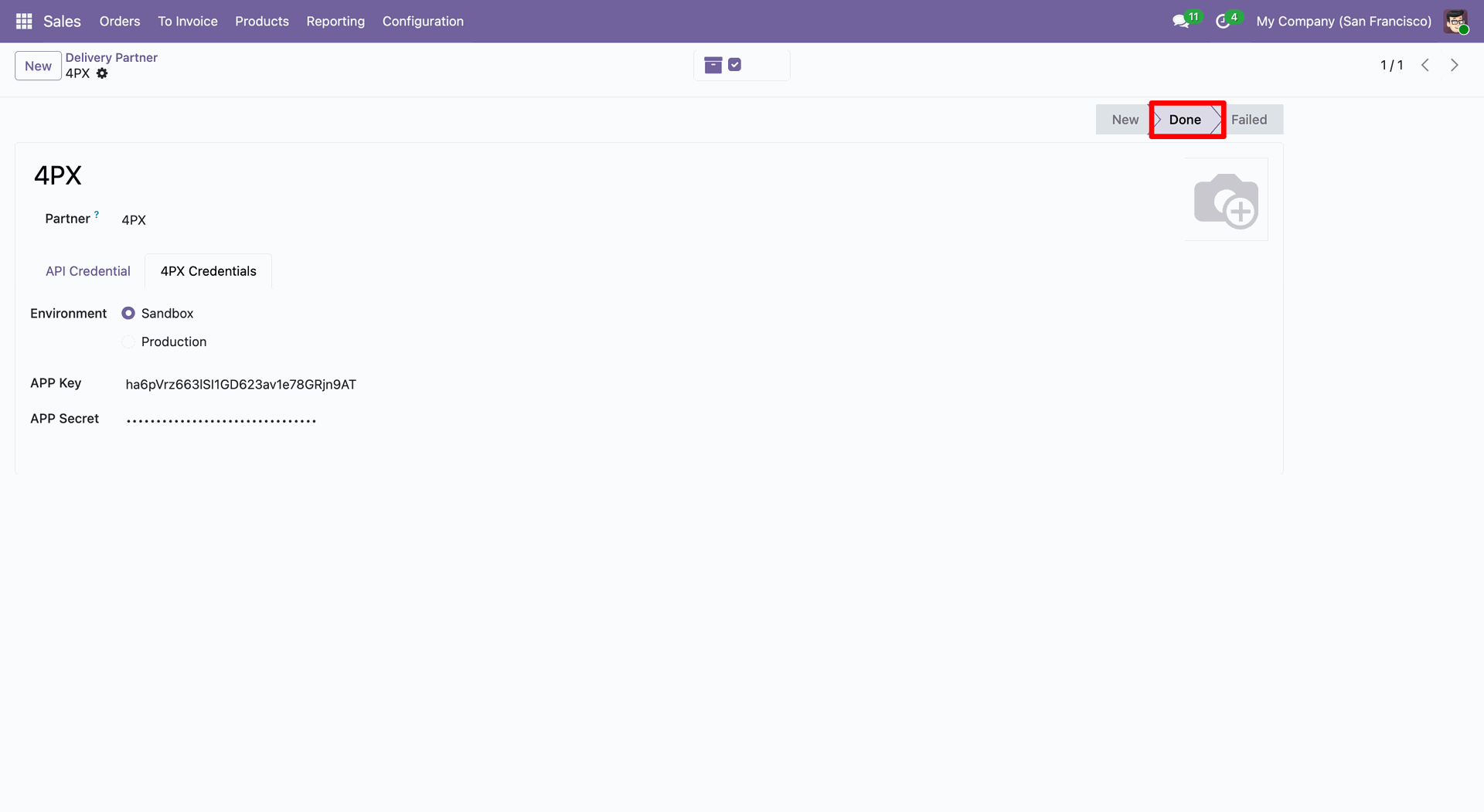
You can select the environment "Sandbox" or "Production".
Go to the Sales ==> Configurations ==> Delivery Methods
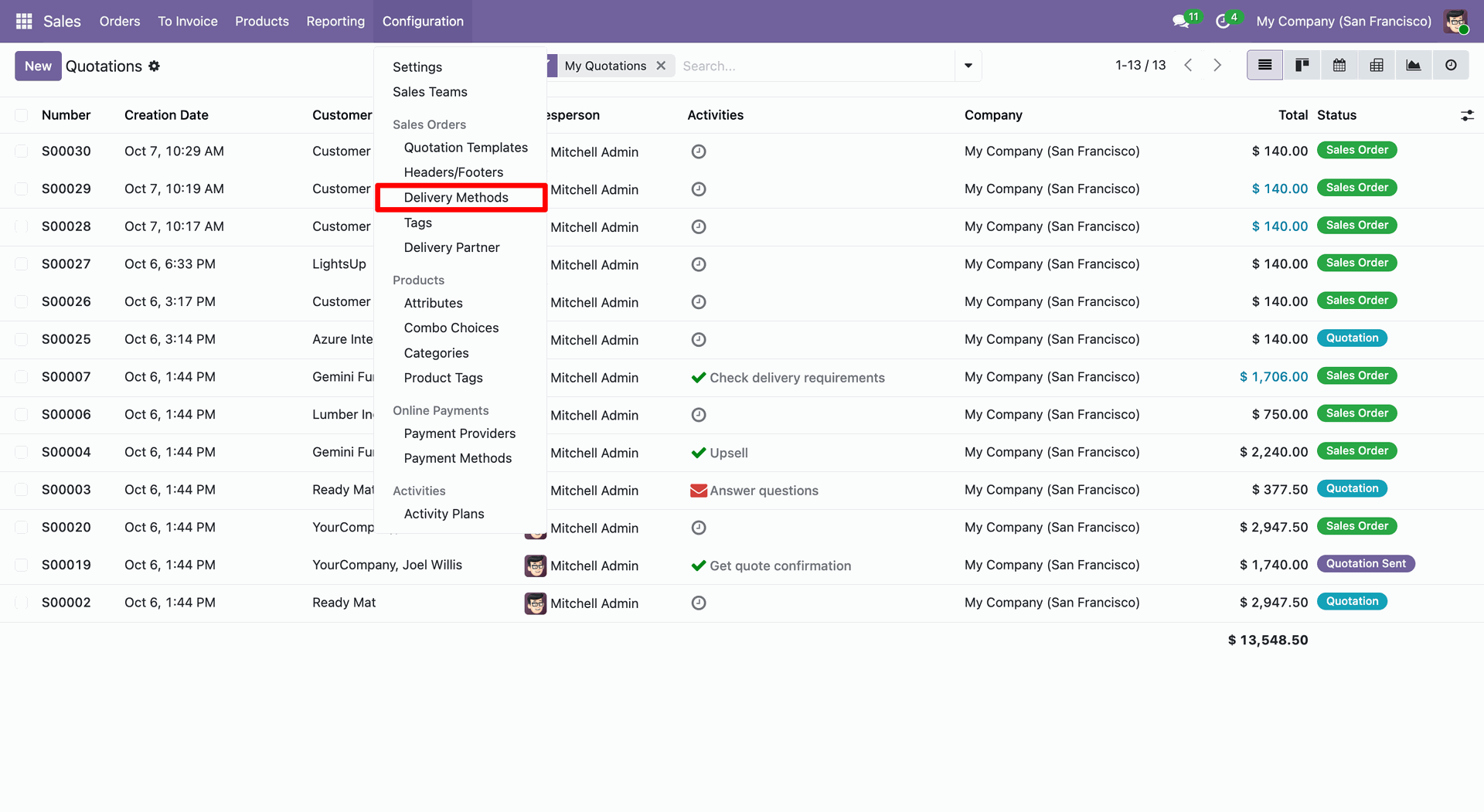
Click on the '4PX'.
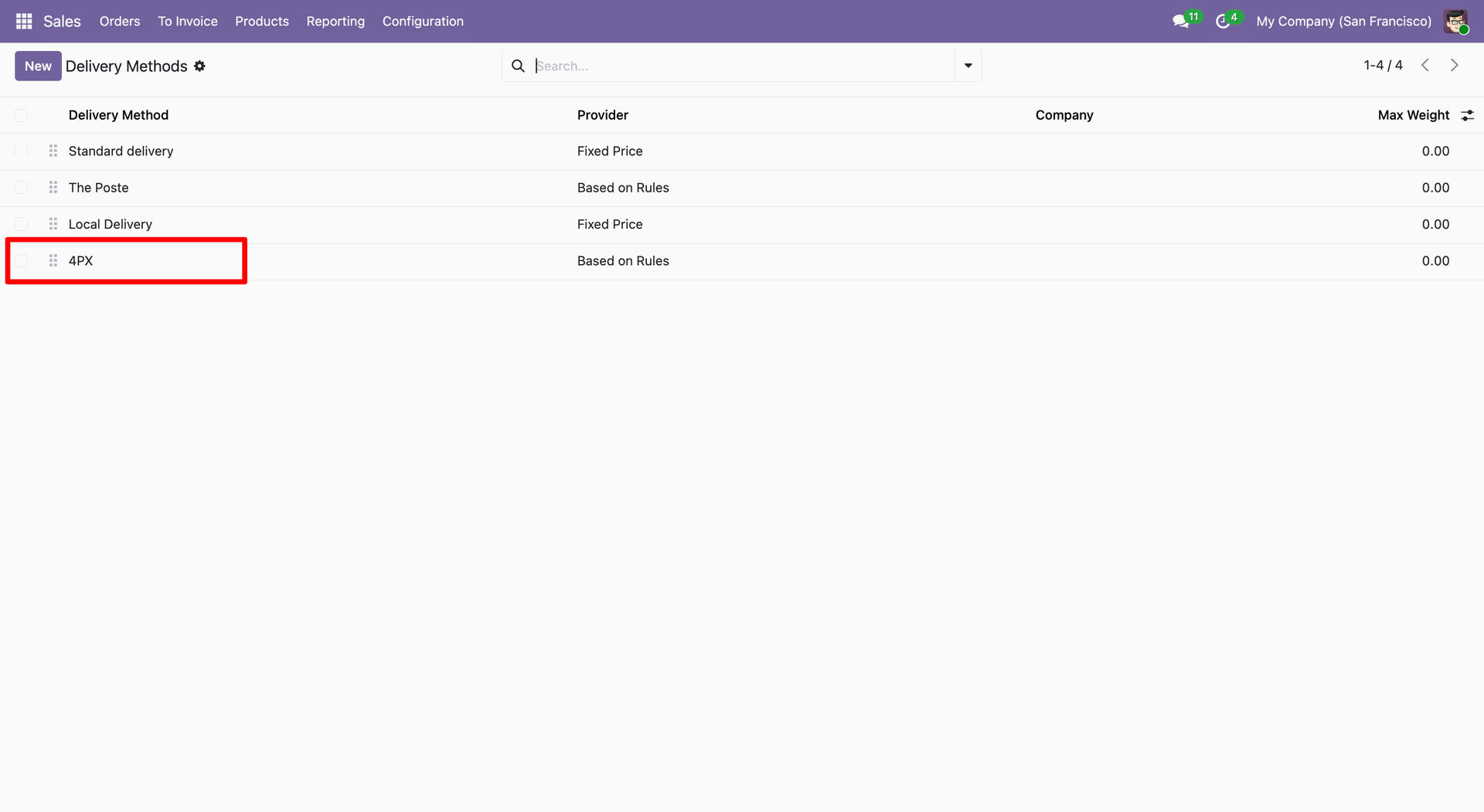
Select Provider: Fixed Price and set Fixed price amount.
Add the details under the '4PX Configurations' tab.
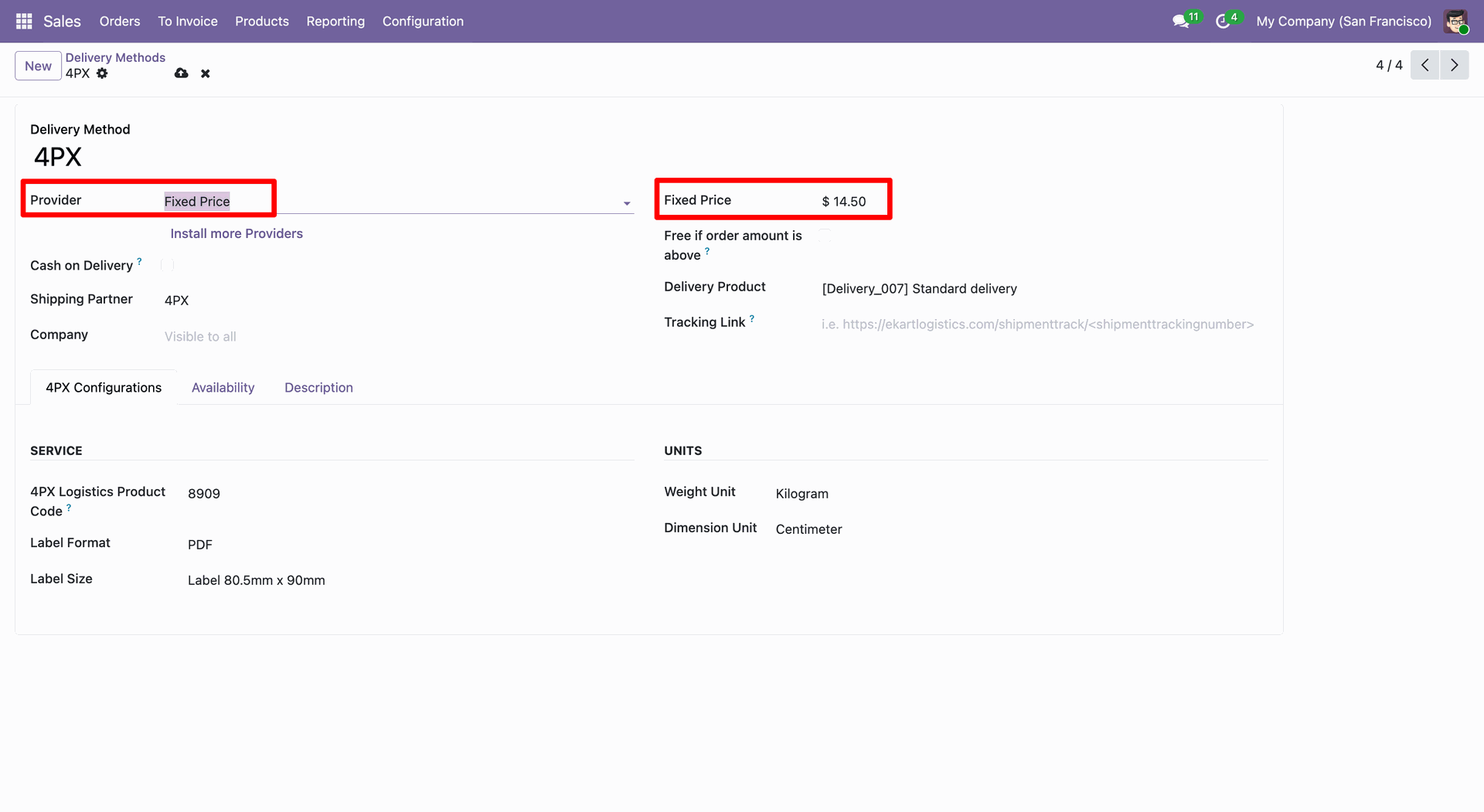
Create a quotation and click on the "Add Shipping" button.
"Add a Shipping Method" wizard will appear. Enter the details and click on the
"Add" button.
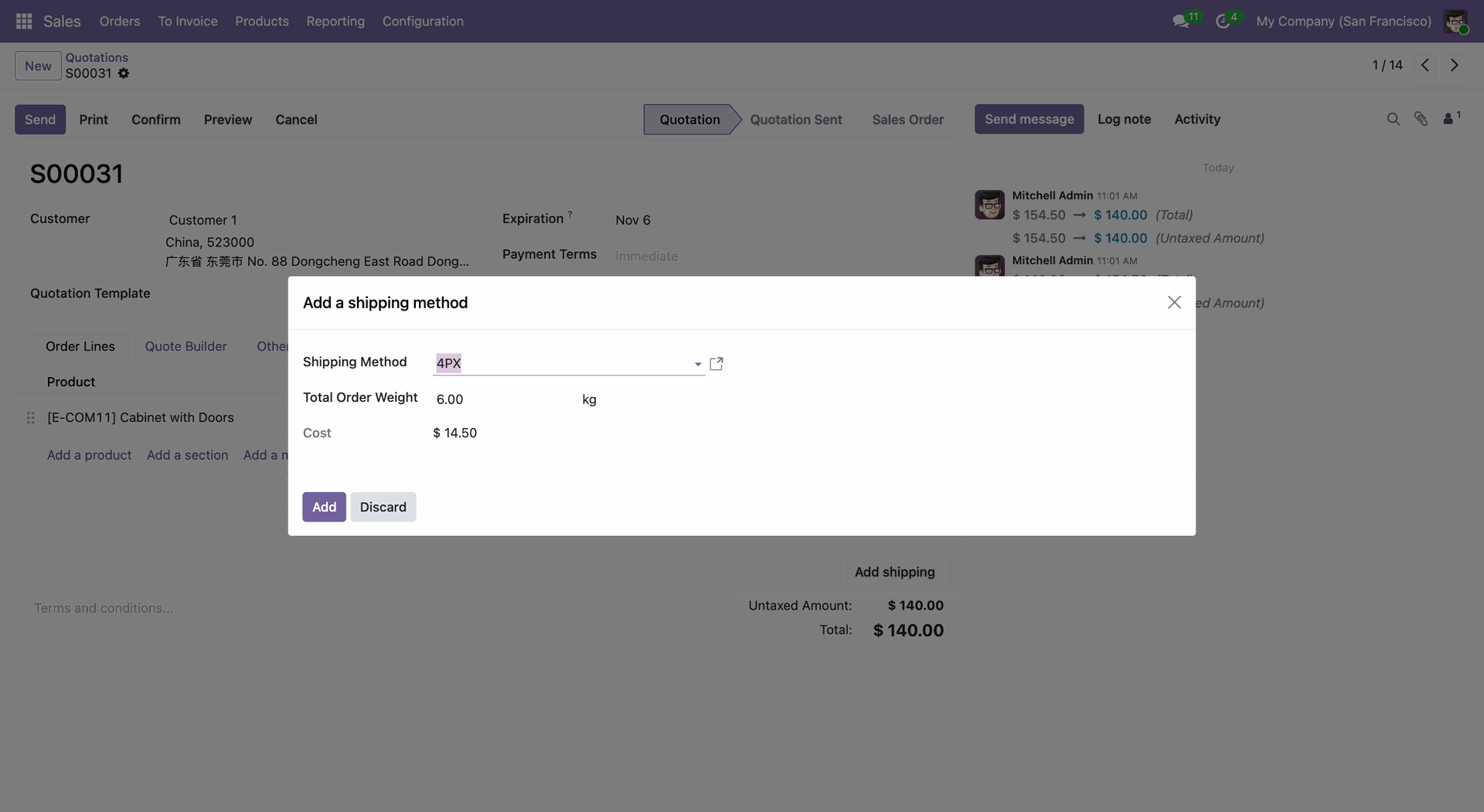
Click on the 'Delivery' smart button.
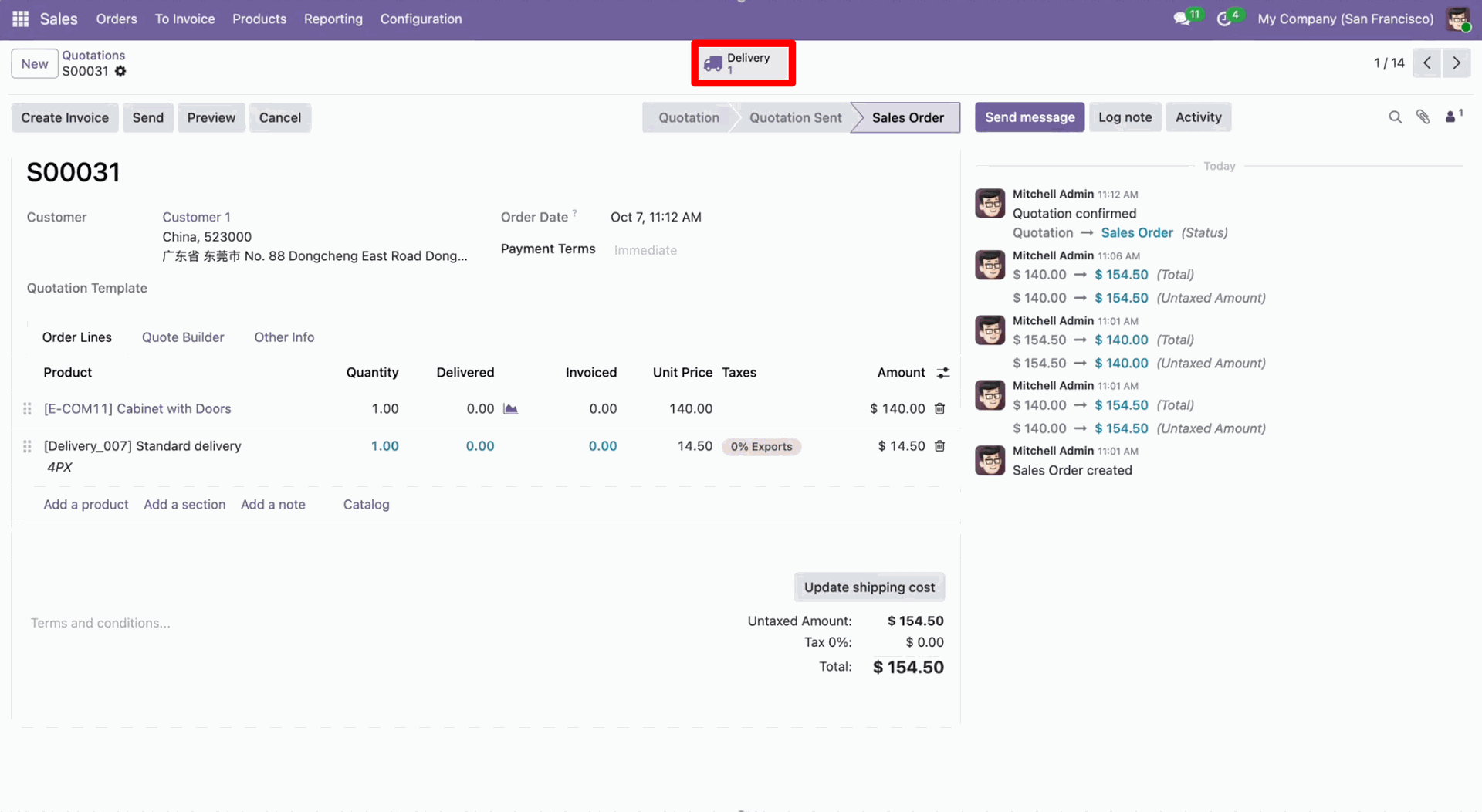
In the delivery order, click 'Put In Pack'.
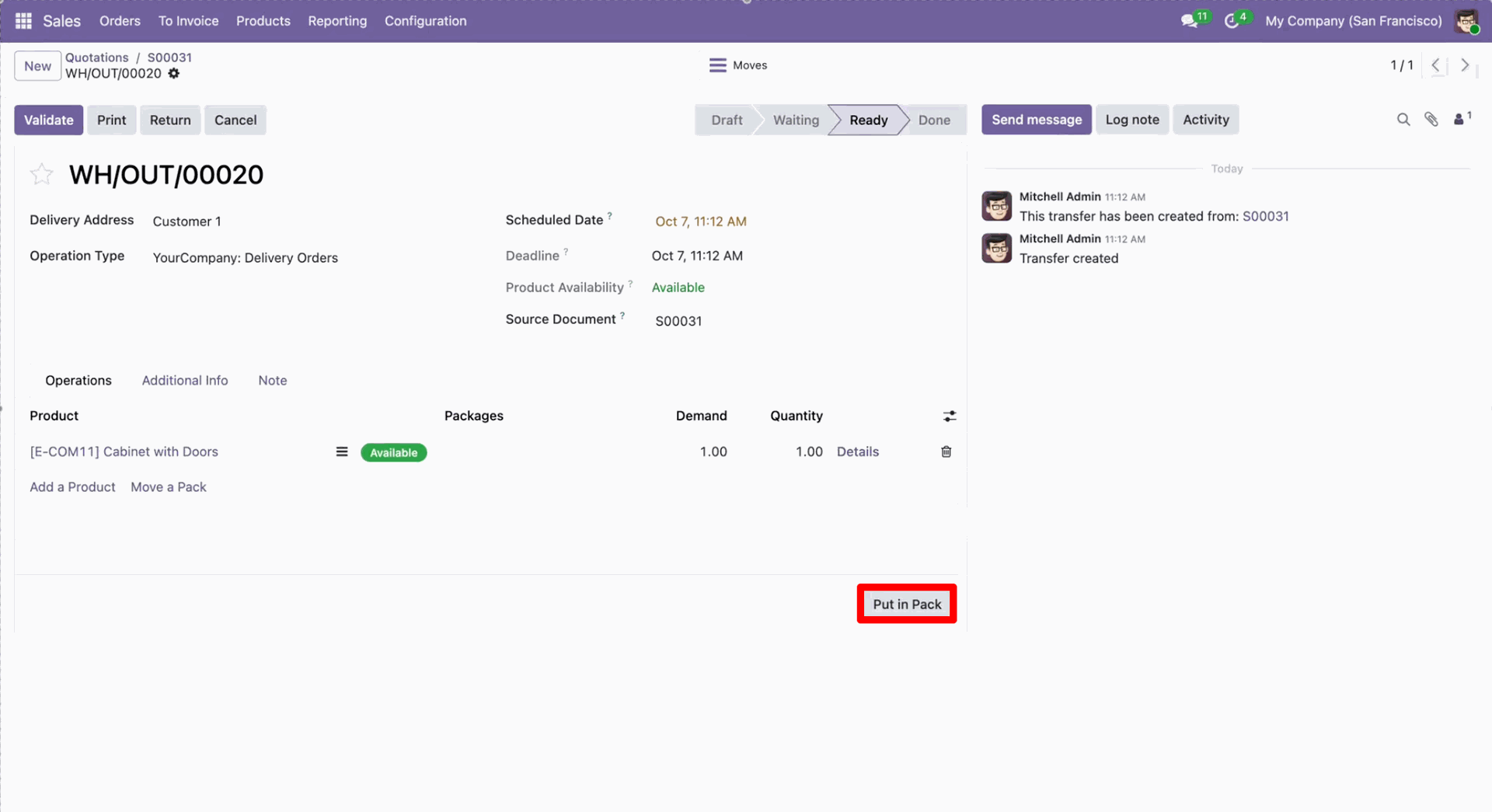
Add package details by selecting the 4PX delivery package type to prepare for label generation and shipment processing.
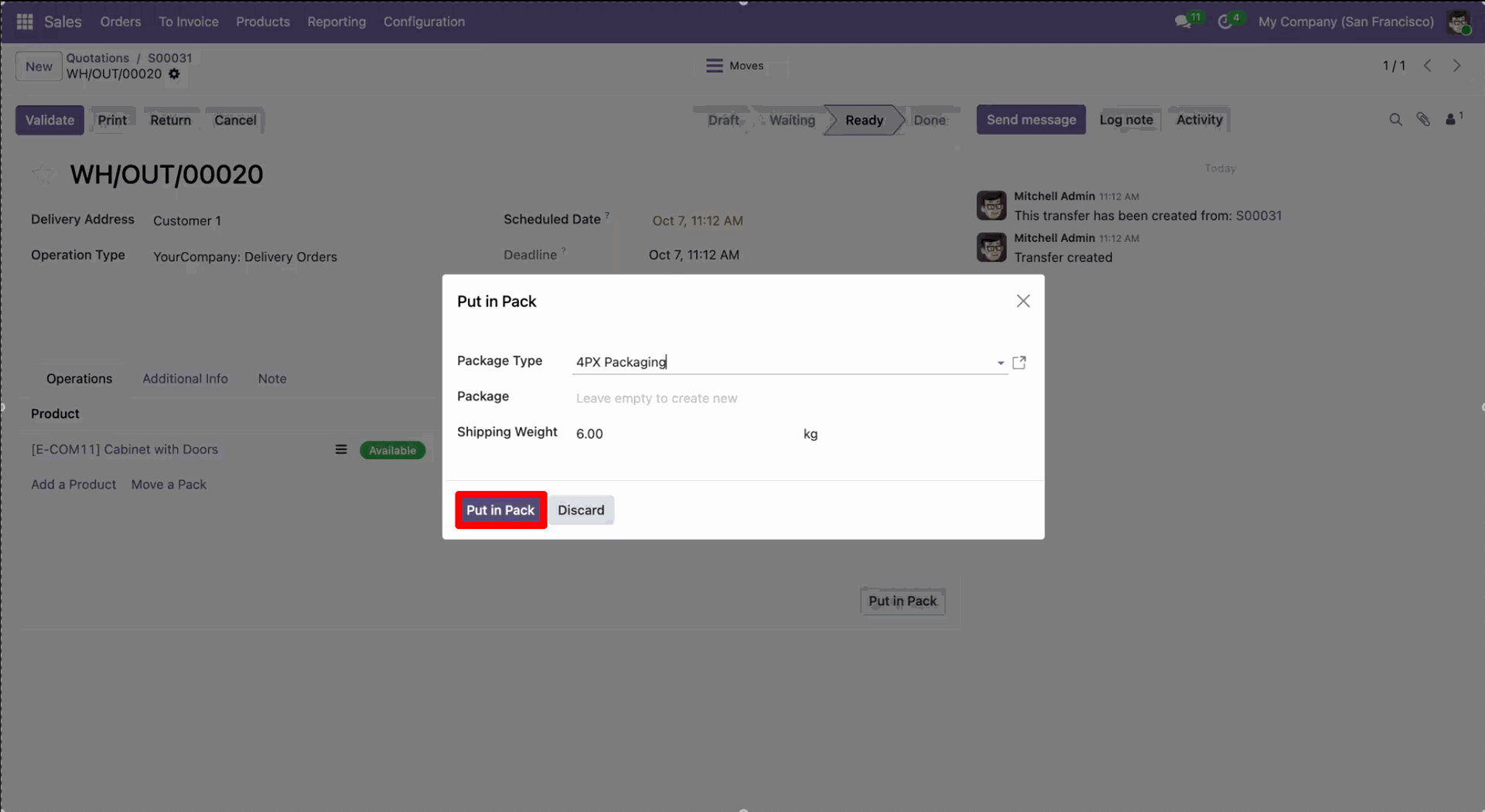
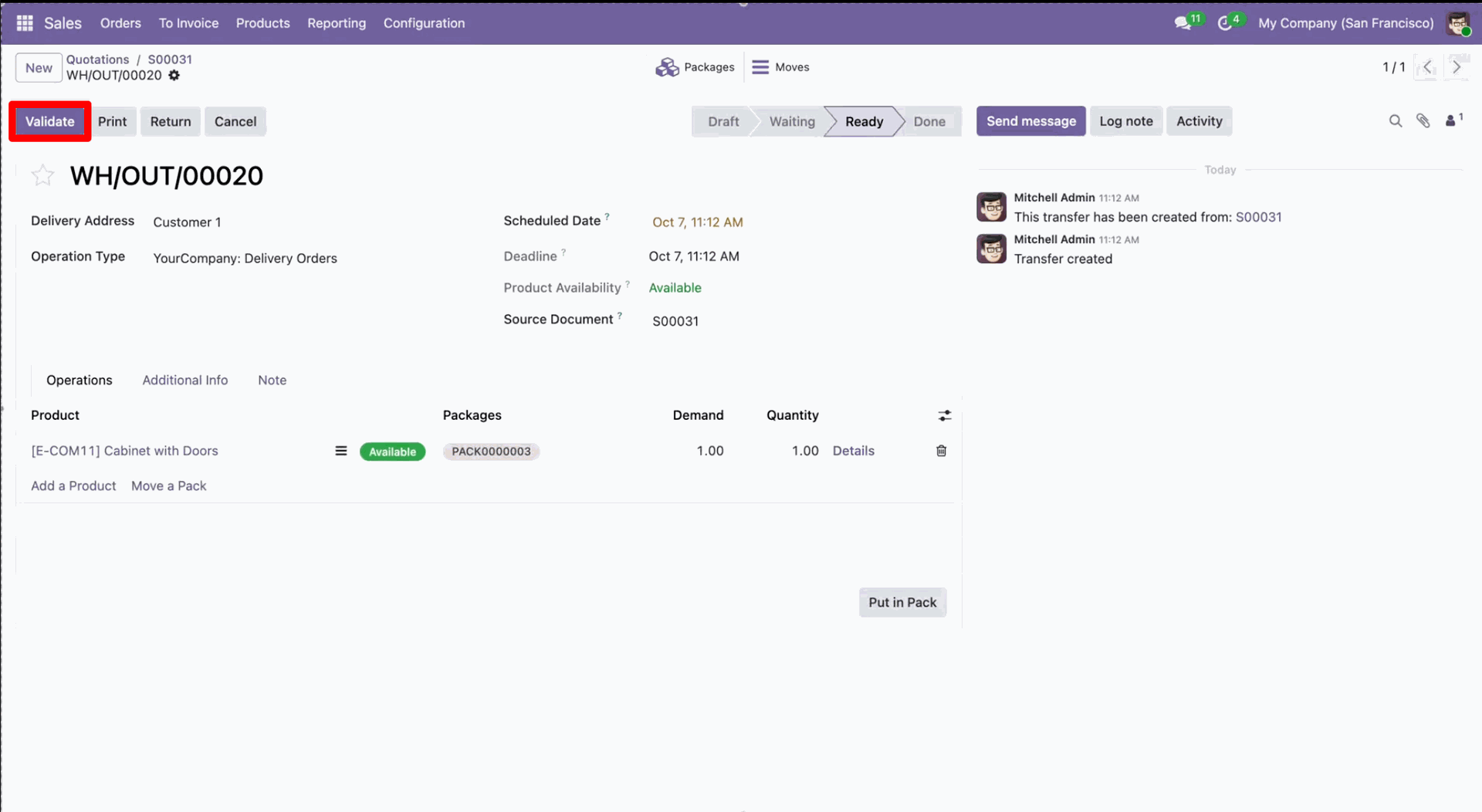
The delivery order with details. It displays the package number.
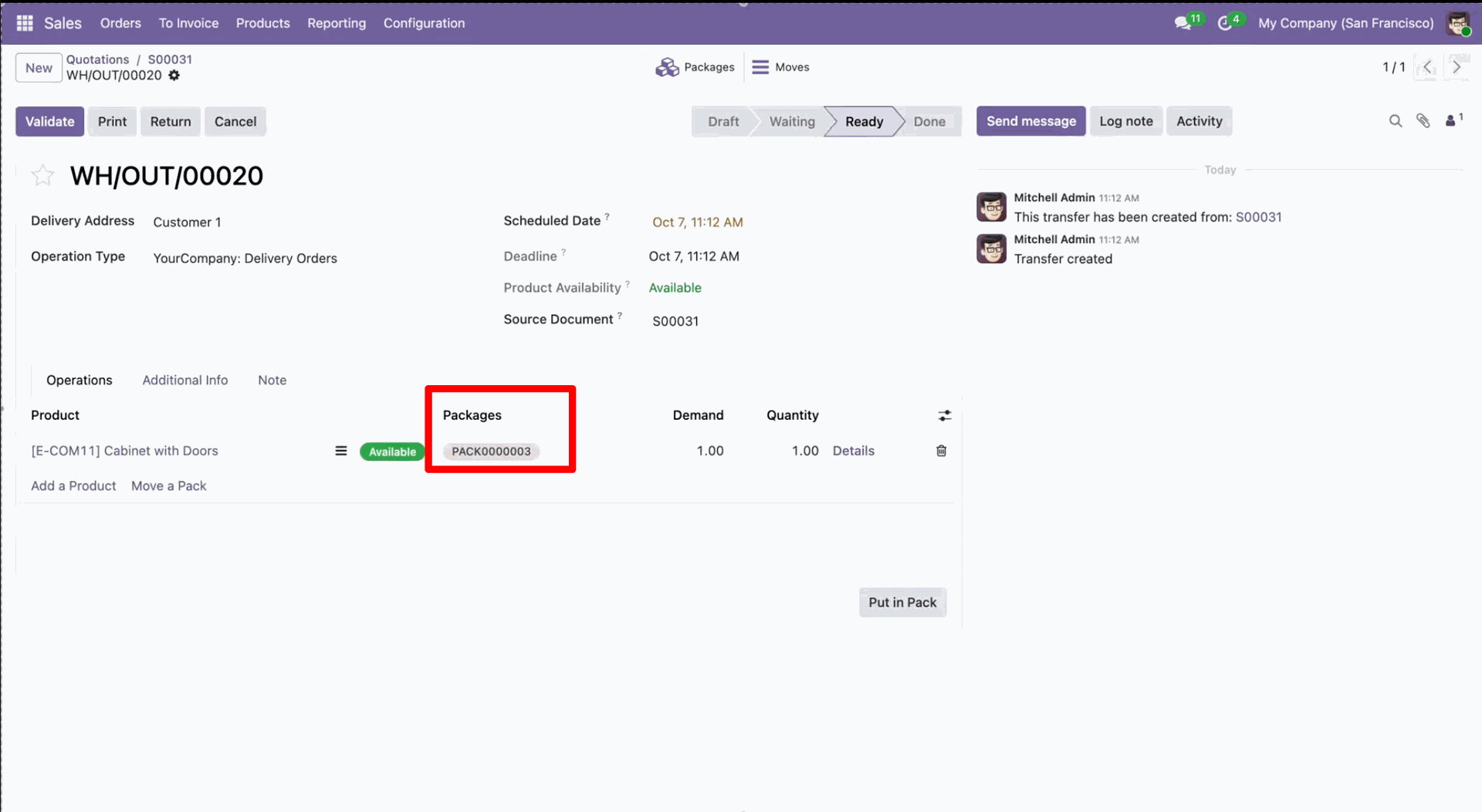
Validate delivery order.
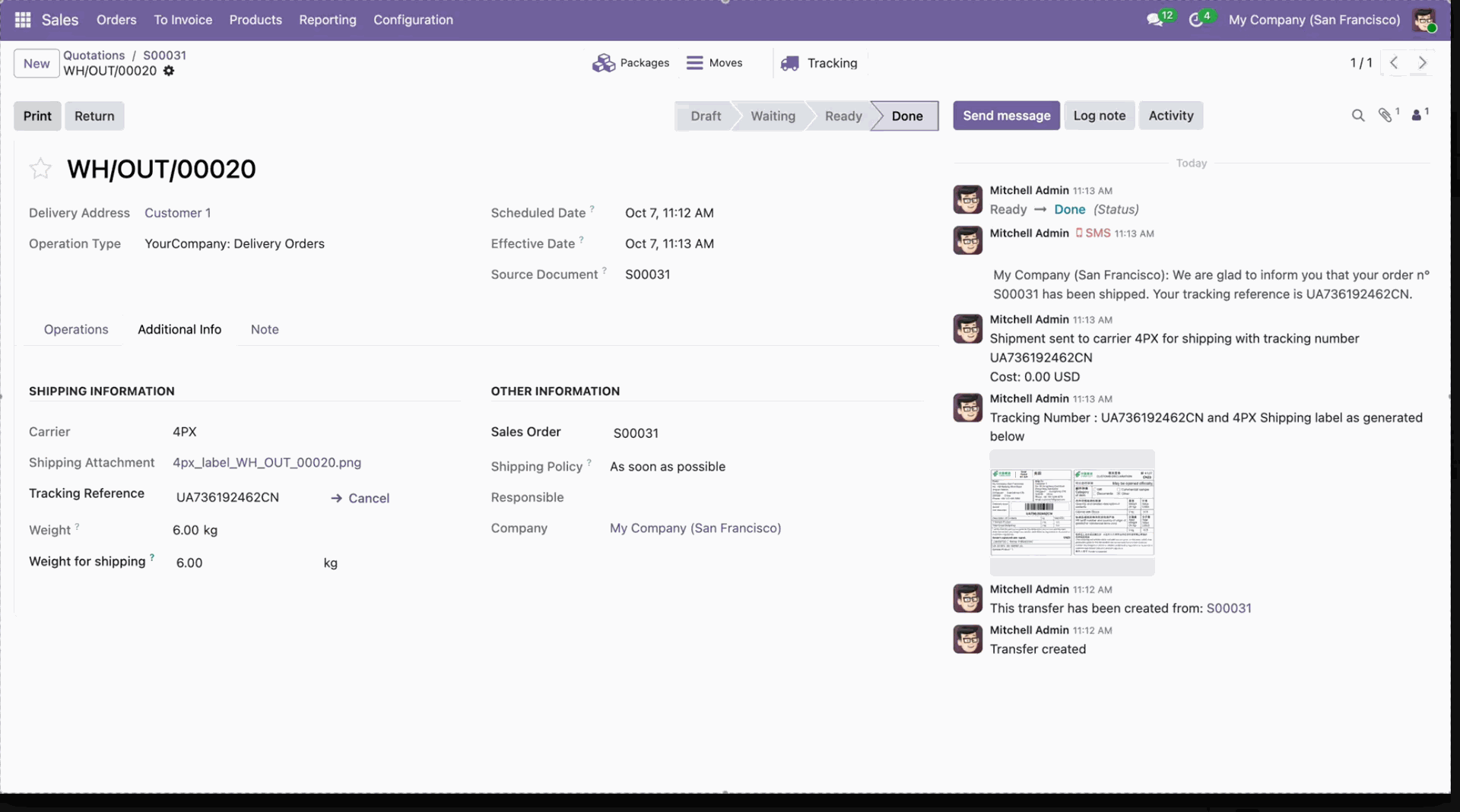
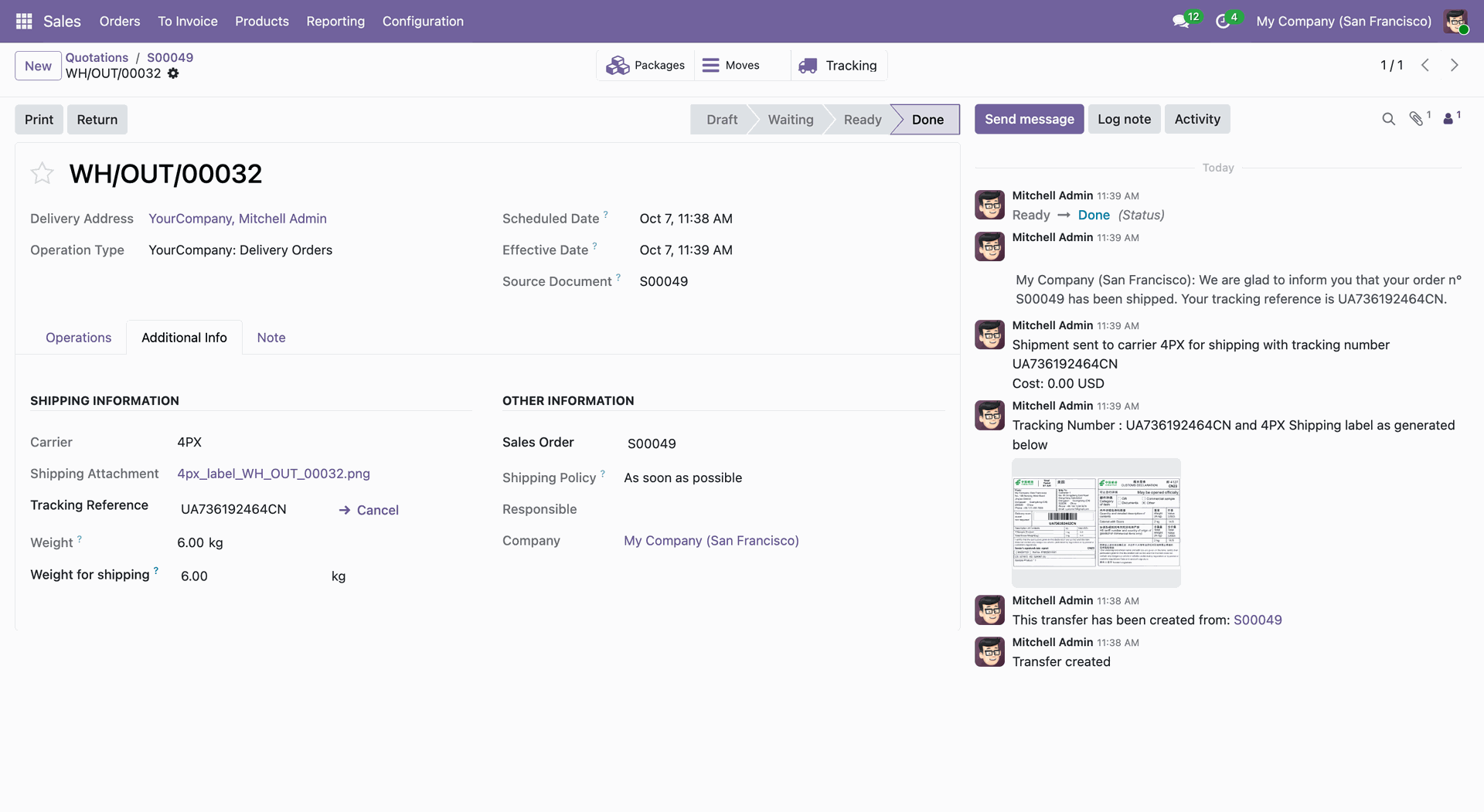
The delivery order with details. It displays the Shipping Information under the Additional Info tab after generating the label.
Validate delivery order.
The delivery order with details. It displays the Shipping Information under the Additional Info tab after generating the label.
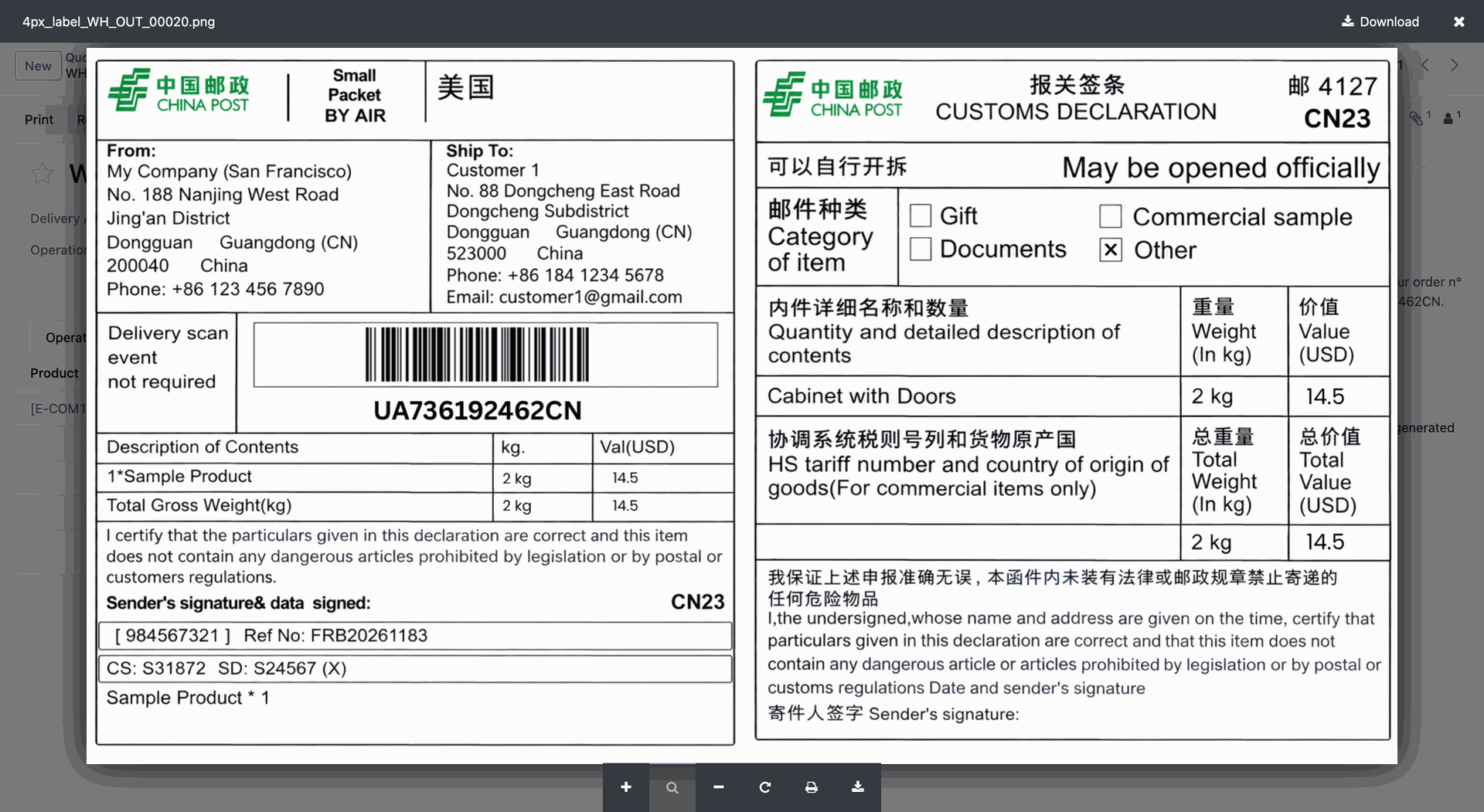
PDF view of the shipping label.
In the log note, it shows that the shipping label was successfully generated, along with a downloadable PDF link.

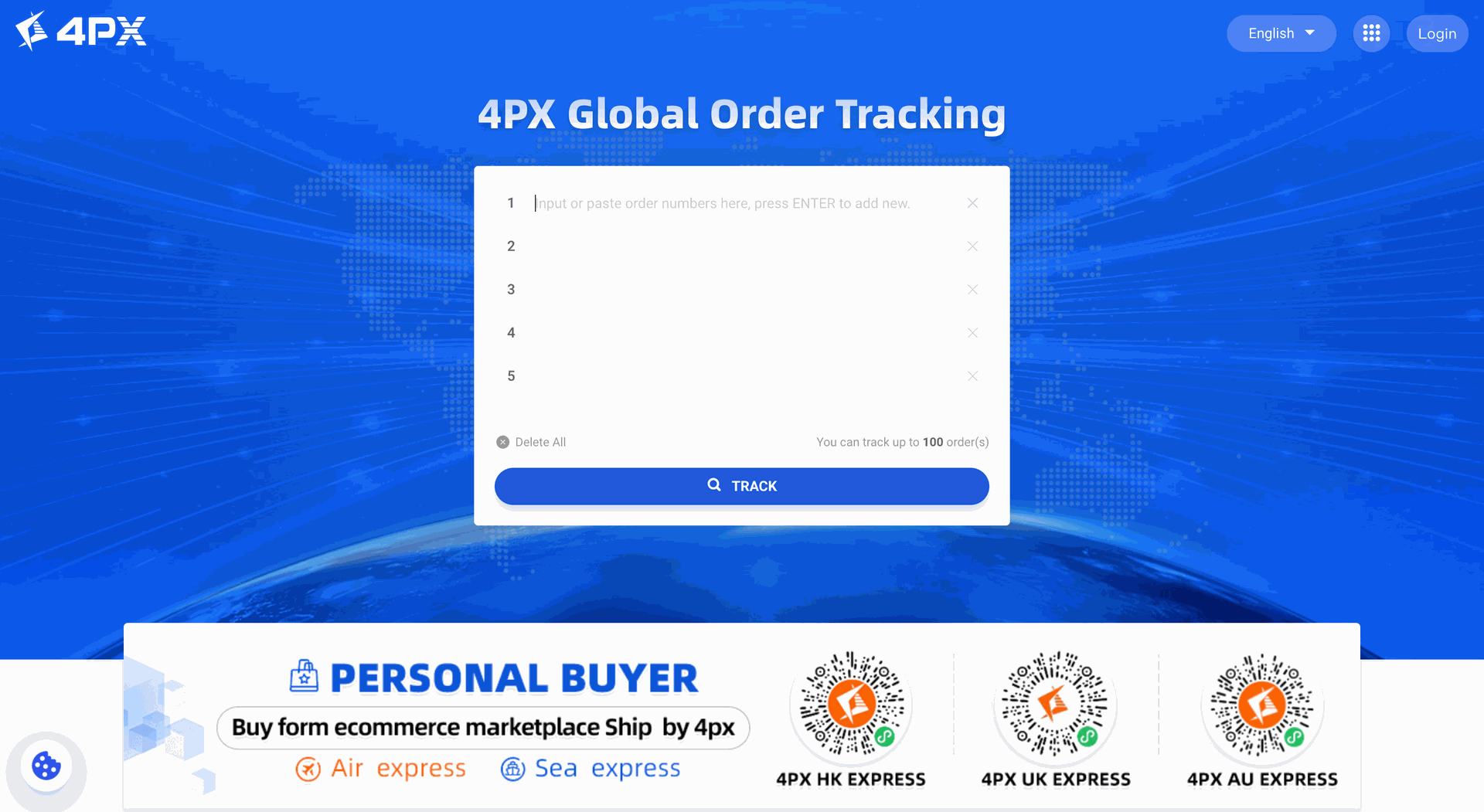
Click on tracking to track the shipment.
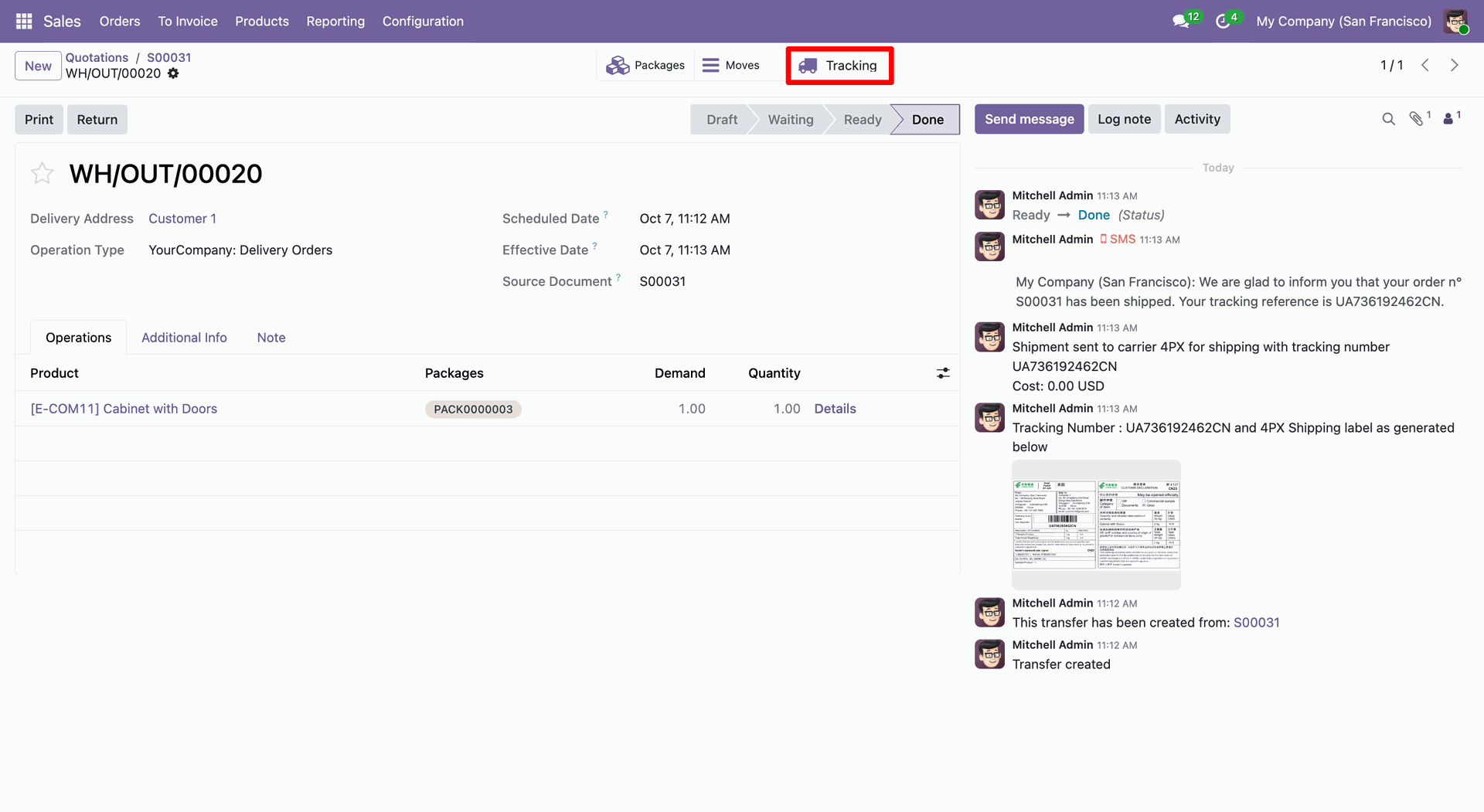
You can track the shipment using the tracking number.
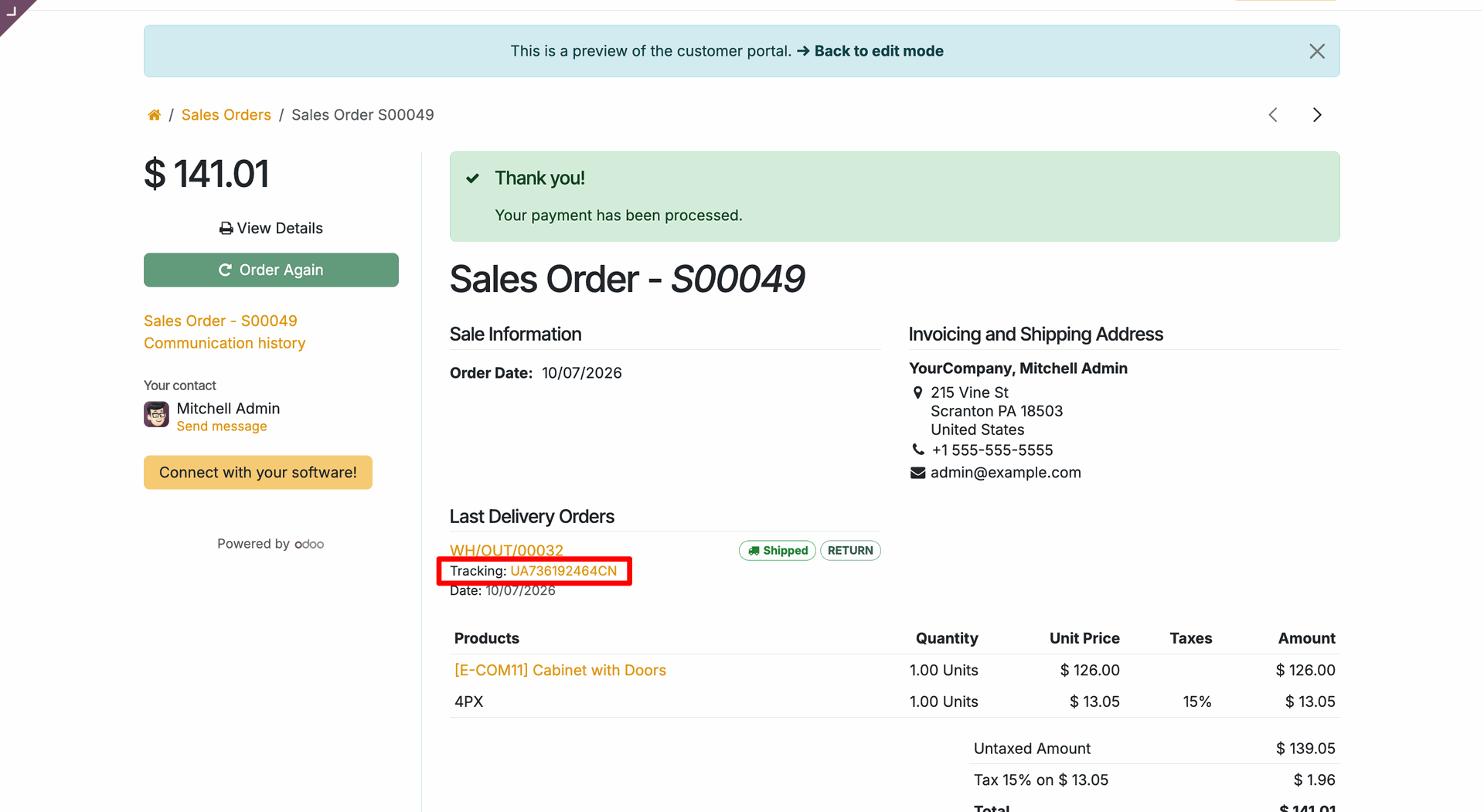
Website order with tracking details.
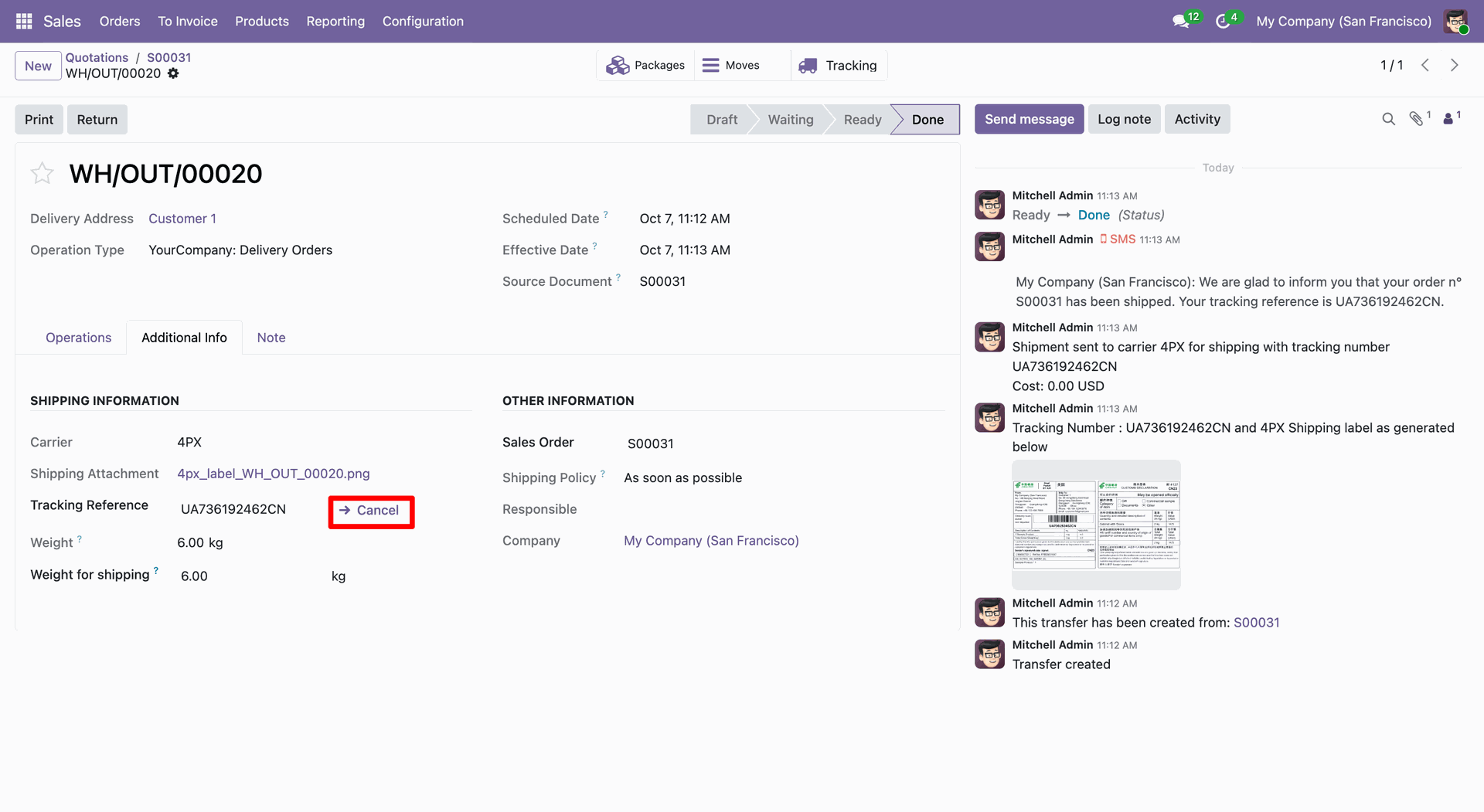
Click "Cancel" to cancel the shipment.
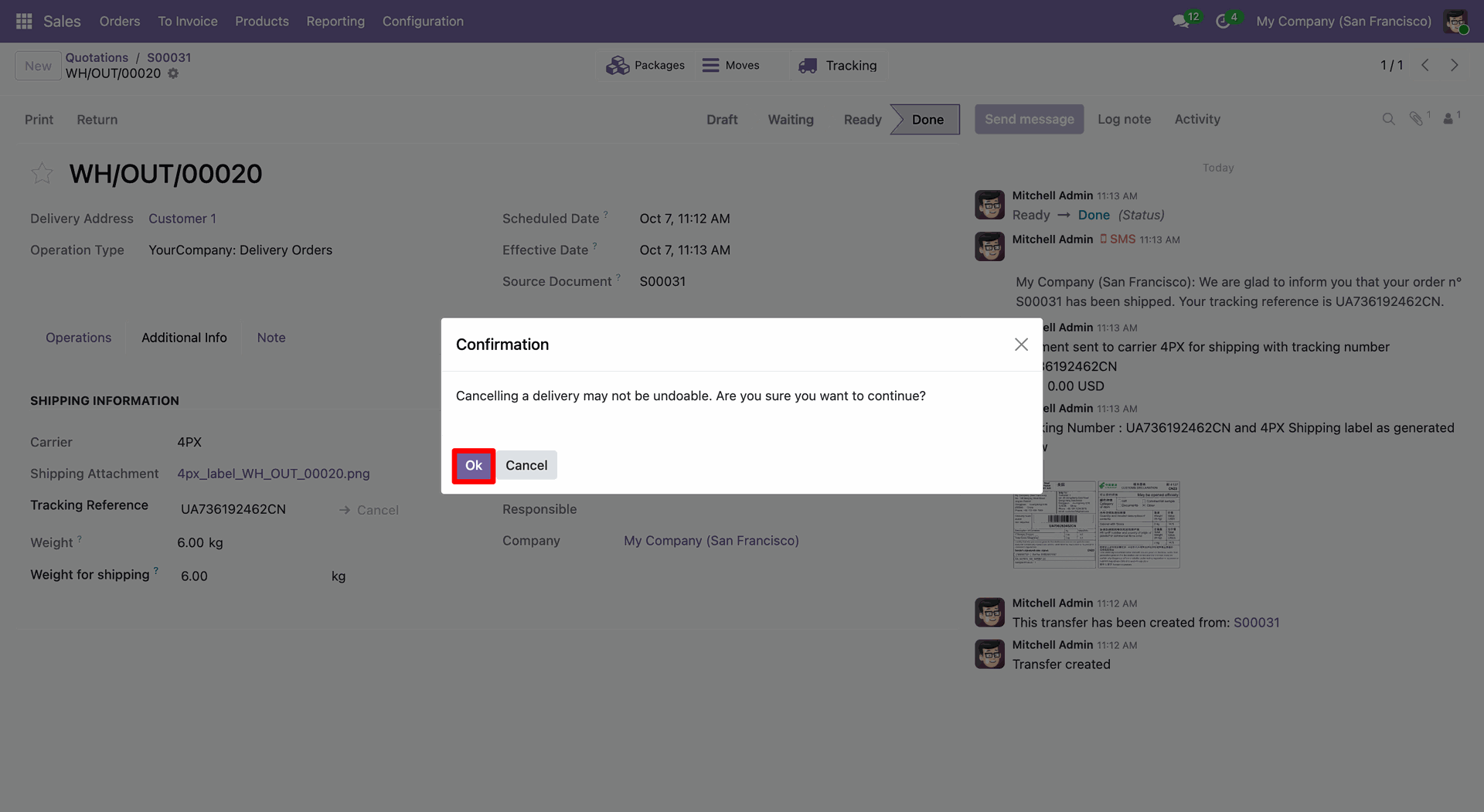
Confirm the cancellation.
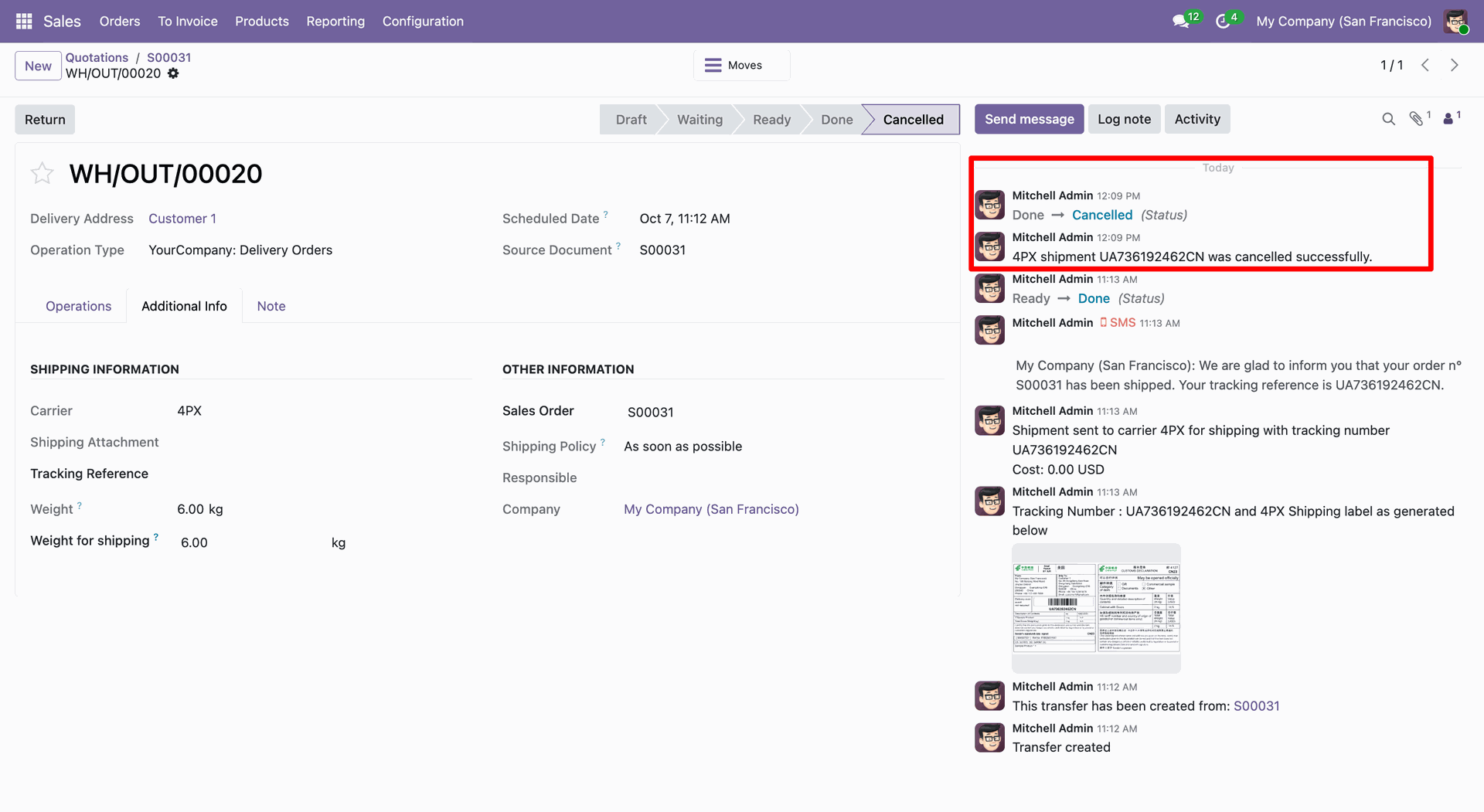
Shipment cancelled with a chatter message.
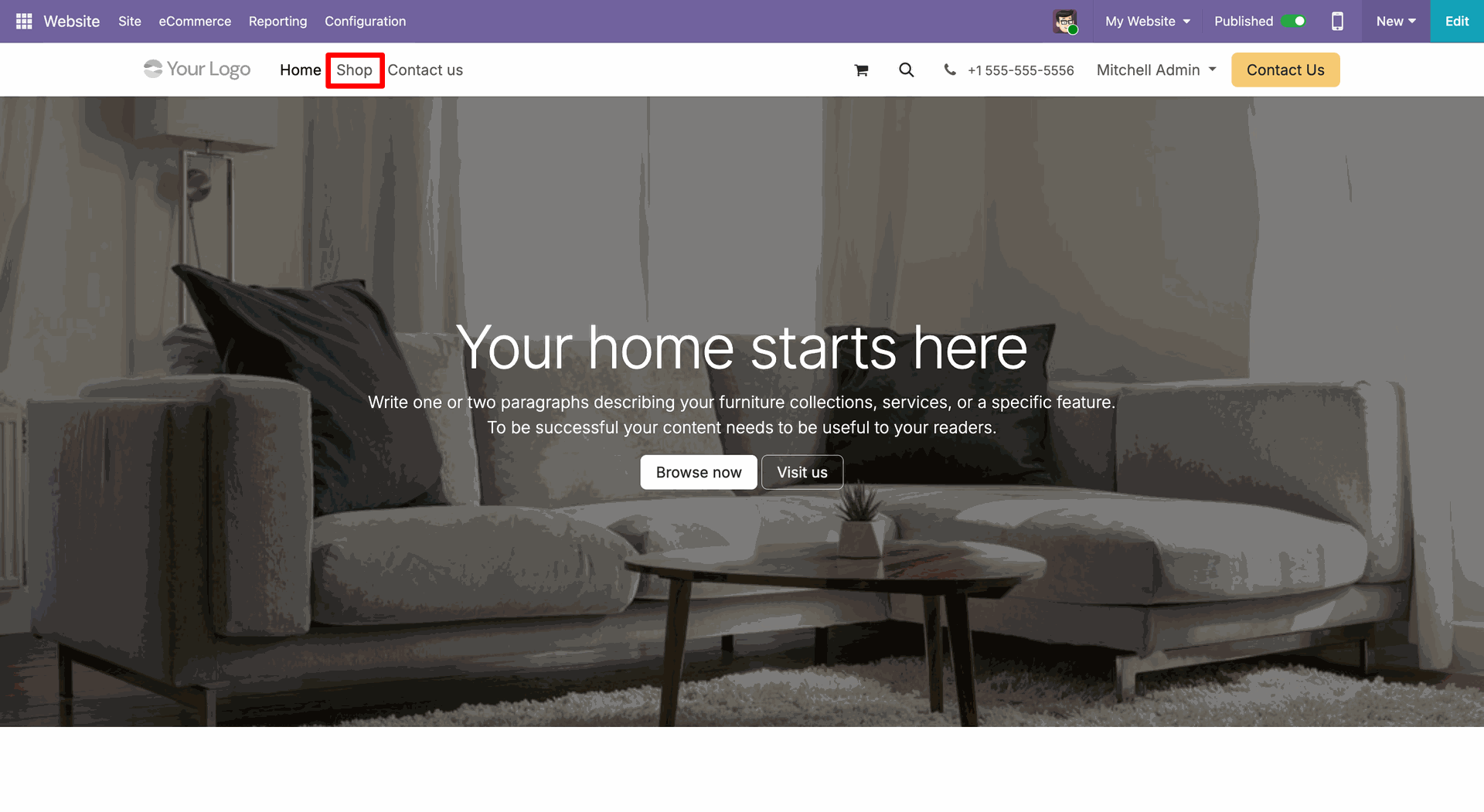
Open the website and click 'Shop'.
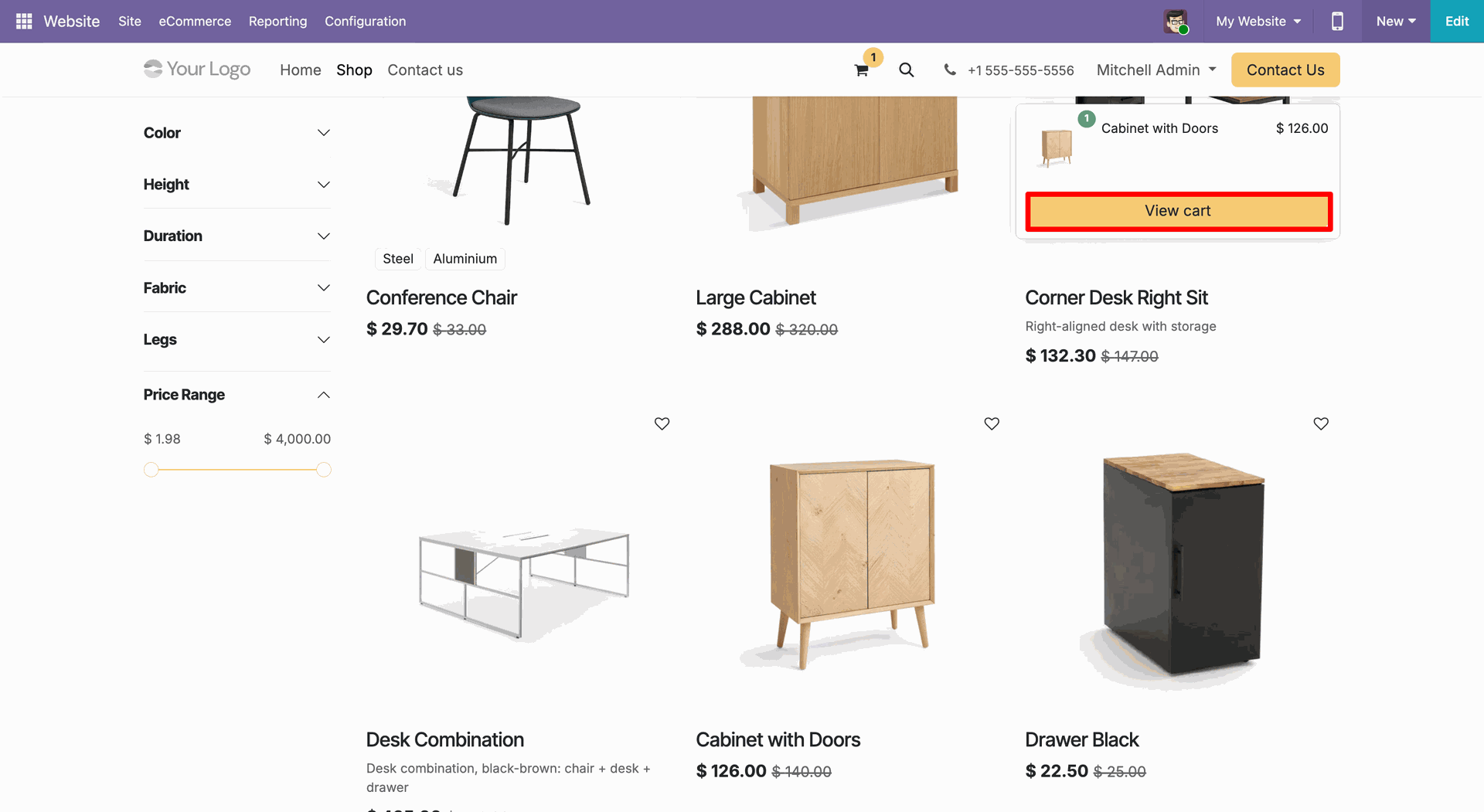
Click 'View Cart' to view the cart.
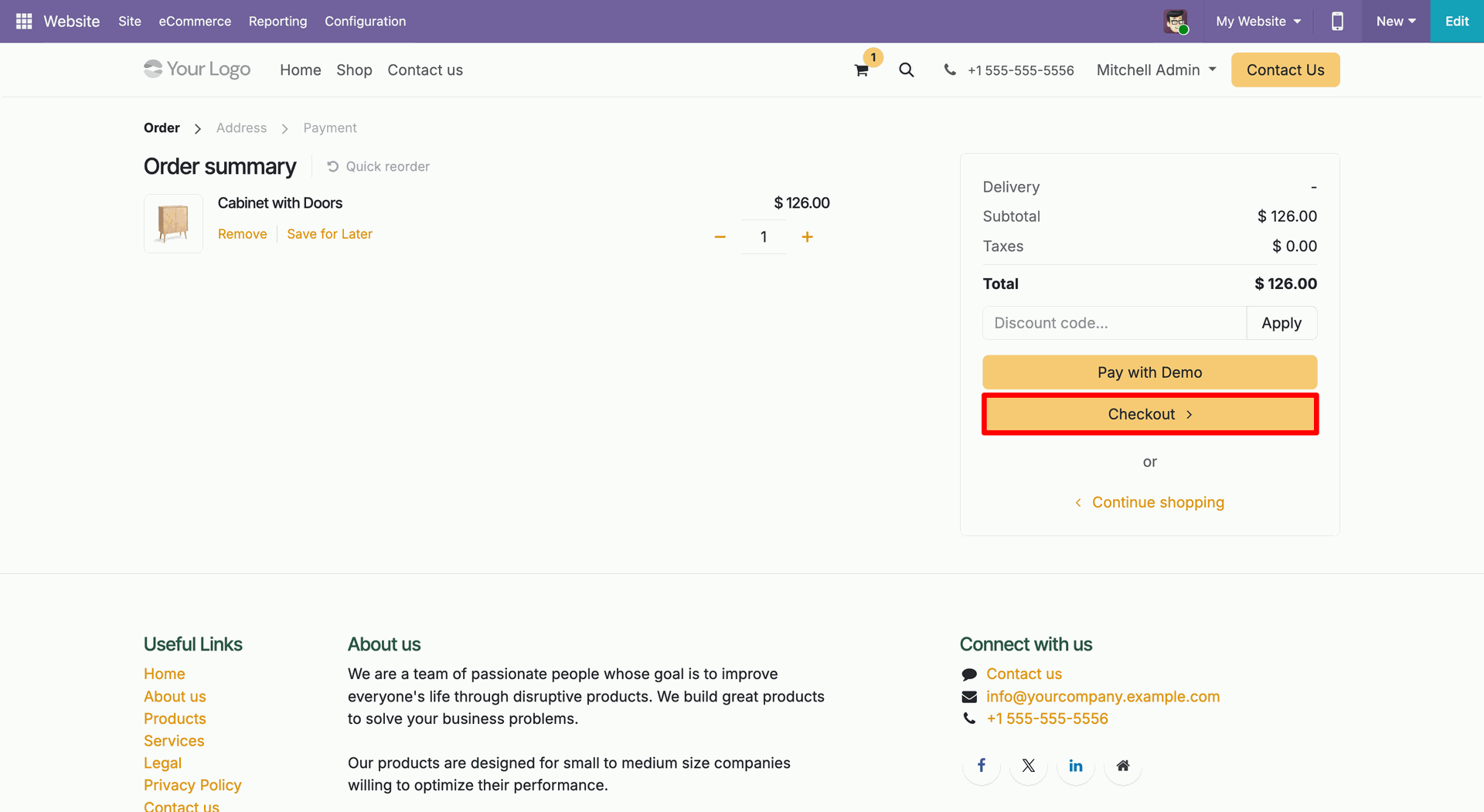
Click on the 'CheckOut' button.
Select the '4PX' delivery method and confirm it.
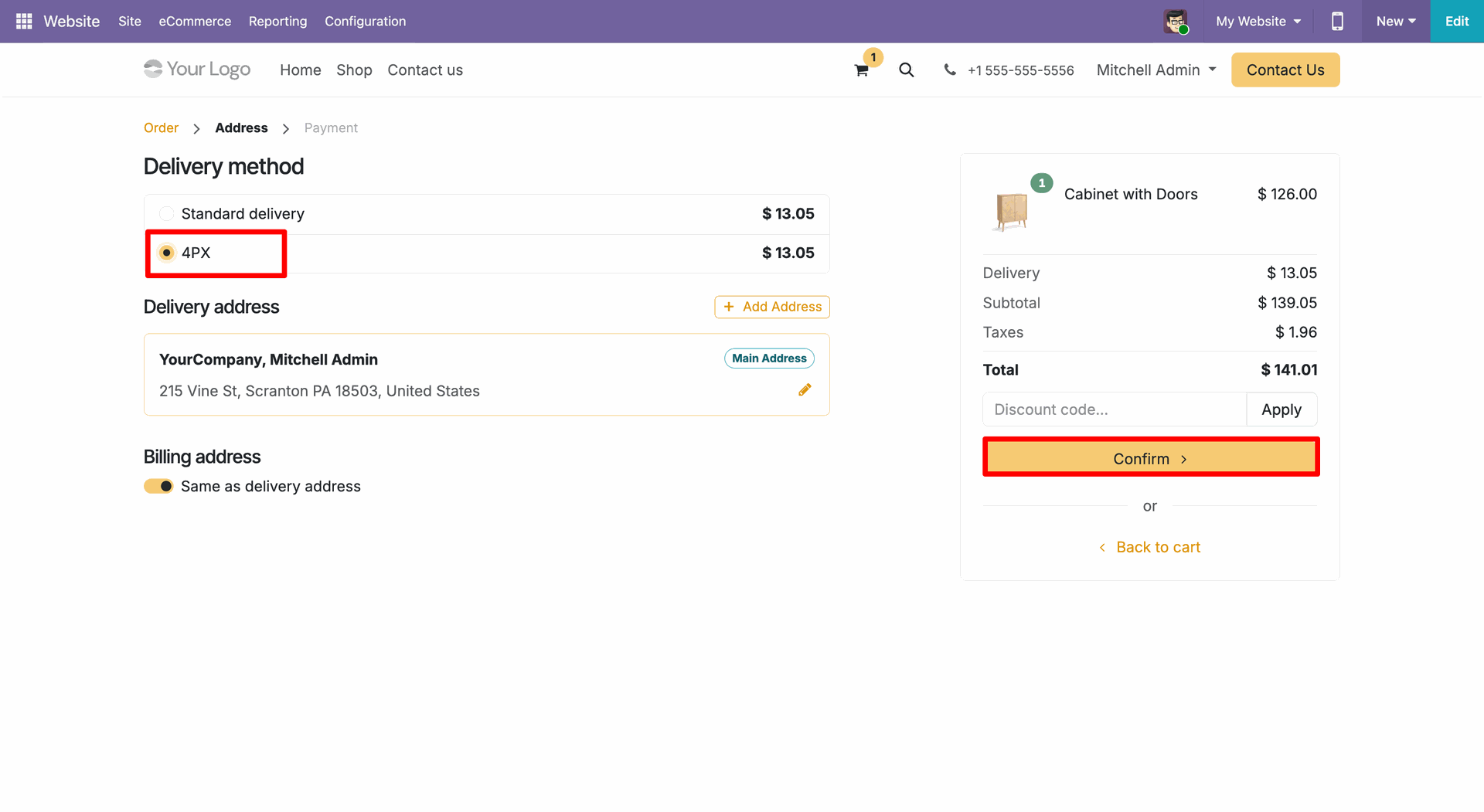
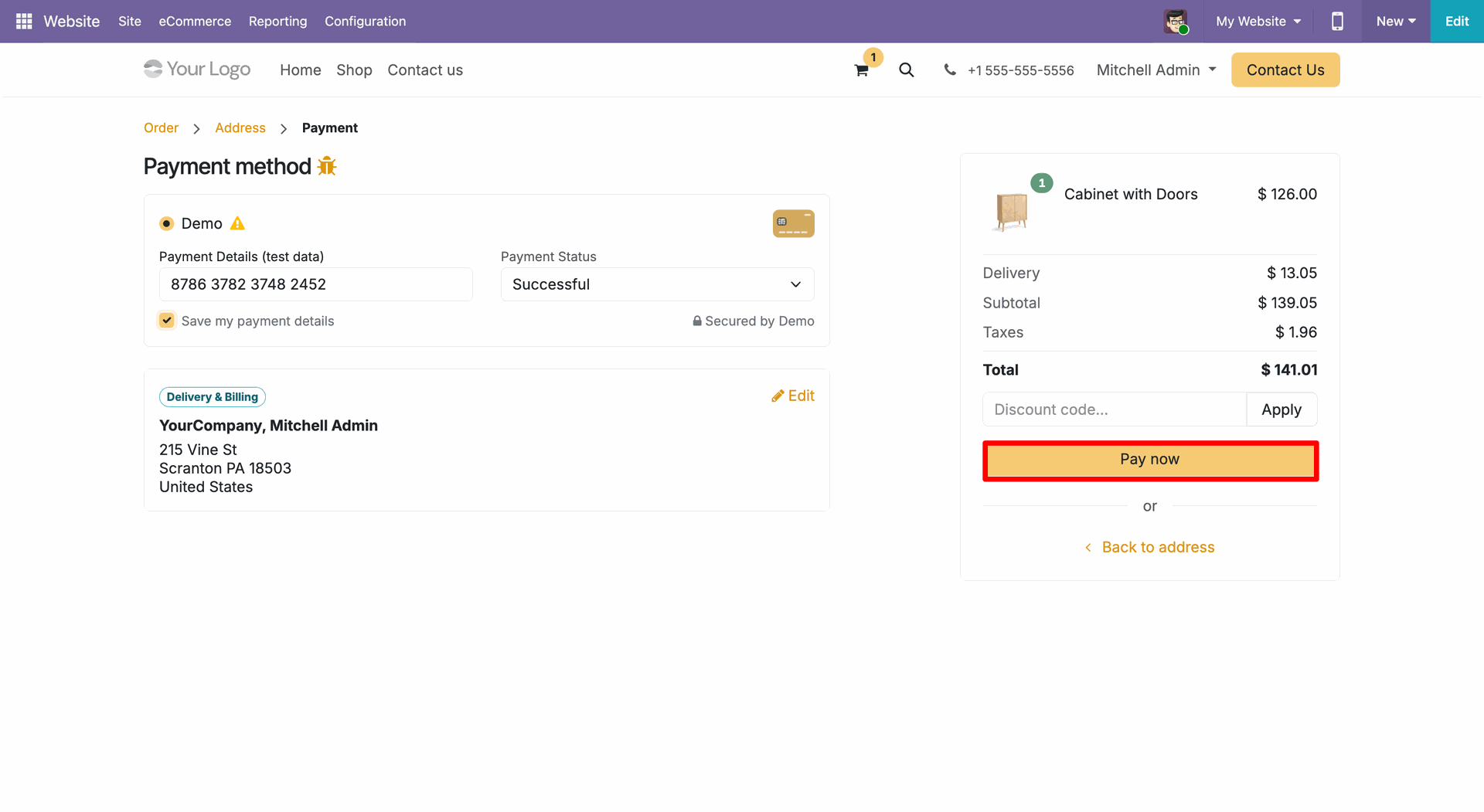
Click 'Pay Now'.
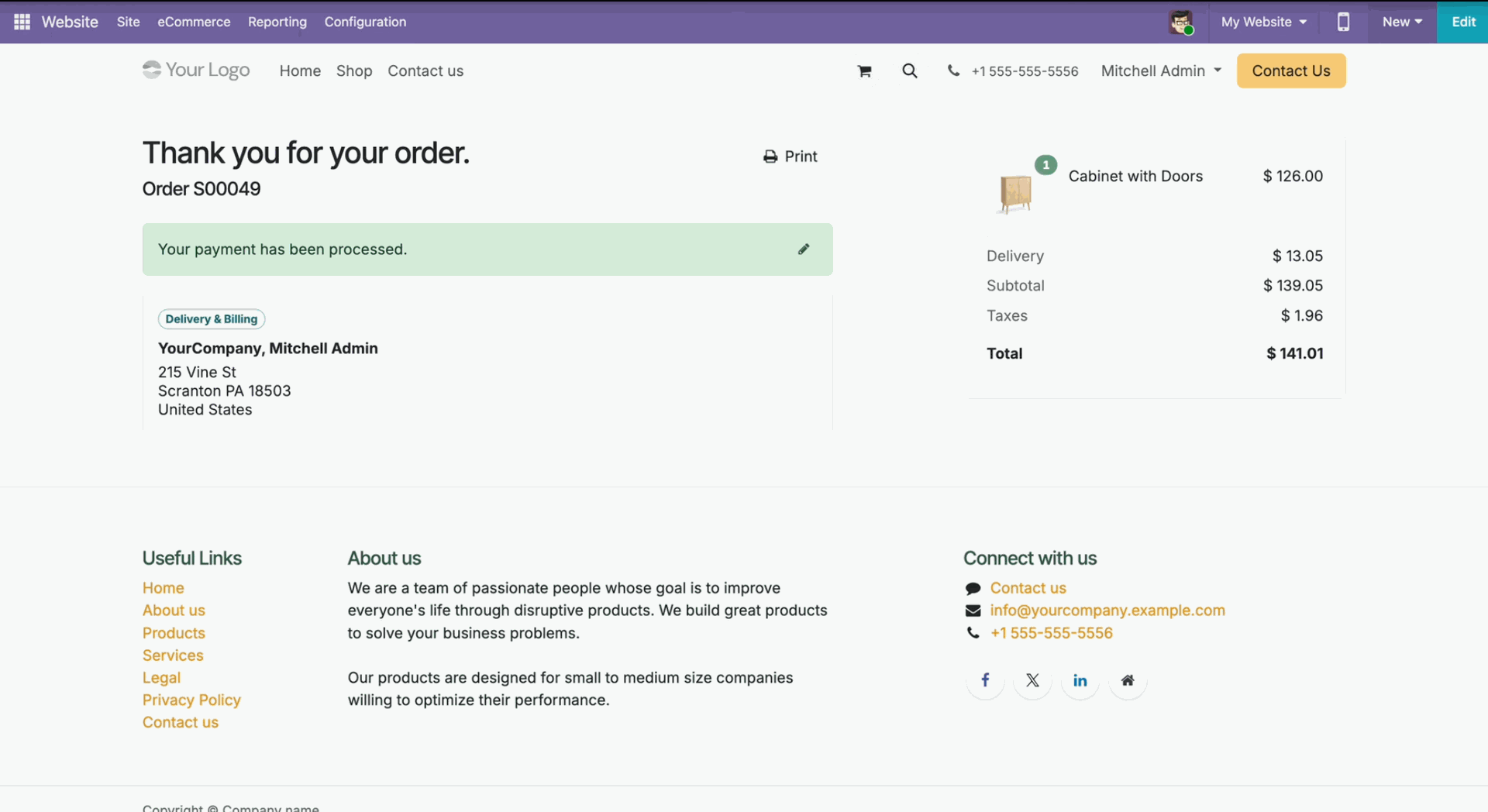
Checkout done successfully.
Validate delivery order.
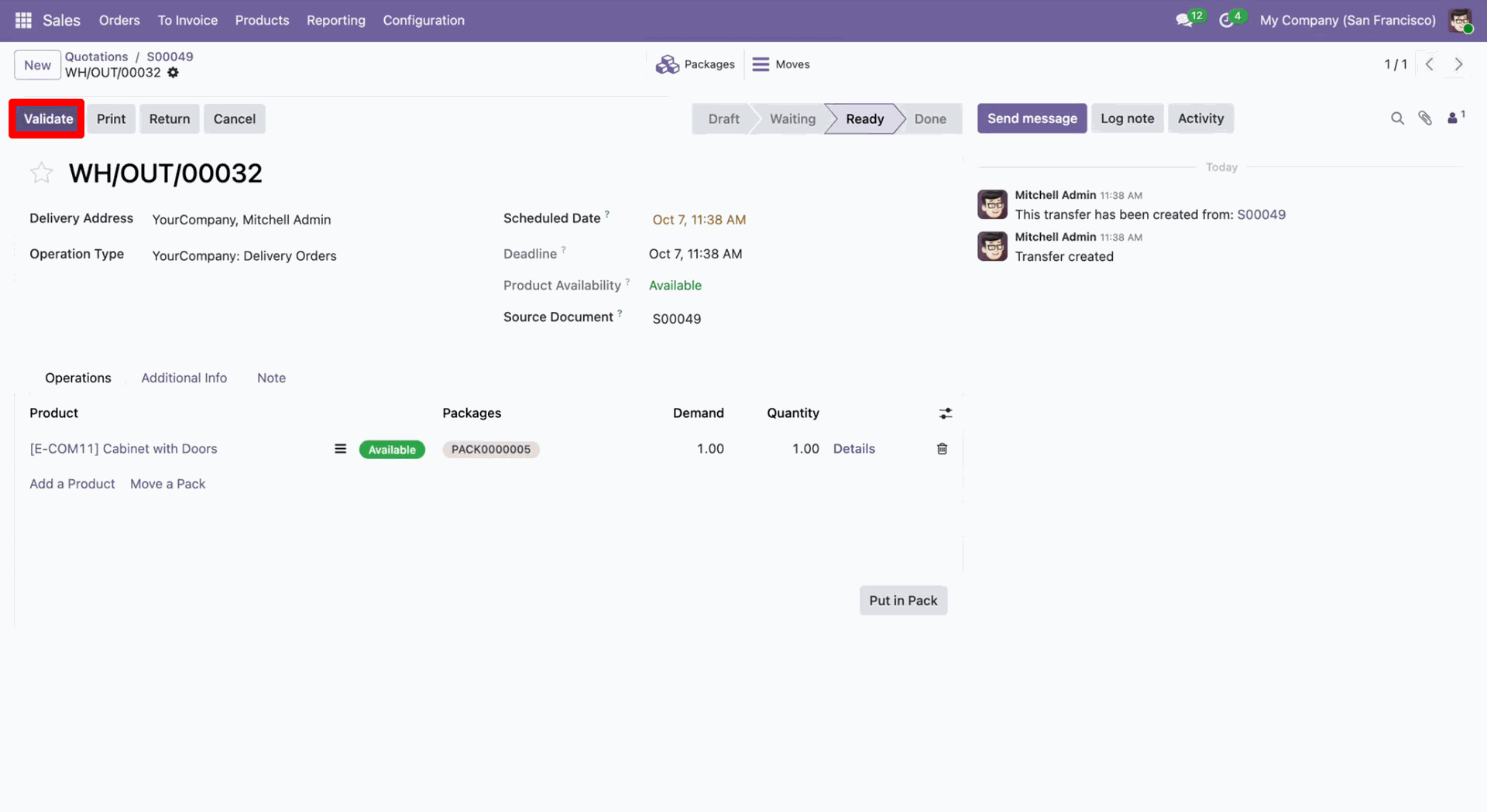
The delivery order with details in the backend. In the log note, it shows that the shipping label was successfully generated, along with a downloadable PDF link.
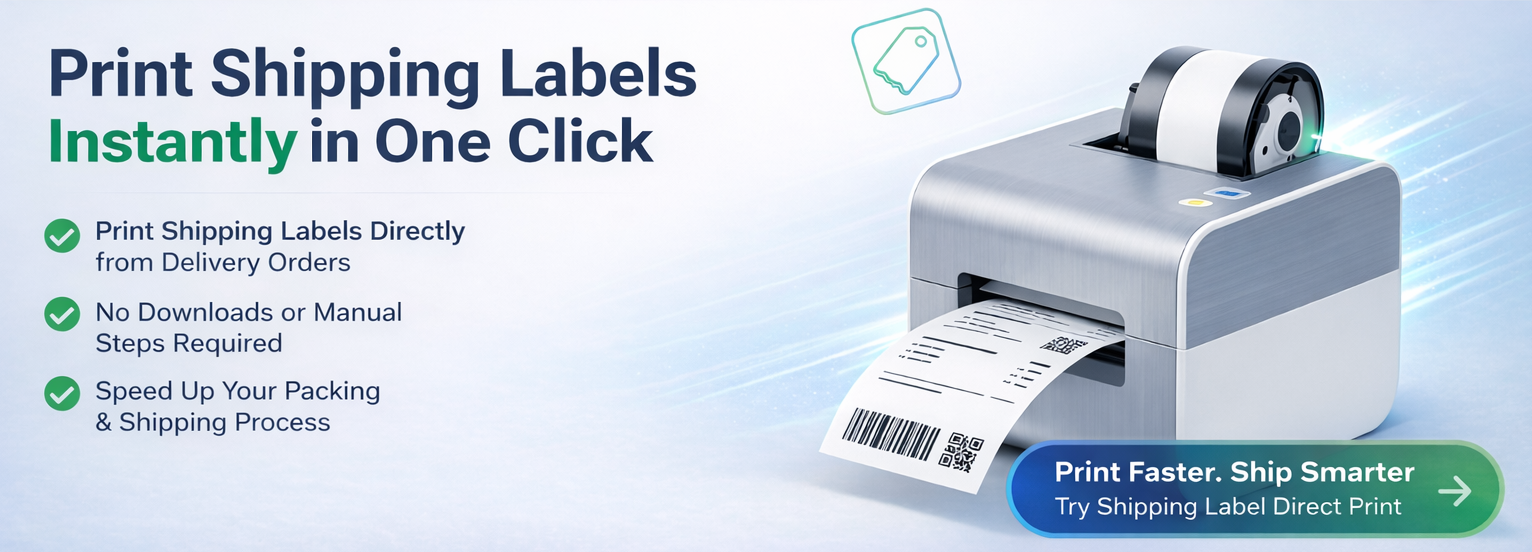
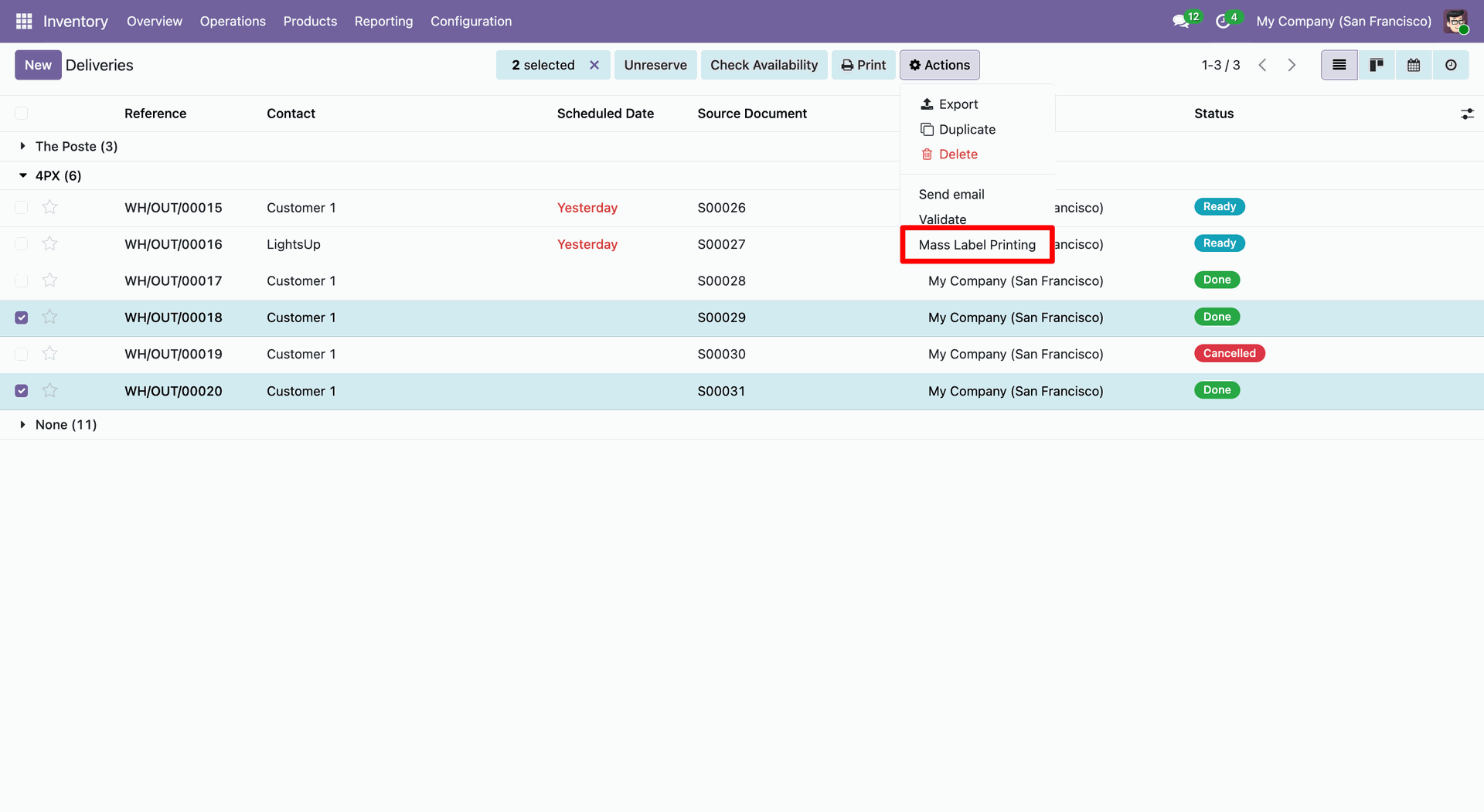
Select deliveries and click Action -> Mass Label Printing.
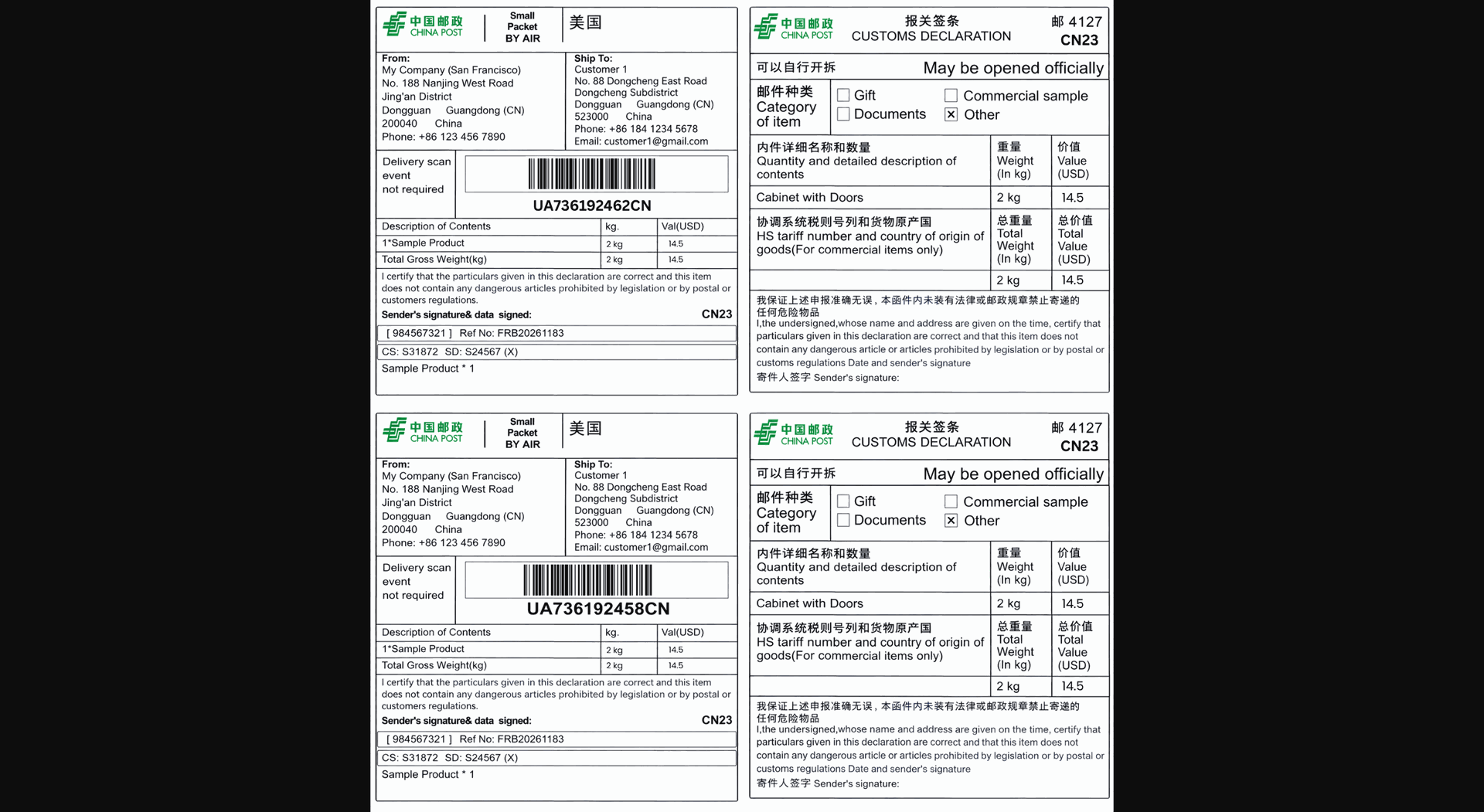
Labels generated.
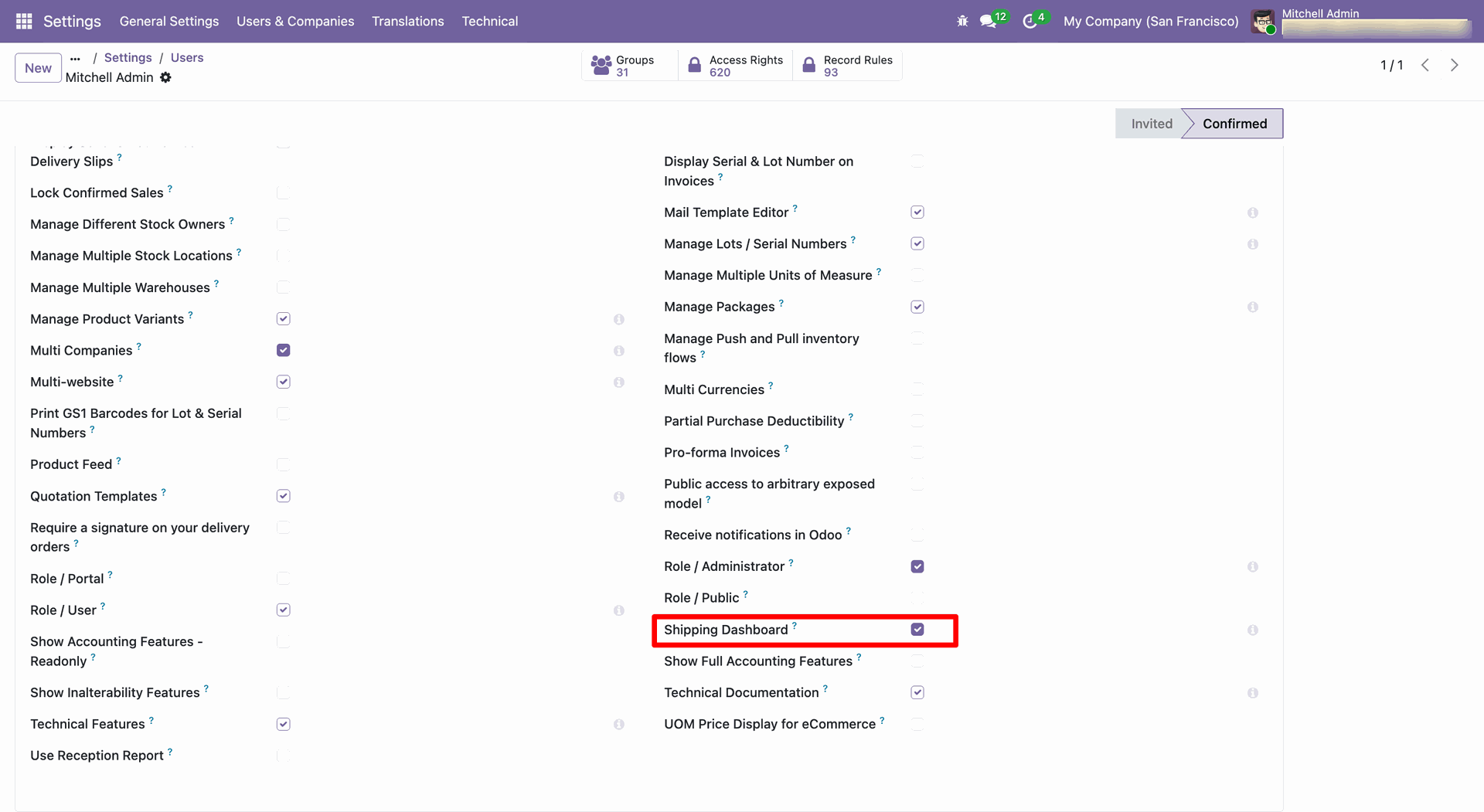
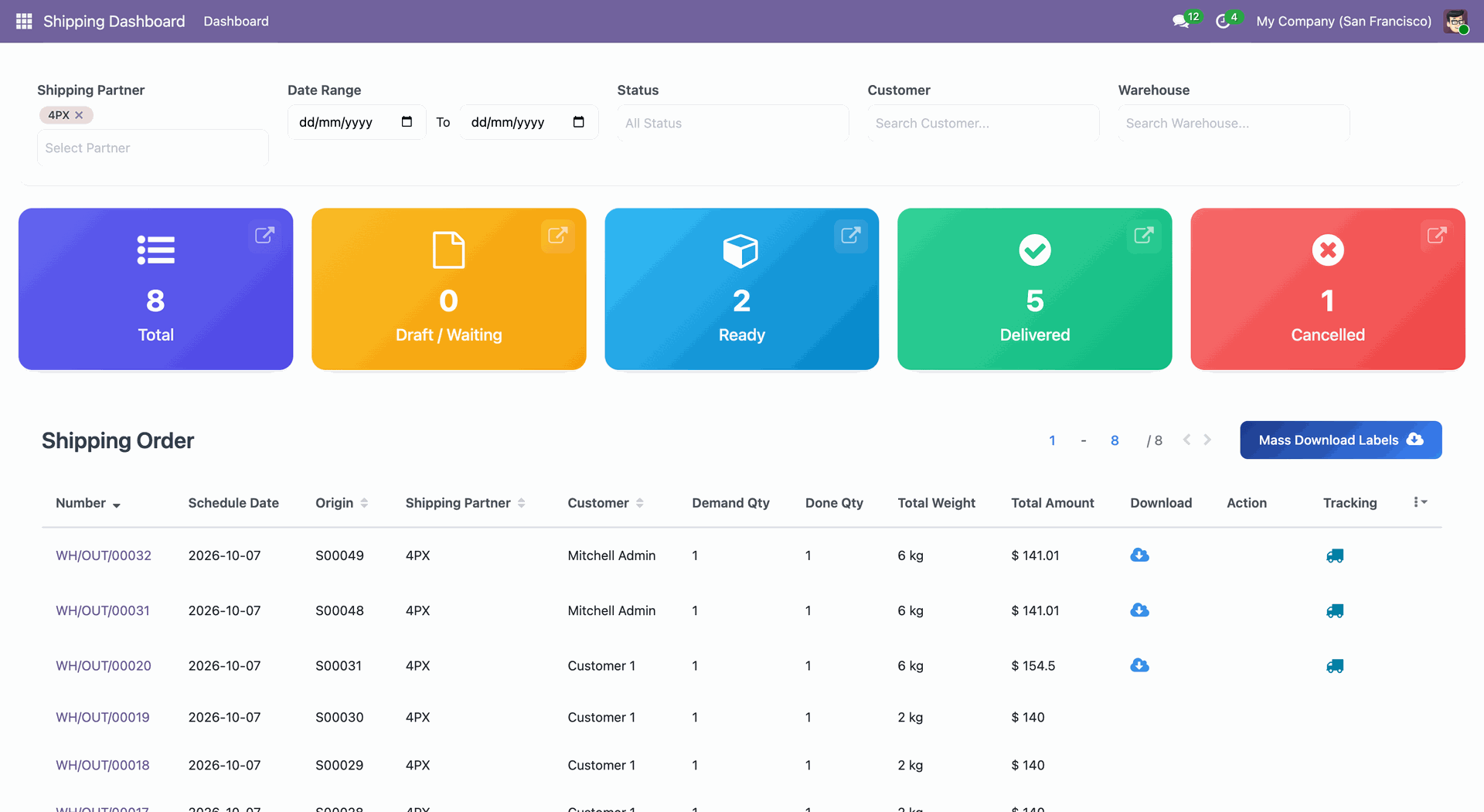
Enable 'Shipping Dashboard'.
Dashboard view.
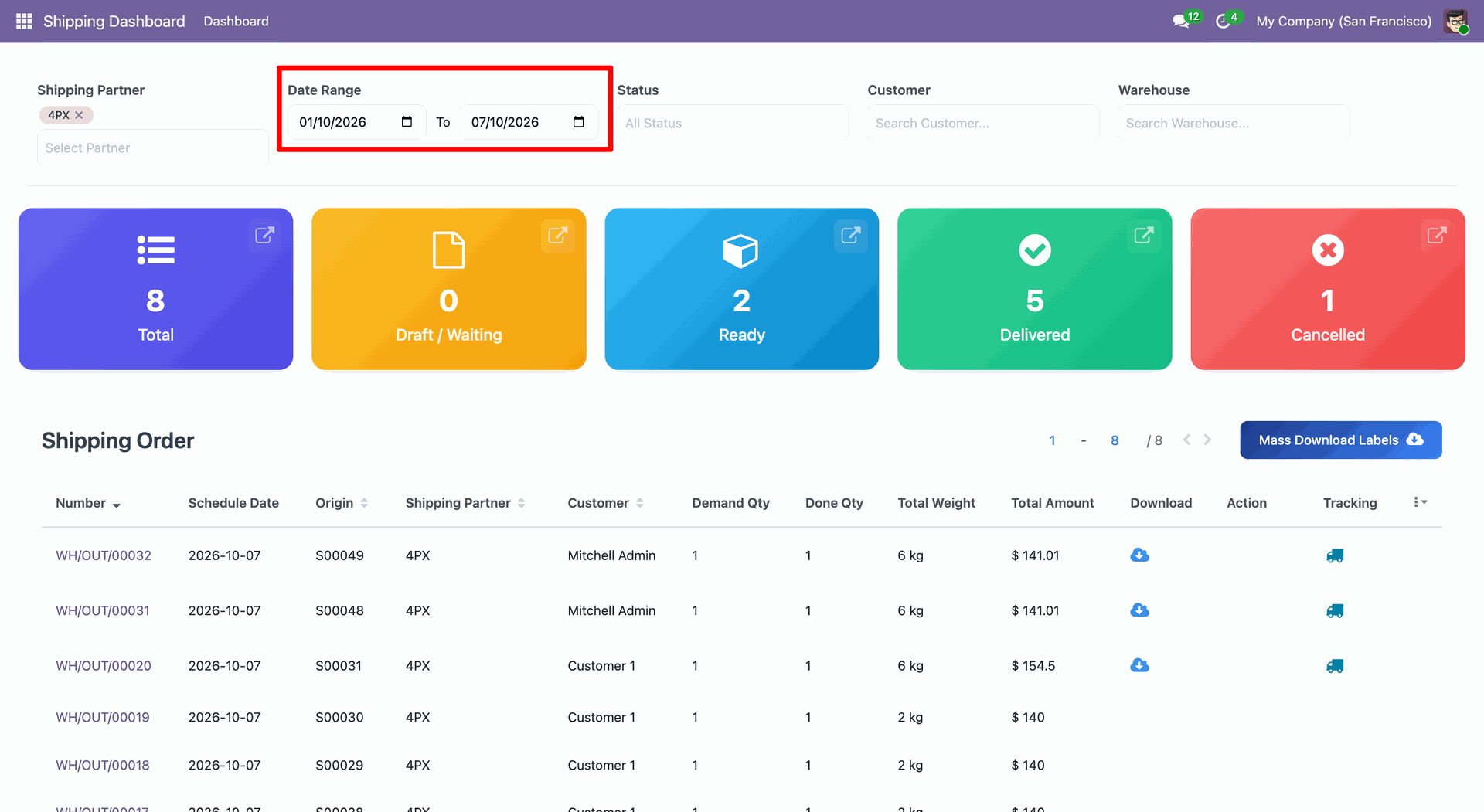
Select shipping date range.
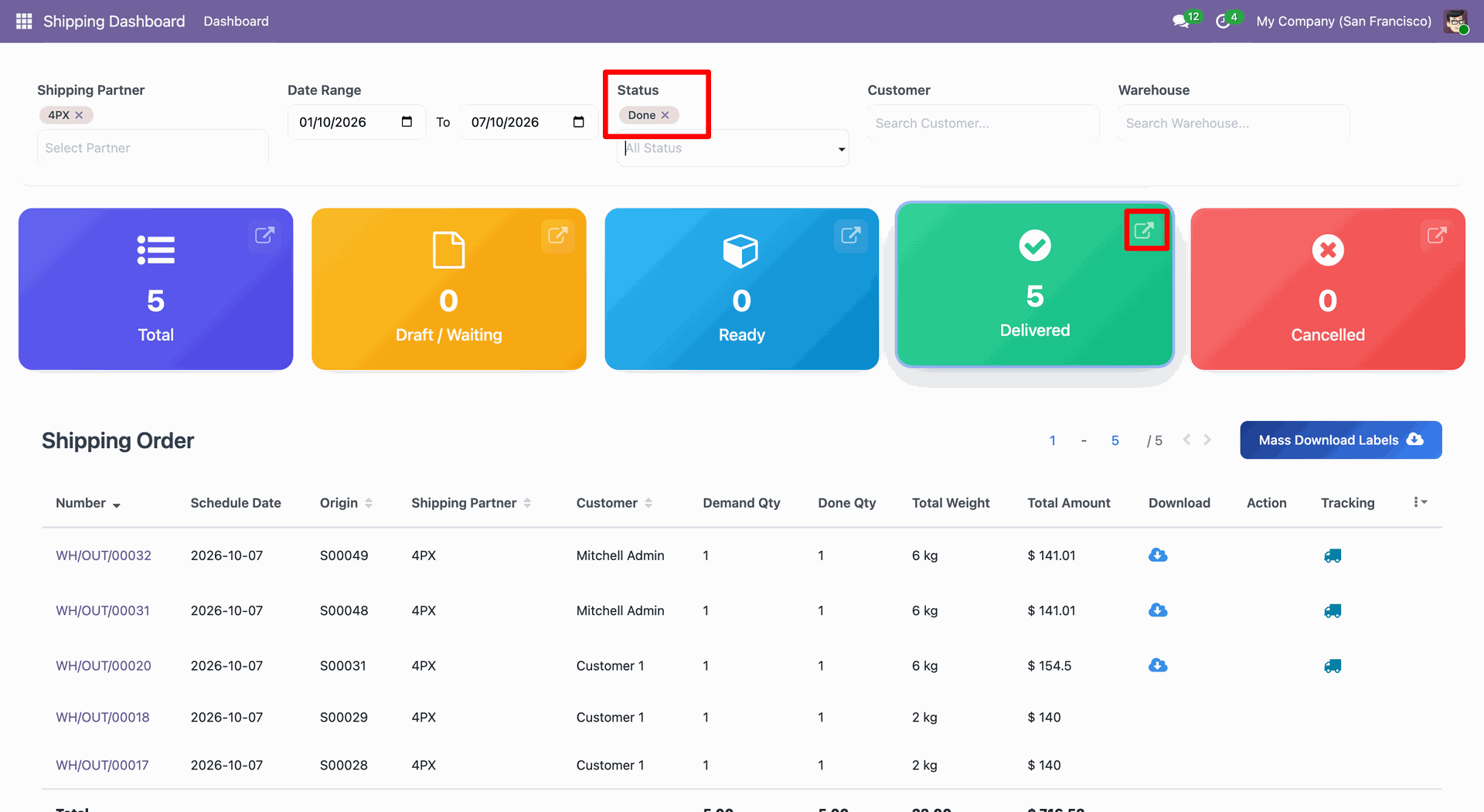
You can select shipping status from the drop-down.
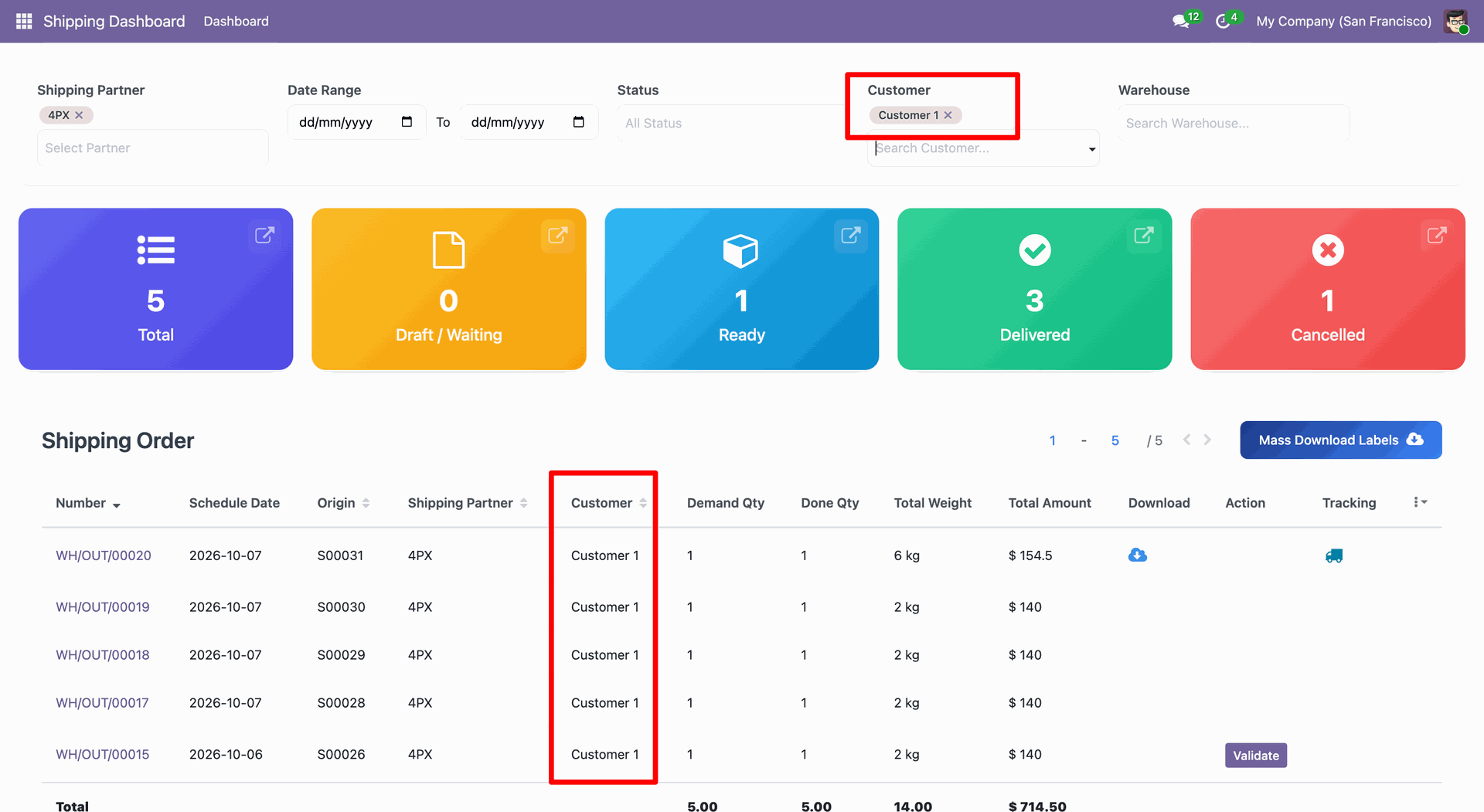
You can select customers from the drop-down.
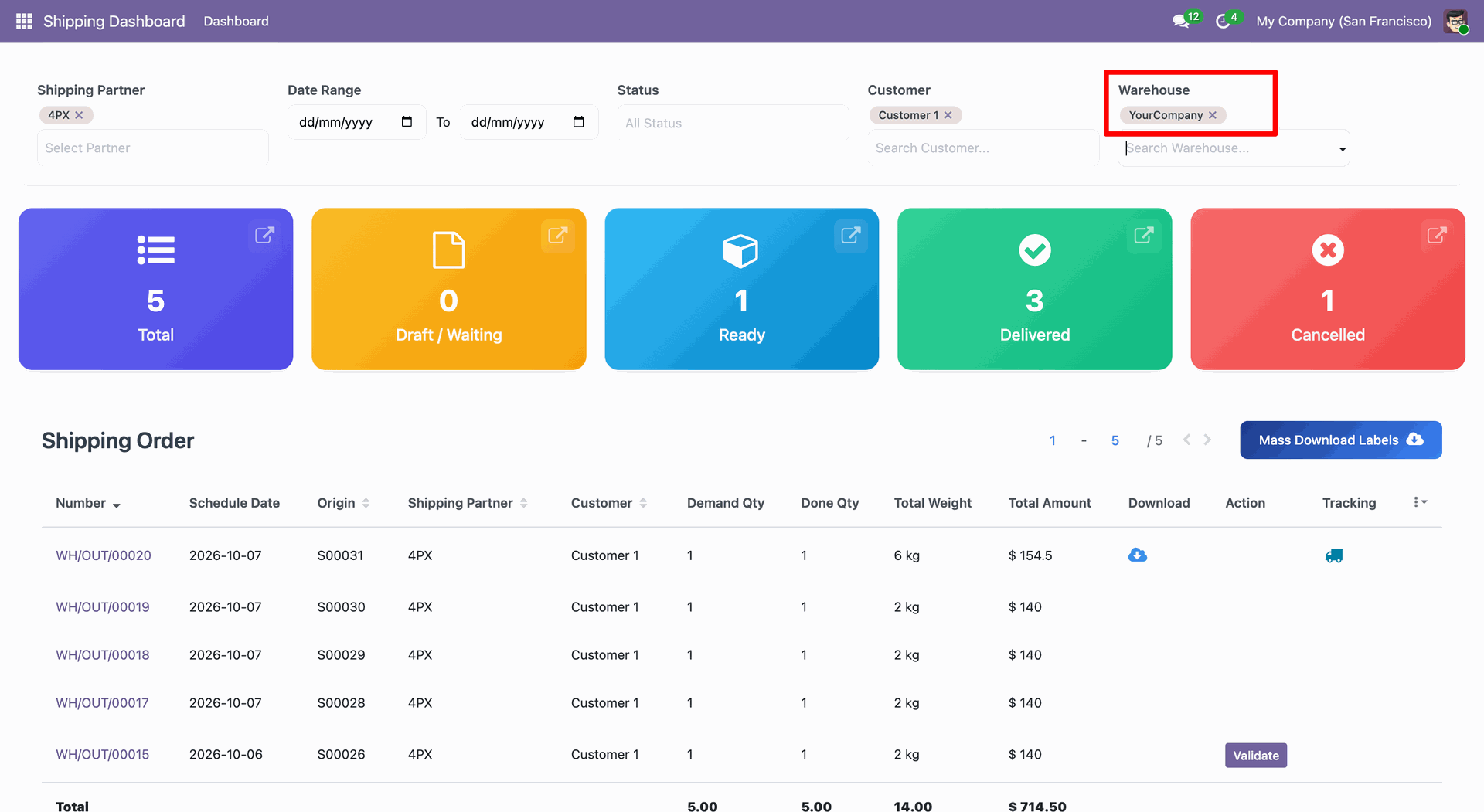
You can select warehouse from the drop-down.
Version 19.0.1.0.0 | Released on : 24th November 2026
- Yes, this app works perfectly with Odoo Enterprise (Odoo.sh & Premise) as well as Community.
- No, this application is not compatible with odoo.com(odoo saas/Odoo Online)
- Yes, to test this module, please contact us at sales@softhealer.com.
- Please contact us at sales@softhealer.comto request customization.
- Yes, we provide free support for 365 days from the date of purchase.
- Yes, you will receive lifetime free updates for the version of the module you purchased.
- No, there is no need to install any additional libraries.
- Yes, for version 12 and above, you need to purchase the module separately for each version you intend to use.
- No, exchanges or refunds are not allowed. Please make sure to select the correct version before purchasing.
- You can contact us at support@softhealer.com for language translation support. We use Google Translator tools to provide translations in multiple languages, so the accuracy may vary. We welcome your suggestions to help improve translations.
